
Key Metrics On Salon Dashboard

This tutorial guides you through exploring essential metrics on the Salon Dashboard


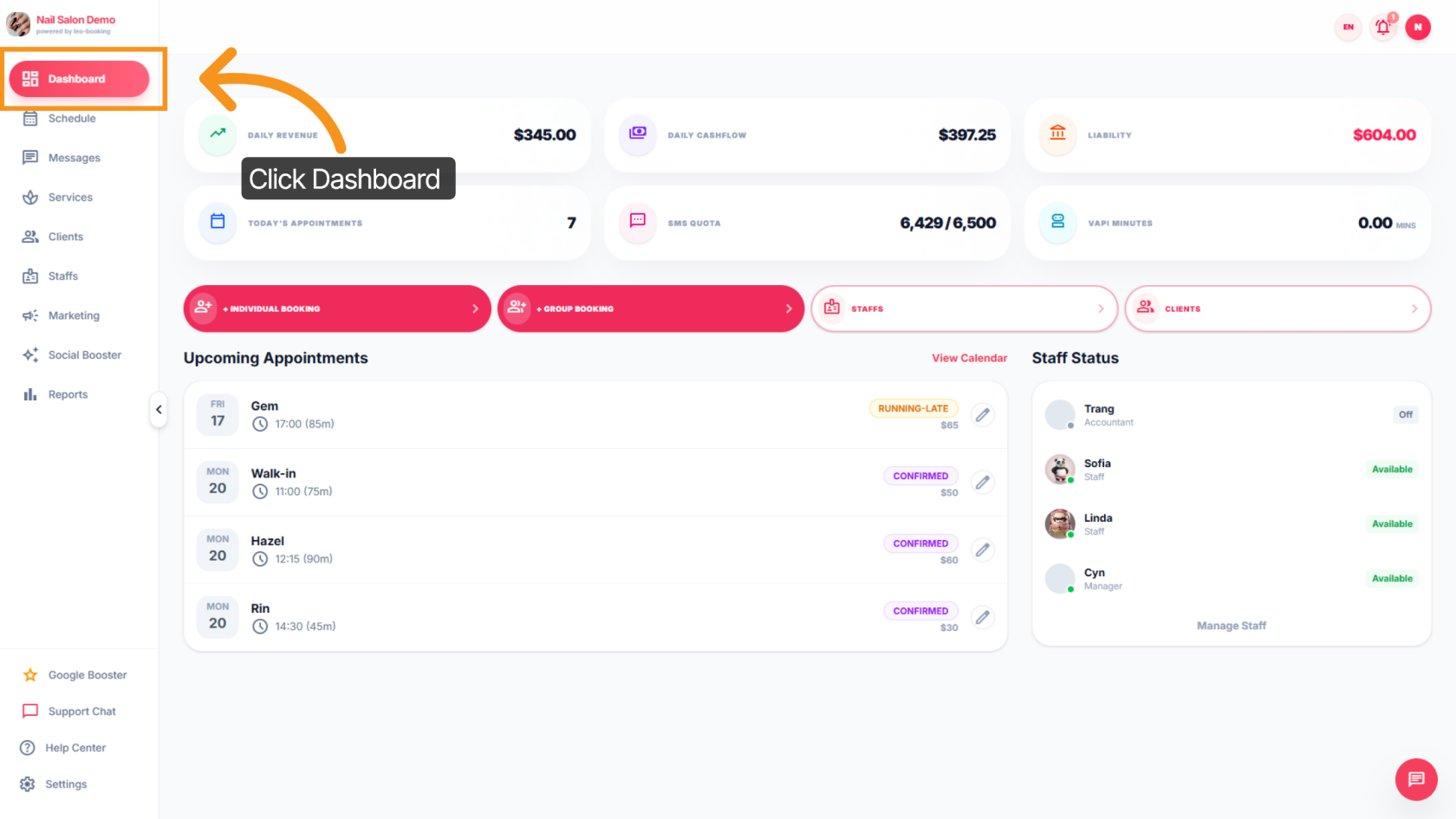
1. Access Salon Dashboard

Click the Dashboard to open the main overview of Dashboard. You will learn how to quickly preview your salon’s performance.
imgi_7_quickguiddeScreenshots%2FpXhdWFGosxYyO6gtaj51Acluowc2%2F9Rnb4Yv8kTeX6G2LmZHZ5f%2Fgt8NbuPQn1fr5KoBsnzVBj_doc.pngimgi_7_quickguiddeScreenshots%2FpXhdWFGosxYyO6gtaj51Acluowc2%2FdgQ5BnmQ3zk8VwhbotMAei%2F7Bh2kdBGgyQbMgmps9aevA_doc.png

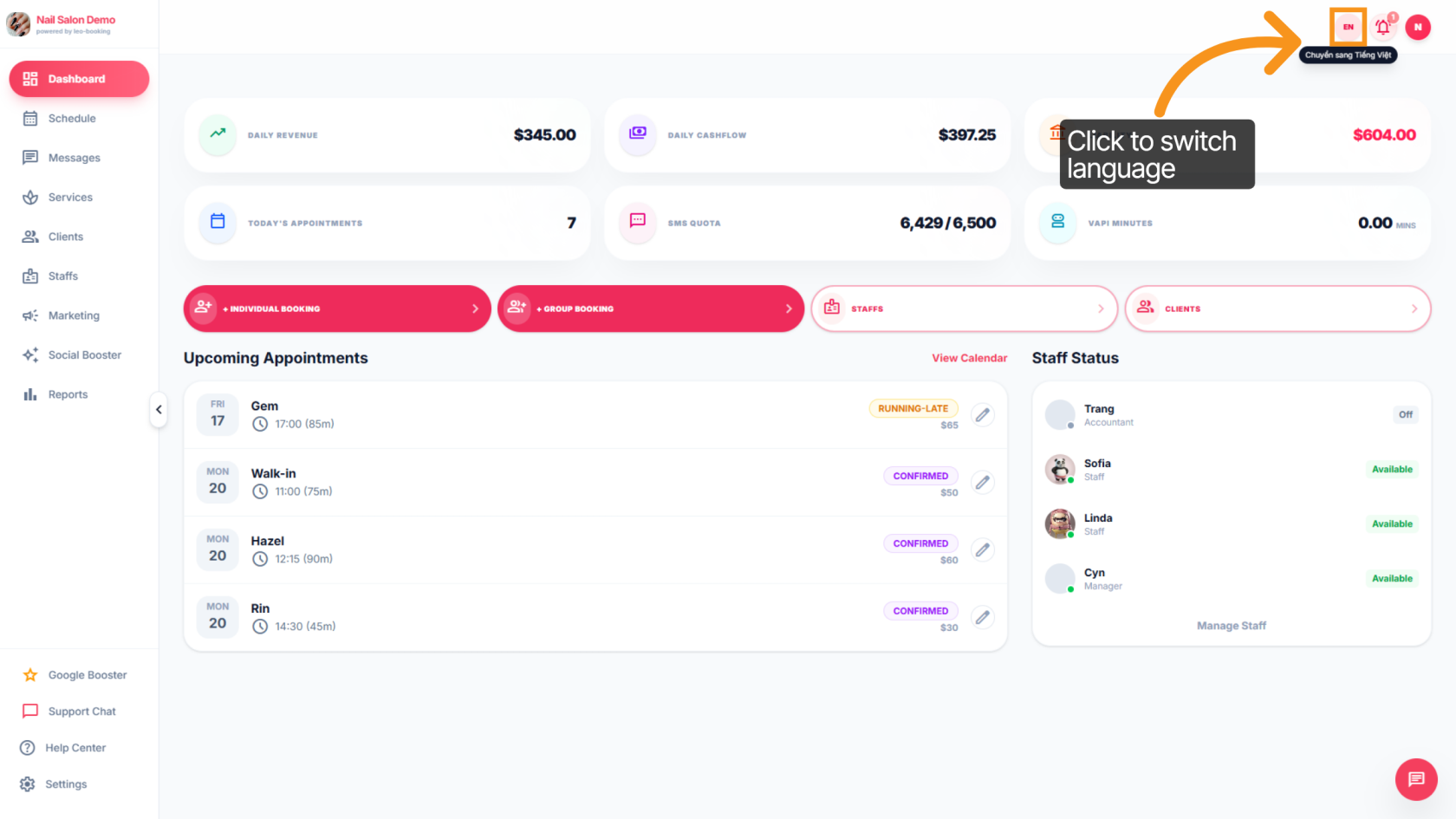
2. Switch Interface Language

To change language, click EN or VI to switch the platform language to English or VietnameseVietnamese.
imgi_8_quickguiddeScreenshots%2FpXhdWFGosxYyO6gtaj51Acluowc2%2F9Rnb4Yv8kTeX6G2LmZHZ5f%2FnEAUR91GBBPCnSEo2eP11N_doc.pngimgi_8_quickguiddeScreenshots%2FpXhdWFGosxYyO6gtaj51Acluowc2%2FdgQ5BnmQ3zk8VwhbotMAei%2FpJtCnVqzhtNJuumxb9sPie_doc.png

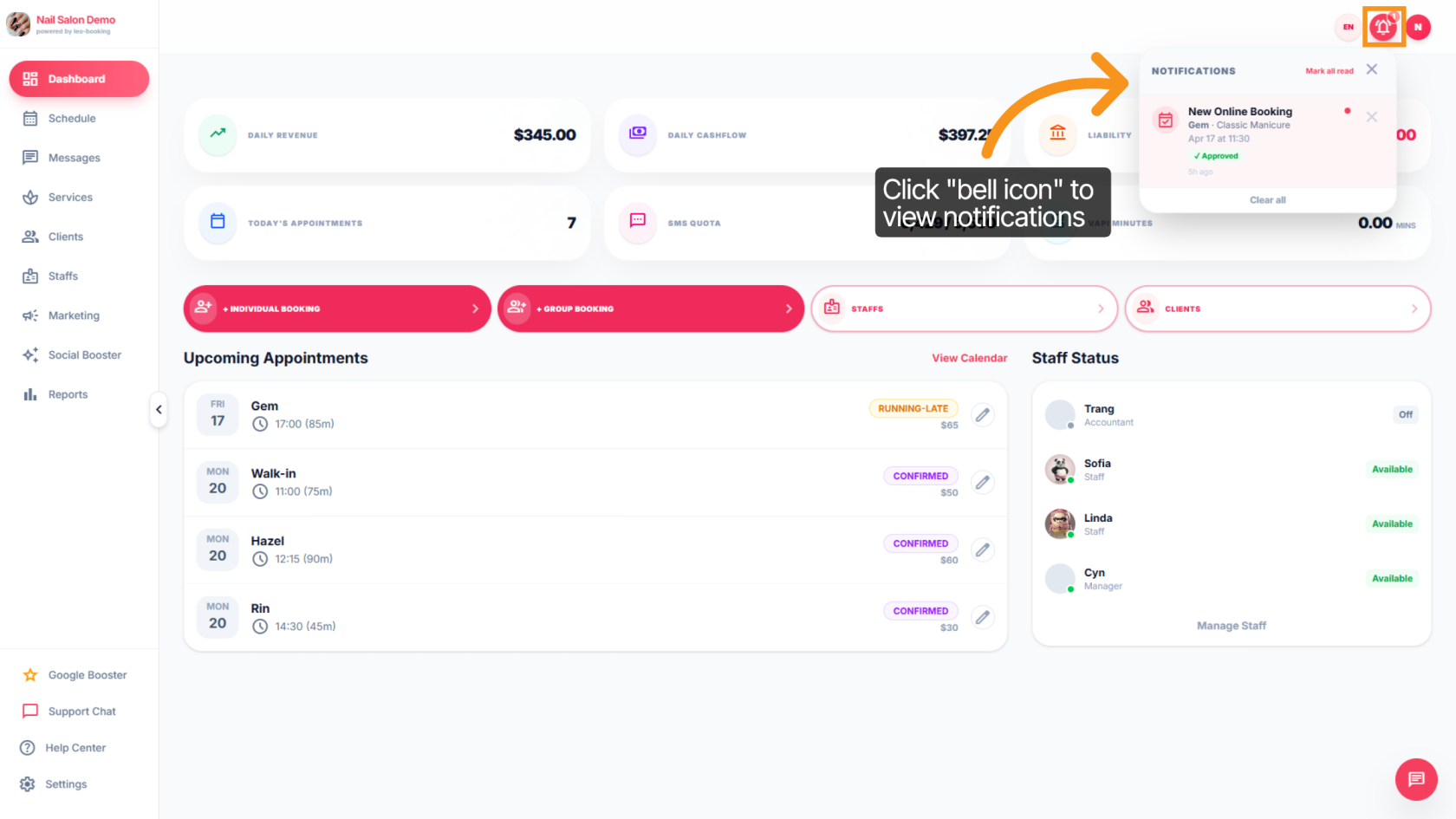
3. View Online Booking Notifications

Click the bell icon to view all online booking notifications. You can mark a notification as read once you’ve viewed it.
imgi_9_quickguiddeScreenshots%2FpXhdWFGosxYyO6gtaj51Acluowc2%2F9Rnb4Yv8kTeX6G2LmZHZ5f%2F3ANjpvqefrvxeXCoDNrB9N_doc (1).pngimgi_9_quickguiddeScreenshots%2FpXhdWFGosxYyO6gtaj51Acluowc2%2FdgQ5BnmQ3zk8VwhbotMAei%2FrPReHR5umoMrVZphbYSujC_doc.png

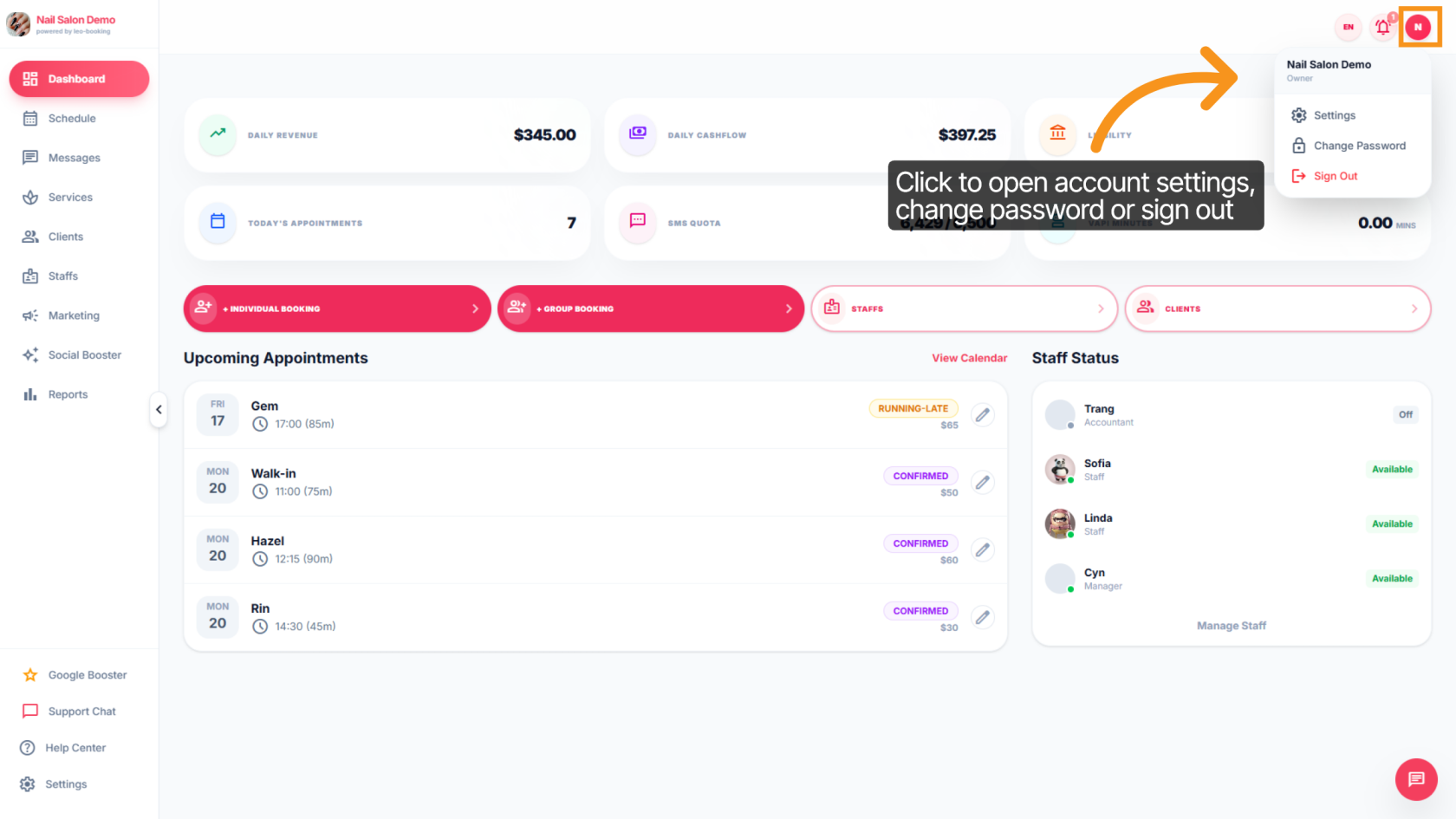
4. Open Account Settings Menu

Click your profile icon to open the settings menu to manage your platform, change your password, or log out.
imgi_10_quickguiddeScreenshots%2FpXhdWFGosxYyO6gtaj51Acluowc2%2F9Rnb4Yv8kTeX6G2LmZHZ5f%2F6cnakFCaAz8euWSPR2ArXy_doc (1).pngimgi_10_quickguiddeScreenshots%2FpXhdWFGosxYyO6gtaj51Acluowc2%2FdgQ5BnmQ3zk8VwhbotMAei%2Fs85oUVb6t2gHAjBe5We9Ds_doc.png

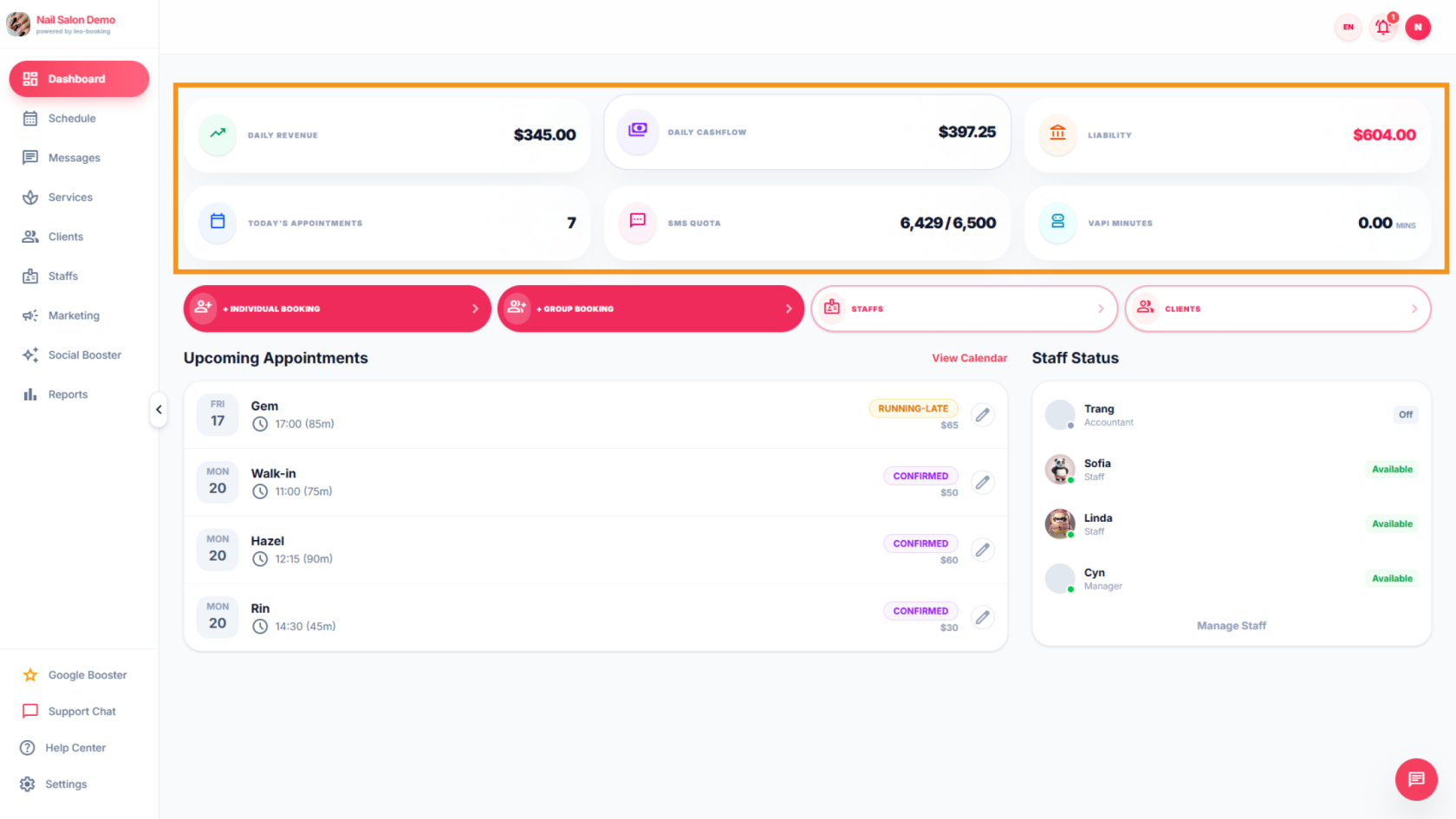
5. View Salon Dashboard Metrics

At the top of the dashboard are performance summary of your business's metrics, including: daily revenue (total income generated for the day), daily cash flow (the cash inflow and outflow), liability (current outstanding amounts), today’s appointments, SMS quota (SMS included in your monthly plan and used vs total), and VAPI minutes (total AI assistant call duration for online booking support).
imgi_11_quickguiddeScreenshots%2FpXhdWFGosxYyO6gtaj51Acluowc2%2F9Rnb4Yv8kTeX6G2LmZHZ5f%2Fp4XeMJ978rtkvfn3LntLYr_doc.pngimgi_11_quickguiddeScreenshots%2FpXhdWFGosxYyO6gtaj51Acluowc2%2FdgQ5BnmQ3zk8VwhbotMAei%2F8P3VfNEr8kChiBSSA9L4Re_doc.png

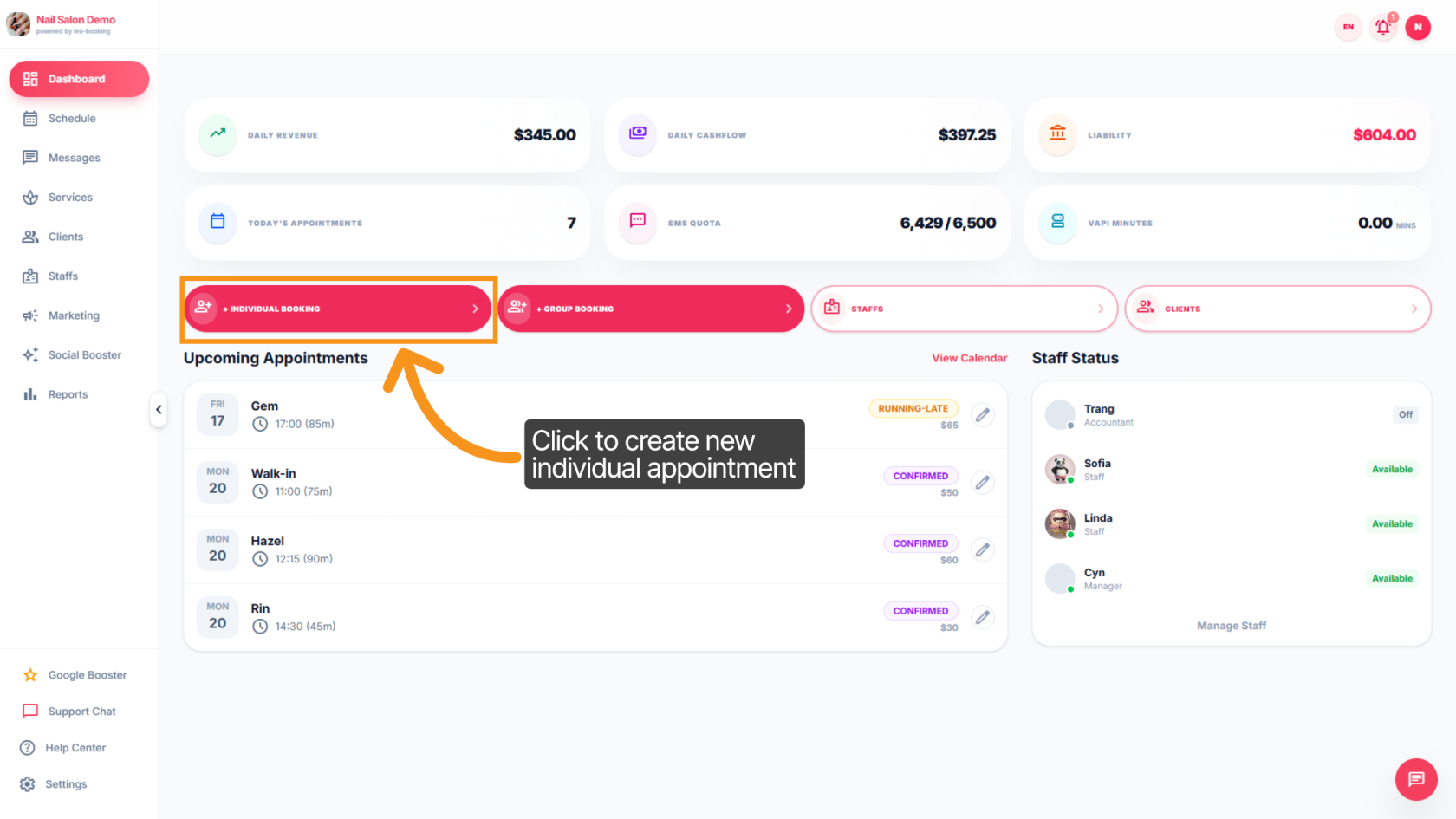
6. Create Individual Booking

Below the performance summary, you’ll find quick action buttons. Click the Individual Booking button to easily create a personal appointment.
imgi_18_quickguiddeScreenshots%2FpXhdWFGosxYyO6gtaj51Acluowc2%2F9Rnb4Yv8kTeX6G2LmZHZ5f%2FoPAfexoYvcXL6a6tcqLqED_doc.pngimgi_18_quickguiddeScreenshots%2FpXhdWFGosxYyO6gtaj51Acluowc2%2FdgQ5BnmQ3zk8VwhbotMAei%2F5eScJrwdB5kCz6UUb4WFB9_doc.png

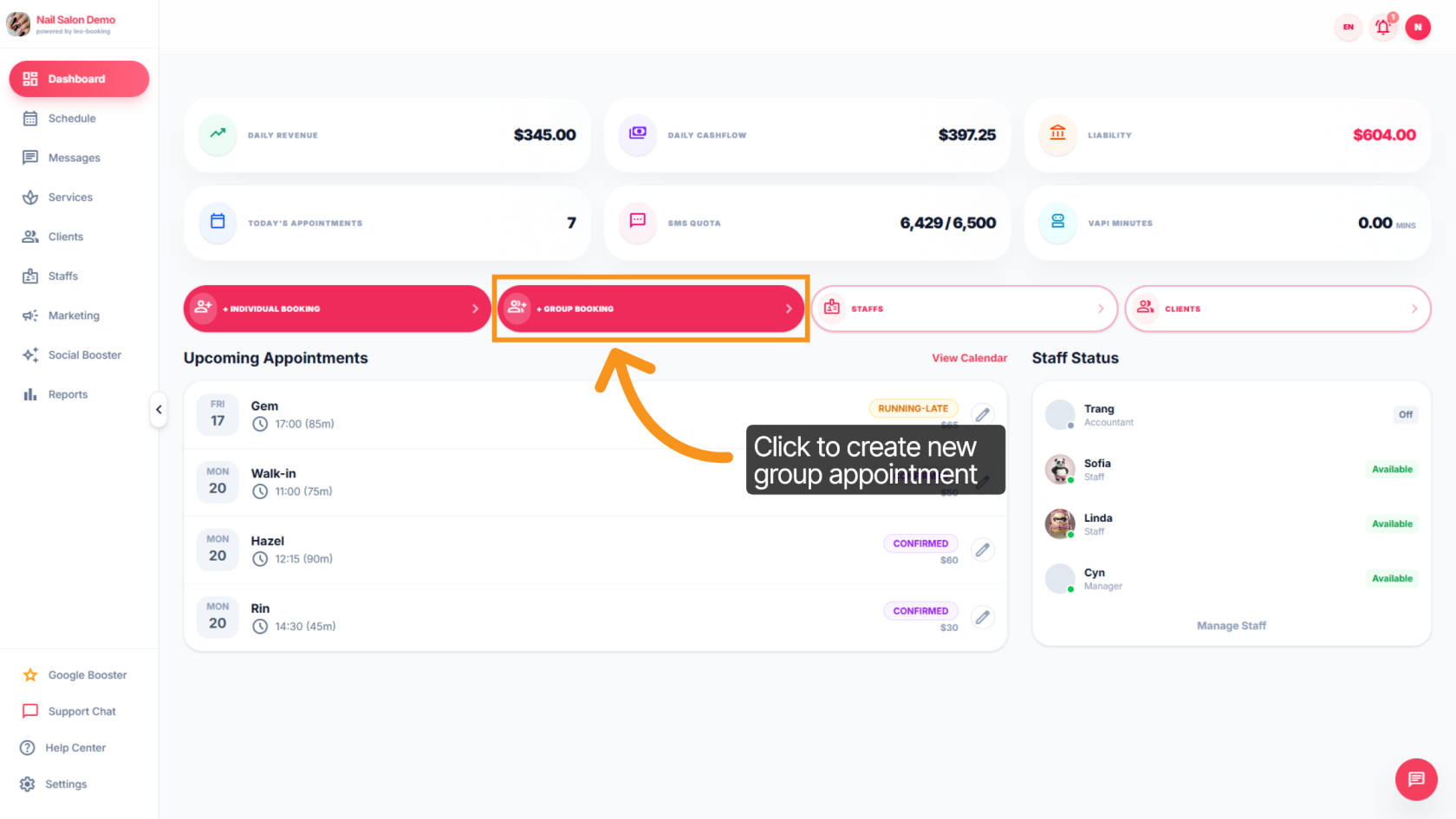
7. Create Group Booking

Click the Group Booking button to quickly schedule an appointment for a group of 2+ clients.
imgi_19_quickguiddeScreenshots%2FpXhdWFGosxYyO6gtaj51Acluowc2%2F9Rnb4Yv8kTeX6G2LmZHZ5f%2FeCuvcV7TY8jwwtTEqNTELm_doc.pngimgi_19_quickguiddeScreenshots%2FpXhdWFGosxYyO6gtaj51Acluowc2%2FdgQ5BnmQ3zk8VwhbotMAei%2FppR7VGxmDW9RsoP3ay6Pu7_doc.png

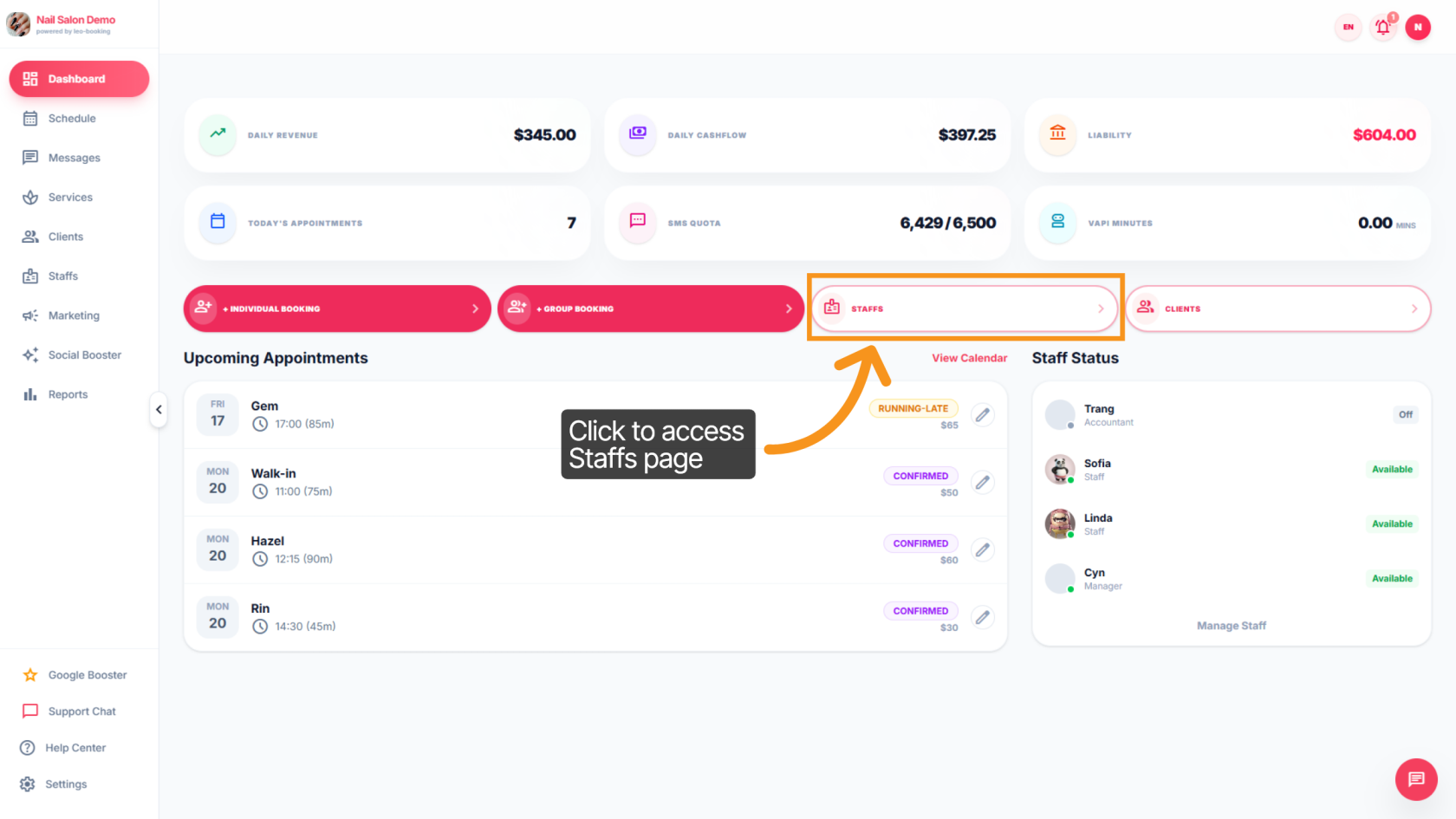
8. Access Staffs page

Click the Staffs button to go to the staff management page.
imgi_20_quickguiddeScreenshots%2FpXhdWFGosxYyO6gtaj51Acluowc2%2F9Rnb4Yv8kTeX6G2LmZHZ5f%2FqAKW5W2JoBaQqTbQ5nRZSH_doc.pngimgi_20_quickguiddeScreenshots%2FpXhdWFGosxYyO6gtaj51Acluowc2%2FdgQ5BnmQ3zk8VwhbotMAei%2FoJvyQRgSRdNu1mzFUKM4tS_doc.png

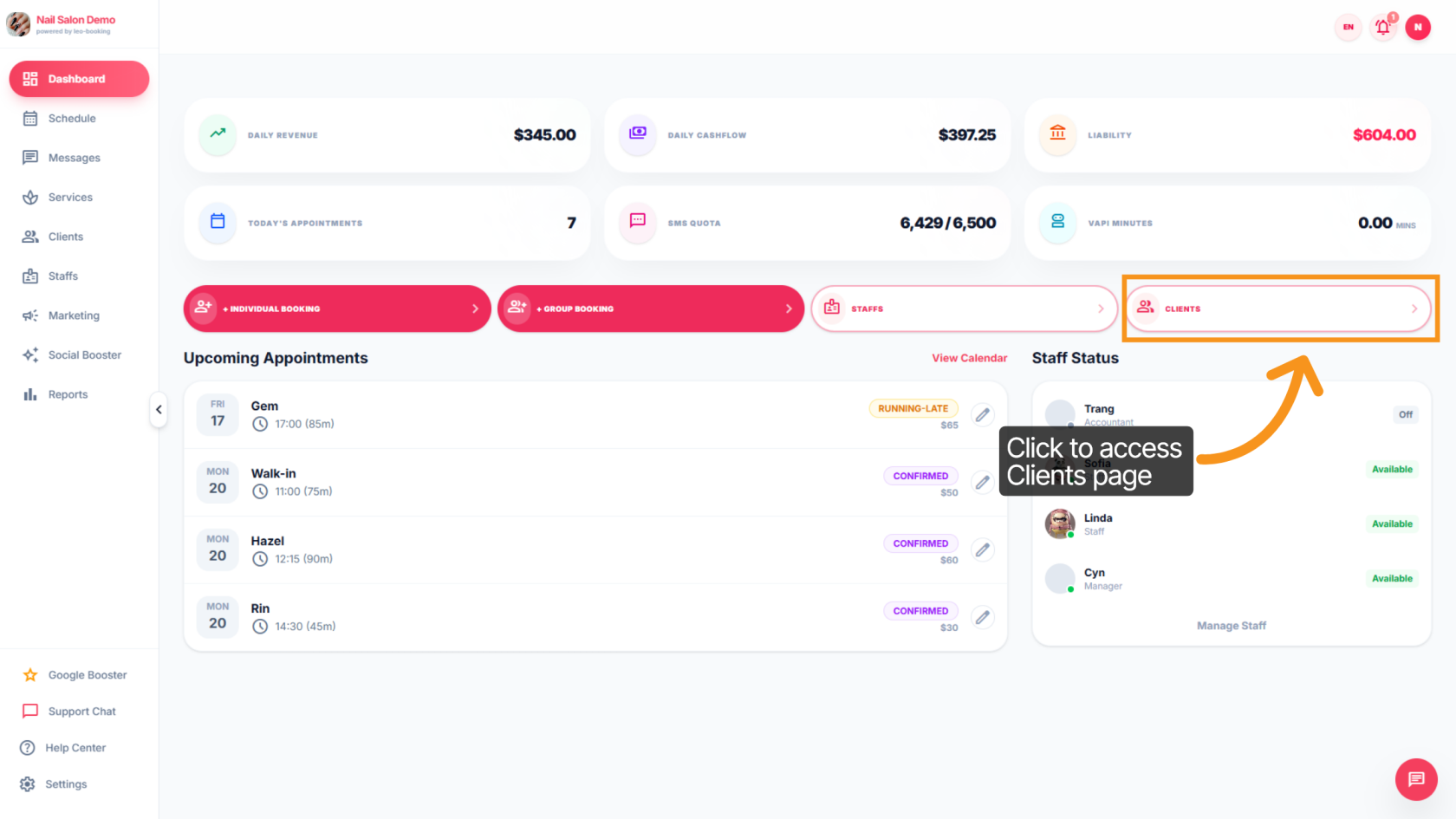
9. Access Clients page

Click Clients to access the client management page.
imgi_21_quickguiddeScreenshots%2FpXhdWFGosxYyO6gtaj51Acluowc2%2F9Rnb4Yv8kTeX6G2LmZHZ5f%2Ftz5MMkqSosWmTfsqufARsM_doc.pngimgi_21_quickguiddeScreenshots%2FpXhdWFGosxYyO6gtaj51Acluowc2%2FdgQ5BnmQ3zk8VwhbotMAei%2FpncnqFNuveC5qHTGSiDJ7o_doc.png

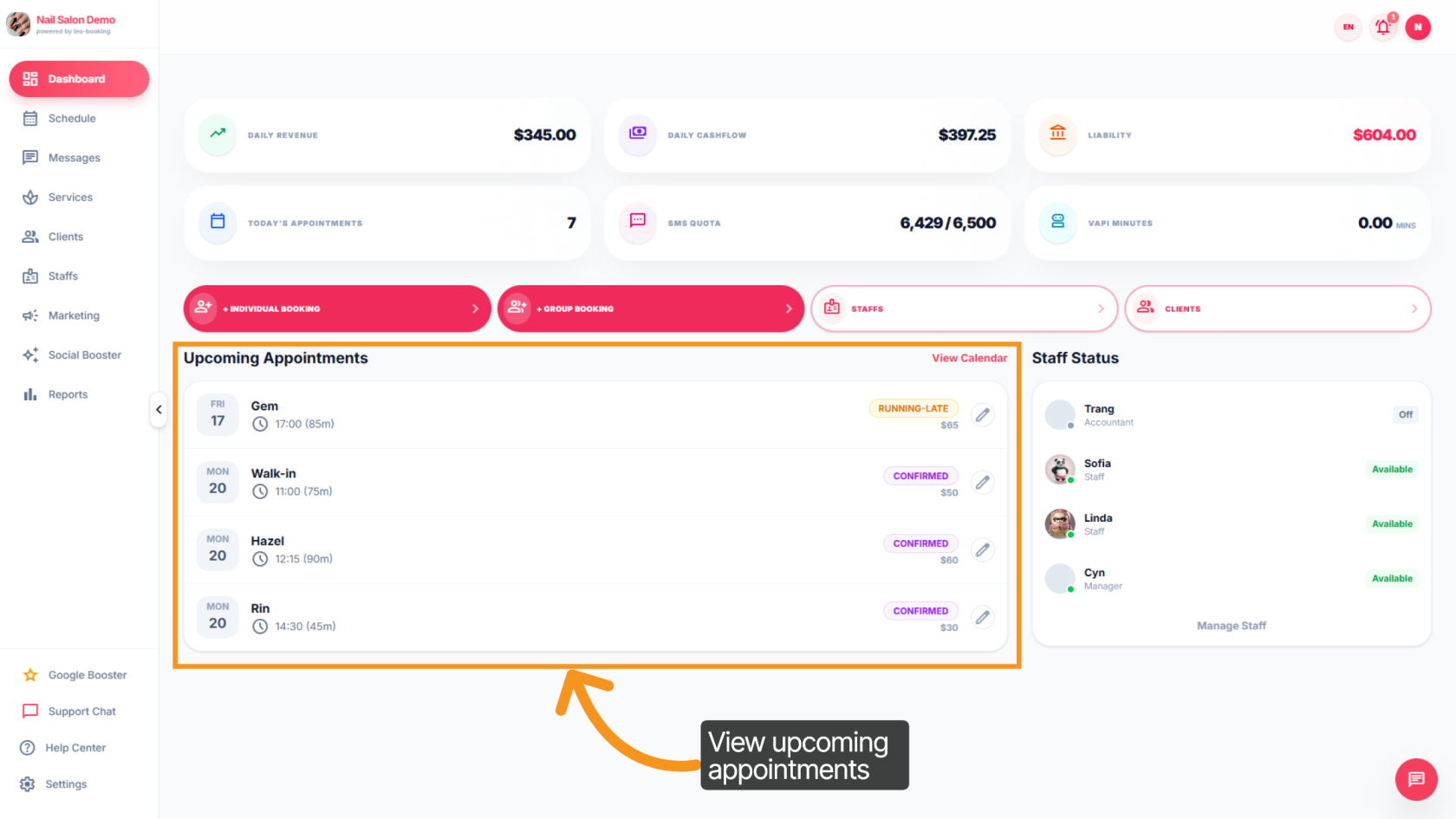
10. Manage Upcoming Appointments

The bottom-left section shows a list of upcoming appointments. Click any appointment to view its full details.
imgi_22_quickguiddeScreenshots%2FpXhdWFGosxYyO6gtaj51Acluowc2%2F9Rnb4Yv8kTeX6G2LmZHZ5f%2FrHeJ1C6V9HdD5V19Cz7hak_doc.pngimgi_22_quickguiddeScreenshots%2FpXhdWFGosxYyO6gtaj51Acluowc2%2FdgQ5BnmQ3zk8VwhbotMAei%2FxdyRaJoa5GZnNQgqzwAtpa_doc.png

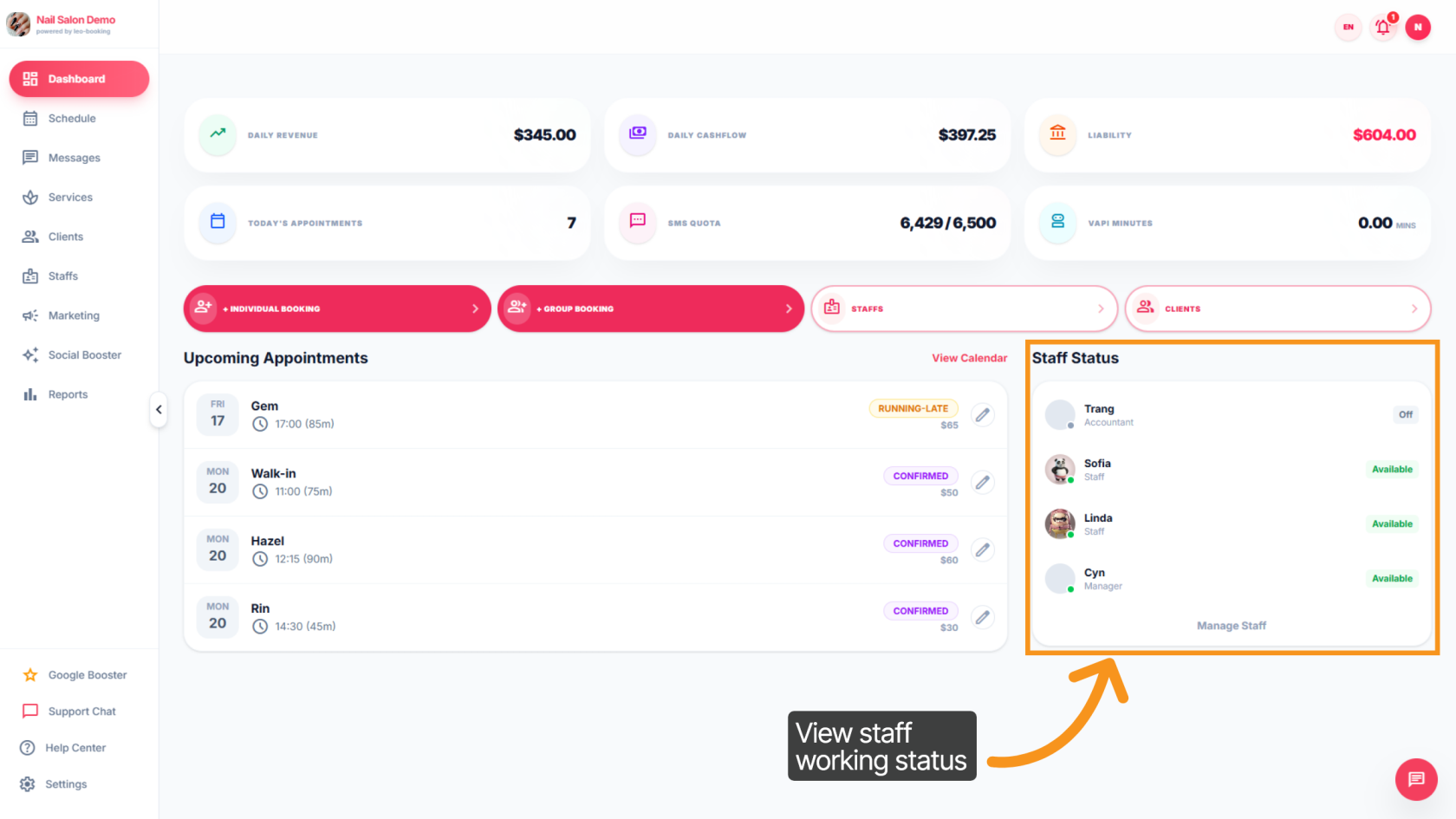
11. Manage Staff Status

The right side displays the working status of staff membersmembers.
imgi_23_quickguiddeScreenshots%2FpXhdWFGosxYyO6gtaj51Acluowc2%2F9Rnb4Yv8kTeX6G2LmZHZ5f%2FcHt4cfHpvoz5Ec7YgXHQnB_doc.pngimgi_23_quickguiddeScreenshots%2FpXhdWFGosxYyO6gtaj51Acluowc2%2FdgQ5BnmQ3zk8VwhbotMAei%2FgpvqbJTWwbFSJ7BQ4sNfau_doc.png

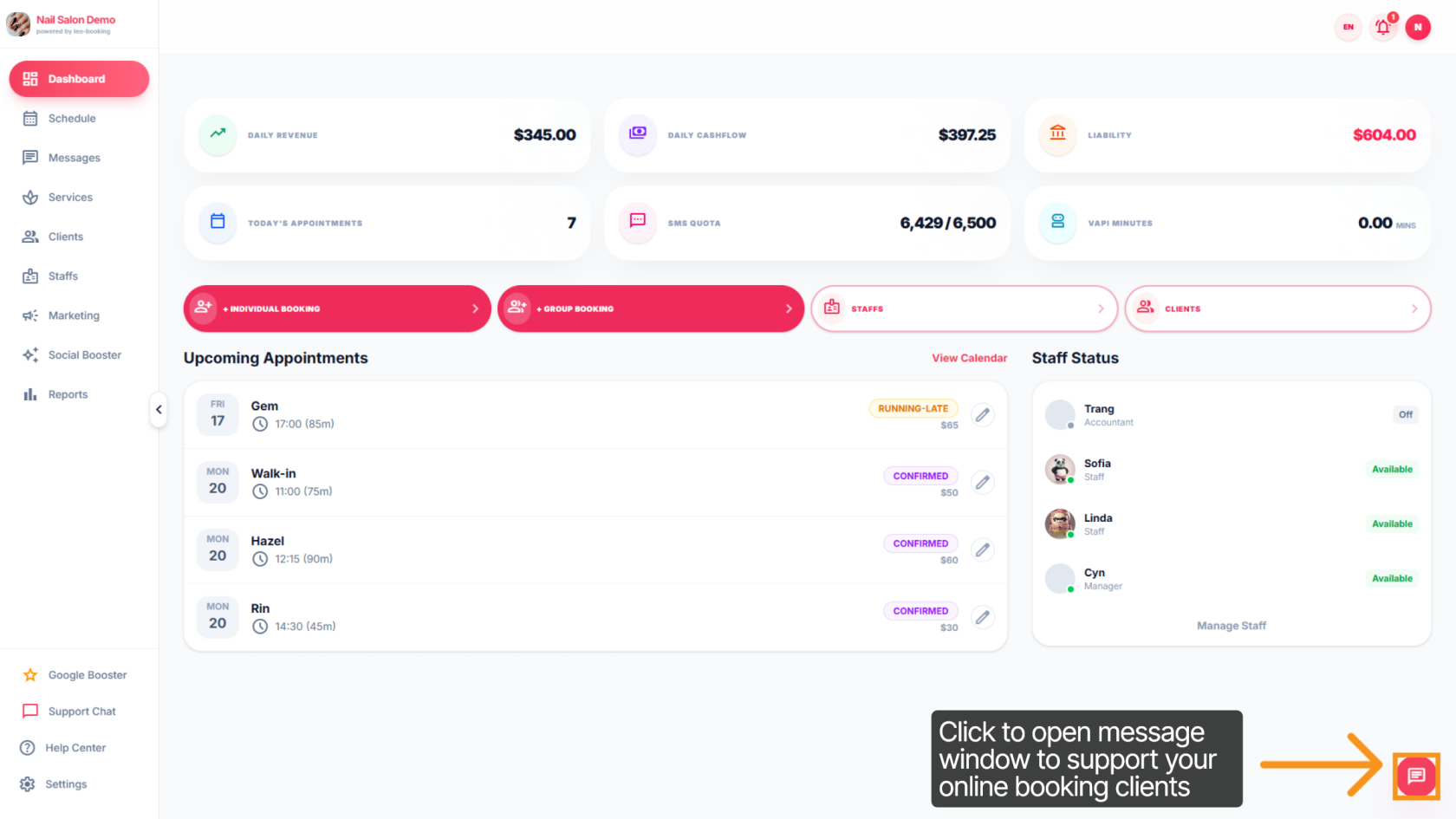
12. Open Chat Feature

To promptly support online booking clients, click the message icon in the bottom-right corner to open the chat box and reply to their messages.
imgi_24_quickguiddeScreenshots%2FpXhdWFGosxYyO6gtaj51Acluowc2%2FdgQ5BnmQ3zk8VwhbotMAei%2FcAnW8PDChFvQnSVnadT1Me_doc.png


This overview helps you track daily performance and manage upcoming client visits.