
Email Marketing
This tutorial guides you through setting up and configuring email marketing automation in E-store Admin, including email templates, email events and automated marketing flows.
Video Tutorial
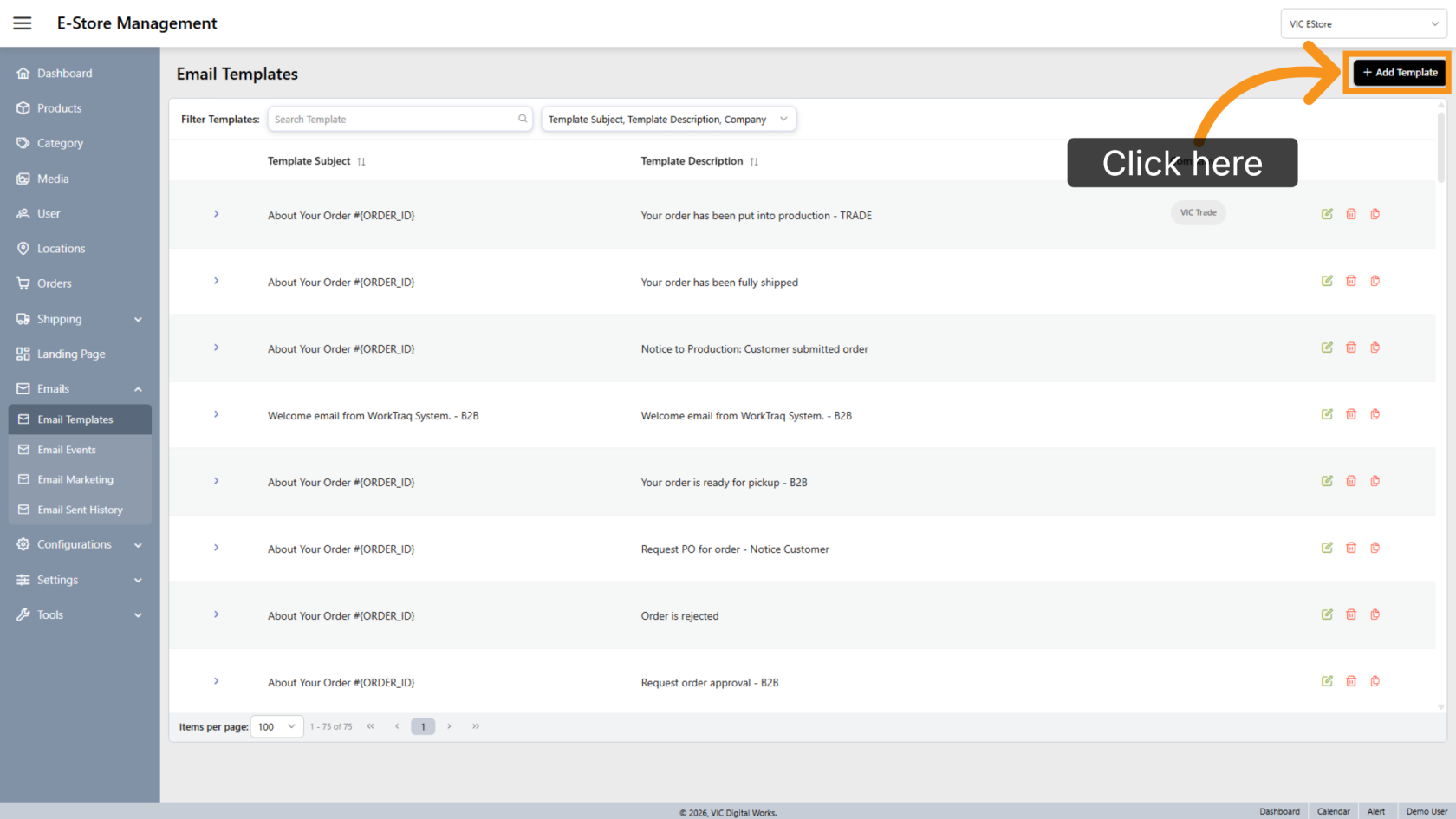
1. Add a New Email Template
Create a new email template for your marketing email.
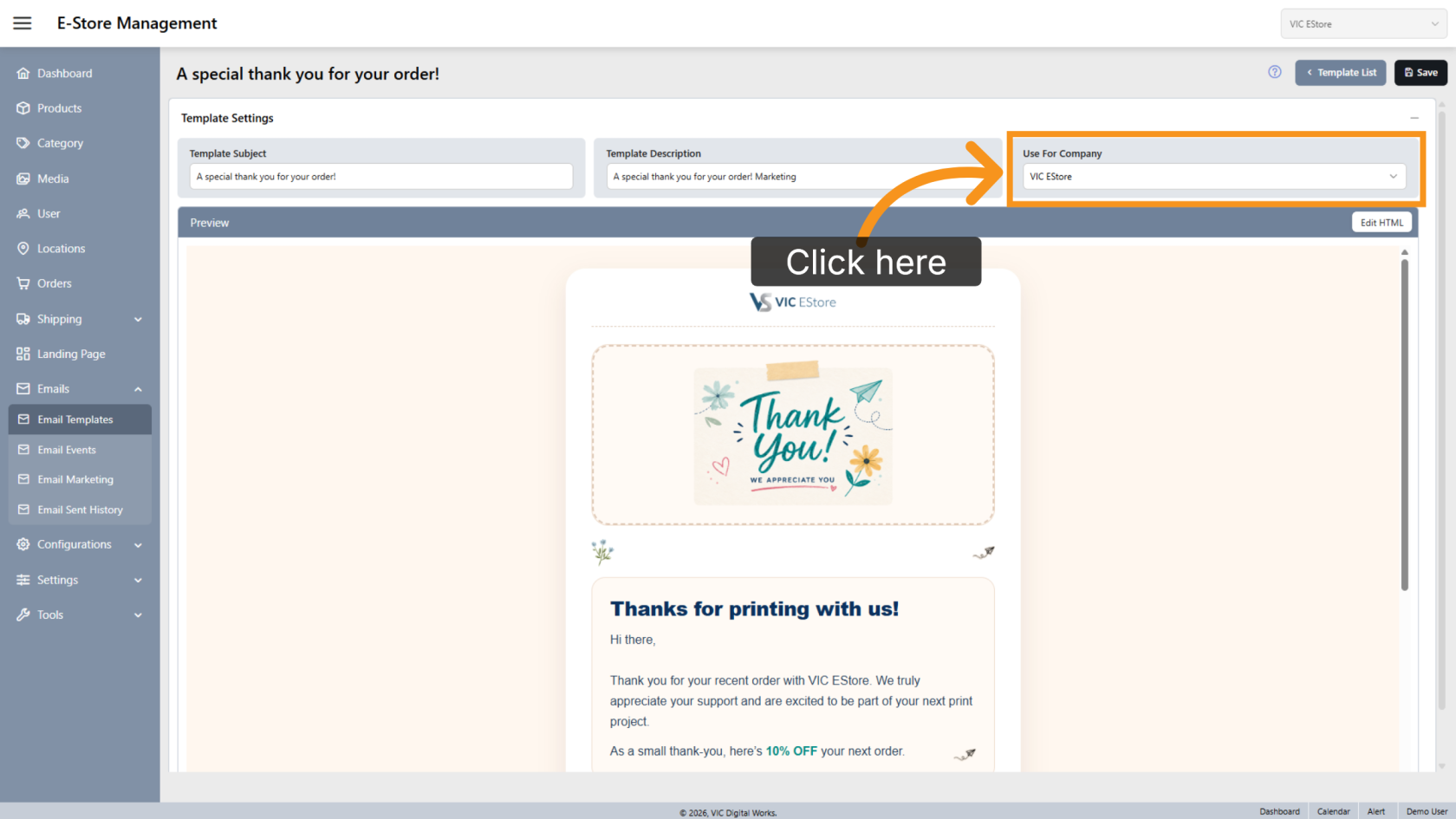
2. Select the Company
Select the Using Company that you want the marketing email template to apply to. Marketing templates can be configured specifically for each company.
For more information about creating an email template, see Create Email Template.
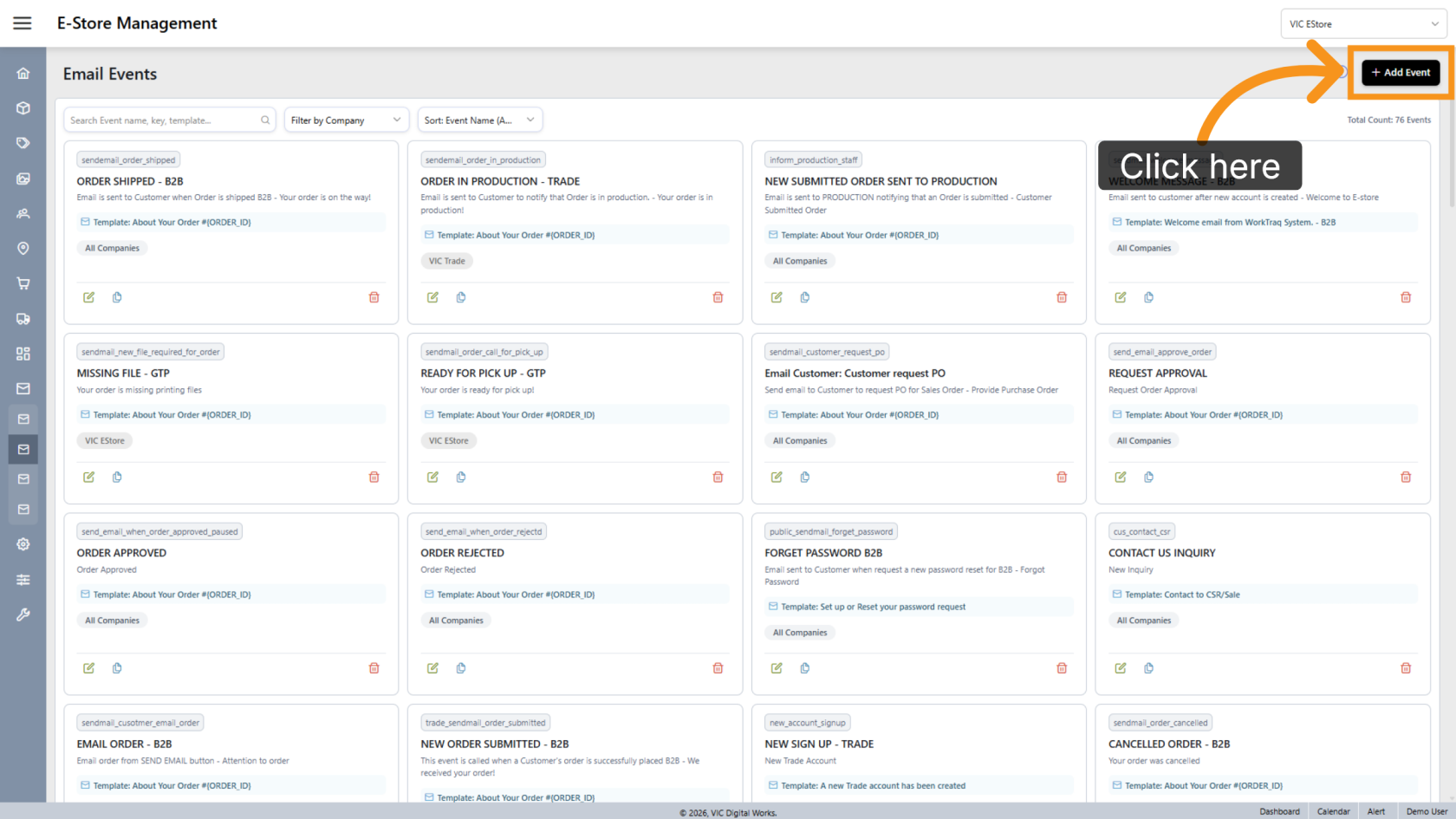
3. Add a New Email Event
Click Add Event to create a new email event for the marketing email.
4. Configure Marketing Event Details
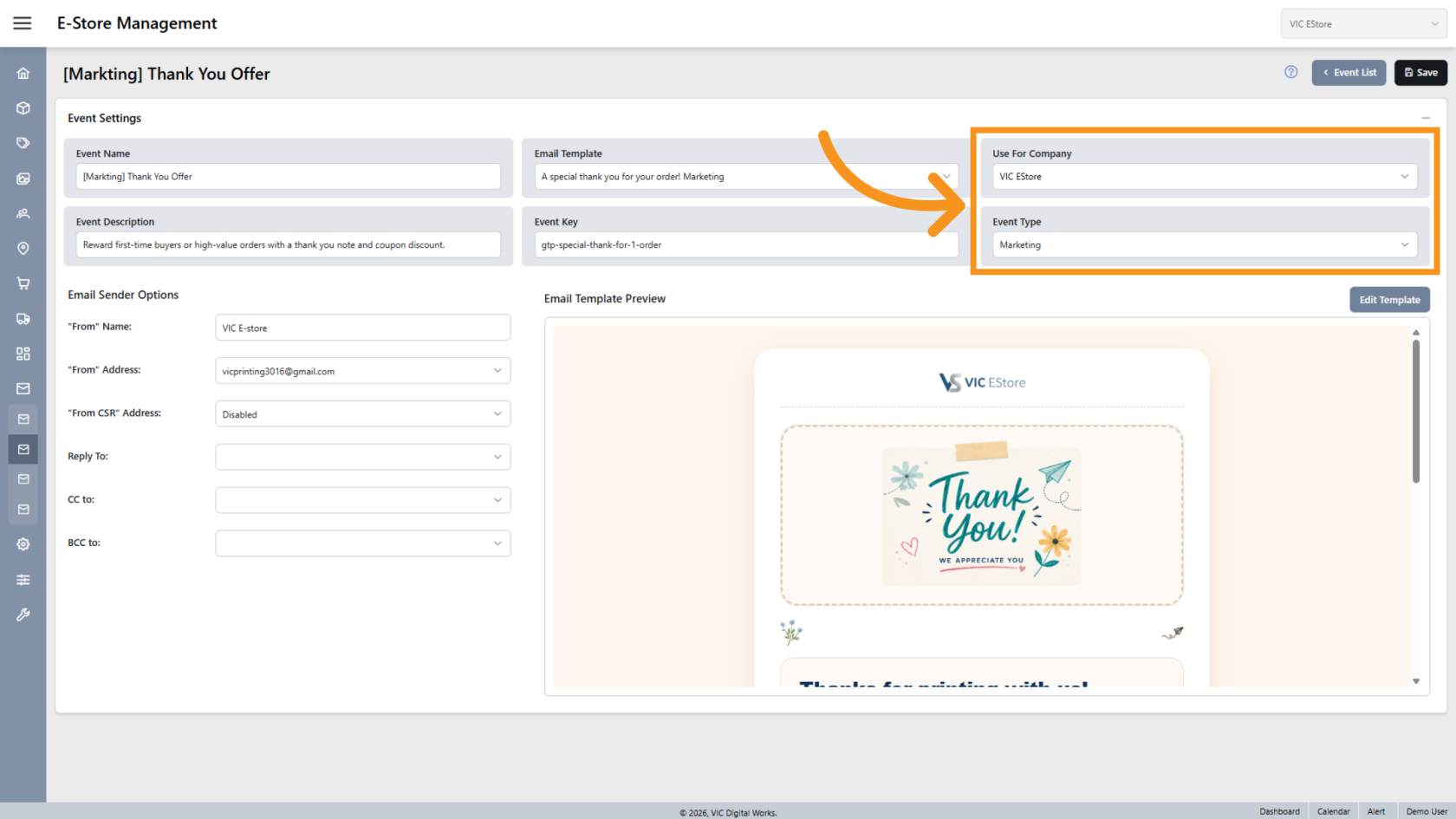
When creating the event, make sure to:
- Select the company that will use the event.
- Set the Email Type to Marketing.
Events with the Marketing email type can be configured in Email Marketing.
For more information about creating an email event, see Create Email Events.
5. Select the Company
Before configuring Email Marketing, make sure you have selected the correct company that the marketing automation will apply to.
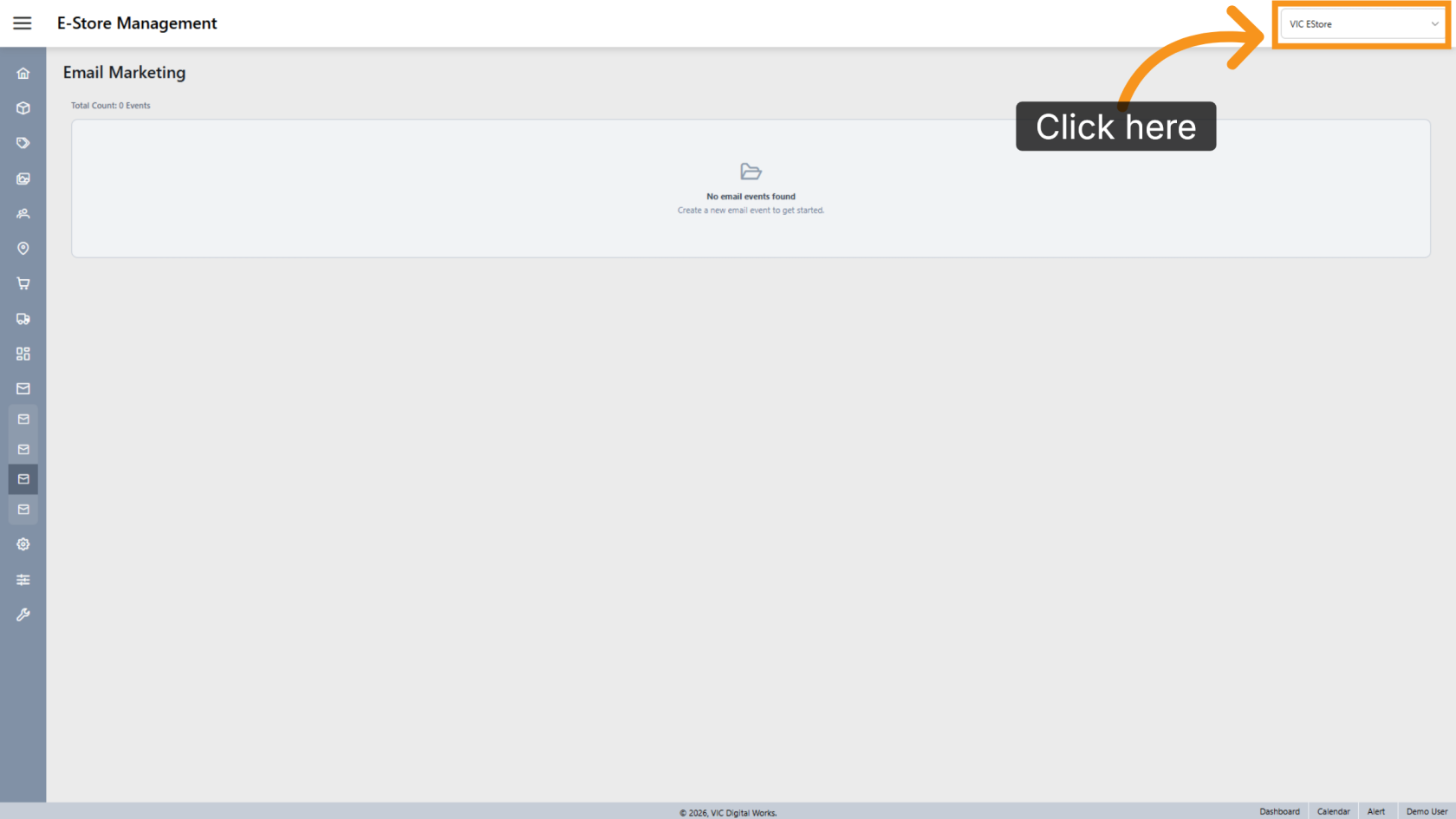
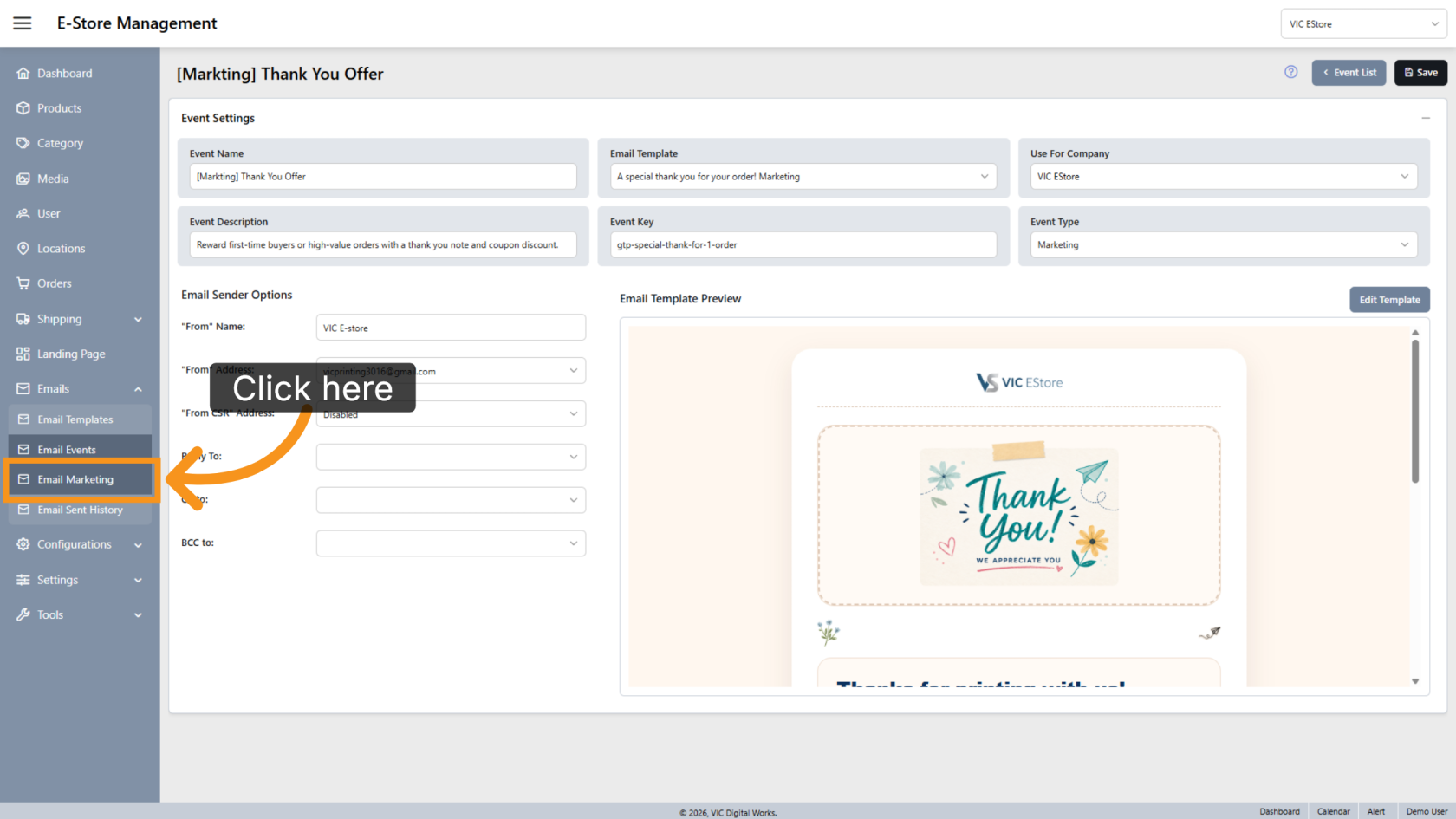
6. Open Email Marketing
Select Email Marketing in the left side bar.
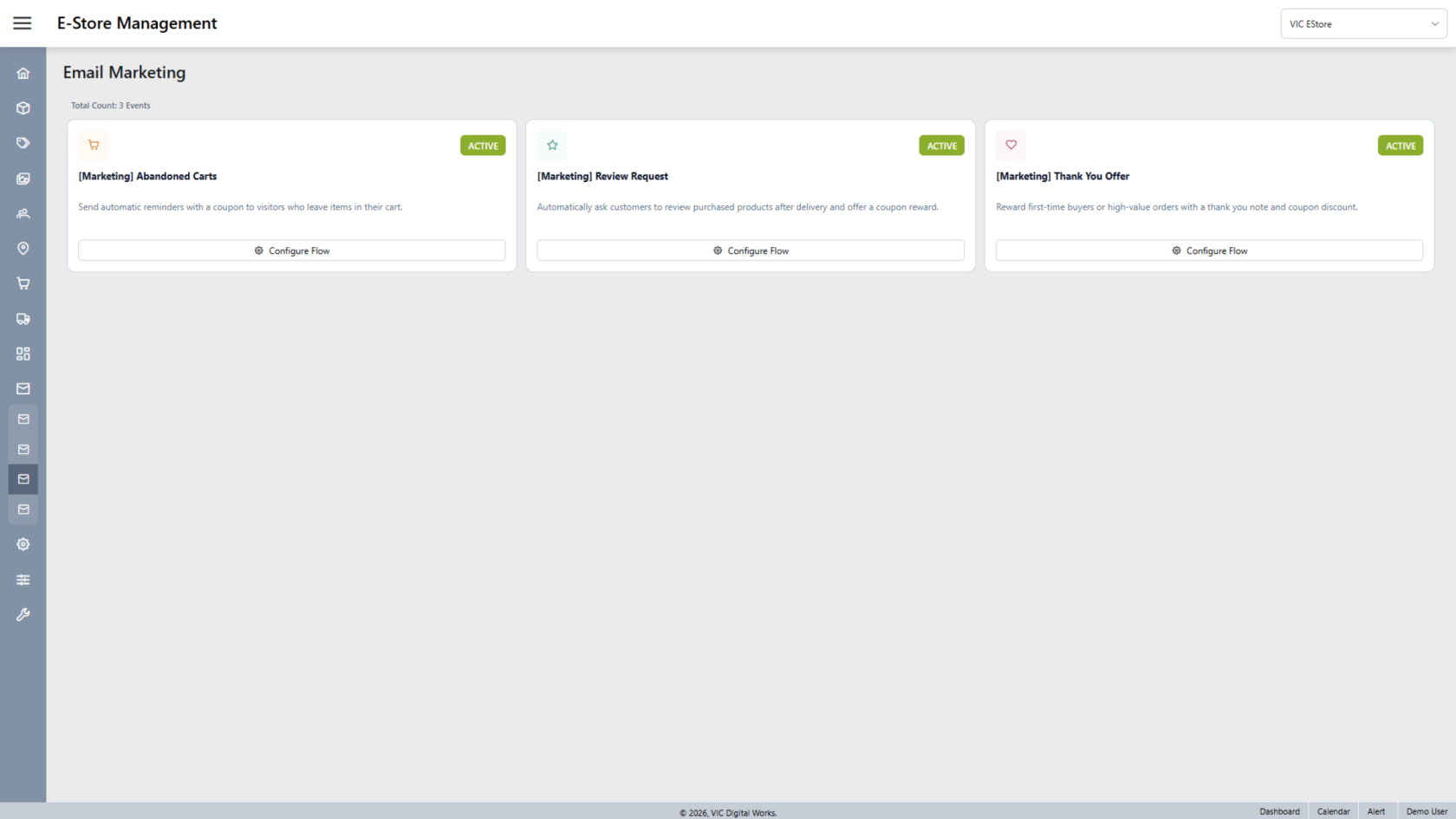
7. Review Email Marketing Flows
All email marketing flows for the selected company are listed on the right.
Three marketing flows are currently available:
- Abandoned Cart – Automatically sends an email when a customer's cart has been inactive for more than 7 days without being submitted.
- Review Request – Automatically sends an email 7 days after the customer's order is shipped.
- Thank You Offer – Automatically sends a one-time email 7 days after the customer's first order is shipped.
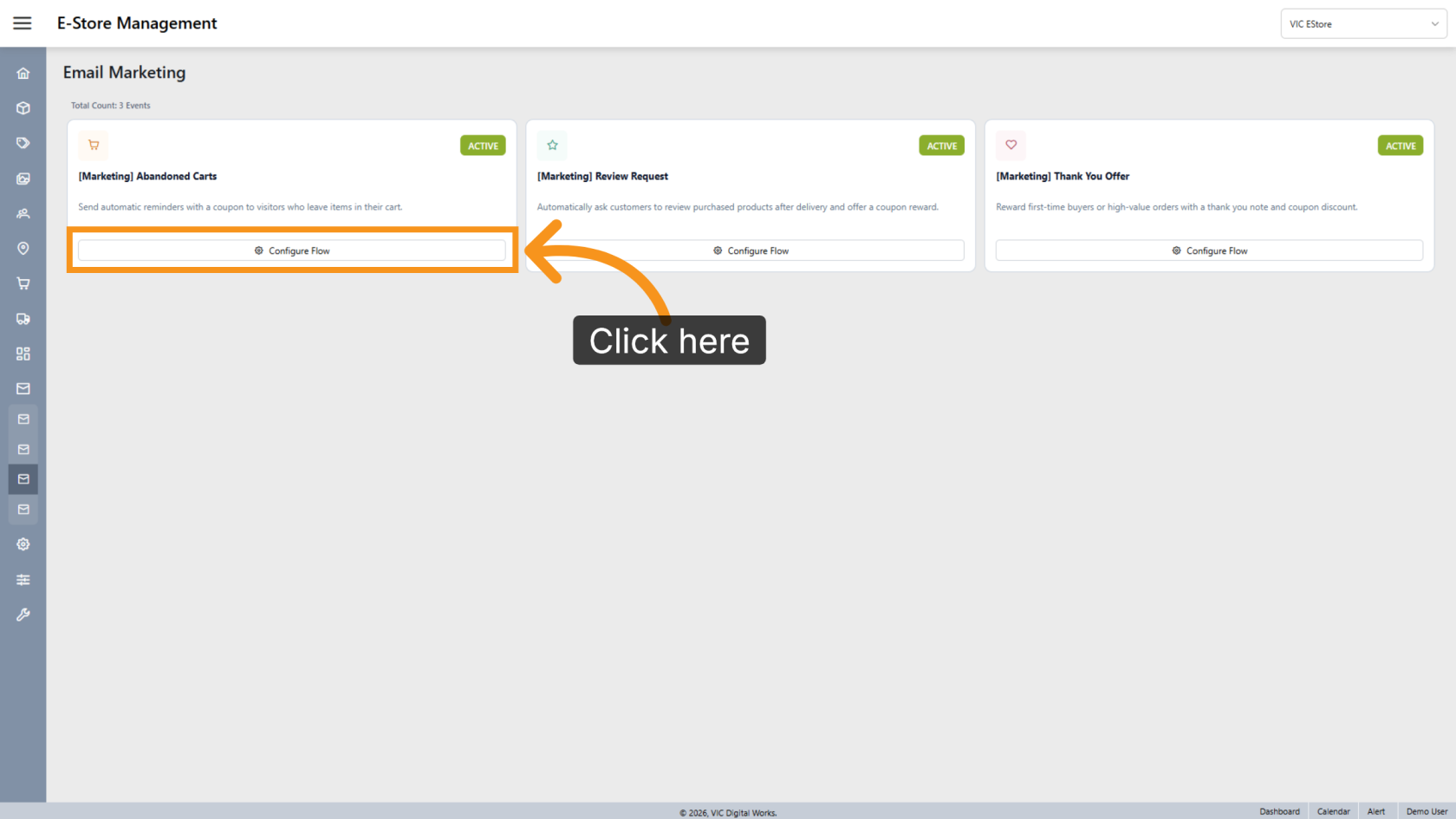
8. Configure an Email Marketing Flow
Click the email marketing flow you want to configure.
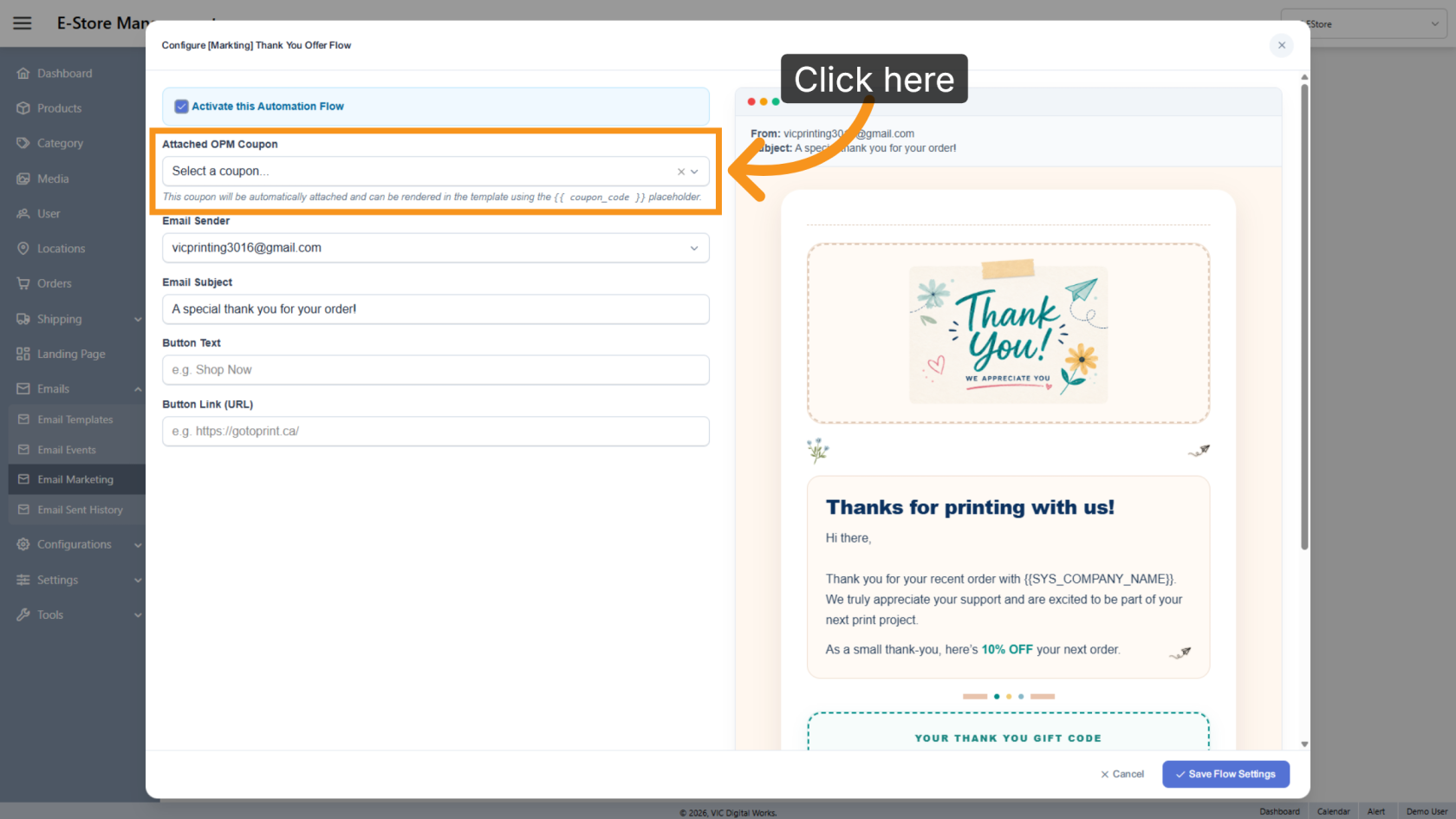
9. Select a Coupon
Select the coupon you want to include in the marketing email.
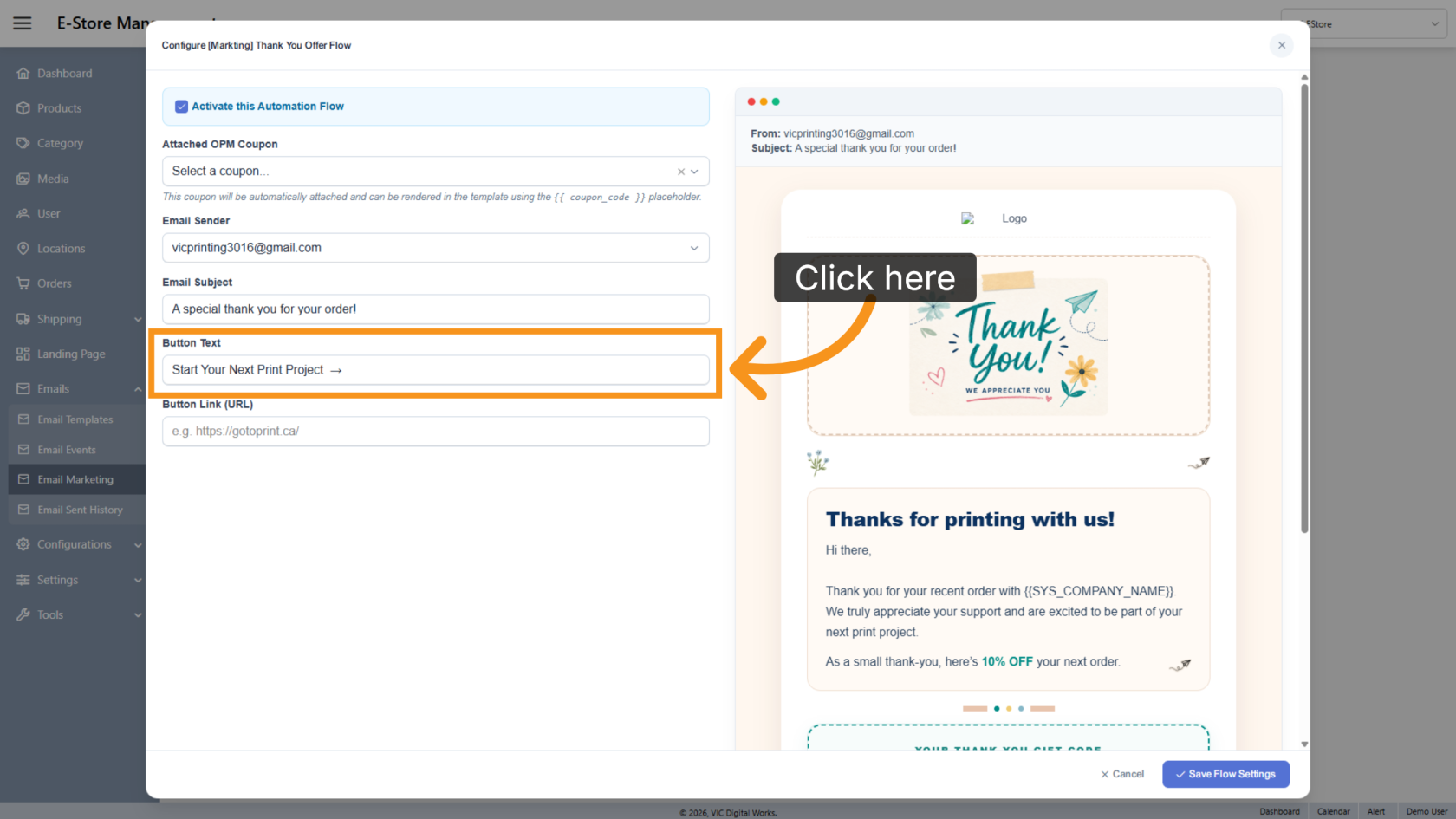
10. Enter Button Text
Enter the call-to-action text that will appear on the button in the email.
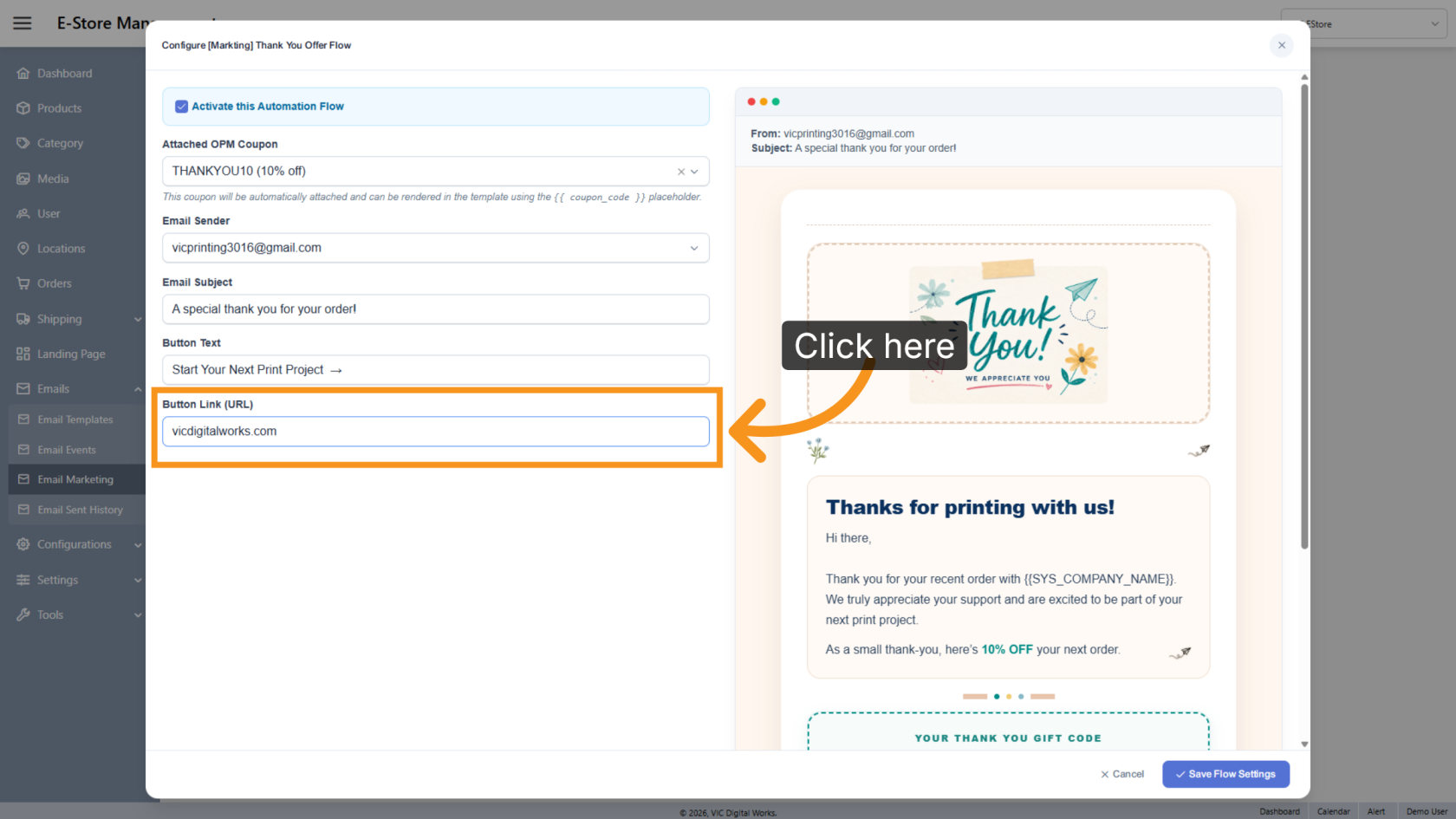
11. Enter Button Link
Enter the link that customers will be directed to when they click the button.
12. Save Flow Settings
Click Save Flow Setting to save your configuration.
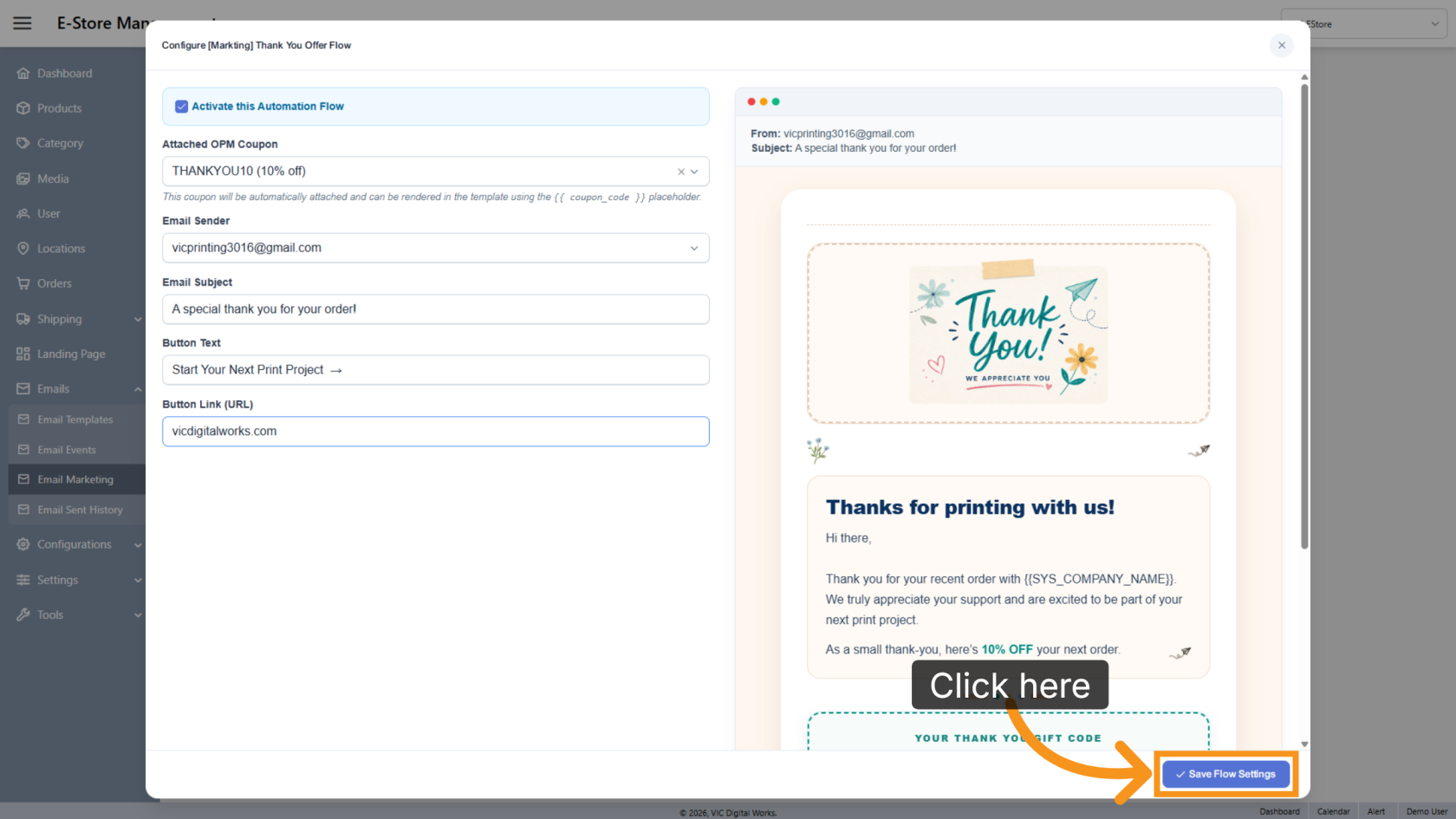
You have successfully configured an email marketing automation flow in WorkTraq, including the email template, email event, coupon, and automated marketing settings.