
Location Workspace
This tutorial walks you through configuring and managing the Location Workspace in the E-store.
Video Tutorial
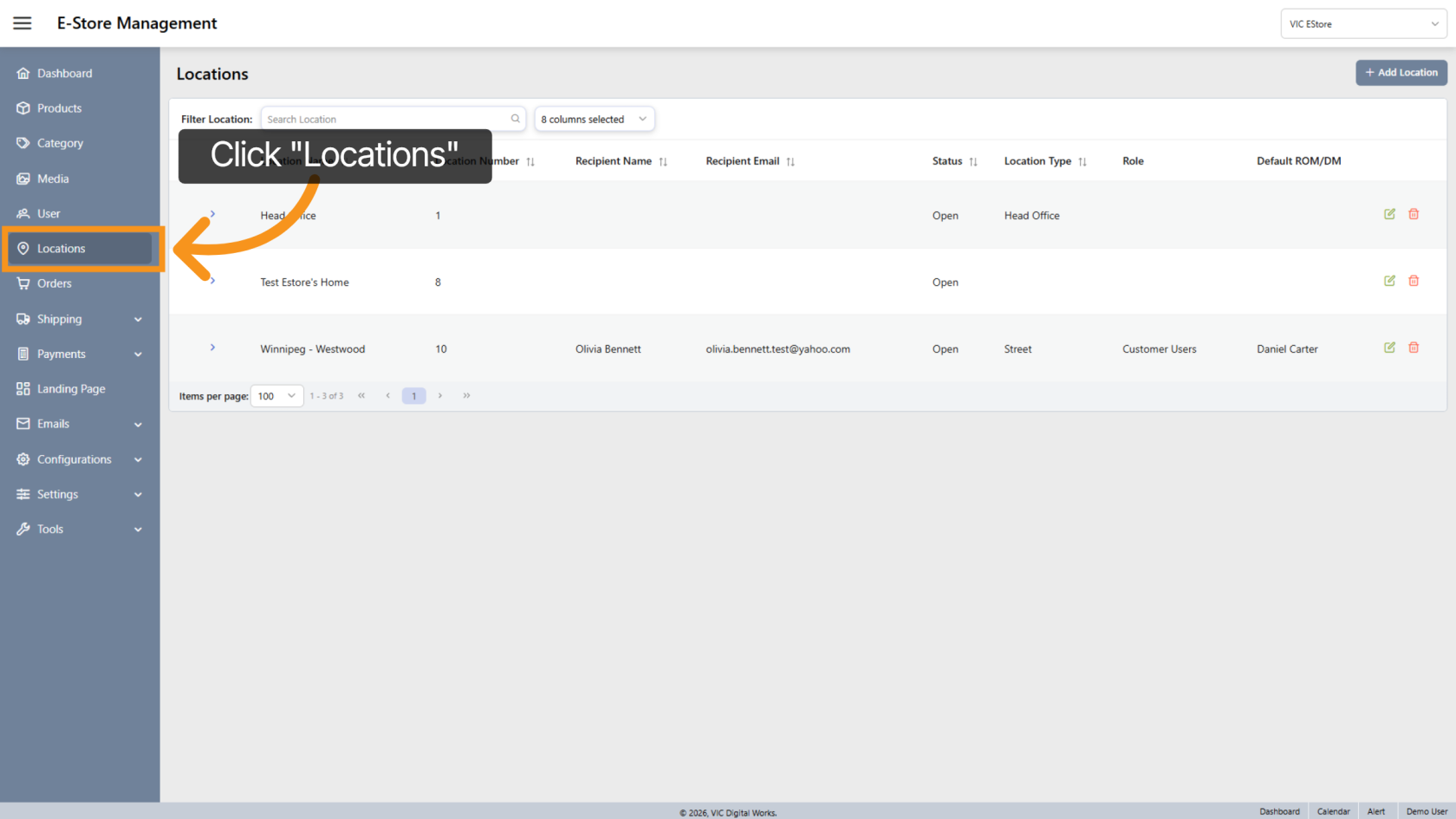
1. Access the Locations Section
Click "Locations" in the side menu to open the location management area.
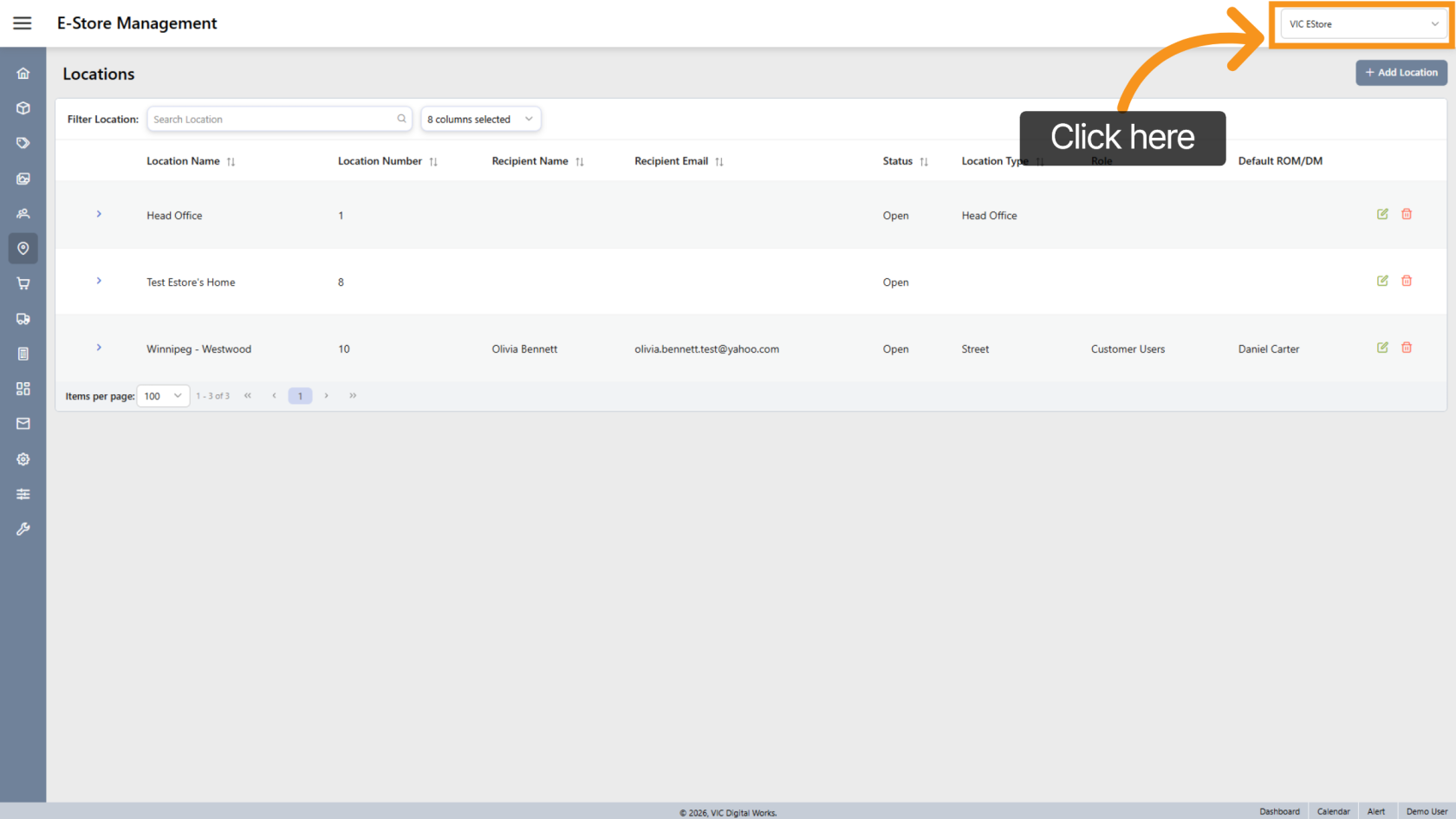
2. Enter E-Store Management
Select Company Store to access the E-store management interface for your selected store.
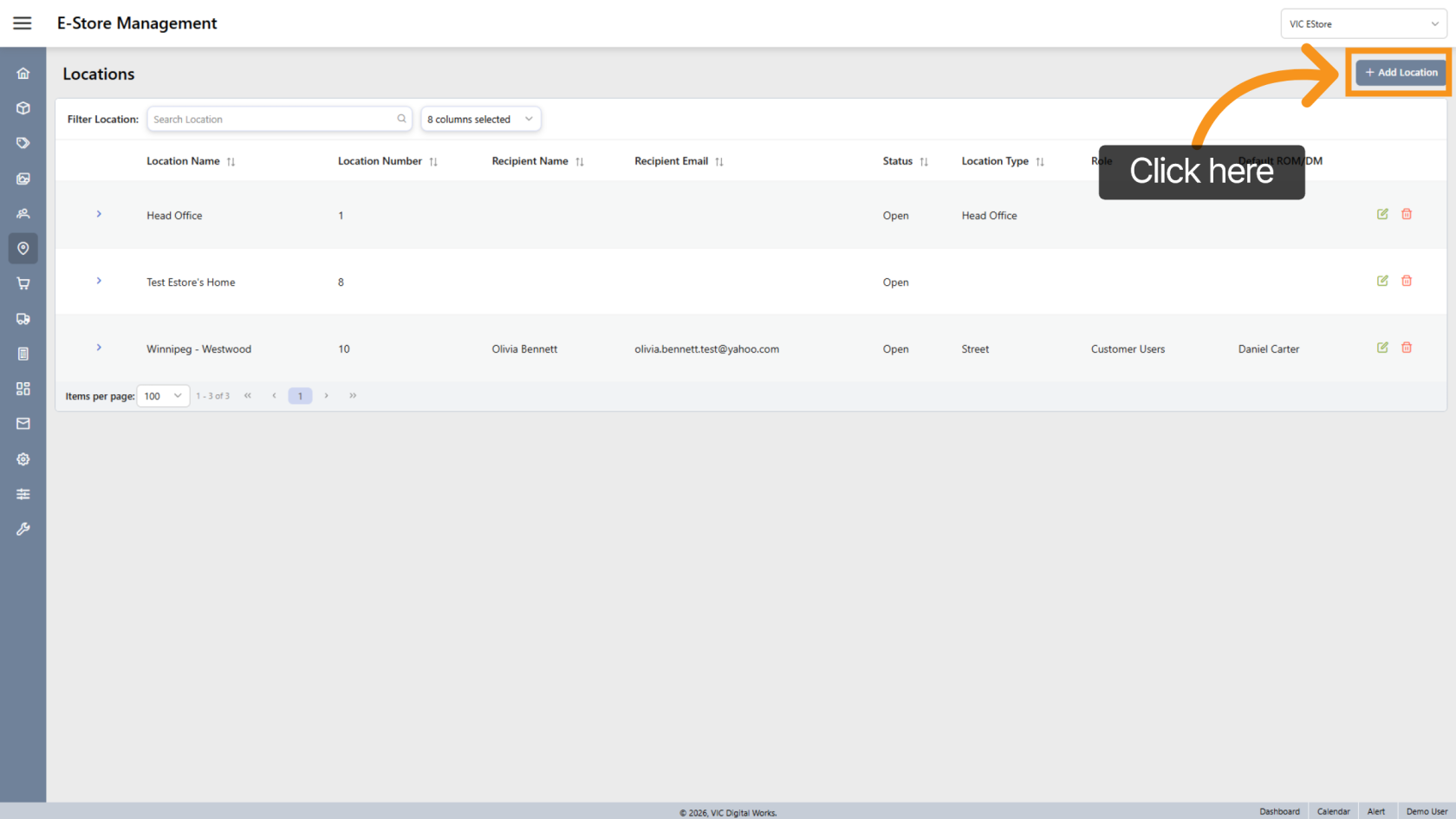
3. Add a New Location
Click "Add Location" to begin creating a new location workspace.
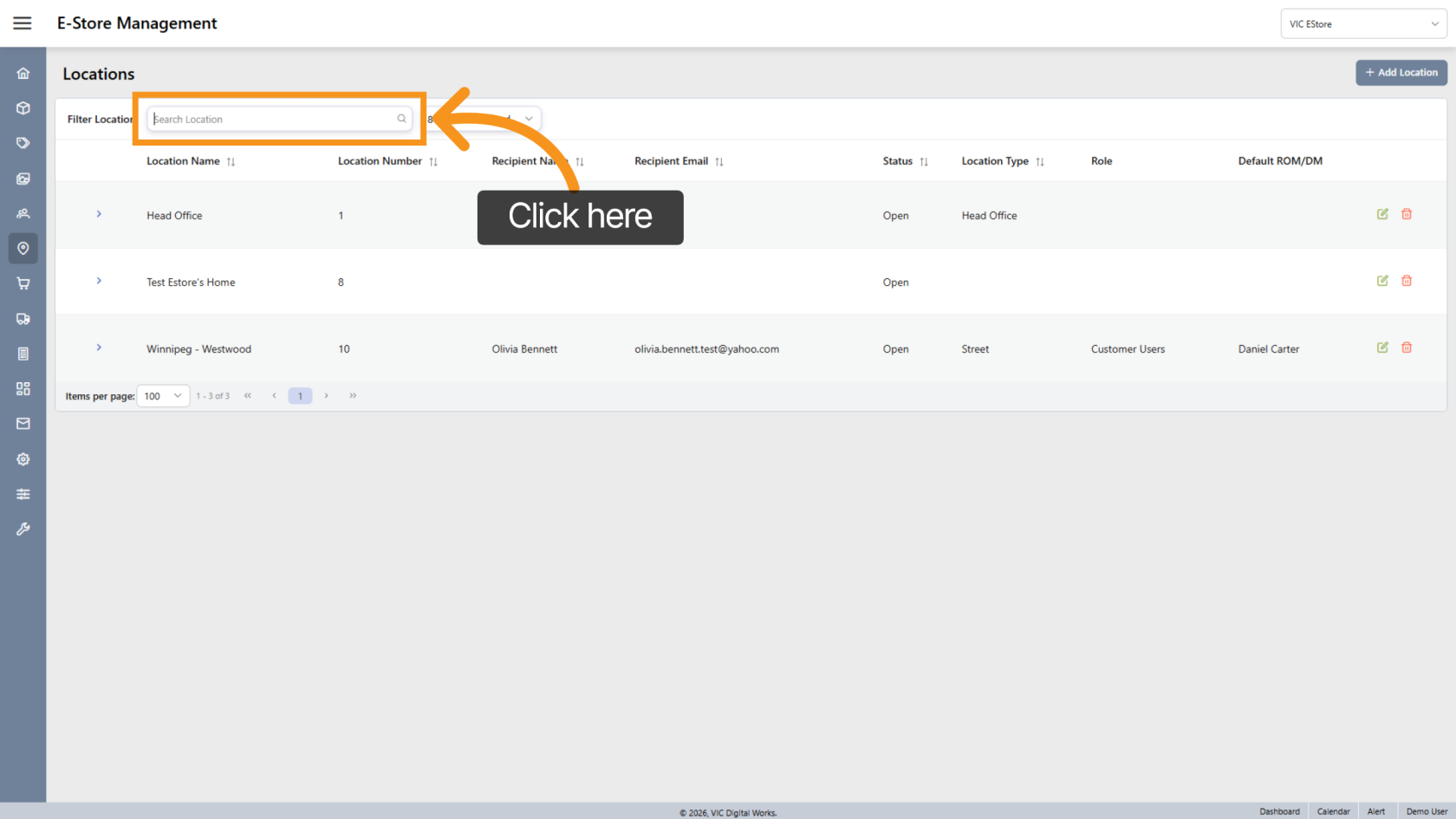
4. Search for a Location
Use Search Location to quickly find existing locations within the system.
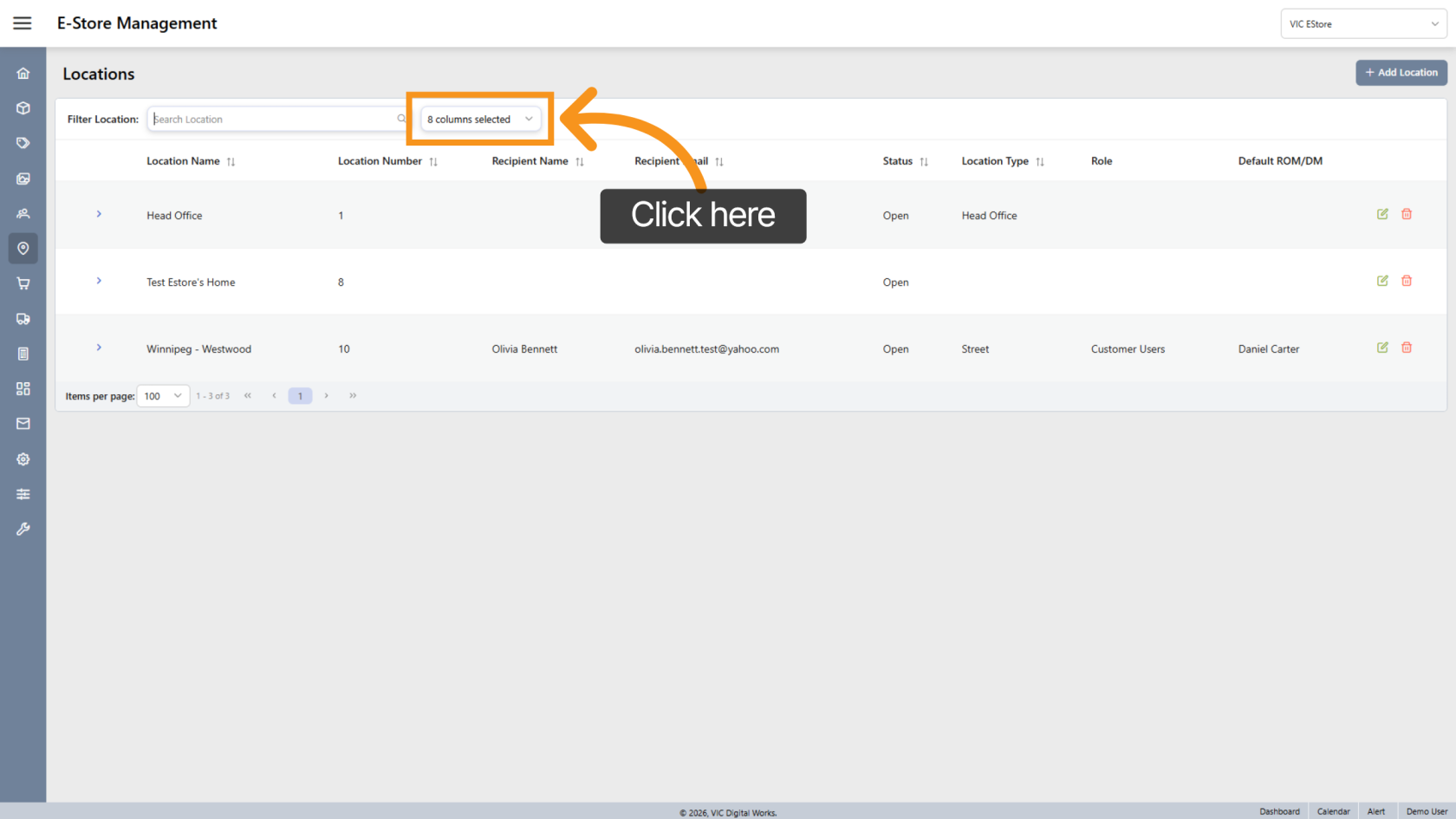
5. Customize Columns
Click the  arrow to select or deselect which fields are displayed in the location list view.
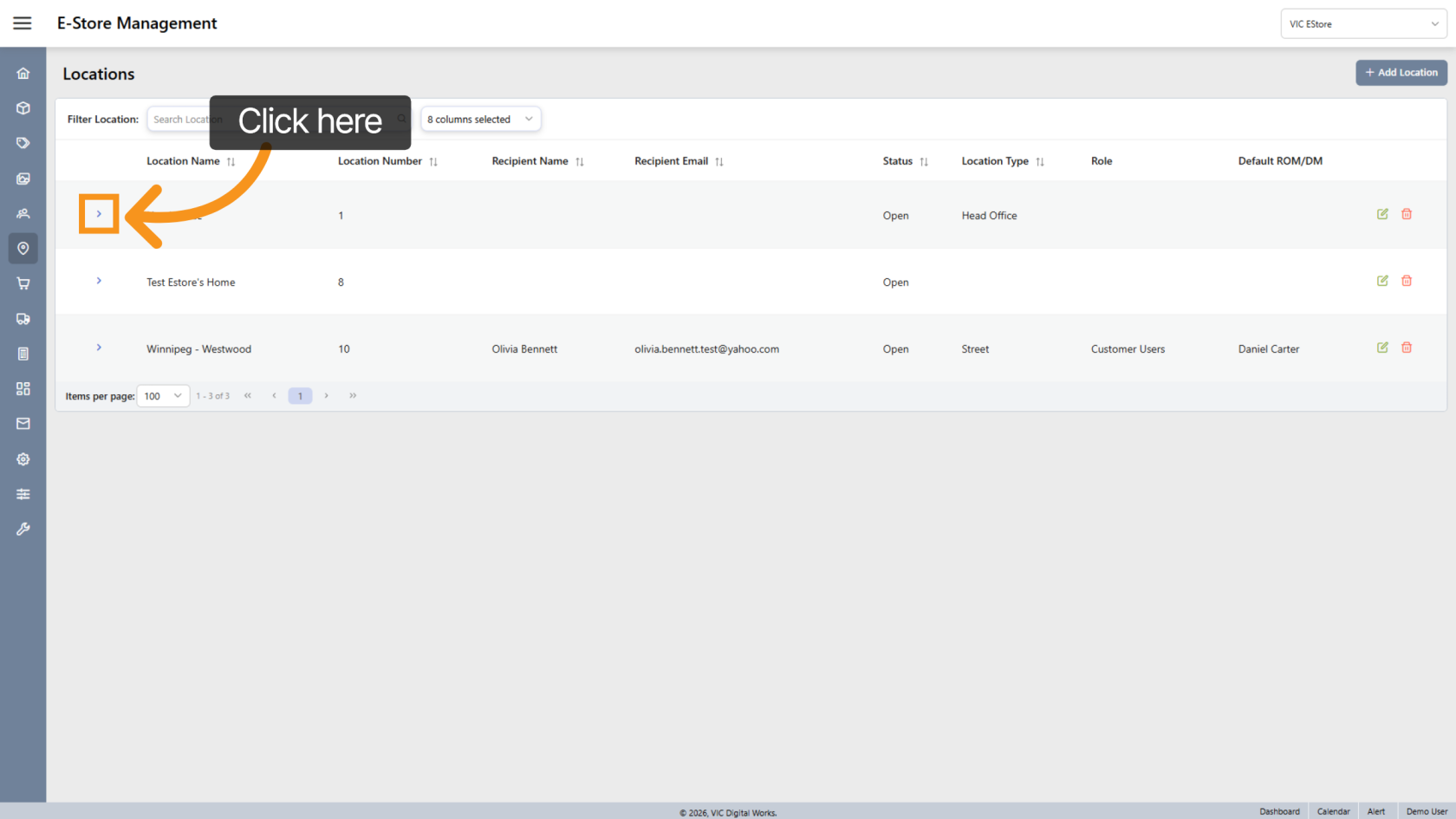
6. View Location Details
Click the  arrow next to a location to view detailed information.
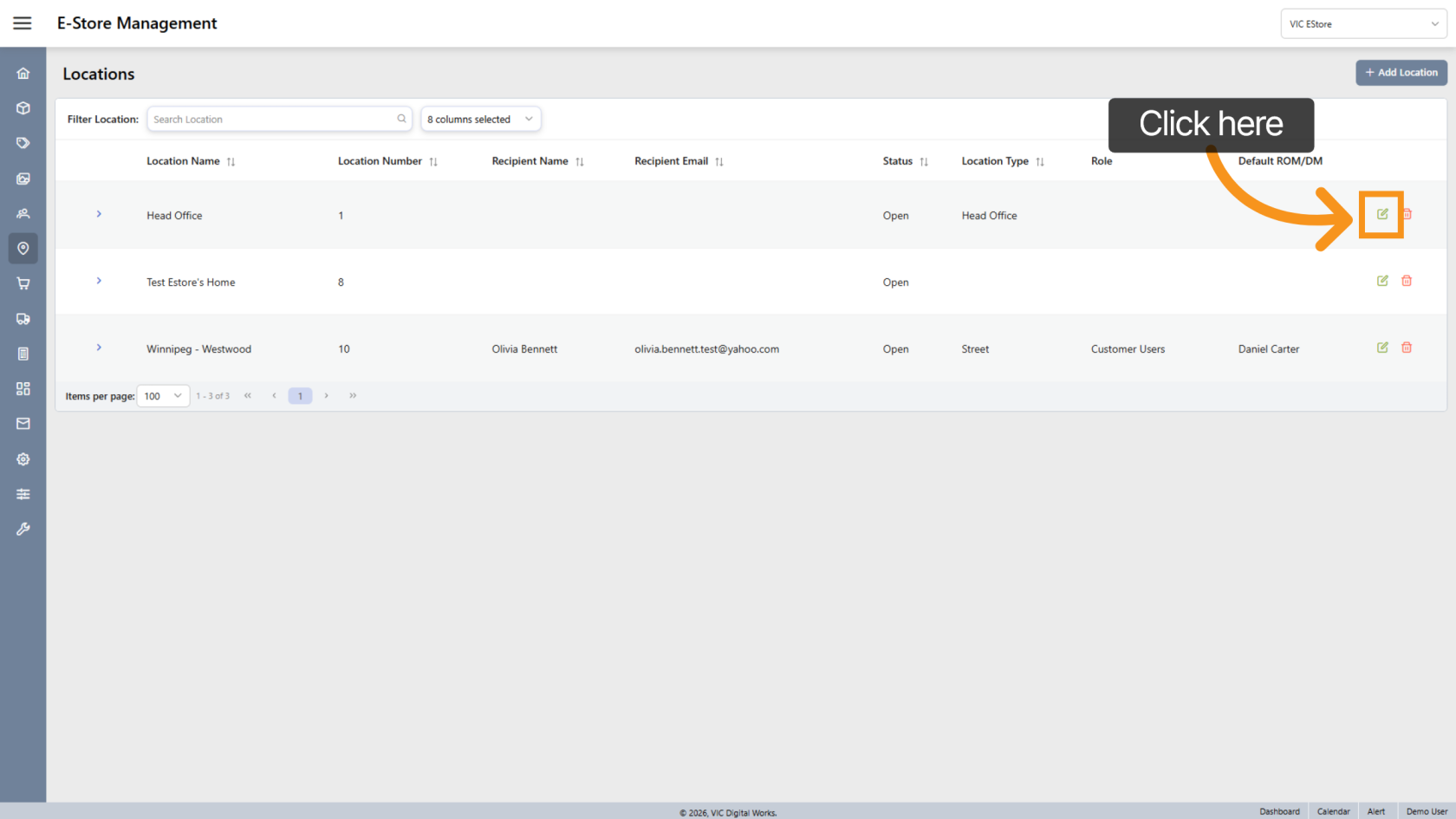
7. Edit Location Settings
Select the  edit icon to update or configure the location workspace settings.
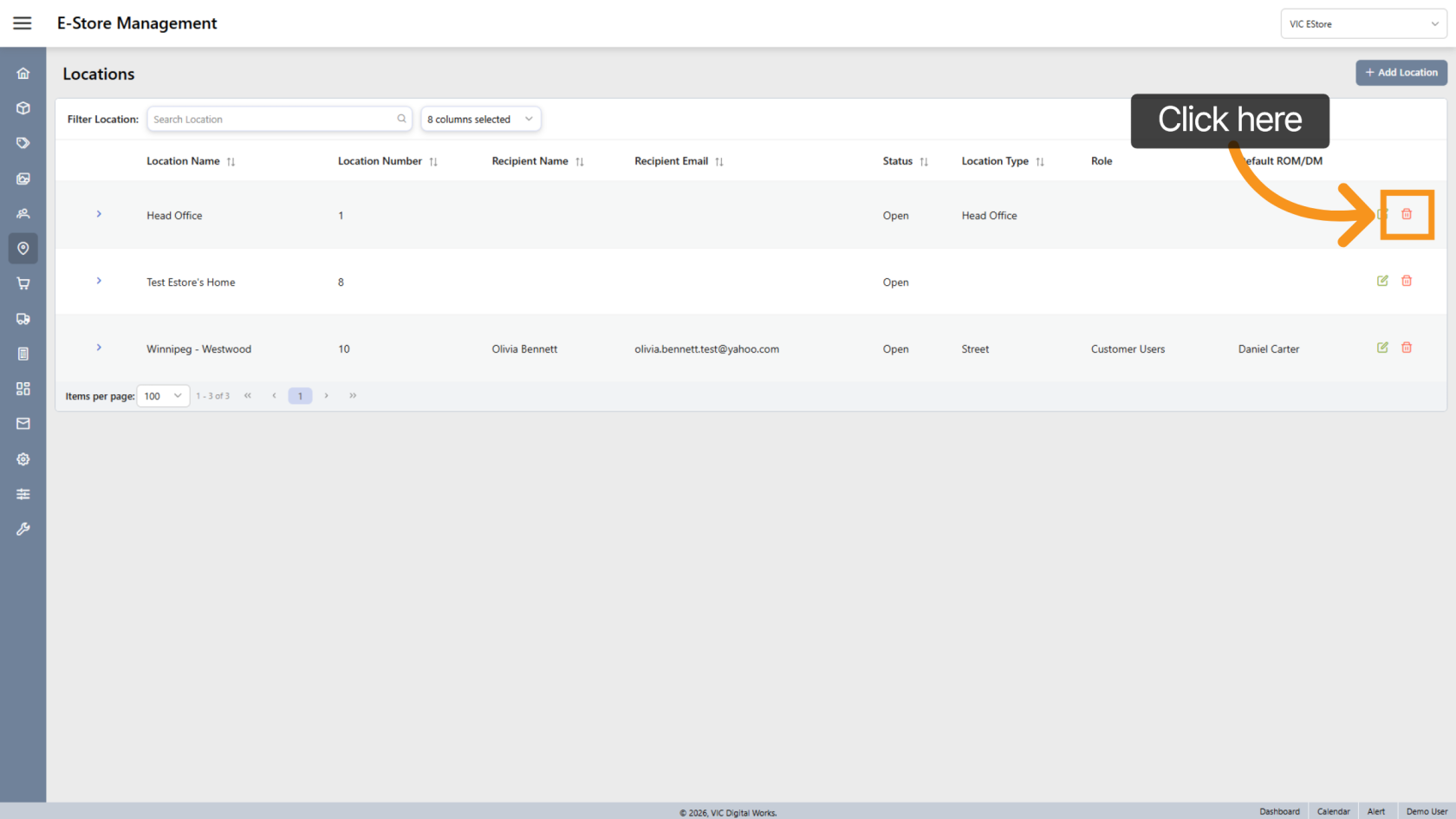
8. Delete a Location
Click the  delete icon to remove a location workspace configuration.
You have successfully configured and managed the Location Workspace by accessing the Locations section, customizing the list view, and performing setup actions.