
Export Inventory Reports
This tutorial shows you how to access inventory reports and export them to Excel.
Video Tutorial
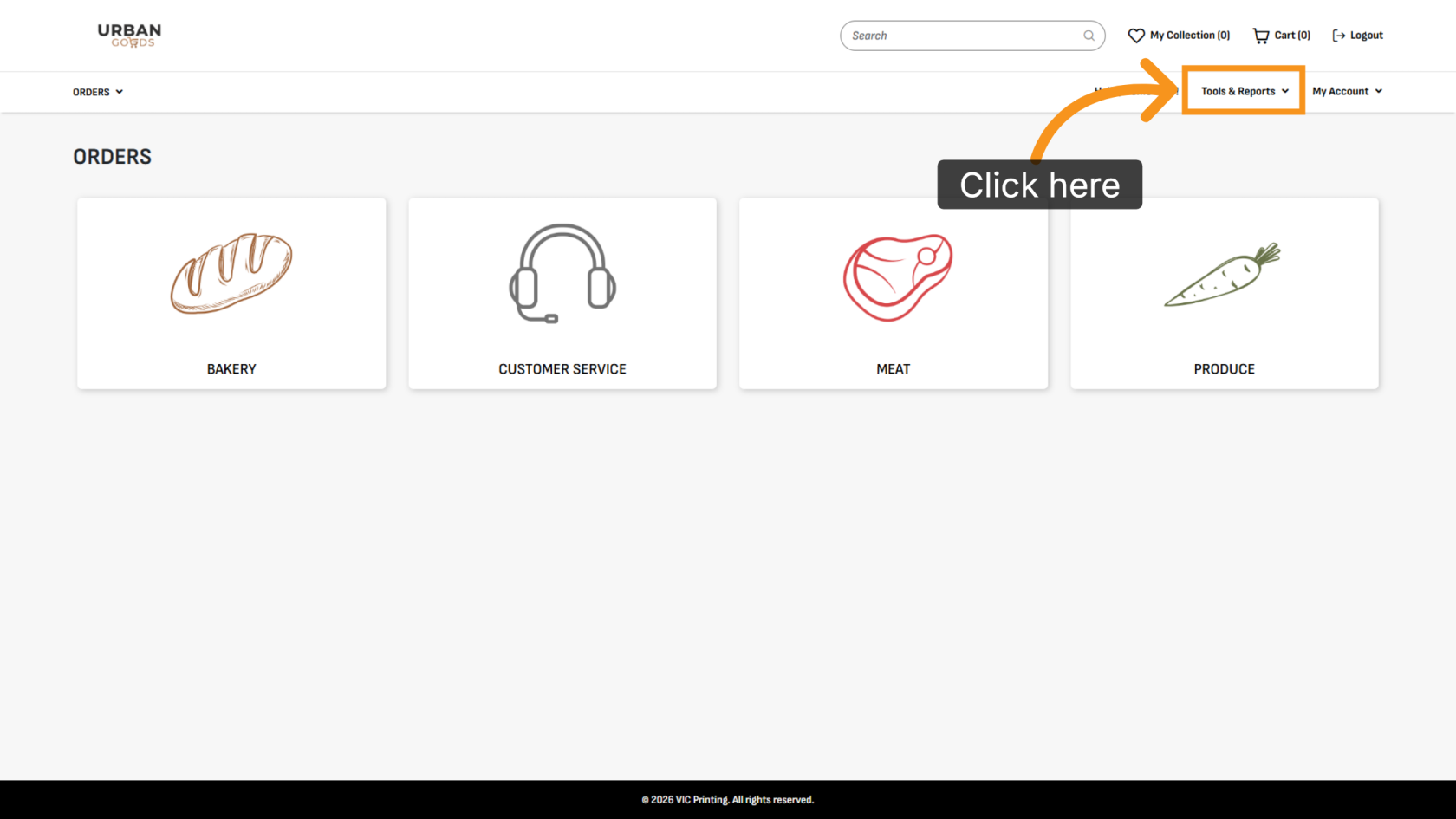
1. Open Tool and Report
Click Tools & Reports to open the reporting menu.
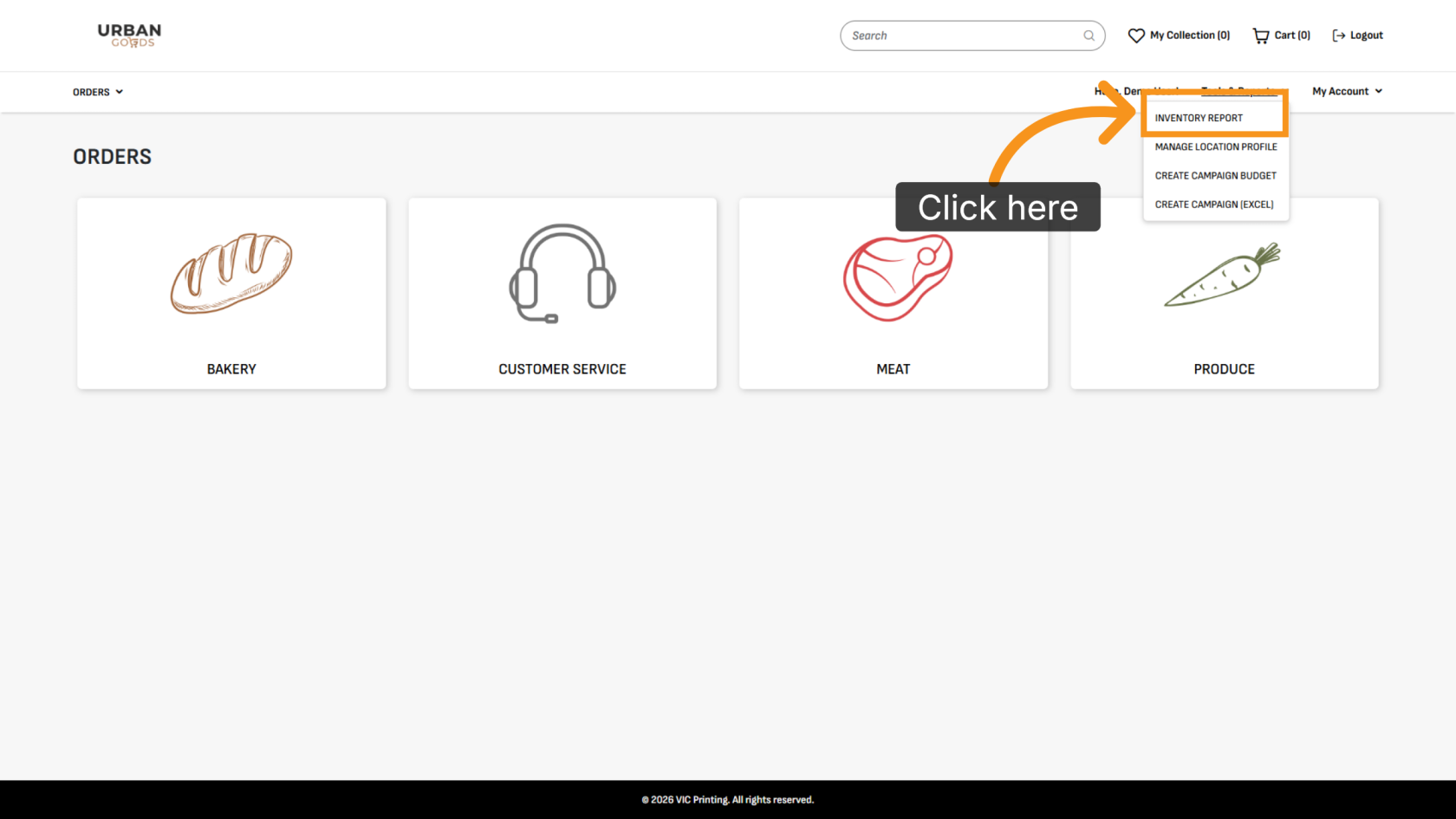
2. Open Inventory Report
Click Inventory Report to view inventory details.
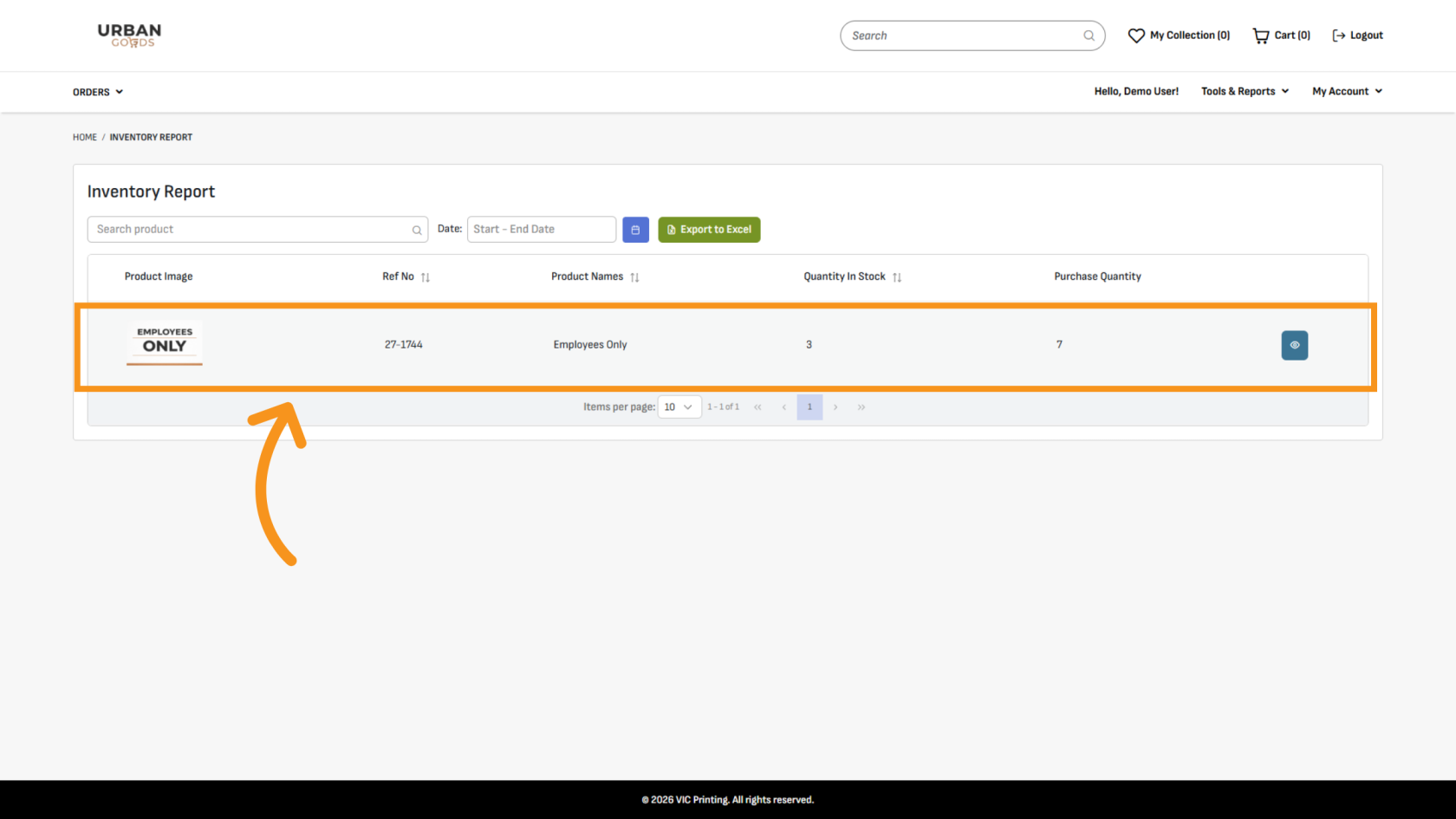
3. Review Inventory Products
Browse the list of inventory products displayed in the report.
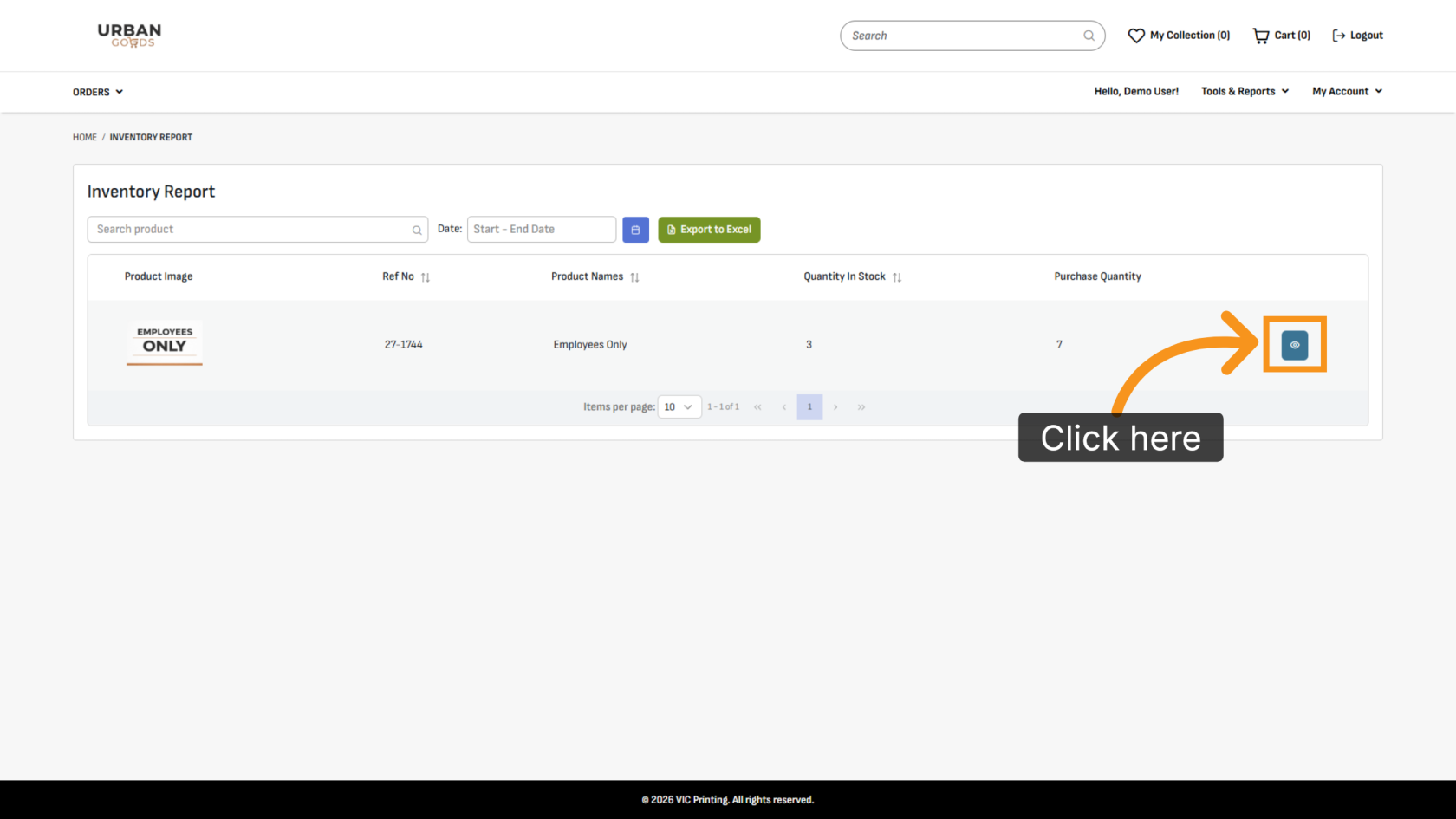
4. View Order History
Click the view icon to see the order history for a selected inventory item.
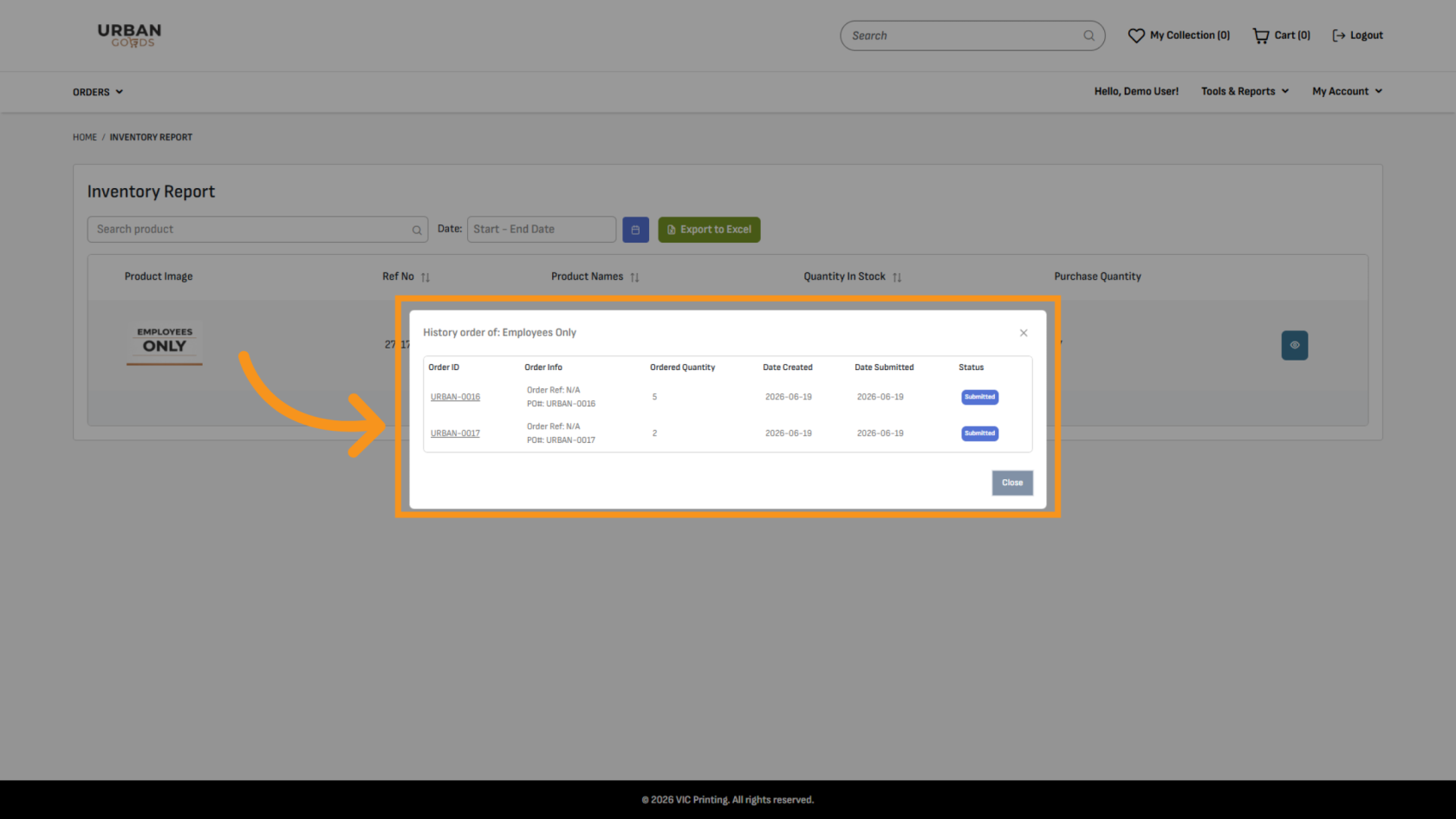
5. Review the History
The history window displays the order number and the date the item was ordered.
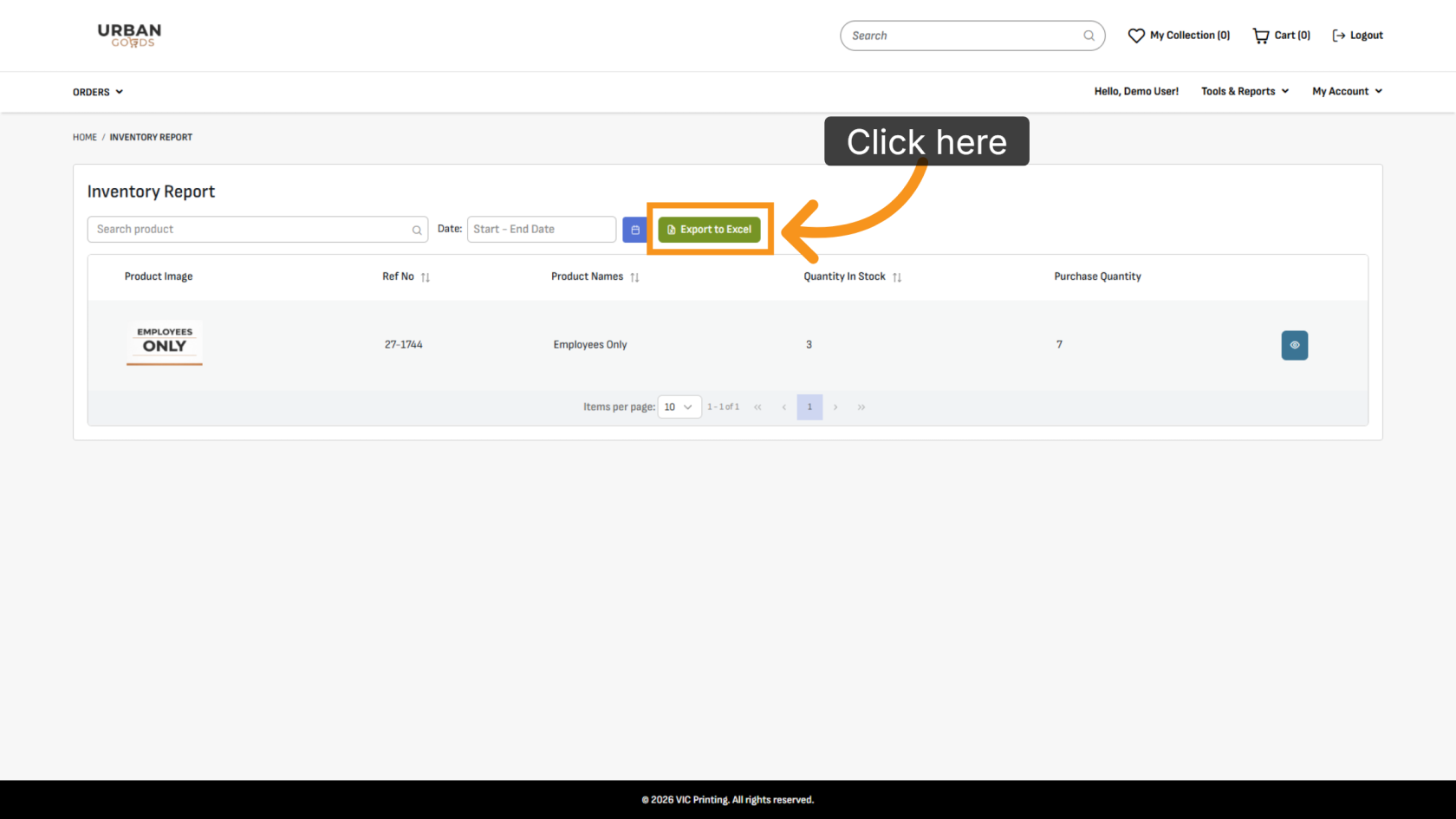
6. Export the Report
Click Export to Excel to download the inventory report.
You have successfully accessed the Inventory Report and exported the data to Excel. You can use the exported report for inventory tracking, analysis, and record keeping.