
Extra Description Content
This tutorial explains how to configure additional description content for a product in the E-Store.
Video Tutorial
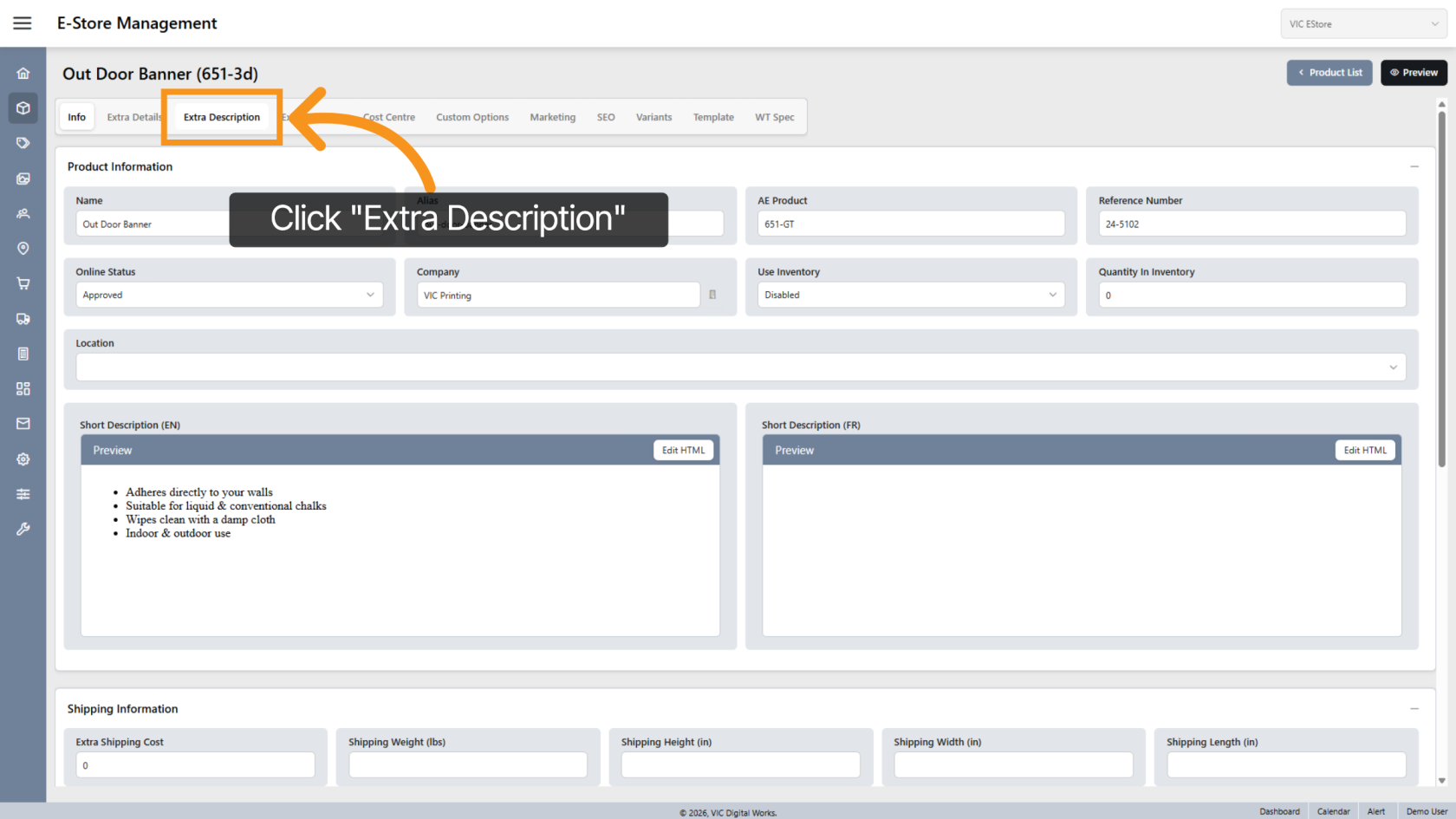
1. Open Extra Description Tab
Click the Extra Description tab to access additional content sections for the product.
2. View Existing Content
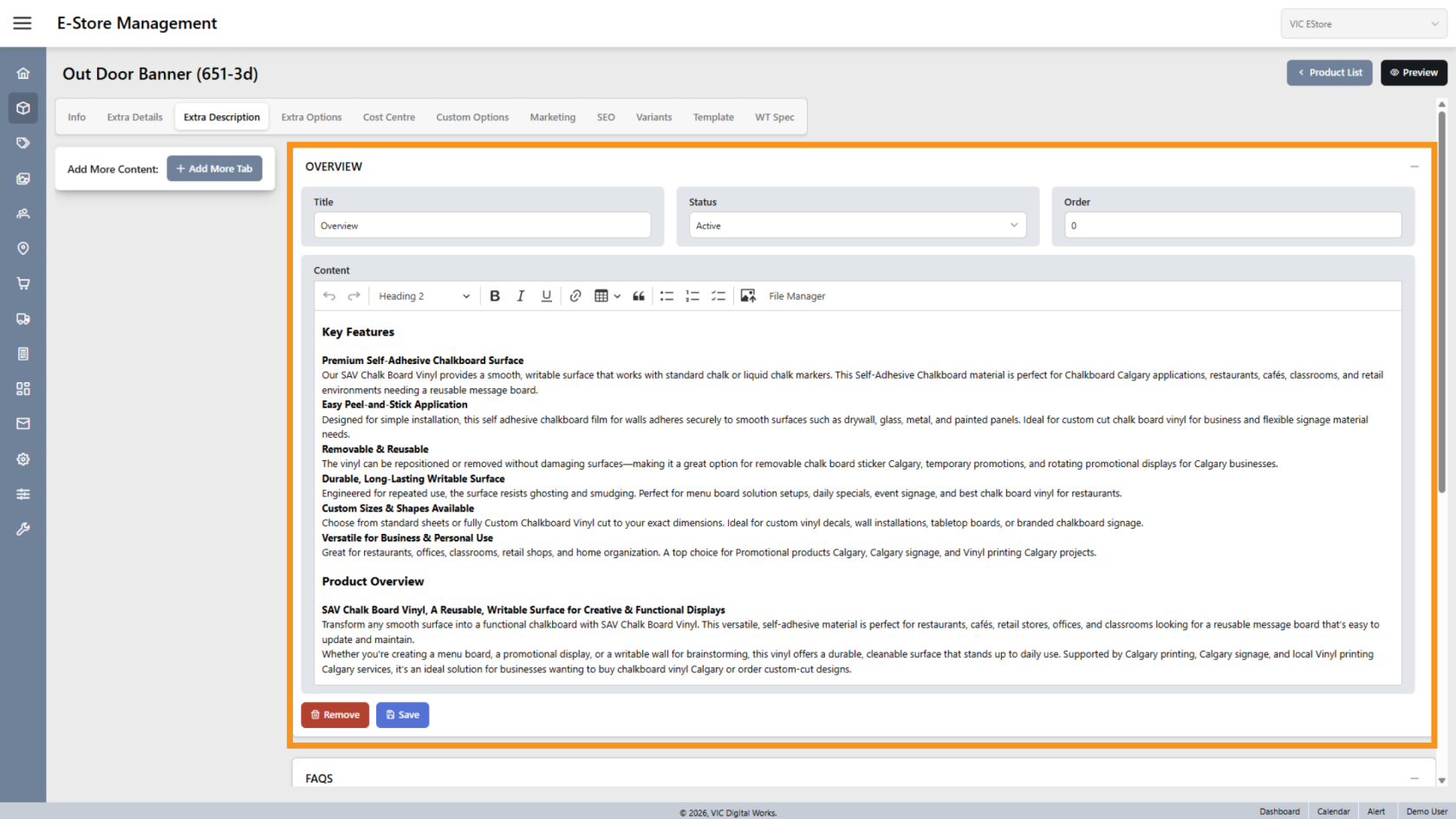
All existing description tabs will appear on the right side.
3. Add New Content Section
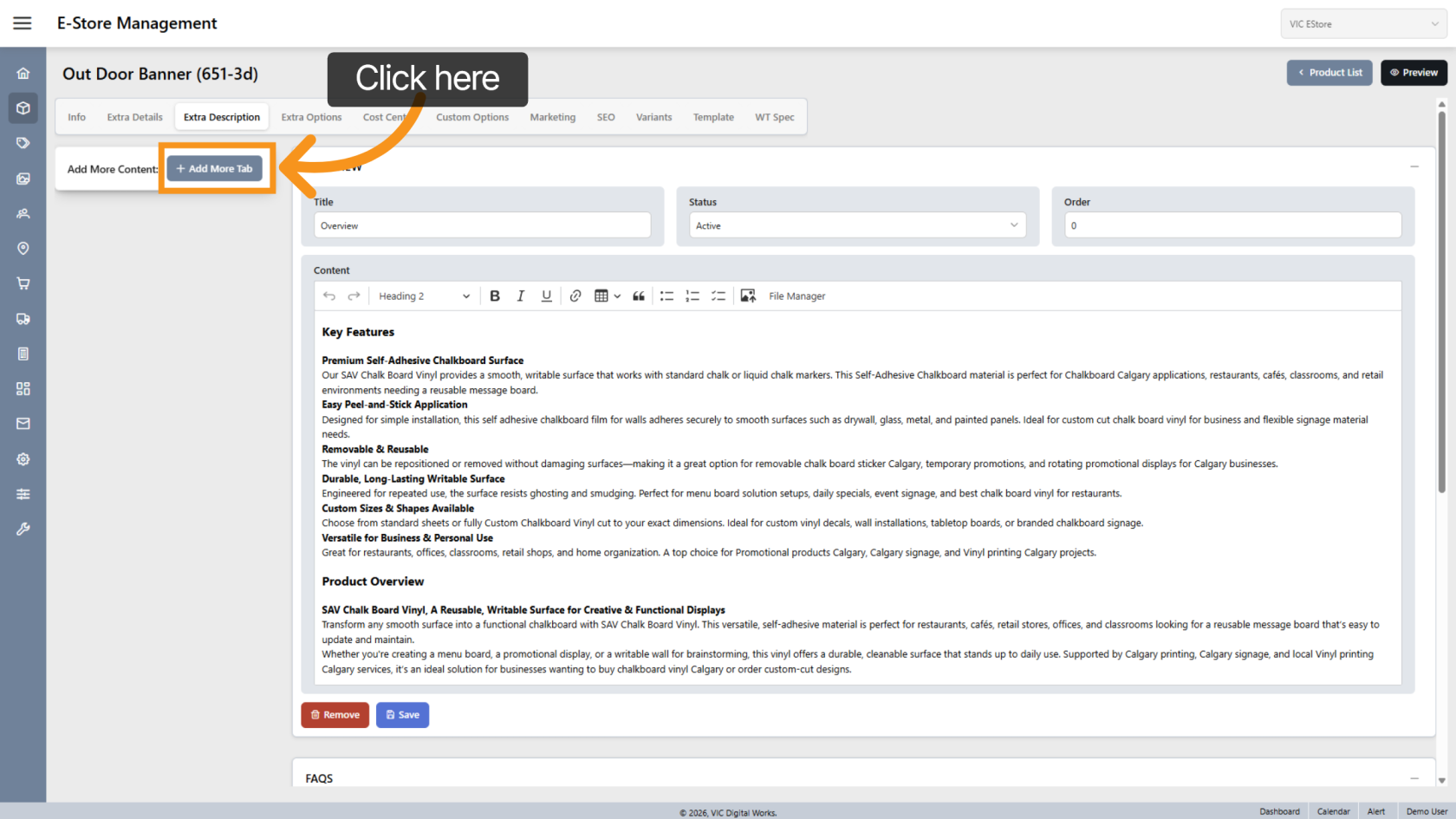
Click Add More to create a new description tab.
4. Add a Title
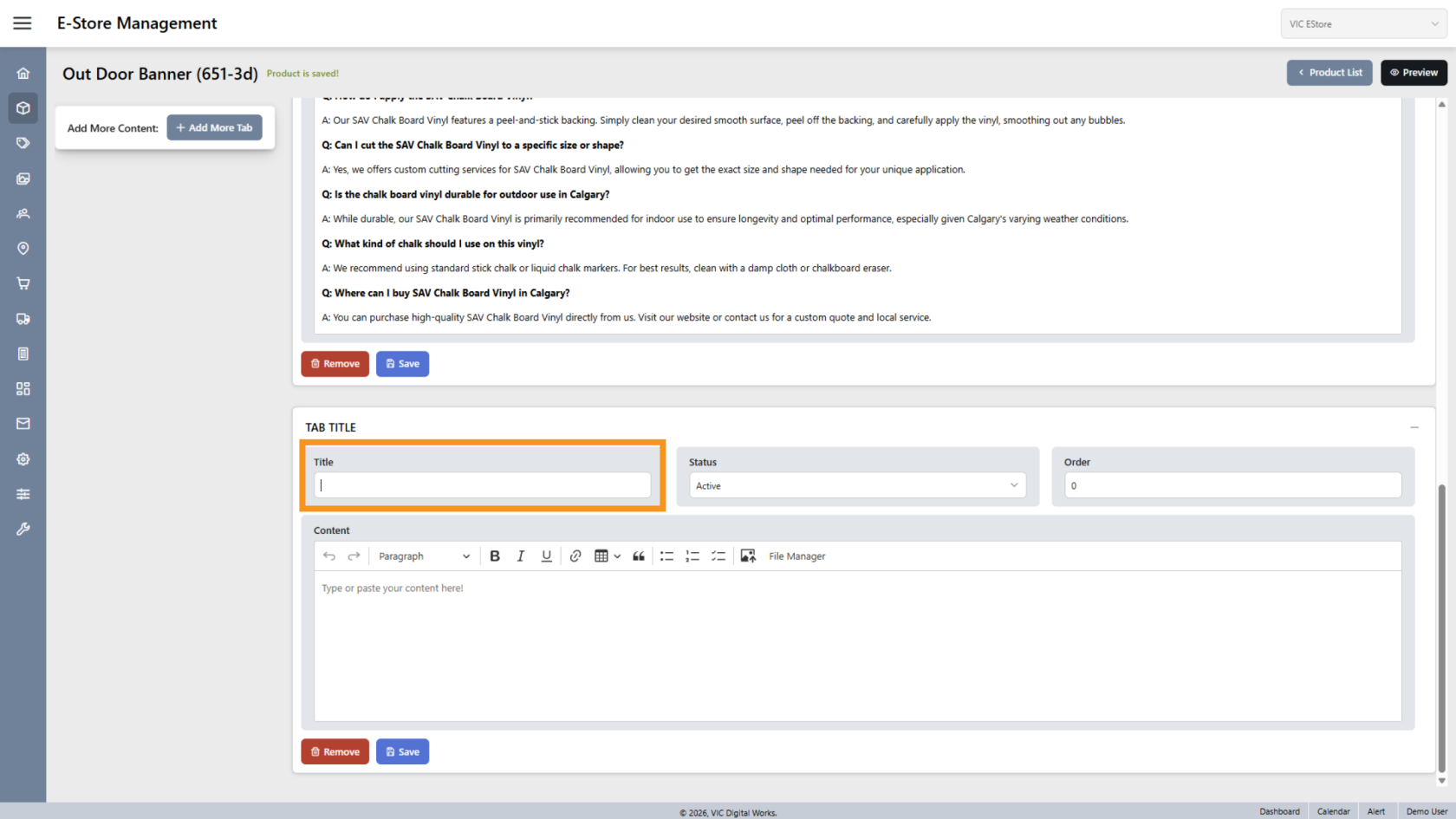
Click Title and enter the name for the new description tab.
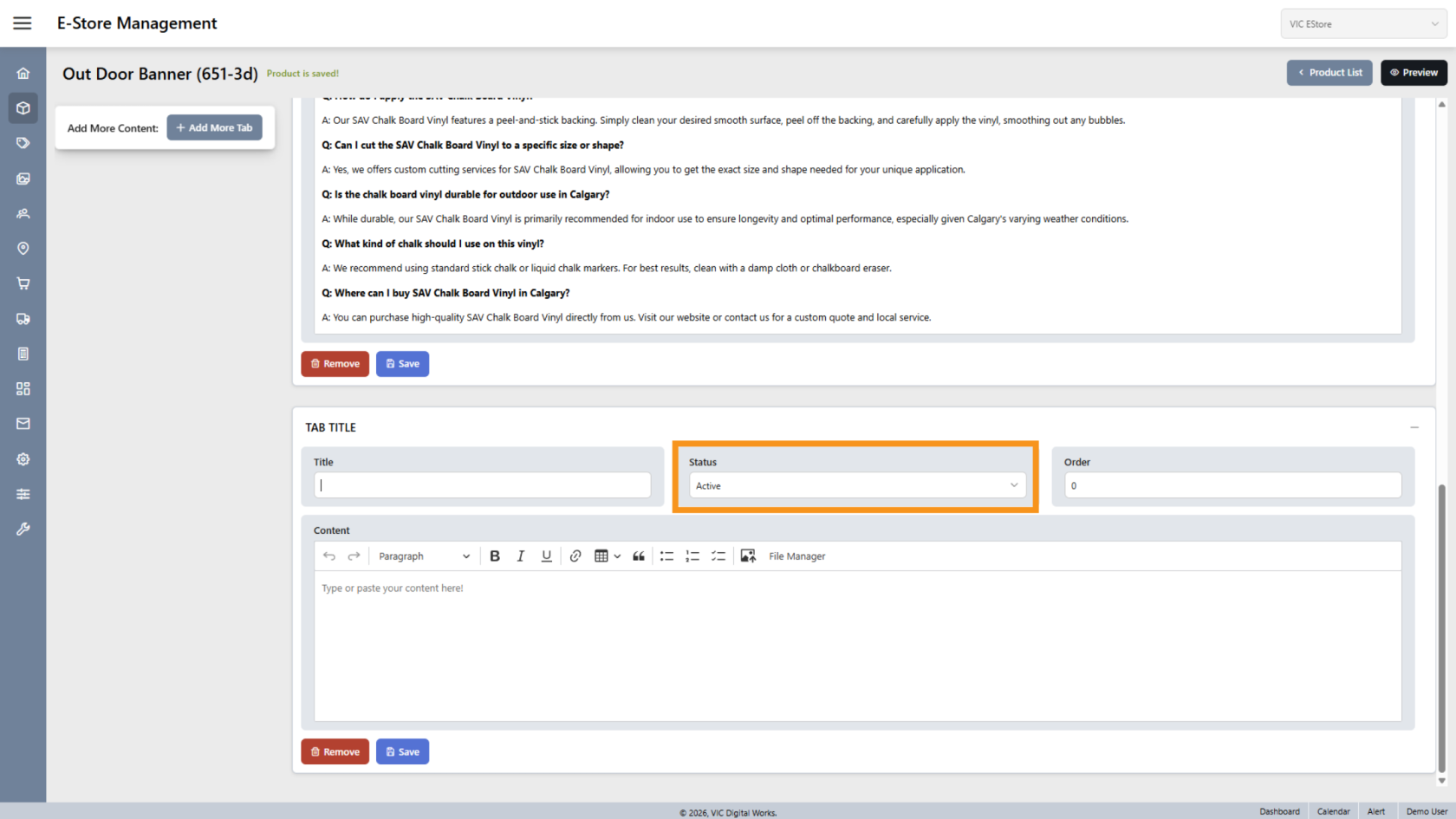
5. Set Content Status
The content is Active by default.
You can set it to Inactive to hide descriptions that no longer apply to the product.
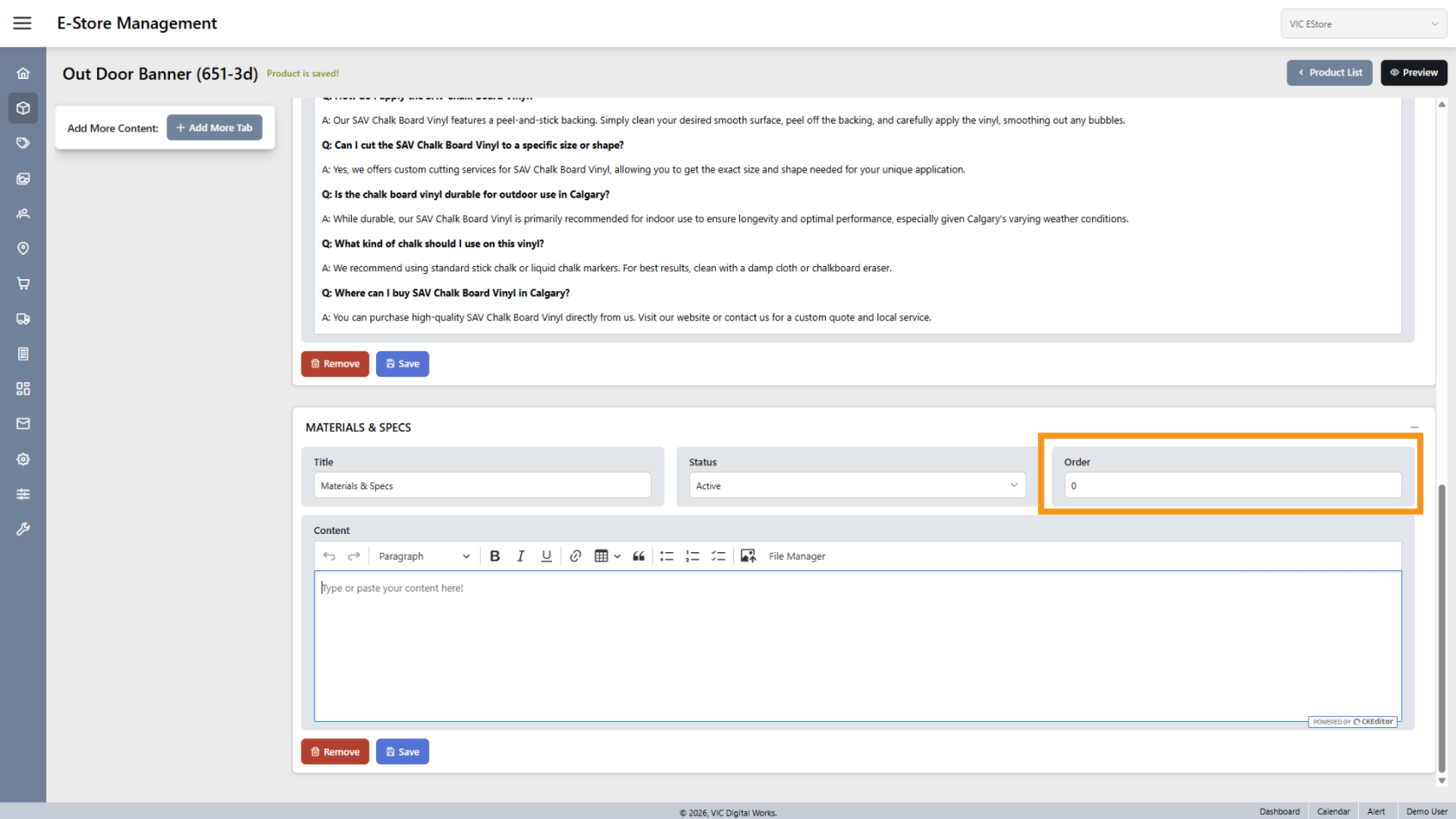
6. Adjust Sort Order
Use the Order option to rearrange the tab position.
By default, the system displays tabs from top to bottom.
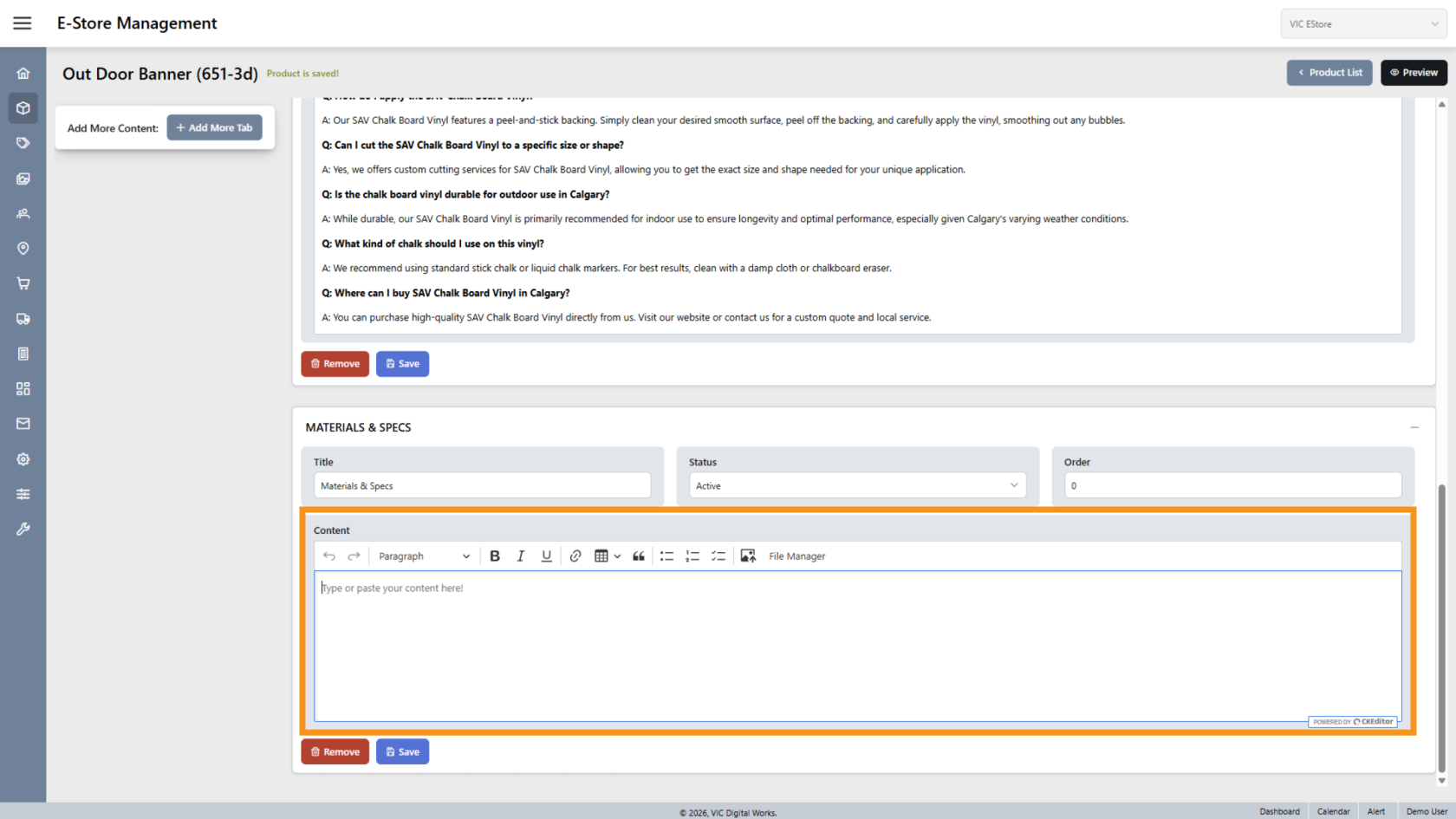
7. Enter Description Content
Click inside the Content field to add the description text.
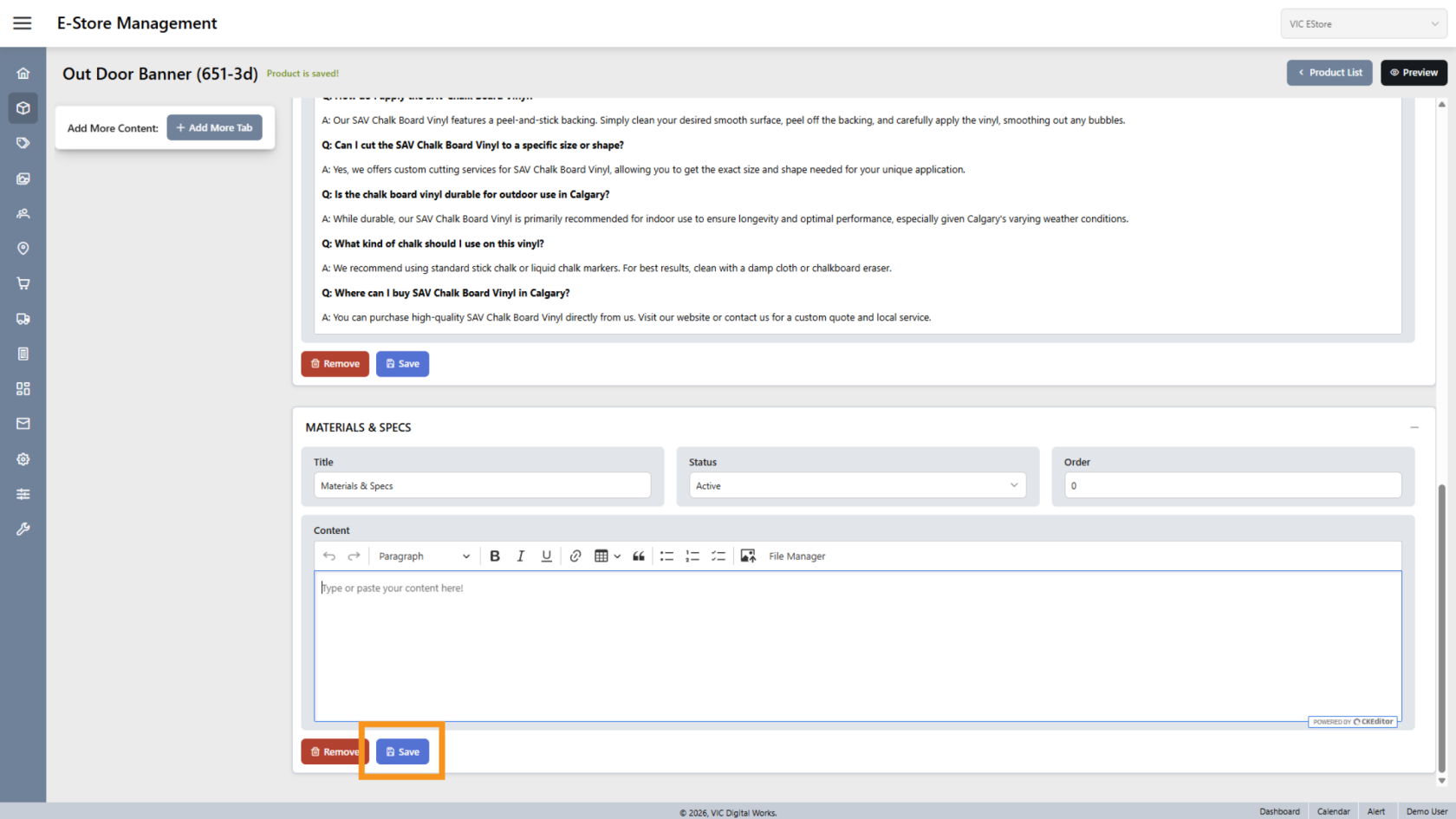
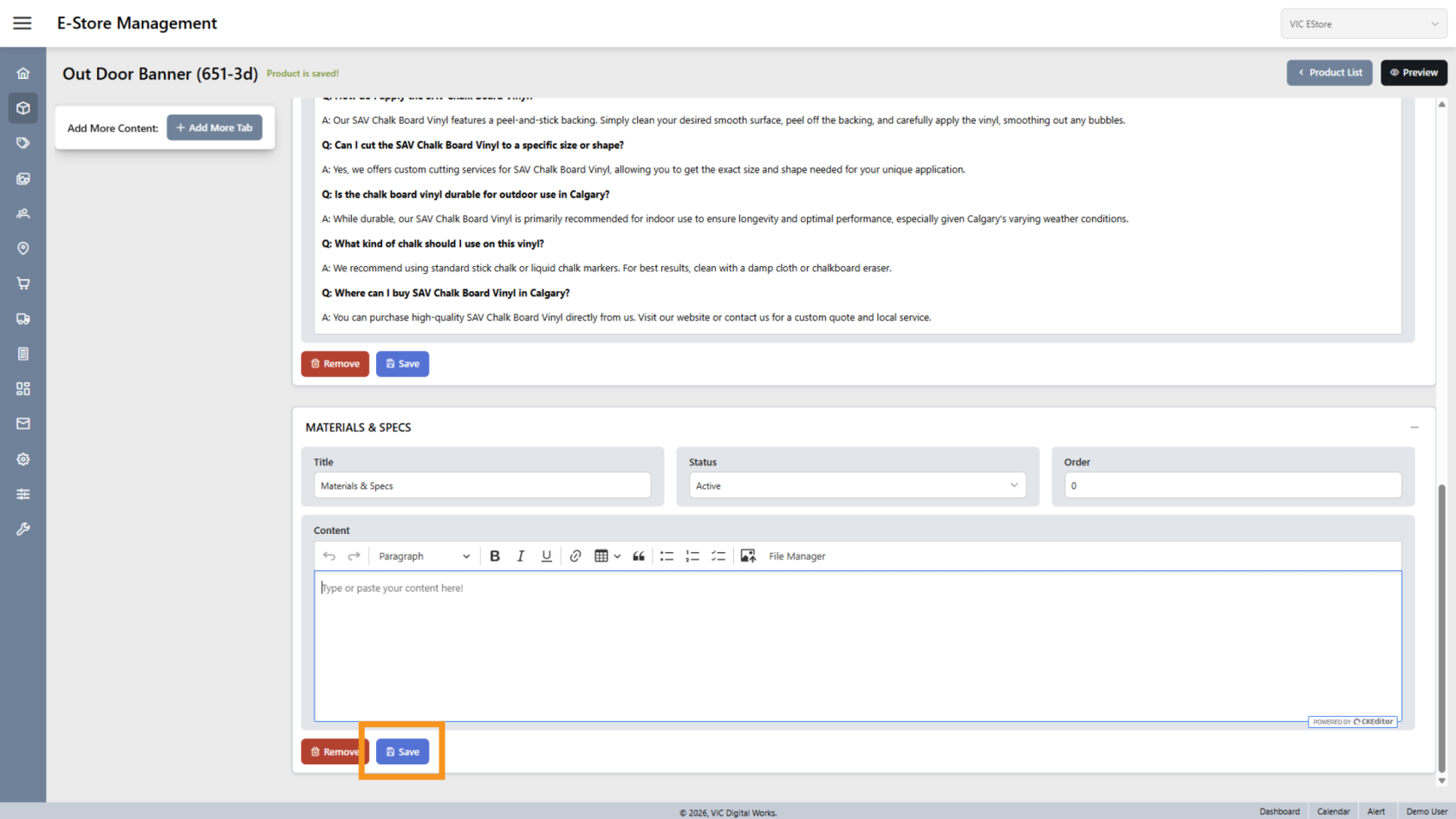
8. Save Changes
Click Save to apply your updates.
9. Remove Description
Click Remove to delete a description tab from the product.
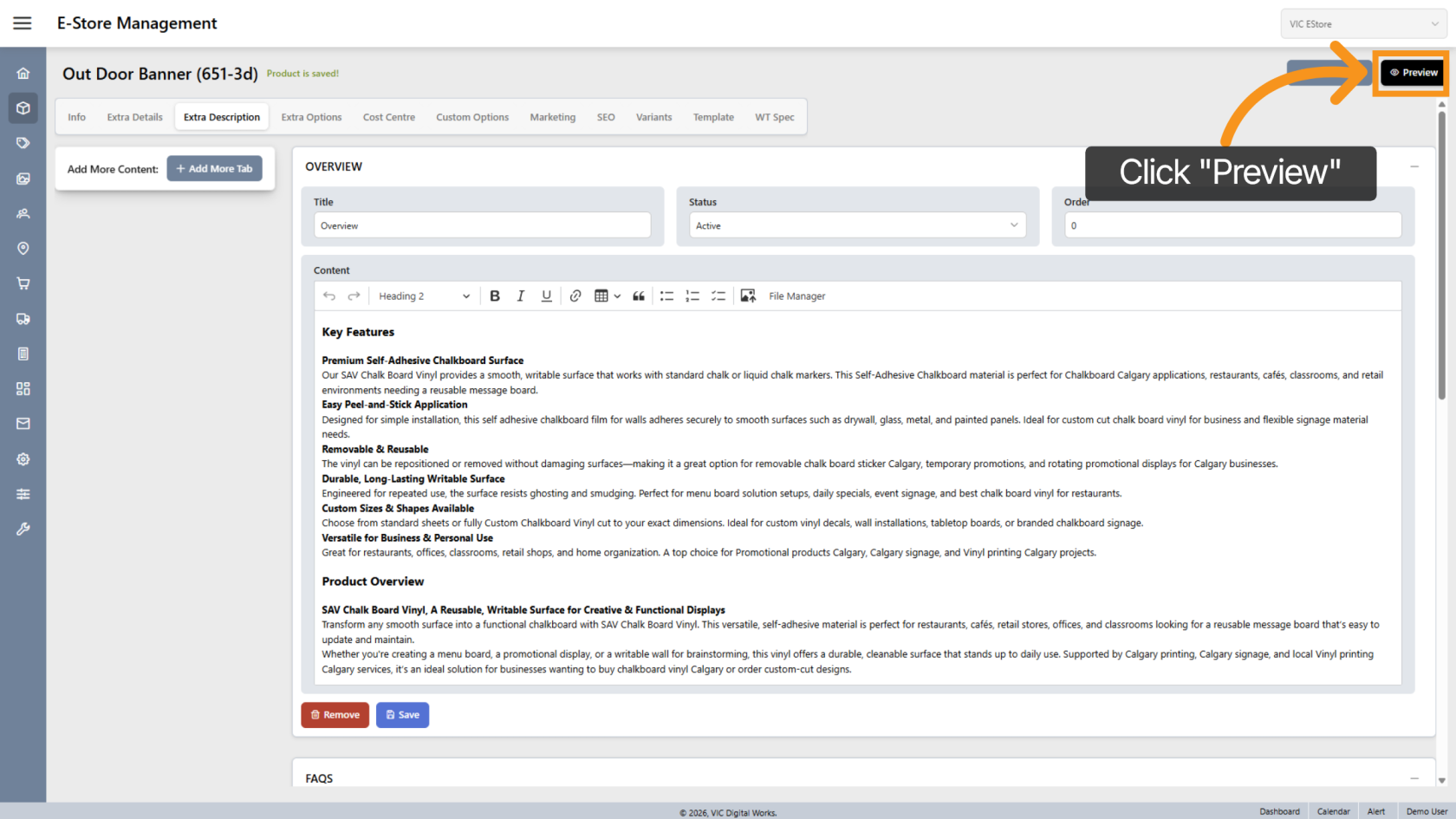
10. Preview Content
Click Preview to see how the updated description will appear in the E-Store.
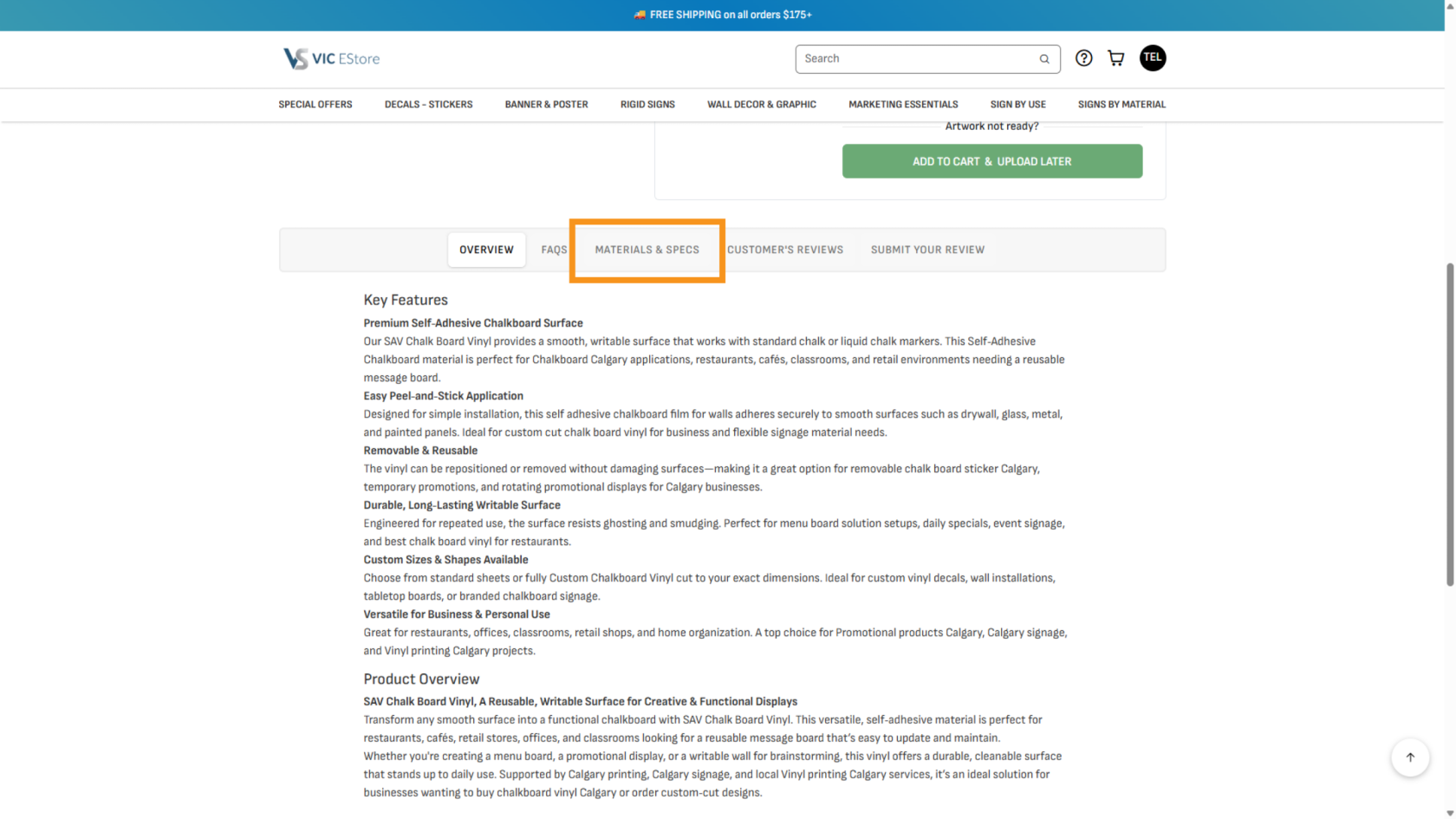
11. View on Product Page
Scroll down the product detail page to confirm the new tab is displayed correctly in the E-Store.
You have successfully configured and previewed the extra description content for your product. Review all tabs to ensure the information is accurate before updating other products.