
Kitchen Display Screen (KDS)
The
Configure Kitchen Display SystemScreen (KDS)Settings helpsIn Vicdigital POS
This tutorial guides you through configuring the Kitchen Display Screen in the Vicdigital POS system
Go to serviz.ca
1. Introduction
You will learn how to access and adjust settings to optimize kitchen stafforder view, manage, and complete incoming orders from all service types such as Dine-In, Takeout, Delivery, and Online.management.
1.
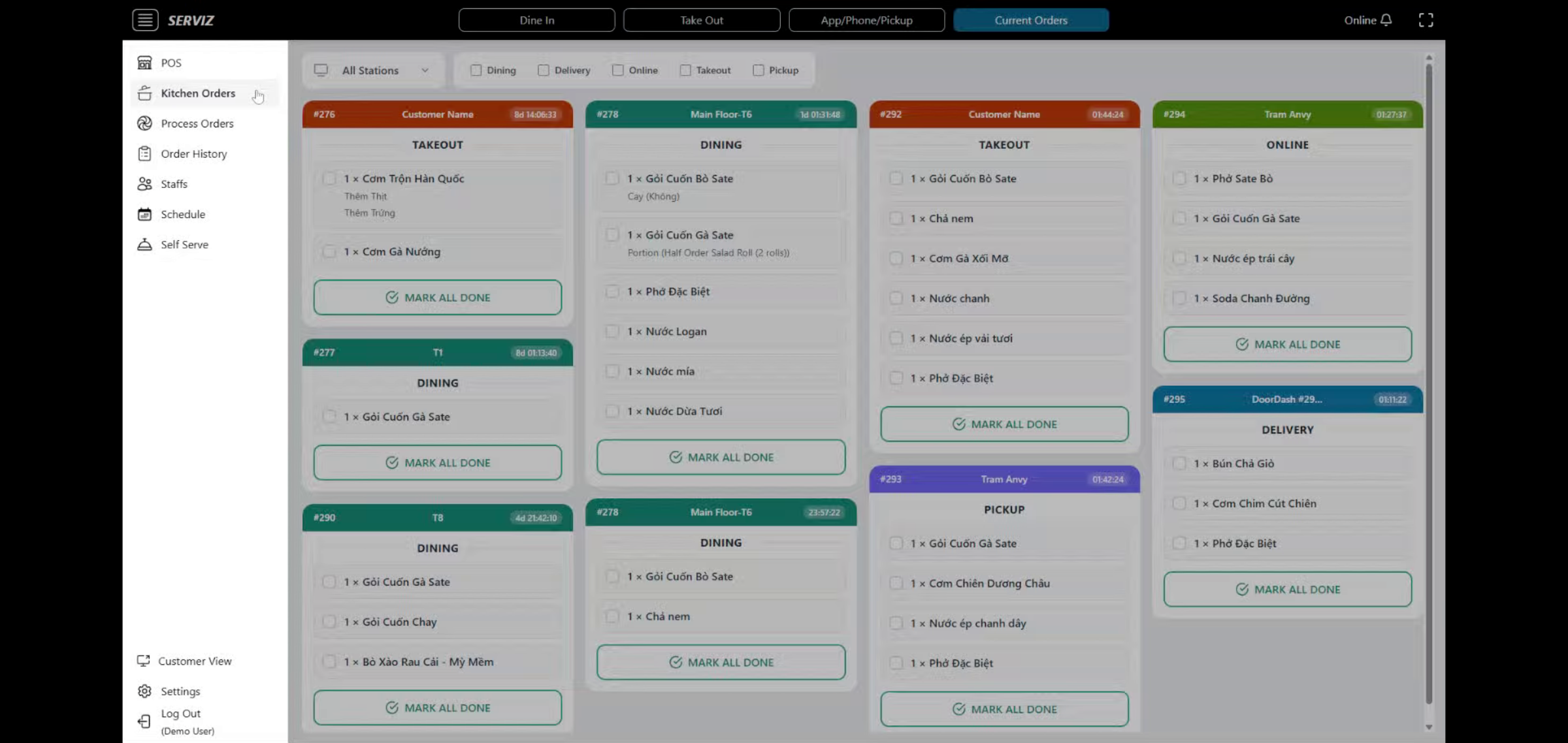
2. Open Kitchen Orders (KDS)Section
FromClick the
Kitchen Ordersleft sidebar, click.- section to begin configuring the kitchen display order.
3. Kitchen Display screen
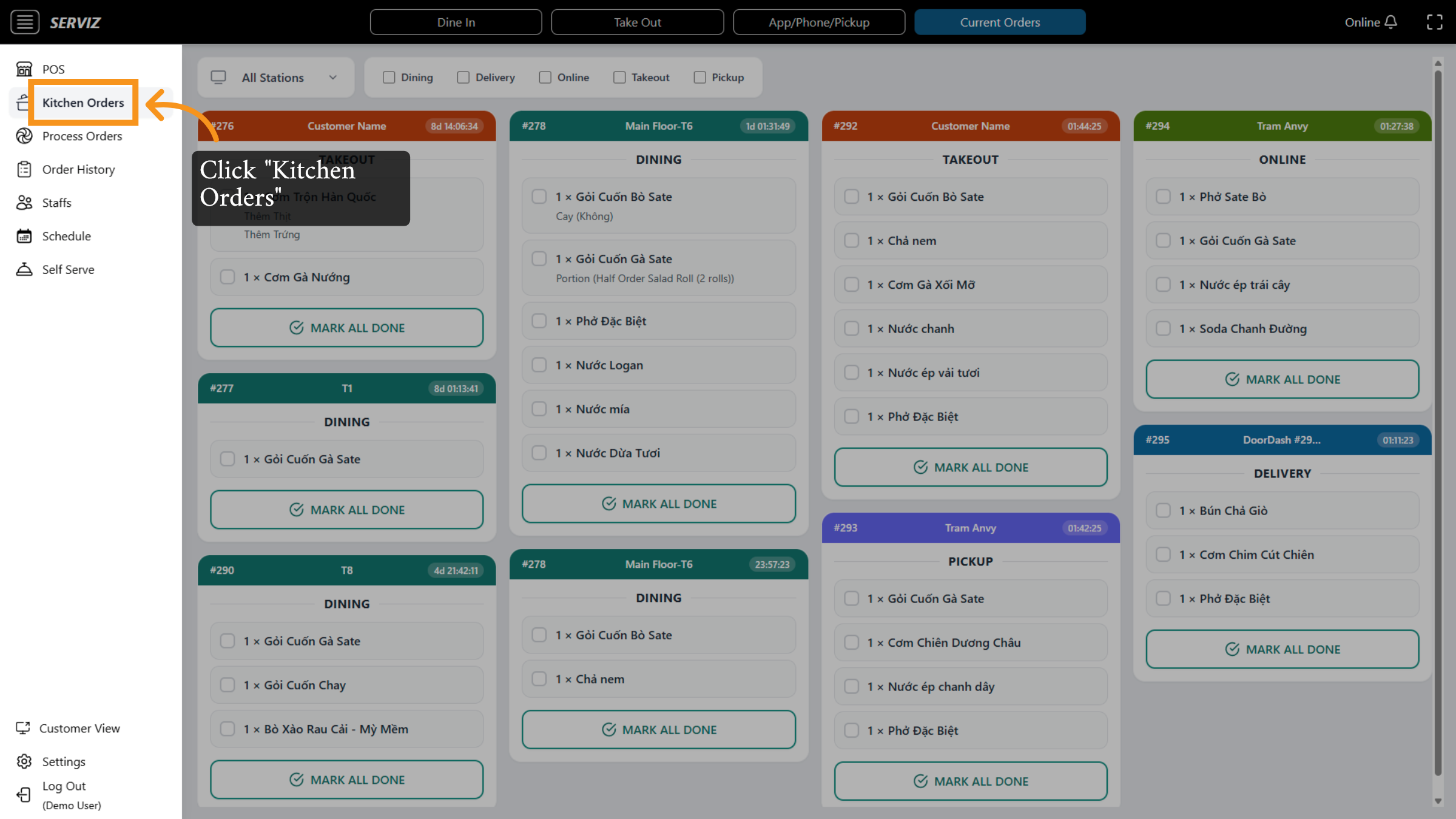
The screen
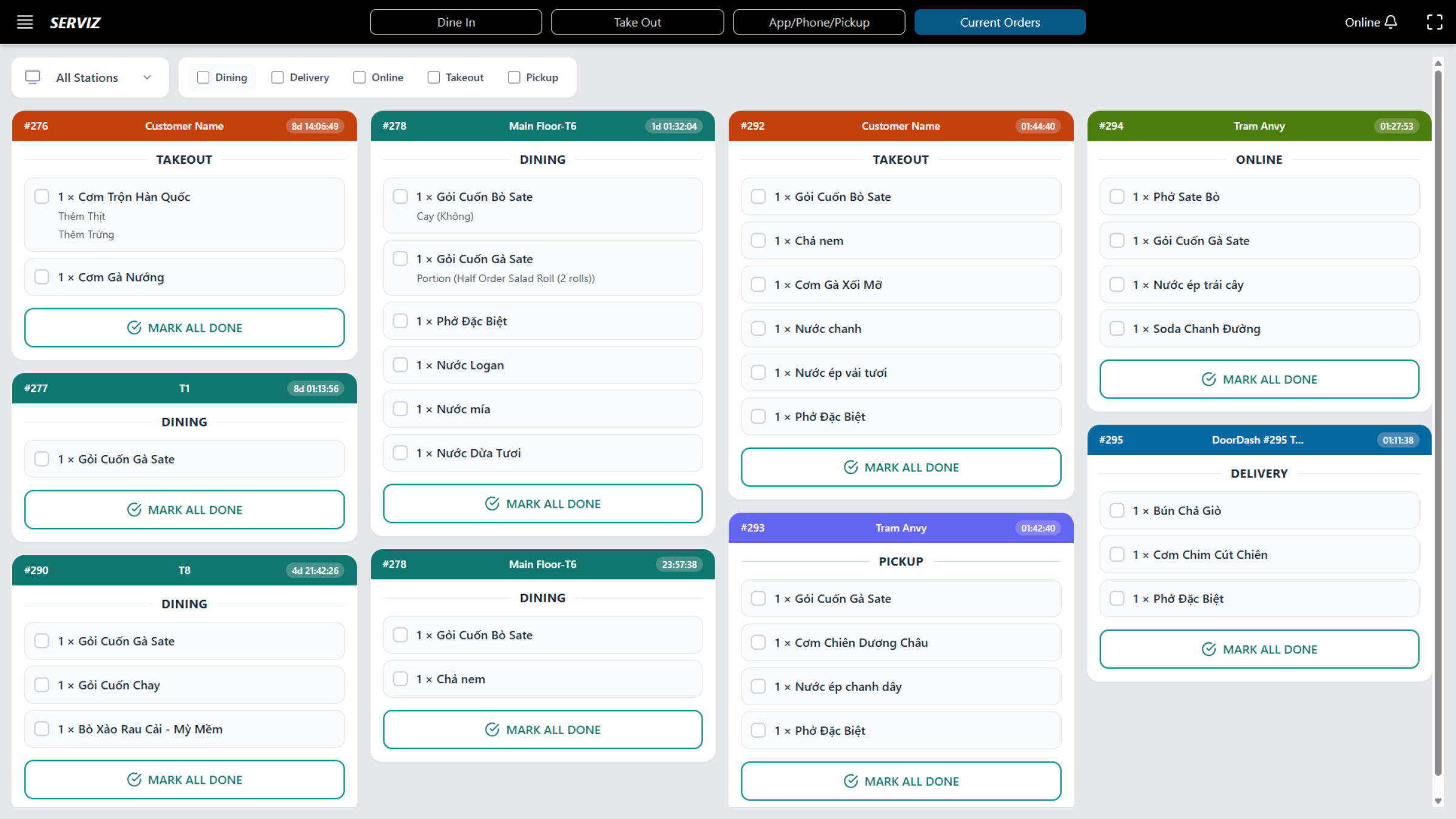
will showdisplays all open ordersgroupedorganized bytype:- type and highlighted by the top bar Station color Separate colors assist kitchen staff in easily recognizing orders. Takeout
DeliveryDiningOnline
ORANGE Delivery: BLUE
Dining: TEAL Online : GREEN
Pickup : PURPLE
And ALL STATIONS Each order appears as a card with:
- Order Number (
#1133, #1136,#... etc.) - -Customer name or table number
- -Order type
- -Item list with modifiers
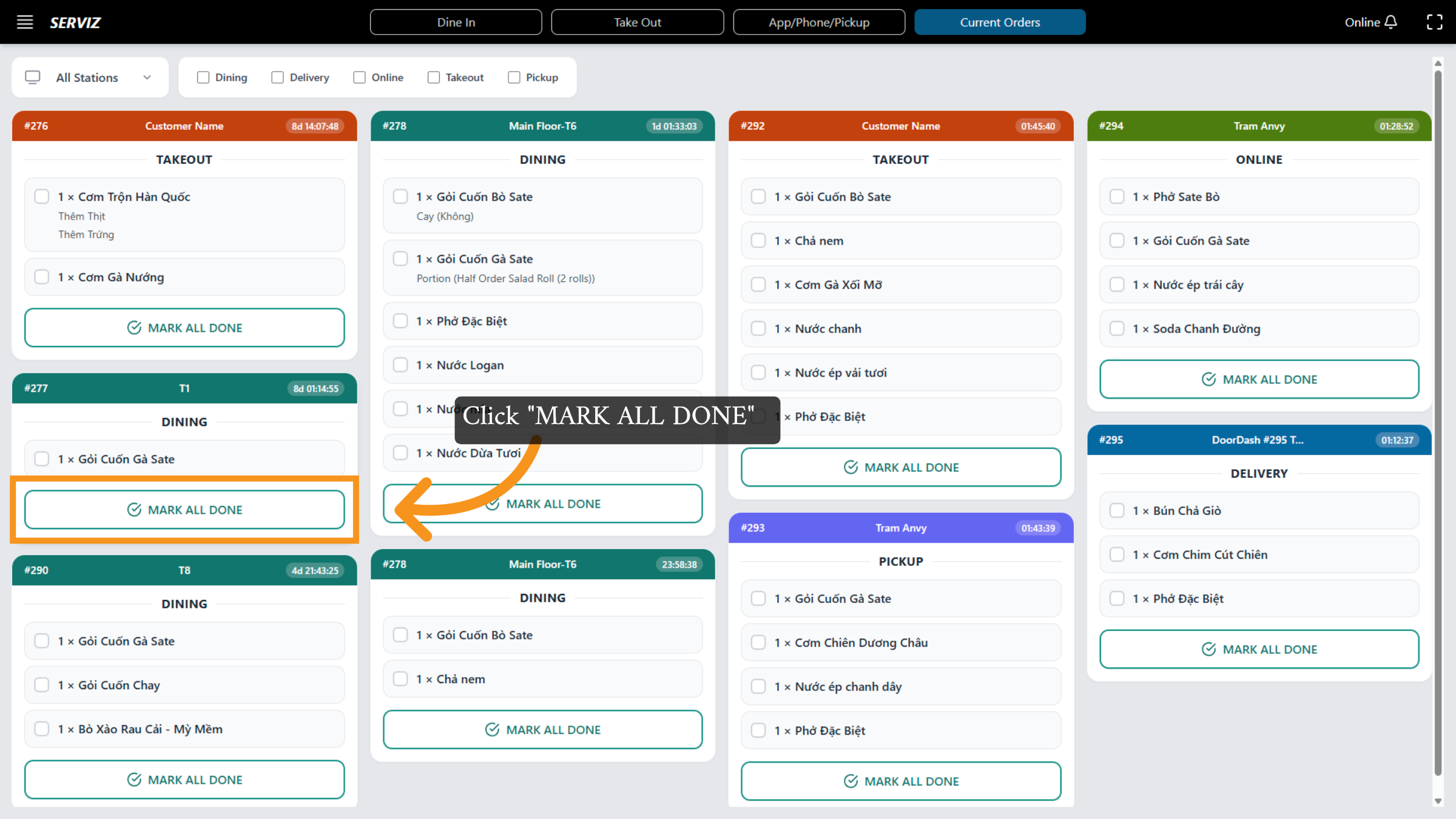
- -A completion button: MARK ALL DONE
2. Filtering Stations
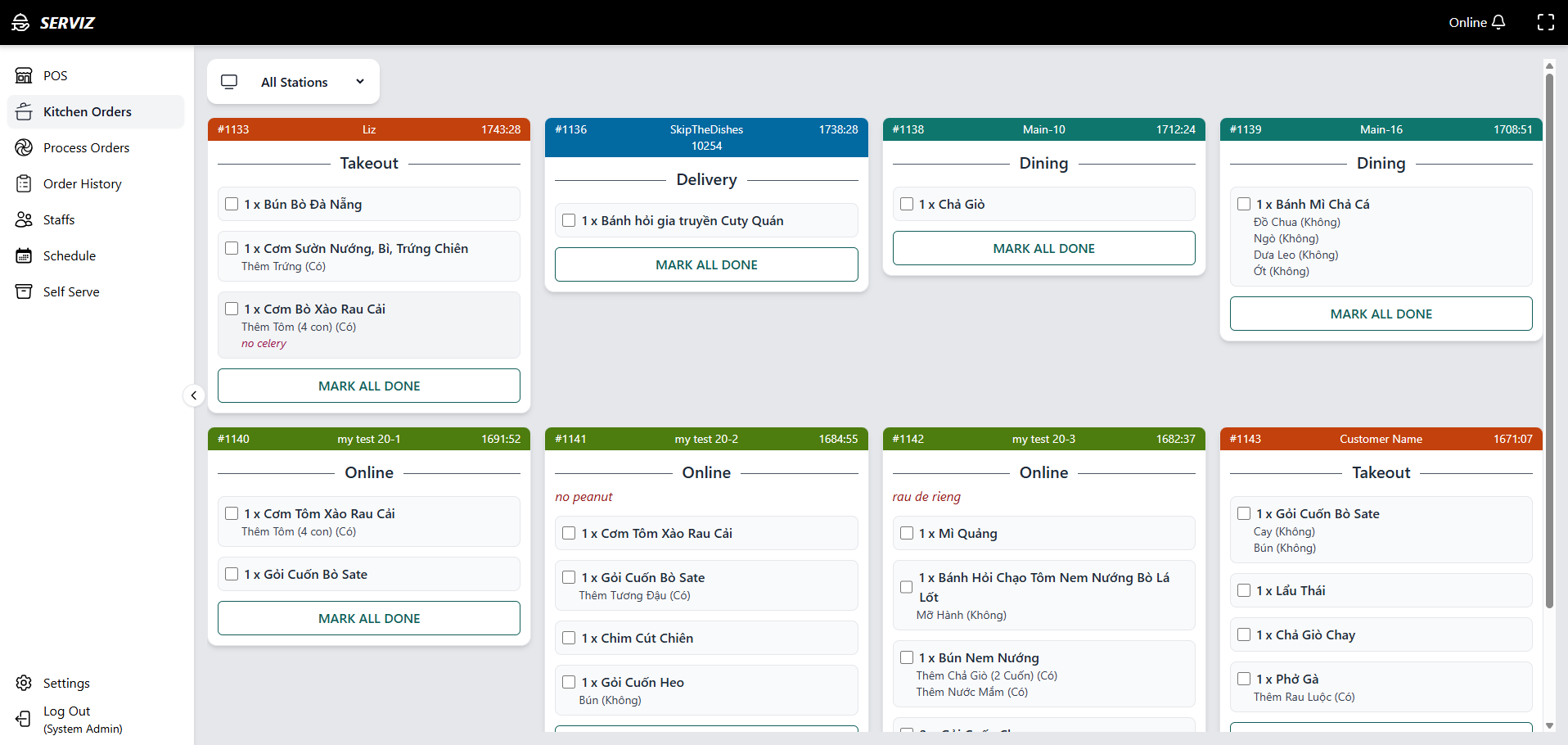
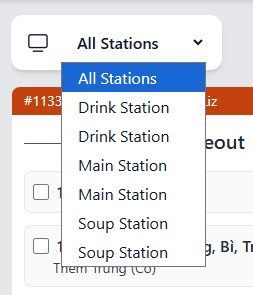
At the top-left, the dropdown lets you filter orders by station:
All StationsDrink StationMain StationSoup Station
How it works:
ChooseAll Stationsto view every order from all categories.Choose a specific station (e.g., “Soup Station”) to filter only items assigned to that station.This helps each team focus on their tasks without sorting manually.
3.4. Understanding Order Cards
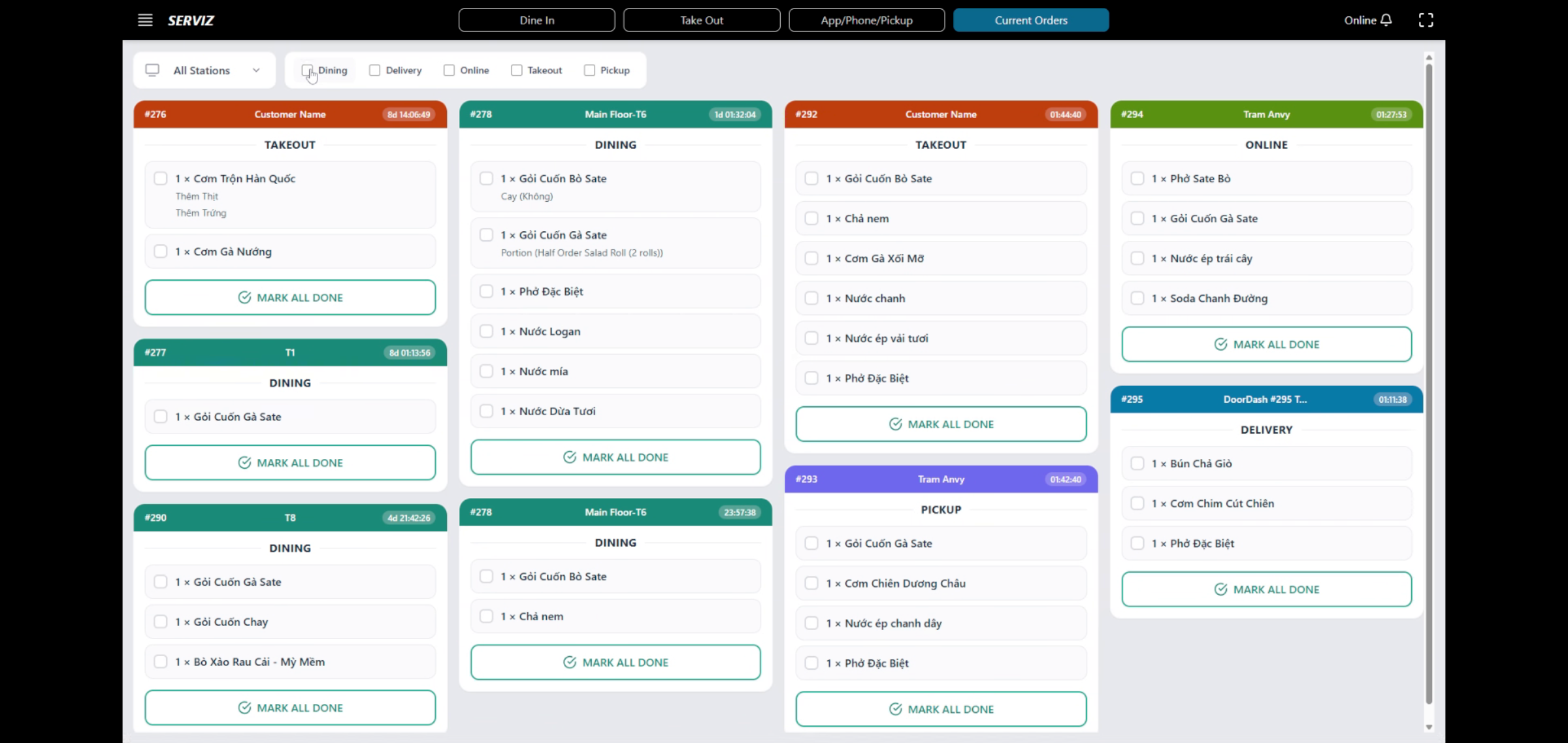
Each order card displays:
*Top Bar
- -Order number
- -Staff name (if applicable)
- -Time since order was placed
Stationcolor:Orange = TakeoutBlue = DeliveryTeal/Green = Dine-InGreen = Online
*Middle Section
- Order type
- -Item list
- -Modifier notes (e.g., “no celery”, “extra shrimp”, “no peanut”)
- -Each line item includes a checkbox for completing items individually if needed.
Bottom
5.
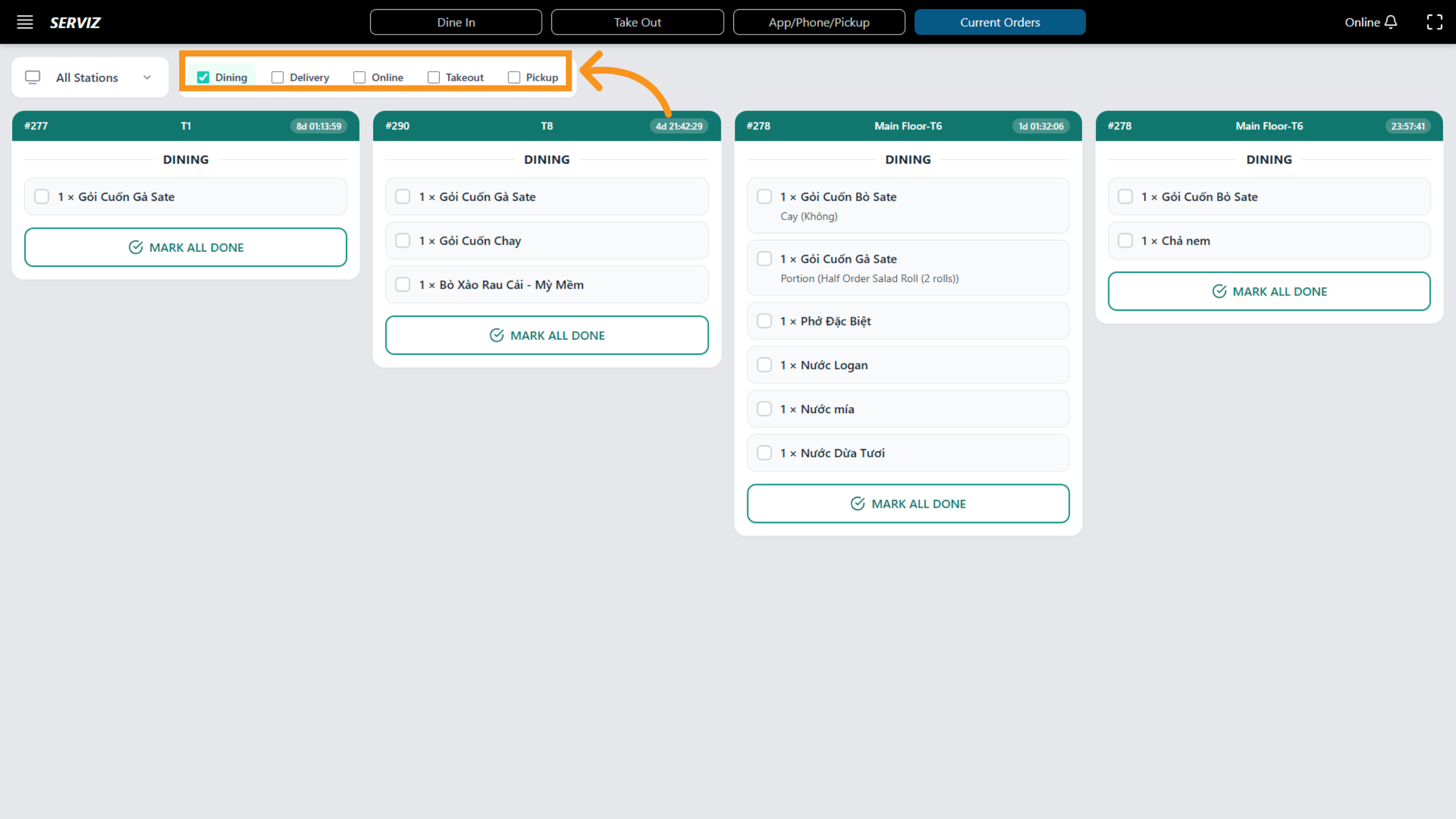
Click the option to confirm the display activation. When you select each option, the content will be filtered and summarized based on the chosen criteria, such as :
Takeout : ORANGE
Delivery: BLUE Dining: TEAL
Online : GREEN
Pickup : PURPLE
Each order appears as a card with: Order Number (#1133, #1136, etc.) Customer name or table number Order type Item list with modifiers A completion button: MARK ALL DONE
6. Filtering Stations
At the top-left, the dropdown lets you filter orders by station: All Stations Drink Station Main Station Soup Station
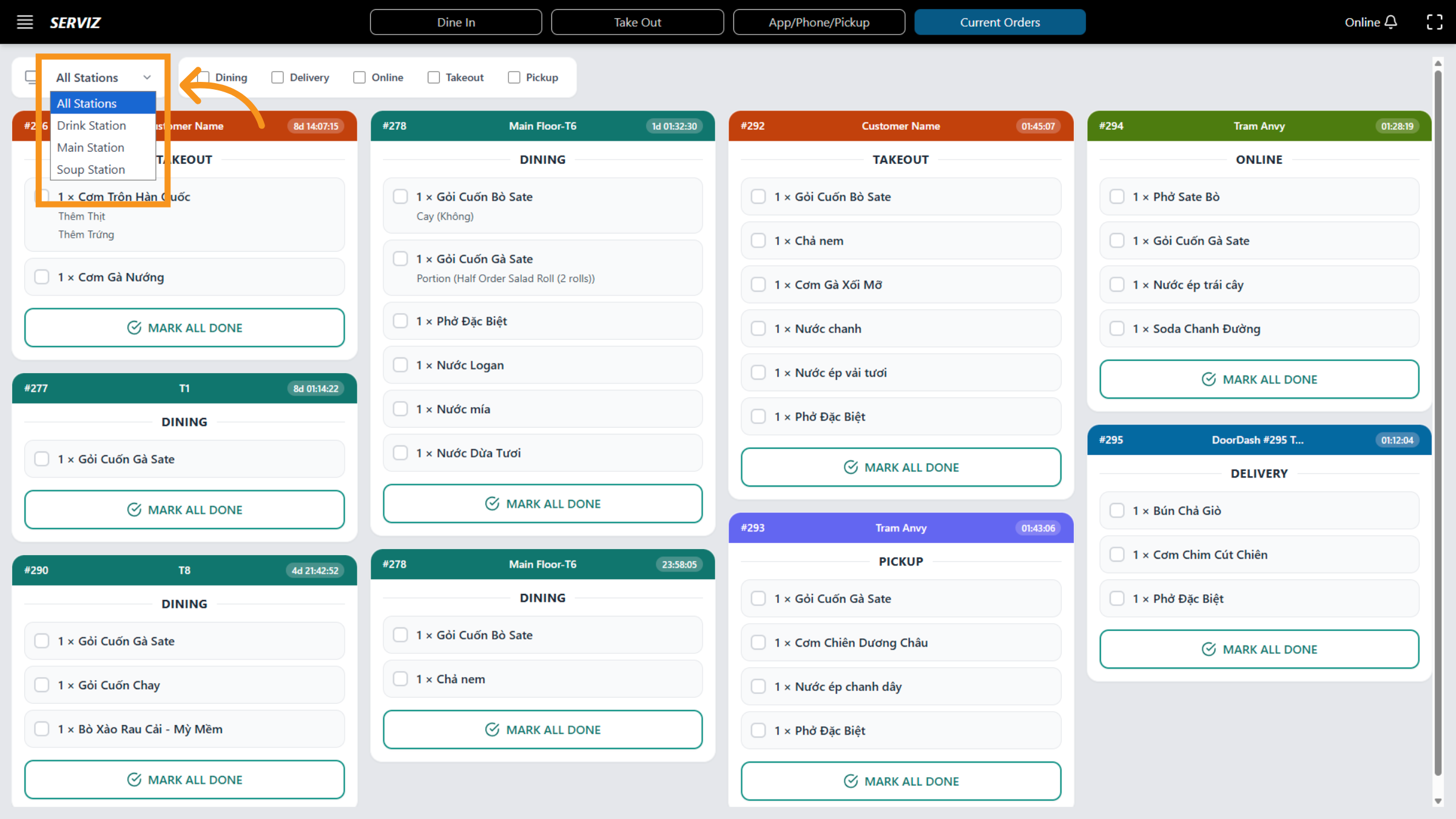
7. Click Stations Configuration
*How it works at AllStation Choose All Stations to view every order from all categories. Choose a specific station (e.g., “Drink Station”) to filter only items assigned to that station. This helps each team focus on their tasks without sorting manually
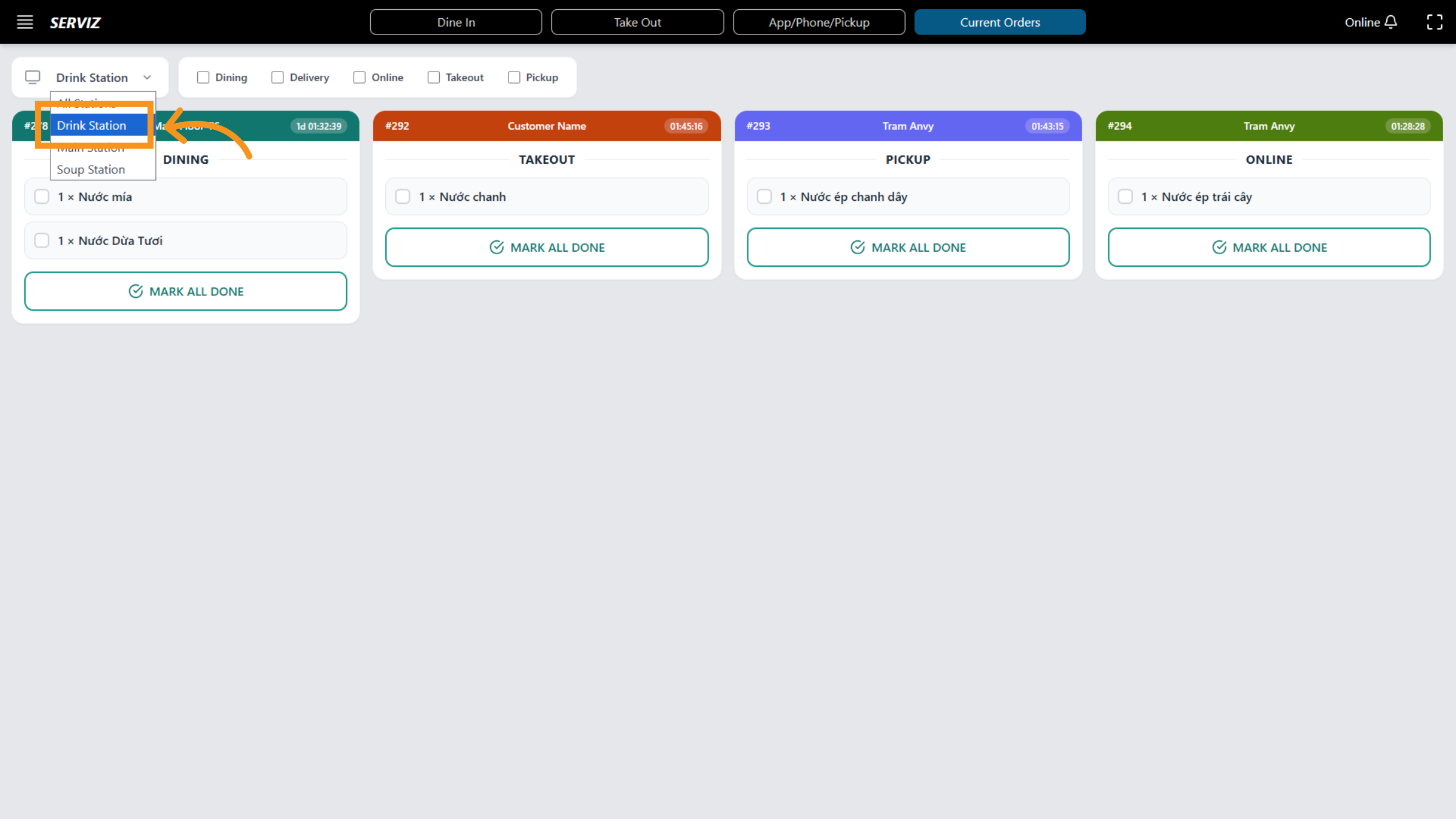
8. Mark All Orders Done
- Tapping this marks the entire order as completed and removes it from the KDS view.
4. Completing Items or Orders
Mark Individual Items
Tapand thecheckboxordernextis moving toeachOrderfoodProcessitem.
Mark Entire Order
TapMARK ALL DONE.The order disappears from the KDS once cleared.
5. KDS Settings (Customization Options)
You canhave updatesuccessfully configured the KDSKitchen displayDisplay optionsScreen from:settings in the Vicdigital POS system. This setup ensures efficient management of kitchen orders across all stations, improving order processing and communication.
Settings → POS → Display Setting
A popup appears with the following options:
5.1 View Type
Choose how orders appear on the KDS:
Grid View(default) – Multiple cards arranged sidePowered bysideList View– One-column vertical list (ideal for smaller screens)
5.2 Layout Columns
Choose how many order cards appear per row:
4 Items Per Row3 Items Per Row2 Items Per Row1 Item Per Row
This helps optimize the KDS for different monitor sizes.
5.3 Display Language
Changes the language shown on KDS order tickets.
Examples:
EnglishVietnamese
5.4 Print Language
Select the language used for kitchen printers.
This affects printed chits, not the on-screen KDS.
6. Station Configuration
If you have multiple stations (Main, Soup, Drinks), ensure each menu item is assigned correctly so the KDS filters work properly.
Item routing is usually configured in:Settings → Staff Skills or Item Setupguidde(Depending on your system setup)
7. Tips for Efficient Use
Use the station filter to avoid clutter.Clear orders immediately after completing them to keep the screen organized.Read modifiers carefully—many contain special dietary or allergy instructions.Adjust KDS layout if you have a large volume of orders.Use List View for fast-moving kitchens.For multi-station kitchens, assign each staff monitor to their specific station.