
Kitchen Display Screen (KDS)
Configure Kitchen Display Screen Settings In Vicdigital POS
This tutorial guides you through configuring the Kitchen Display Screen in the Vicdigital POS system
Go to serviz.ca
1. Introduction
You will learn how to access and adjust settings to optimize kitchen order management.
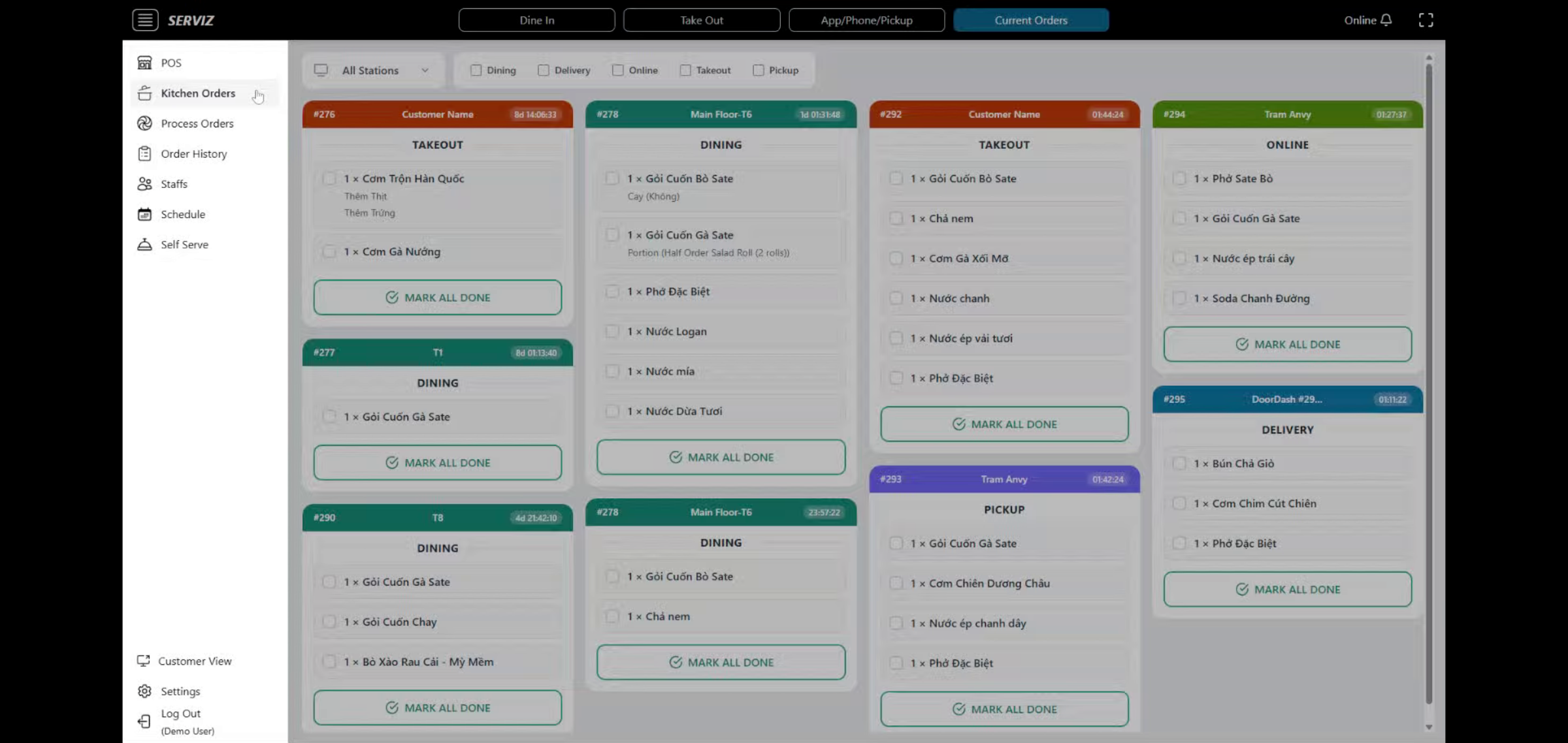
2. Open Kitchen Orders Section
Click the Kitchen Orders section to begin configuring the kitchen display order.
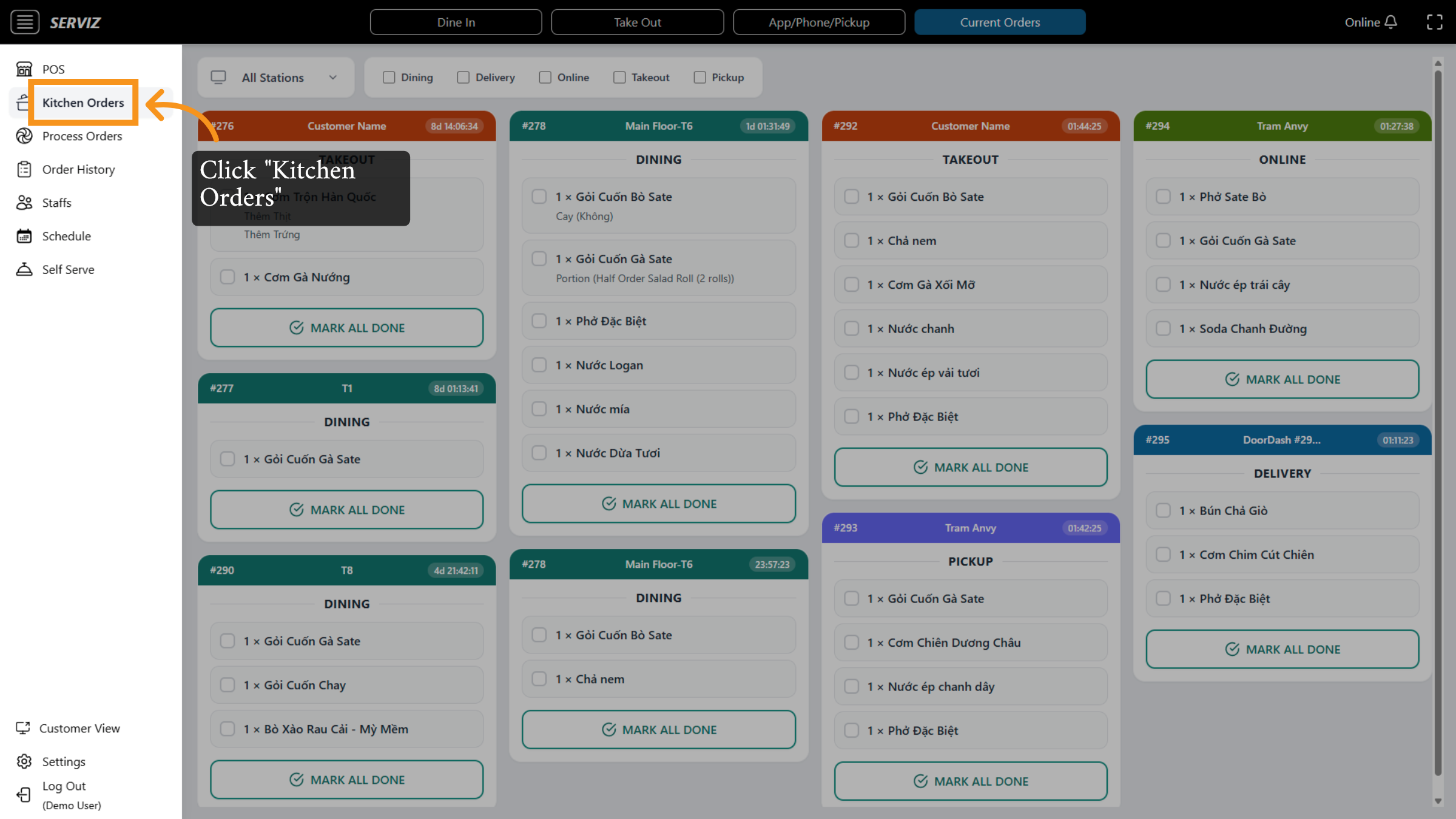
3. Kitchen Display screen
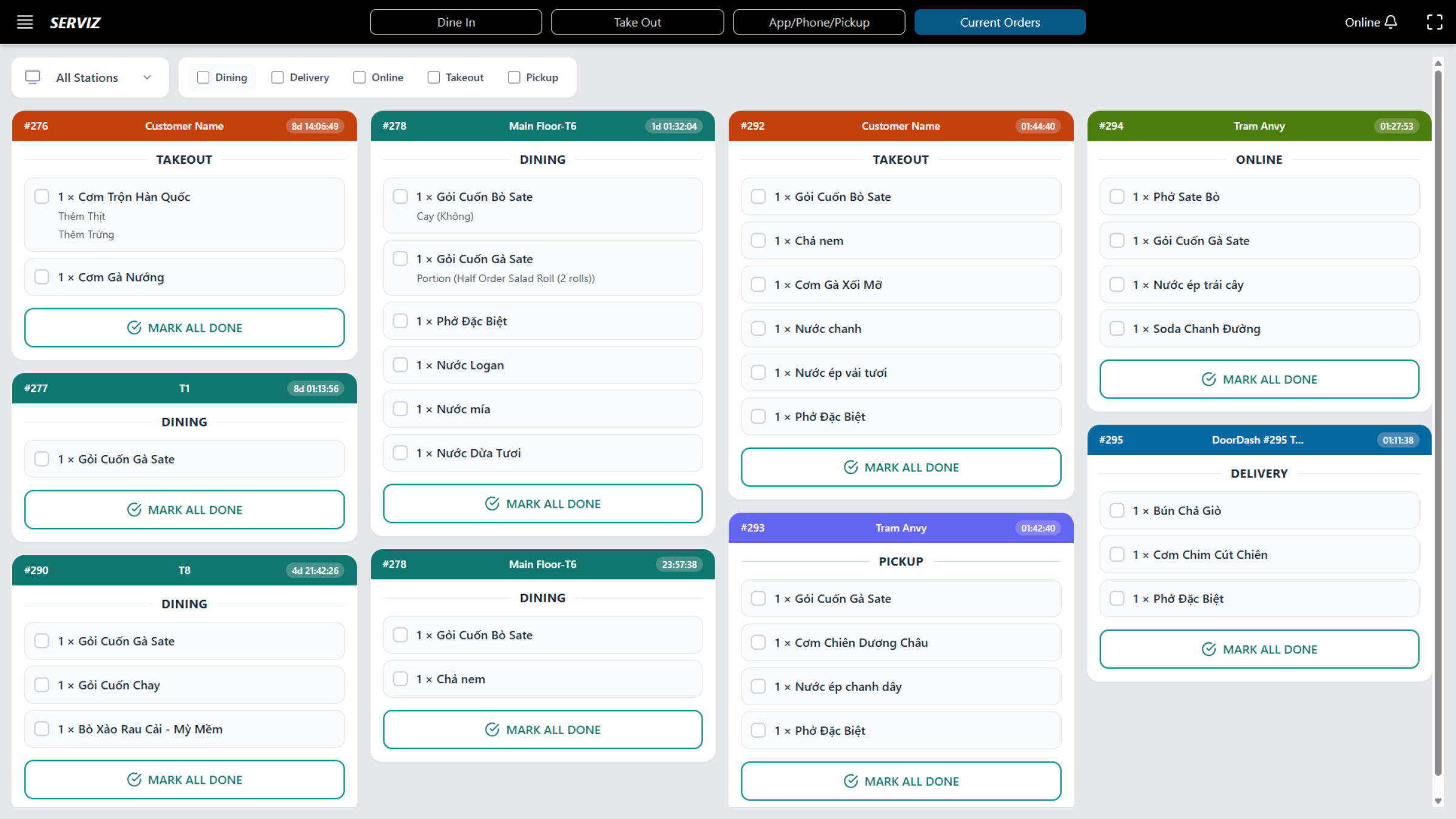
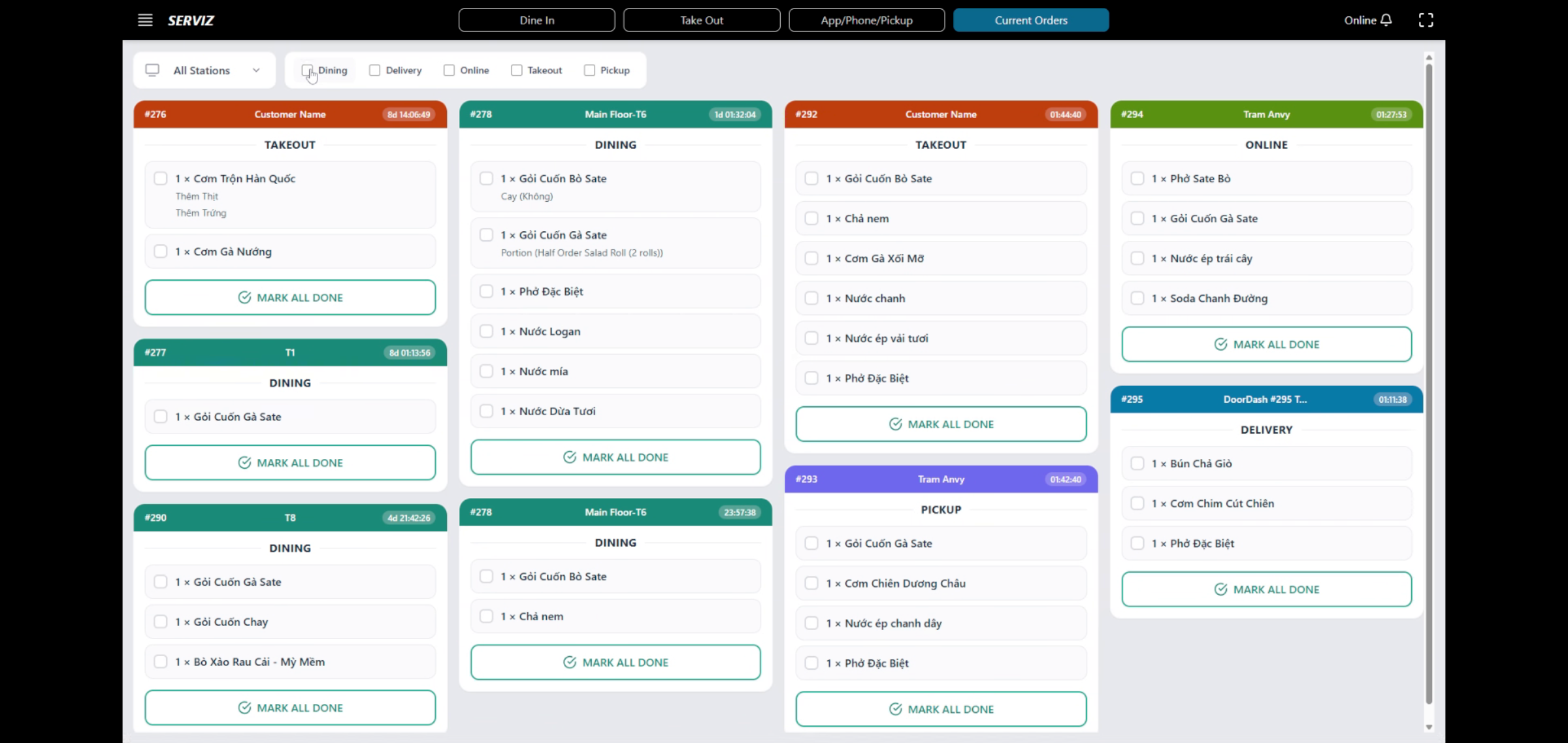
The screen displays all open orders organized by type and highlighted by the top bar Station color Separate colors assist kitchen staff in easily recognizing orders.
Takeout :ORANGE
Delivery: BLUE
Dining: TEAL
Online : GREEN
Pickup : PURPLE
And ALL STATIONS Each order appears as a card with: Order Number (#... etc.) -Customer name or table number -Order type -Item list with modifiers -A completion button: MARK ALL DONE
4. Understanding Order Cards
Each order card displays: *Top Bar -Order number -Staff name (if applicable) -Time since order was placed *Middle Section Order type -Item list -Modifier notes (e.g., “no celery”, “extra shrimp”, “no peanut”) -Each line item includes a checkbox for completing items individually if needed.
5. Mark of main inquiries
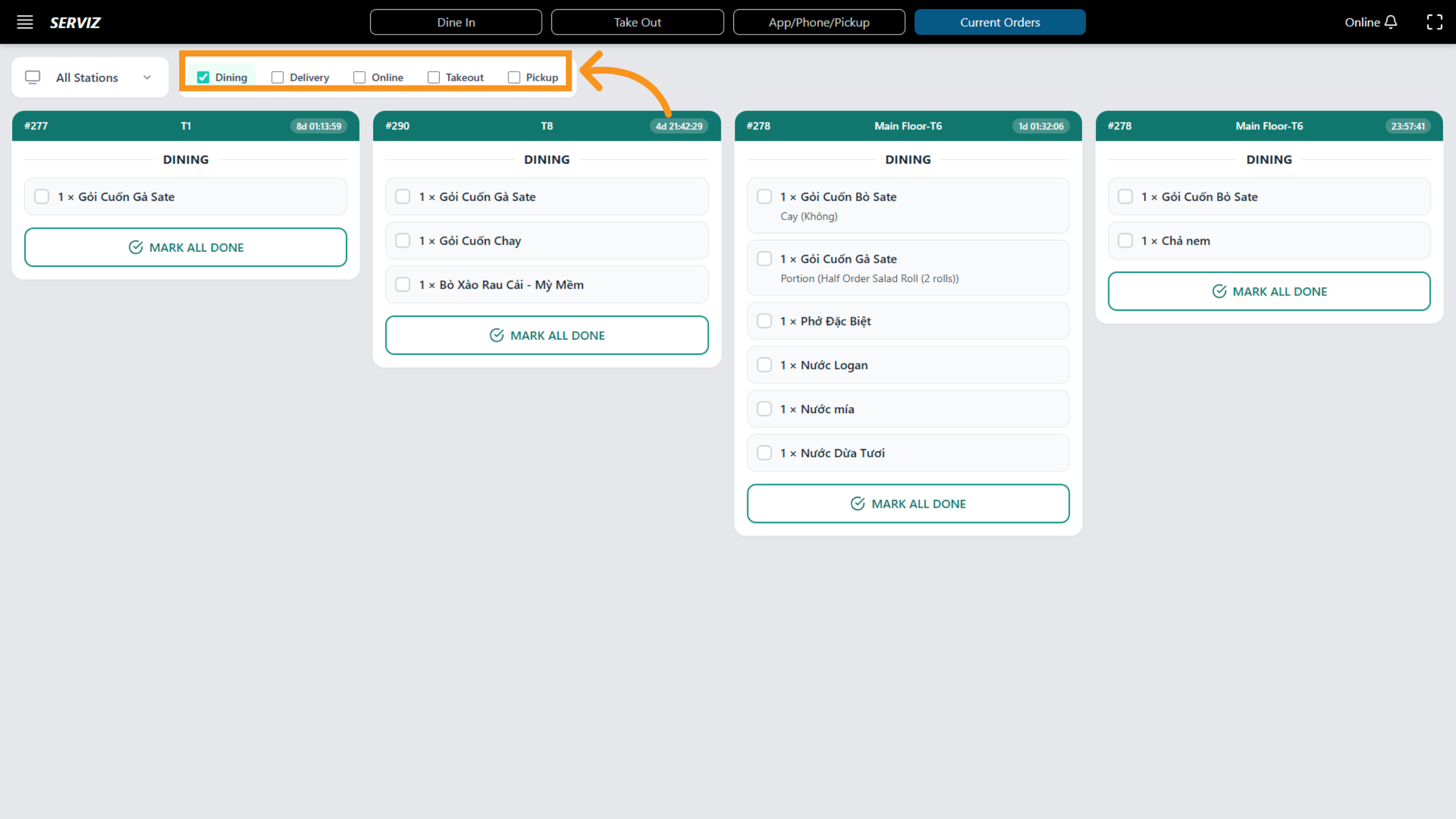
Click the option to confirm the display activation. When you select each option, the content will be filtered and summarized based on the chosen criteria, such as :
Takeout : ORANGE
Delivery: BLUE Dining: TEAL
Online : GREEN
Pickup : PURPLE
Each order appears as a card with: Order Number (#1133, #1136, etc.) Customer name or table number Order type Item list with modifiers A completion button: MARK ALL DONE
6. Filtering Stations
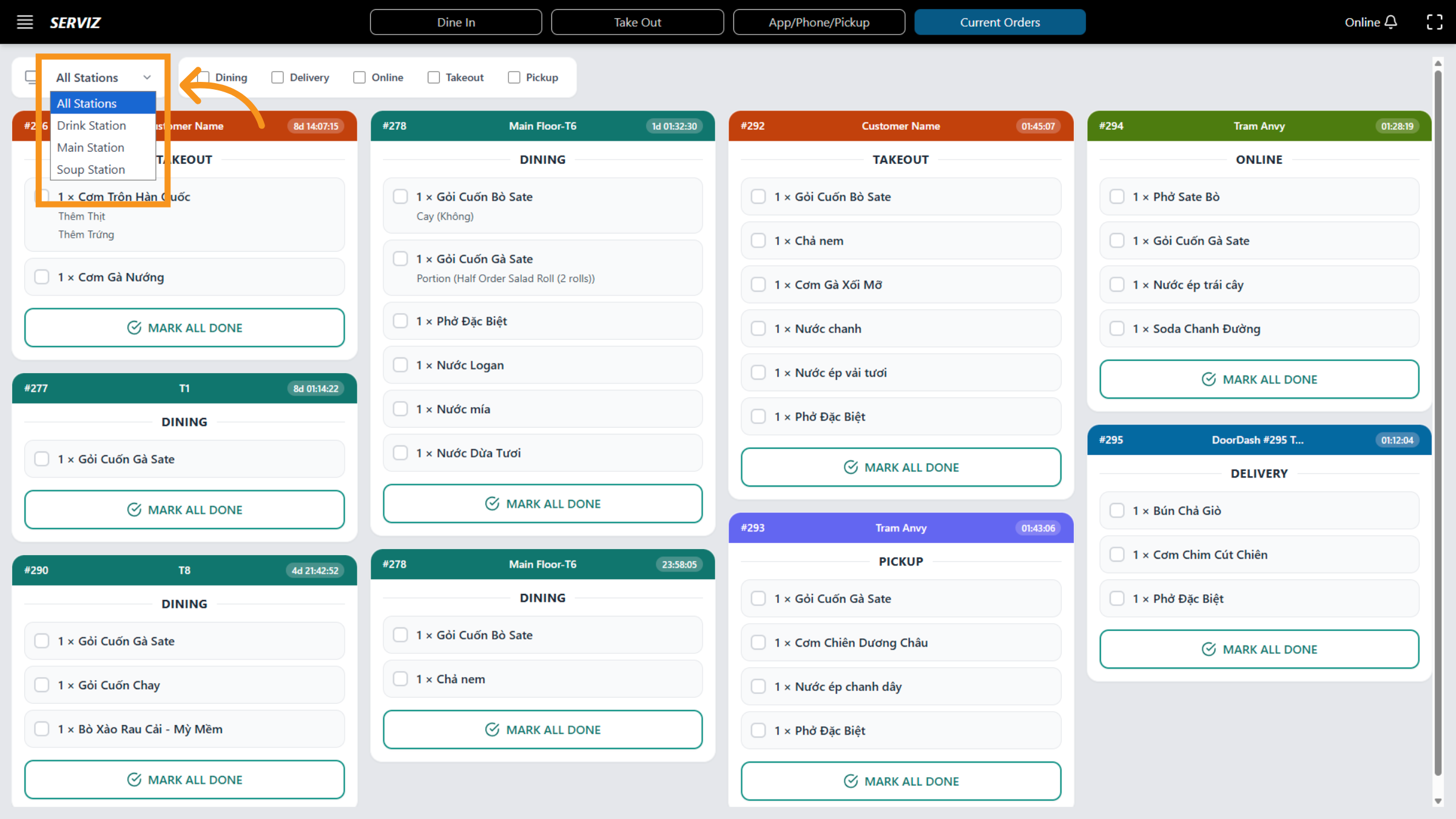
At the top-left, the dropdown lets you filter orders by station: All Stations Drink Station Main Station Soup Station
7. Click Stations Configuration
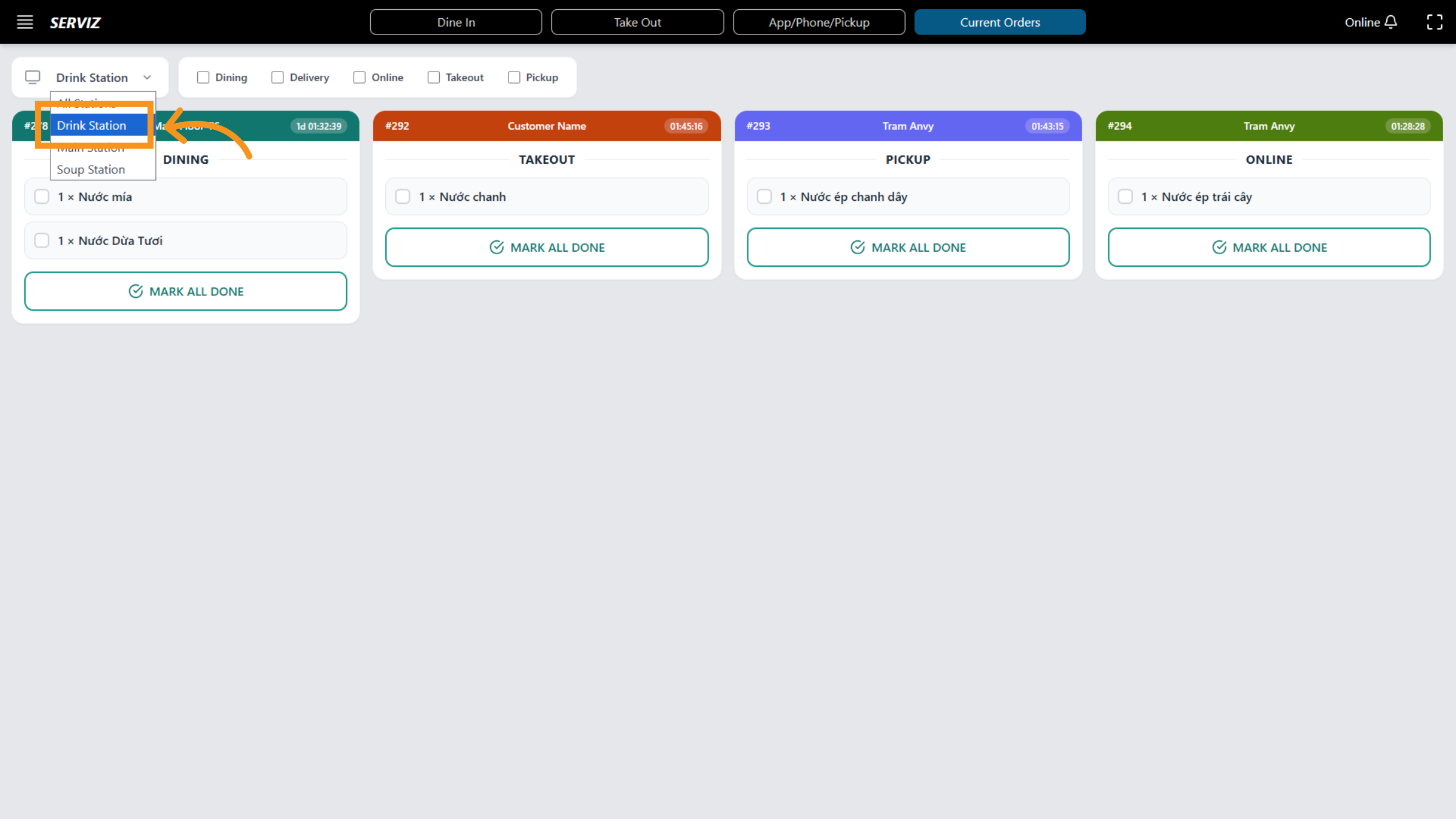
*How it works at AllStation Choose All Stations to view every order from all categories. Choose a specific station (e.g., “Drink Station”) to filter only items assigned to that station. This helps each team focus on their tasks without sorting manually
8. Mark All Orders Done
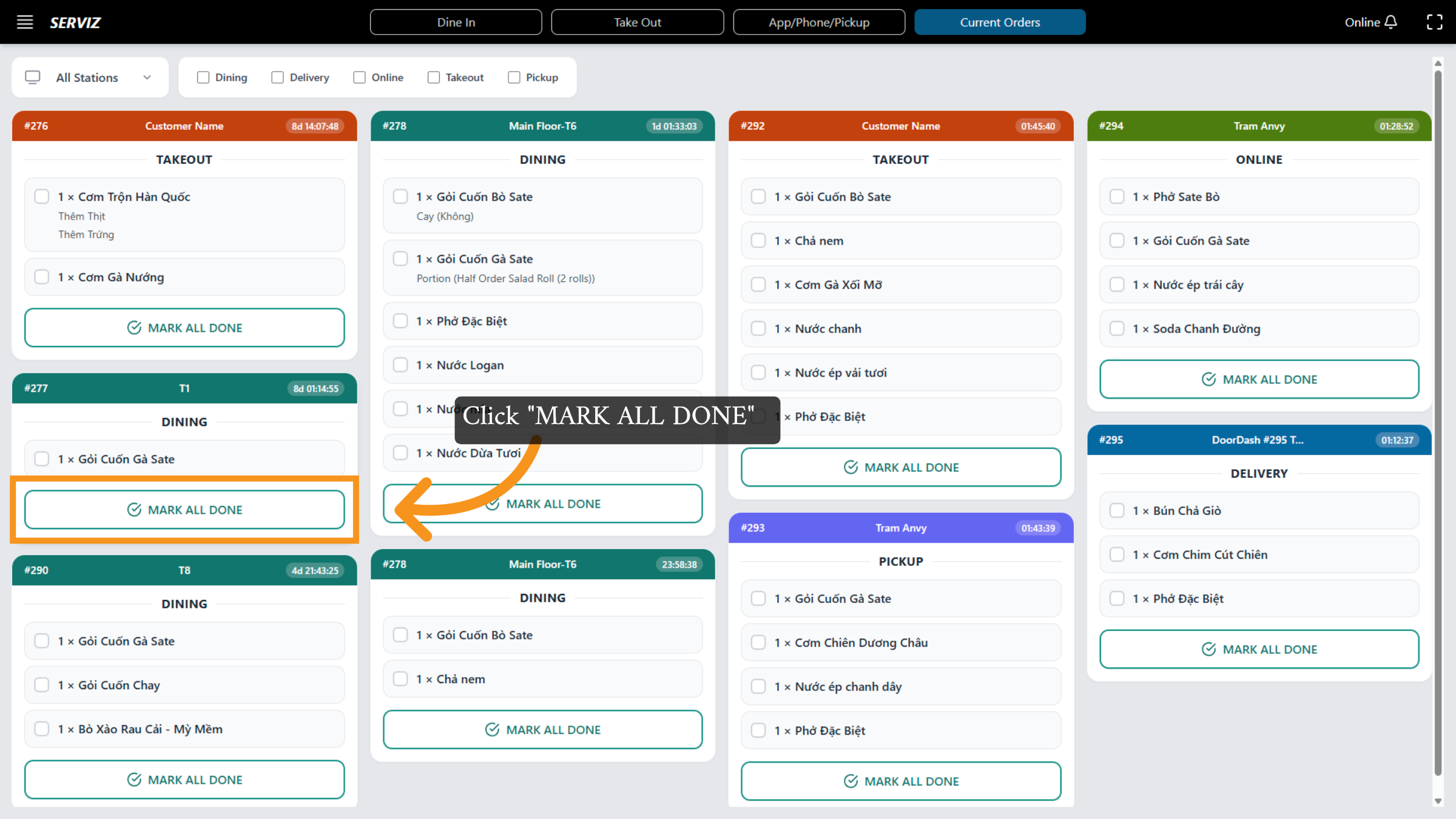
You have successfully configured the Kitchen Display Screen settings in the Vicdigital POS system. This setup ensures efficient management of kitchen orders across all stations, improving order processing and communication.