VIC Menu On App

Getting Started with VIC Menu App

Click here to watch

Quick guidde

This tutorial shows you how to download and install VIC Menu, sign in with your business account, and get started with the main P-O-S screen.


Quick guidde

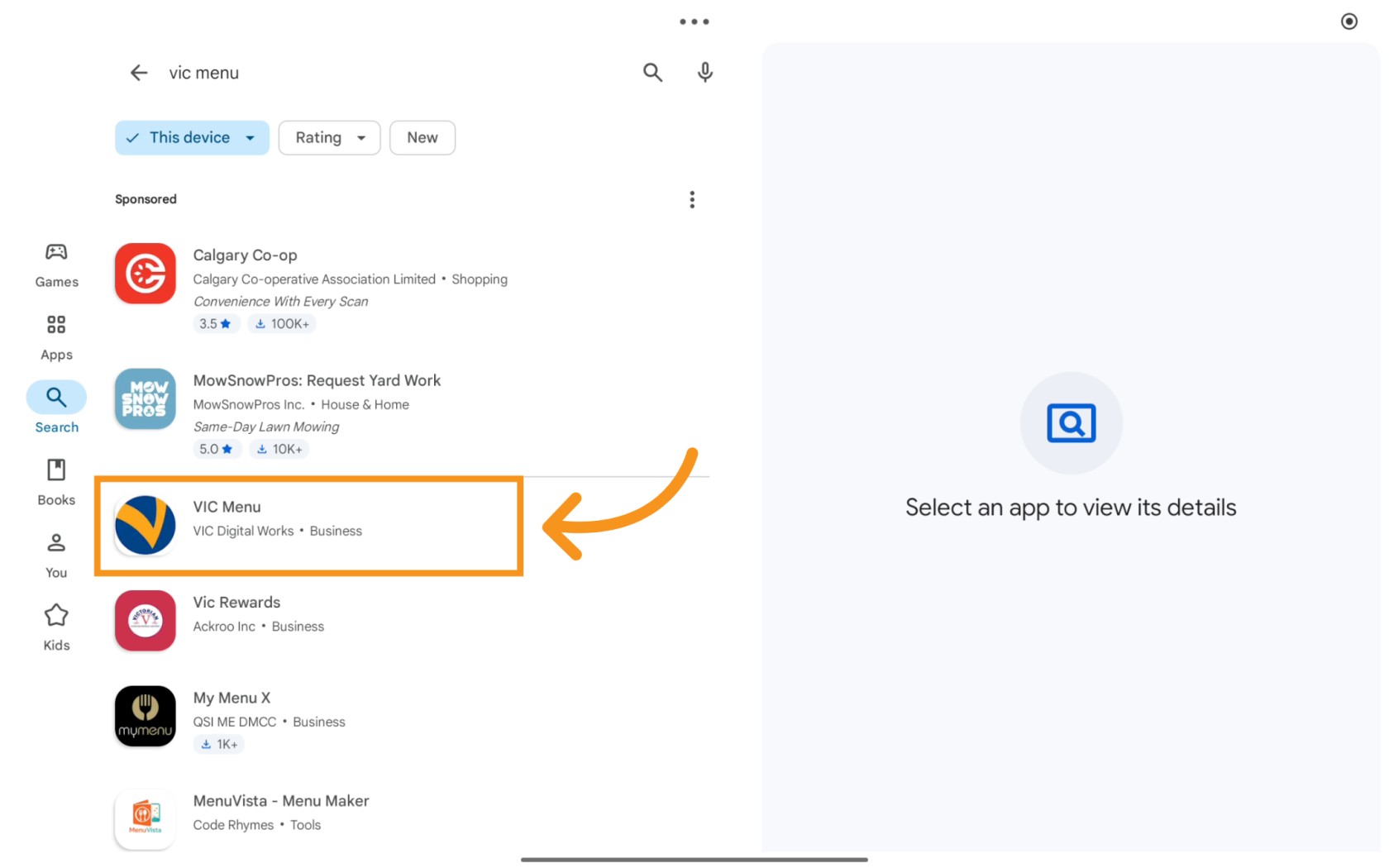
1. Google Play Search

Open the Google Play Store and search for VIC Menu.
Google Play Search

2. Select VIC Menu

imgi_7_quickguiddeScreenshots%2FpXhdWFGosxYyO6gtaj51Acluowc2%2F2uQLMHhmjxZZWT54GaYmQX%2FivQivg38PKg9FMerKX9JZC_doc.png

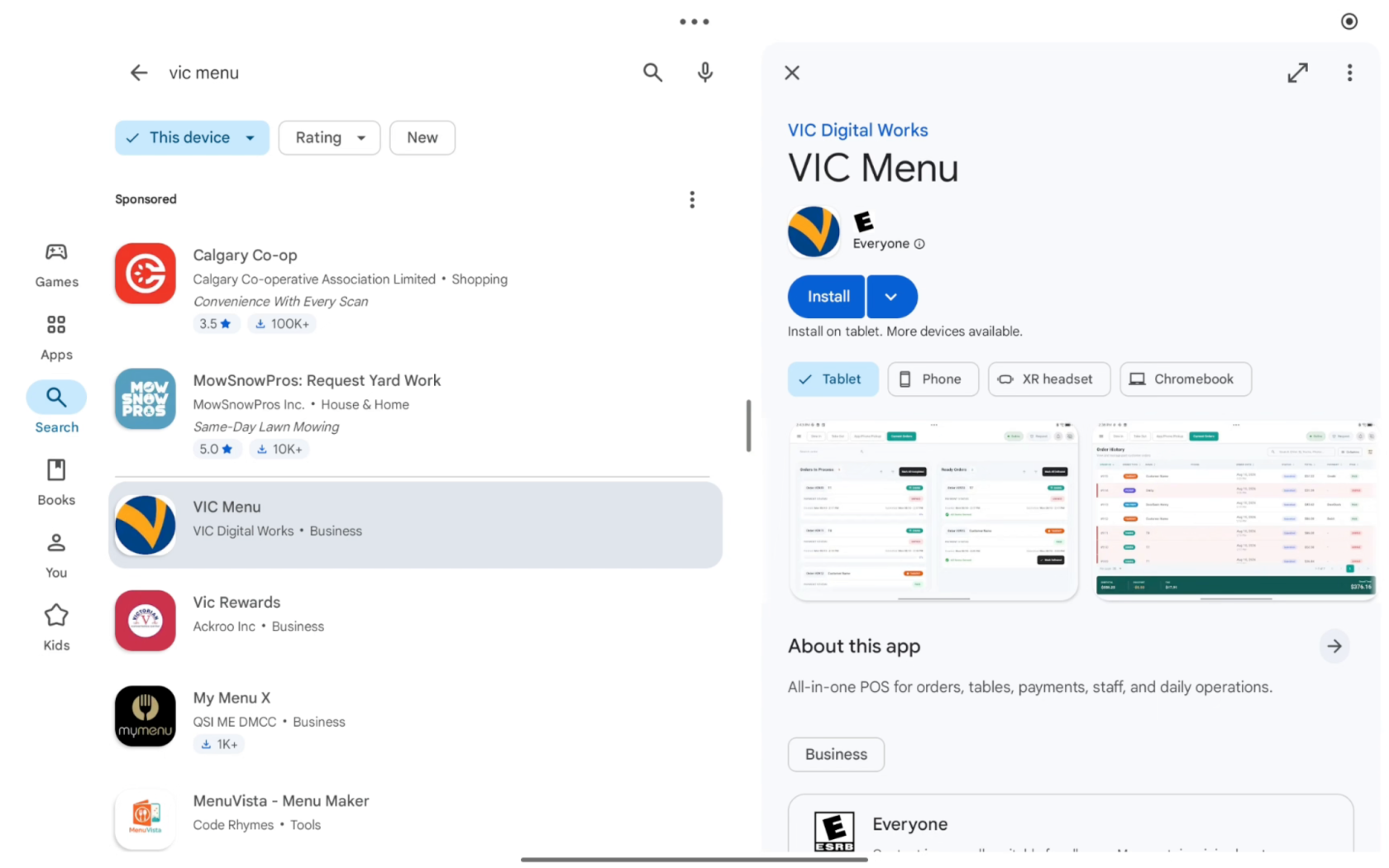
3. Install the app

Tap Install, then open the app.
imgi_8_quickguiddeScreenshots%2FpXhdWFGosxYyO6gtaj51Acluowc2%2F2uQLMHhmjxZZWT54GaYmQX%2Fw6MgrCVKrj72RqVwstEFR7_doc.png

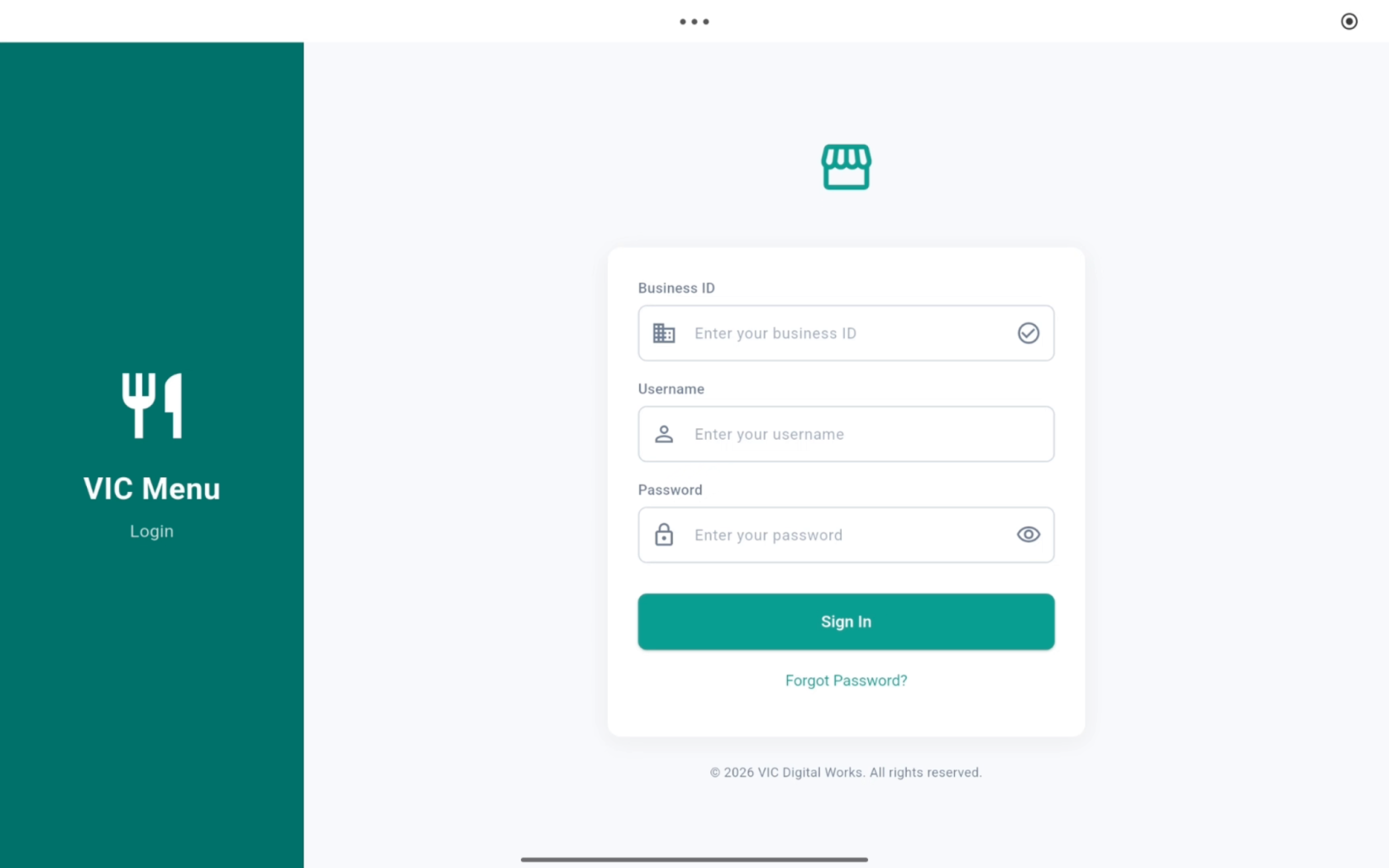
4. Sign In

Enter the Business ID, username, and password provided to you, then sign in
imgi_9_quickguiddeScreenshots%2FpXhdWFGosxYyO6gtaj51Acluowc2%2F2uQLMHhmjxZZWT54GaYmQX%2Fd7sXzRAYnQo69q2f5TZX44_doc.png

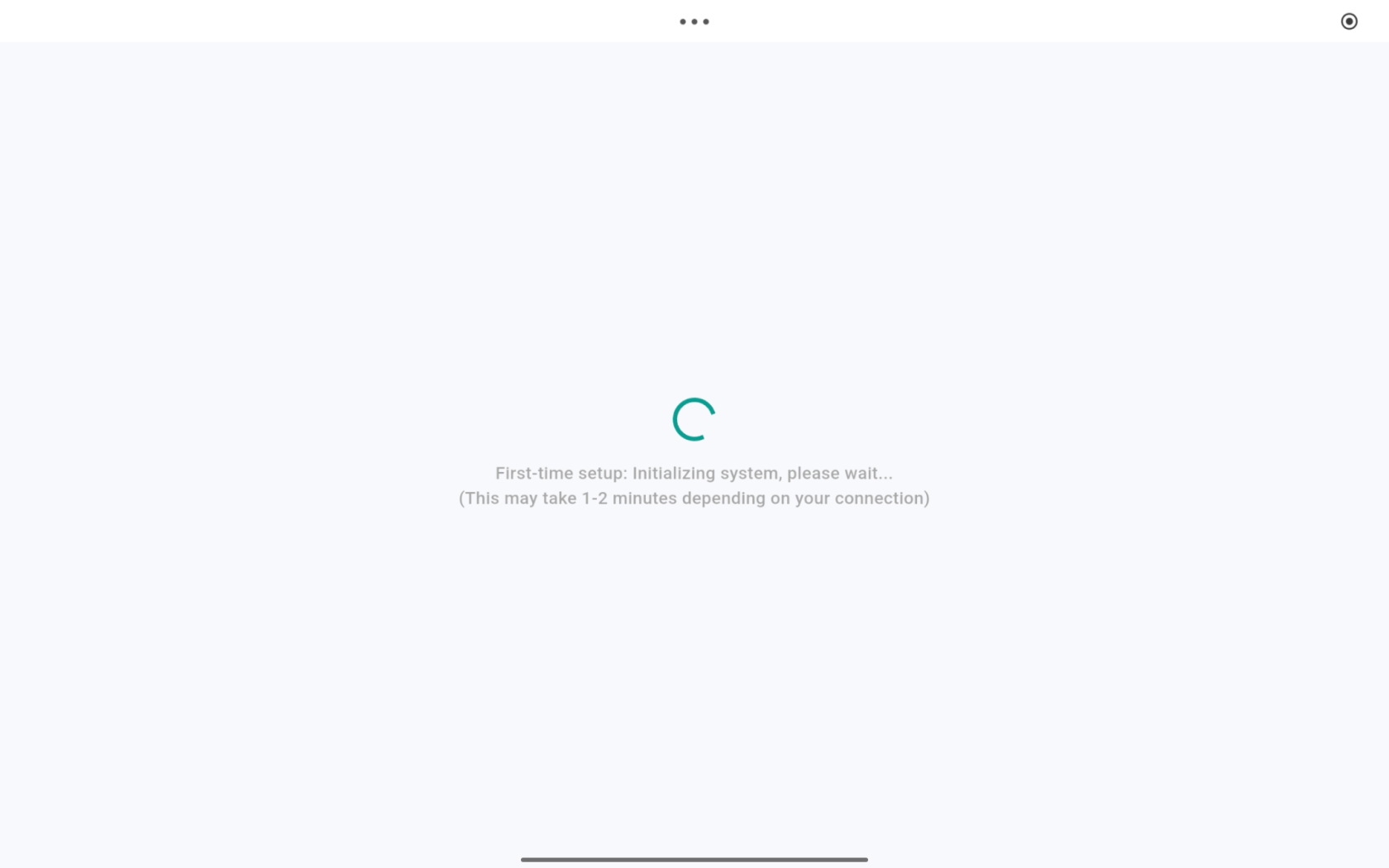
5. Initial Setup

Please wait while VIC Menu completes the initial setup.
imgi_10_quickguiddeScreenshots%2FpXhdWFGosxYyO6gtaj51Acluowc2%2F2uQLMHhmjxZZWT54GaYmQX%2Fm6nbN8Dpohf6w7Rx7LMFj9_doc.png

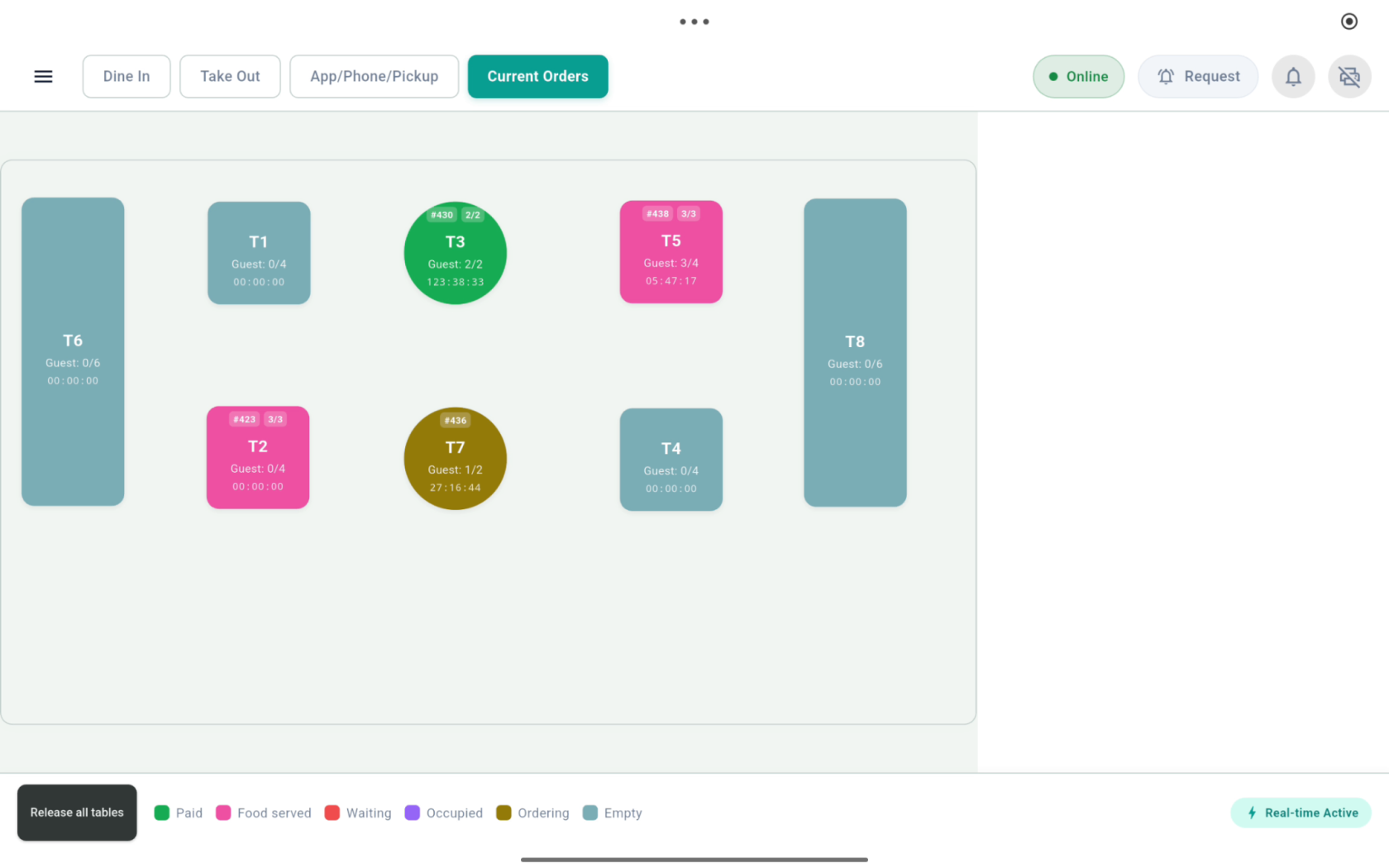
6. Main Screen

For dine-in restaurants, the table layout appears.
imgi_11_quickguiddeScreenshots%2FpXhdWFGosxYyO6gtaj51Acluowc2%2F2uQLMHhmjxZZWT54GaYmQX%2Fox4eHLZc8tivQ8VjooqL1b_doc.png

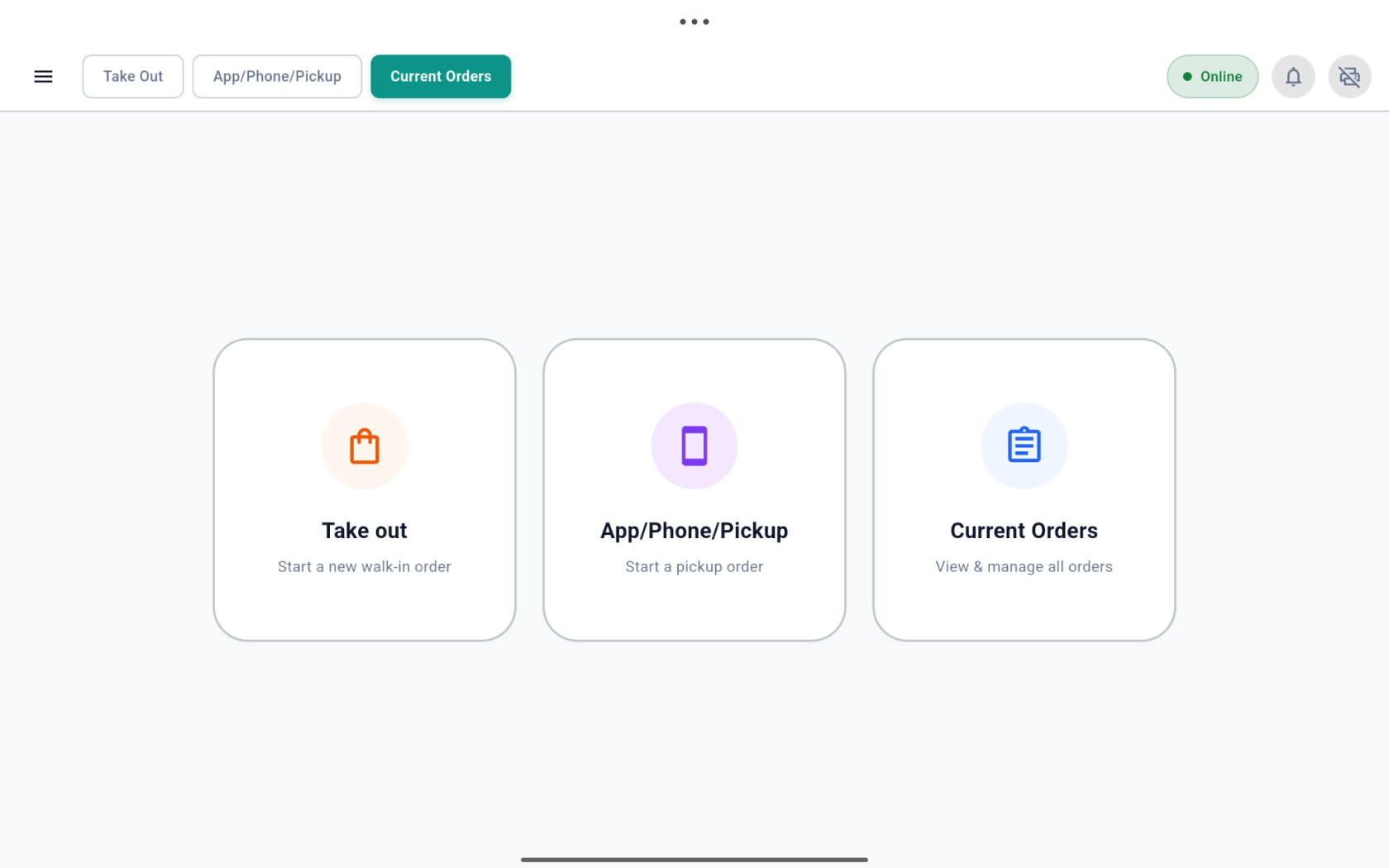
7. Main Screen

For counter-service restaurants, the order type screen appears.
imgi_12_quickguiddeScreenshots%2FpXhdWFGosxYyO6gtaj51Acluowc2%2F2uQLMHhmjxZZWT54GaYmQX%2Fwir7rjf2J4MU84ZbJ1uNN1_doc.png

You’re all set! VIC Menu is now installed and ready to use.