
Export Product To Demo Site Using Worktraq
This tutorial provides a step-by-step guide for exporting a product to demo site using Worktraq.
1. Select Product
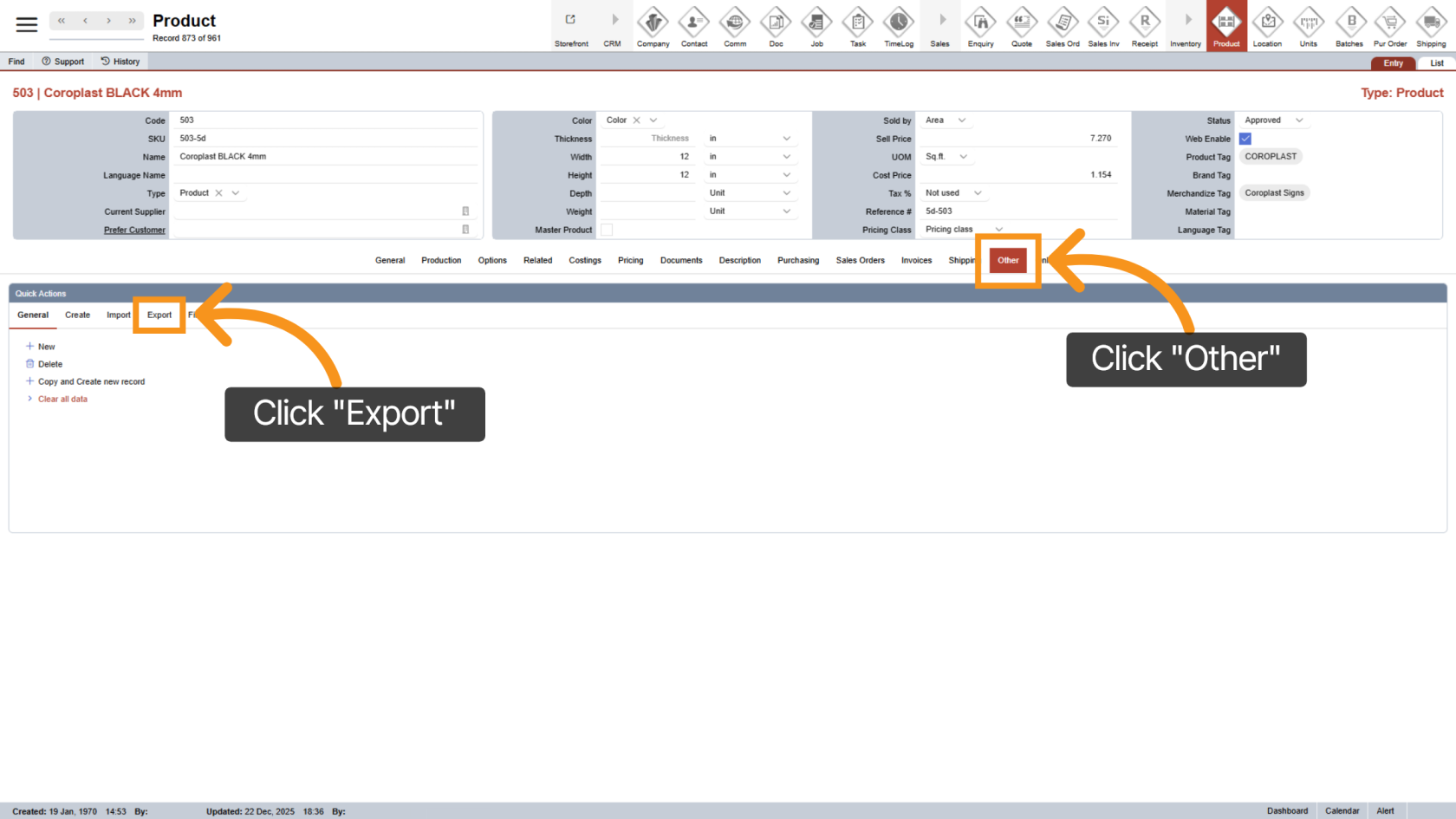
2. Select Export
Click "Export to a demo site"
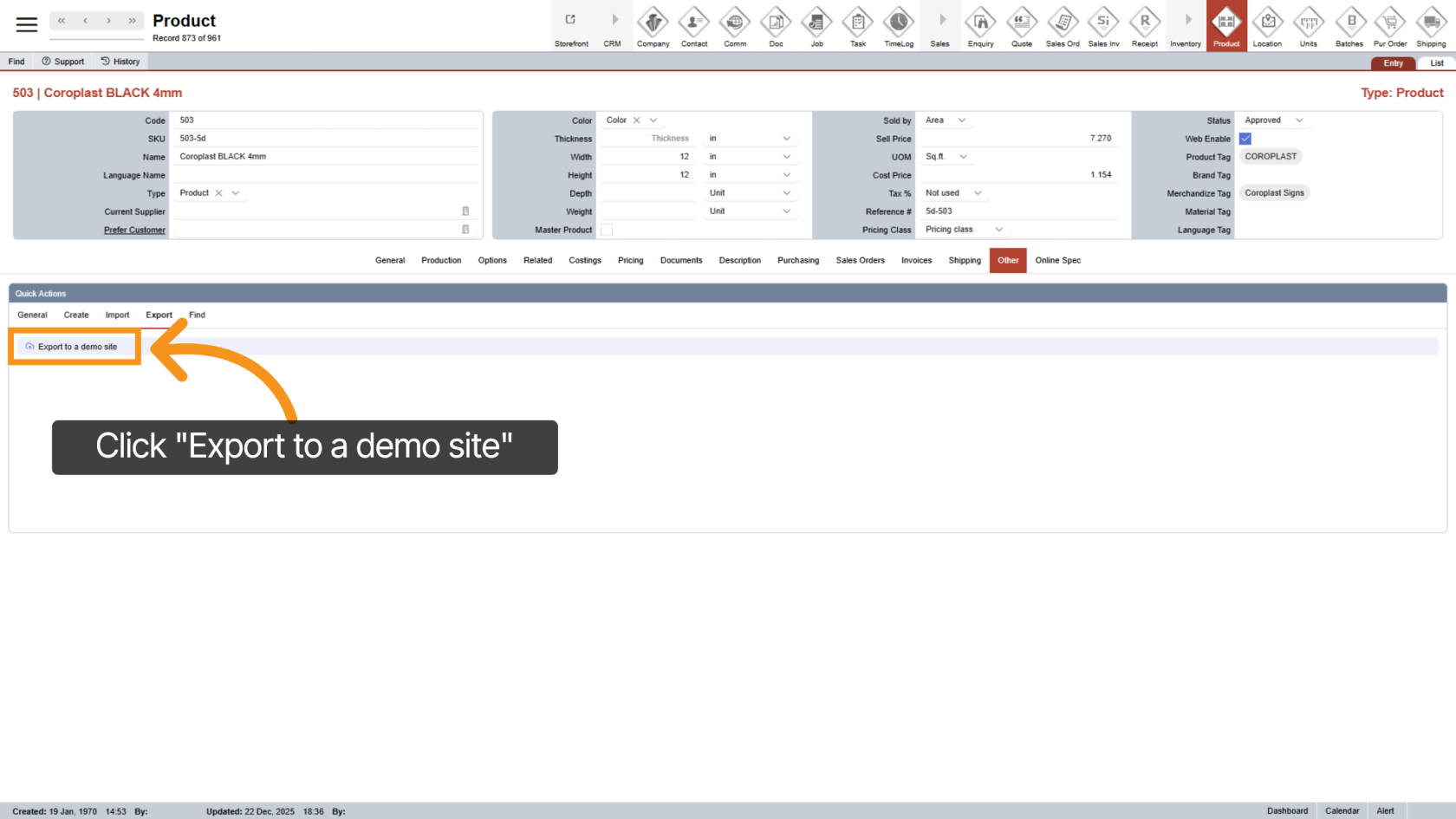
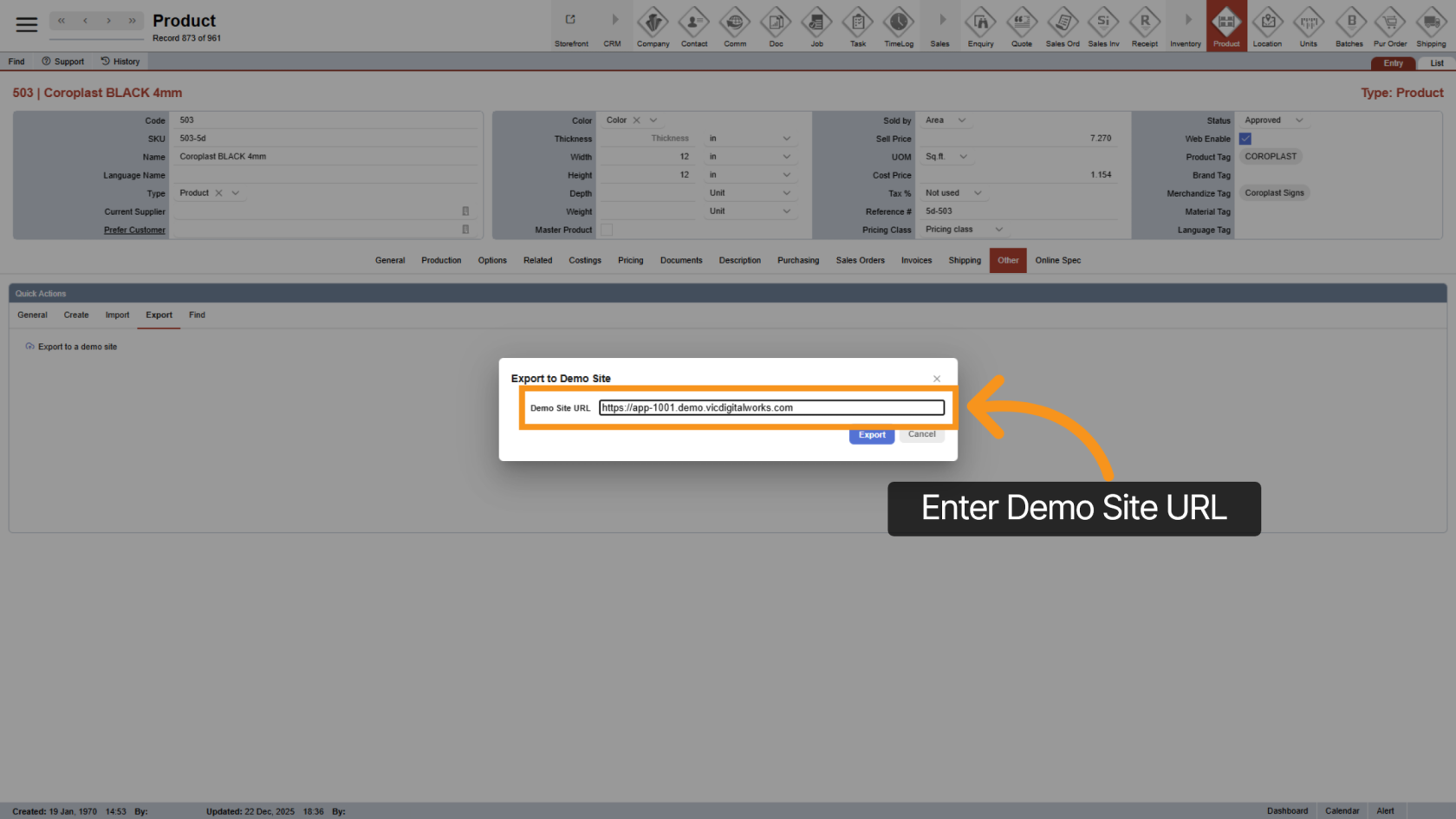
3. Enter Demo Site URL
Please enter the Demo Site URL where you would like to import the product.
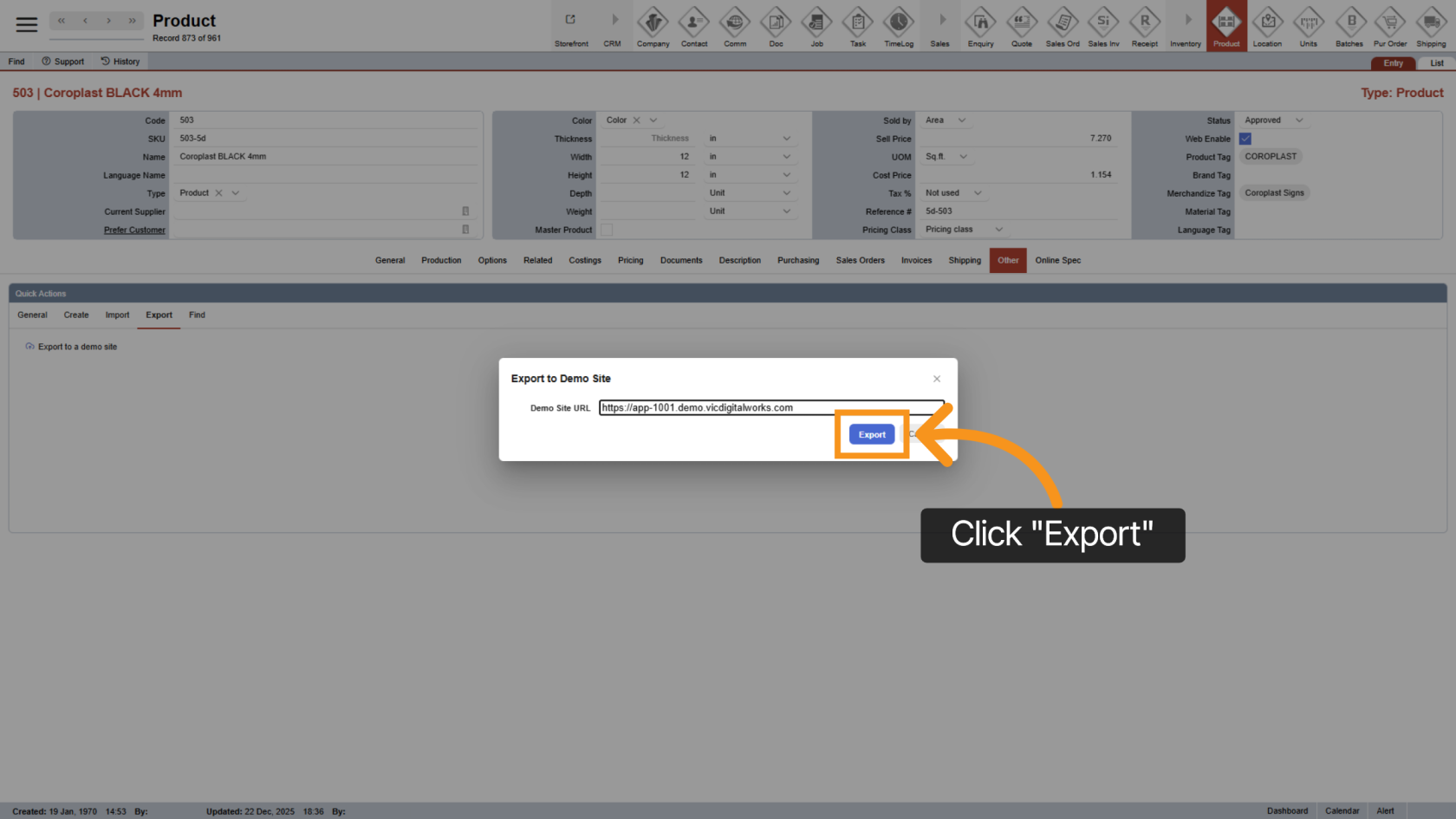
4. Click Export
Click the "Export" button to transfer the product data to the demo site.
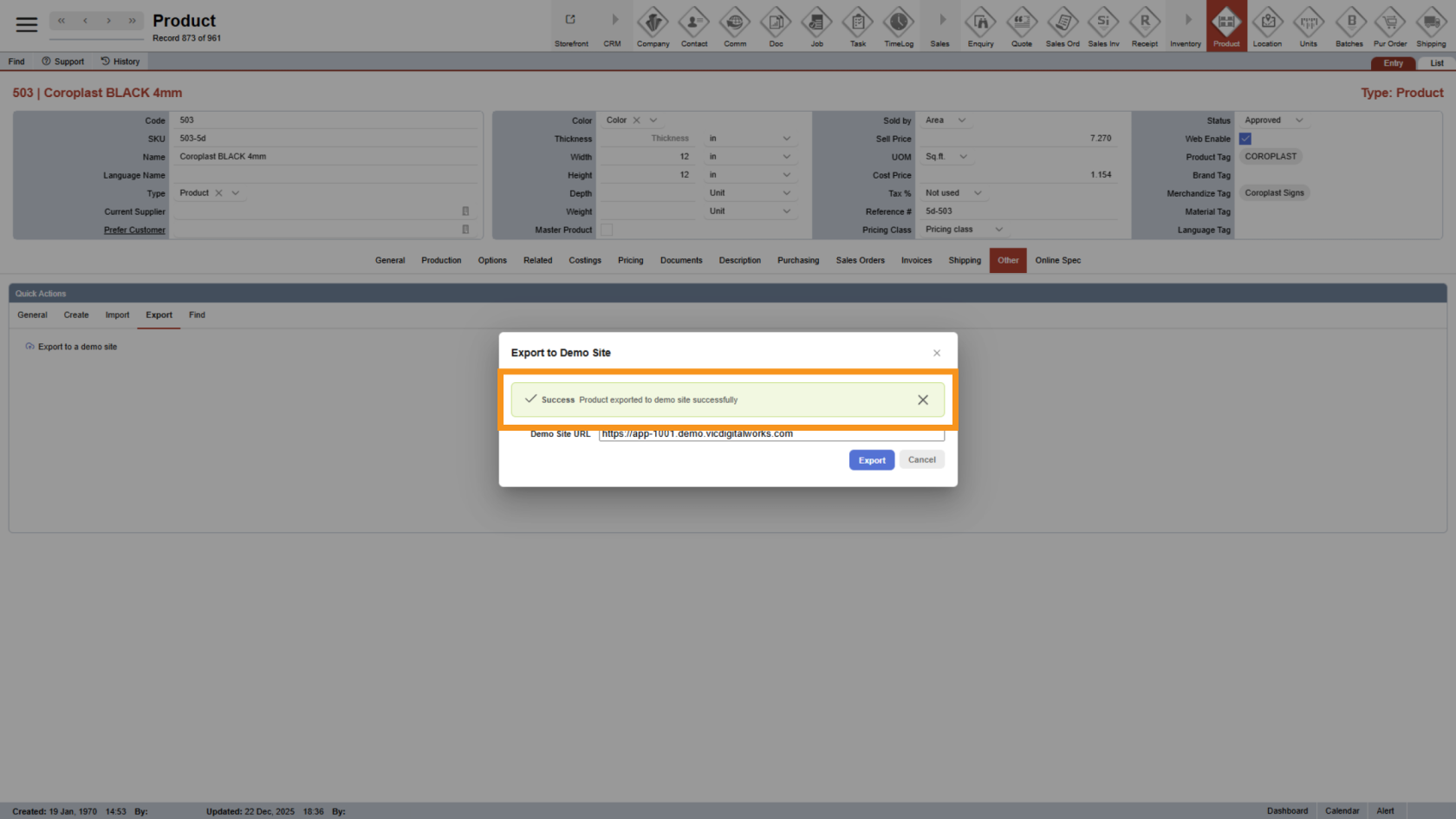
5. Acknowledge Export Success
The success message confirms that the product has been successfully exported to the demo site.
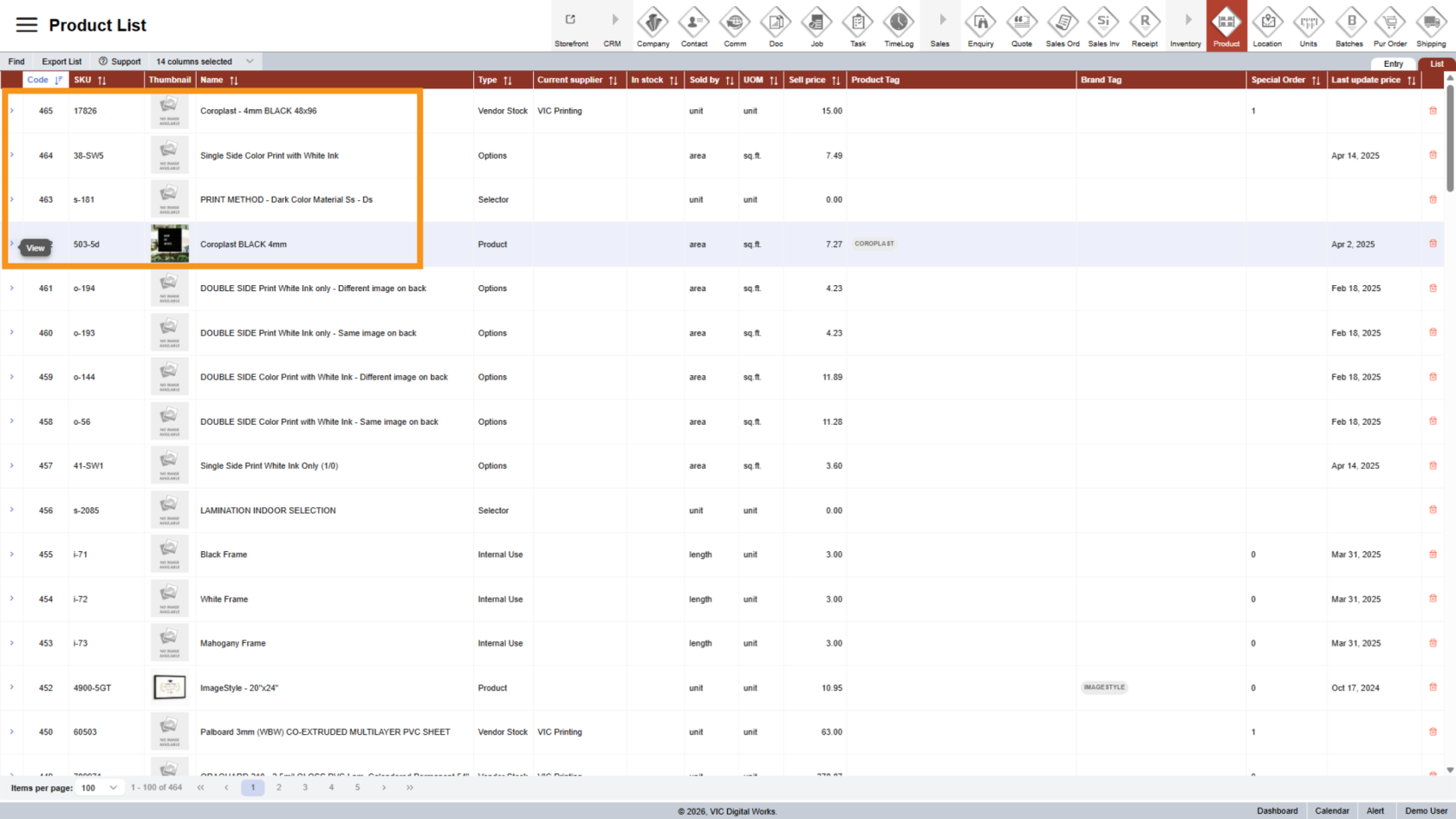
6. Check on the Demo Site
The product and its options will be displayed on your demo site.
You have successfully exported a product to a demo site using Worktraq.