
Import Business Card Template
This tutorial guides you through importing a business card design template in the WorkTraq application.
Video Tutorial
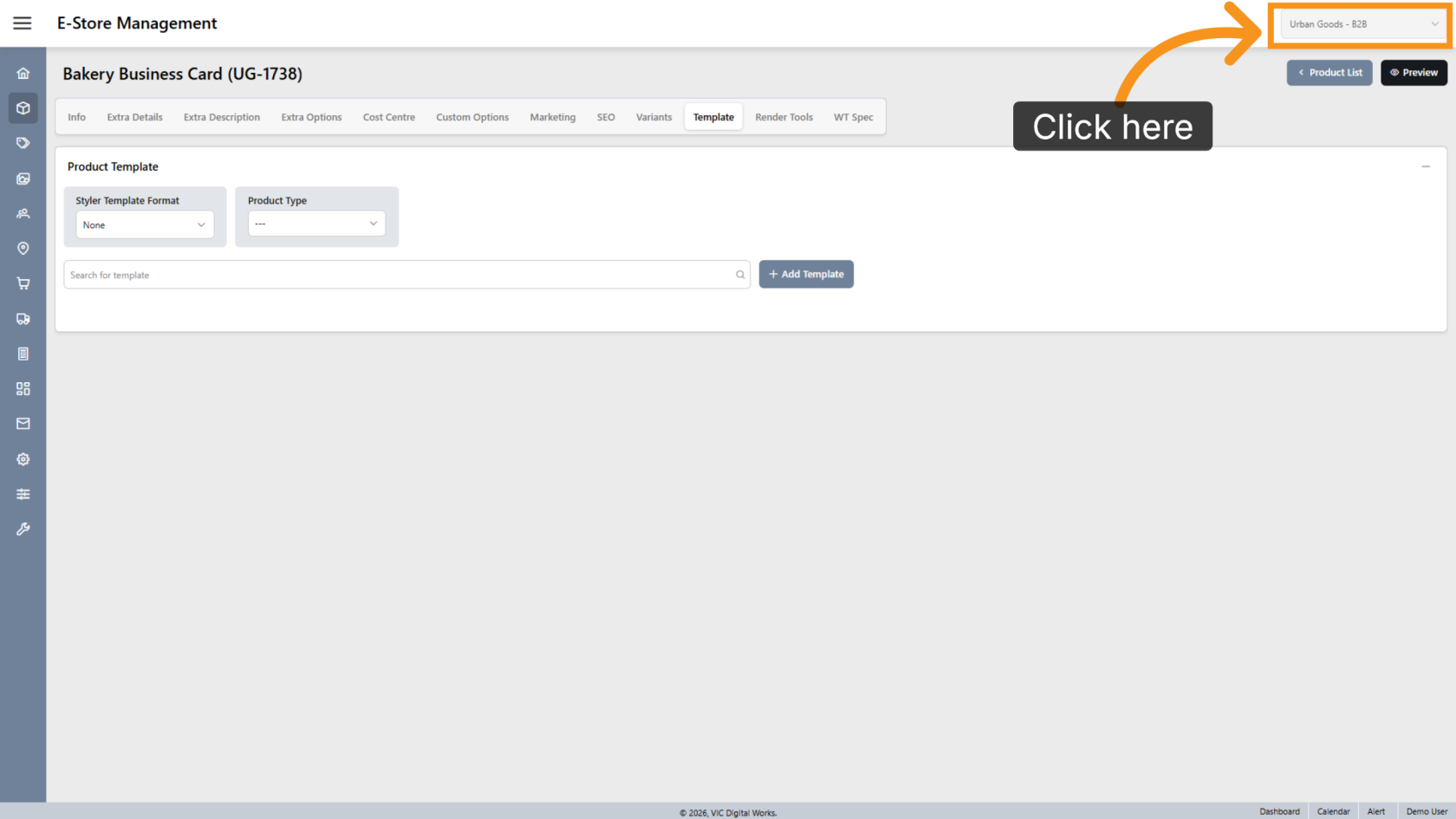
1. Select a Company
Click to select the company where you want to add the template.
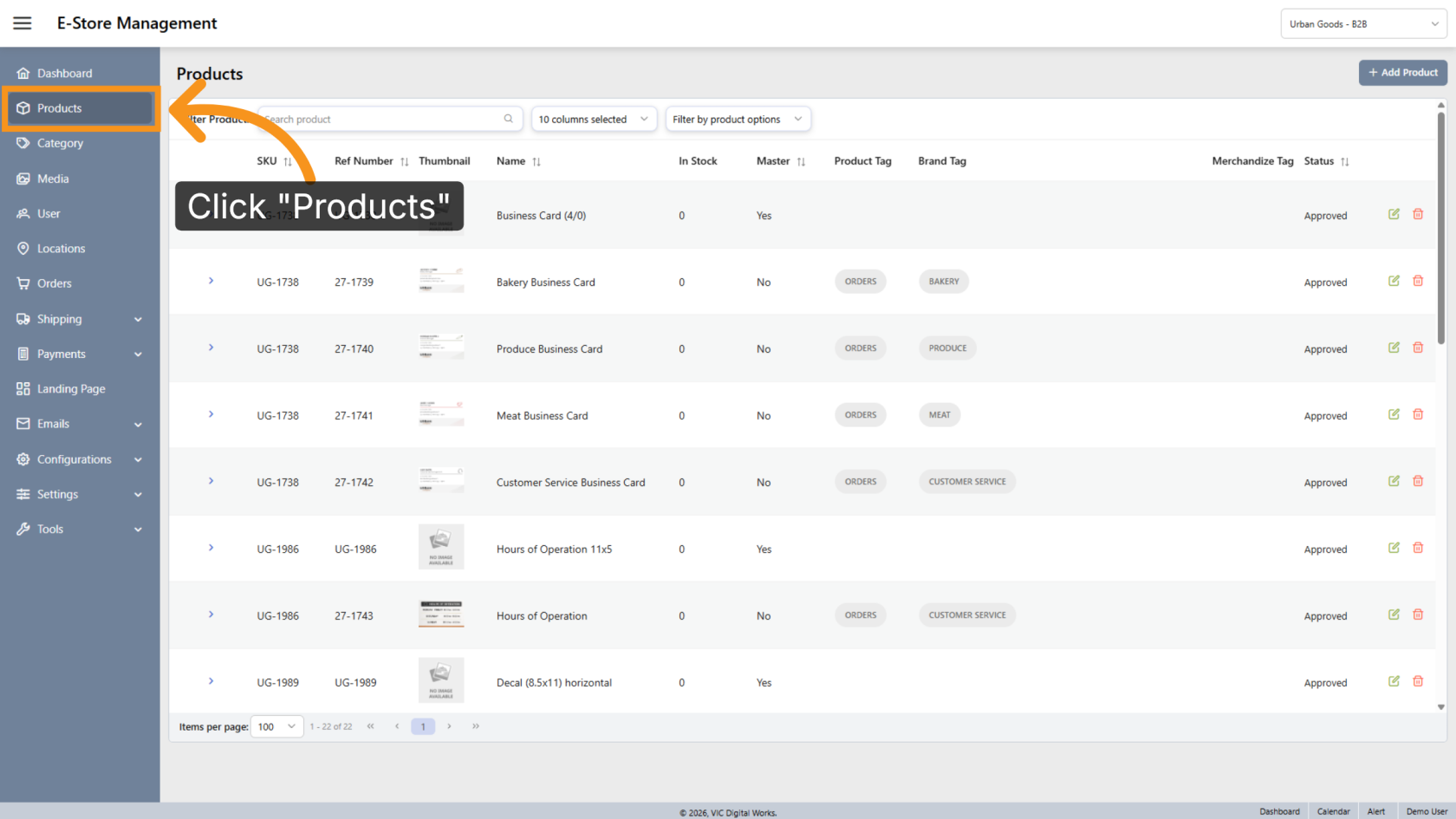
2. Open the Products Section
Click "Products" to view the list of available products.
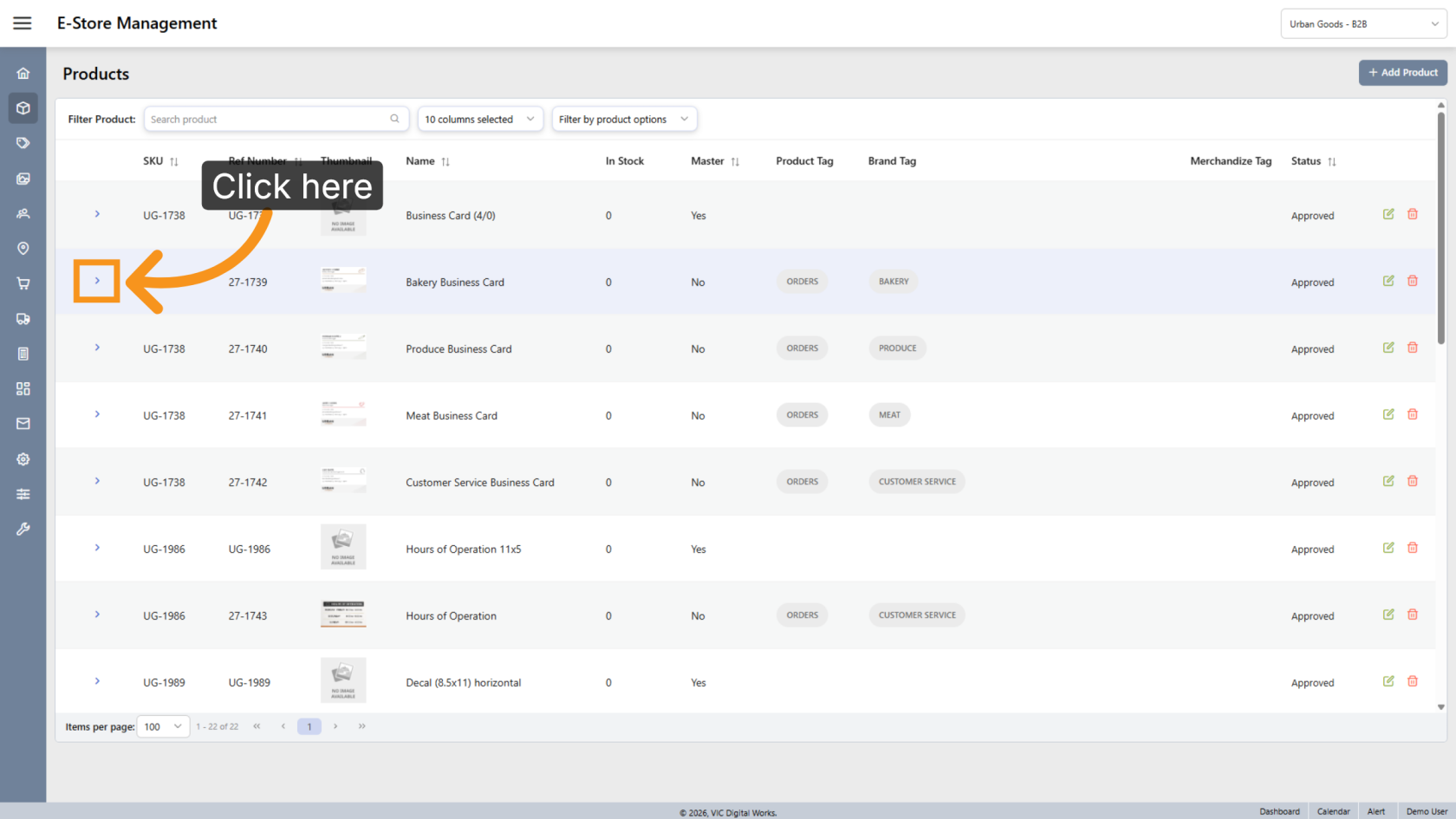
3. Select a Product
Click the arrow icon to open the product where you want to add the design template.
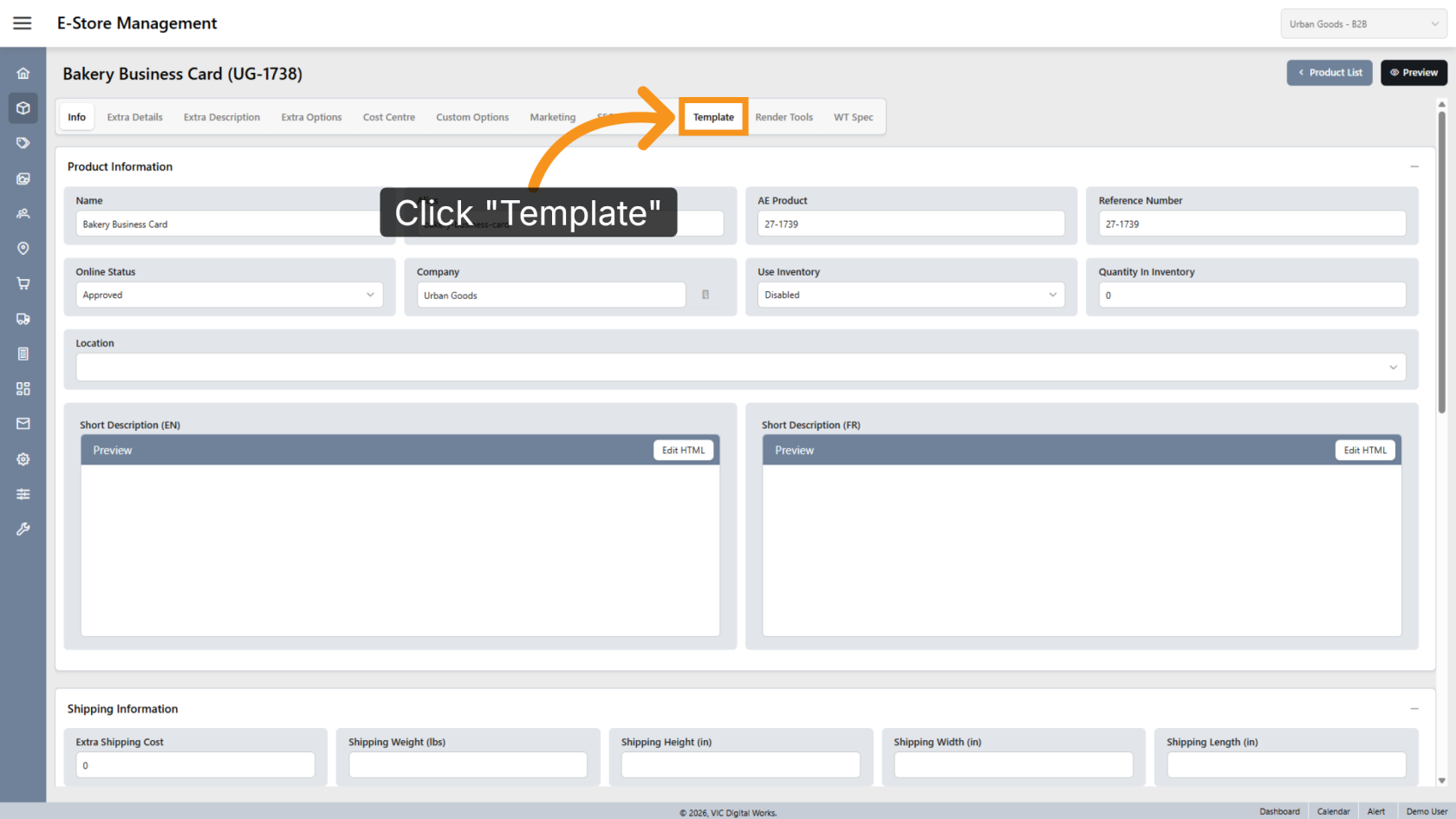
4. Open Template Settings
Click "Template" to manage product template settings and formats.
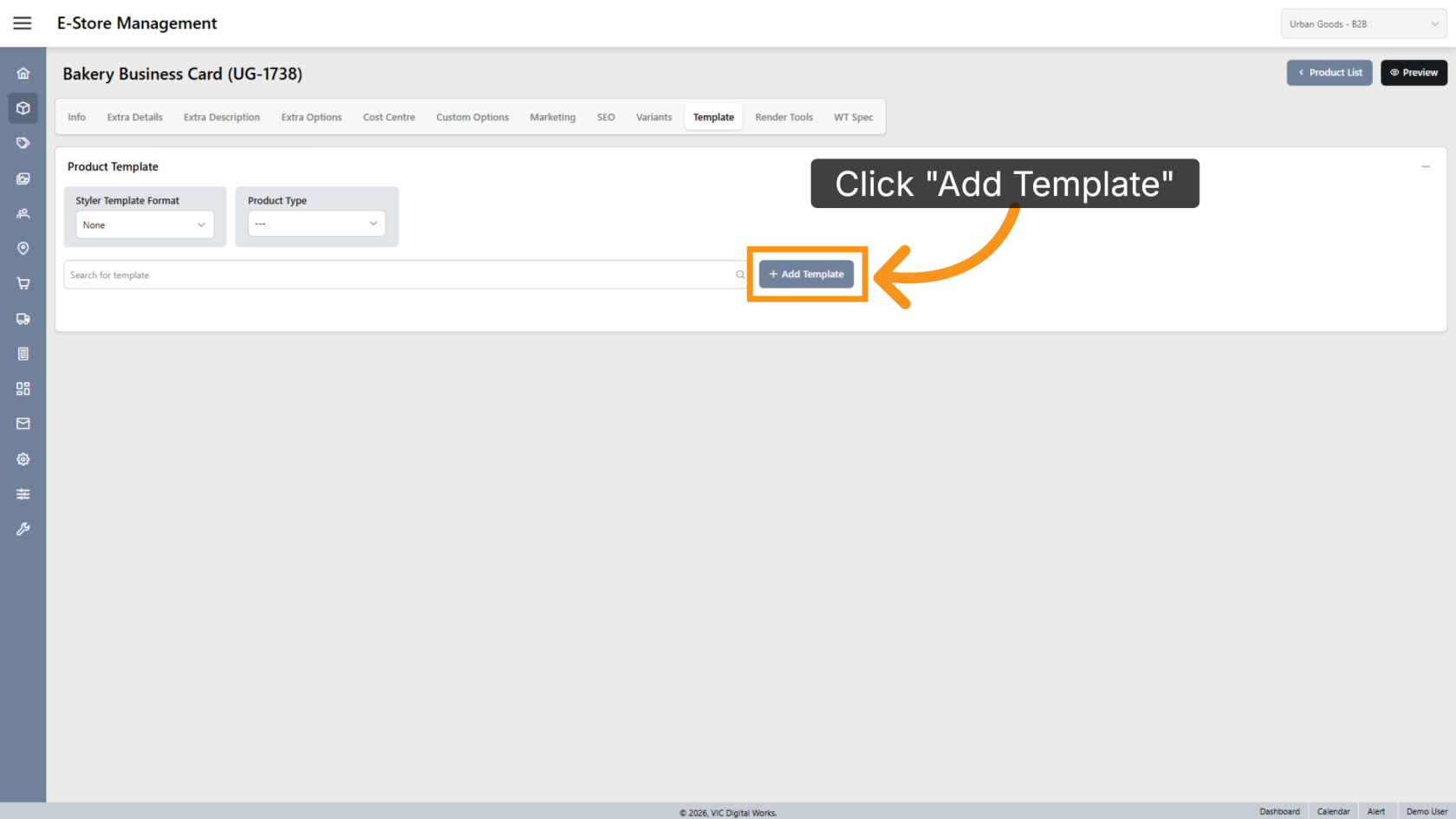
5. Add a Template
Click "Add Template" to begin adding a template to the product.
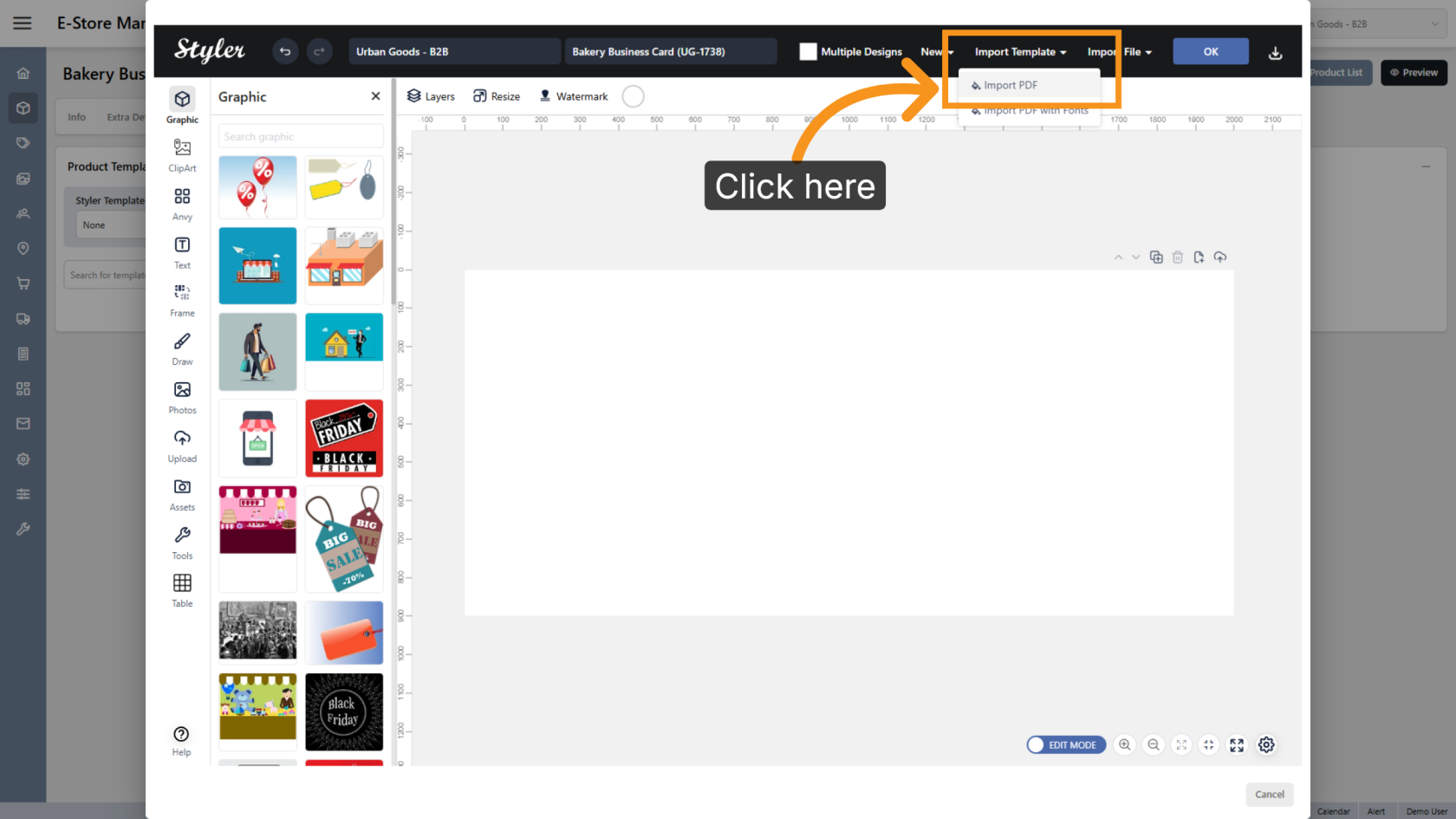
6. Import a PDF Template
Click "Import Template" then select Import PDF to upload a PDF file as a product template.
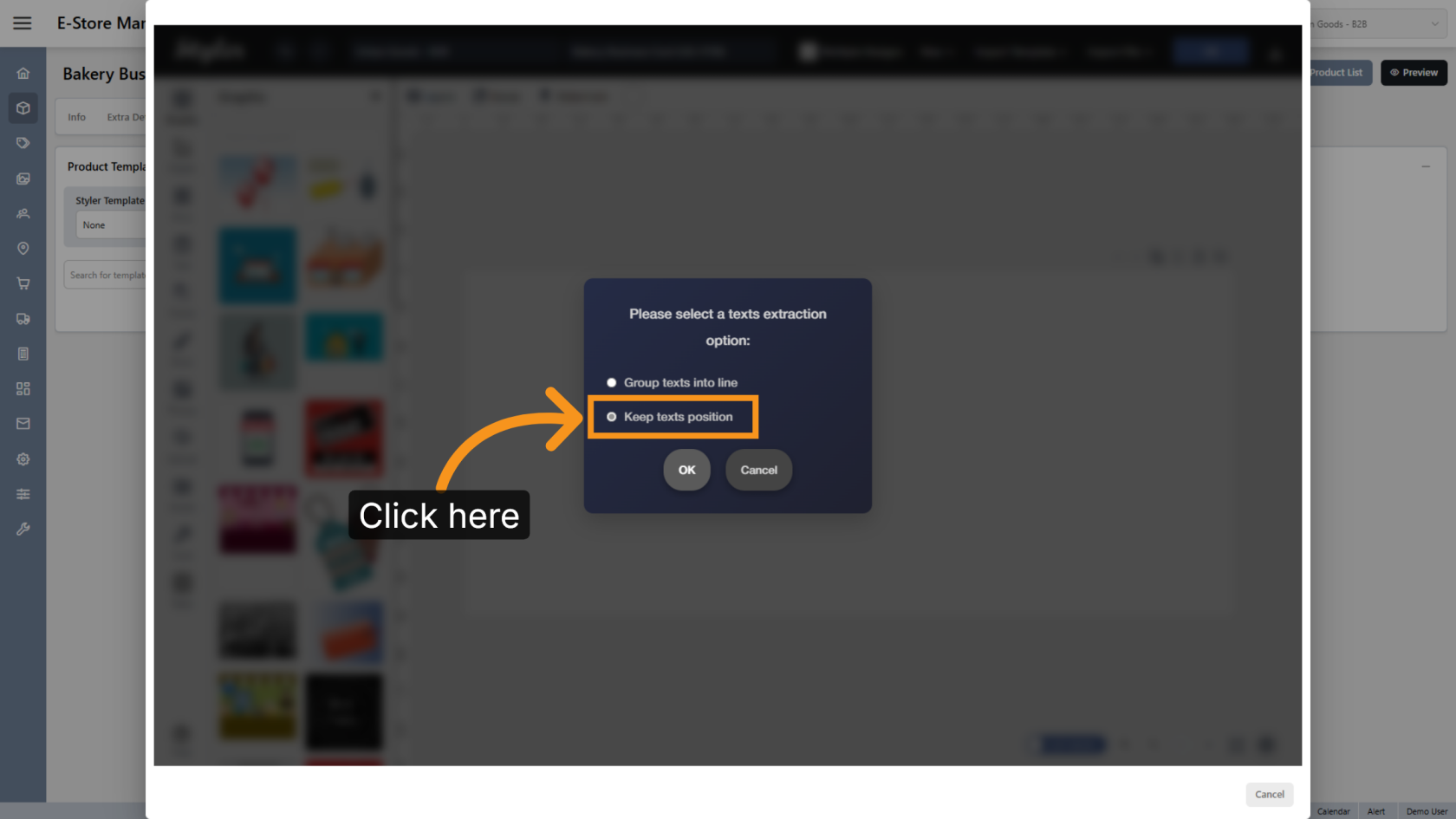
7. Keep Text Positions
Select Keep texts position to maintain the original text placement during the import process.
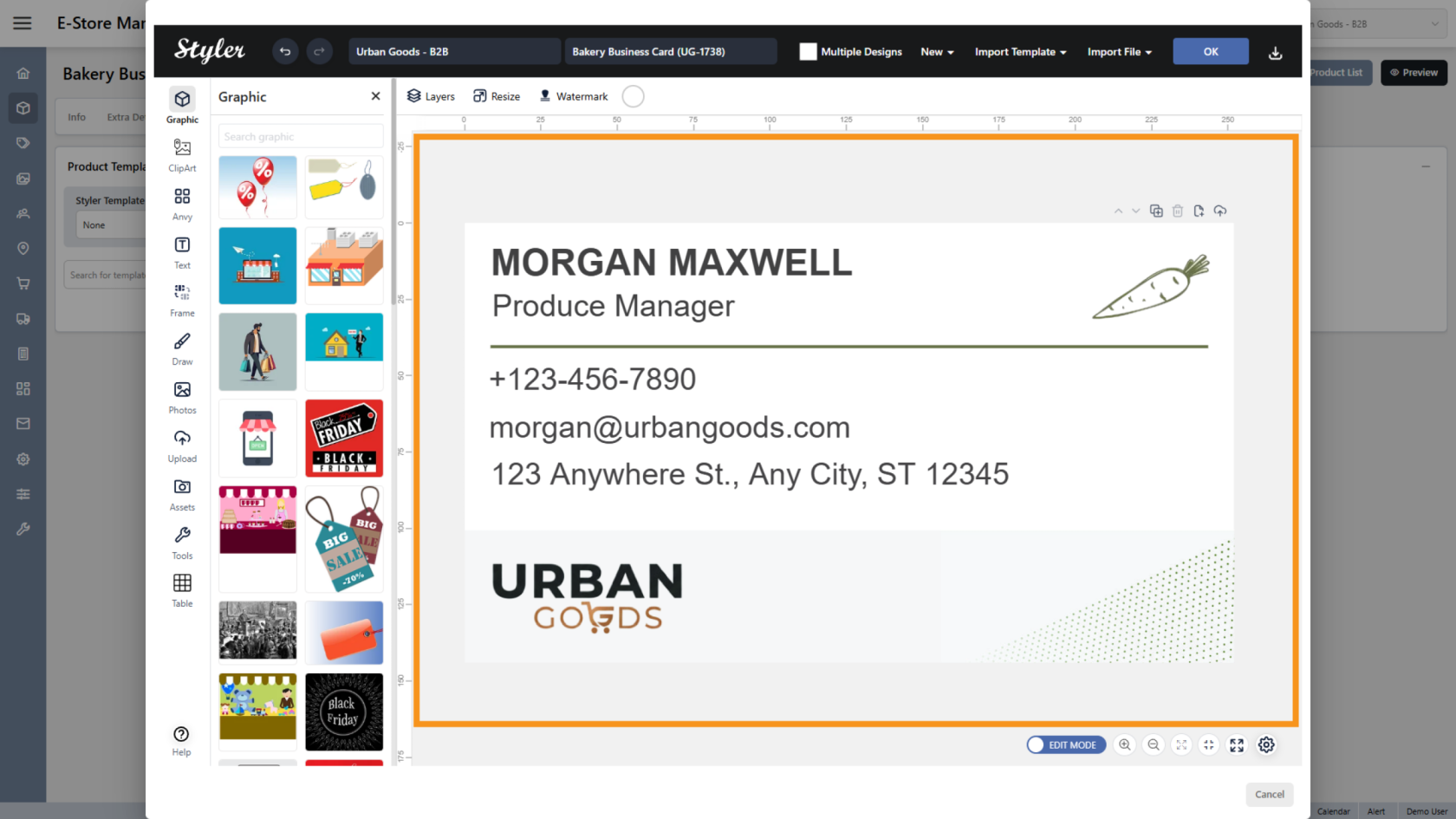
8. Review the Design
The design will appear in the editing area.
Set objects as variants if users need to edit information such as Full Name, Title, Phone Number, or Address.
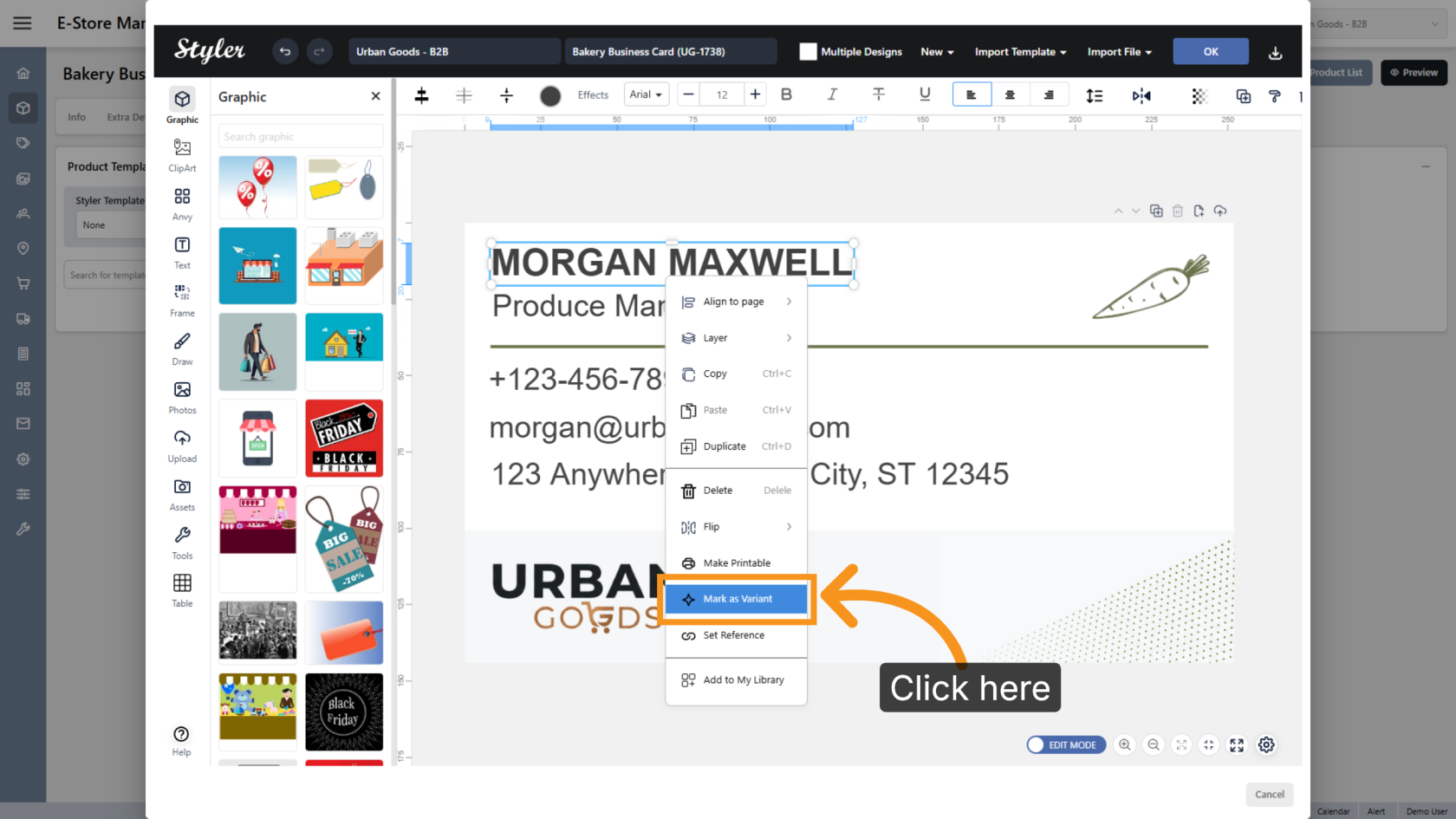
9. Mark Full Name as a Variant
Right-click the name object and select Mark as Variant to make the field editable
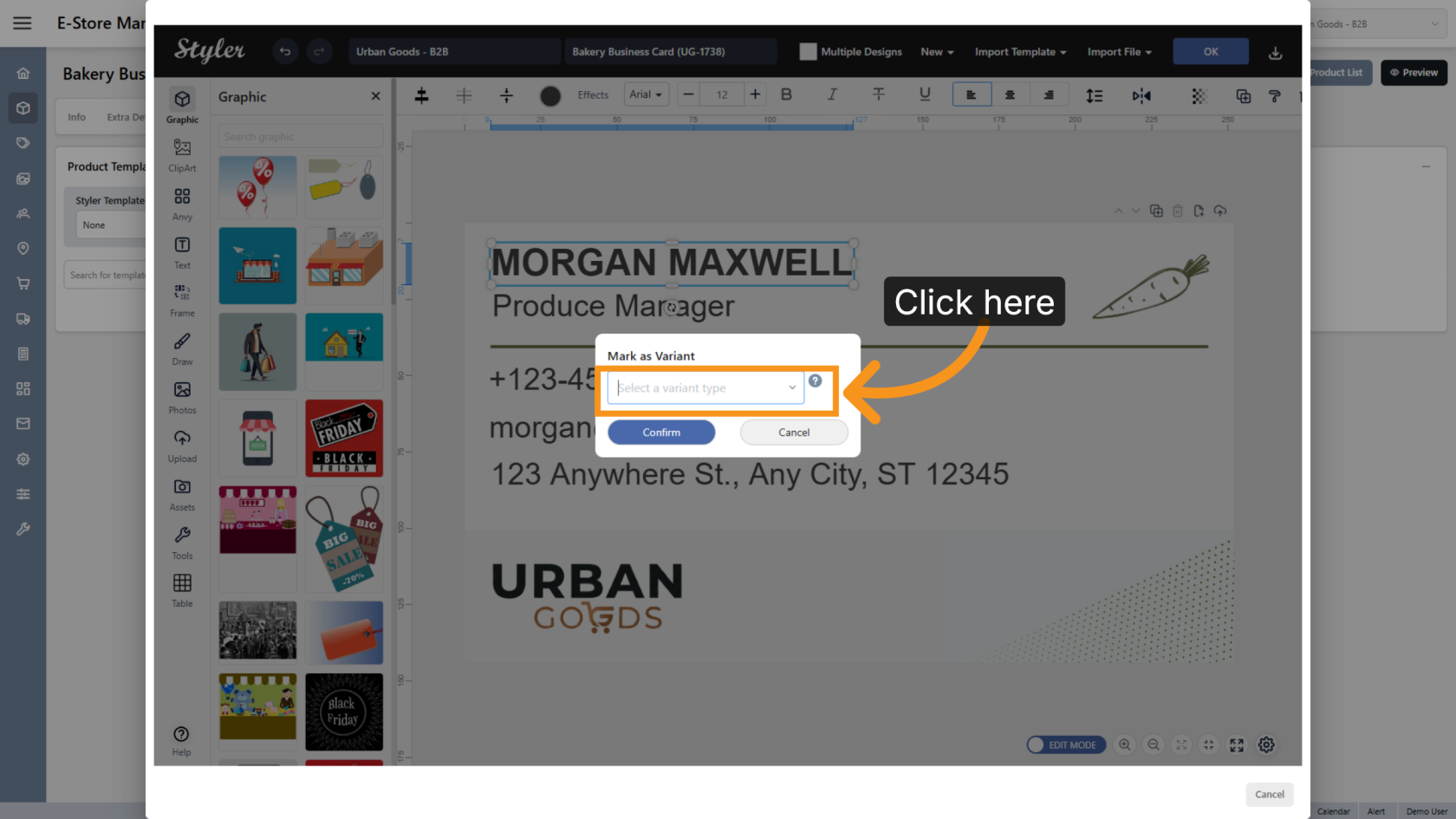
10. Select the Variant Type
Click Select a variant type and choose the appropriate variant category.
The variant type should clearly describe the information users need to enter. In this example, select Full Name.
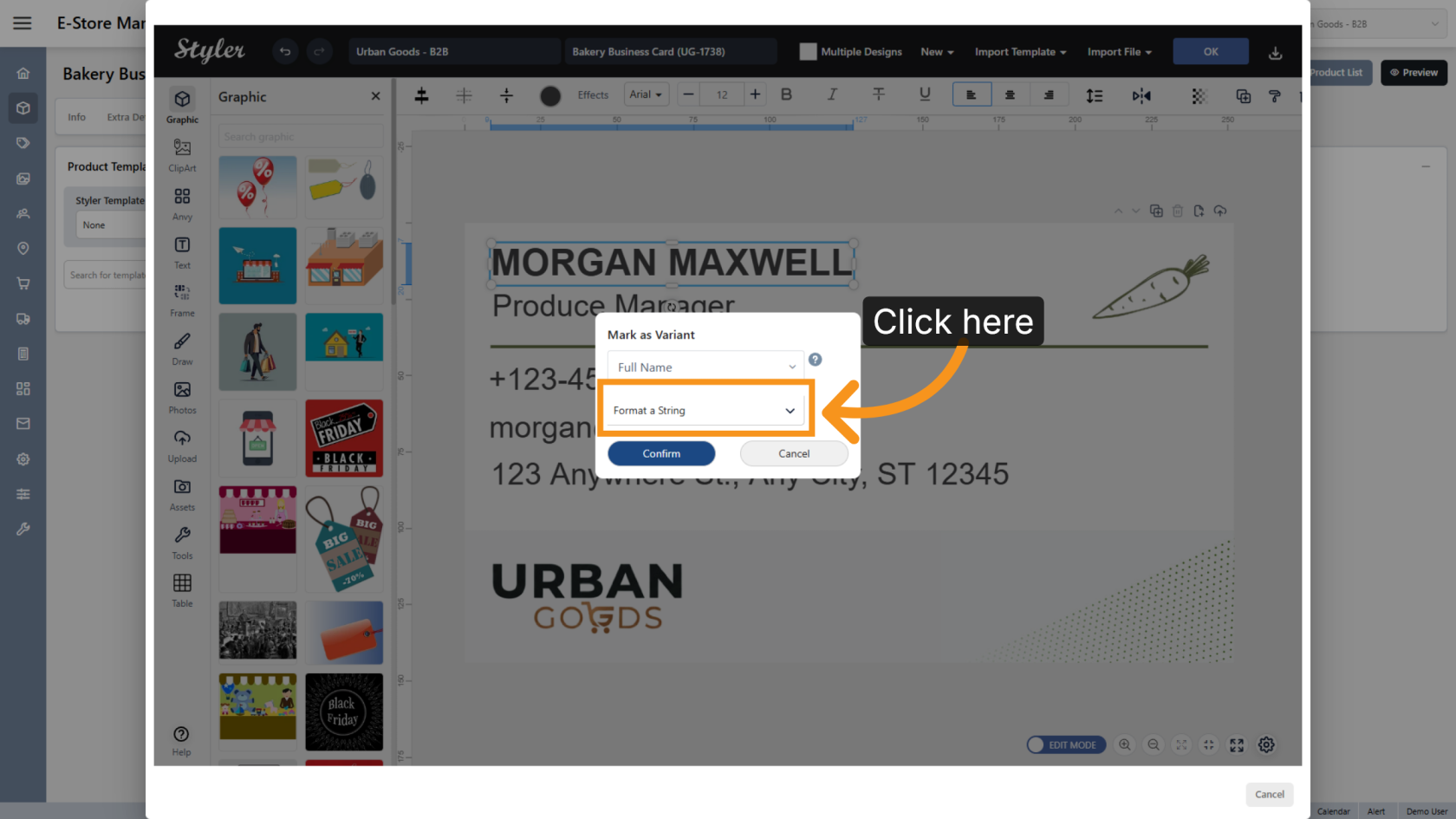
11. Configure the Format
Select Format a String for the variant format setting.
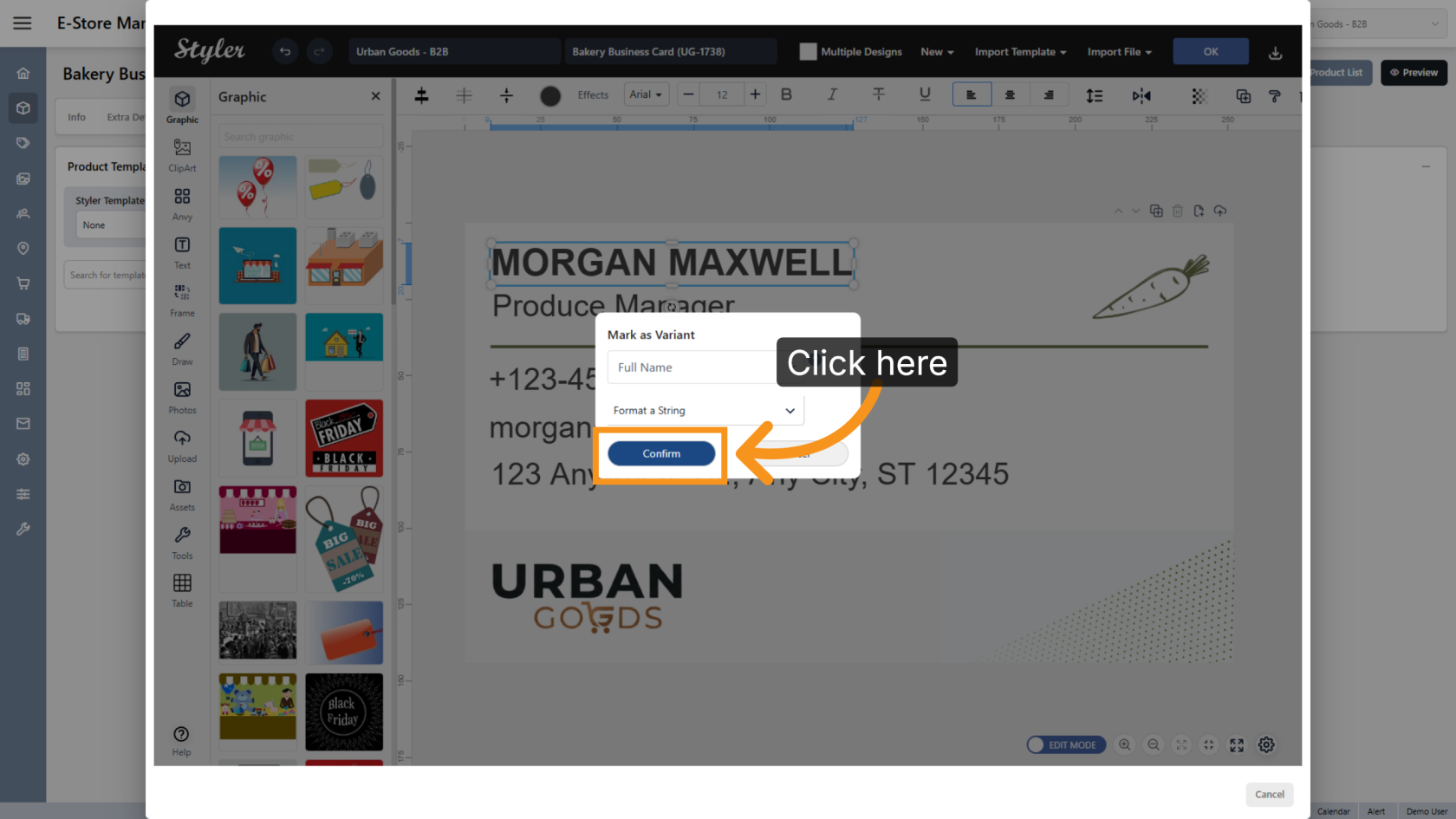
12. Confirm Variant Settings
Click "Confirm" to save the selected variant type and format settings.
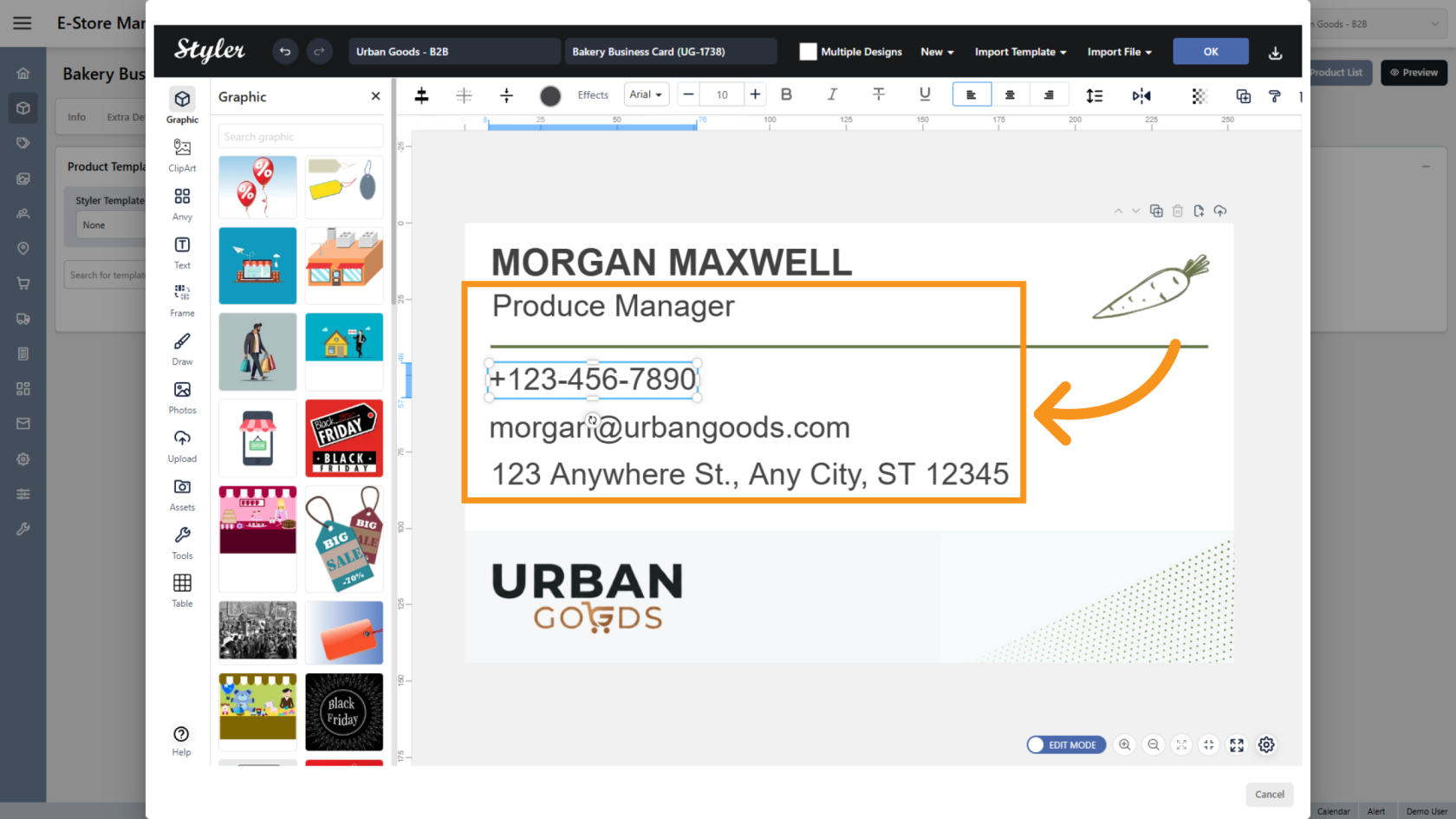
13. Configure Additional Variants
Repeat the same steps for other editable objects such as Title, Cell Phone, Email, and Full Address. Each variant type should clearly represent the information users will enter.
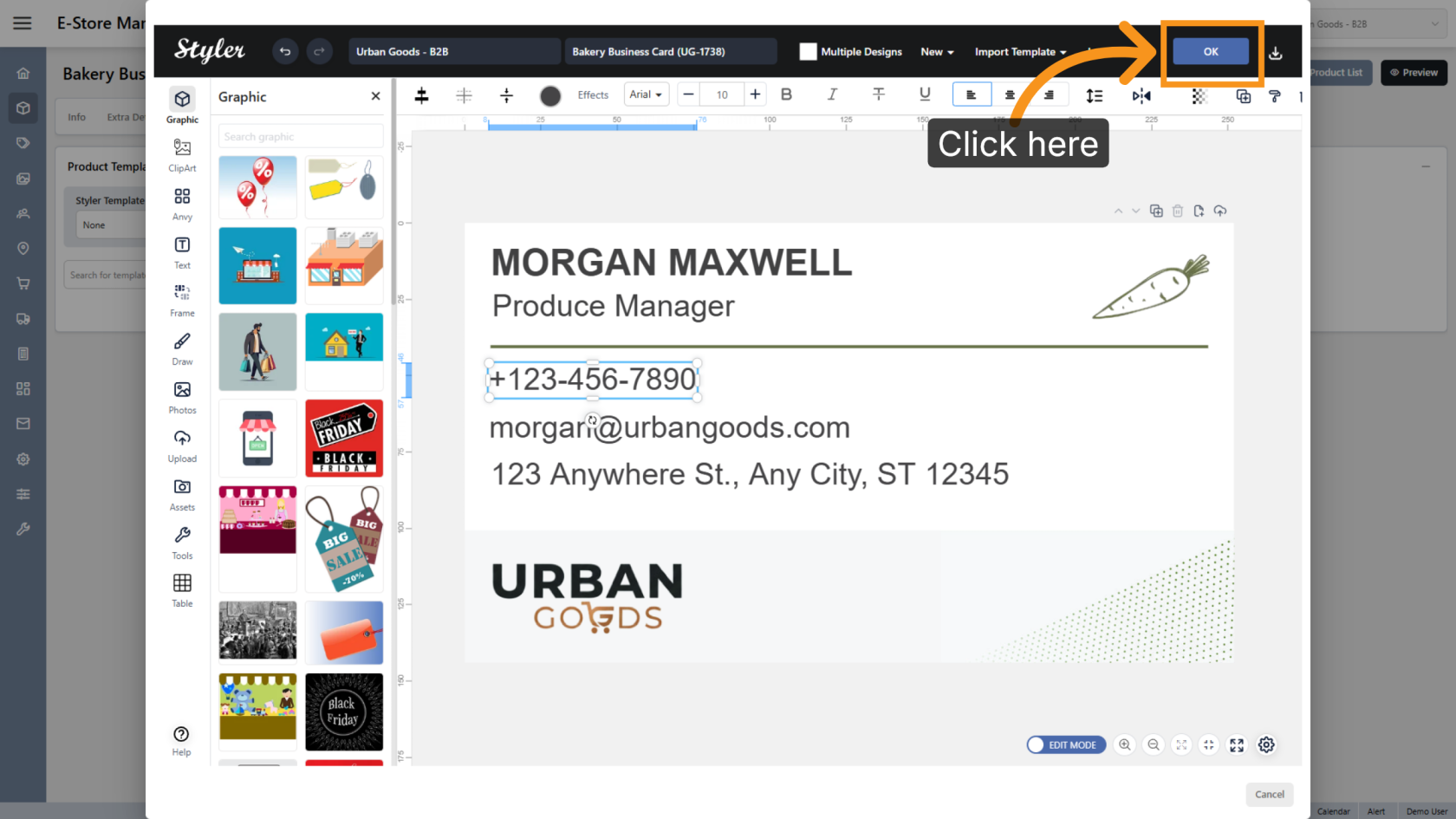
14. Save the Template Settings
Click OK to save the template configuration.
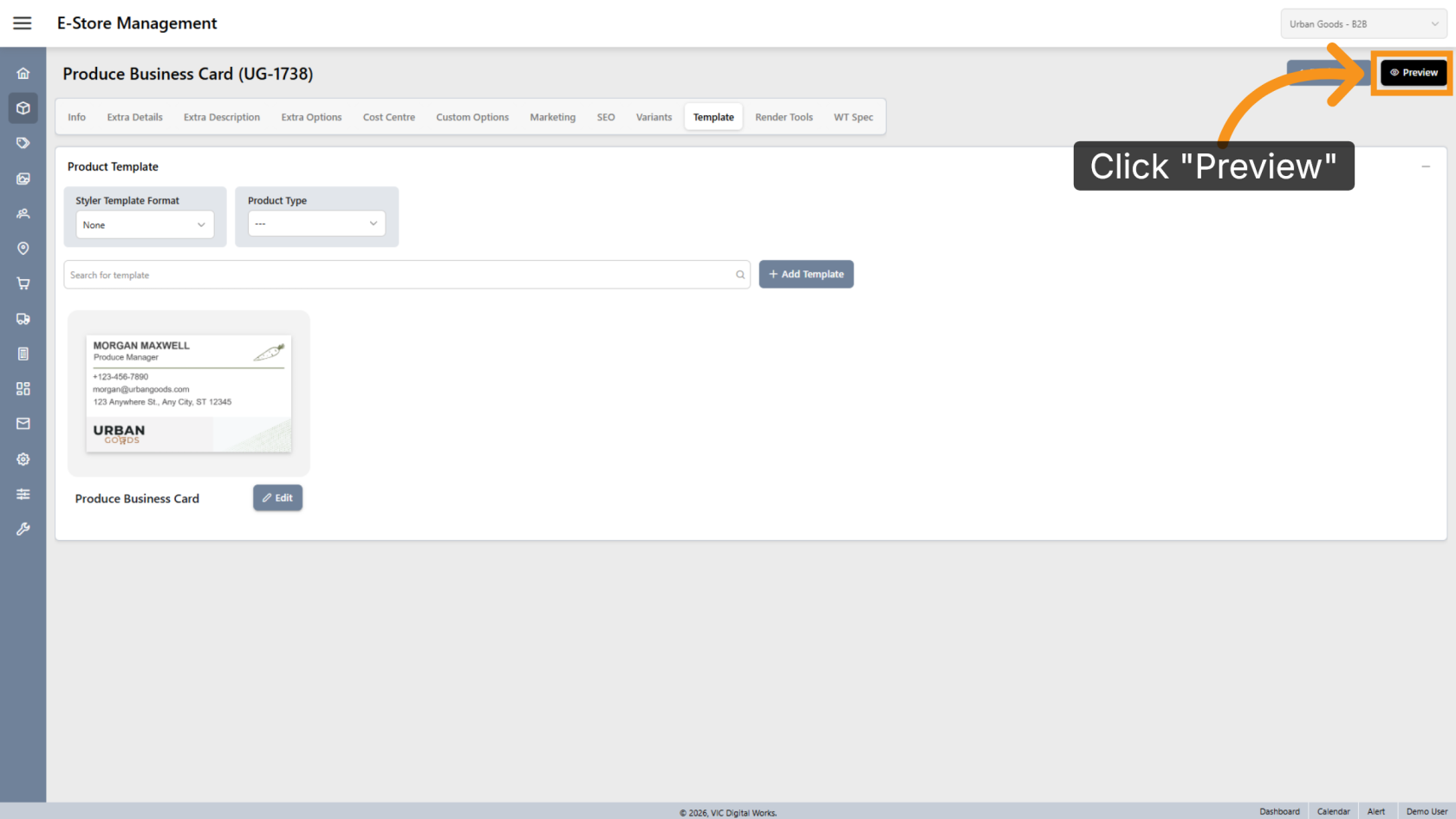
15. Preview Final Design
Click Preview to view the final design layout.
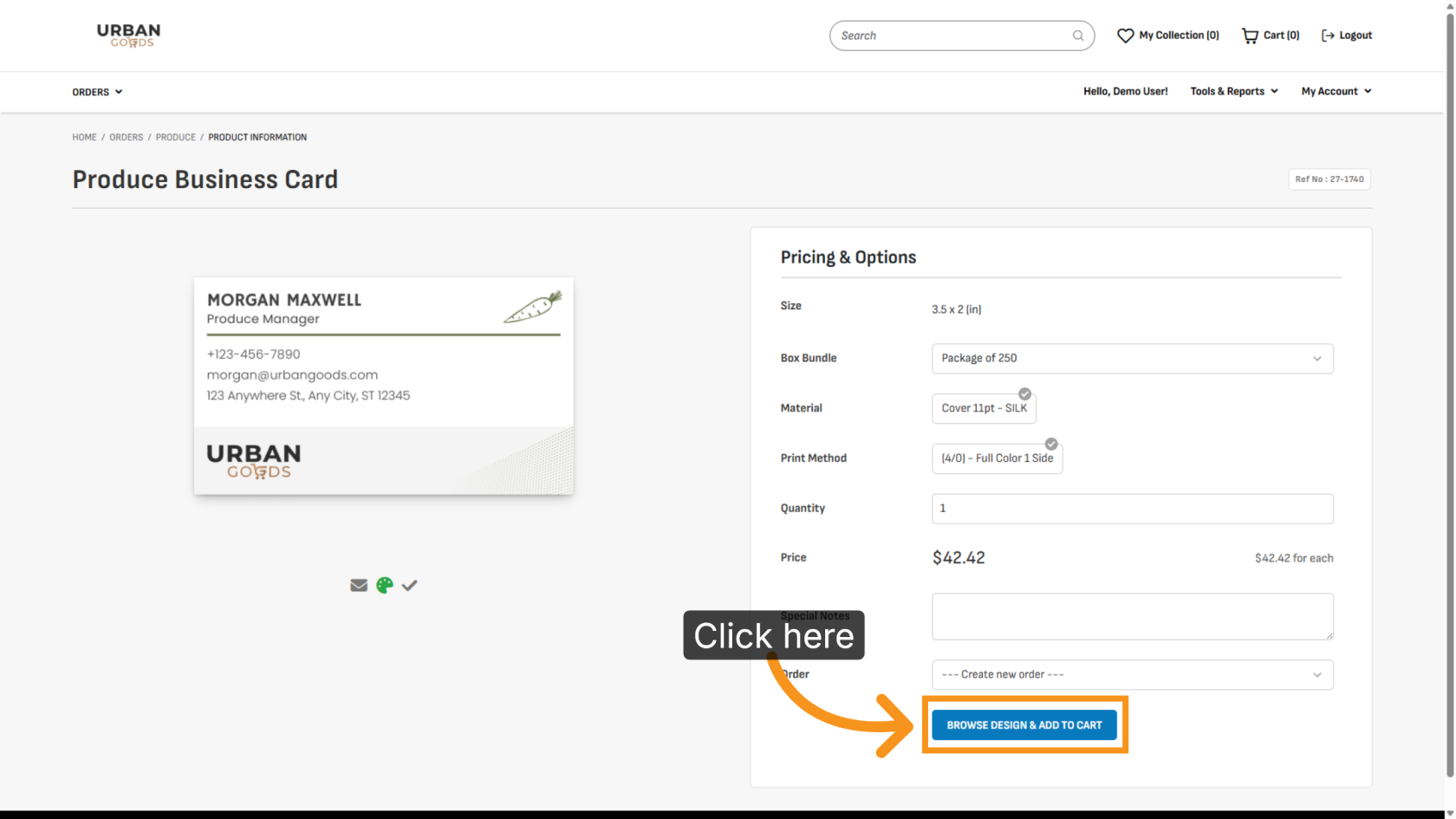
16. Browse Design
Click BROWSE DESIGN & ADD TO CART to choose a design for printing.
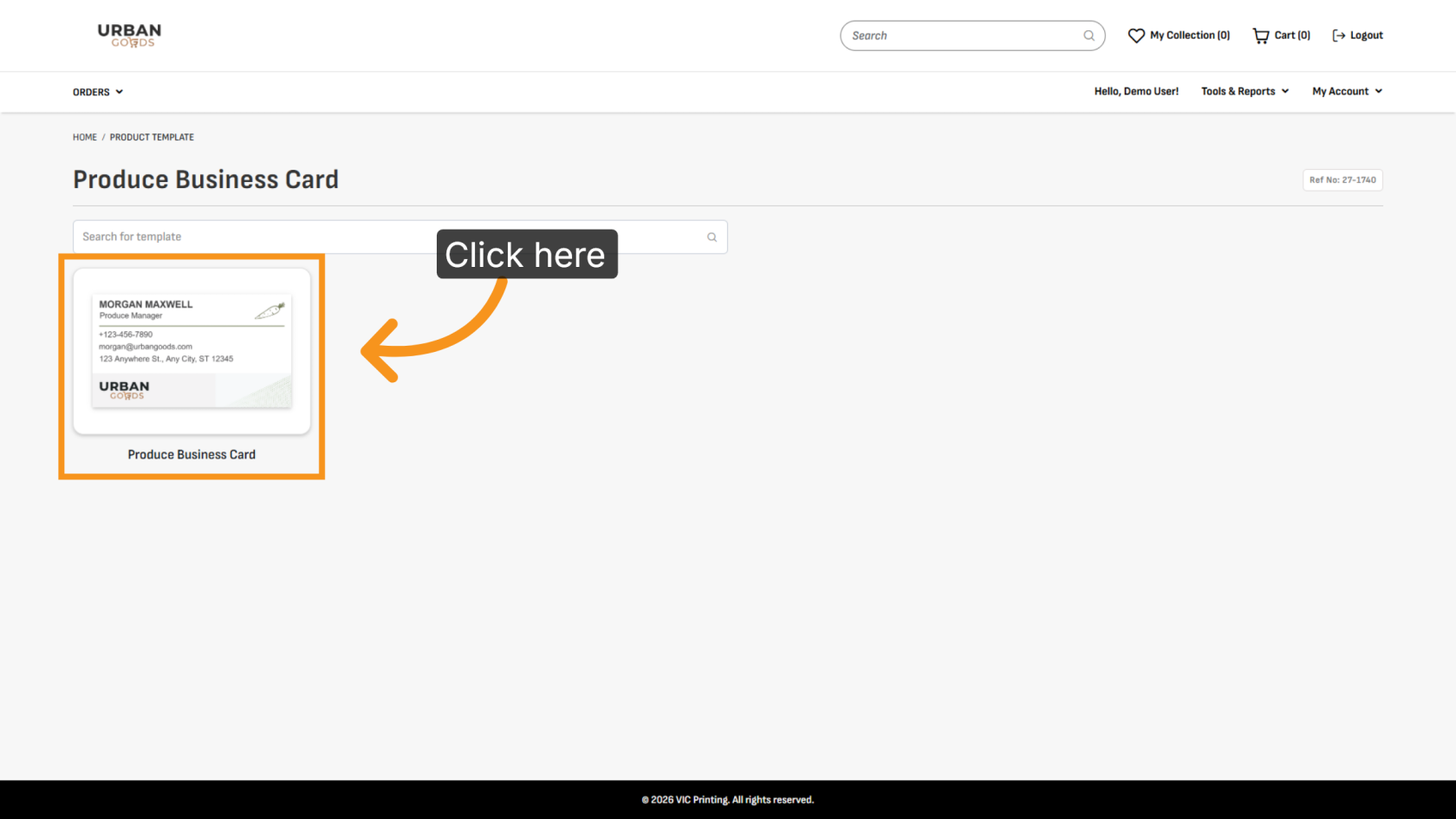
17. Select Design
Click the template you want to use for printing.
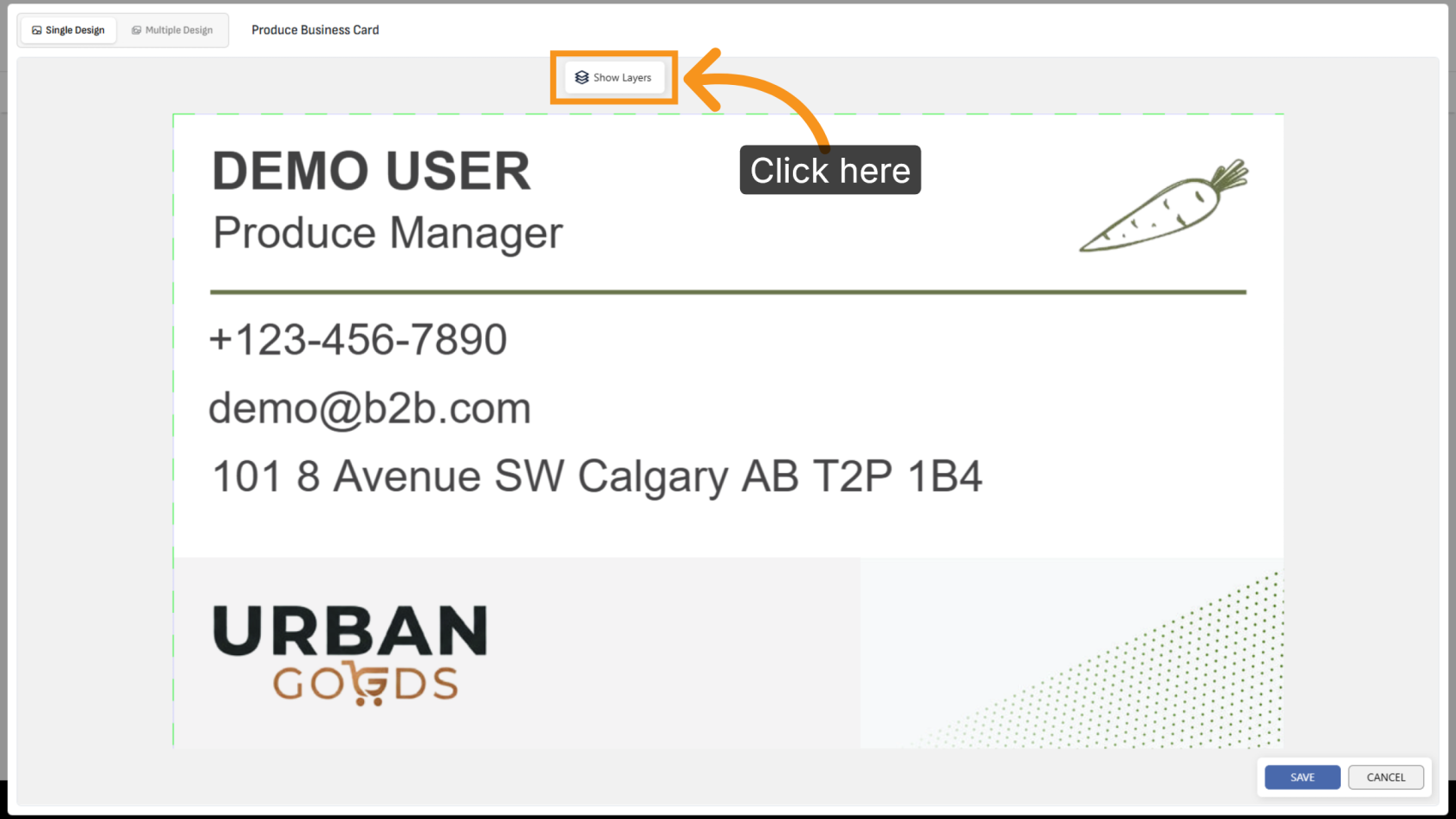
18. Show Layer
Click "Show Layer" to display all variant layers in the design.
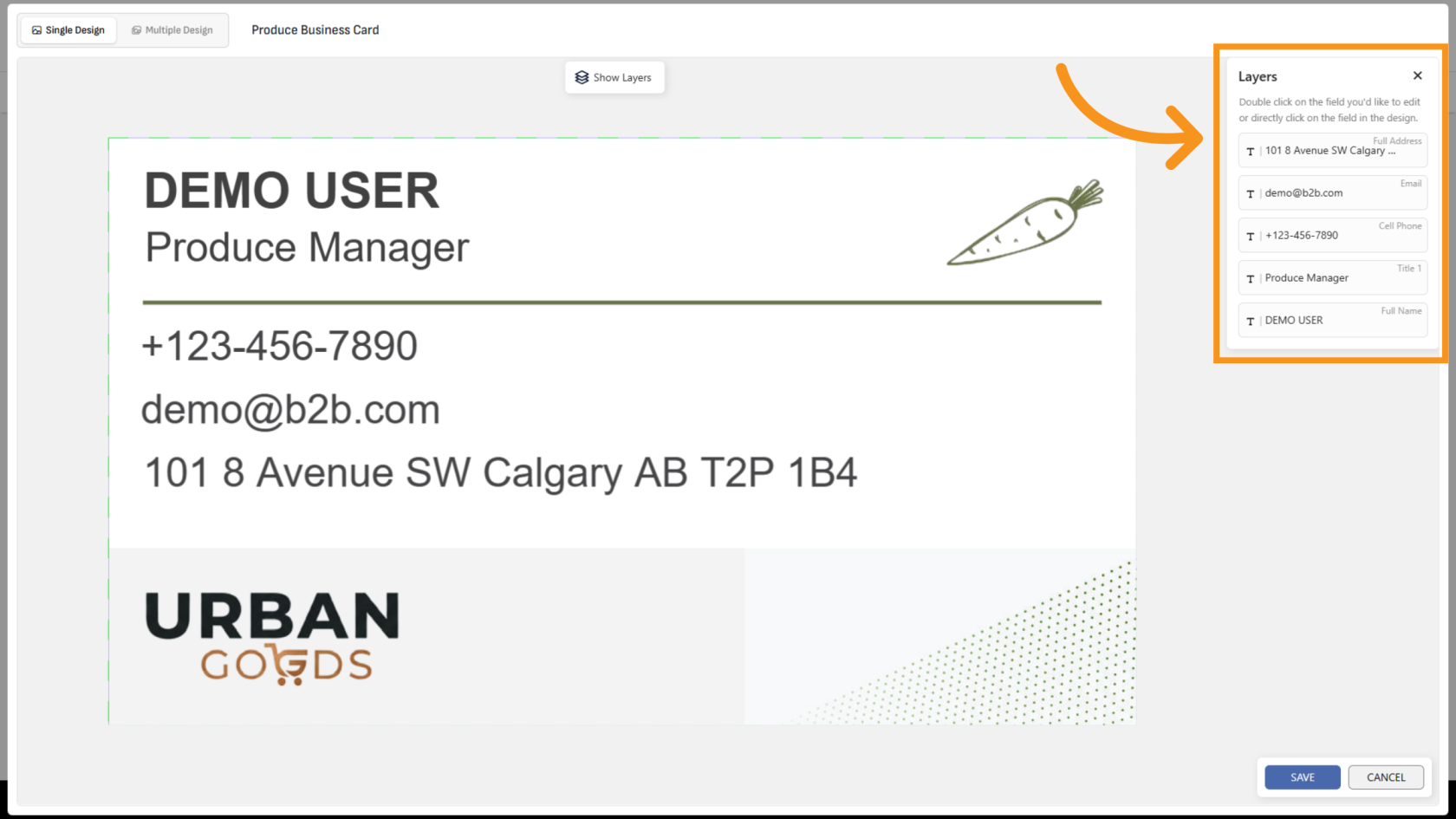
19. Review Layer
All variants defined in the template are displayed as layers for easy management and editing.
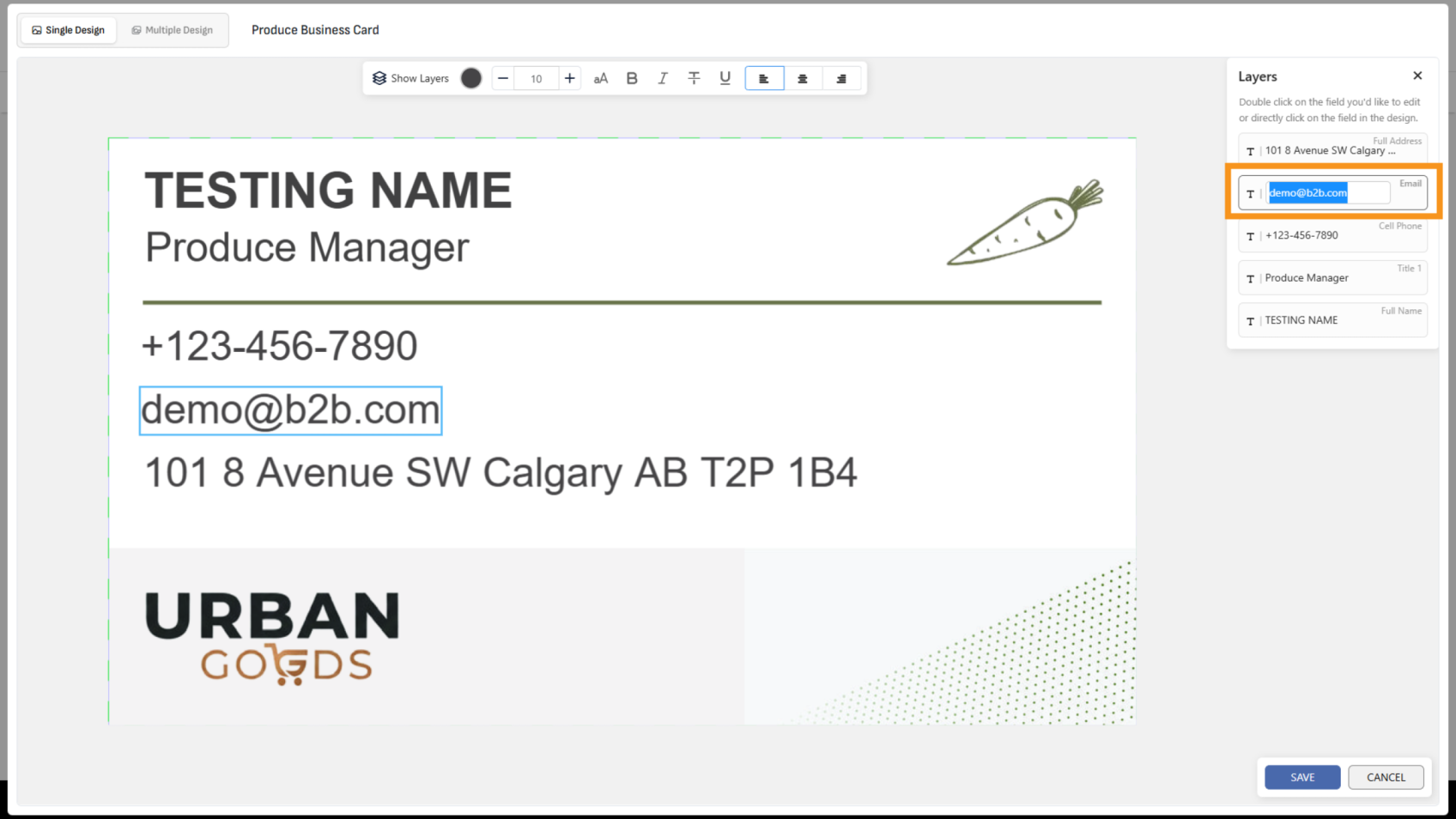
20. Edit Design
Double-click the layer you want to edit, then enter the desired value.
You have successfully imported a business card template and configured editable variants. Verify that all variant types are correctly assigned to ensure accurate product customization and template management.