
Set QuickBooks Sync Permissions (Super Admin Only)
This tutorial shows administrators how to configure user role permissions for syncing Purchase Orders and Sales Invoices from WorkTraq to QuickBooks.
Video Tutorial
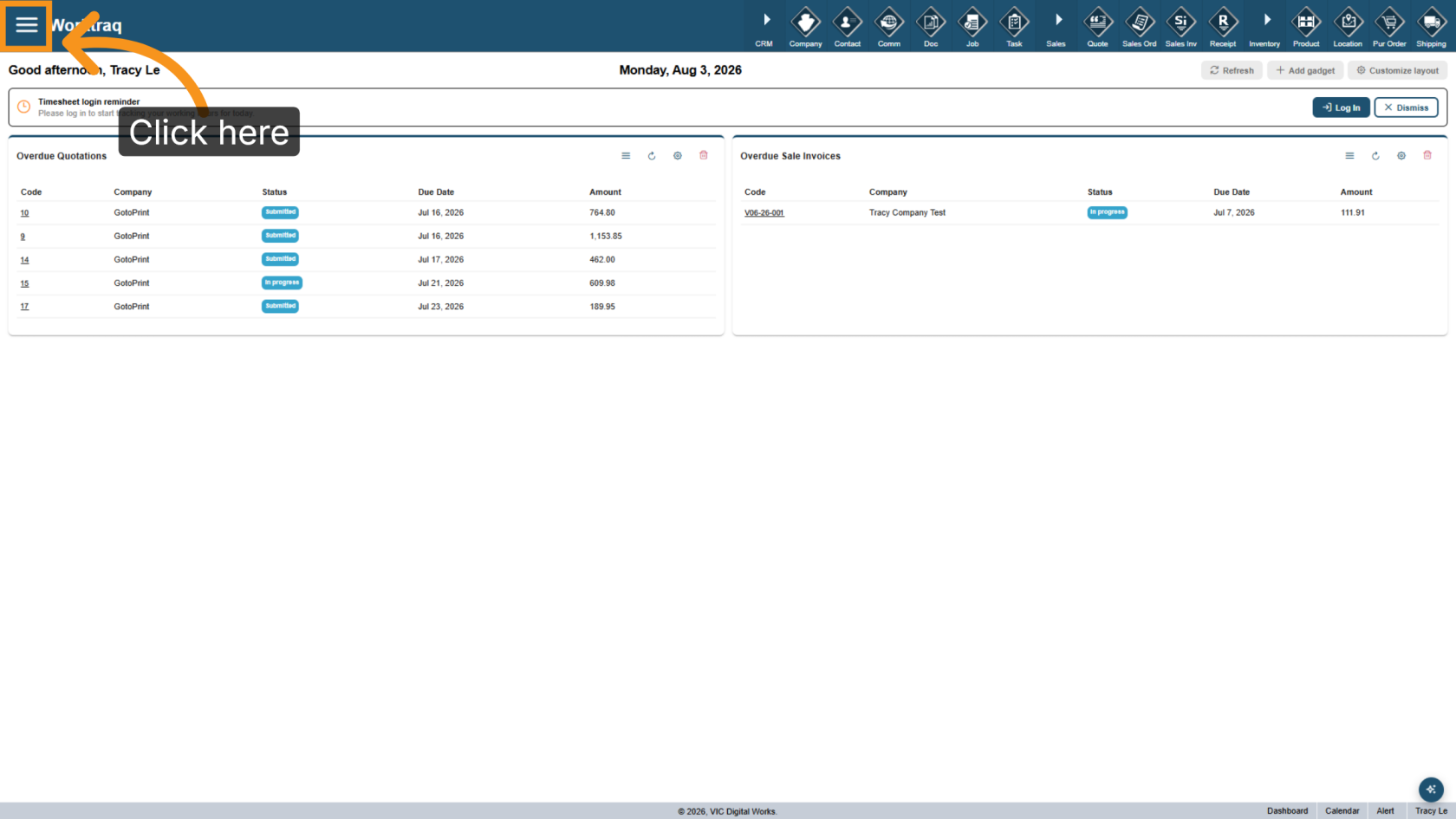
1. Open Main Menu
Click the  Main Menu icon to open the navigation menu.
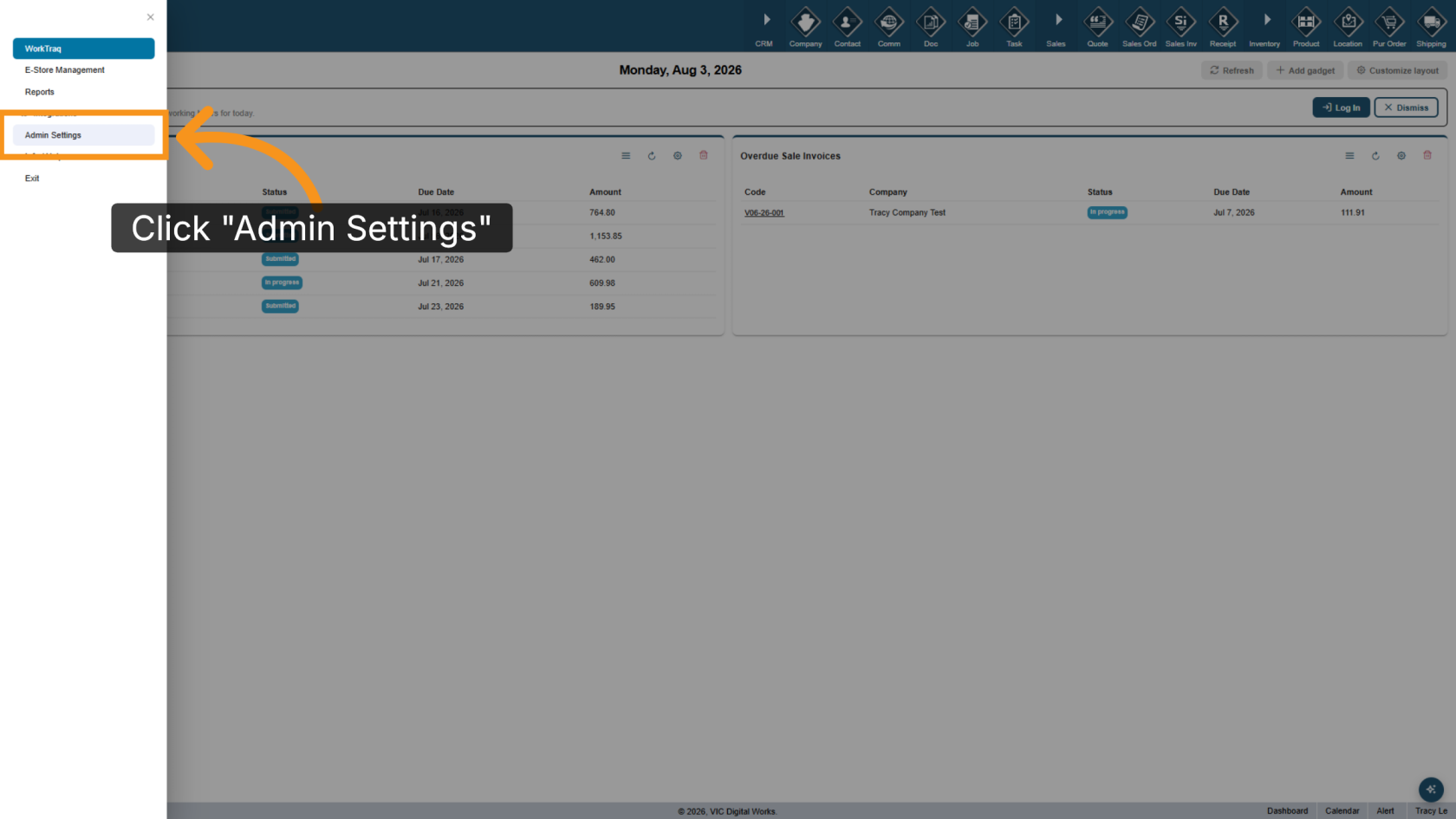
2. Access Admin Settings
Click Admin Settings to open the administrative configuration panel.
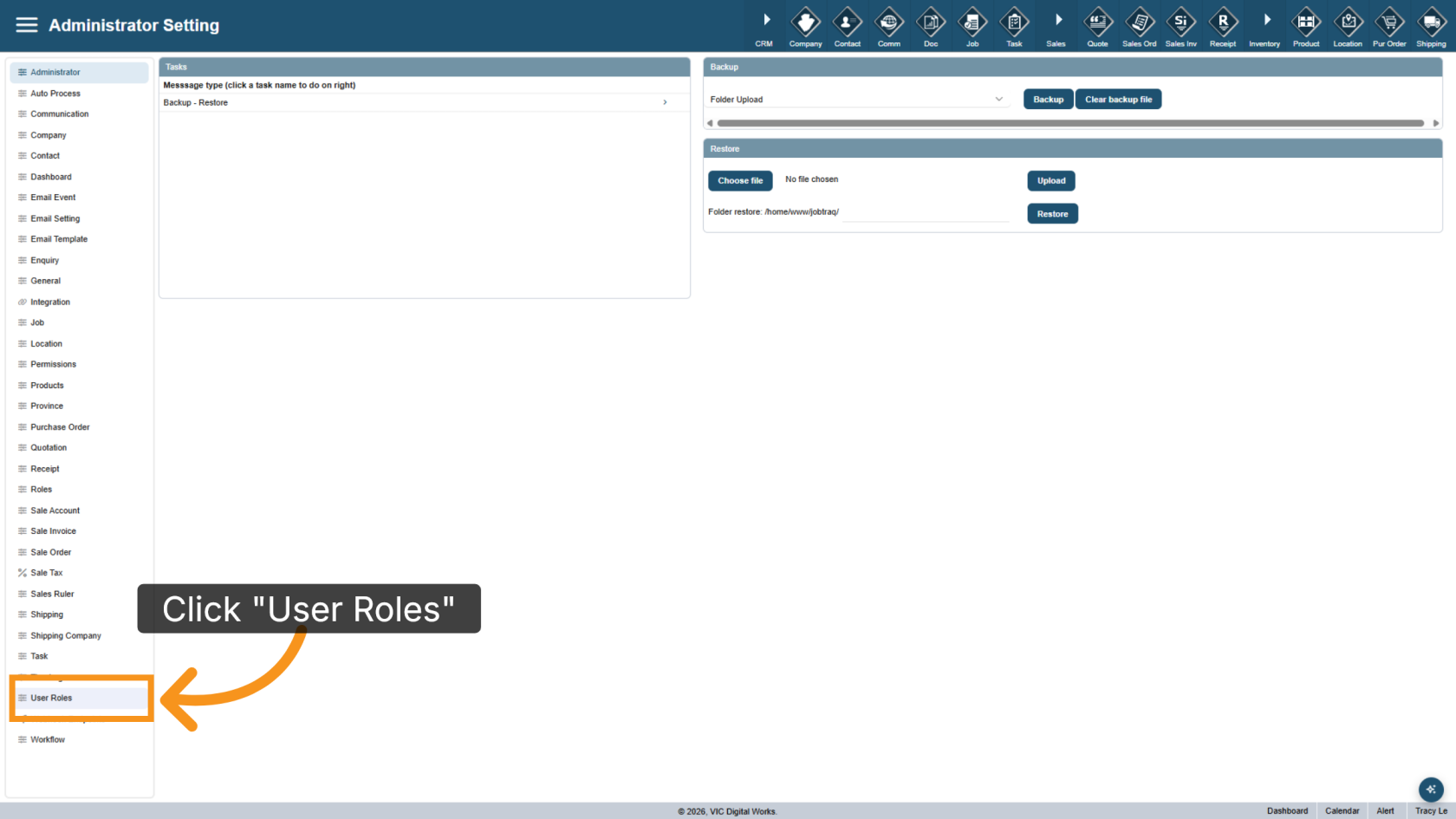
3. Open User Roles
Click User Roles to view and manage user role permissions.
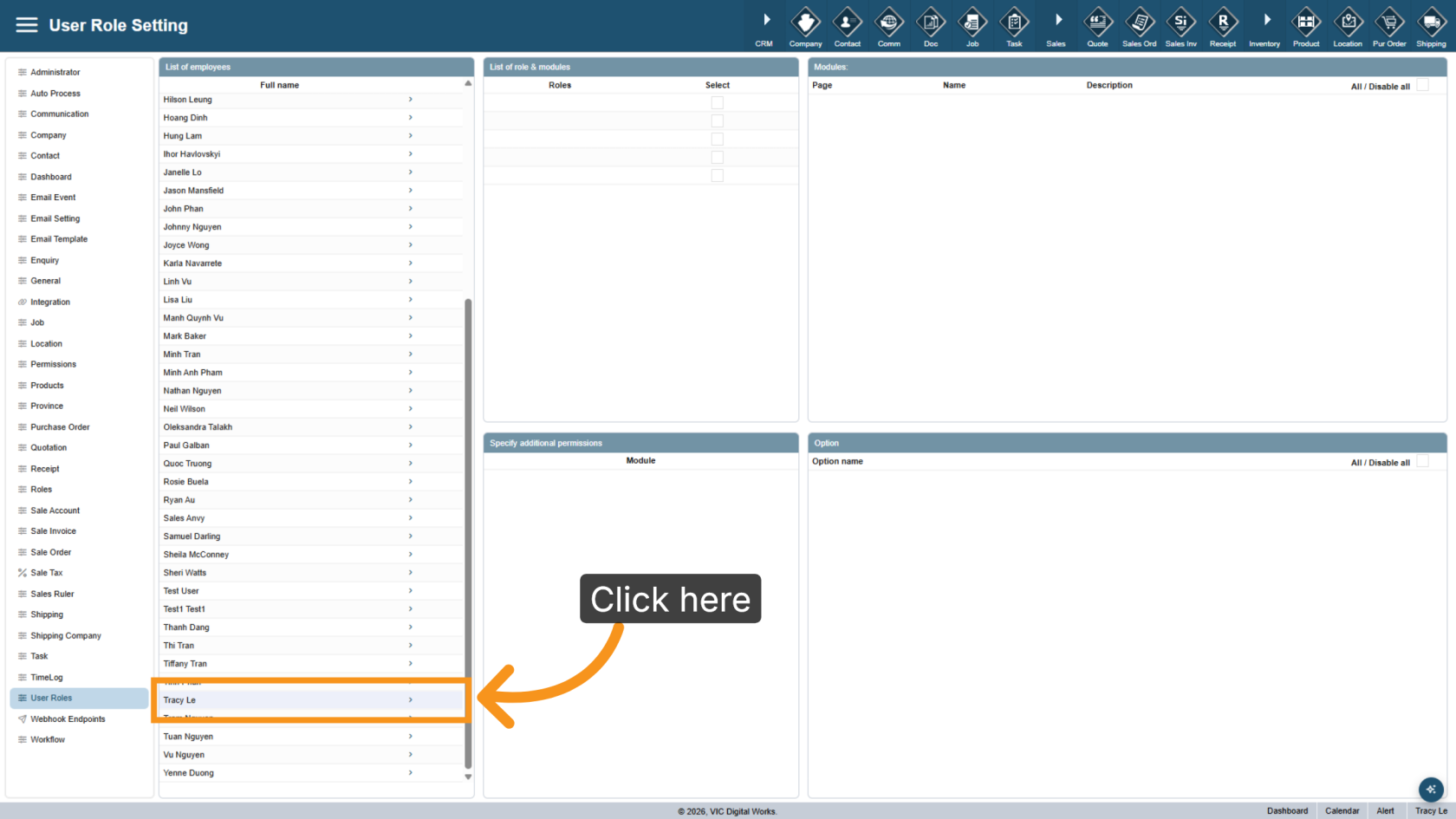
4. Select a User
Open the user that you want to configure.
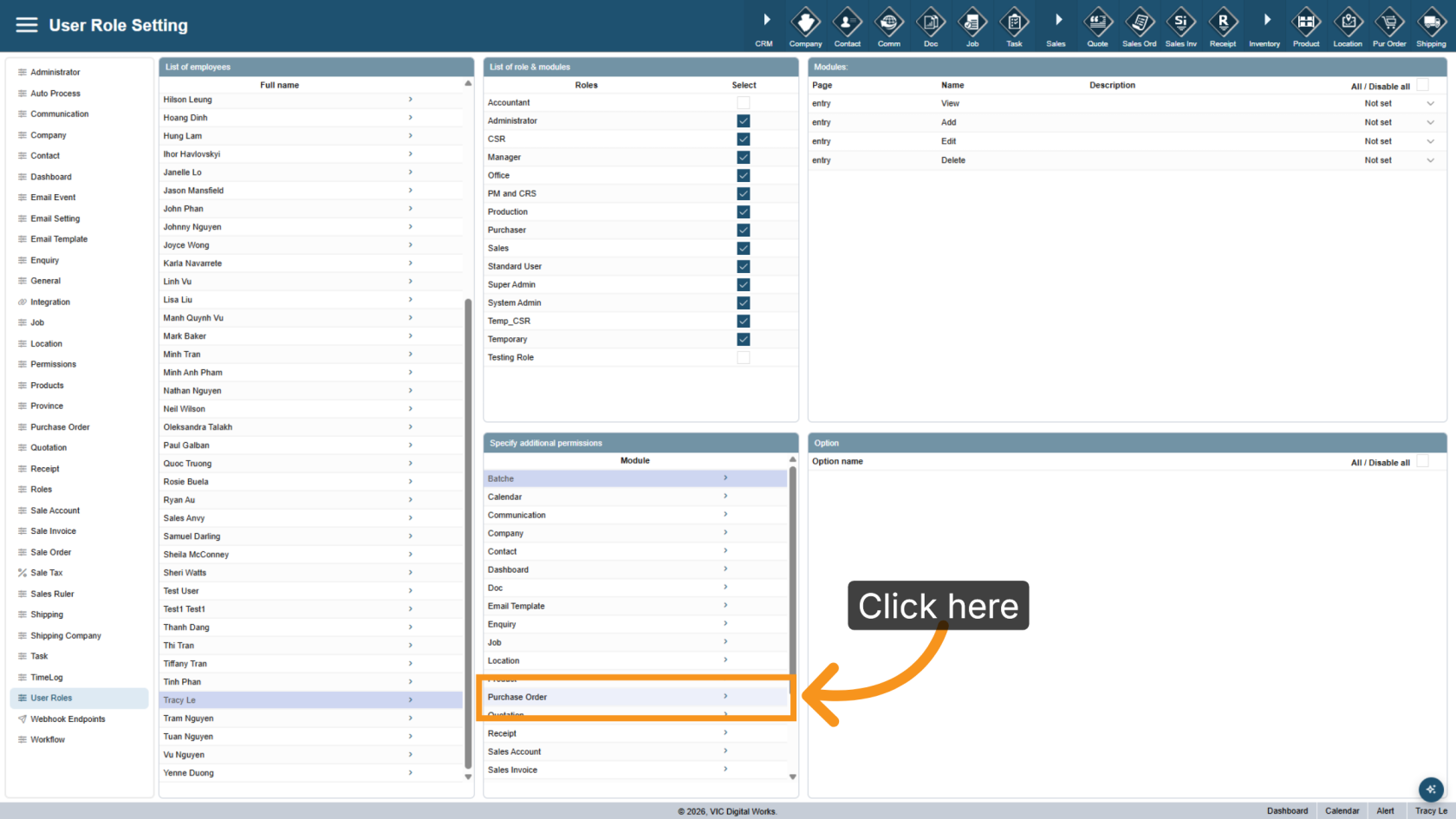
5. Configure Purchase Orders
Select the Purchase Order module.
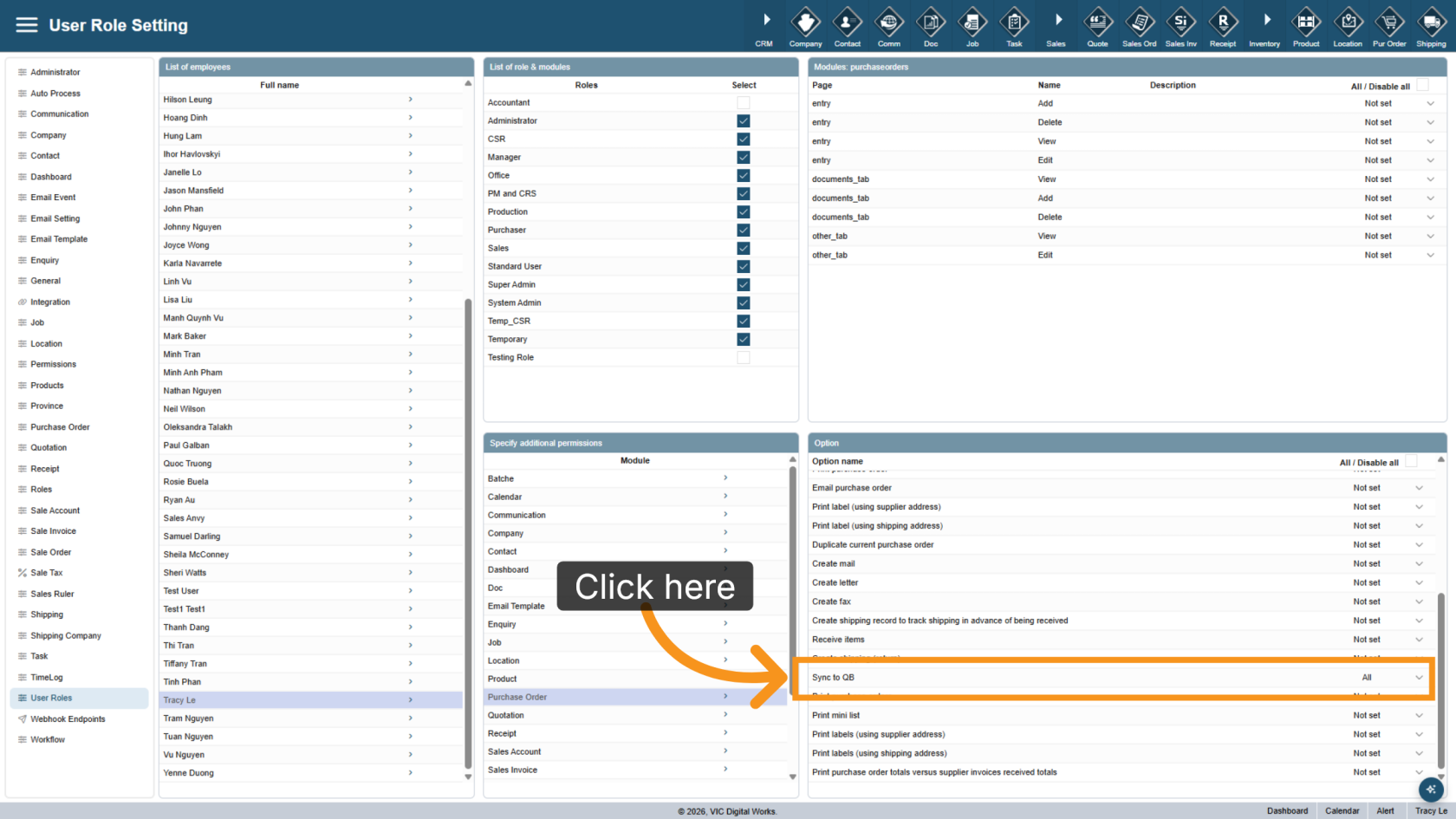
6. Enable QuickBooks Sync
Set Sync to QB to All to allow this user to sync Purchase Orders to QuickBooks.
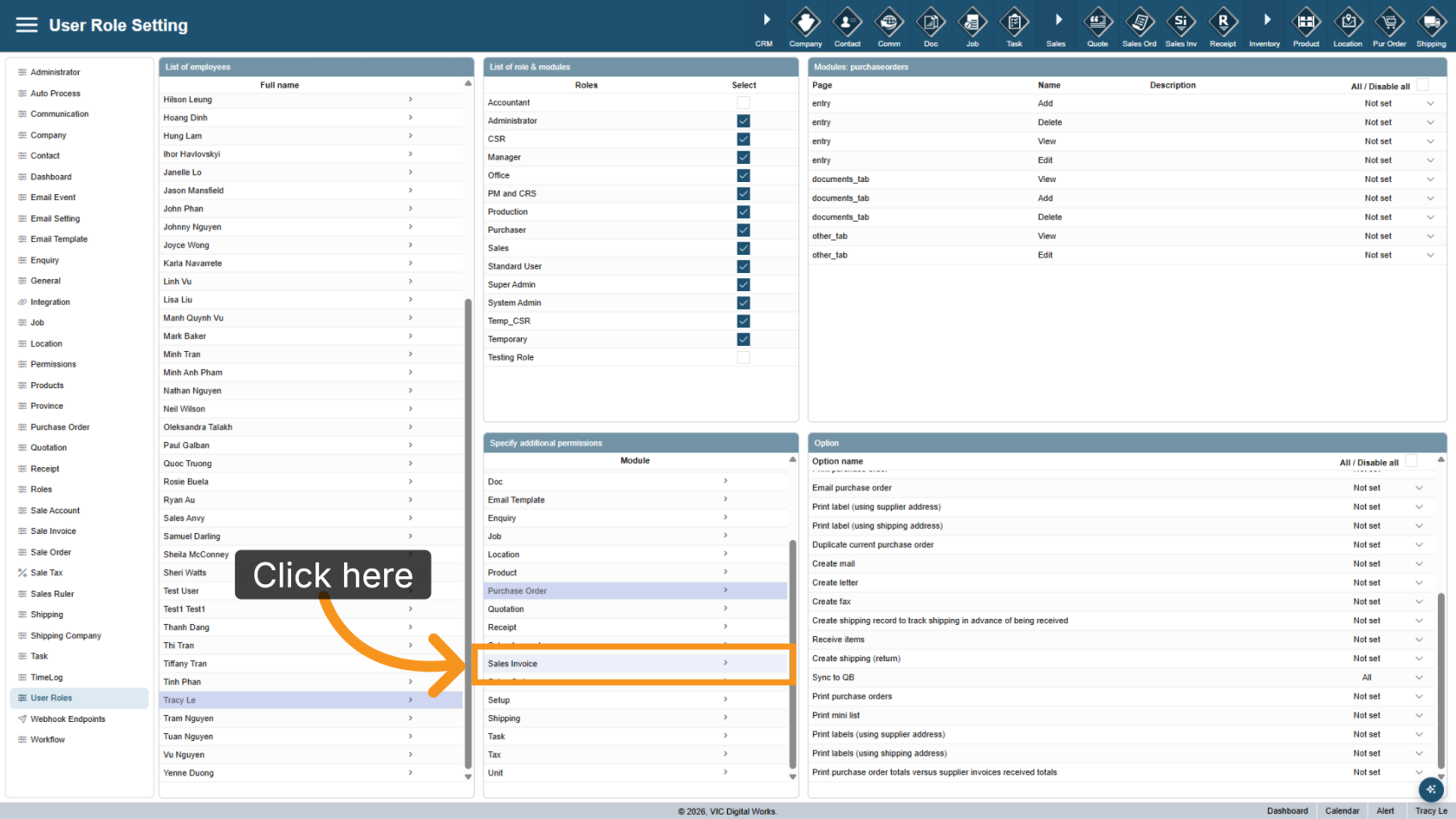
7. Configure Sales Invoices
Select the Sales Invoice module.
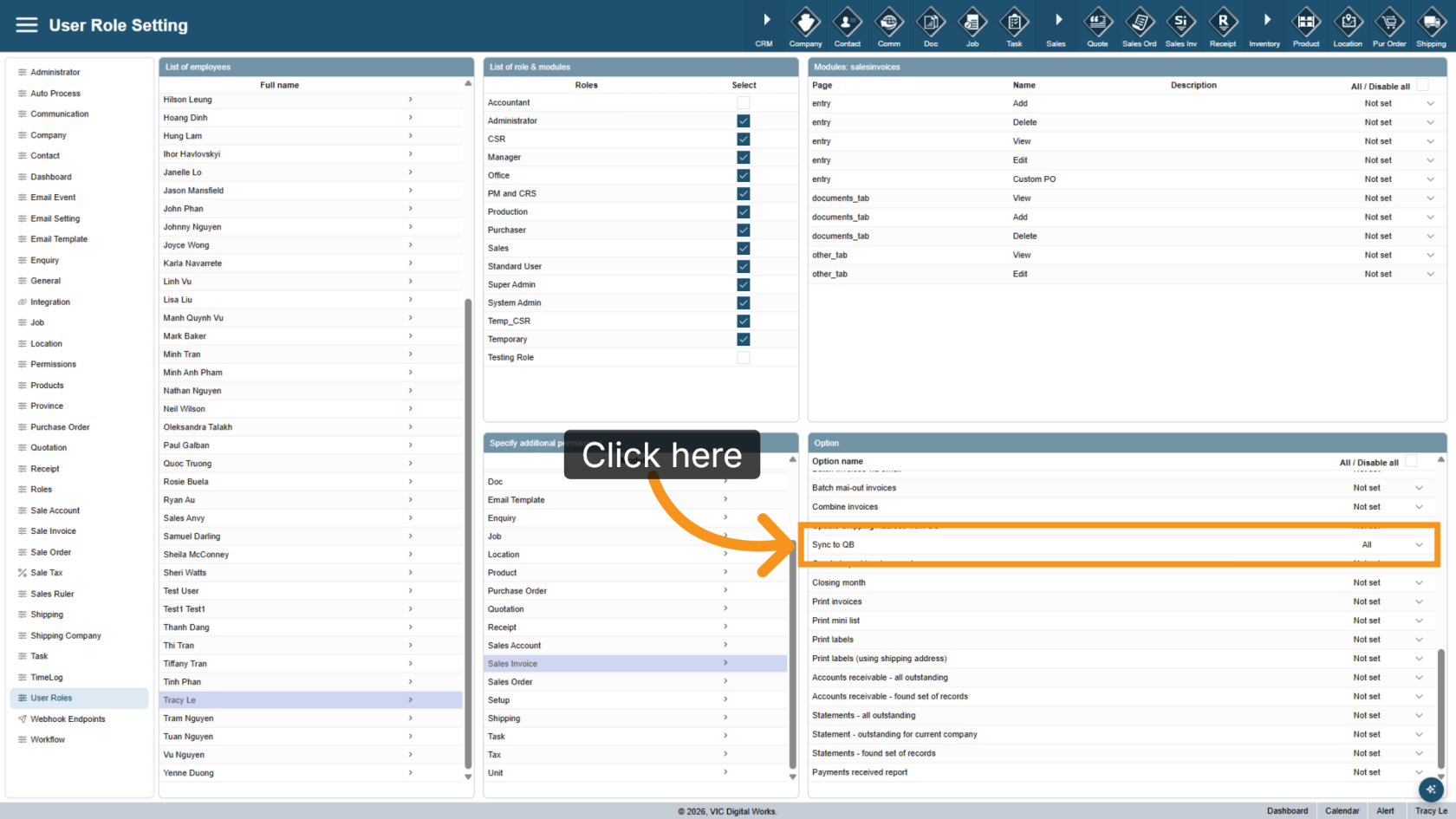
8. Enable QuickBooks Sync
Set Sync to QB to All to allow this user to sync Sales Invoices to QuickBooks.
You have successfully configured the required permissions for QuickBooks synchronization. Selected users can now sync Purchase Orders and Sales Invoices from WorkTraq to QuickBooks.