Company Entry
Table of contents:
1. Create a new company
In the system, there is one designated main company—usually representing your own business. Users can also add other companies, such as customers or suppliers.
2. Company general
Detail
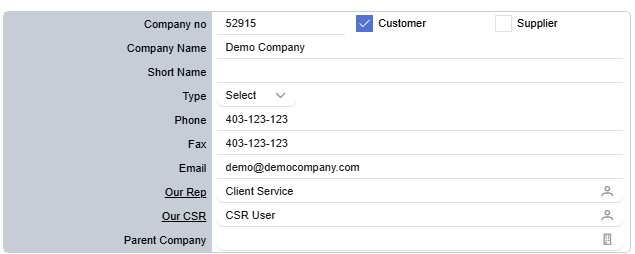
- Company no: Generated by the system; cannot be edited.
- Customer & Supplier: Select the company profile; both can be chosen.
- Company Name: Enter the company’s full name.
- Short Name: Enter the company’s short name.
- Type: Select the type of company.
- Phone: Enter the company’s phone number.
- Fax: Enter the company’s fax number.
- Email: Enter the company’s email address.
- Our Rep: click on the image contact icon to select or update the sales representative.
- Our CSR: click on the image contact icon to select or update the CSR.
- Parent Company: click on the image company icon to select or update the parent company.