
Configure Quotation List
This tutorial will walk you through the steps to configure your quotation list.
1. Access Quotation
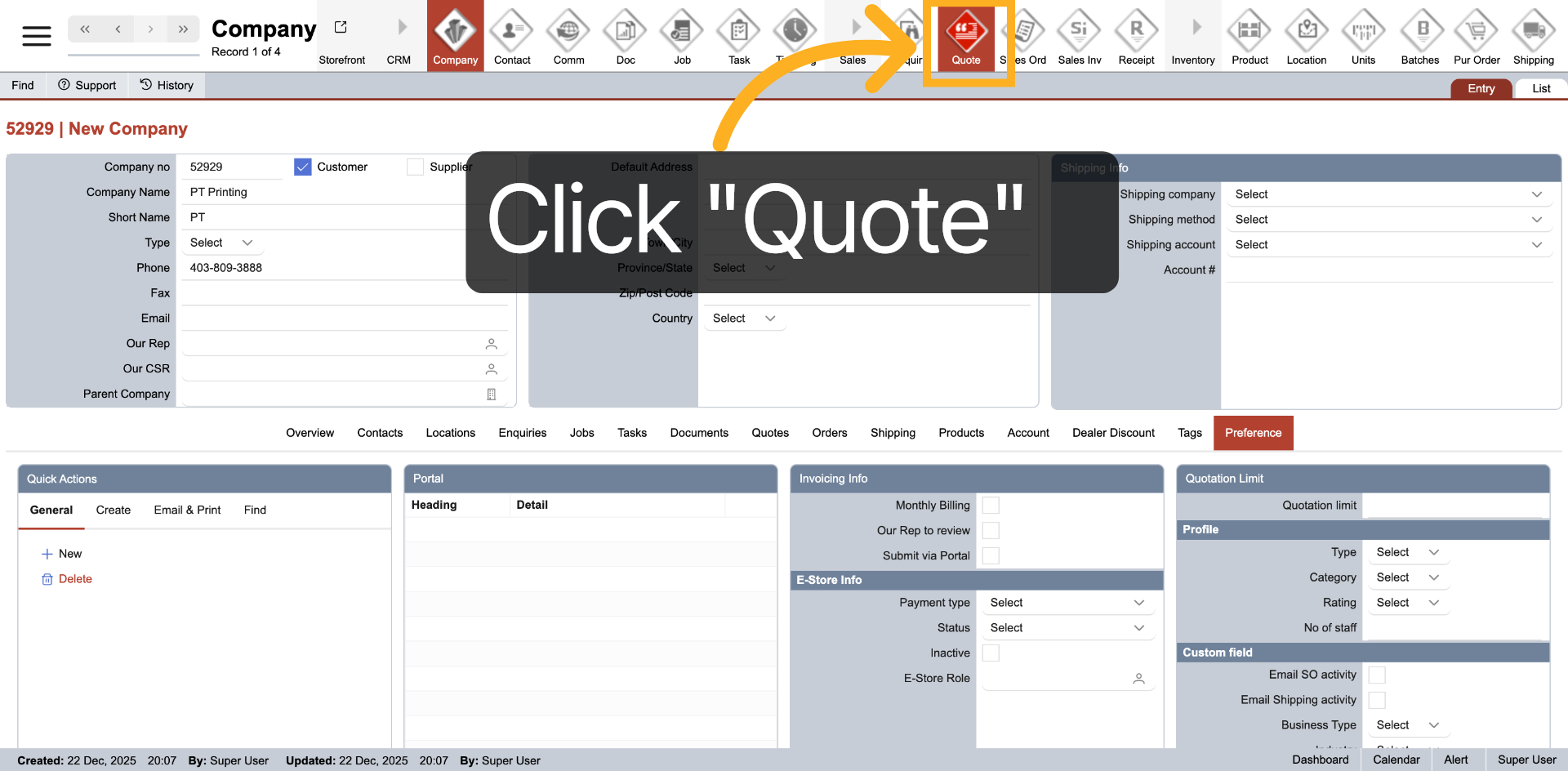
Select "Quote" from the top main menu to view the quotation.
2. Select List View
Click "List" to choose the list view mode for displaying your quotations.
3. Open Column Selection
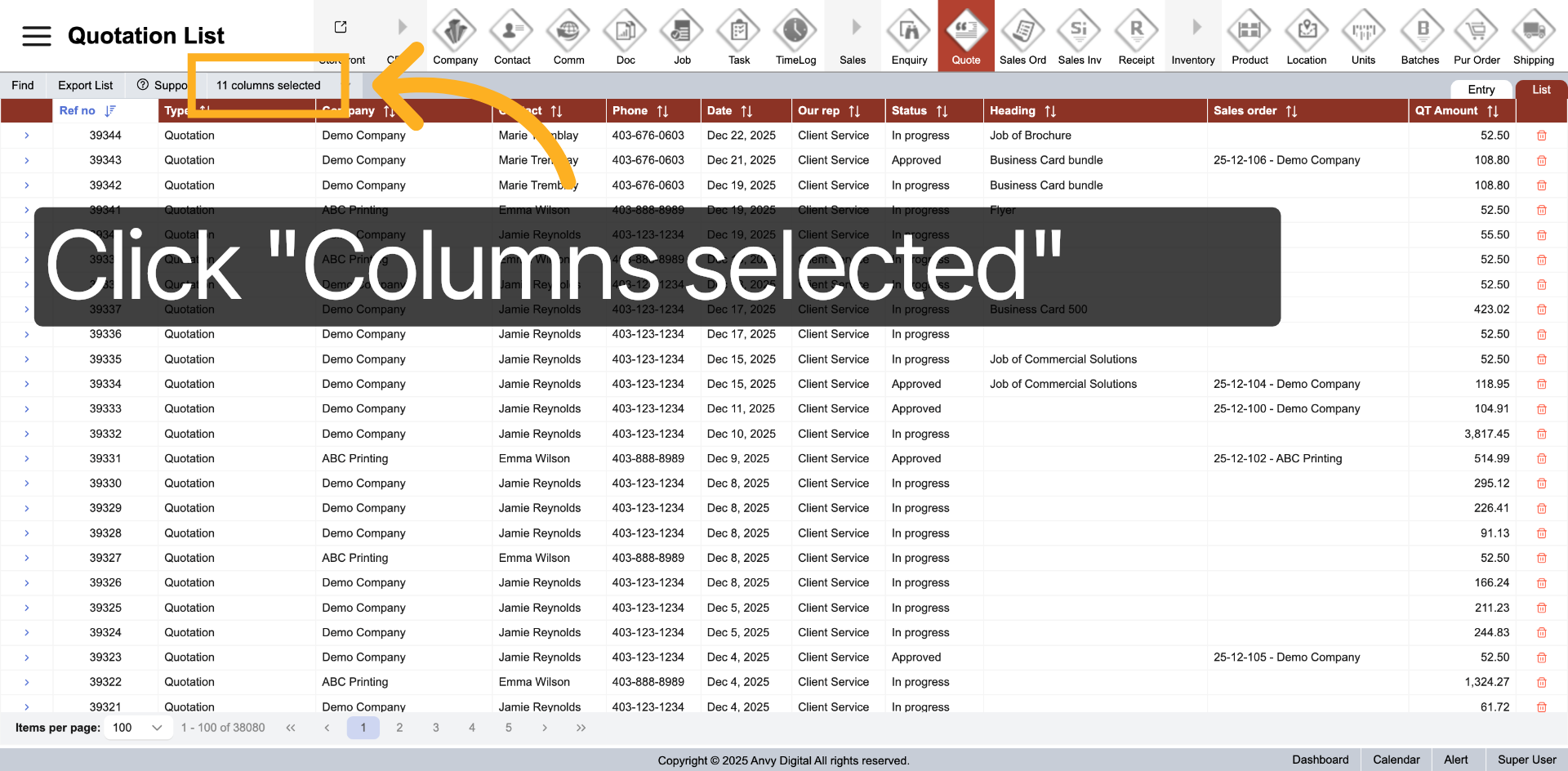
Click "Selected columns" to view and adjust the columns shown in your list.
4. Return to specific quotation
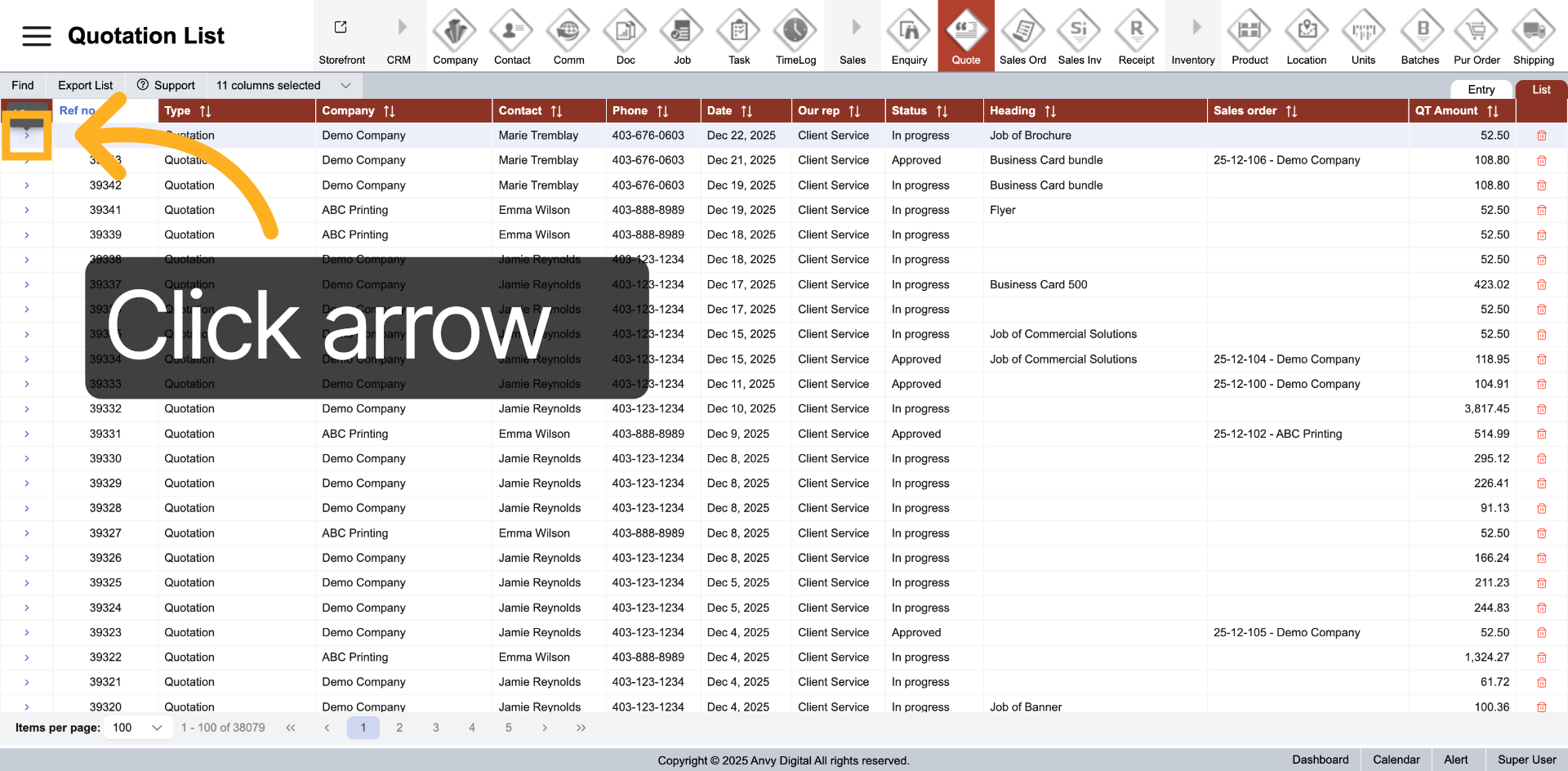
Click 'arrow' to go back to the specific quotation.
5. Reopen List View
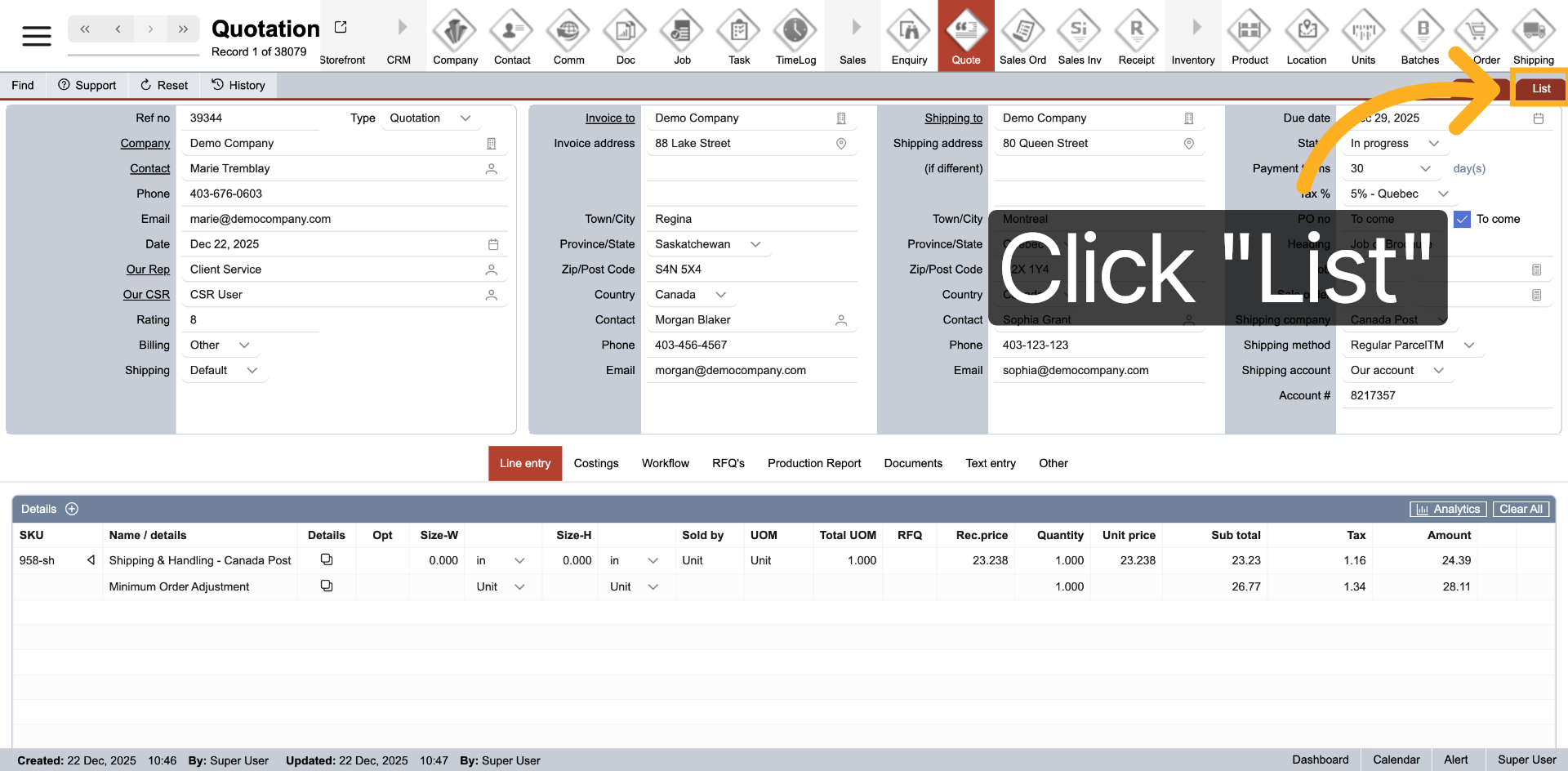
Click "List" to reopen the list view and review your revised quotation.
You have successfully configured and customized the quotation list. This setup enables efficient management and viewing of your quotation data.