
Add Company Addresses
1. Open Company Module
From the top main menu, click on "Company" to access the company module.
2. Select Addresses Section
3. Add Address
Click the plus icon in the "Address" header to add a new contact address. You can add as many addresses as you want.
4. Enter Address Detail
A new line will be added to the address table. Enter the compan address details, including the address number, street, city, province, postal code, and country.
5. Set Primary Contact for Address
Click the Contact Icon to designate a primary contact for each address. If there isn't a specific contact, you may leave it blank.
6. Select Primary Contact
Select a contact to designate as the primary contact for the address.
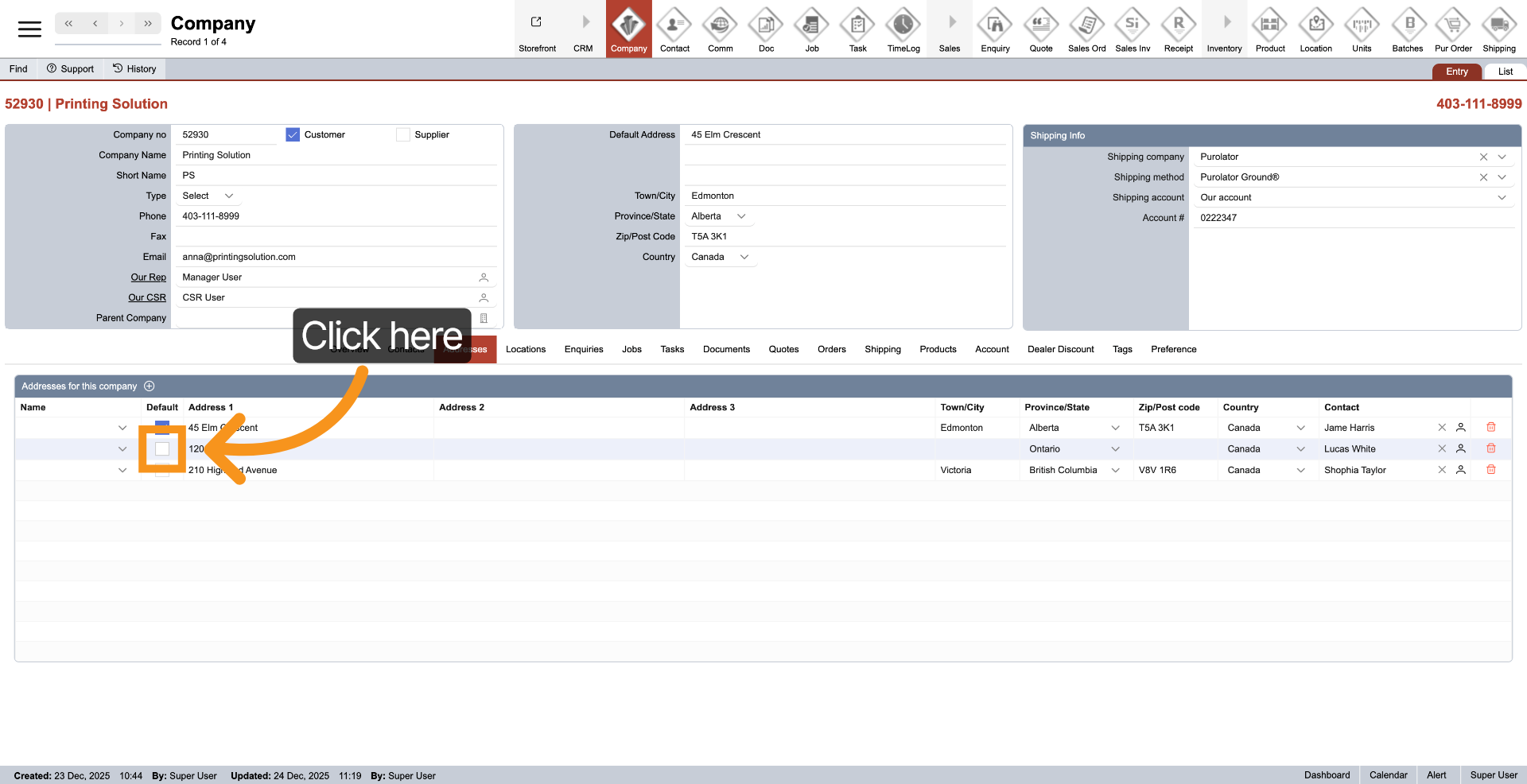
7. Select Default Address
Each company must set a default address by simply clicking “Default.”
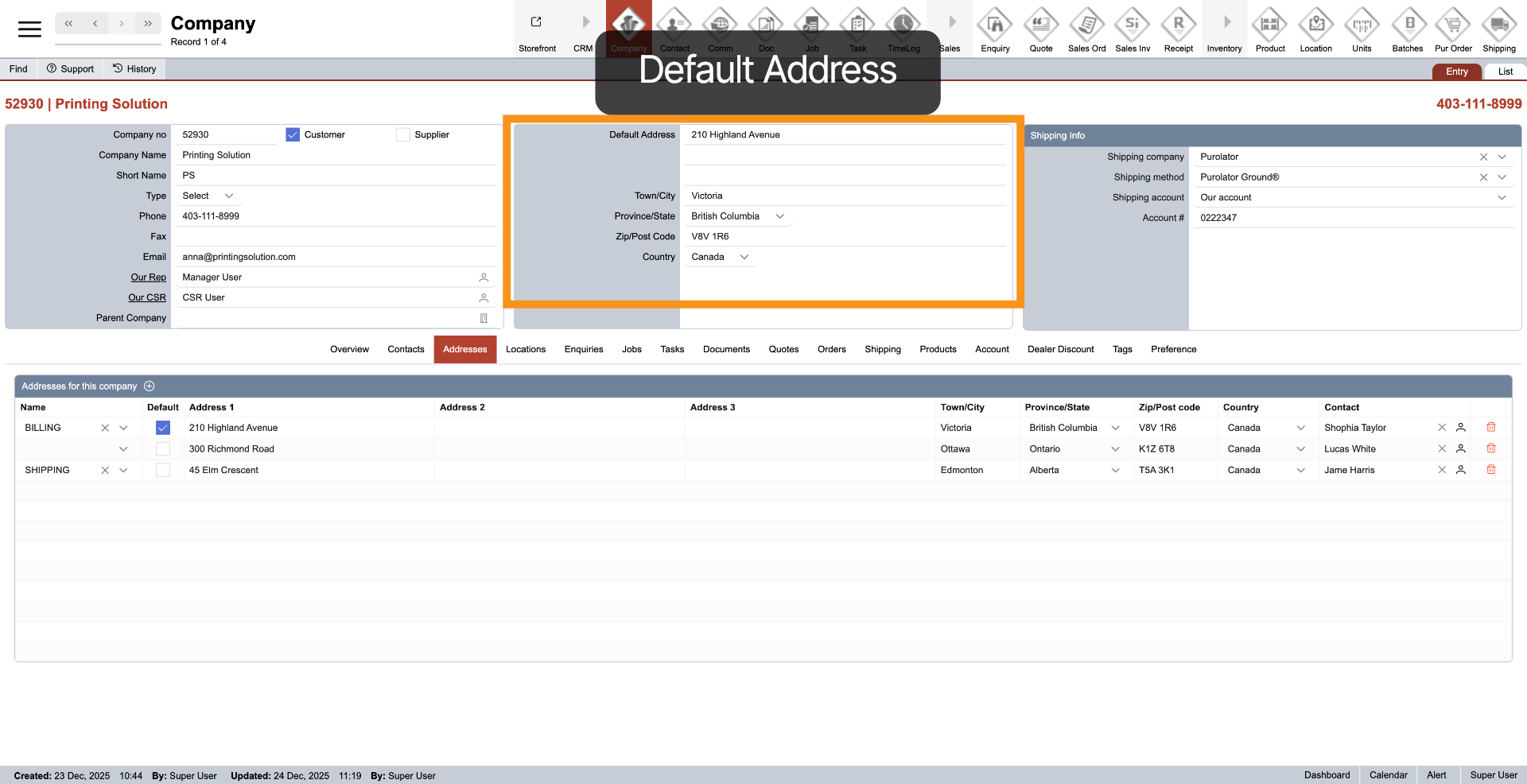
8. Default Address Information
Once the address is set as the default, it will automatically display in the company information.
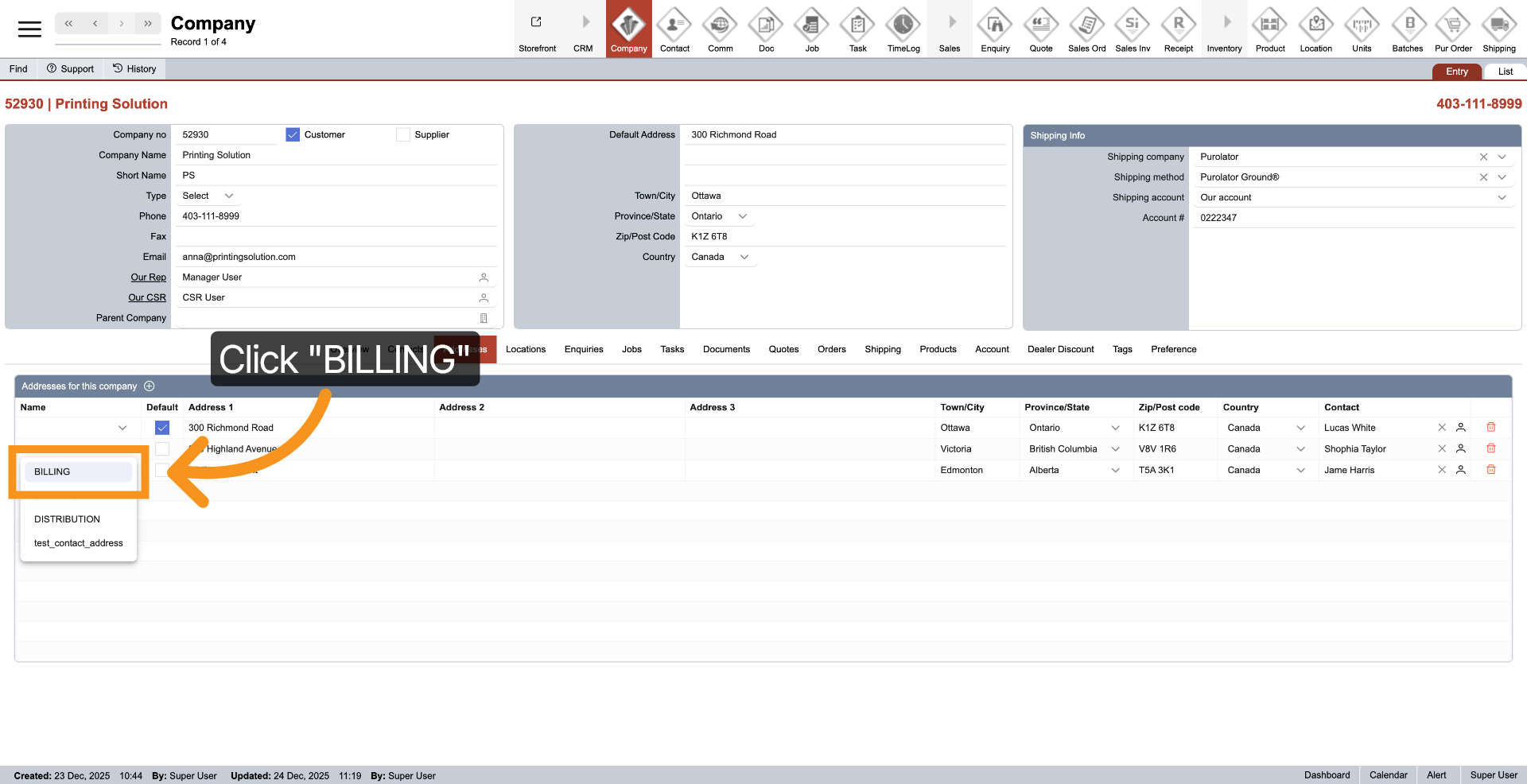
9. Establish Billing Address
To designate an address as your billing address, simply click the dropdown next to the left address and select ‘Billing’.
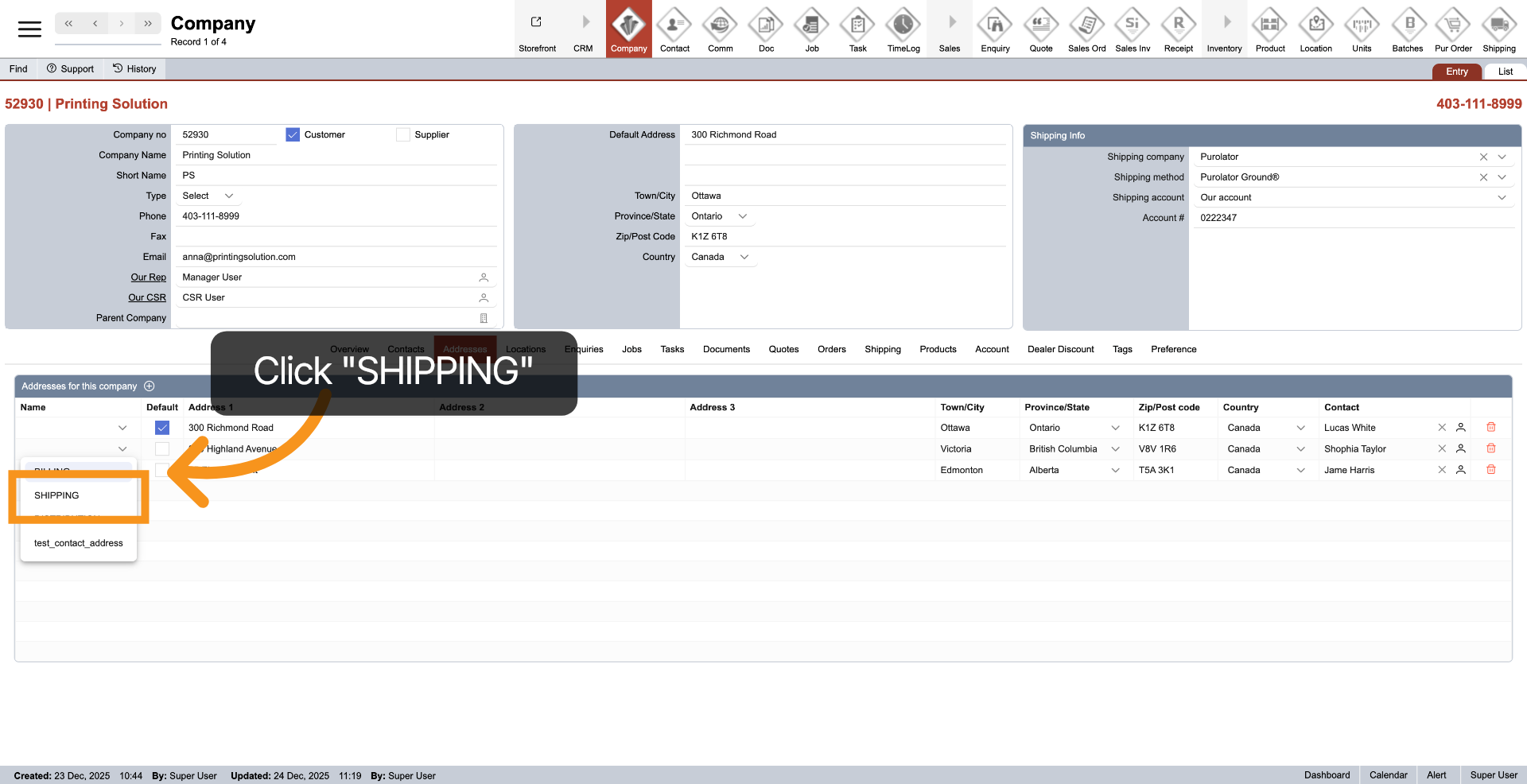
10. Set Shipping Address
To set an address as your shipping address, simply click the dropdown next to the left address and select ‘Shipping’.
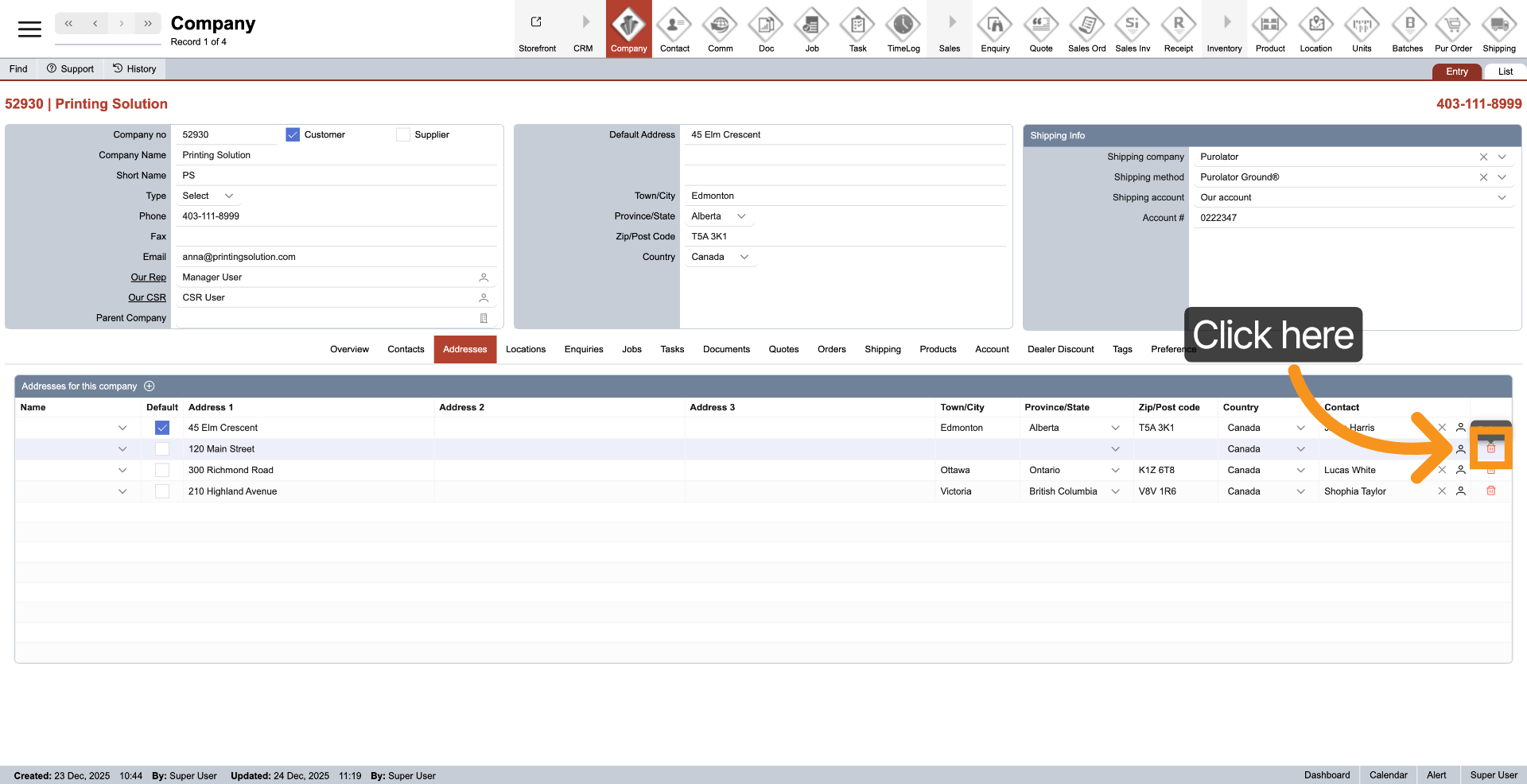
11. Delete Address
To remove an address from the company, simply click the delete icon located next to the address you wish to remove.
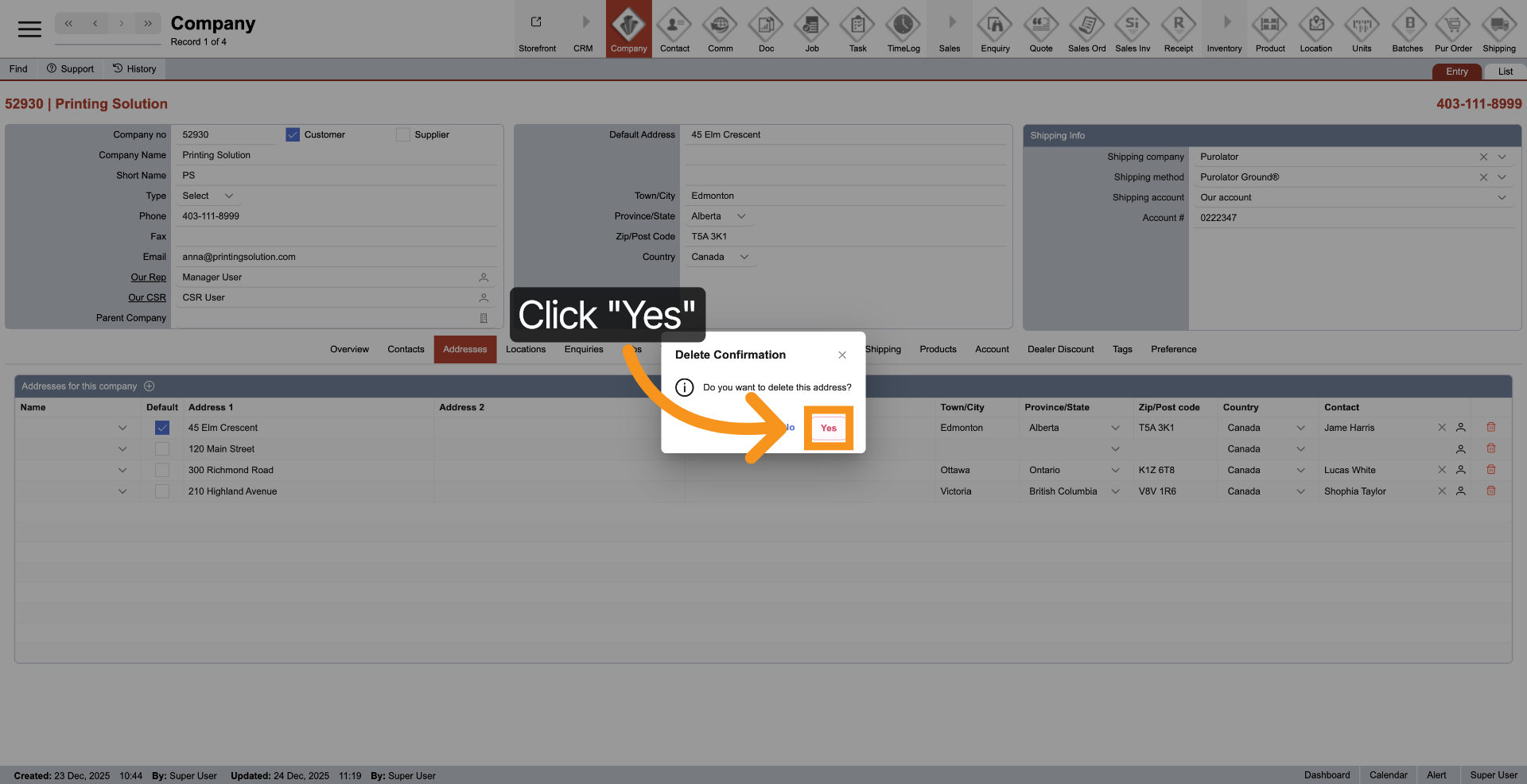
12. Confirm deletion
Click “Yes” to confirm deletion.
You have added and configured multiple company addresses, including default billing and shipping. This ensures accurate location information for operations and communications.