
Add Line Entry to a Quotation
This guide explains how to add products, shipping, and additional details to a quotation in WorkTraq.
Video Tutorial
1. Open the Line Entry Tab
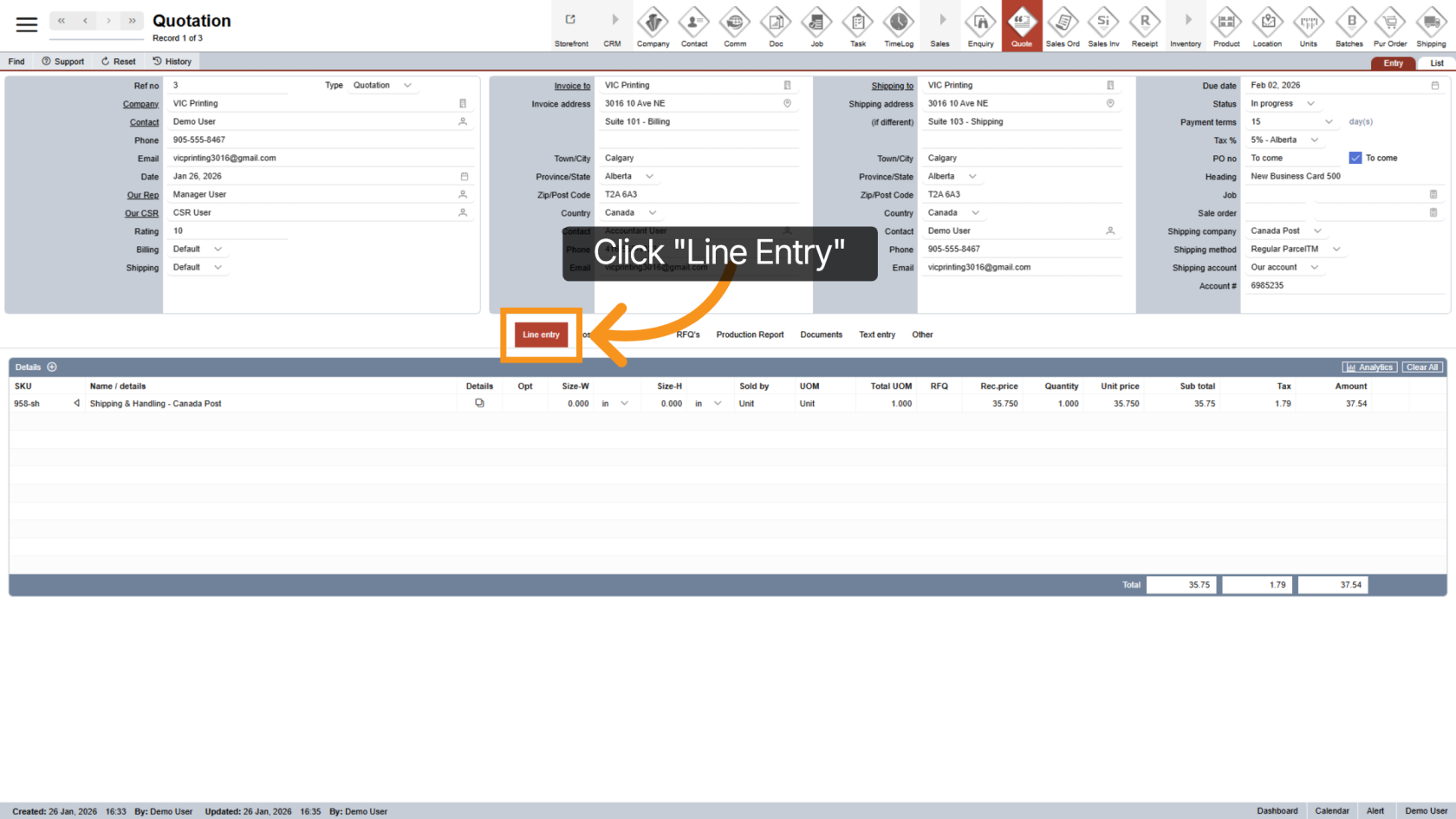
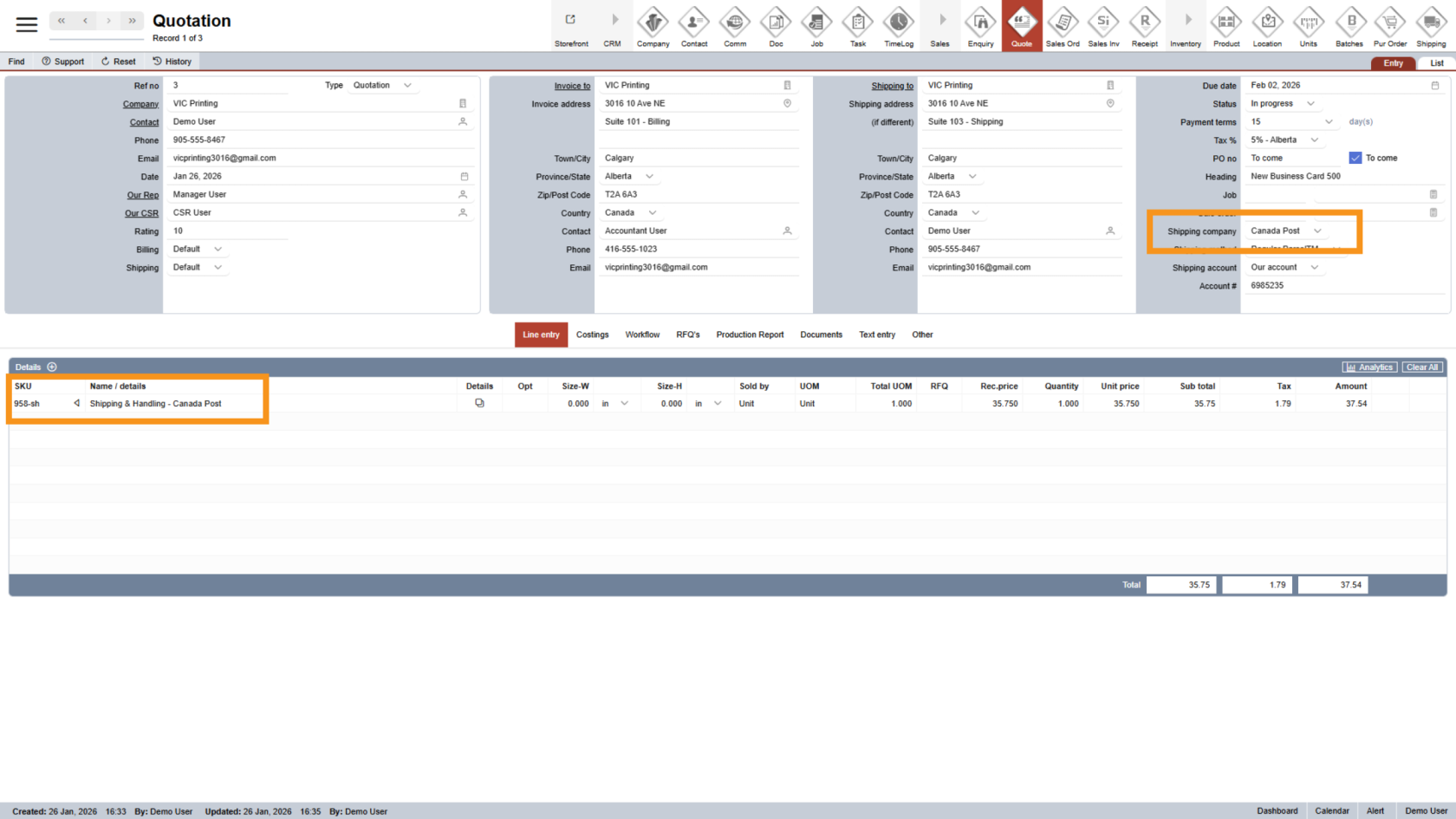
2. Review the Shipping Line
Based on the shipping company selected earlier, WorkTraq will automatically add a shipping line to your quotation. This helps ensure shipping costs are not missed.
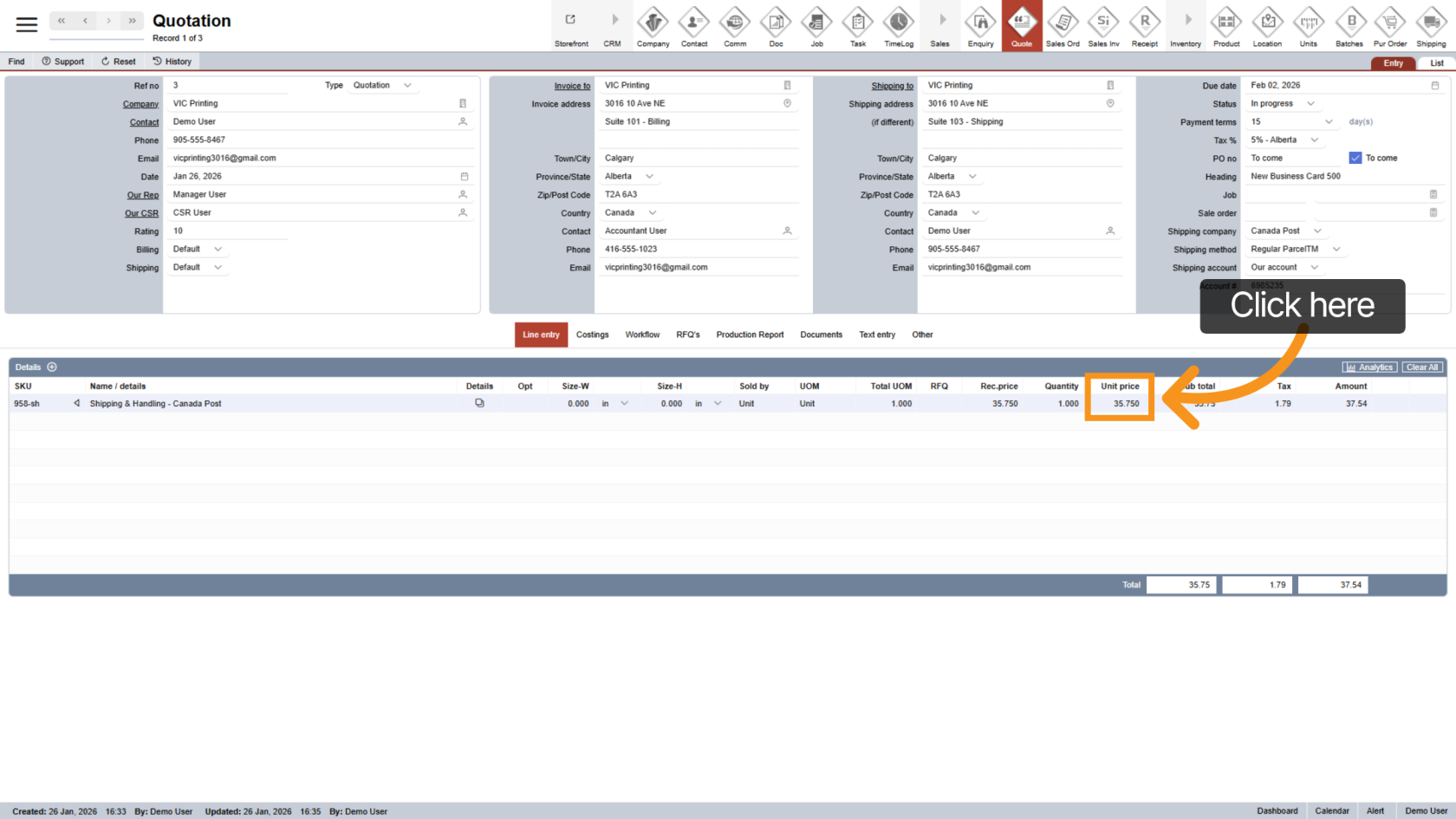
3. Adjust the Shipping Rate
Click "Unit Price" on the shipping line to update the shipping cost if needed.
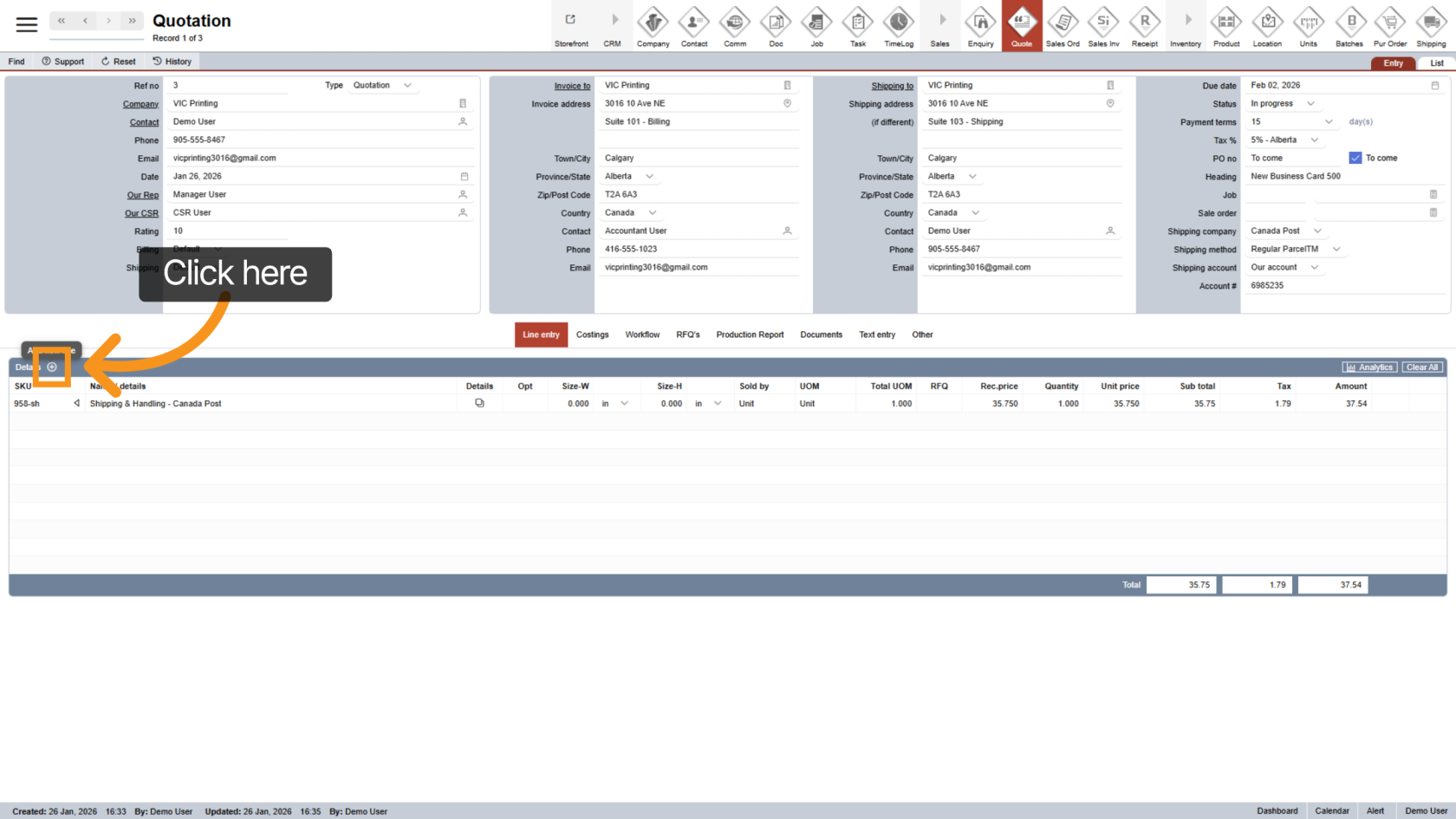
4. Add a New Line Item
Click the  plus icon to add a new line item to the quotation.
5. Add a Product
Click "Change Option" to begin selecting a product.
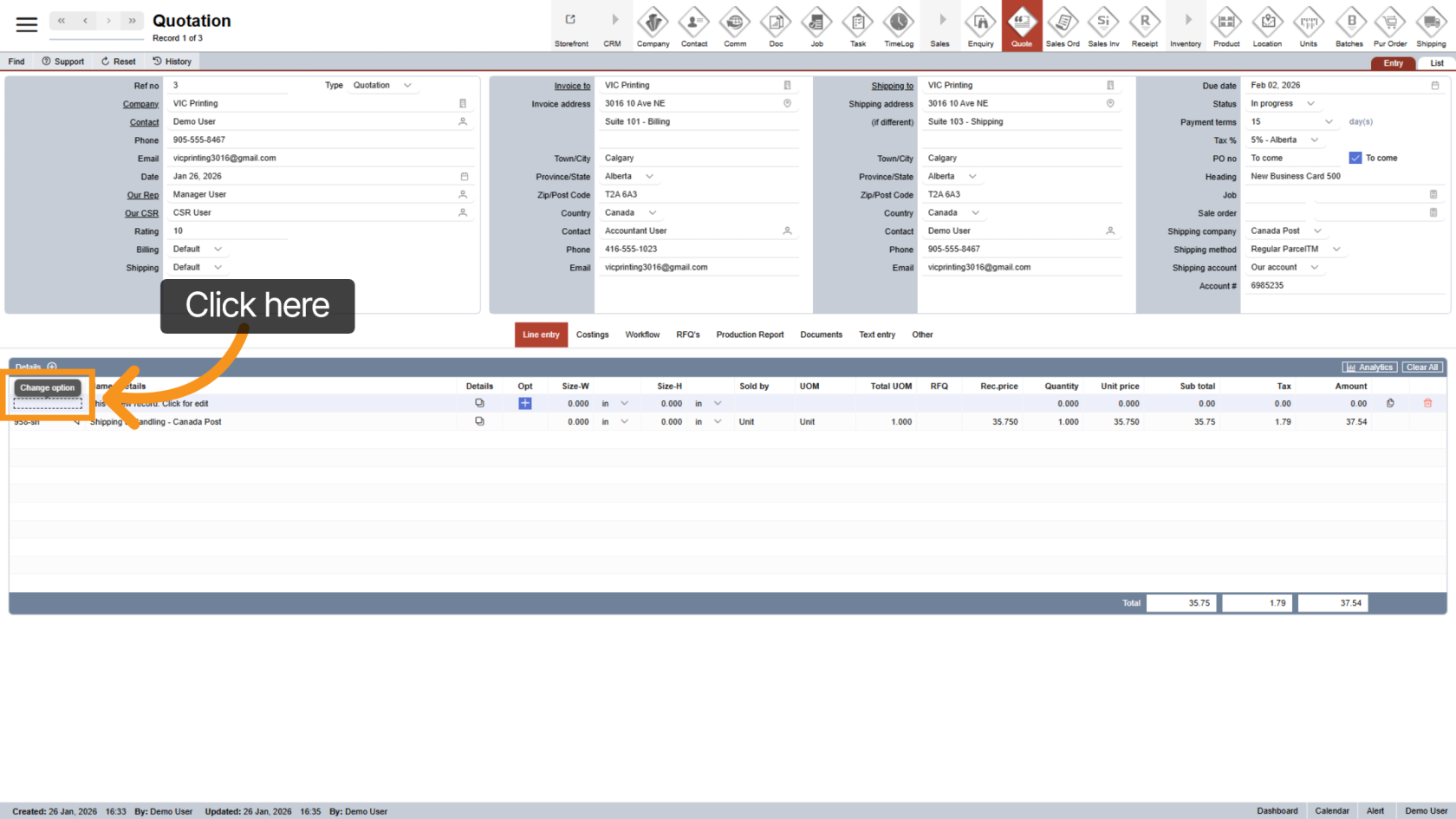
6. Find a Product
A pop-up window will appear. Use the search bar at the top to find the correct product for the quote.
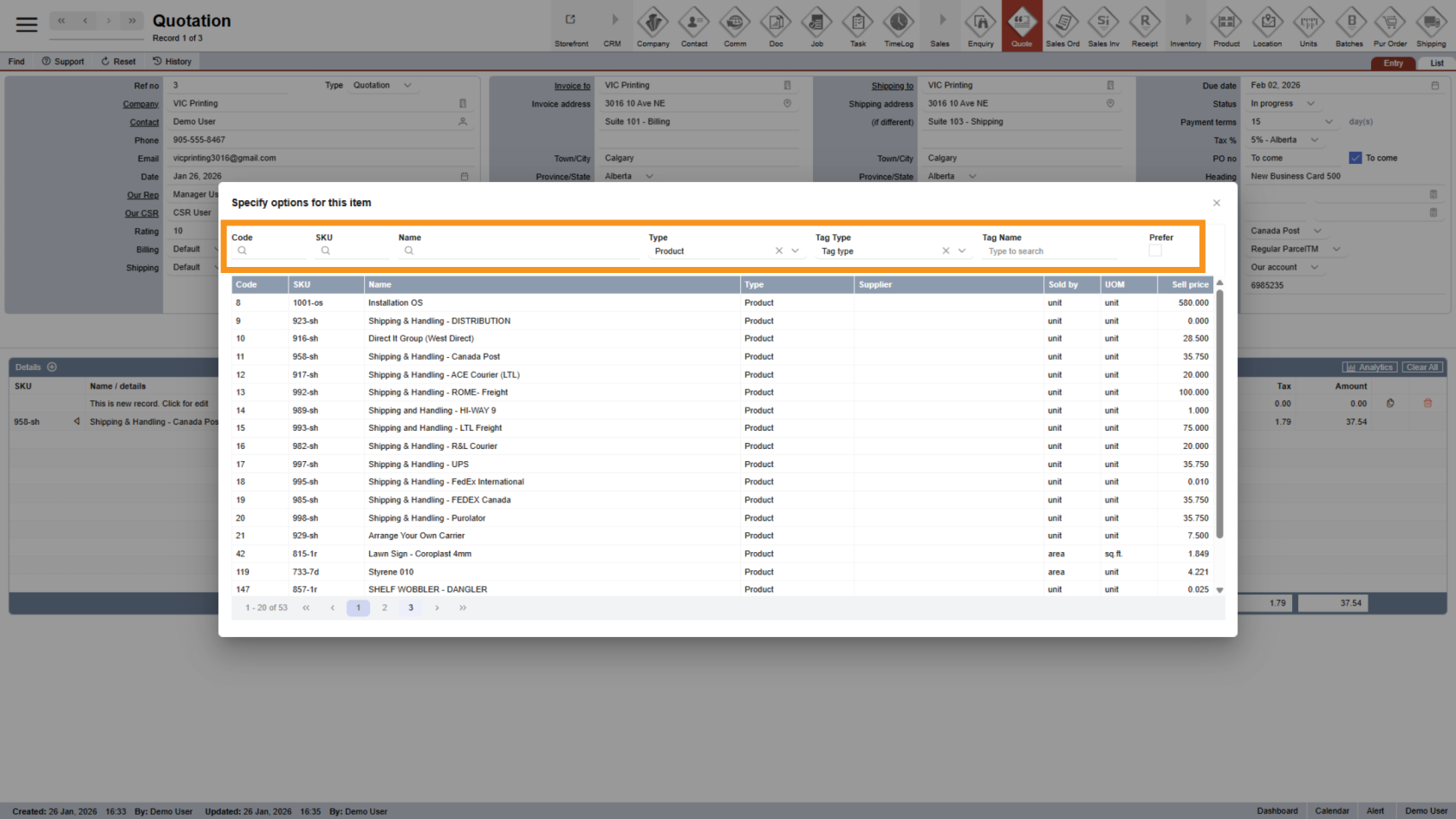
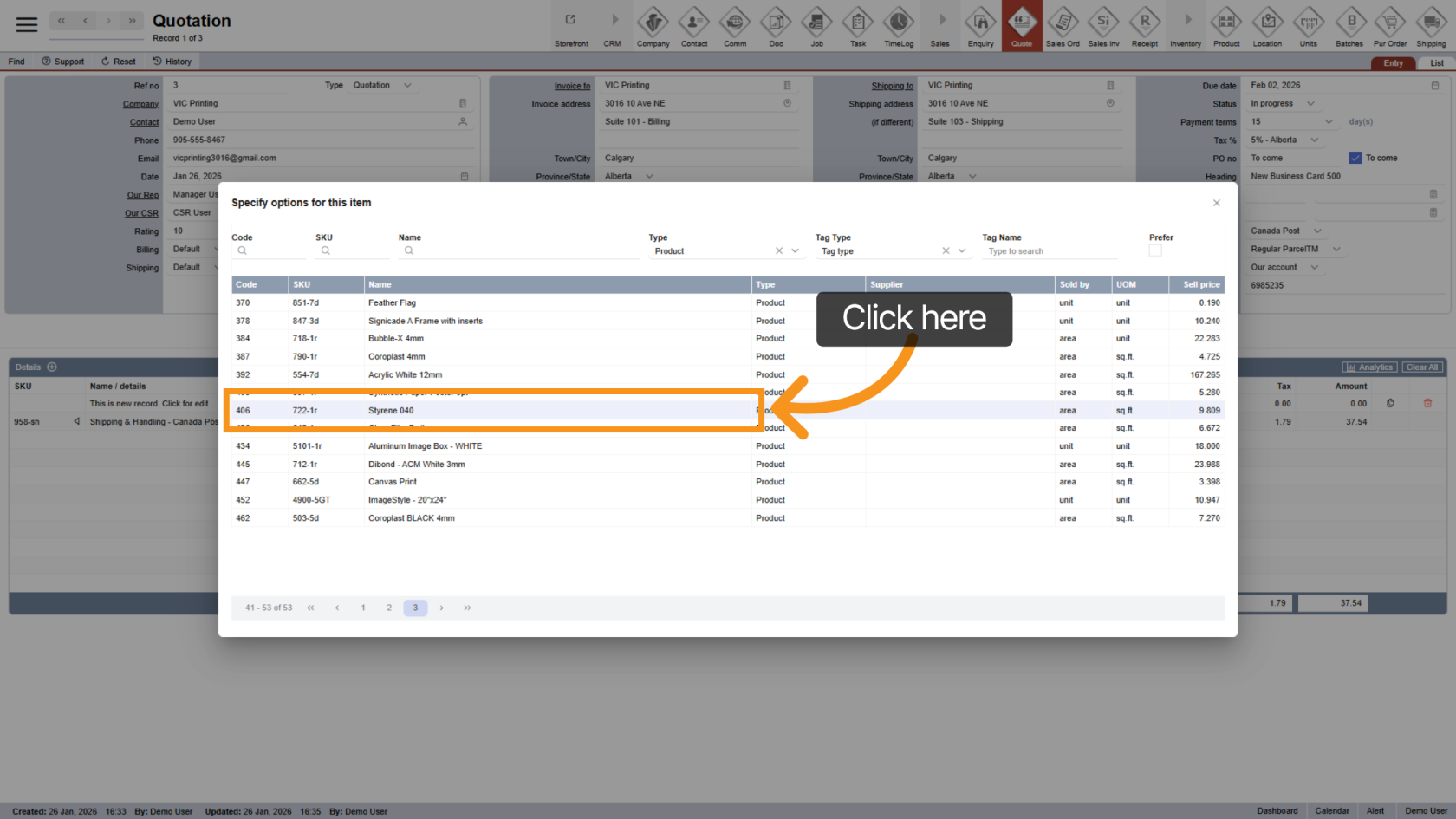
7. Select the Product
Click on the product you want to add. It will be added to the line entry.
8. Update Product Options
After adding a product, you can adjust its options based on customer needs.
Click on the plus icon next to the product to edit options.
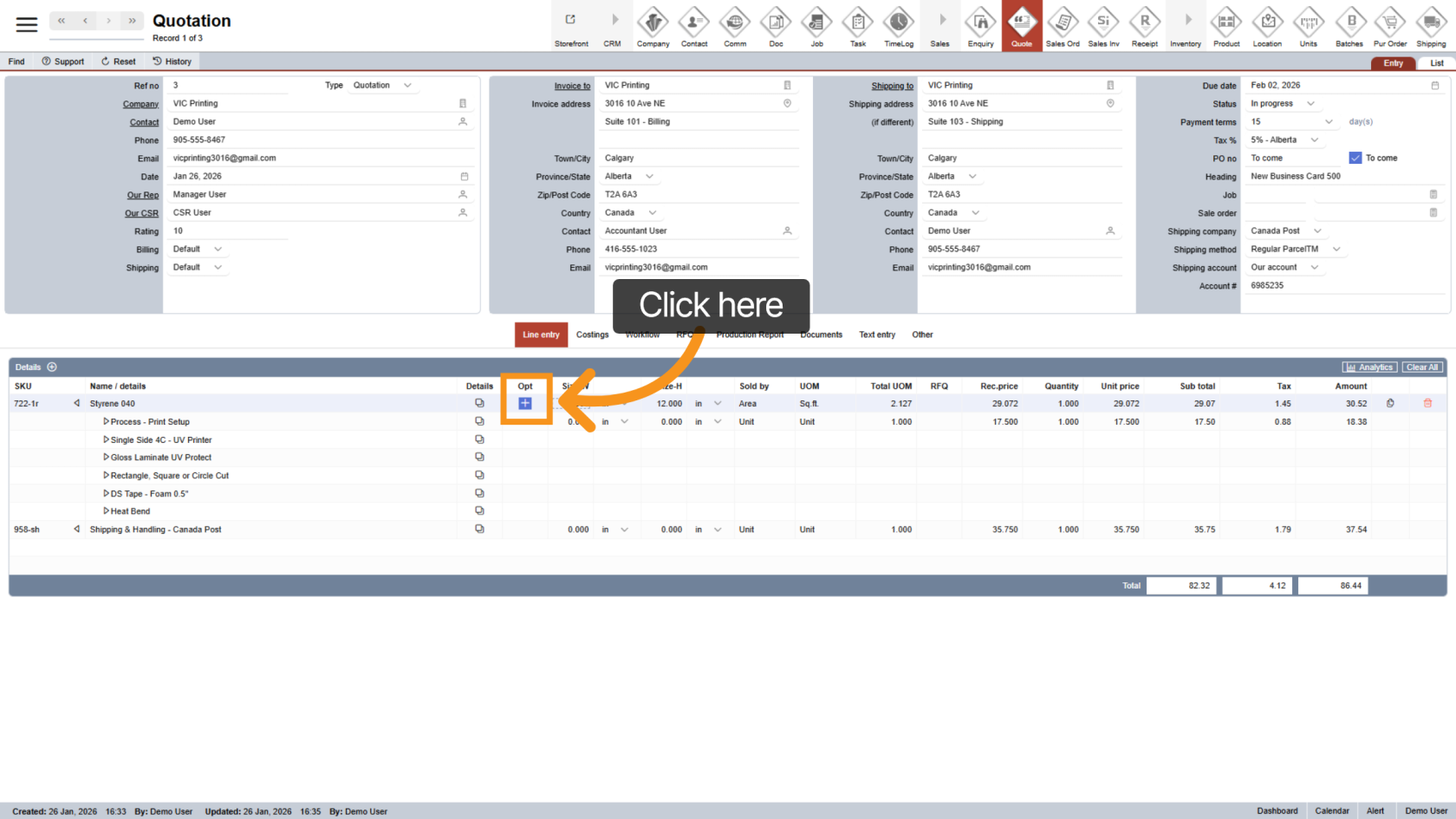
9. Custom Product Options
In the Option List, select or unselect default options to match the customer’s requirements.
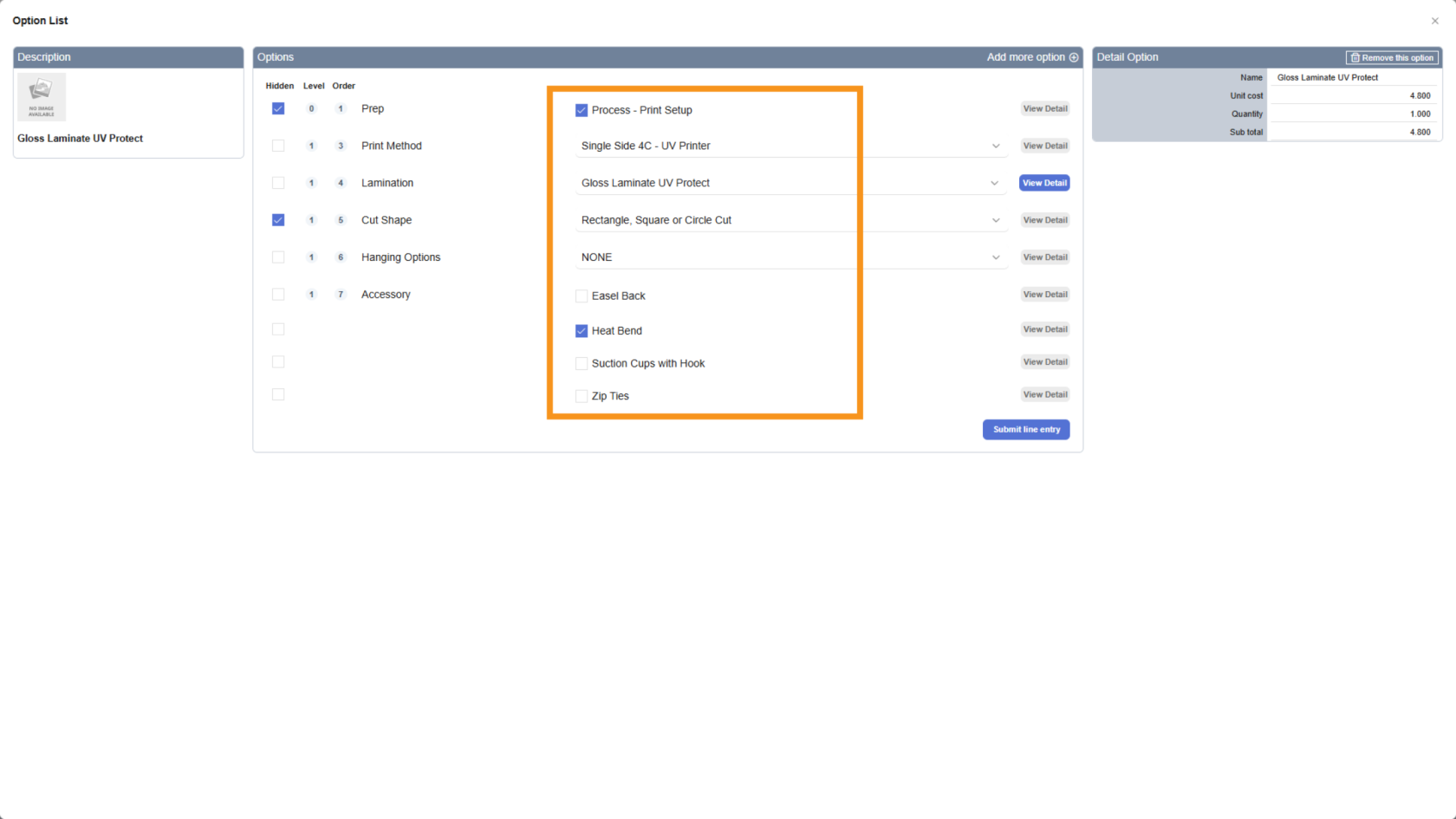
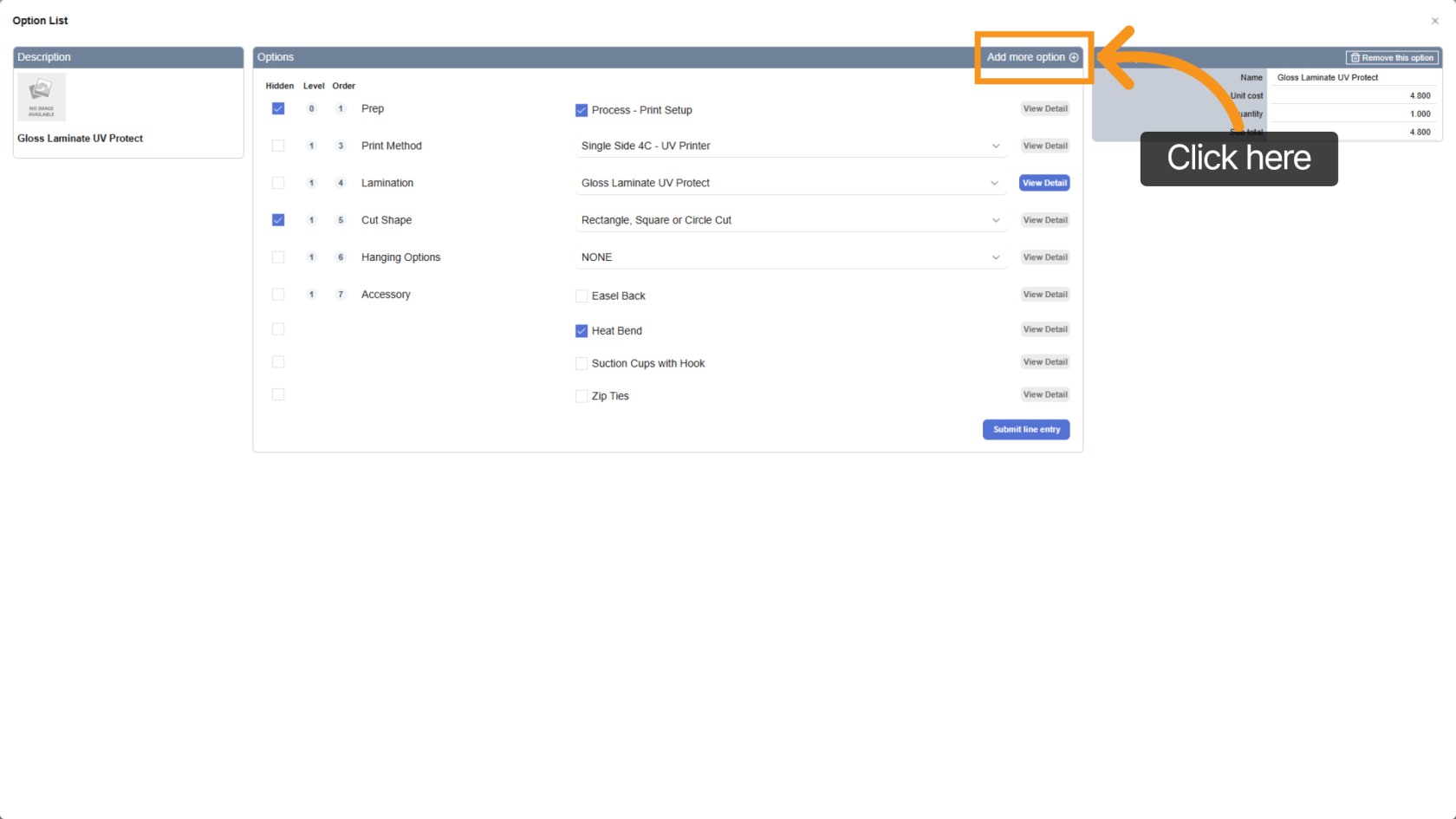
10. Add More Options
If an option is not part of the standard setup, click "Add More Options" to include it manually.
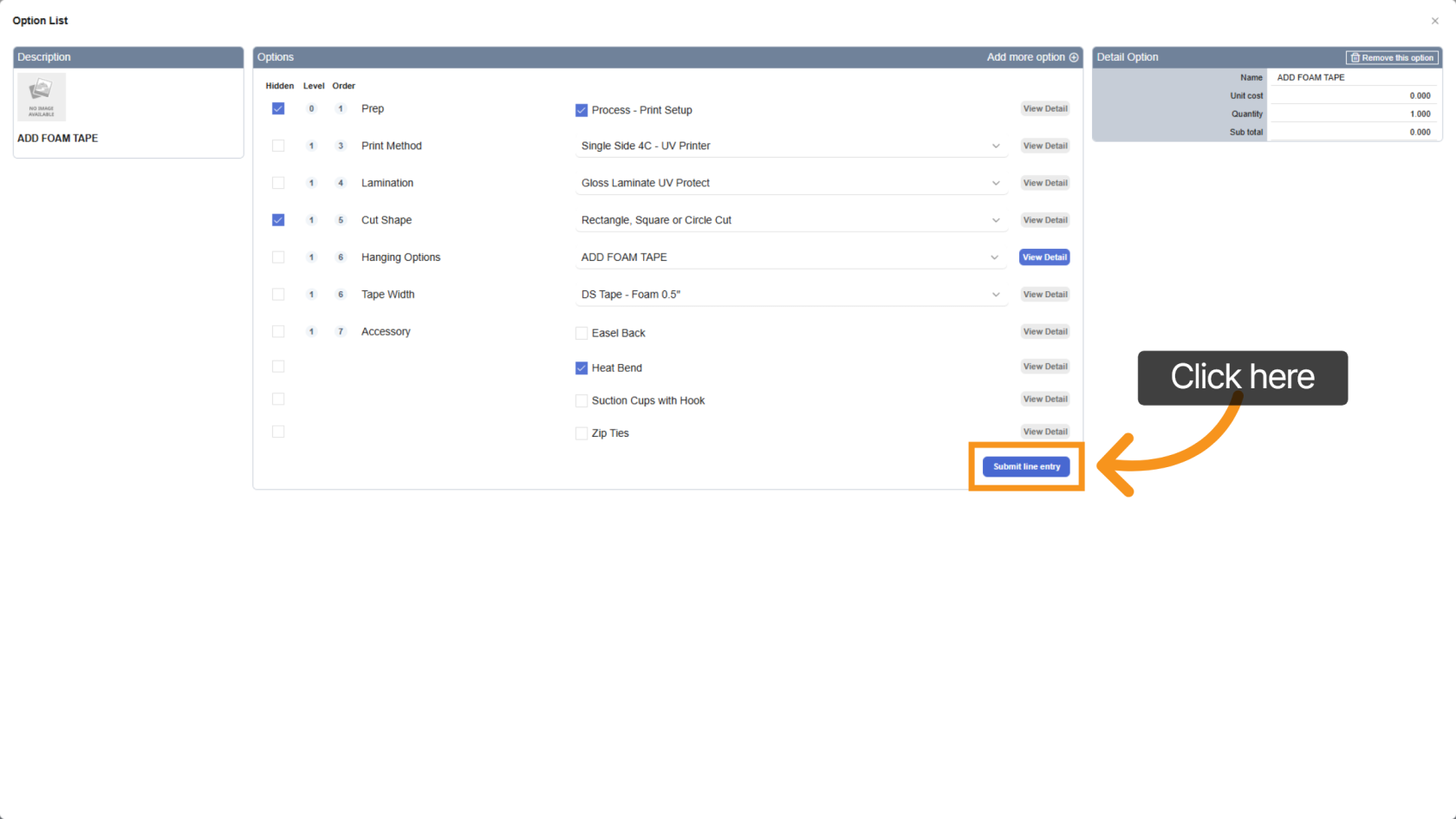
11. Save the Line Entry
Click "Submit Line Entry" to save your changes.
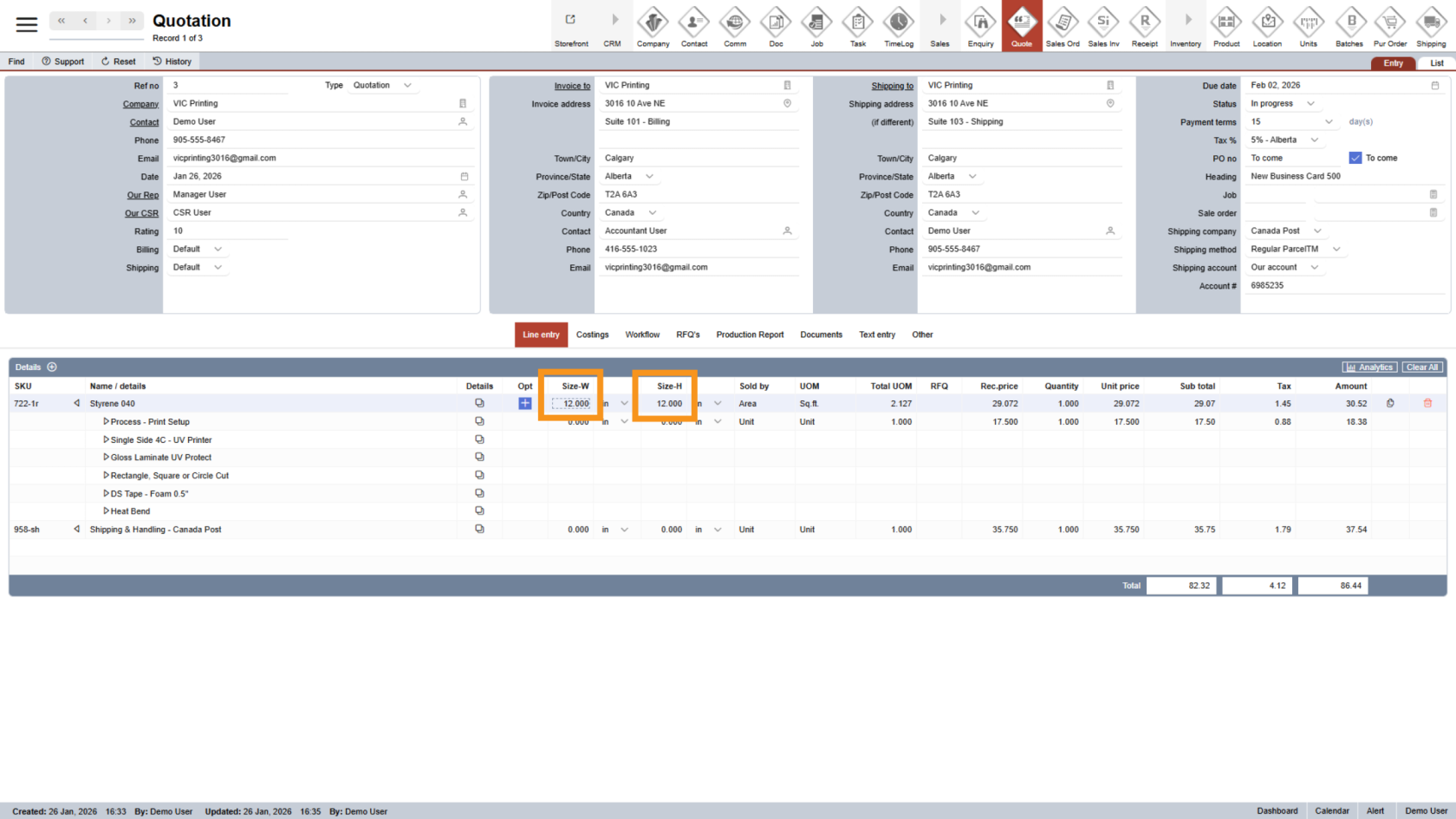
12. Enter Product Dimensions
If the product uses custom sizing, enter the Width and Height values.
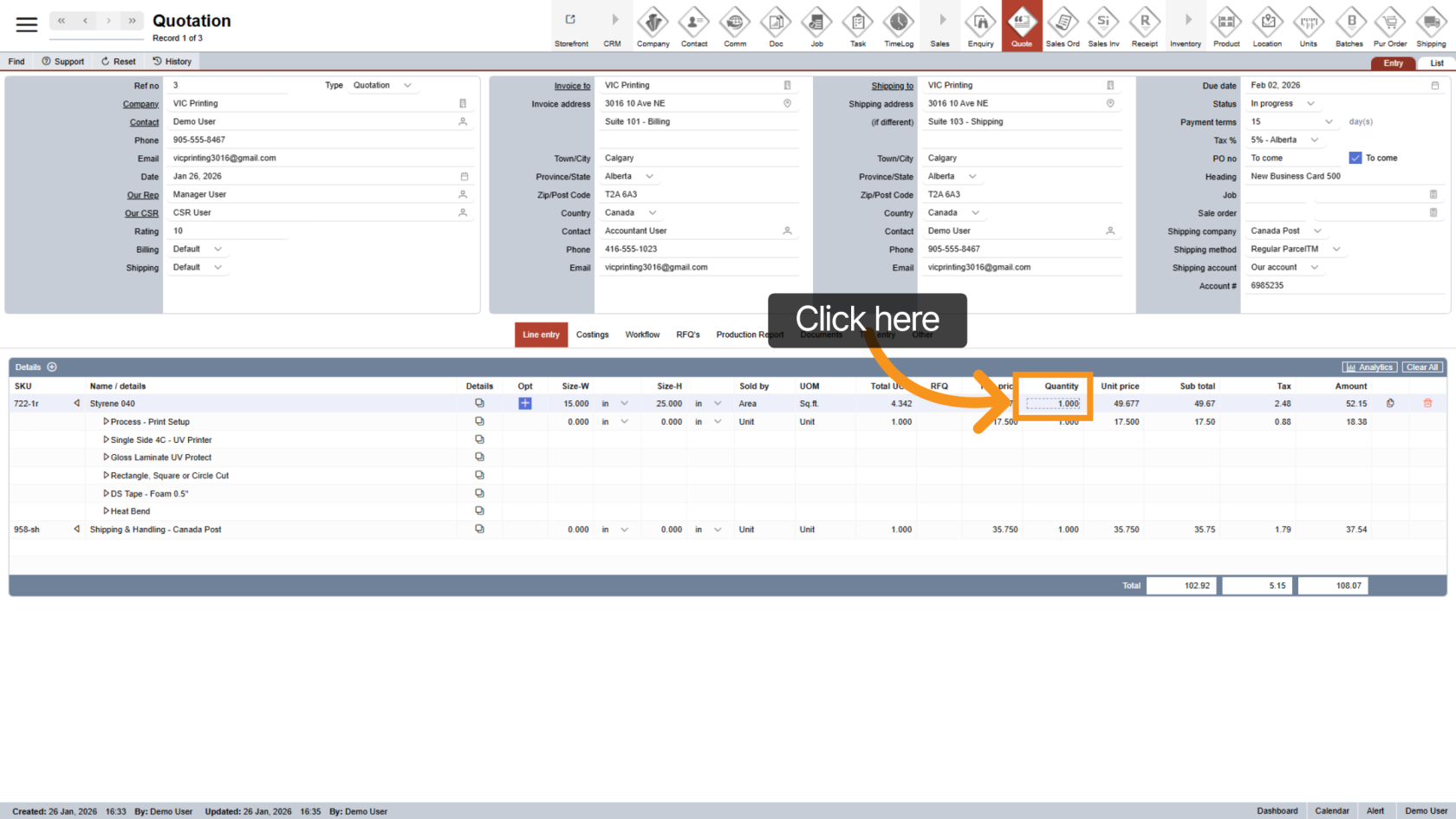
13. Enter Quantity
Enter the product quantity. Prices may change automatically based on quantity price breaks.
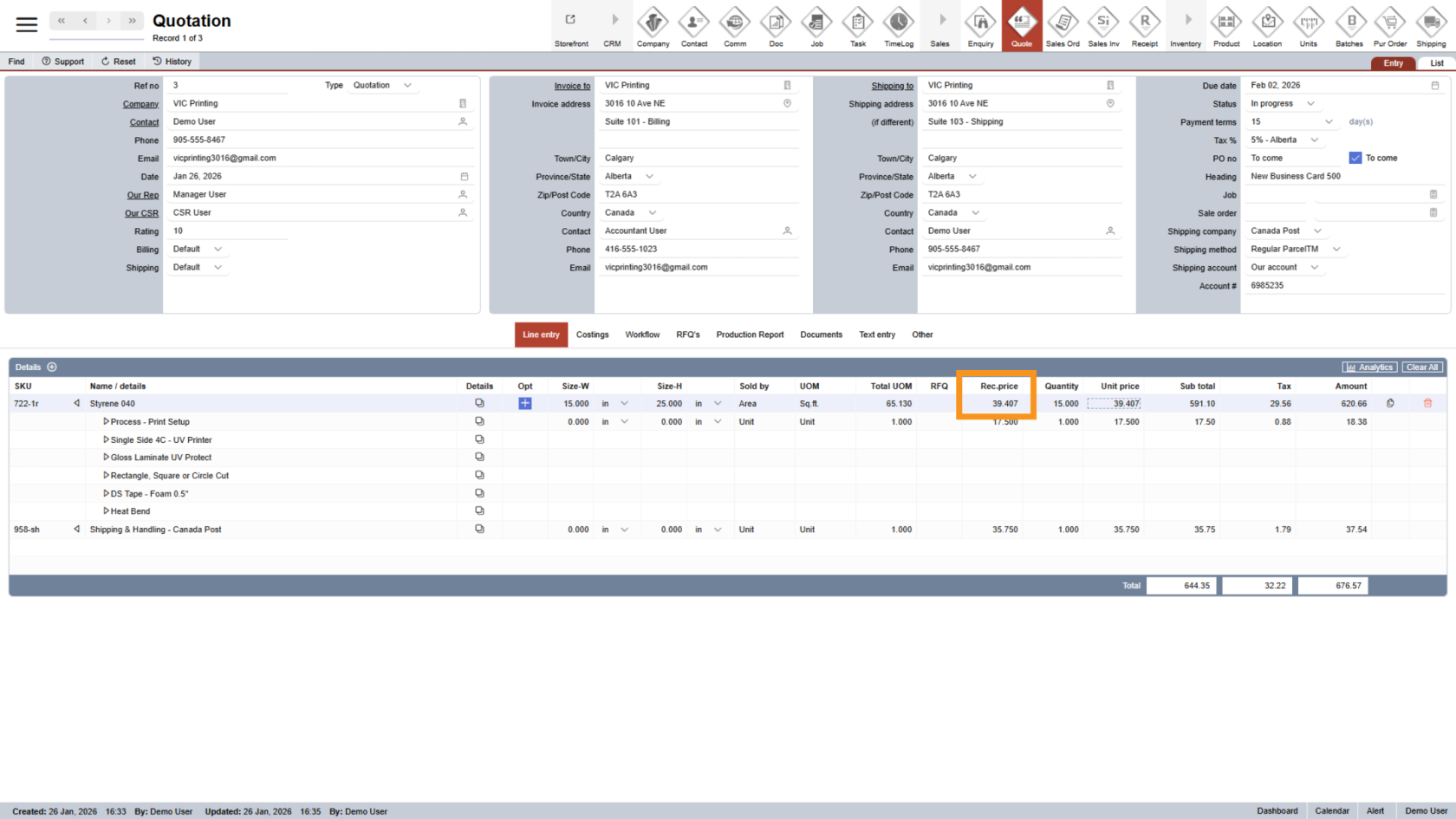
14. Recommended Price
Recommended Price cannot be edited and is provided as a guideline to help with pricing decisions.
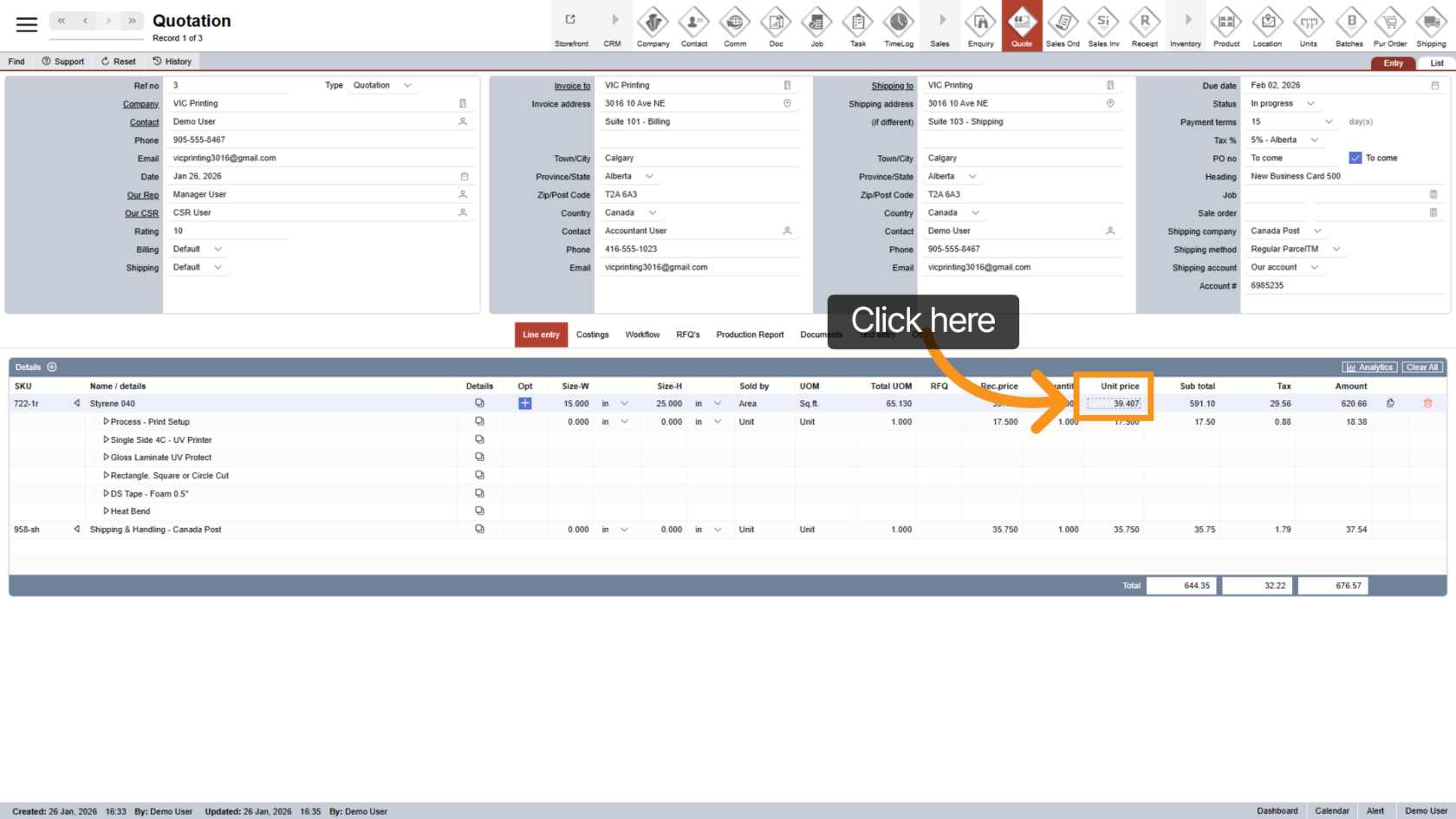
15. Adjust the Selling Price (Optional)
If needed, you can edit the "Unit Price" to set your selling price.
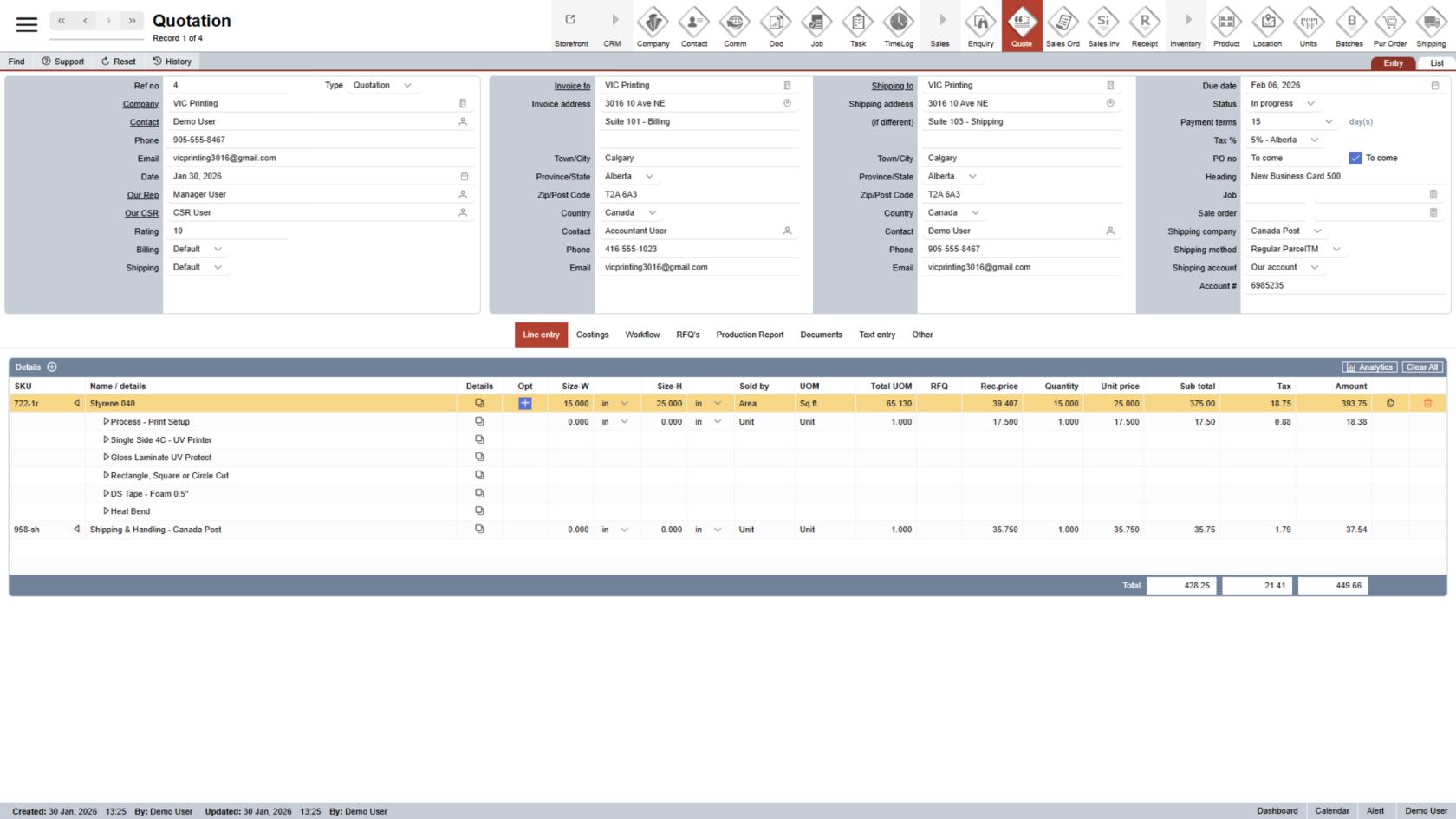
16. Low Price Warning
If the adjusted selling price is lower than the recommended price, the line will be highlighted. This indicates the quotation may result in a loss.
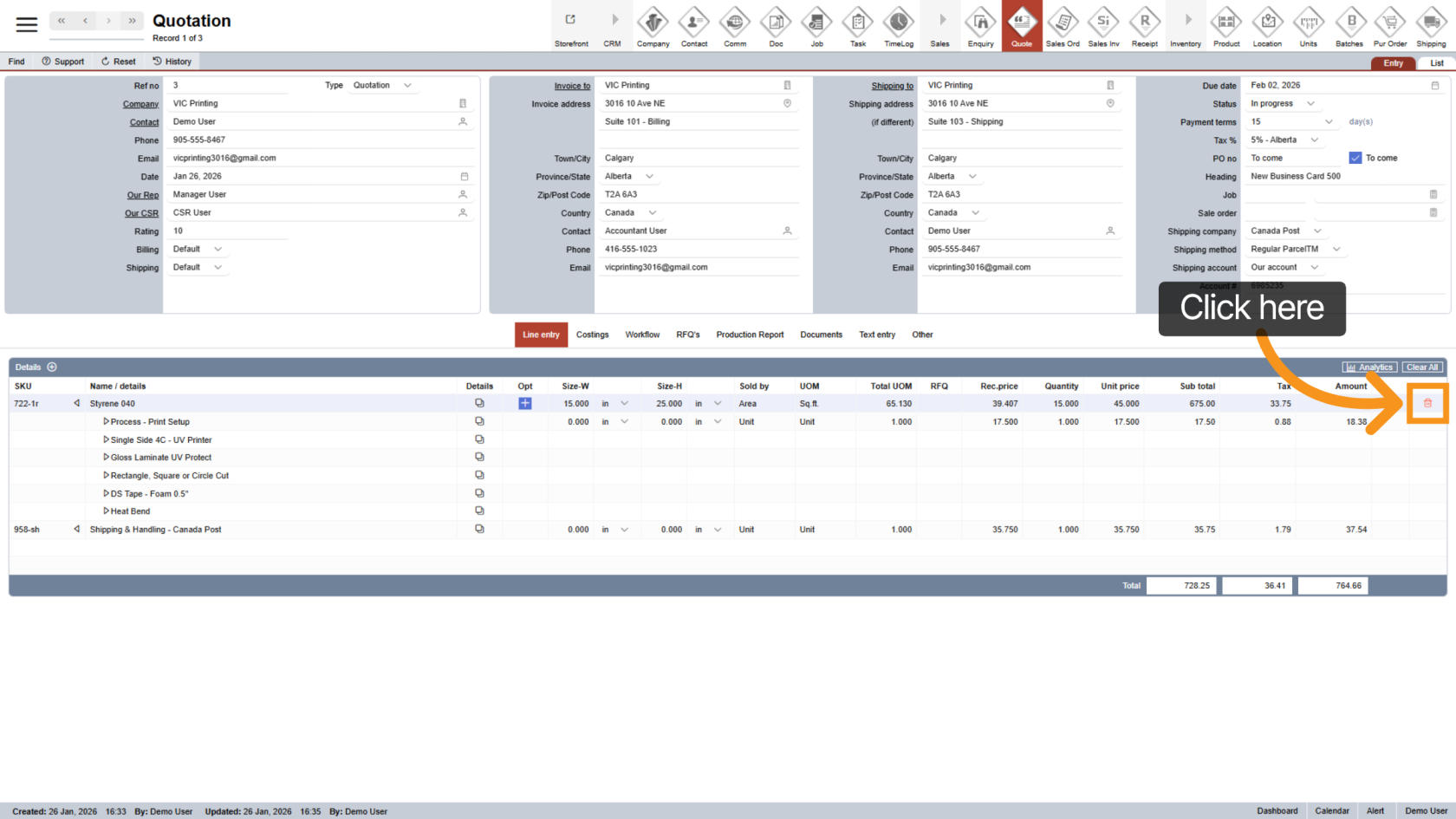
17. Delete a Line Entry
Click the  delete icon to remove a line item from the quotation.
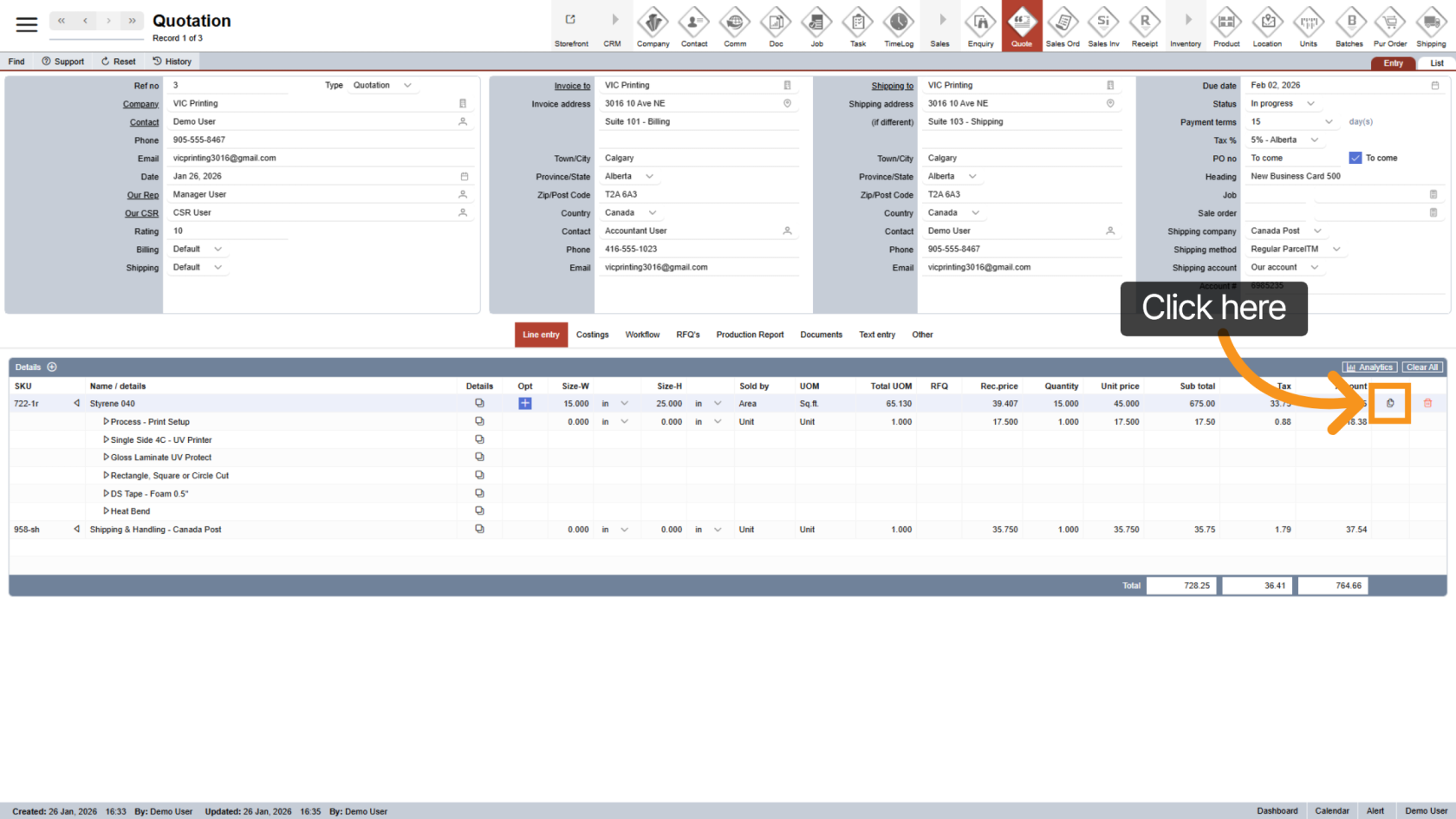
18. Duplicate a Line Entry
Click the  duplicate icon to copy an existing line item. This is useful when quoting the same product with different sizes or quantities.
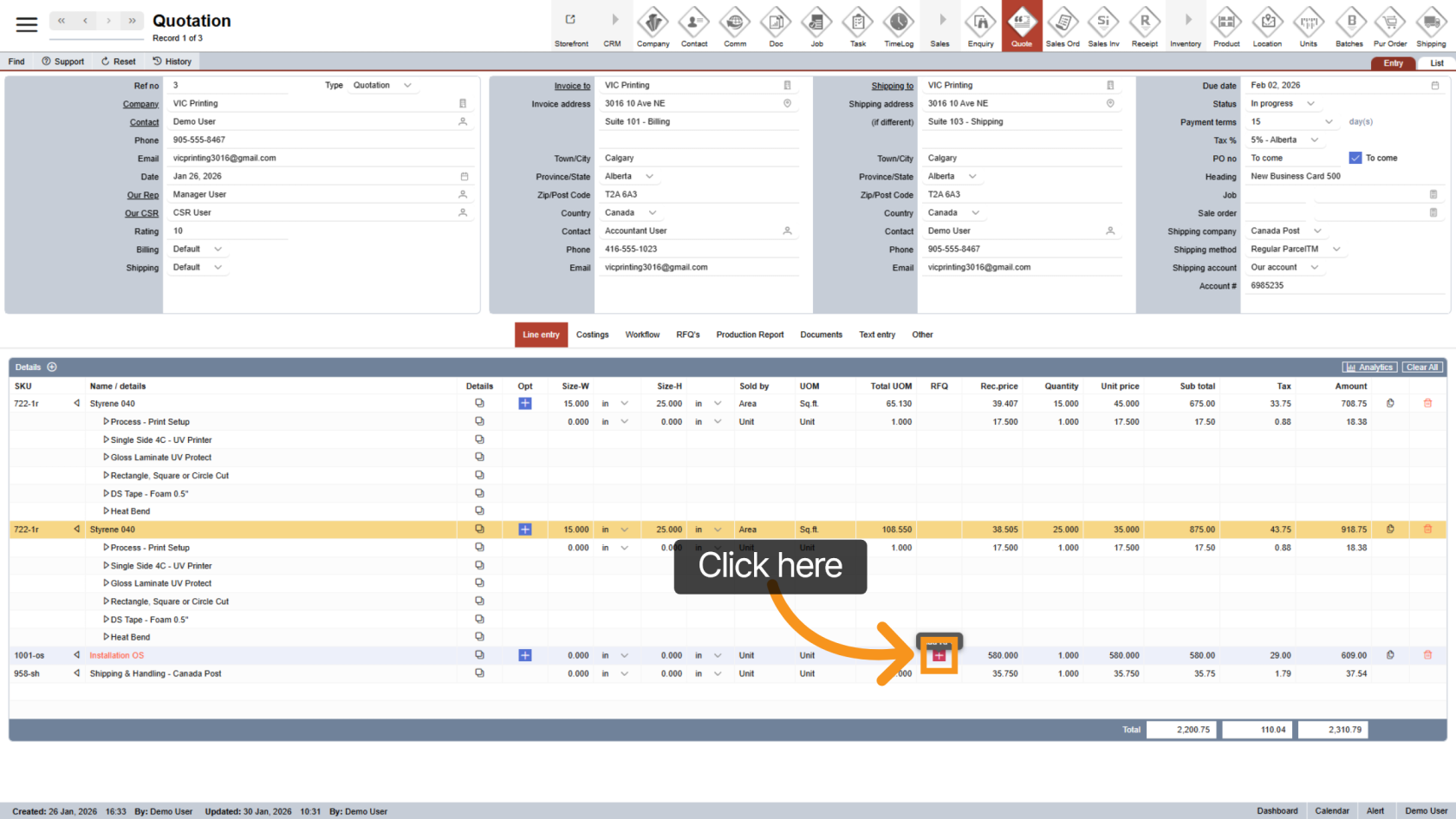
19. Add an RFQ (Request for Quote) Product
Click the  plus icon on the RFQ line to request pricing for a custom or external product.
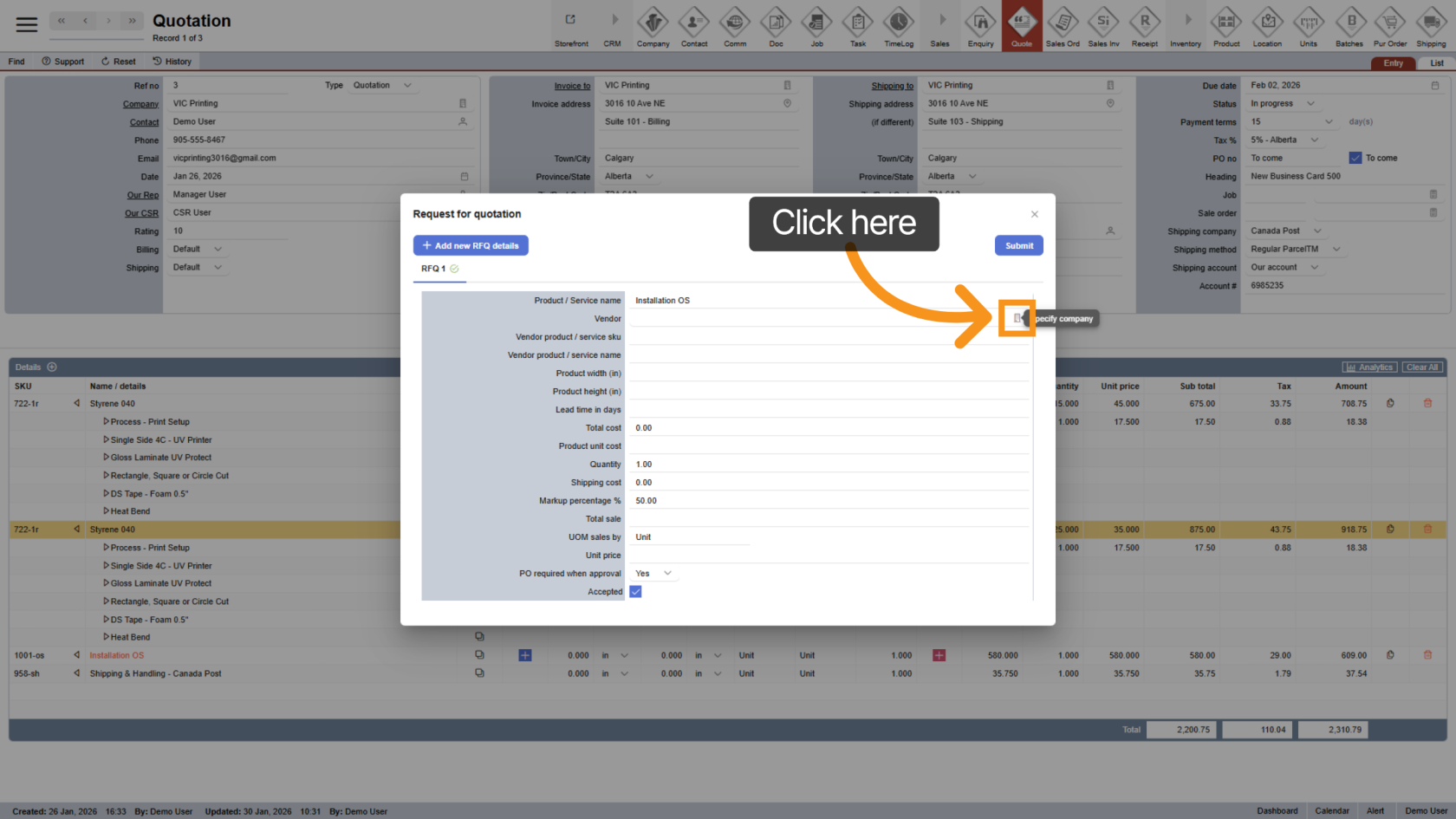
20. Select Vendor Company
Click the  company icon to choose the vendor supplying the RFQ product.
21. Enter RFQ Details
Fill in all required information for the RFQ.
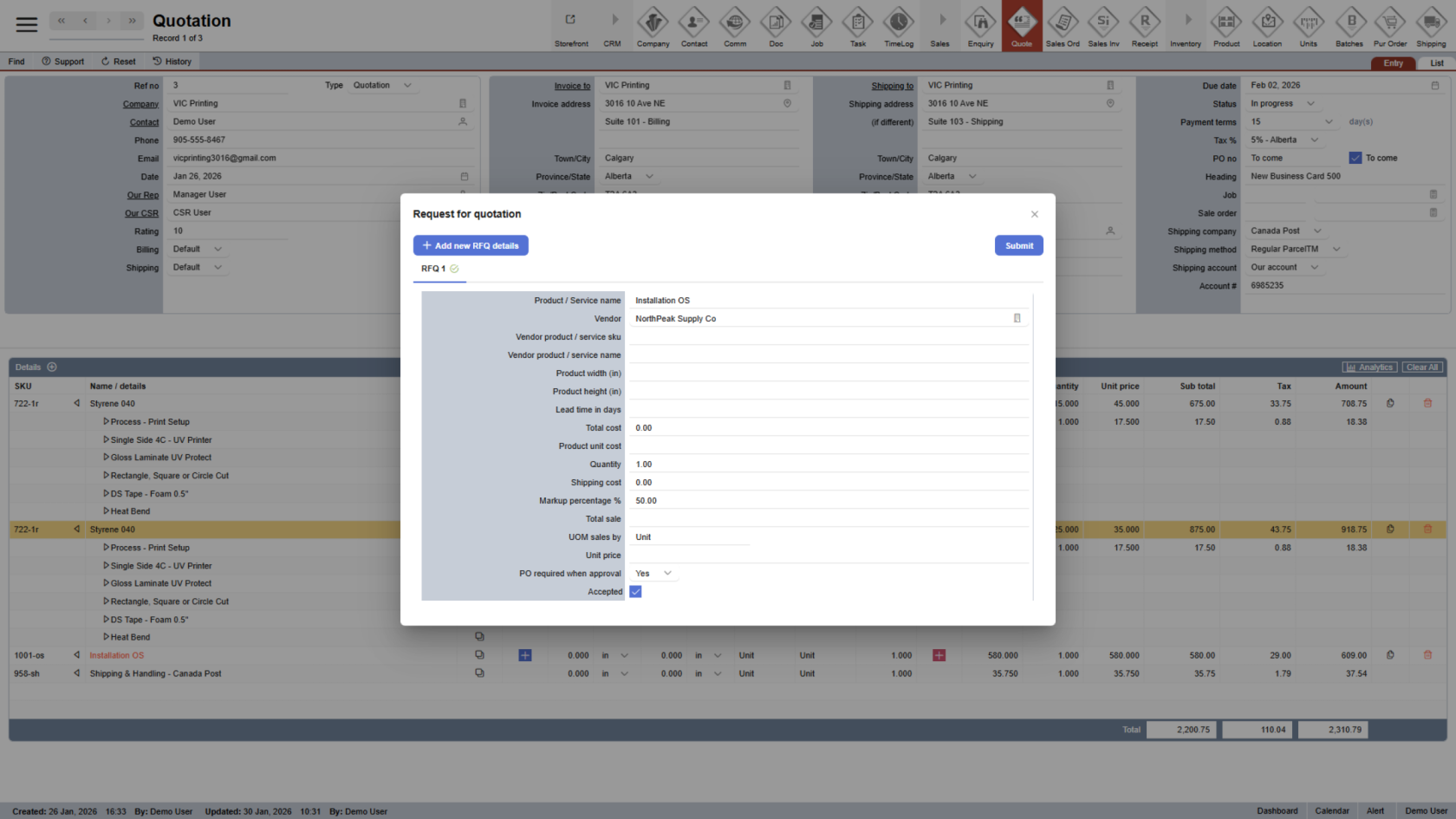
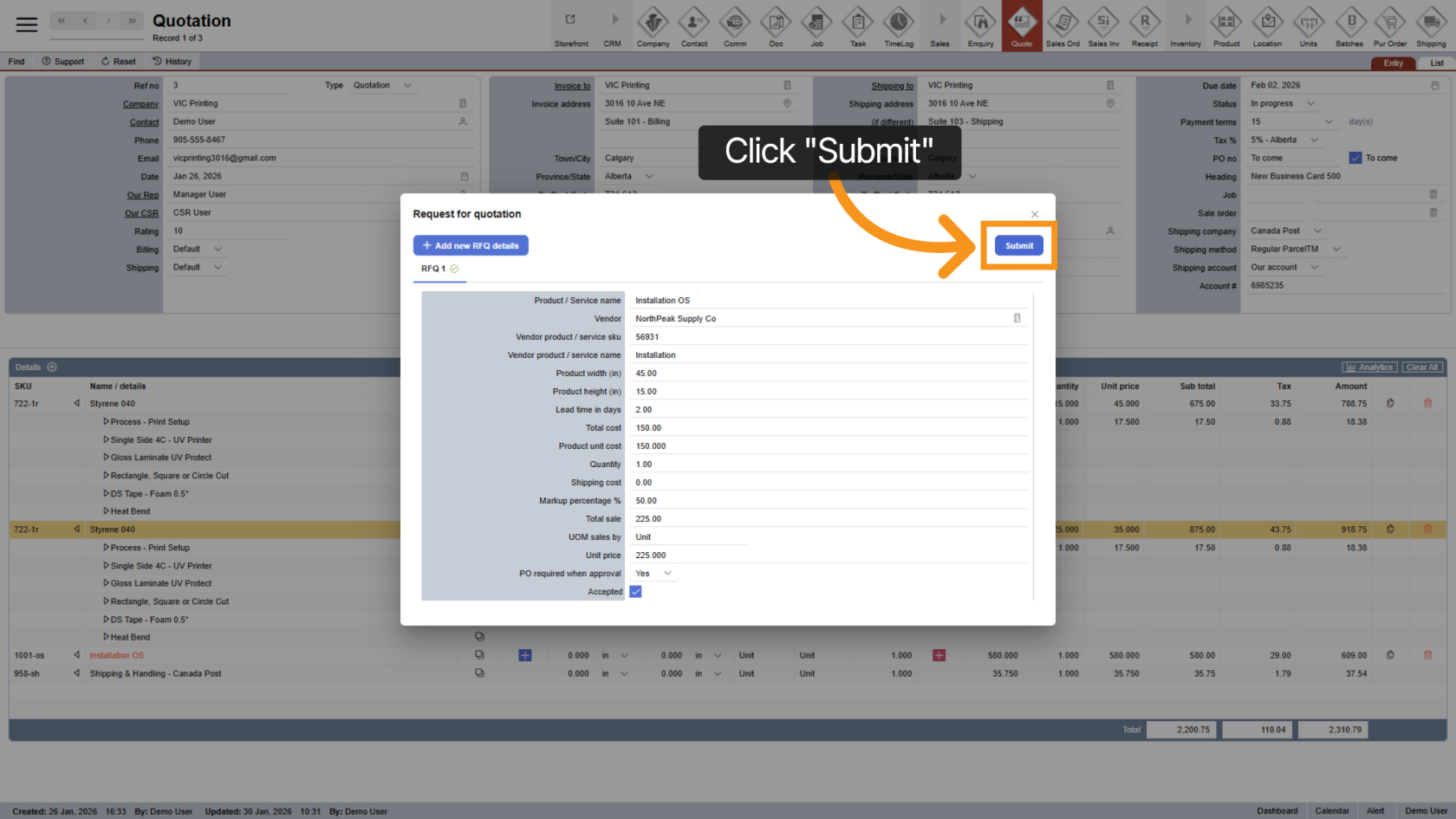
22. Submit the RFQ
Click "Submit" to save the RFQ details.
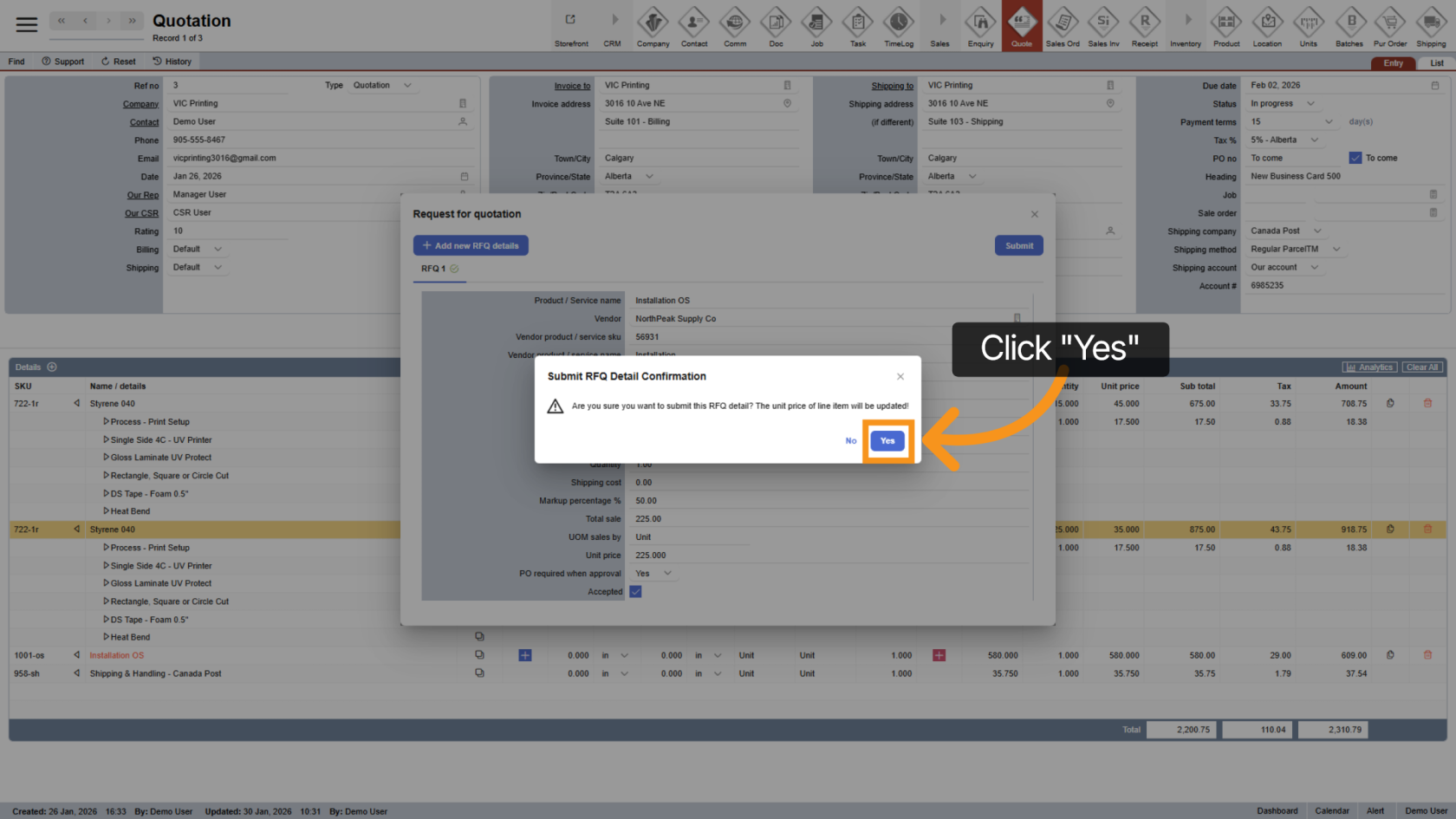
23. Confirm Submission
Click "Yes" to confirm and finalize the RFQ submission.
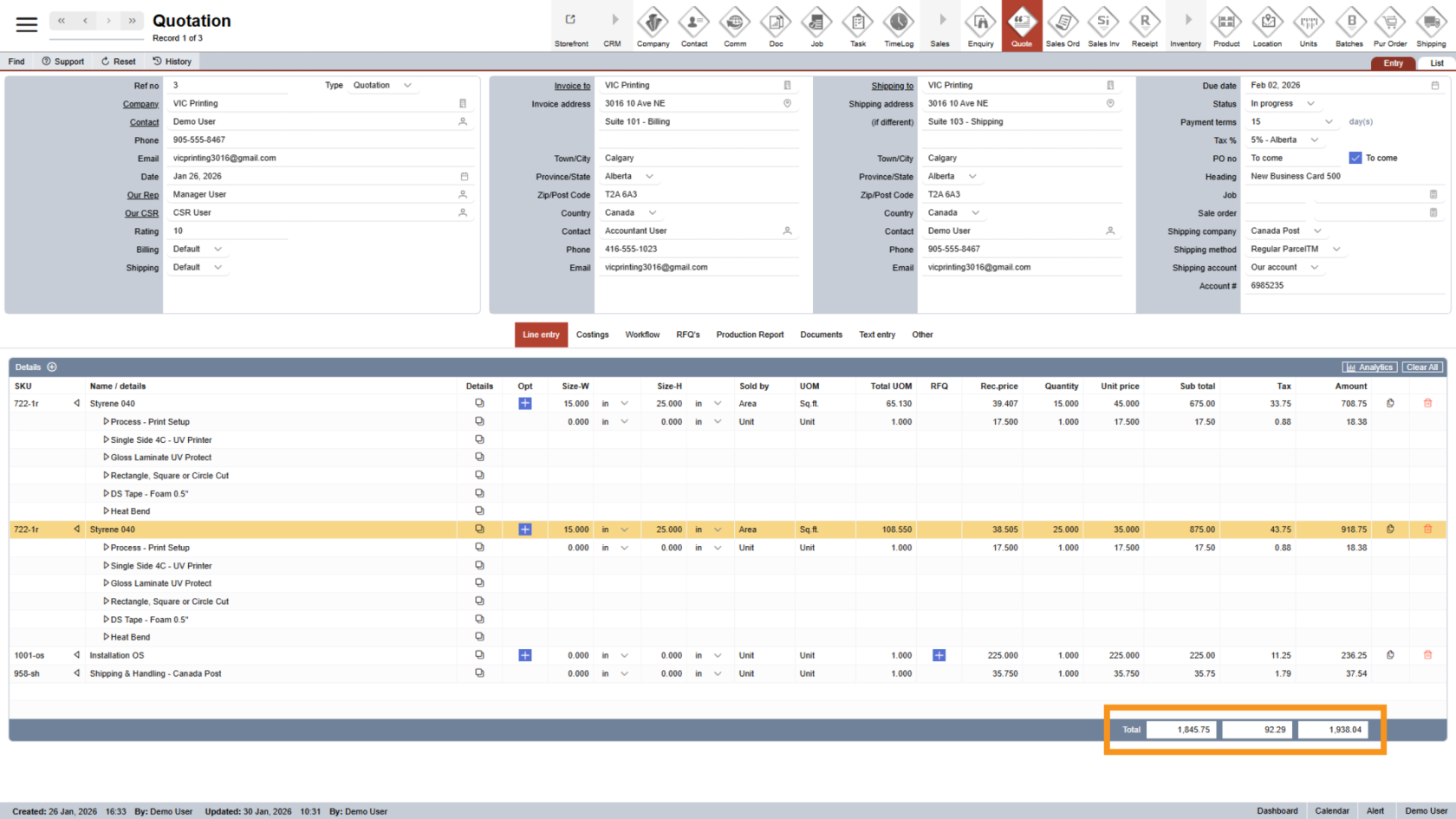
24. Review Quotation Totals
At the bottom of the Line Entry section, you will see: Sub Total, Total Tax, Overall Quotation Amount
25. Add Notes to Products or Options
Click the  detail icon to add specific notes for a product or individual option.
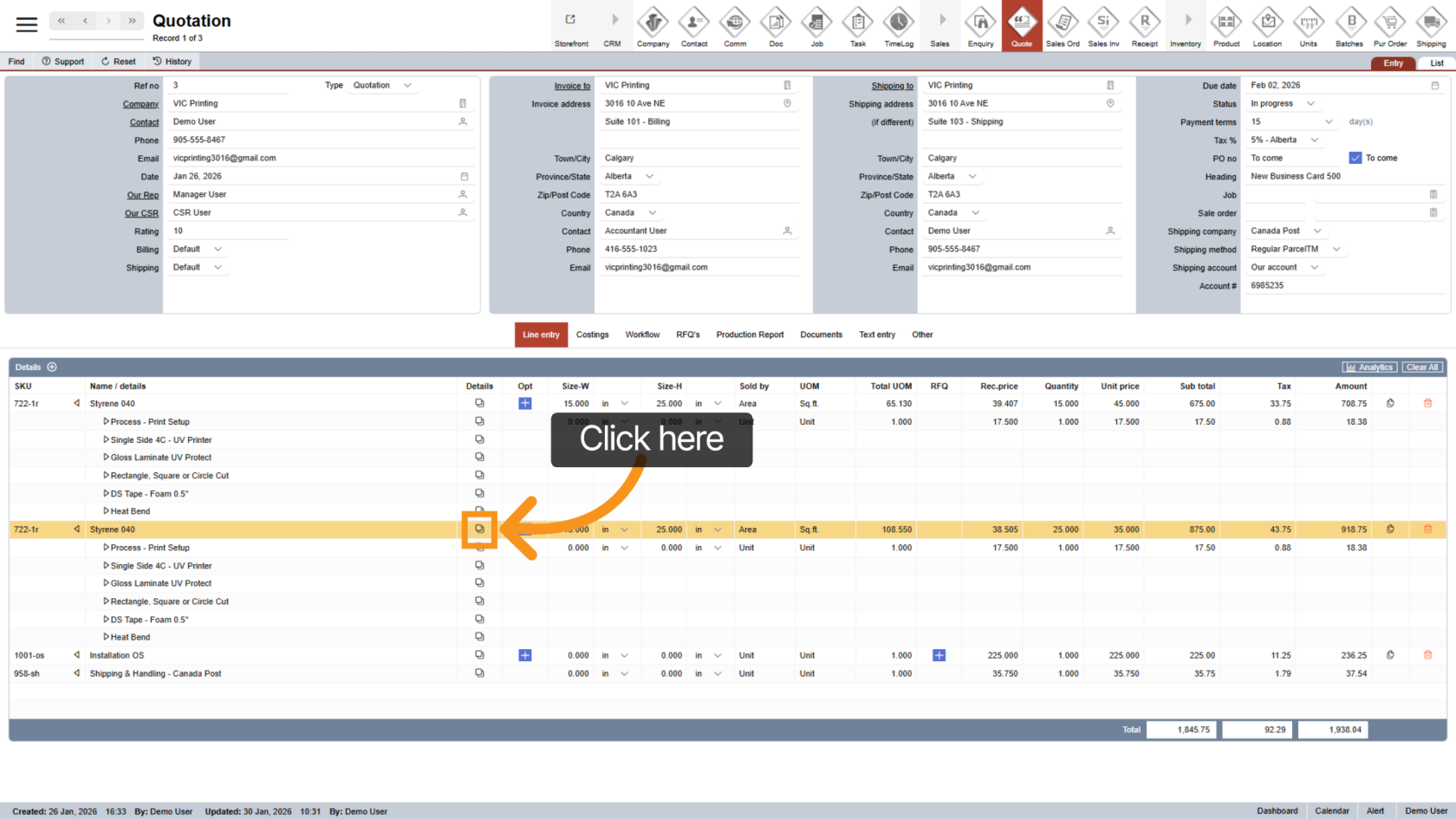
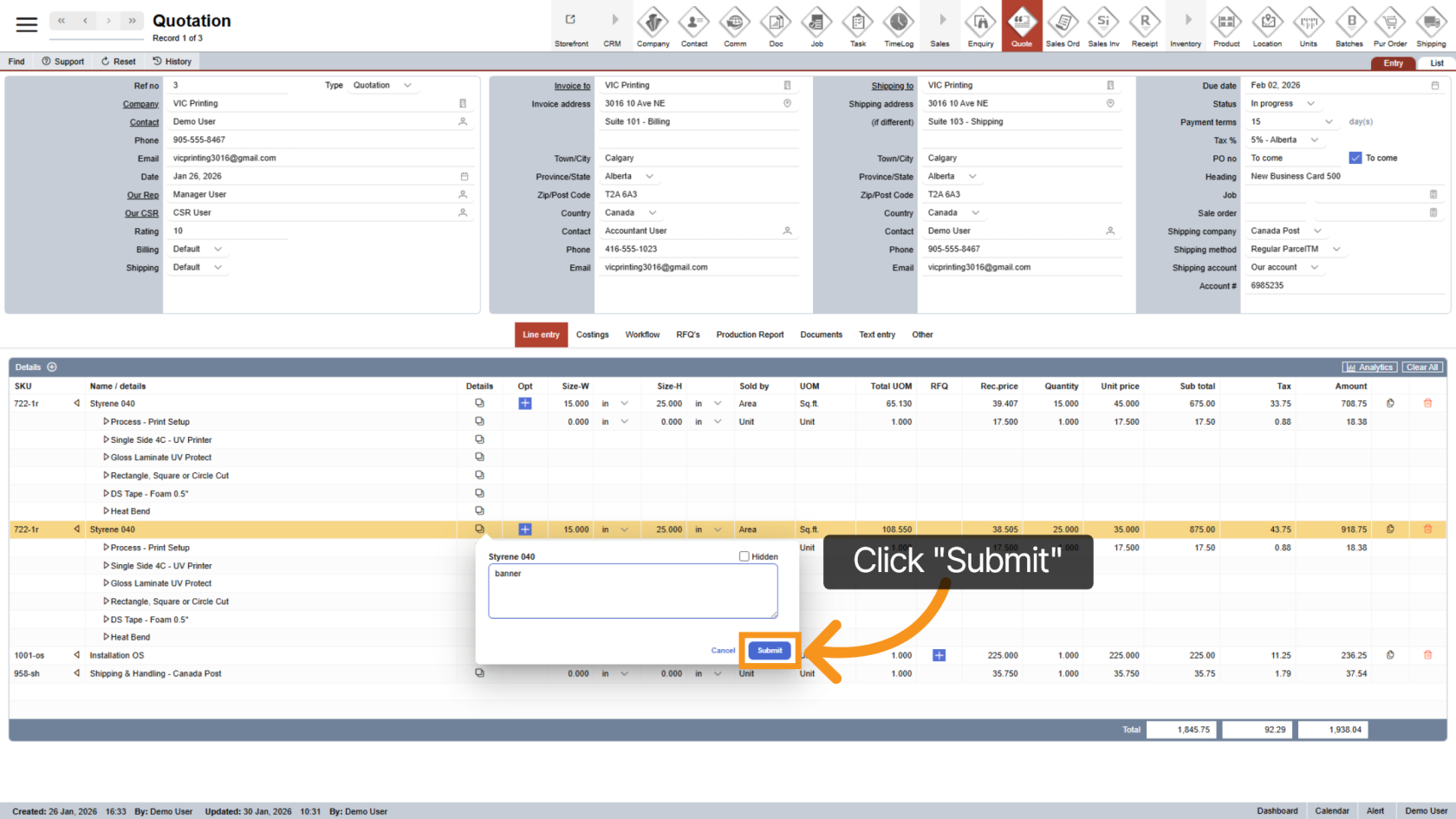
26. Save the Note
Enter your note and click "Submit" to save it.
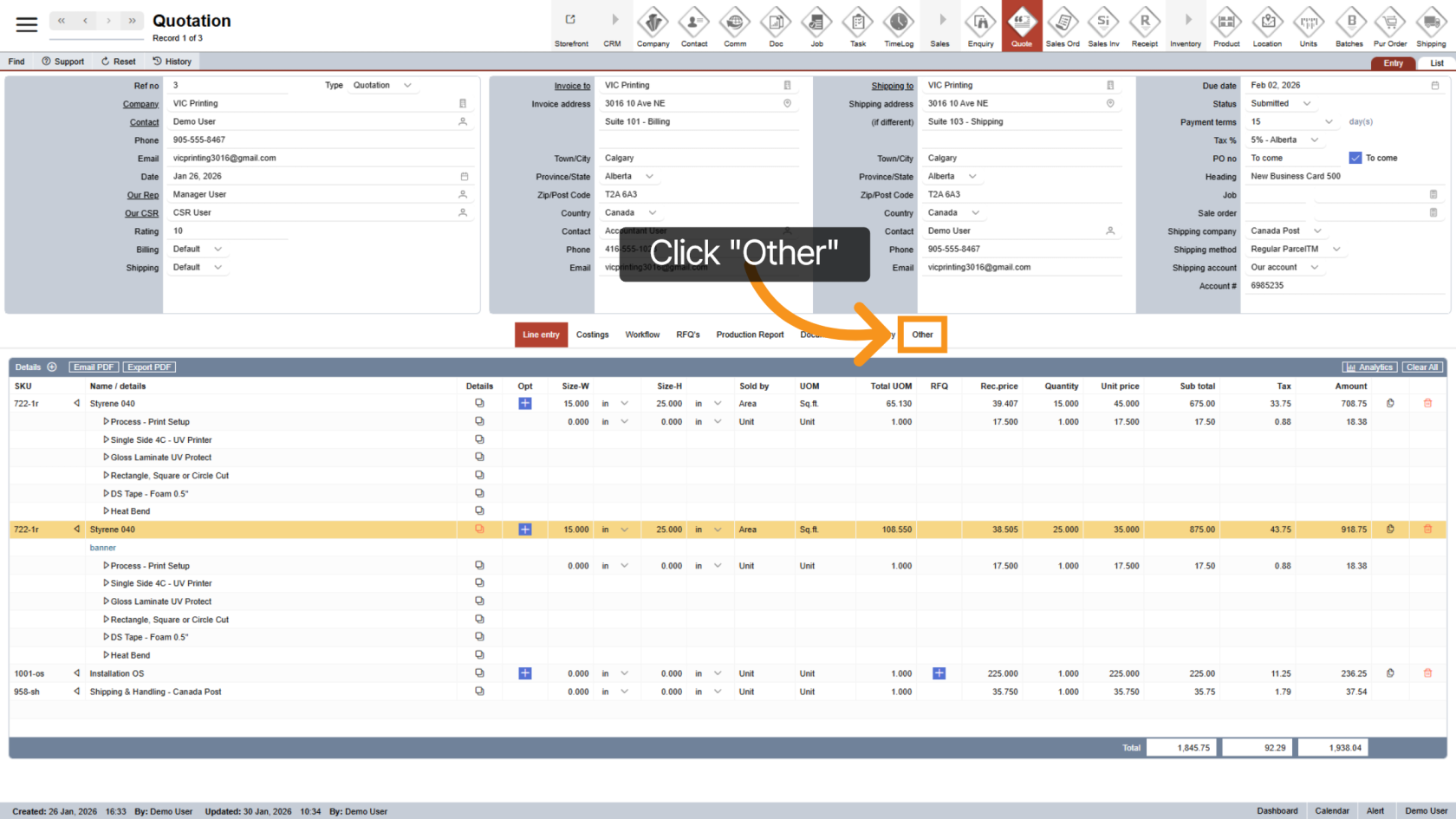
27. Add a Quotation Note
Click "Other" in the middle menu to add an overall note for the quotation.
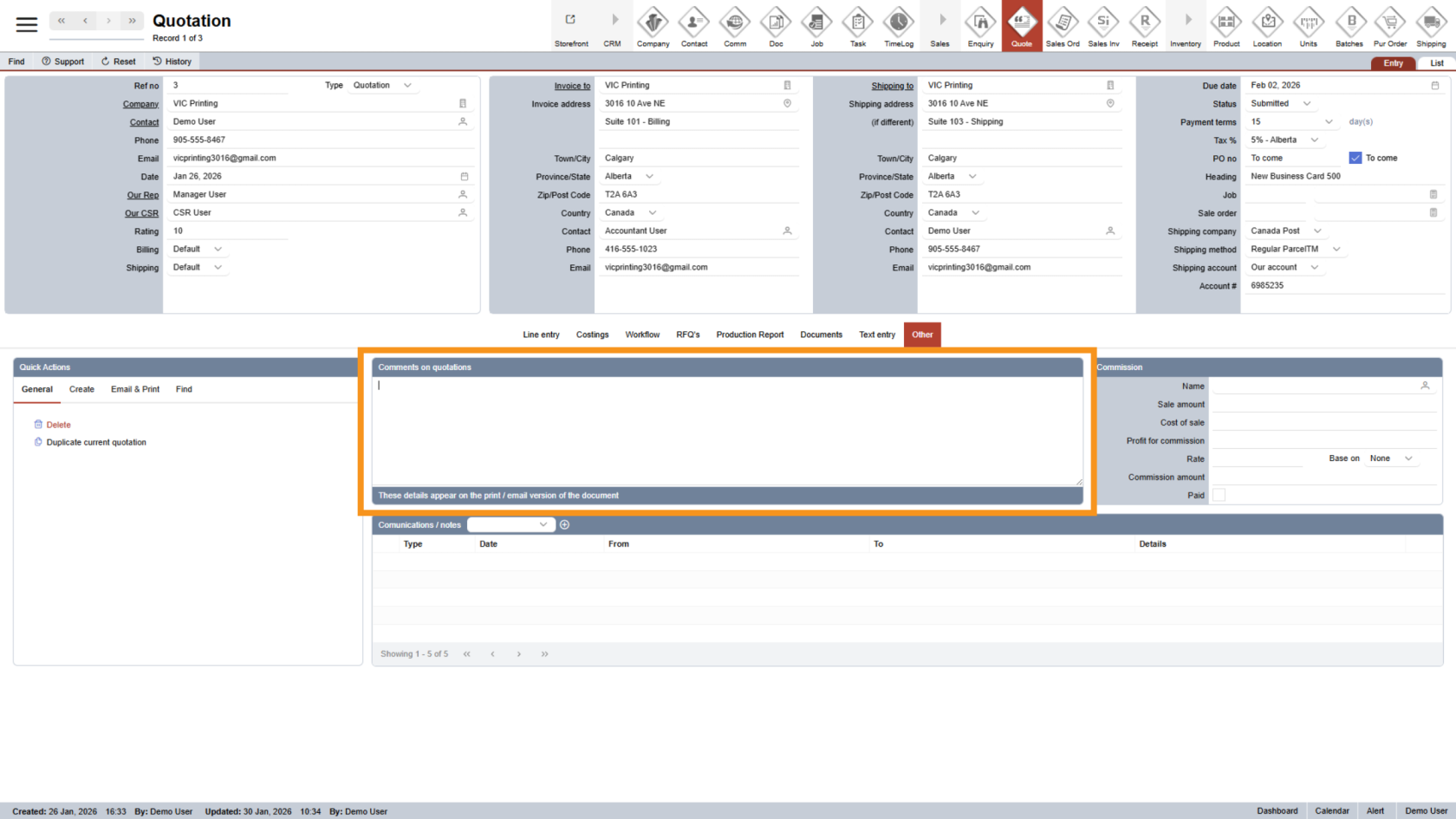
28. Enter Quotation Note
In the Comments section, type any general notes related to the quotation. These notes apply to the entire quotation, not just one product.
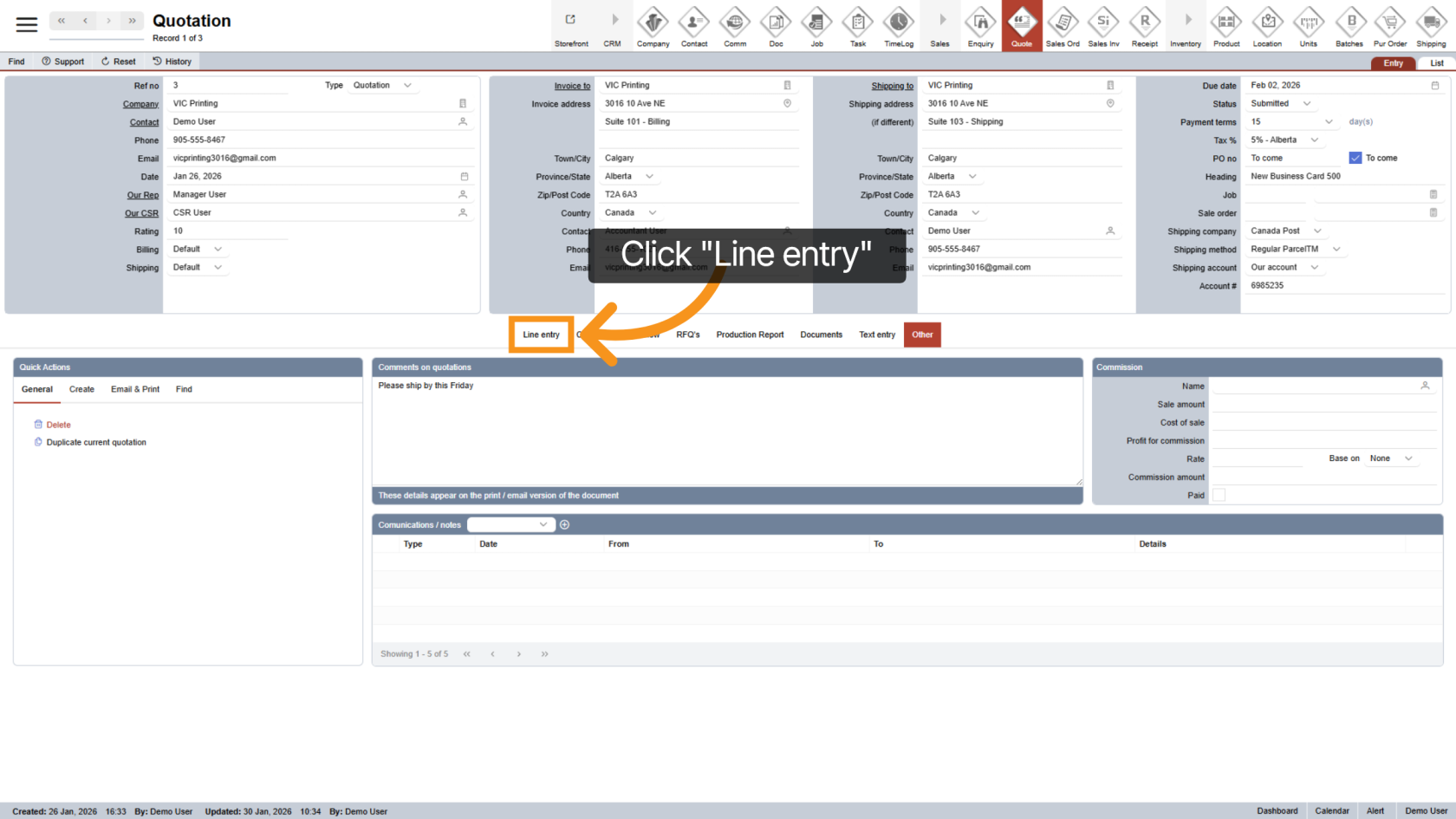
29. Return to Line Entry
Click "Line Entry" to go back and continue working on your quotation.
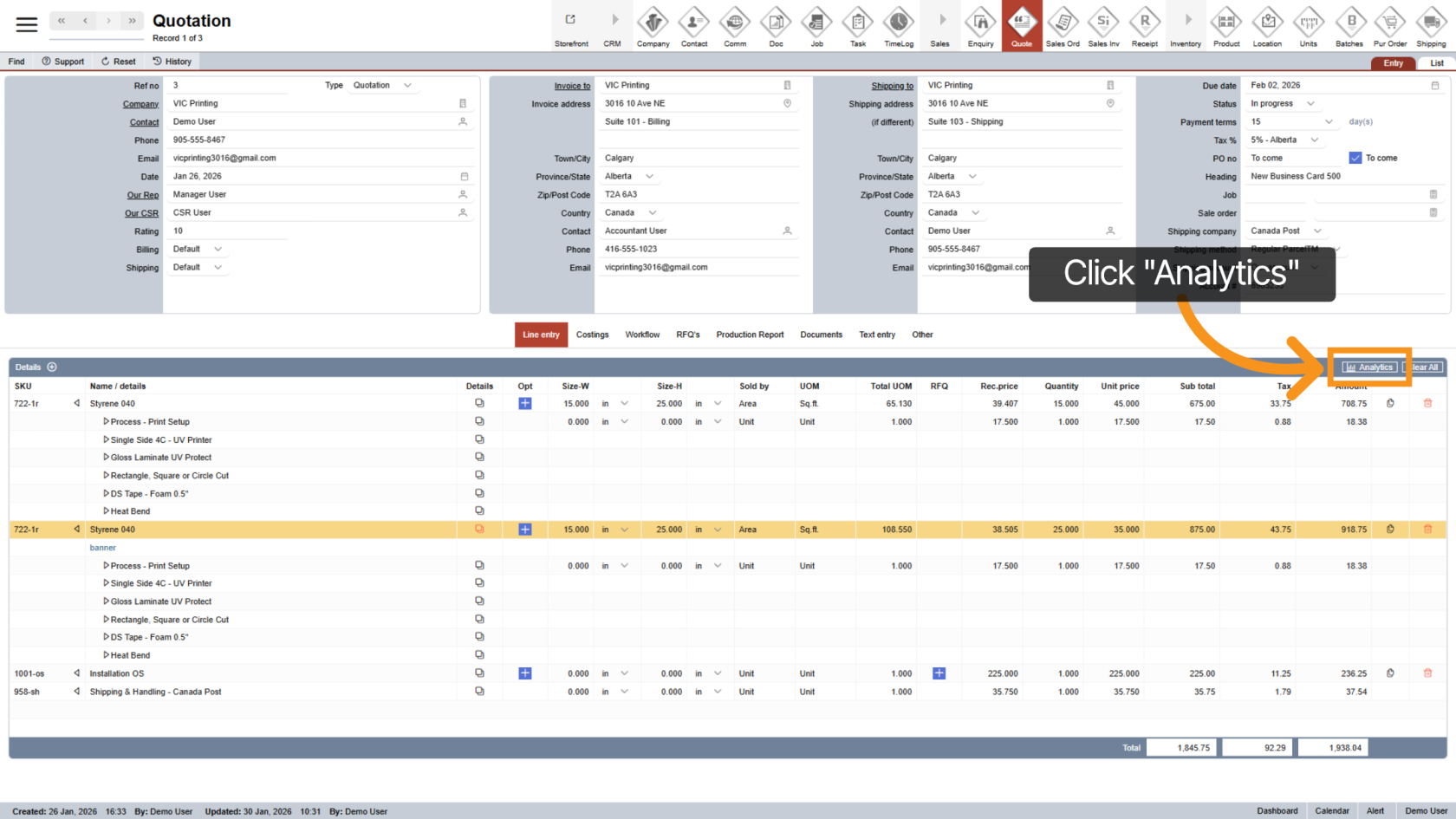
30. Open the Analytics Section (Manager Only)
Users with manager access can click "Analytics" to view quotation performance details.
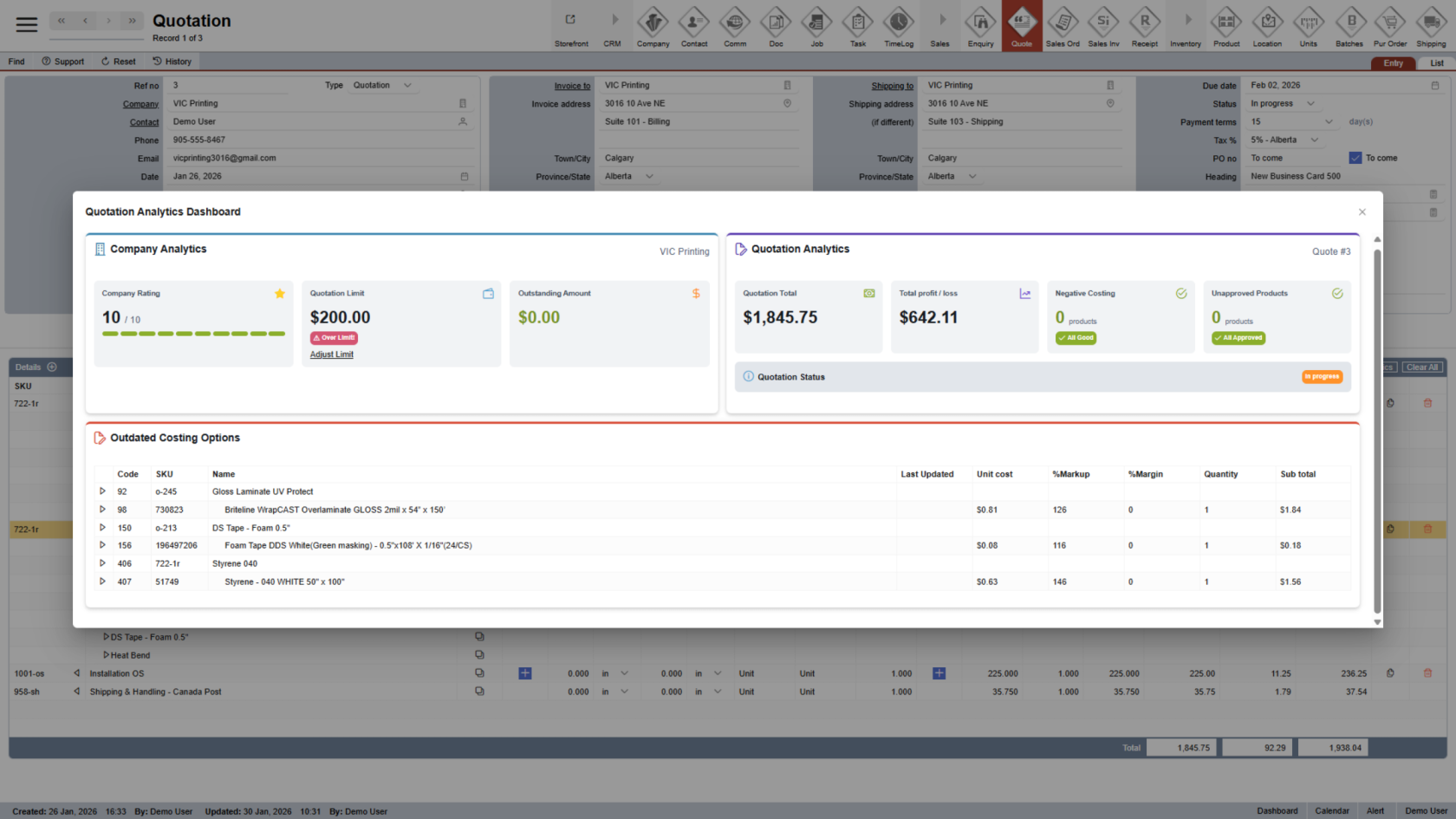
31. View Quotation Analytics
The analytics section includes: Company rating and quotation limits, Outstanding balance, Quotation total and profit, Negative costing warnings, Unapproved products, and Outdated pricing updates from the past 30 days
You have successfully added line items to your quotation in WorkTraq. Review all products, pricing, and totals carefully before moving on to the next step.