
Configure Company Discount
Tutorial Video
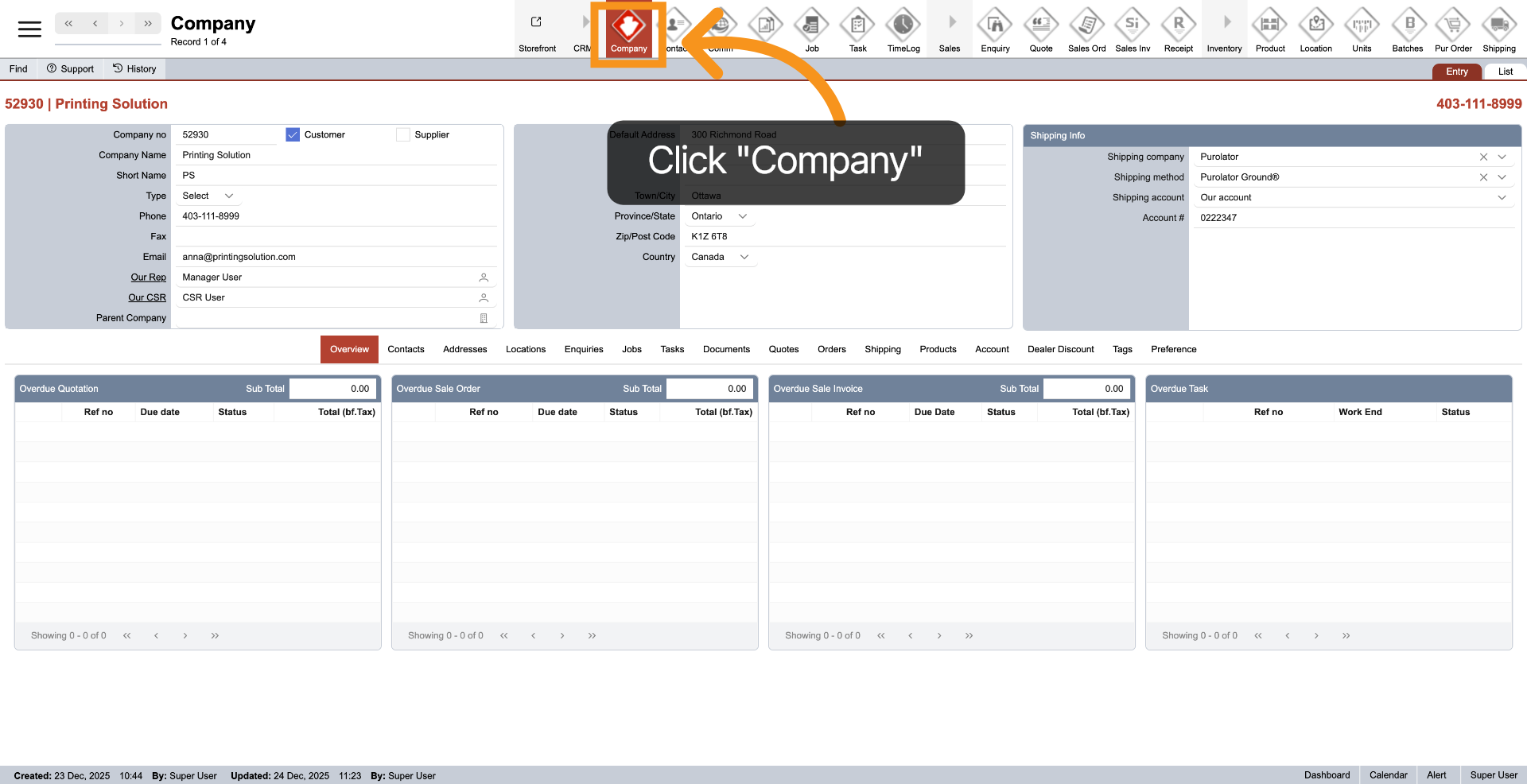
1. Open Company
Start by opening the Company module to configure company discount settings.
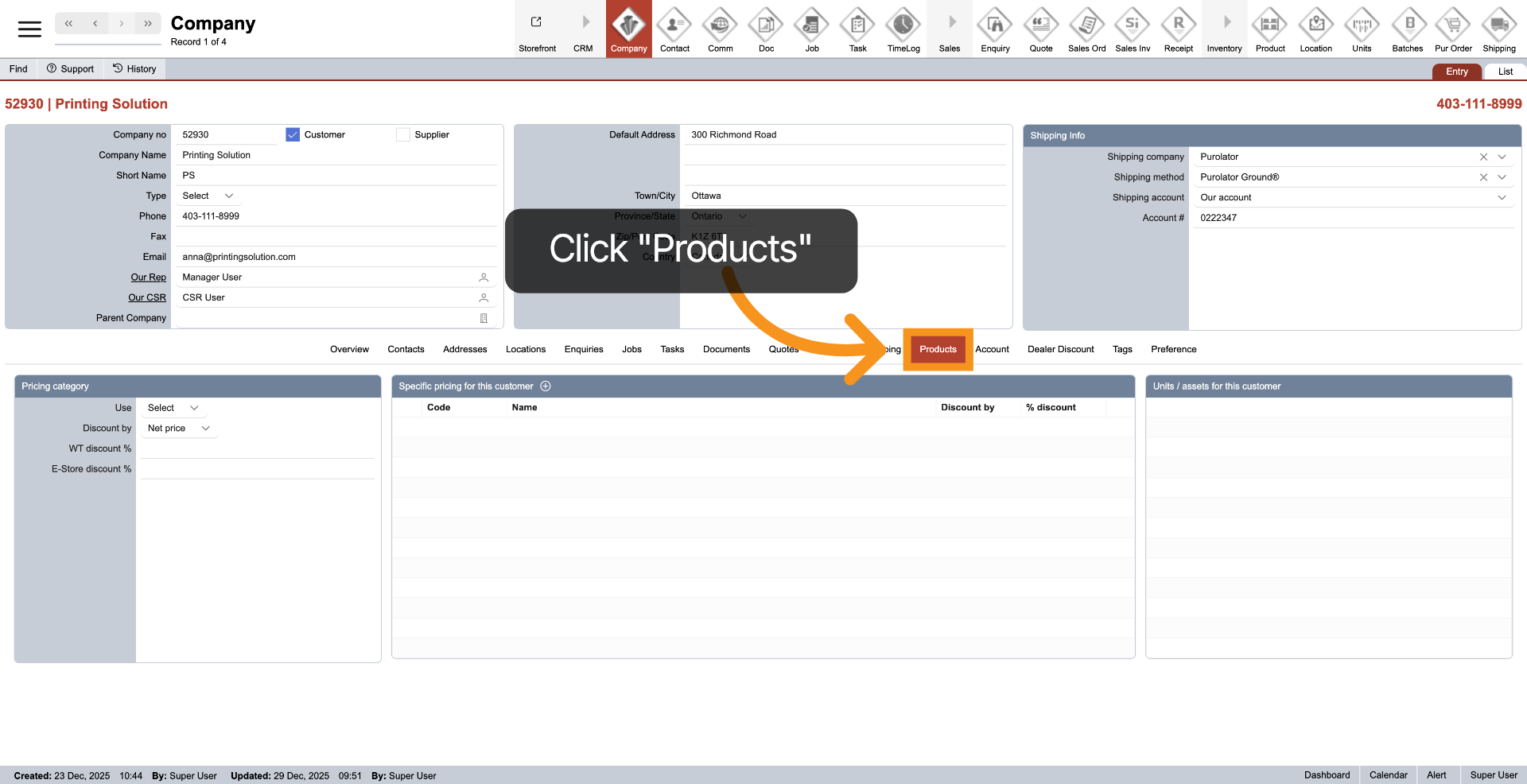
2. Navigate to Products Section
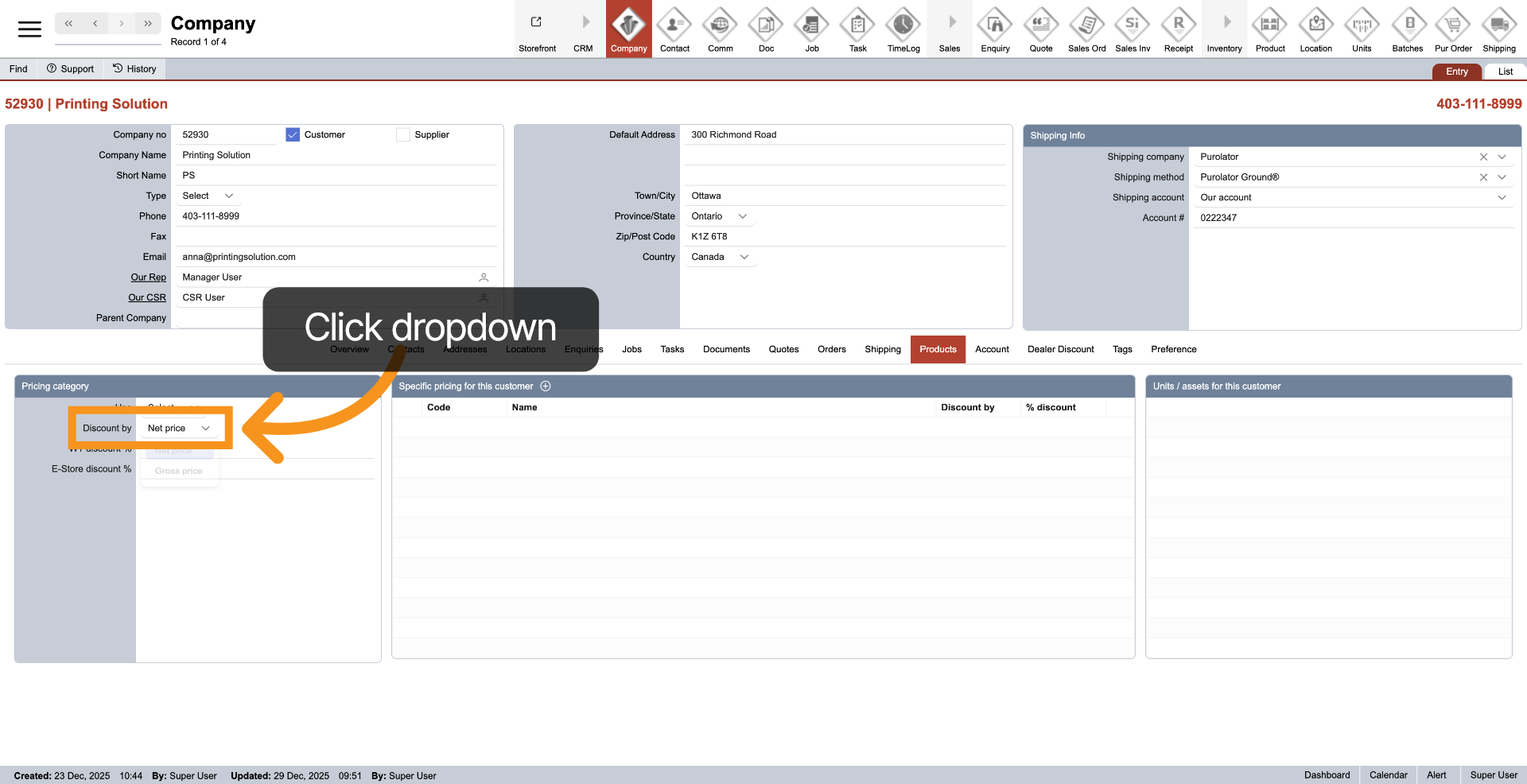
3. Select Discount Option
To set a discount for the entire company, you first need to select the type of discount option that will be applied. Click on the dropdown next to "Discount by" to specify how you want to calculate your discount. The system offers two options: "Net price" and "Gross price."
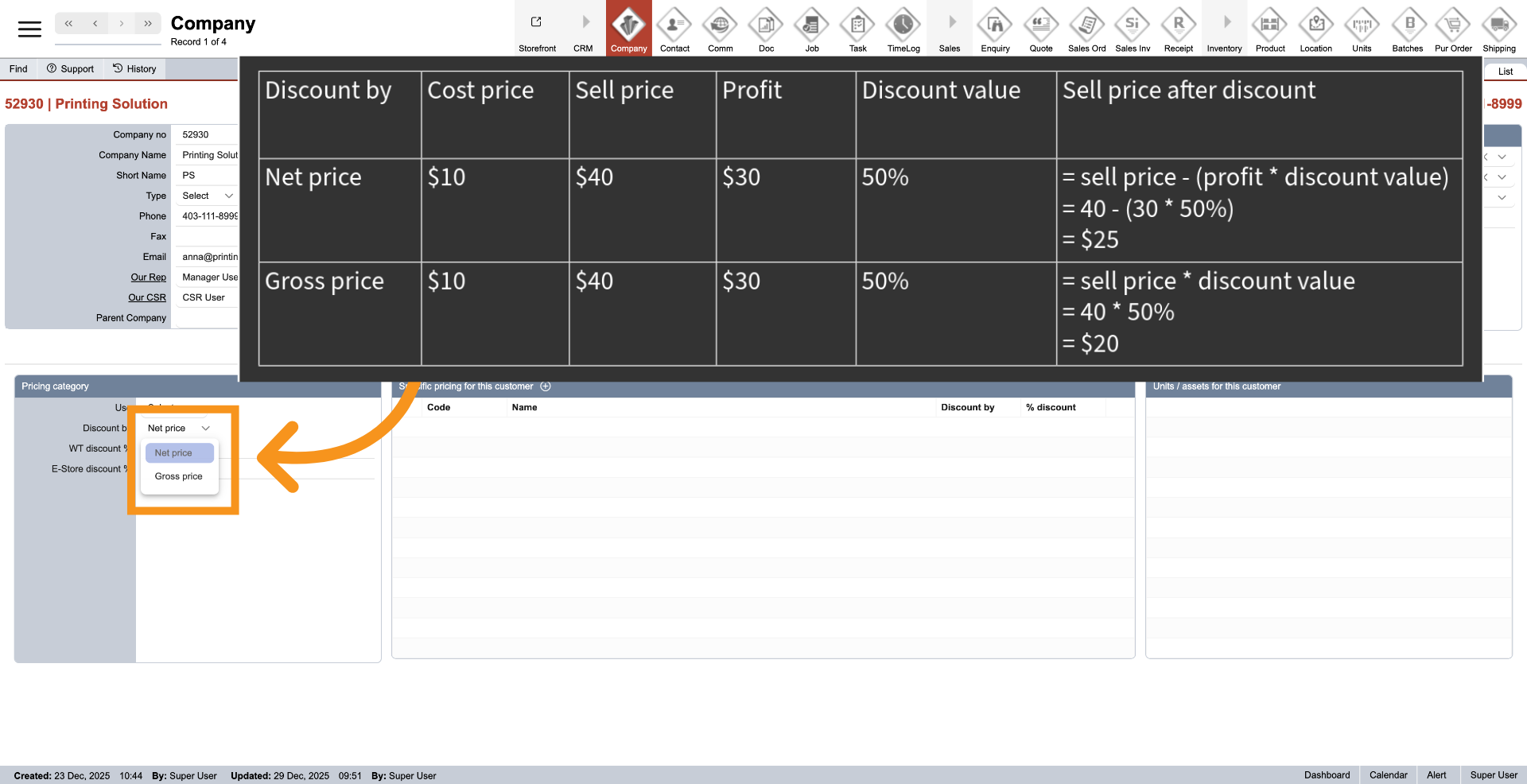
4. Discount Options Explanation
Net price: This calculates the discount based on the product’s profit and then subtracts that value from the selling price. Gross price: This calculates the discount based on the selling price. Refer to the example table for a clearer understanding of the discount options.
5. WorkTraq System Discount
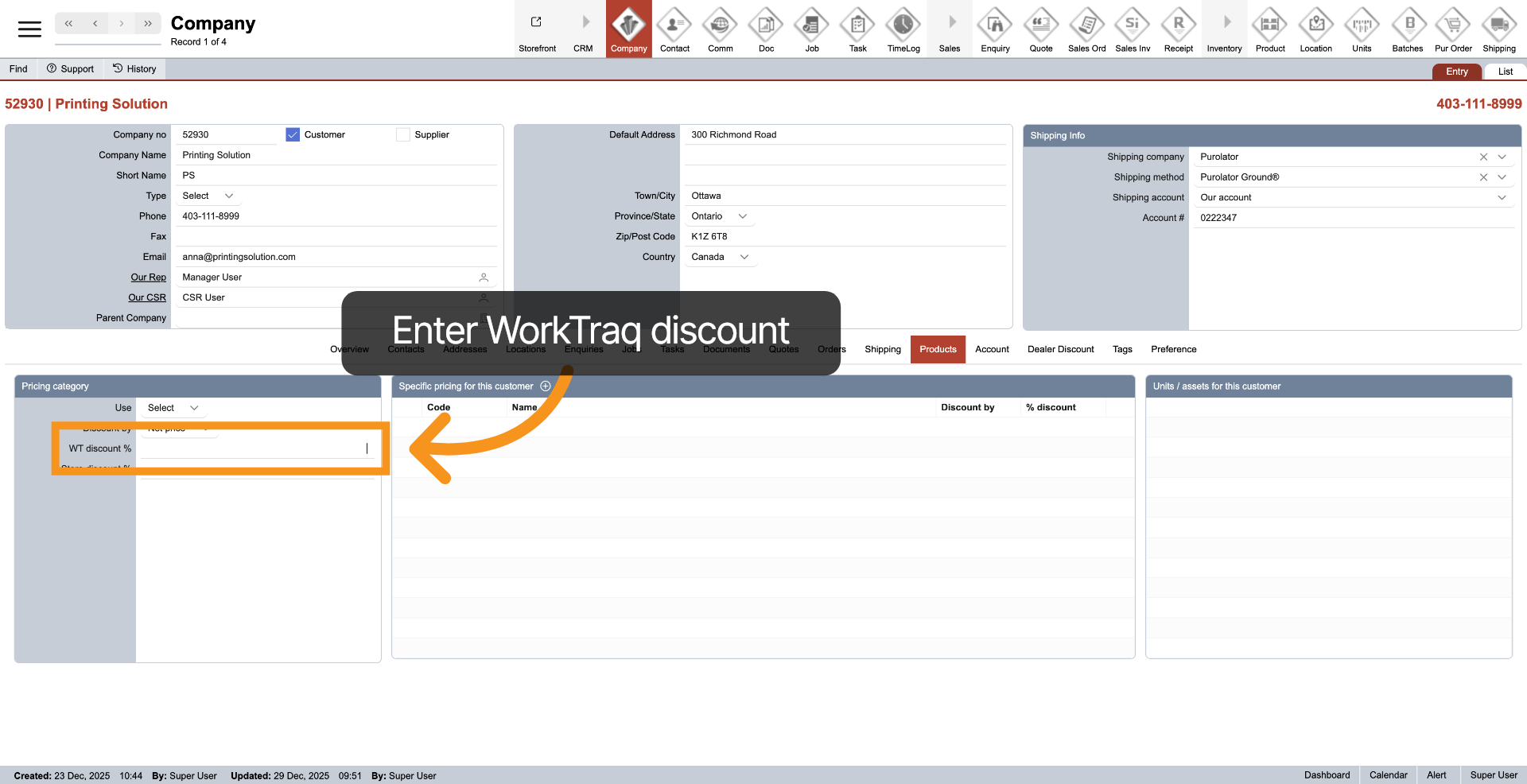
Enter the discount percentage value to apply in the WorkTraq system next to the "WT discount %".
6. E-Store System Discount
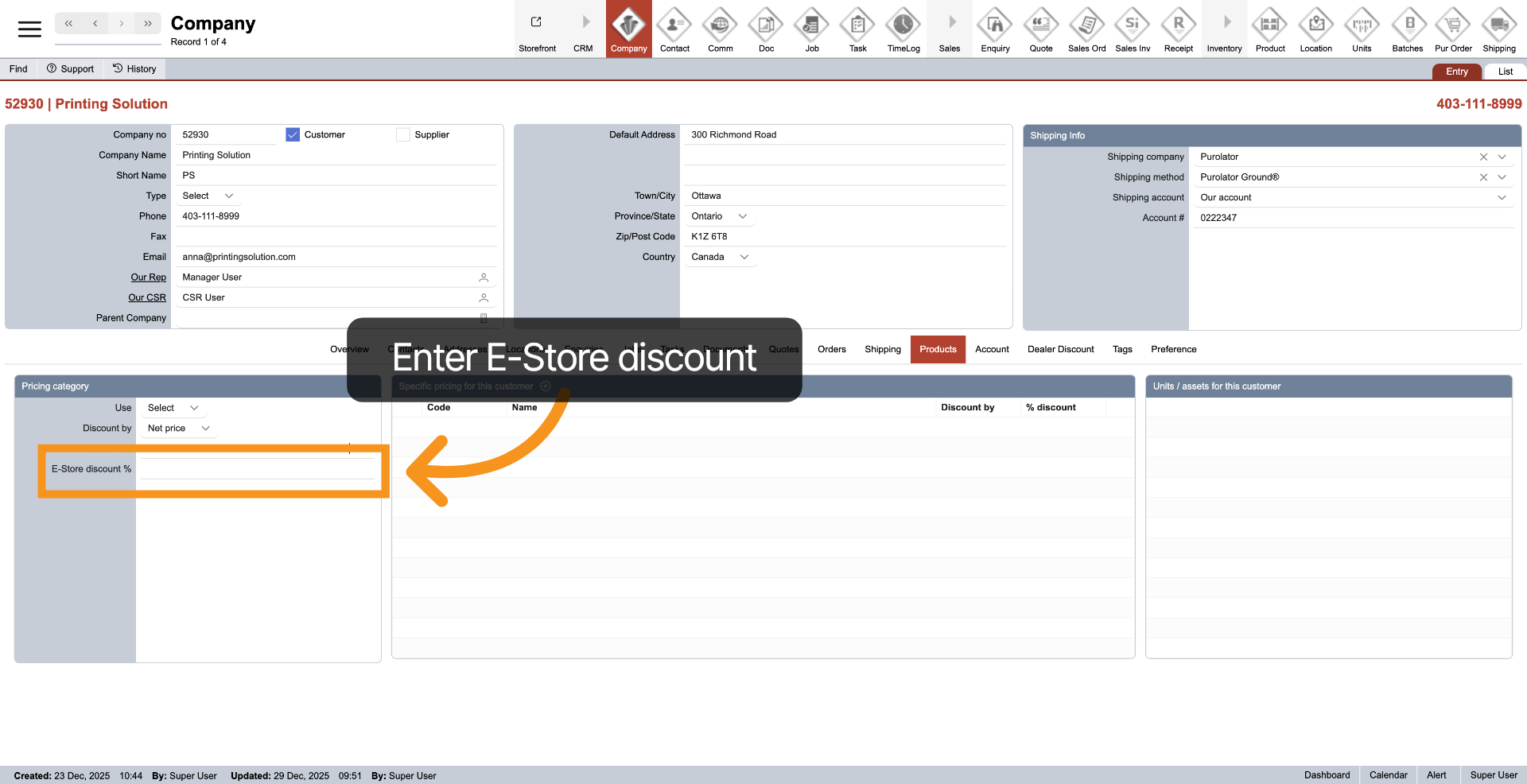
Enter the discount percentage to apply in the E-Store system, in addition to the E-Store discount. This value may differ from the WorkTraq discount.
7. Special Items Discount
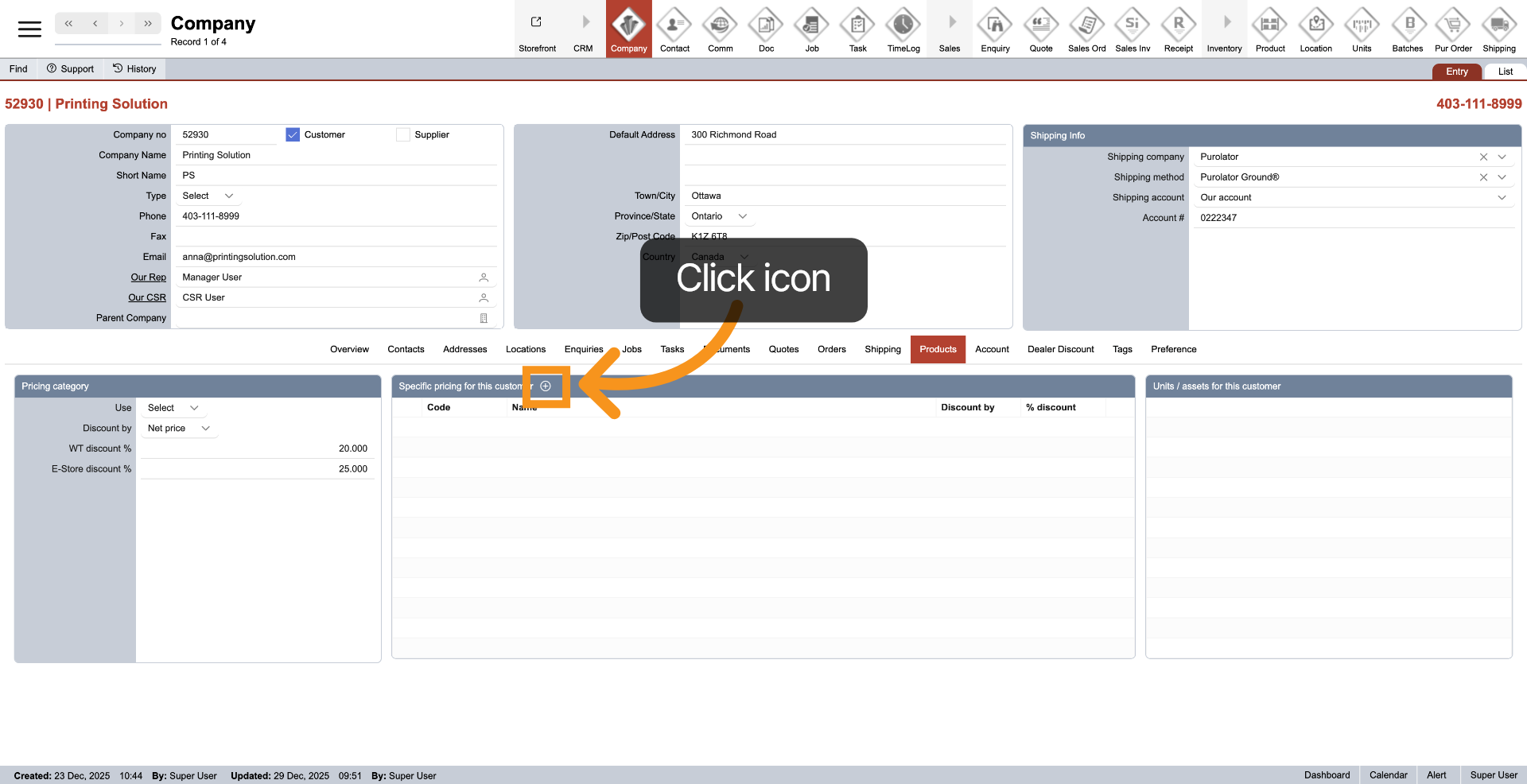
The system also accepts discounts for special items, which is of the highest priority. To add a specific discount, click on the plus icon.
8. Select Product
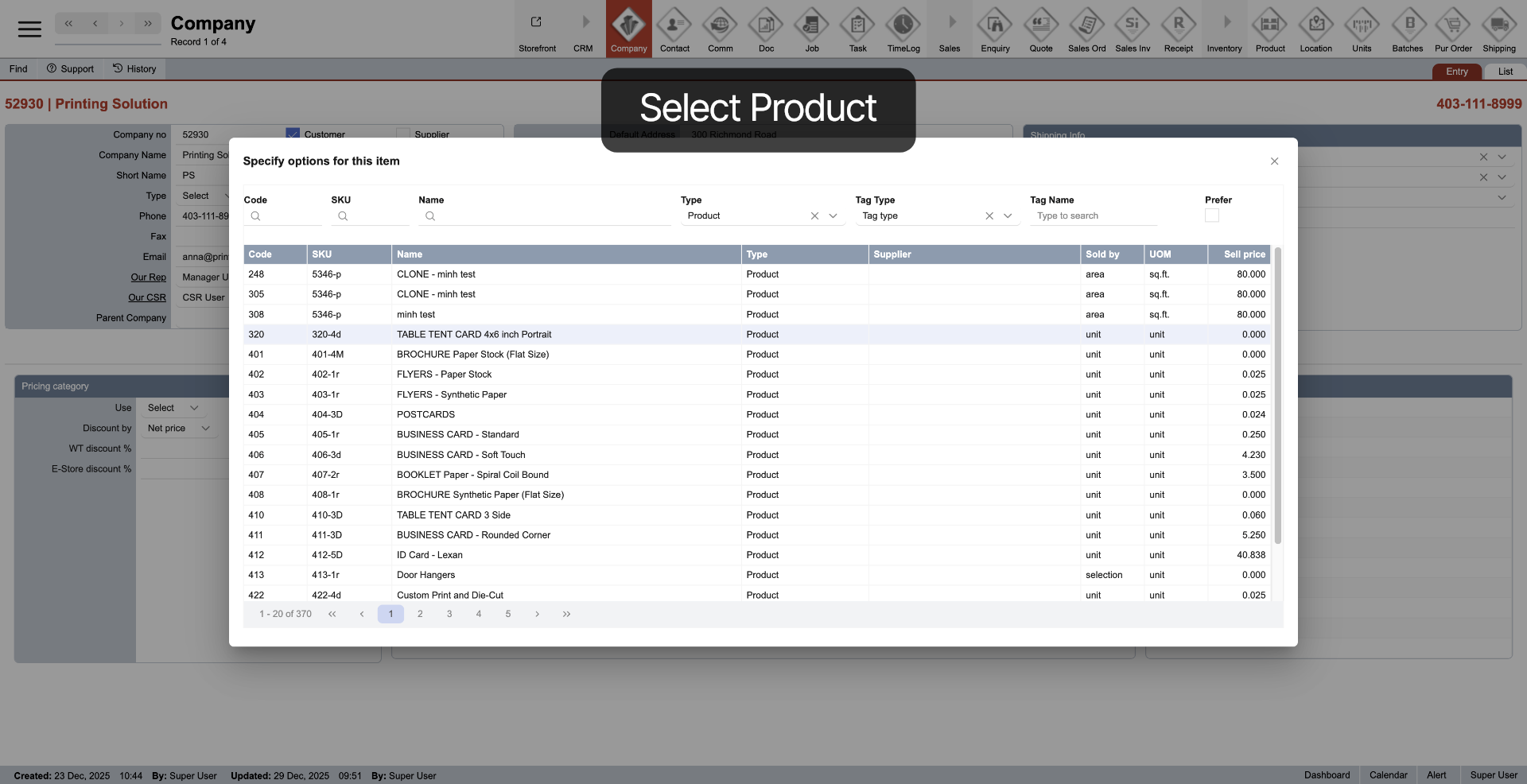
Select the product and apply the specific discount.
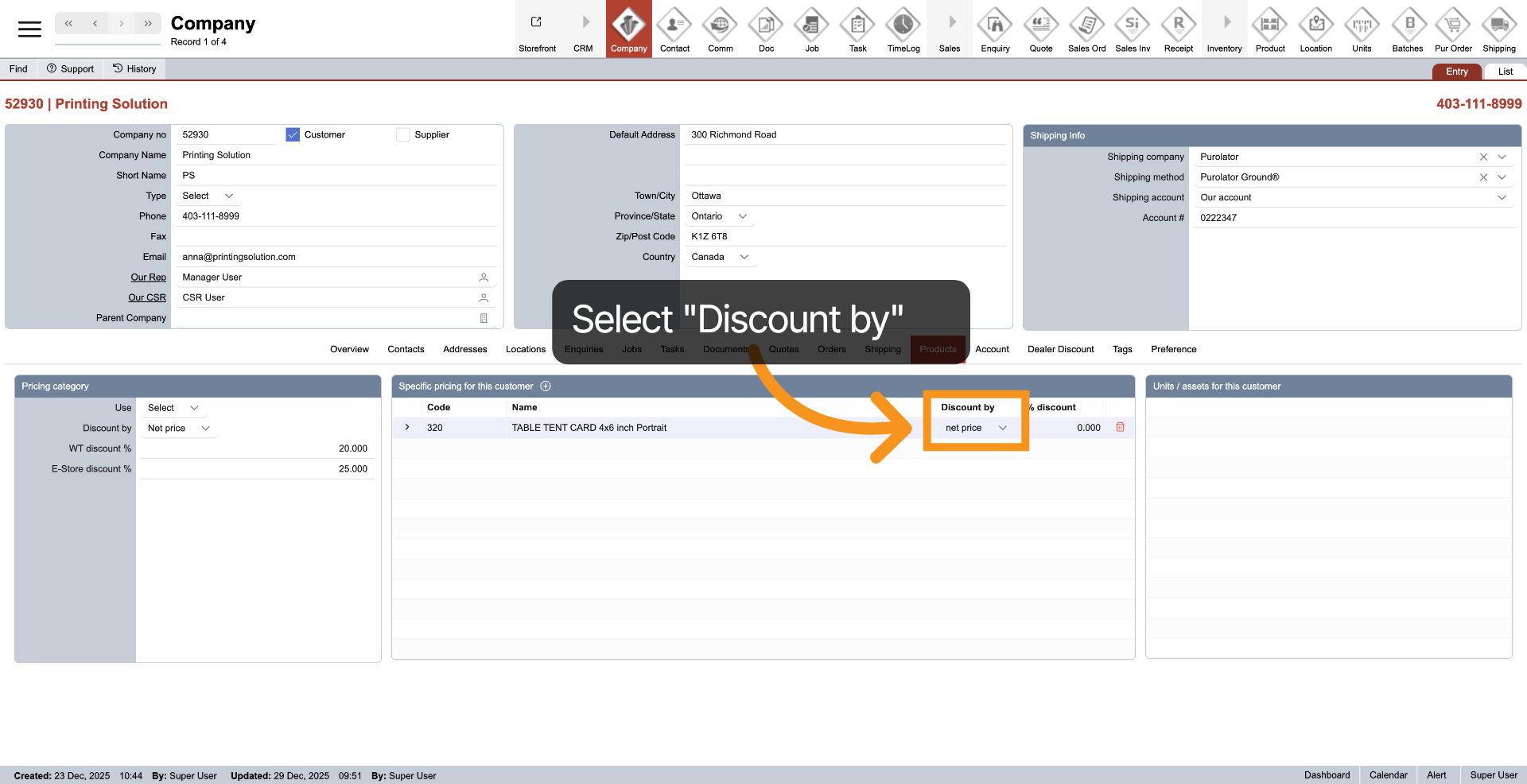
9. Select Discount Option
You can set different options for each product. To set a discount option for a special item, click the discount dropdown for each product.
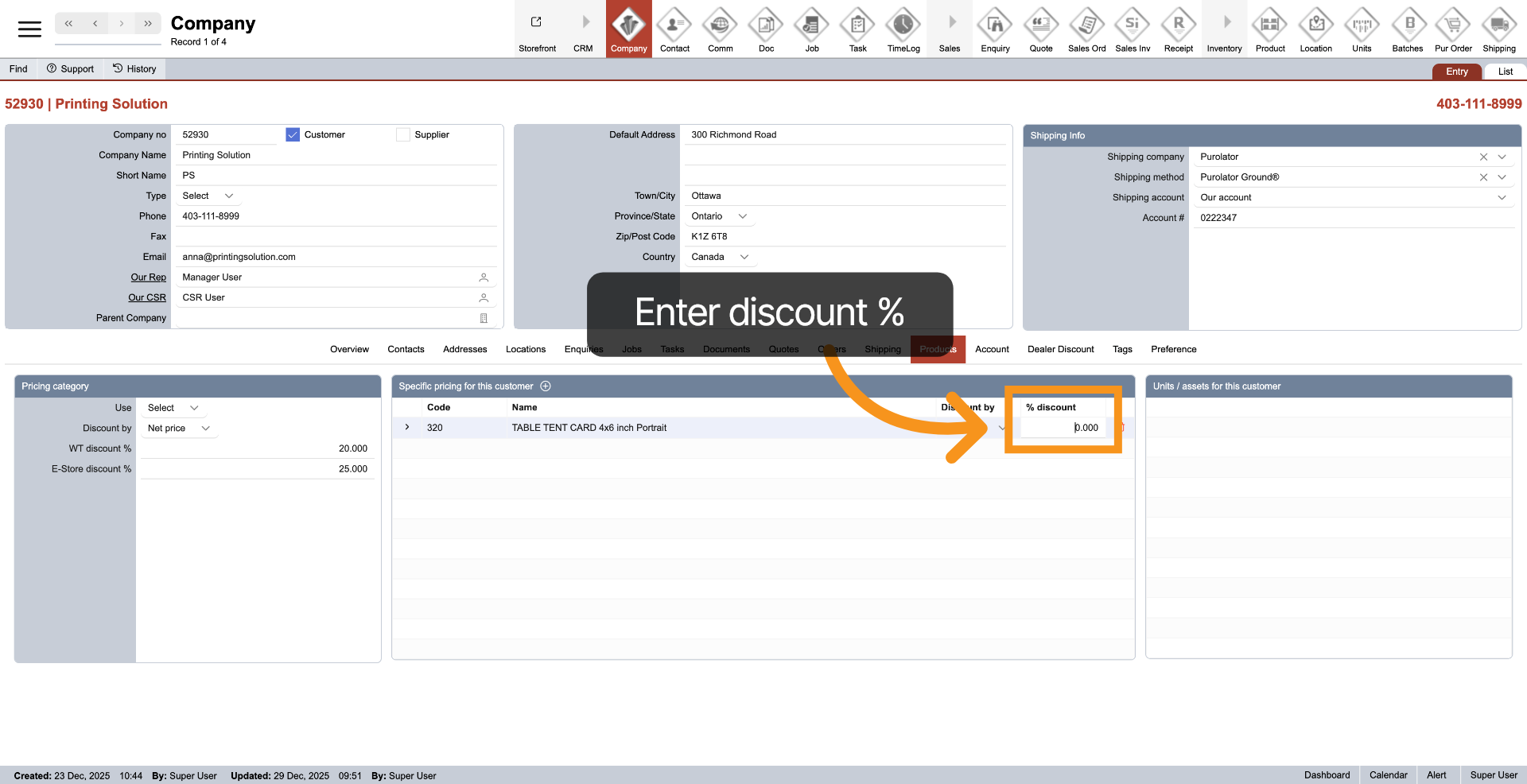
10. Enter Discount Percentage
Please enter the discount percentage for each product line.
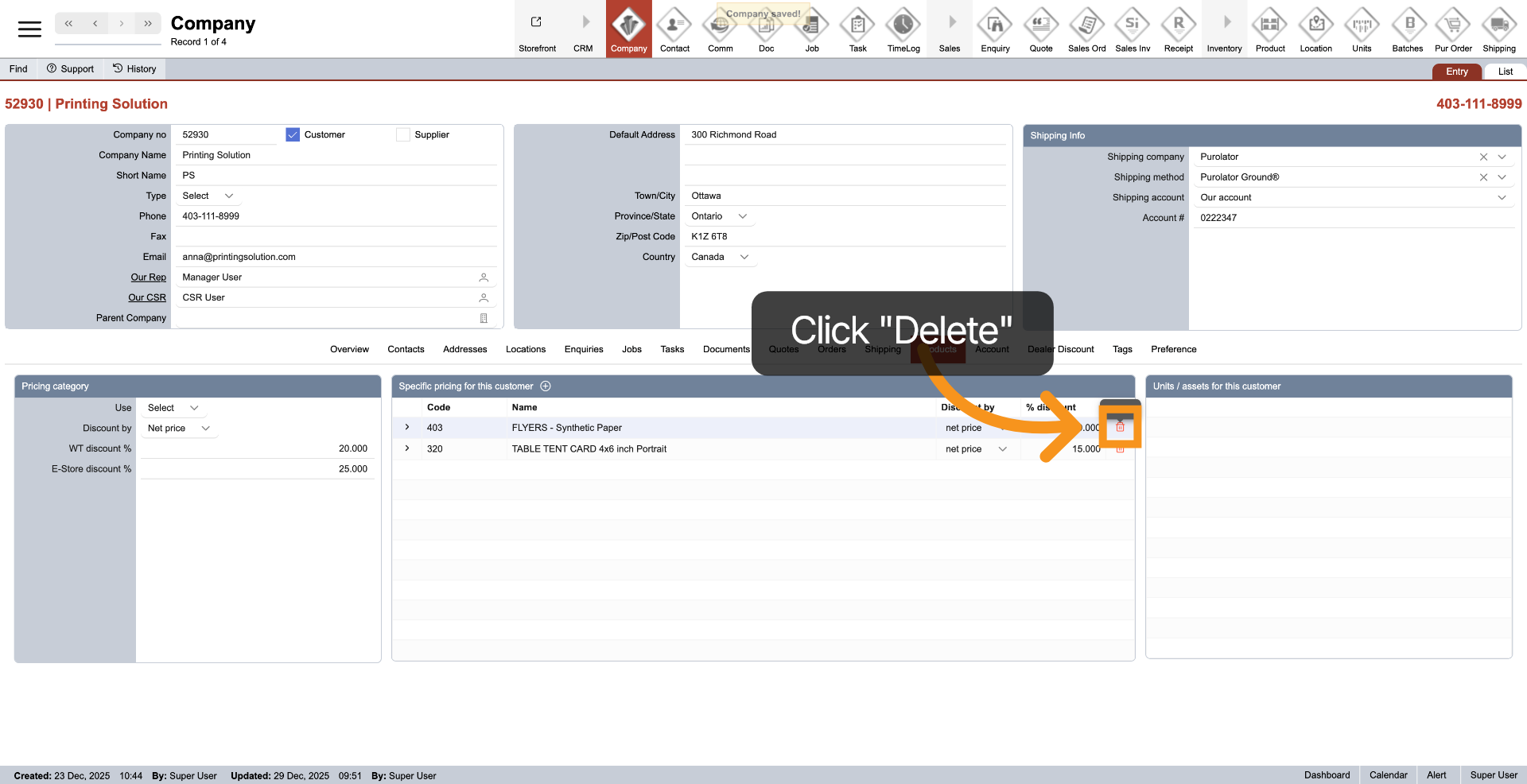
11. Delete Special Discount
Click the "Delete" icon in the product line you want to remove to eliminate the special discount.
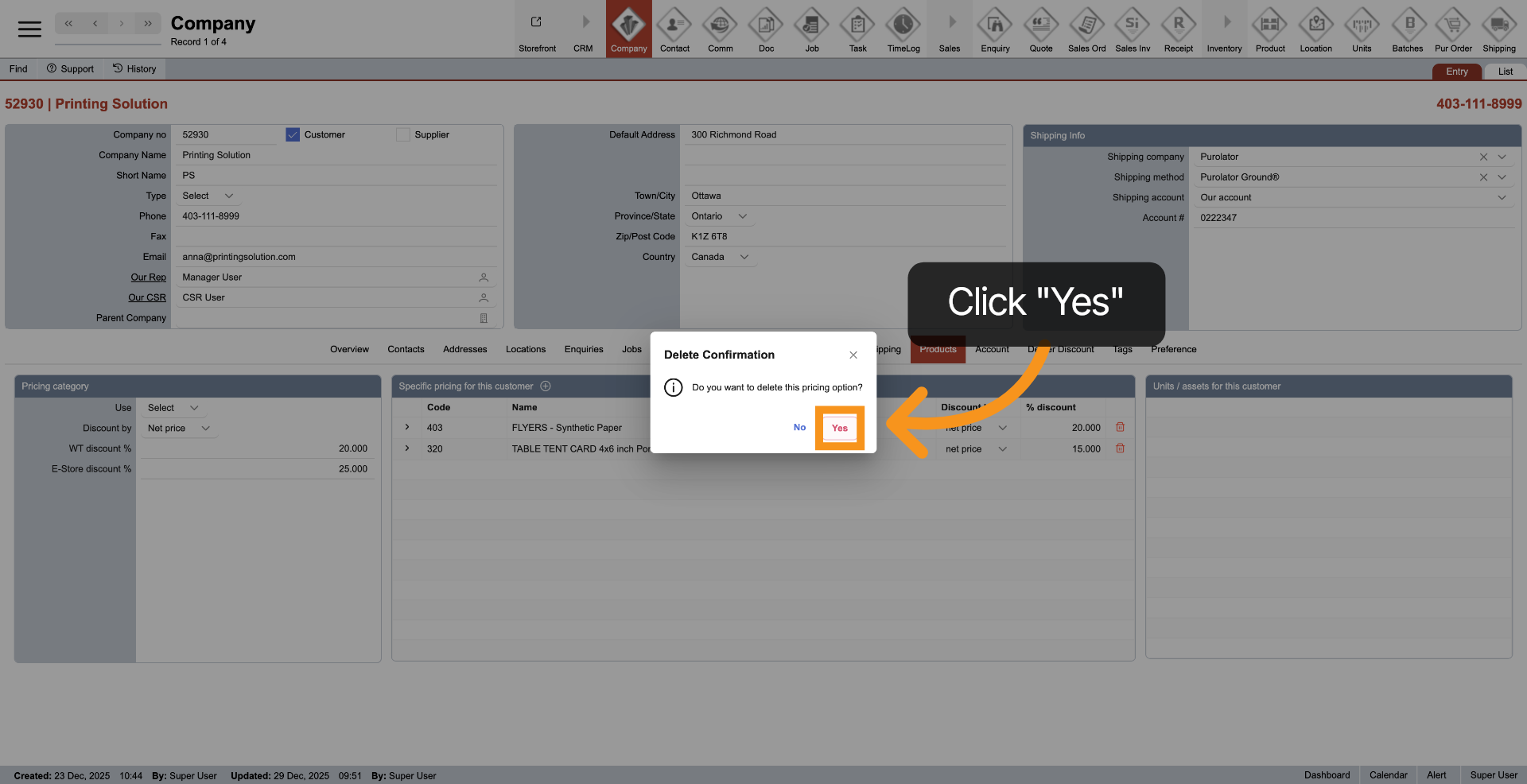
12. Confirm Delete
To confirm the deletion of the discount, please select Yes to save your changes.
You have configured the company discount settings in the WorkTraq system.