
Sale Order Tax Breakdown
This guide shows how to set up and manage tax breakdowns for a sales order, especially when shipping to multiple locations.
Video Tutorial
1. Enable Tax Breakdown
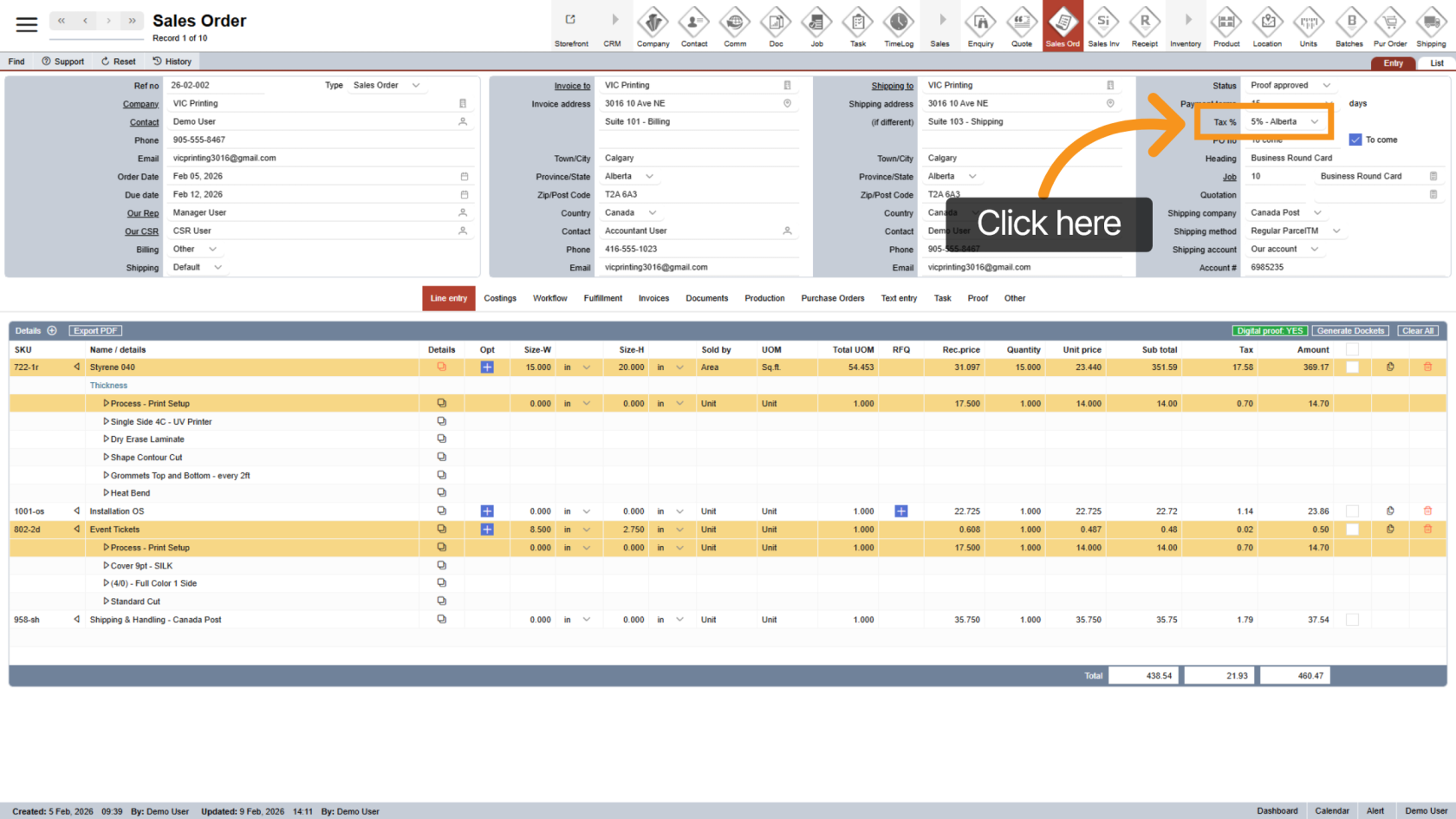
Change the "Tax %" setting to Custom.
This will turn on the tax breakdown feature.
2. Taxes Section Appears
Once enabled, a new Taxes section will appear in the middle menu.
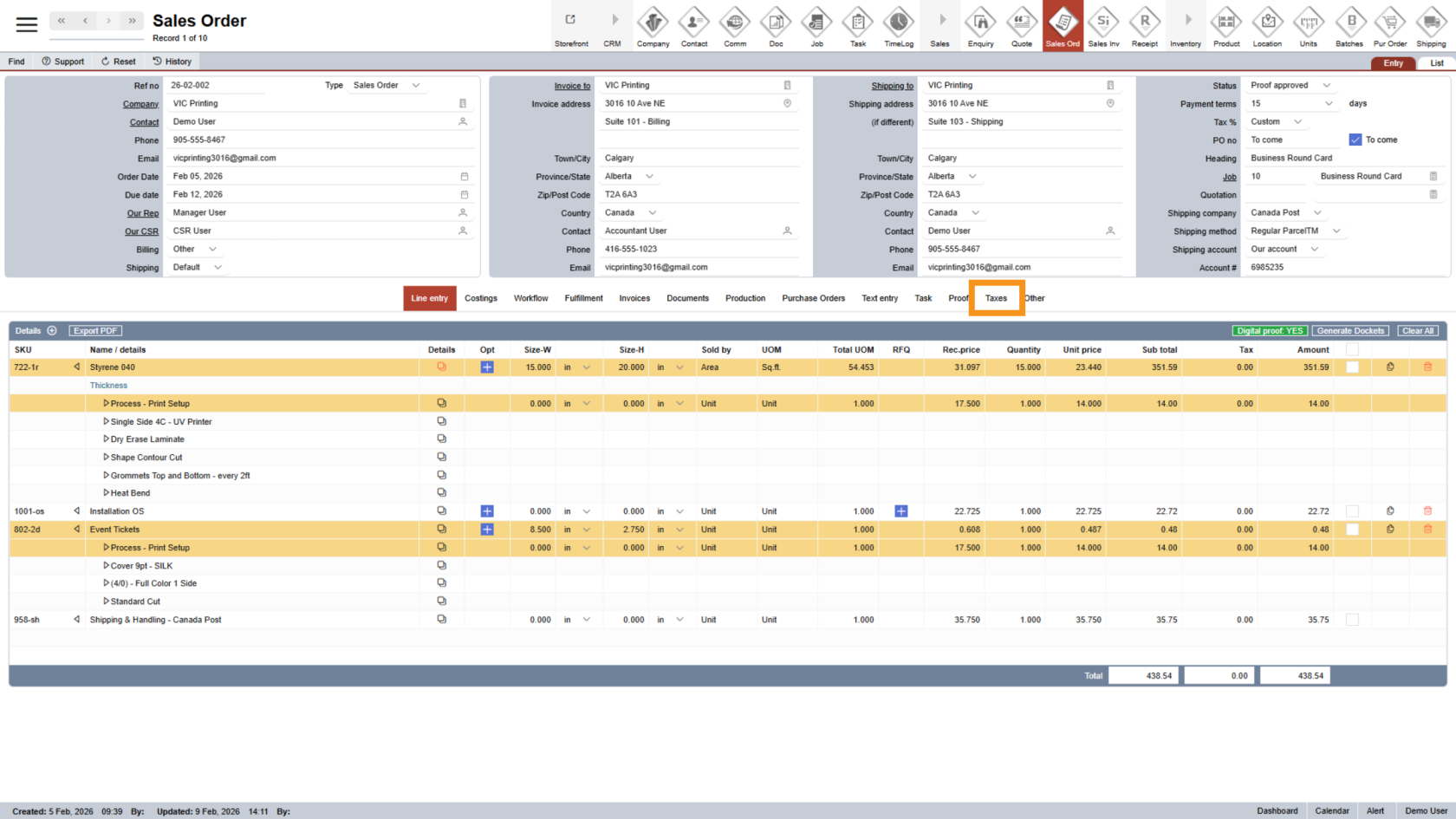
3. Open the Taxes Section
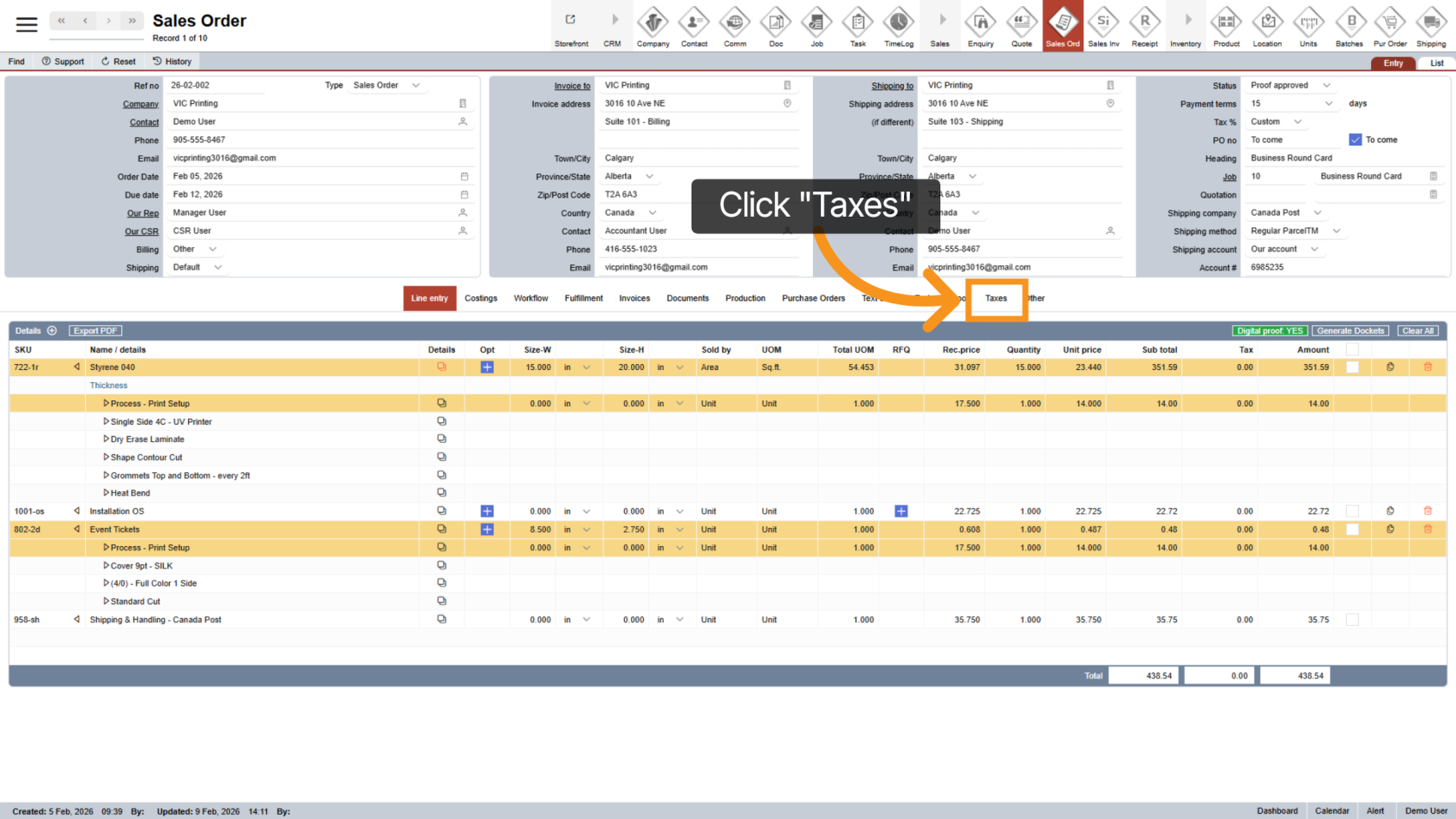
Click "Taxes" to start setting up the tax breakdown.
4. Review Sales Order Subtotal
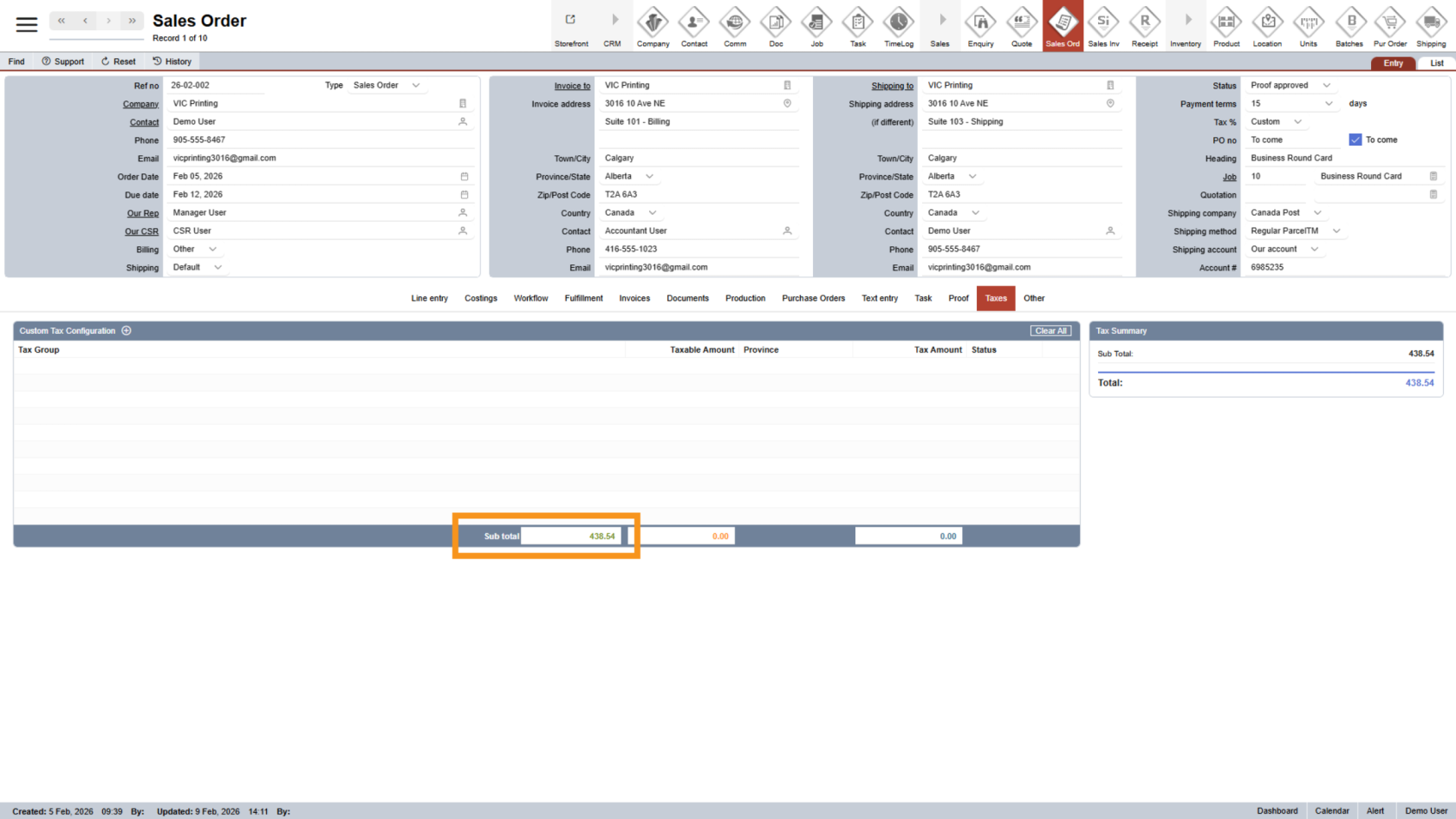
At the bottom of the page, you will see the sales order subtotal.
This is the total amount that will be split across tax lines.
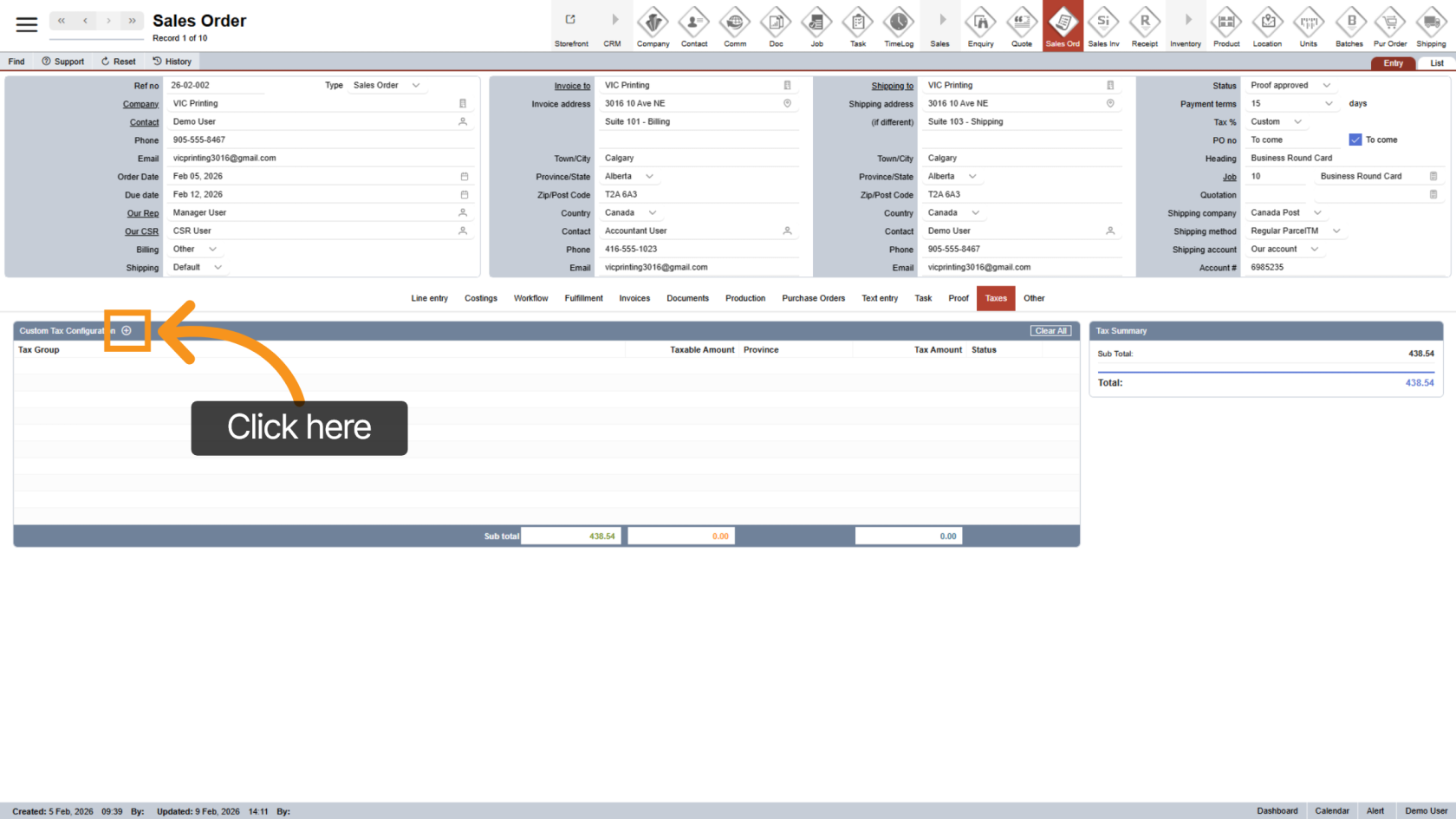
5. Add a Tax Line
Click the  plus icon to add a new tax line.
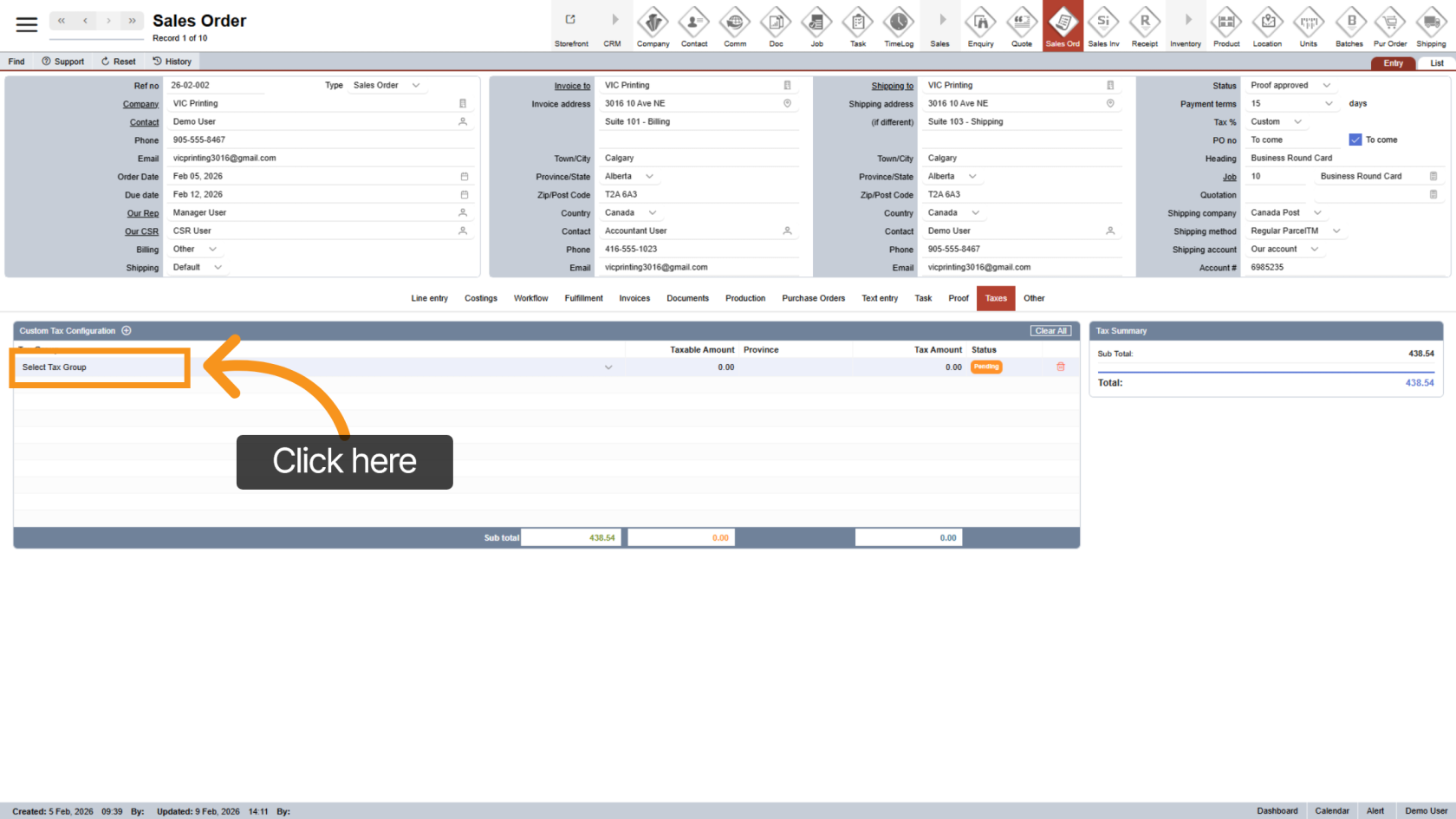
6. Select a Tax Group
Click "Select Tax Group" and choose the appropriate province.
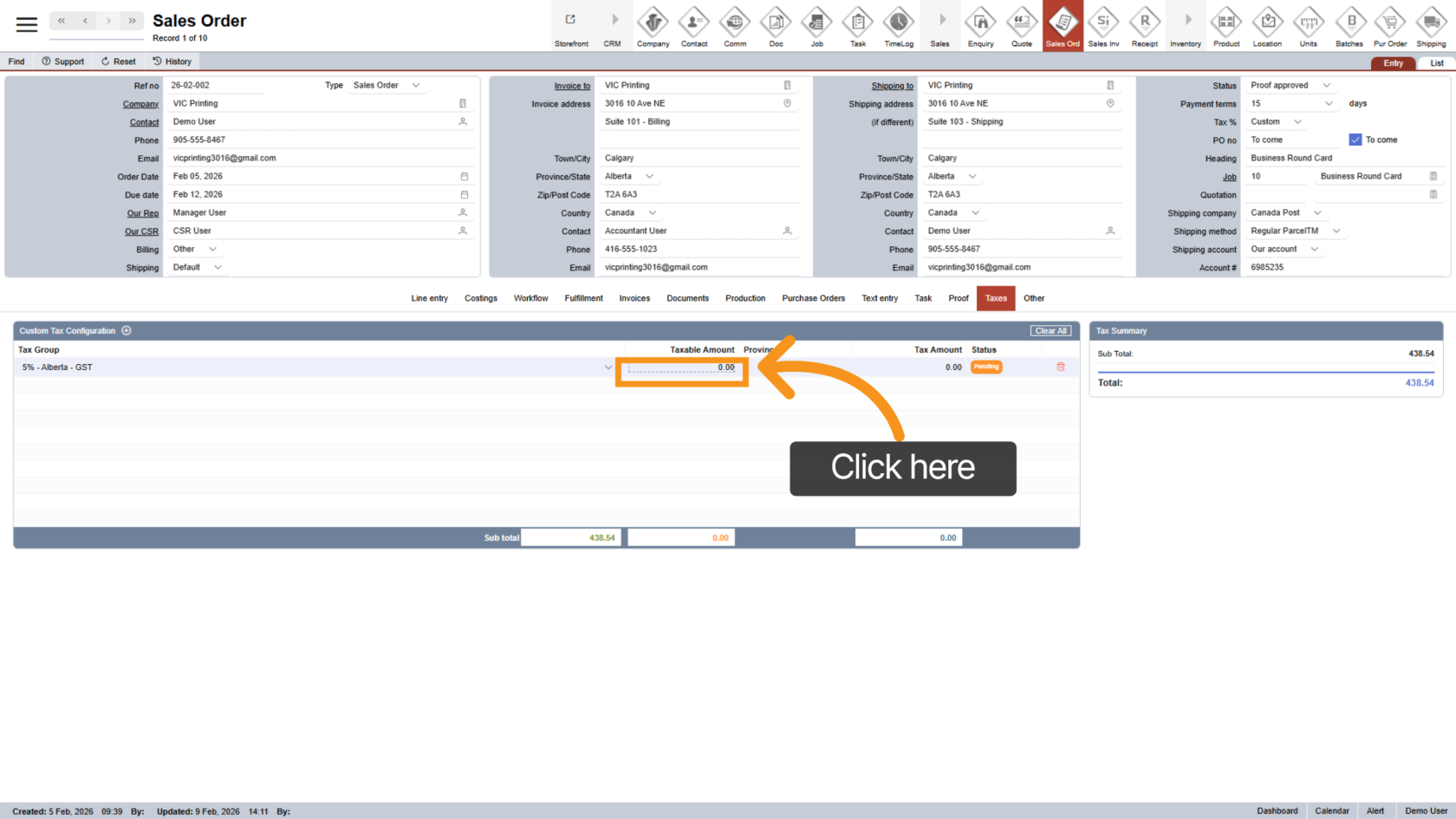
7. Enter Taxable Amount
Click the "Taxable Amount" column and enter the subtotal amount you want to apply tax to
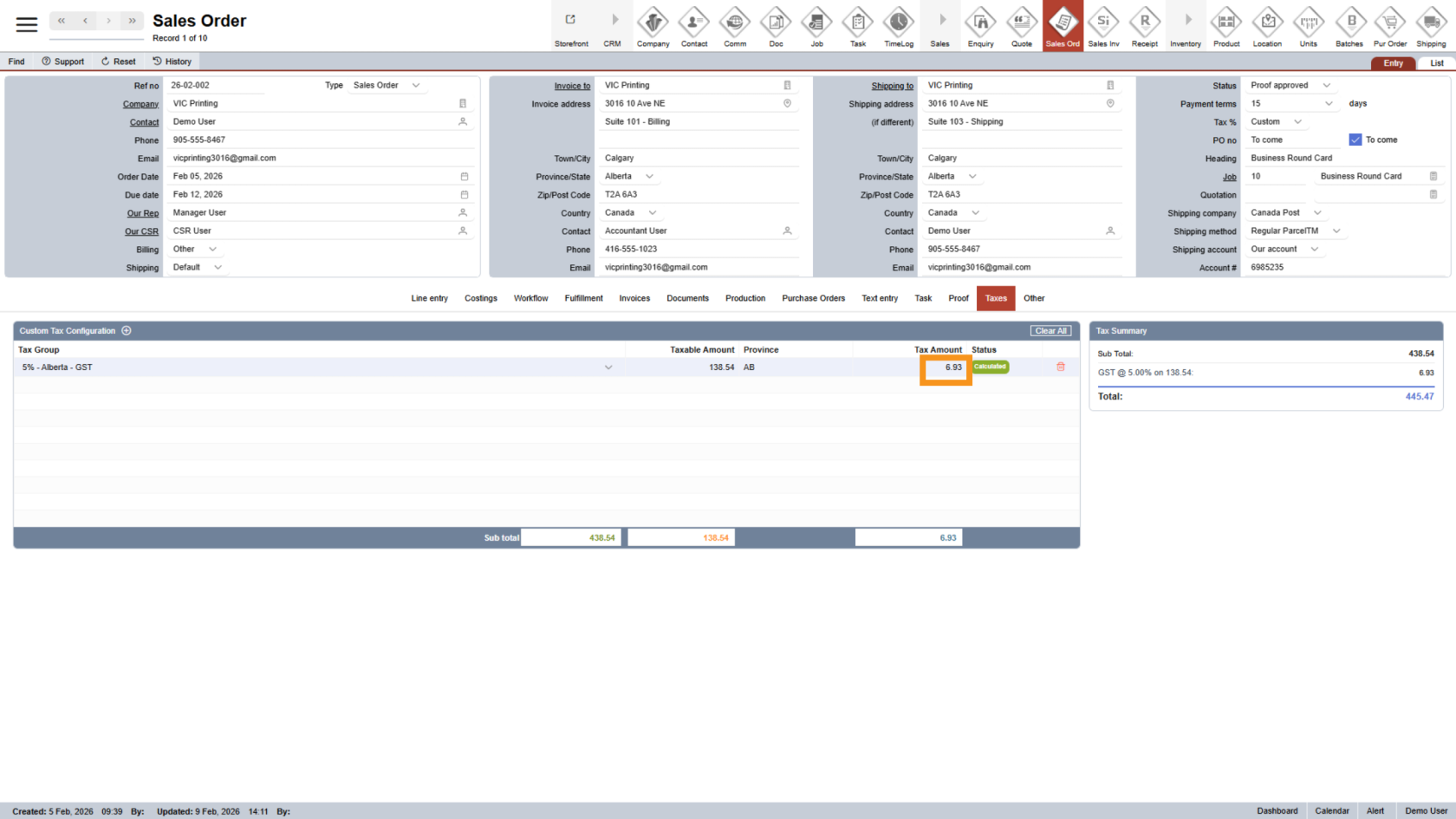
8. Automatic Tax Calculation
After you enter the taxable amount, WorkTraq will automatically calculate the tax for you.
9. Taxable Amount Warning
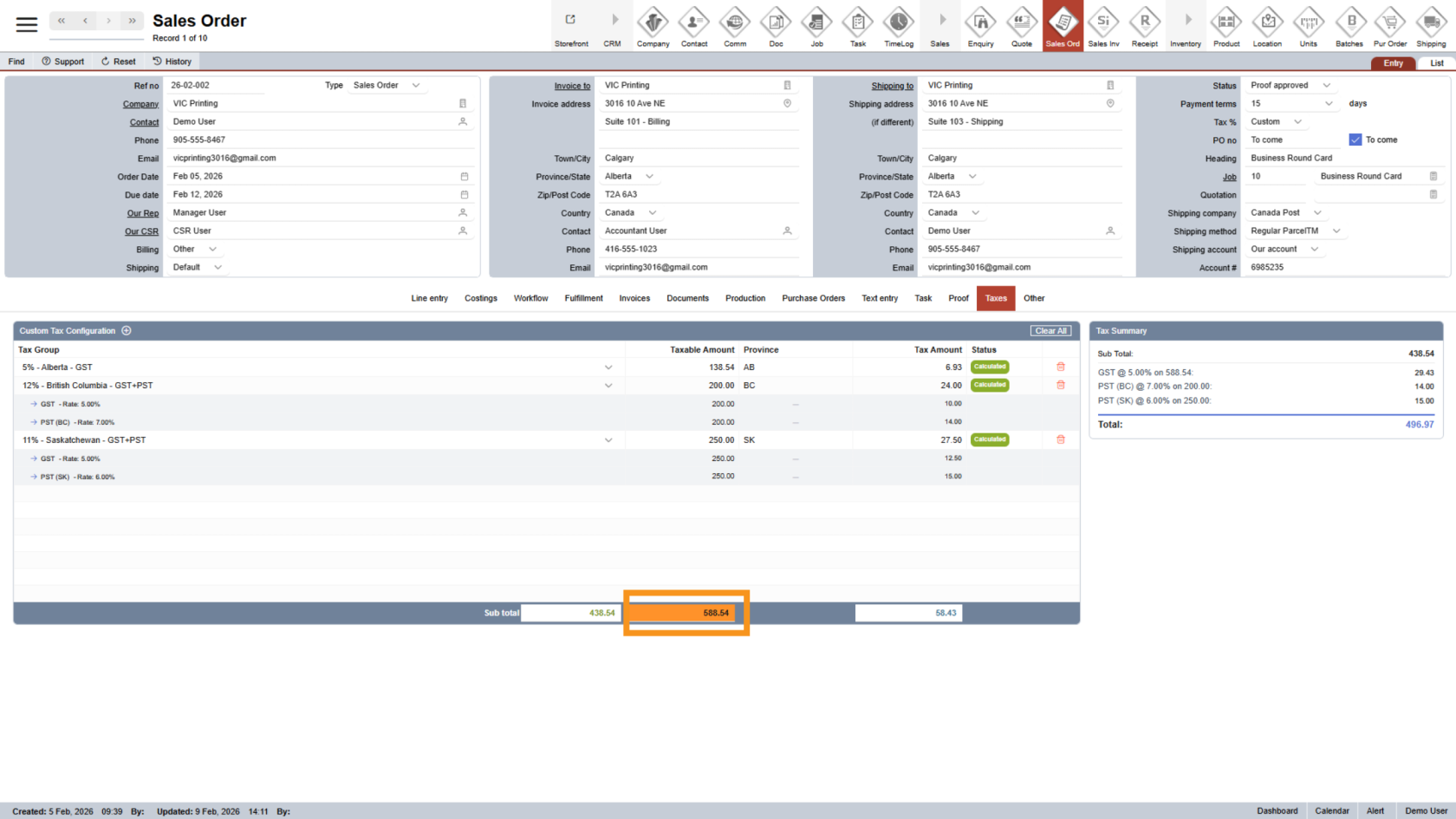
If the taxable amount is highlighted, it means the total taxable amount is greater than the sales order subtotal.
This helps you adjust the values to keep totals consistent.
10. Delete a Tax Line
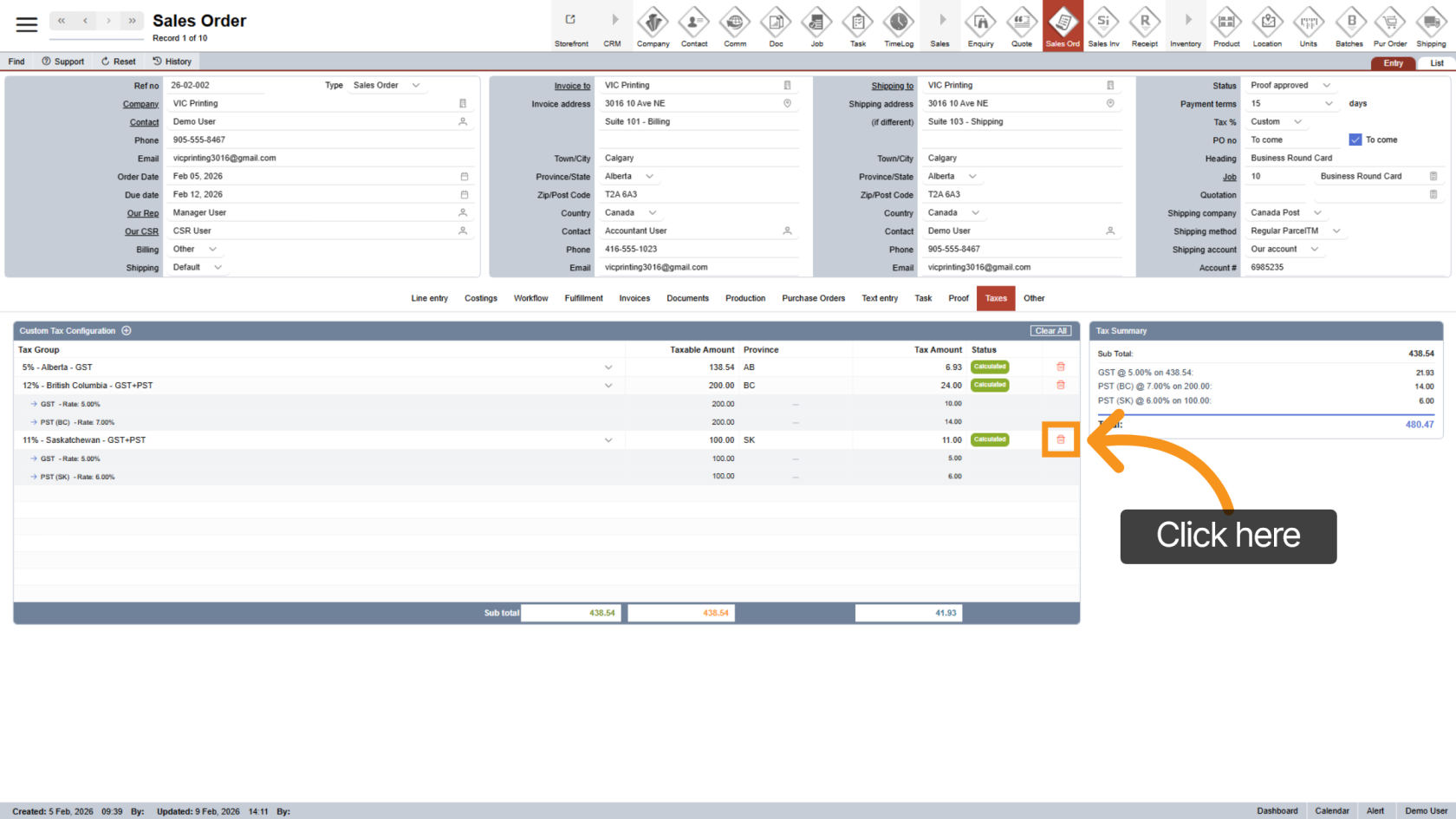
Click the  delete icon to remove a tax line.
11. Clear All Tax Lines
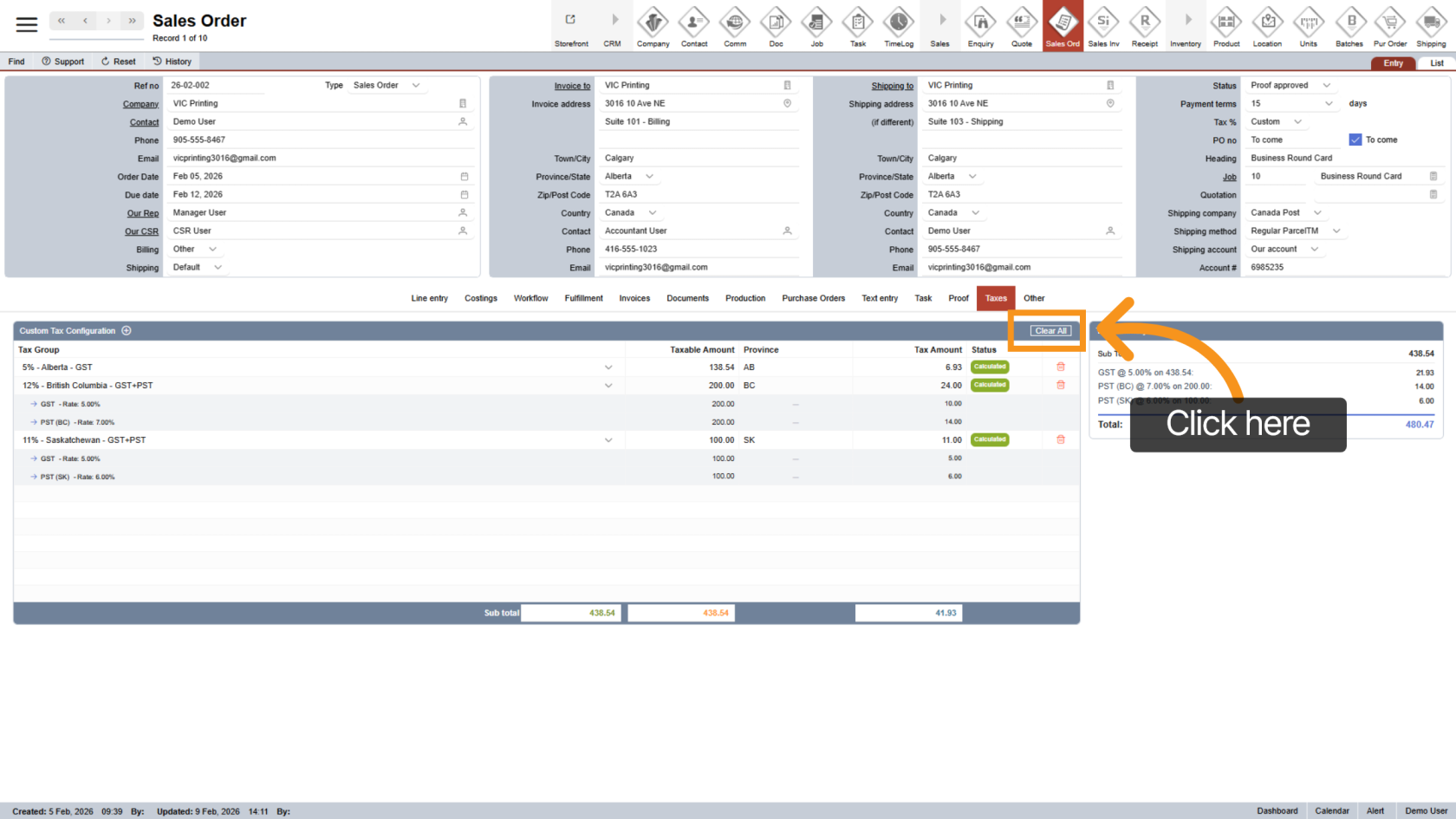
Click "Clear All" to remove all tax lines and reset the tax setup.
12. Review Tax Summary
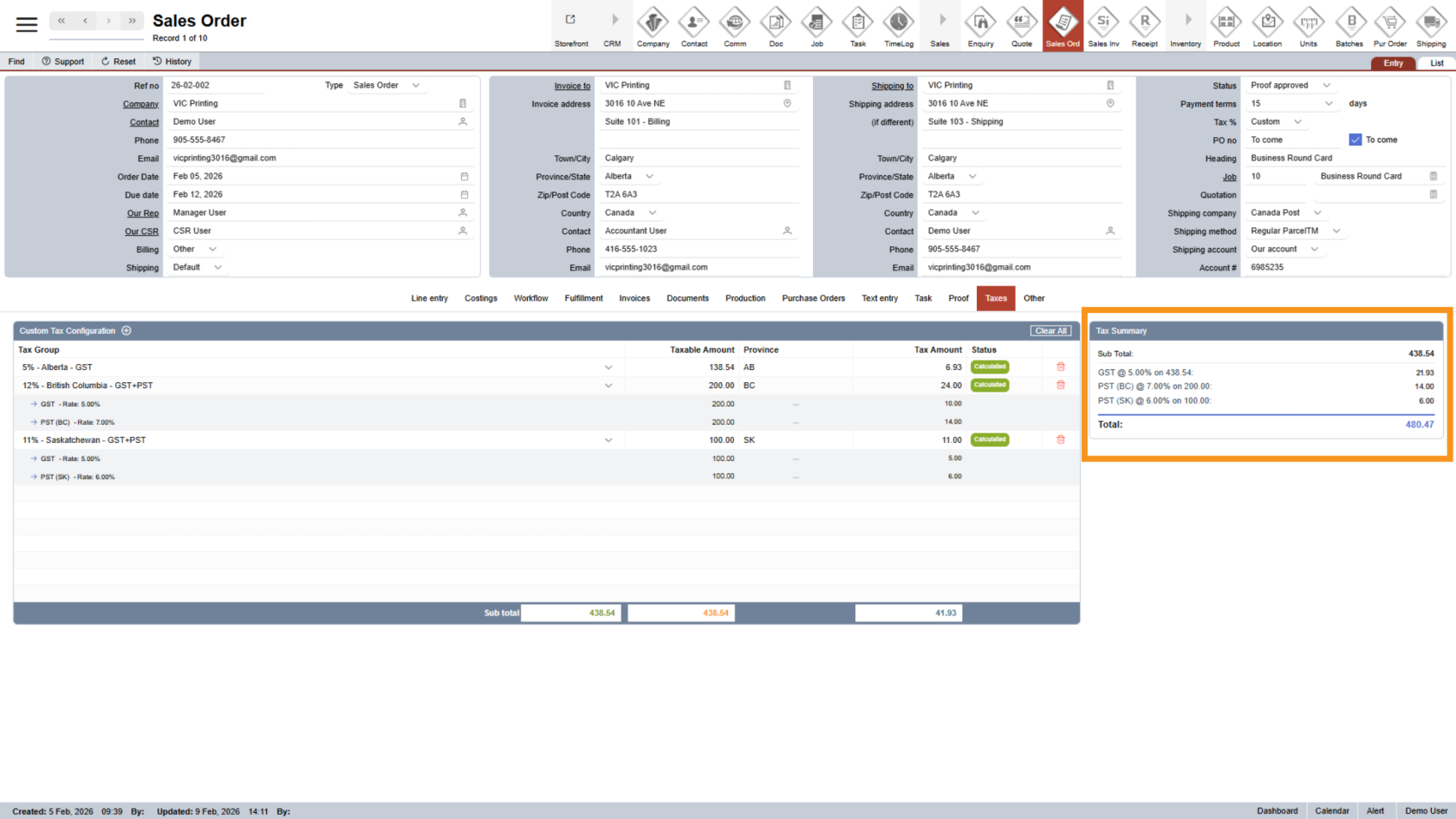
On the right side, you’ll see a tax summary showing all taxes exactly as they will appear on the PDF.
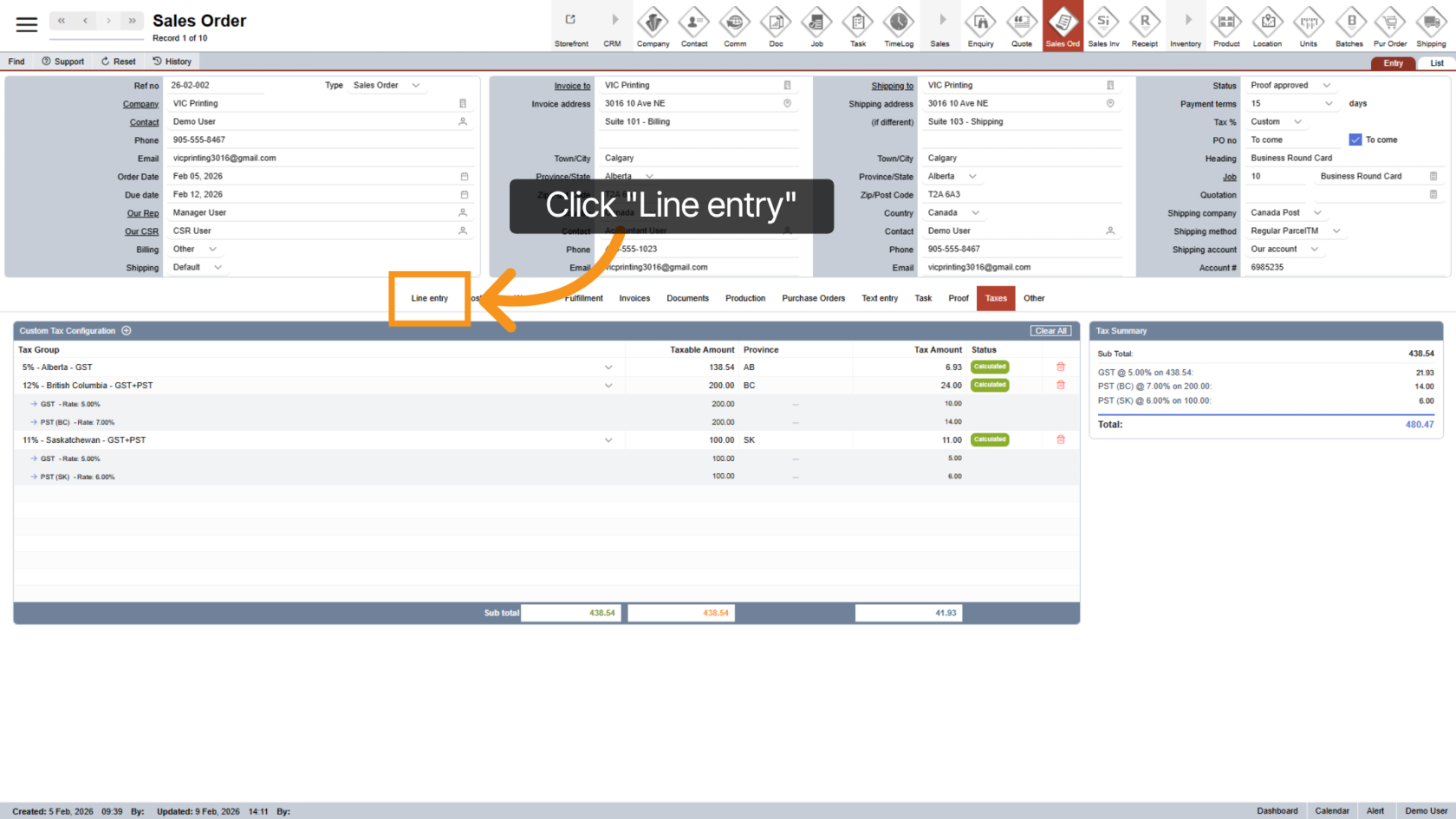
13. Return to Line Entry
Click "Line Entry" to go back to the sales order line items.
14. Line Entry Tax Display
When using Custom Tax:
- Tax values for each line item will reset to 0.
- The total tax will be calculated based on the tax breakdown you set earlier
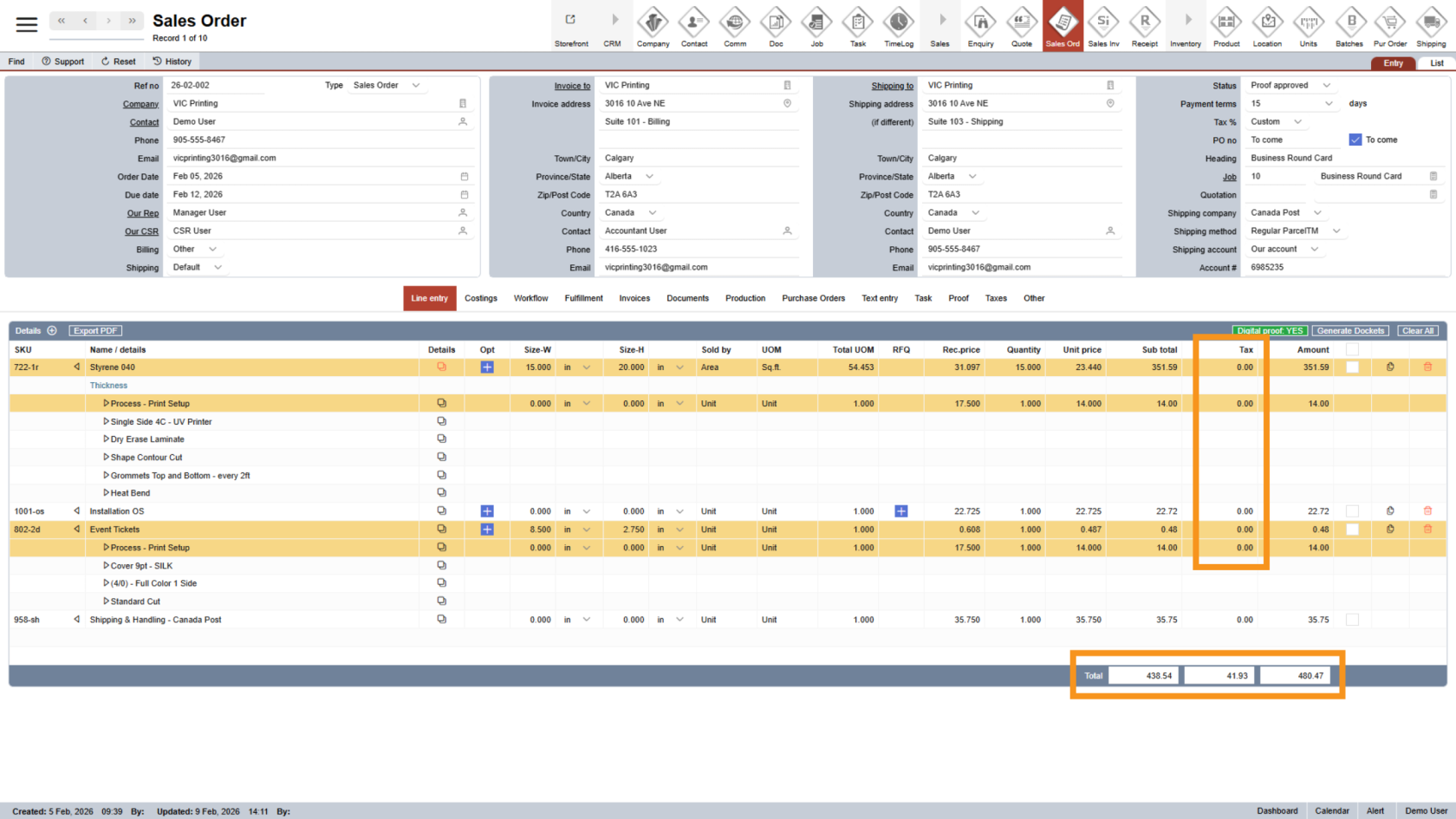
Your tax breakdown has been set up successfully. Taxes will now be calculated correctly for each location and displayed clearly on customer documents.