
Submit Quotations
This guide explains how to submit a quotation in WorkTraq, export it as a PDF, and request manager approval when required.
Video Tutorial
1. Understand PDF Types
Before submitting a quotation, it’s helpful to understand the available PDF formats:
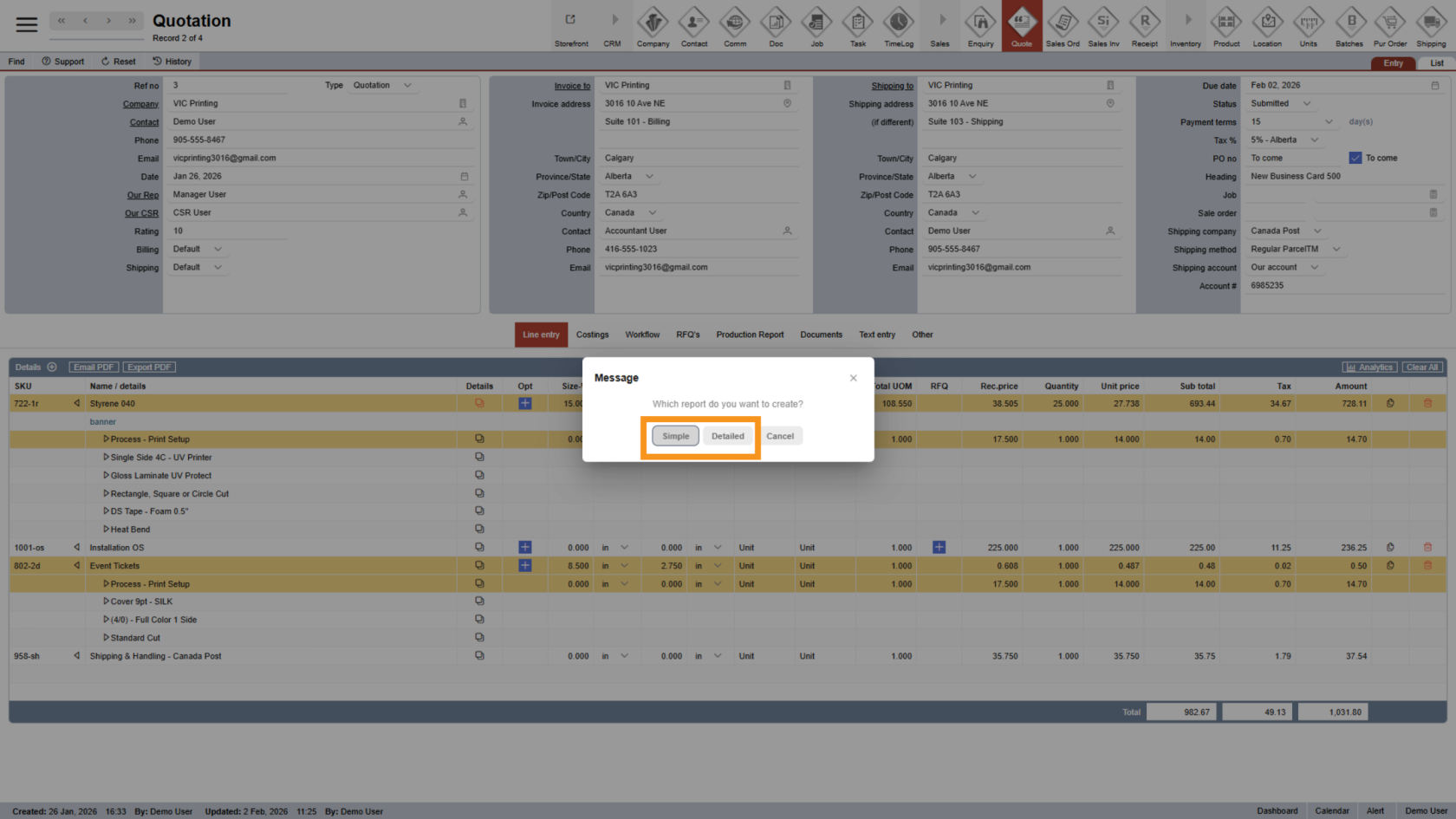
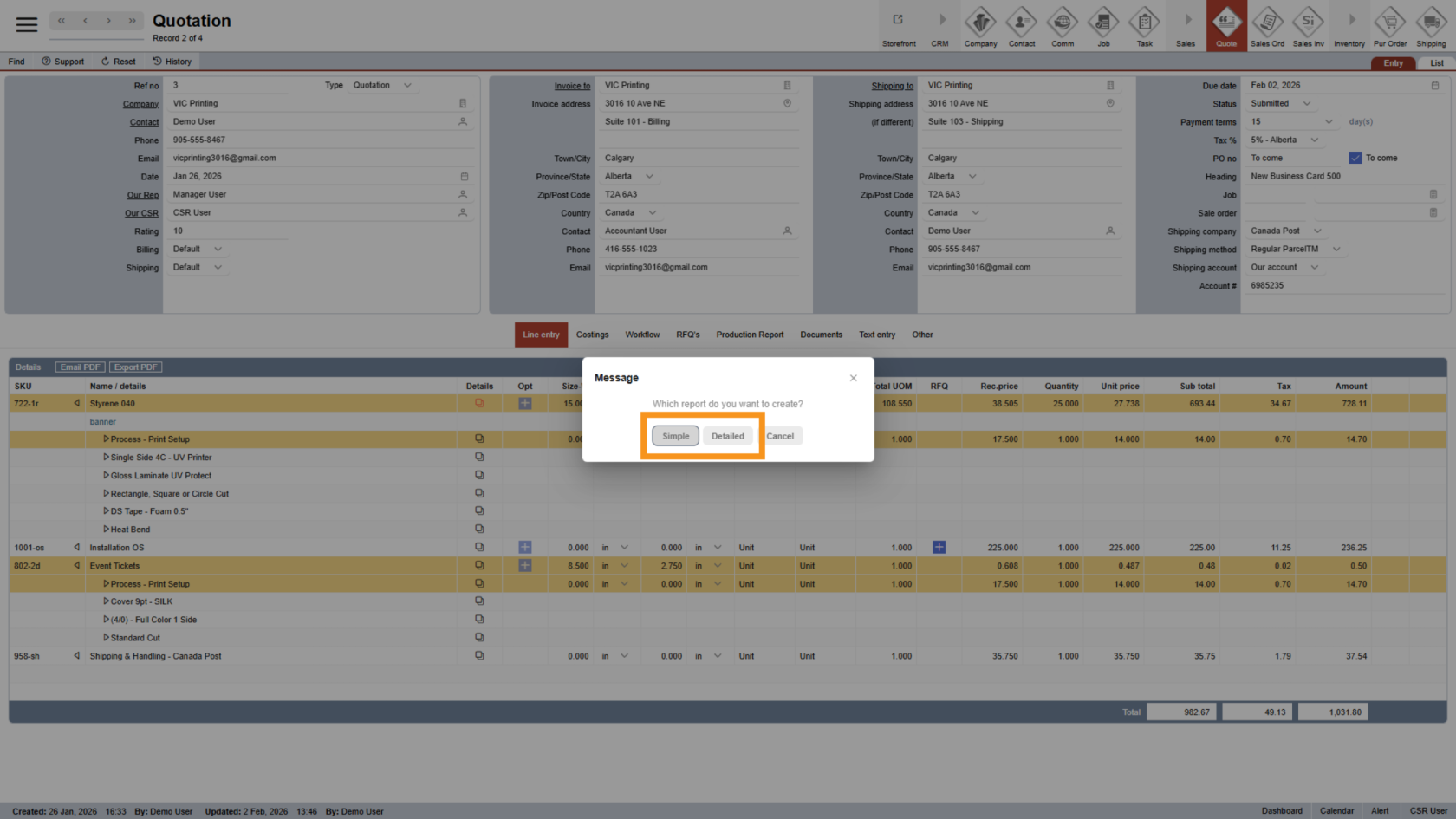
- Simple PDF: Shows only the products and options, with hidden charges not displayed. This is useful when you do not want customers to see internal fees or option costs. This is useful when you do not want customers to see hidden charges.
- Detailed PDF: Displays all product options and their pricing details.
Choose the PDF type based on what information you want to share with your customer.
2. Submit a Quotation (Manager Role)
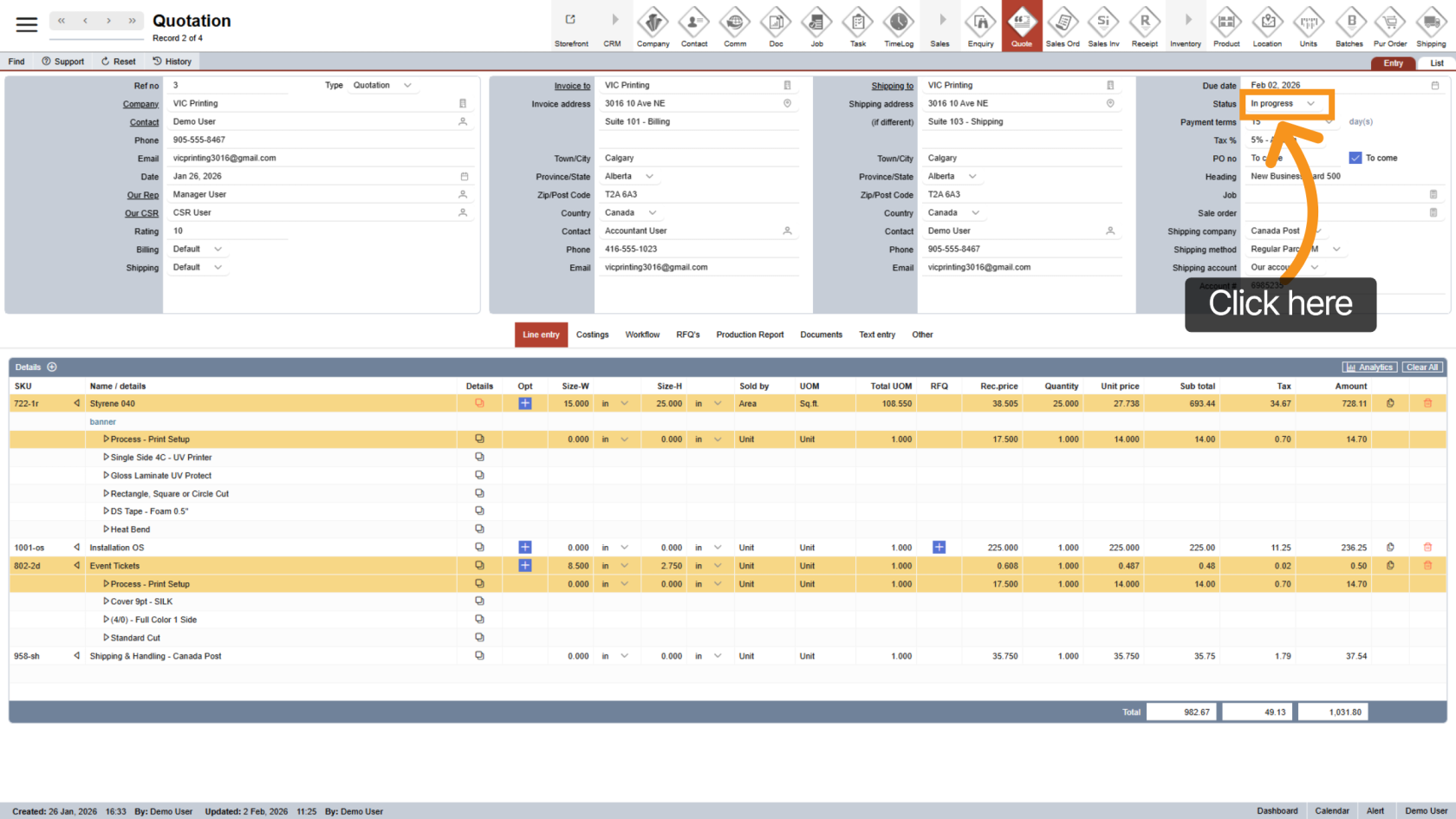
Managers have access to quotation analytics and approval features.
To submit a quotation:
- Click the "Status" field
- Change the status to Submit
The quotation will pass all required checks automatically.
3. Export PDF (Manager Role)
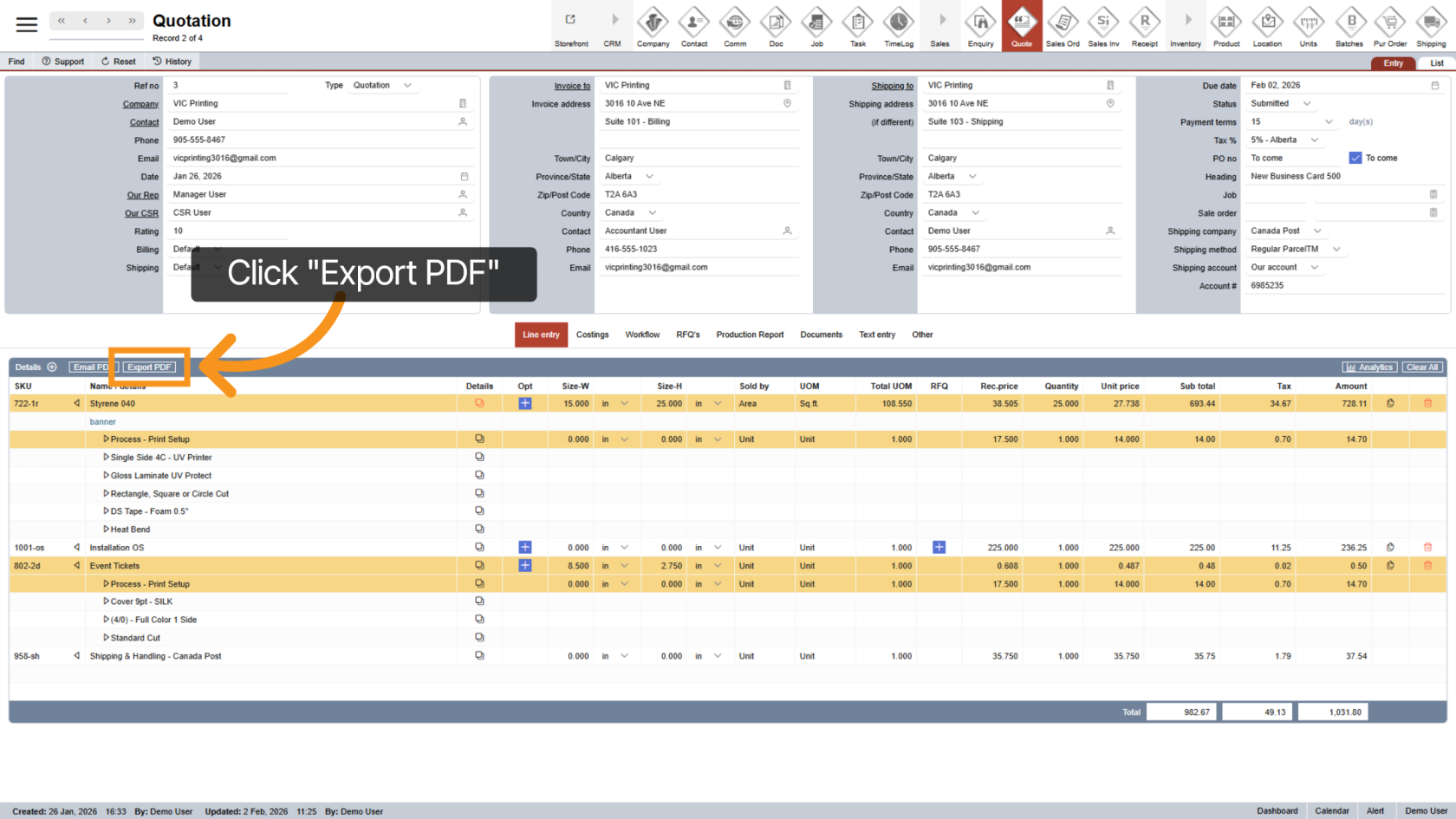
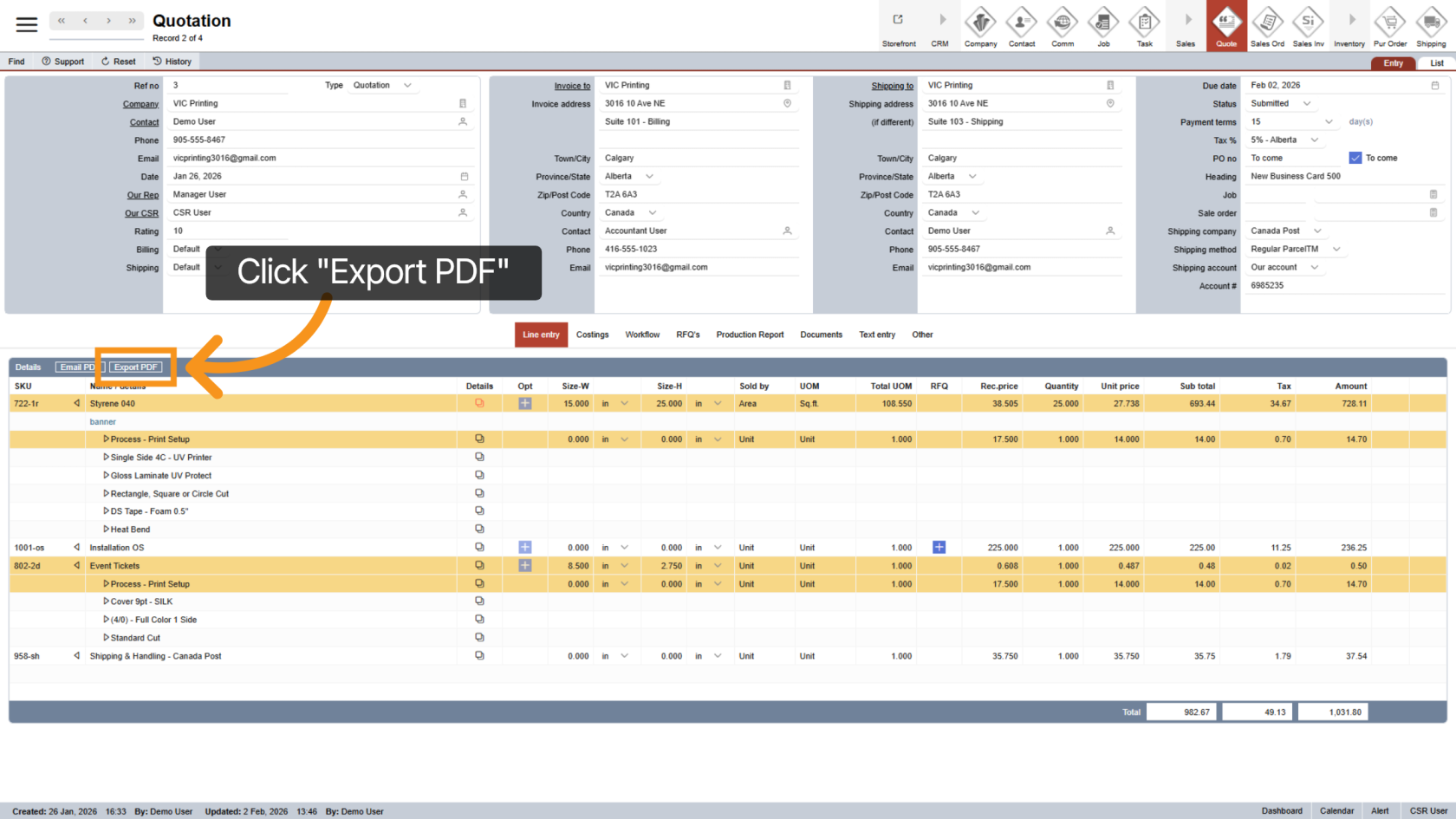
Once the quotation status is Submit, the Export PDF button will appear in the Line Entry section.
Click "Export PDF" to begin generating the PDF.
4. Export the PDF
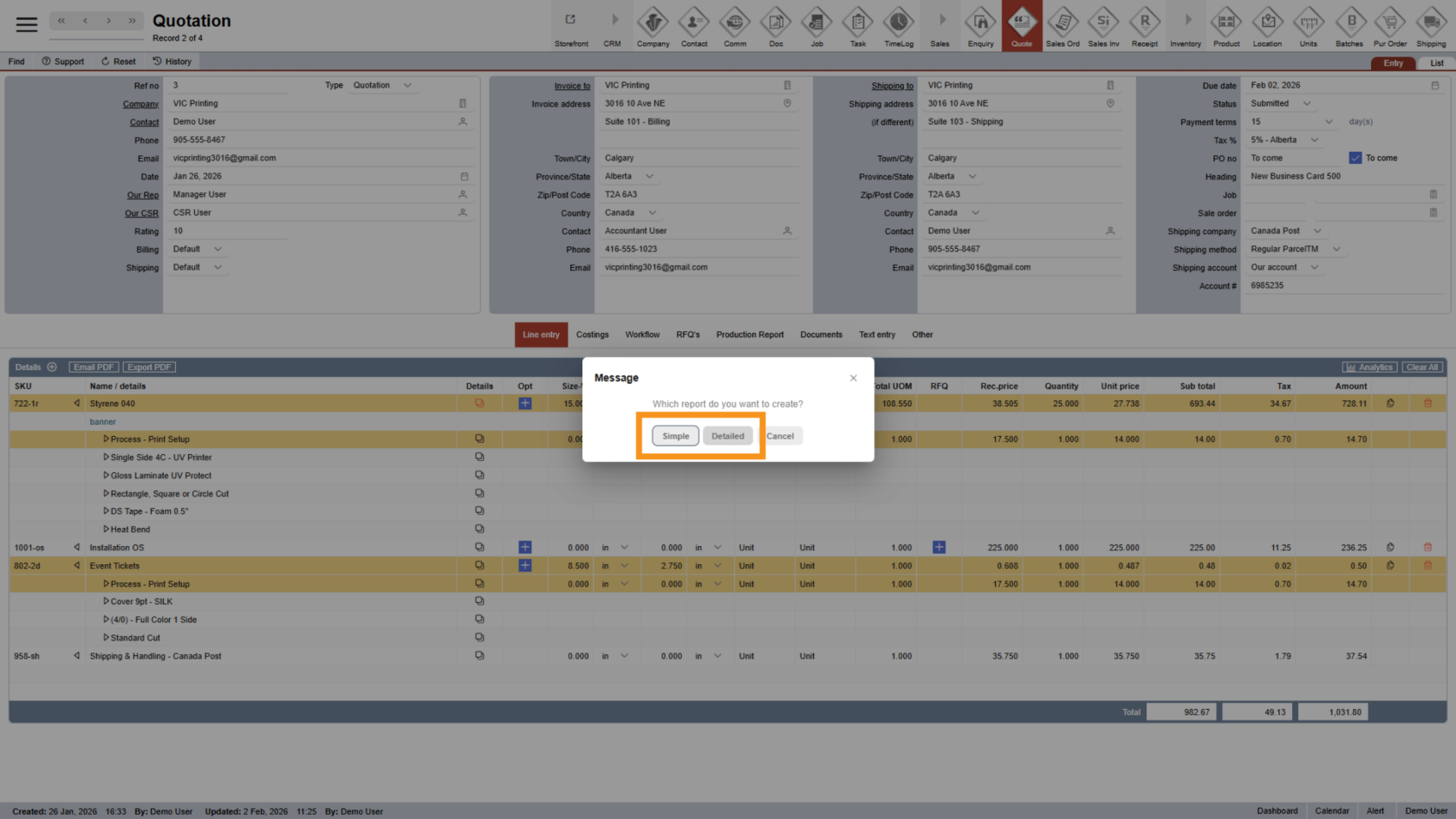
Select the desired PDF type (Simple or Detailed).
The file will be generated and ready to download to send to the customer.
5. Submit a Quotation (Regular User)
Regular users can submit a quotation directly only if:
- There are no negative costs
- All products are approved
- The quotation does not exceed the customer’s quotation limit
- You have permission to submit quotations
If any of these conditions are not met, manager approval is requirerequiredd..
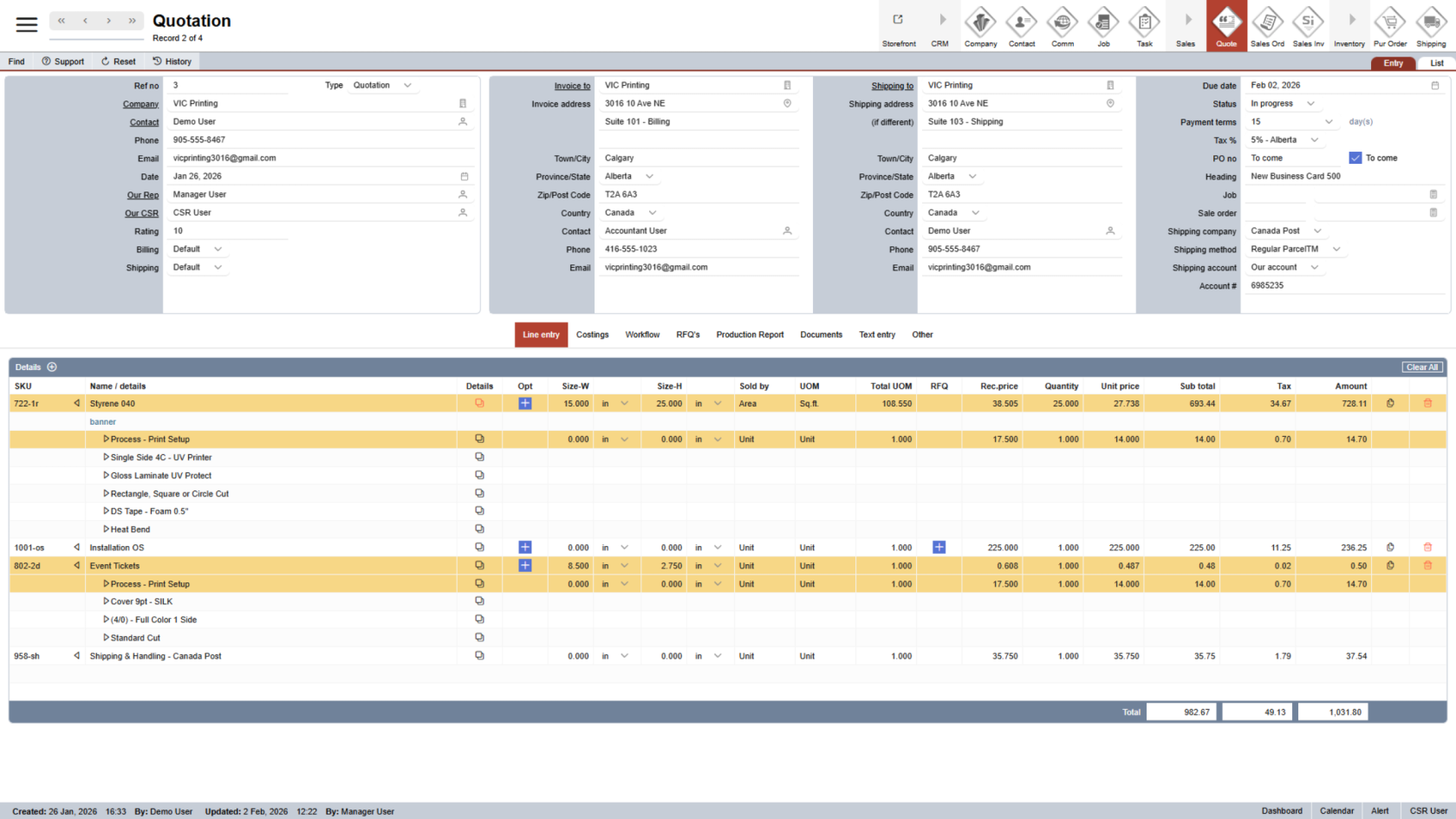
6. Change Status to Submitted
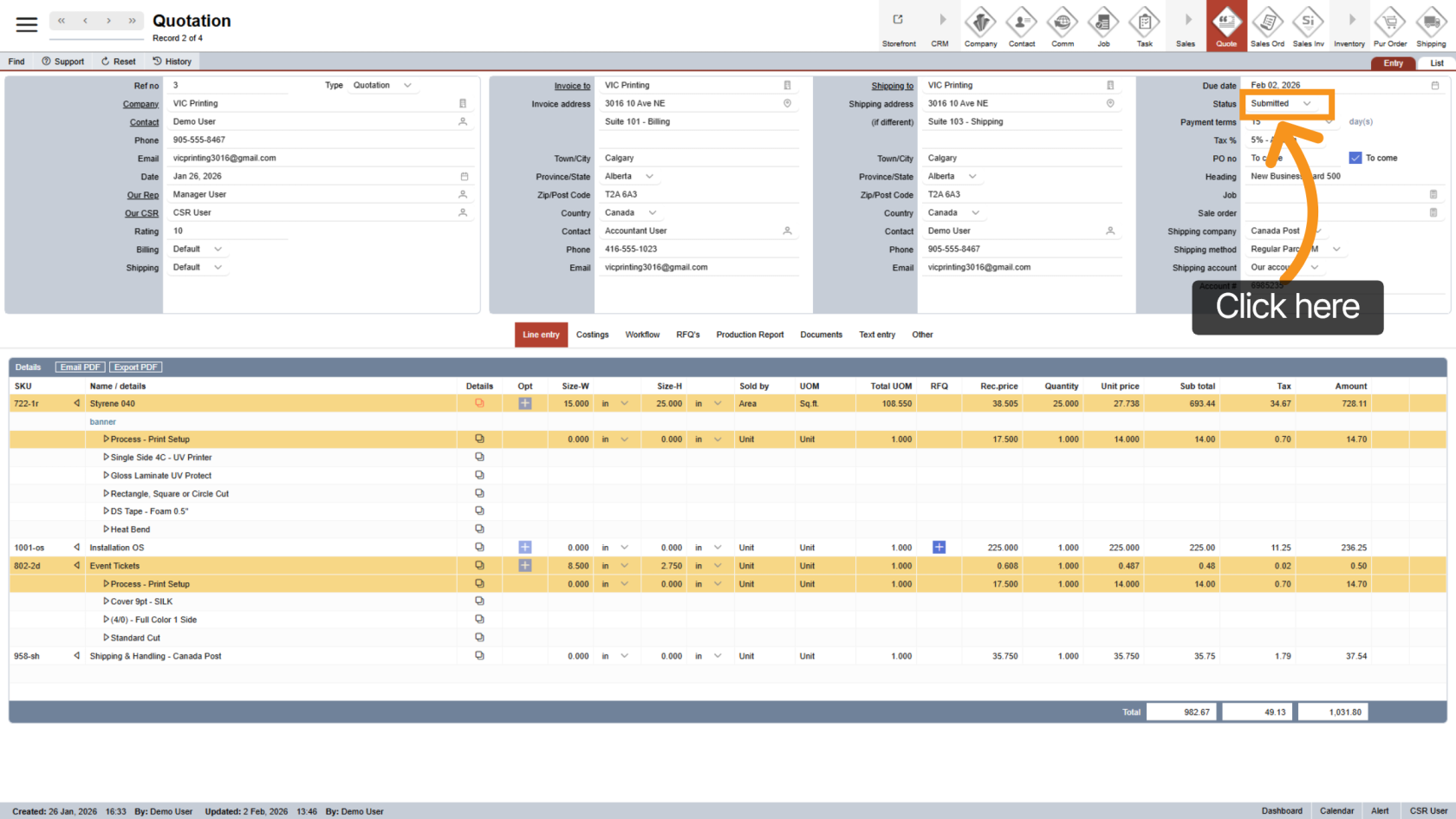
Click the "Status" field and update it to Submitted.
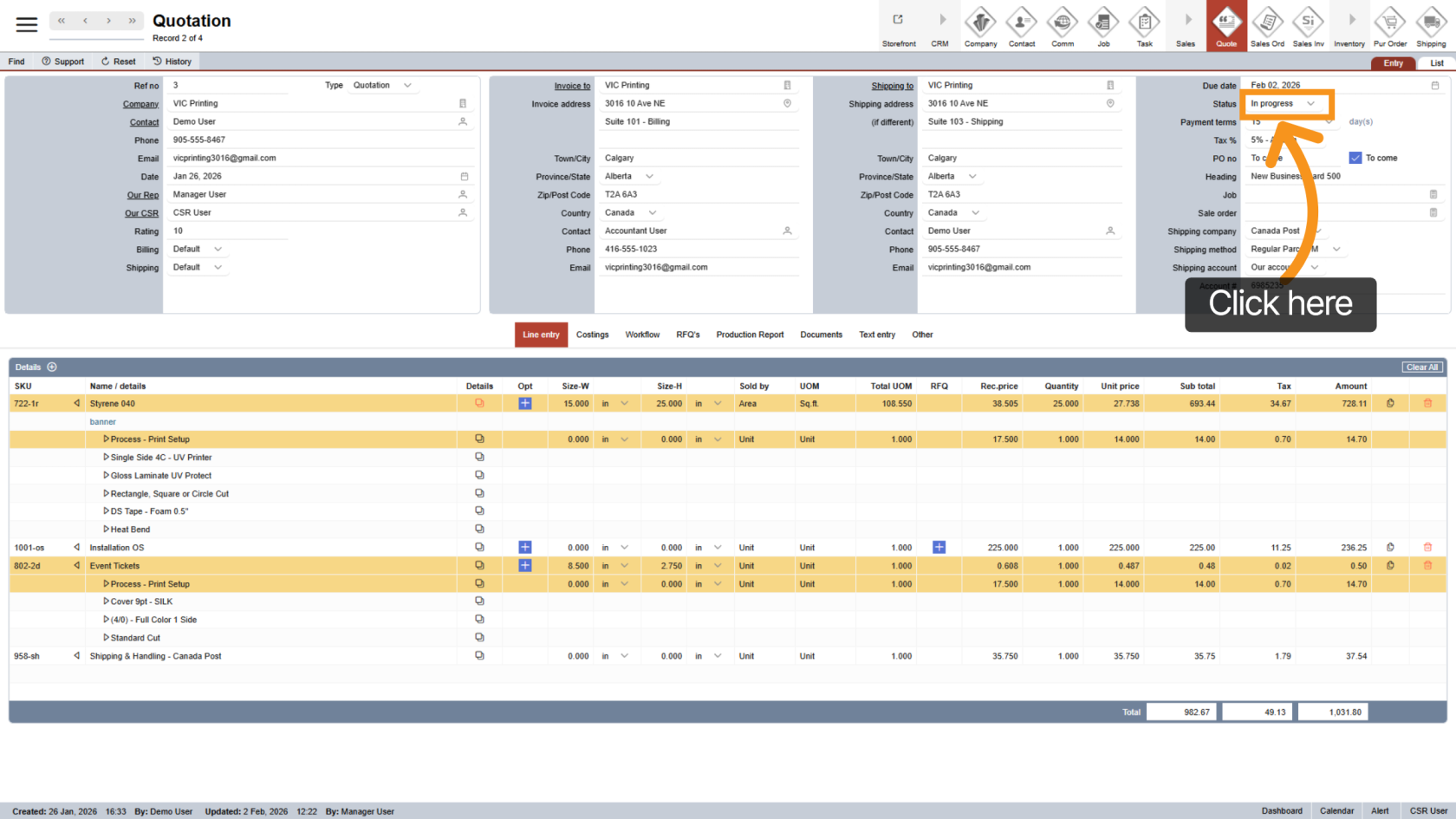
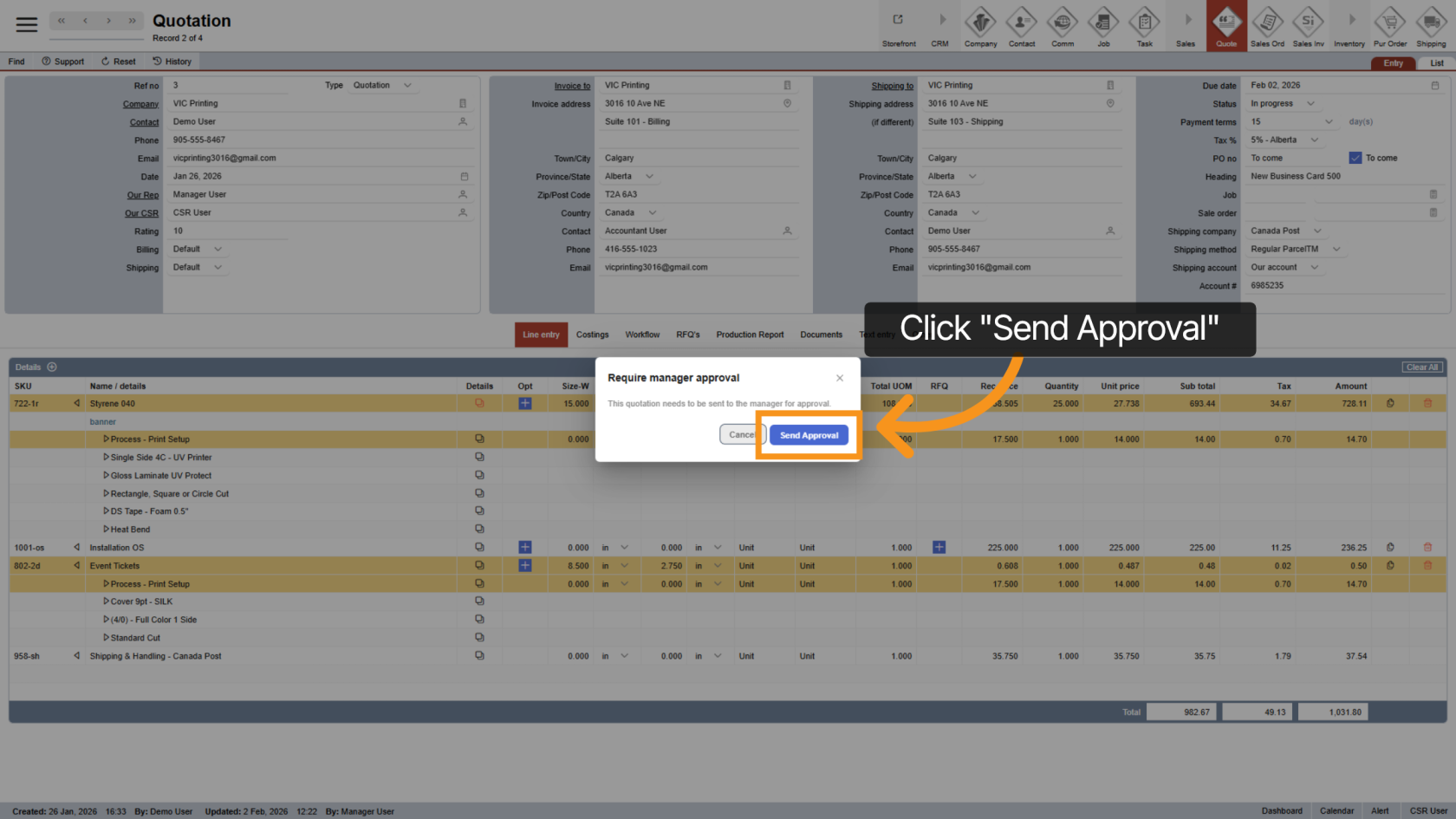
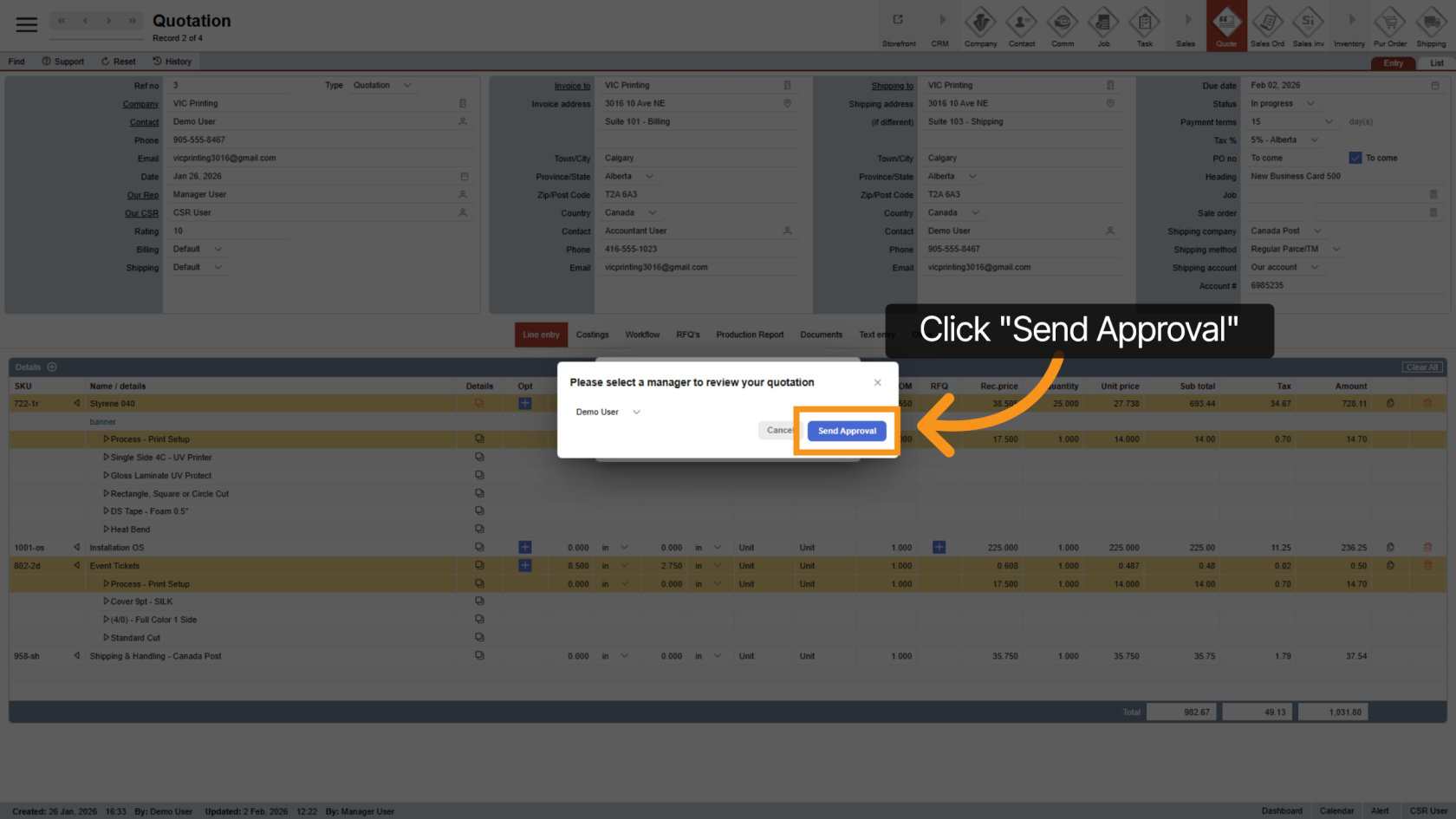
7. Send Approval Request
Click "Send Approval" to start the approval process.
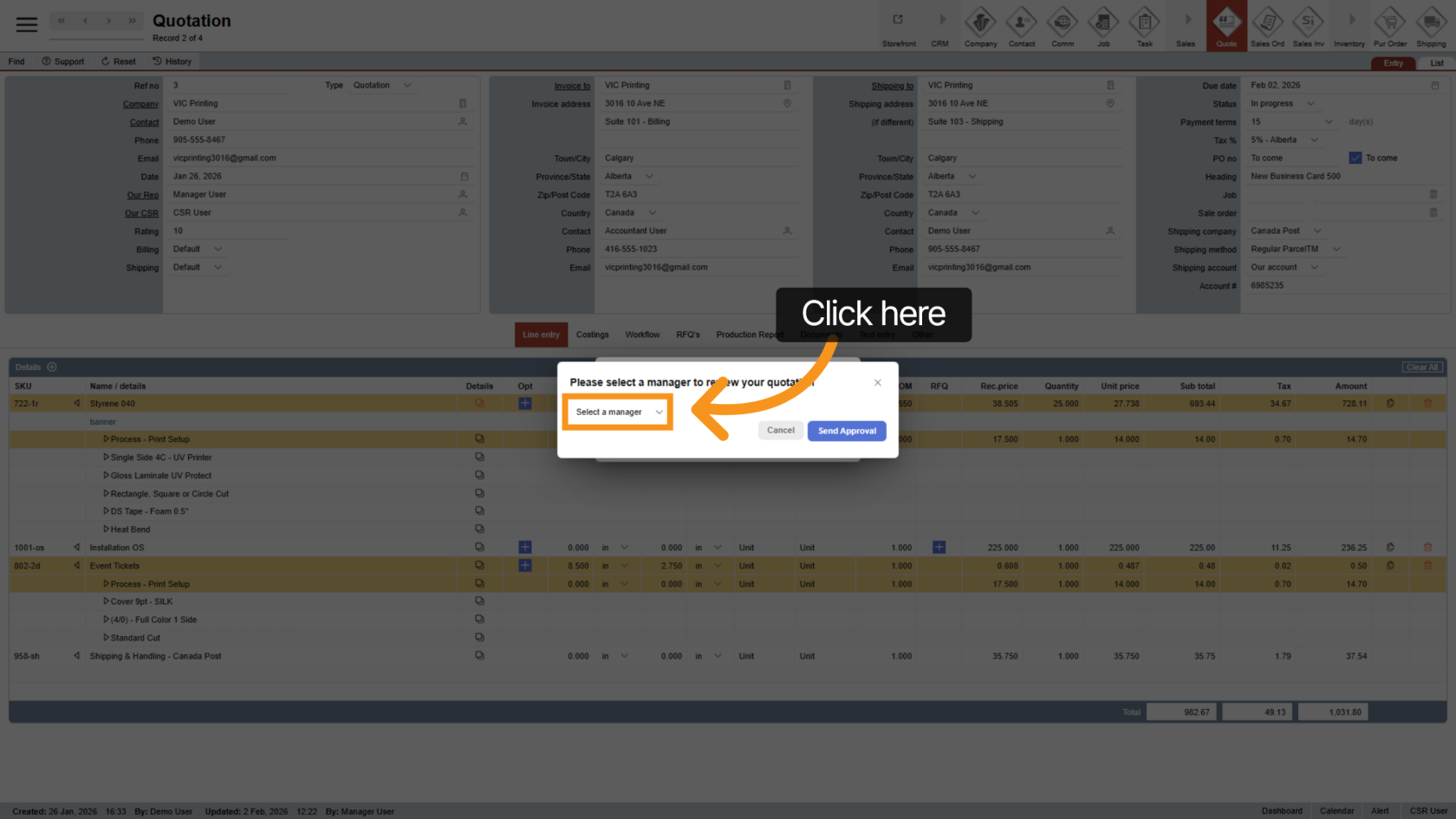
8. Select a Manager
Click "Select a Manager" and choose the manager who will review the quotation.
9. Confirm Approval Request
Click "Send Approval" to confirm and send the request to the selected manager.
10. Waiting for Manager Approval
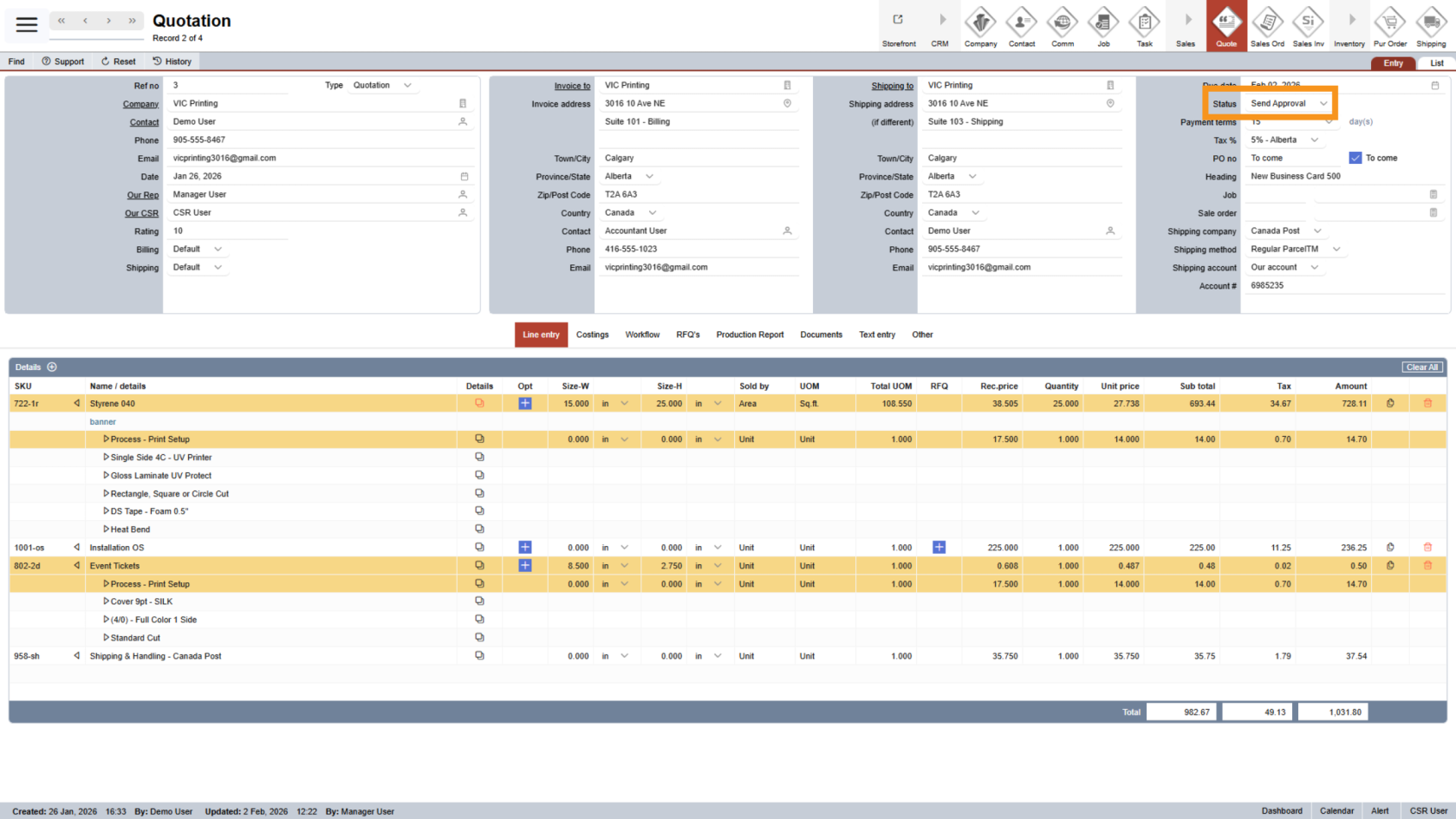
After sending the request:
- The quotation status will automatically change to Send Approval
- The manager will receive an email notification.
11. Manager Approval
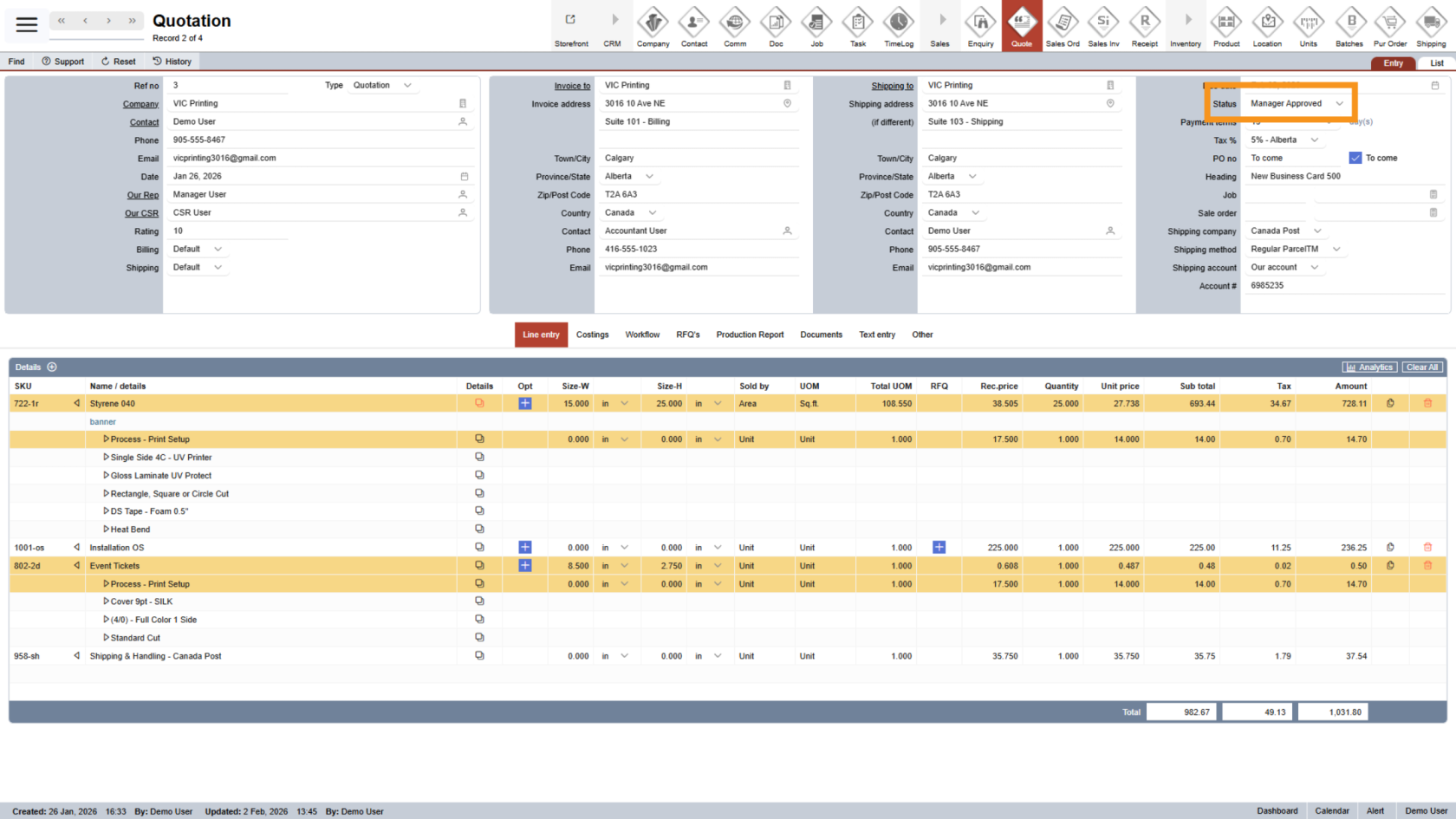
Once approved:
- The manager will update the status to Manager Approved
- You will receive an email notification
12. Submit the Approved Quotation
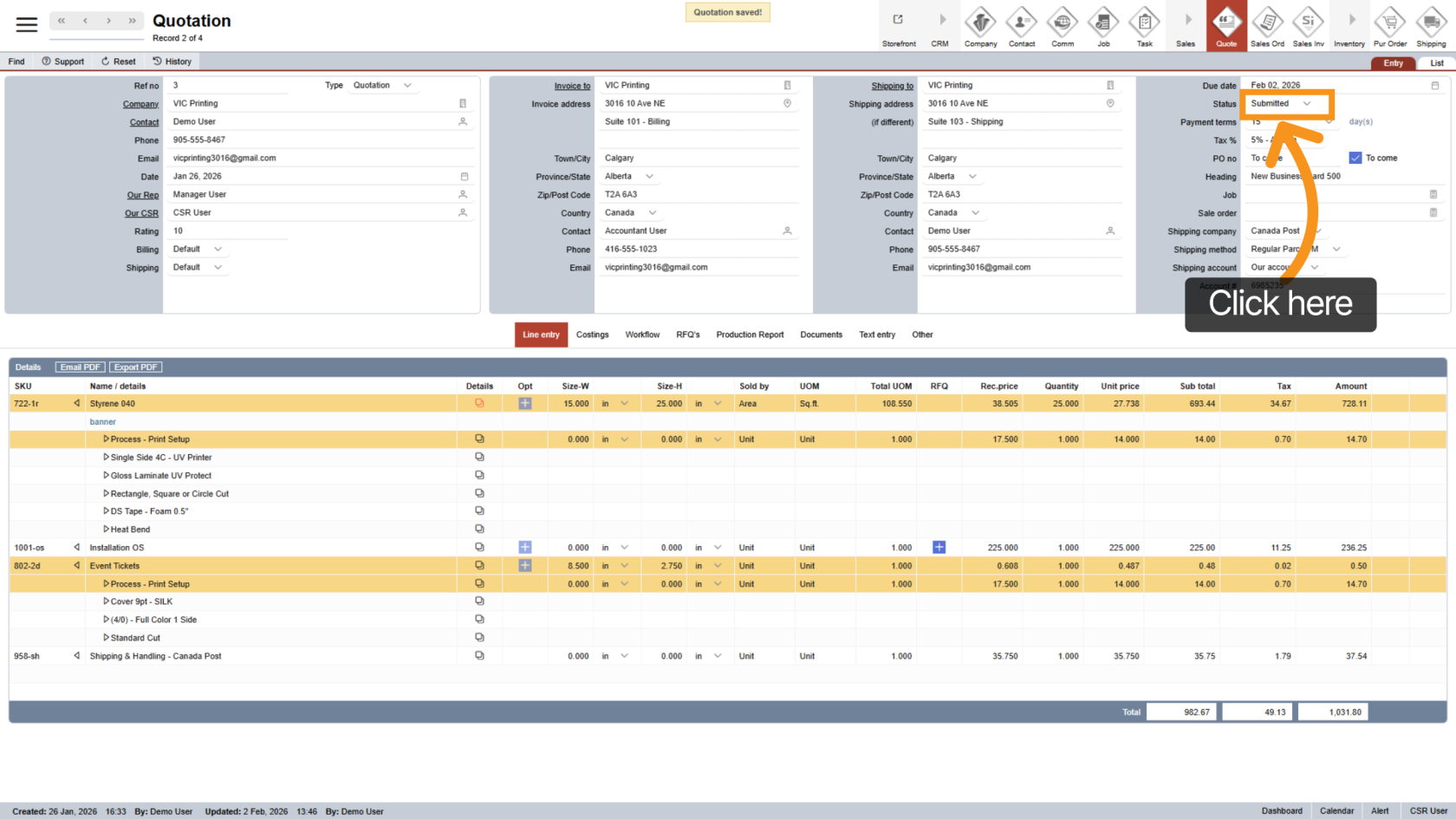
After approval, change the quotation status to Submit.
This step is required to enable PDF export.
13. Export the Quotation as PDF
Click "Export PDF" to generate the quotation document.
14. Choose PDF Type
Select the appropriate PDF format (Simple or Detailed) based on your needs, then download or share it with the customer.
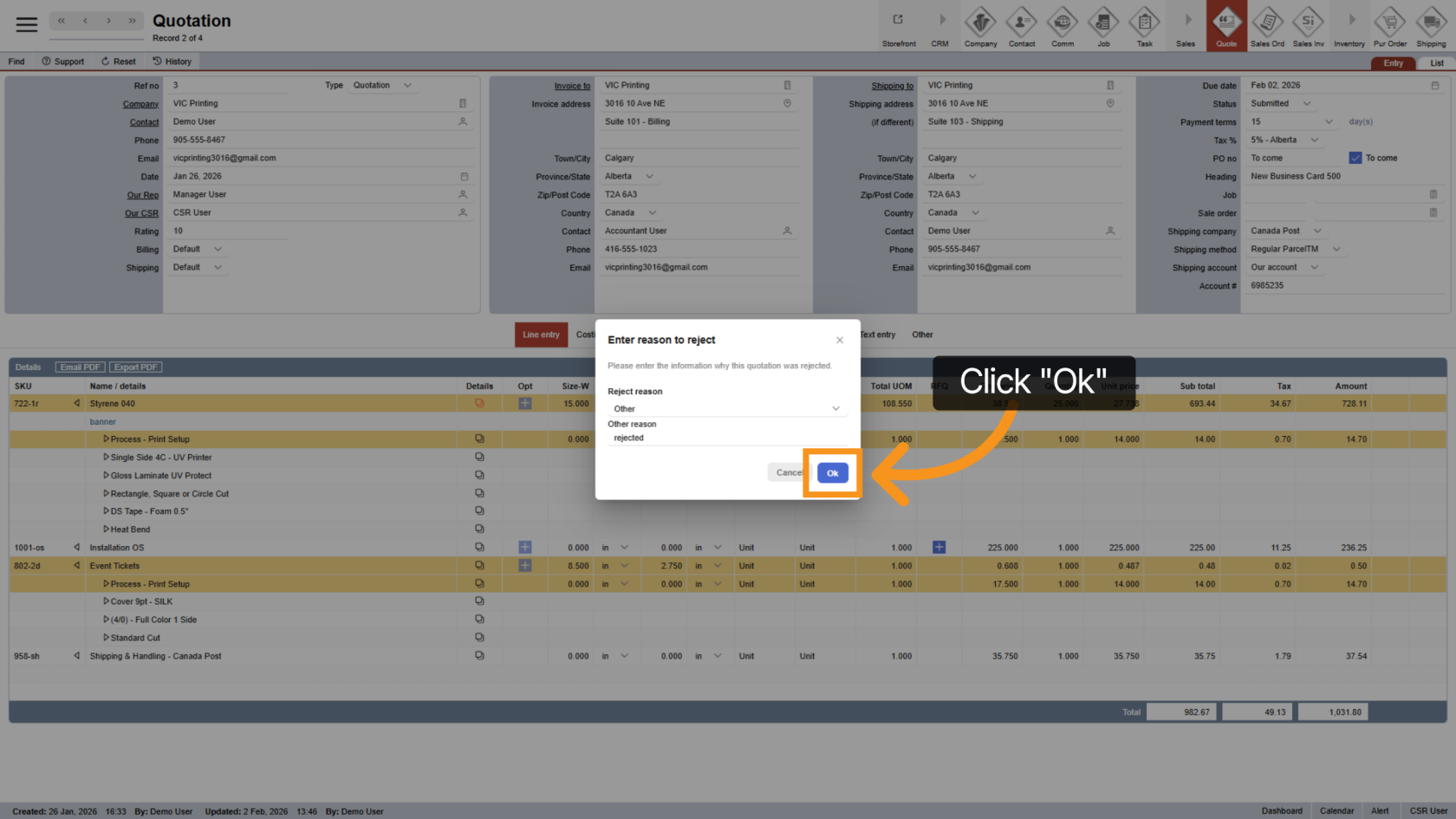
15. Quotation Rejected
After sending the quotation to your customer, if the customer declines the quotation, update the quotation status to Rejected.
16. Select a Rejection Reason
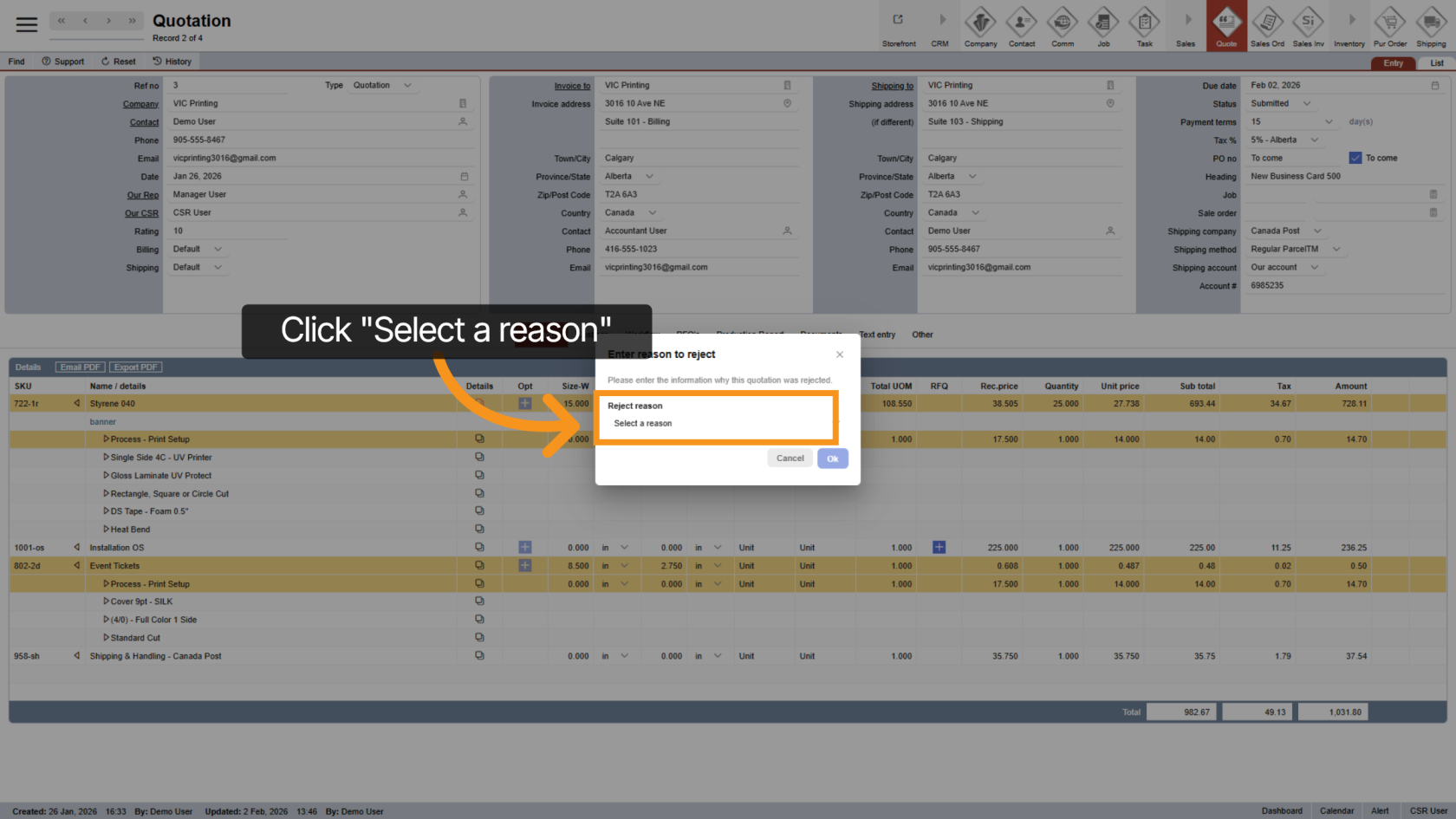
Click "Select a Reason" and choose the appropriate reason for rejecting the quotation.
17. Confirm Rejection
Click "OK" to confirm and save the rejection in the system.
18. Create a Sale Order
If the customer accepts the quotation, proceed to convert it to a Sales Order in the next step.
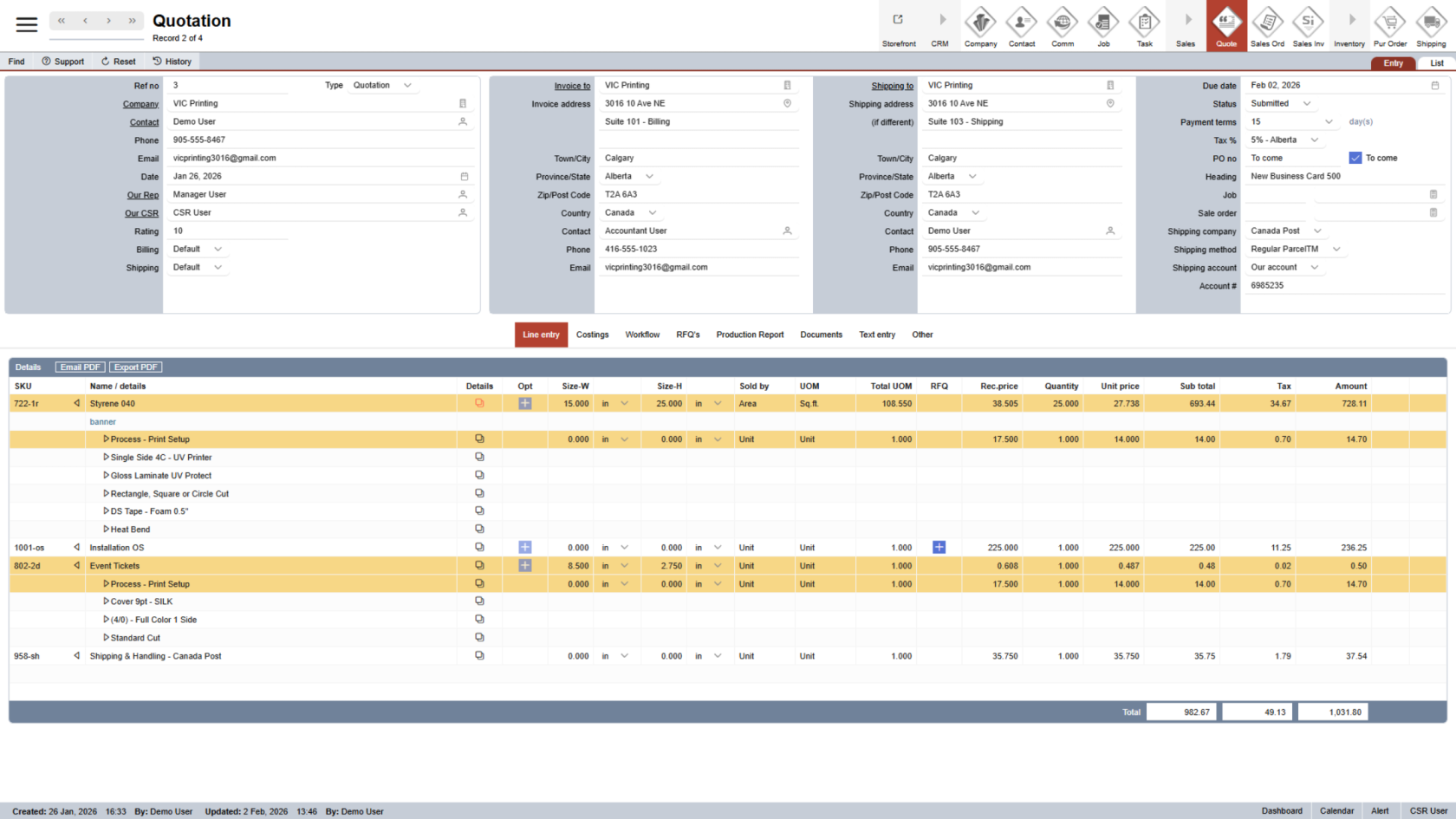
You have completed the quotation process in WorkTraq, which includes PDF export, approval handling, and status updates. You can now proceed with the sales order process.