
Submit Shipment
This tutorial walks you through how to submit a shipment after production is completed.
Video Tutorial
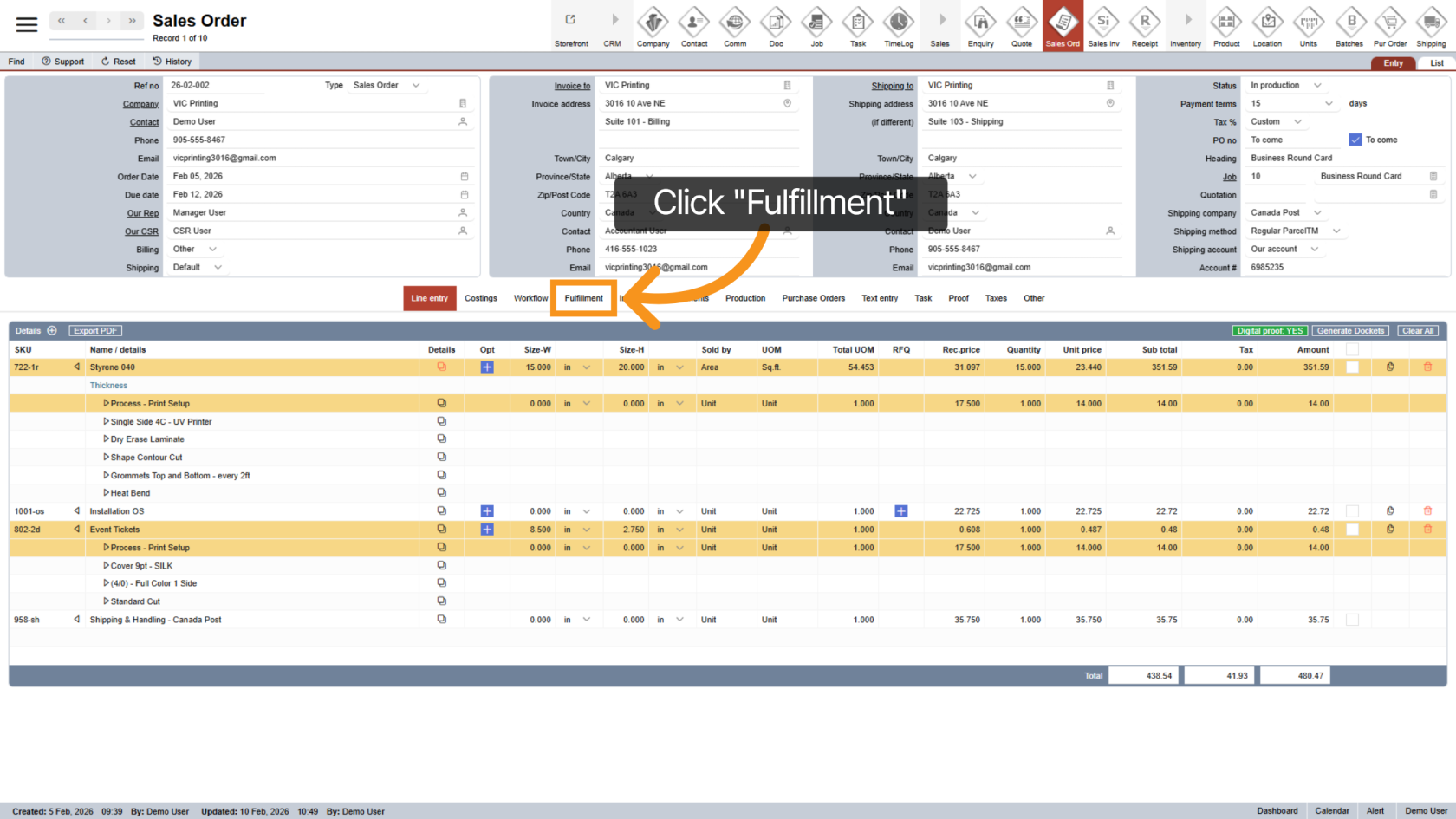
1. Go to Fulfillment
Click on the "Fulfillment" section. This is where all shipment-related actions are managed.
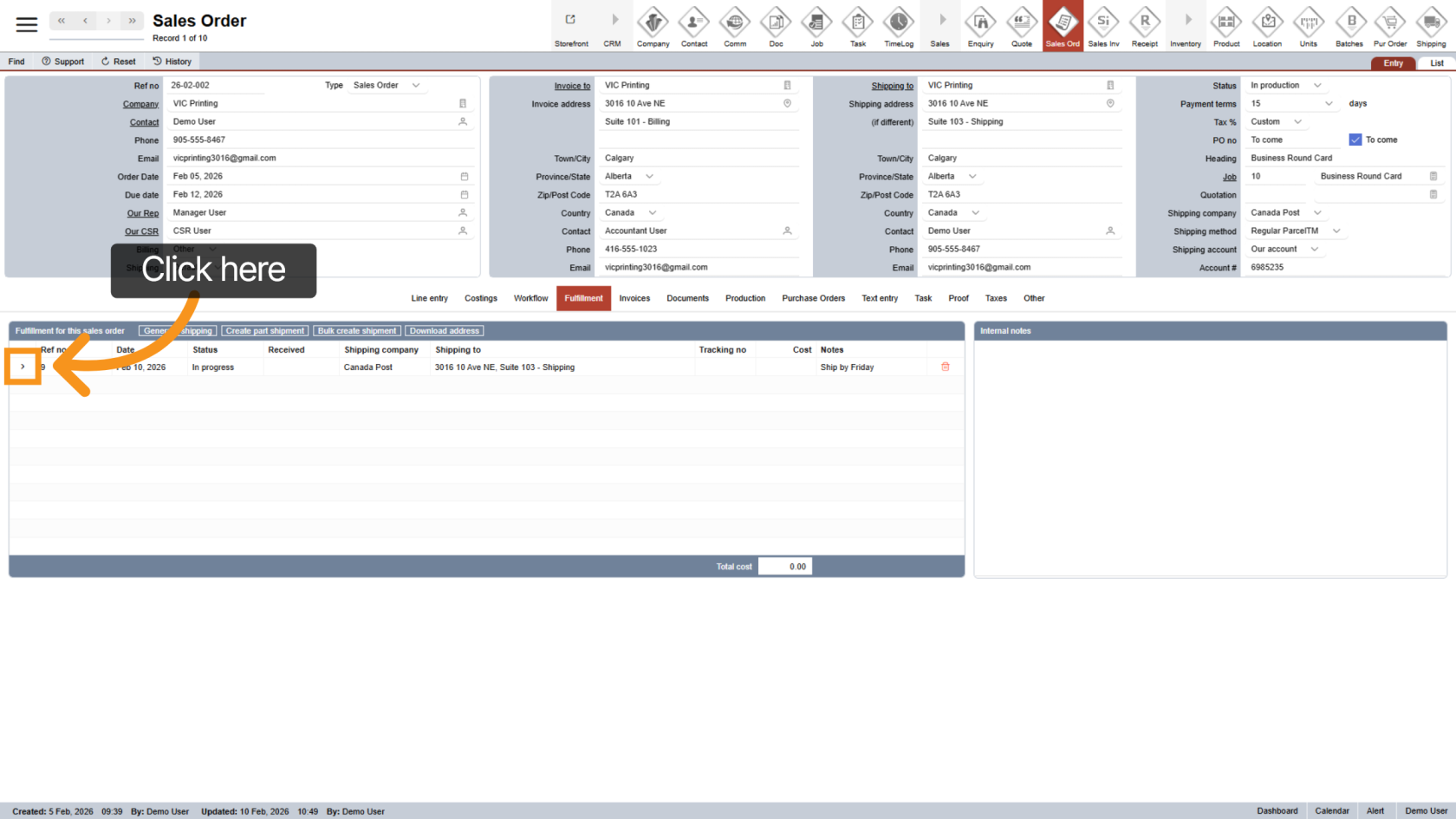
2. Open the Shipment
Click the  arrow icon to access the shipment.
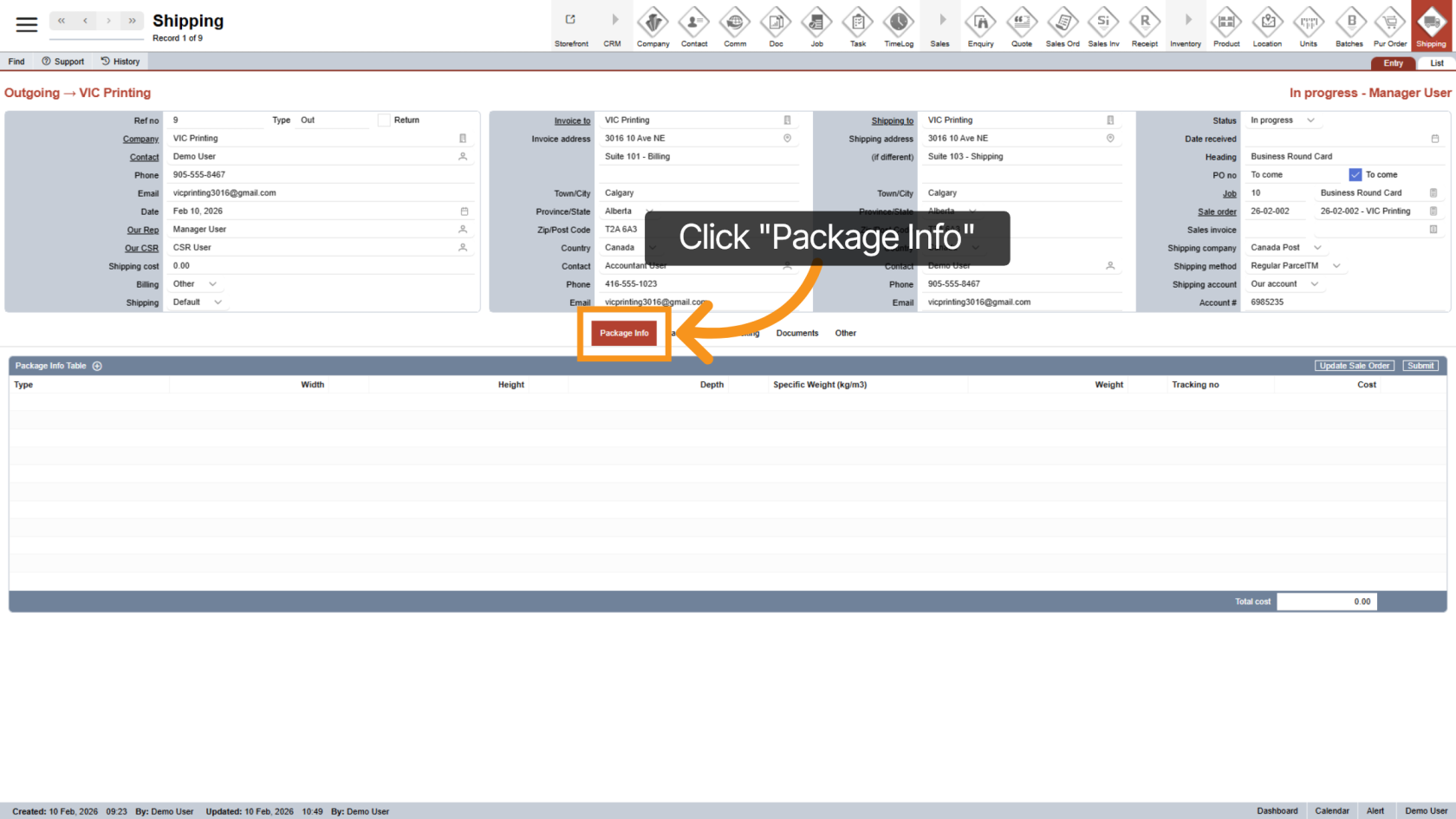
3. Open Package Information
Click "Package Info" to enter shipment details.
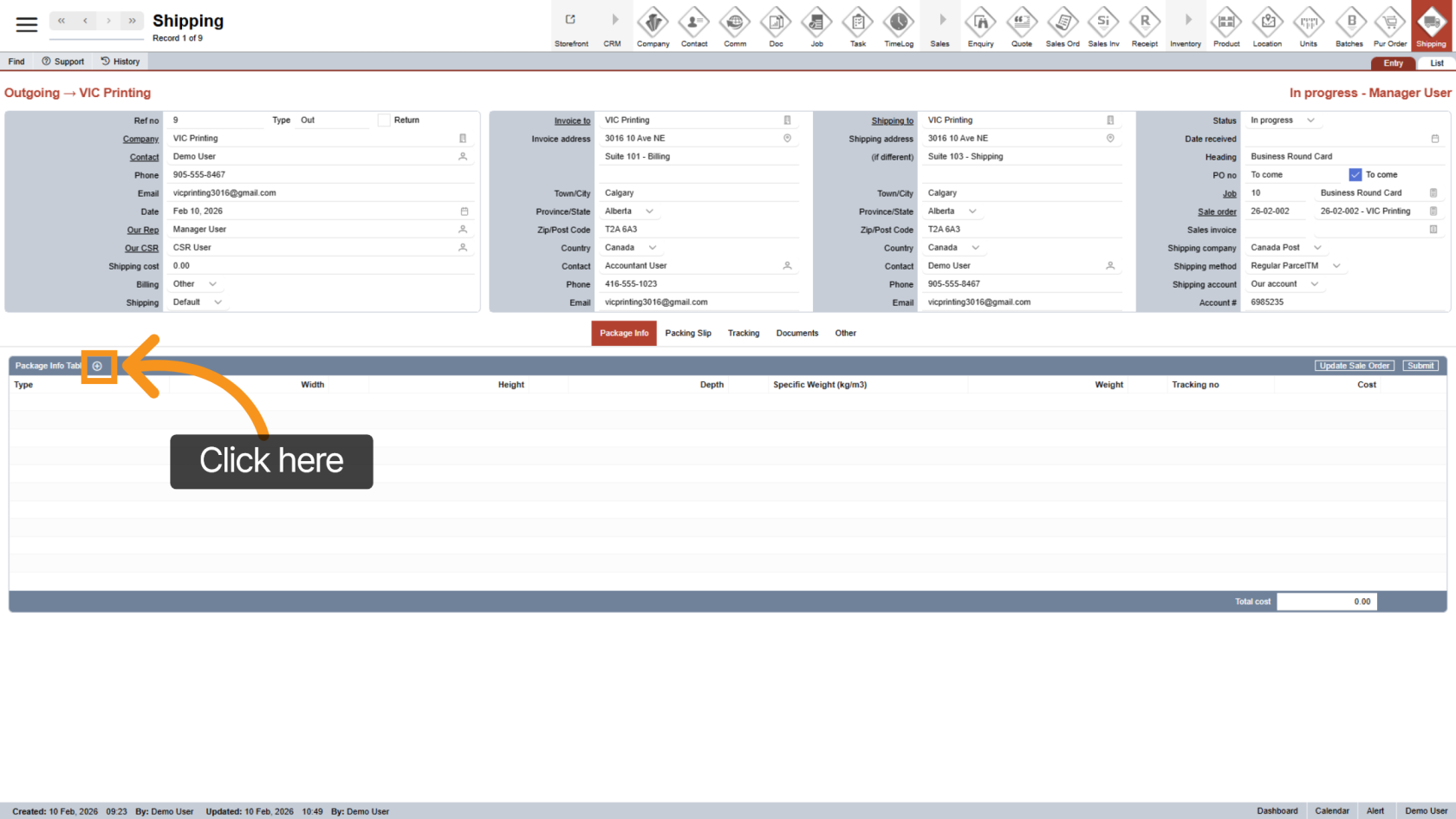
4. Add Package Line
Click the  plus icon to add a new package line.
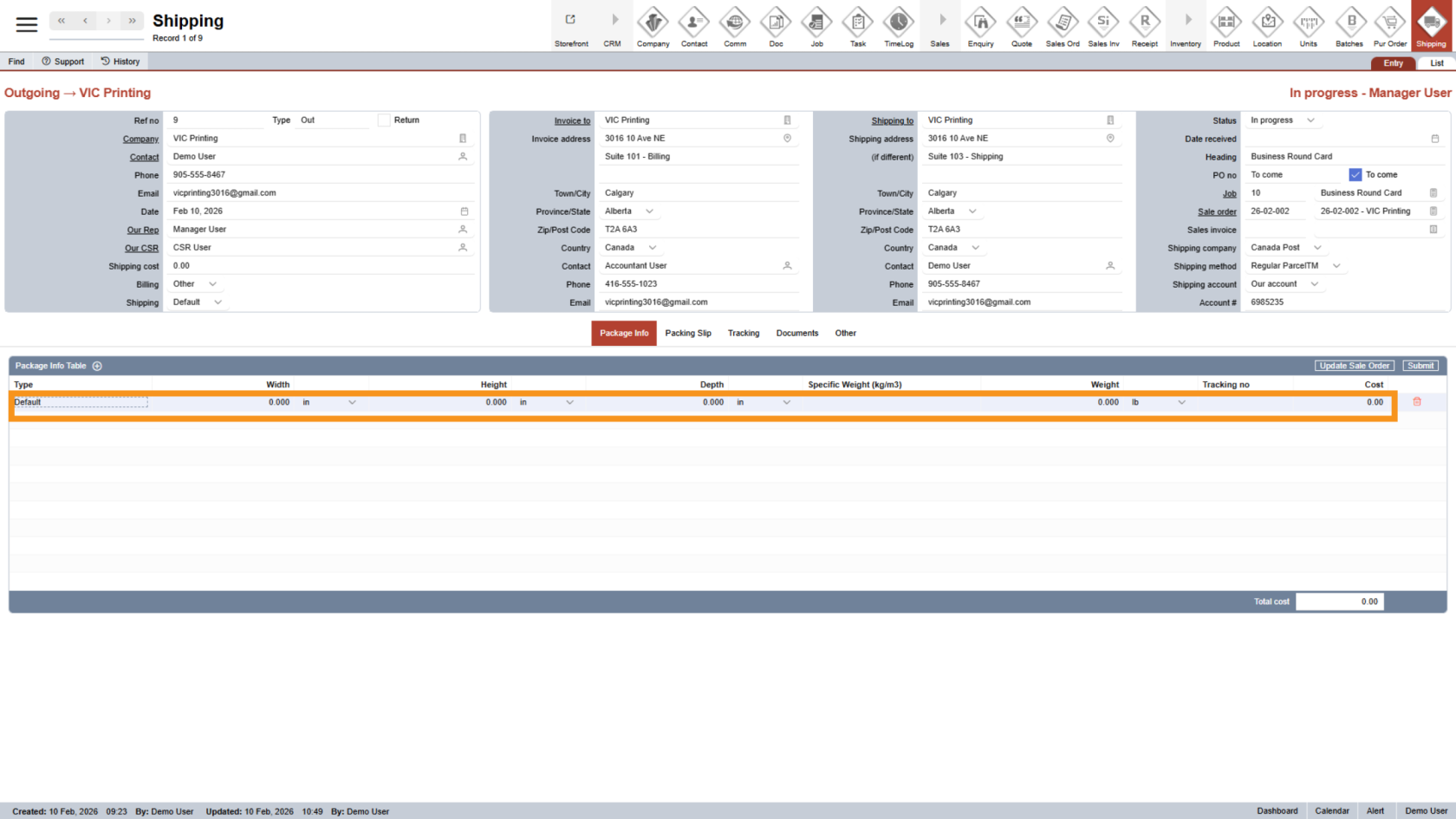
5. Enter Package Details
Please provide all necessary information, including the package dimensions, the tracking number, and the shipping cost (
Note: Tracking number and shipping cost are not required for Hold for Pickup.
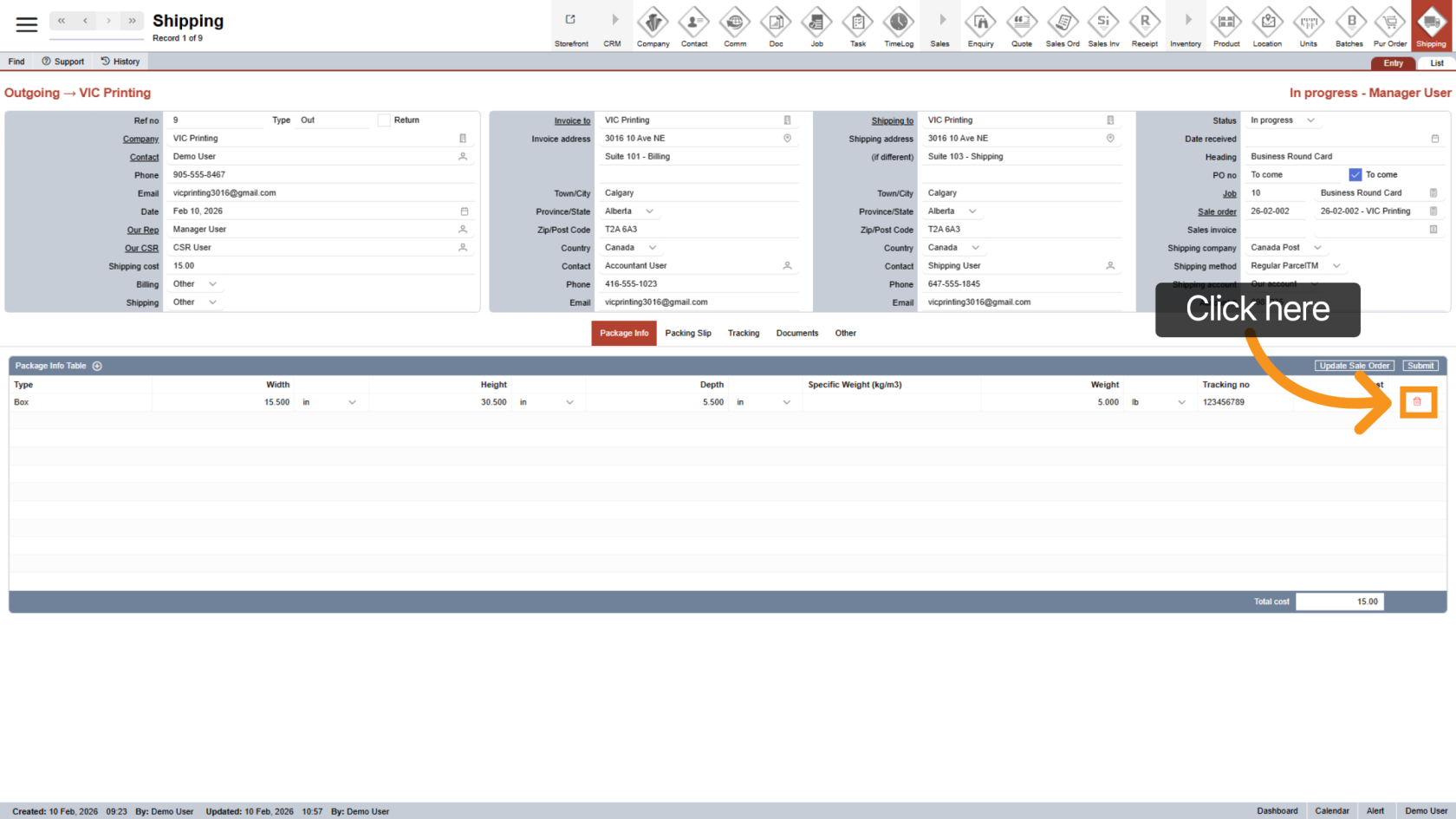
6. Delete Package (Optional)
If needed, click the  delete icon to remove a package line.
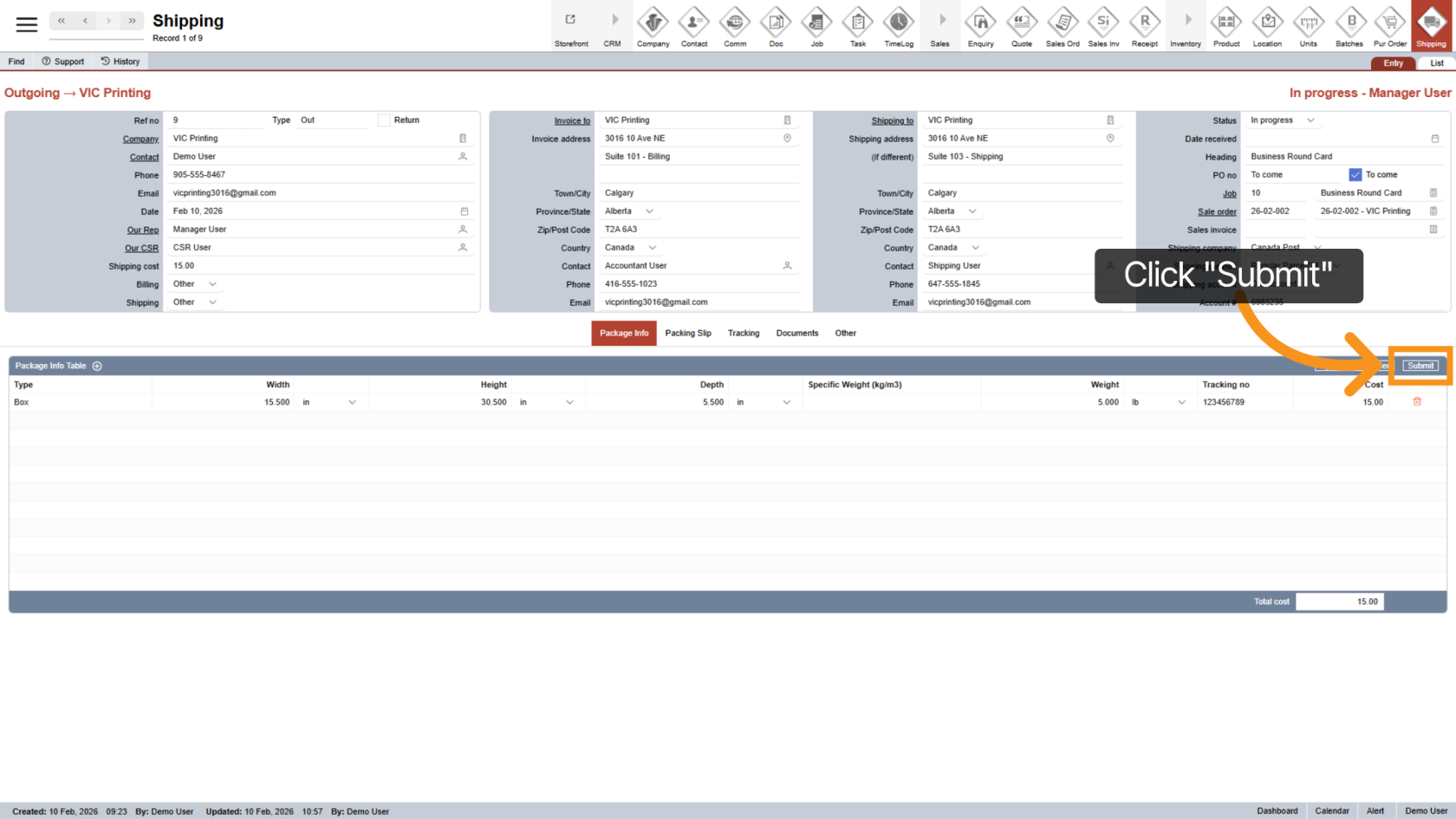
7. Submit Shipment
Click "Submit" to send the shipment information.
Once submitted, the system will automatically:
- Shipment status will be updated to Completed.
- Shipment details will be saved to the sale order
- Sale order status will change to Shipped,
- An email notification will be automatically sent to the recipient, based on your company’s email settings
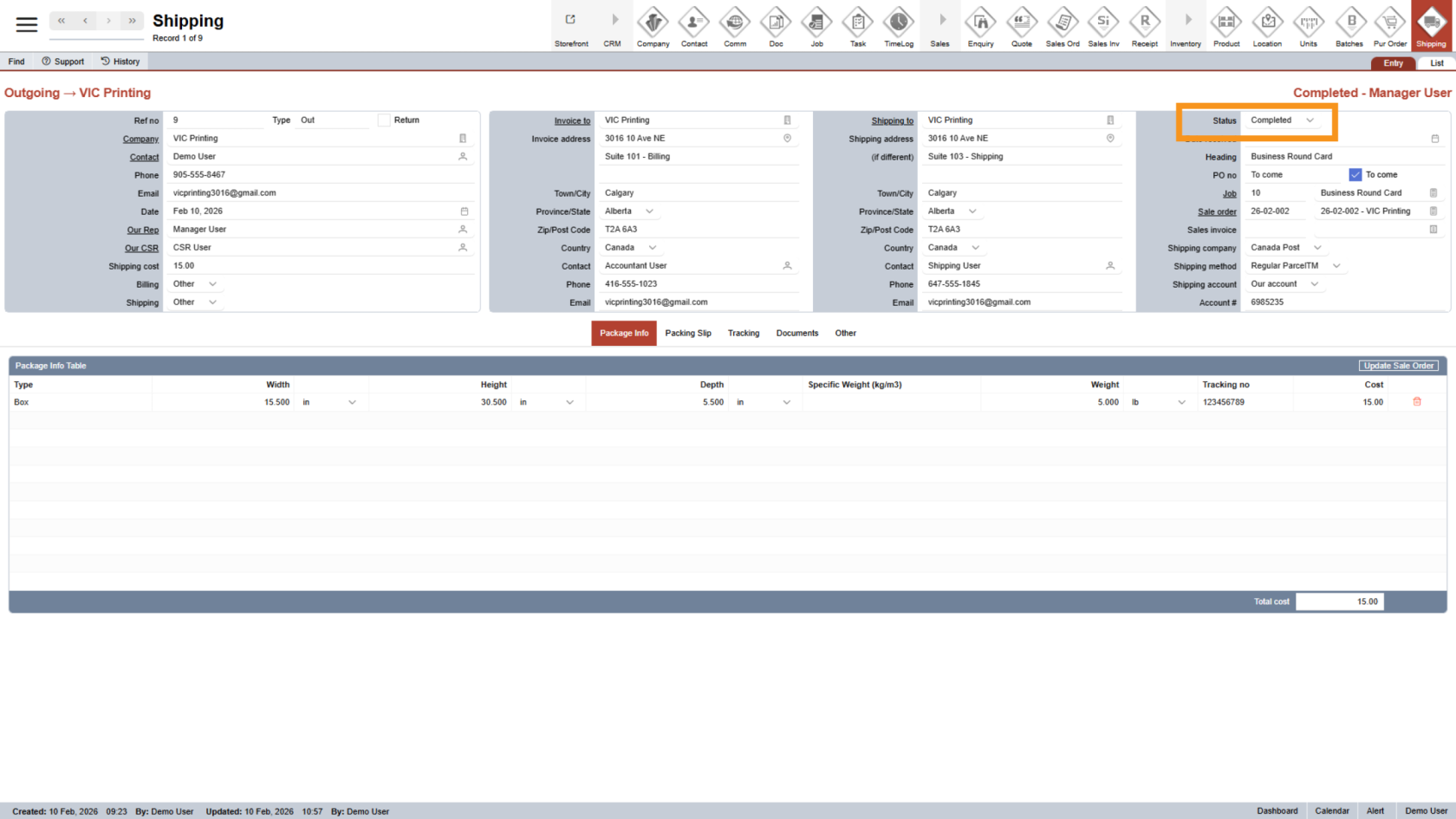
8. Check Shipment Status
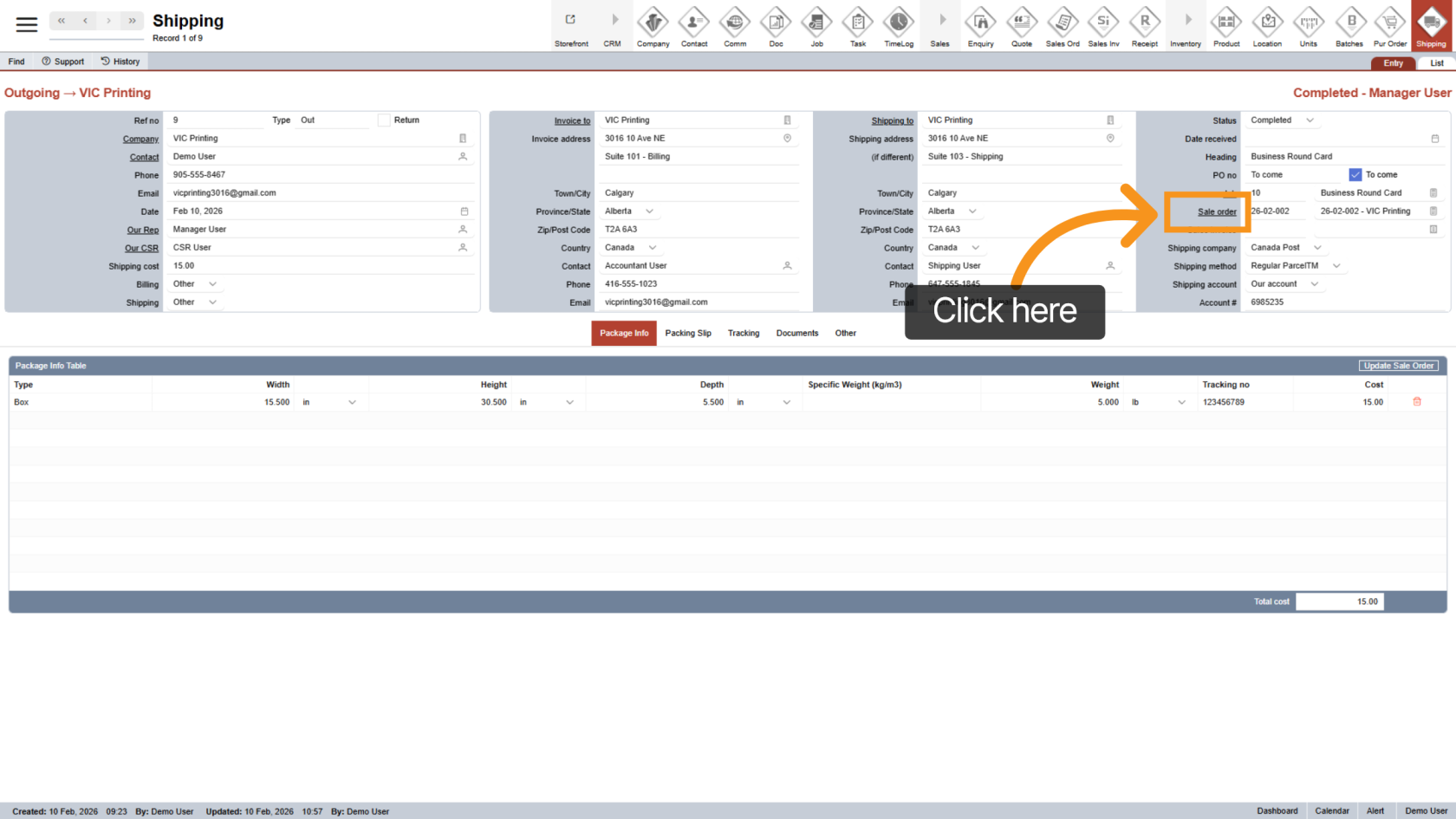
Review the shipment status is Completed.
9. Return Sale Order
Click the underlined Sale Order to quickly return the linked sale order.
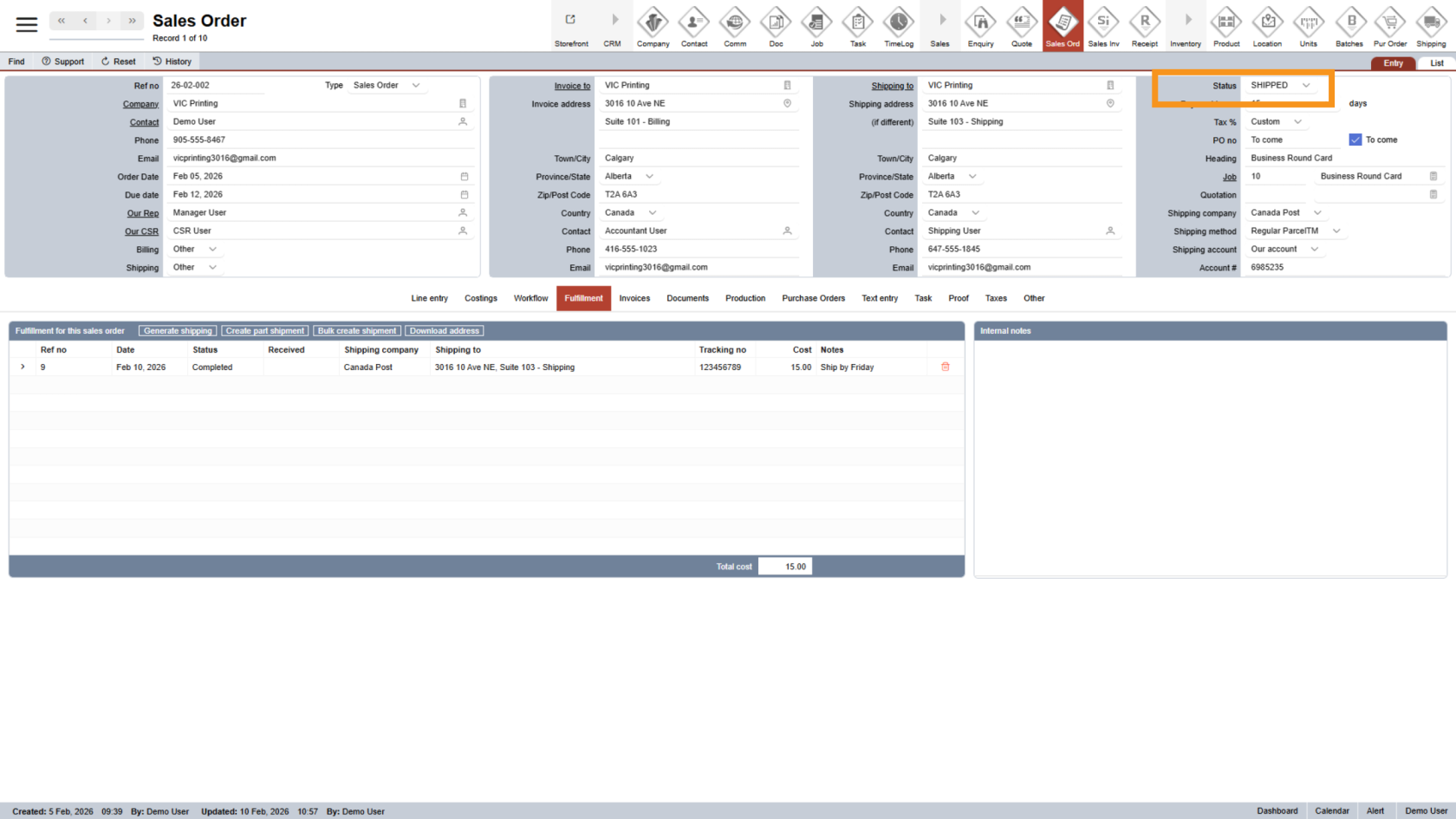
10. Review Sale Order Status
Review the sale order status is Shipped.
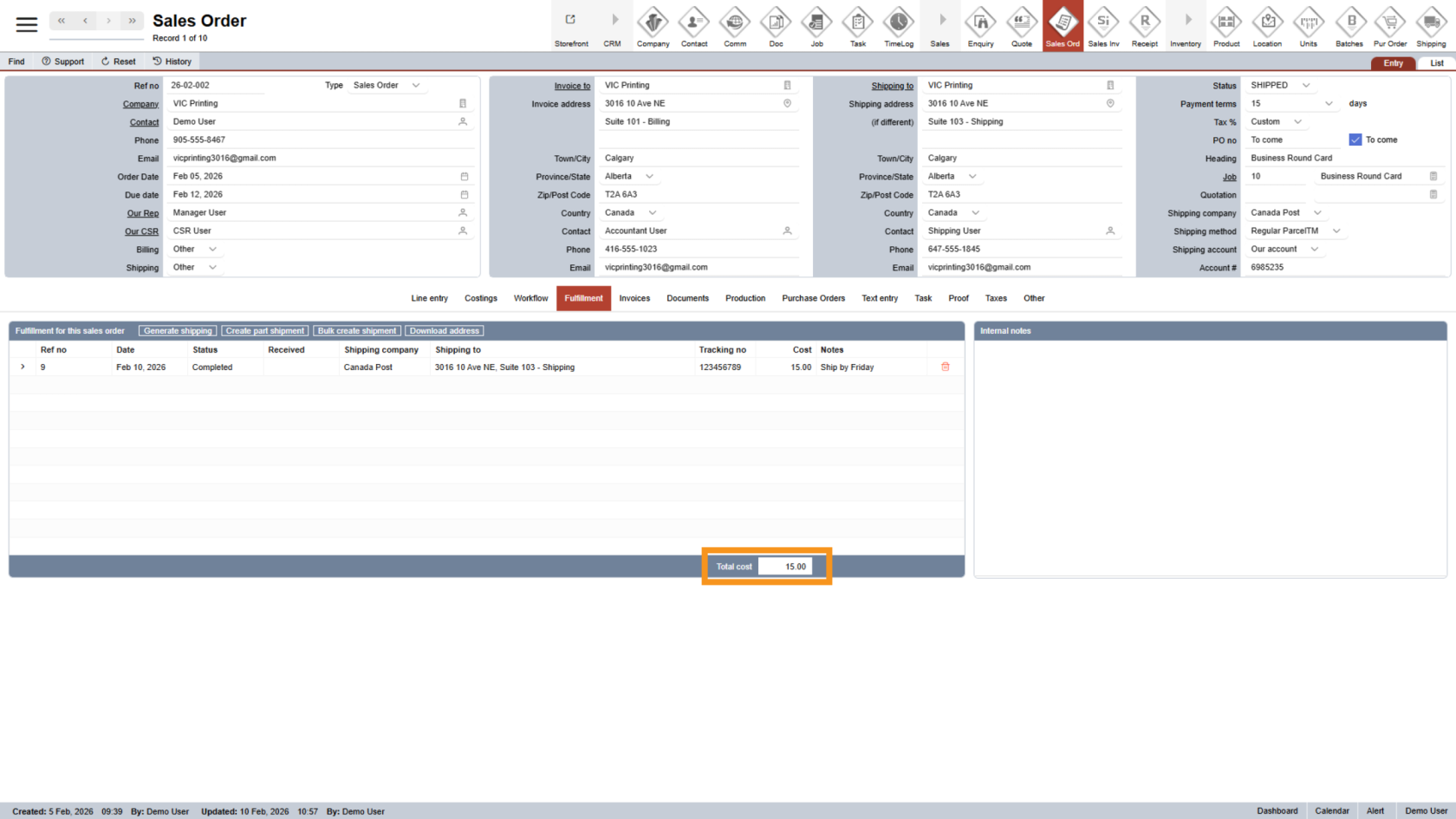
11. Review Total Cost
The Total cost will reflect the final shipping expenses.
You have successfully submitted the shipment. The order is now marked as shipped and ready for invoicing.