
Product General
This tutorial guidesshows you throughhow configuringto configure the general settings offor a product in the WorkTraq system.WorkTraq.
Video Tutorial
1. NavigateOpen tothe Product Module
Click onProduct "Product" in the main top menu to access settings and optionsmanage related to the product.products.
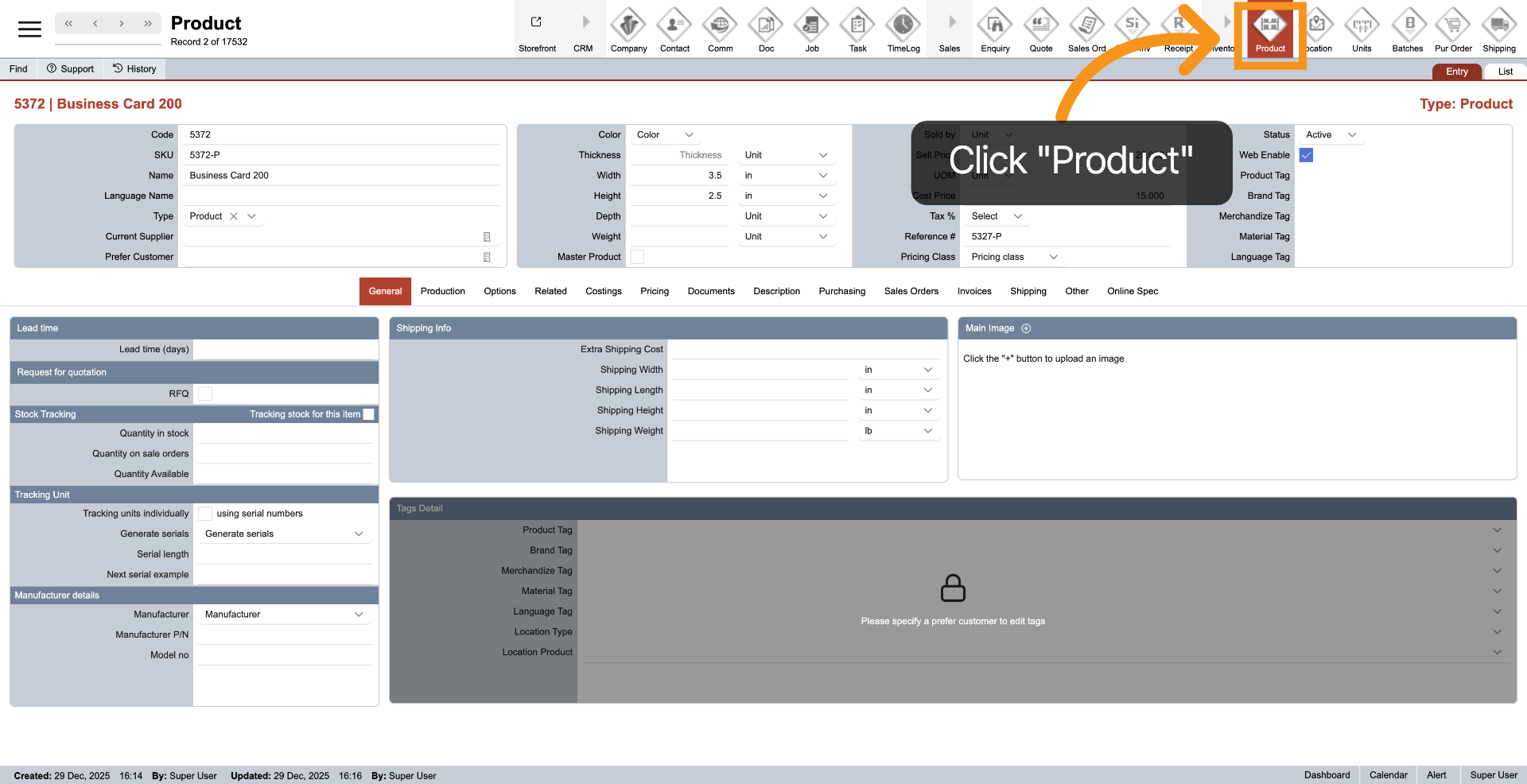
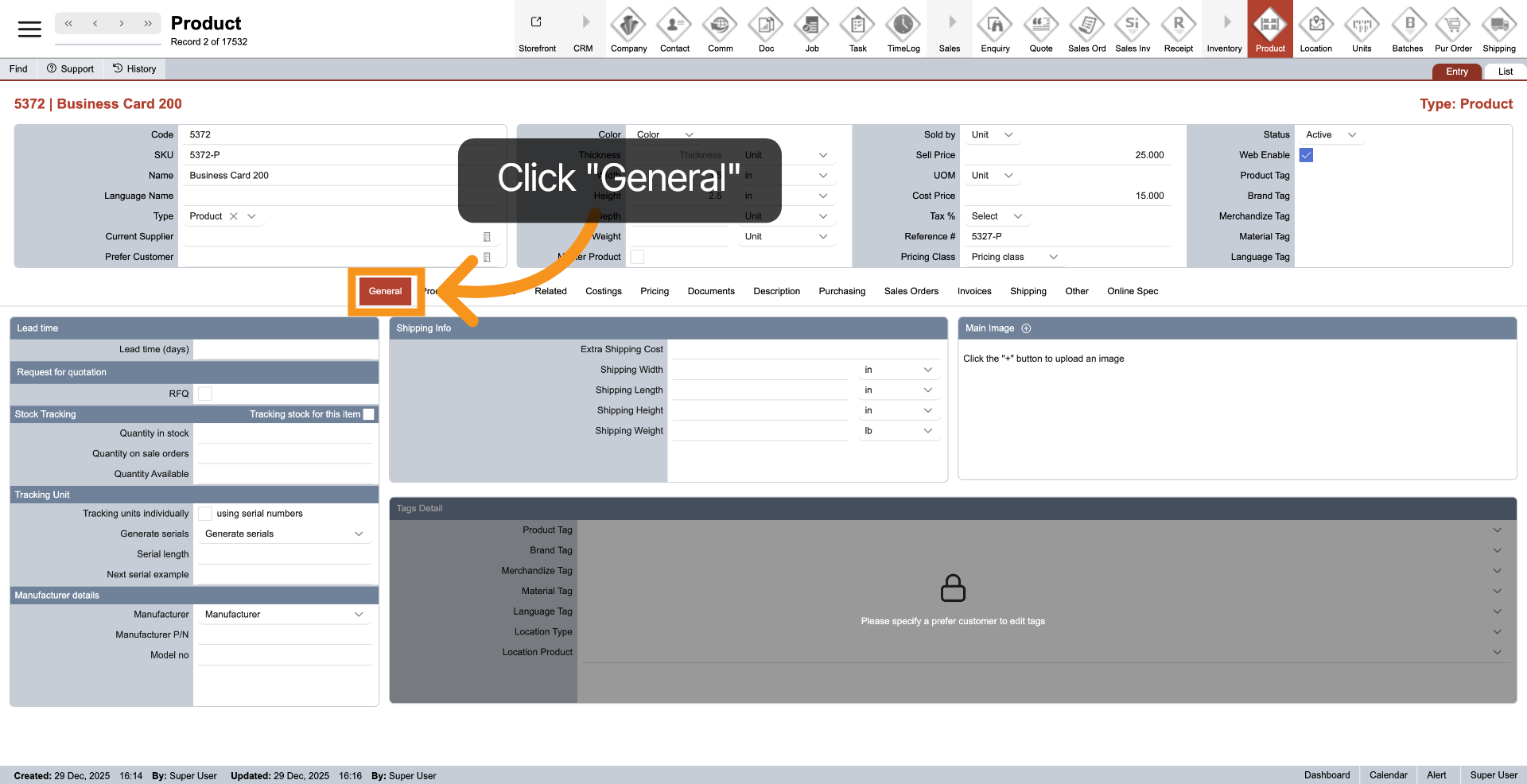
2. Open General Settings
ToClick the General tab to view and modifyconfigure the product's general product settings, click the "General" tab from the middle menu.settings.
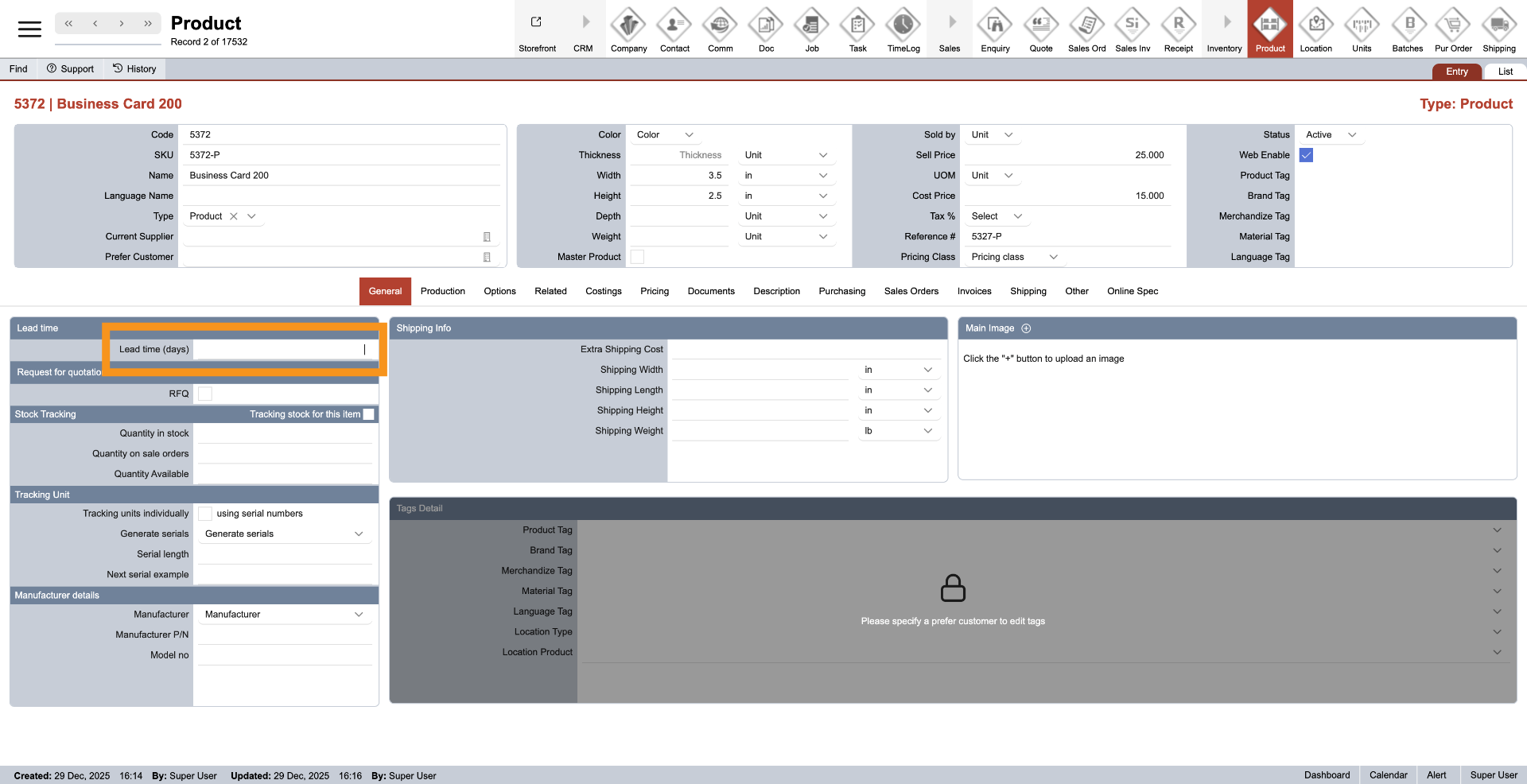
3. Enter Lead Days
IfEnter the productLead requiresDays aif additional waiting time is required for order or delivery, you can enter the leadproduct.
Note: ThisLead willdays beare calculatedadded withto the production time when creating a quotation or sales order, helping your staff toestimate enhancethe order completion time more accurately.
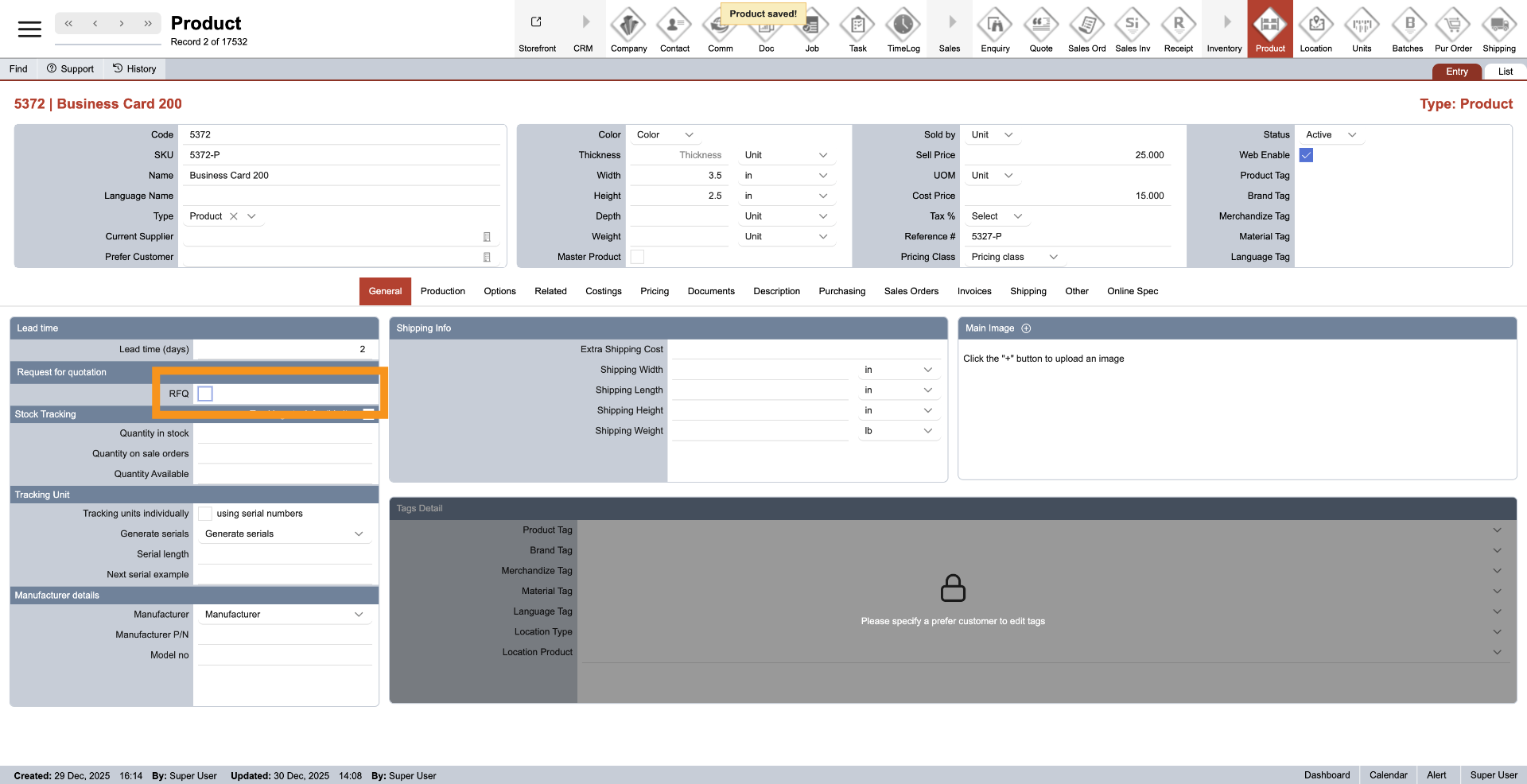
4. Enable RFQ Details
SelectEnable "RFQ"RFQ if you need to request pricing must be requested before makingthe product can be included in a quotation or sales order.
When youenabled, checkWorkTraq thisrequires option,an the system will always ask you to submit a request for a quoteRFQ before processing anya quotation or sales order that includescontaining this productproduct. This helps prevent missing or negative costs for customers.outsourced products or services.
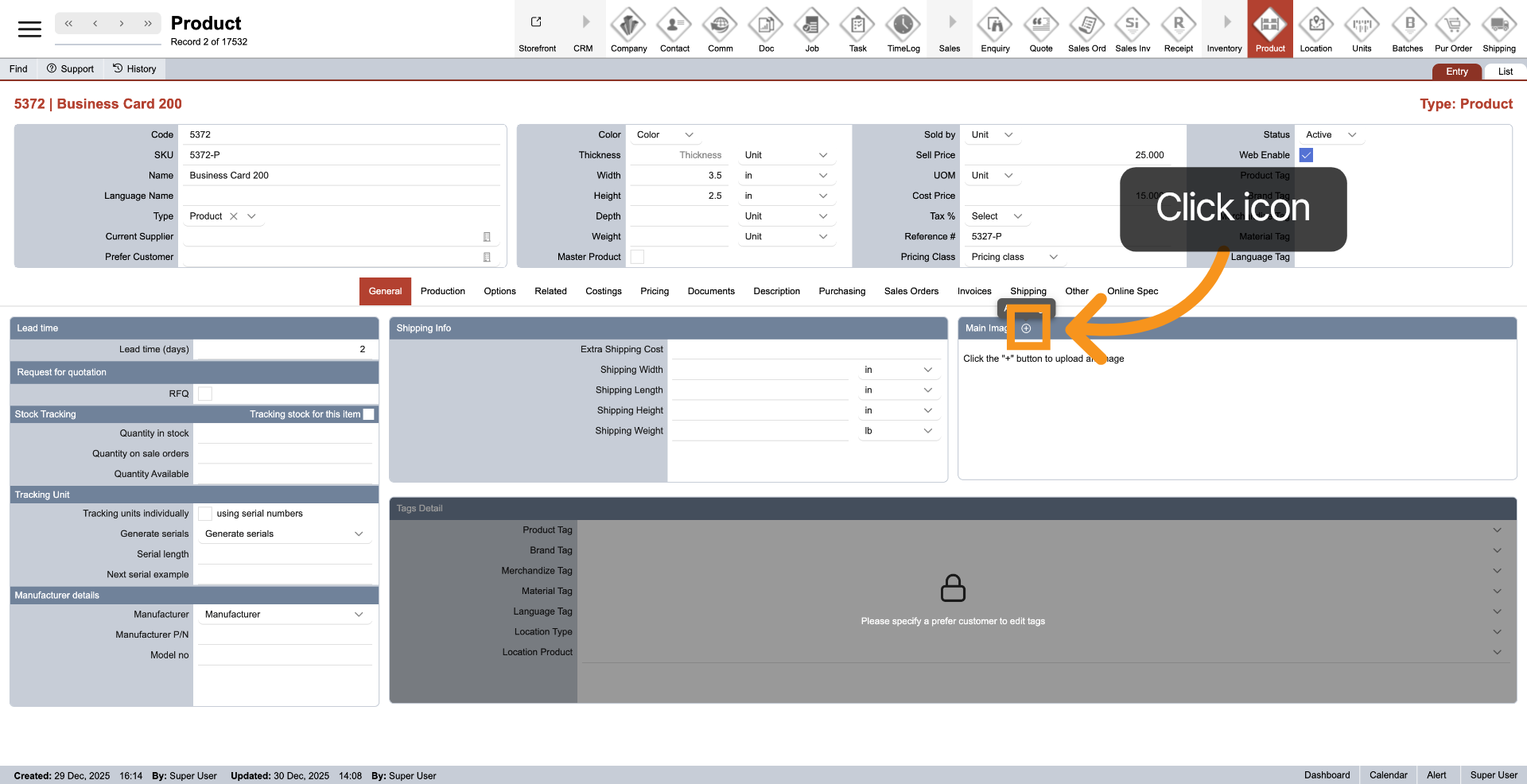
5. Add Main Image
Click the  plus icon to
 addupload athe product's main image for the product.image. A main image is required for productsa parent product that will be sold inthrough the online store.
Note: Master products do not require a main image.
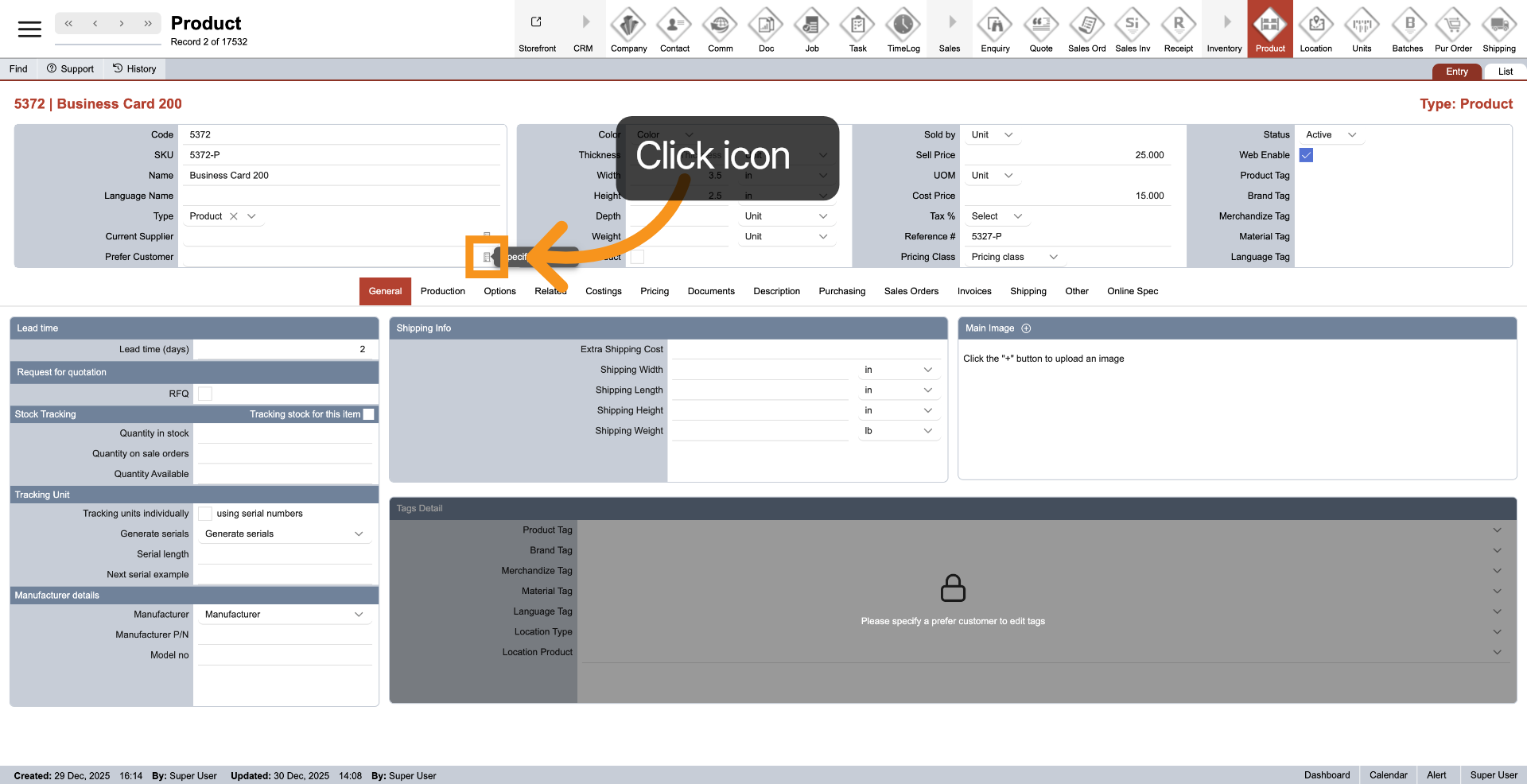
6. AddSelect Producta TagsPreferred Customer
First,Before tagsadding cancustomer-specific betags, added when a product is linked to a "Preferred Customer." Clickclick the icon next to "Preferred Customer"Customer toand select the preferredappropriate customer first.customer.
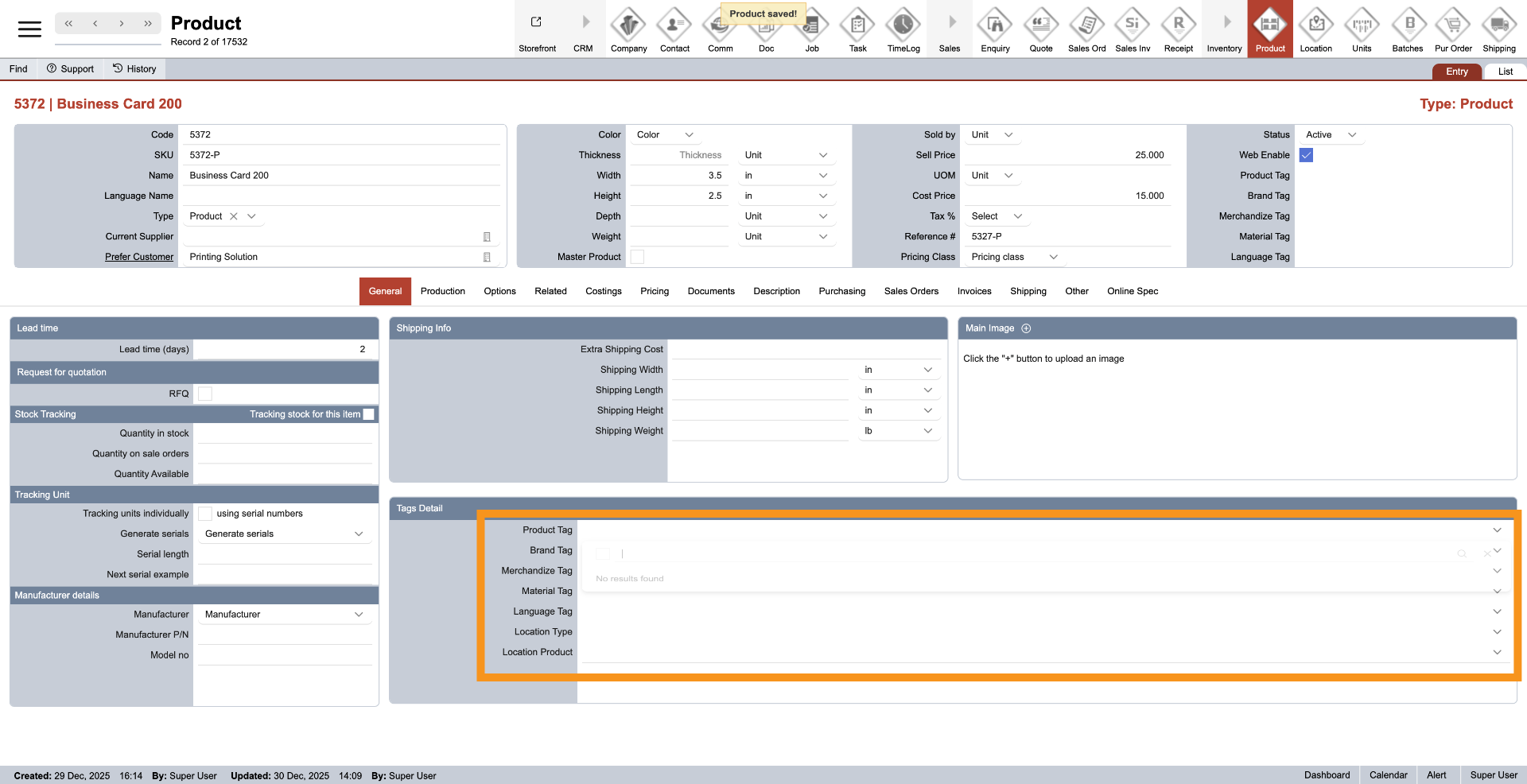
7. EnterAdd Product Tags
Click onOpen the appropriate Category Tag dropdown nextand toselect categorythe tag that you want to add.assign to the product.
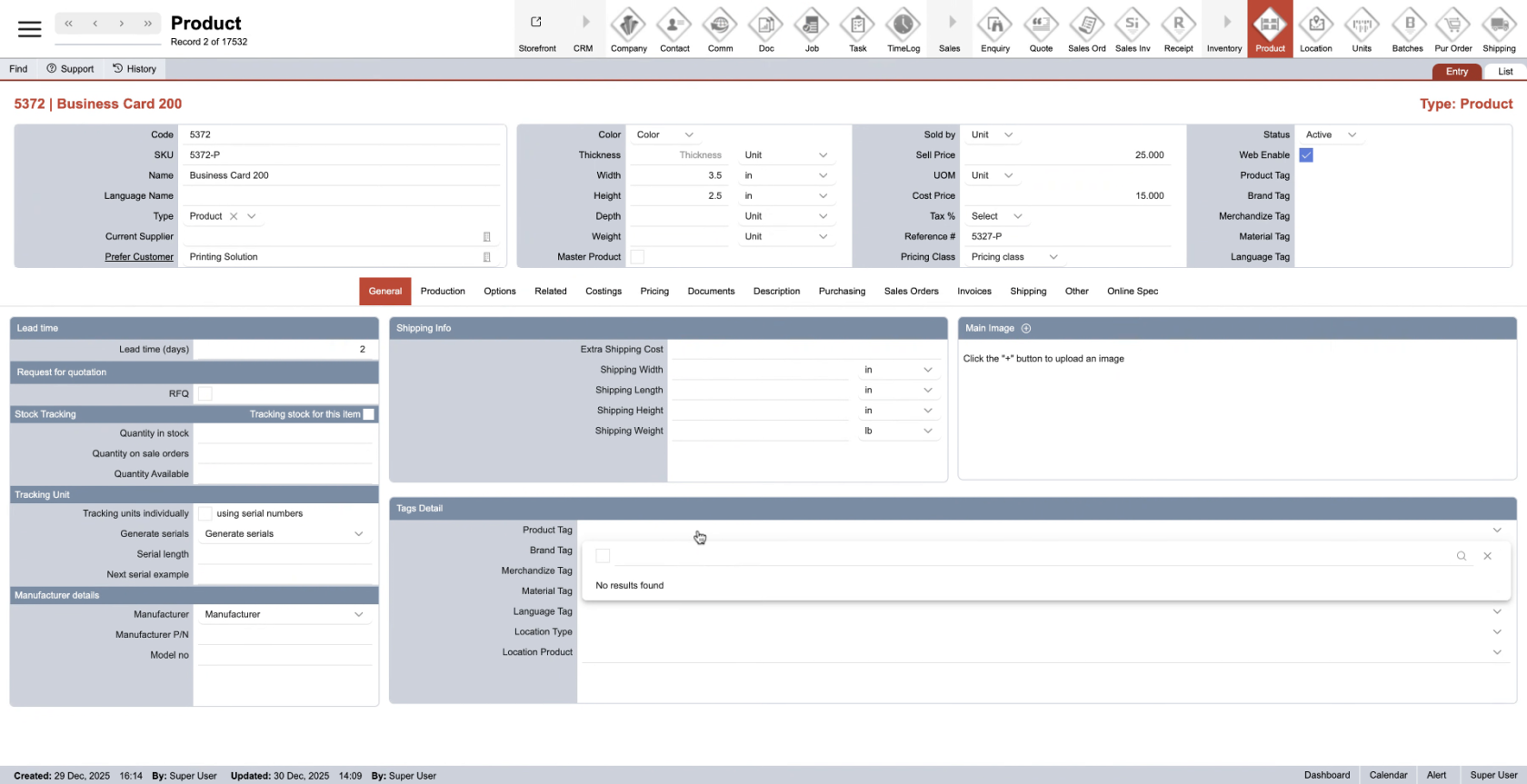
8. Create new tag
If nothe valuerequired tag is not available, you can createenter a new tag by typing in the search tagfield bar, thenand press Enter to create it.
You have successfully set upconfigured the general settings for a product in the WorkTraq system.WorkTraq.