
Switch to Contact
This tutorial shows you how to switch to another employee's account in the WorkTraq App. After switching, you can perform actions as that user until you switch back.
Video Tutorial
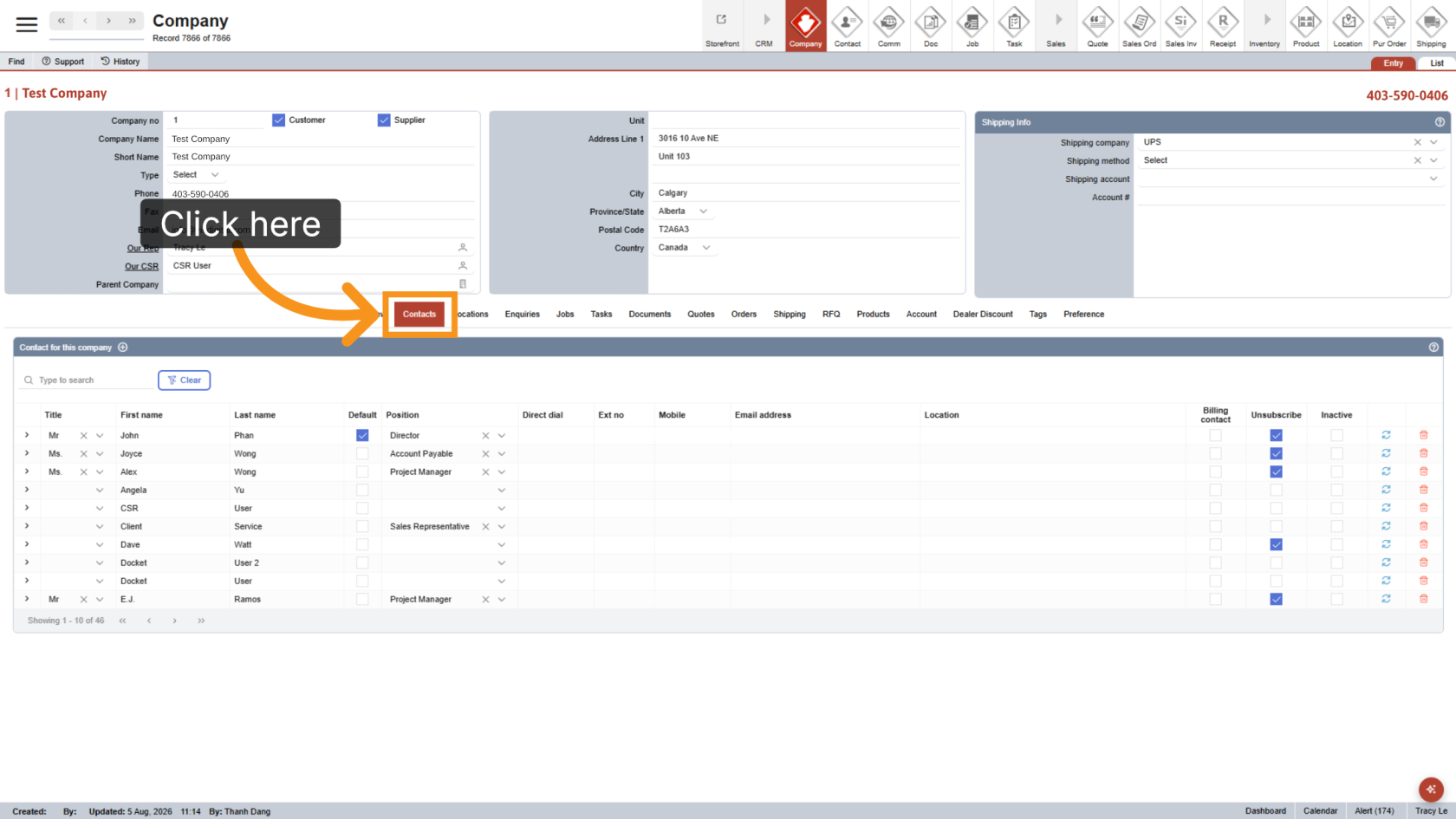
1. Open Contacts
In your company, click the Contacts tab. This tab is available only to users with the Super Admin role.
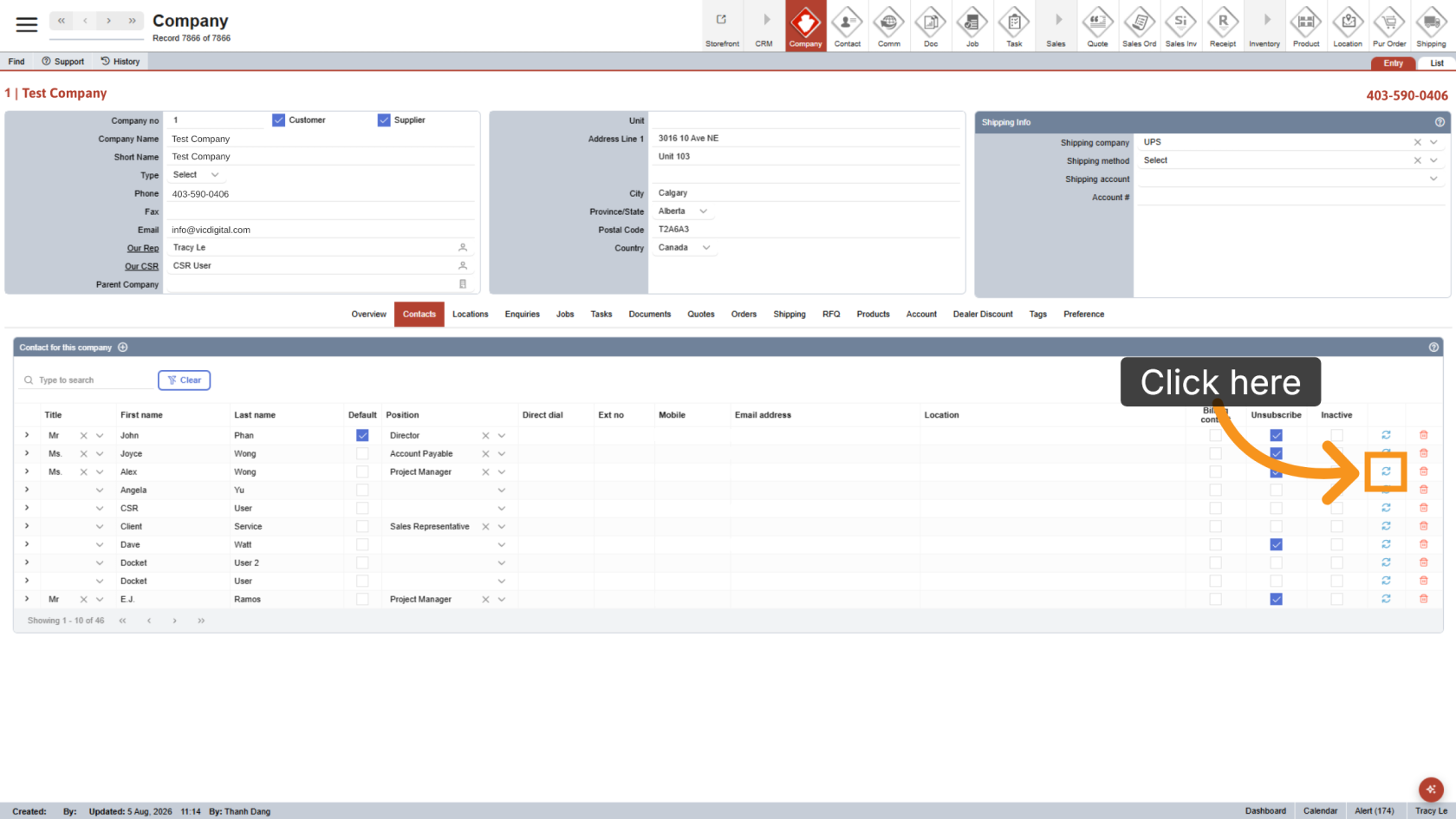
2. Switch User
Click the Switch icon next to the contact you want to switch to.
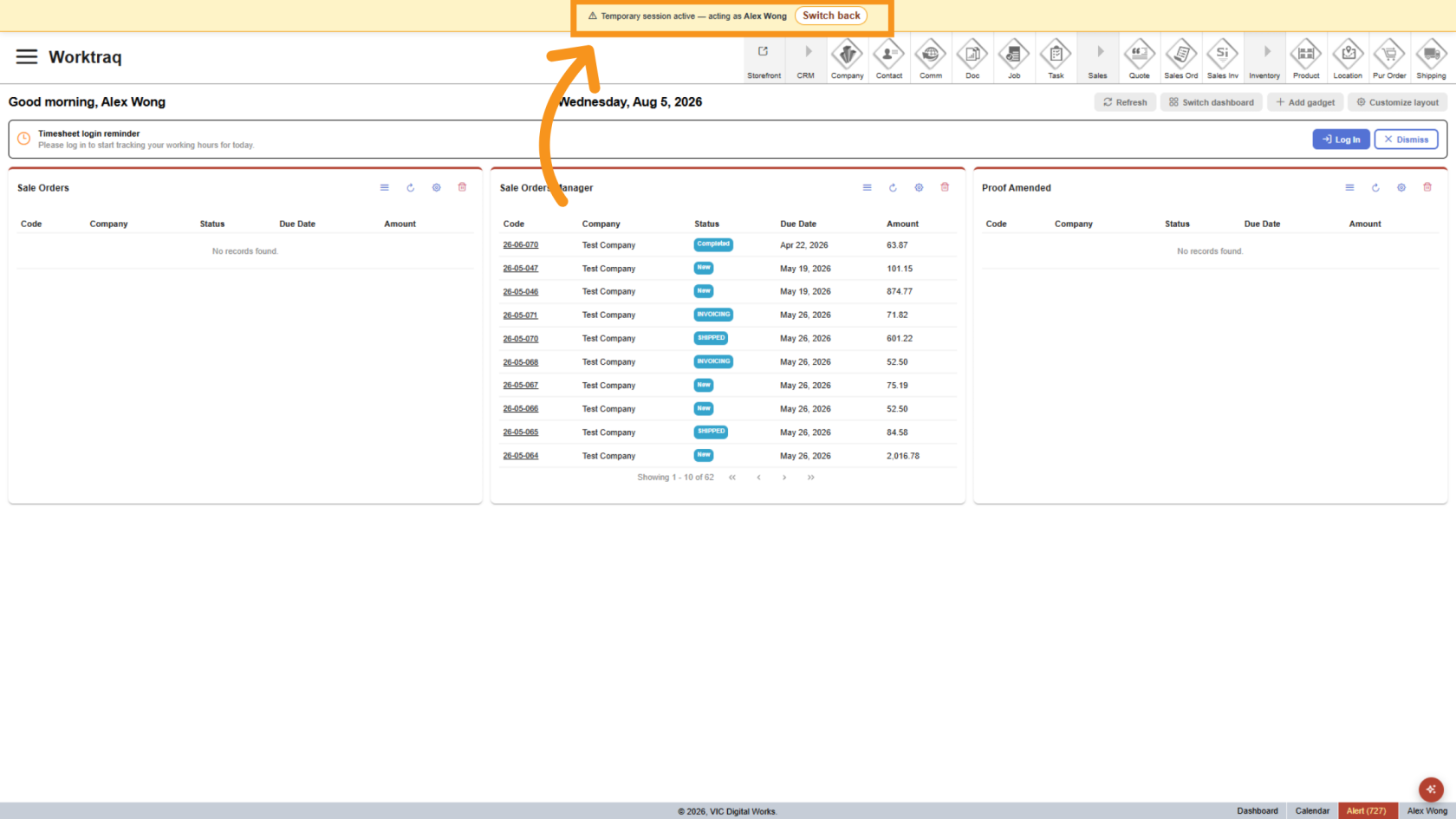
3. Work as the Selected User
After switching successfully, the top bar displays the active user. You can perform tasks as that user, including customizing or switching dashboards and accessing features available to them.
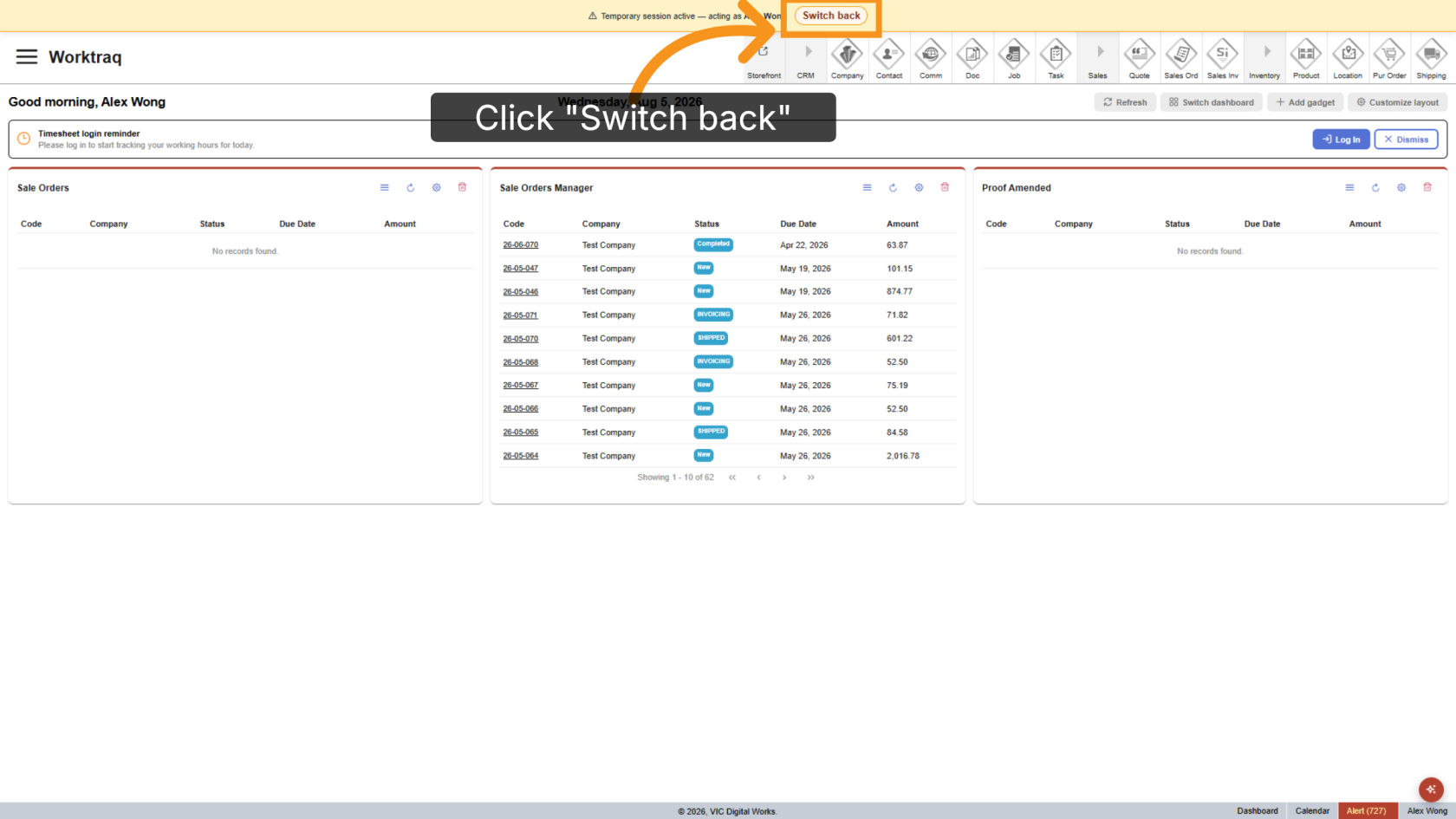
4. Return to Your Account
Click Switch Back to end the temporary session and return to your original account.
You have successfully switched to another user's account in the WorkTraq App.