
Examples of Selectors in Worktraq
In this video, we will provide additional examples of nested selectors and explain further details.
Go to serviz.ca
1. Parent Selector
Go to Parent Selector and open "Option" tab
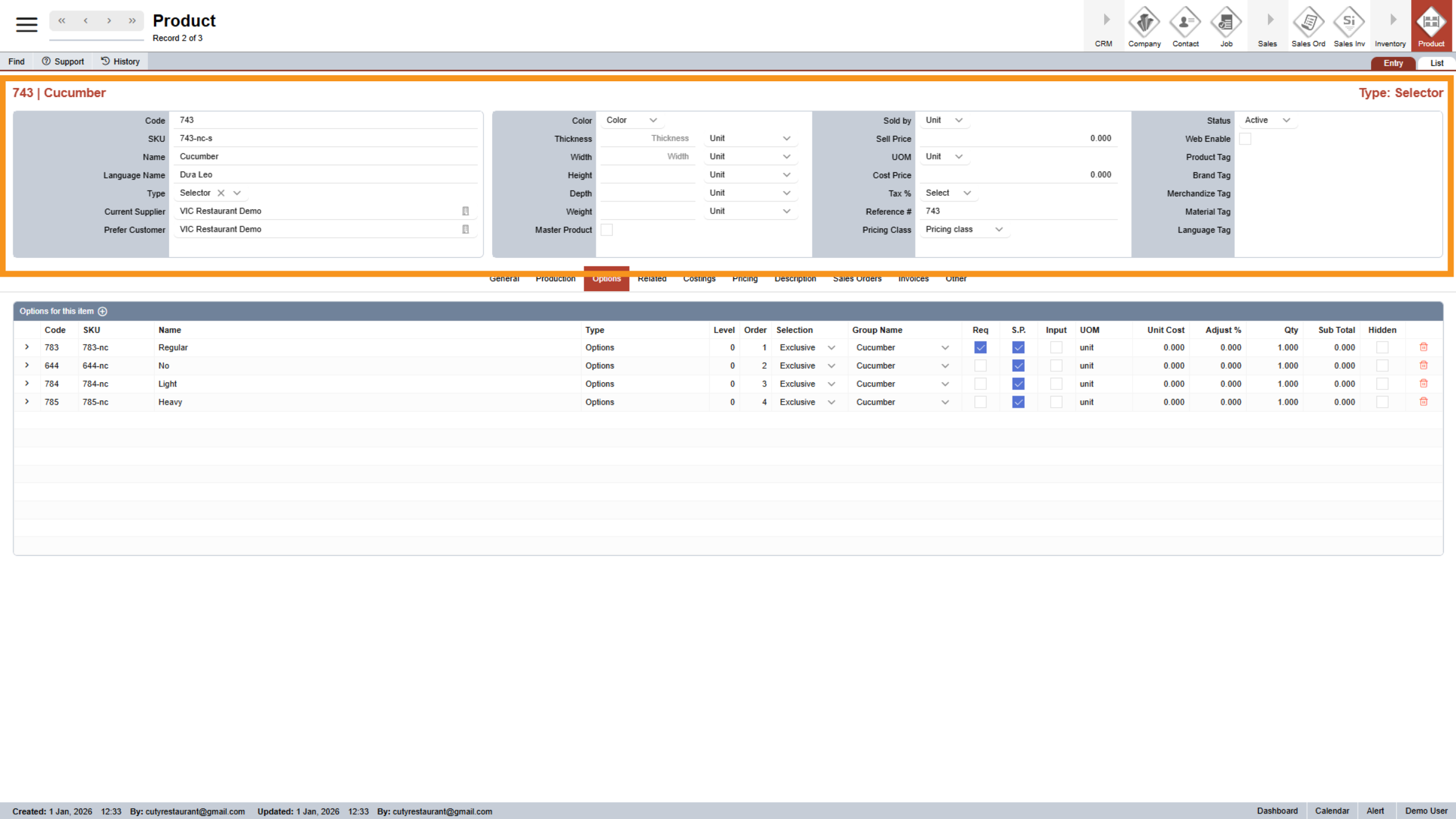
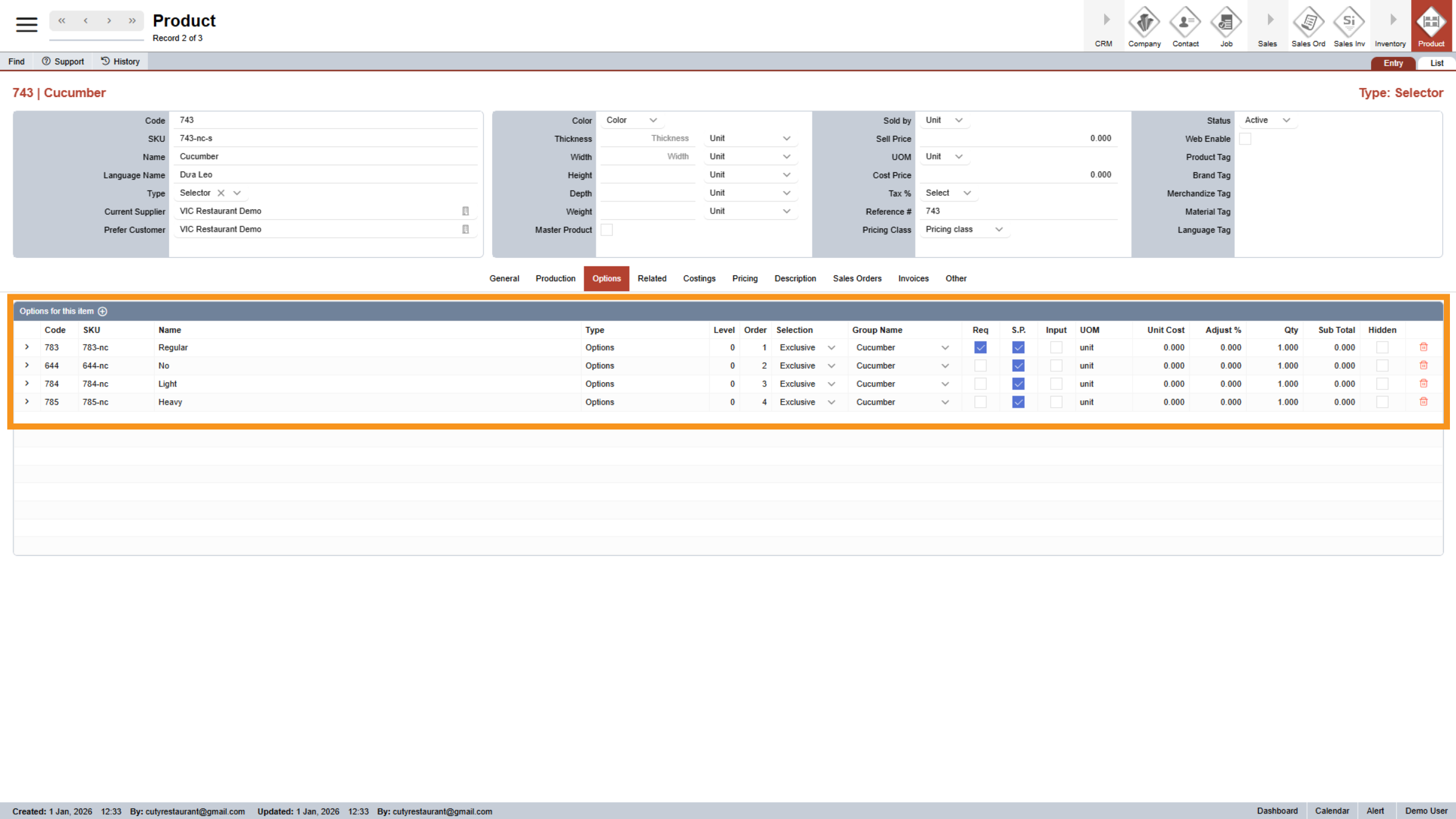
2. Add Child Option
Add all Options under the Options tab
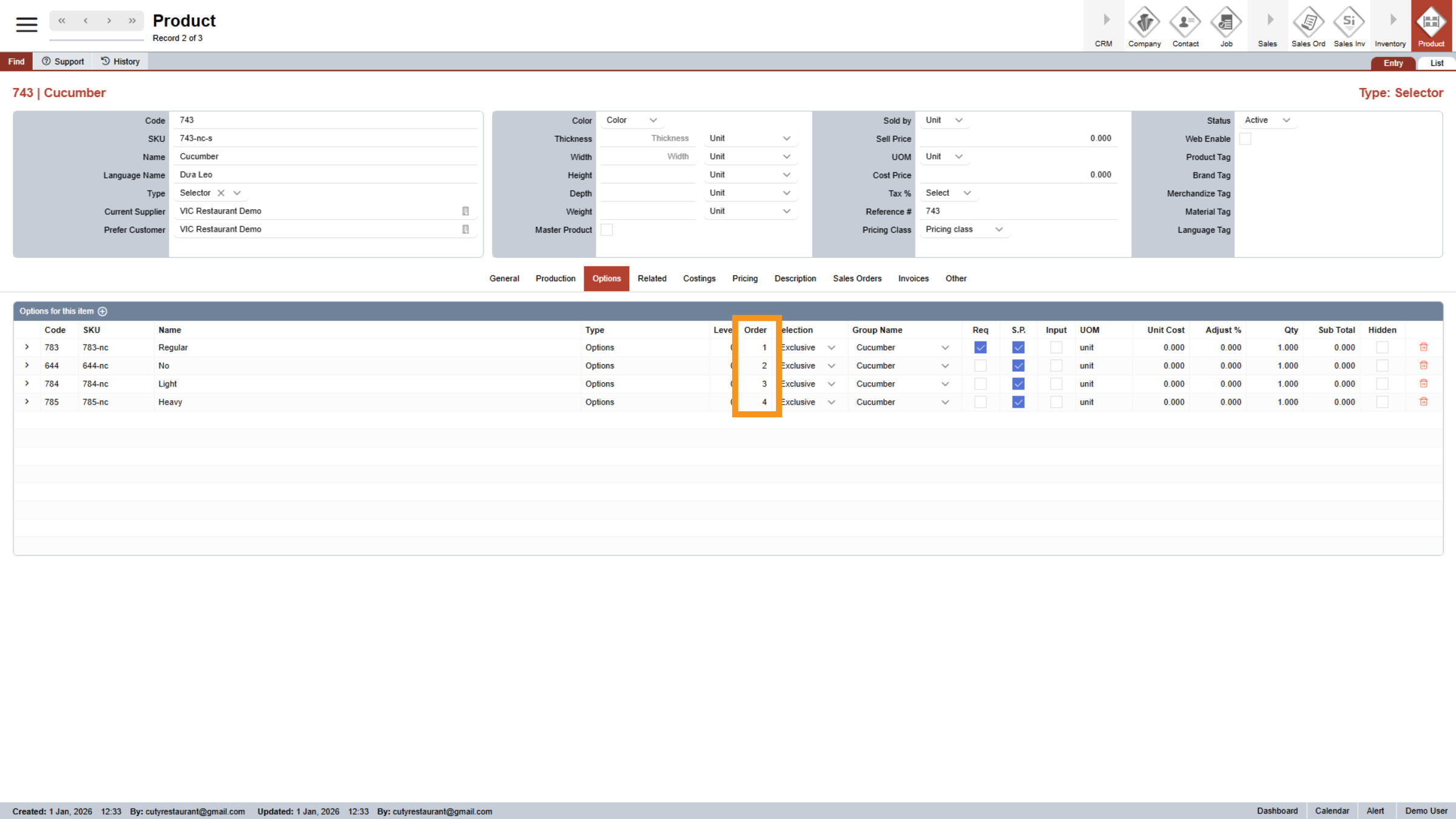
3. Edit Option Order
Edit the order of options to display them in your preferred sequence on your P O S and website.
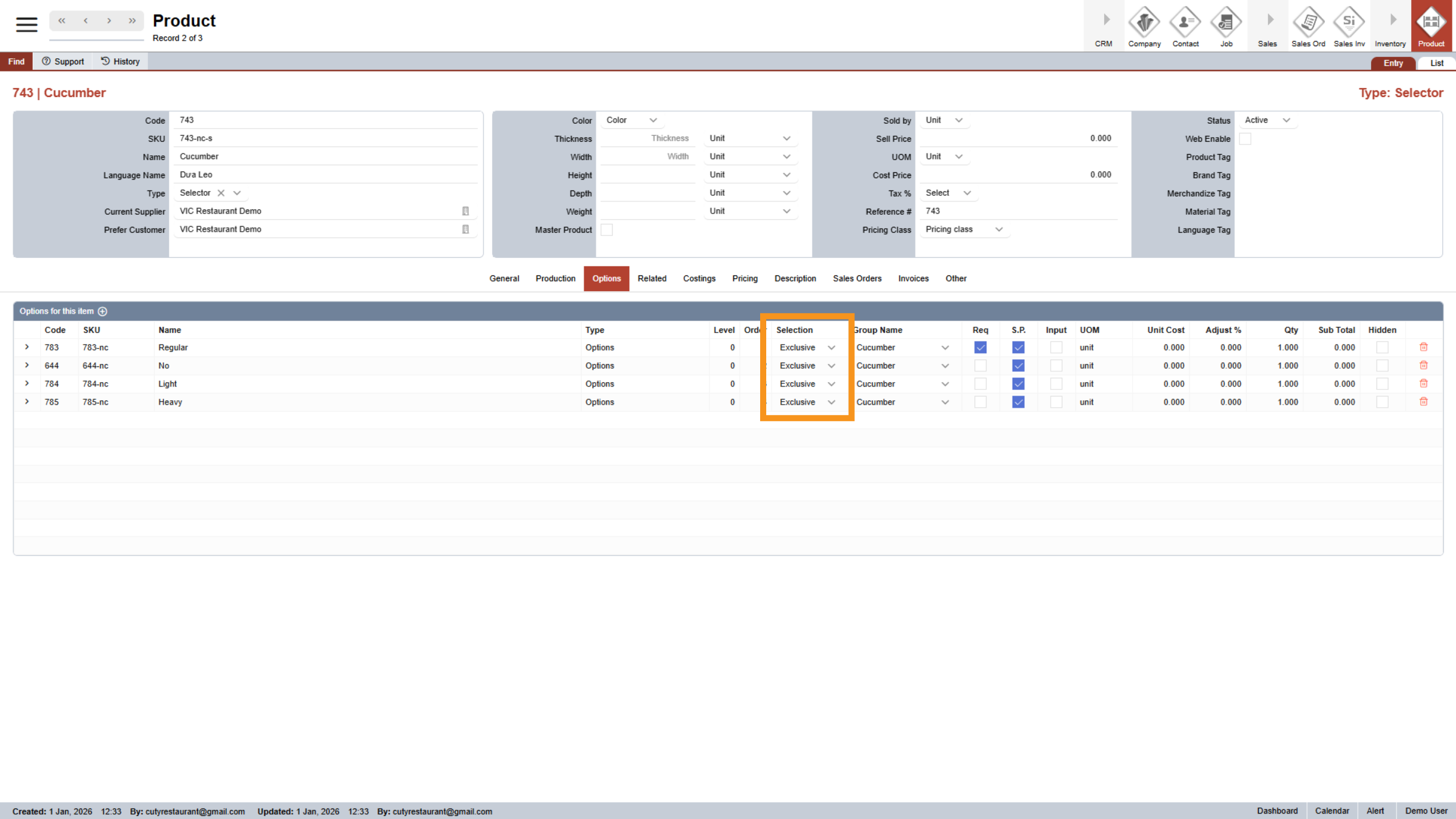
4. Select "Selection" Type
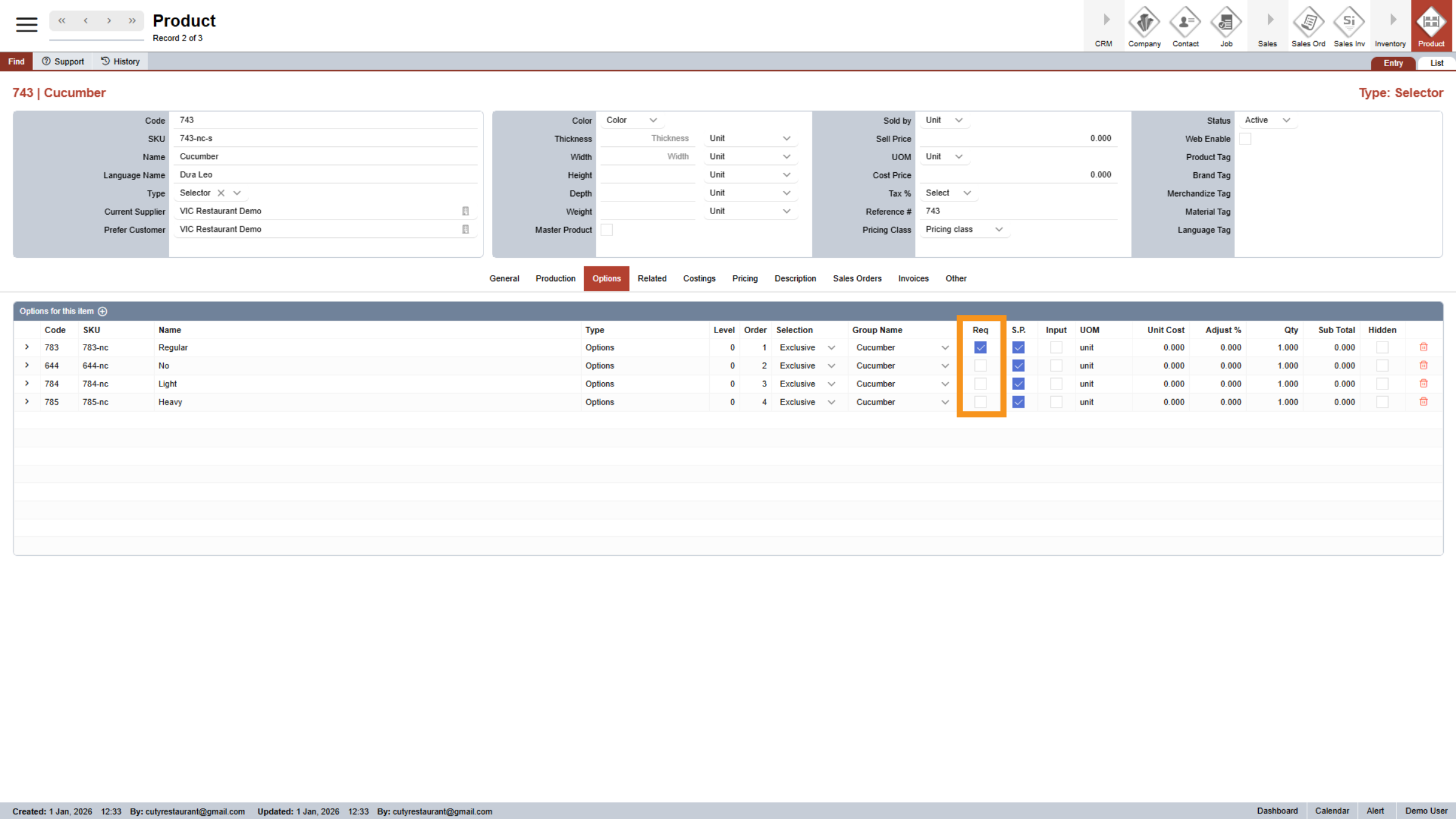
Select the Selection Type as "Exclusive" since only one option can be selected.
5. Mark Require for "Regular"
By default, the regular Vietnamese sub includes cucumber, so we check the "require" box to select it automatically.
6. Create another Parent Selector
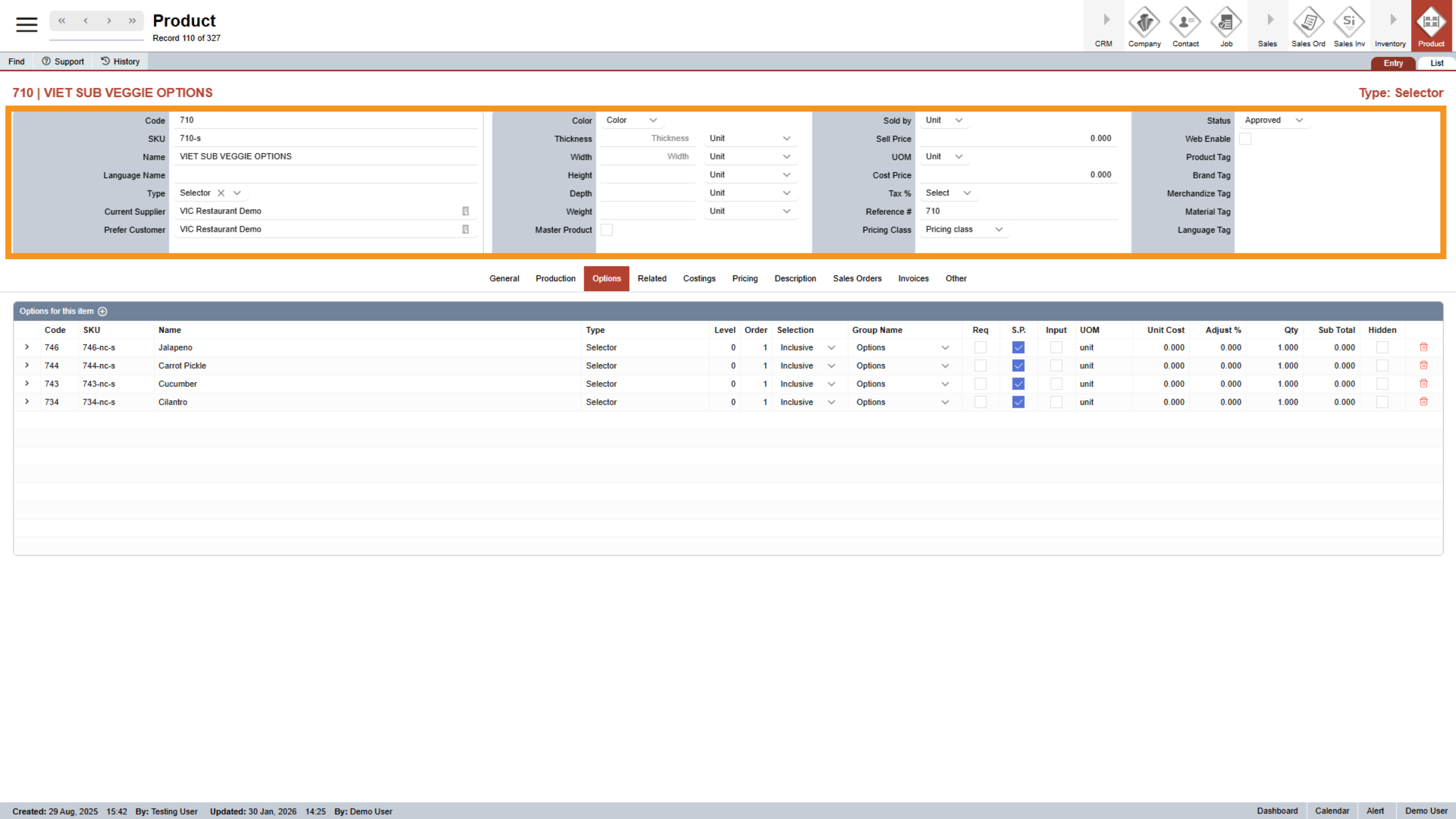
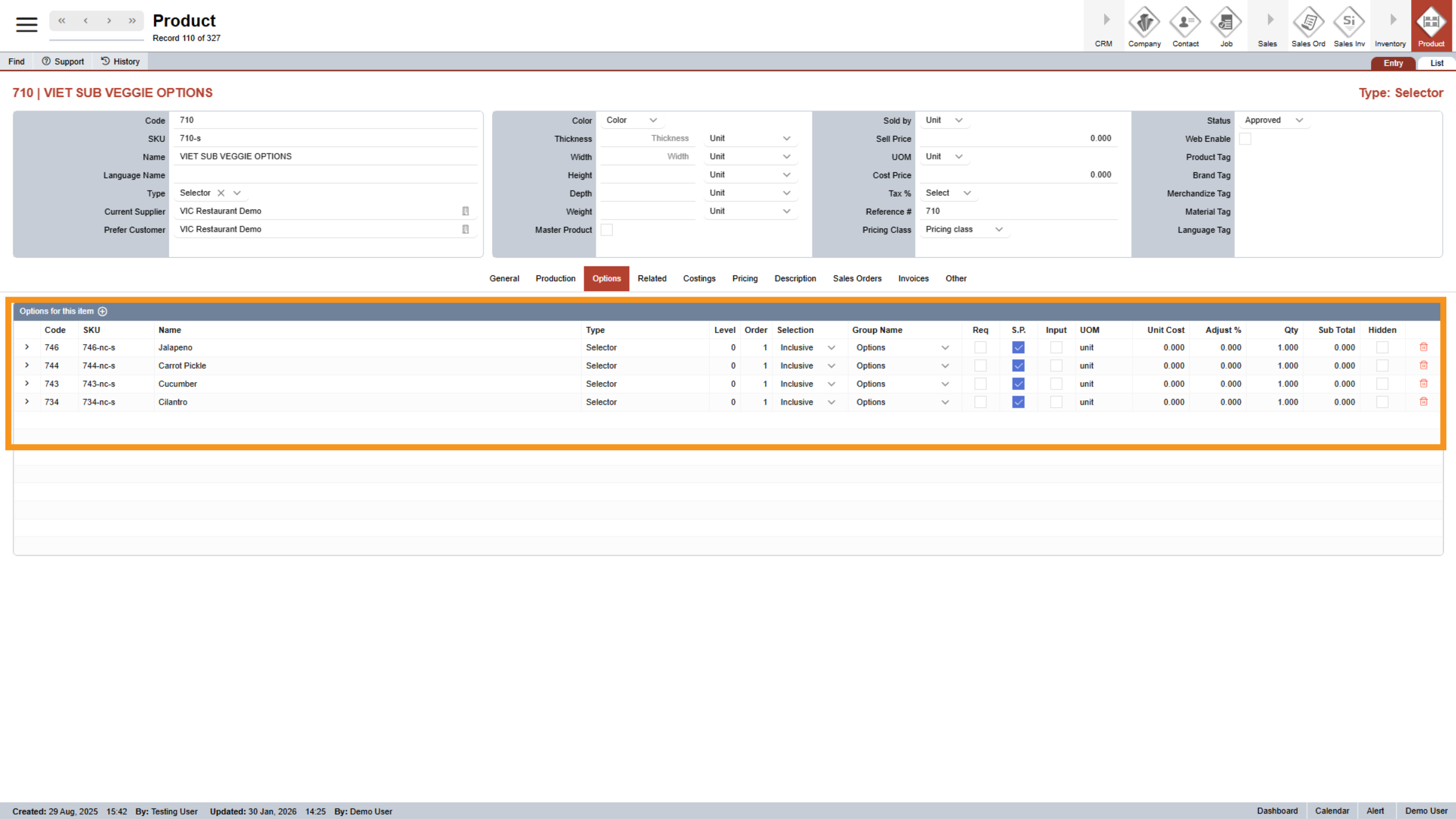
7. Child Selector nested inside
Next, we’ll add child selectors under this parent. These child selectors will contain all the individual veggie topping options nested inside the parent category.
Now you know how to set up nested selectors. In the next video, I’ll walk you through how to create a master product that you can use to easily clone all the details for your own products. Thanks for watching.