
Create Email Events
This tutorial guidesshows you throughhow configuringto create Email Events in the App.WorkTraq. Email eventsEvents definecontrol when and howsystem emails are automaticallytriggered, sentwhich bytemplate is used, and who sends and receives the system.email.
Video Tutorial
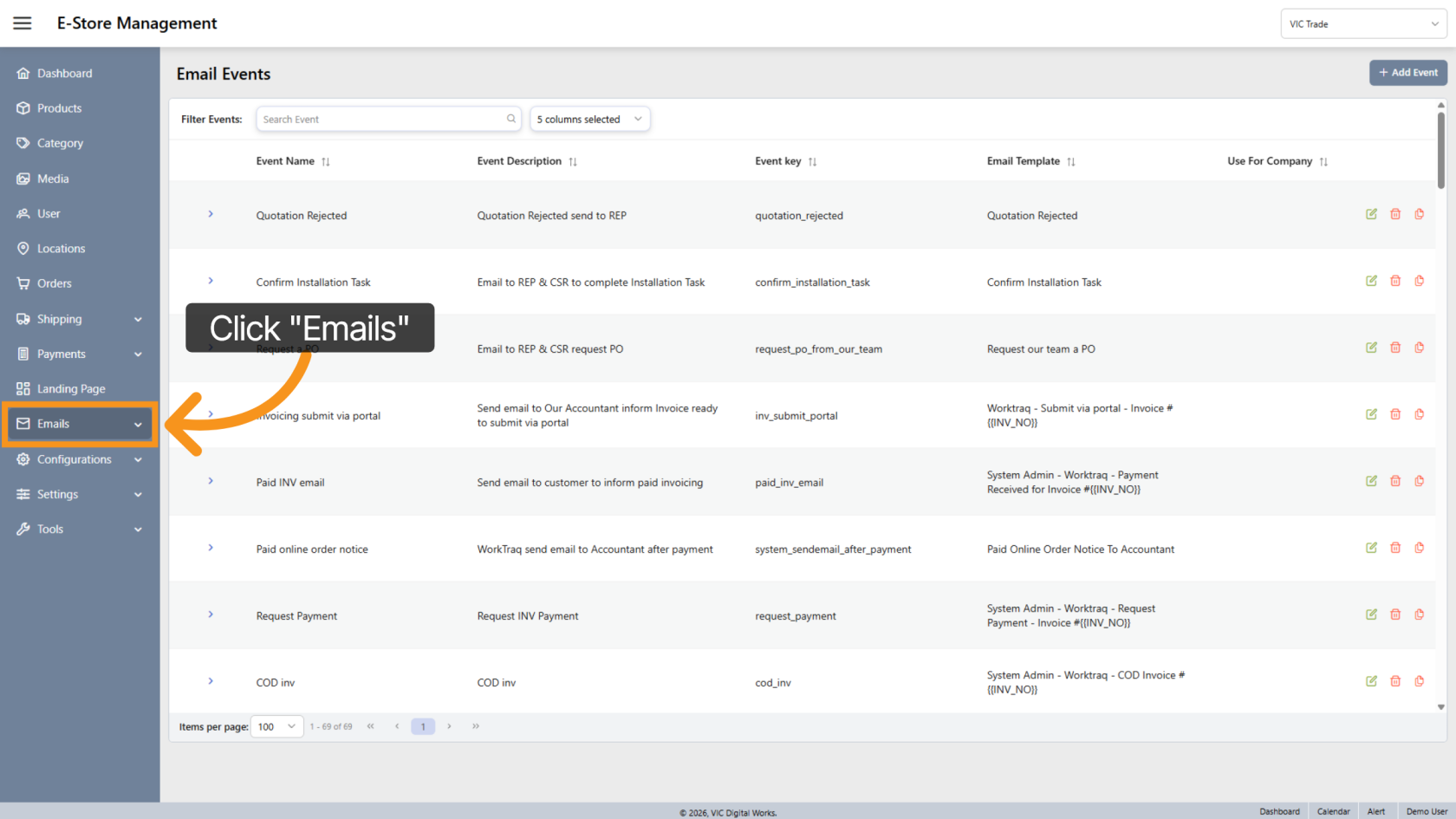
1. Open the Emails Menu
Click "Emails"Emails to access the email configuration options.
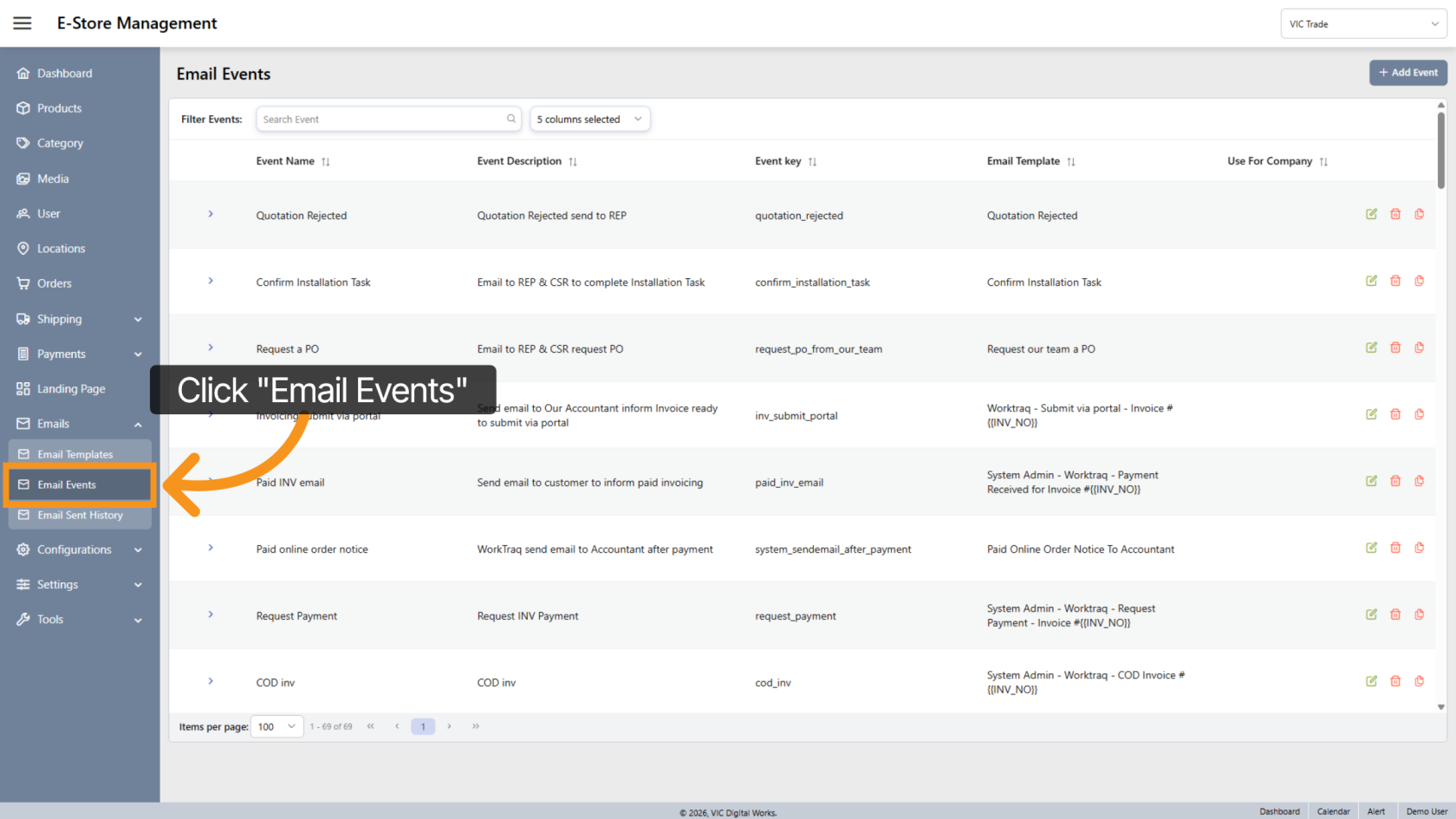
2. Navigate to Email Events
Click "Email Events"Events to view and manage the list of system email events.
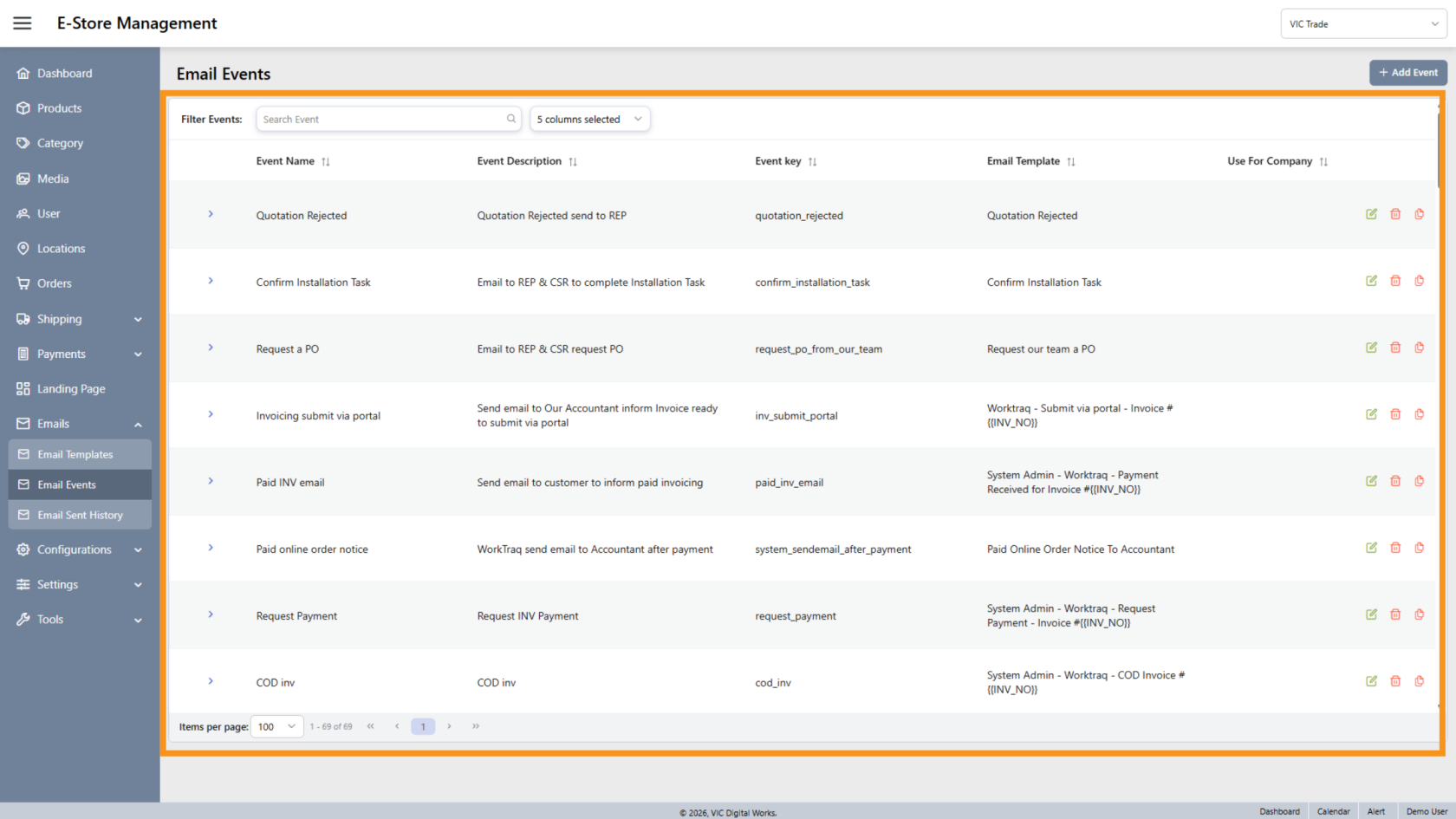
3. View All Events
This section displays all email events available in the system.
You do not need to select a company store to view these events.
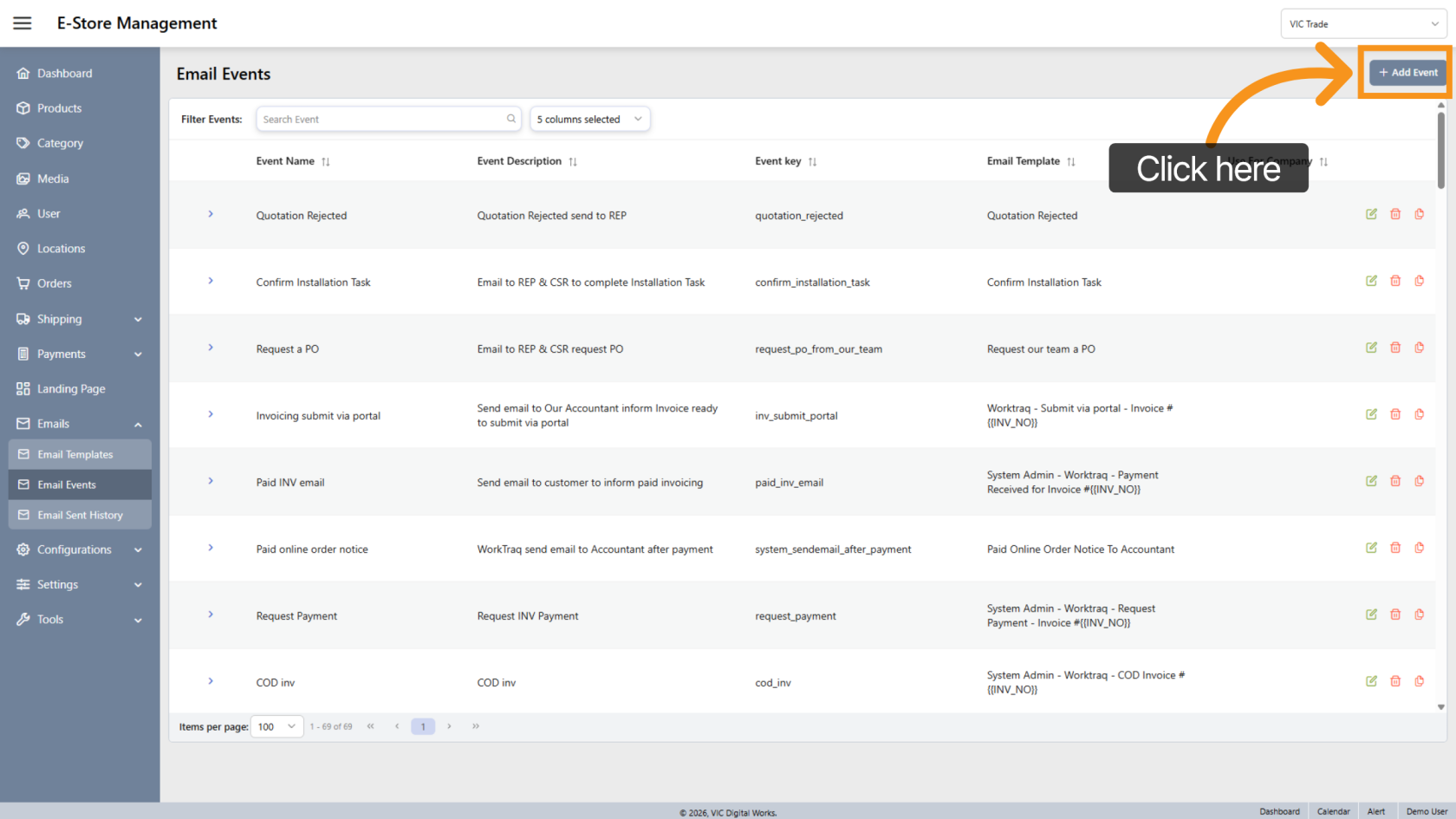
4. Add a New Event
Click "Add Event"Event to create a new email event.
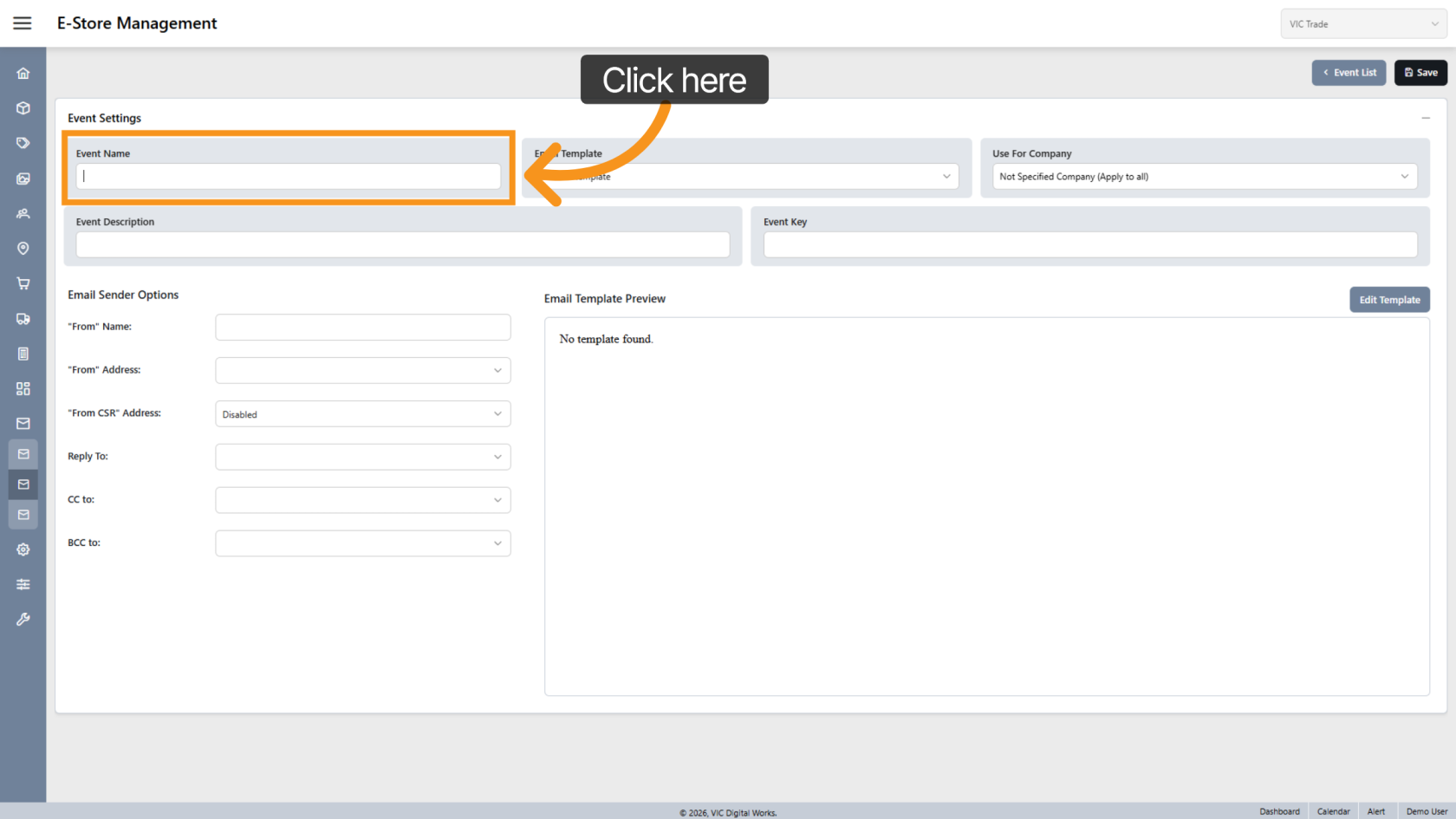
5. Enter Event Name
Enter a name that clearly identifies the purpose of the email event.
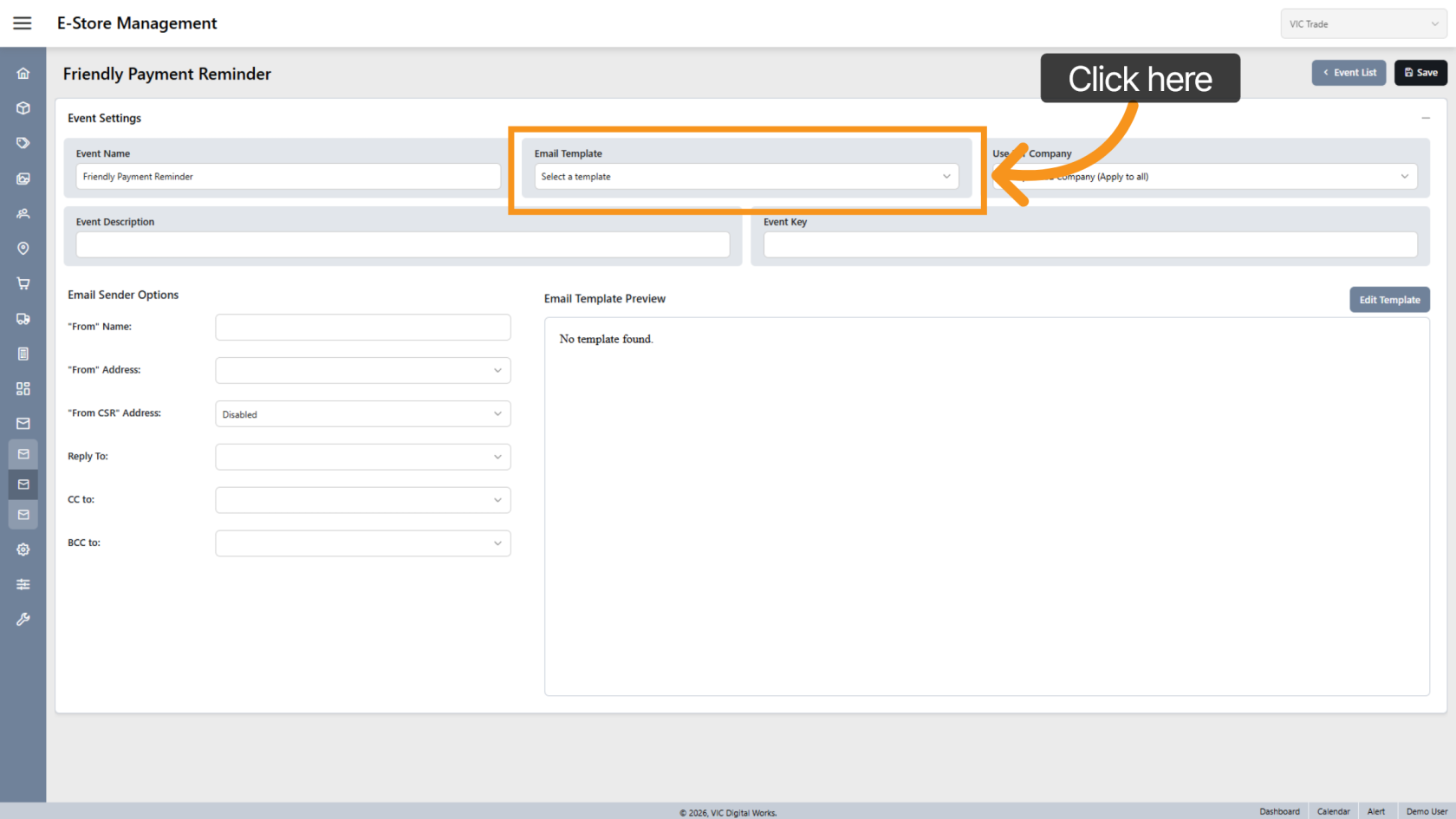
6. Select Email Template
Choose the email template that will be used when this event is triggered.
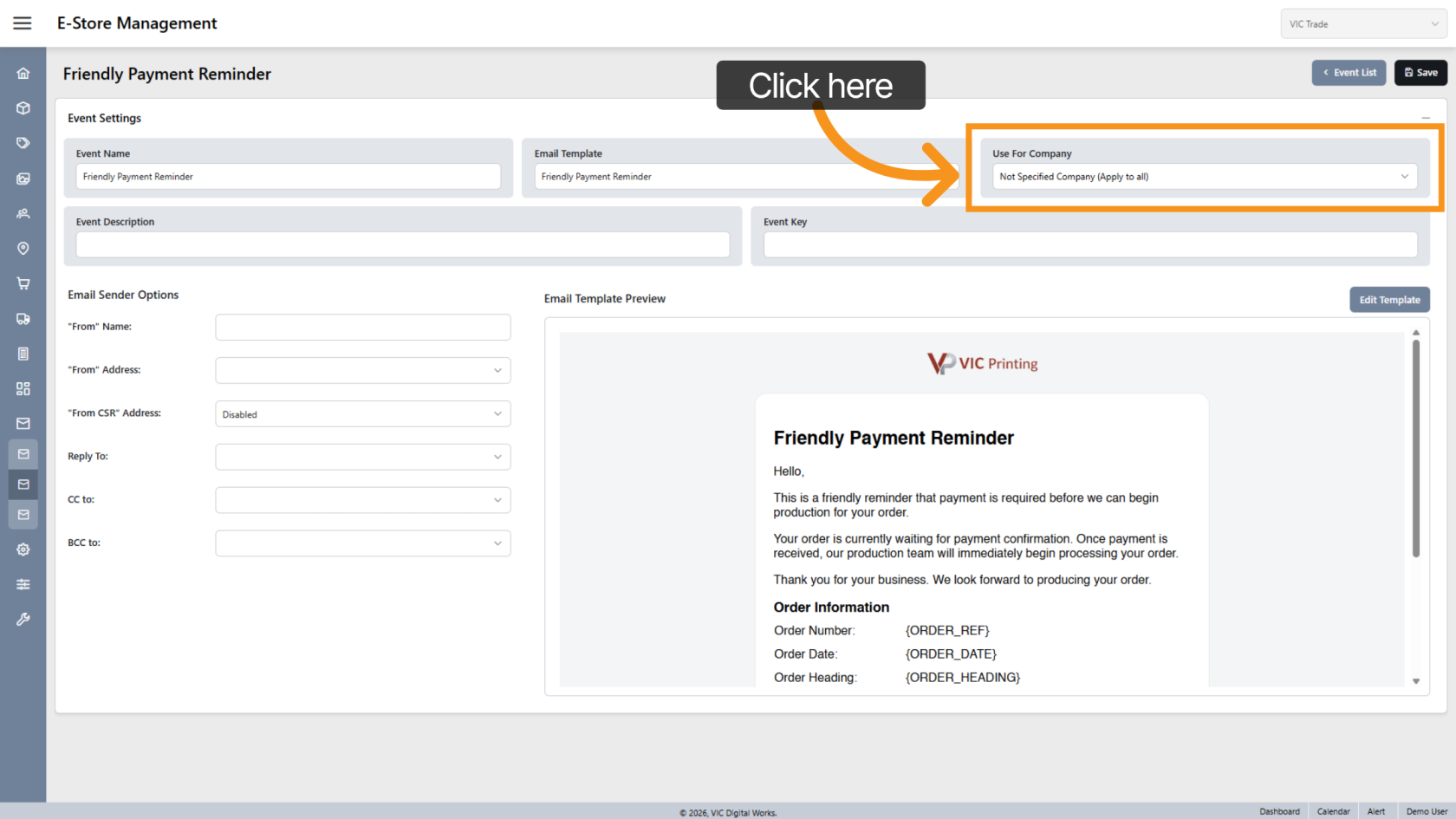
7. Apply Event to Company
Select the companycompanies that will use this event.
A single eventYou can beapply appliedthe same event to multiple companies.companies,
Leaveleave this field blank if the event shouldto apply it to all companies.
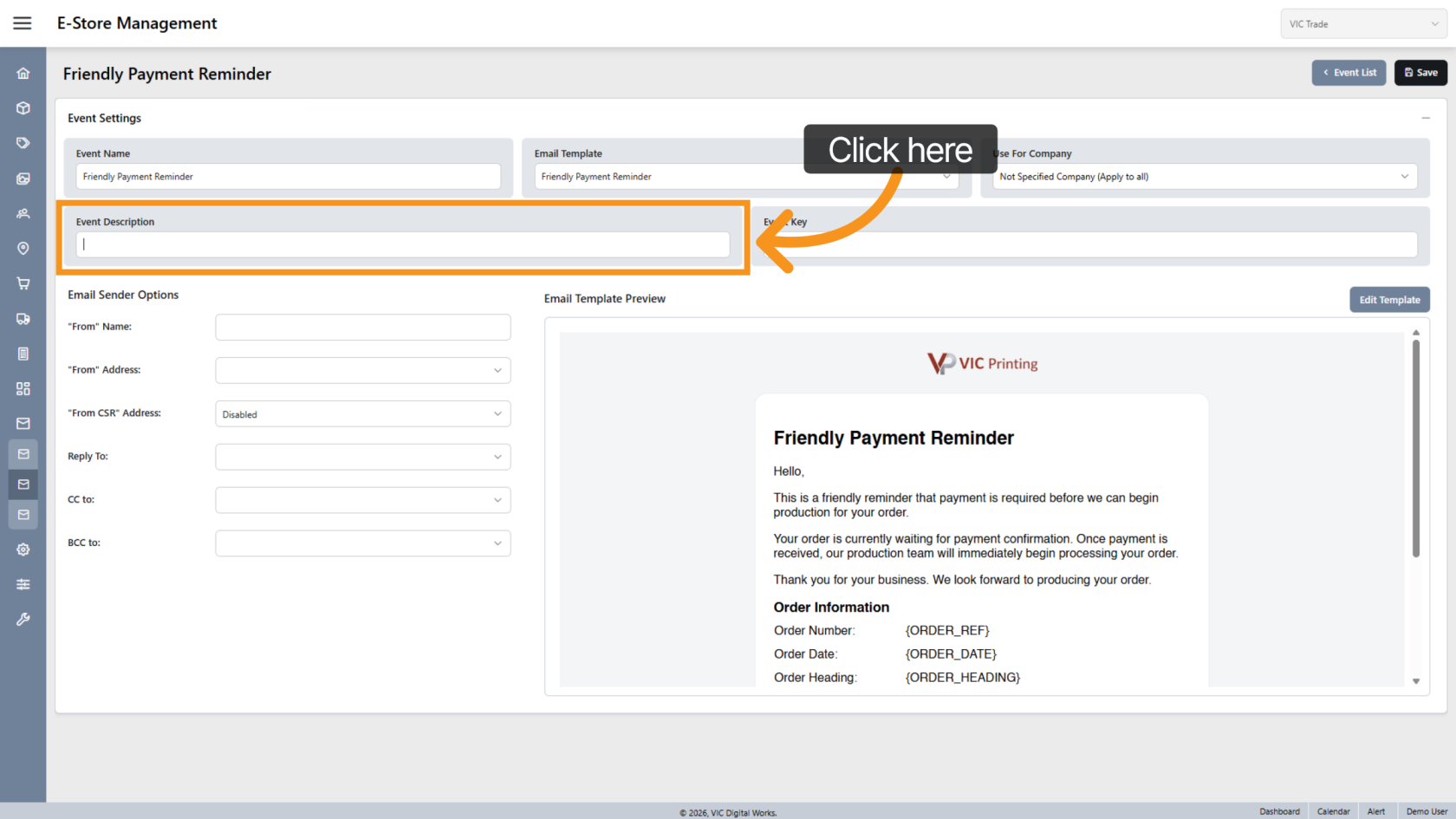
8. Enter Event Description
AddEnter a description to help explain the purpose of the email event.
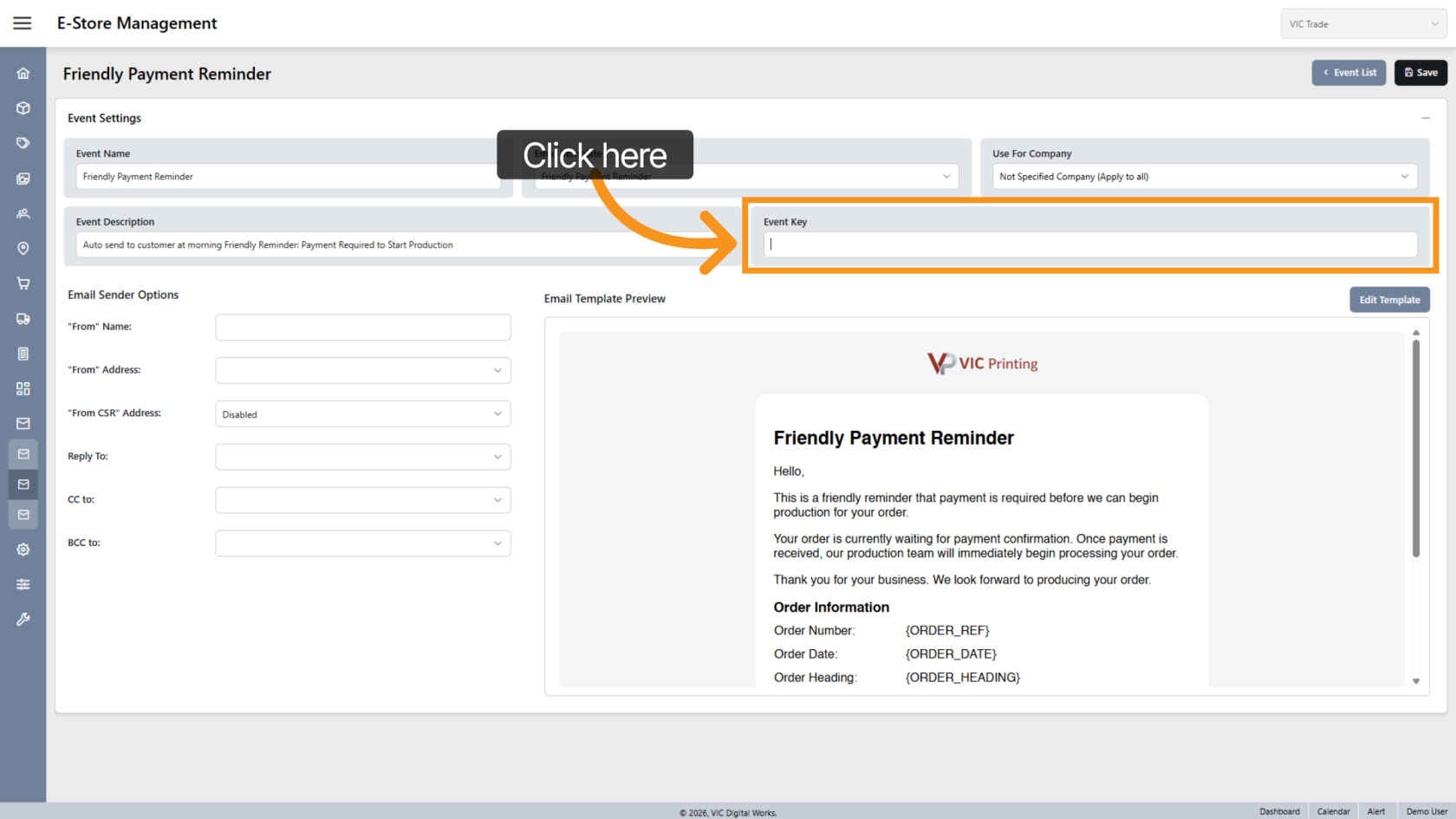
9. Event Key
Enter the Event Key provided by the developer. The Event Key is defined during system development and determines when the email event will be triggered.
Note: Do not modify the Event Key unless instructed by a developer.
10. Select Event Type
By default, the event type is System. Select Marketing only if the event is used for marketing purposes. Marketing events will appear in the Email Marketing list.
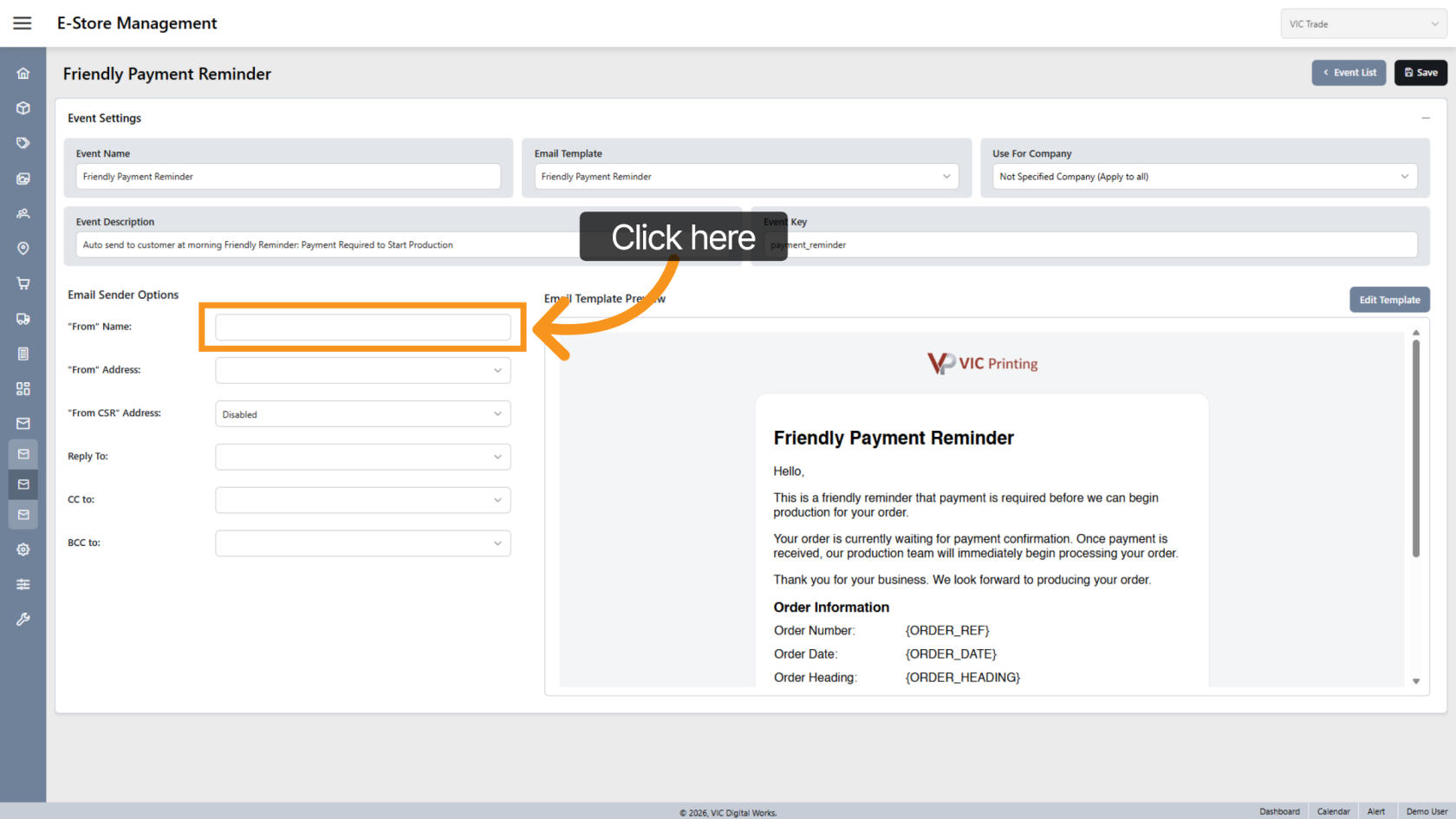
11. Enter From Name
Enter the From Name that will appear as the sender name in the email.
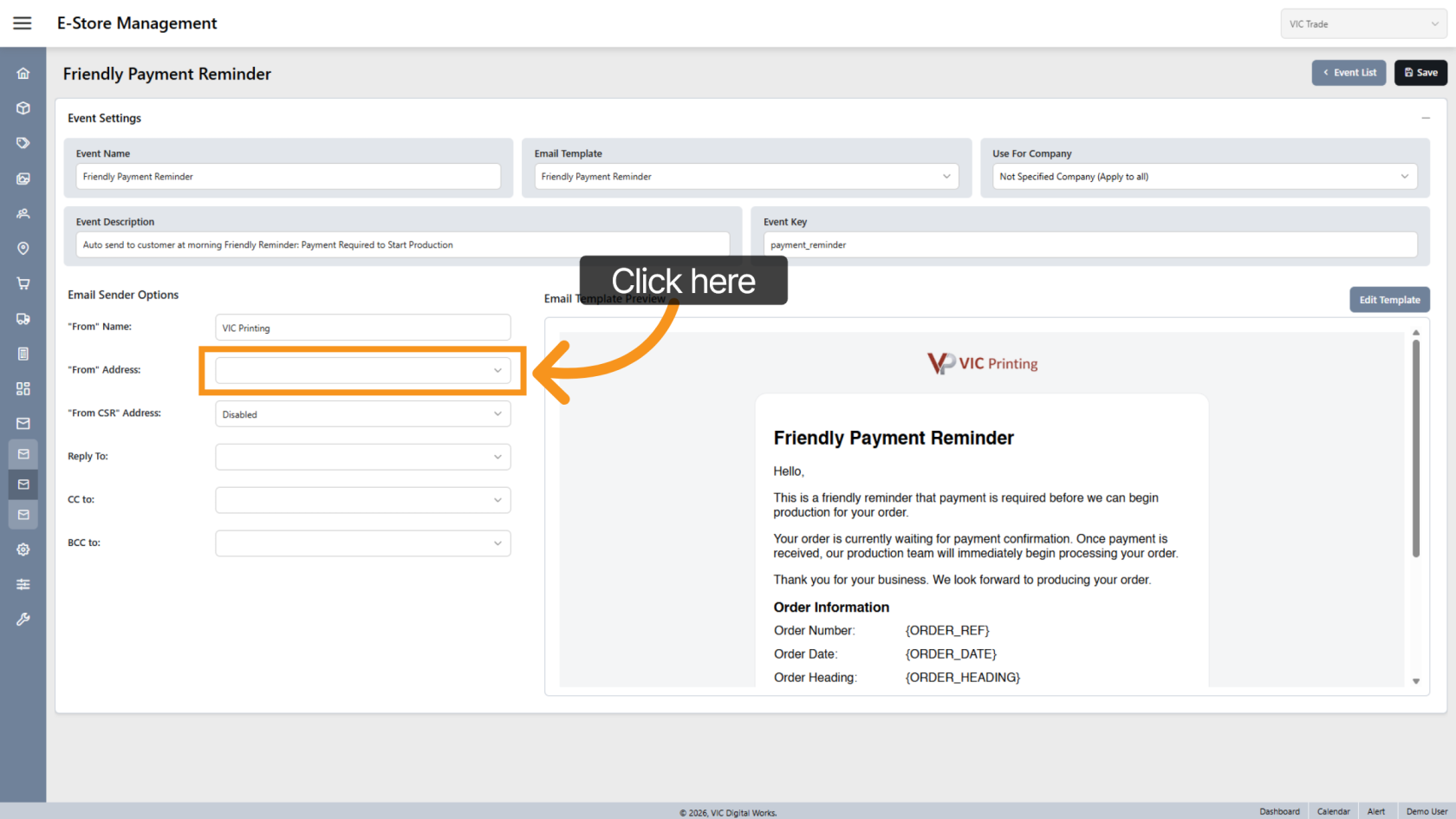
11.12. Select Sender Email Address
Choose the email address that will be used to send the email.
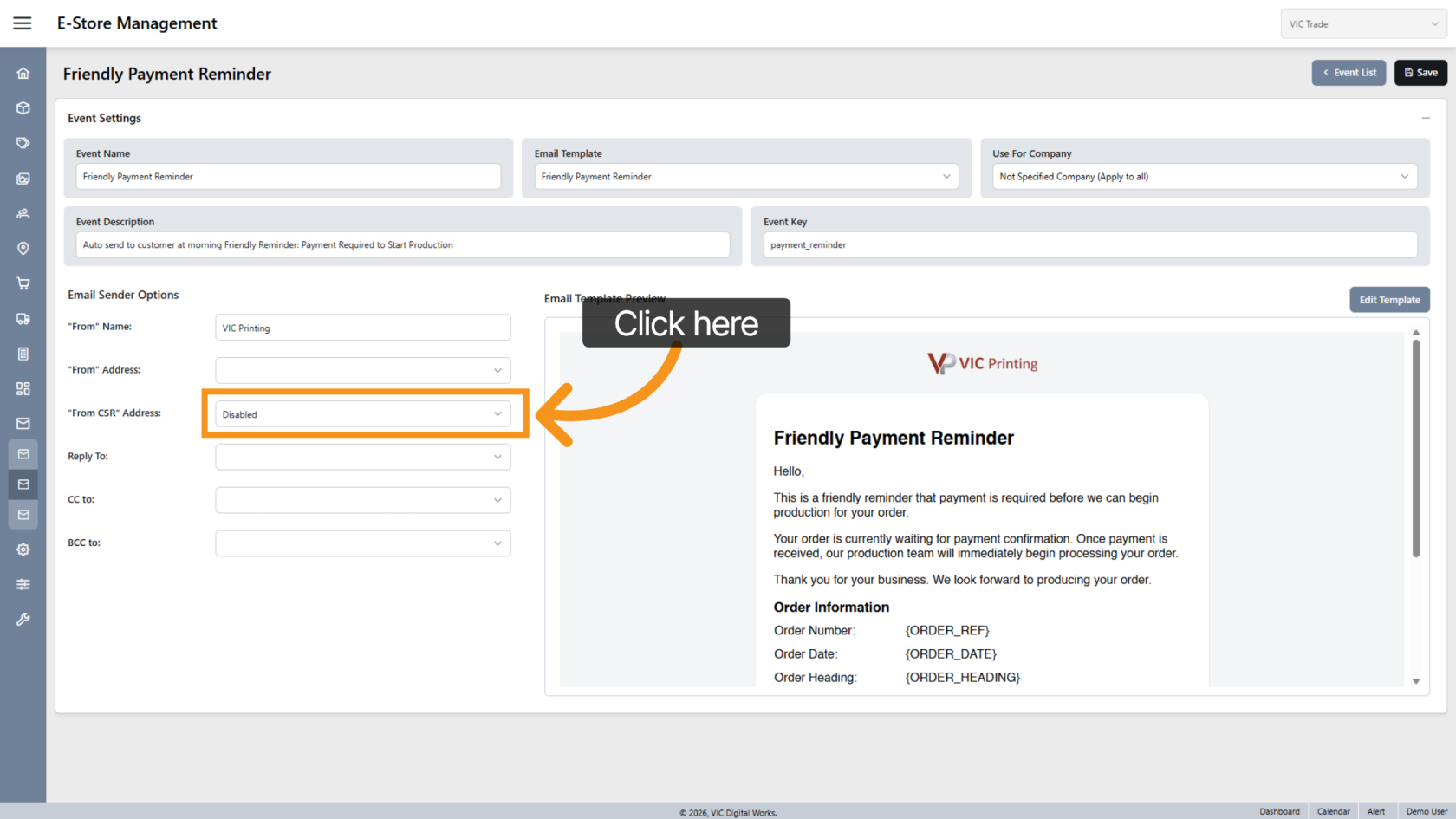
12.13. Use CSR Email Address
Enable this option if each company uses a custom sender email (CSR email).
When enabled, the system will automaticallyto use the company’company's configured CSR email address andas overridethe sender. When enabled, it overrides the sender email selected above.
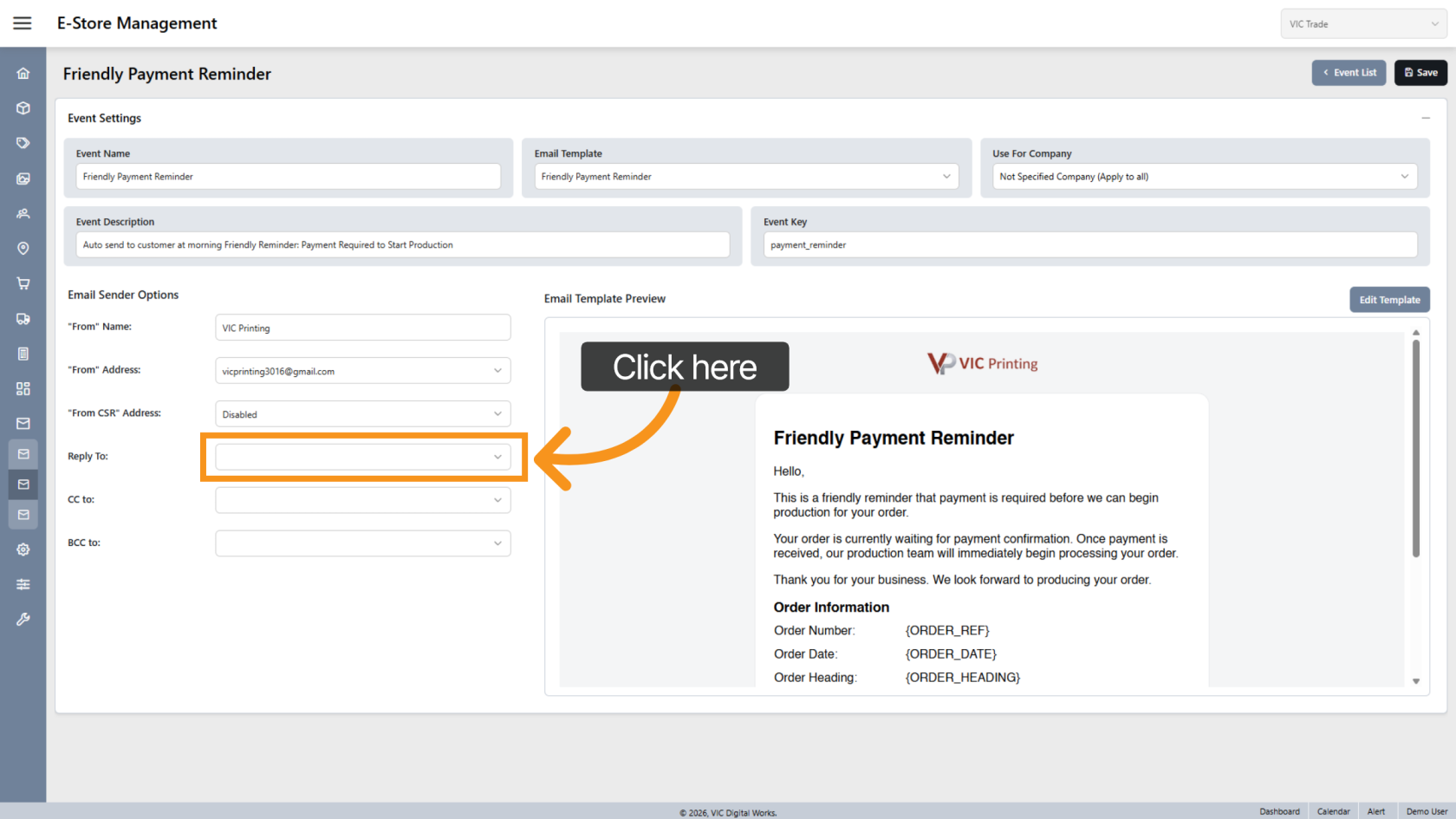
13.14. Select Reply-To Email
In some cases,If replies should gobe sent to a different emailaddress, address thanselect the sender.
Select theappropriate Reply-To email address if needed.address.
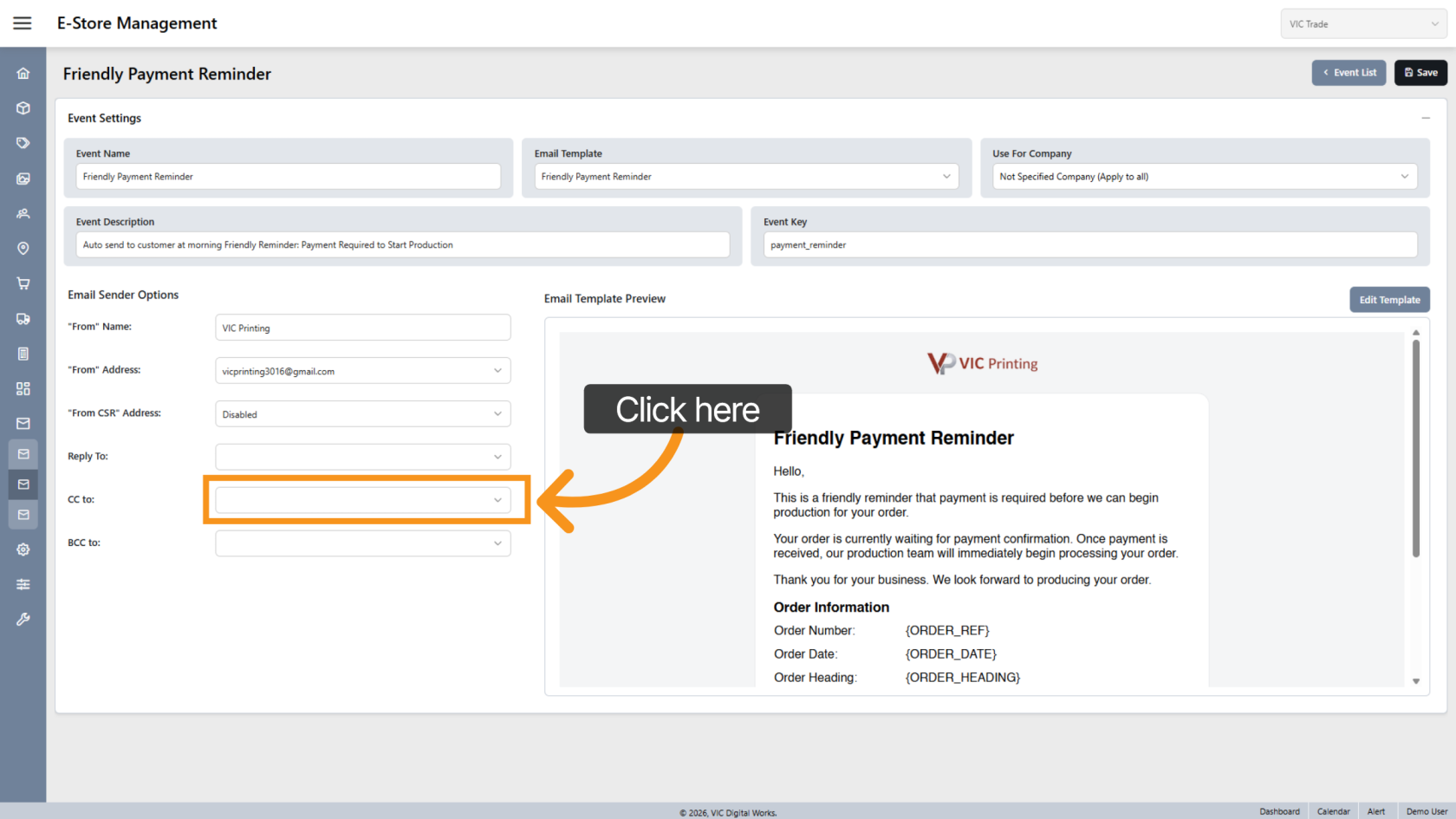
14.15. Select CC Emails
Choose any CC email addresses relatedthat toshould thisreceive event.a copy of the email. Multiple addresses can be selected.
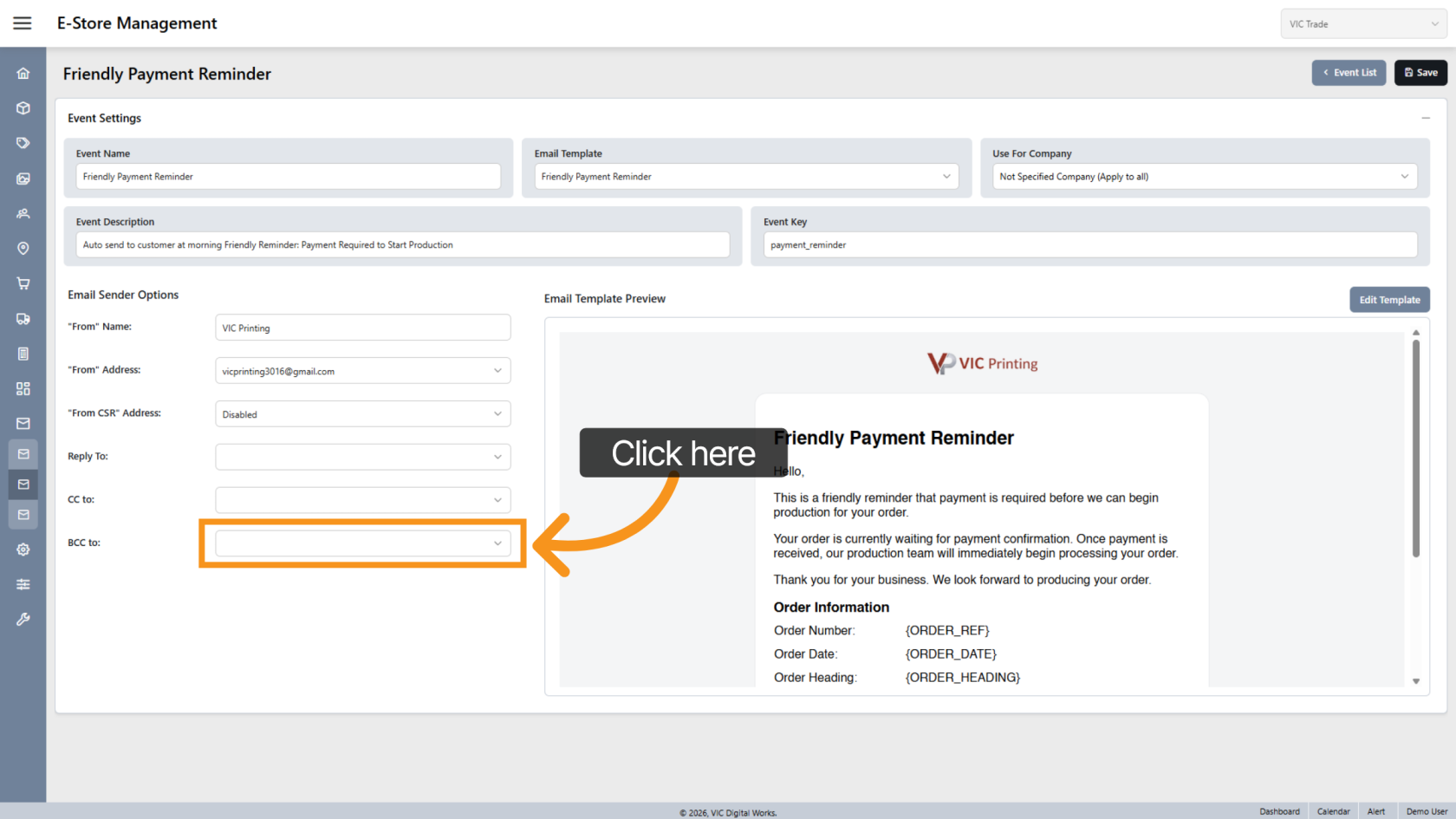
15.16. Select BCC Emails
Choose any BCC email addresses relatedthat toshould thisreceive event.a blind copy of the email. Multiple addresses can be selected.
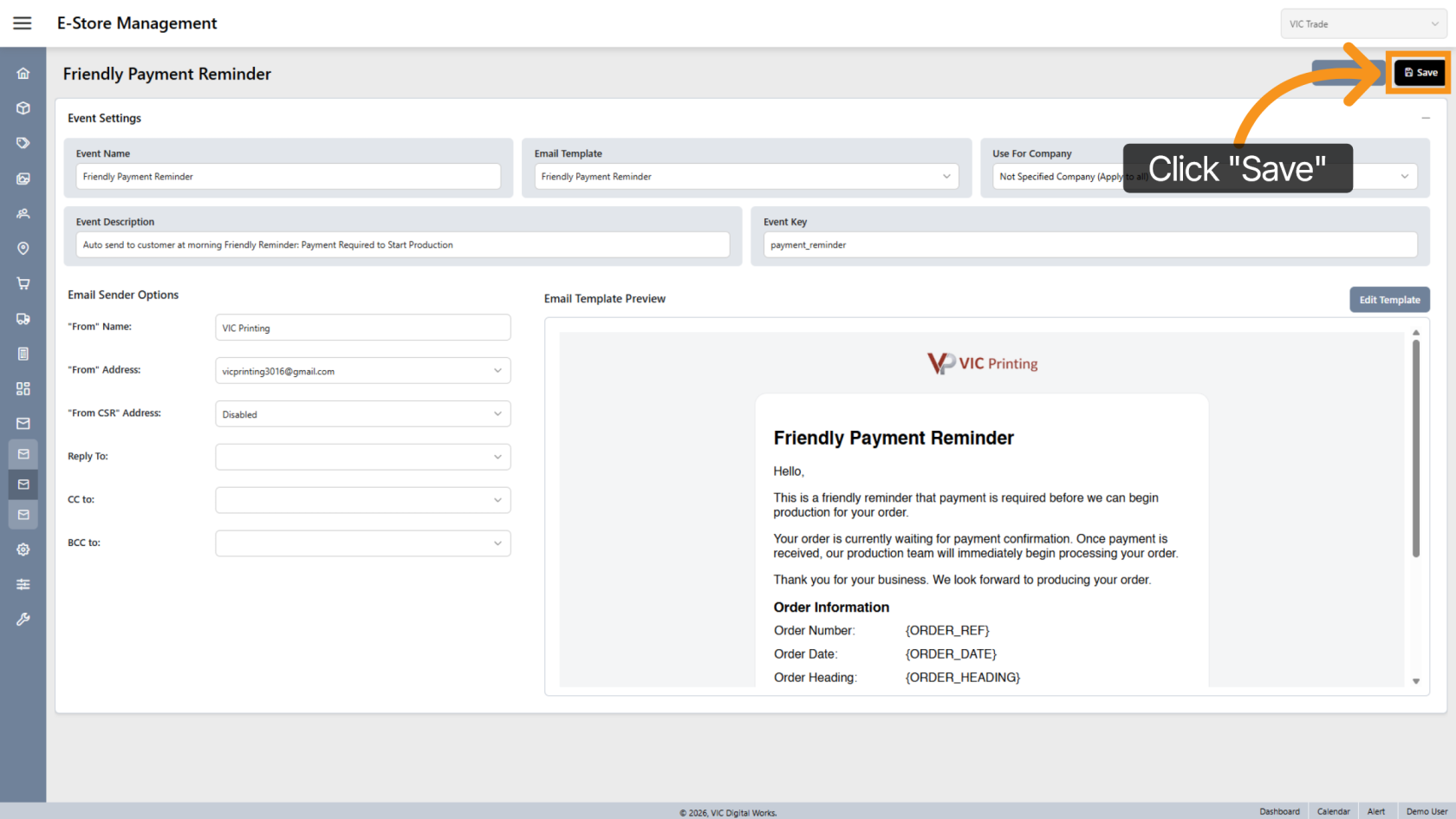
16.17. Save the Email Event
Click "Save"Save to storesave the new email event and its settings.
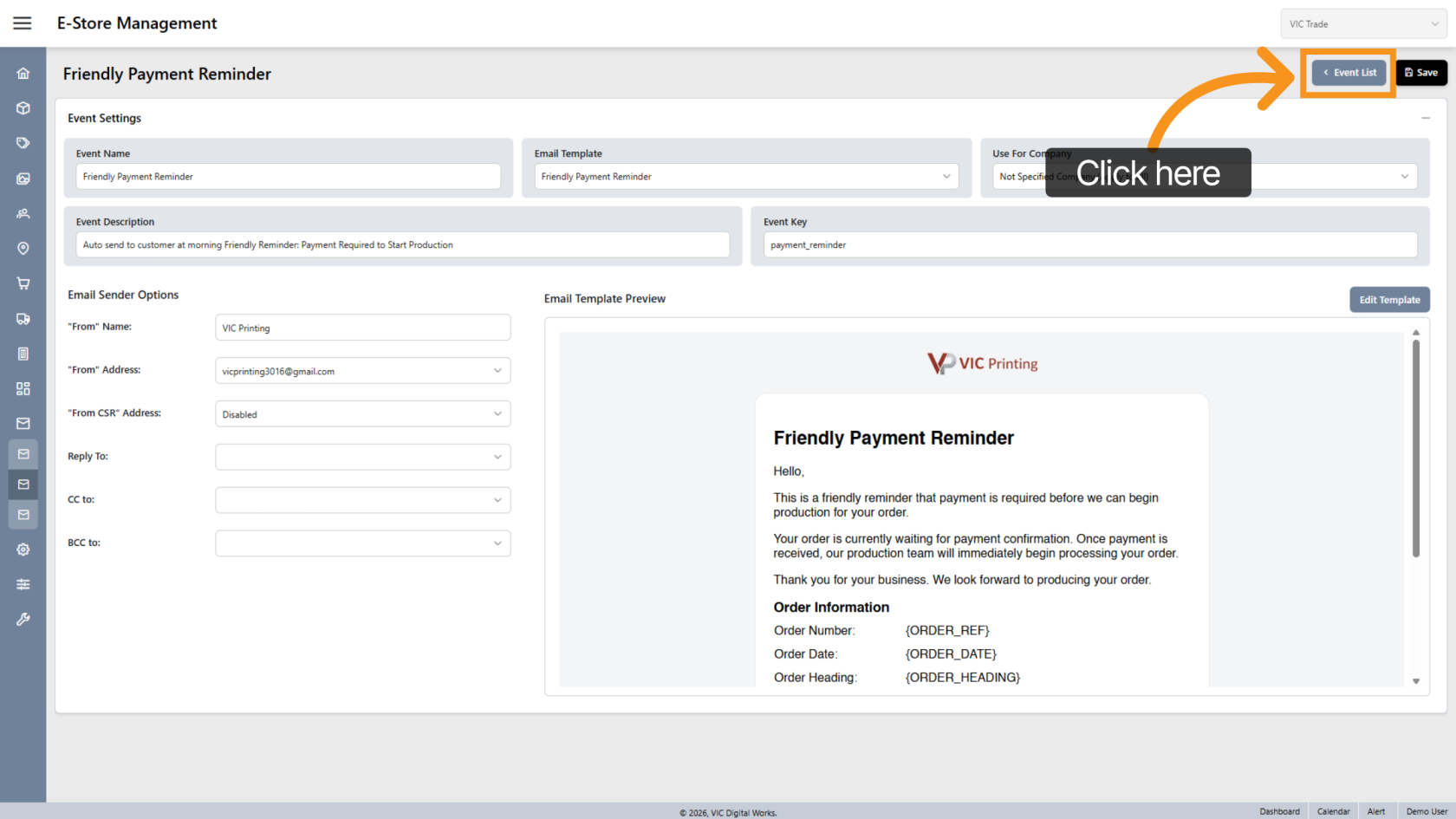
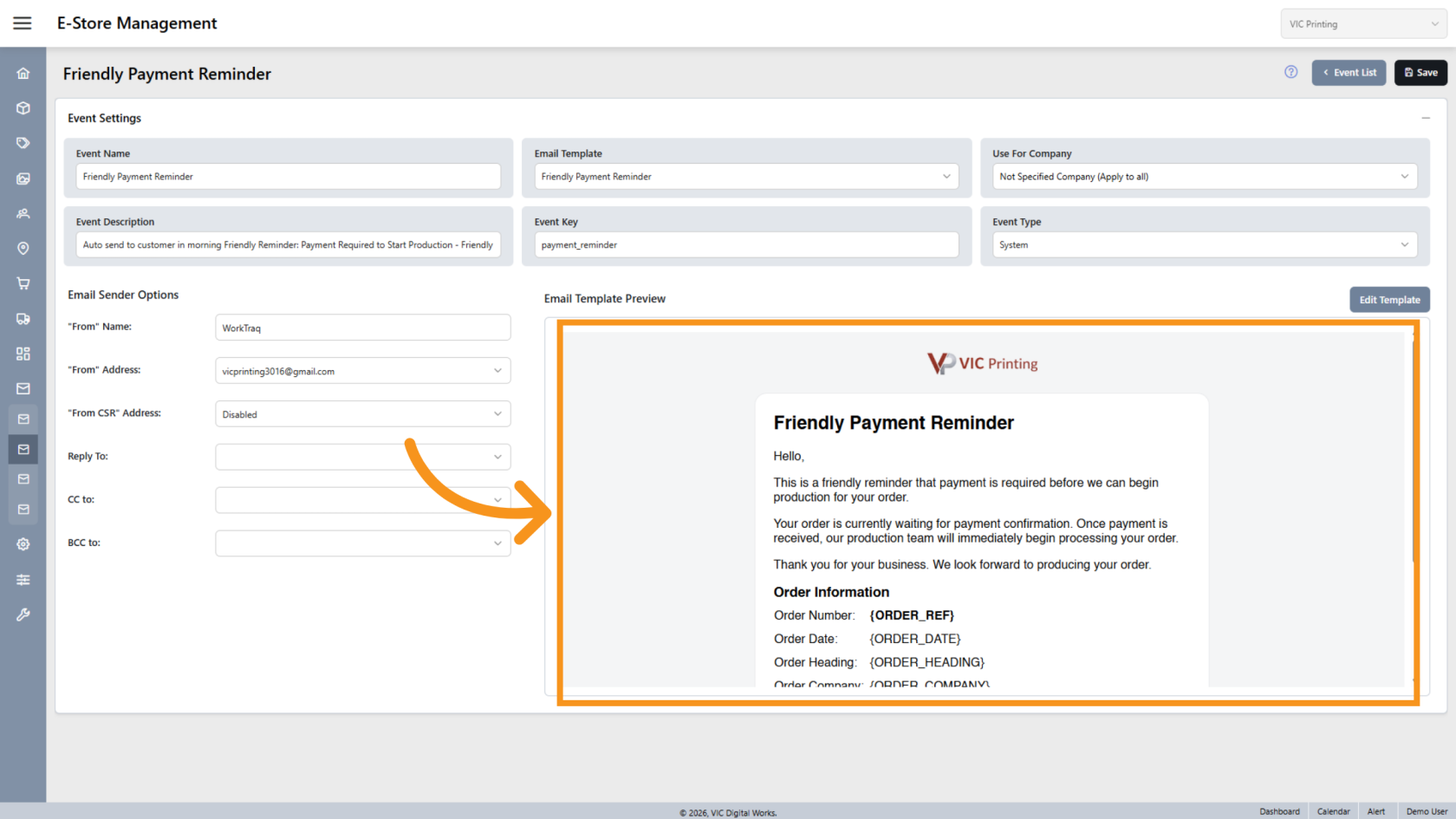
17.18. Review Template
The selected email template is displayed in the window, allowing you to quickly review and confirm that the correct template is selected.
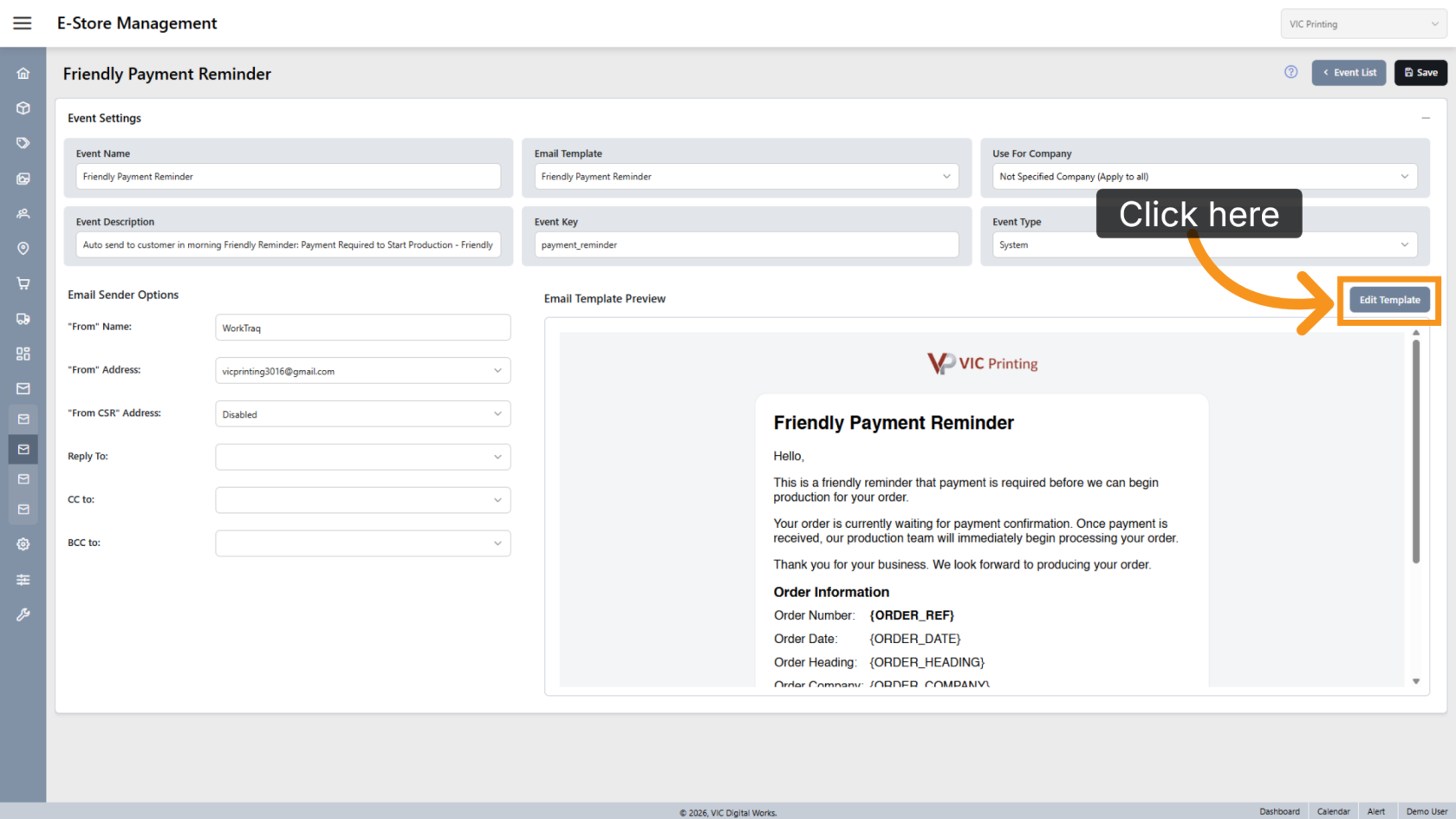
19. Edit Template
Click Edit Template if you need to make changes to the selected email template.
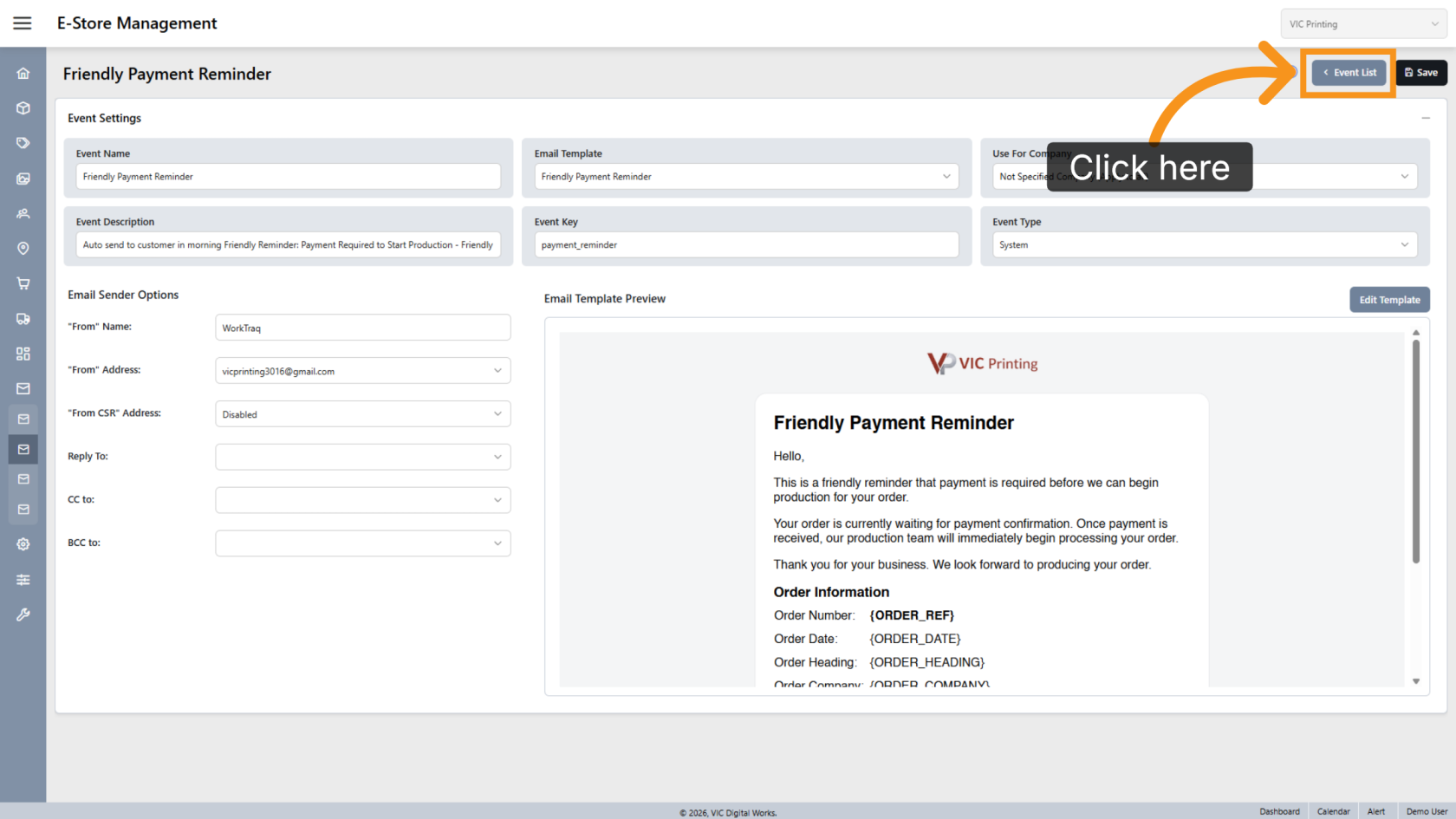
20. Return to Event List
Click "Event List"List to return to the list of configured email events.
You have successfully configuredcreated a newan Email EventEvent. withThe customizedsystem templatescan andnow sender options. This allowsuse the systemevent settings to automatically send emails with the appropriate template, sender, and helps streamline your communication workflow.recipients.