
Create Location
This tutorial explains how to create and configure a new location in the App.
Video Tutorial
1. Select Company Store
Choose the Company Store where you want to create the new location.
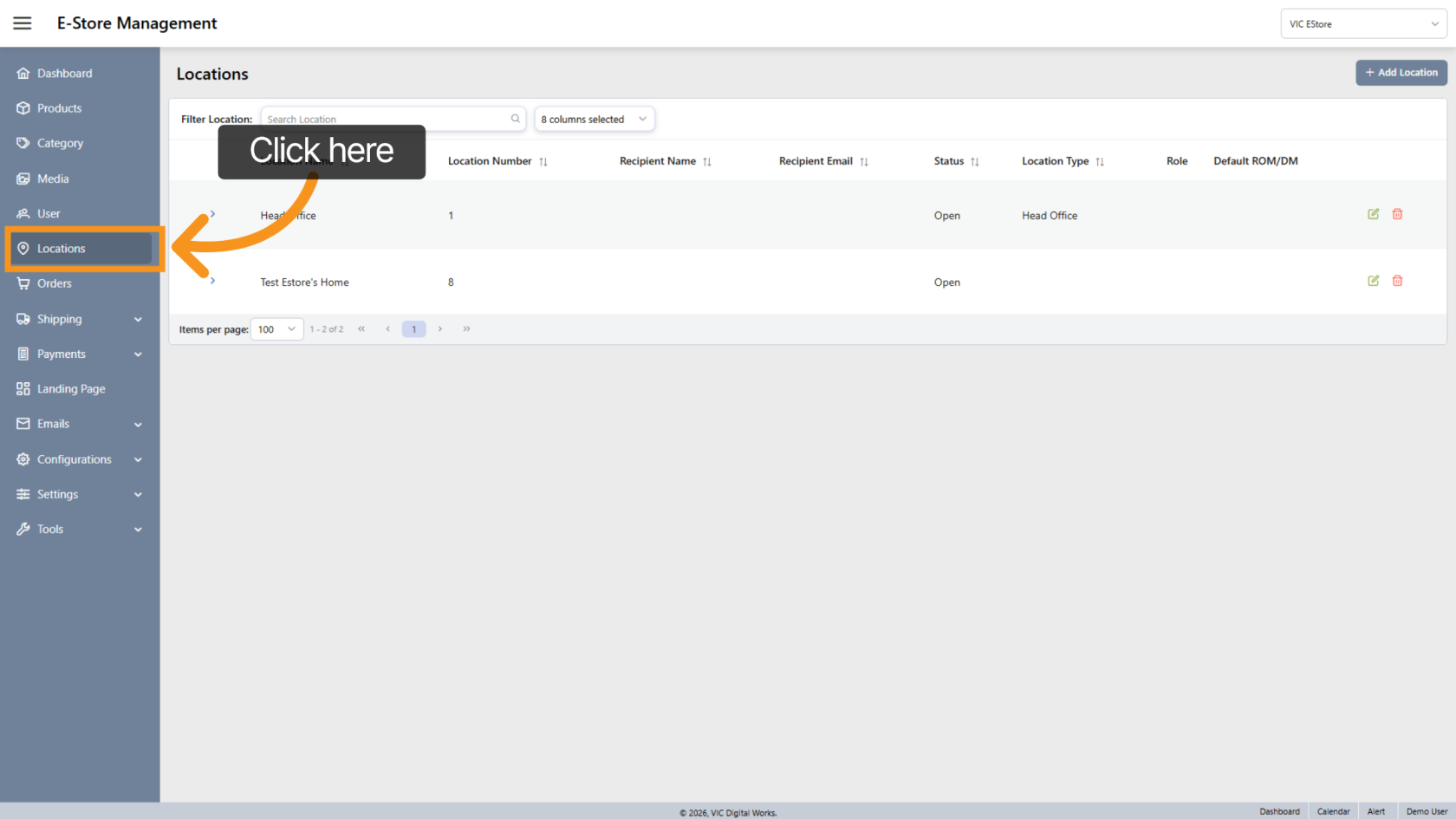
2. Open Locations
Click Locations to view and manage existing locations.
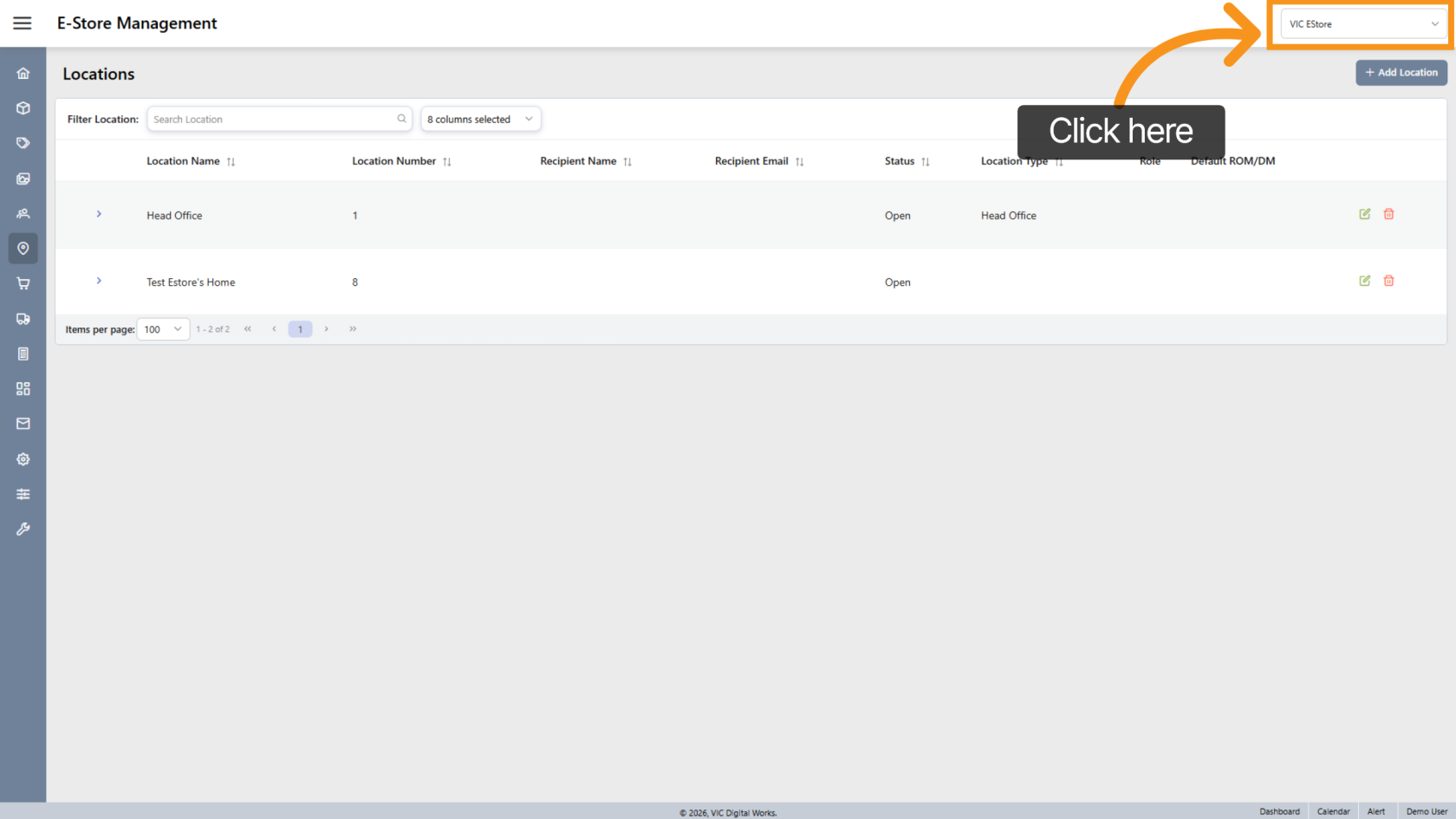
2. Select Company Store
Choose the correct Company Store where you want to create the new location.
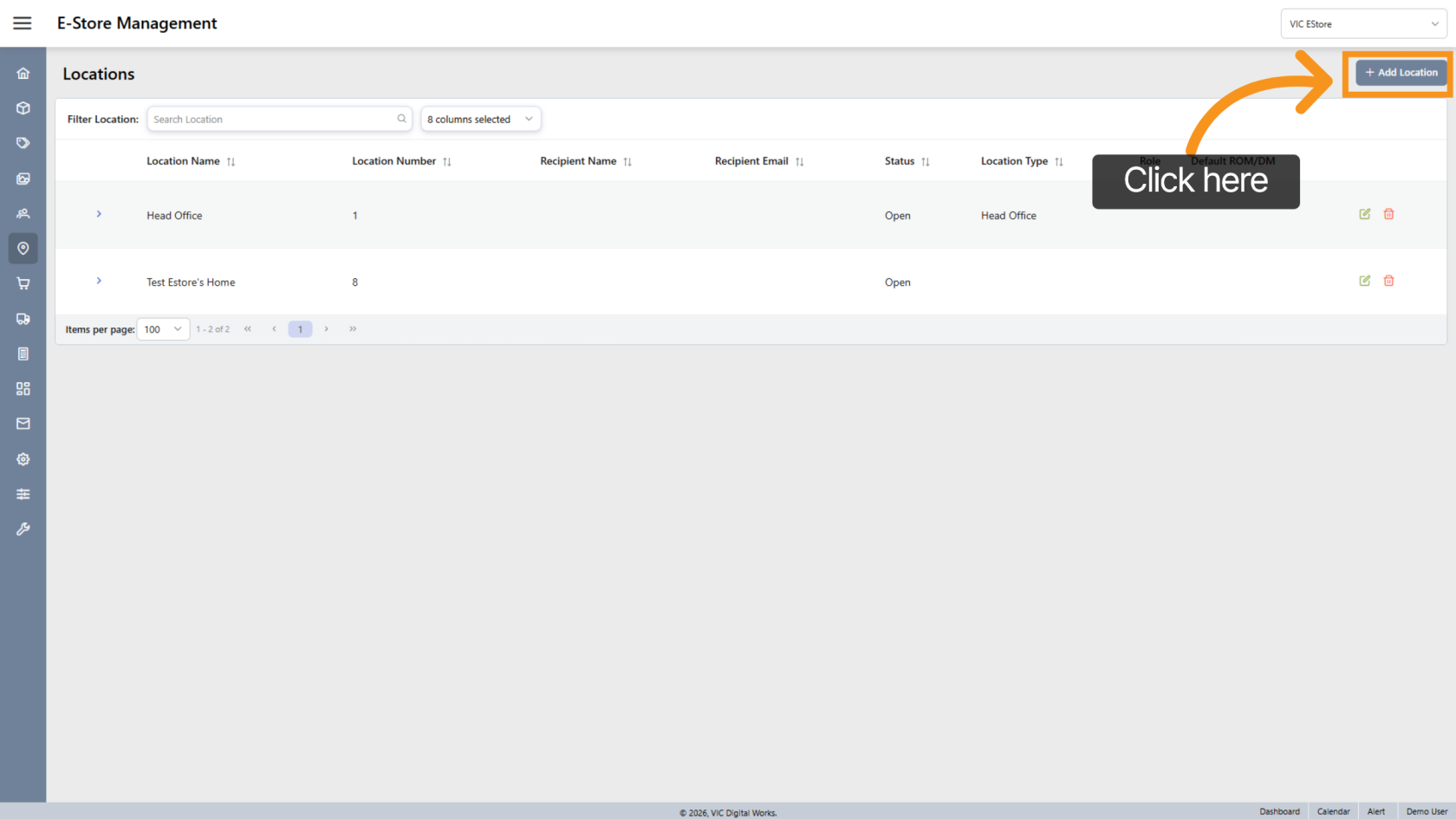
3. Add Location
Click "Add Location" to begin creating a new location.
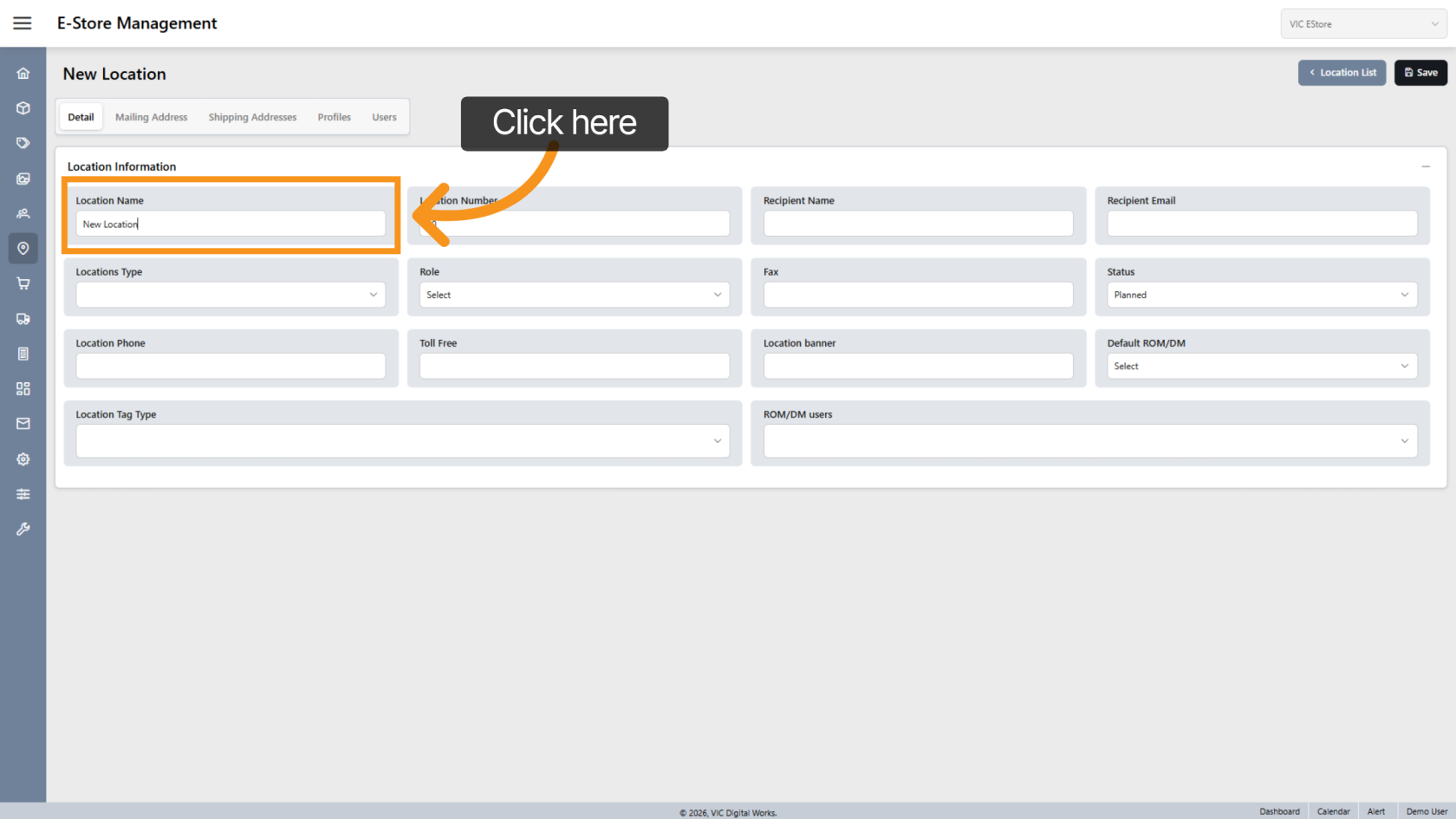
4. Enter Location Name
Enter the name for the new location.
5. Location Number
The system automatically generates a Location Number, but you can modify it if needed.
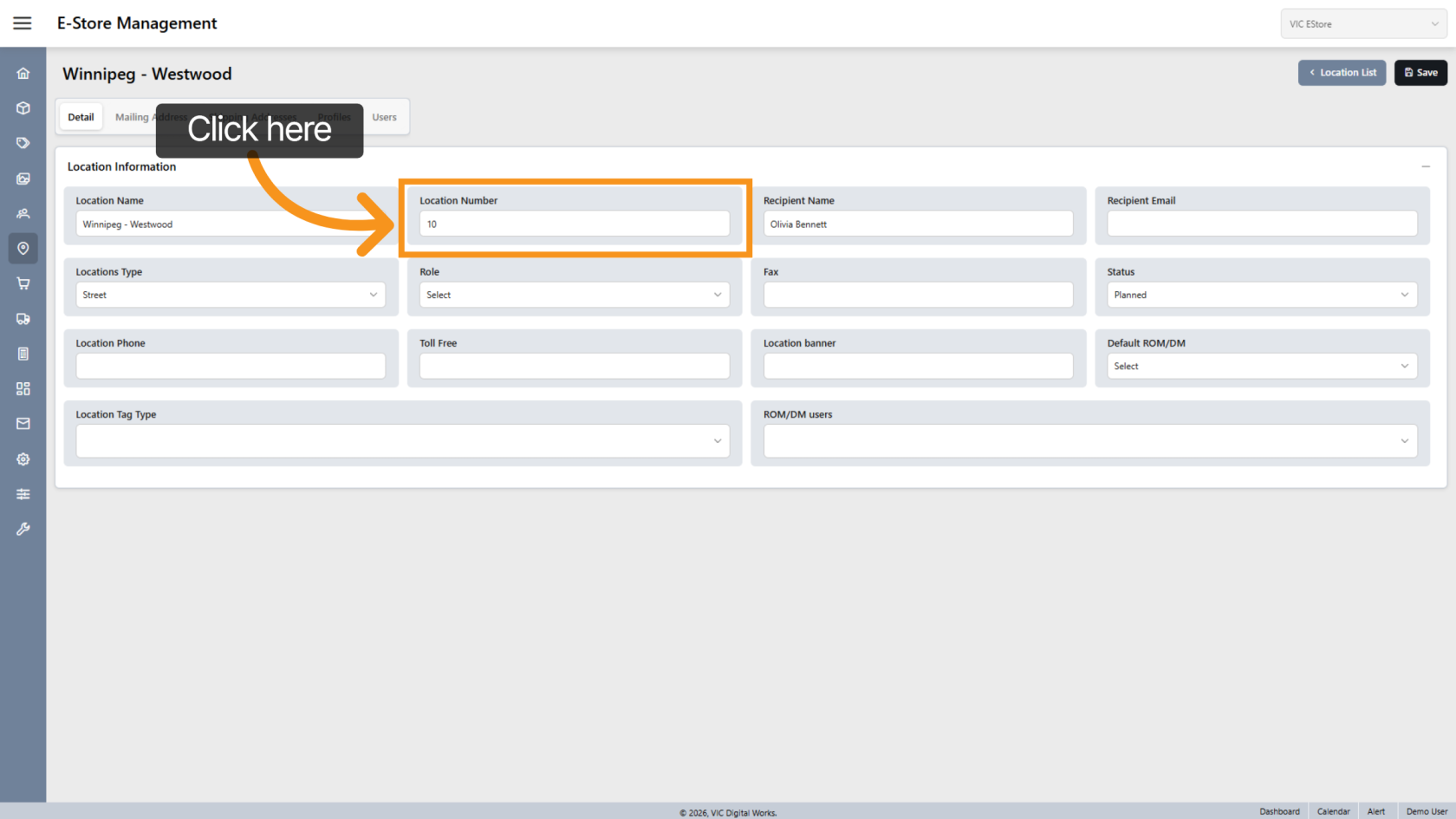
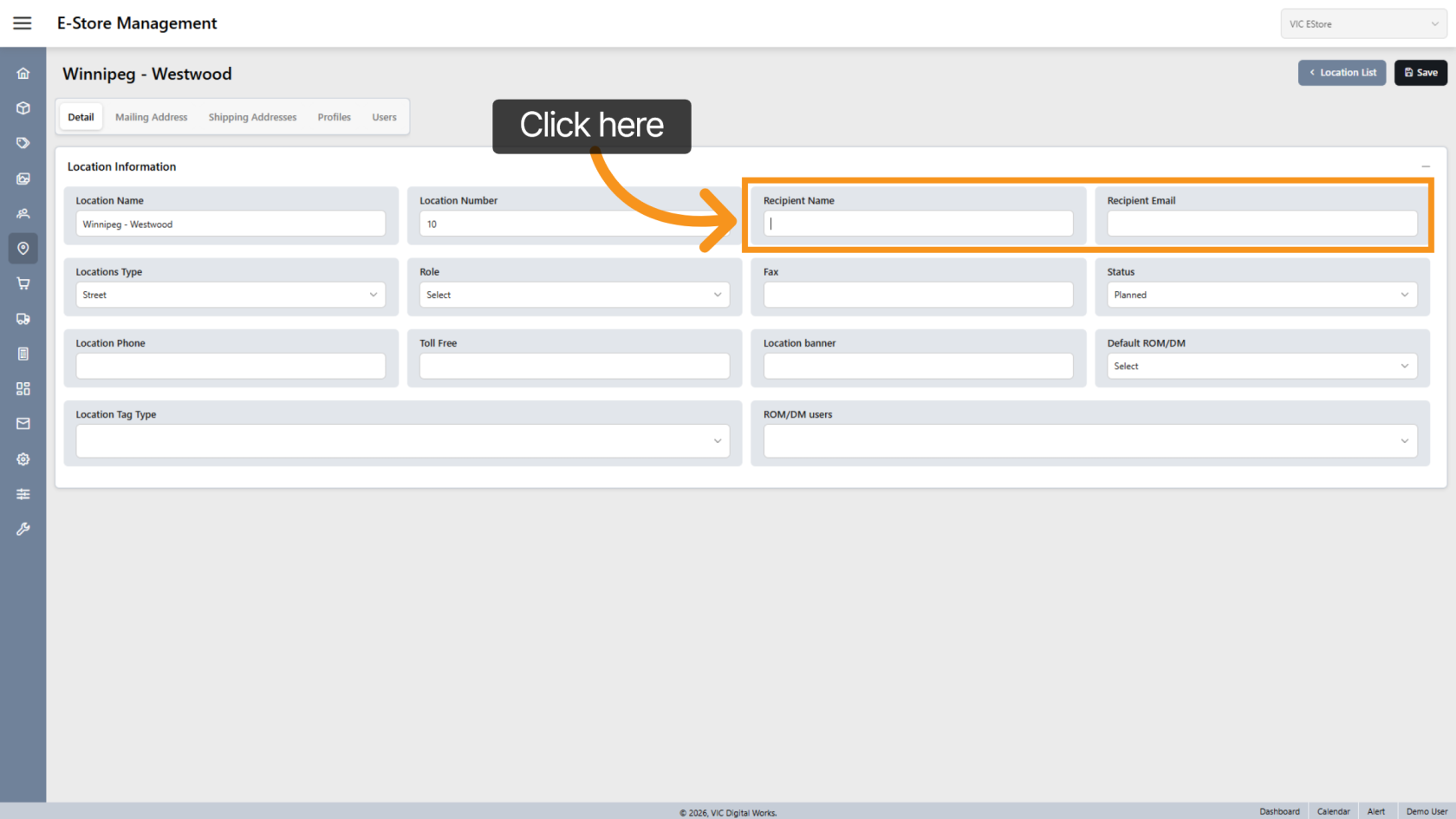
6. Recipient Details
Enter recipientthe contactrecipient's details (name and email)email address if required for shipping.
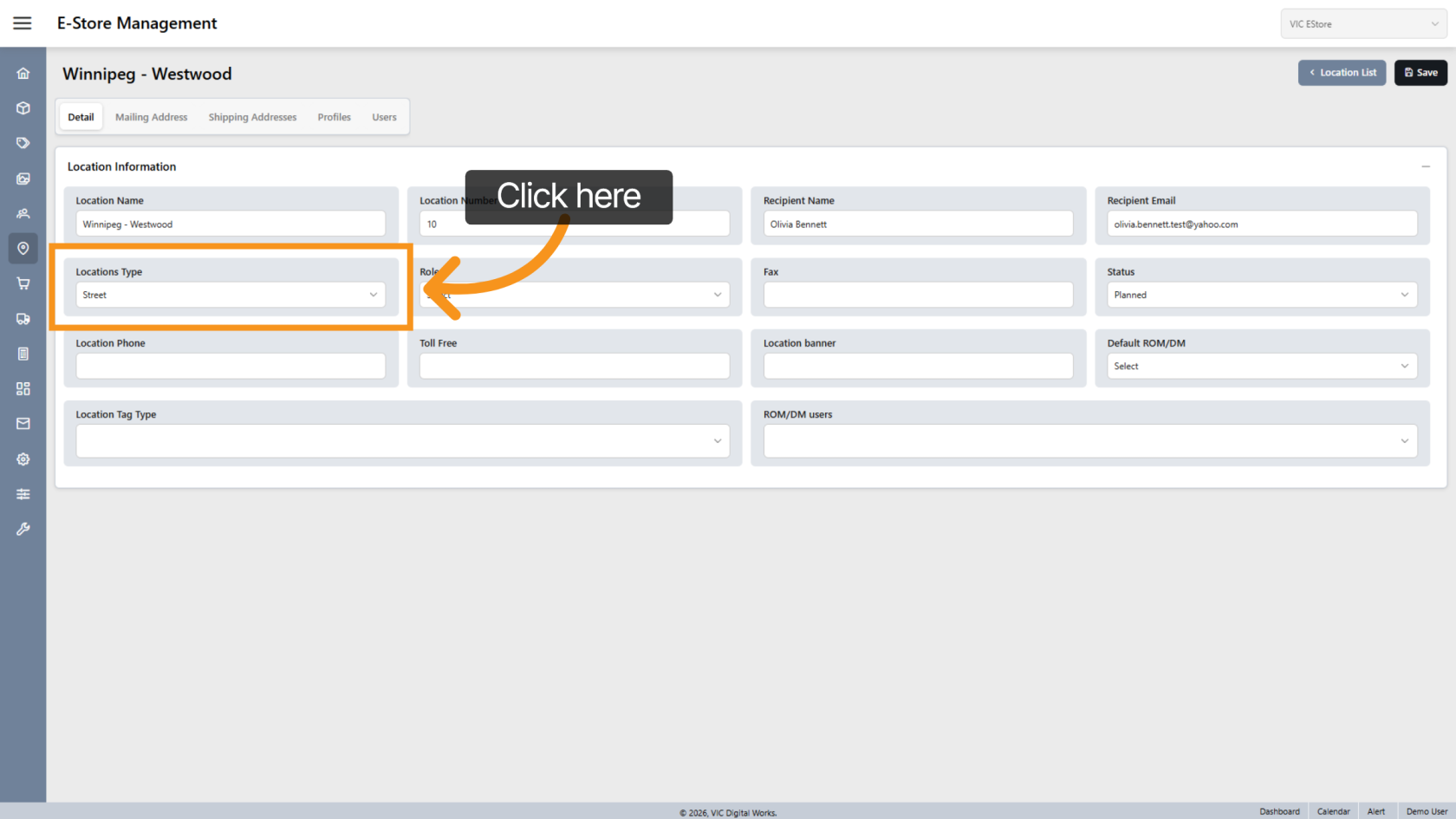
7. Select Location Type
Choose the appropriate Location Type.
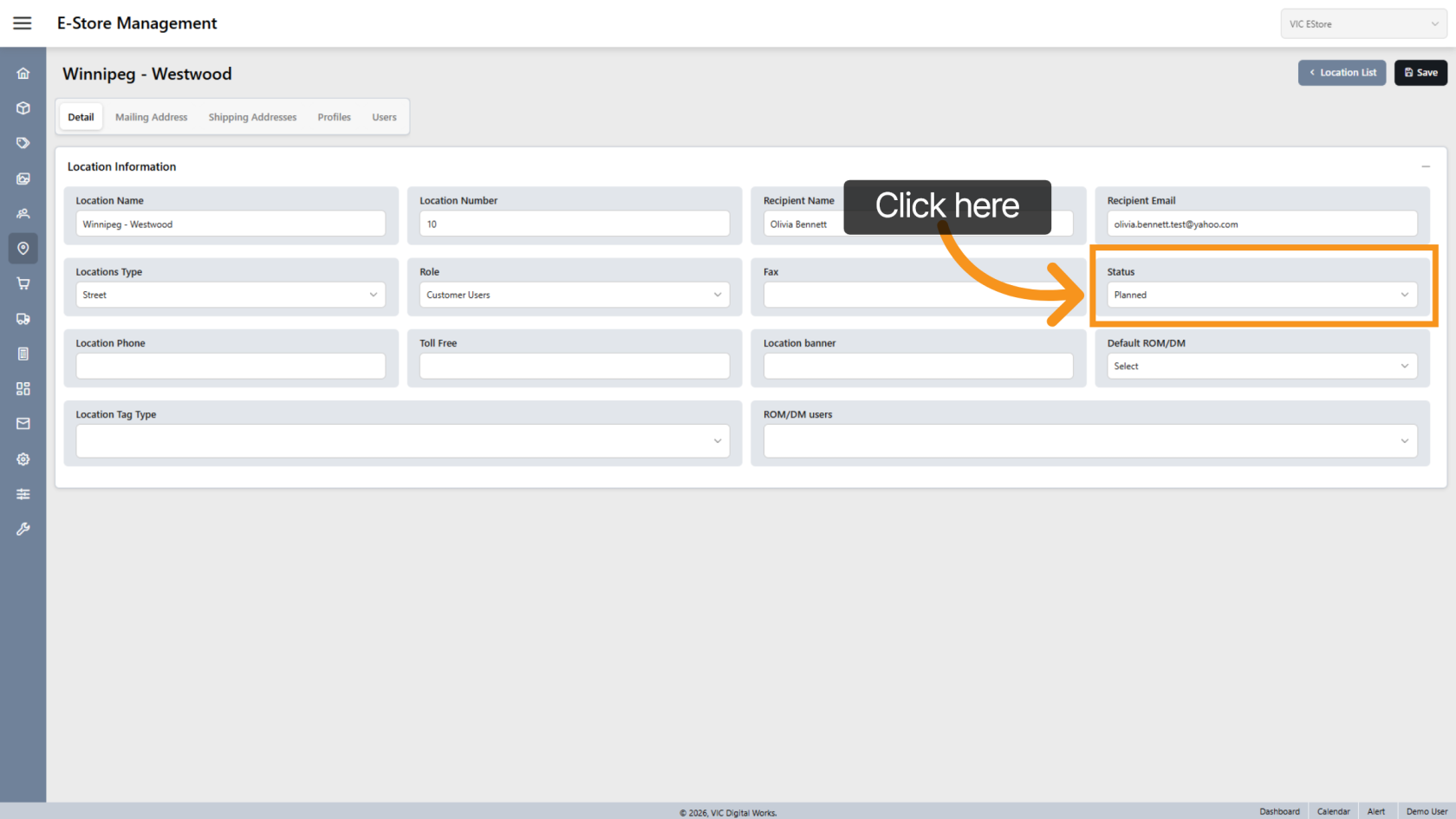
8. Set Location Status
Select the appropriate status:
SelectOpenedif–theThe location is activeSelectPlannedif–itThe location is not yet ready to open
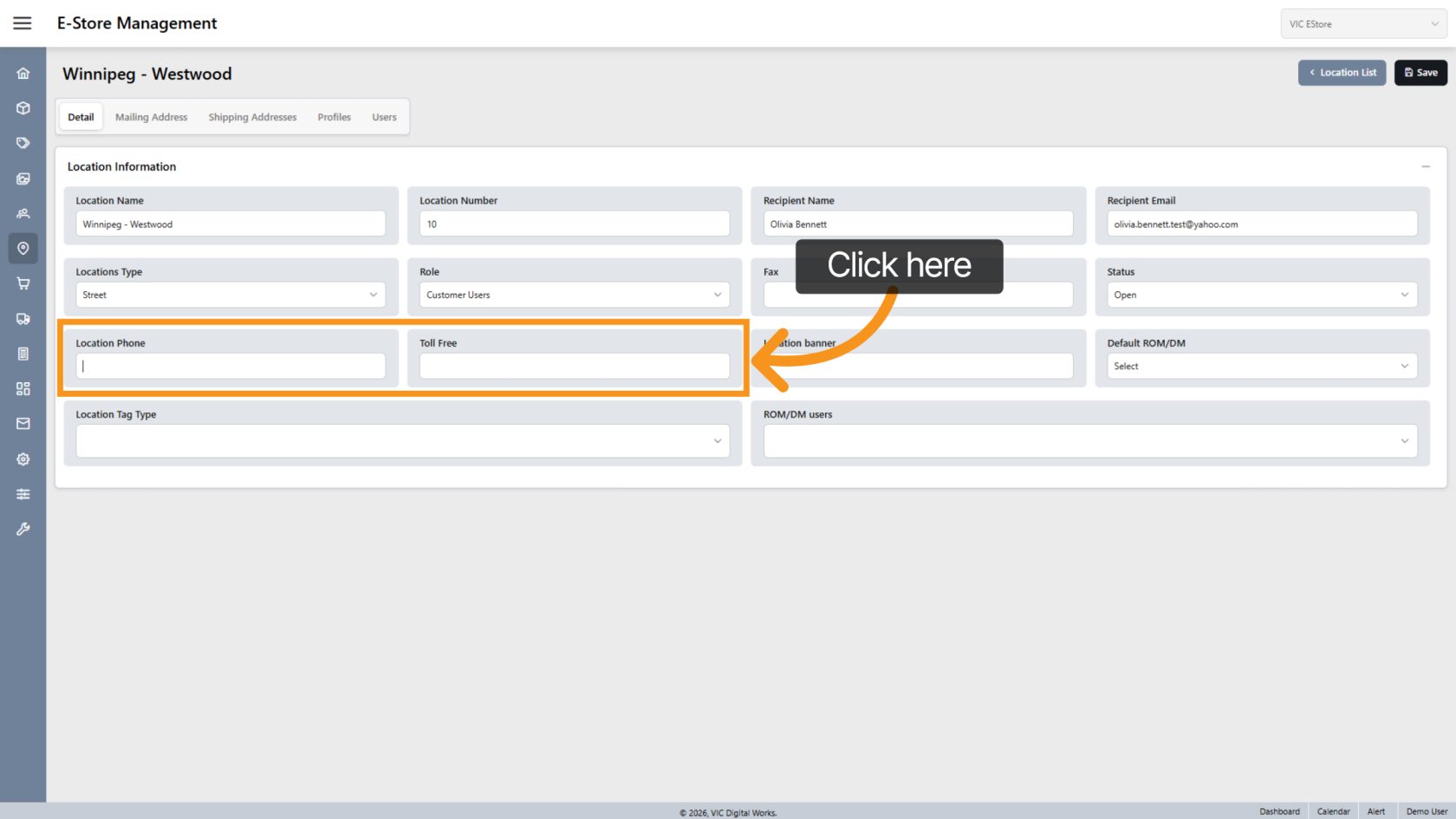
9. Location Phone
Enter the location’s phone number.
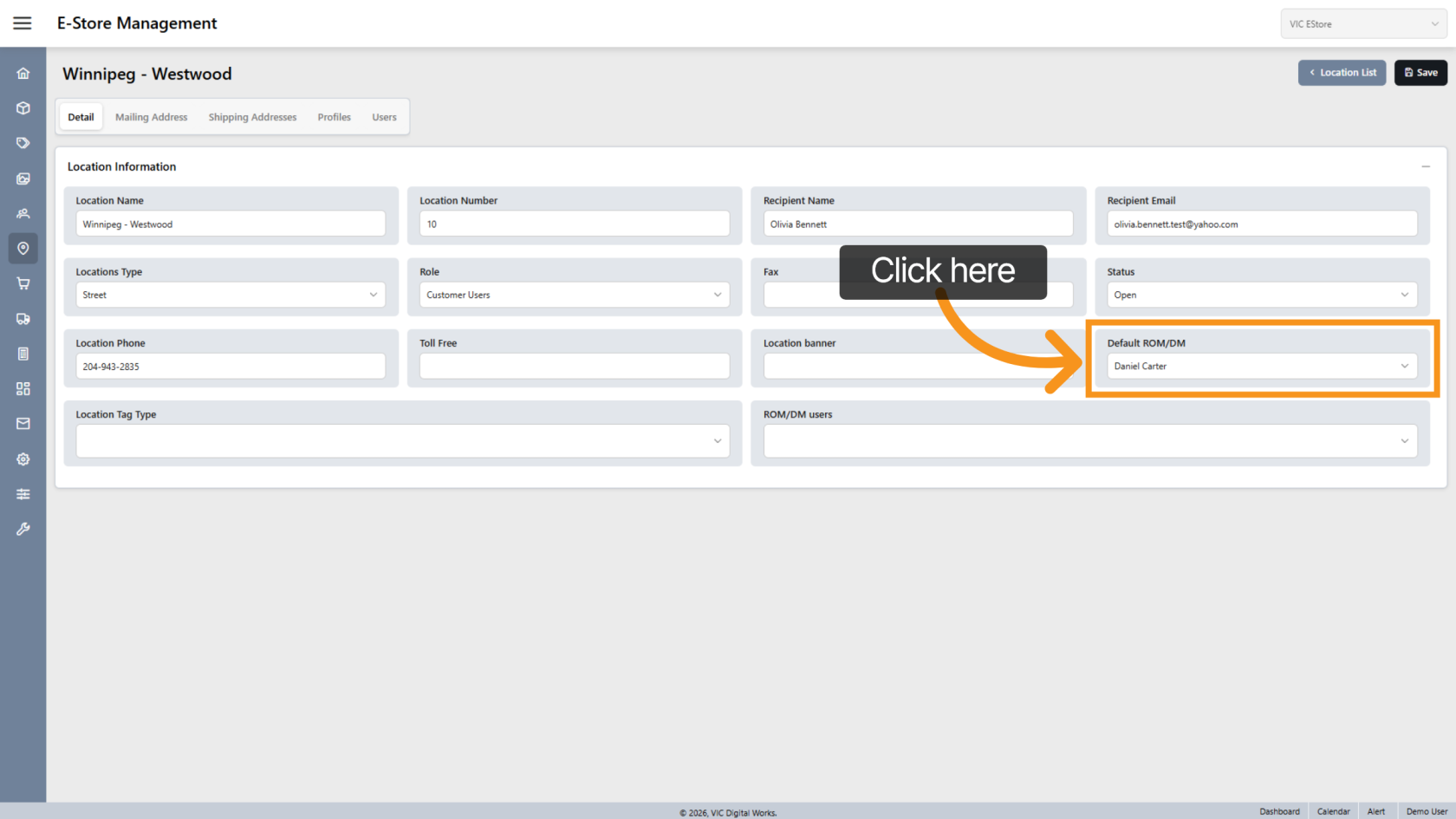
10. Select Default Retail Operations Manager
Choose the default Retail Operations Manager (ROM/DM) for the location.
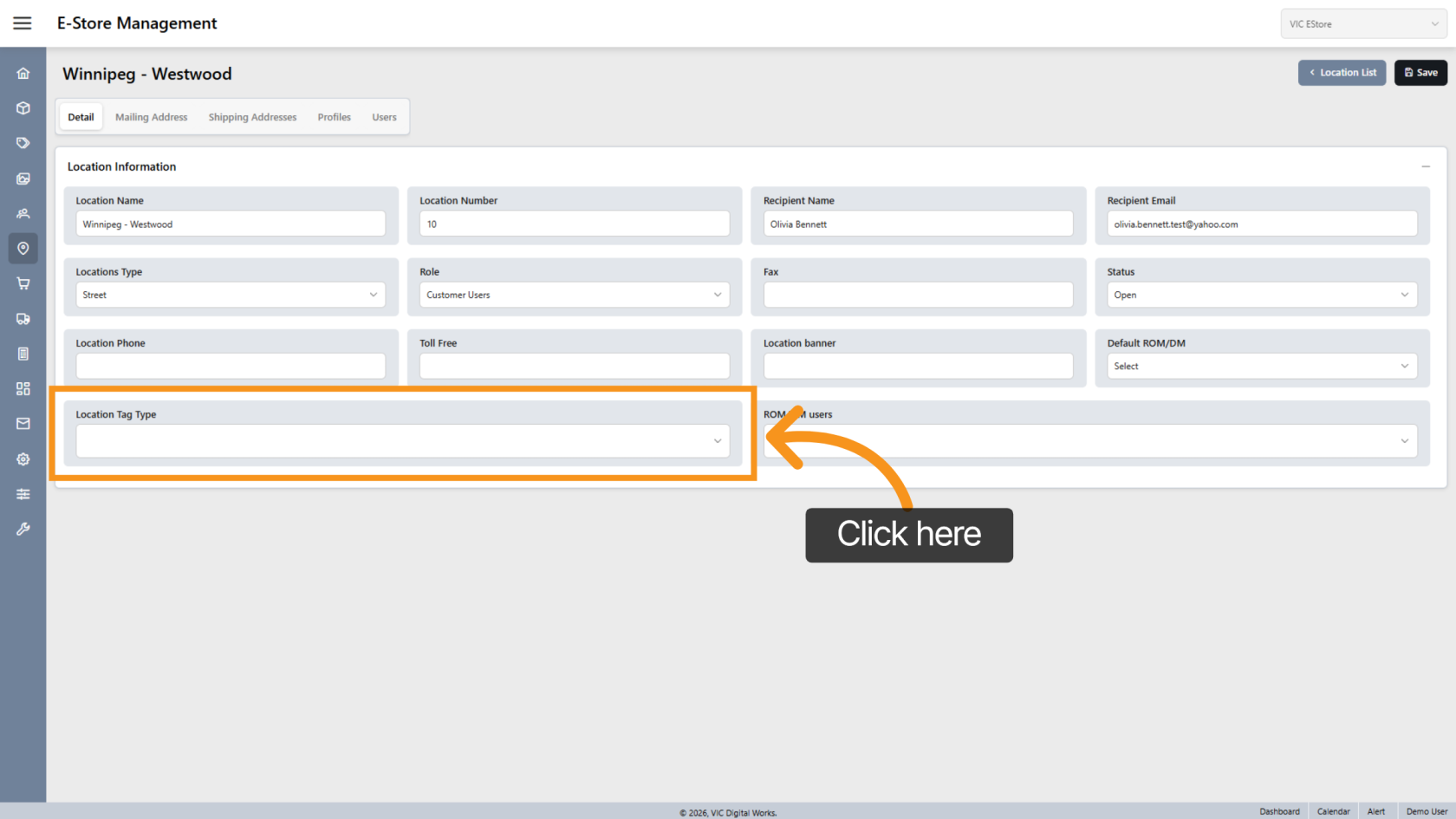
11. Select Location Tag
Assign a Location Tag if required.
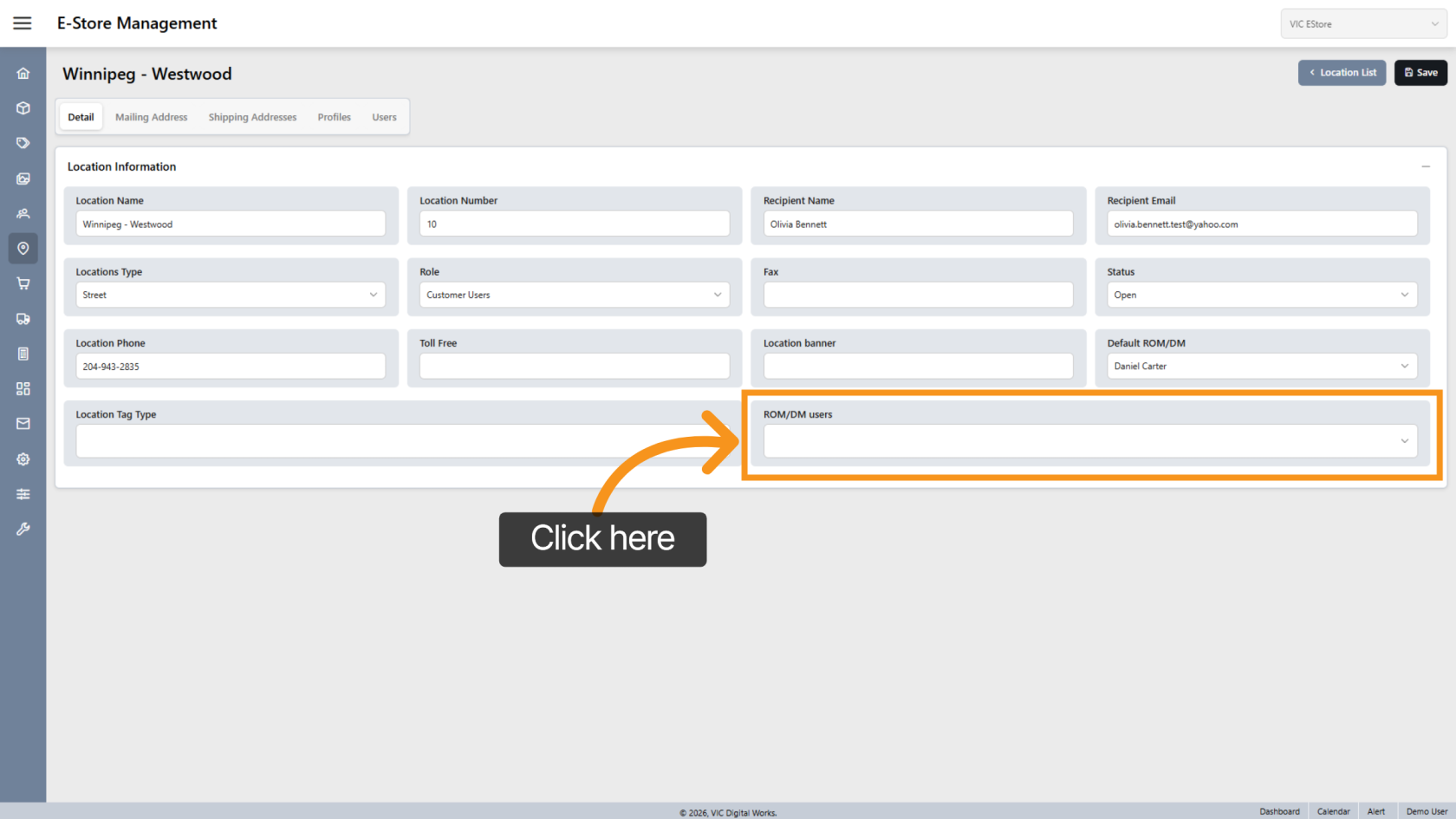
12. Assign Additional Retail Operations Manager
Add moreadditional Retail Operations Manager (ROM/DM) users if necessary.needed.
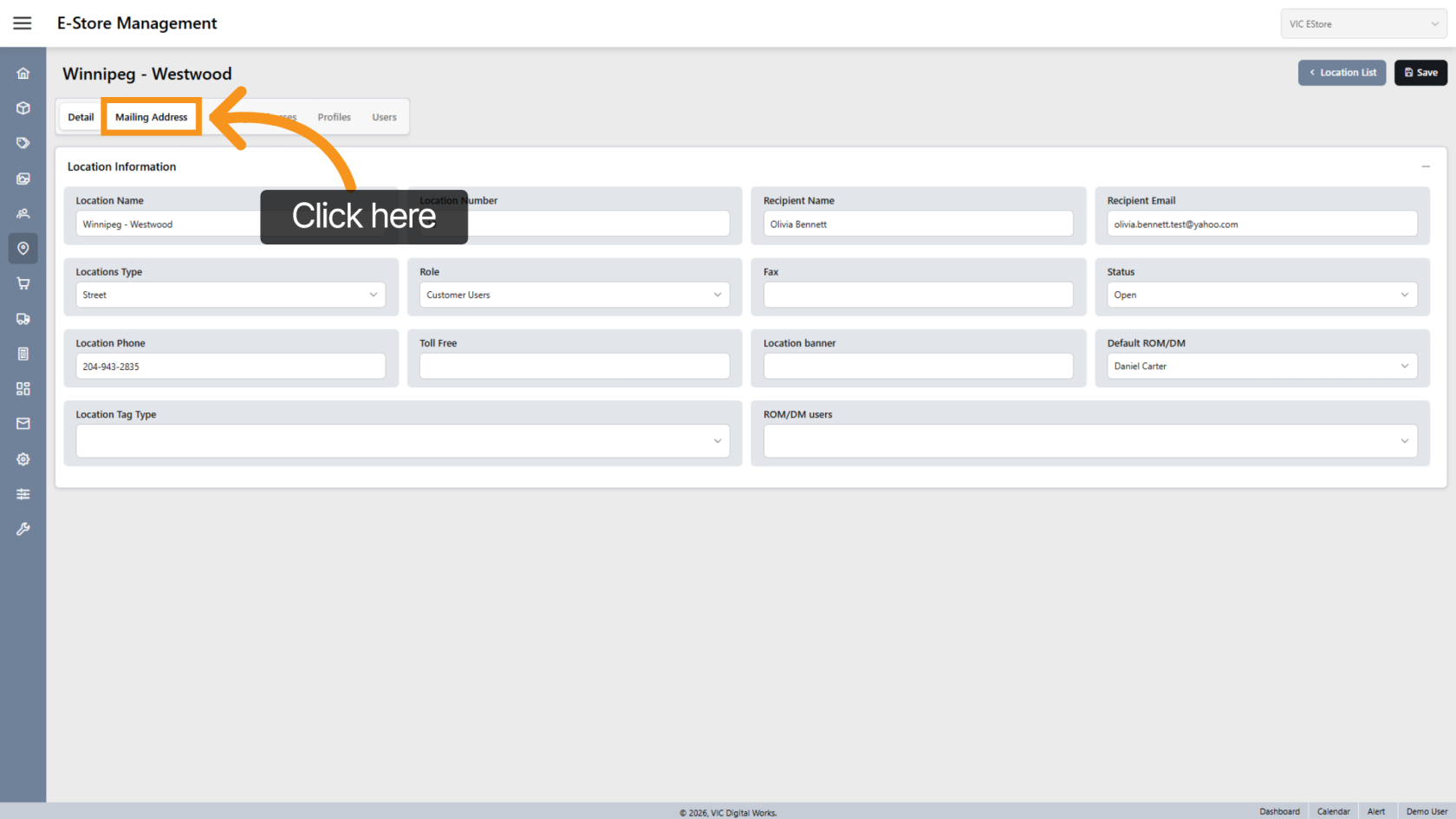
13. Open Mailing Address
Click MailingAddress Address to enterconfigure addressthe details.location's address.
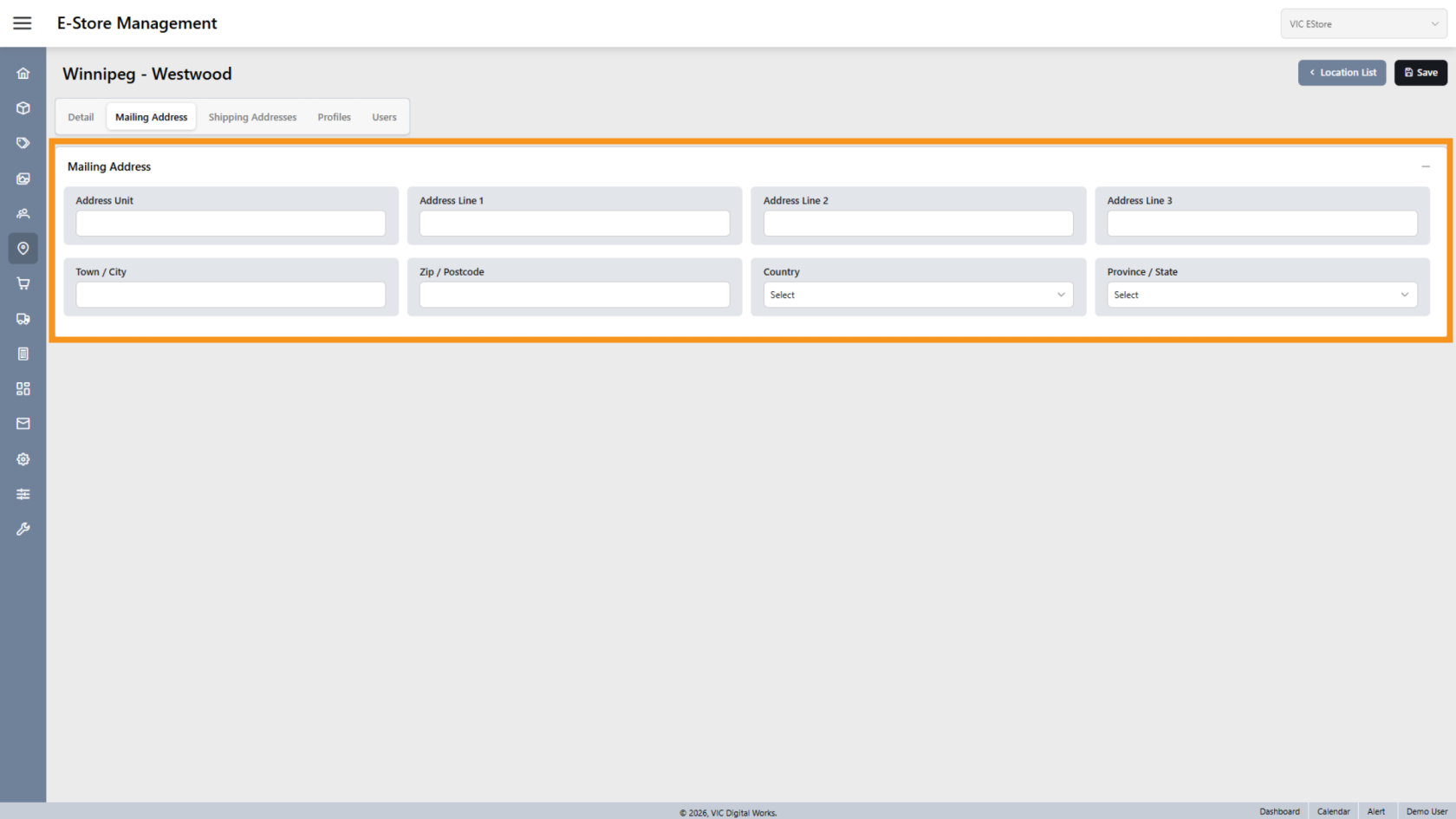
14. Enter Address Information
FillEnter in allthe required mailing address fields.information for the location.
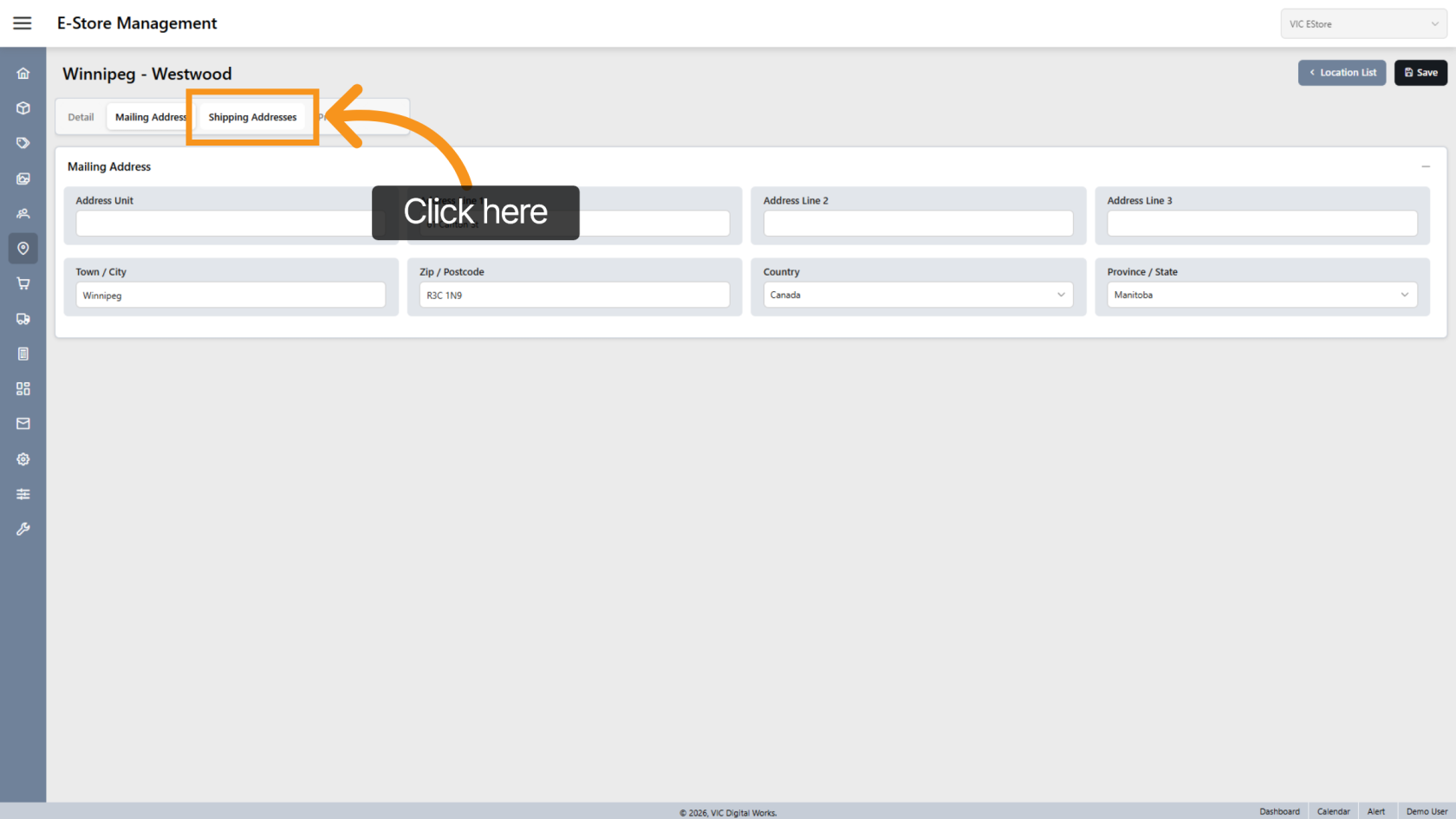
15. Open Shipping Addresses
Click Shipping Addresses to manage shipping information.
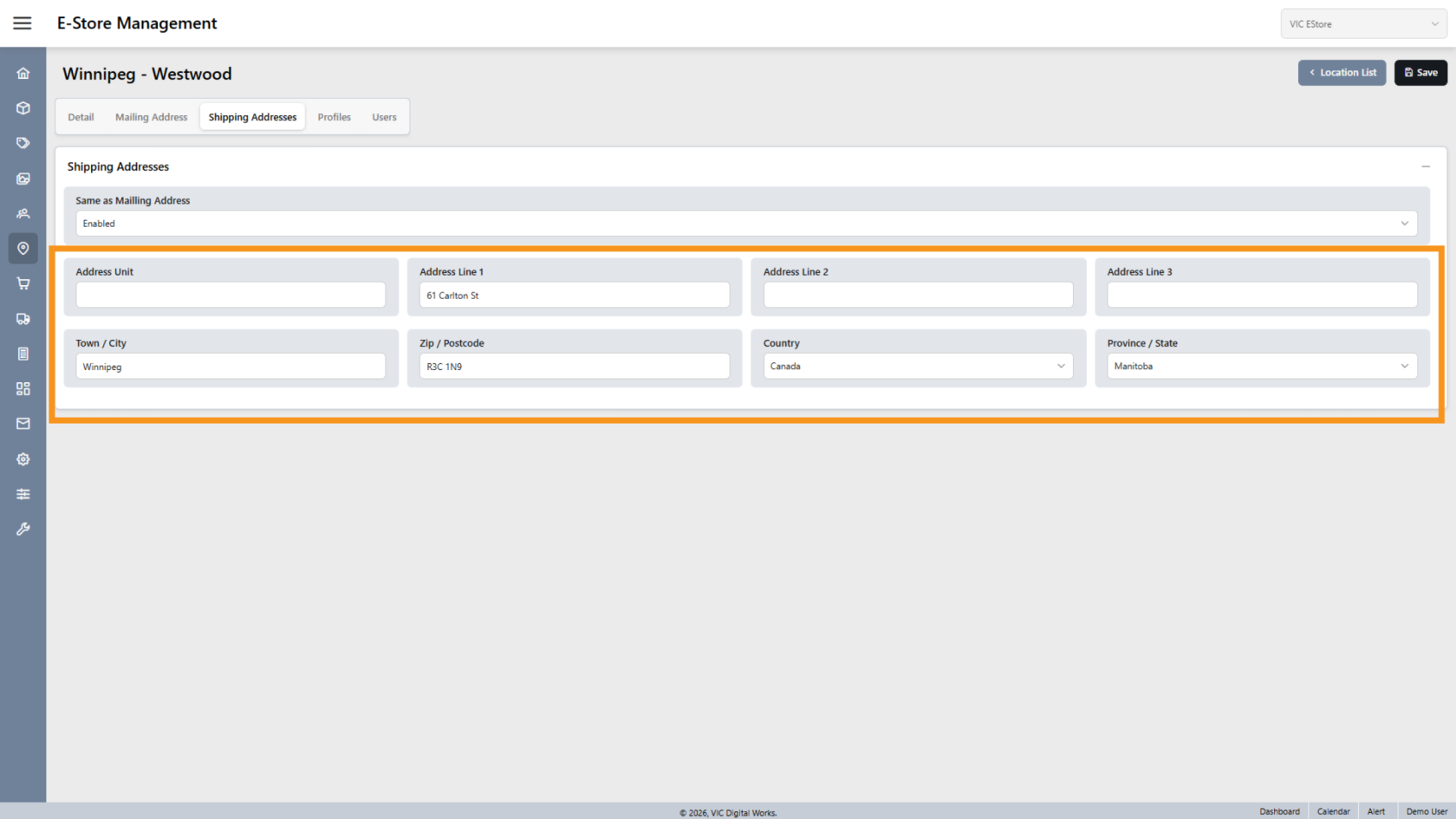
16. Enable Same as Mailing Address
Enable Same as Mailing Address to copy the mailing address to shipping.
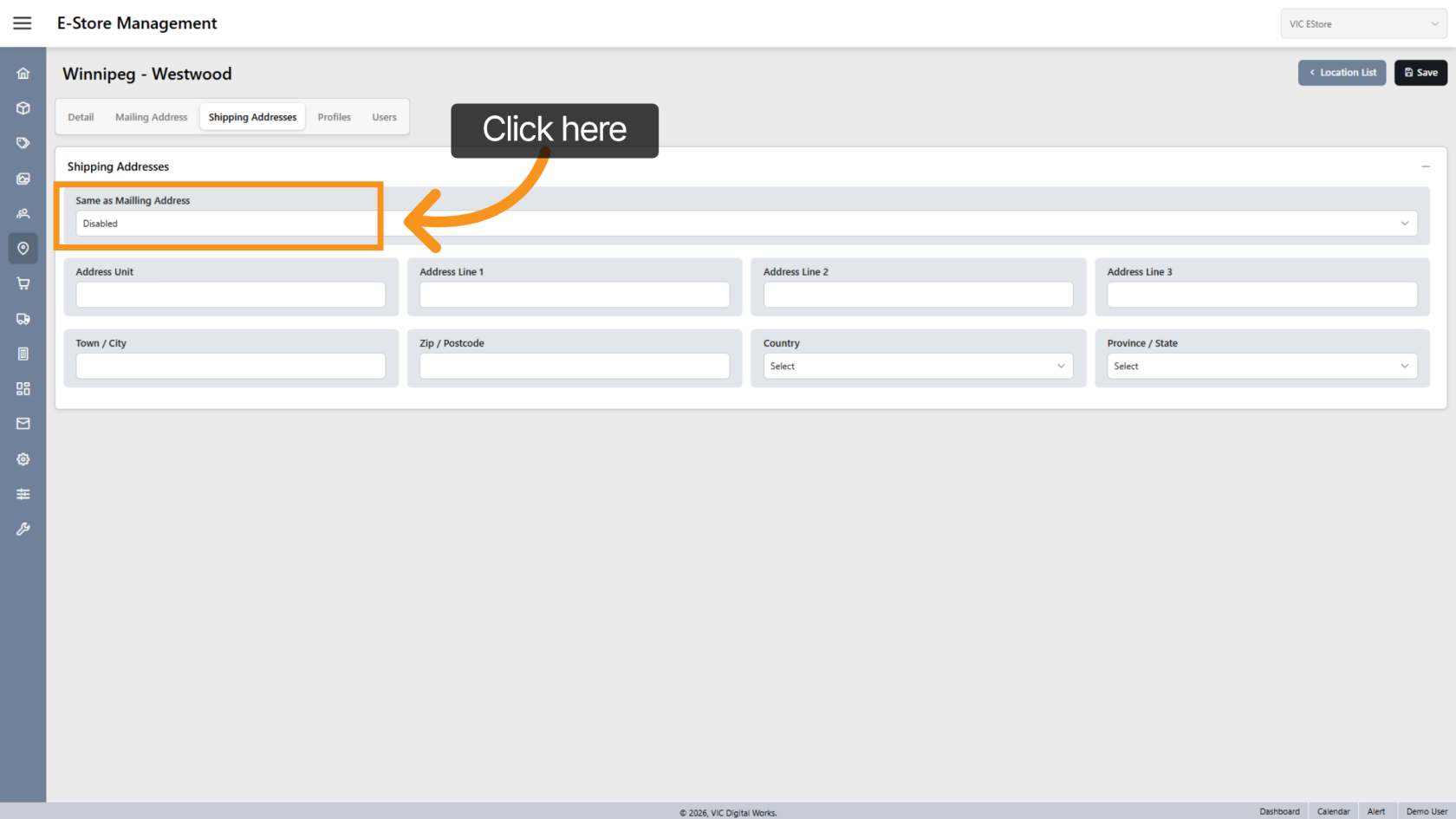
17. Confirm Shipping Address
Once enabled, the system will automatically fill the shipping address fields.
18. Open Users Section
Click Users to manage users assigned to this location.
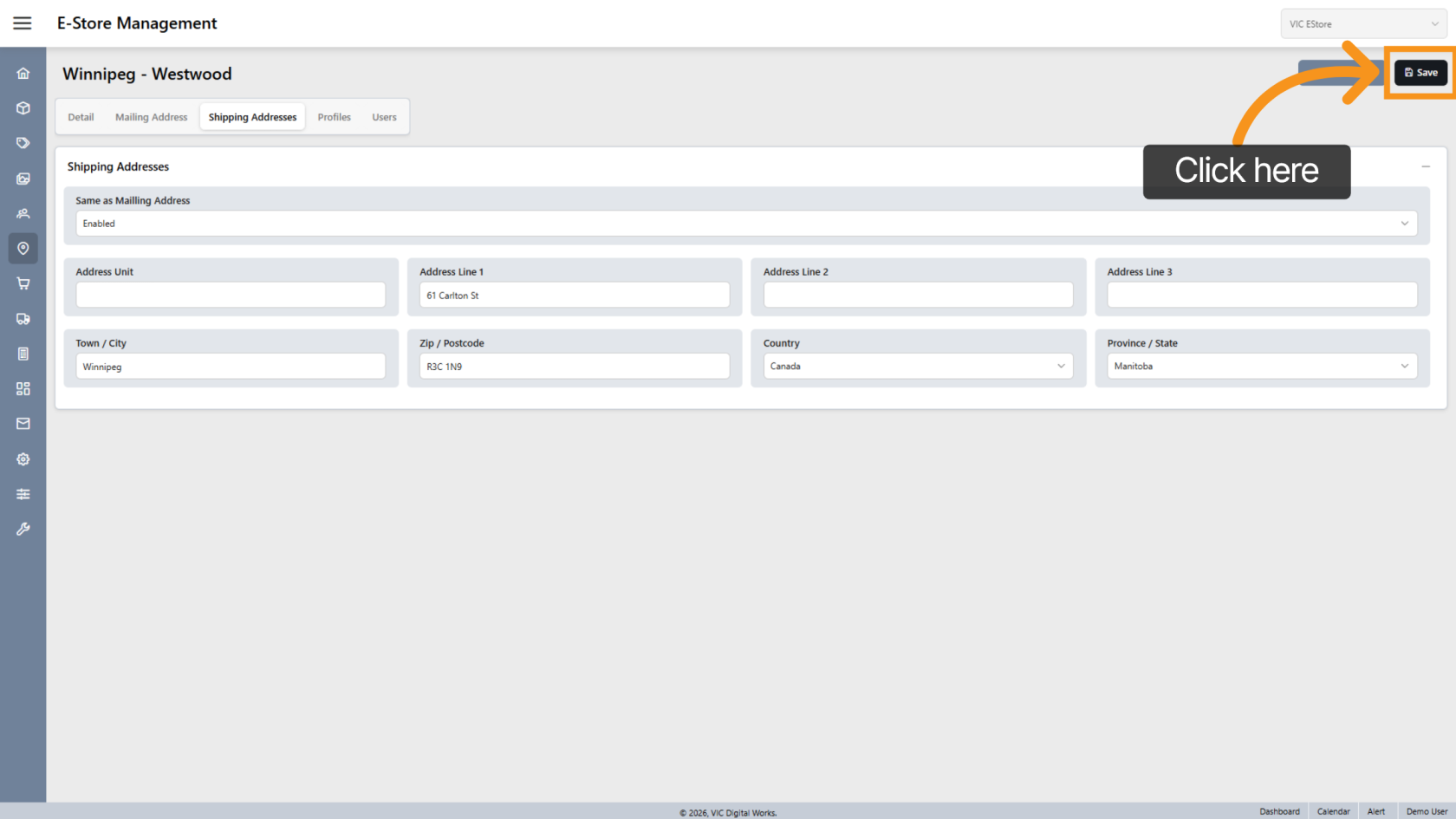
19.16. Save Location
Click Save to create the location and apply allyour changes.
You have successfully created and configured a new location, including addressits details,address, roles,managers, and user assignments.