
Manage Company Email Addresses
This tutorial guides you through configuring company-specific email settings for a Company E-Store. These settings allow you to override the default email recipients and senders used by the system.
Video Tutorial
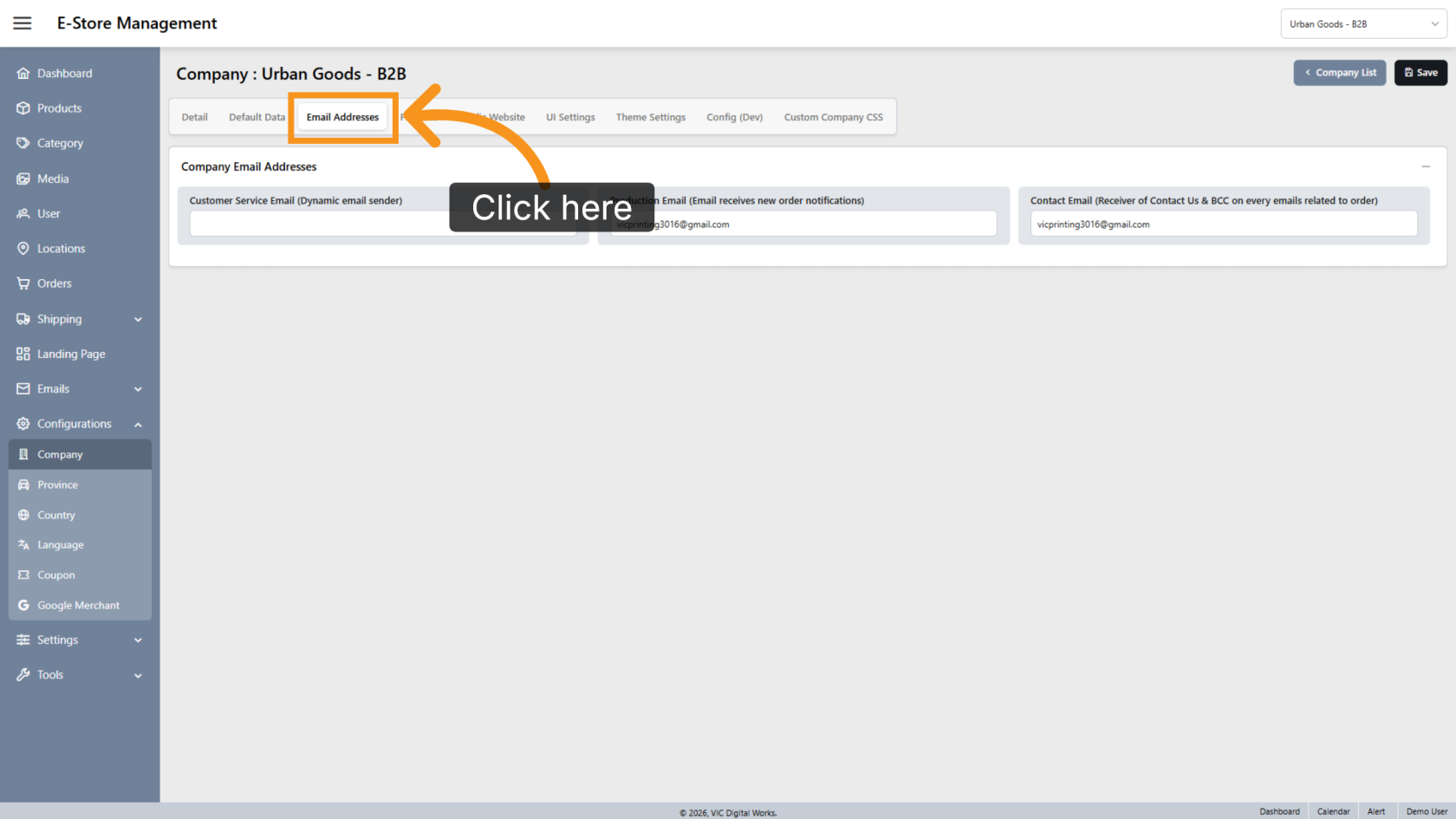
1. Open Email Address Settings
Within the selected company, click Email Addresses.
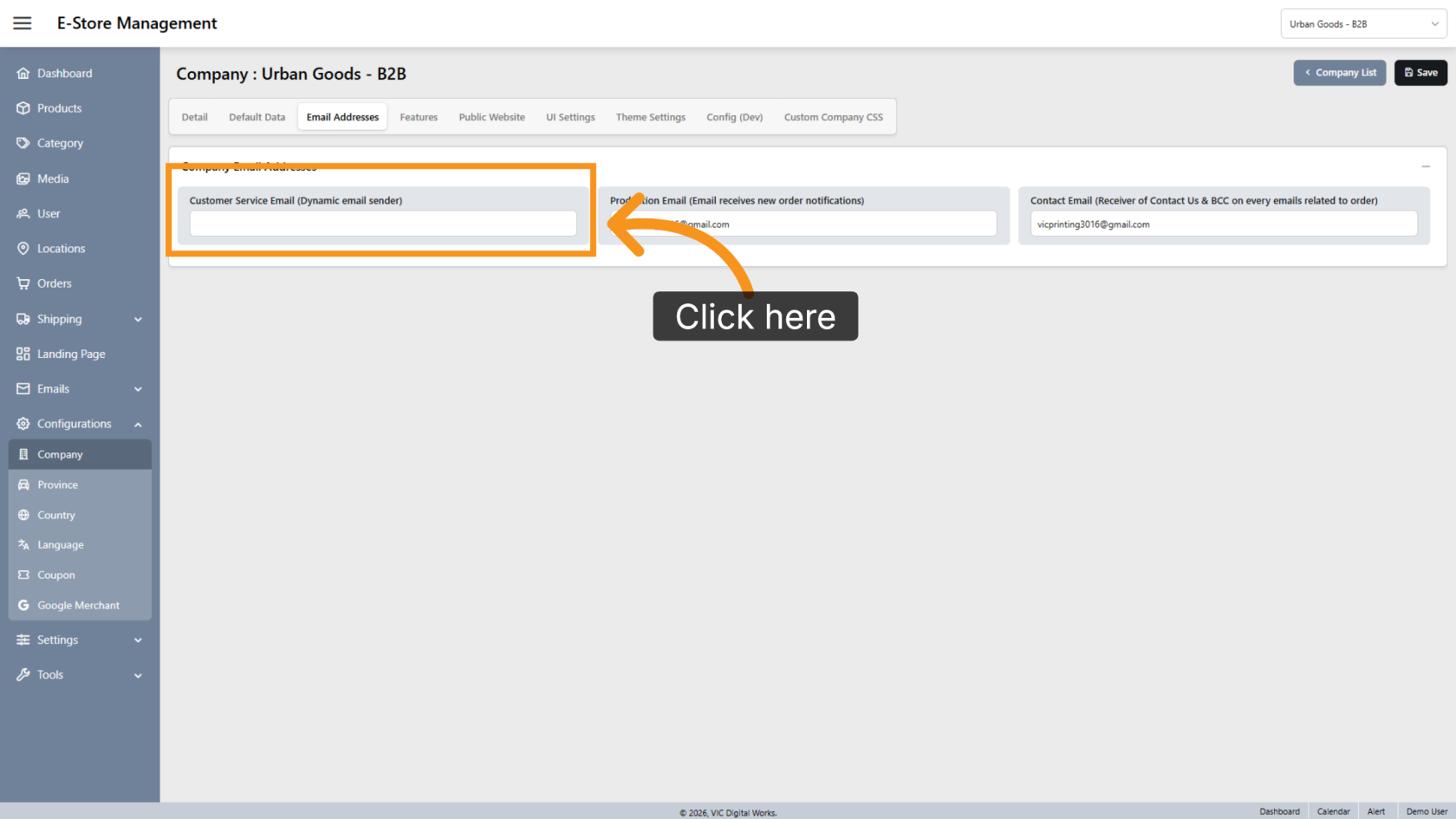
2. Configure Customer Service Email
By default, outgoing emails use the sender configured in Email Events. To use a different sender address for this company, enter the email address in the Customer Service Email field.
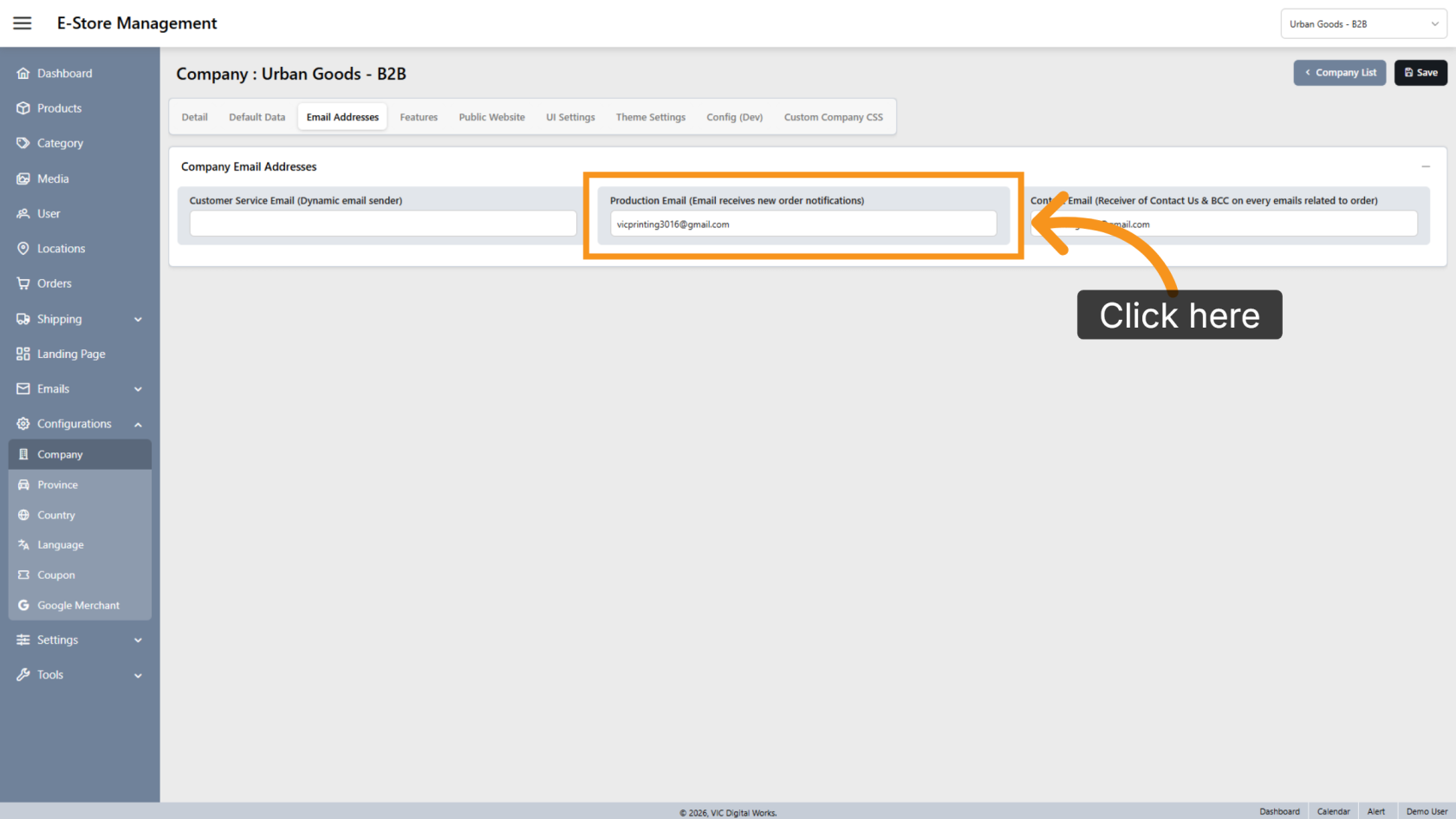
3. Configure Production Email
When an E-Store order is submitted, production notifications are sent to the default recipient configured in the system. To use a different recipient for this company, enter the email address in the Production Email field.
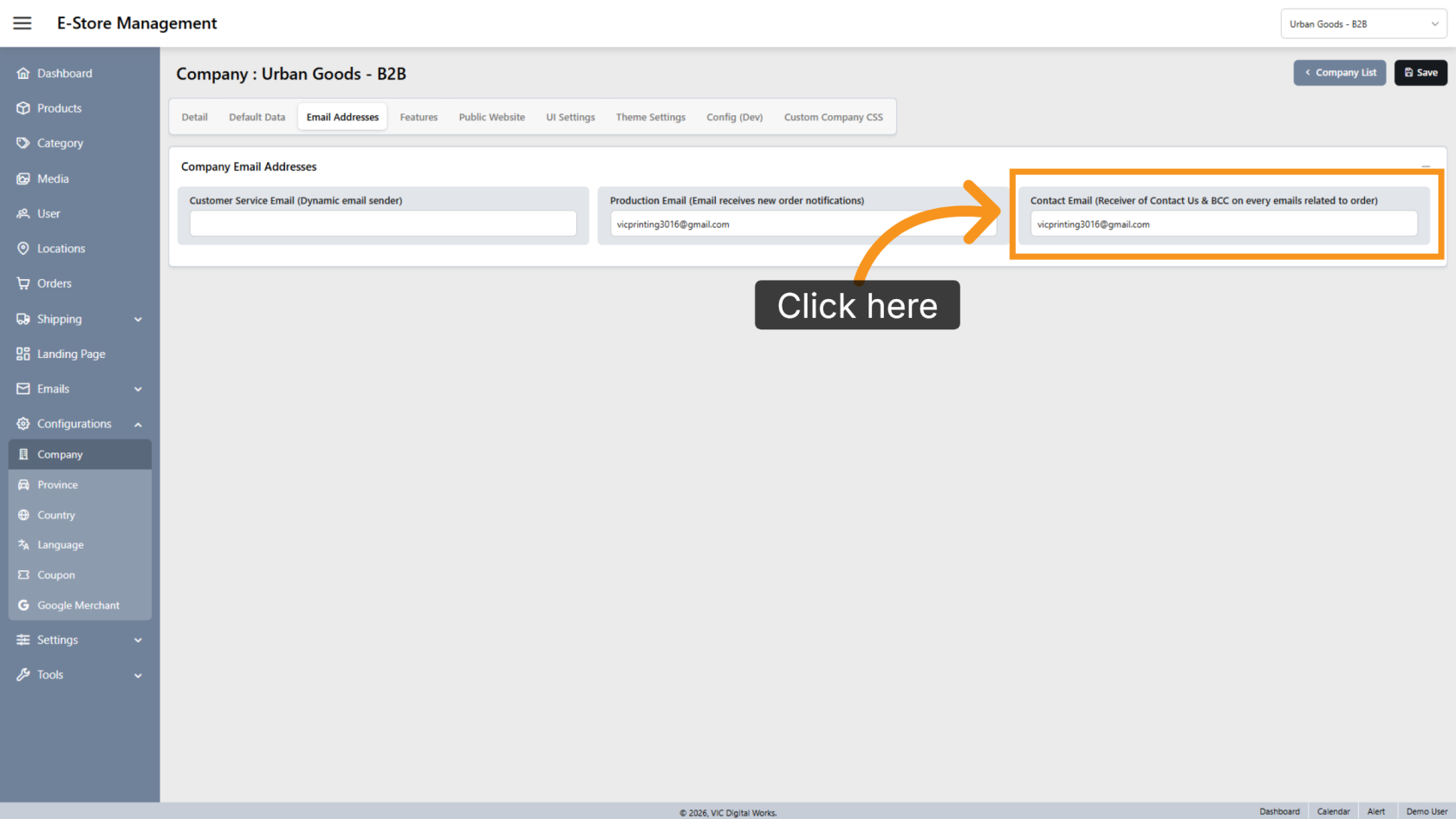
4. Configure Contact Email
Enter an email address in the Contact Email field if you want inquiries submitted through the Contact Us page to be sent to a specific recipient.
You have successfully configured company email settings. Review all email addresses to ensure notifications and customer communications are sent to the correct recipients.