
Introduction to POS
Introduction to POS System
by VIC Digital Works

Welcome to VIC Digital Works - Point of Sale system. This P O S system is designed to help you manage orders efficiently, communicate with the kitchen, and complete transactions accurately. In this introduction, we will guide you through the main interface and the essential steps you will use during your daily operations.
Go to serviz.ca
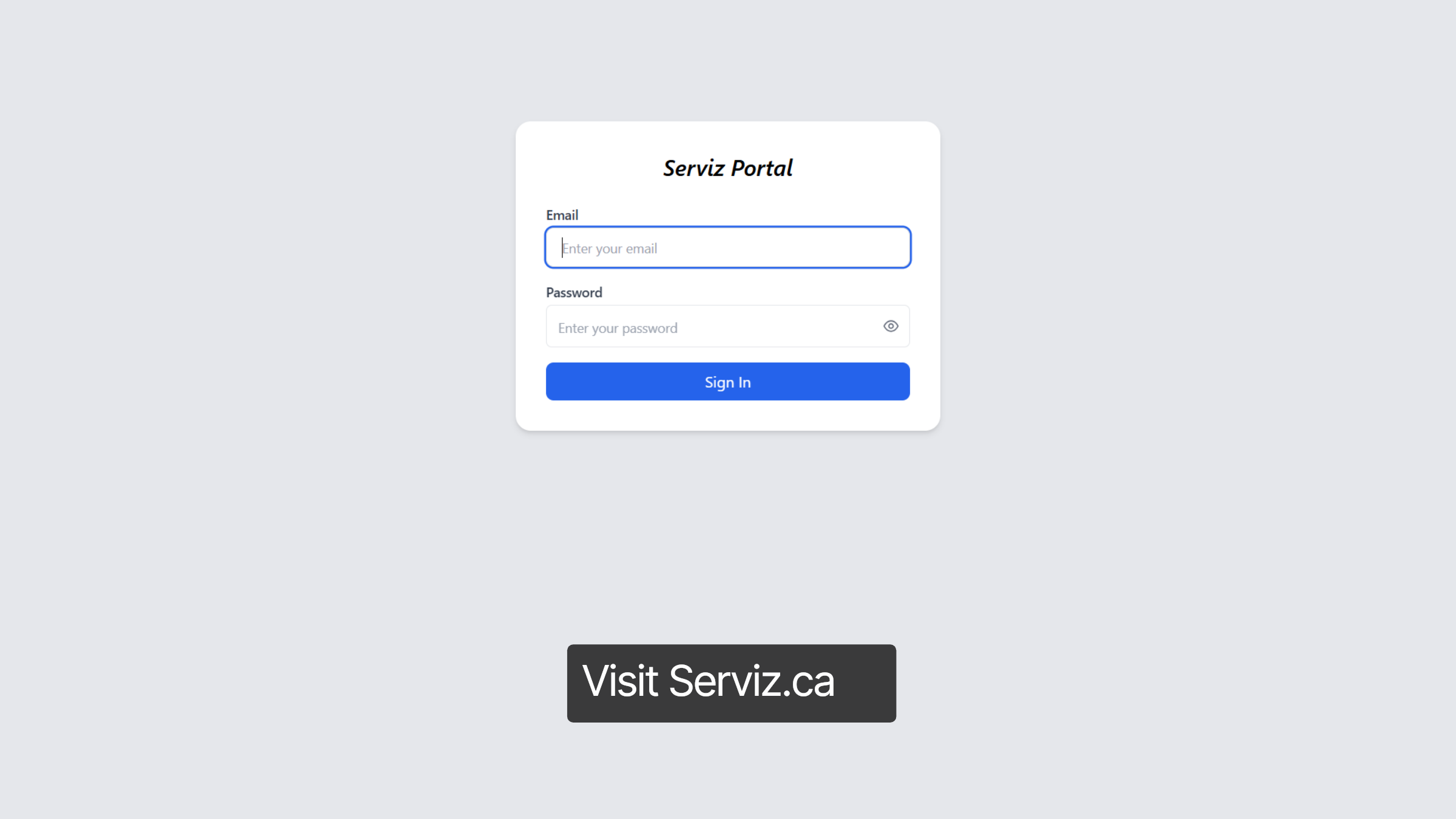
1. Access to Serviz.ca
To begin, open your web browser and visit serviz.ca. As a client of VIC Digital Works, you will have access to the Serviz Portal.
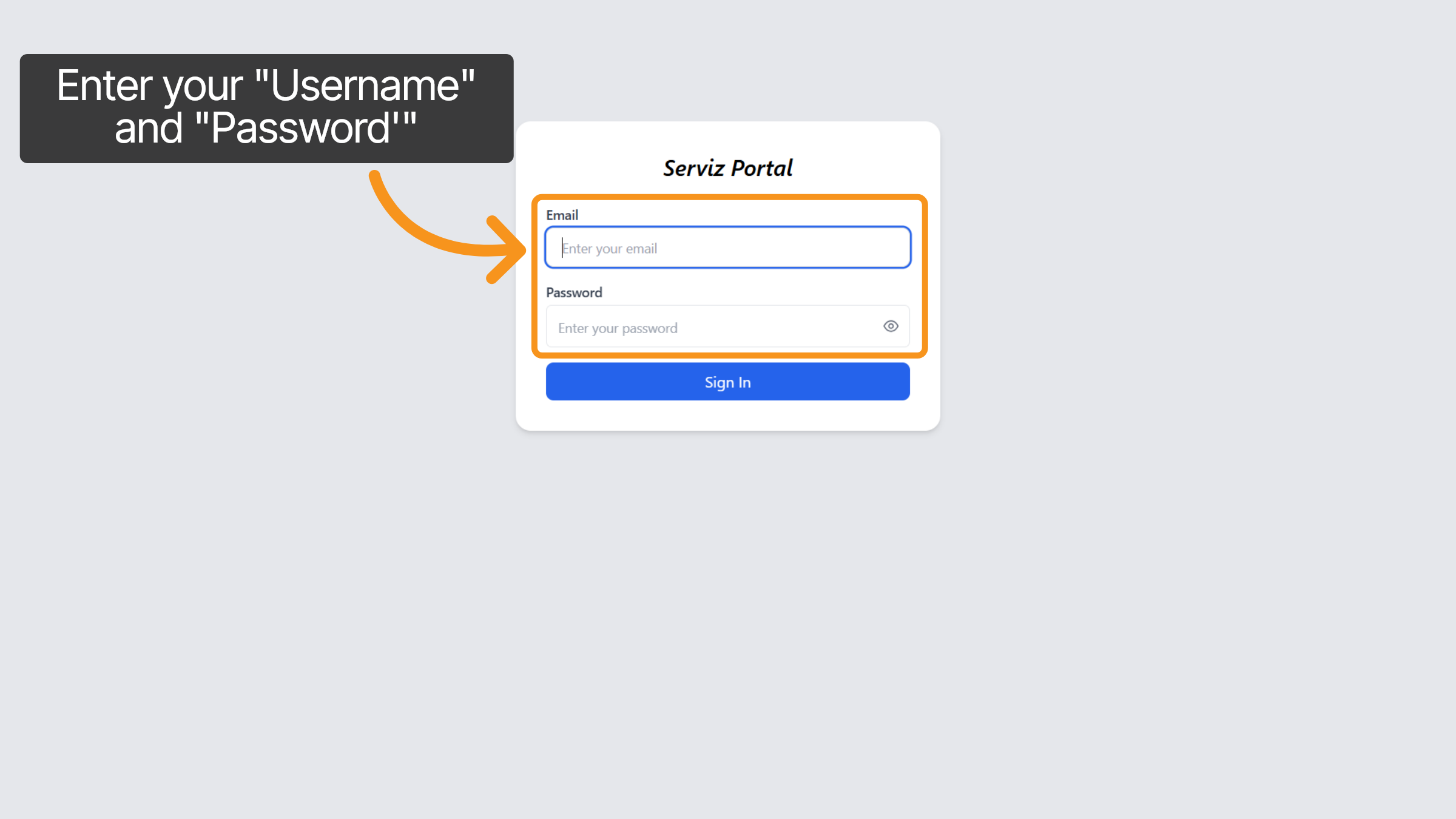
2. Enter Your Login Credentials
Click the username and password fields to enter your credentials.
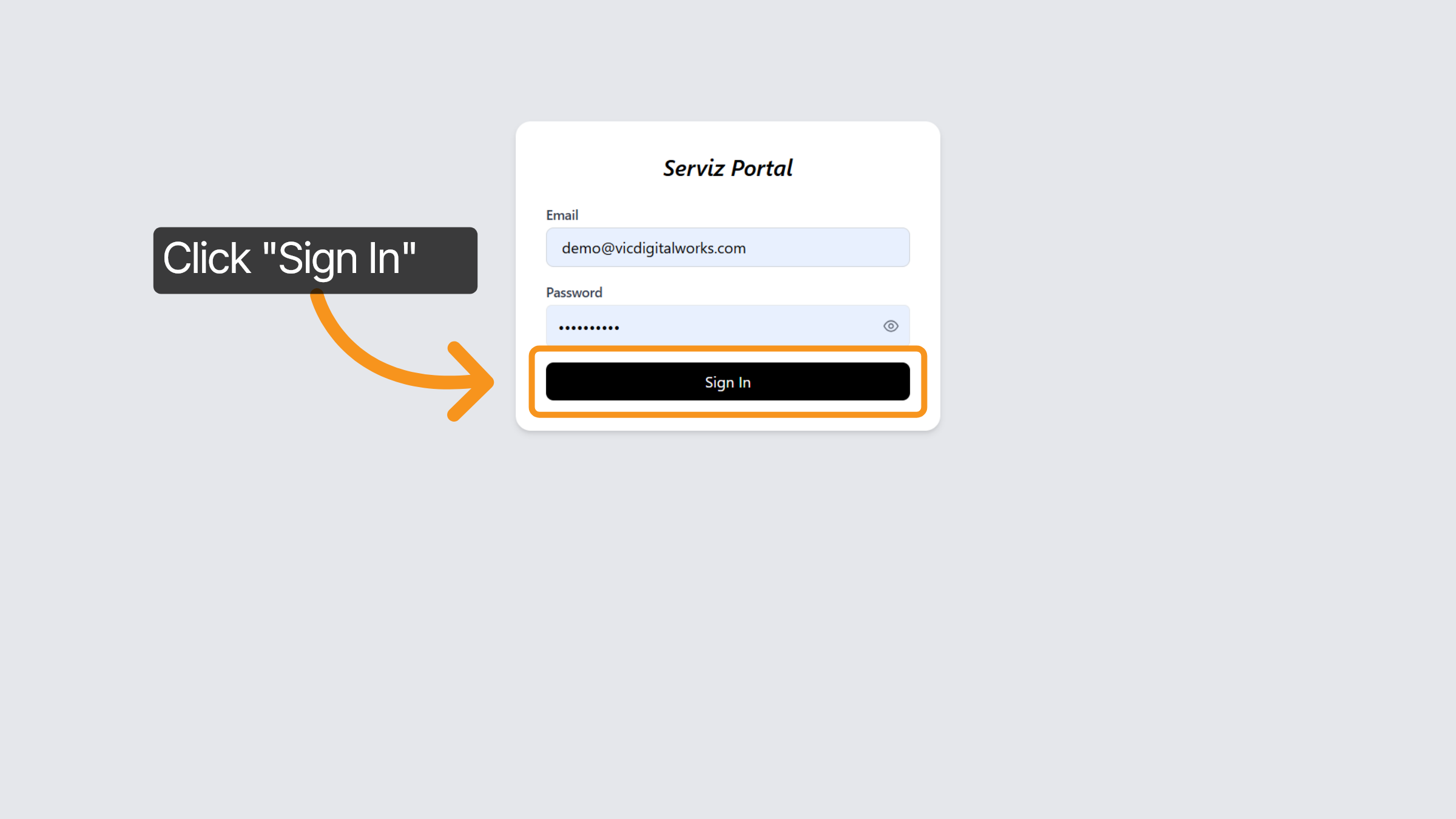
3. Click Sign In Button
Click the Sign In button to access your Serviz account dashboard.
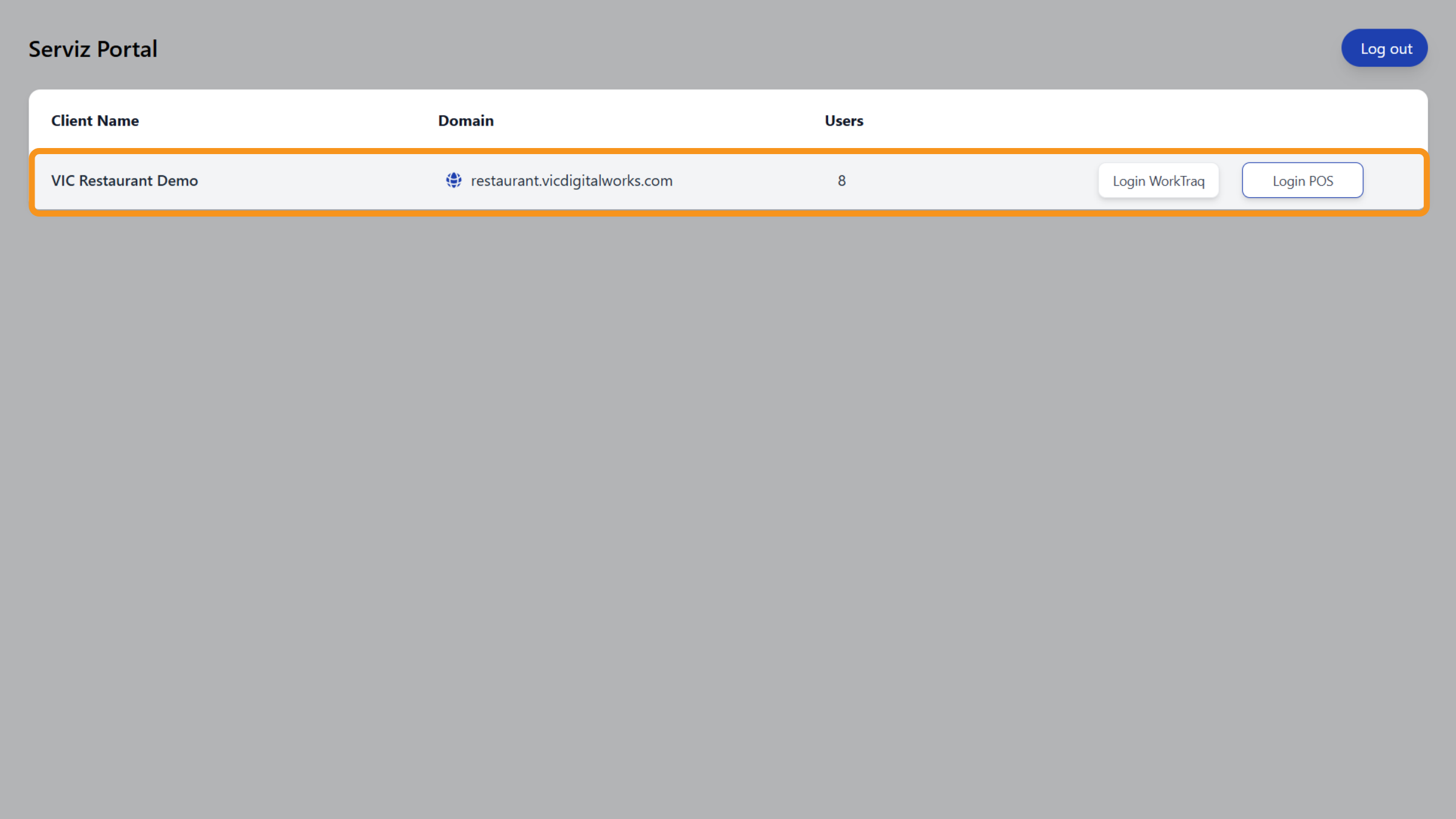
4. Serviz dashboard
In the Serviz portal, you will find your company name, domain name, total users, and two buttons to log in to your WorkTraq, or, P O S interface.
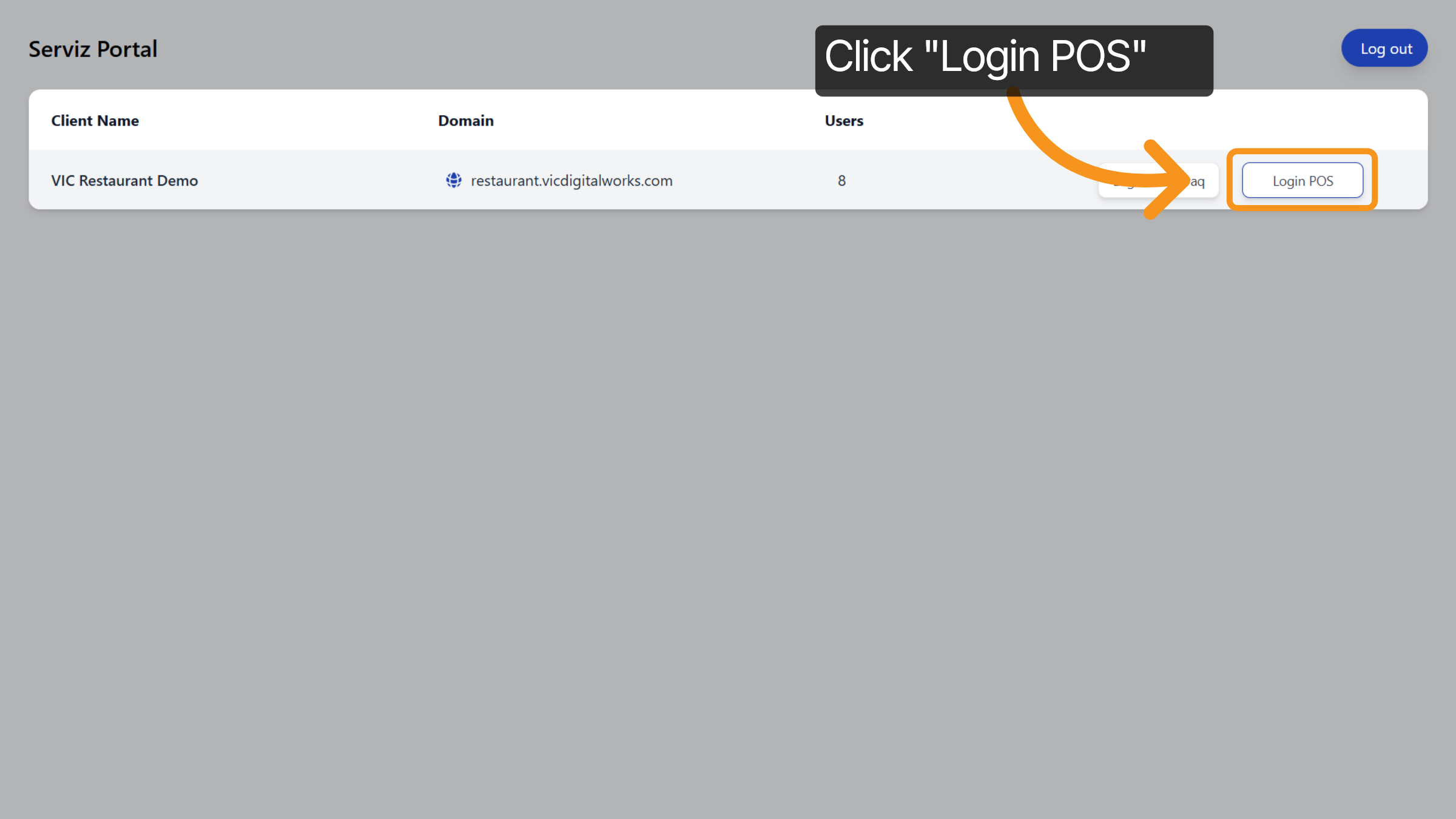
5. Select Login POS Option
In this video, we will focus on the P O S Interface. Therefore, let's click on the Login P O S button to access the point of sale system.
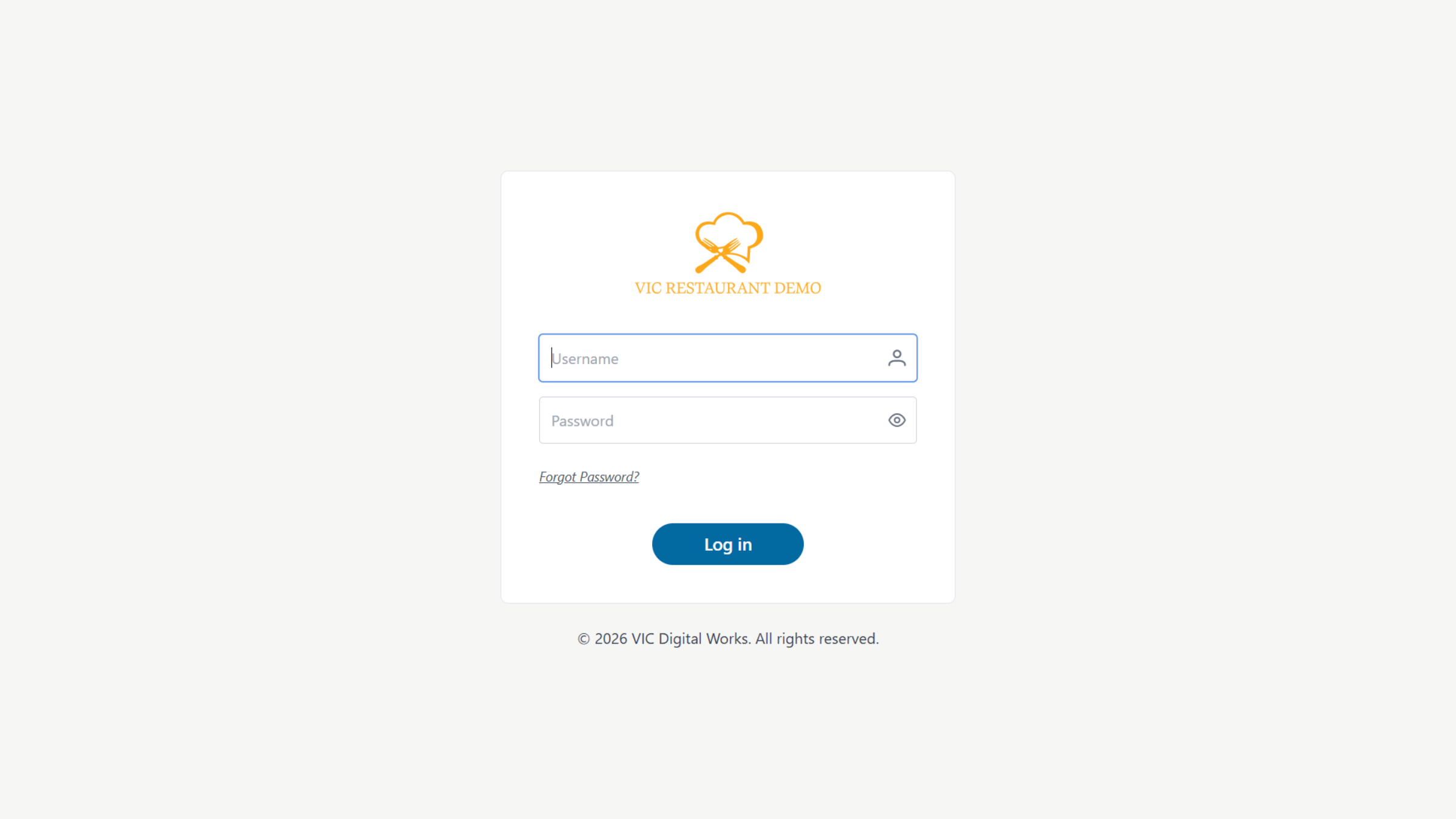
6. POS login page
Once you click the button, it will open another tab where you can log in to your P O S interface.
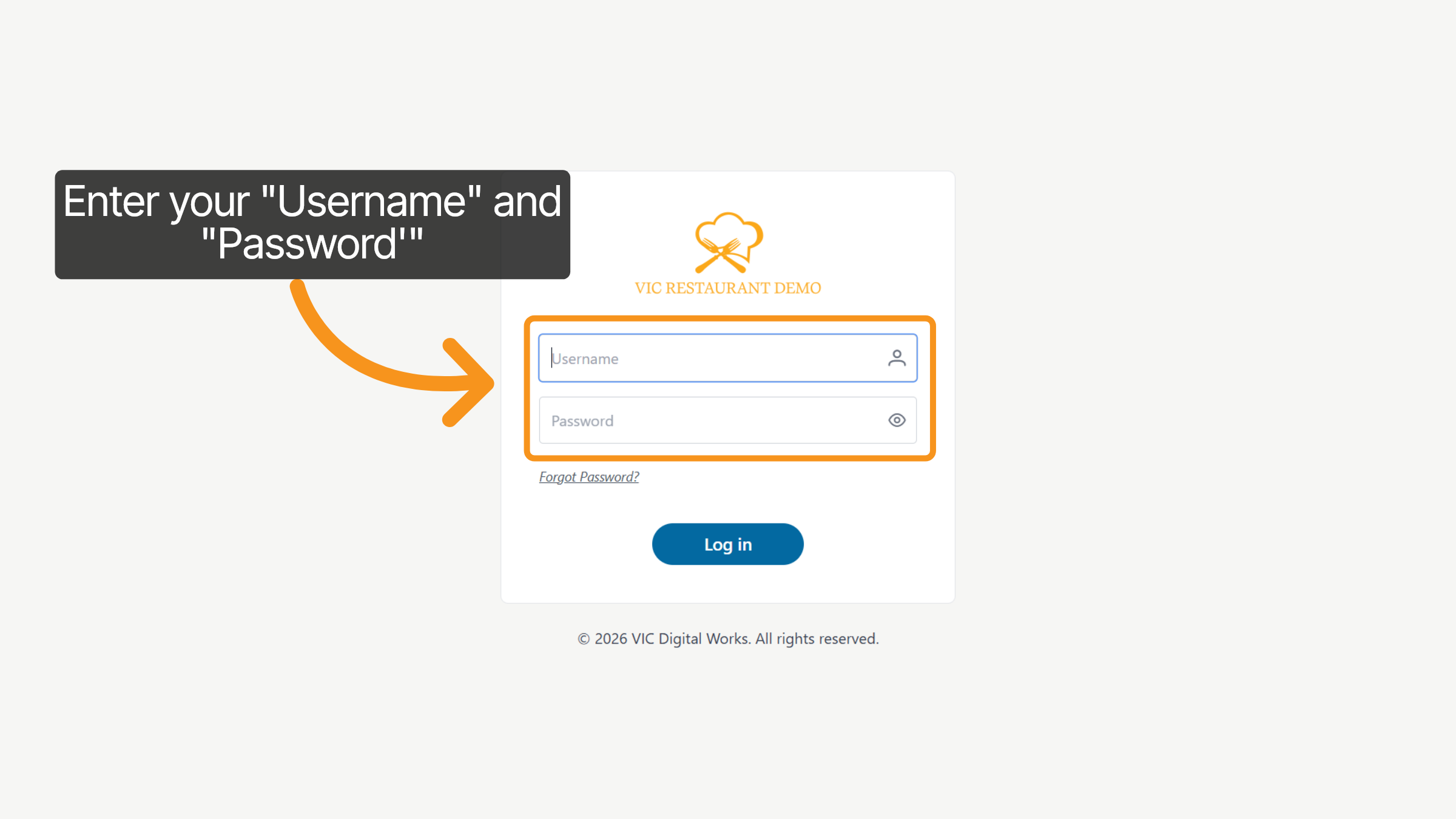
7. Enter POS Username and Password
Click the username and password fields to enter your credentials.
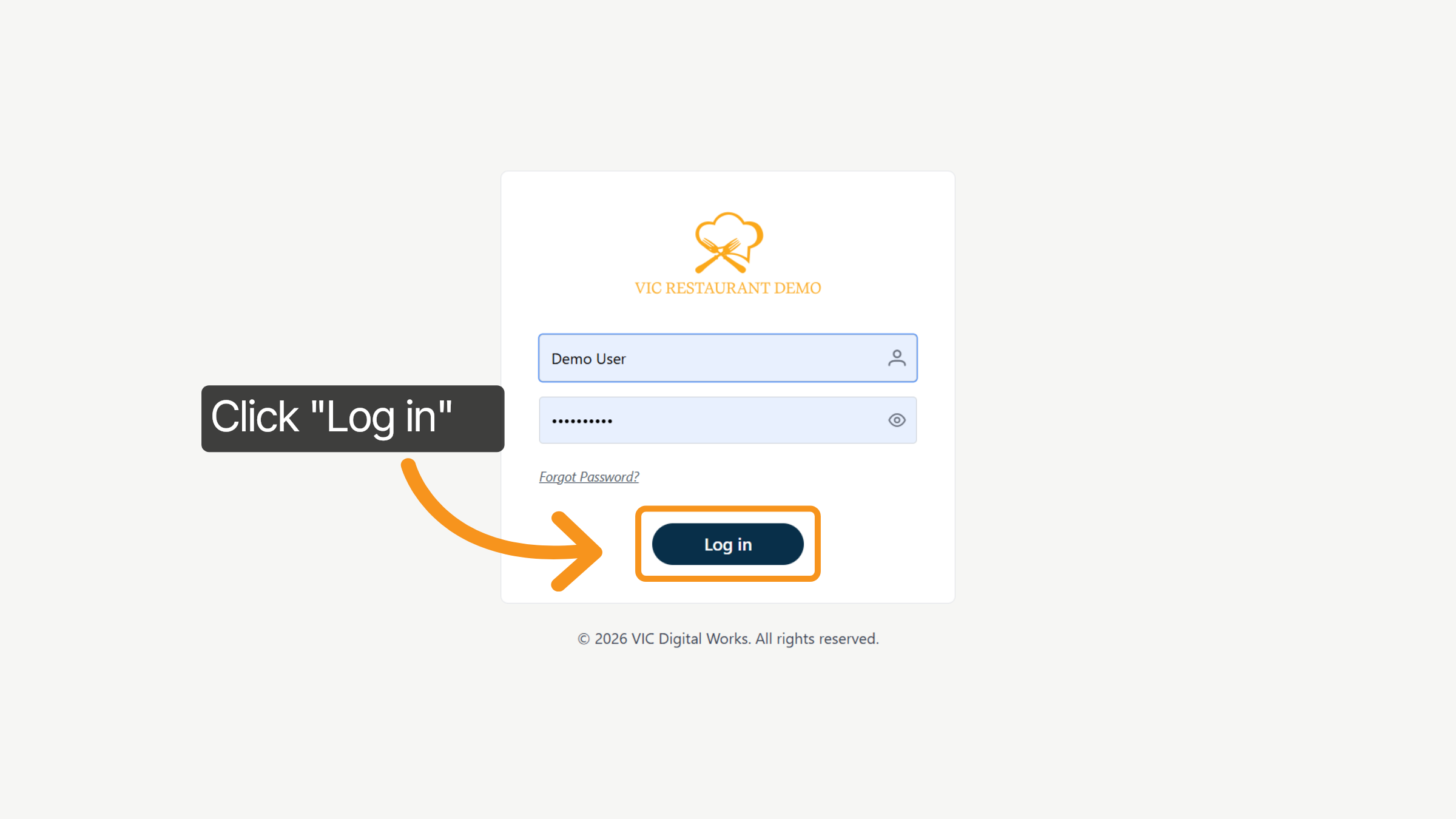
8. Click POS Log In
Click the Log in button to access the P O S dashboard.
9. Explore POS Menu Options
After logging in, you will see the main order-taking screen. On the left sidebar, you will find the main navigation menu, which includes: P O S, Kitchen Order, Process Order, Order History, Staff, Schedule, Self Serve, Settings, and Log Out. We will explore each option in more detail later in this video.
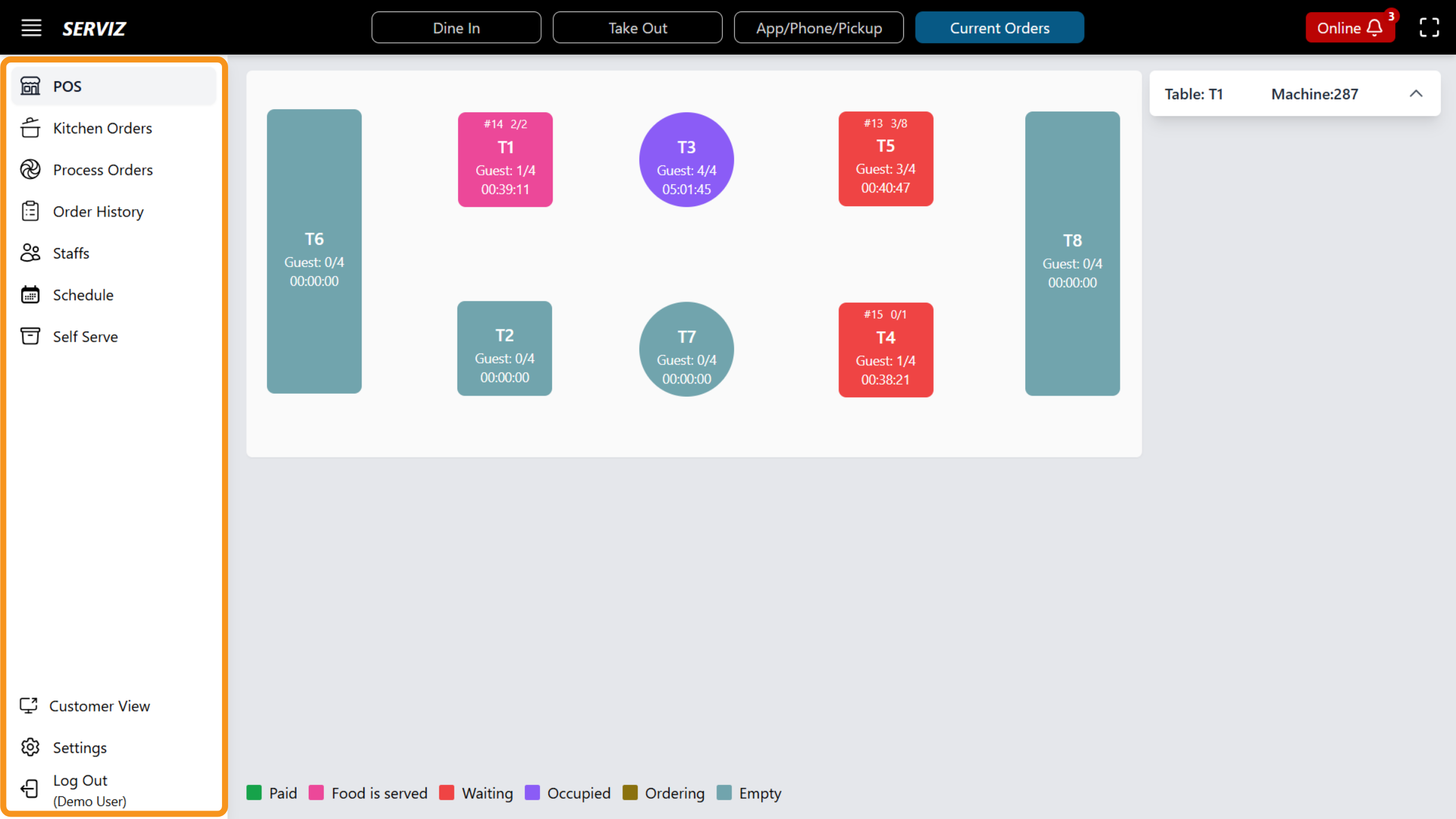
10. POS Option
Let's begin with the first option: P O S. This is primary order-taking screen. In this example, dine-in is set as the default option, which you can change to take-out, pick-up, or delivery based on your preference.
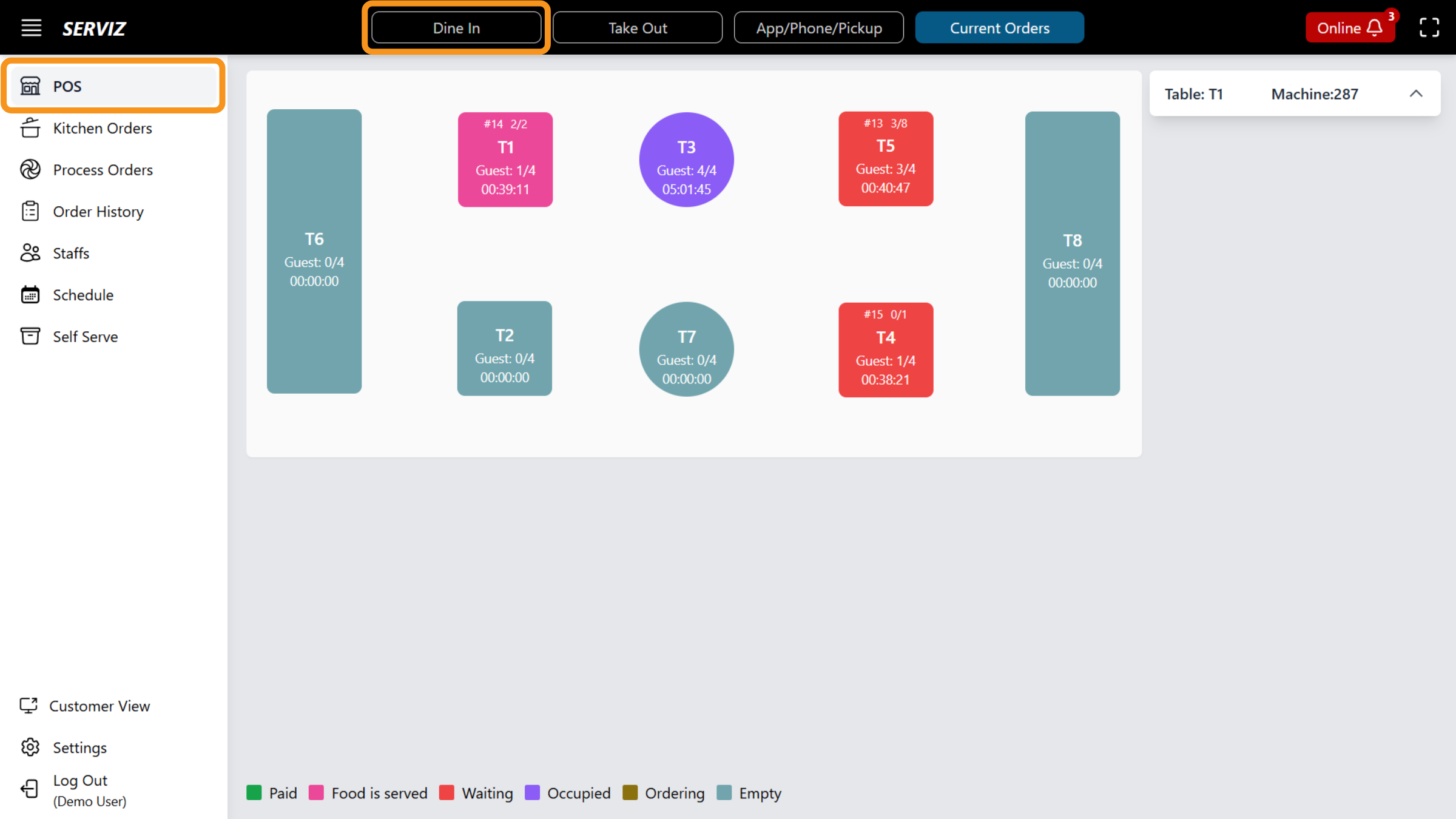
11. POS Order-Taking Screen
The floor layout is prominently displayed at the center of the screen. Each box represents a table: - The number indicates the table number. - Below the table number, you will find the guest count along with the duration for which the table has been active. At the bottom, you can find the color reference for the table status.
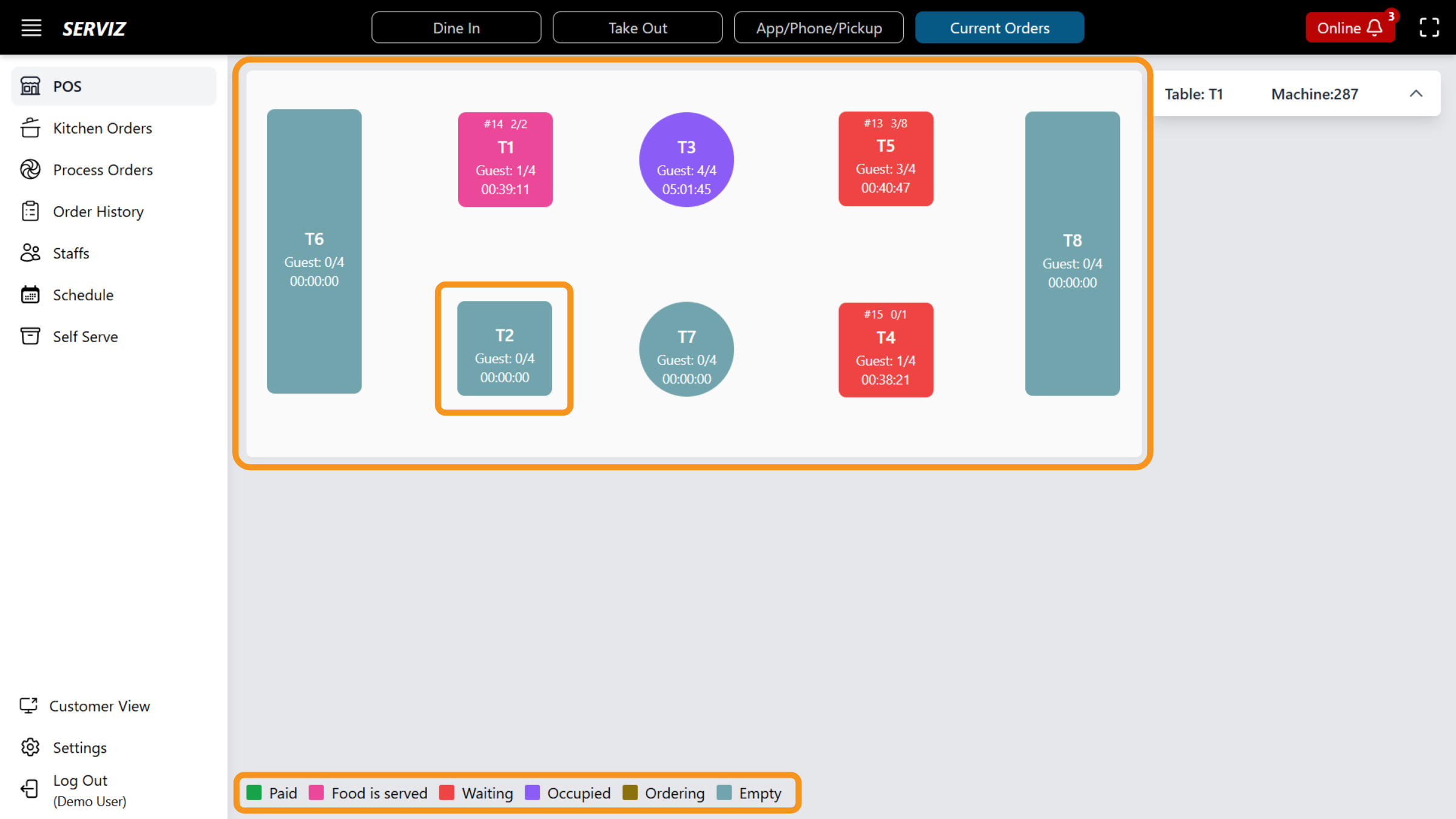
12. Open a table
When you select a table, options will appear for you to add the number of guests, items, manage the order, split or process payment, print the receipt, clear the table, change table and more.
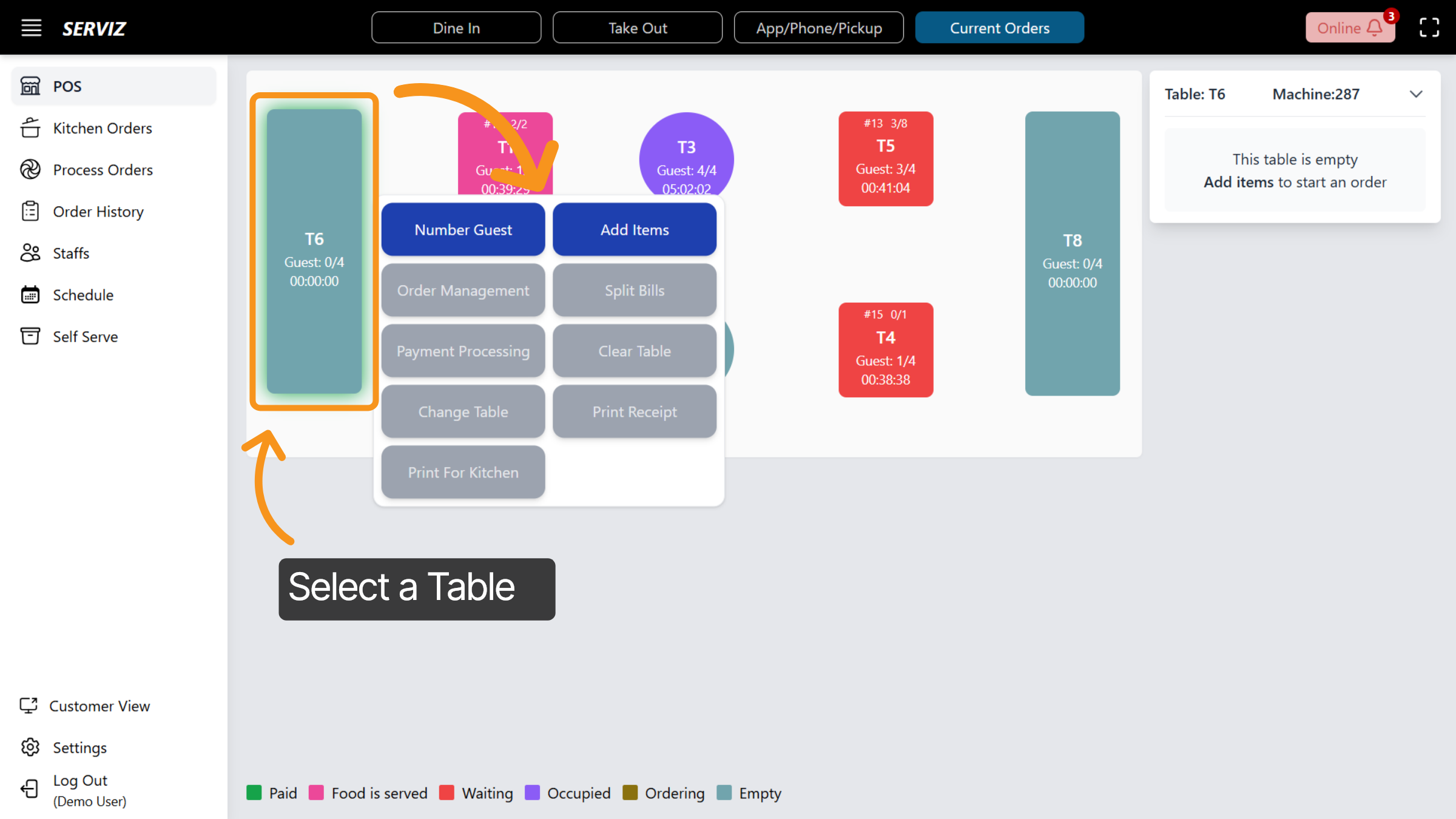
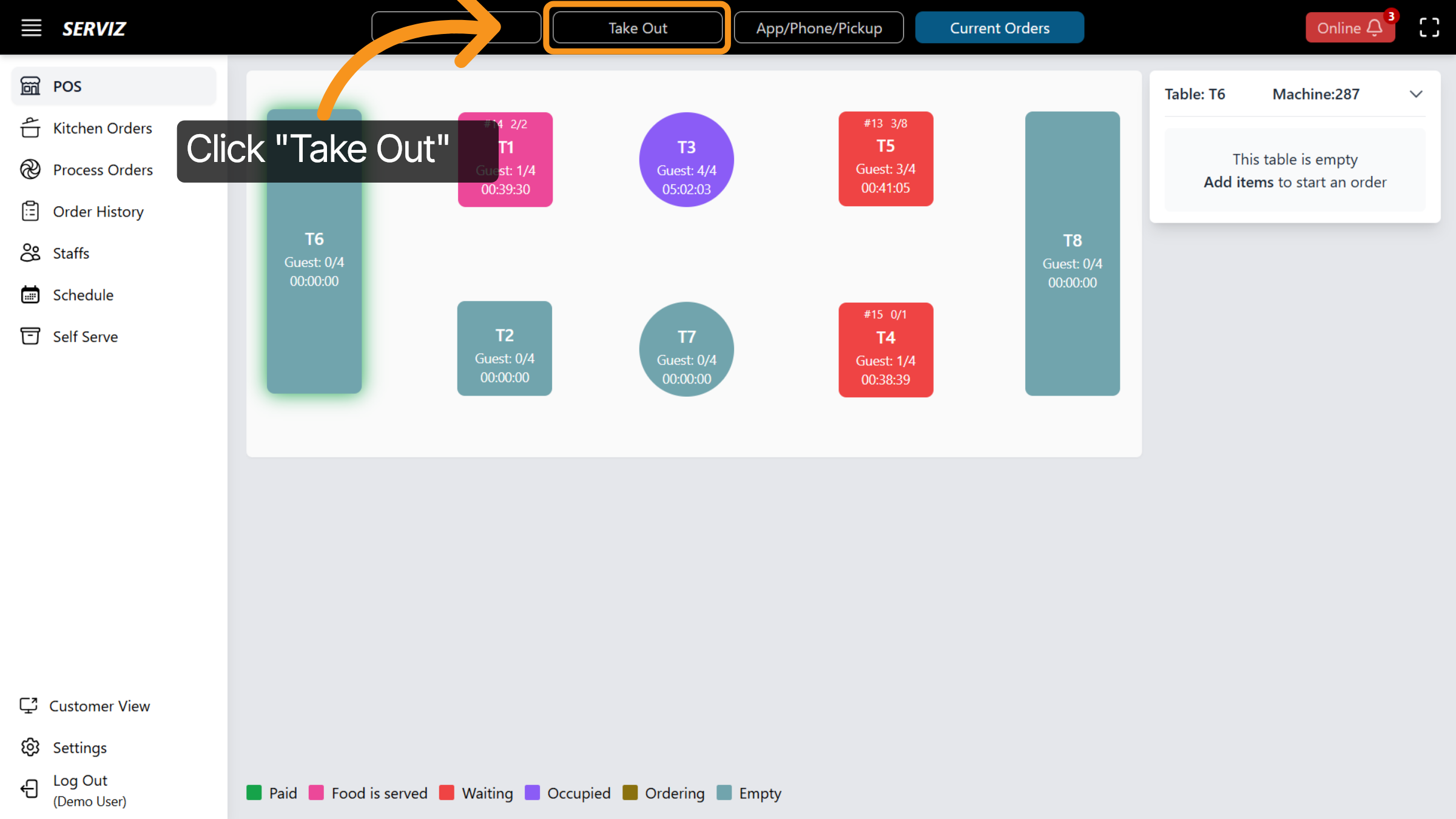
13. Choose Take Out Option
At the top of the page, you can Click Take Out to manage orders designated for takeout service.
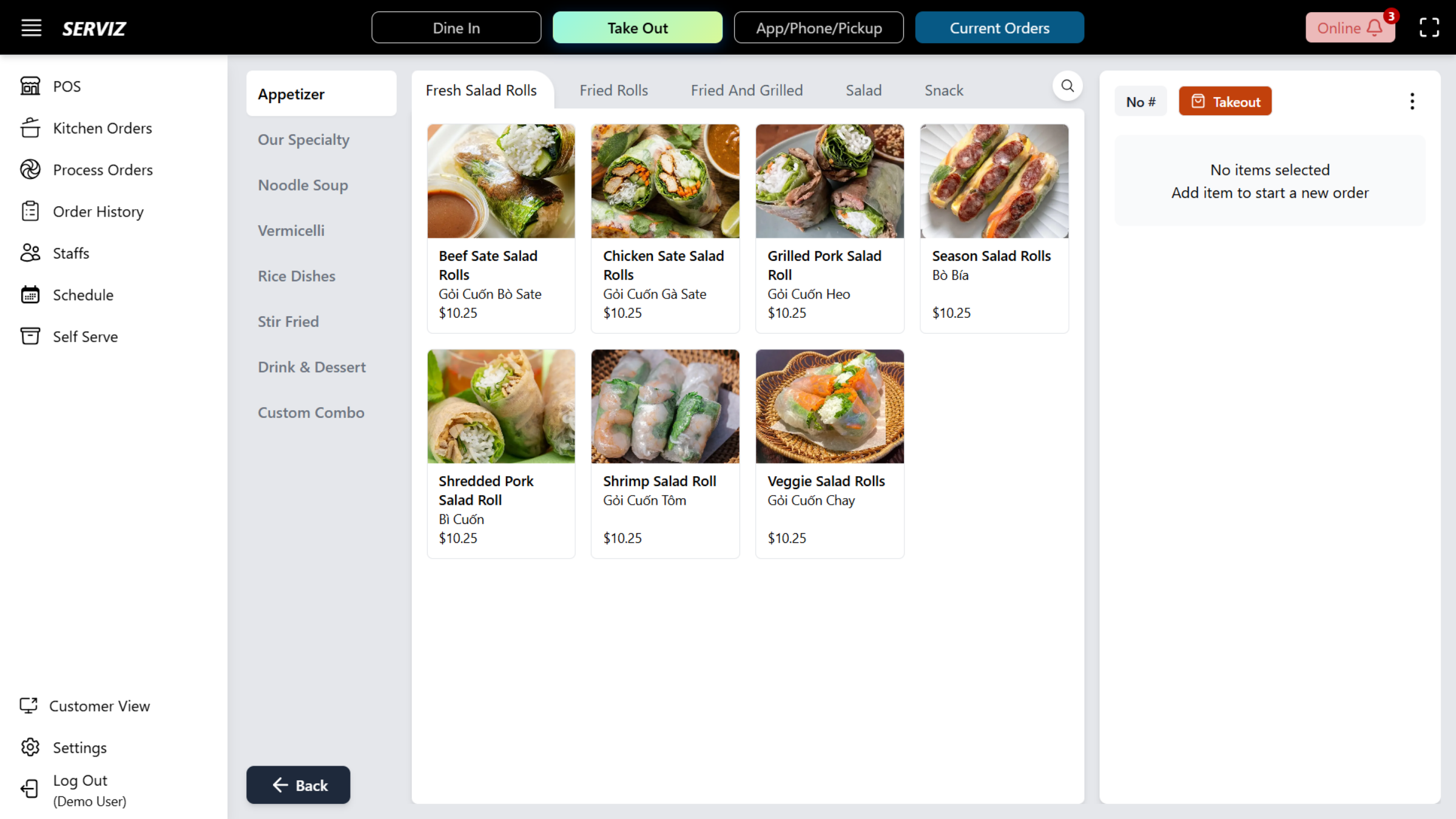
14. Select App/Phone/Pickup
In this section, you’ve seen how to add items to a takeout order, gather customer information, and complete the payment process. In the following video, we’ll go step by step through how to create and process a takeout order.
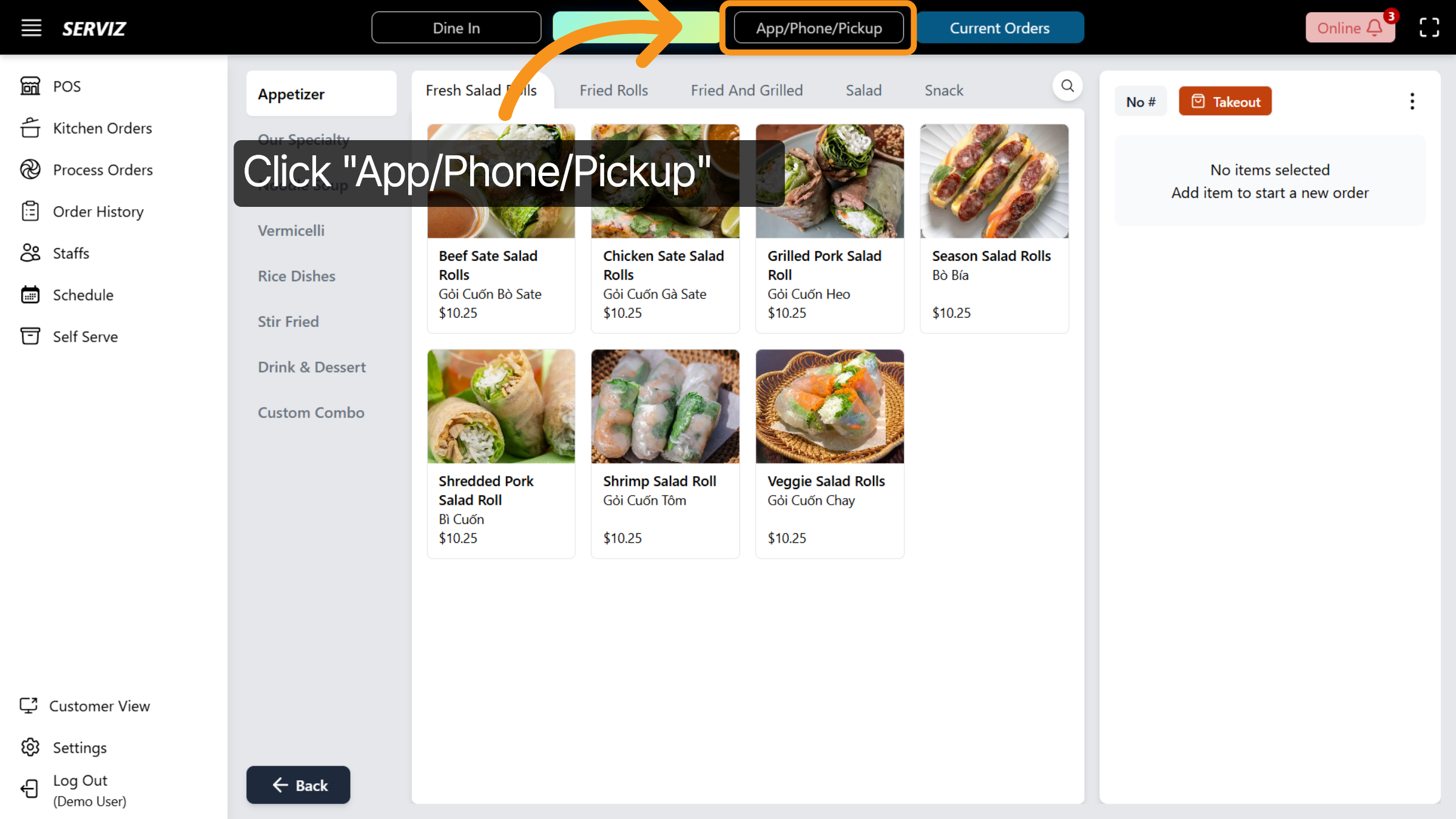
15. Select App/Phone/Pickup
Click on App/Phone/Pickup to specify the order source and fulfillment method.
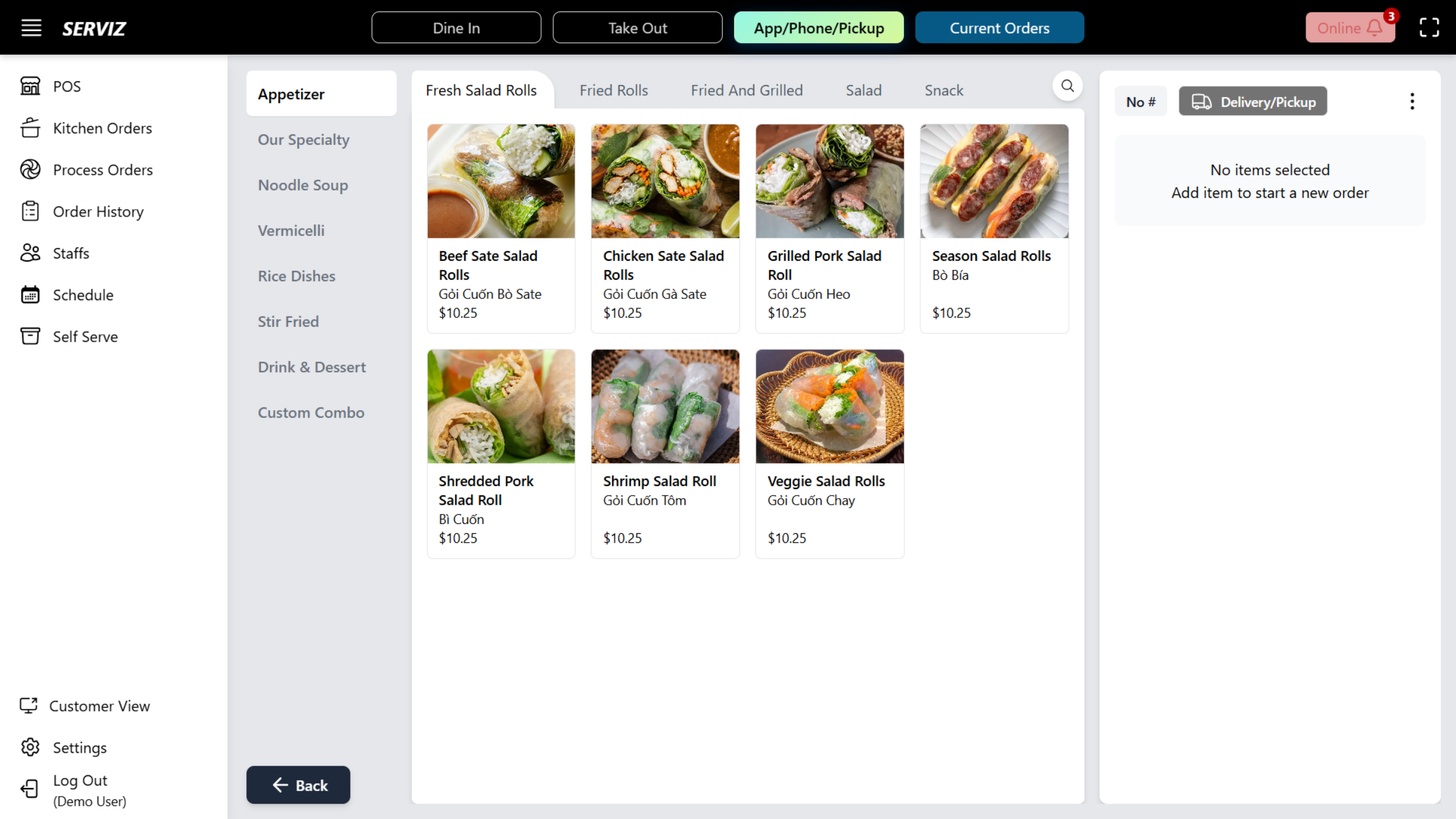
16. Pickup/ Delivery Tab
Just like the Takeout service, you can access the full menu and use the same features.
17. "Online Orders Notification" Button
Click the Online Order Notification button to view incoming online orders. When the button background turns red and a number appears in the top right corner, it indicates the number of active online orders. This means there is either an online order arriving or currently in progress. If there are no active online orders, the button will remain black.
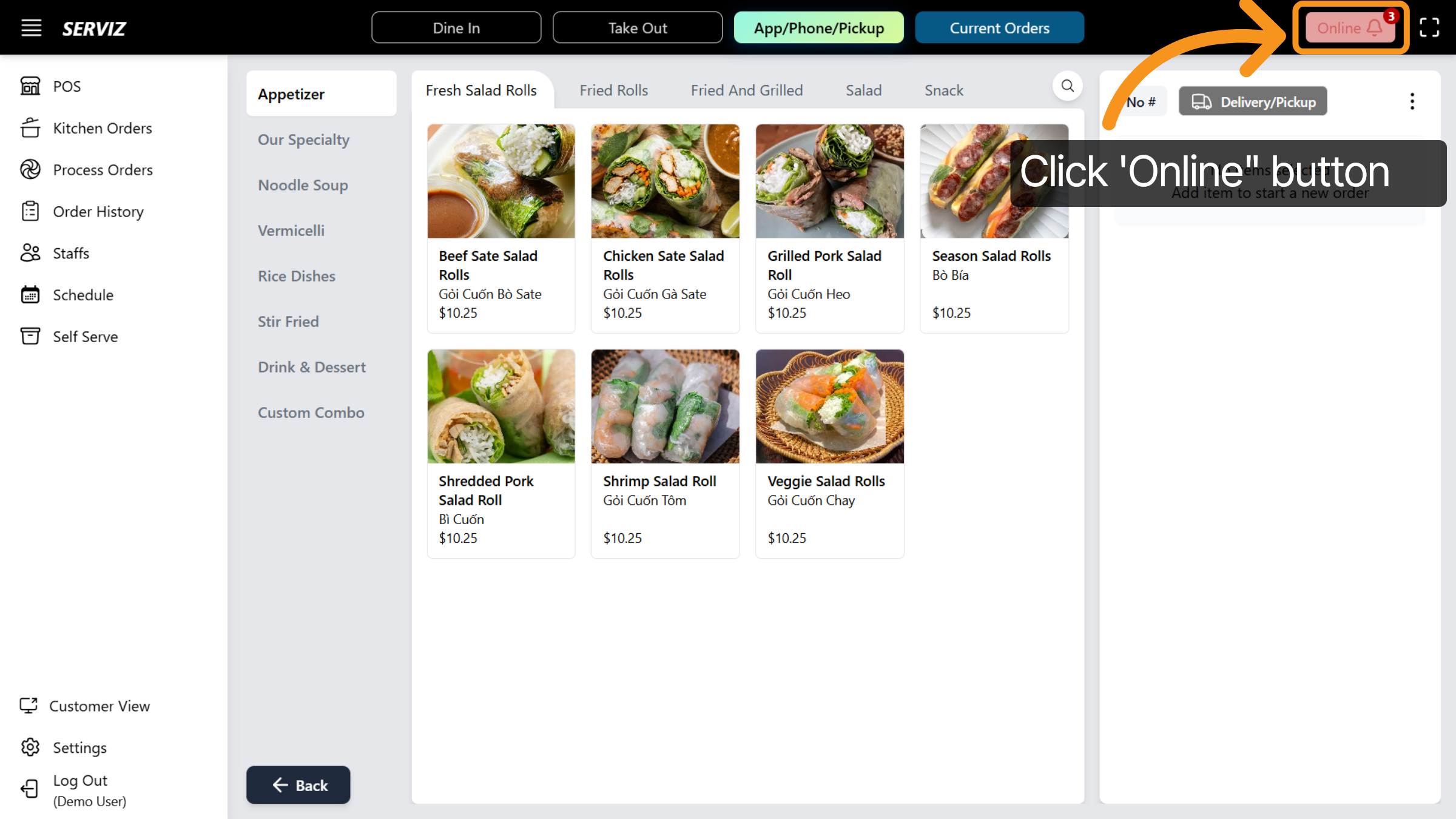
18. Continue "Online Order"
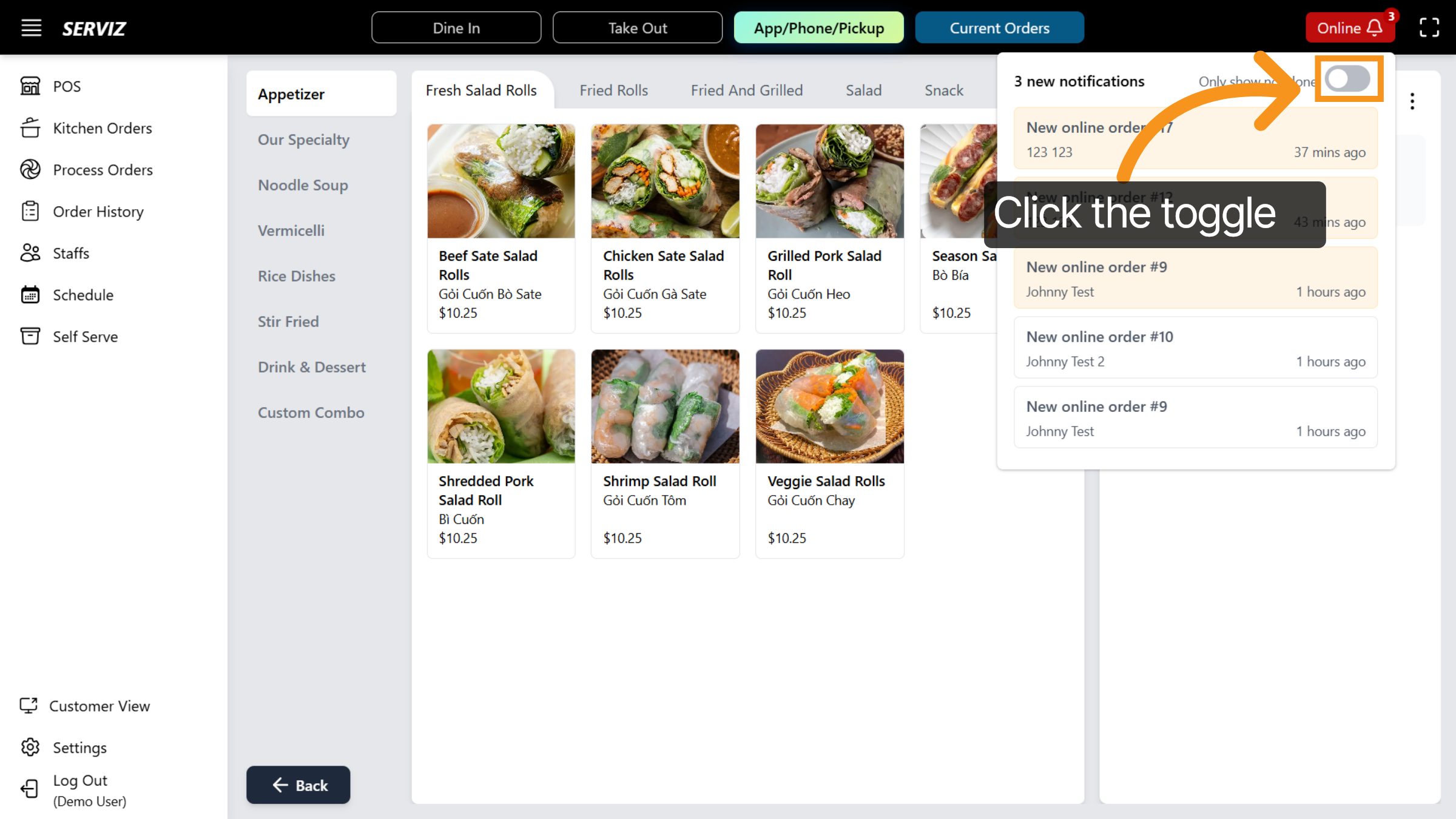
19. Continue "Online Order"
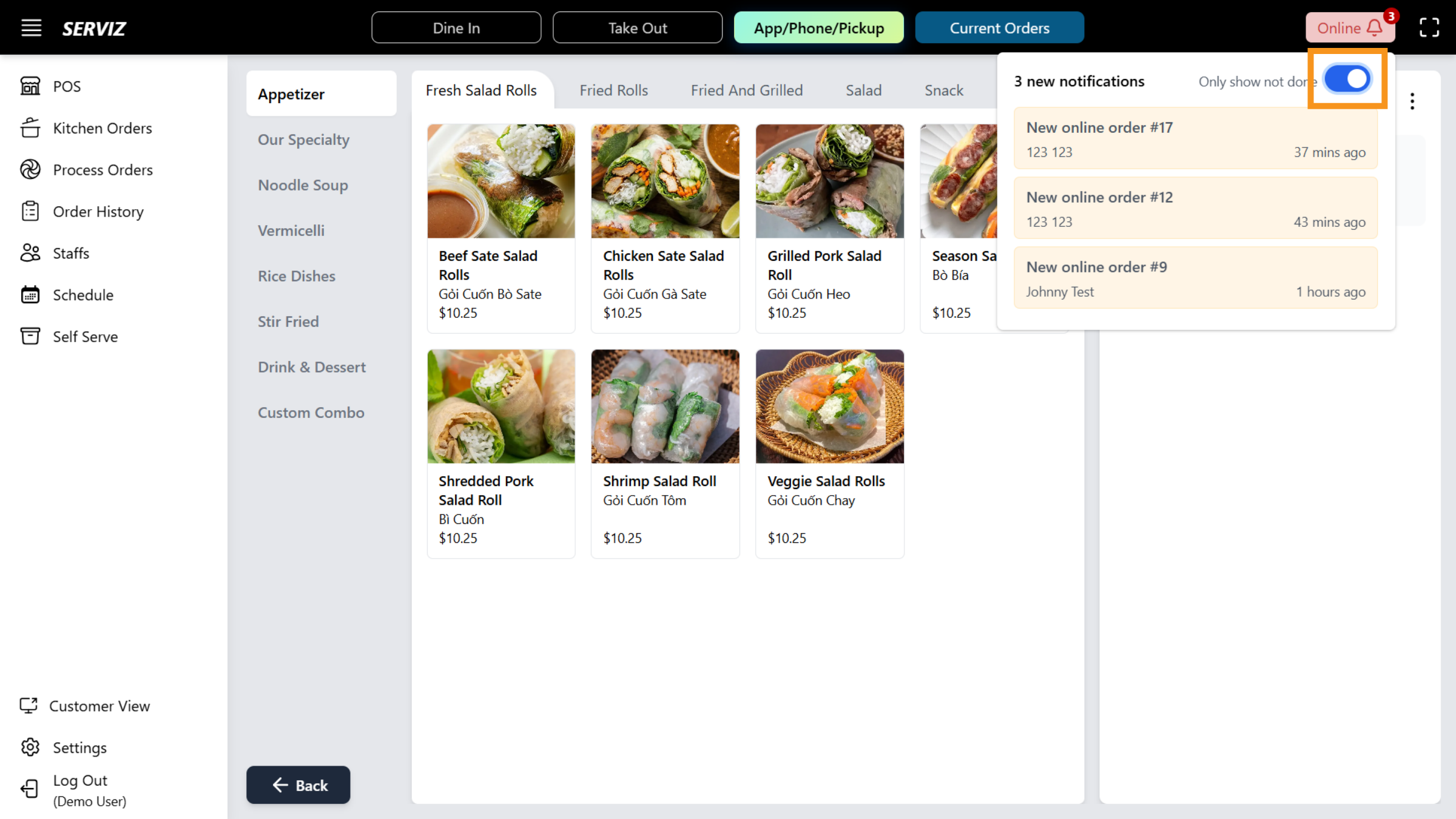
20. View Current Orders
Click Current Orders to see all active orders awaiting processing or completion.
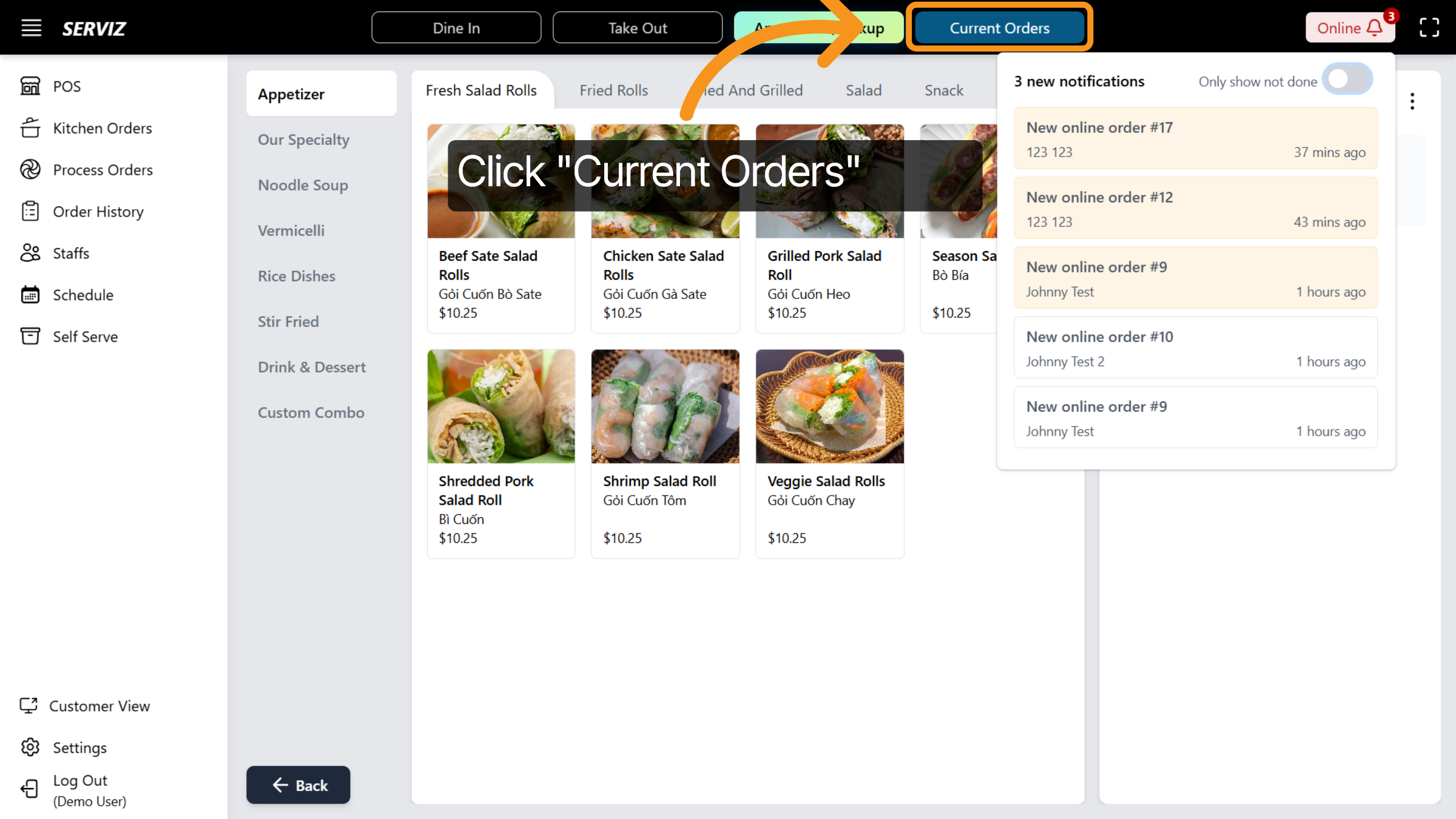
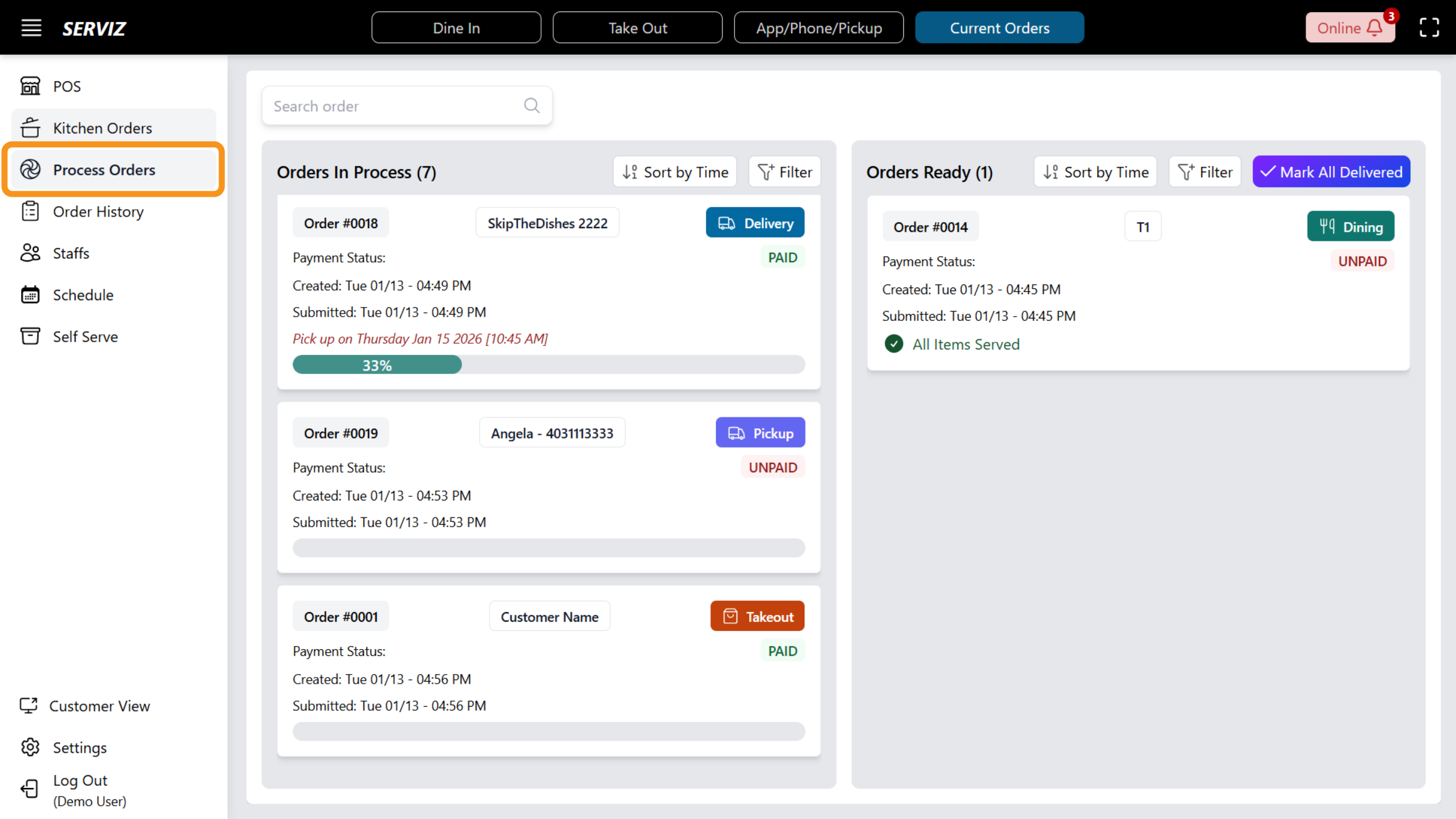
21. Access Process Orders
The system is designed to automatically navigate you to the "Process Order" option located on the left sidebar. Within this section, you will identify the categories "Orders in Process" and "Orders Ready to Serve."
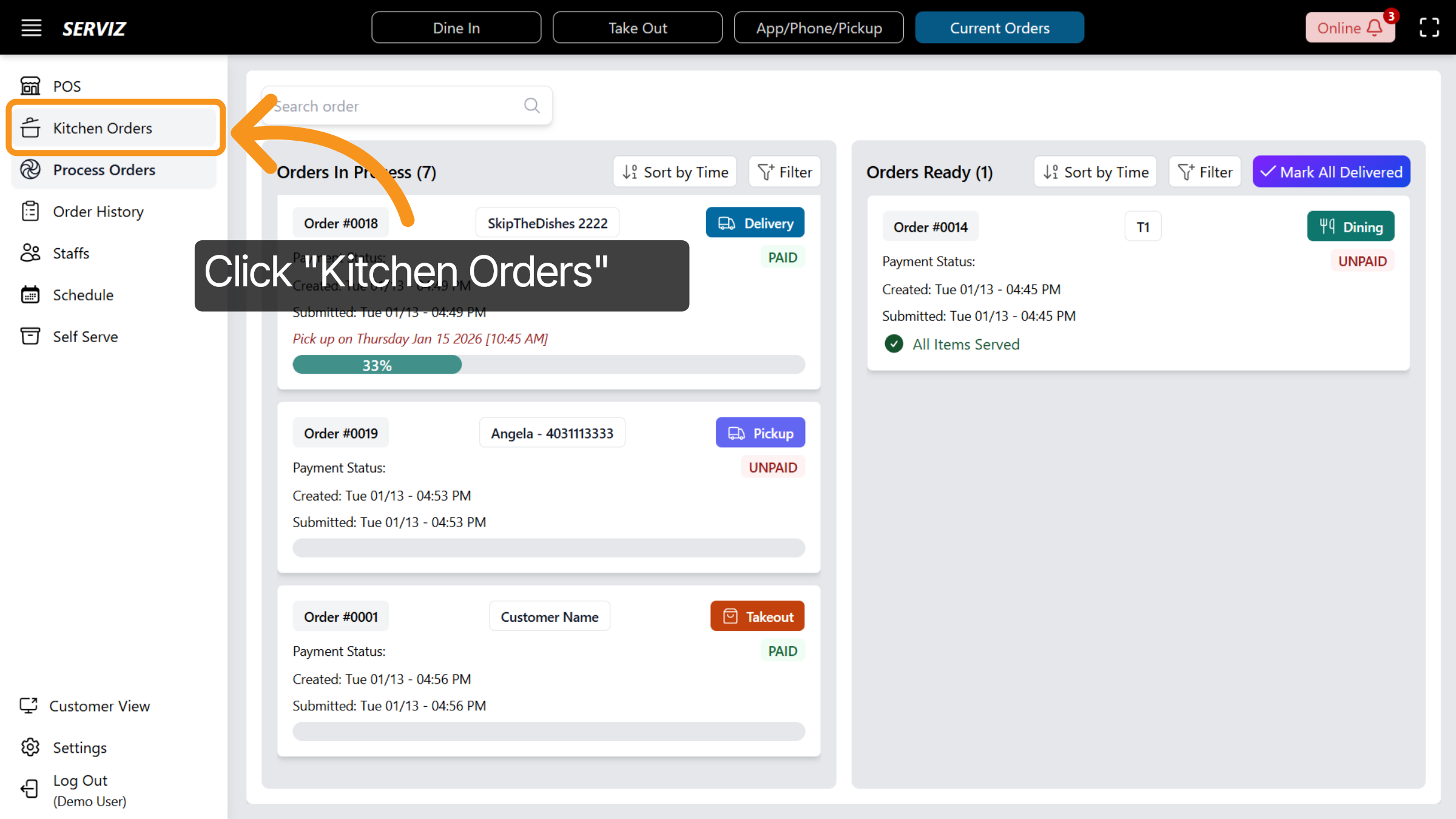
22. Access Kitchen Orders
Click on "Kitchen Orders" to monitor the orders currently being prepared in the kitchen.
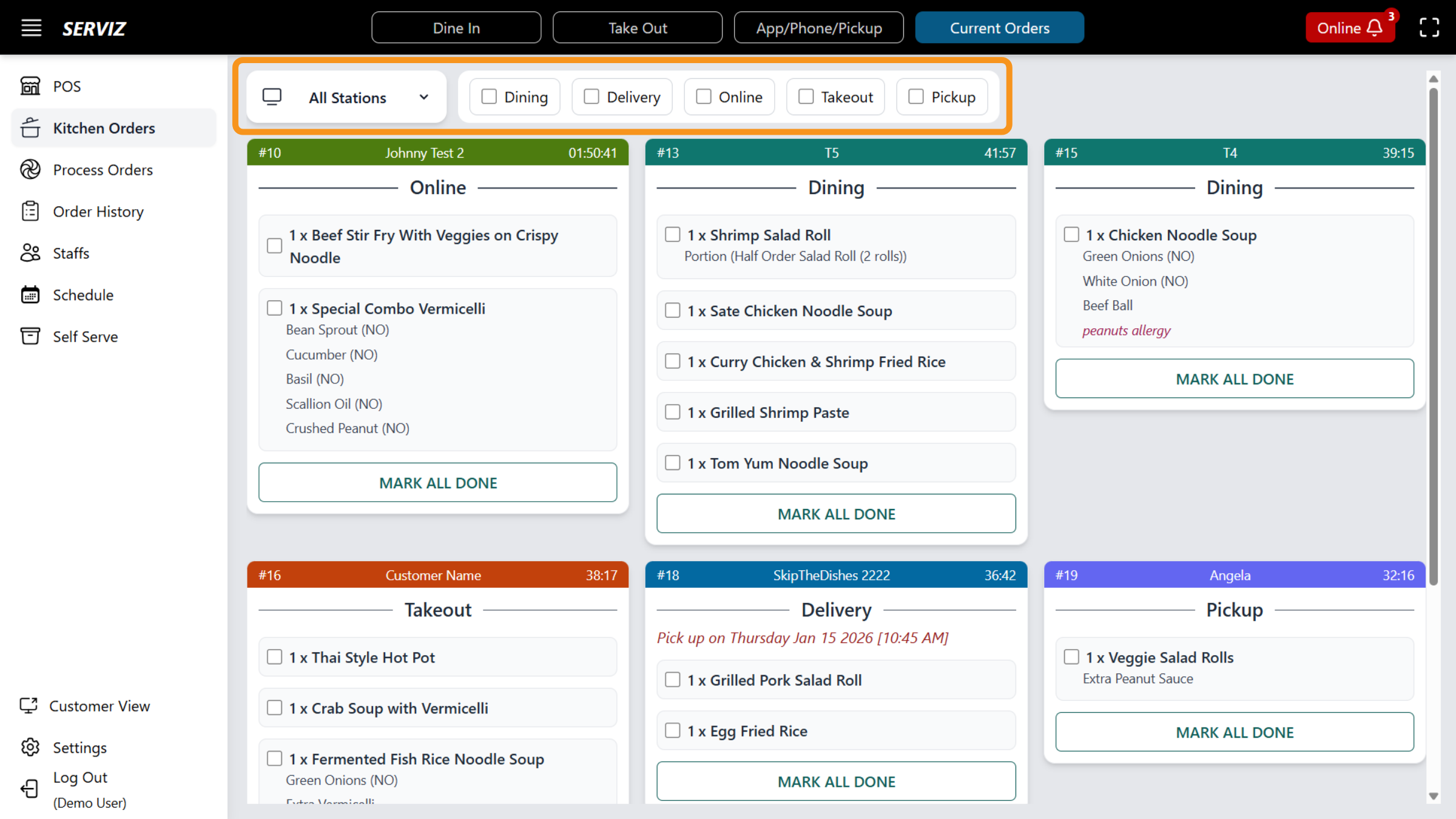
23. Kitchen Order Display
In the Kitchen Orders section, the default setting displays all stations while unselecting fillers. This configuration enables you to view all active orders in the kitchen, providing a comprehensive overview. With all stations visible, you can effectively manage and track the progress of each order, facilitating smoother operations and enhancing communication among staff.
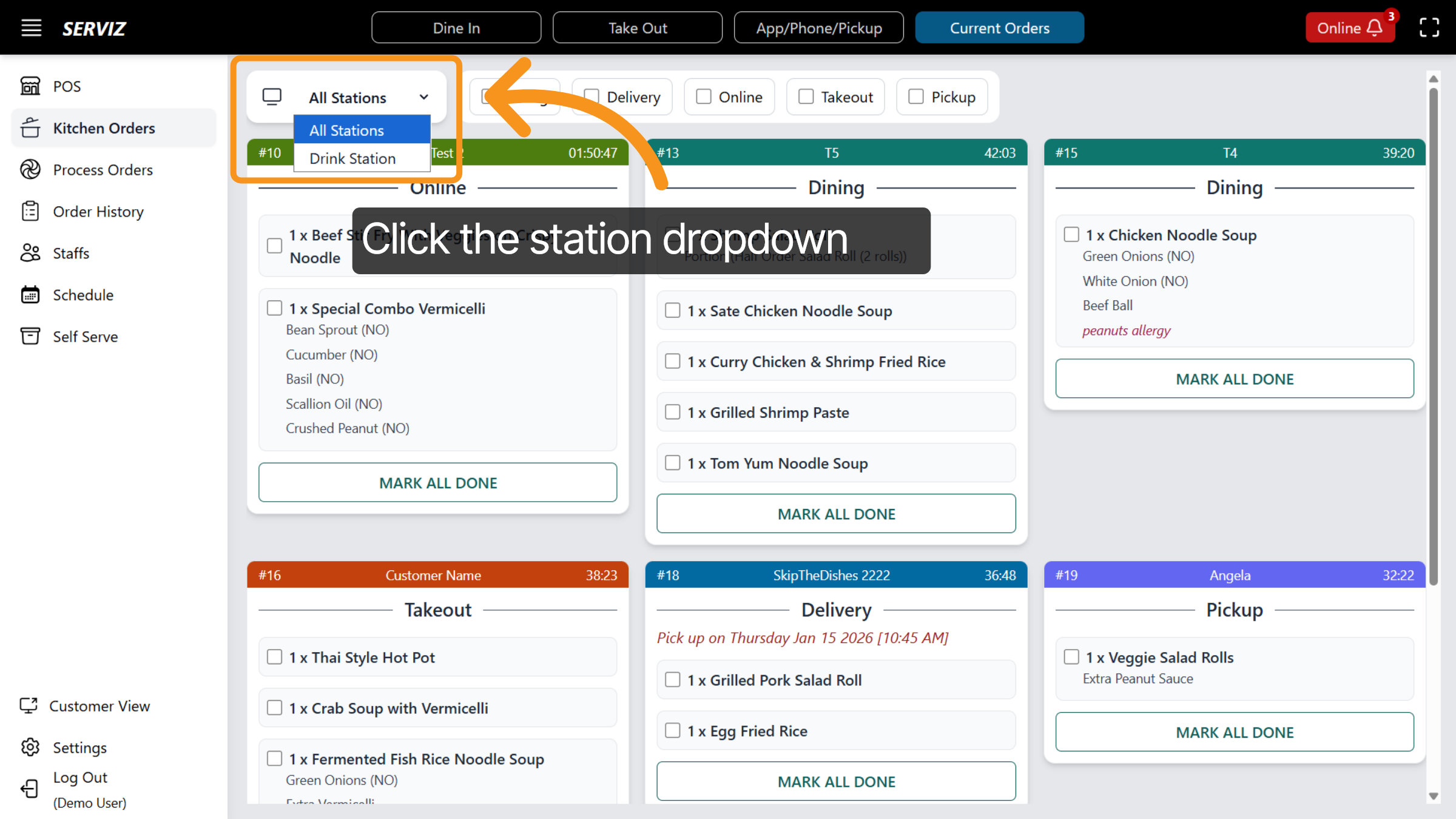
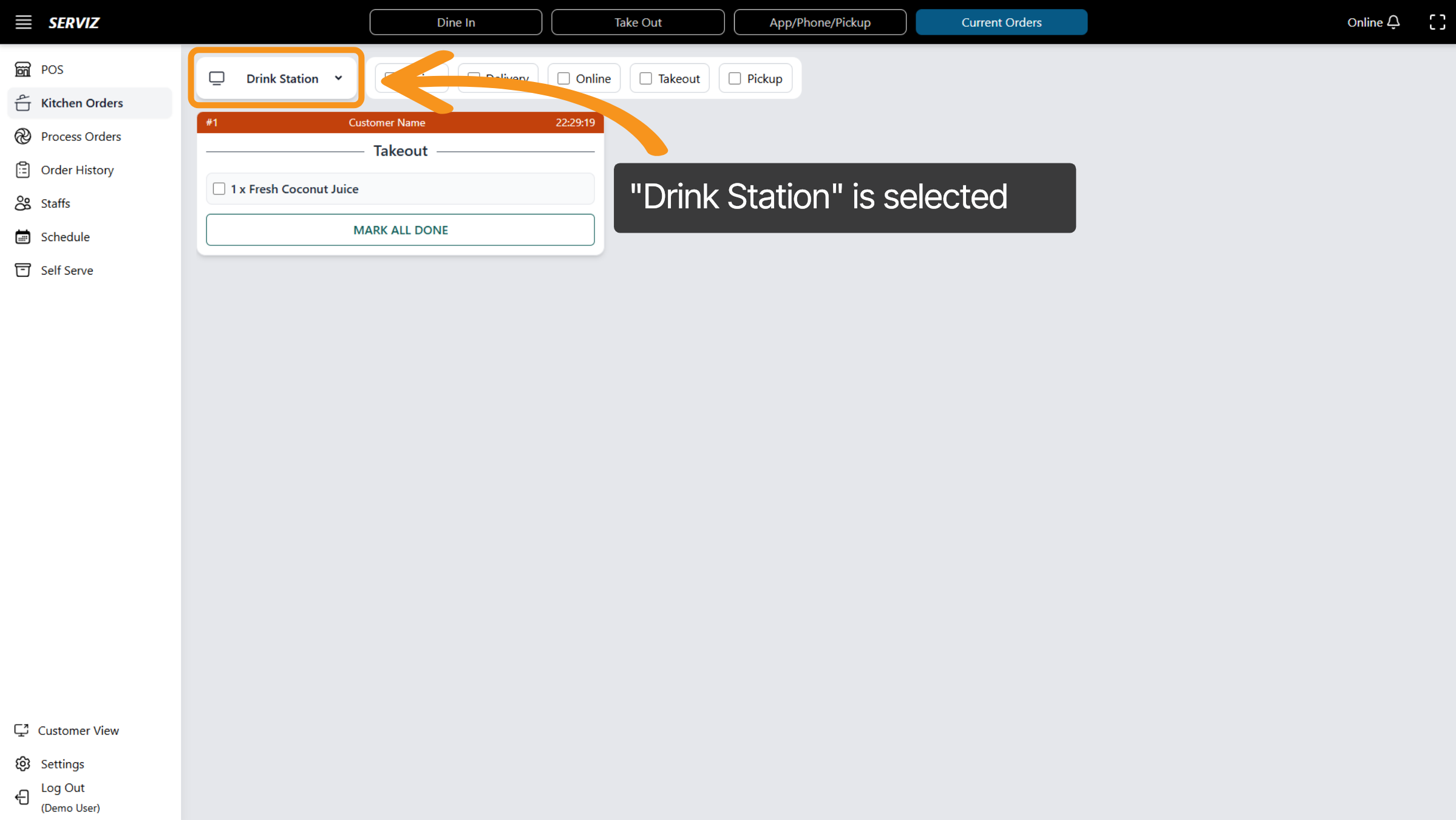
24. Select different station view
You can click the station dropdown list to switch to a different station view, such as the drink station or soup station if applicable.
25. "Drink Station" is selected
When the drink station is selected, only beverages that need to be prepared by the bartenders will be displayed.
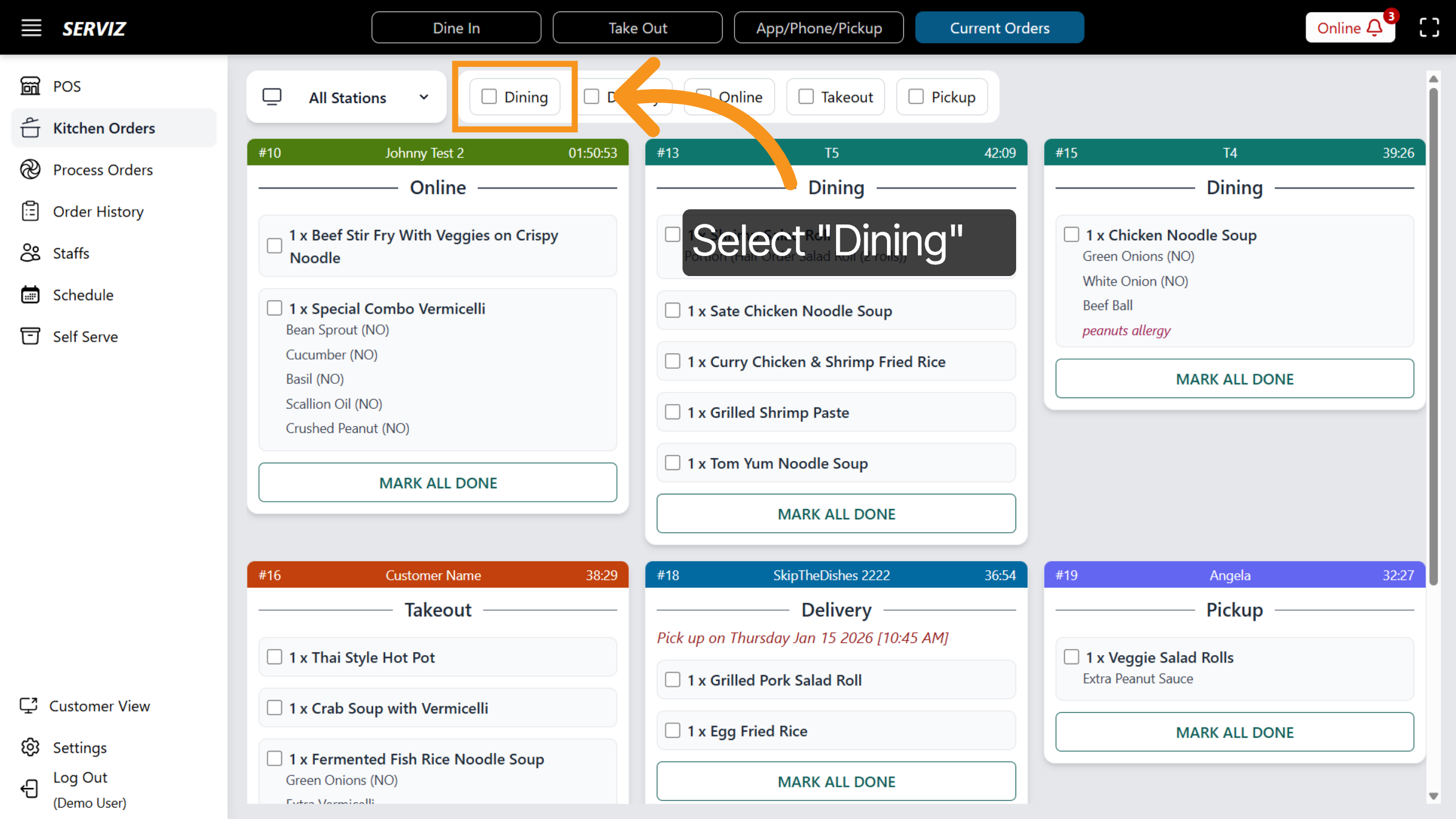
26. Select Dining Option
Additionally, you may select the appropriate checkboxes for custom view such as dining
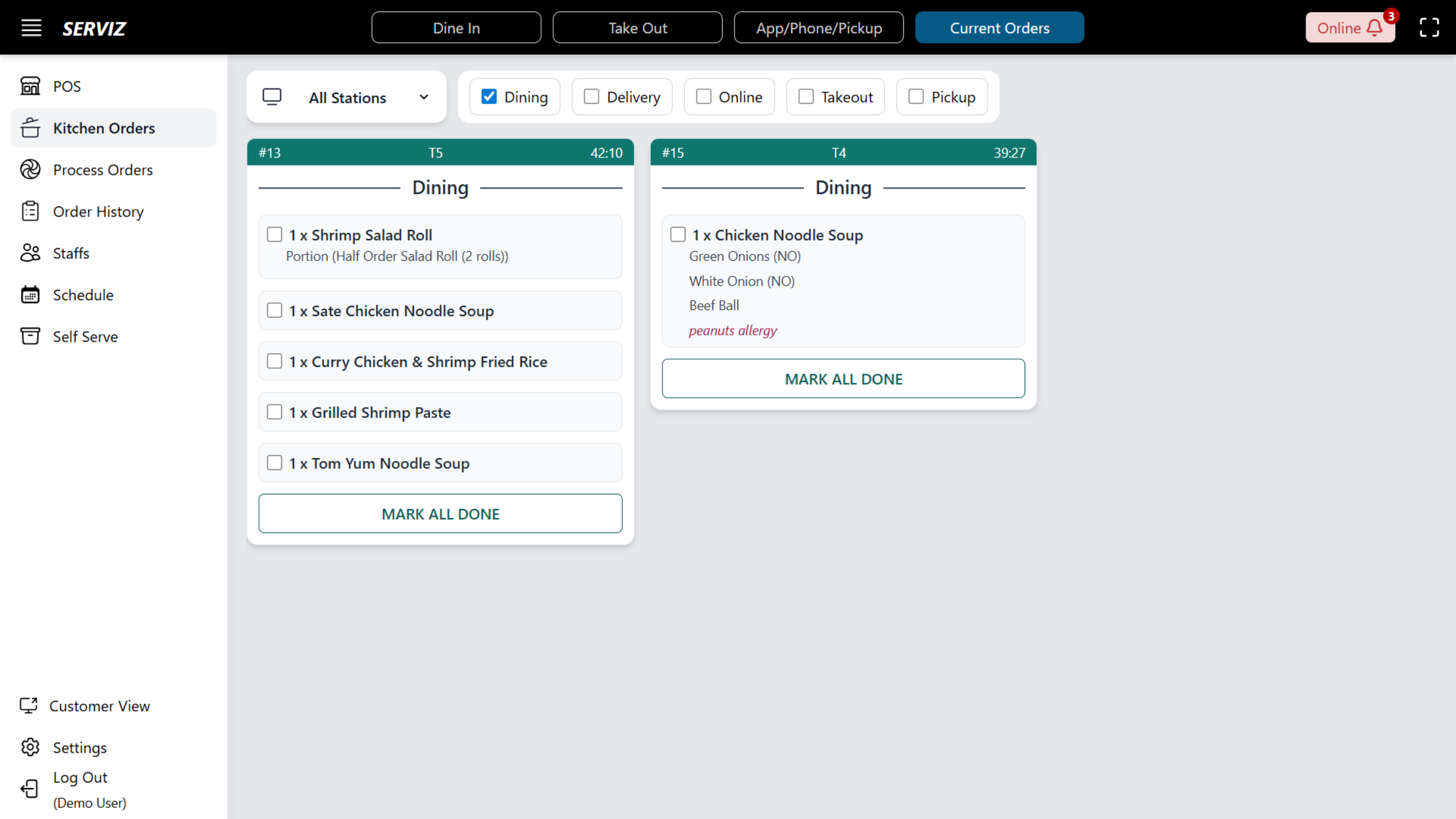
27. Dining selected
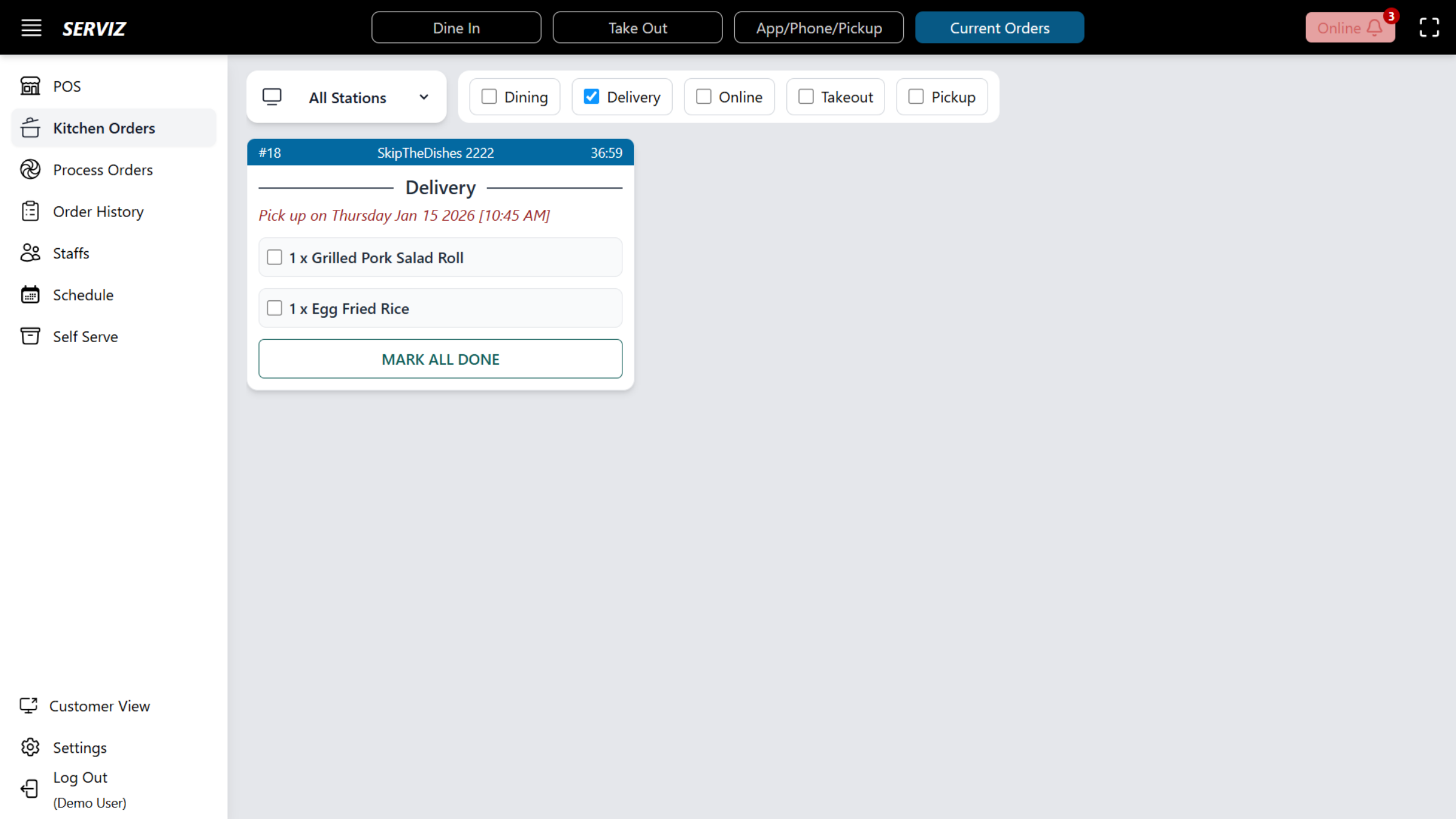
28. Delivery selected
Delivery...
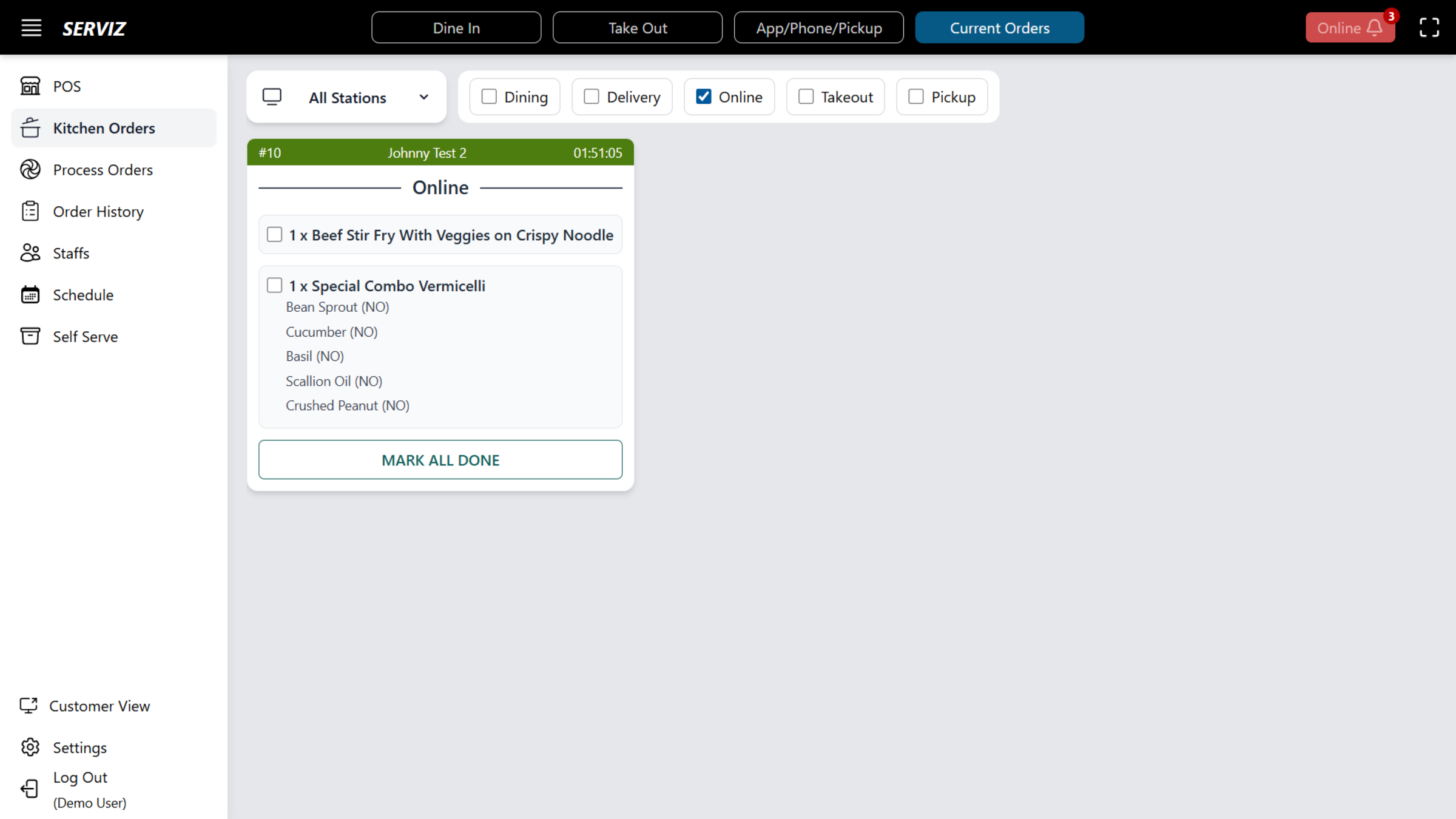
29. Online Orders selected
Online Order...
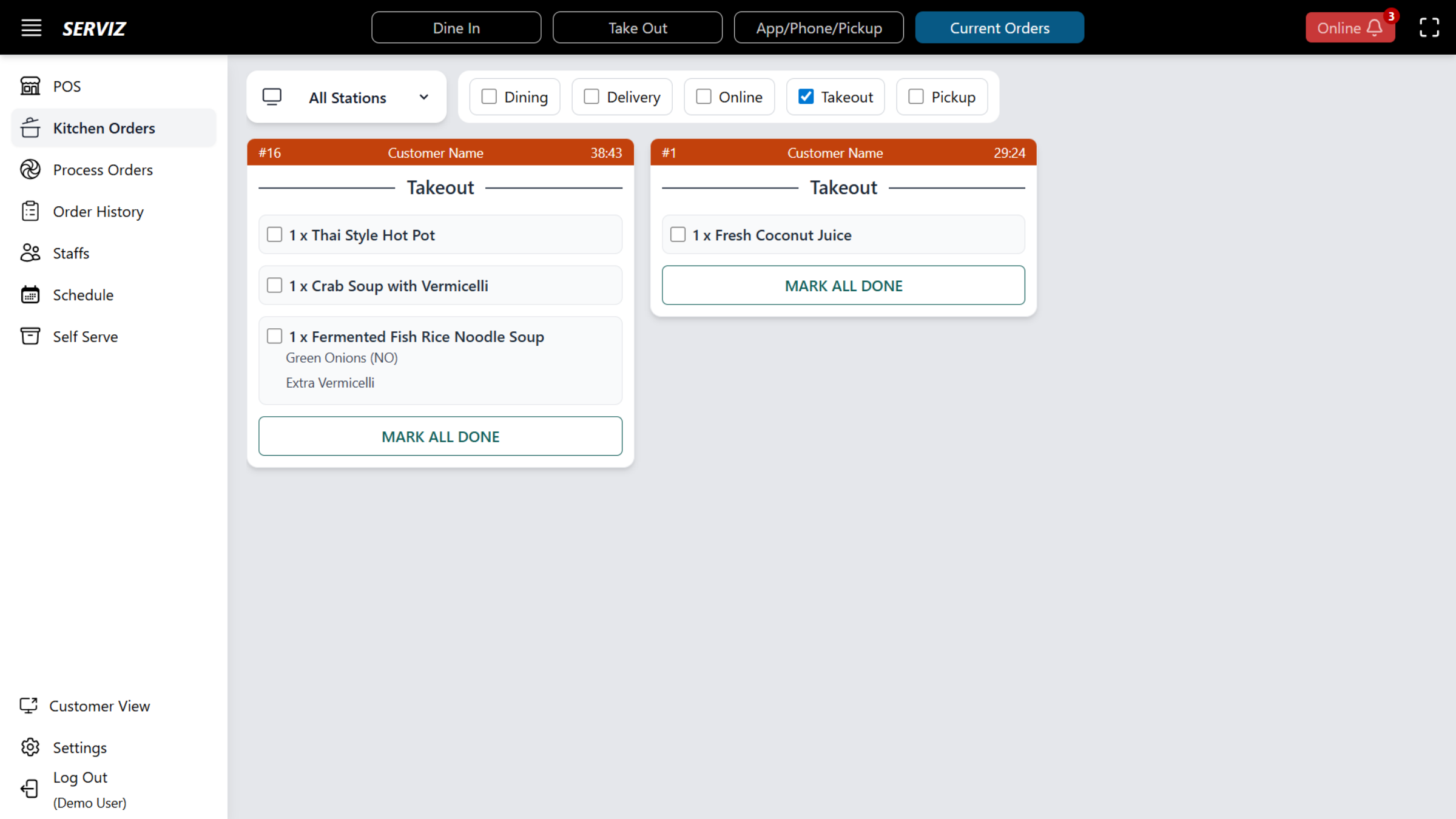
30. Takeout selected
Takeout
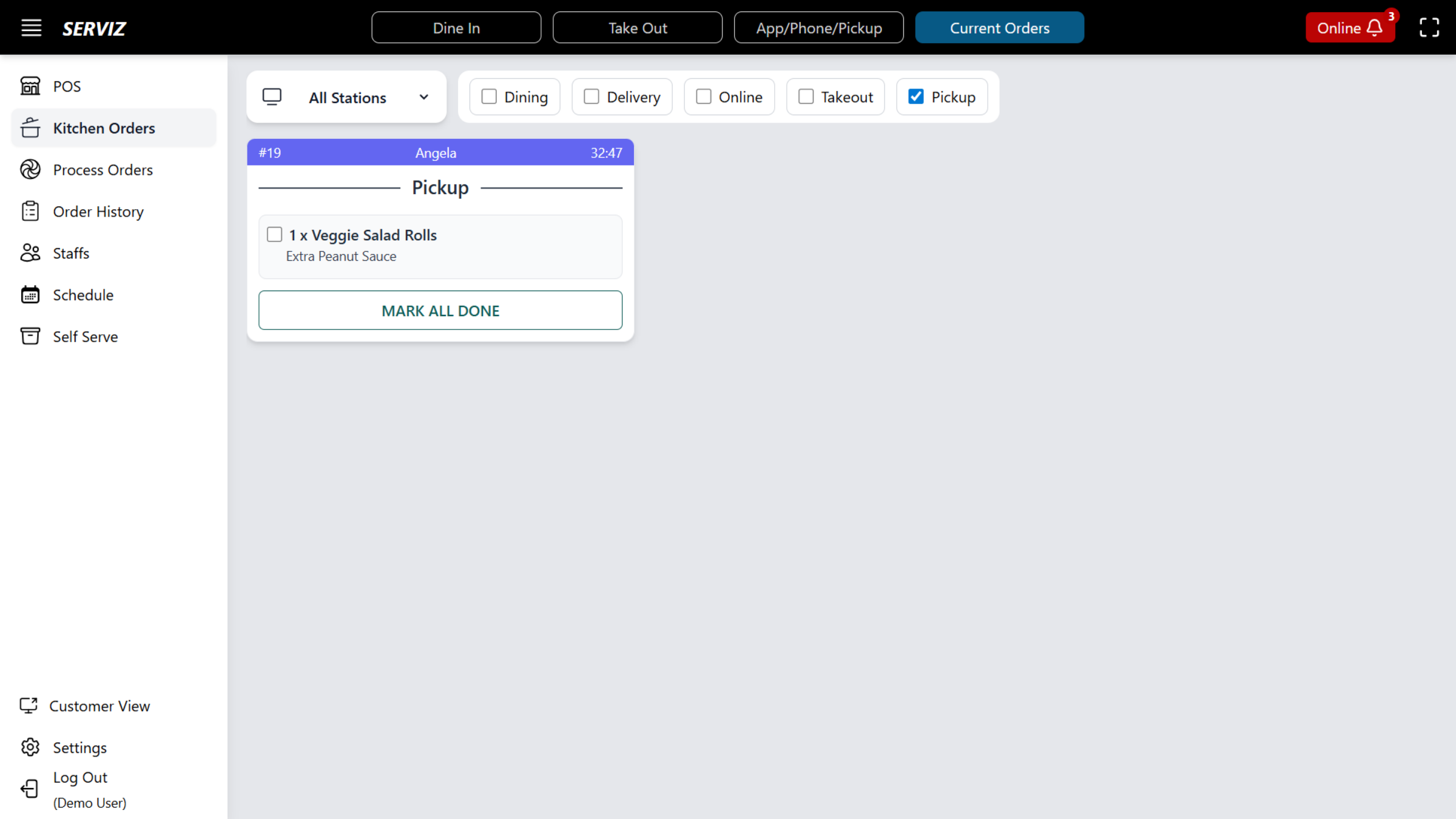
31. Pickup selected
Pickup...
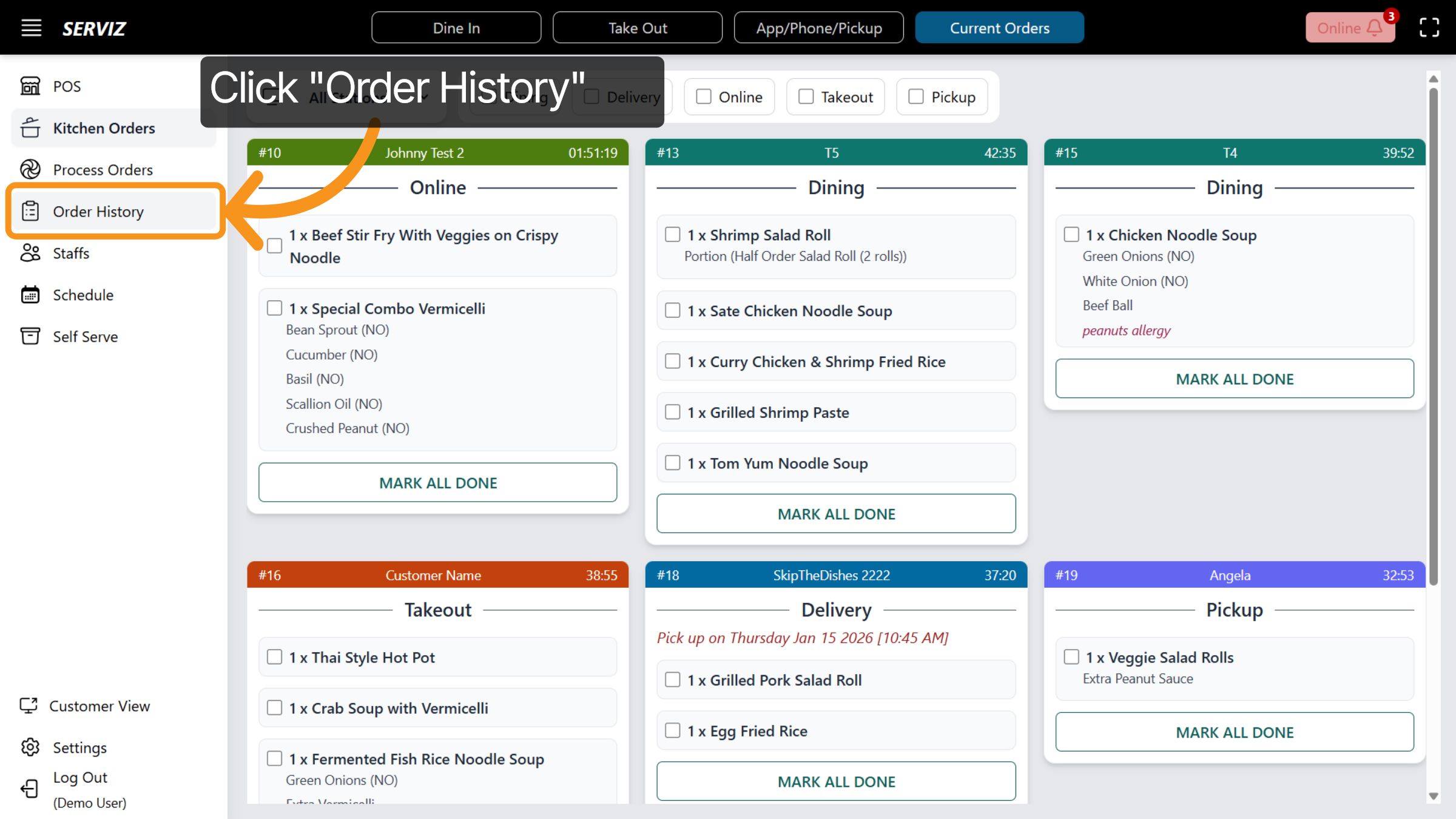
32. Open "Order History"
Now, let's click Order History to review all orders and transaction records.
33. Clear Order Filters
Within the Order History section, you can so search orders by Order ID, Order Type, Name, Phone, Order Date, Order Status, Order Total, Payment Method, and Payment Status.
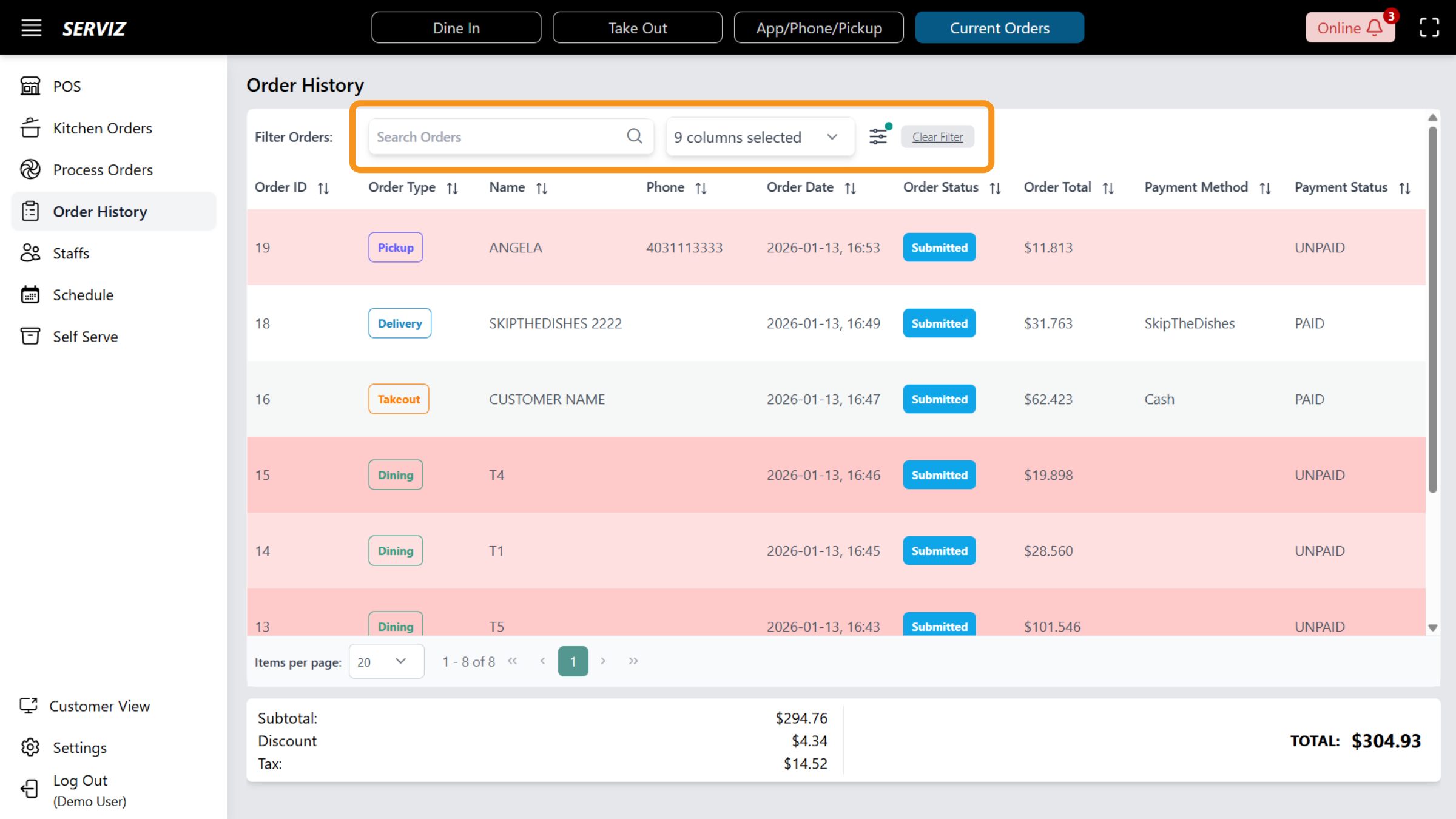
34. Click "Filter"
You can click “Filter” to view more filtering options.
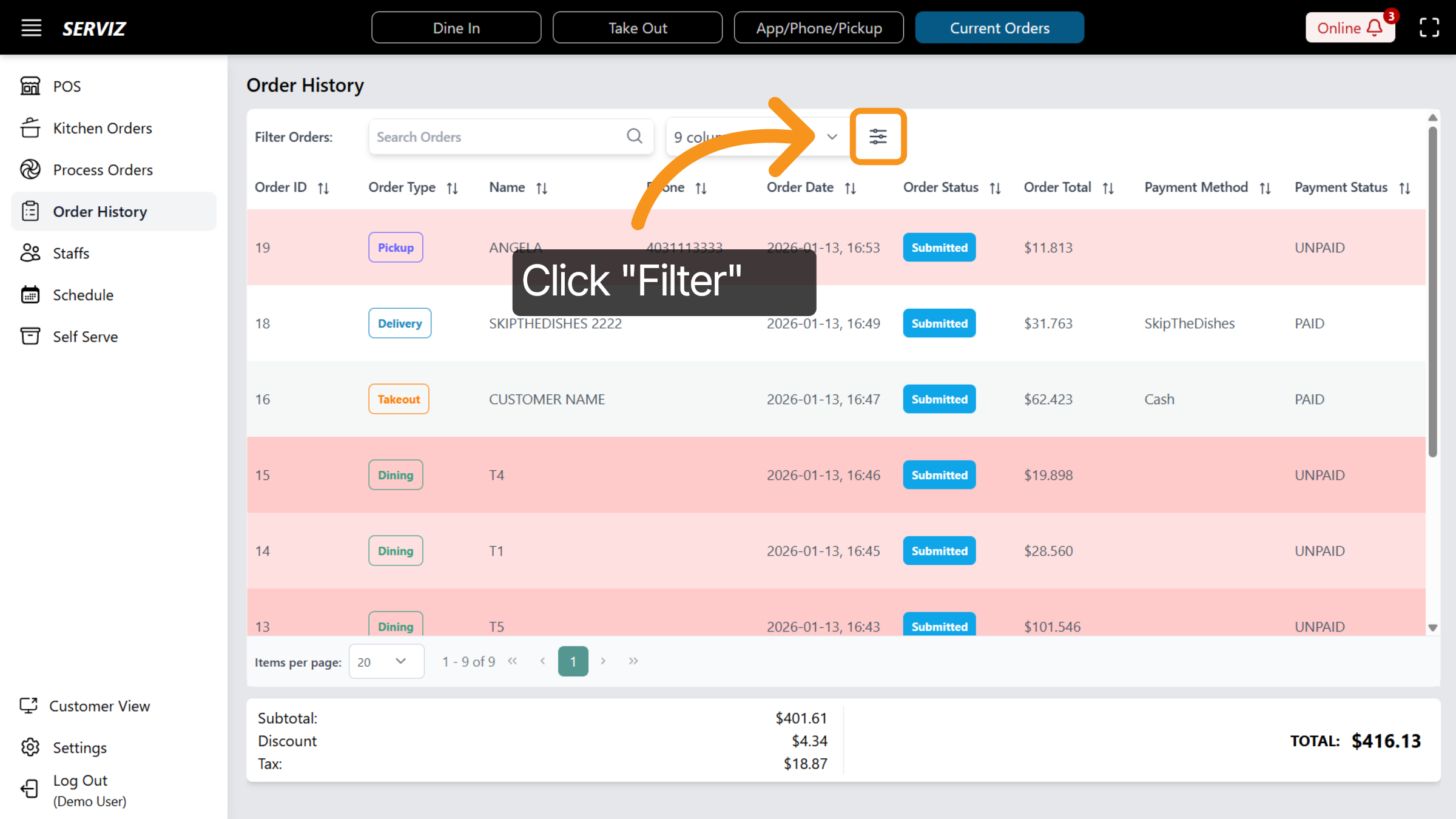
35. Select Today Filter
It is possible to filter orders based on specific timeframes, including Today, Yesterday, the Past 7 Days, the Current Month, or a Custom Date Range.
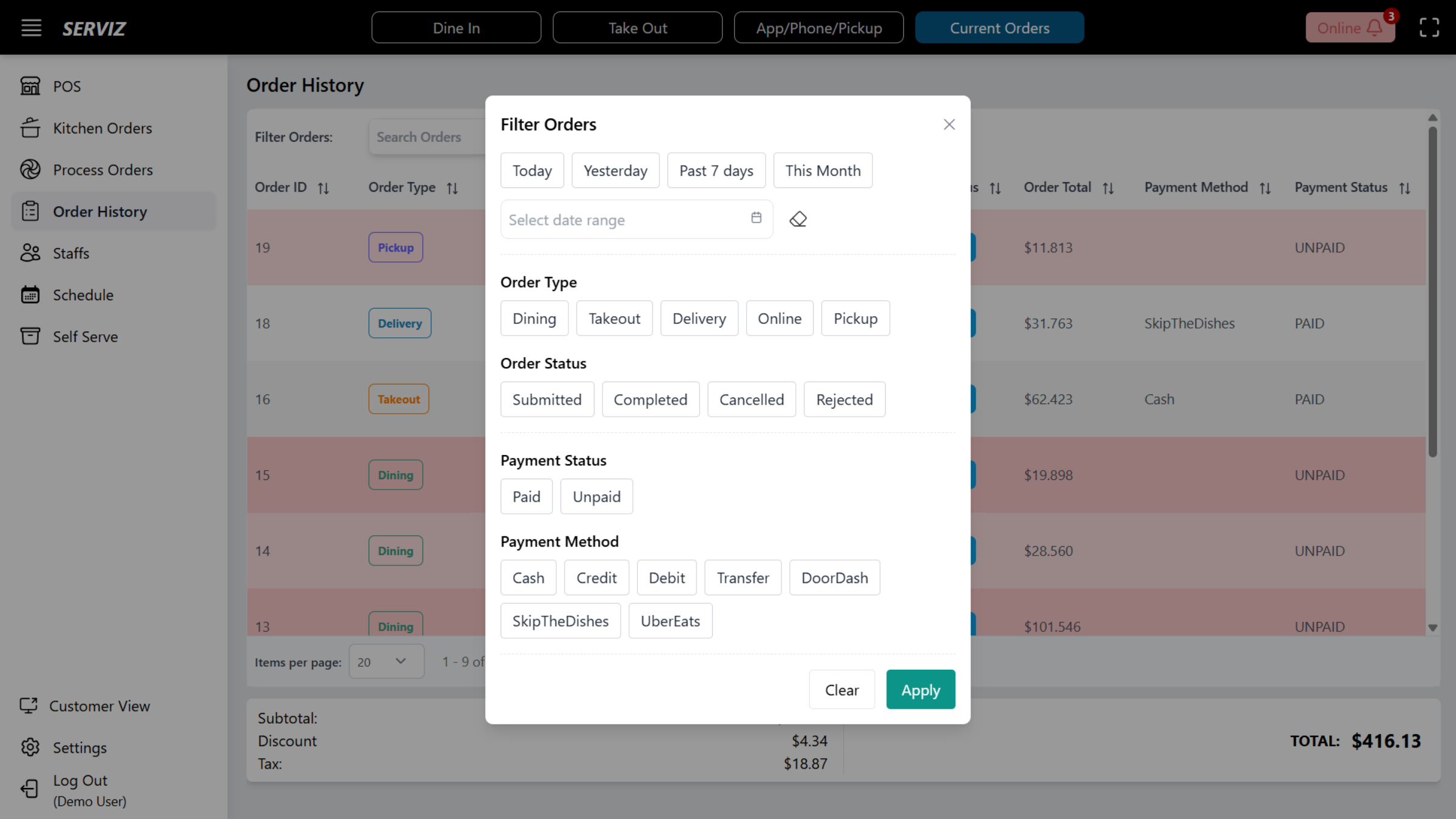
36. Apply Filters
Click Apply to activate the selected search or filter settings.
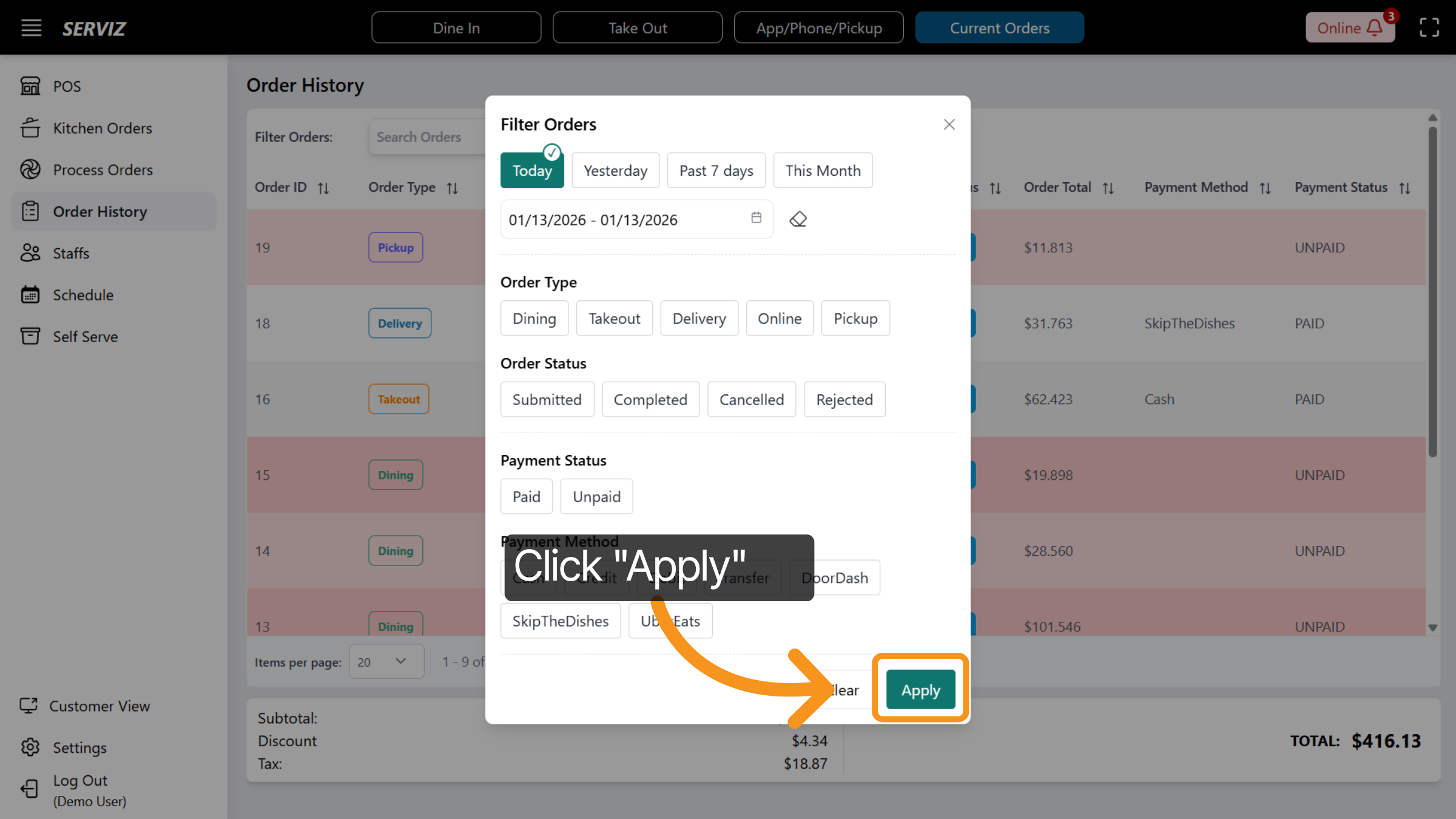
37. Order History Continue
At the bottom of the page, you can observe the subtotal, applicable discounts, and taxes associated with the selected time frame.
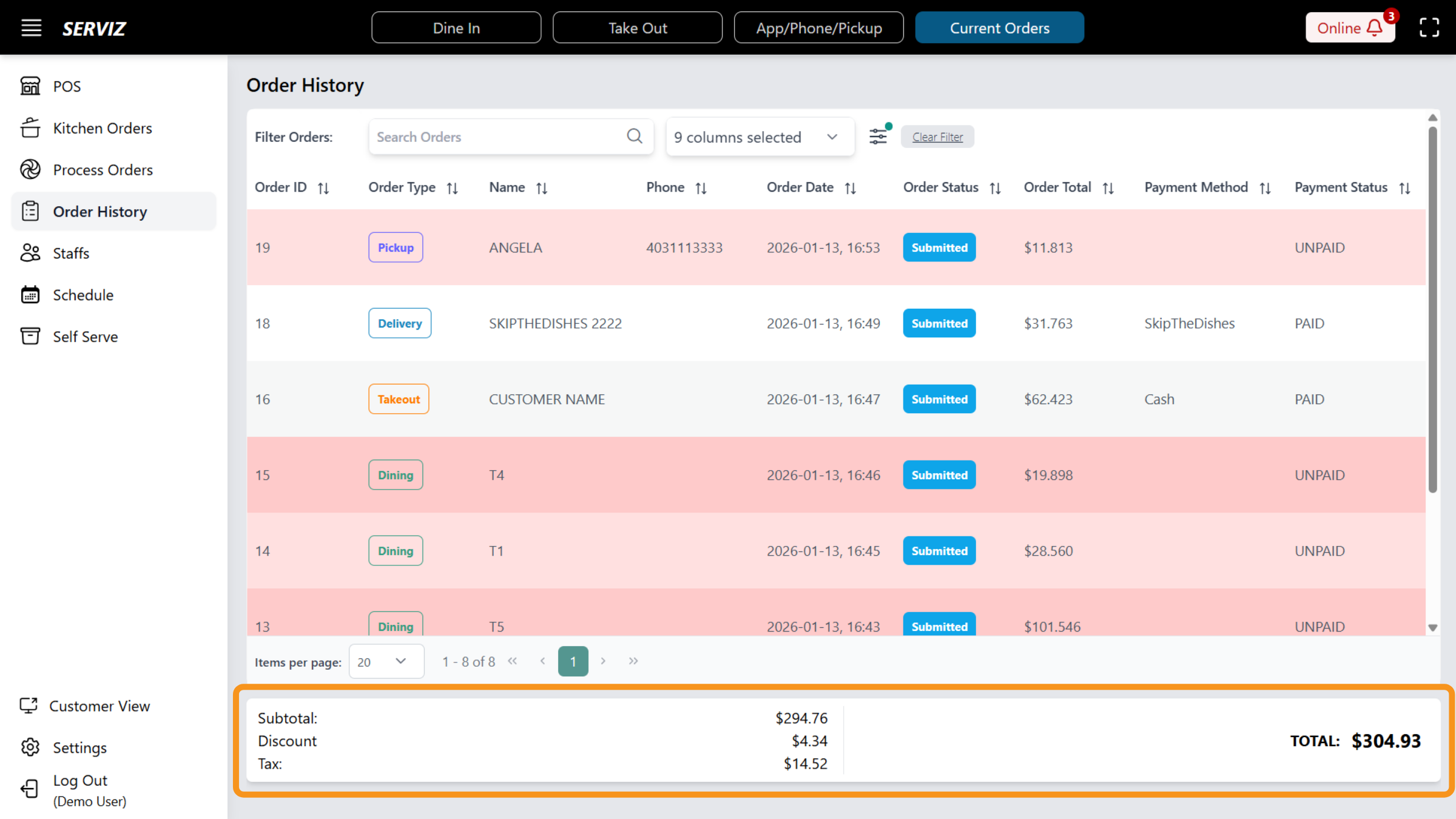
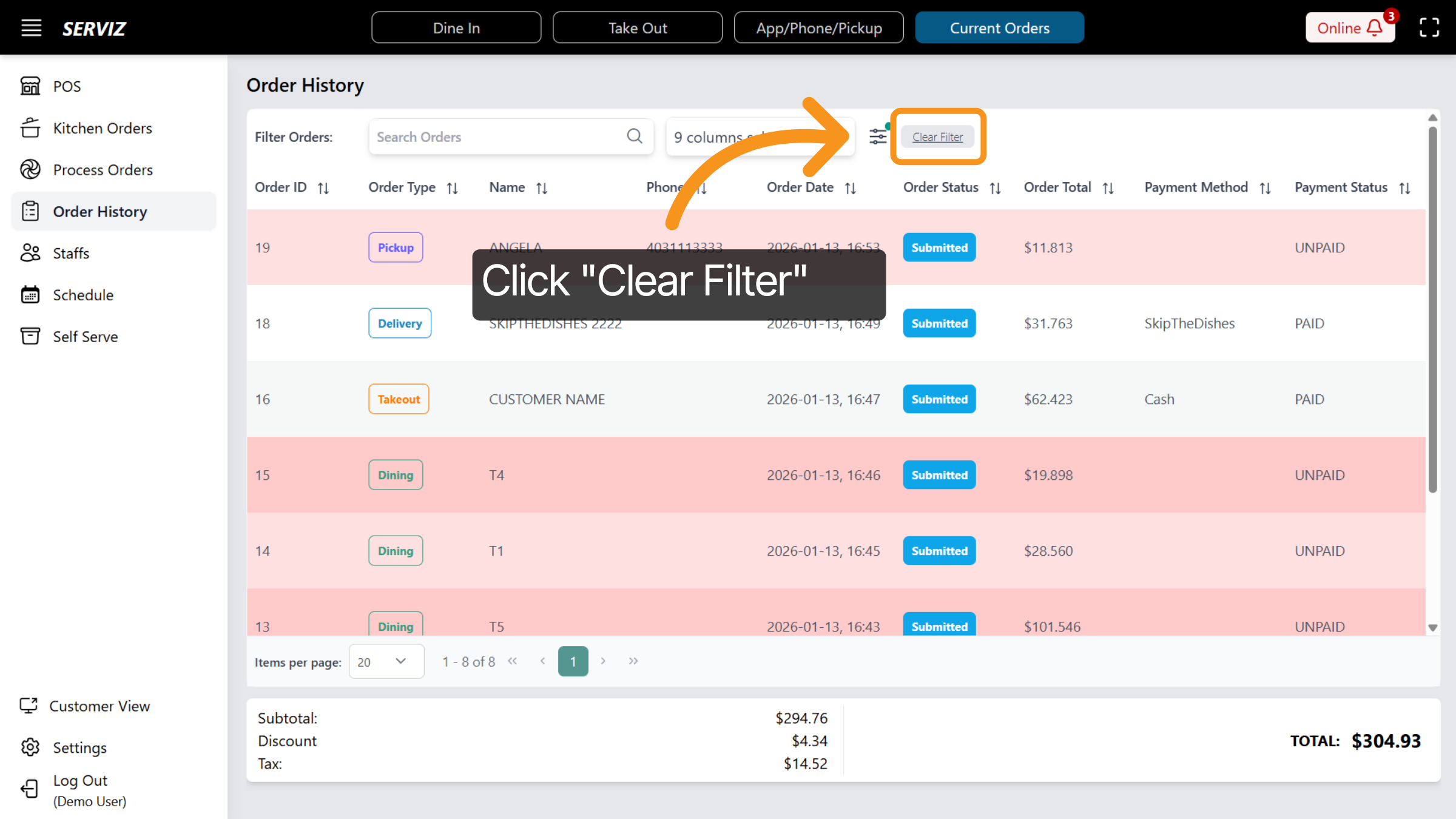
38. Clear Filters Again
To reset all search and filter options, you can click Clear Filter.
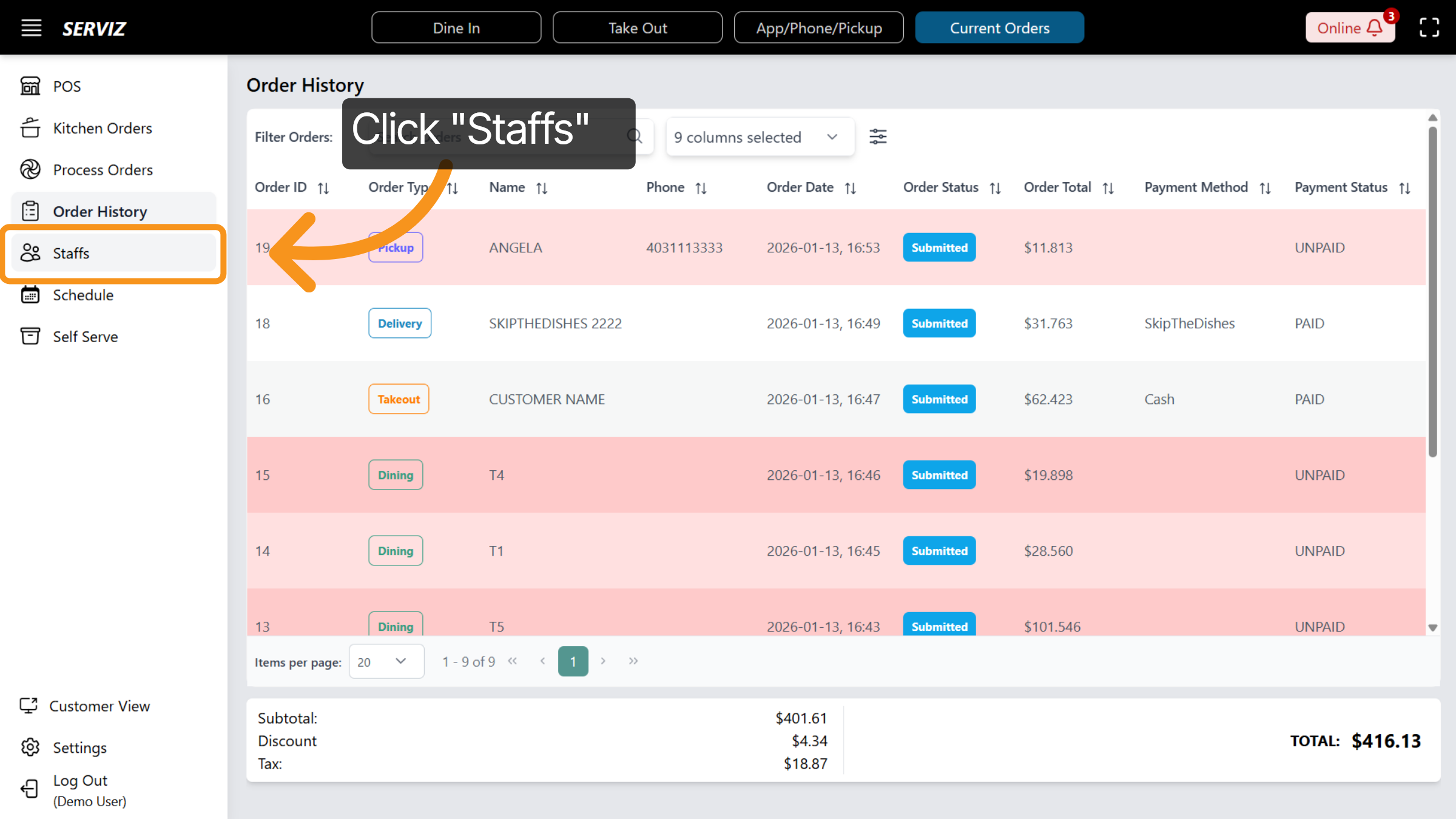
39. Access Staffs Section
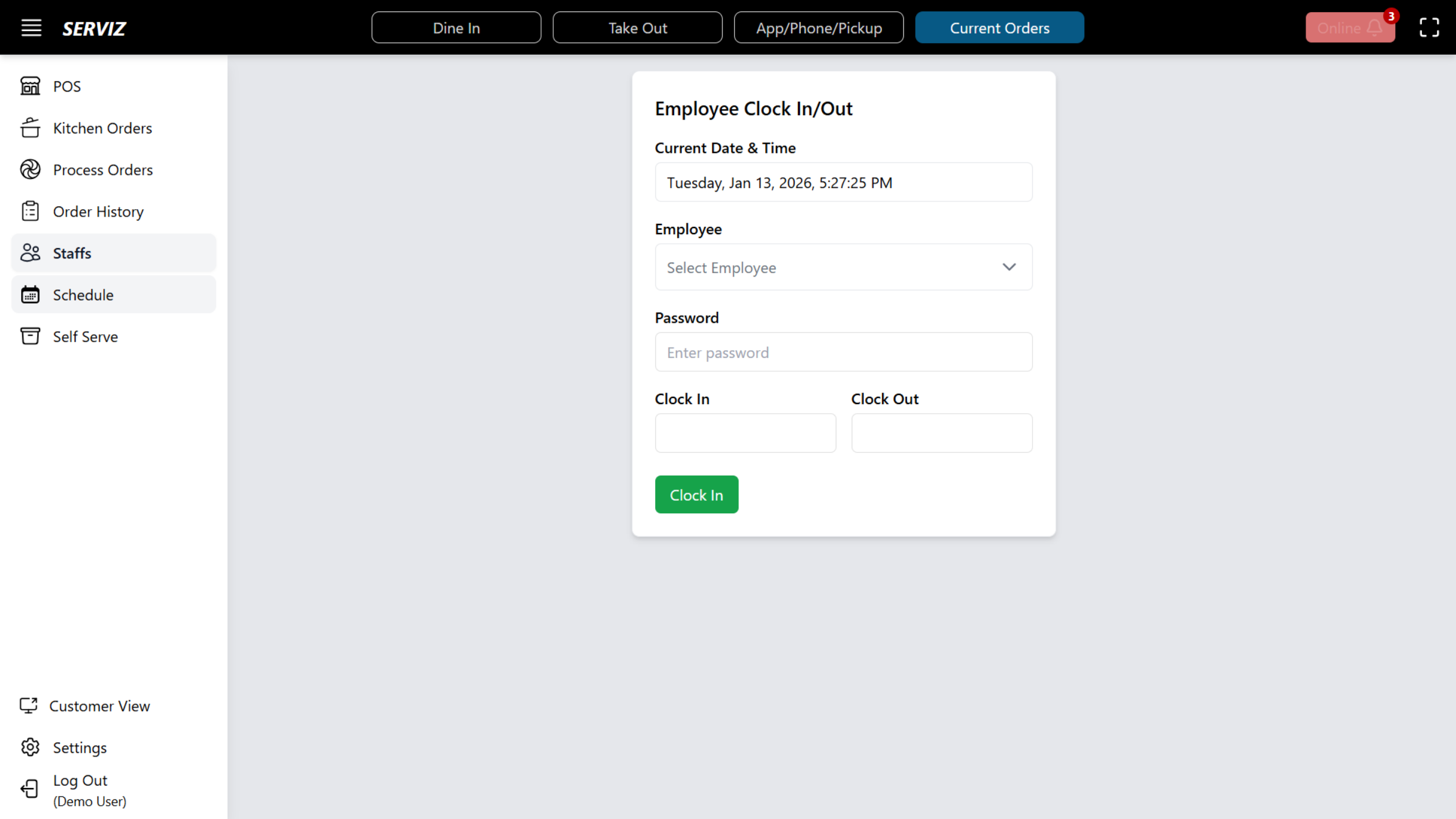
Let's move on to Staff where you can access the employee login and logout terminal.
40. Employee Log in/ Log out Terminal
Employees must input their password to clock in at the start of their shift and clock out at the end.
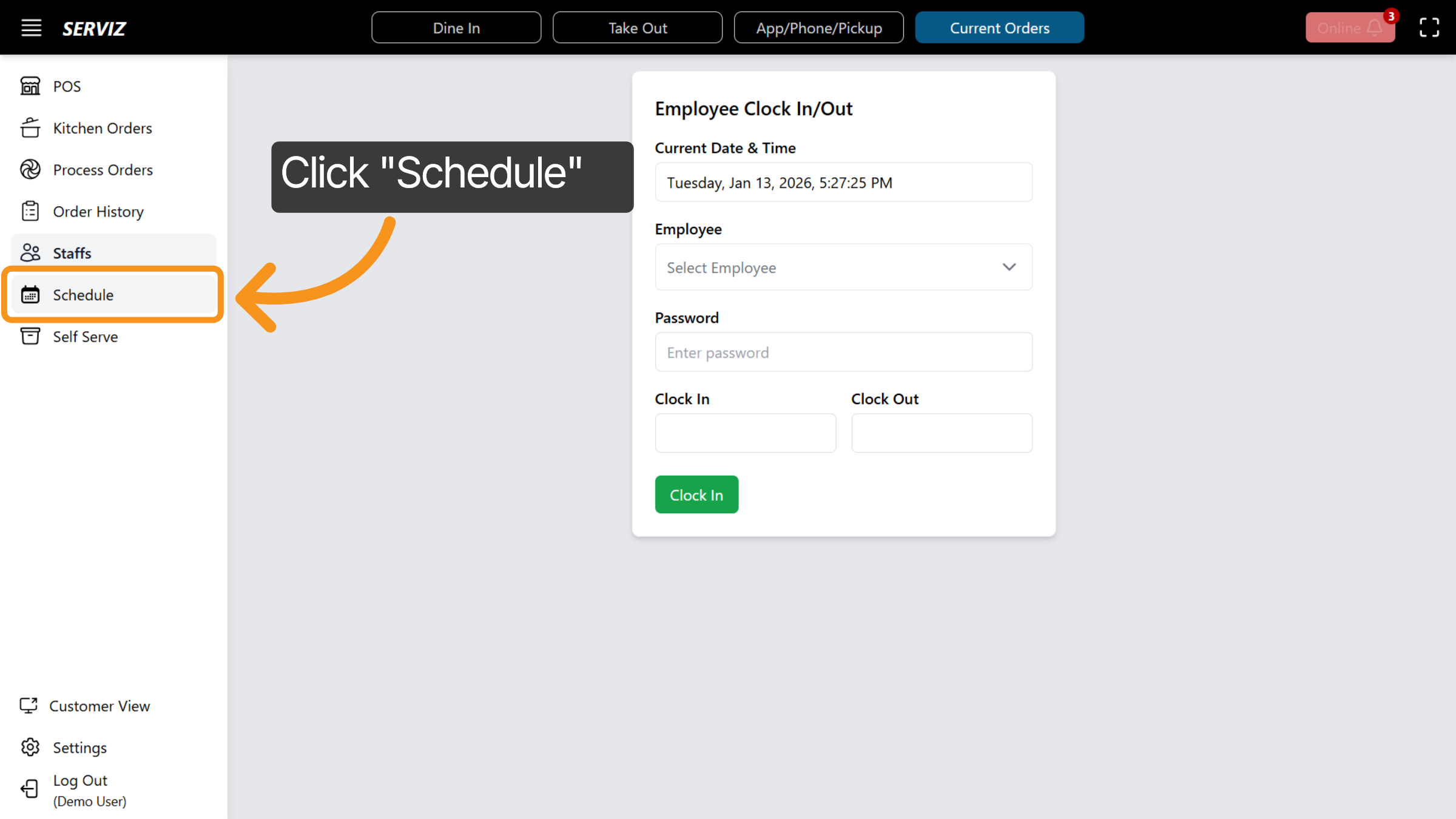
41. Open Schedule
The admin staff can click on Schedule to assess and modify the staffing arrangements.
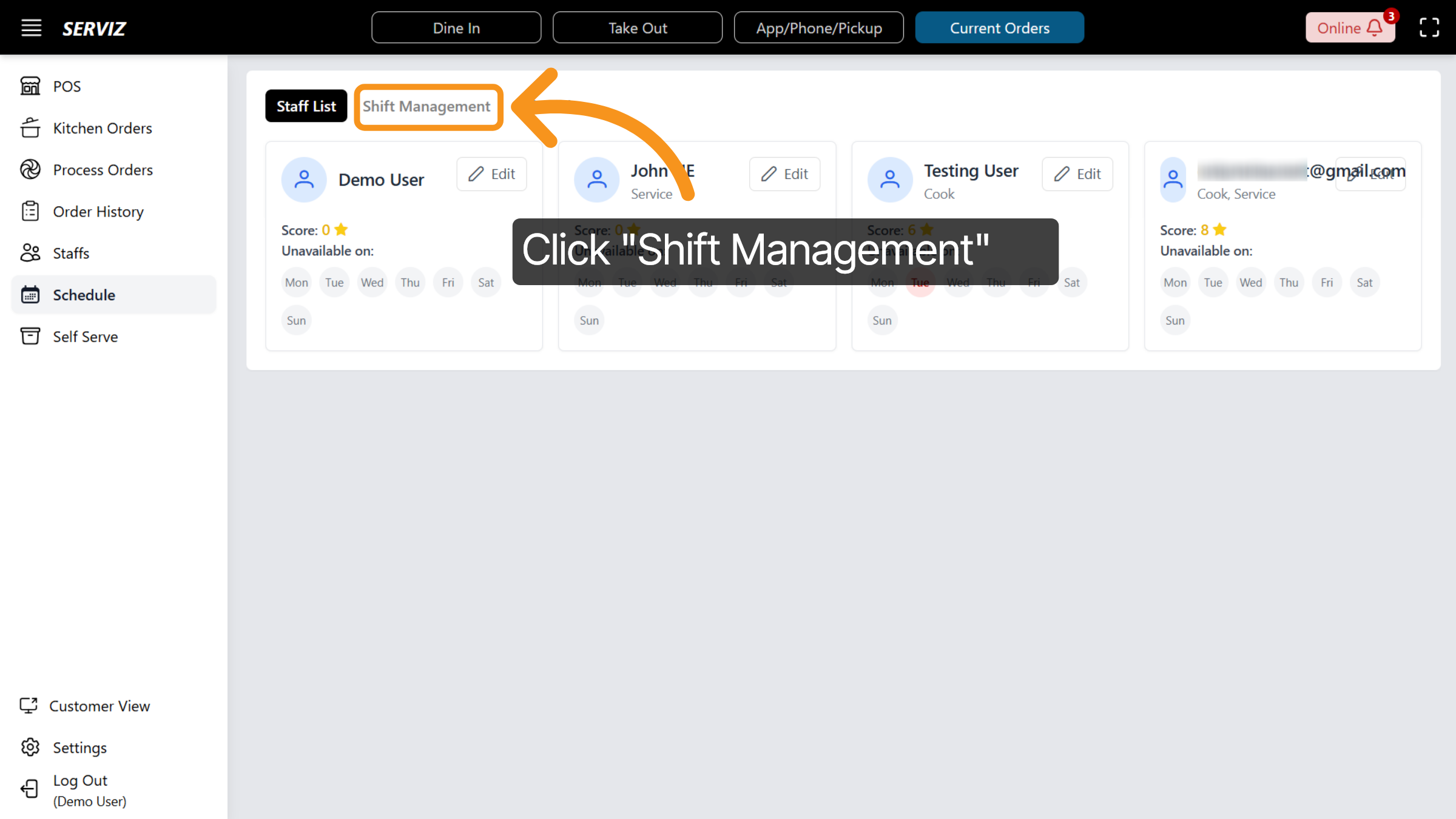
42. Open Shift Management
In this section, you will begin by reviewing the staff list, where you can input each employee’s availability, skills, and performance ranking. Once completed, click "Shift Management" to manage shifts.
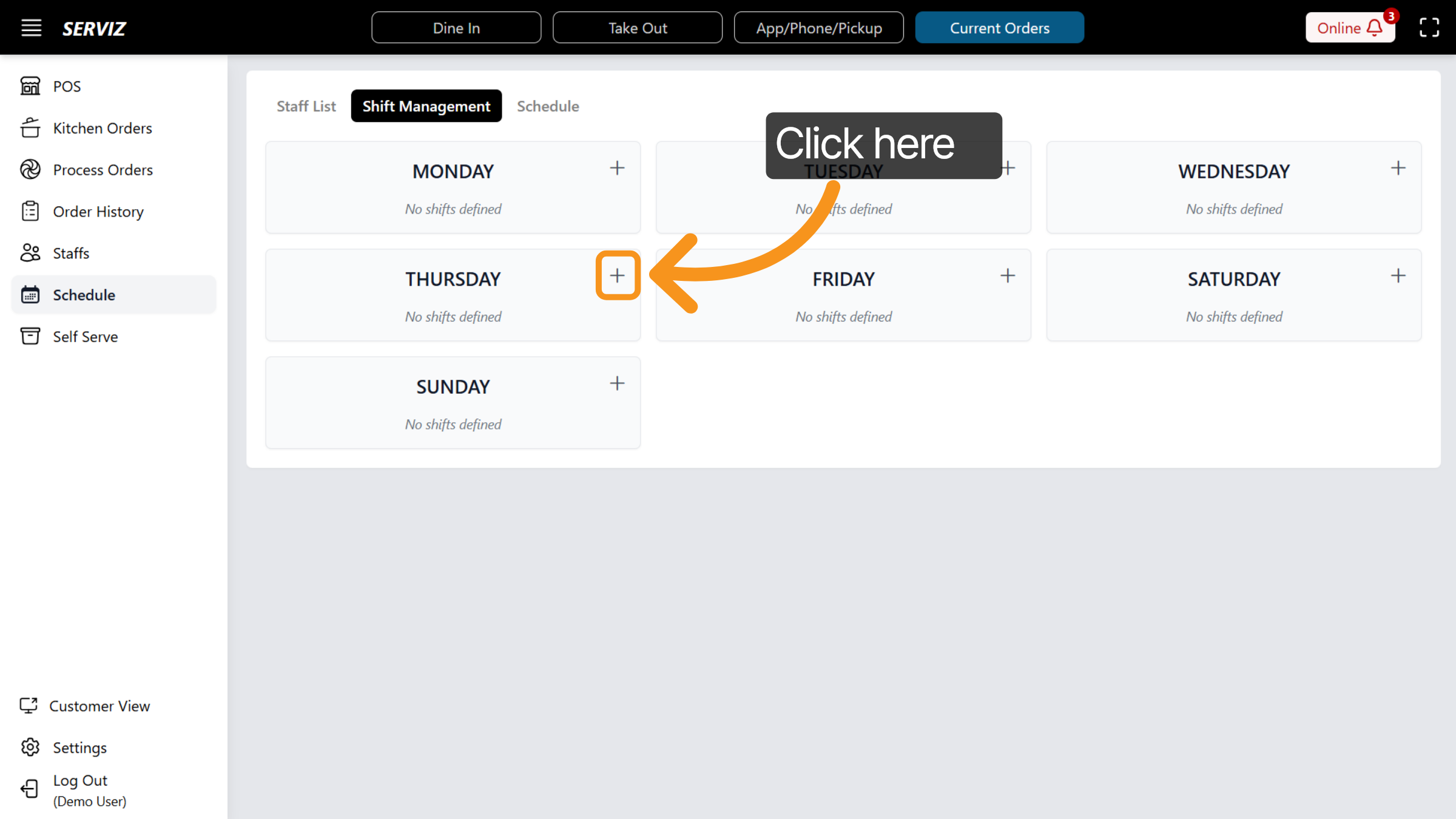
43. Select Shift Option
Here, you can view shifts for all seven days of the week. You can modify them by clicking the “+” icon on the desired date to view, edit, or add shifts for that day.
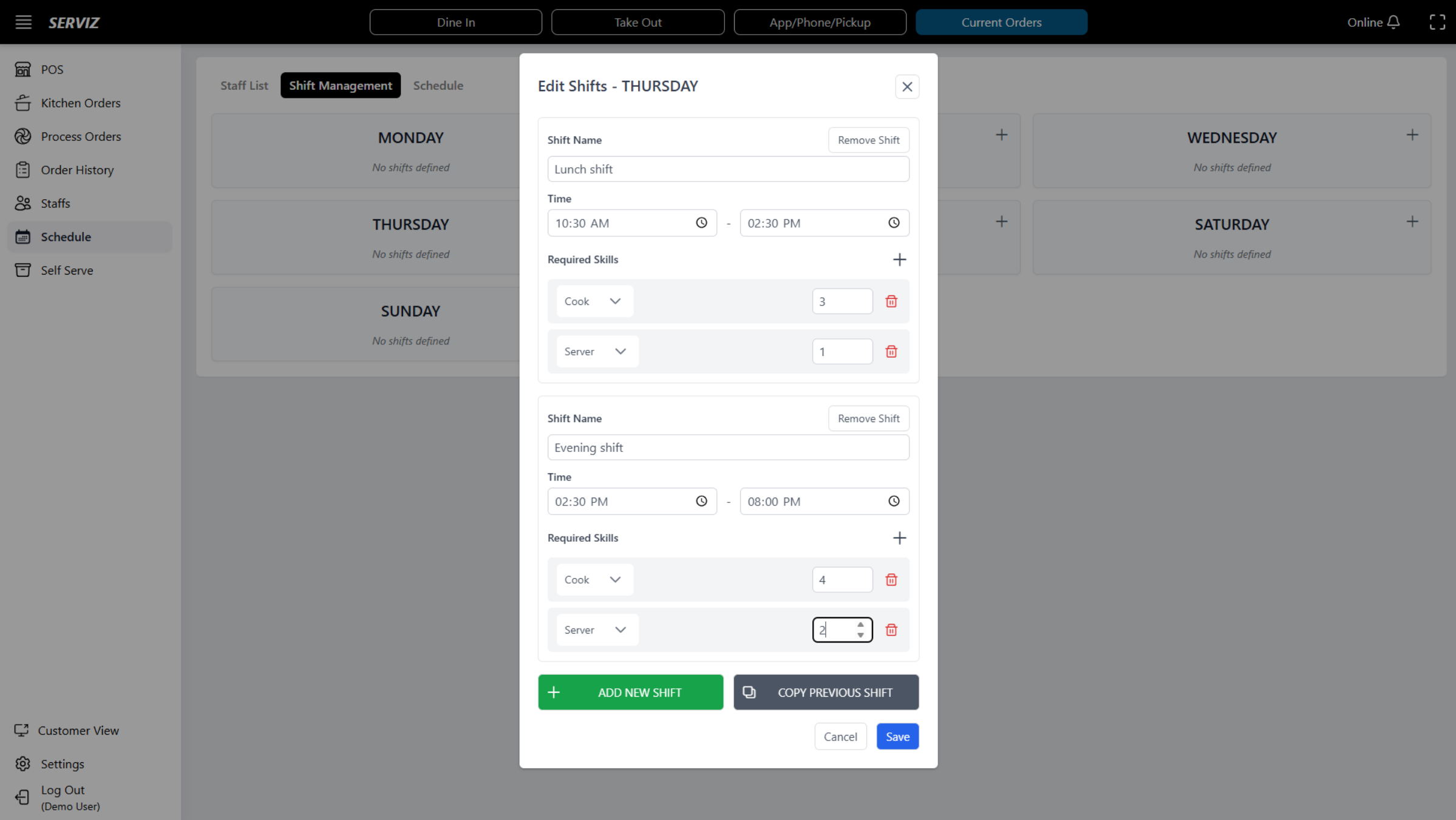
44. Input shifts information
This system opens a pop-up window where you can create or edit shifts by entering the shift name, setting the start and end times, and specifying the required skills, such as the number of cooks, servers, or bartenders needed for that shift.
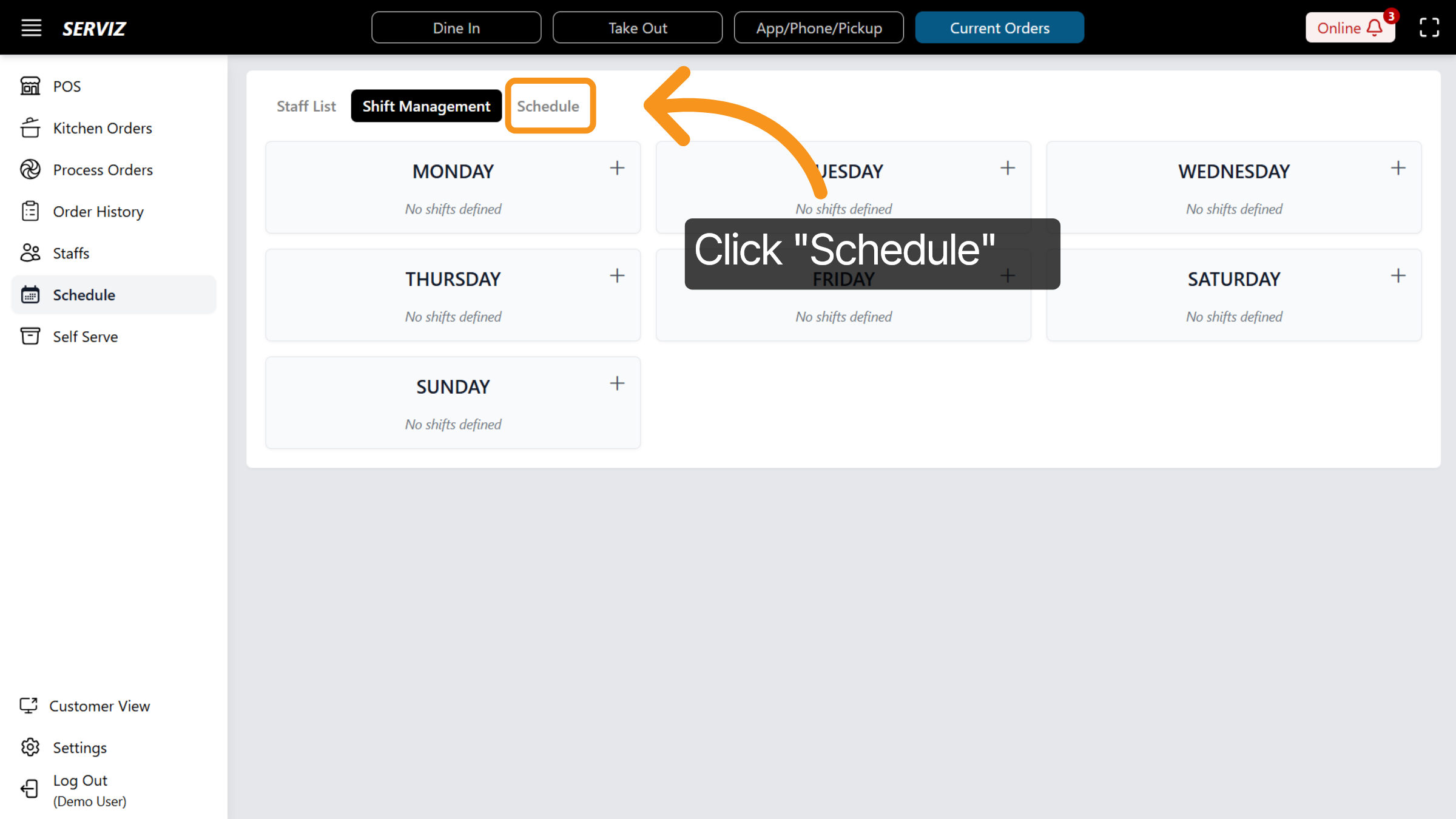
45. Click on Schedule
Once you have completed the Staff List and Shift Management setup, click “Schedule.”
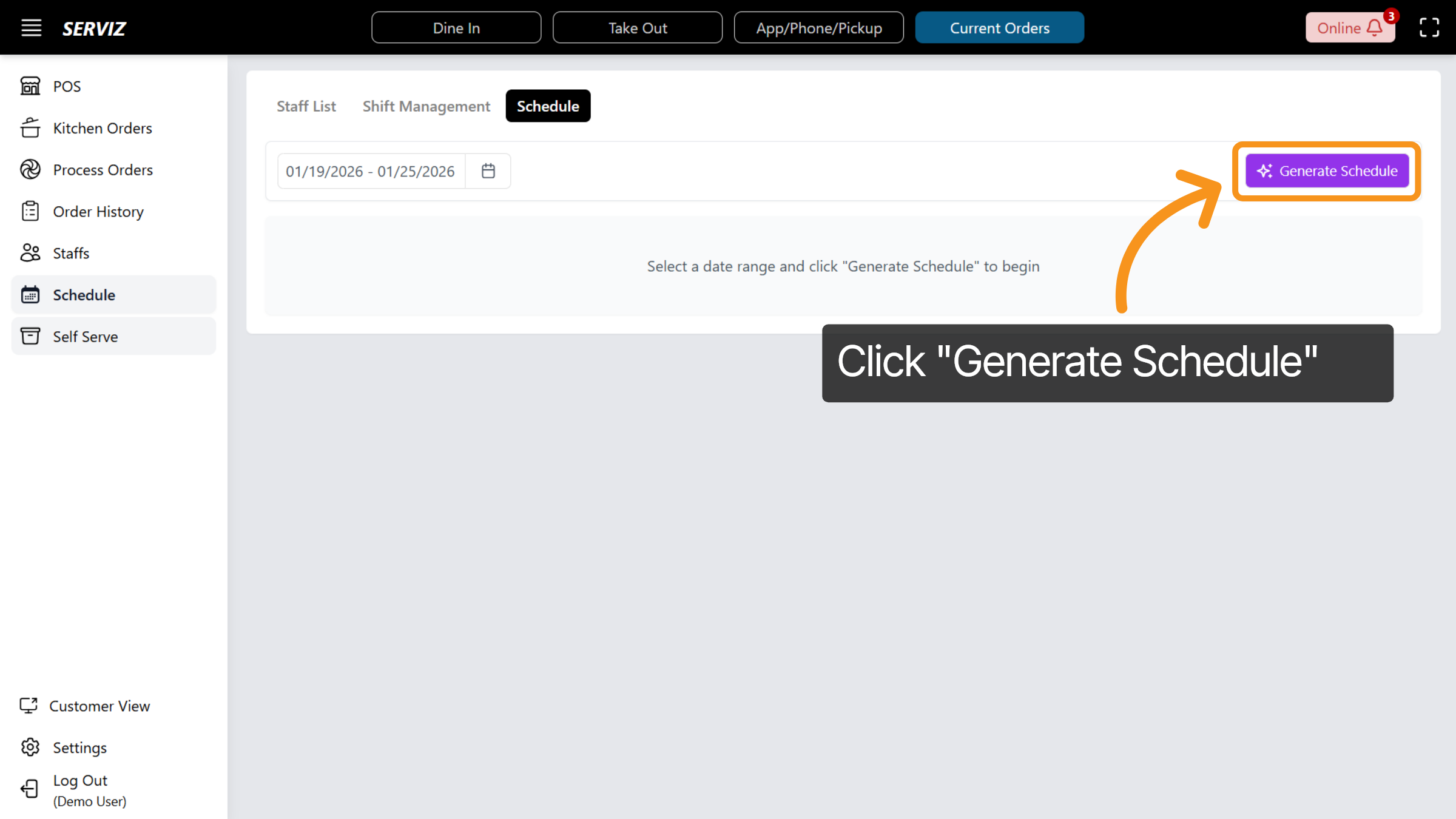
46. Generate schedule
From here, select “Generate Schedule.” The system will automatically create an optimized work schedule for your organization. Once the schedule is generated, you can edit, save, or send the schedule to your staff.
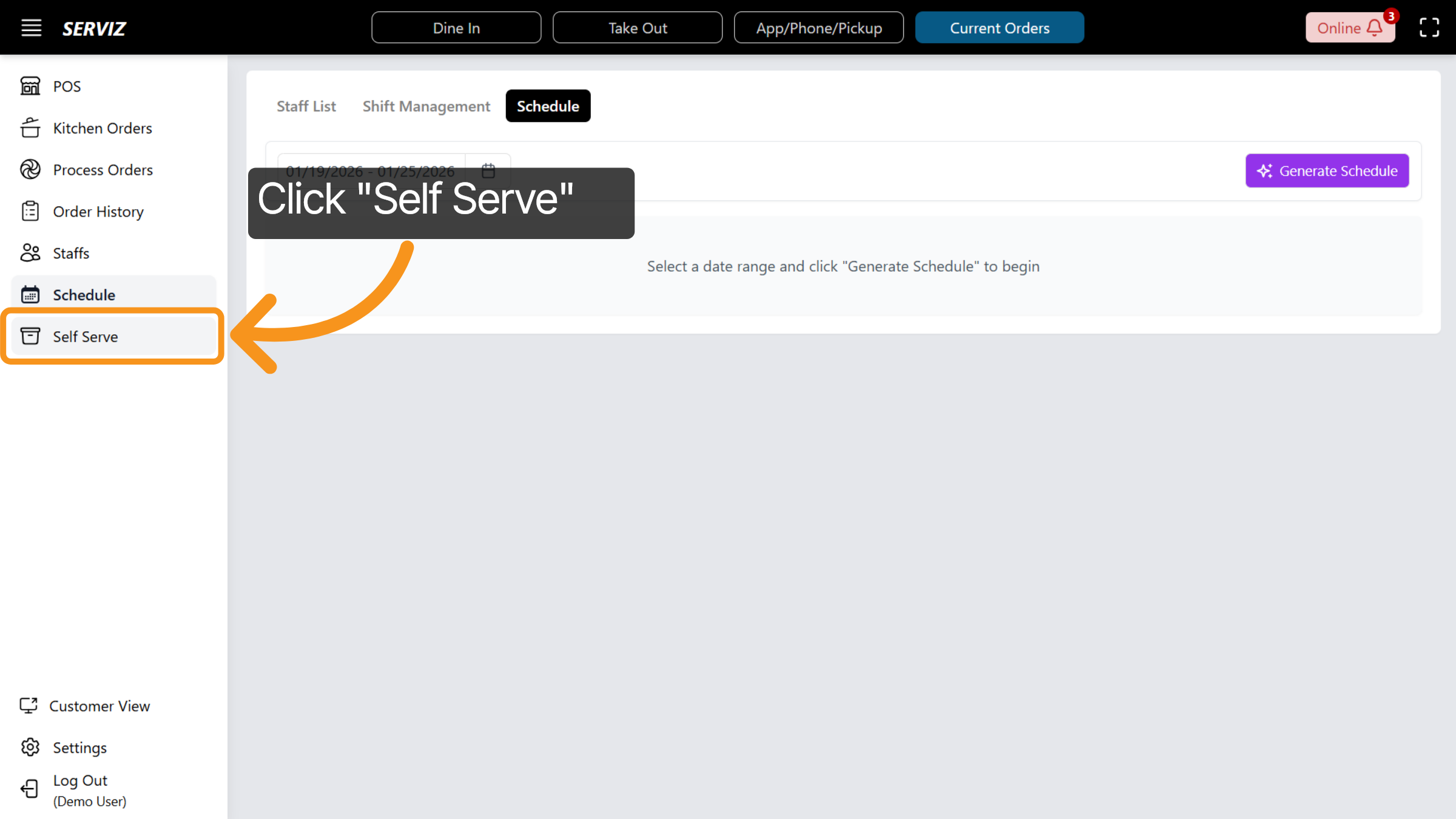
47. Access Self Serve
Next, let’s move on to the Self Serve section, where you can enable customer-facing ordering.
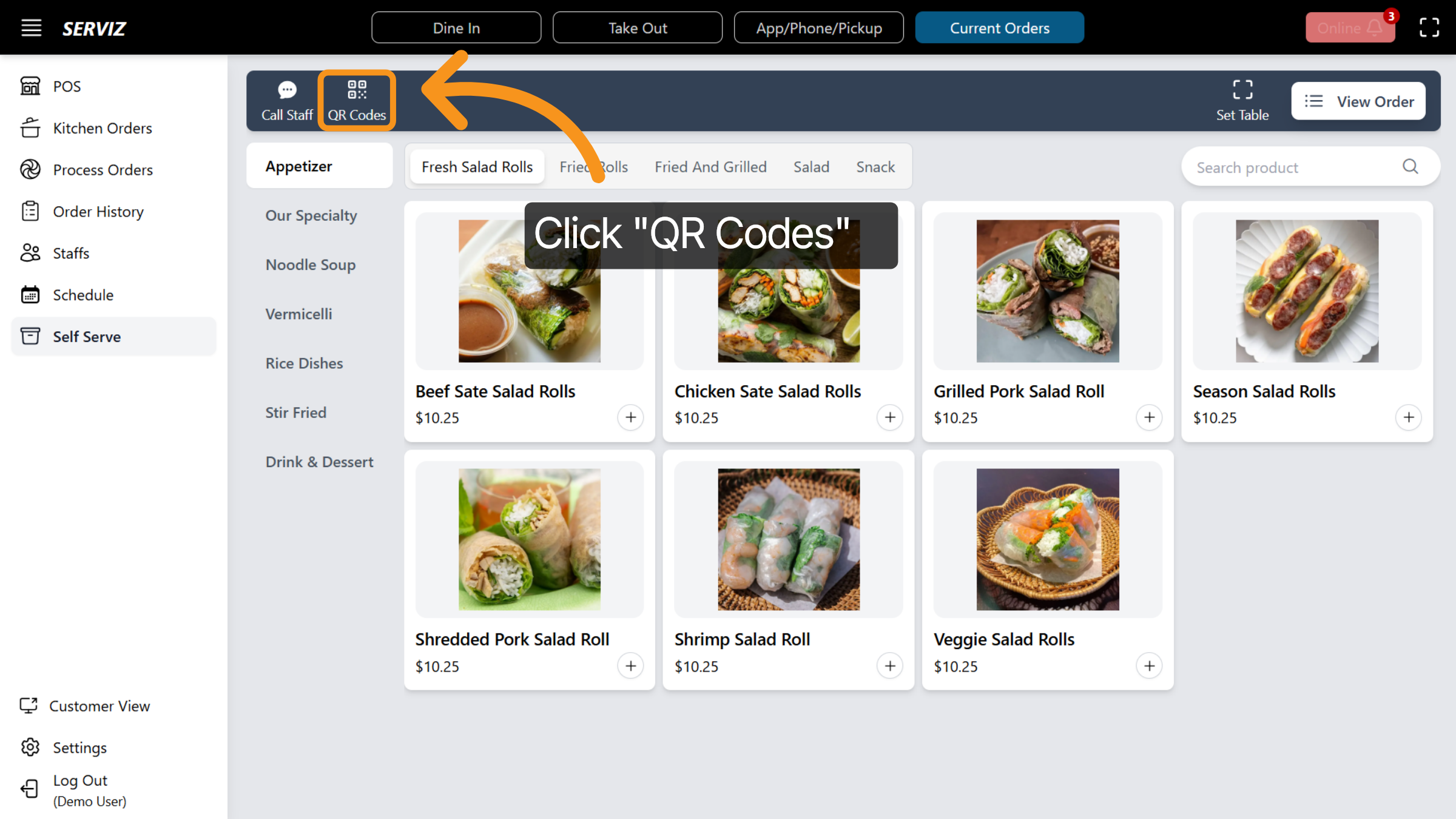
48. Self-serve interface
In this section, customers can view the full menu. They can use the Call Staff button to notify staff members or send requests. In the top-right corner, customers can click “View Order” to review and modify their cart, then send the order to the kitchen.

49. Open QR Code
Staff members can also access table settings and view the QR codes assigned to each table.
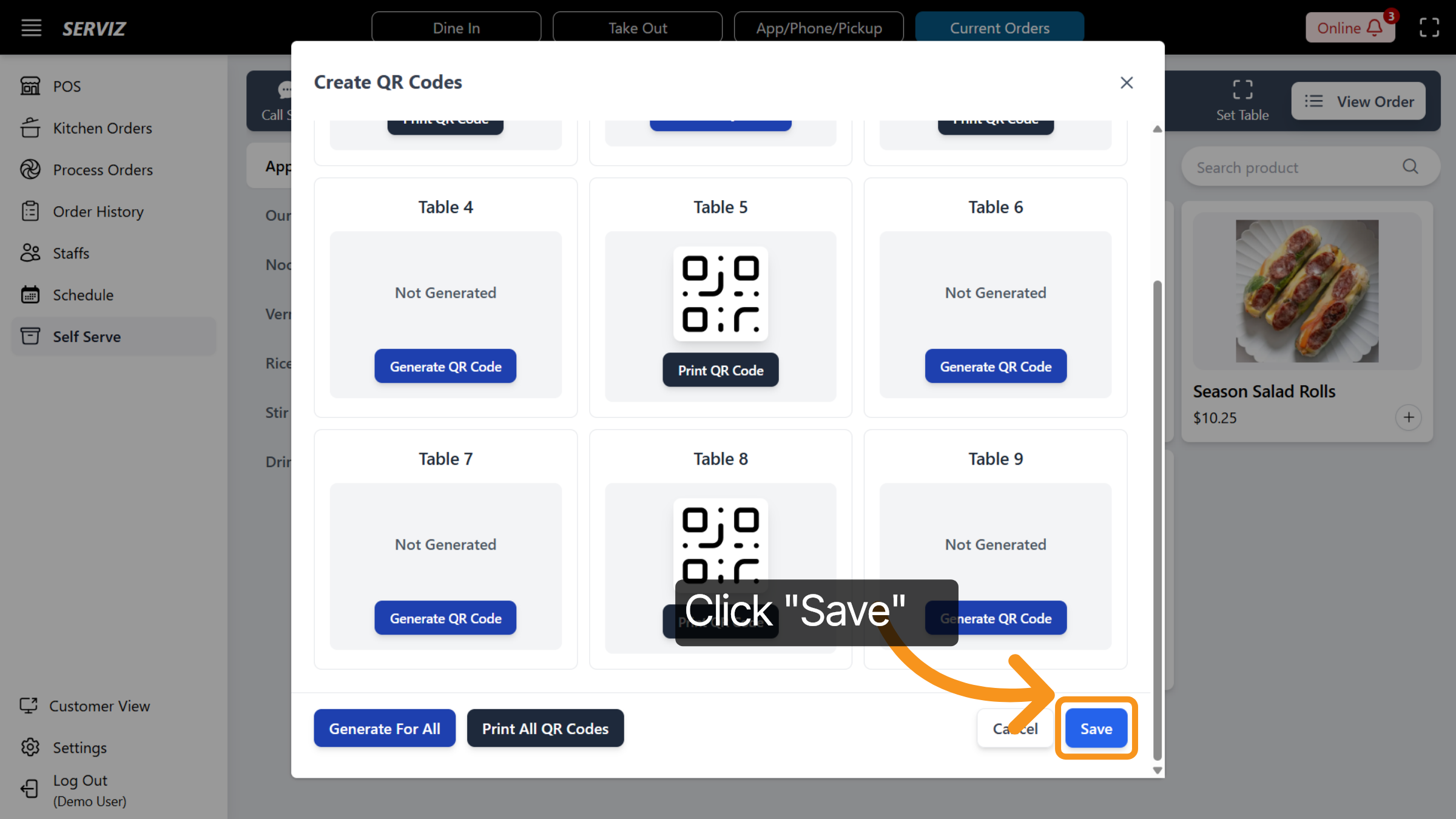
50. Create QR Codes
Under the QR Code, you can generate a new QR code or print the existing one. Then, you can click "Save" to save the changes.
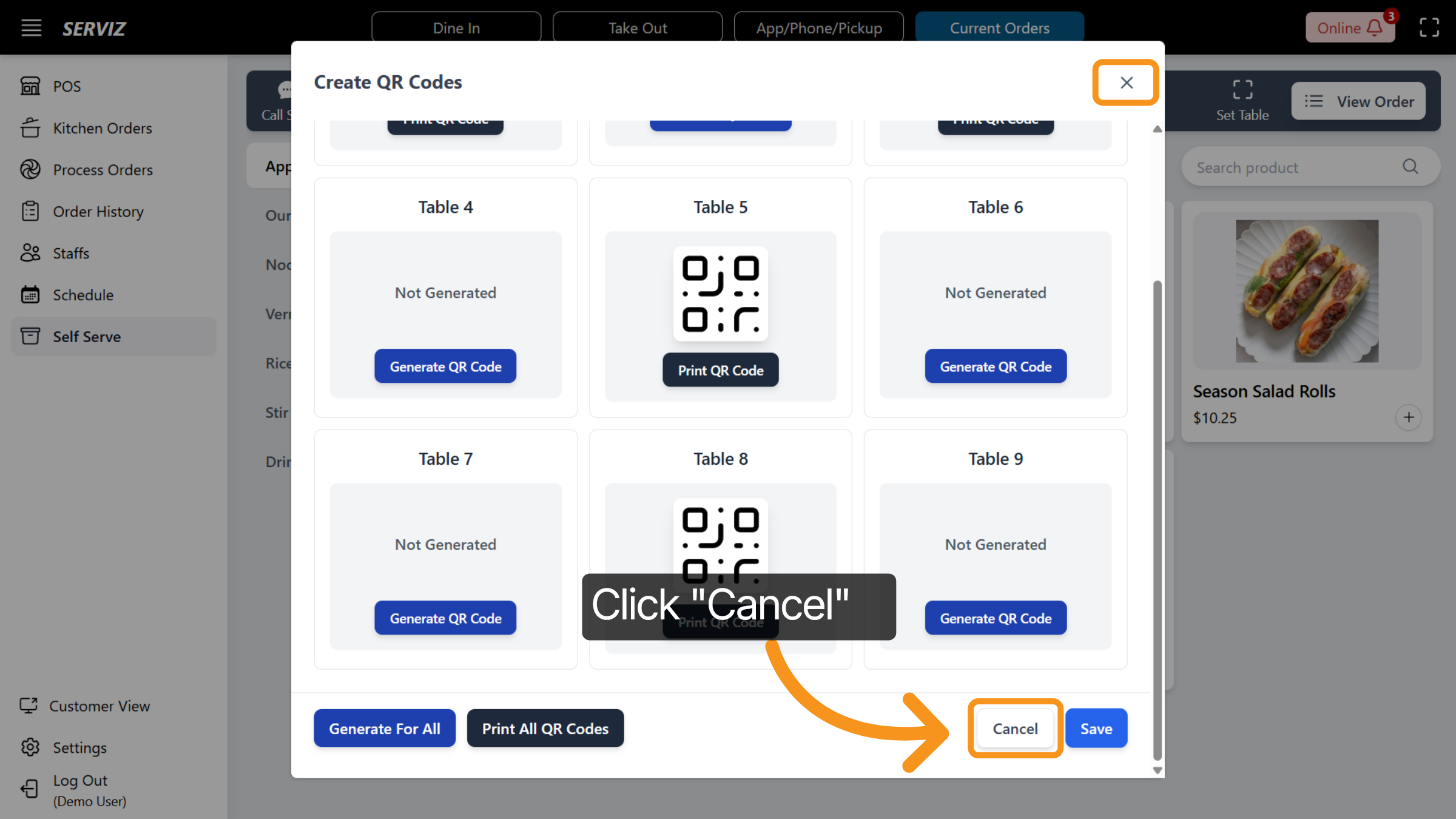
51. Cancel Changes
To discard any unsaved changes, click "Cancel" or the "X" button at the top of the pop-up to close it.
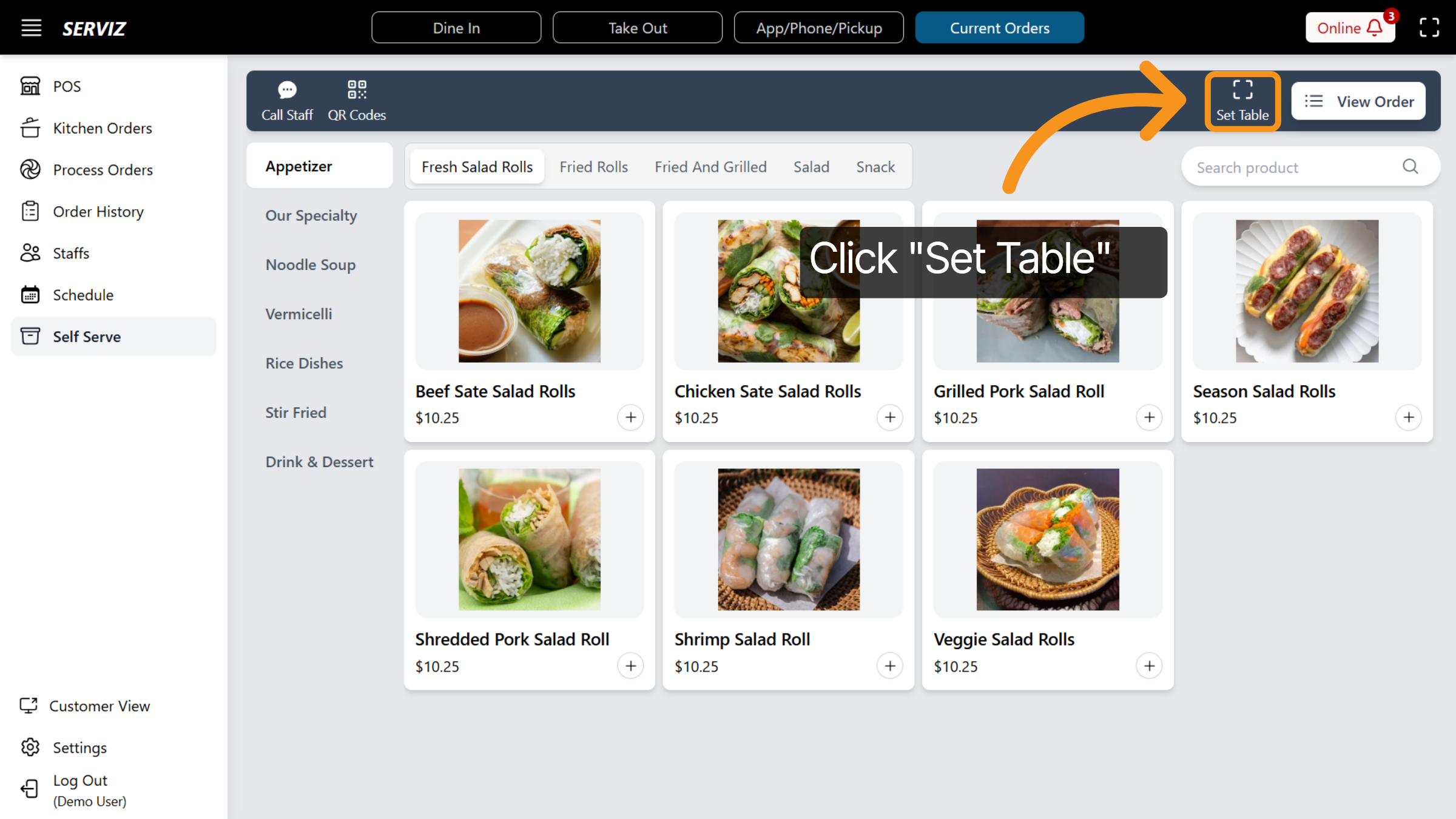
52. Set Table Configuration
Employees can click on Set Table to assign or modify table settings in the P O S.
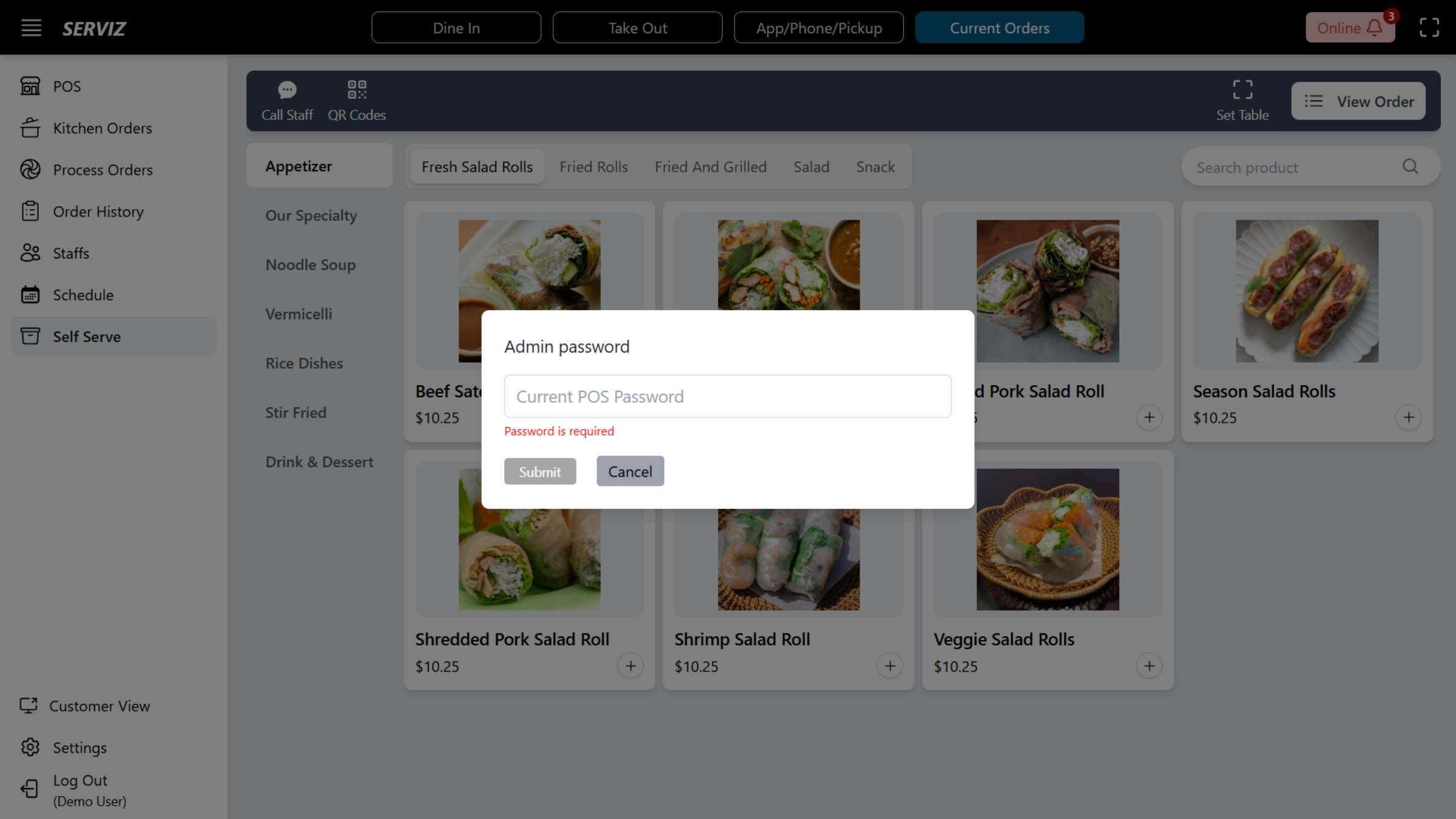
53. Cancel Table Setup
An employee password is required to proceed with Set Table.
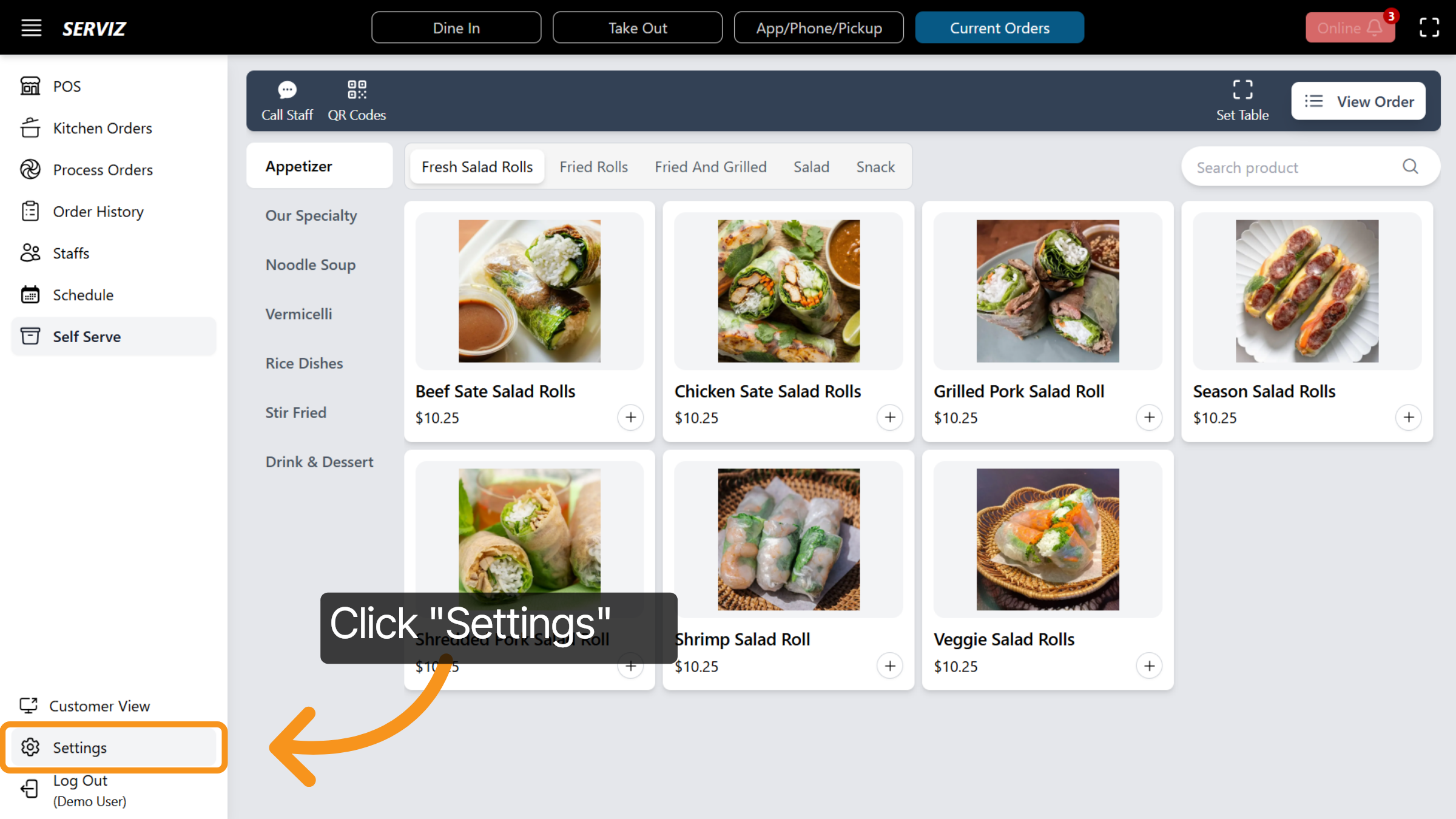
54. Open Settings
Next, click Settings to access system configuration options.
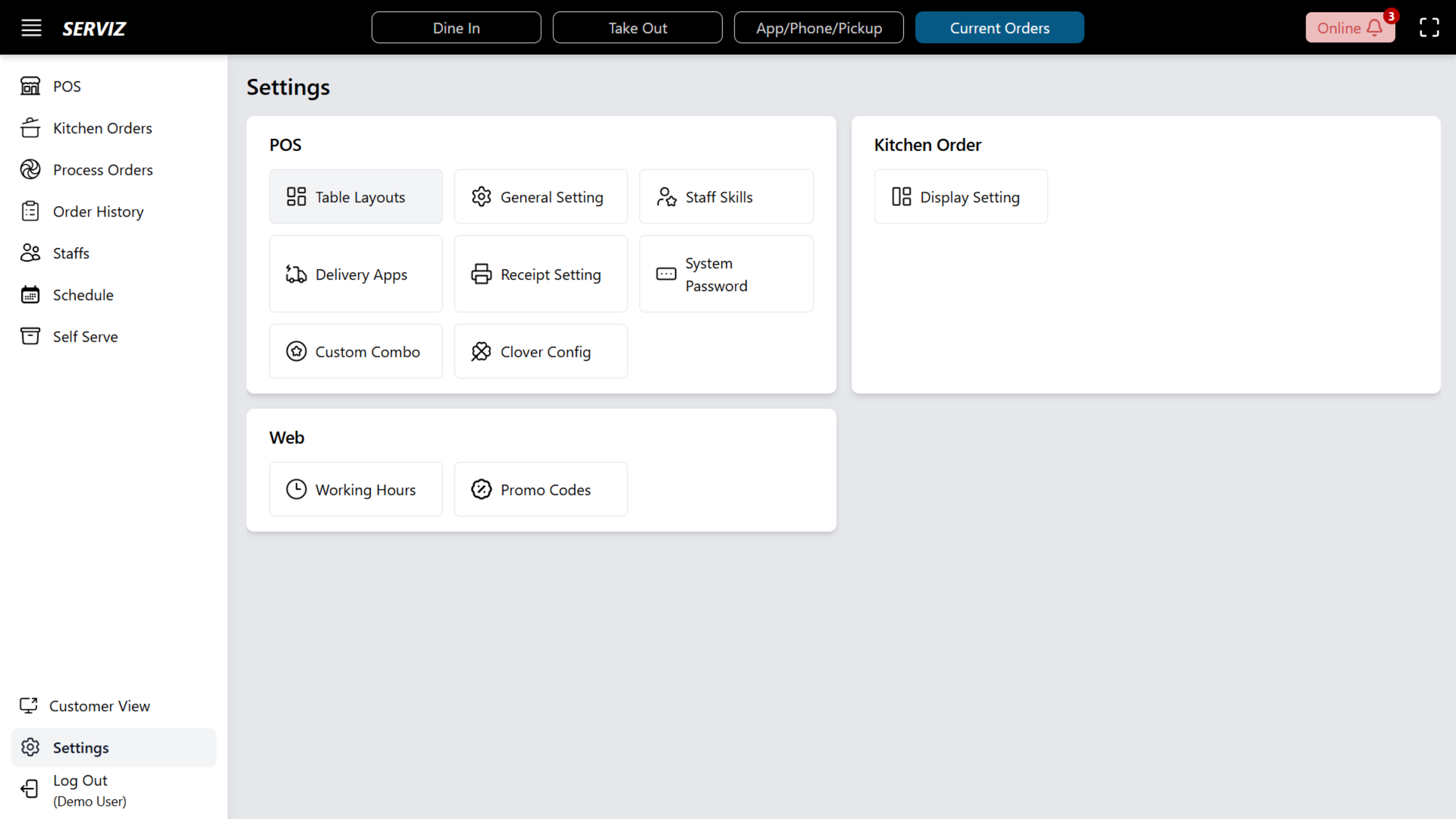
55. Setting Section
In the Settings section, you can configure your P O S interface to meet your operational needs.
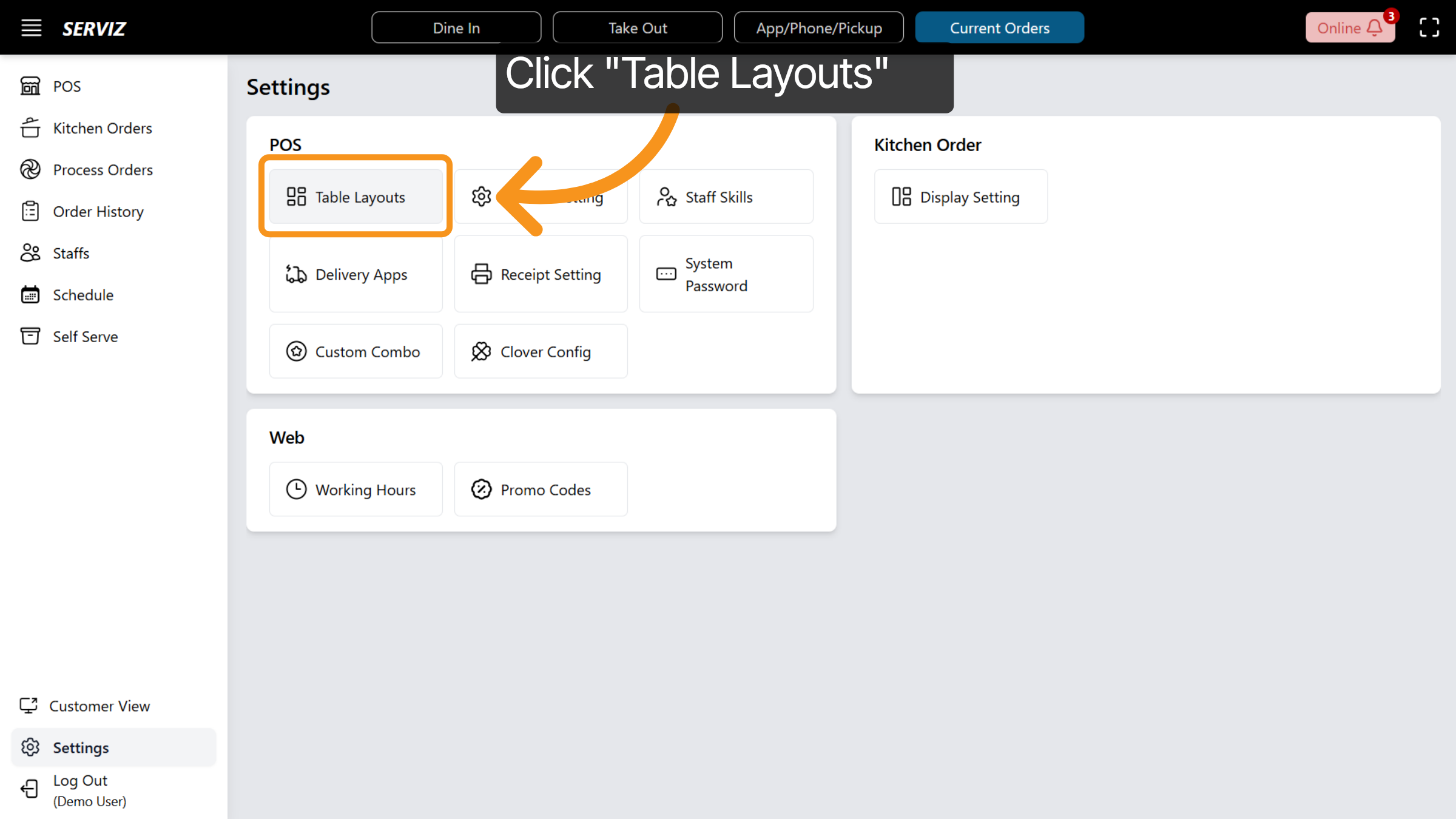
56. Access Table Layouts
Click "Table Layouts" to manage the arrangement of tables.
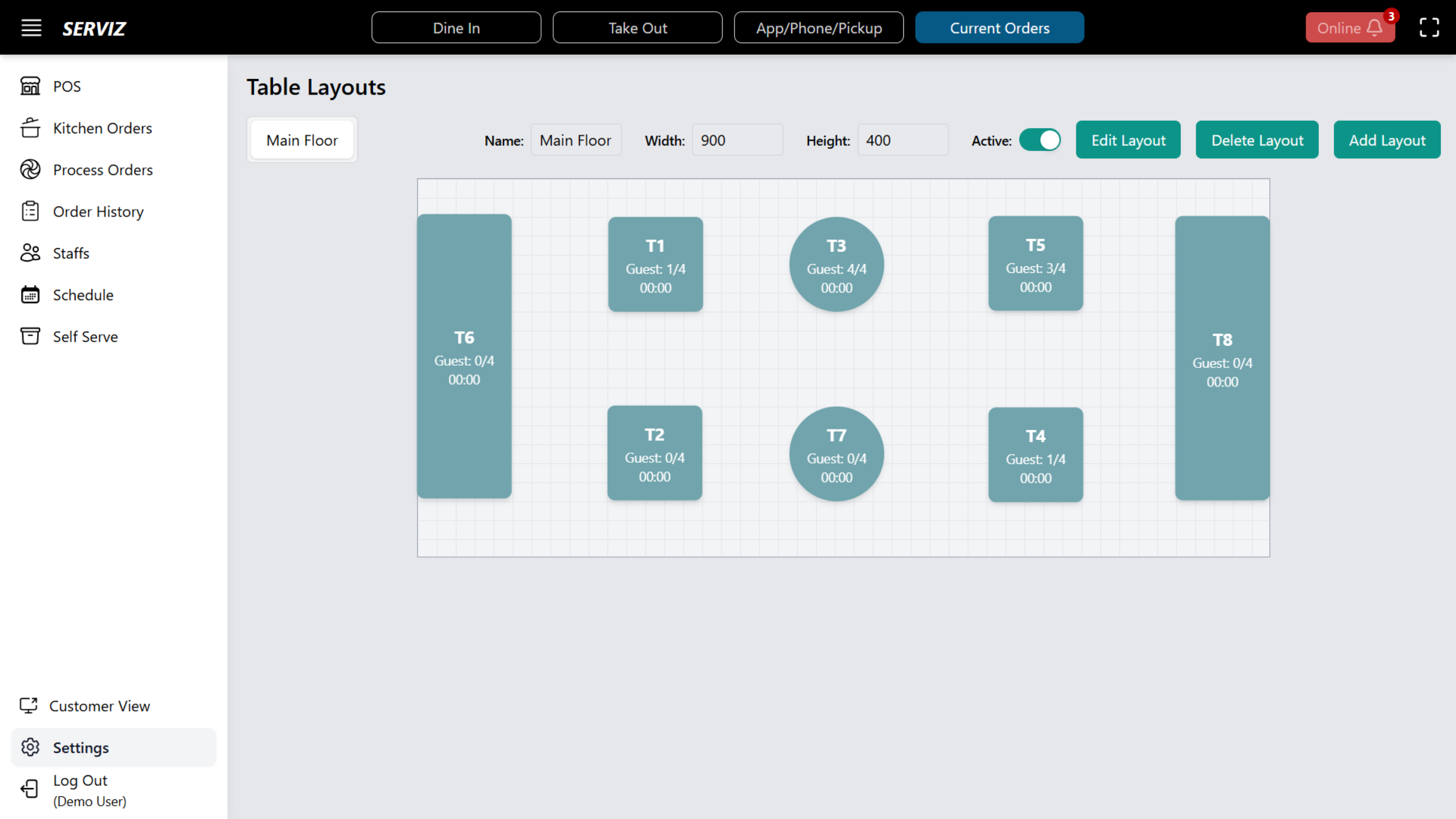
57. Table Layout Setting
You can edit, add, or delete layouts to make them resemble your restaurant setup more closely.
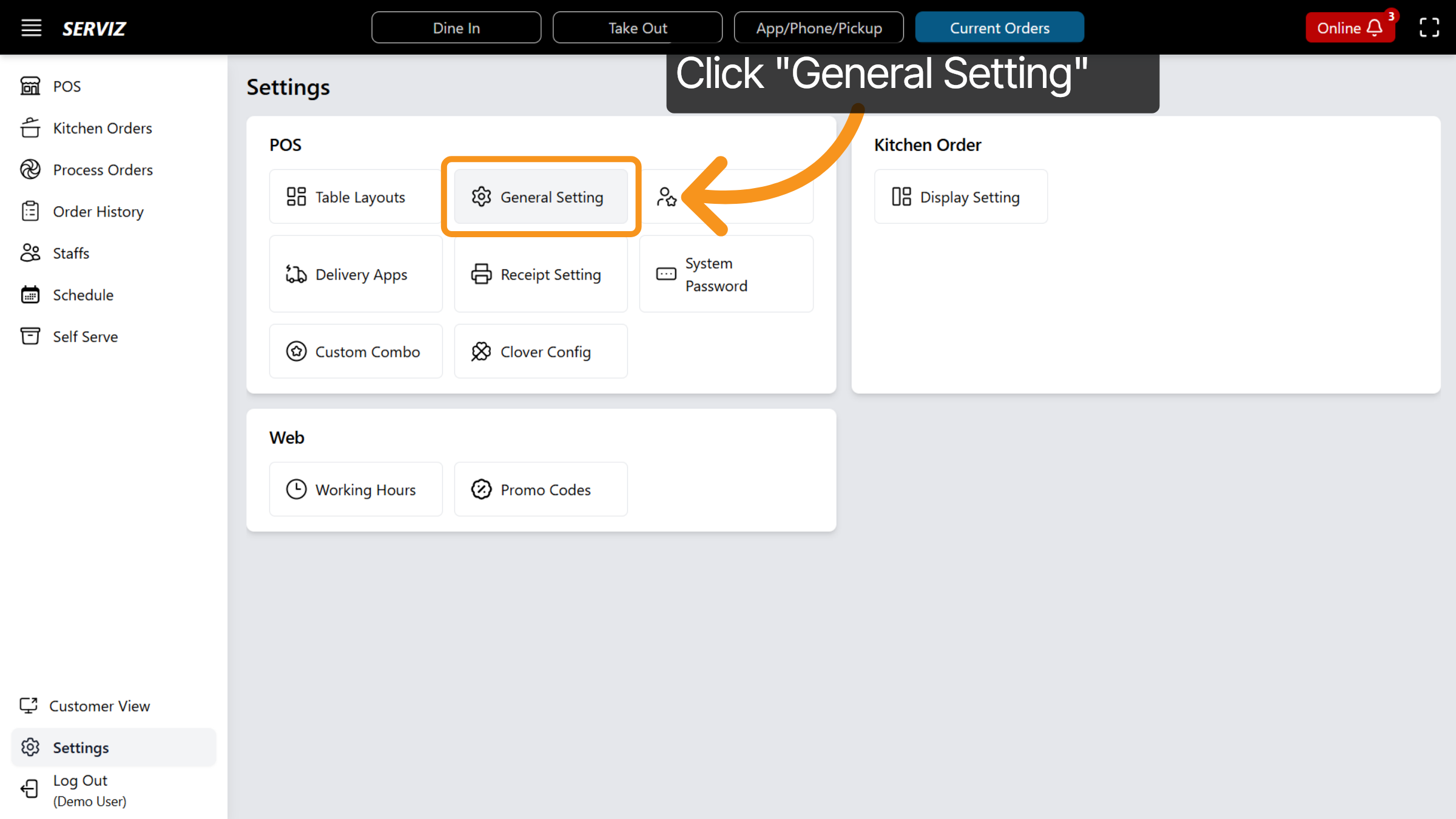
58. Open General Settings
Click General Setting to adjust overall system preferences.
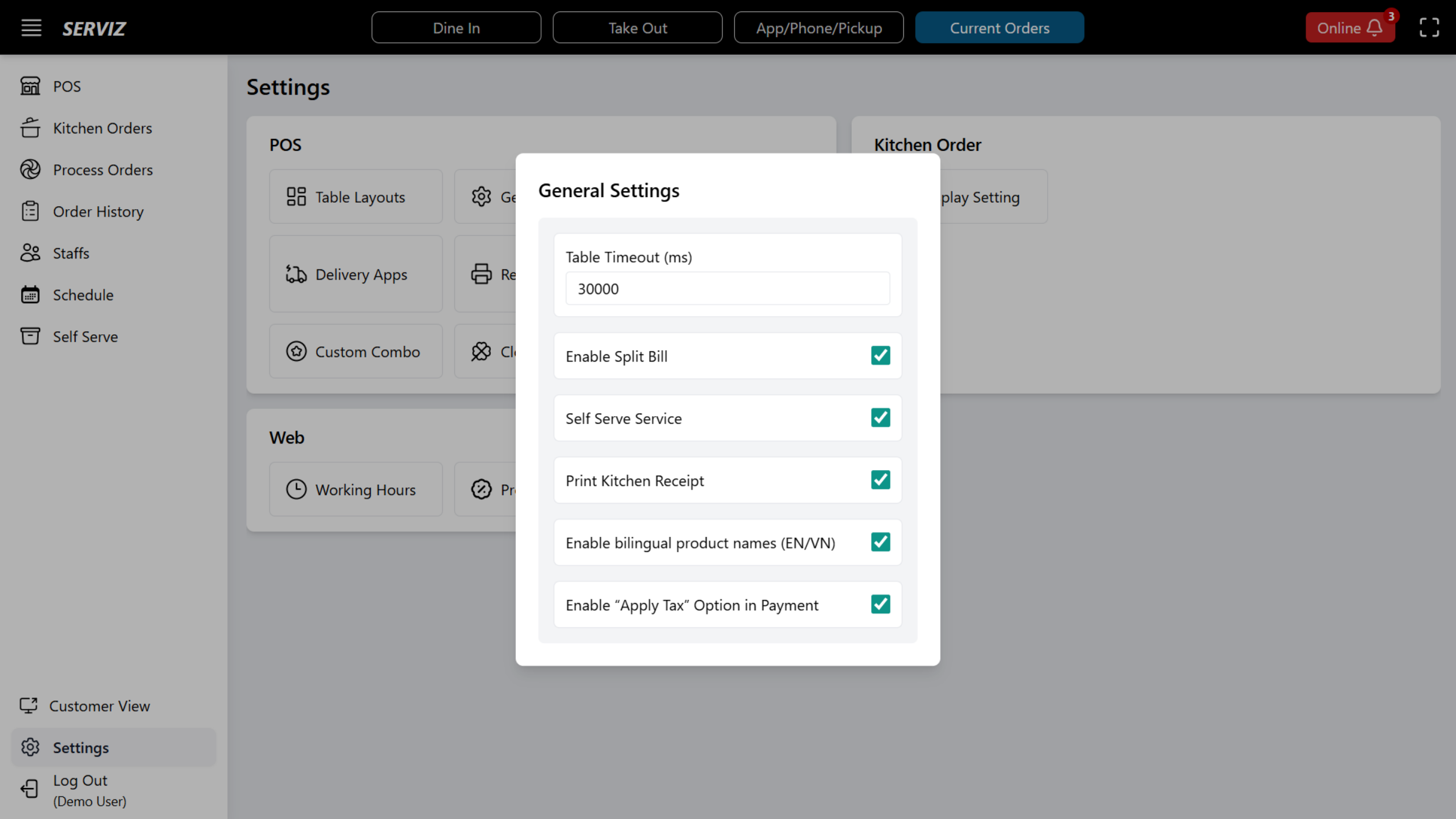
59. General Settings
From here, you can Enable or disable options such as split bill, Self Serve Service, Print Kitchen Receipt, Bilingual Product Name, "Apply Tax" Option in Payment
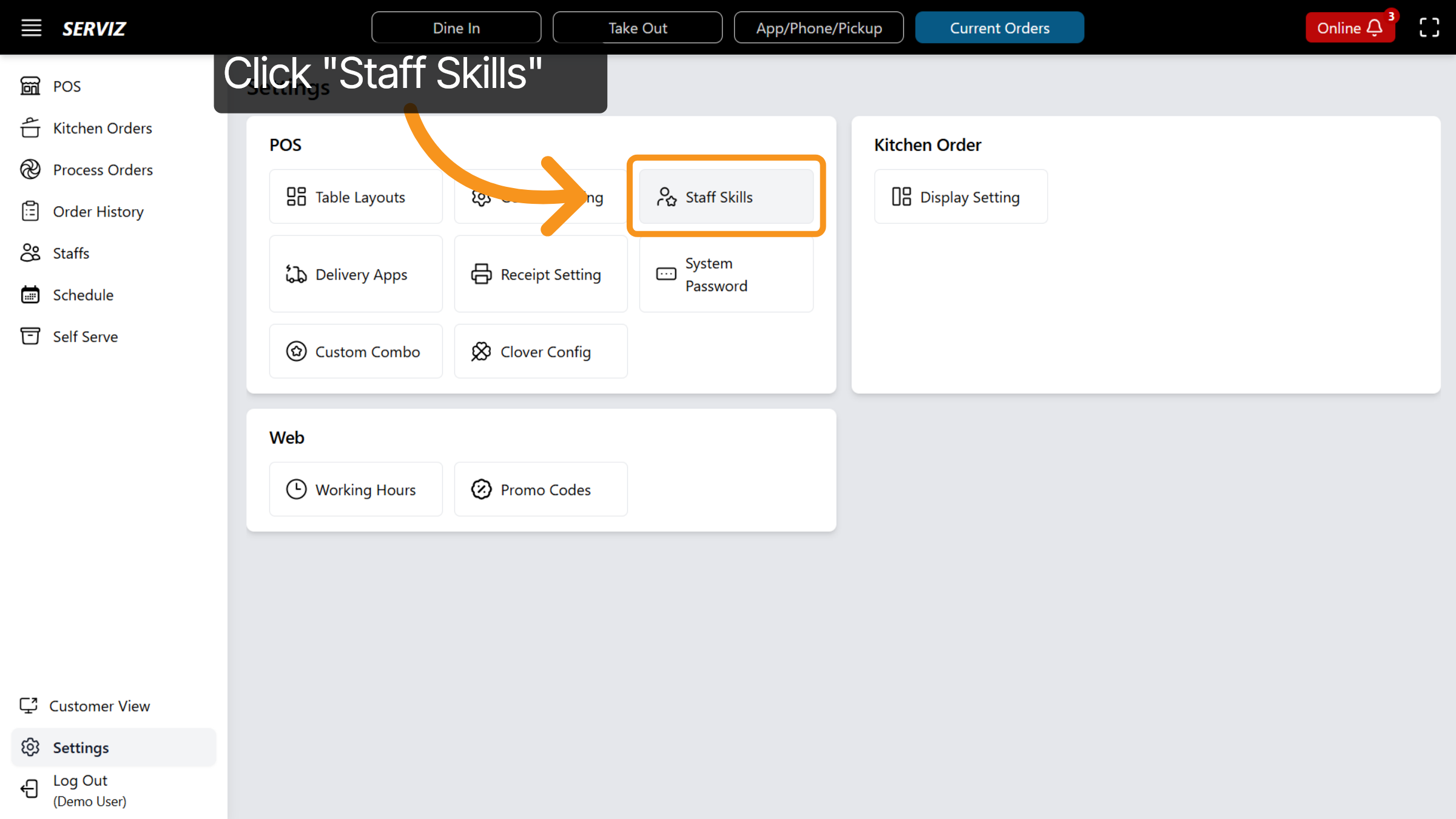
60. Manage Staff Skills
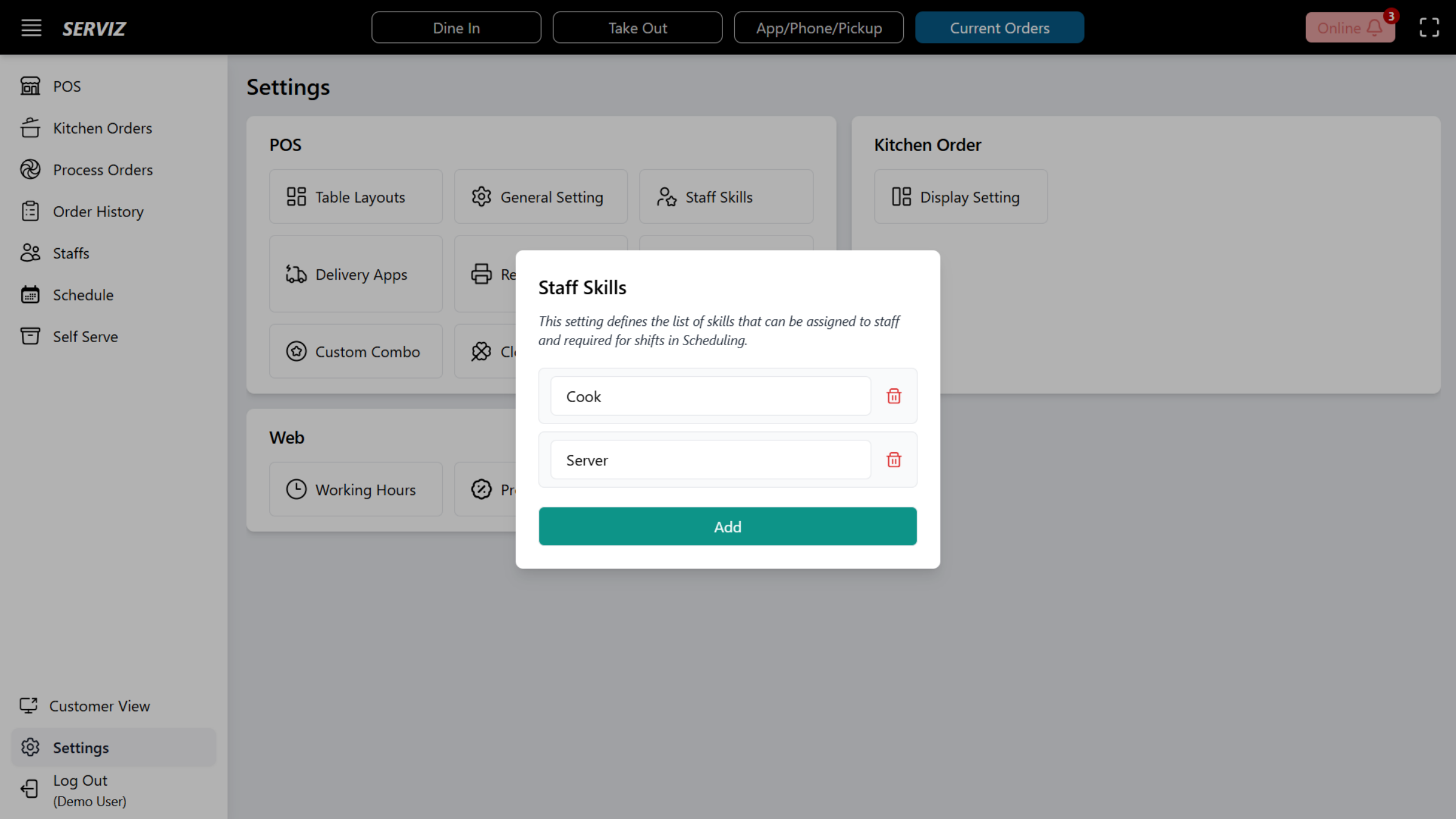
Click Staff Skills to add or delete employee skill sets and roles.
61. Select Staff Skills Option
62. Open Delivery Apps
Click Delivery Apps to configure third-party delivery integrations.
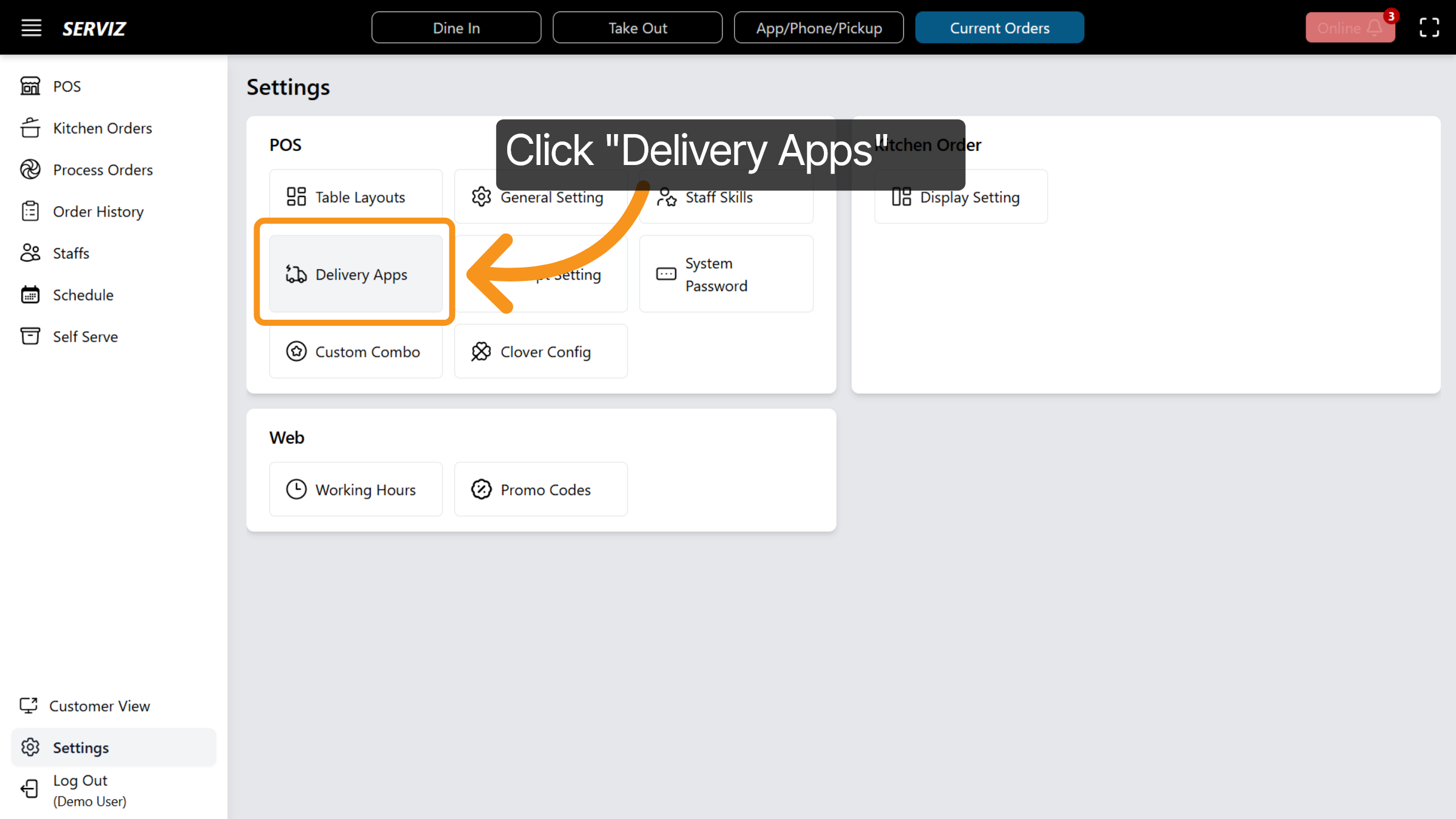
63. Interact with Delivery Apps
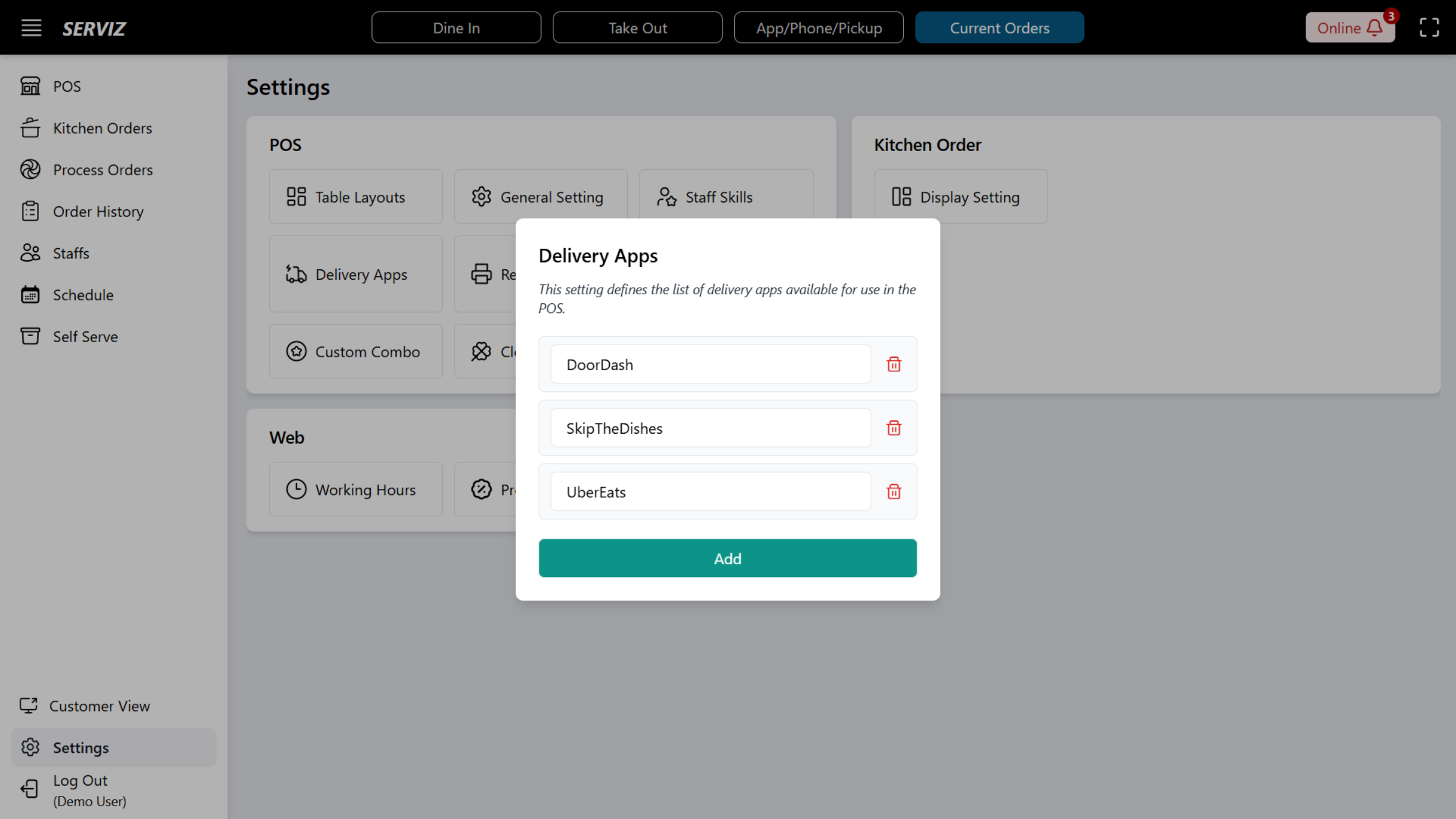
64. Access Receipt Settings
Click Receipt Setting to customize printed receipt formats and details.
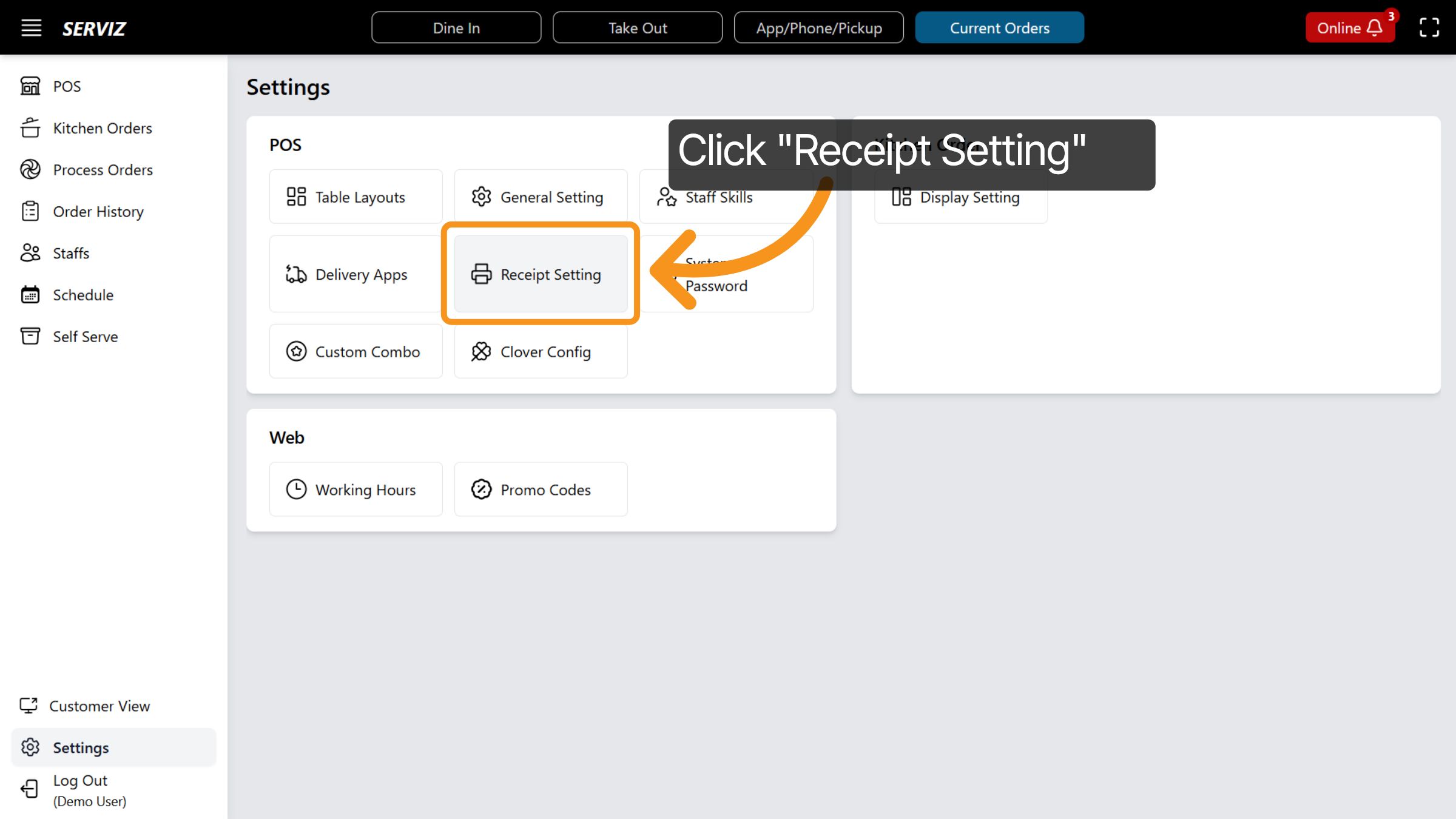
65. Modify Receipt Settings
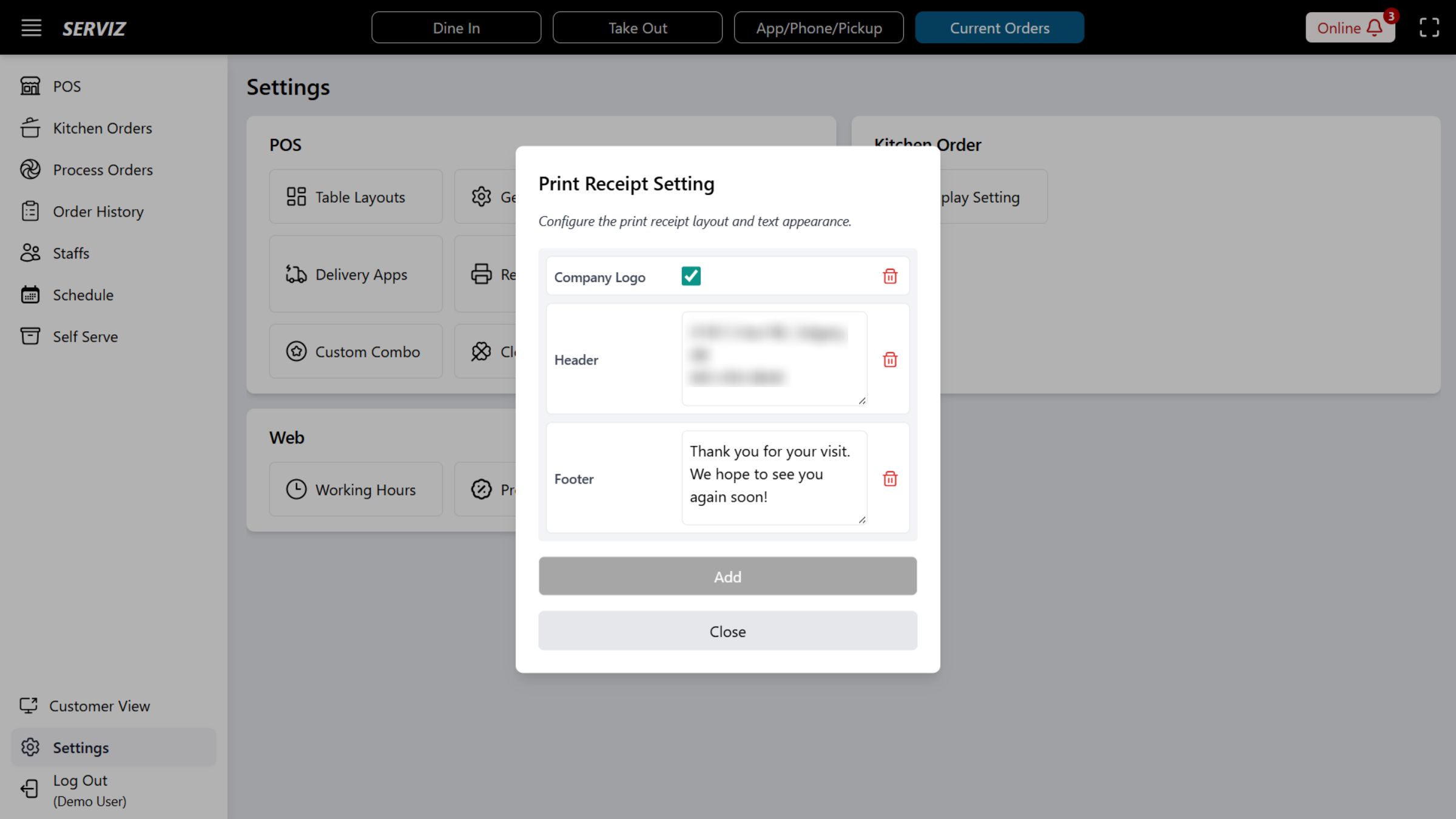
66. Open System Password
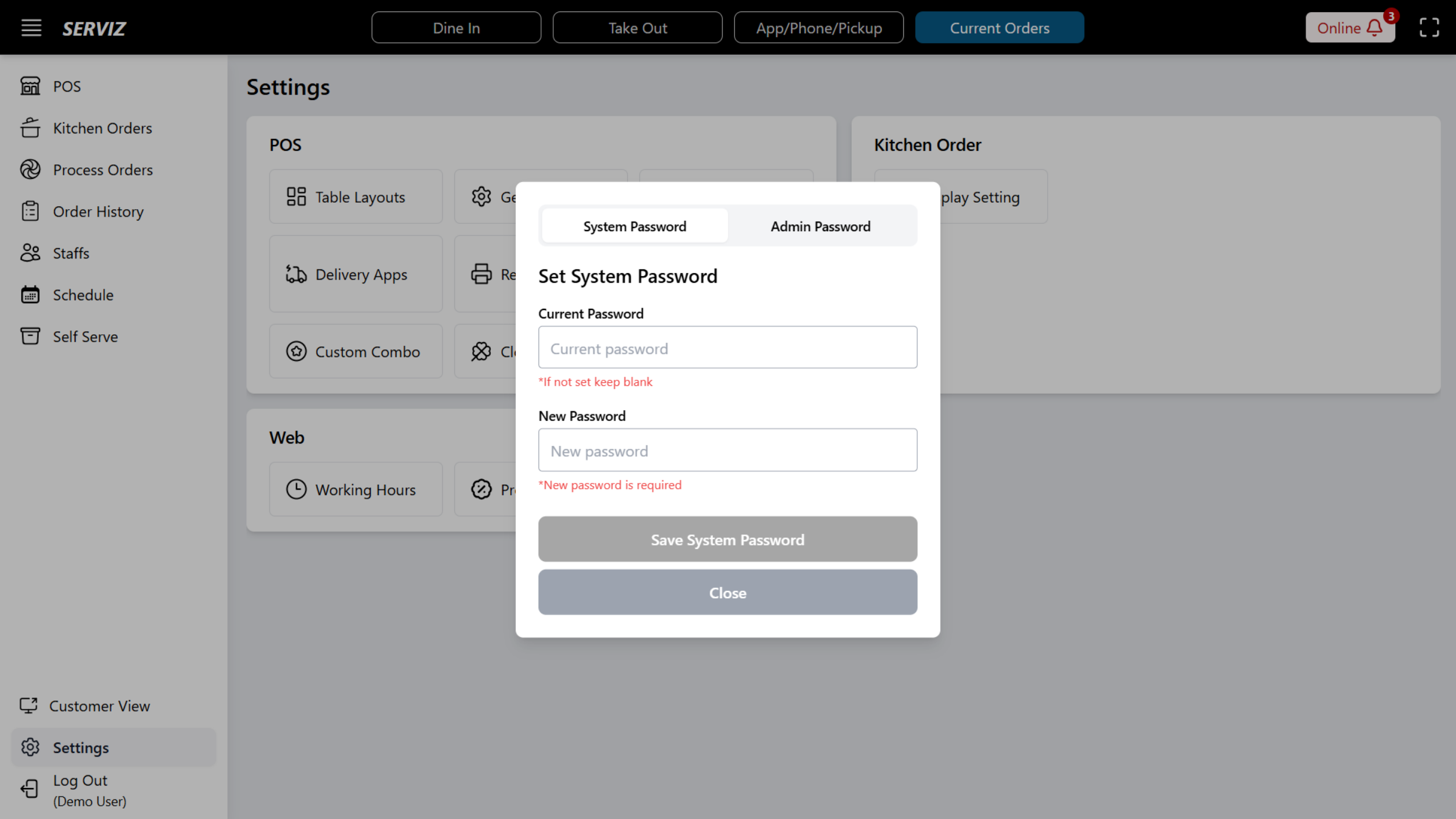
Click System Password to change or set system access credentials.
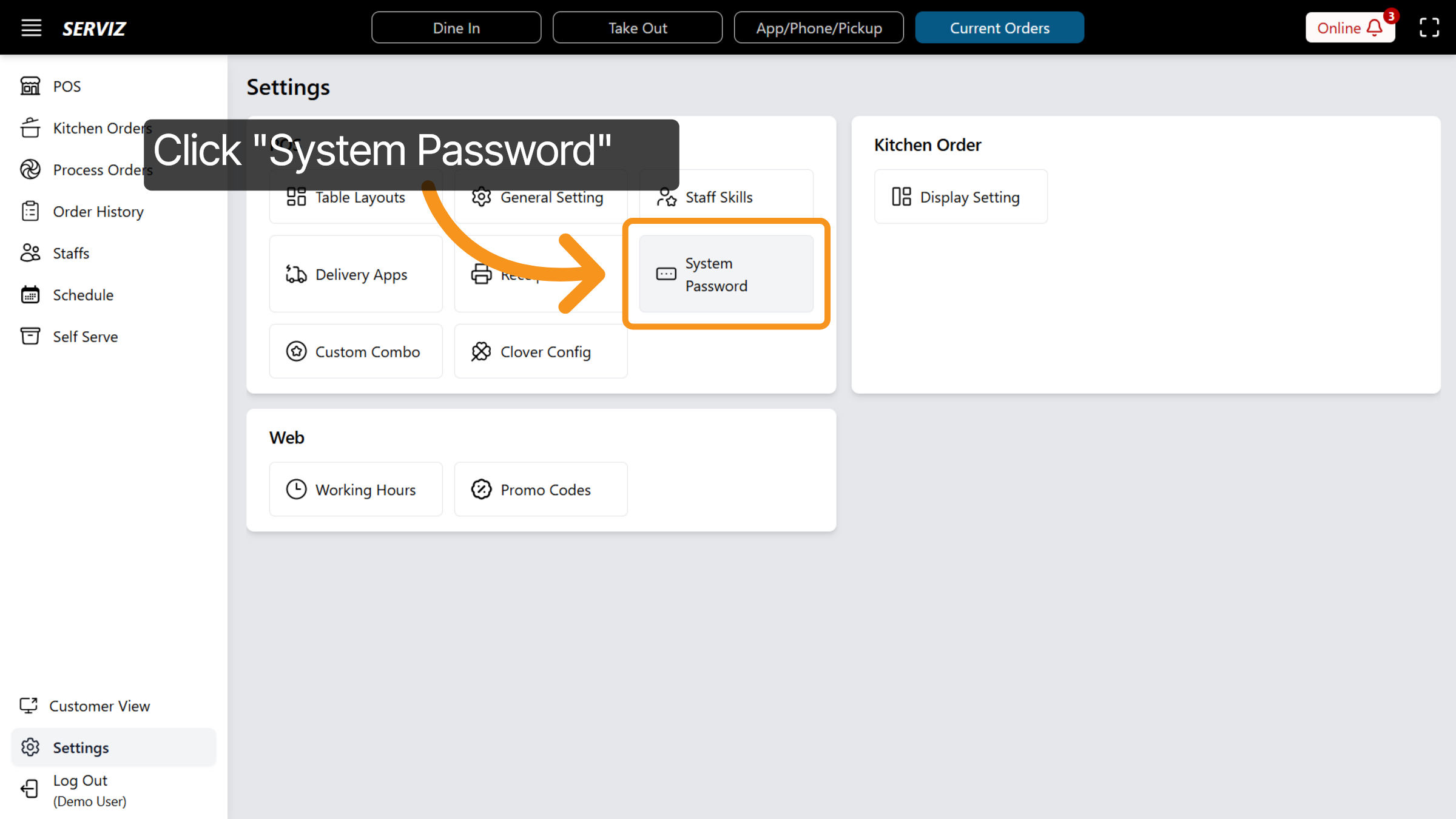
67. Interact with Password Settings
68. Manage Custom Combos
Click Custom Combo to create or modify combo meal options.
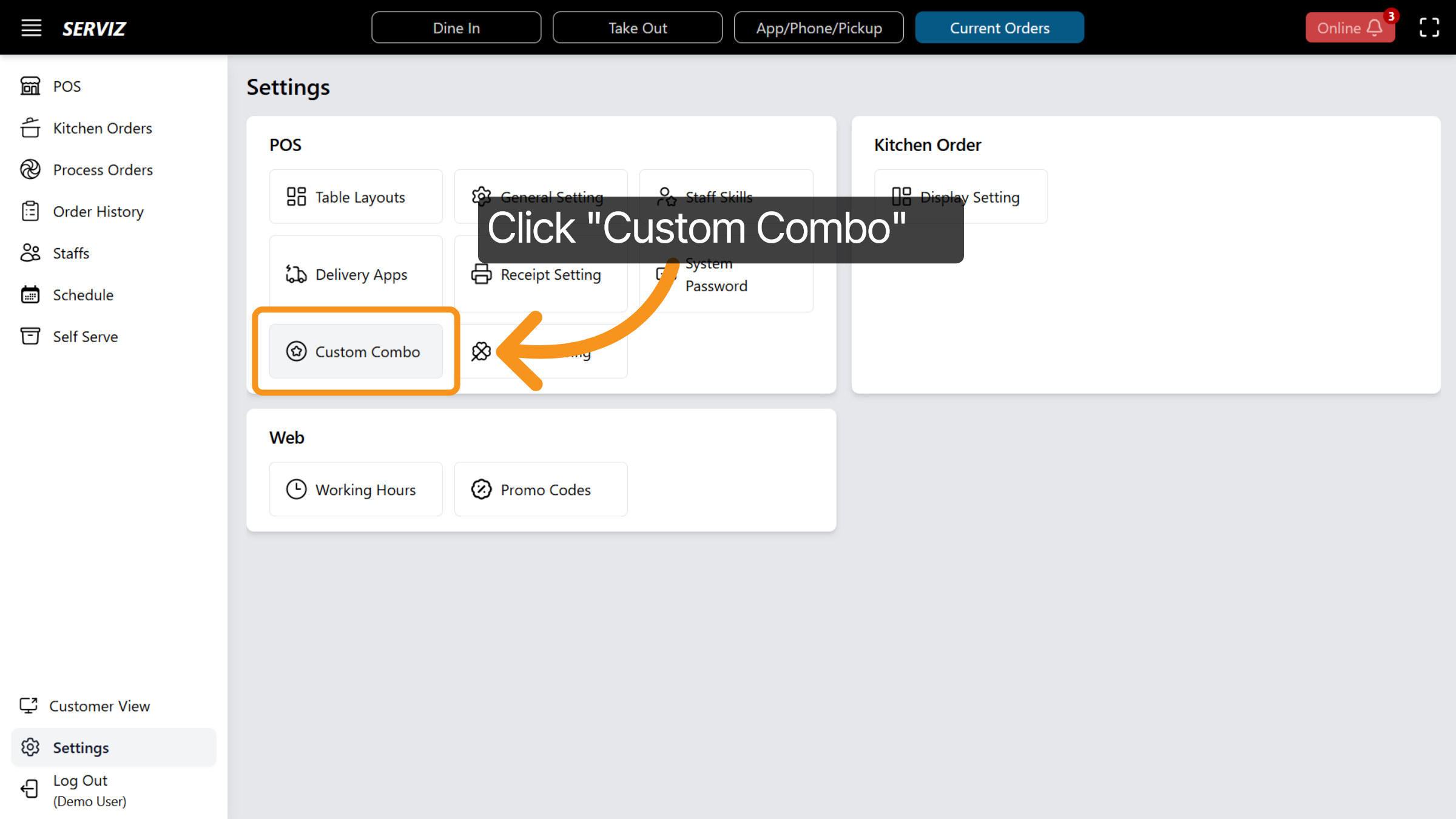
69. Select Custom Combo Option
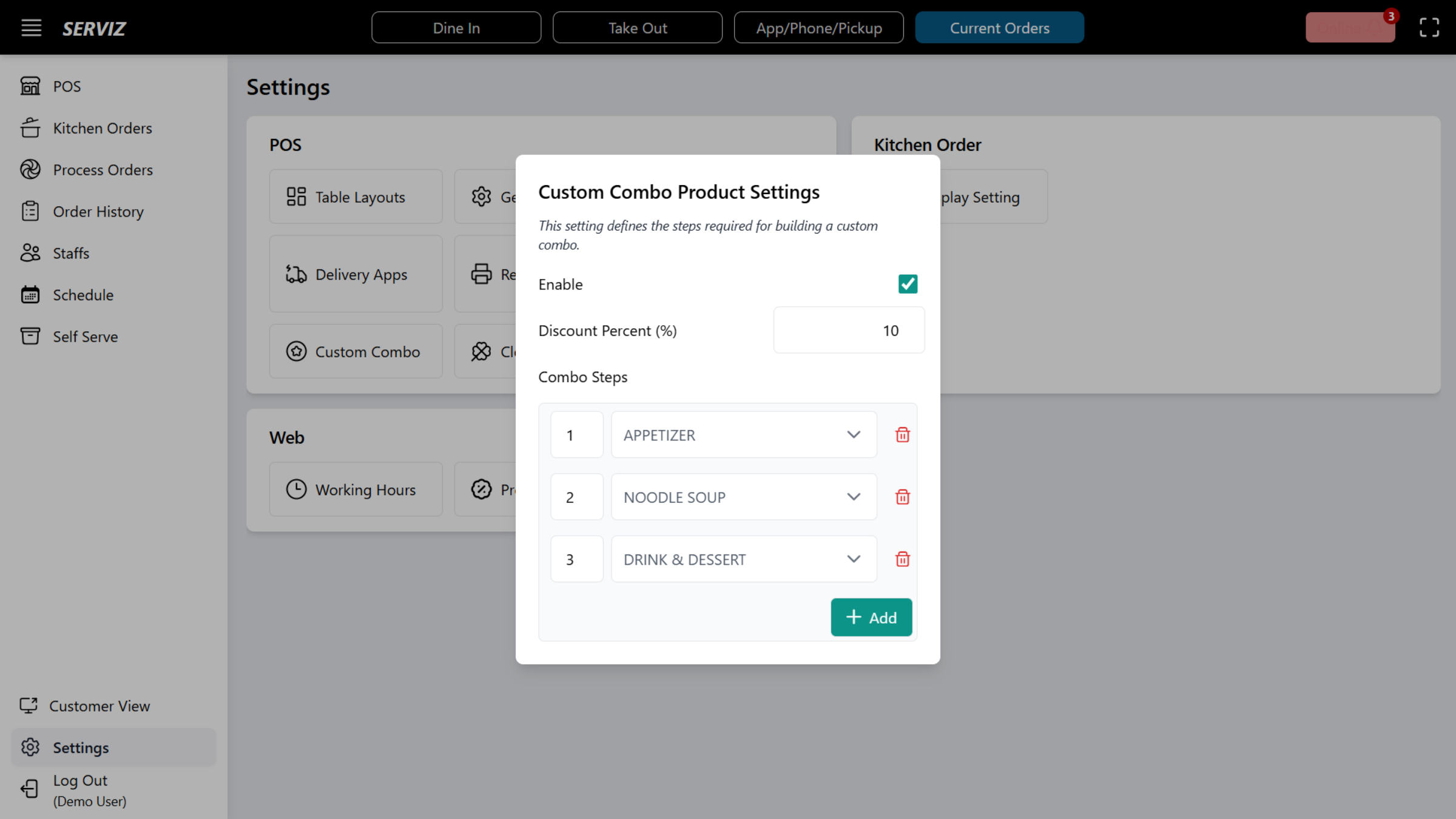
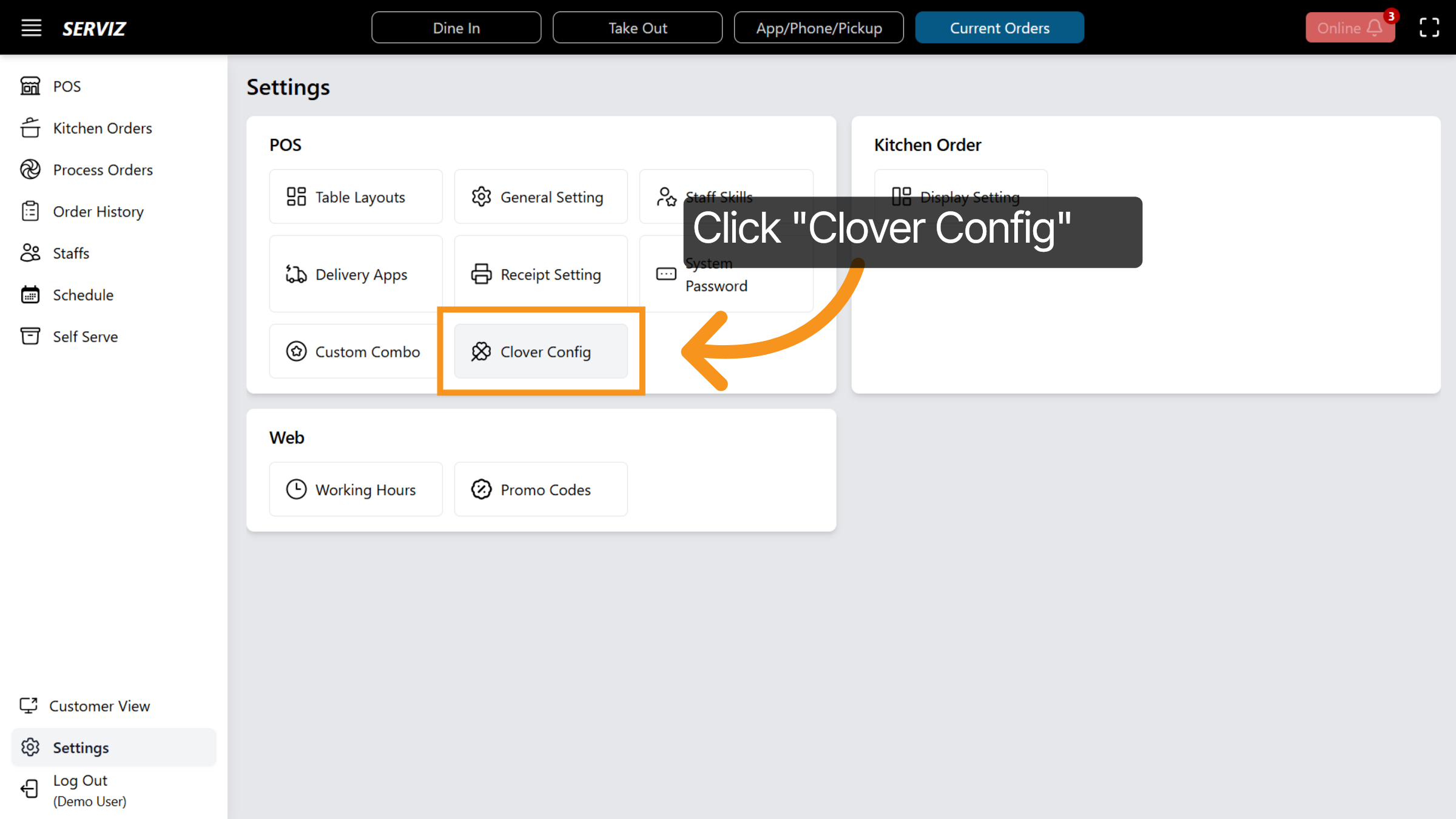
70. Open Clover Config
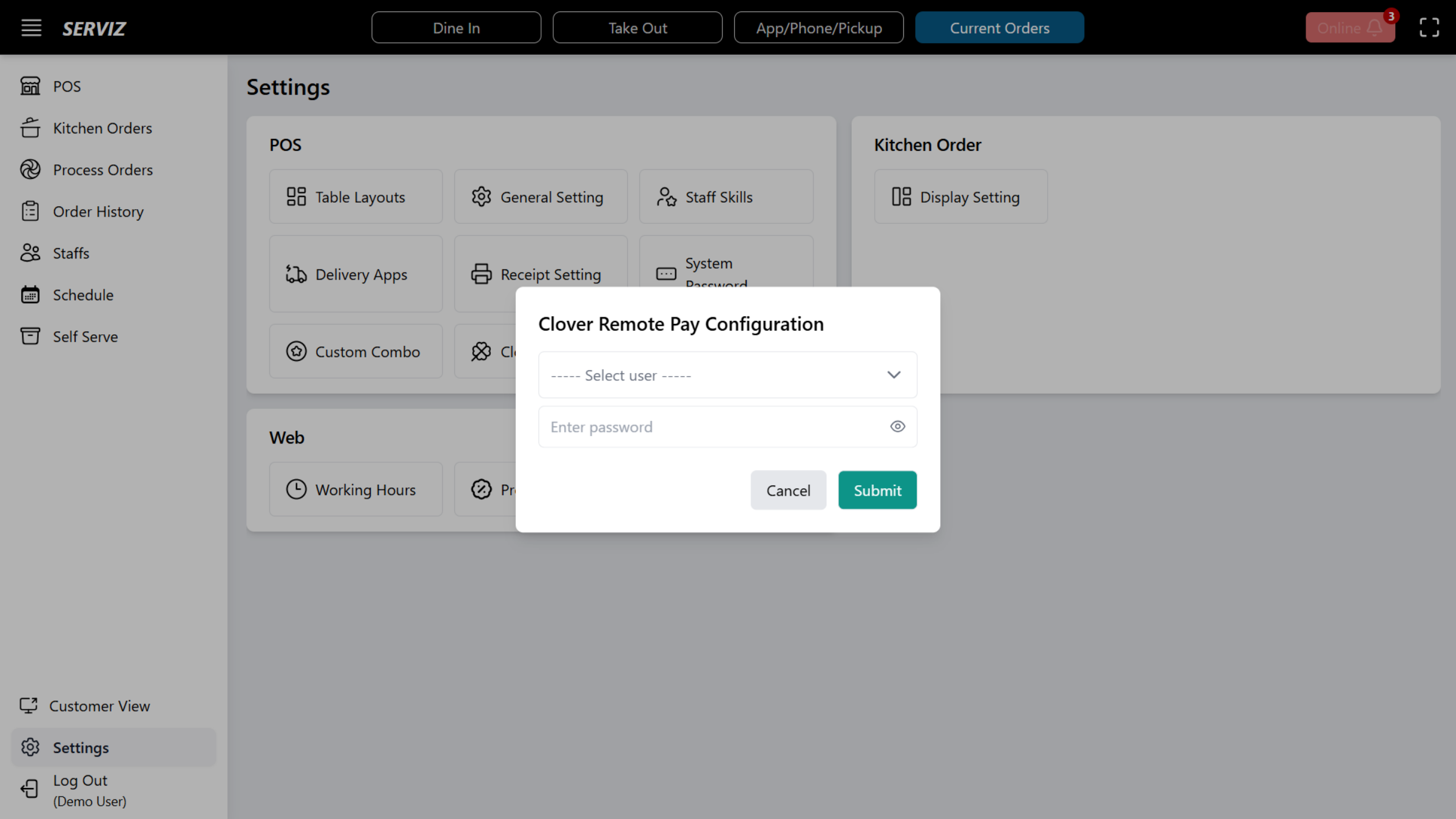
Click Clover Config to set up Clover payment system integration.
71. Interact with Clover Config
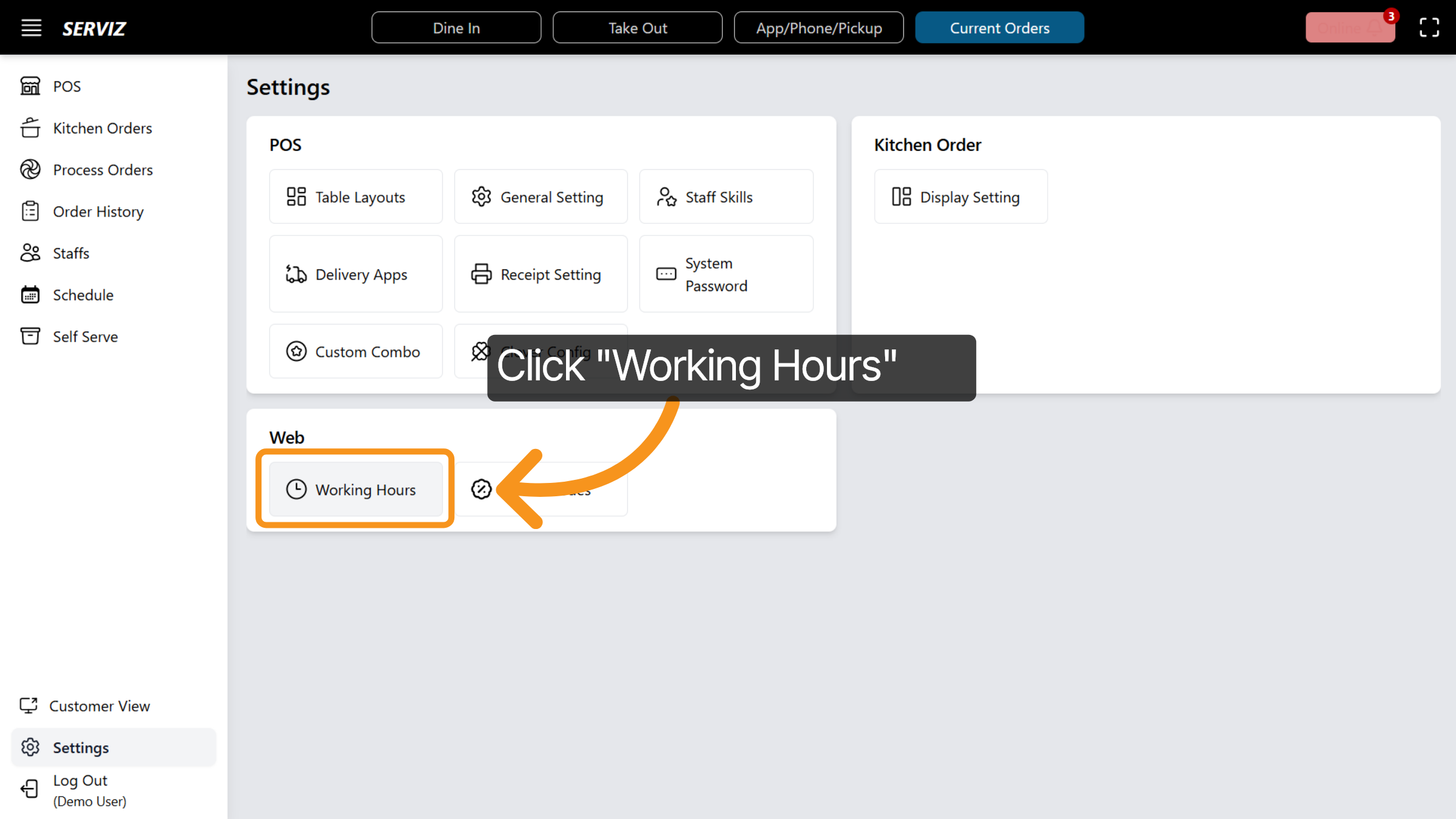
72. Access Working Hours
Click Working Hours to set business operation times.
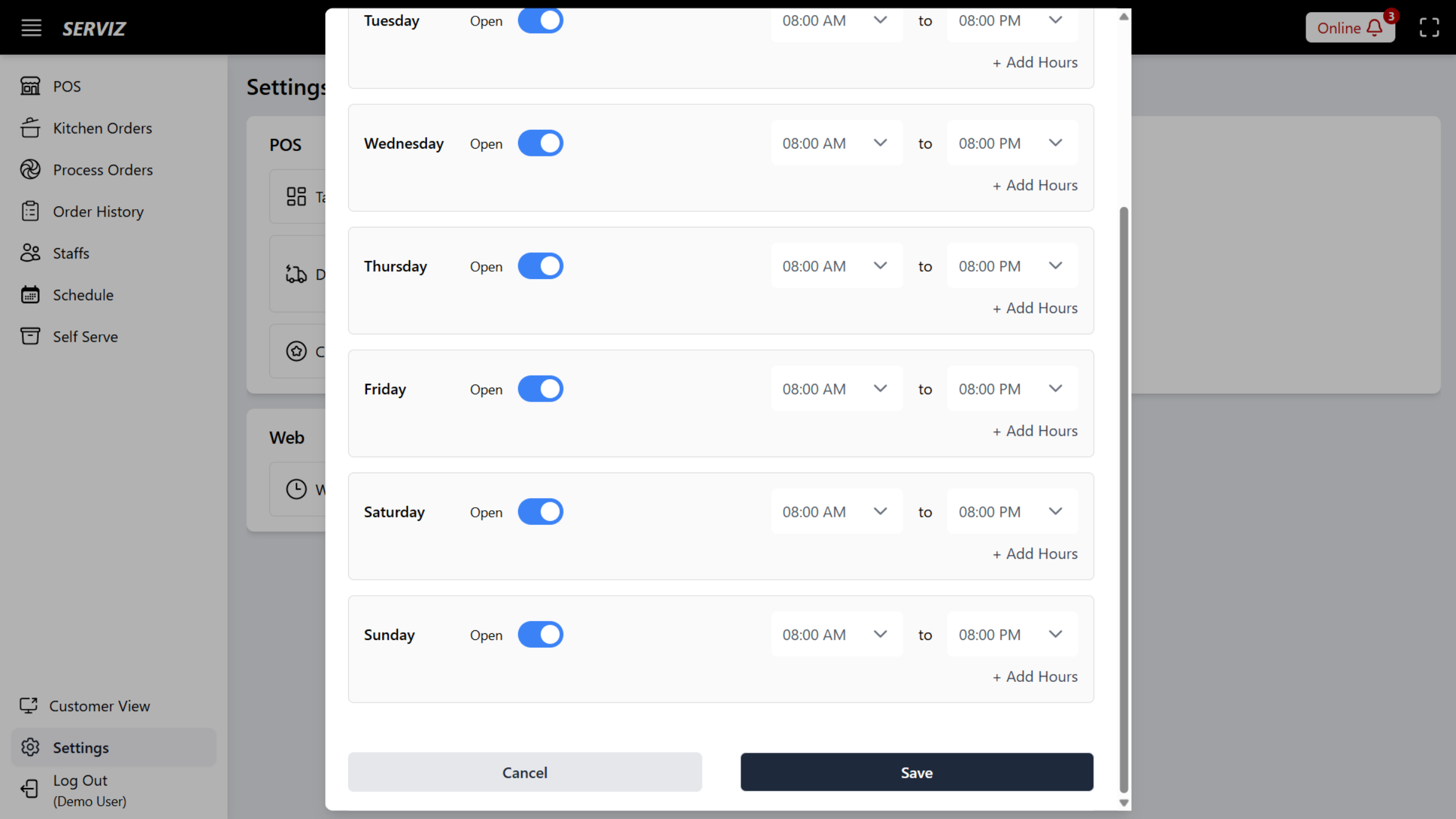
73. Working Hours Edit
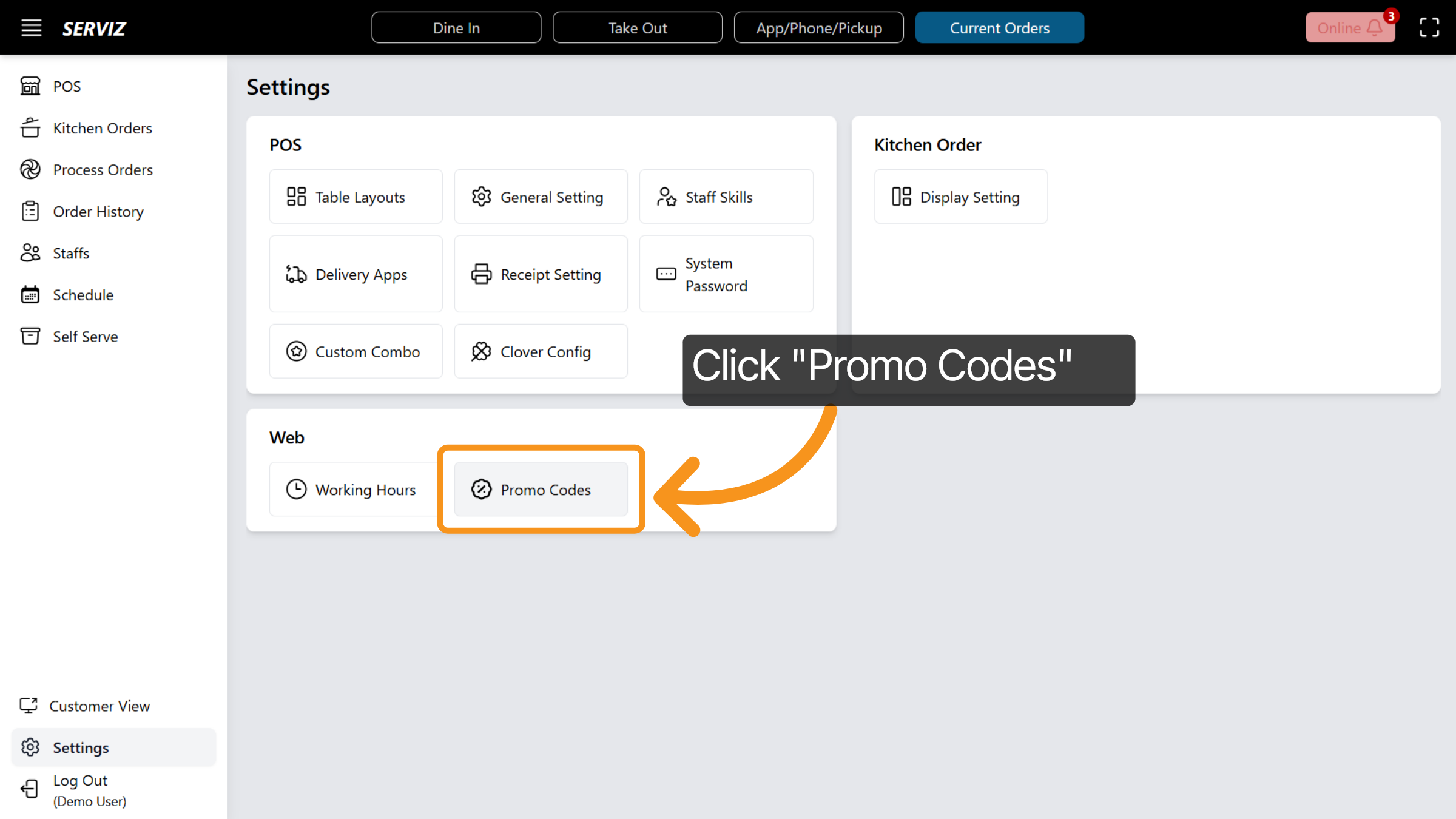
74. Open Promo Codes
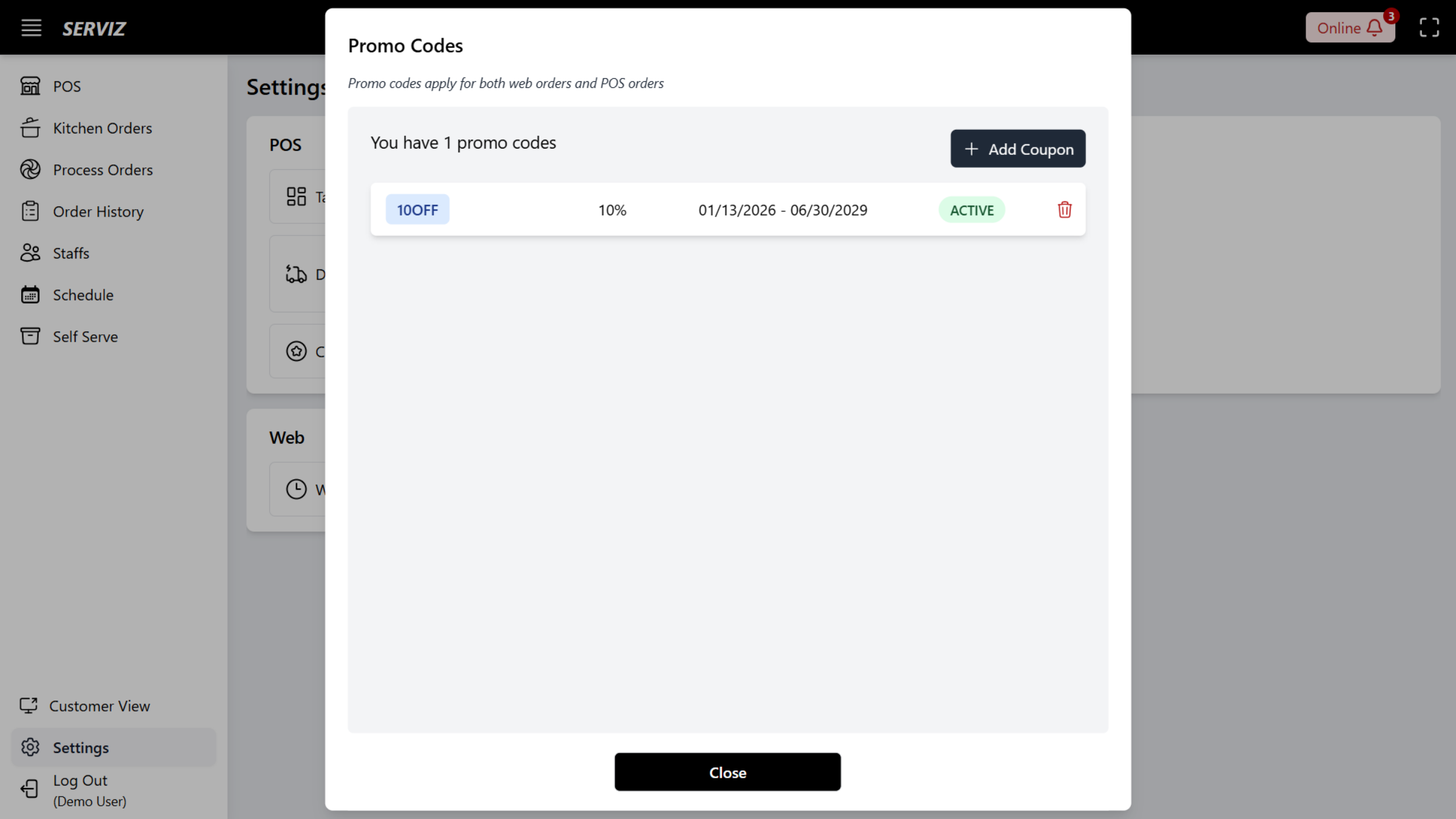
Click Promo Codes to add, manage, and delete discount and promotional offers.
75. Promo Codes
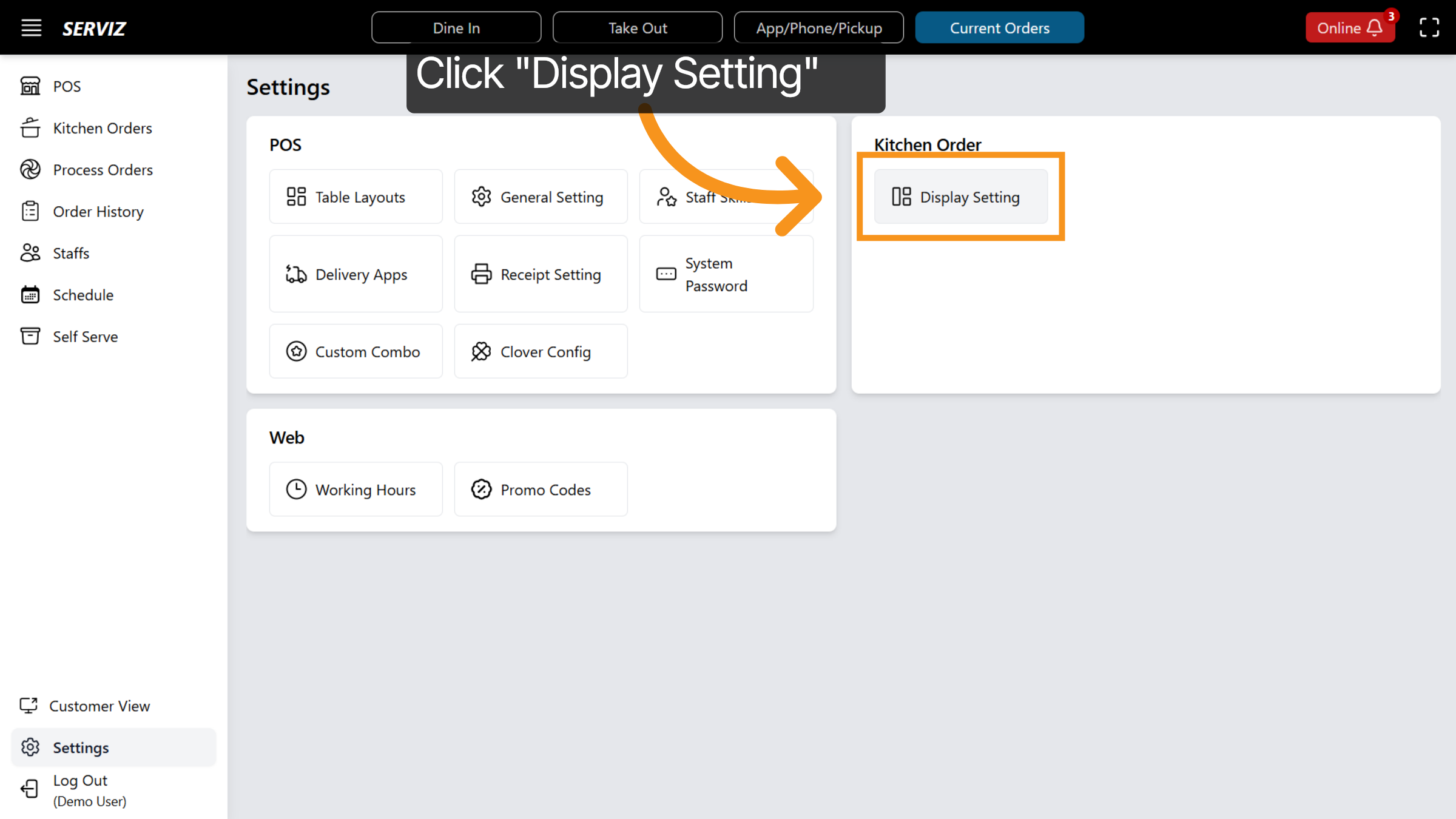
76. Access Display Settings
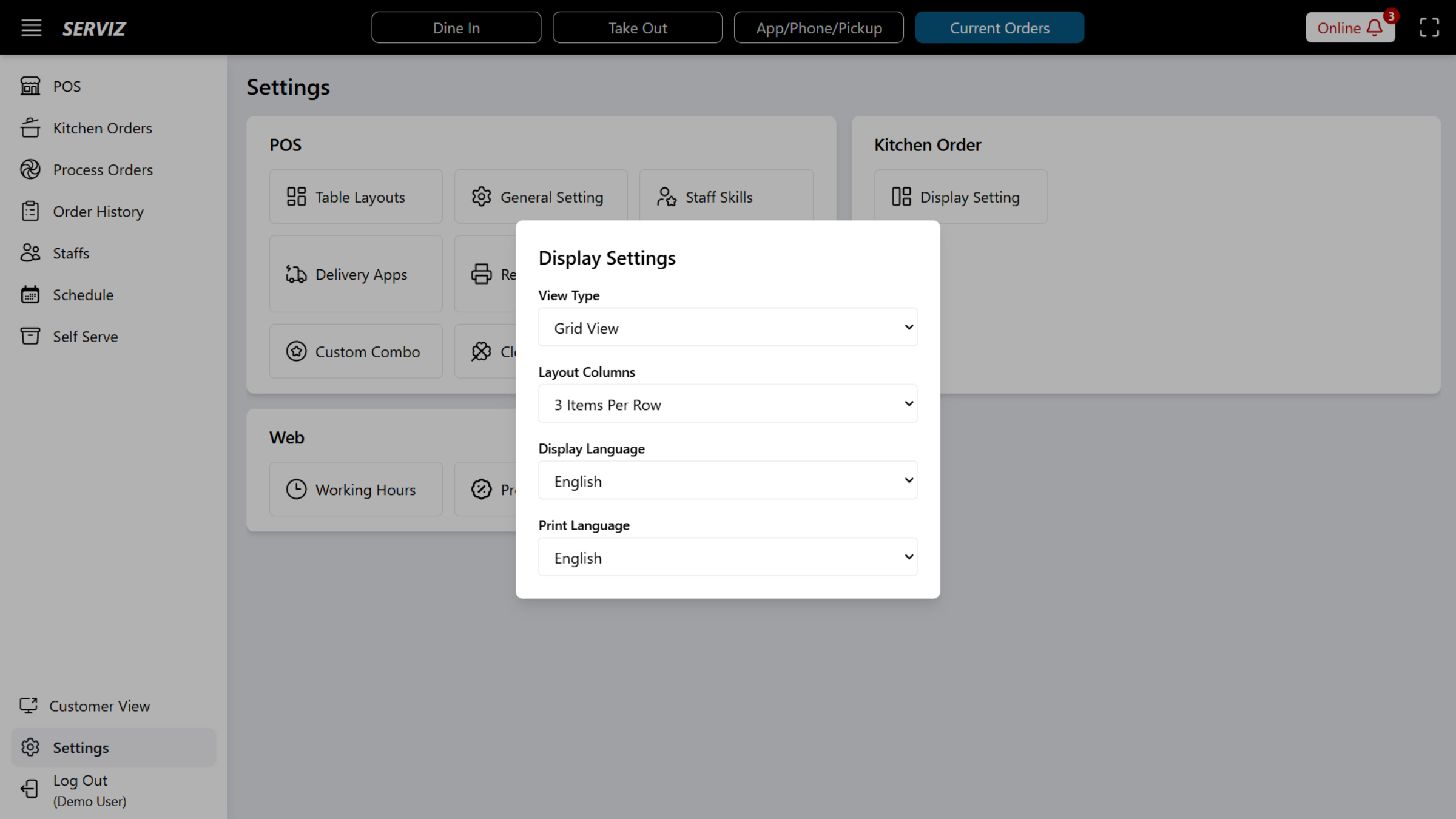
Click Display Setting to configure screen and interface display options.
77. Interact with Display Settings
78. Log Out of POS
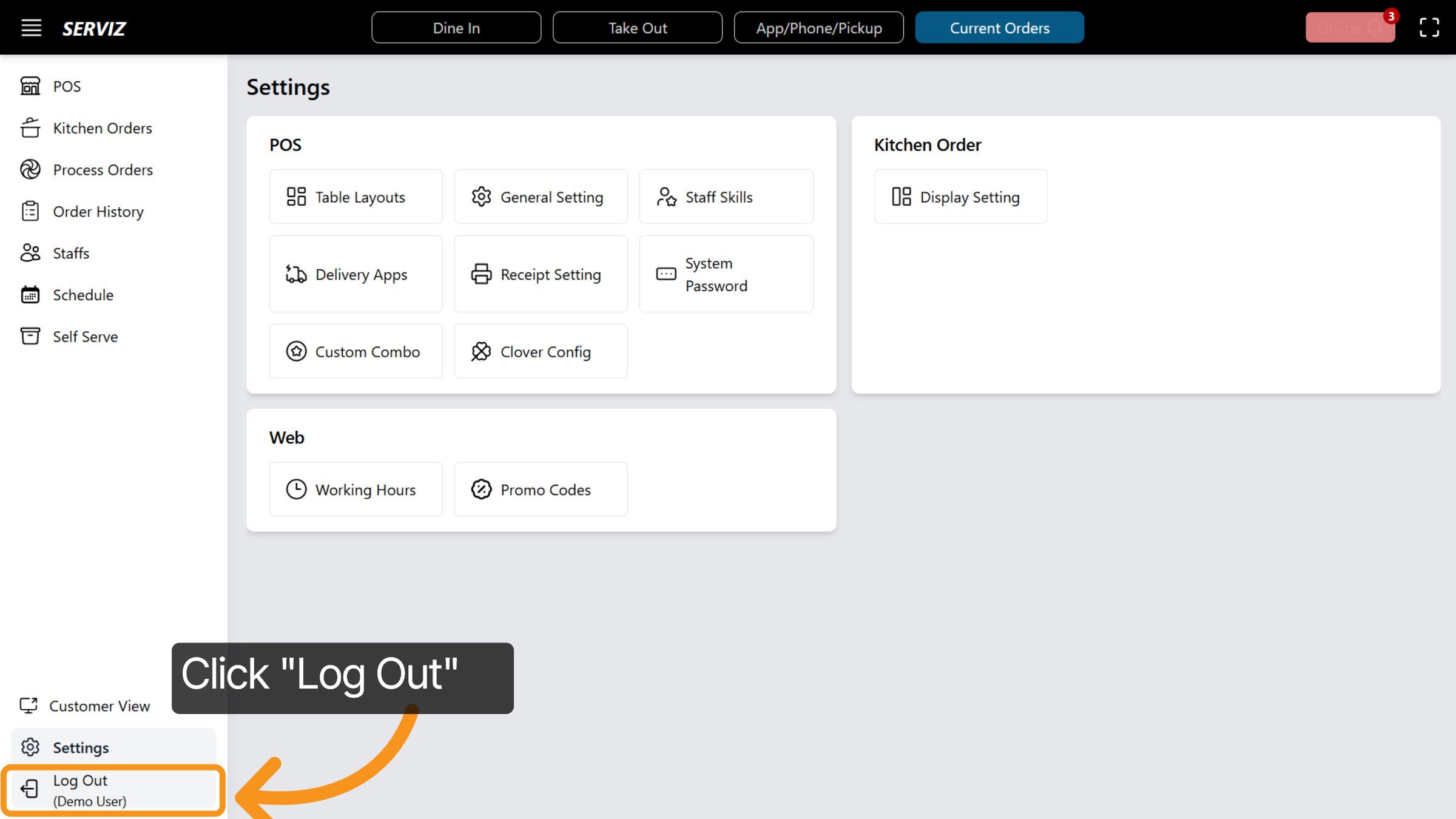
Always remember to lick Log Out when leaving the terminal to prevent unauthorized use.
You’ve now learned how to navigate and configure the essential features of the Serviz P O S system. In the next video, we’ll take a closer look at how to place dining, takeout, and pickup orders in the P O S system.