
POS / Service Areas
Manage Service Areas and Orders in VICdigital POS
This tutorial provides guidance on managing service areas and processing orders with the VIC Digital POS system.
Go to serviz.ca
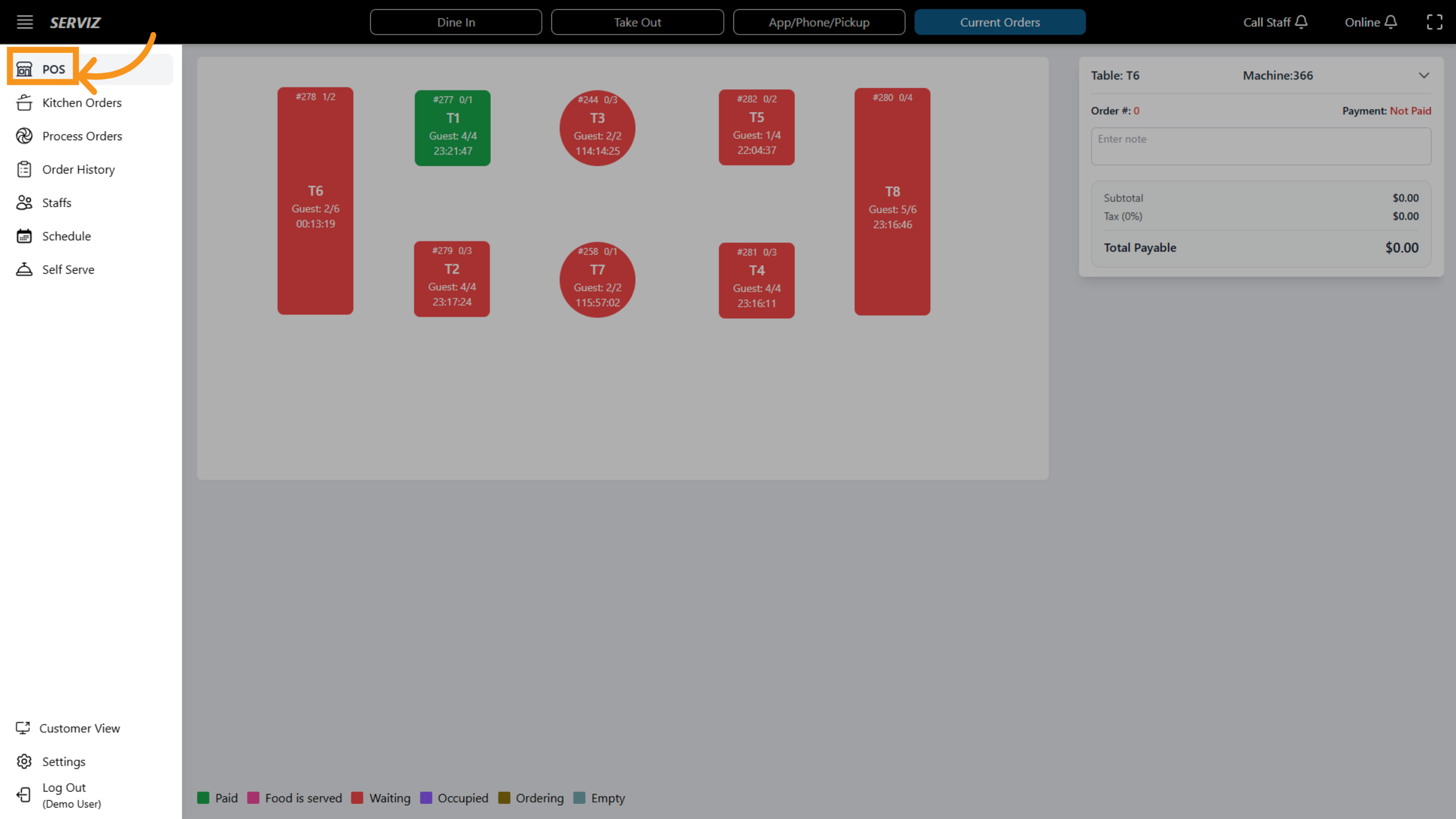
1. Open Specific POS Area
Click the highlighted area to access the detailed POS interface for order management.
2. Introduction
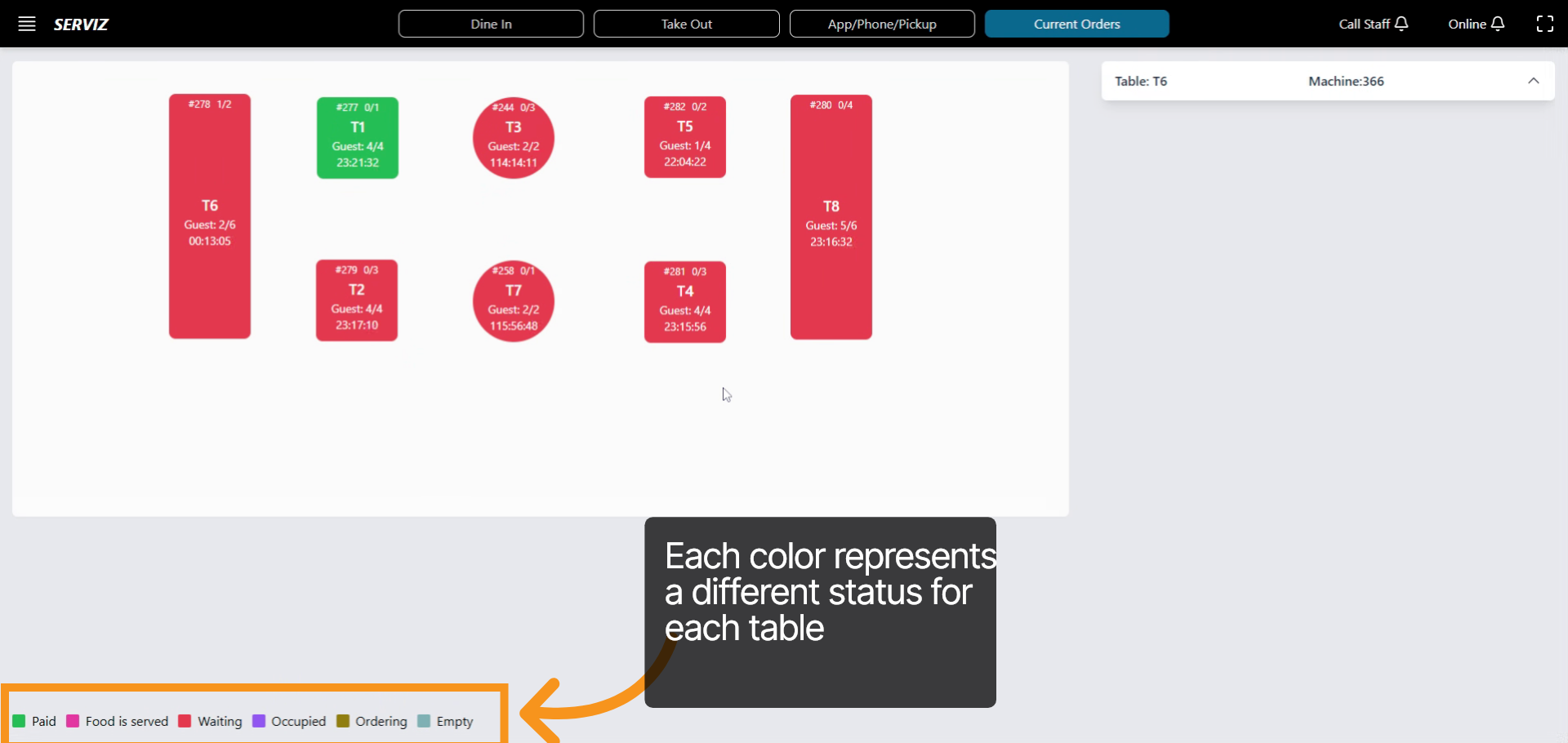
You will learn how to navigate orders, update guest details, handle payments, and manage tables effectively. It also displays colorful bars in the bottom left corner. Each color represents a different situation for each table.
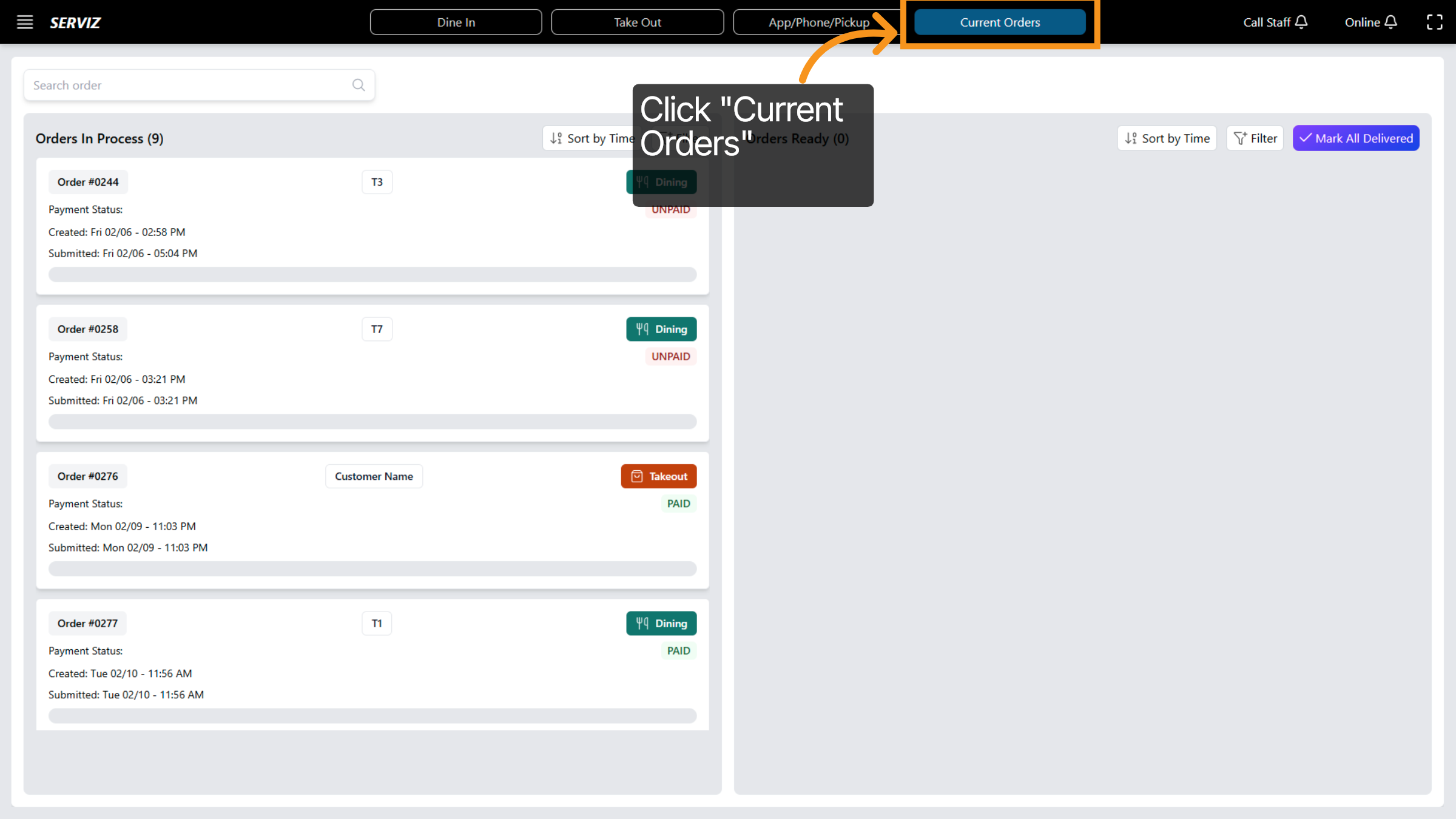
3. Open Current Orders or Dine In
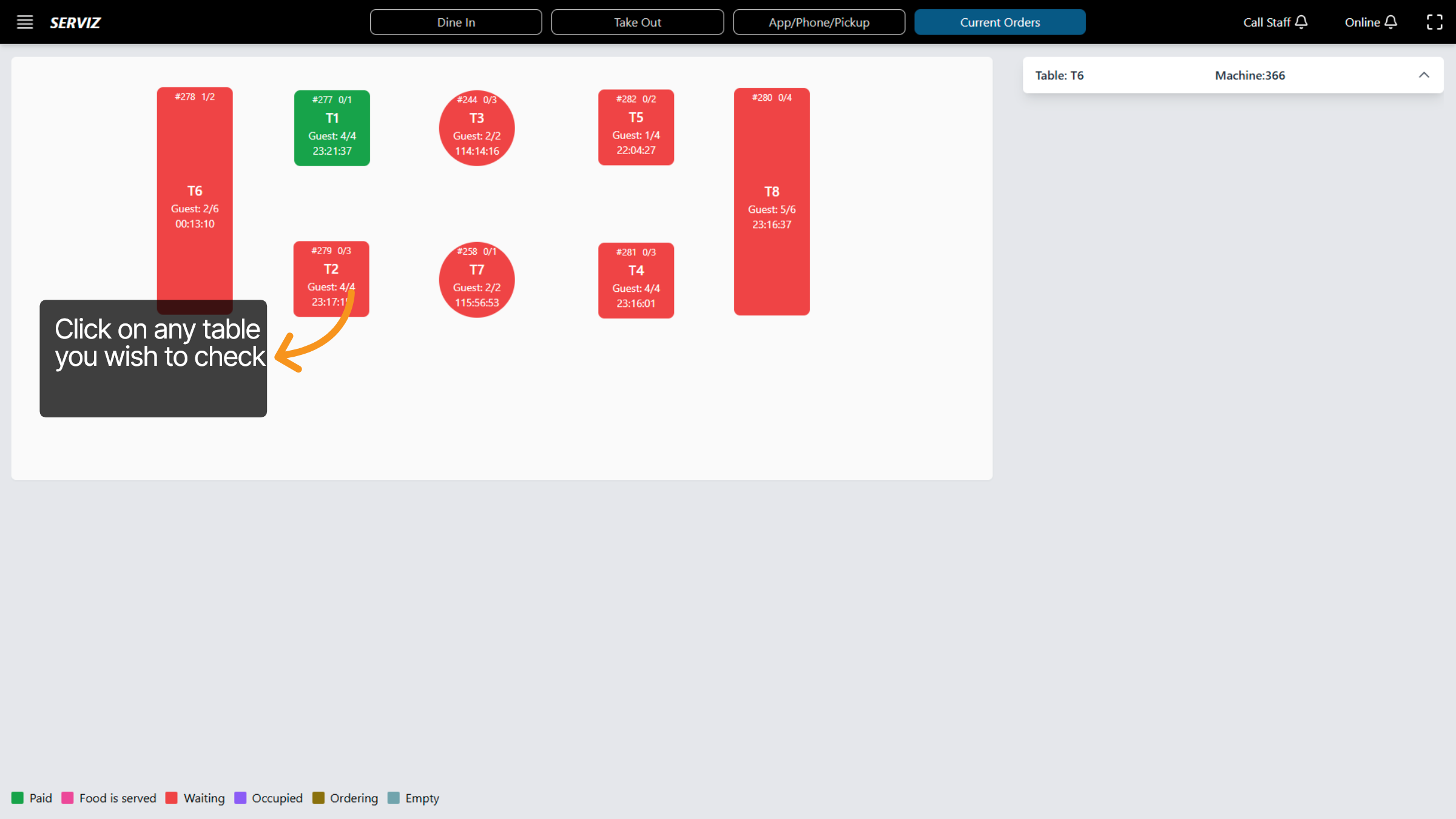
The Current Orders/Dine In section allows you to view all active orders in the system. Click on any table you wish to check.
4. Current Orders Check
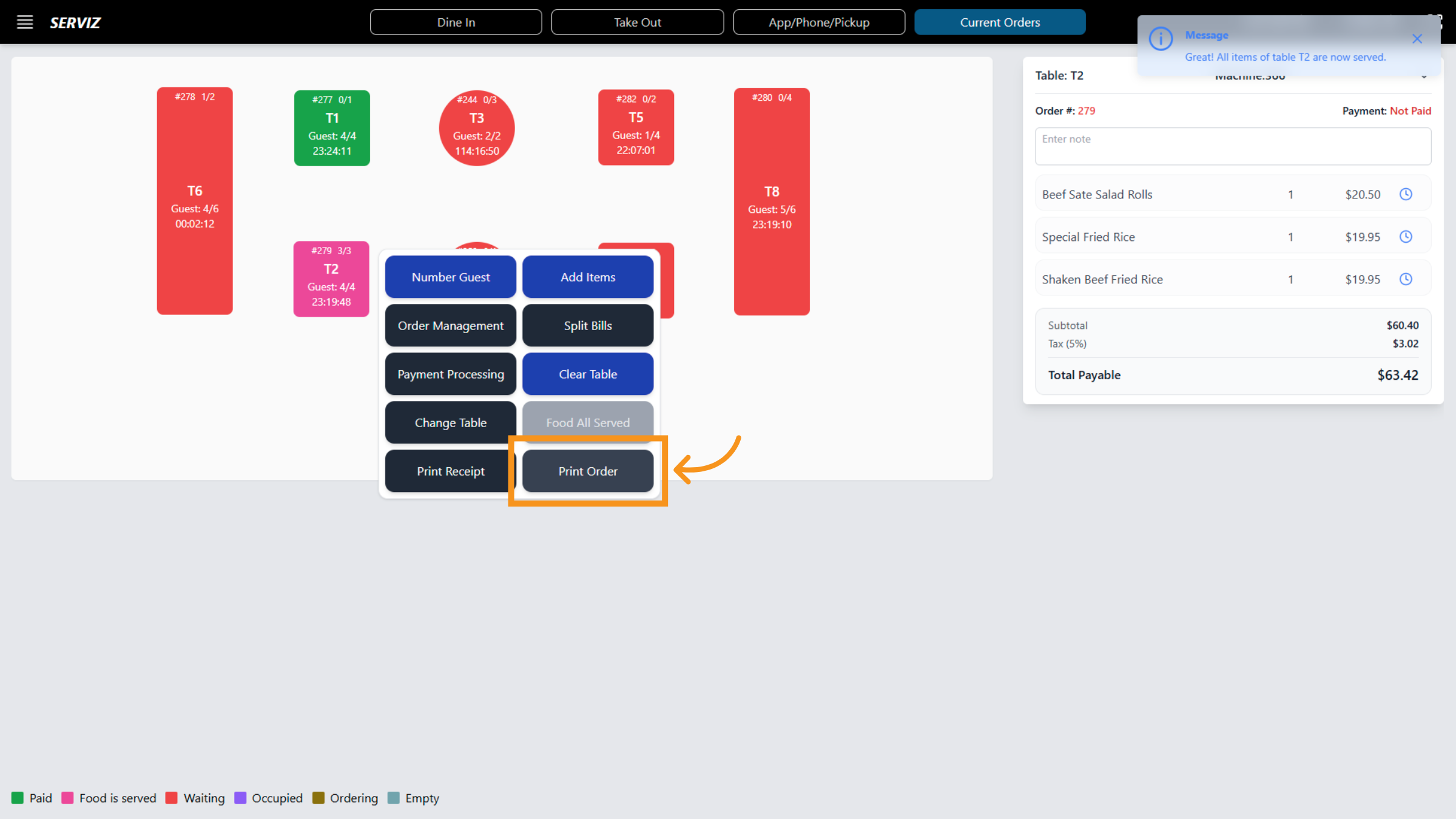
Click on each table, and a card will appear with : -Number guest : confirm the number of guest for the order -Order management: fill in the name of the user who is responsible for the order. -Payment Processing : Payment processing enables us to manage payment options and transactions for orders. -Change table: control -arranging tables for guests appropriately. -Print receipt: generate a physical or digital copy of the order receipt. - Add items: Control and add additional items. -Split bill: manage and allocate the bill based on customer requests. -Clear table : enable to control and move anytime -Food on Served : notice that all ordered food items have been successfully delivered to the guests. - Print order: Print Order to generate a physical or digital copy of the order details.
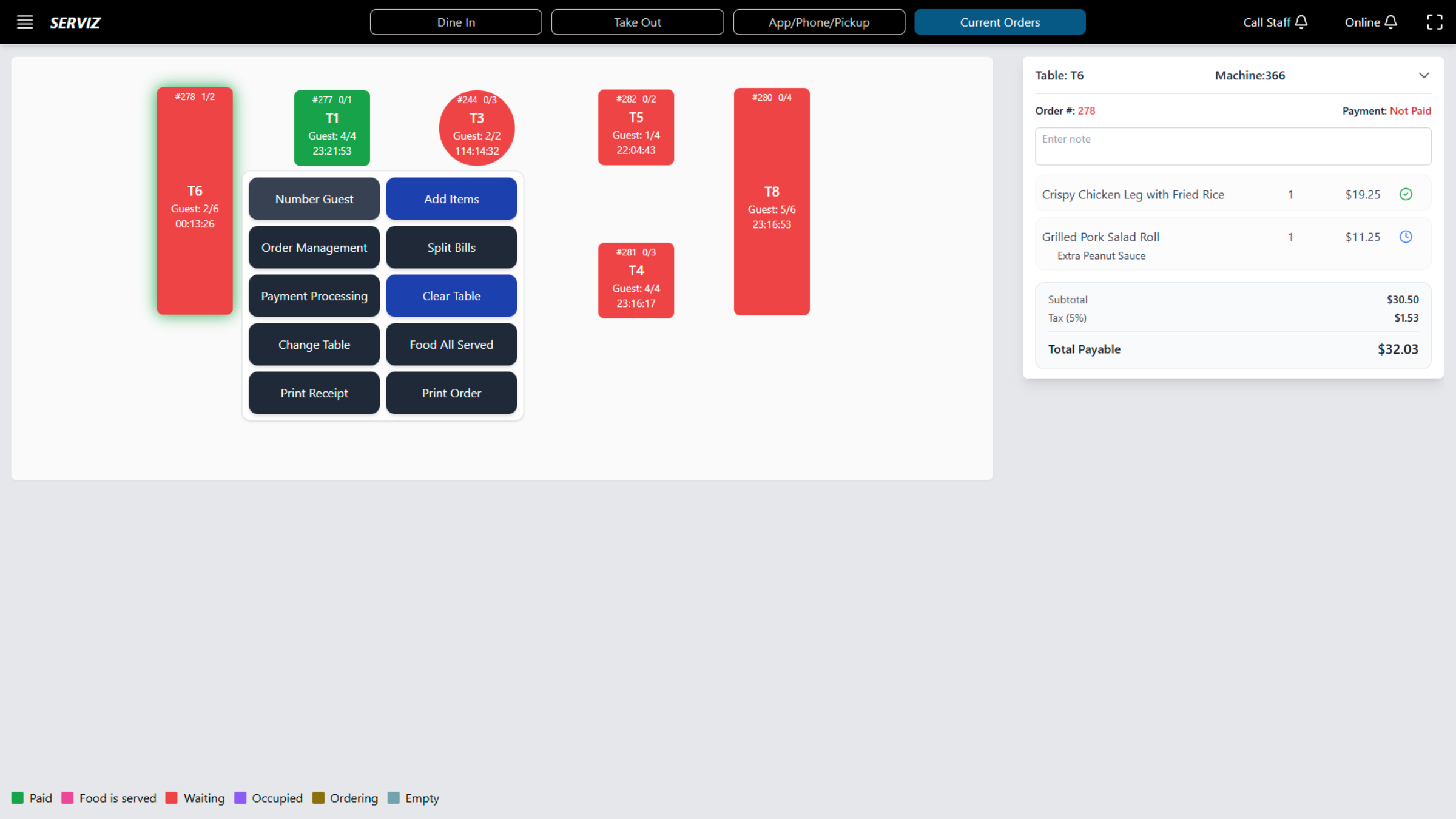
5. Guest Number
Please confirm the updated number of guests for the order and click "save".
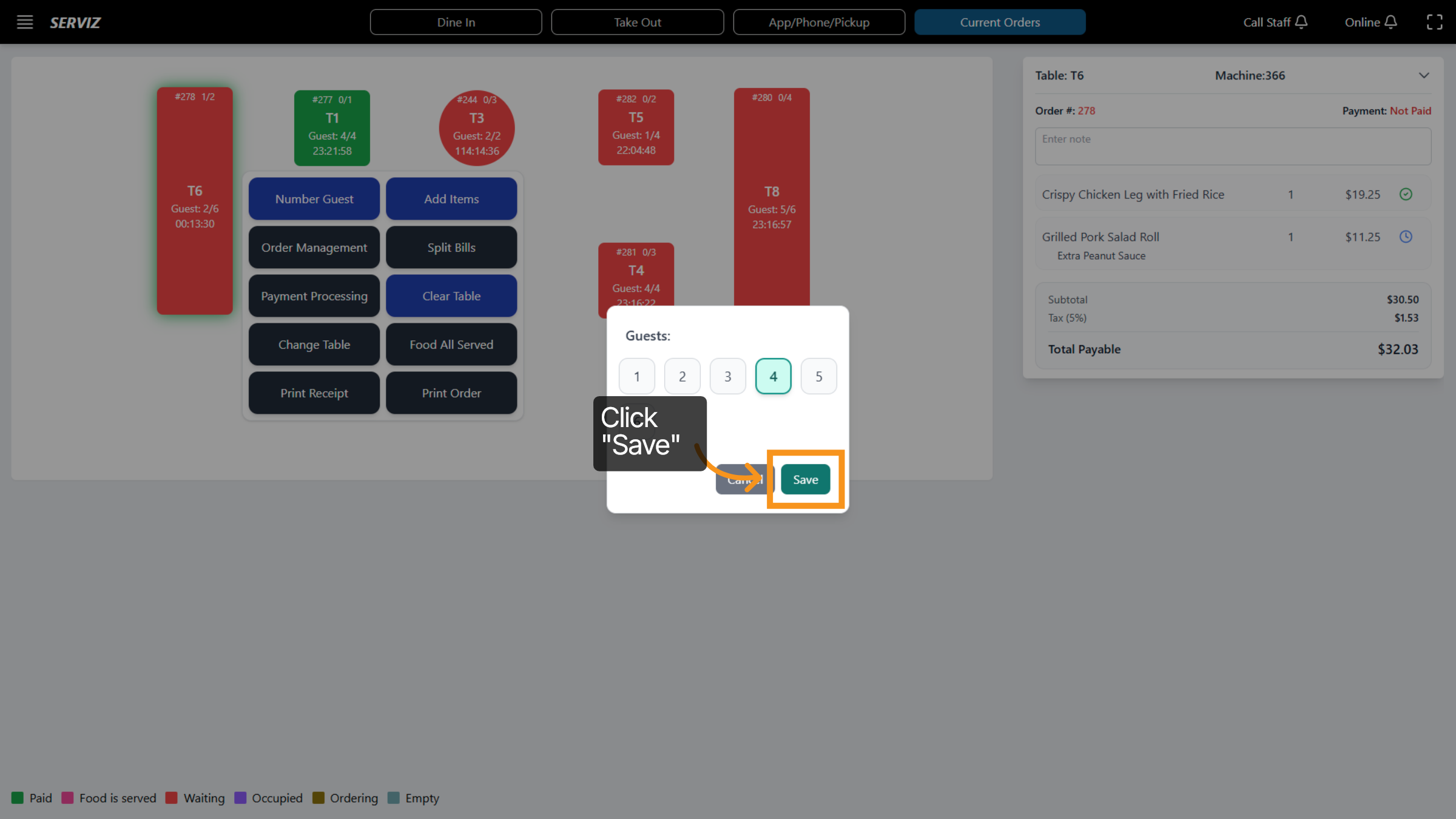
6. Order Management
Click the user selection dropdown to choose the user responsible for the order.
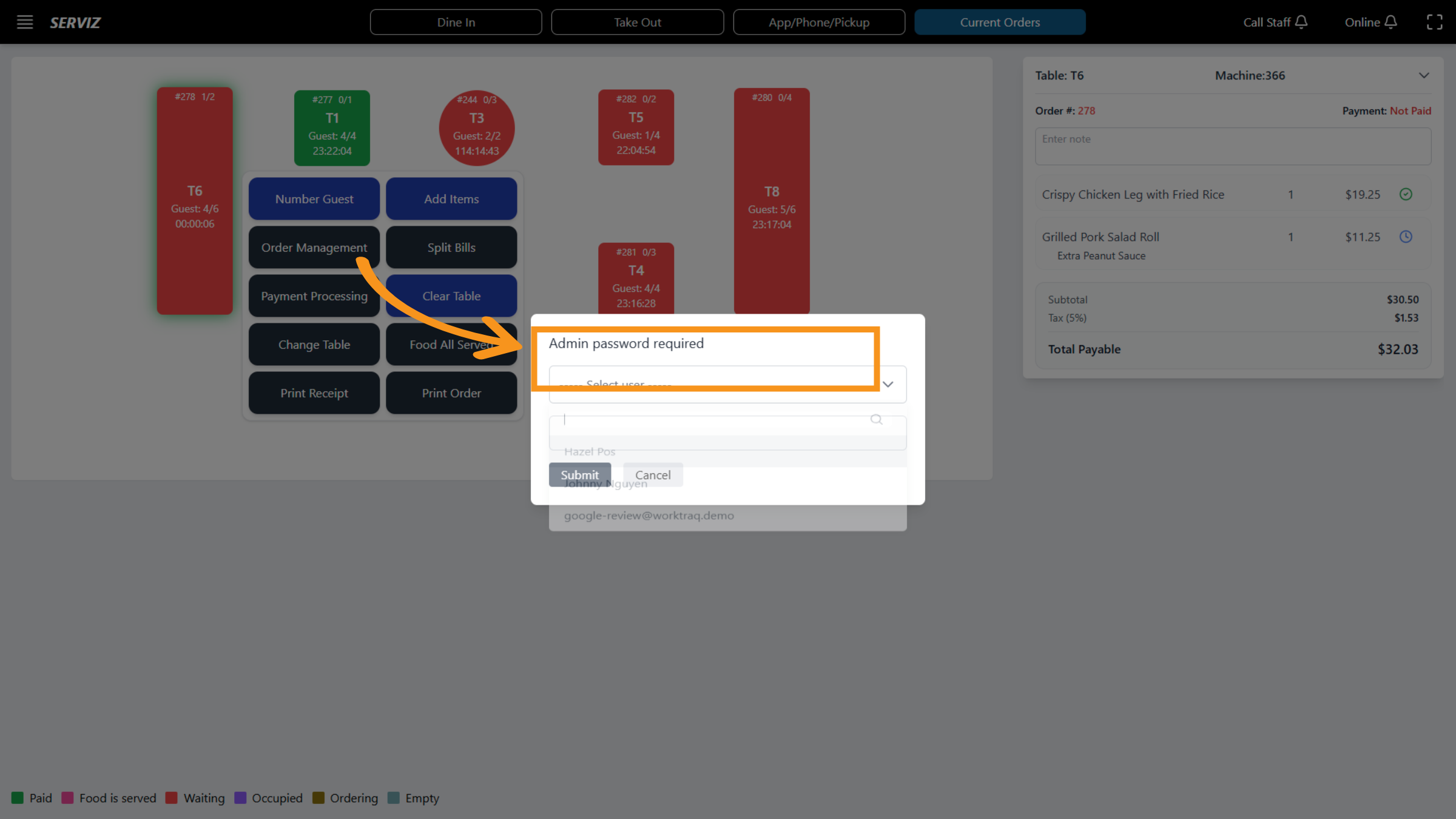
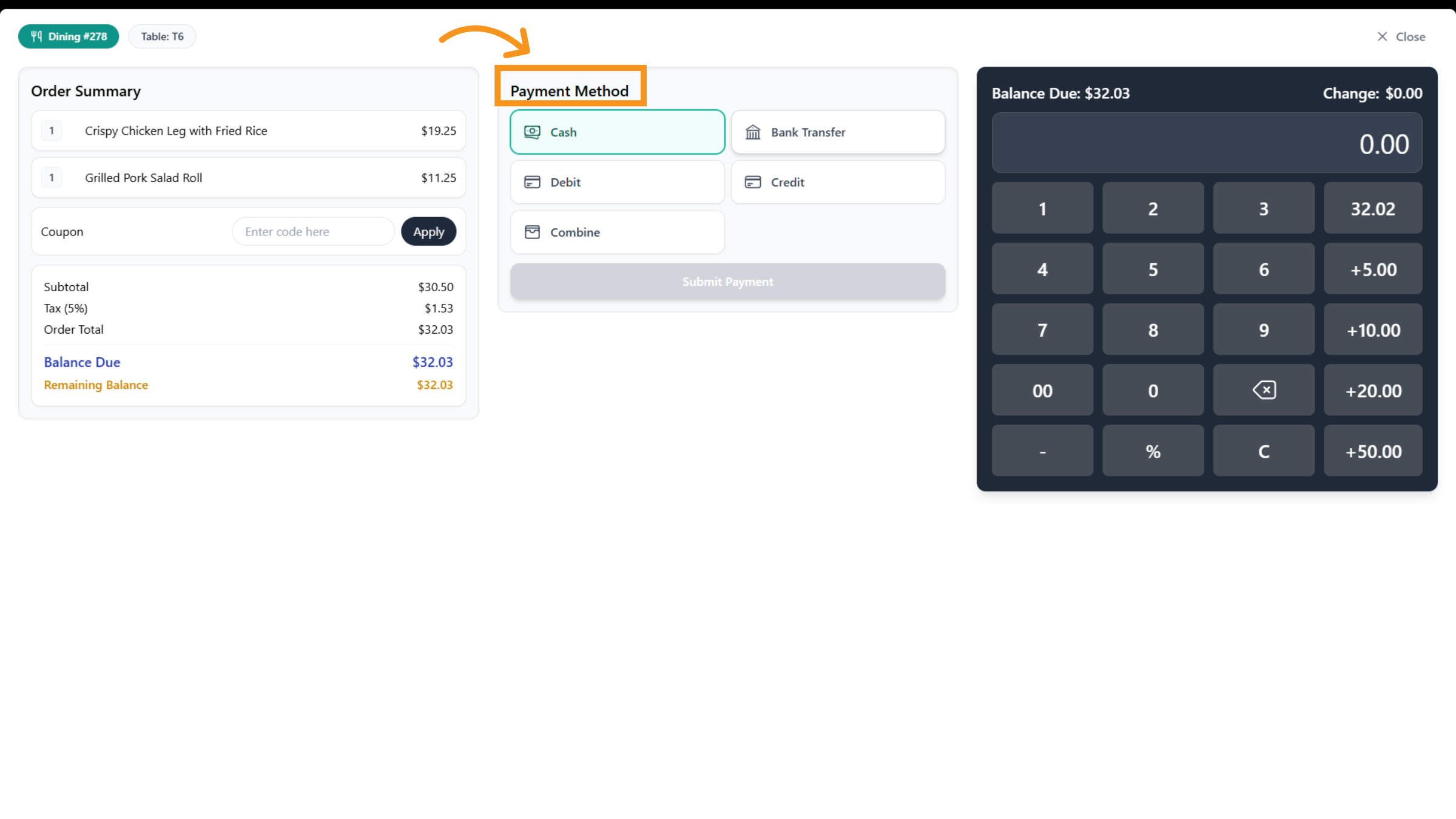
7. Payment Processing
Payment processing enables us to manage payment options and transactions for orders.
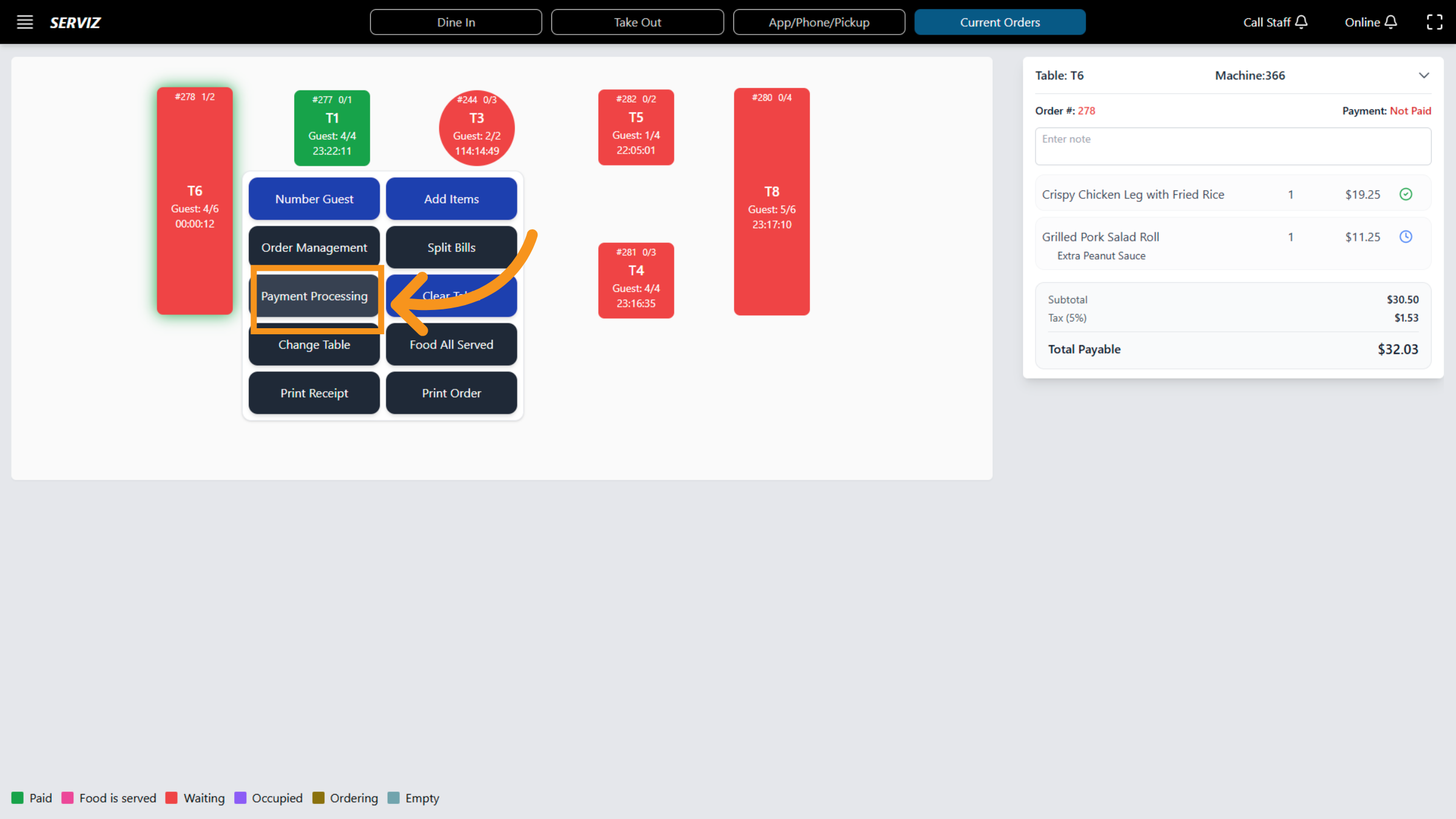
8. Access Payment Processing
Click on the Payment method to view the payment option for the current transaction.
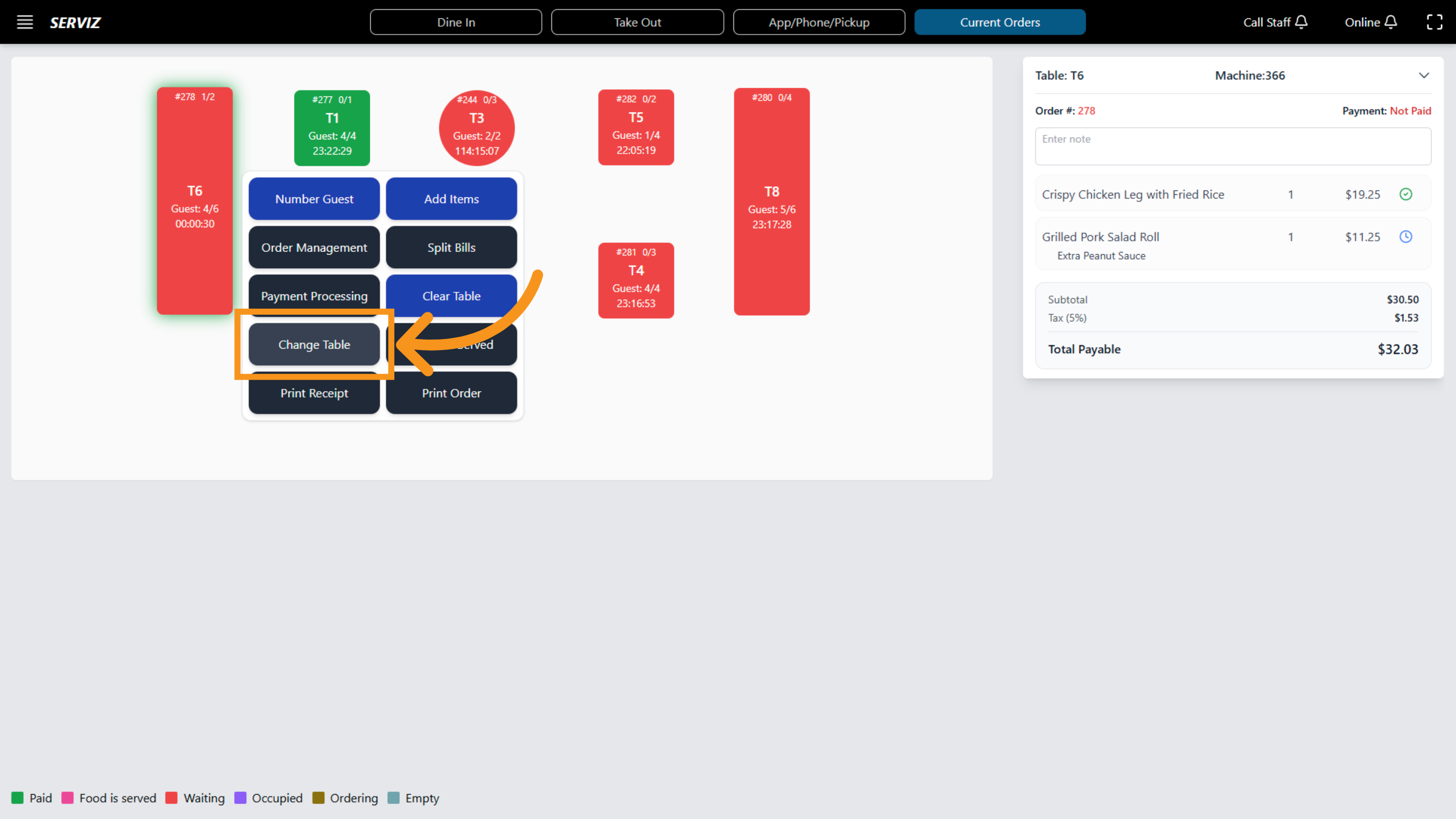
9. Change Table
Change the table to initiate the process of transferring an order to a different table.
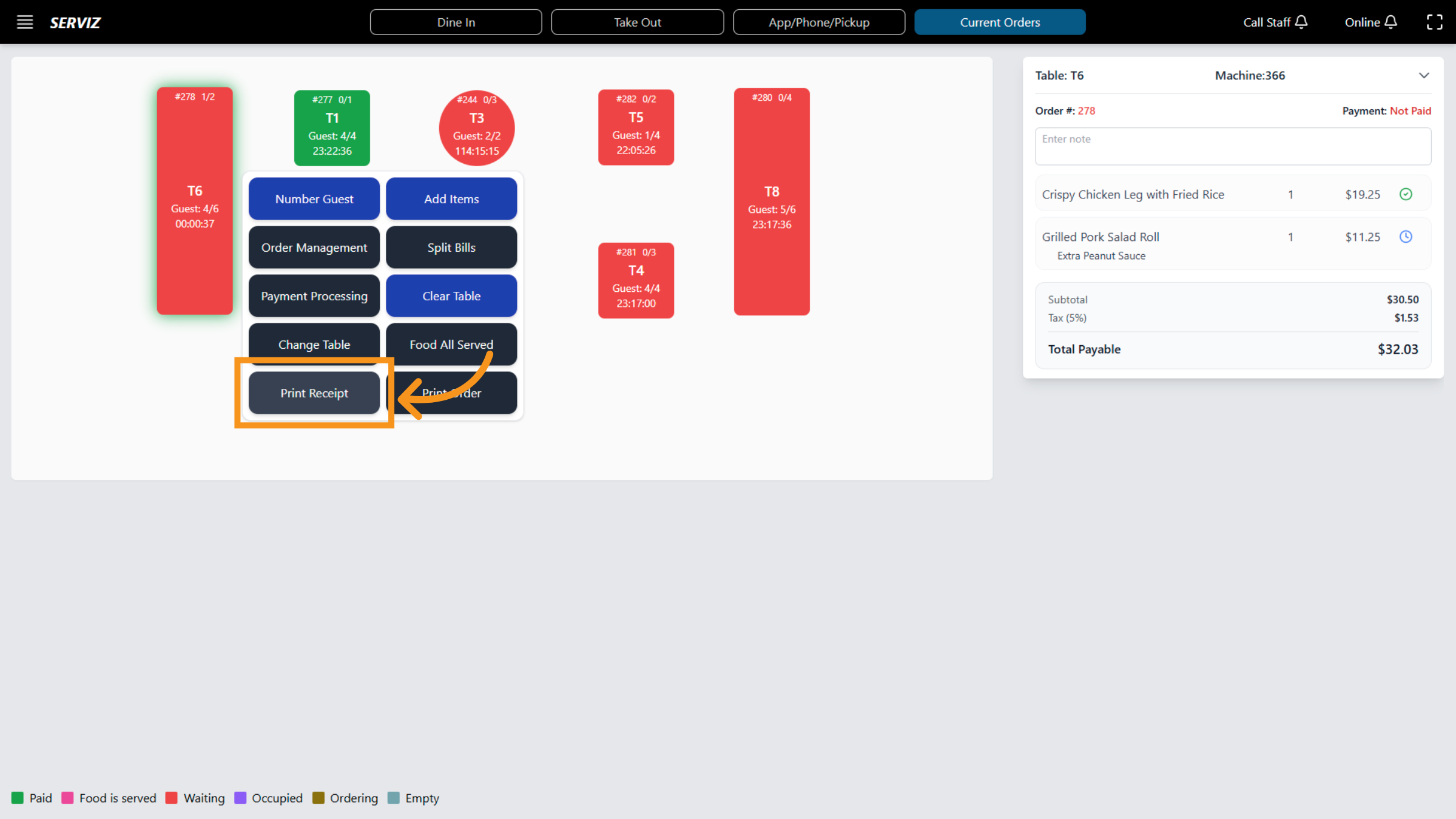
10. Print Receipt
Print Receipt to create a physical or digital copy of the order receipt.
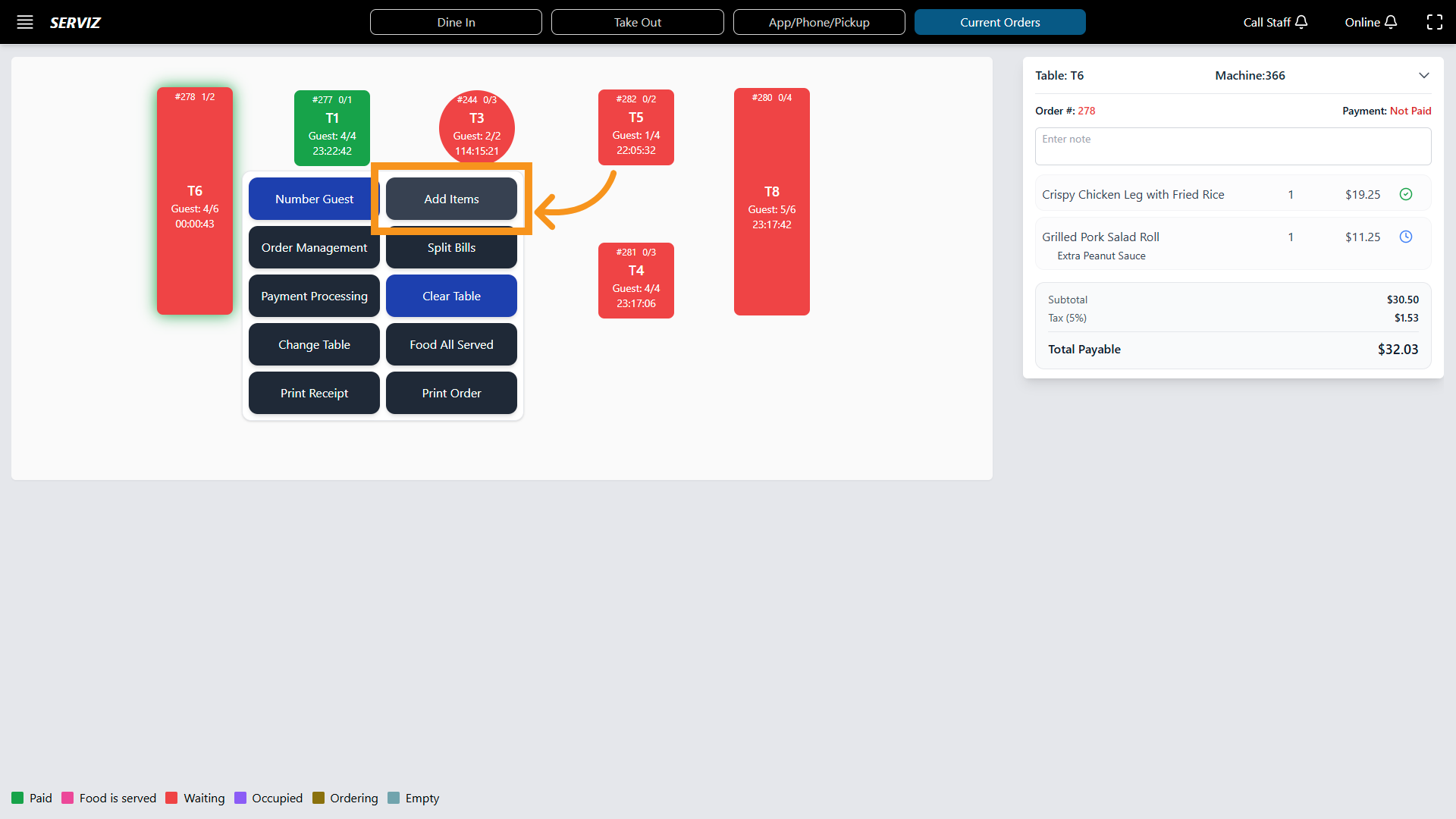
11. Add Items to Order
Add items to include more products or services in the current order.
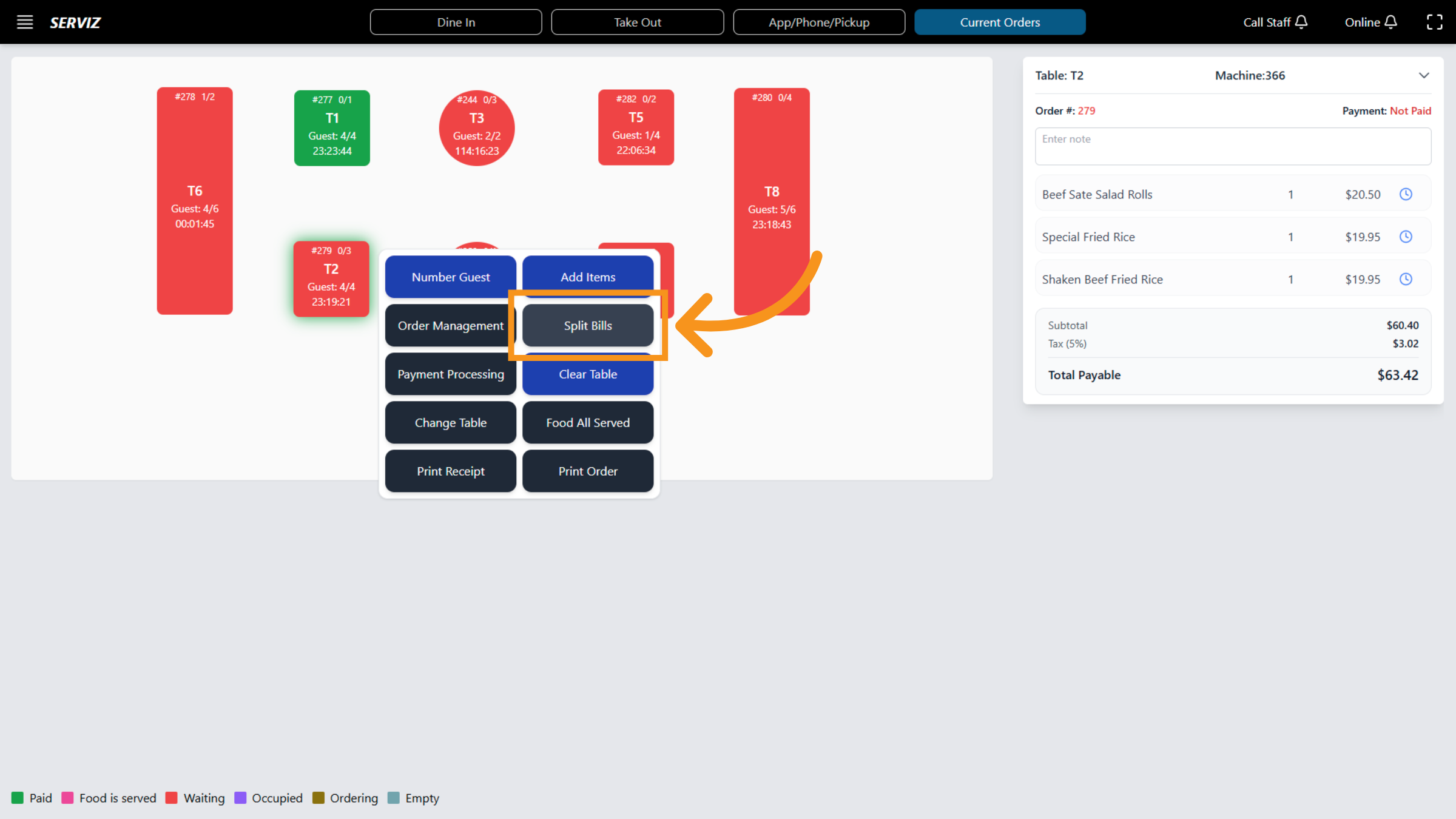
12. Open Split Bills Feature
Split bills to effectively manage the division of expenses among multiple guests or payments.
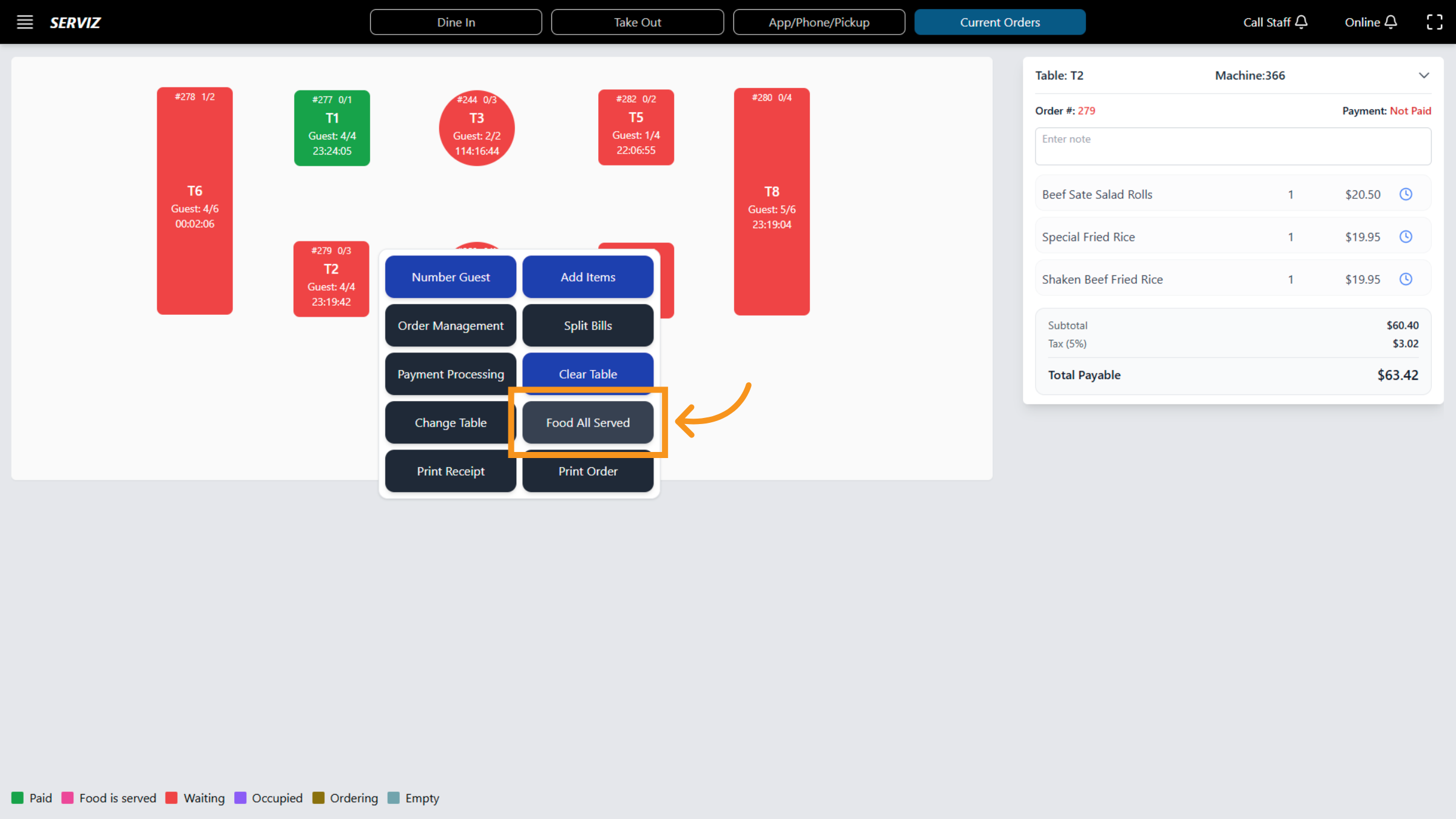
13. Mark Food as Served
Food All Served signifies that all ordered food items have been successfully delivered to the guests.
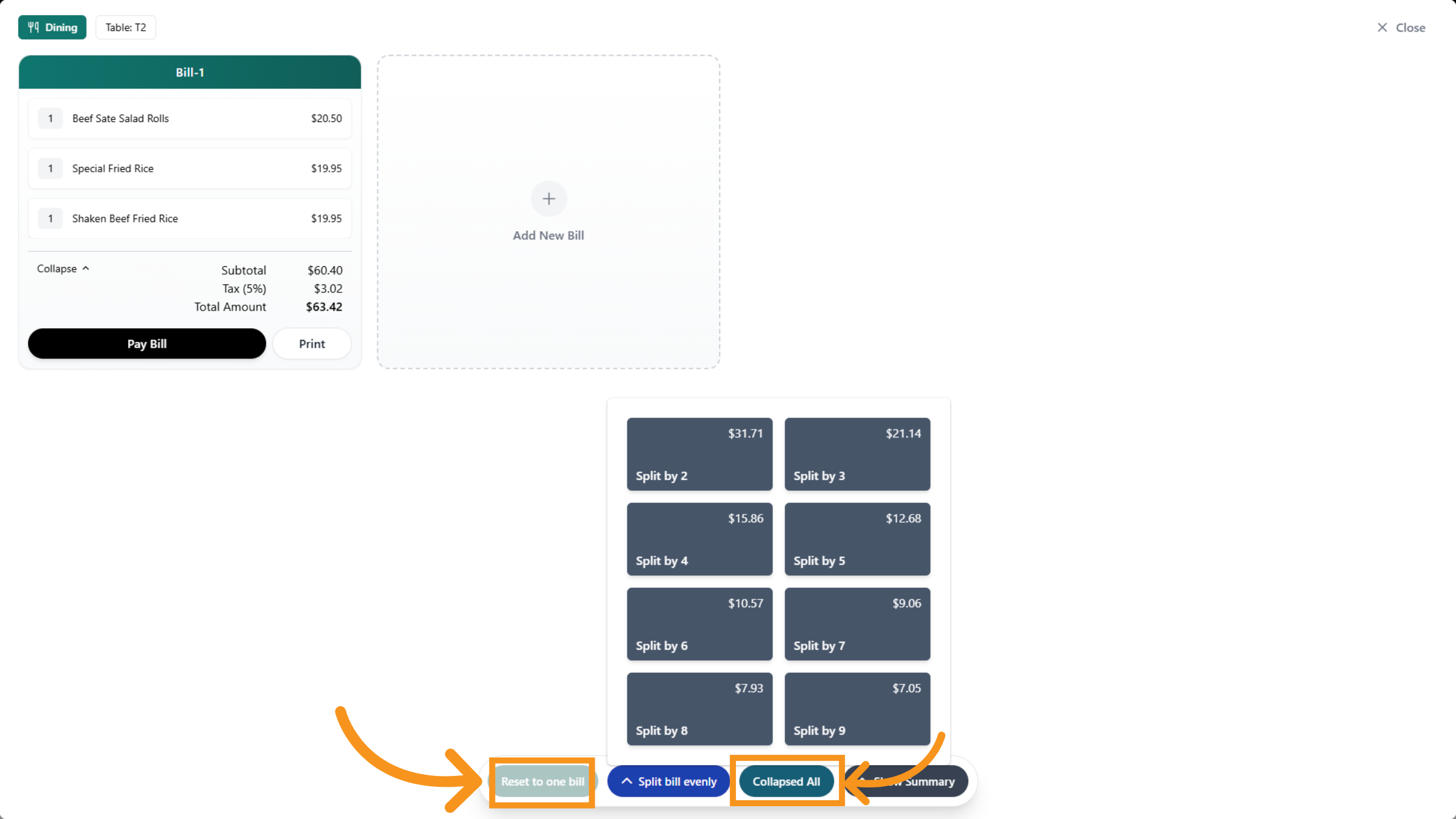
14. Reset to Single Bill
Click "Reset" to merge the split bills back into a single total.
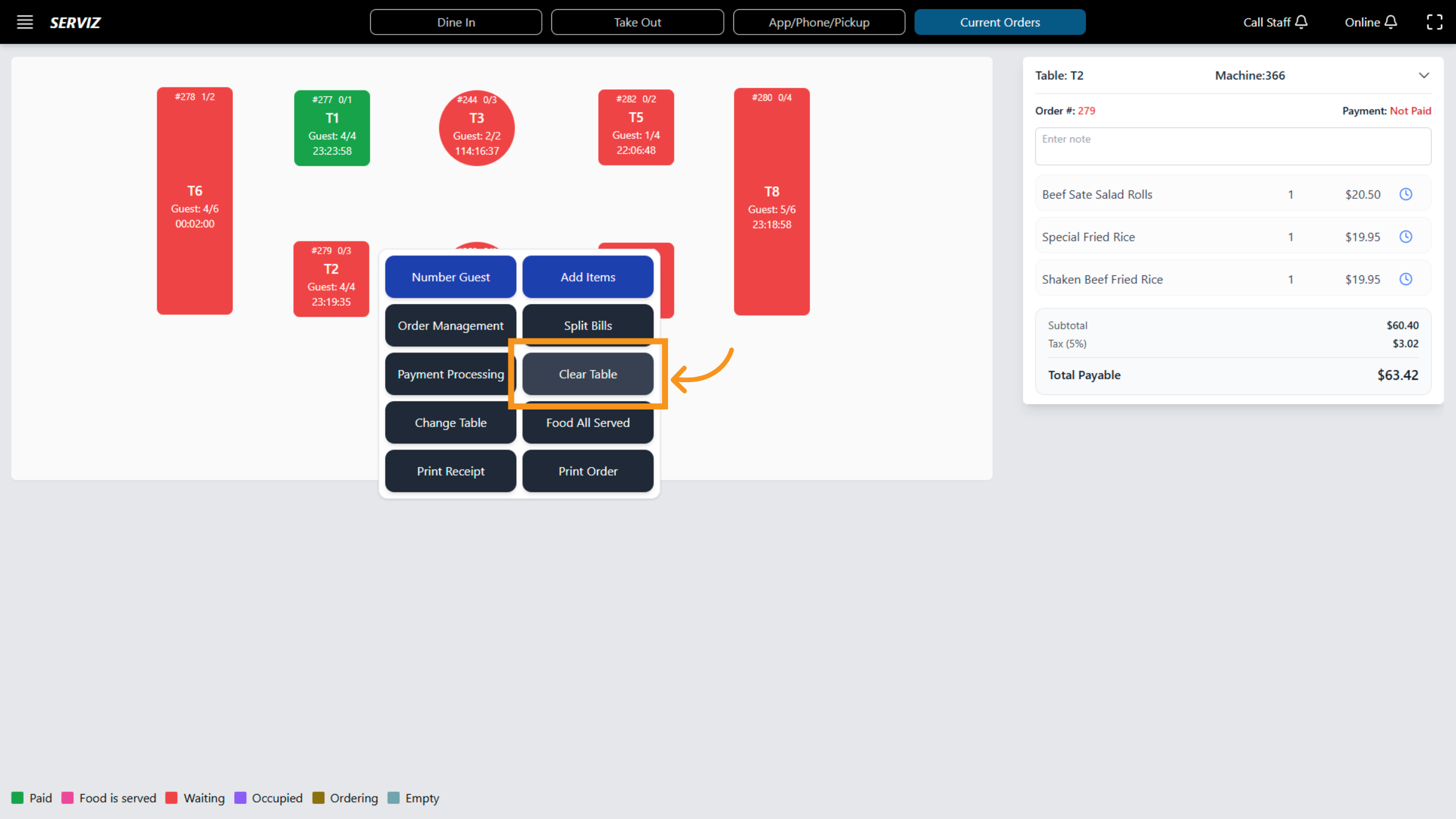
15. Clear Table Selection
Clear the table to remove the current assignment from the order.
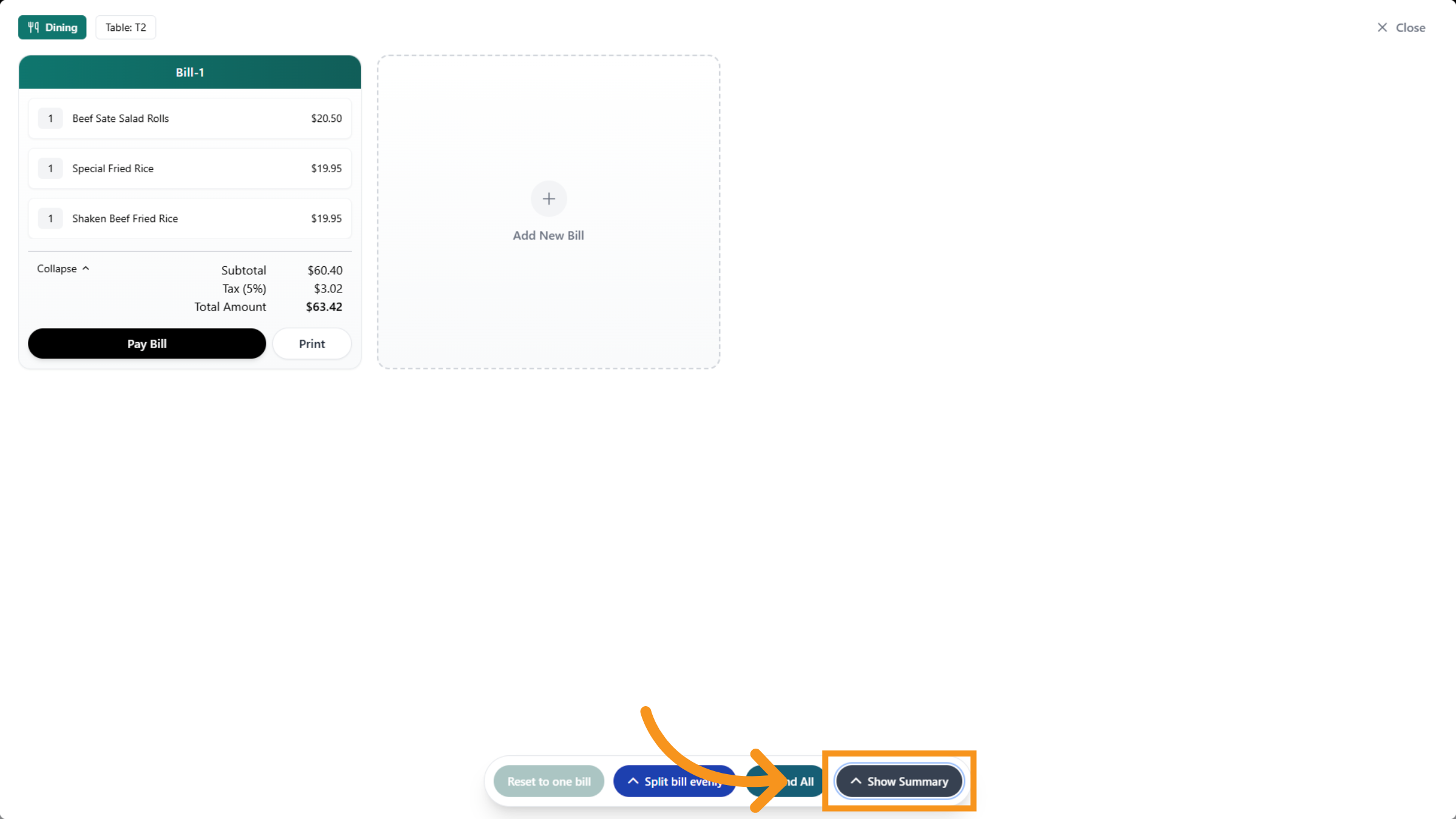
16. Show Bill Summary
Click Show Summary to display a detailed summary of the split bills.
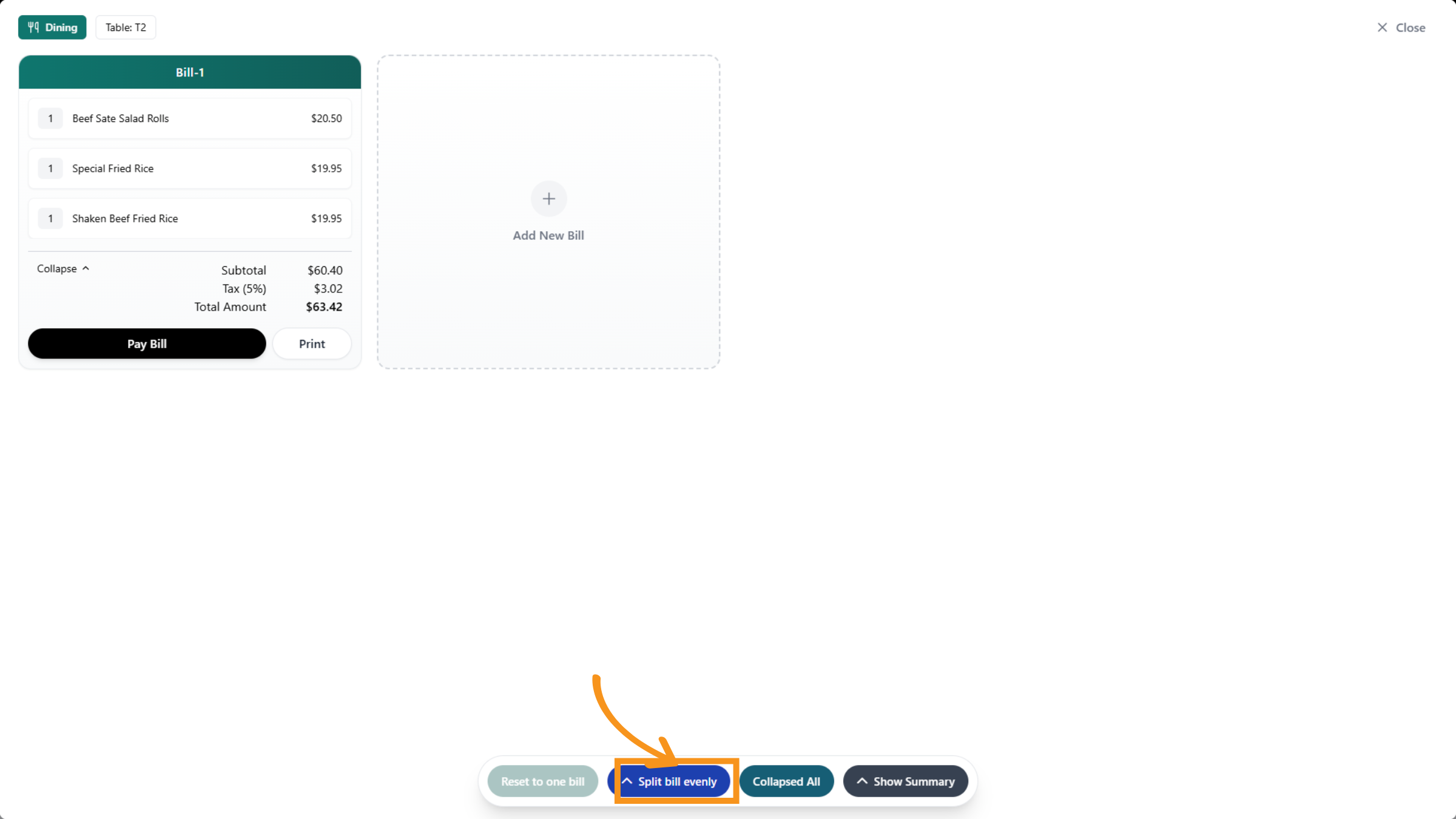
17. Split Bill Evenly
Click Split bill evenly to divide the total amount equally among all guests.
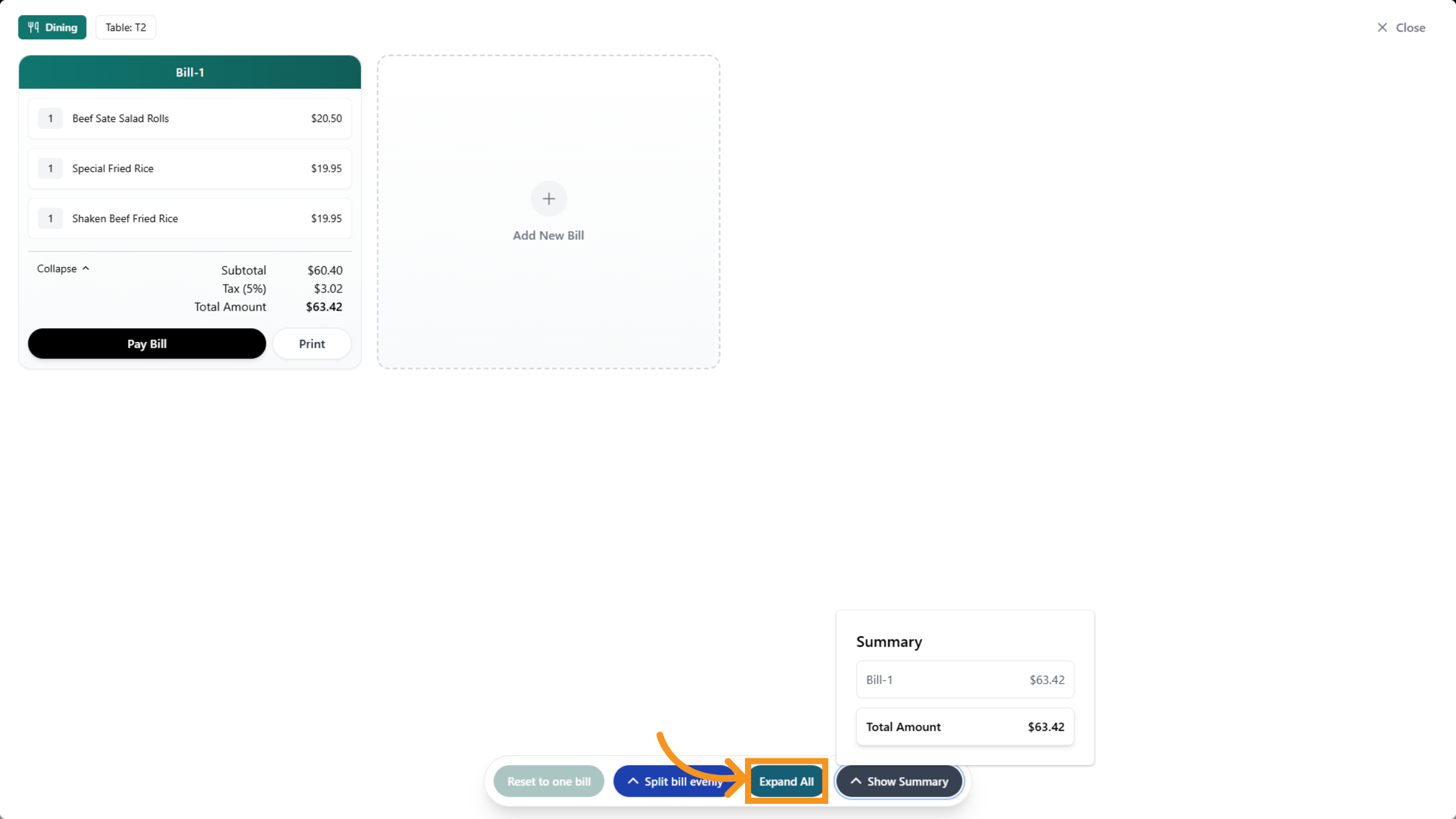
18. Expand All
Click Expand All to view all details of the split bills in expanded form.
19. Print Order Details
Click Print Order to generate a physical or digital copy of the order details.
20. Access Current Orders Again
Click "Current Orders/" again to ensure you are viewing the latest list of active orders.
You have successfully managed service areas and processed orders using the VICdigital POS system. This includes navigating orders, updating guest information, handling payments, managing tables, and printing receipts. For further assistance, explore related tasks such as advanced payment options or detailed reporting features.