
PROCESS ORDERS - ORDER HISTORY -SELF SERVE
Process Orders And Review History In VICDIGITAL POS

This tutorial guides you through processing orders , reviewing order history and Self serve in the VICDIGITAL POS system.
Go to serviz.ca
1. Introduction
We will guide you on how to navigate the interface, access order details, view order history, and effectively manage self-service options.
2. Process Orders
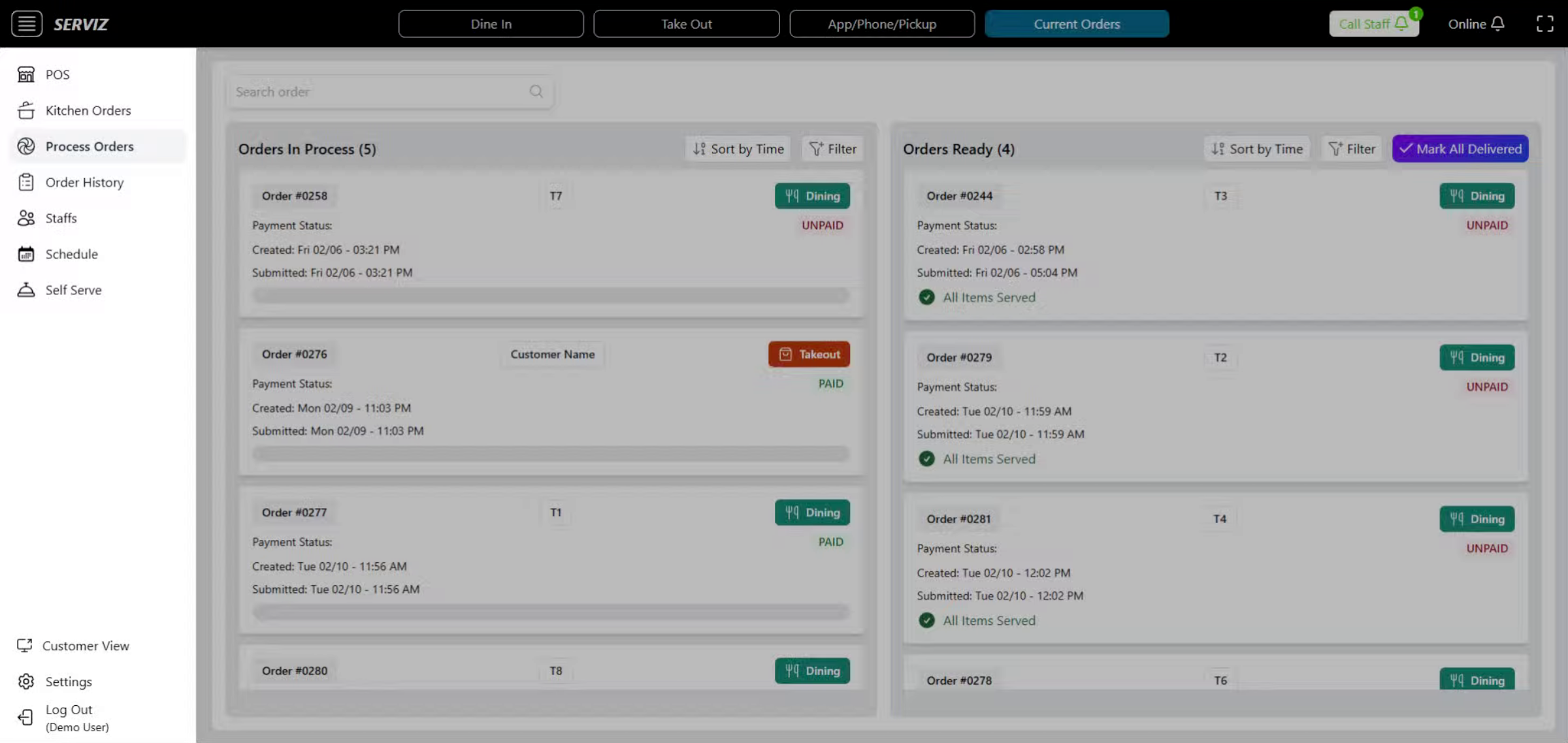
The system automatically directs you to Process Orders, where orders are grouped as: Orders in Process and Orders Ready to Serve
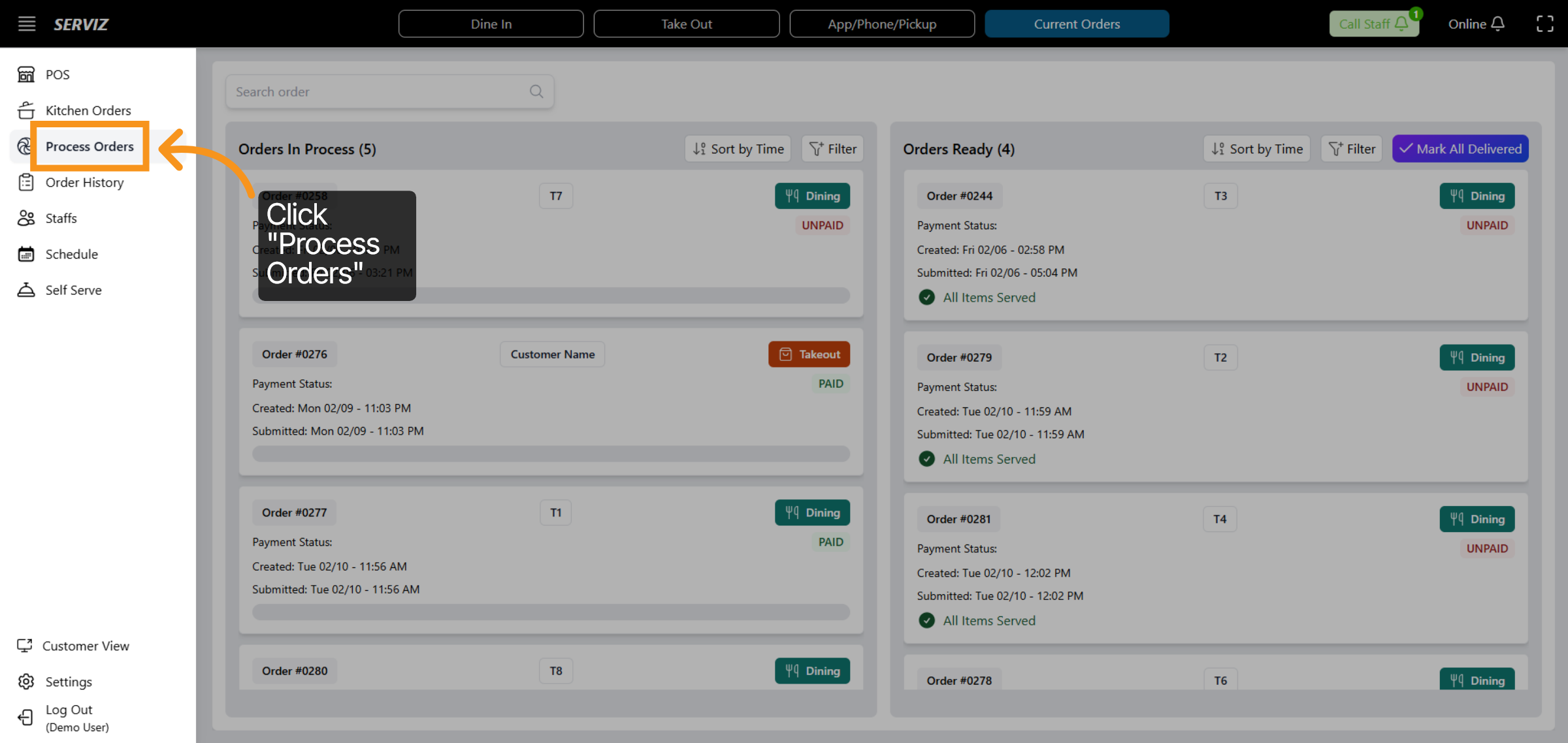
3. Access Process order
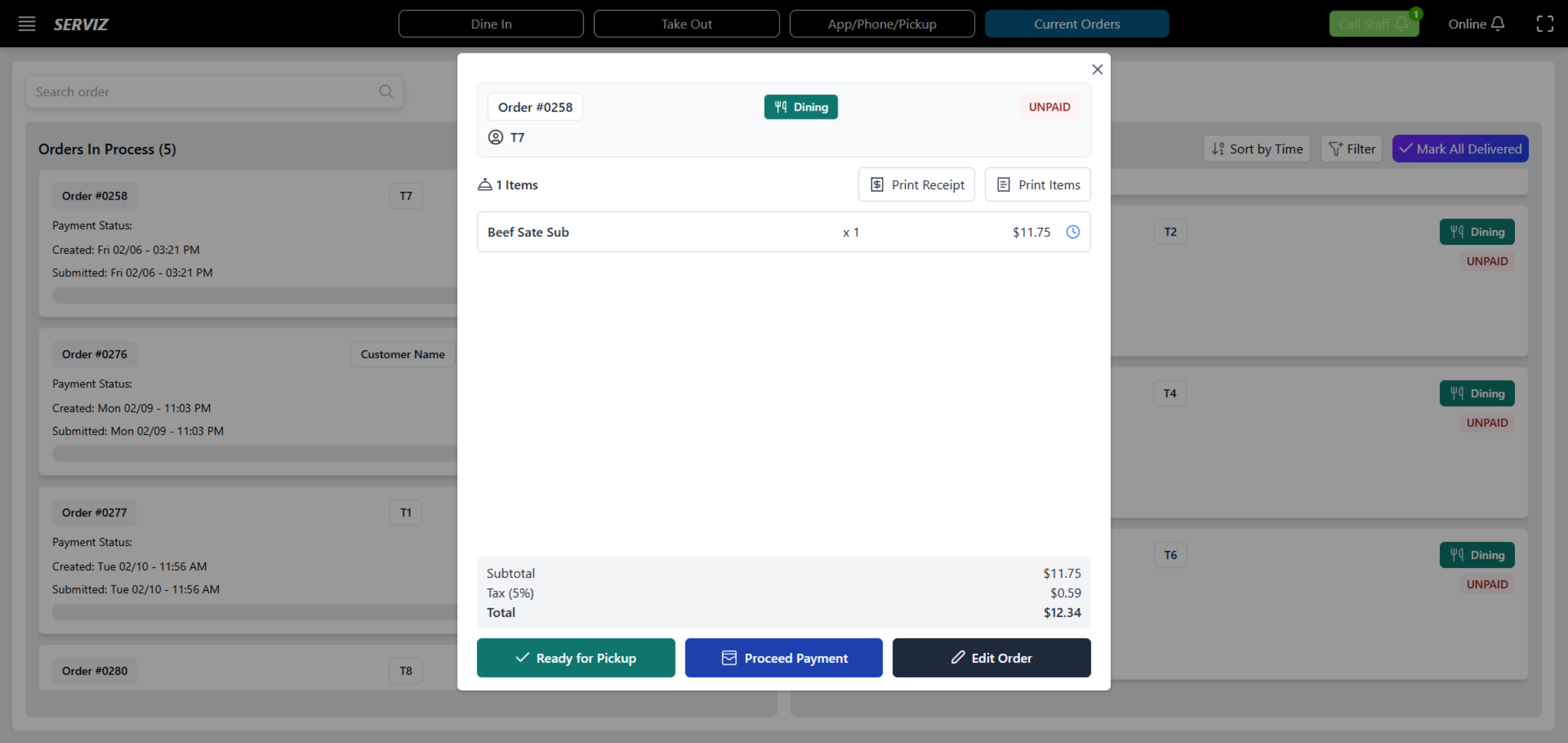
On this page, you can view all the orders, enabling you to monitor the status of each table.
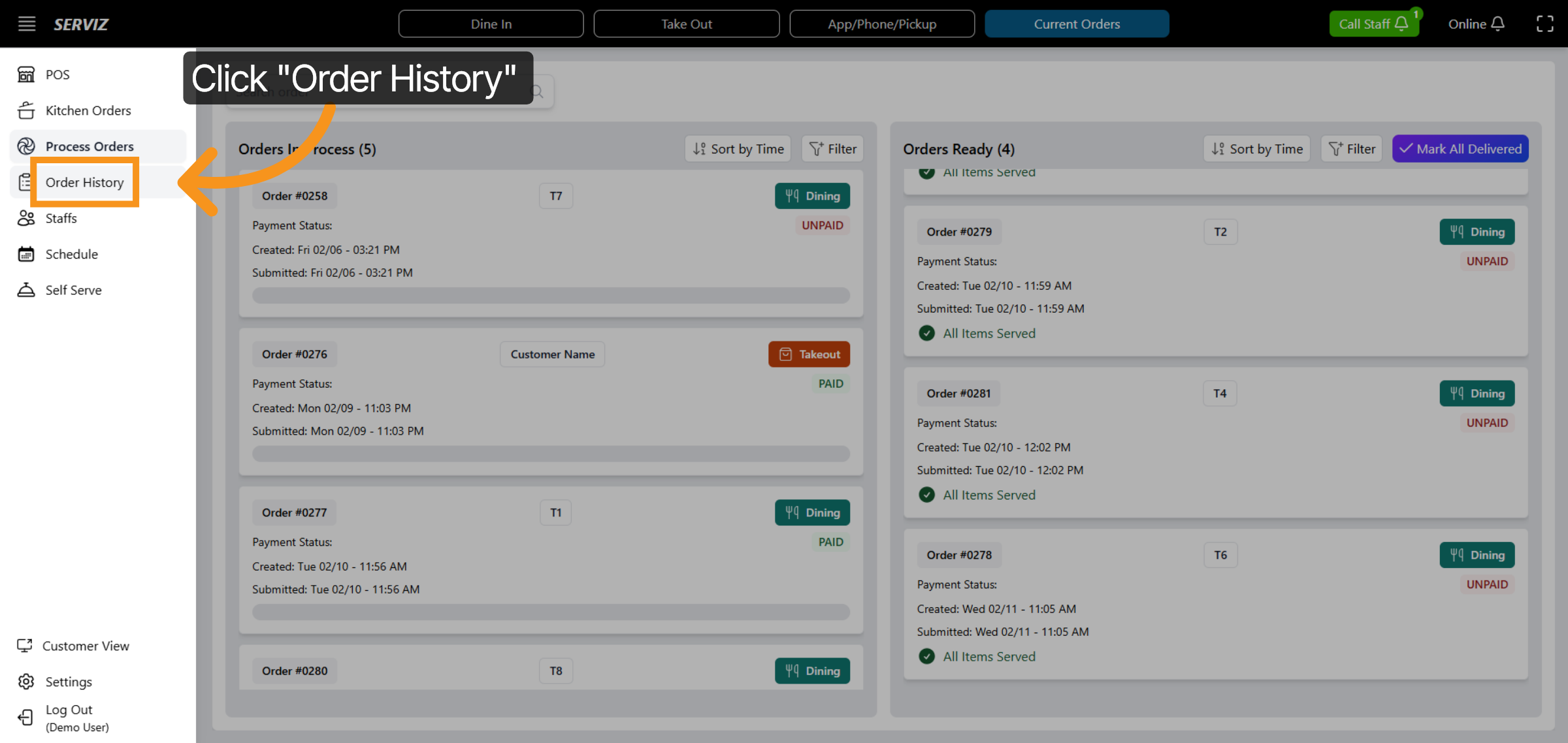
4. Click Order History
Now, let's click Order History to review all orders and transaction records.
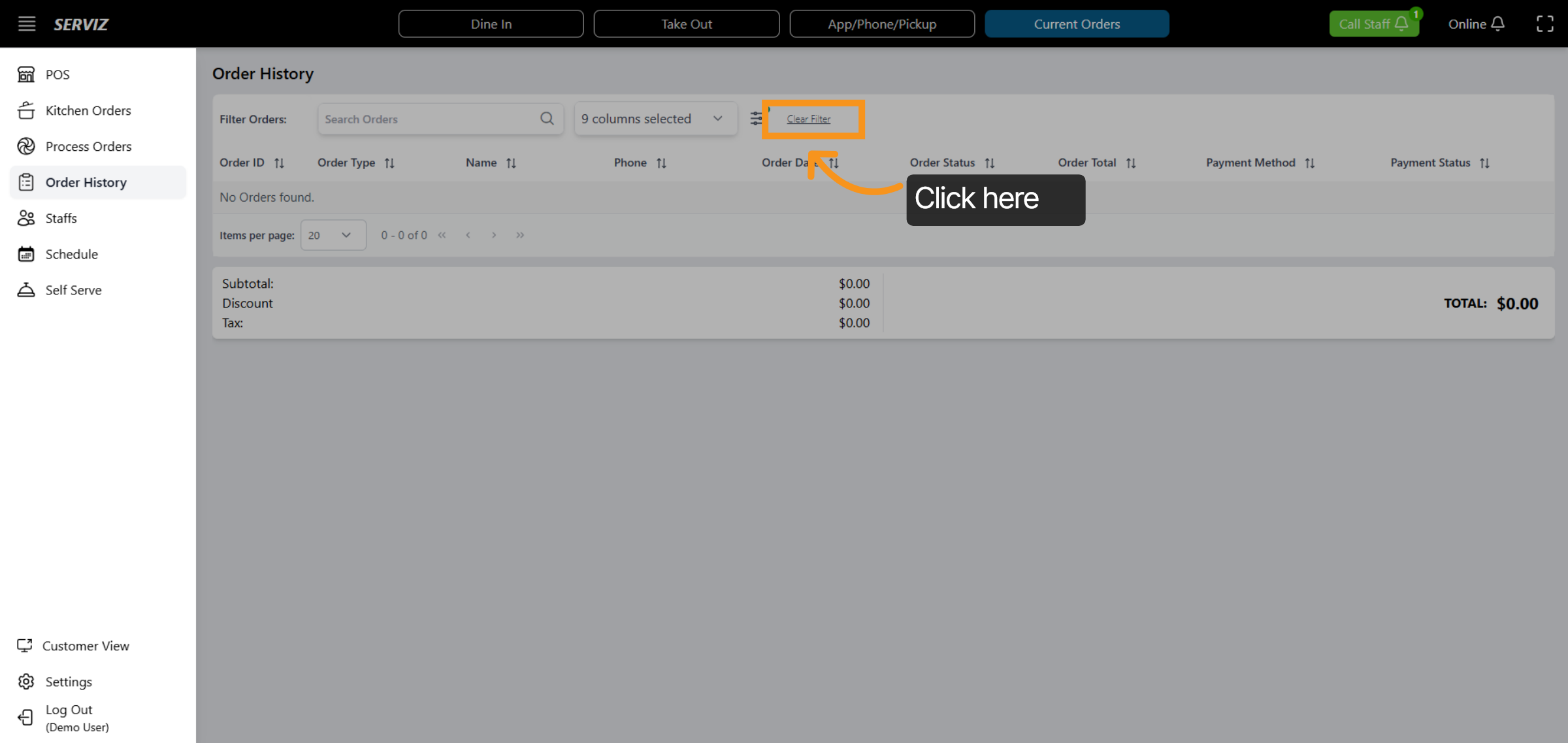
5. Order History Filters
Within the Order History section, you can search orders by Order ID, Order Type, customer name, phone number, Date, Status, Total, Payment Method, and Payment Status.
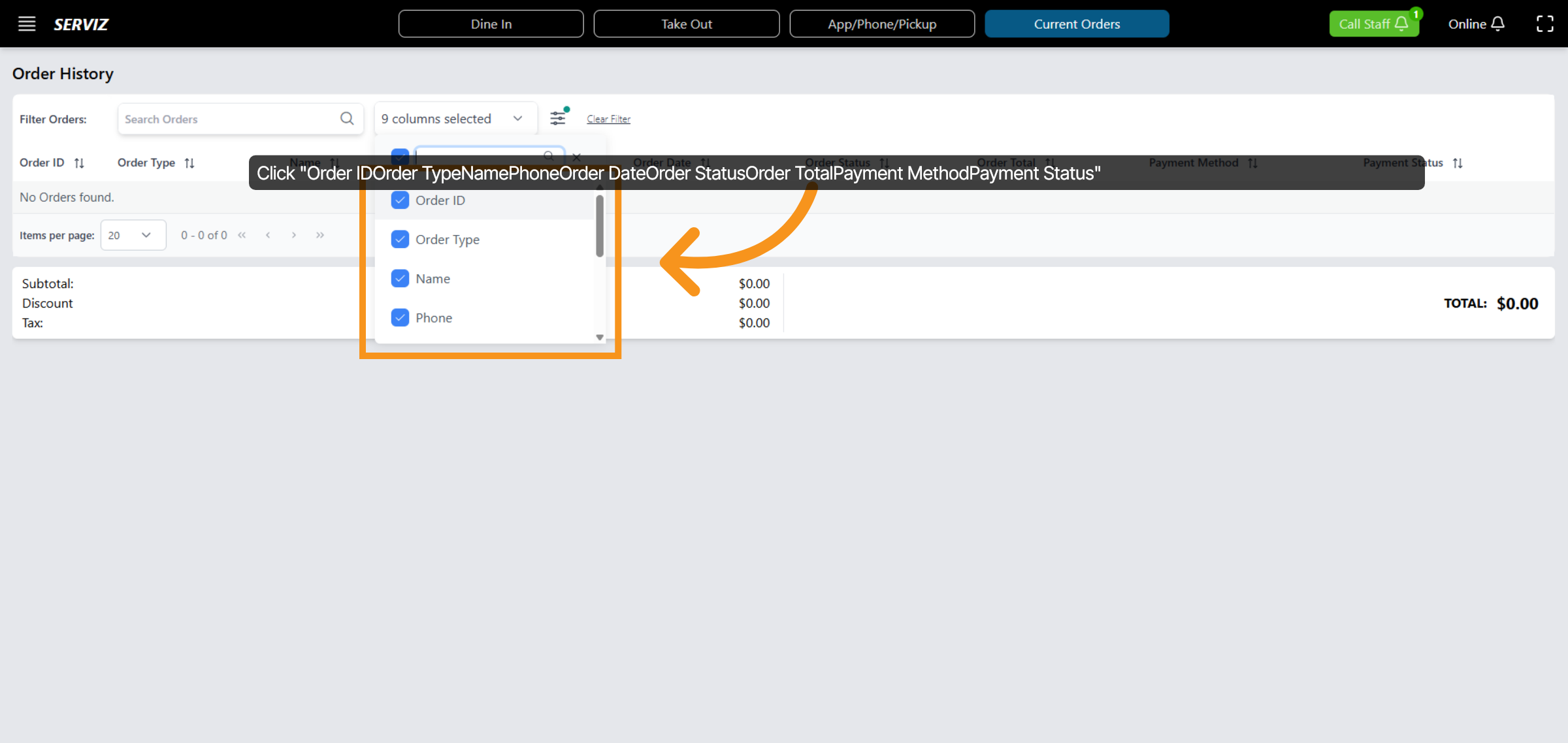
6. Click Order History Columns
Click the Order History columns to customize which order details are displayed, such as Order ID, Order Type, Name, Phone, Order Date, Order Status, Order Total, Payment Method, and Payment Status.
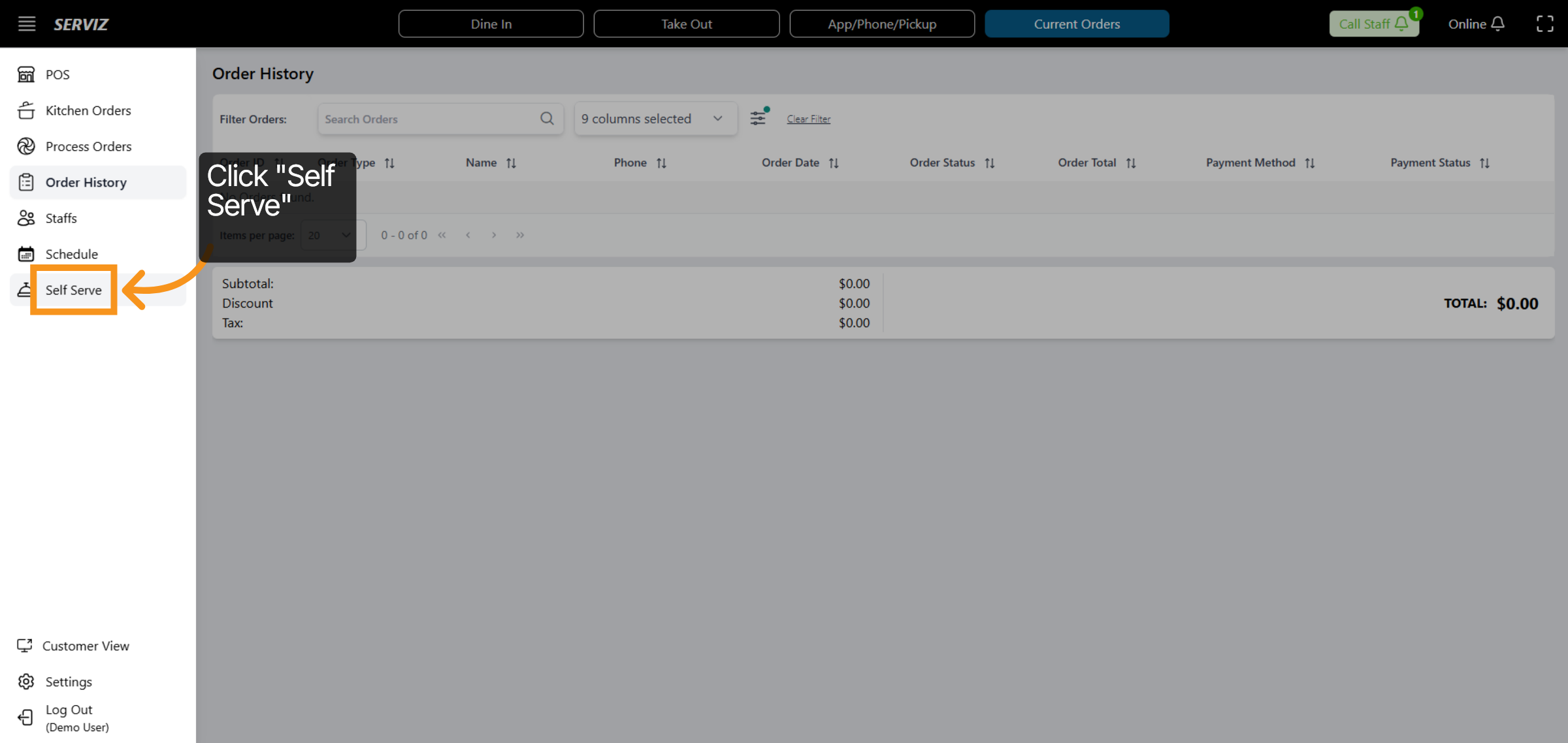
7. Self Serve
Click Self Serve to access orders placed through the self-service option.
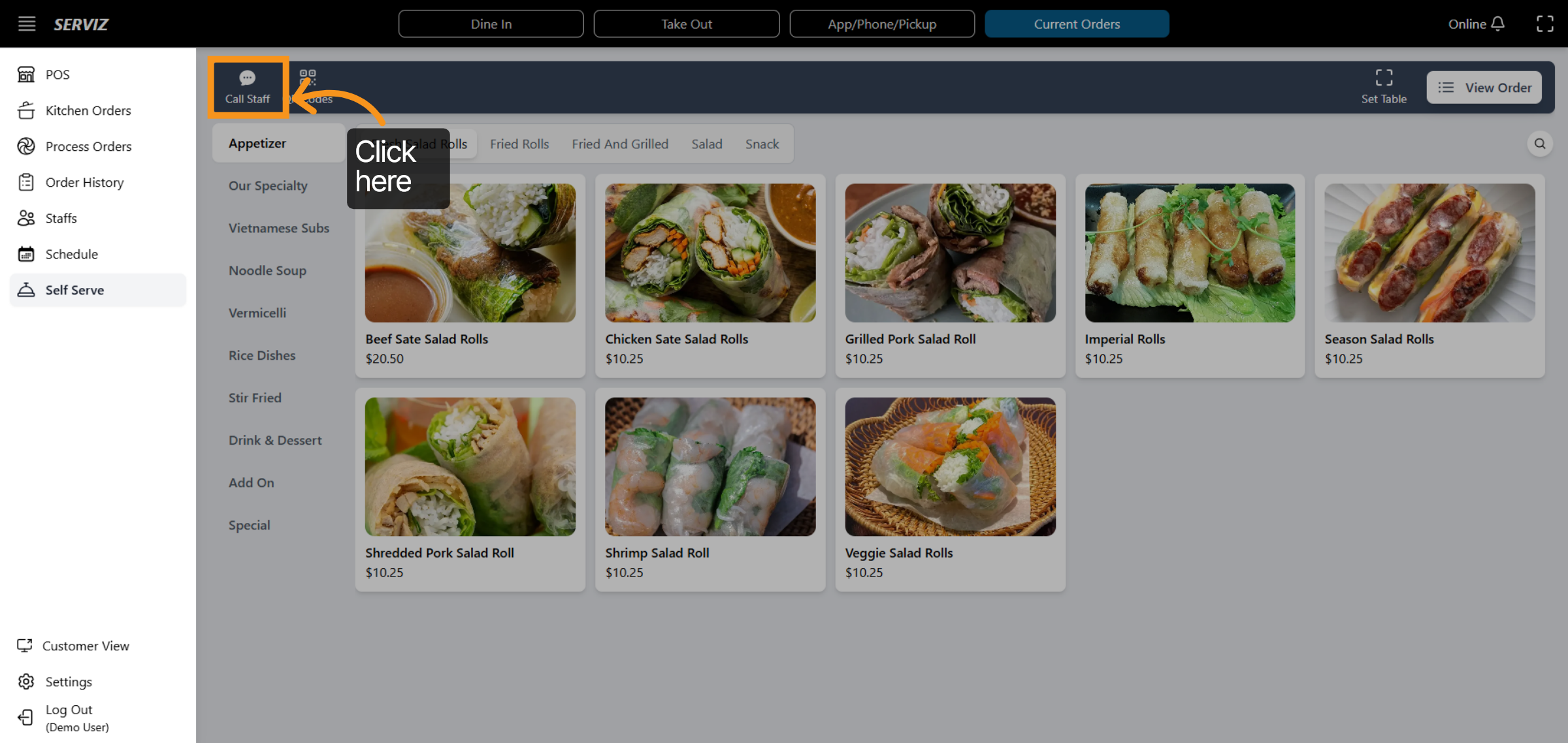
8. Self Serve Interface
In this section, customers can view the full menu. They can use the Call Staff button to notify staff members or send requests.
9. Set Table Configuration
Employees can click on Set Table to assign or modify table settings in the POS
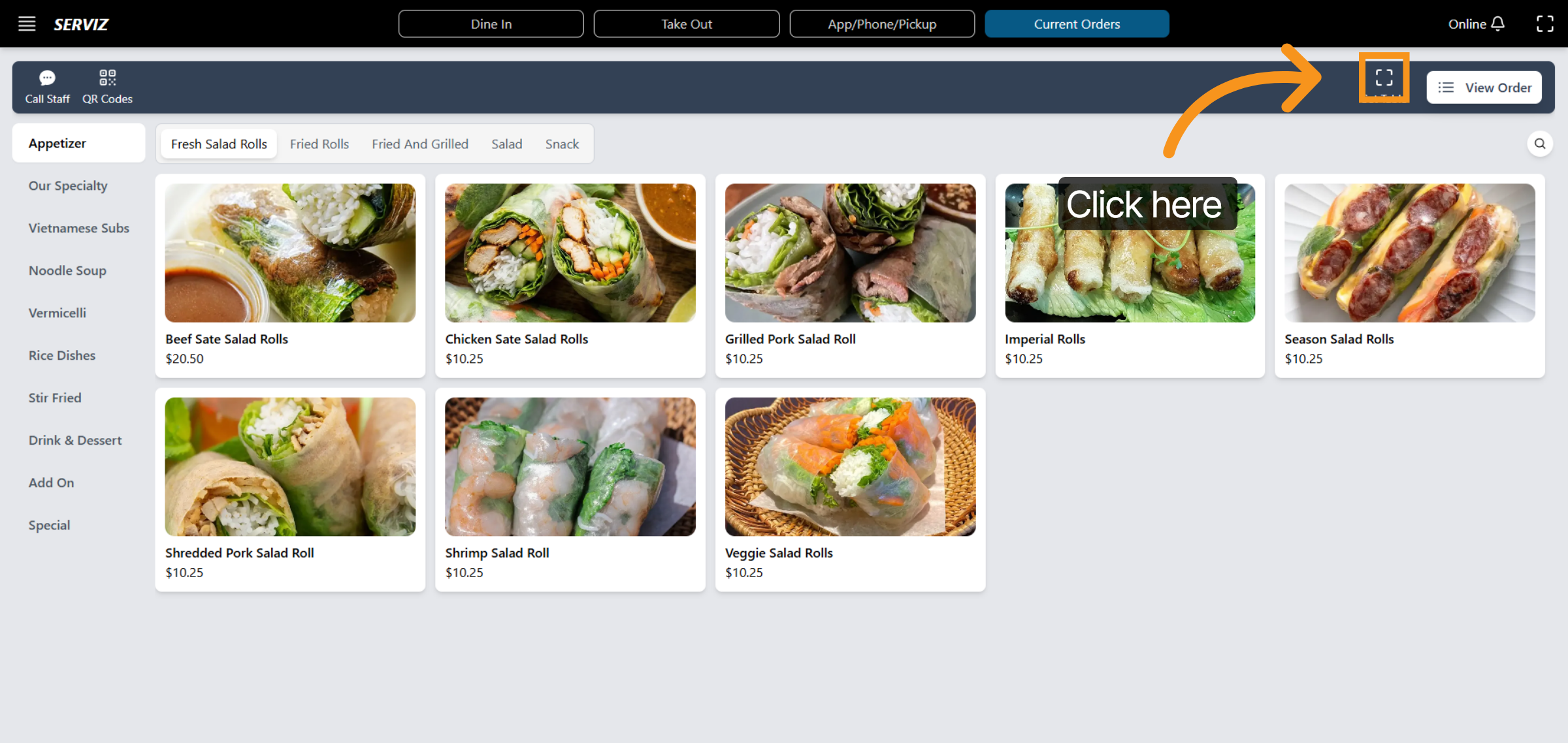
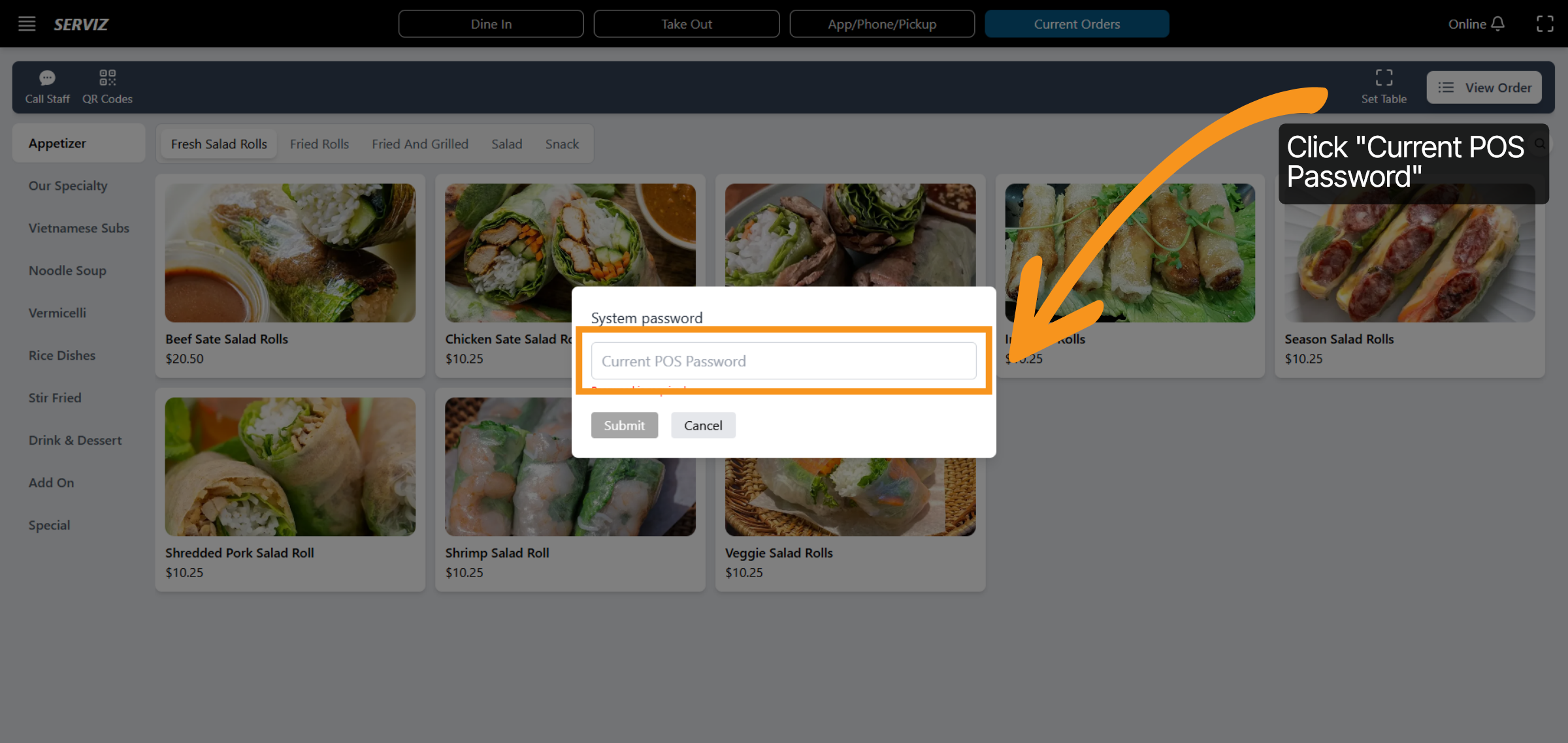
10. Set Table
Click the Current POS Password field to Set table .
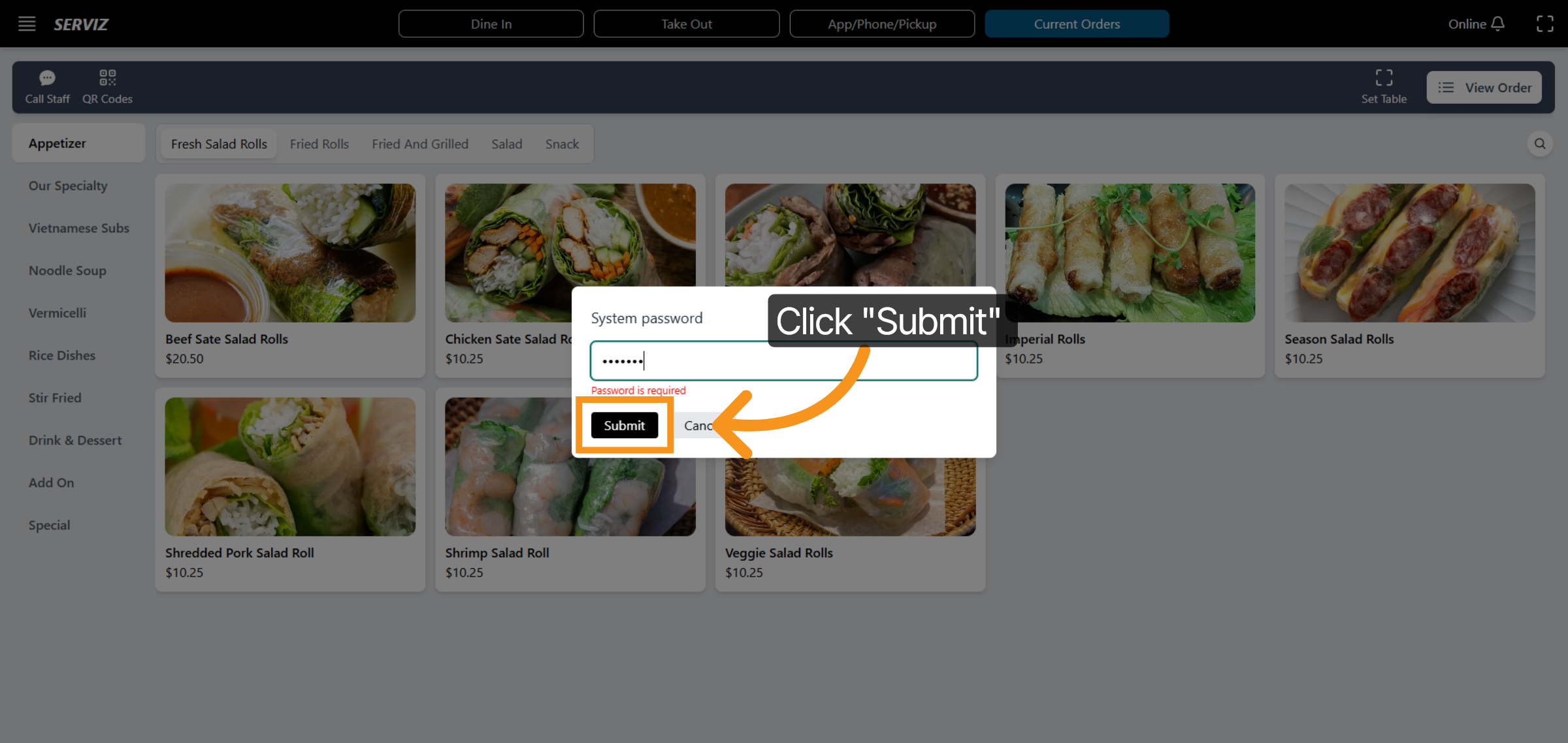
11. Click Submit Button
Click Submit to confirm your password and continue.
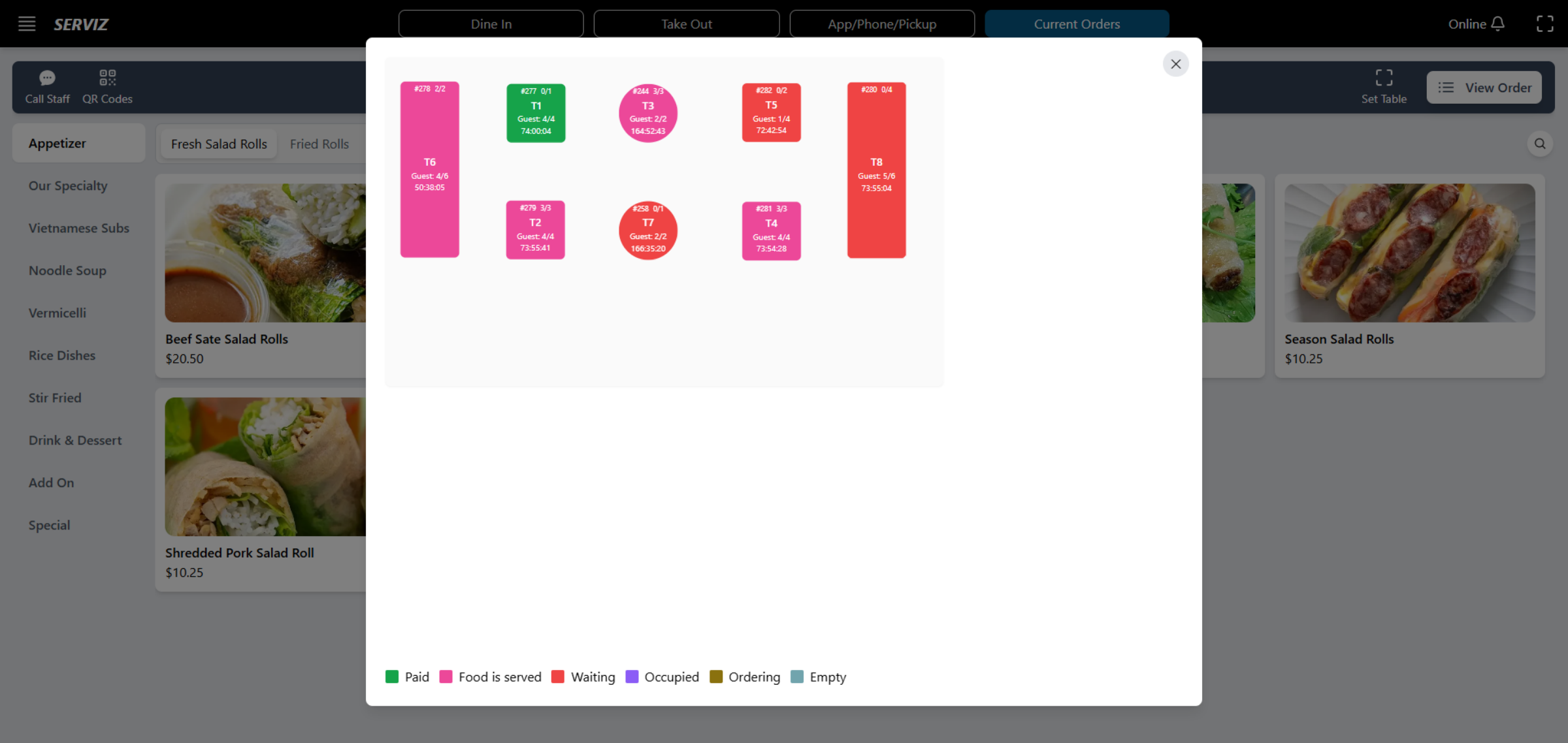
12. Table layout
At this point, the table layout will appear, and the information will be used to set up a table for the guests (including the number of customers, table number...).
13. Select Next Self Serve Interface
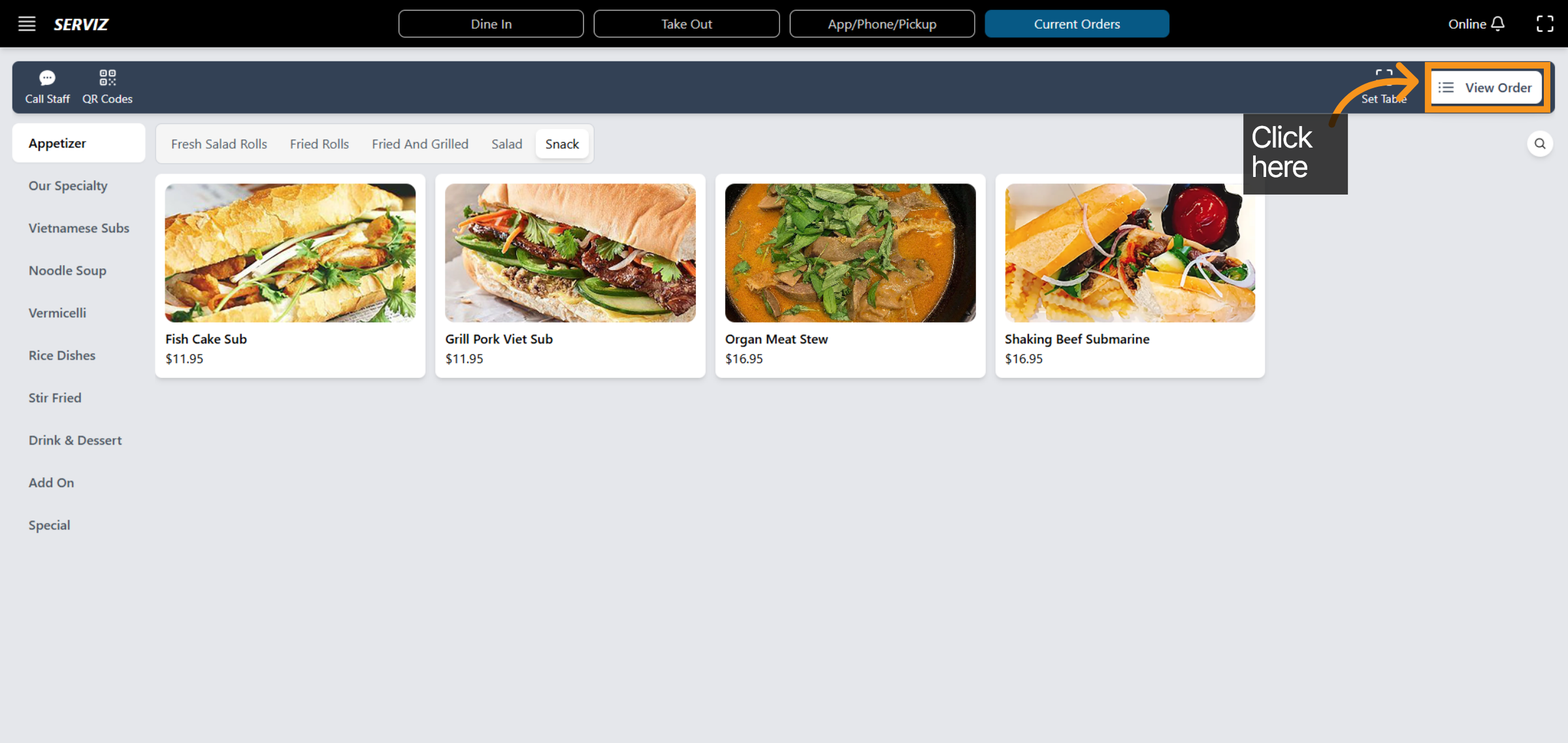
In the top-right corner, customers can click “View Order” to review and modify their cart, then send the order to the kitchen.
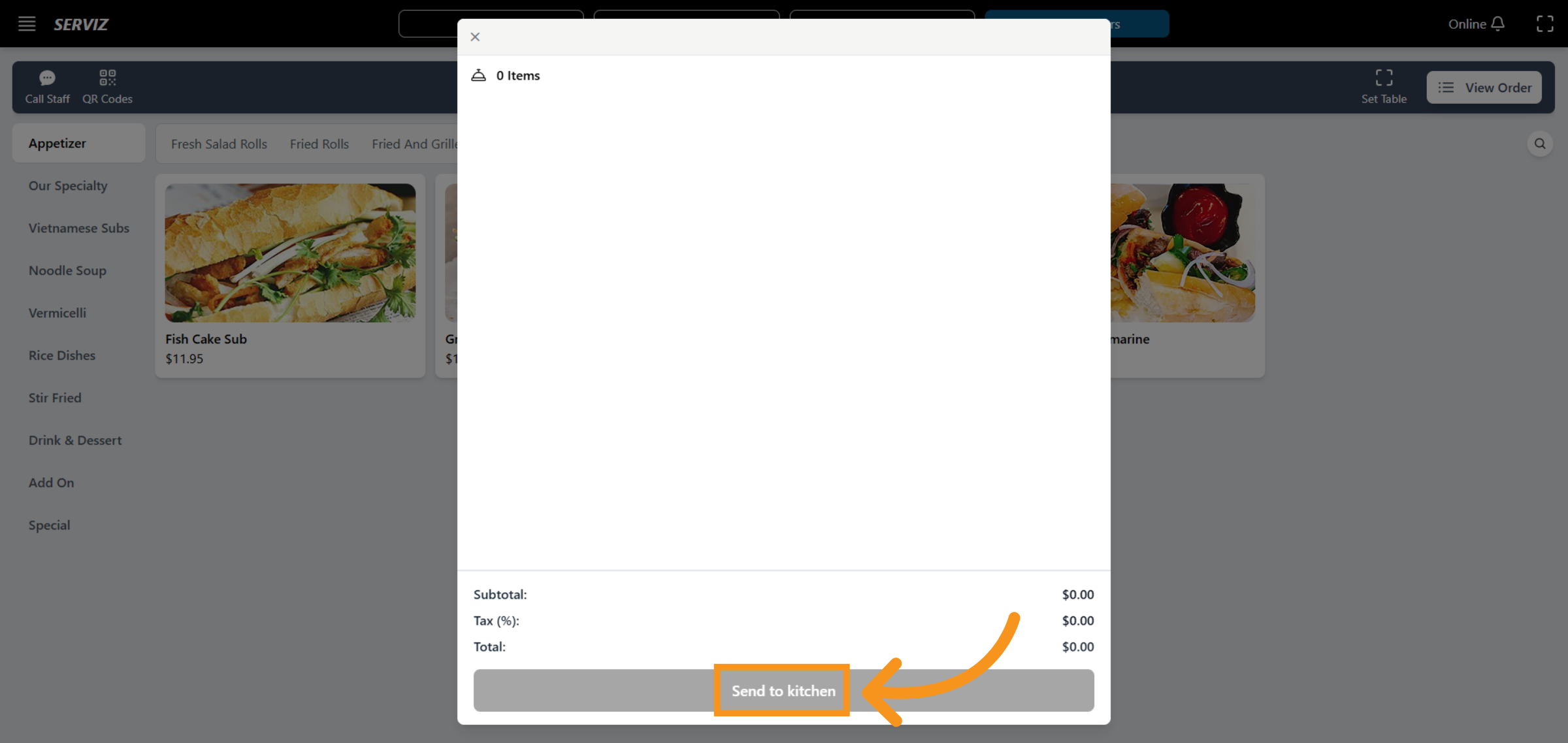
14. Send To Kitchen
Click the Send to Kitchen button to forward the selected items for preparation.
You have successfully processed orders, reviewed order history, and managed self-serve options within the VICDIGITAL POS system. Continue exploring related features to optimize your order management experience.