
PROCESS ORDERS - ORDER HISTORY -SELF SERVE
Process Orders Efficiently Using Serviz POS System
This tutorial guides you through processing orders -Order History - Self Serve, using the VICdigita POS system.
Go to serviz.ca
1. Introduction
We will guide you on how to navigate the interface, access order details, view order history, and effectively manage self-service options via Process order
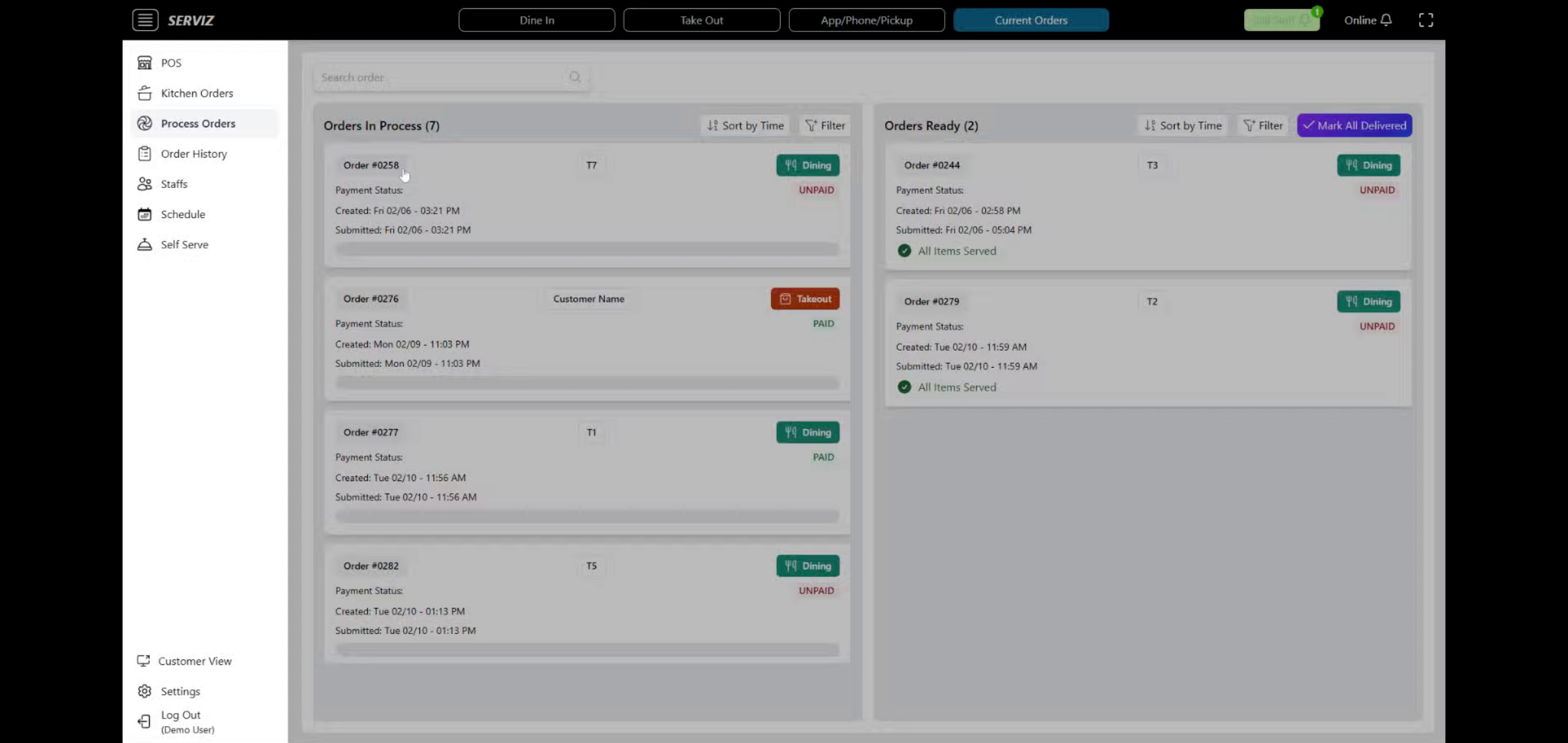
2. Process Orders
Access the system automatically directs you to Process Orders, where orders are grouped as: Orders in Process
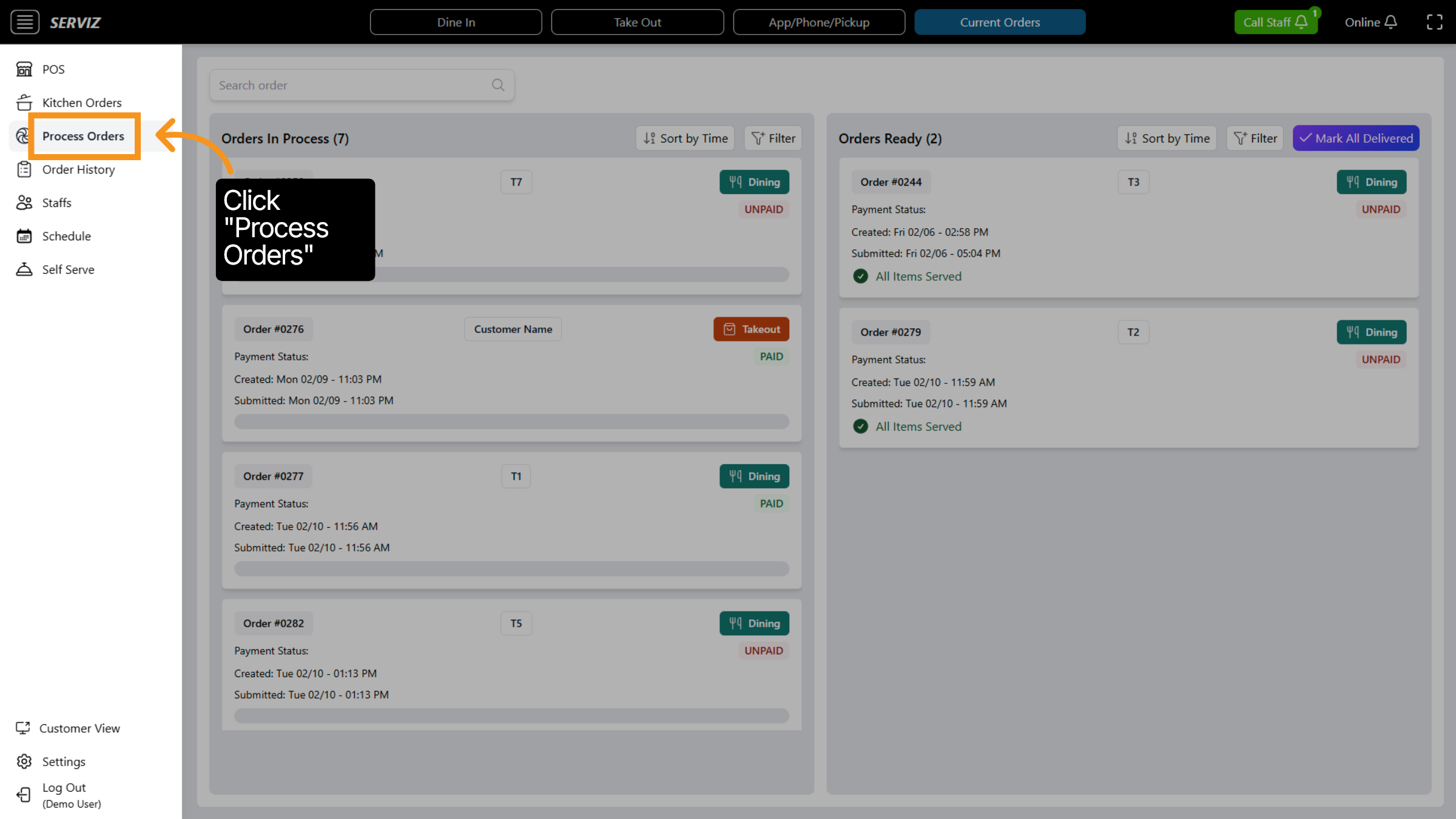
3. Access Search Order
Filling in any Table No in the Search Order button to locate specific orders for processing or review. Click on "Takeout" or "Dining" to view the order details.
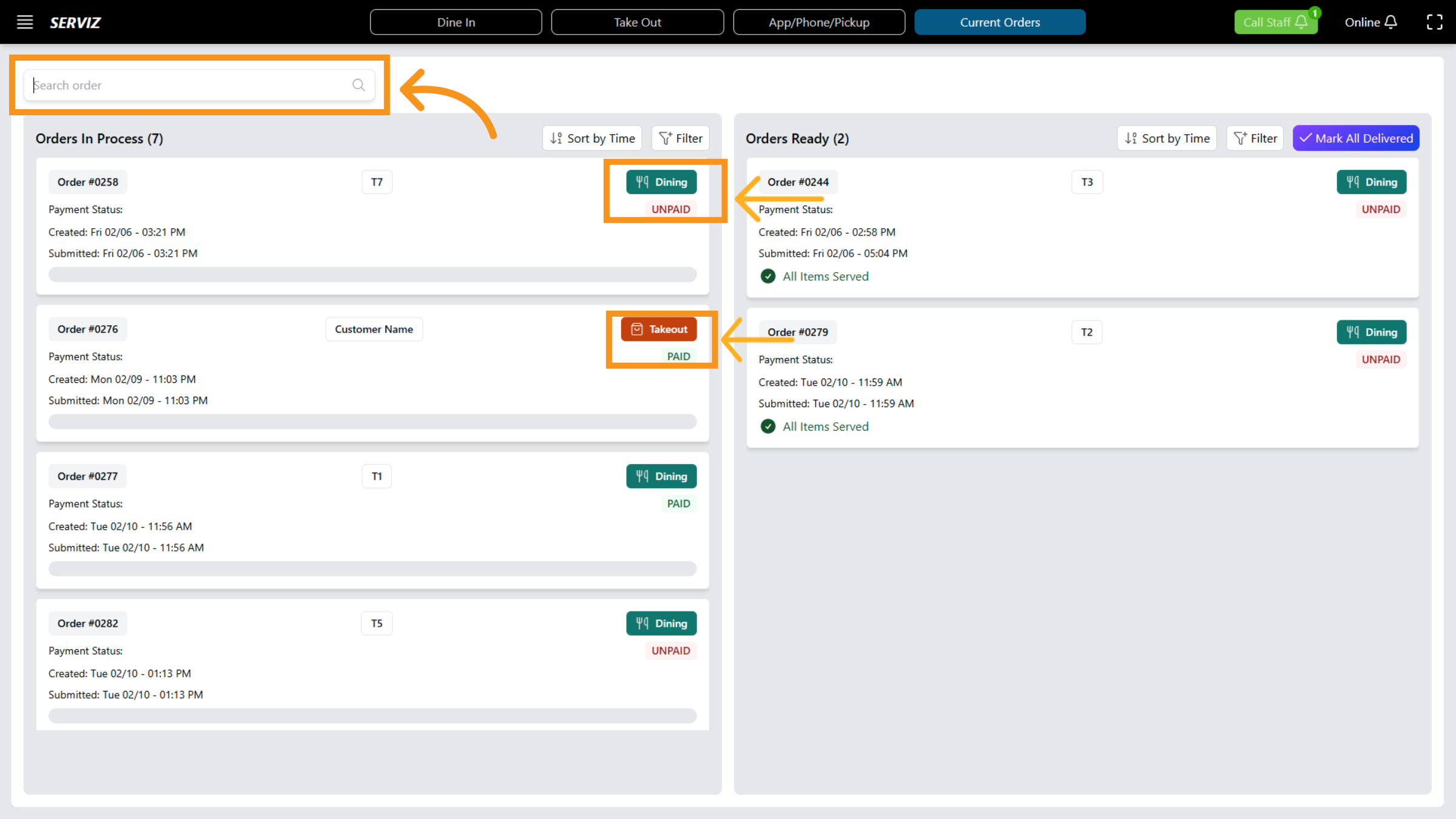
4. Check Dining Option
Select the Table No - dining option to filter orders related to dine-in customers.
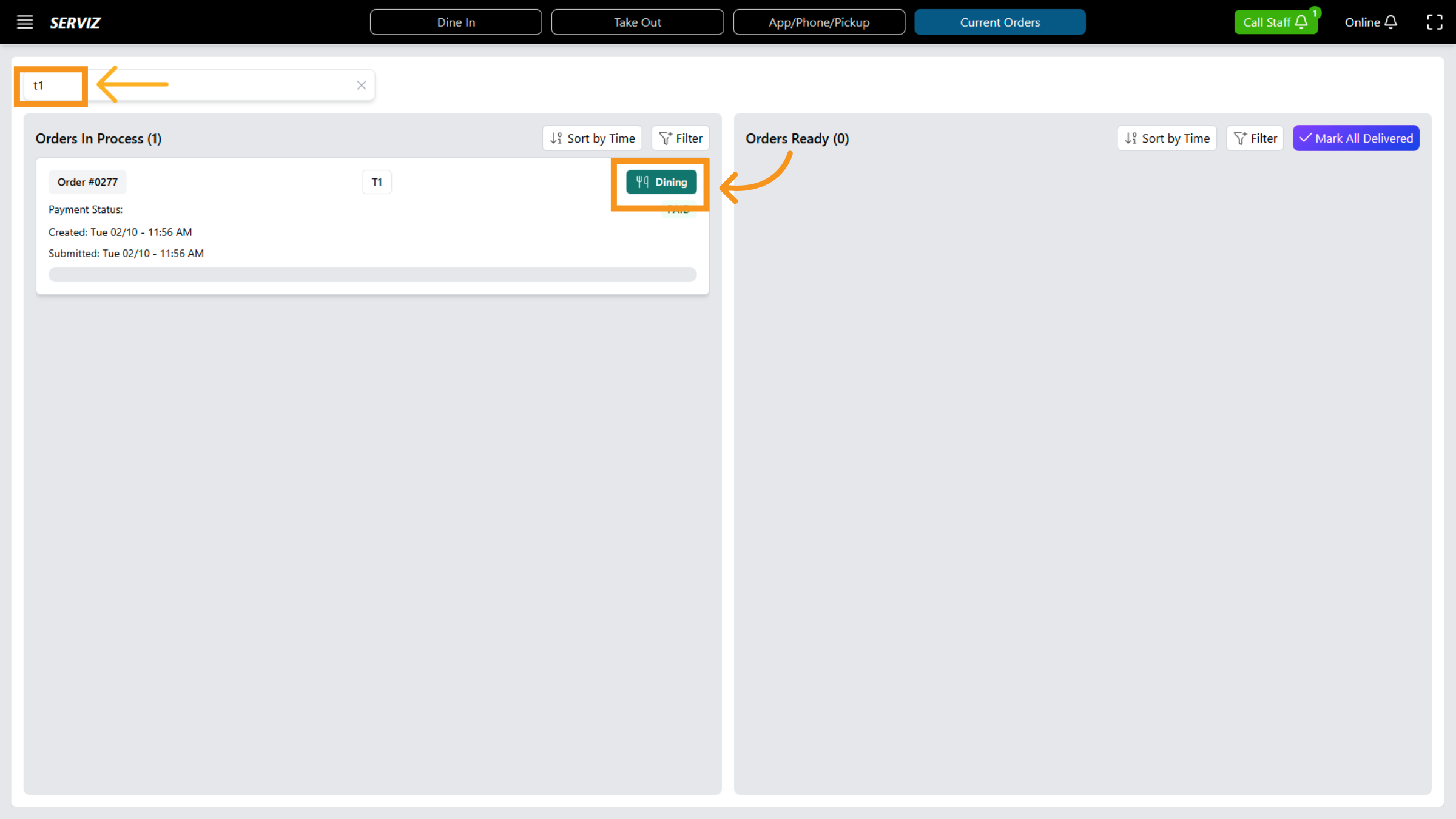
5. Access Additional Options
On this page, you can view all the orders, enabling you to monitor the status of each table.
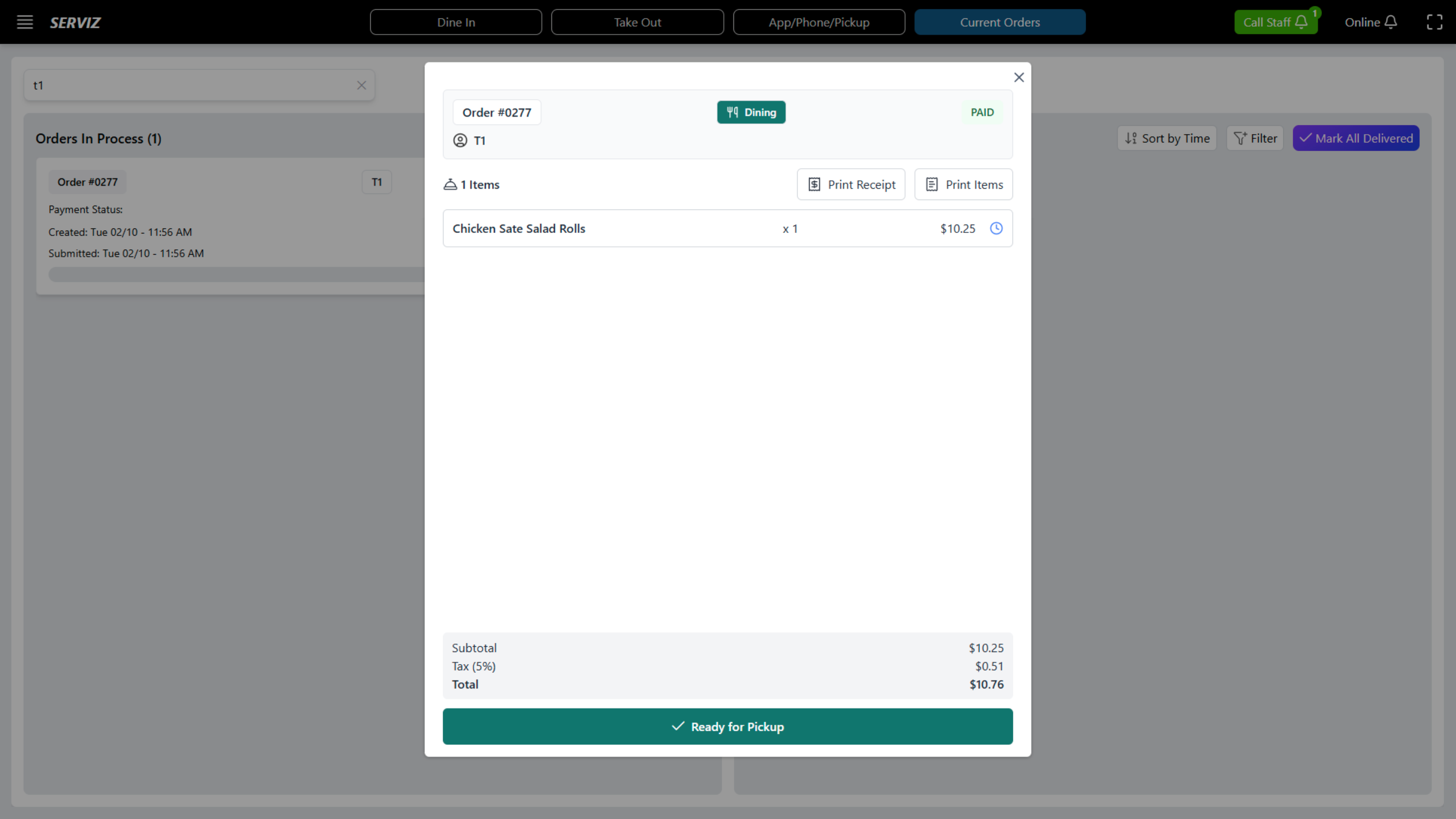
6. Access Mark All Items Served
Click the All Items Served option to indicate that all ordered items have been delivered to the customer.
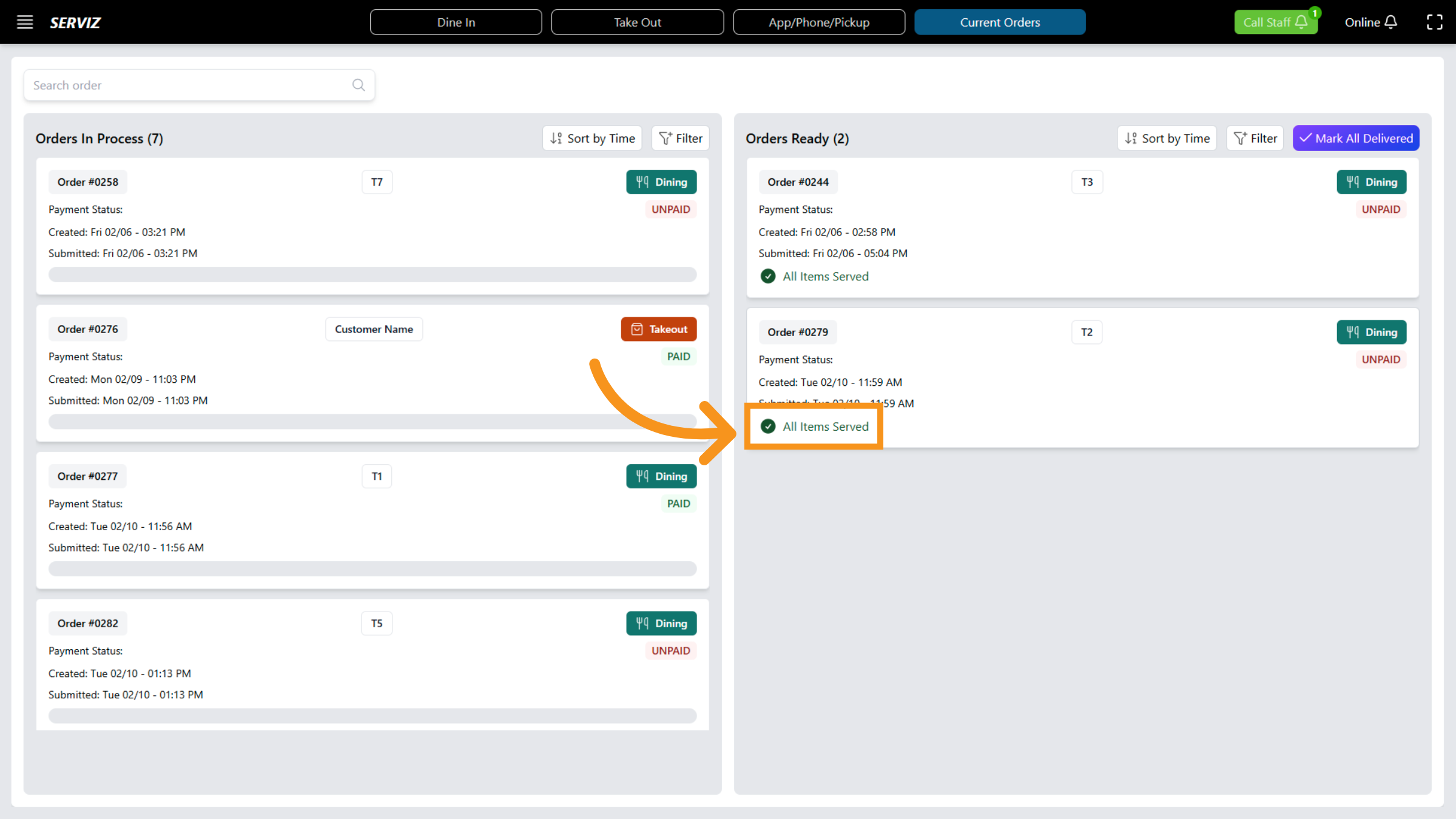
7. Interface of detail order and Edit
Review the order overview to make any necessary edits, and then click "Edit Order" to finalize.
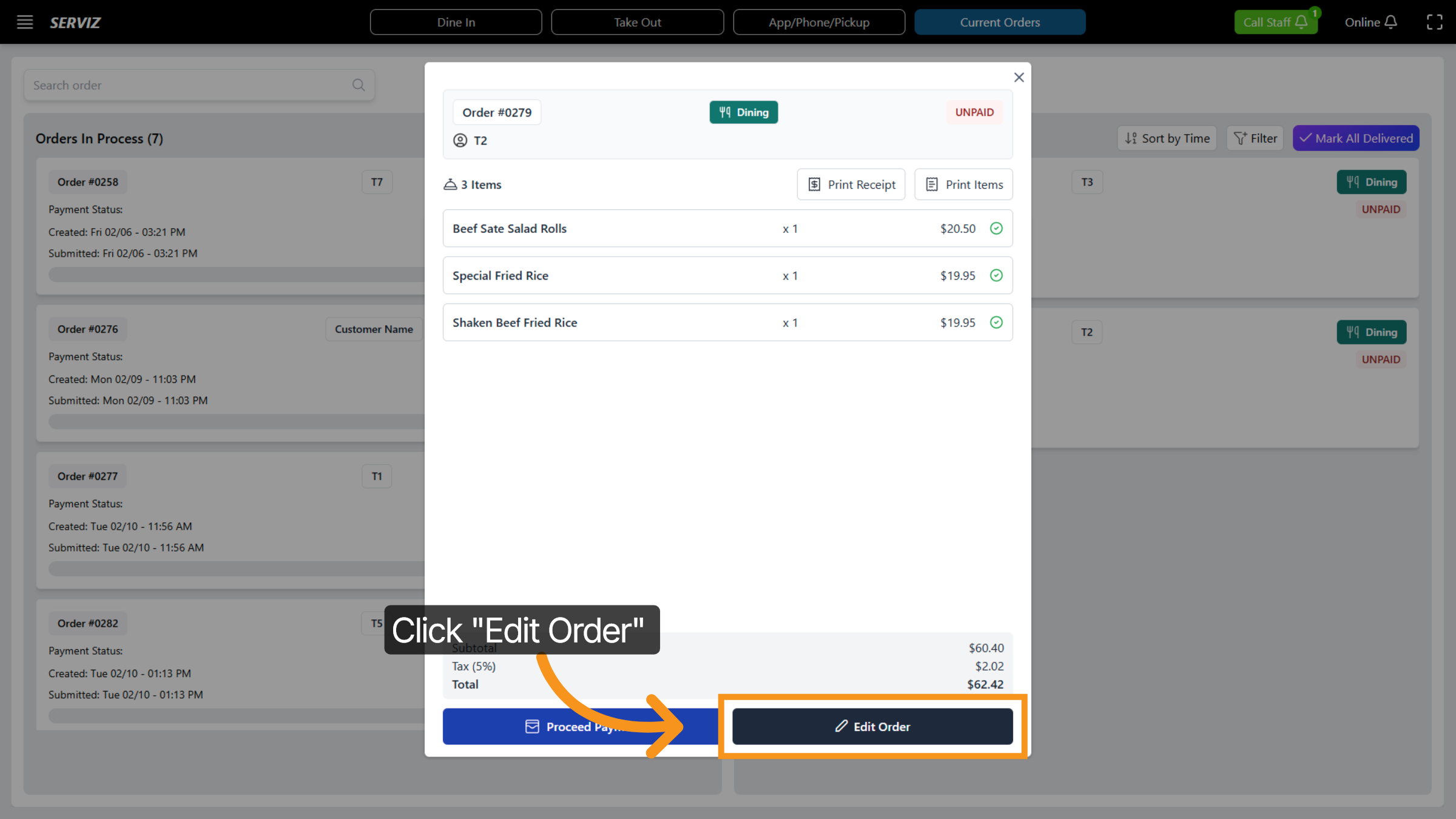
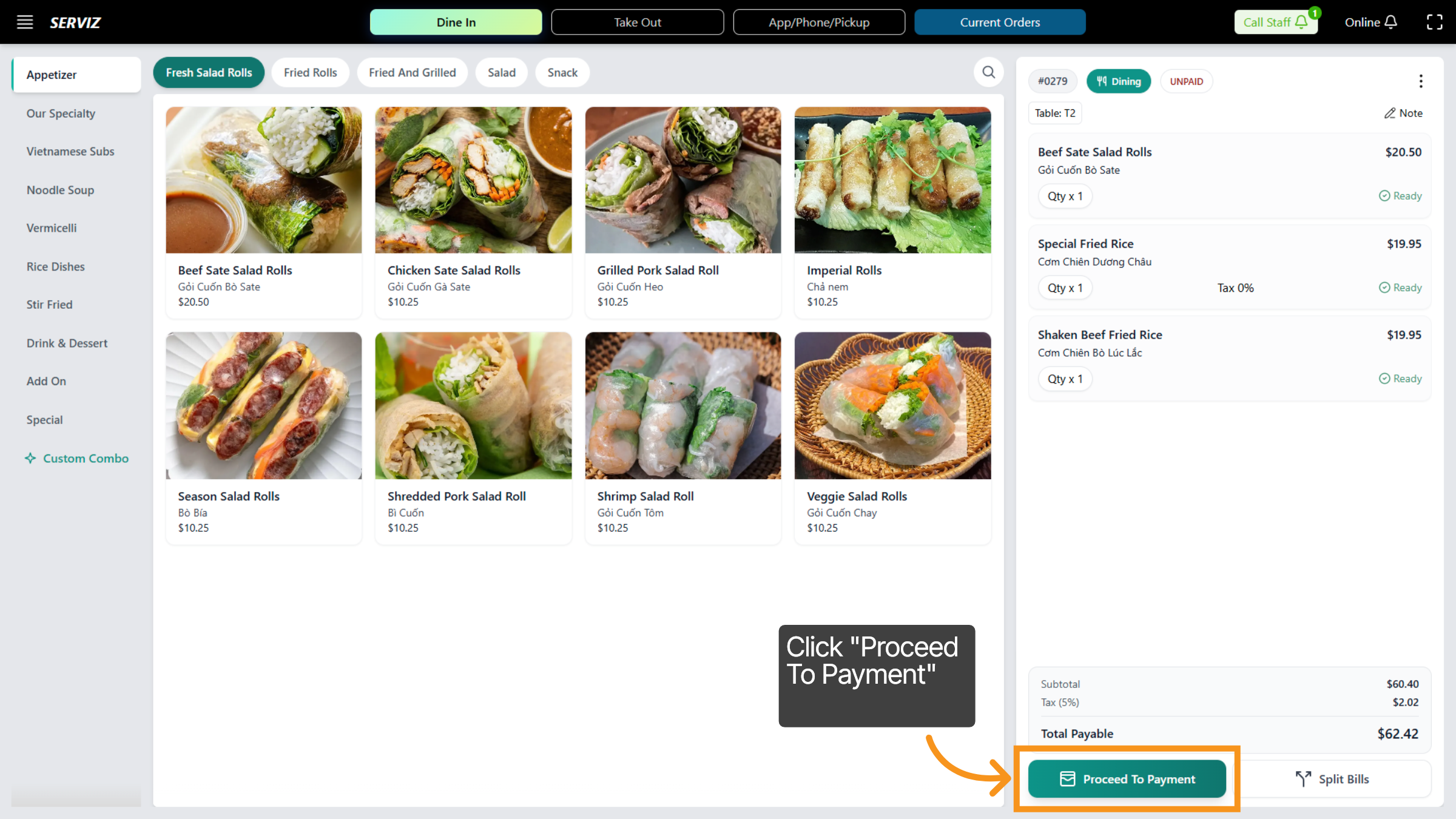
8. Proceed To Payment
And then , Proceed to Payment to begin the payment process for the order.
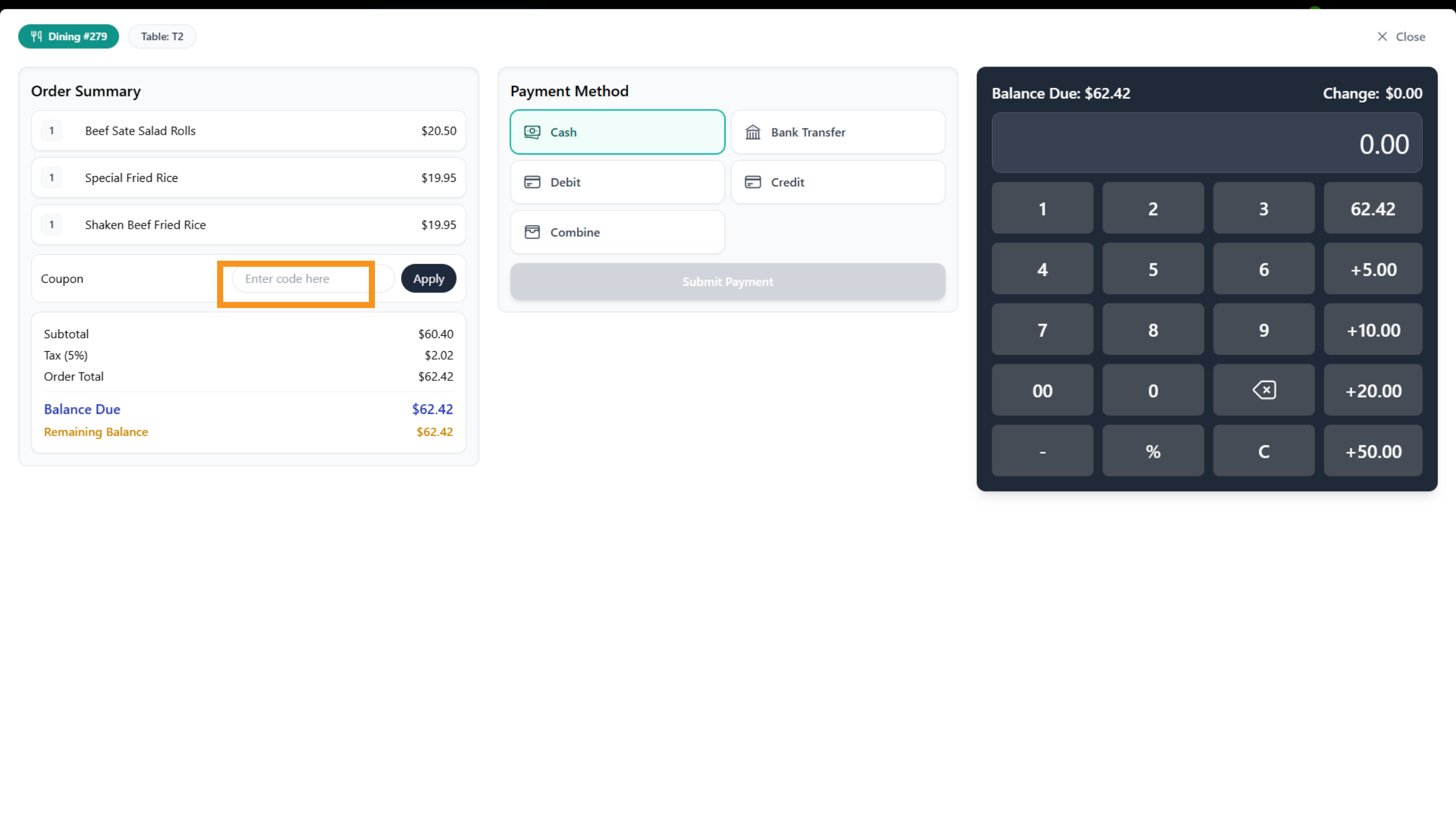
9. Payment Process detail
This step will display the payment details,such as : - order summary - add coupon -Total amount -payment method (Cash,Debit,bank transfer,Credit,Combine)
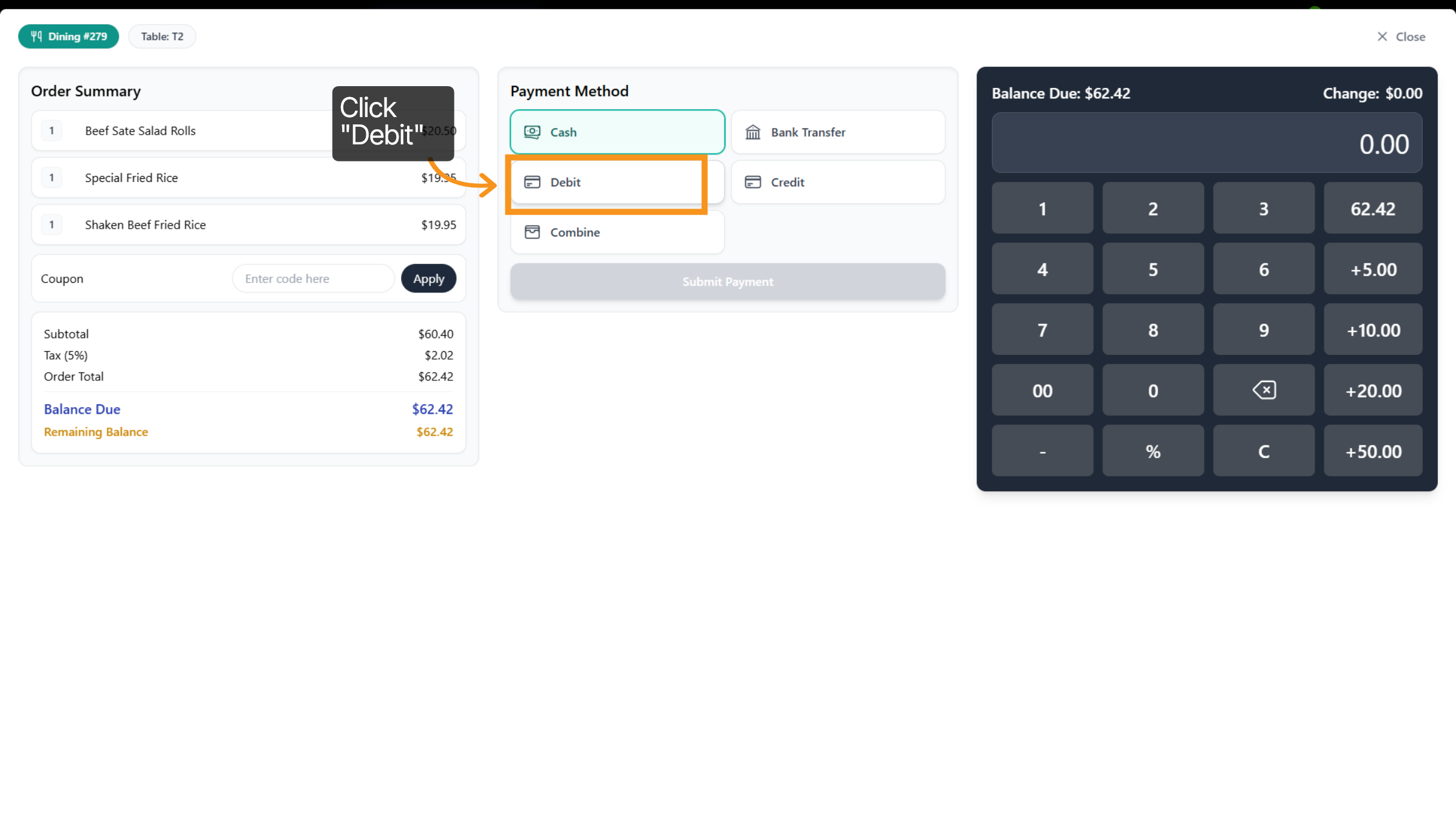
10. Select any payment method - ex : Debit
Select the debit payment option to process payment via debit card.
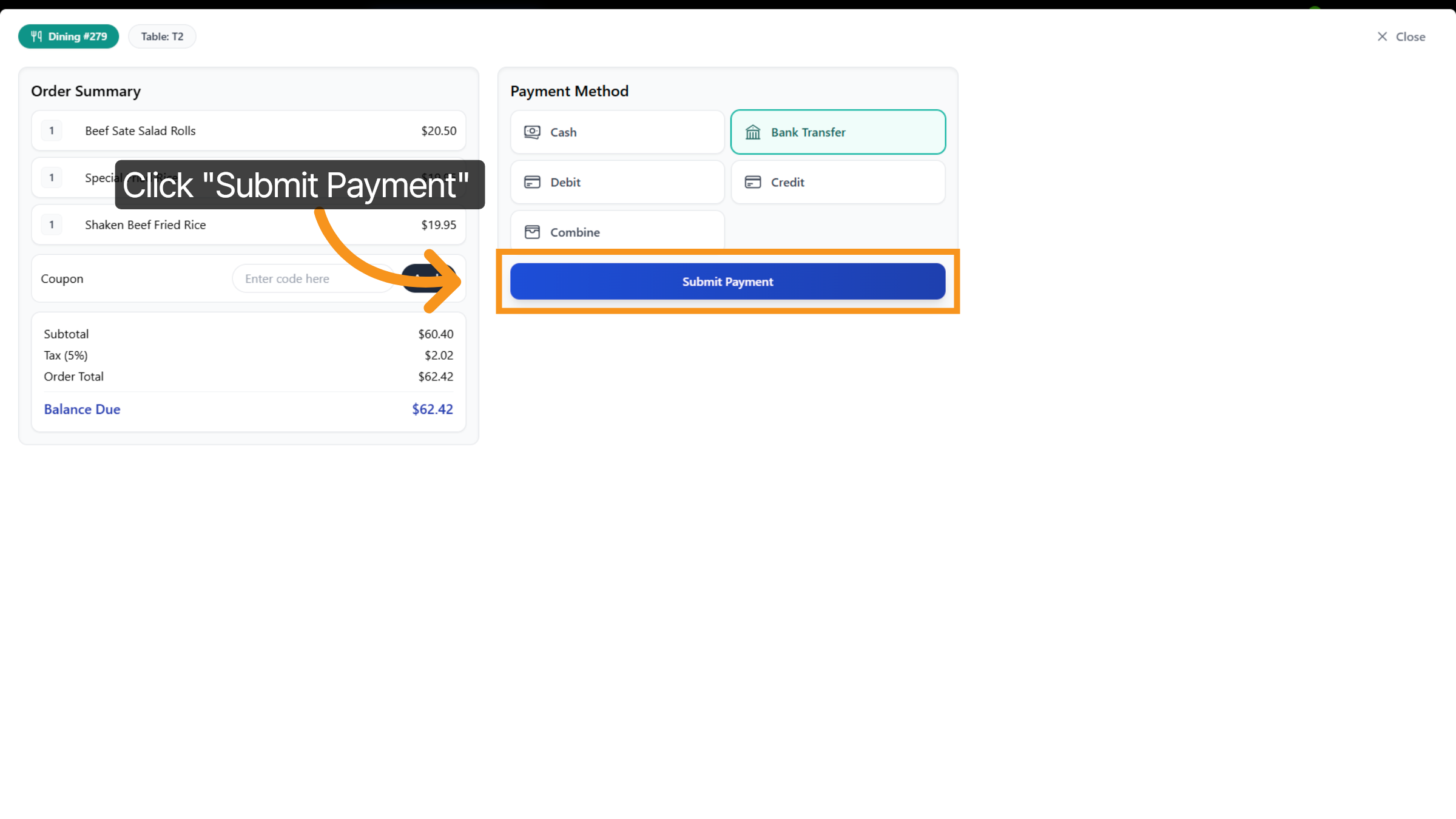
11. Submit Payment
And then click Submit Payment to finalize and record the payment for the order.
12. Go Back to "MENU"
Click the indicated area to access additional order management features.
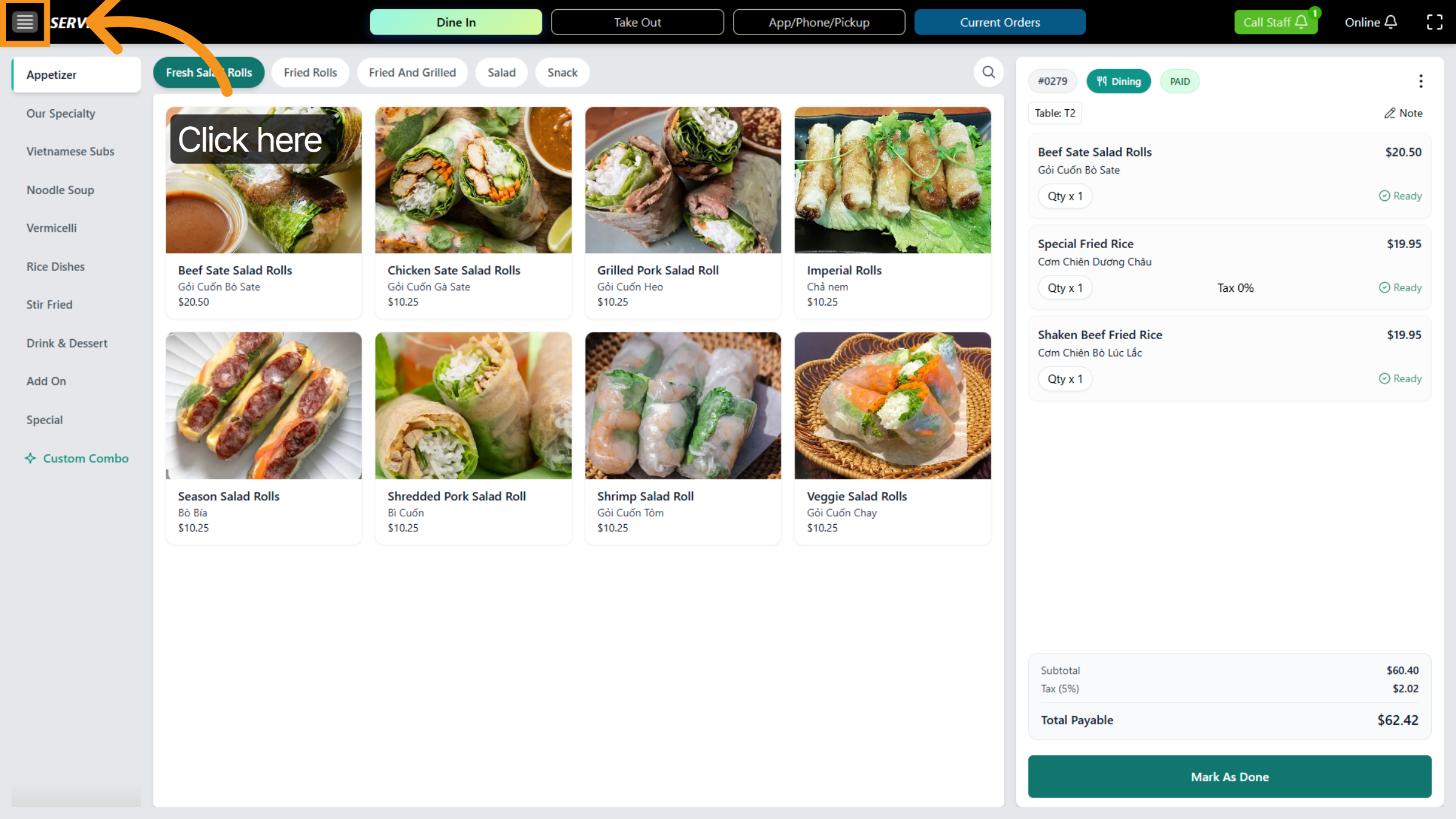
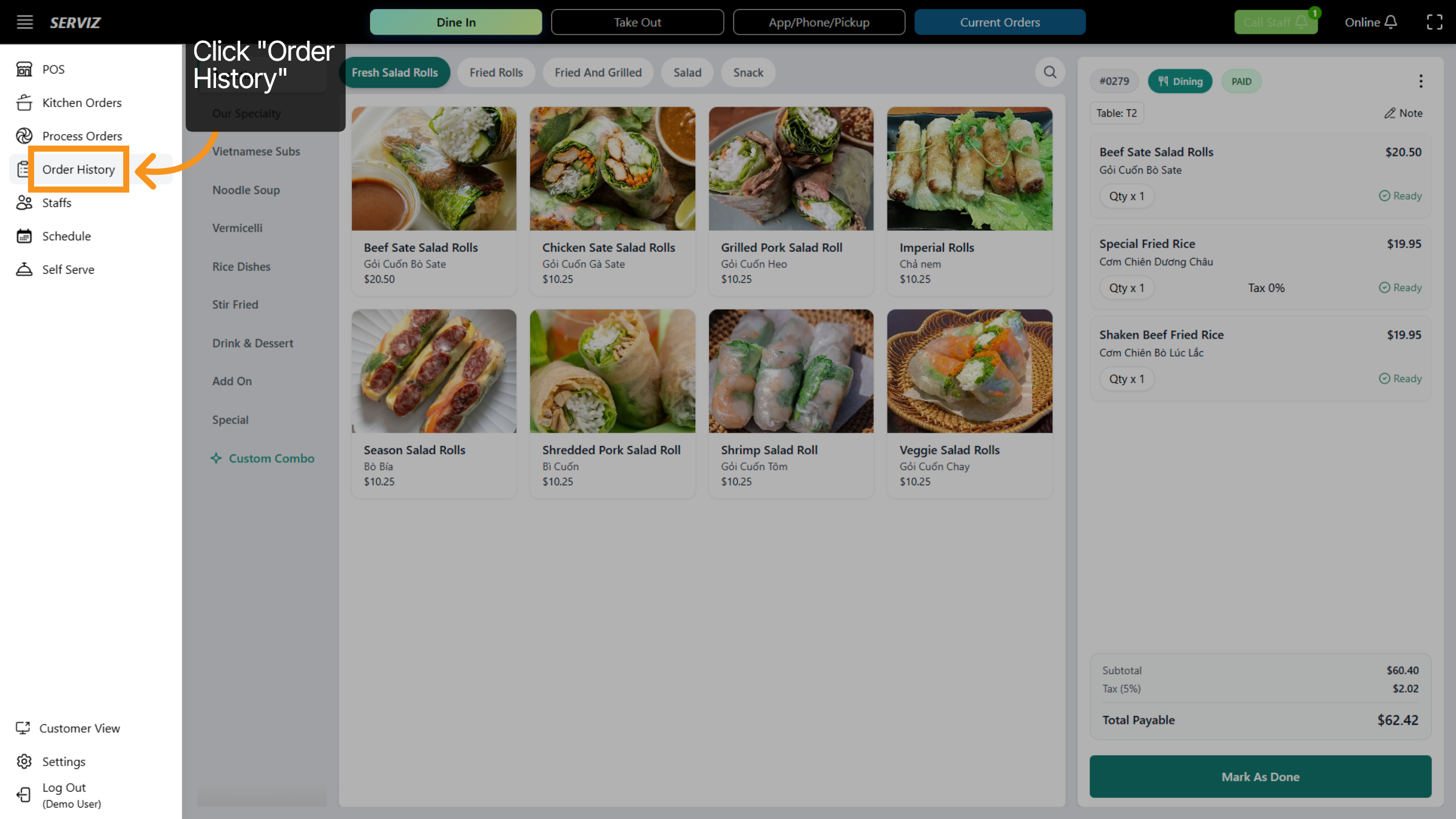
13. Click Order History
Click the Order History option to review past orders and transactions record.
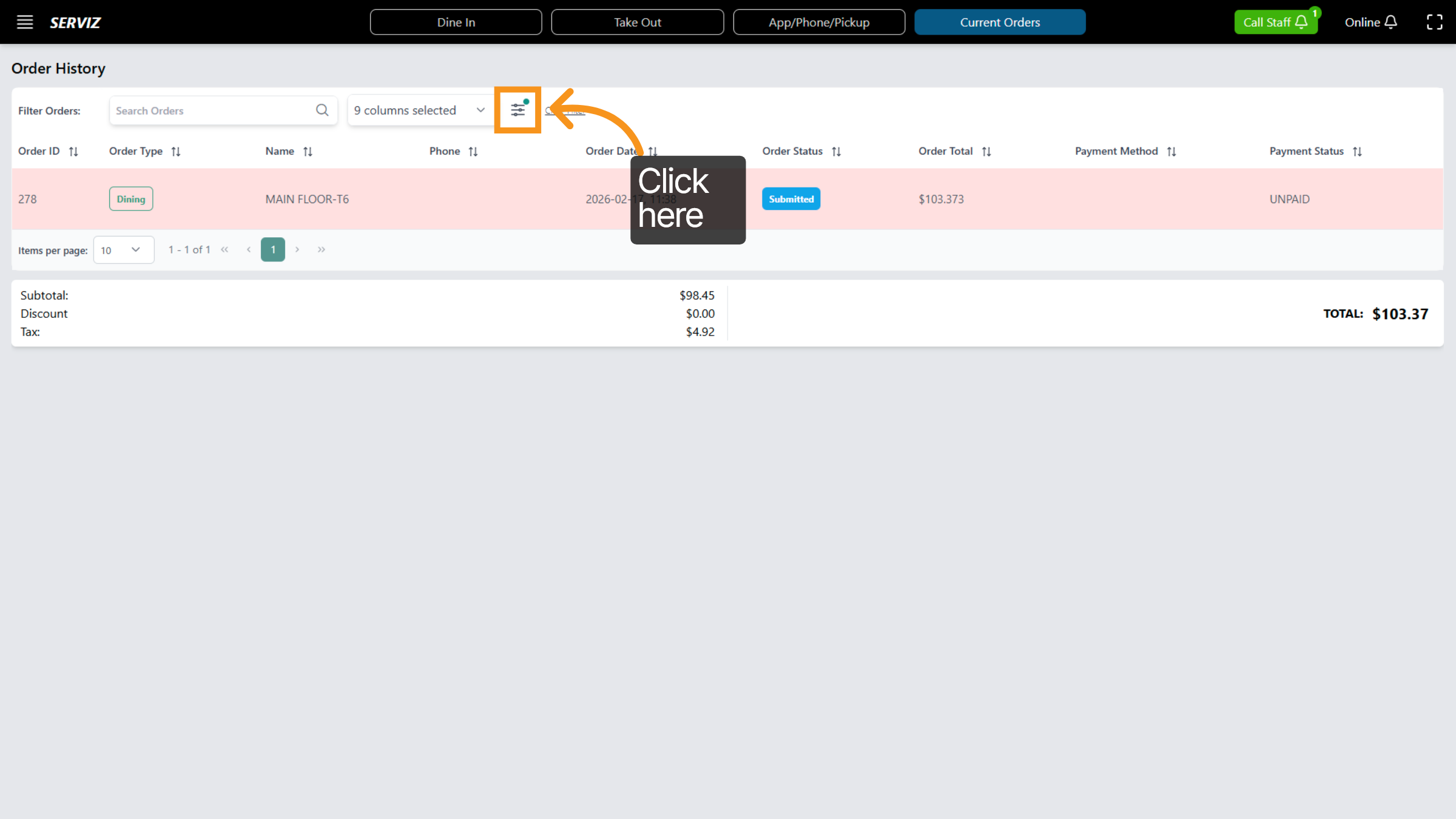
14. Open history filter
Click the specified area to view detailed information about previous orders.
15. Overview of Filter order
Select the filter order to view: Time, Order Type, Order Status, Payment Status, and Payment Method .
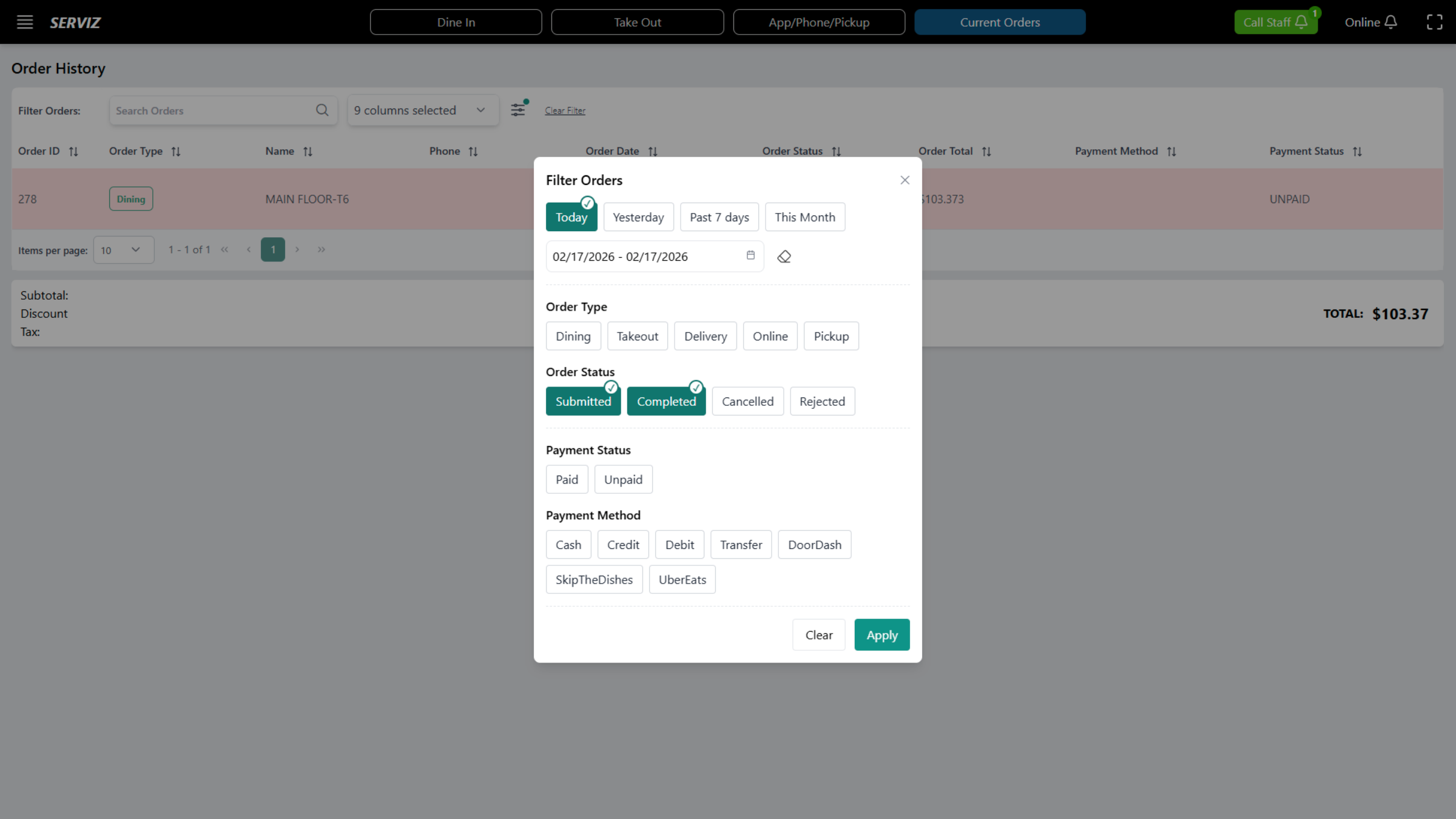
16. Apply Filters
Select your concern and then click "apply" to proceed.
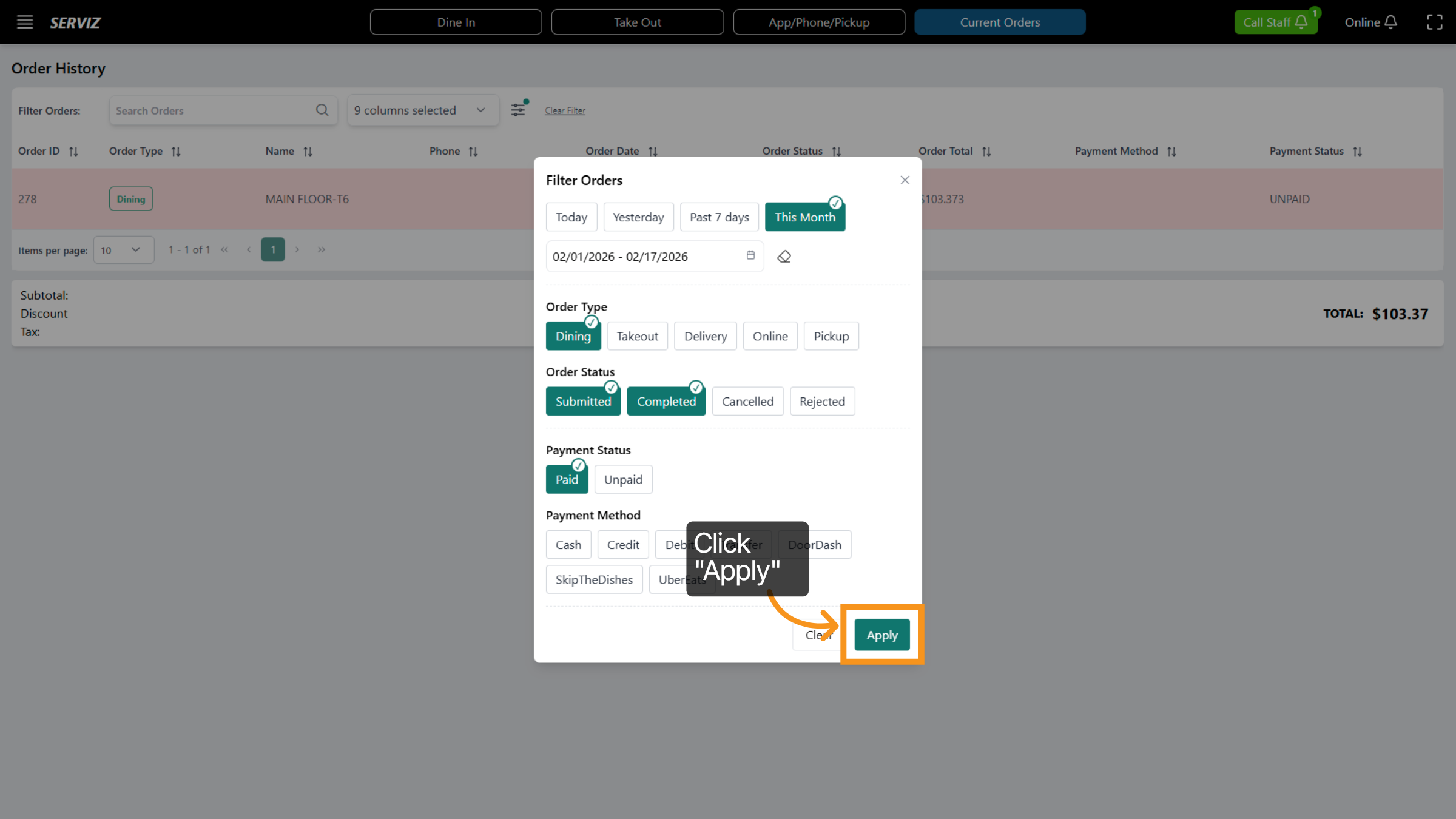
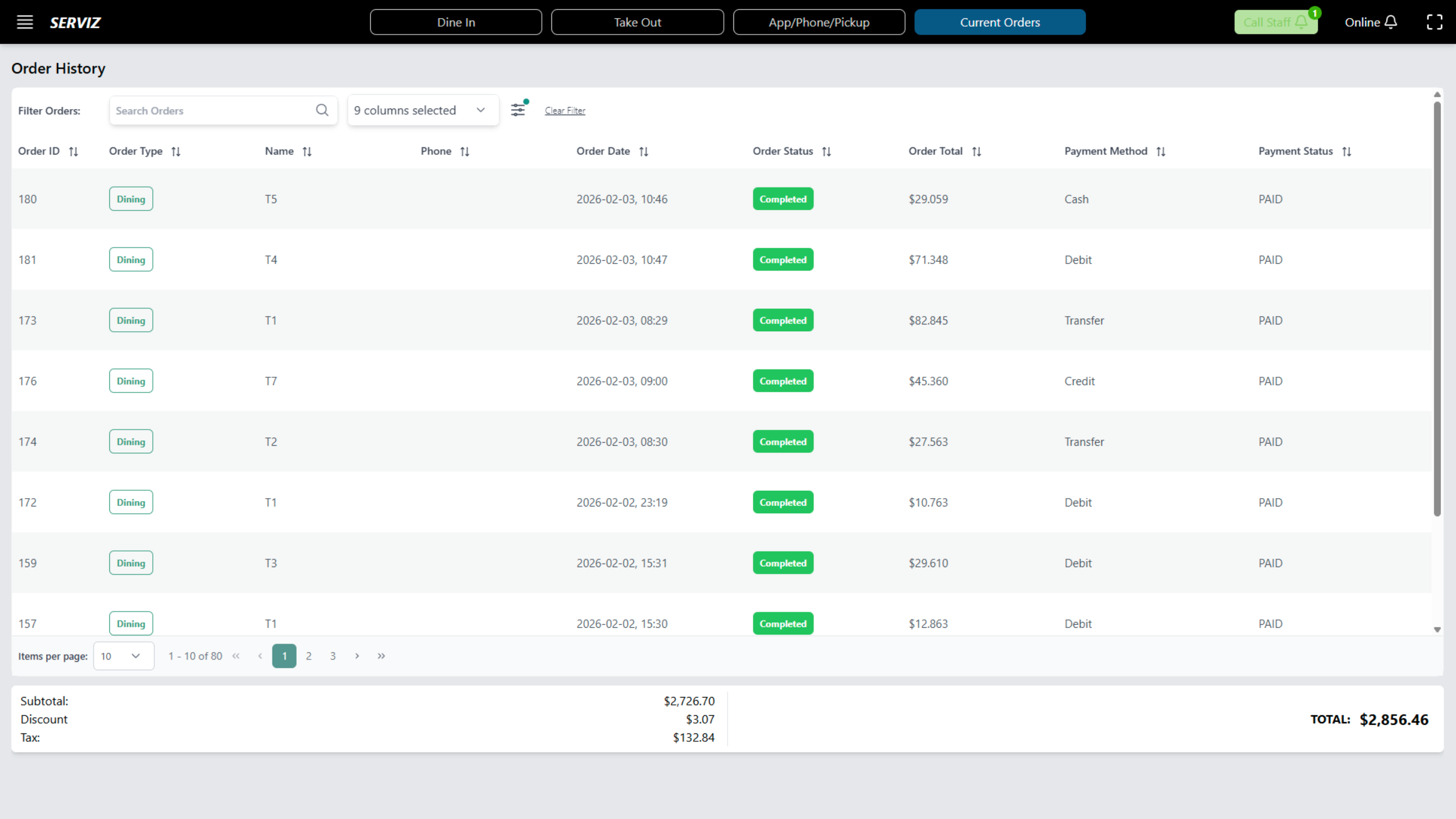
17. Order history interface
The order history interface has been displayed. You can view the search bar, such as Order ID,Order type, Name, phone,Order date,Order status,Order Total,Payment method, Payment status.
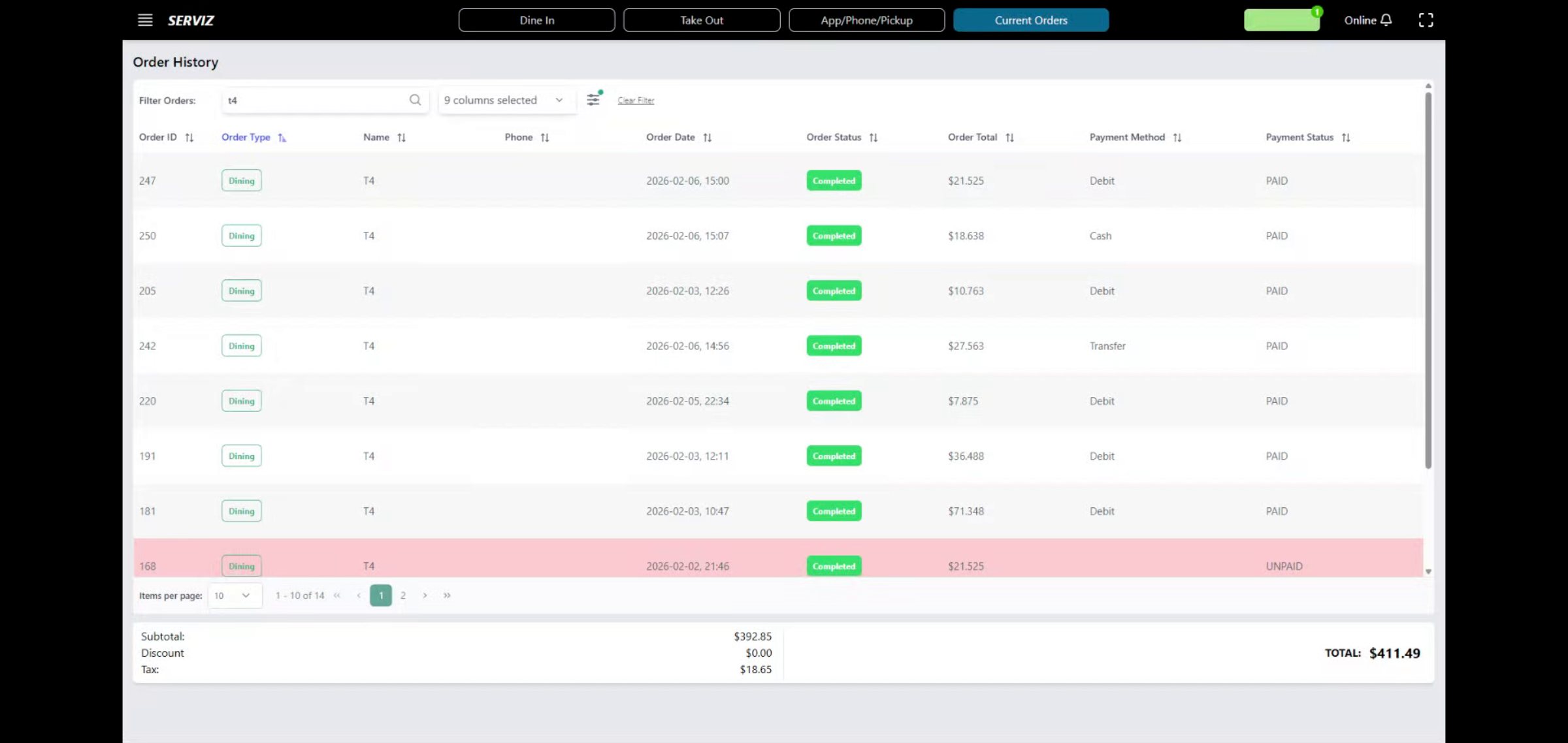
18. Check in detail each of Table
Enter any Table No to find orders matching your input.
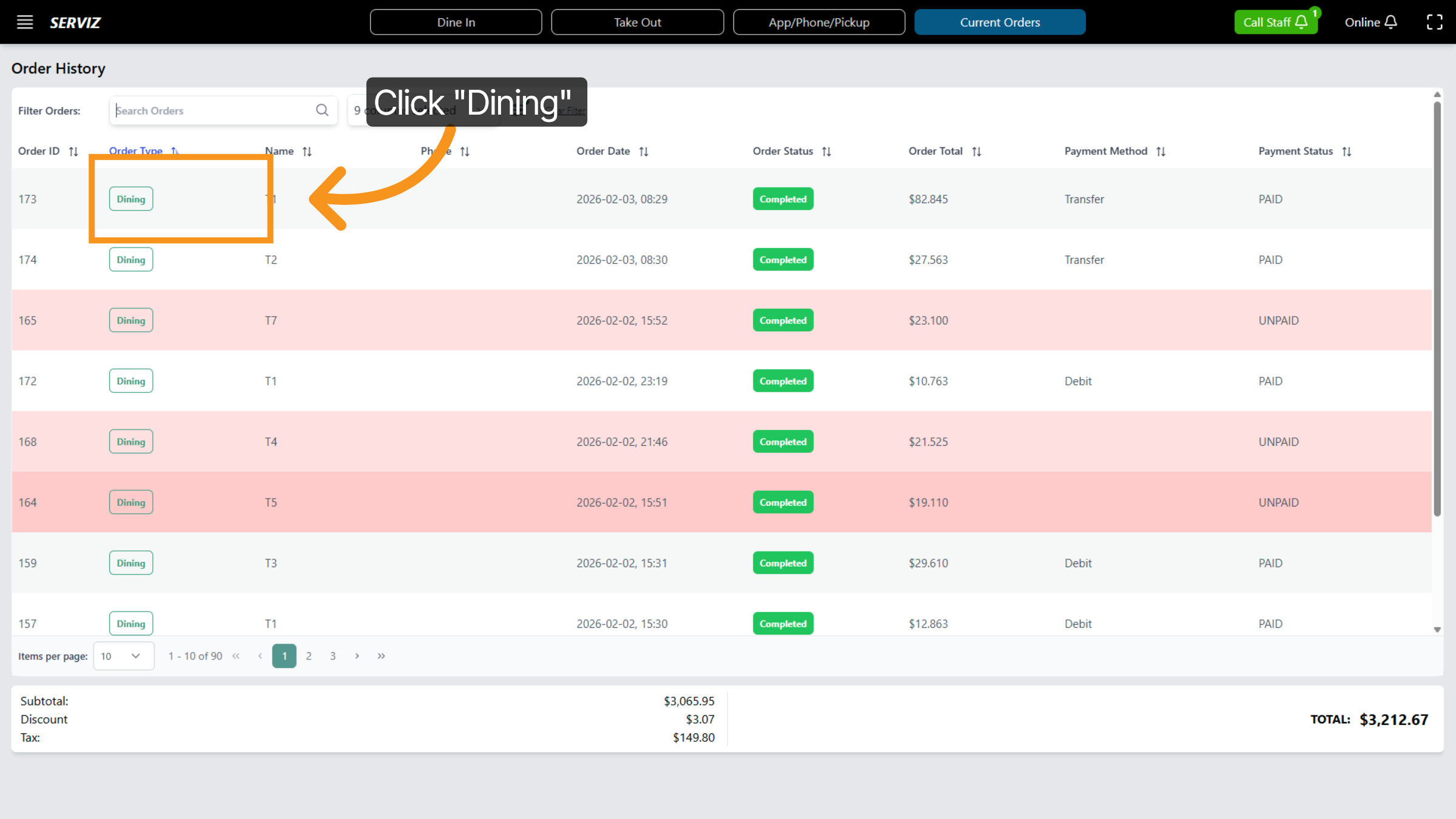
19. Dining Orders
Select your concern and then "click"
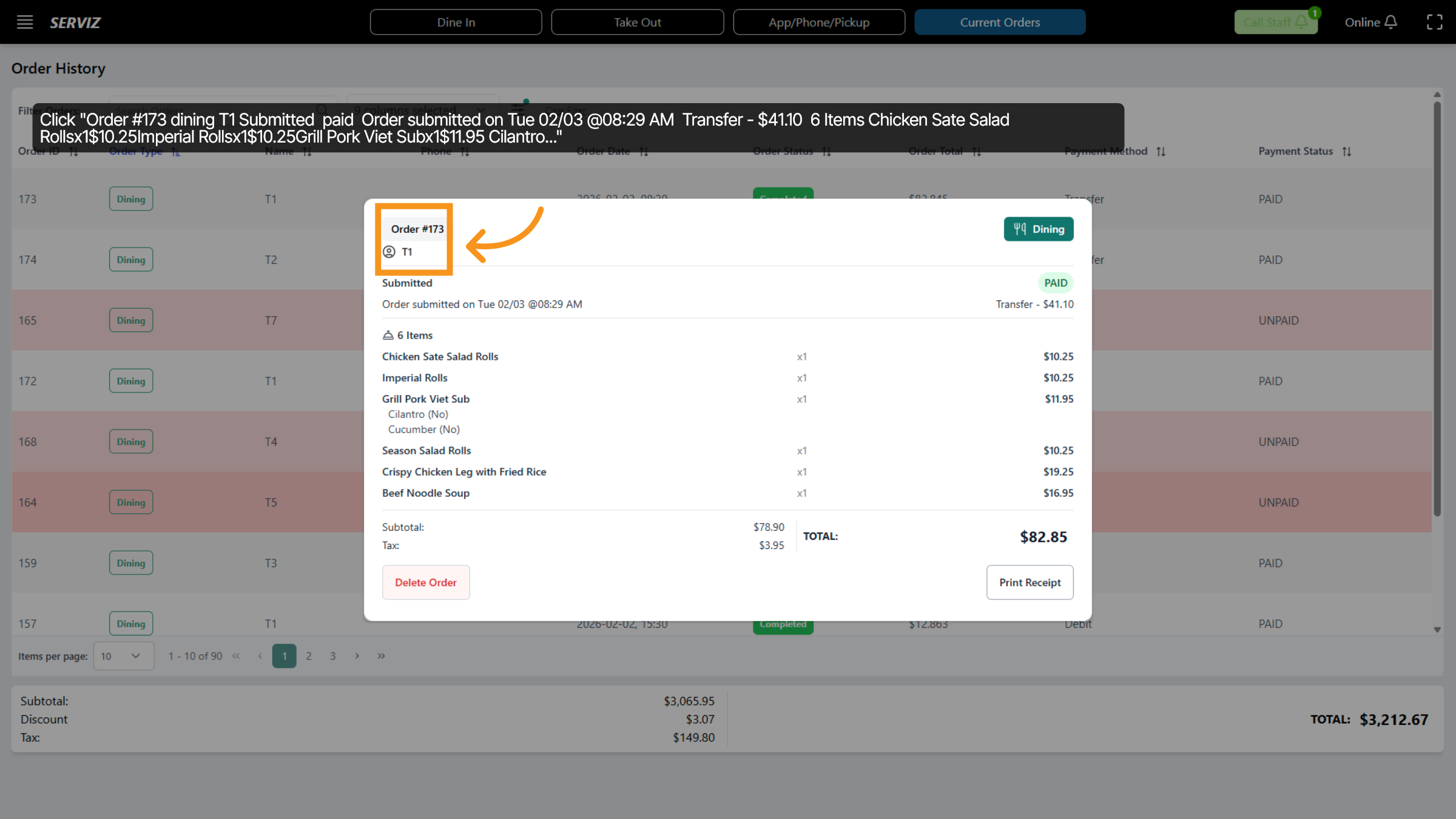
20. View Order Details
Click the detailed order entry to review the full order information including items and payment status.
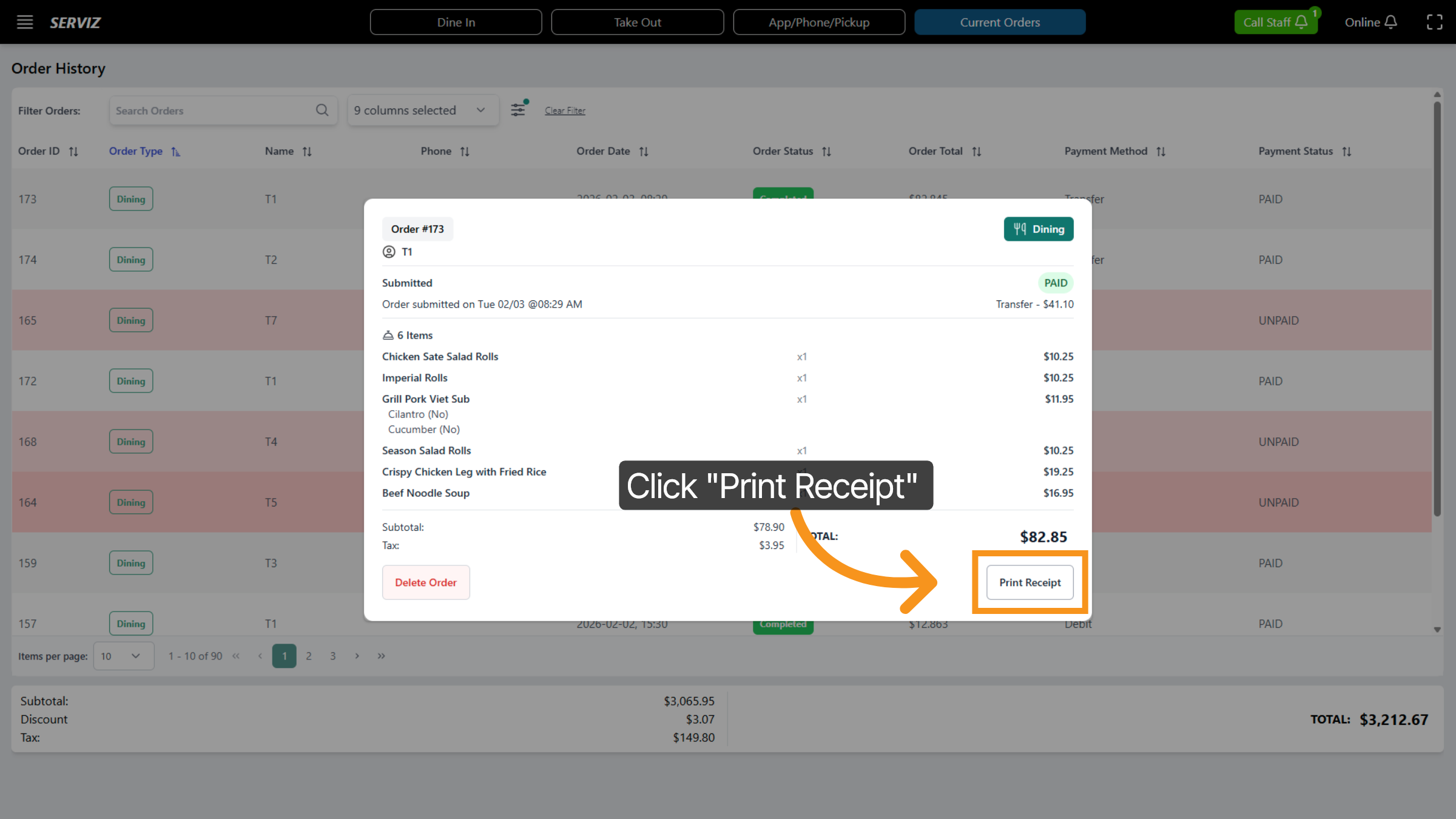
21. Order check details
Check your order and click "Print Receipt" to generate a physical or digital copy of the order receipt.
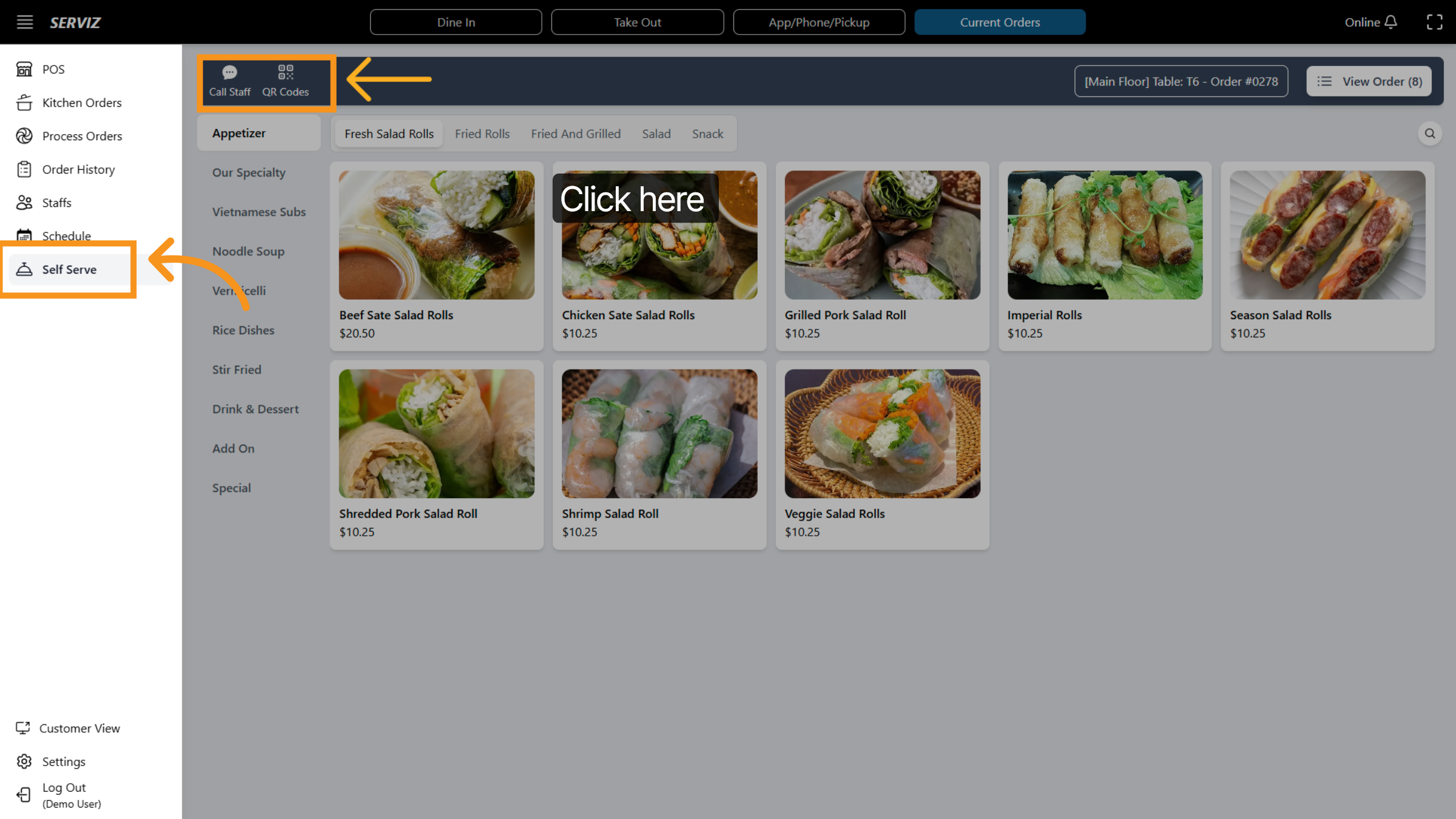
22. SELF SERVE
In this section, customers can view the full menu. They can use the "Call Staff" button to notify staff members support or manage orders placed through self-service via "QR code."
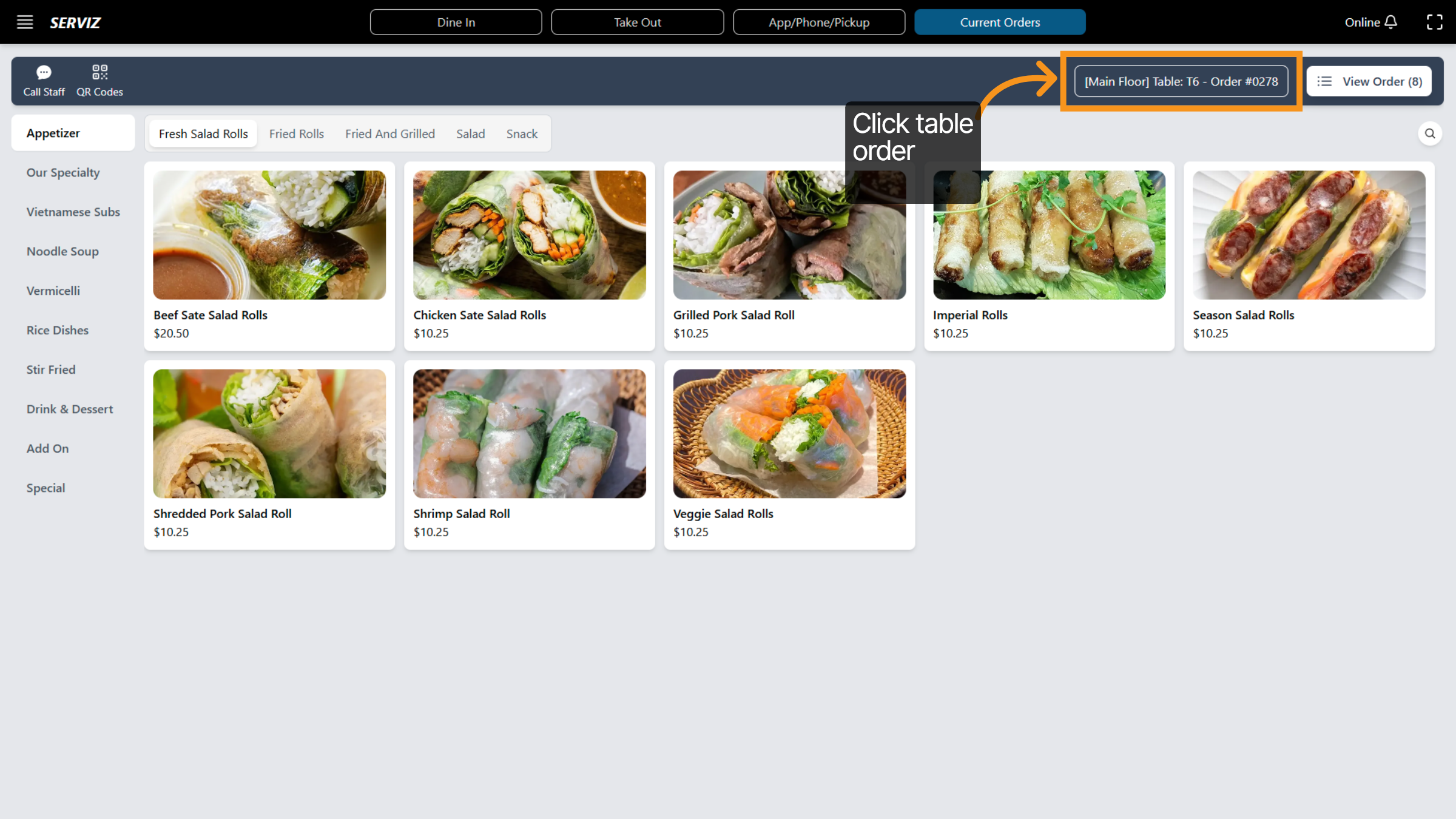
23. Select Table Order
Employees can click on Set Table to assign or modify table settings in the POS
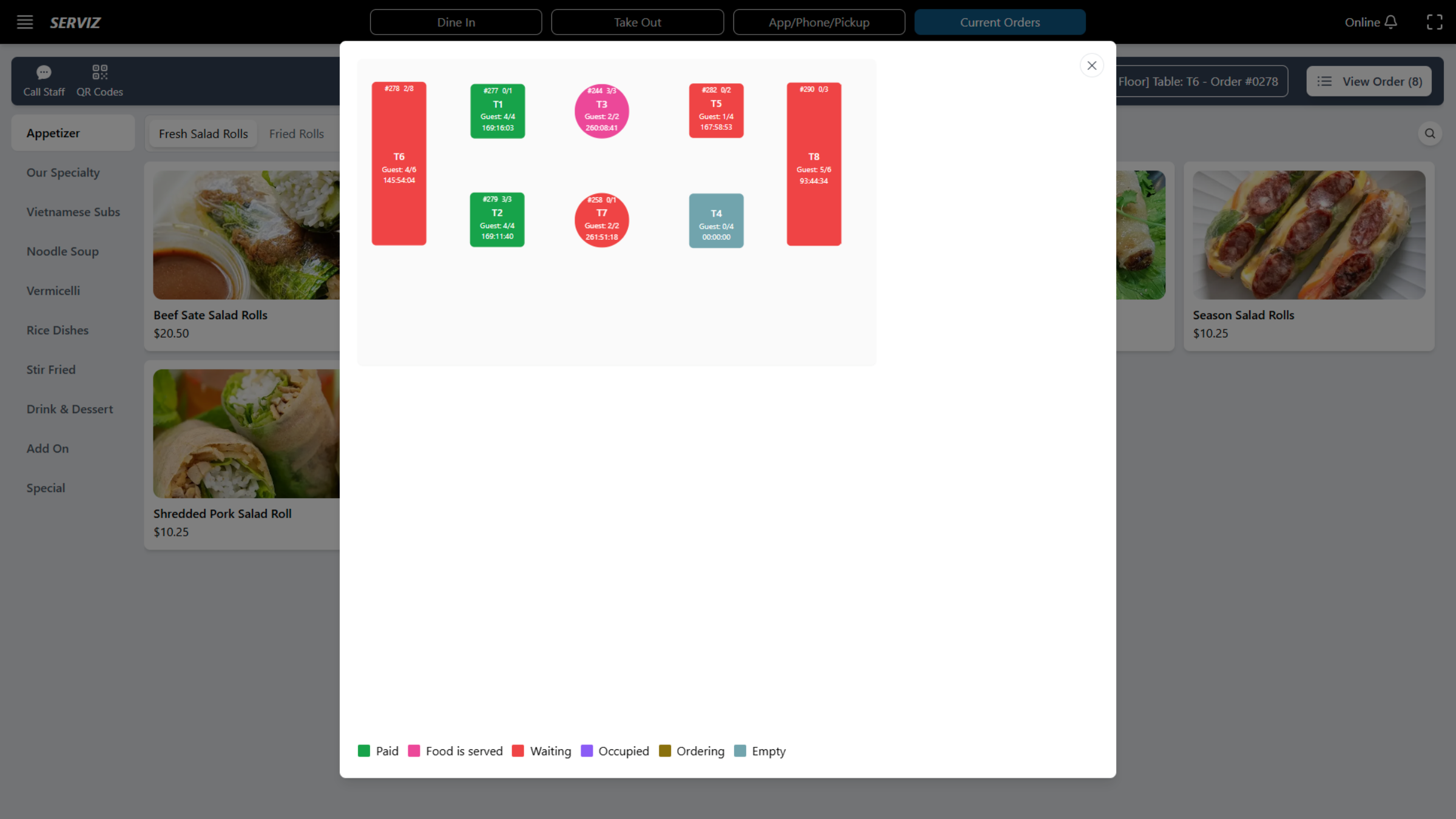
24. Table layout
At this point, the table layout will appear, and the information will be used to set up a table for the guests (including the number of customers, table number...).
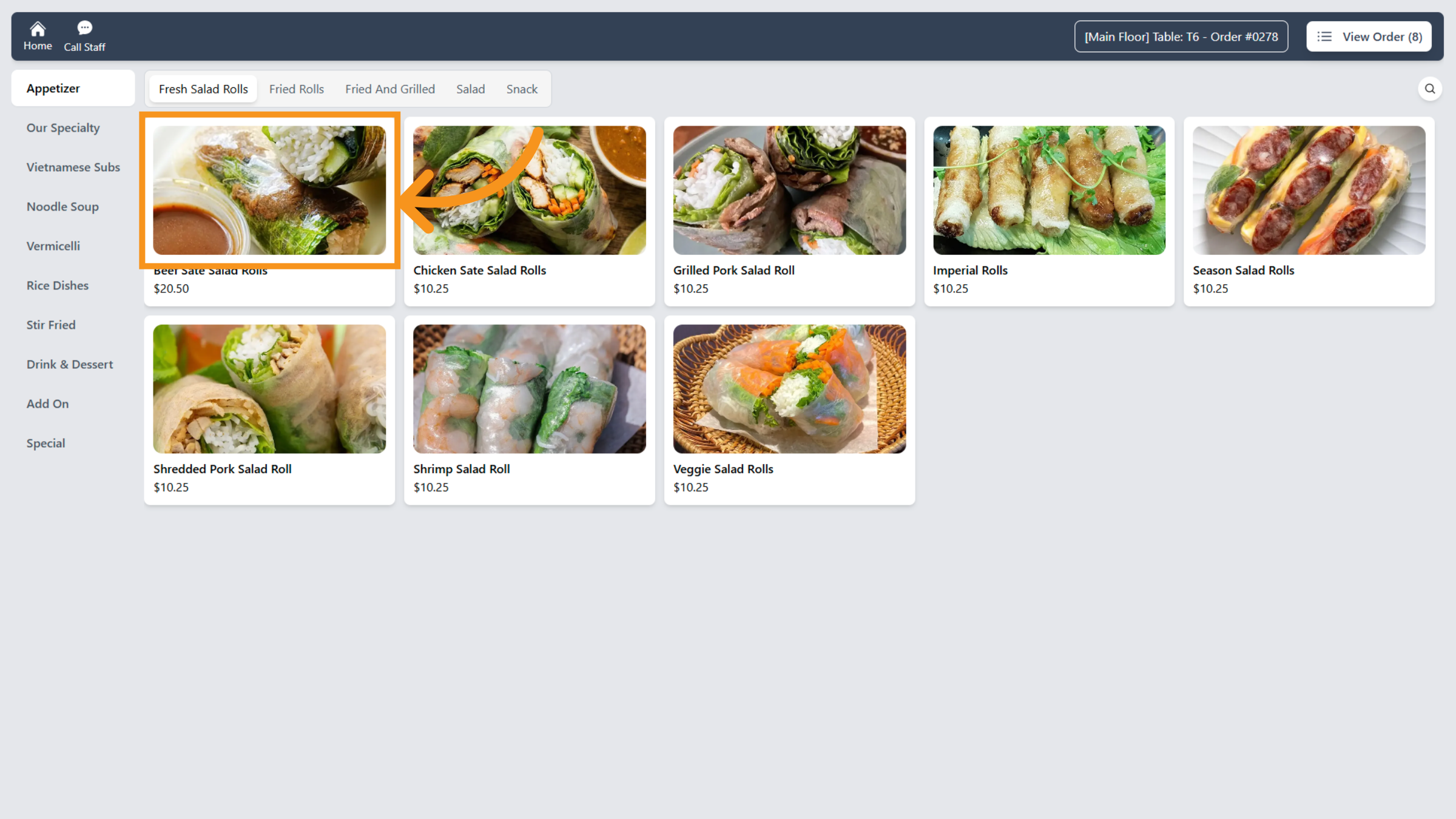
25. Open Menu
Click on the meals section to access additional options related to your order.
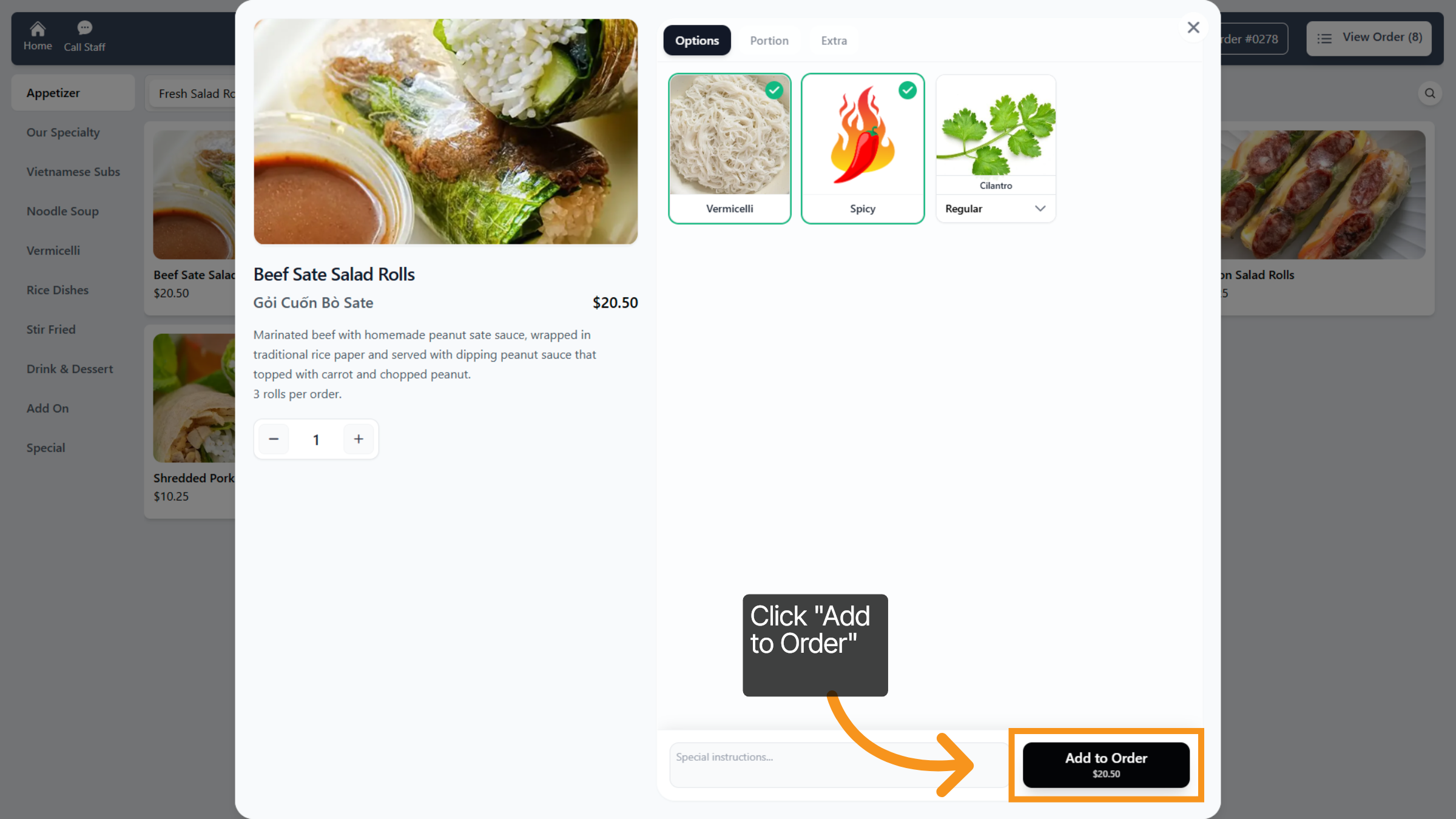
26. Add Item to Order
Click Add to Order to include to the current order.
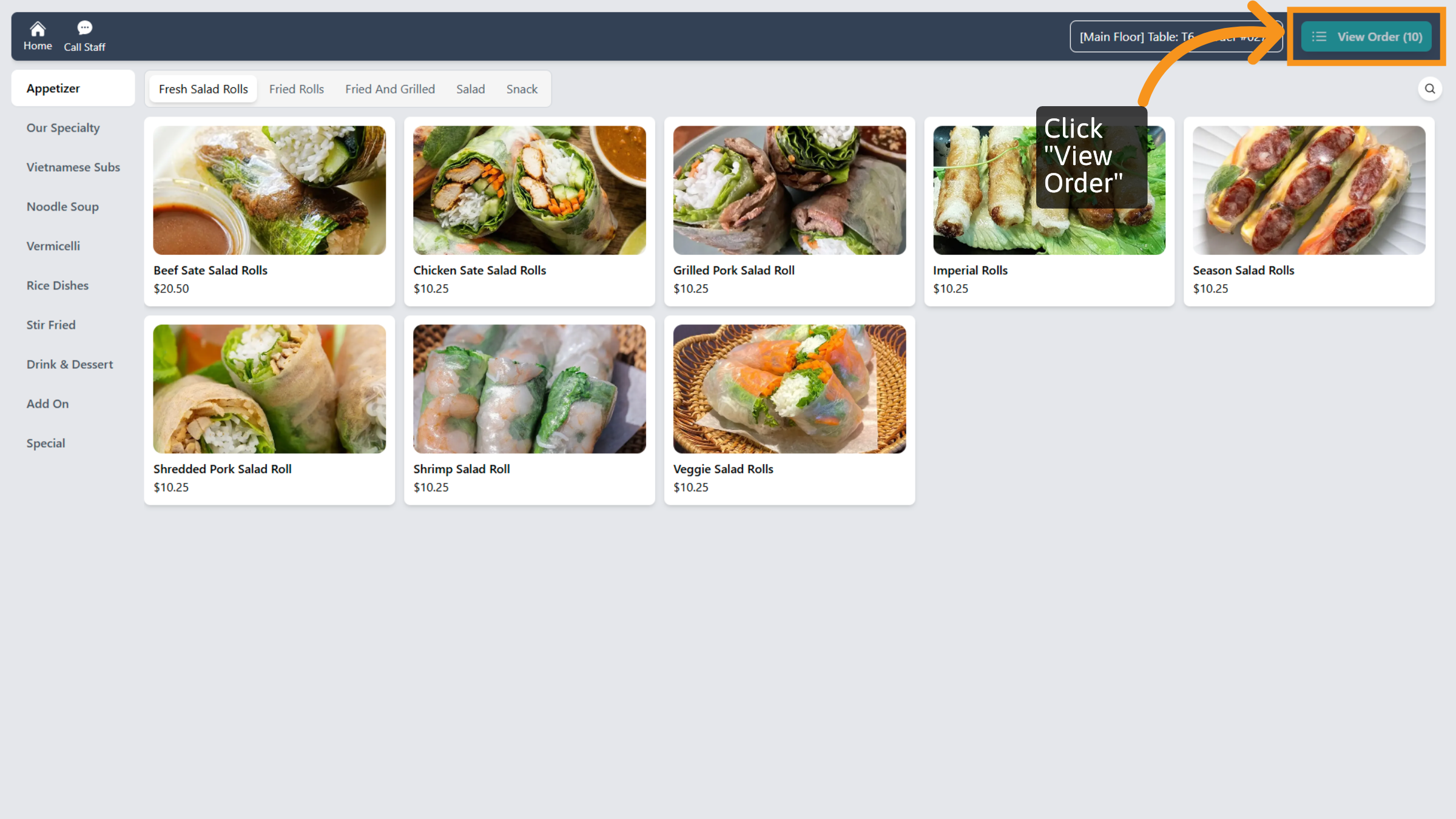
27. View Current Order
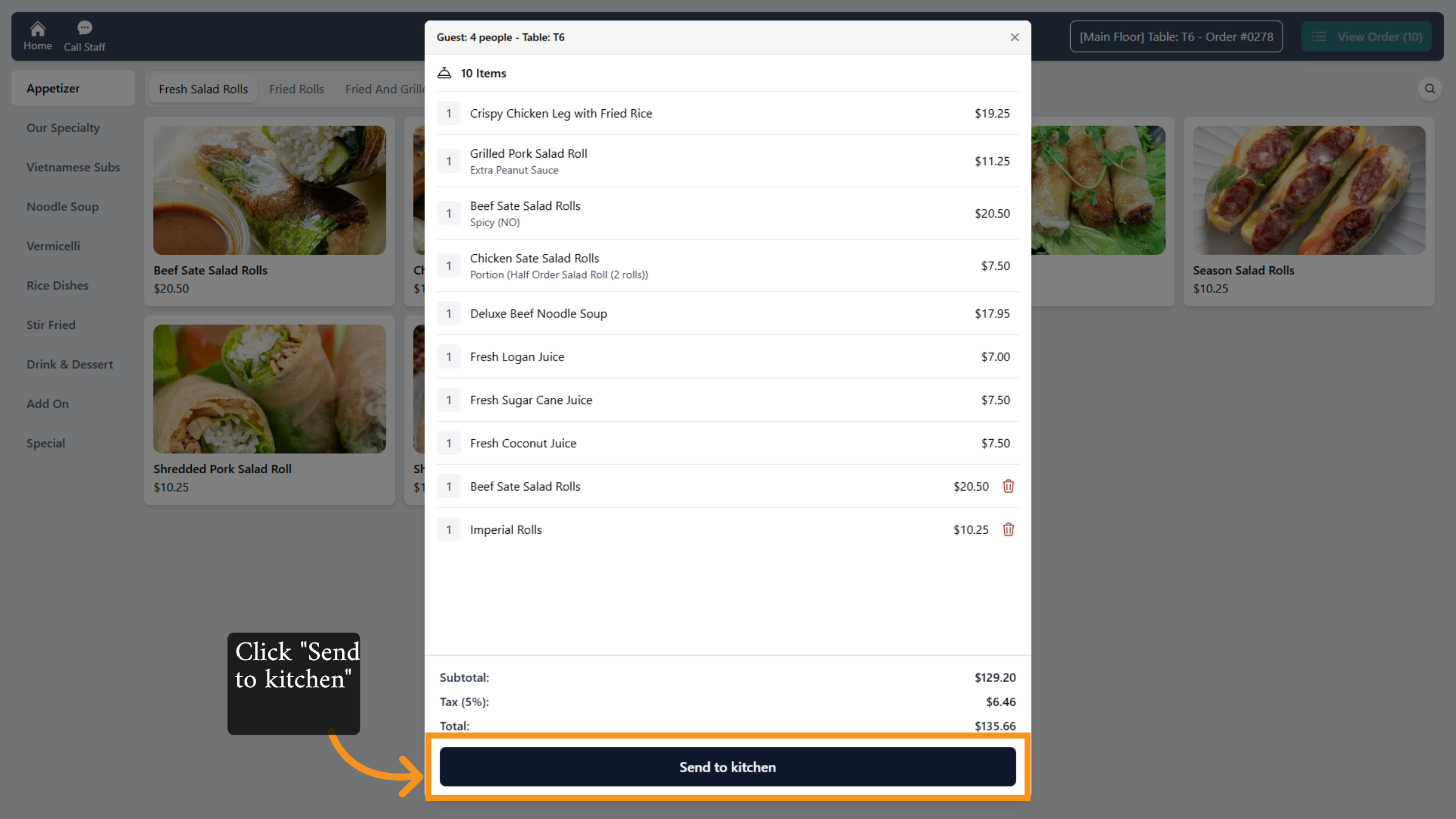
Click View Order to see all items currently included in the order.
28. Send Order to Kitchen
Check all order and Click Send to kitchen to forward the order details for preparation.
29. Select Table Order
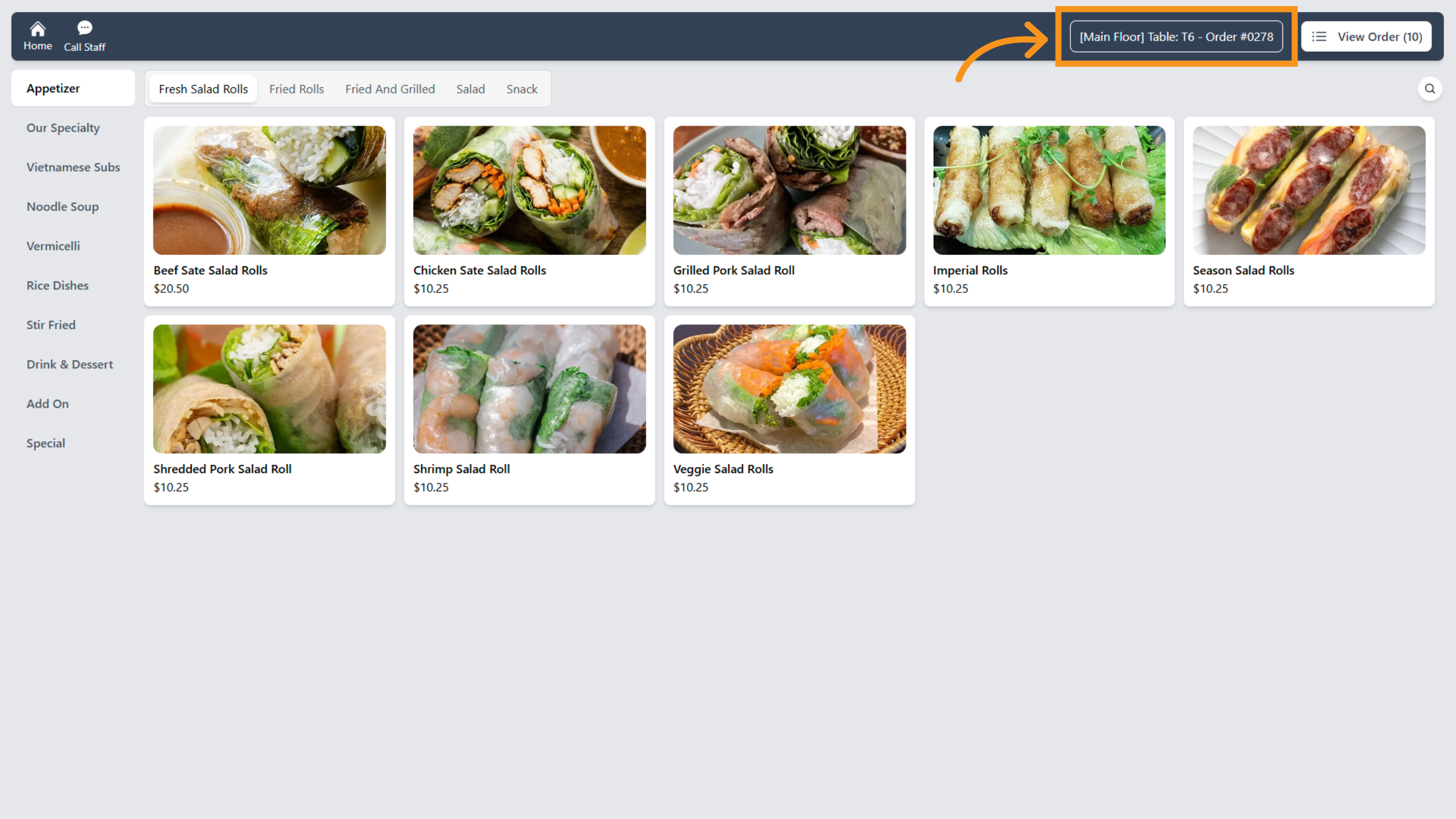
Click the specified table order to review or finalize the order details.
You have successfully processed and managed orders using the Serviz POS system, including searching, editing, applying payments, and sending orders to the kitchen. For further assistance, explore related tasks such as inventory management or customer reporting within the POS platform.