
Configure Employee Roles
This tutorial shows how to configure employee roles and permissions in the Worktraq App.
Video Tutorial
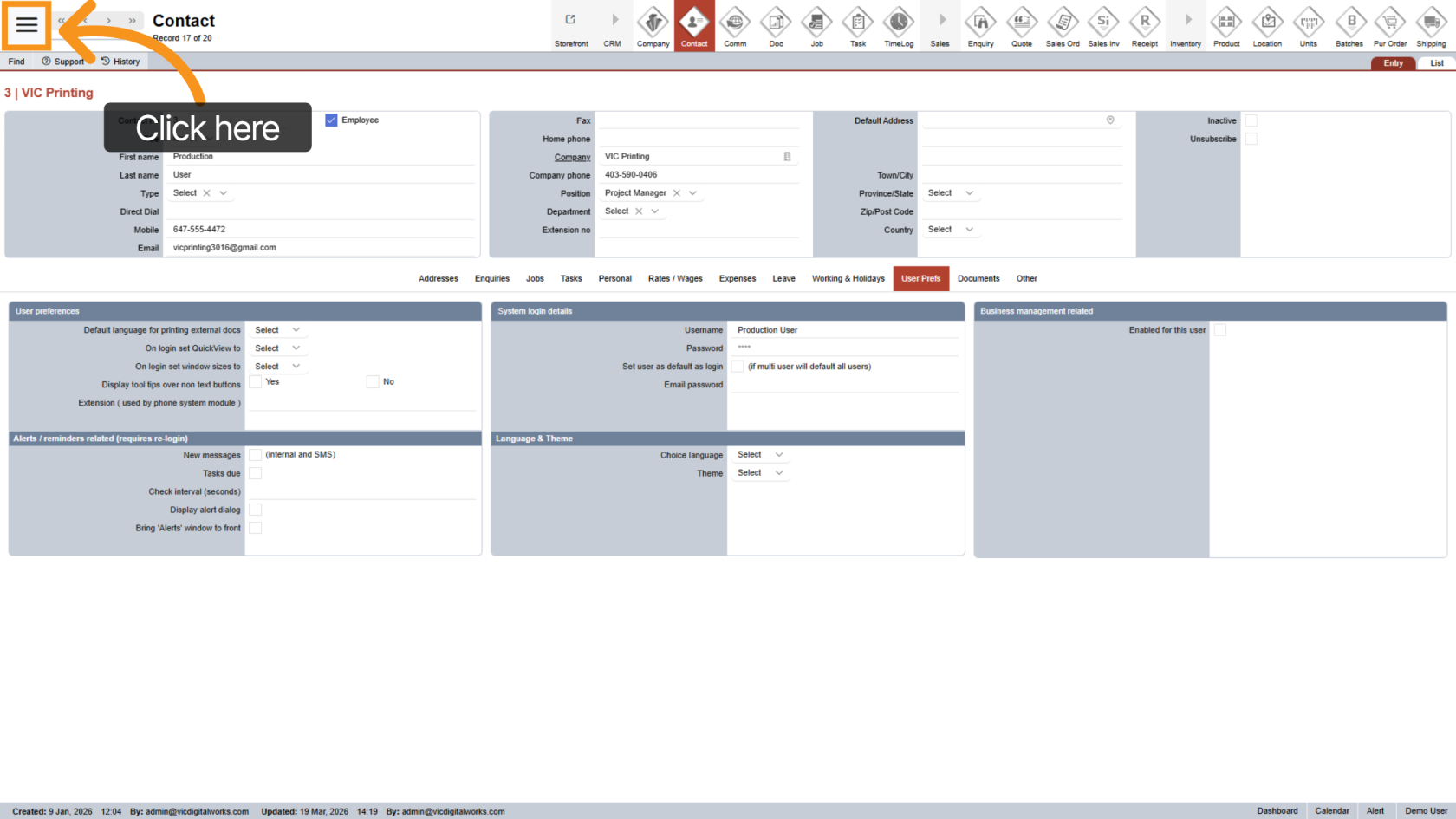
1. Open Main Menu
Click the  main navigation menu to access system options.
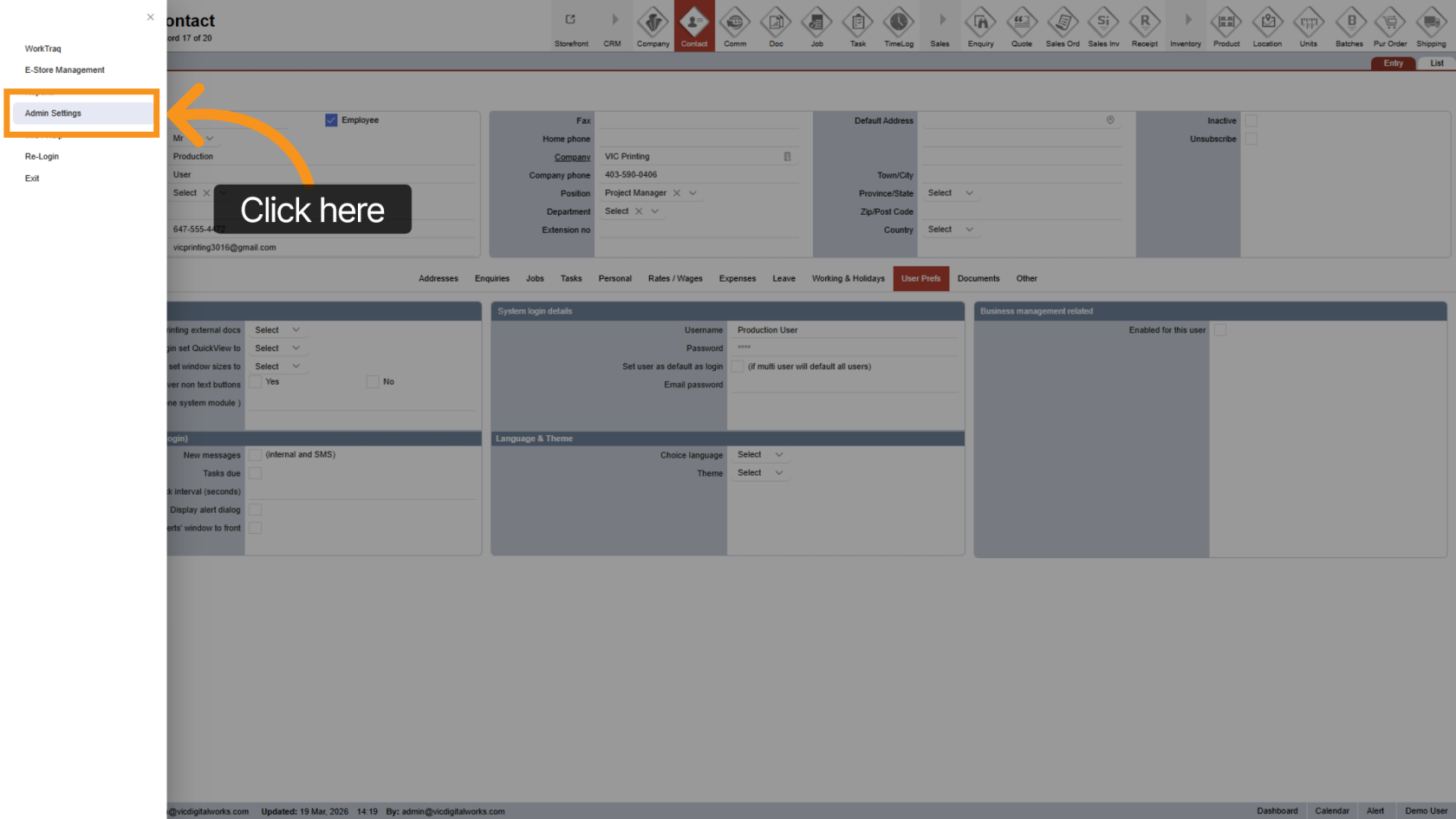
2. Go to Admin Settings
Select "Admin Setting" to enter the configuration area.
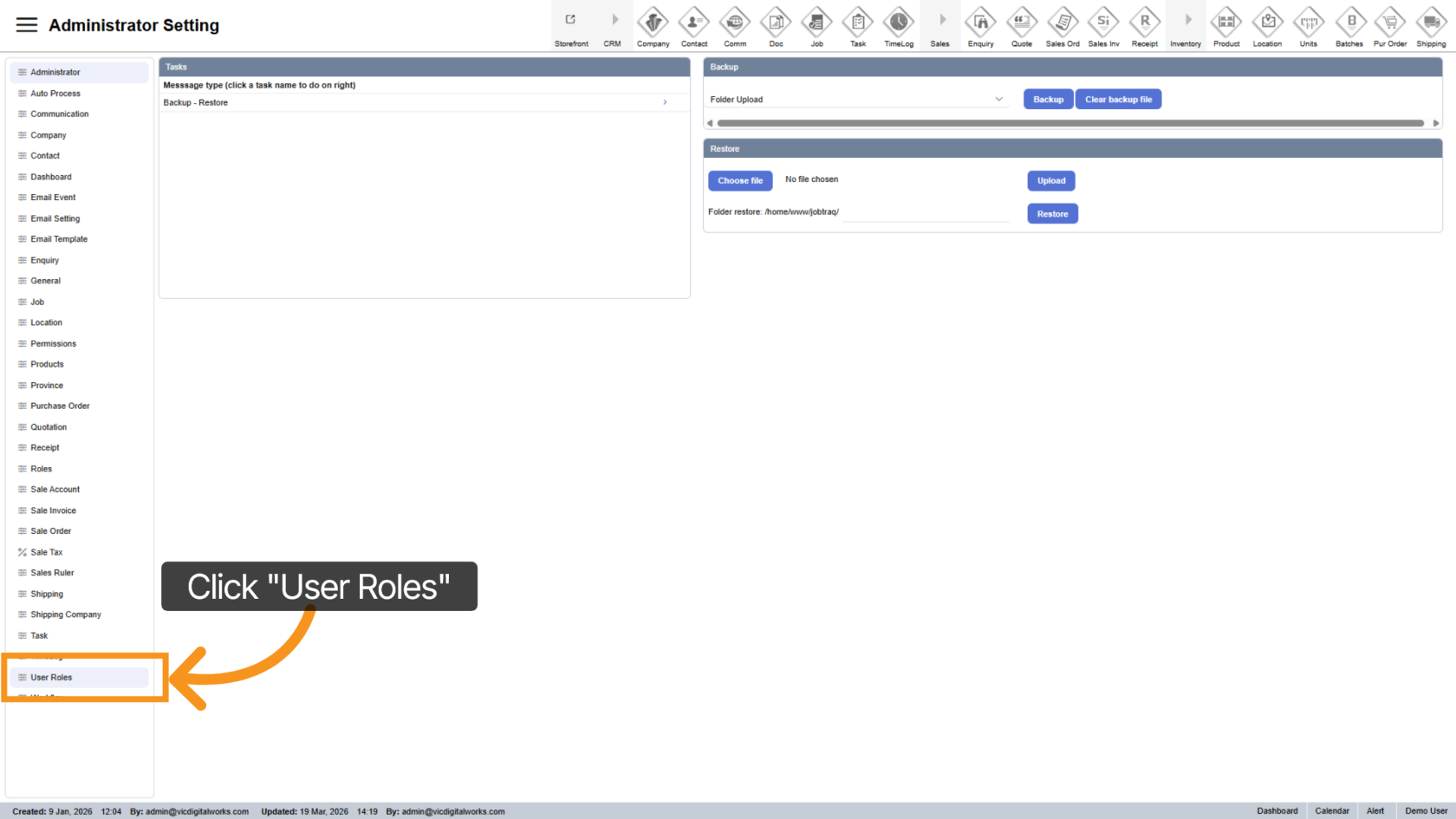
3. Open User Roles
Click "User Roles" to manage employee roles.
4. Select Employee
Choose the employee you want to configure.
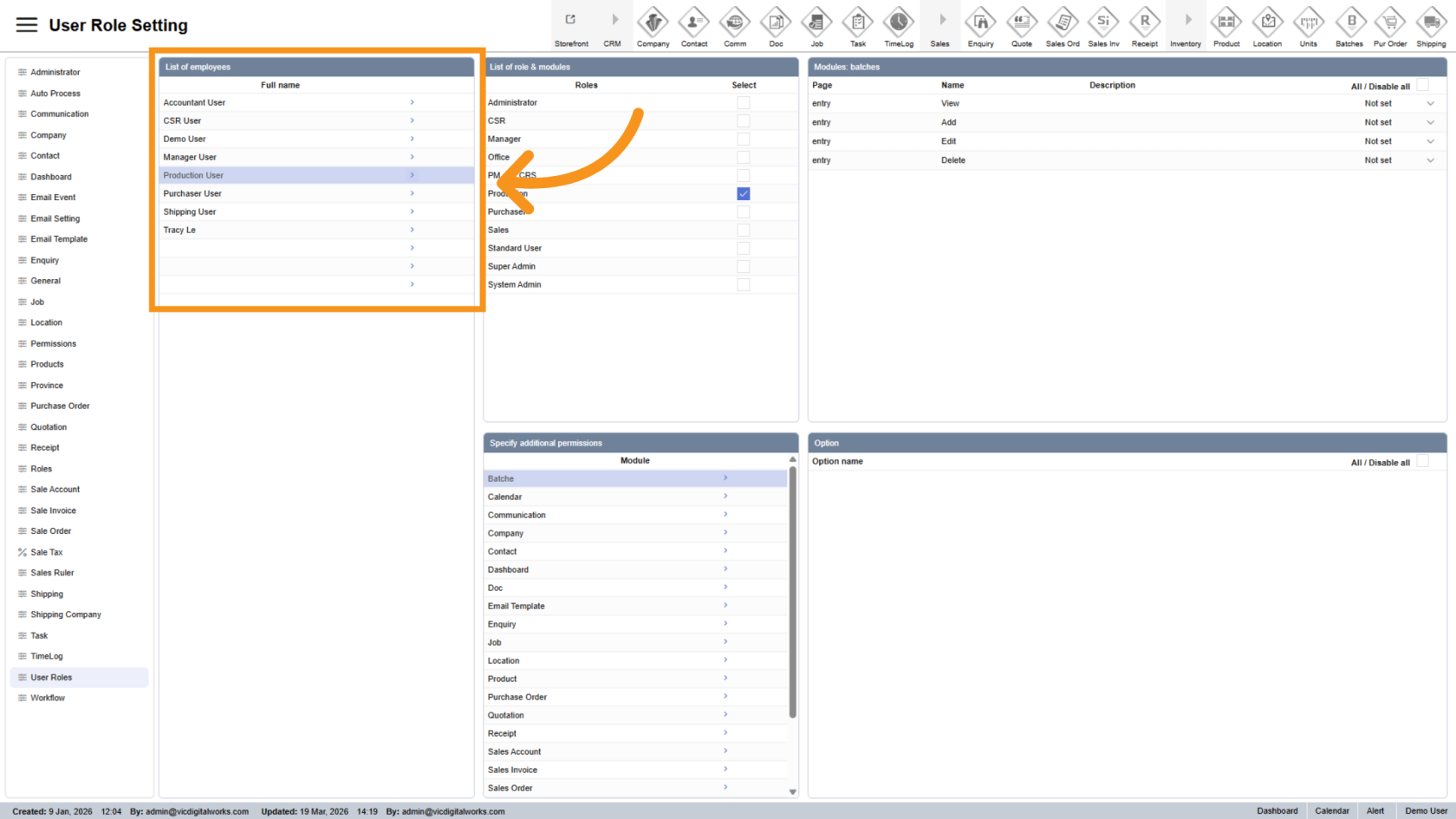
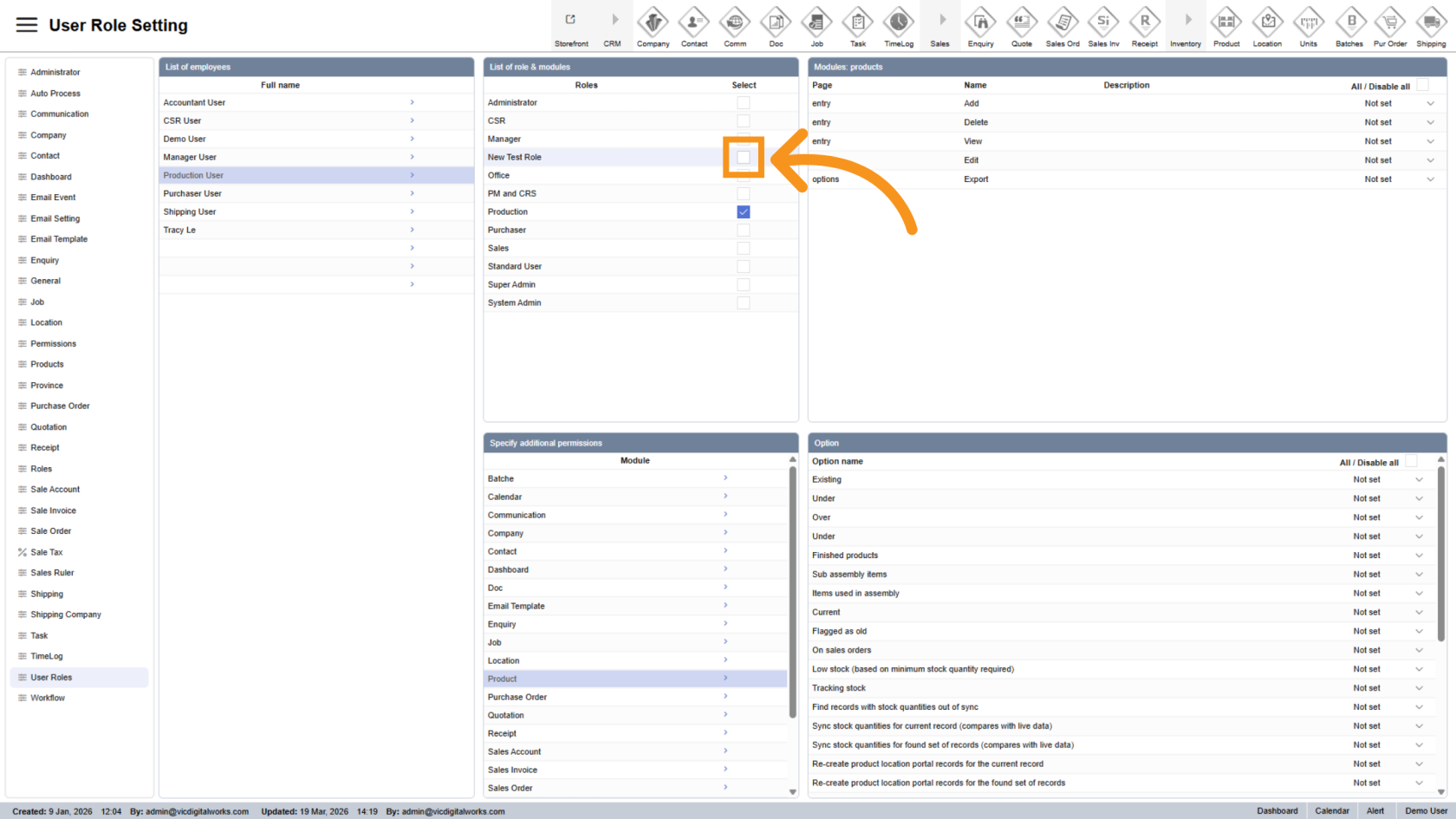
5. Assign Roles
Select one or more roles from the right panel to assign to the employee.
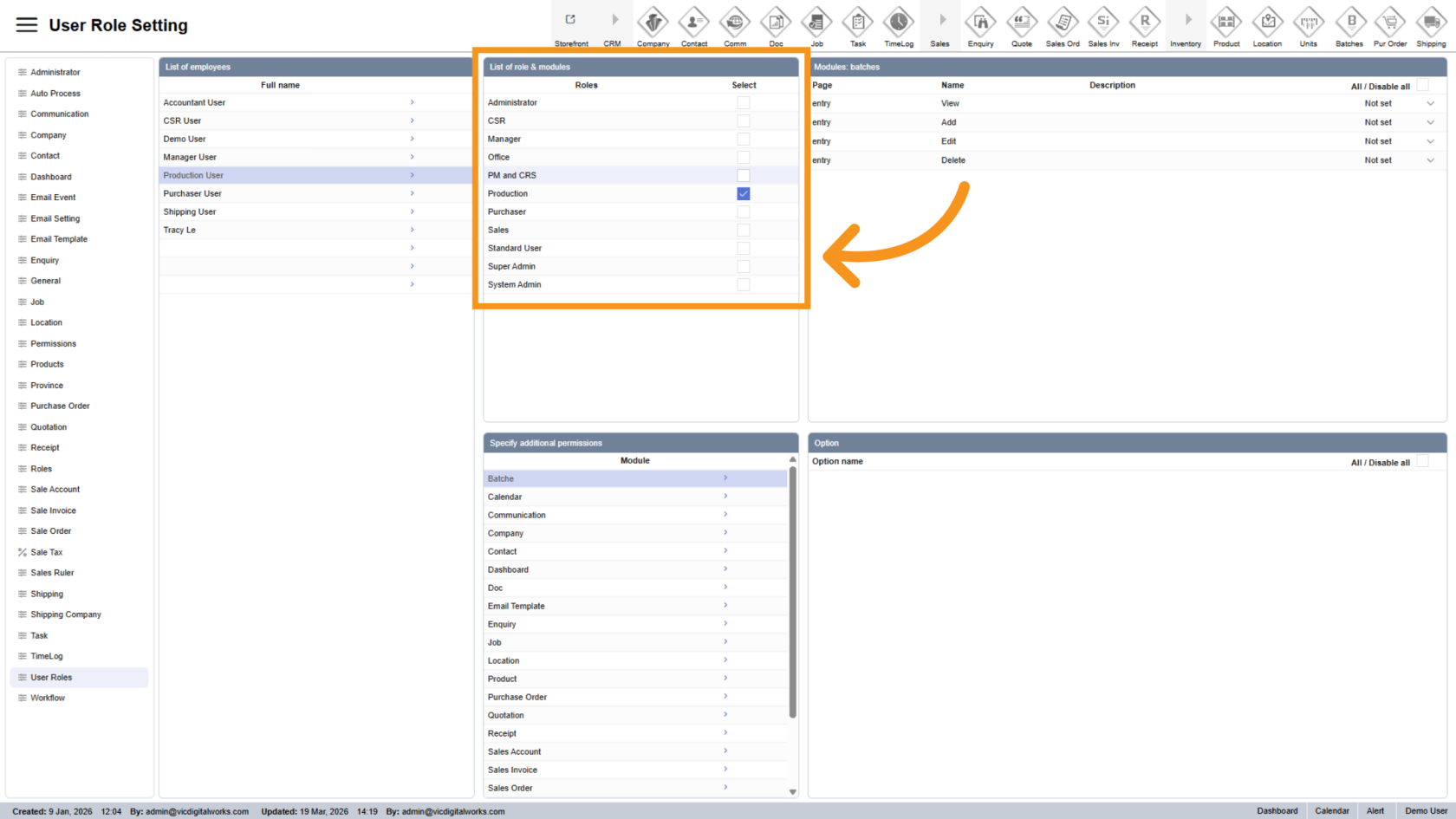
6. Manage Roles
If a required role is not available, click "Roles" in the left sidebar.
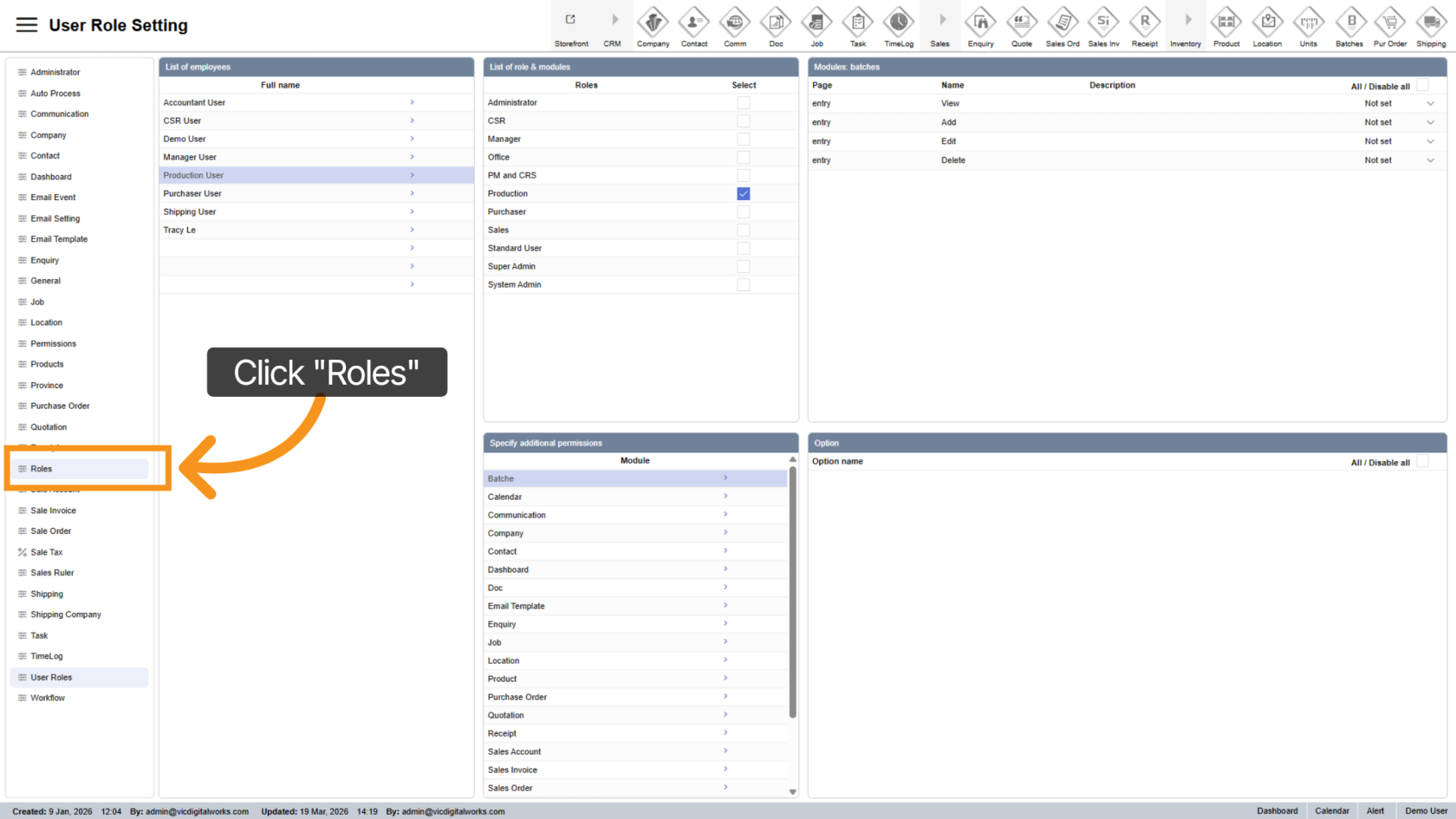
7. Create New Role
Click the  plus icon to add a new role.
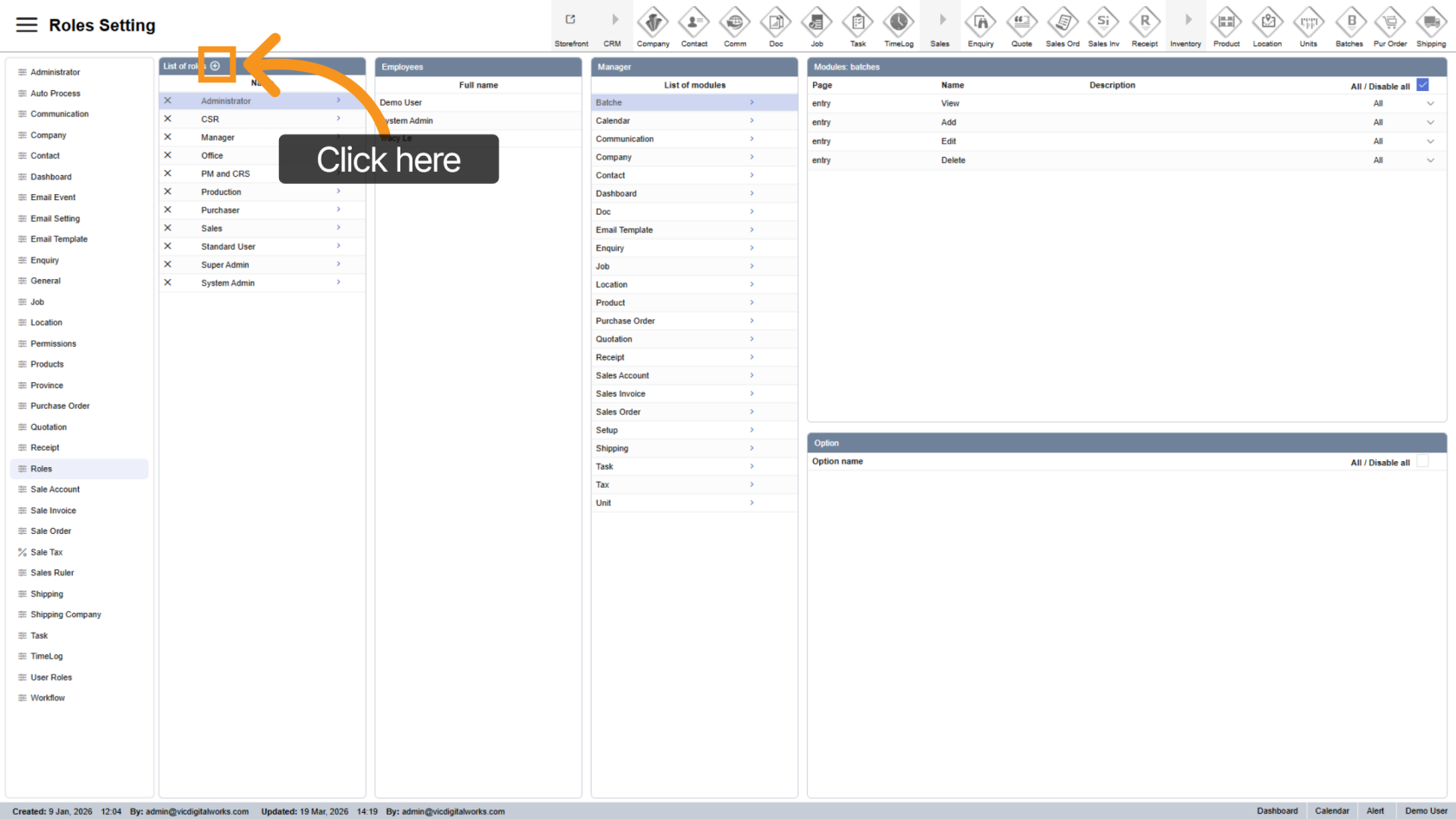
8. Rename Role
Select the new role and update its name for easy identification.
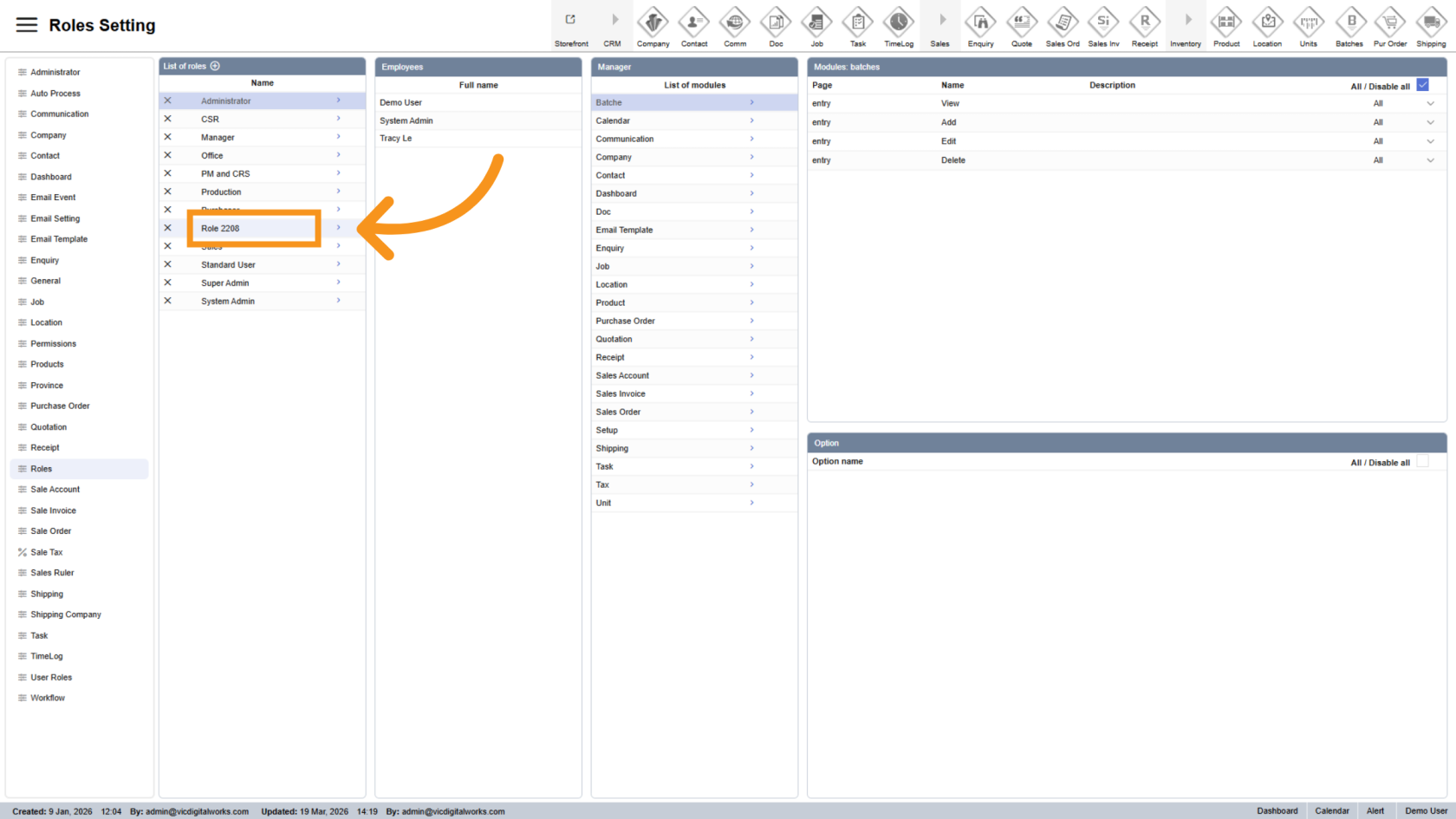
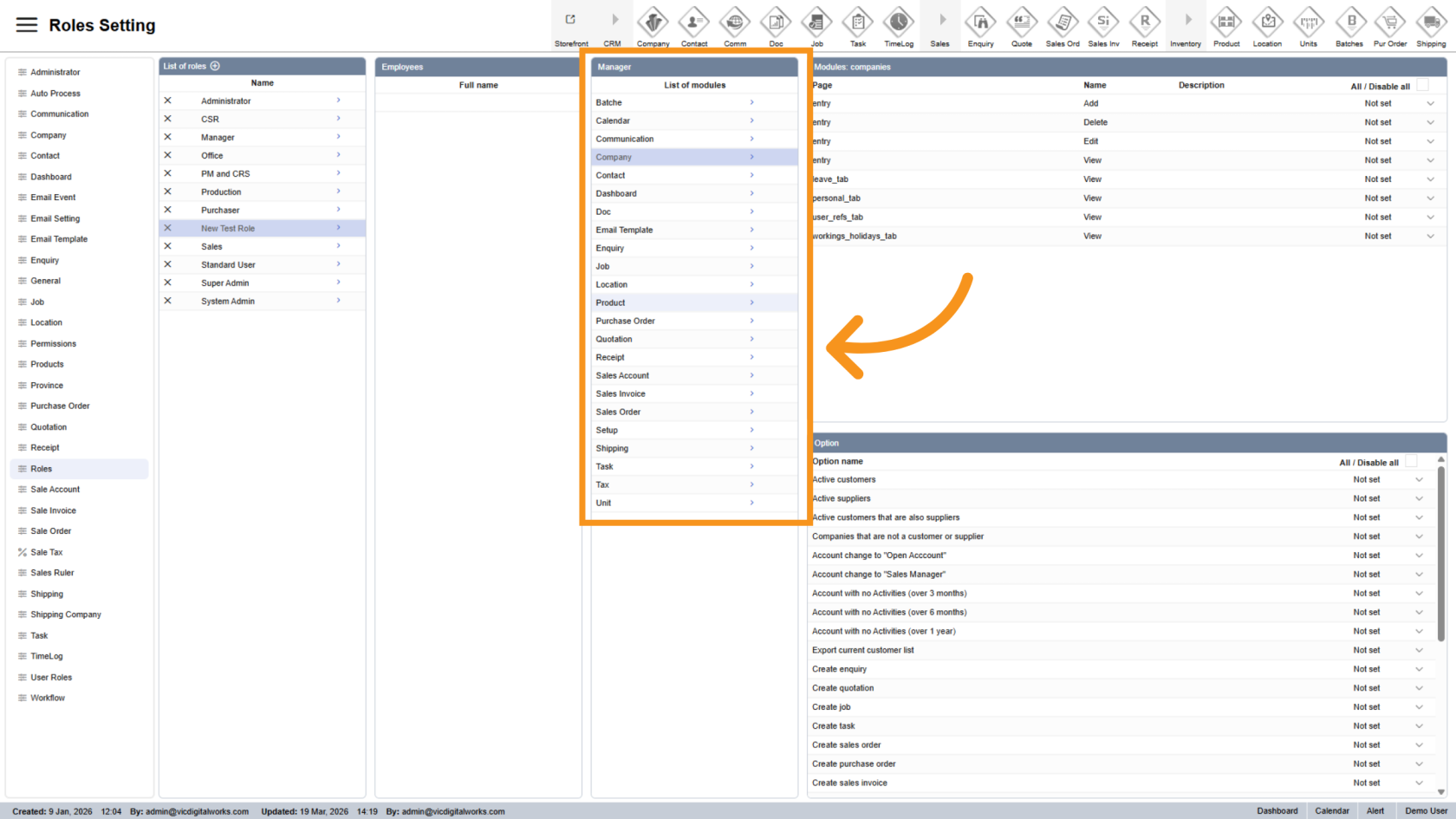
9. Select Modules
Choose the modules you want to control access for.
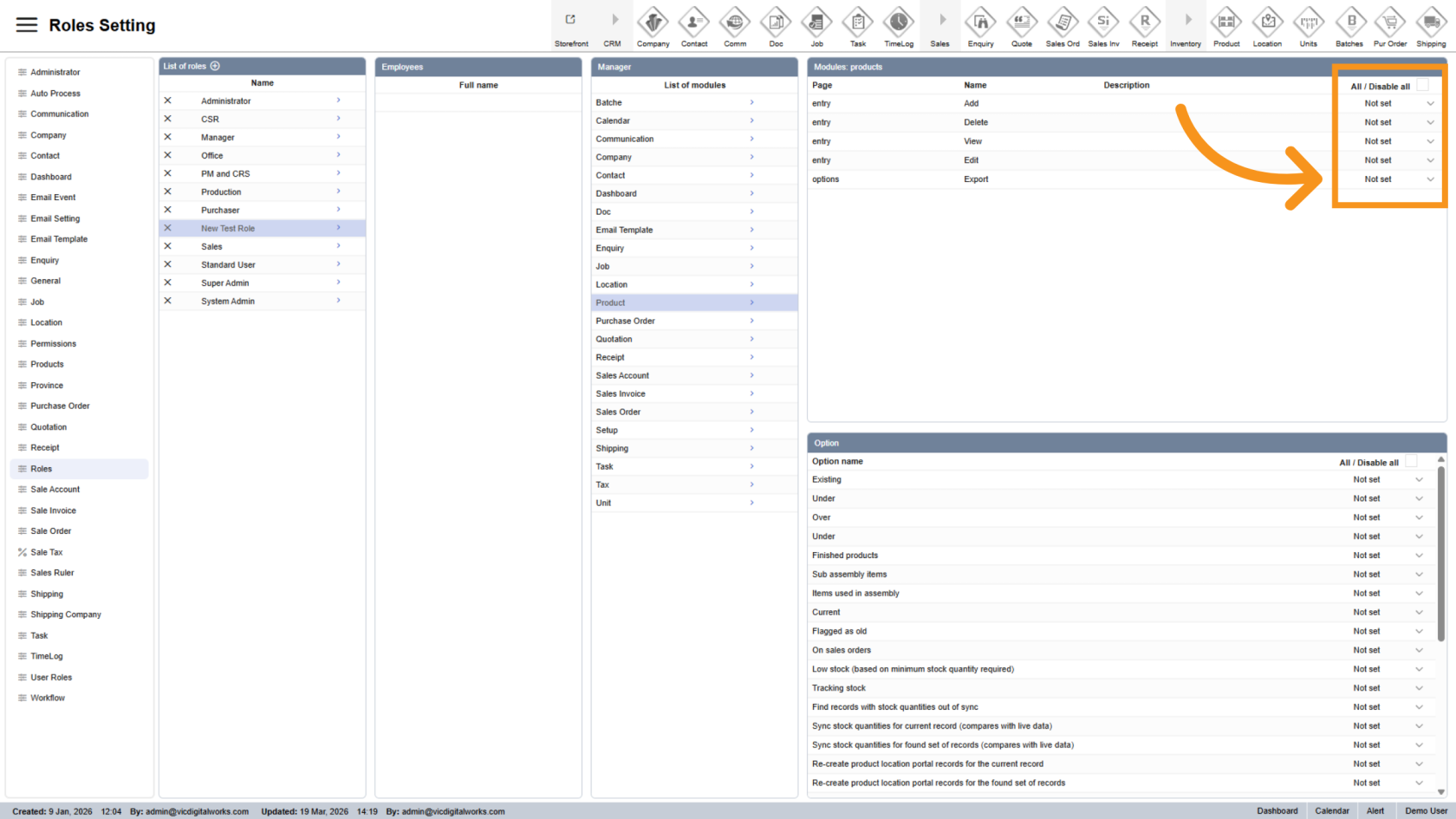
10. Set Permissions
Configure permissions for the selected role in the table on the right.
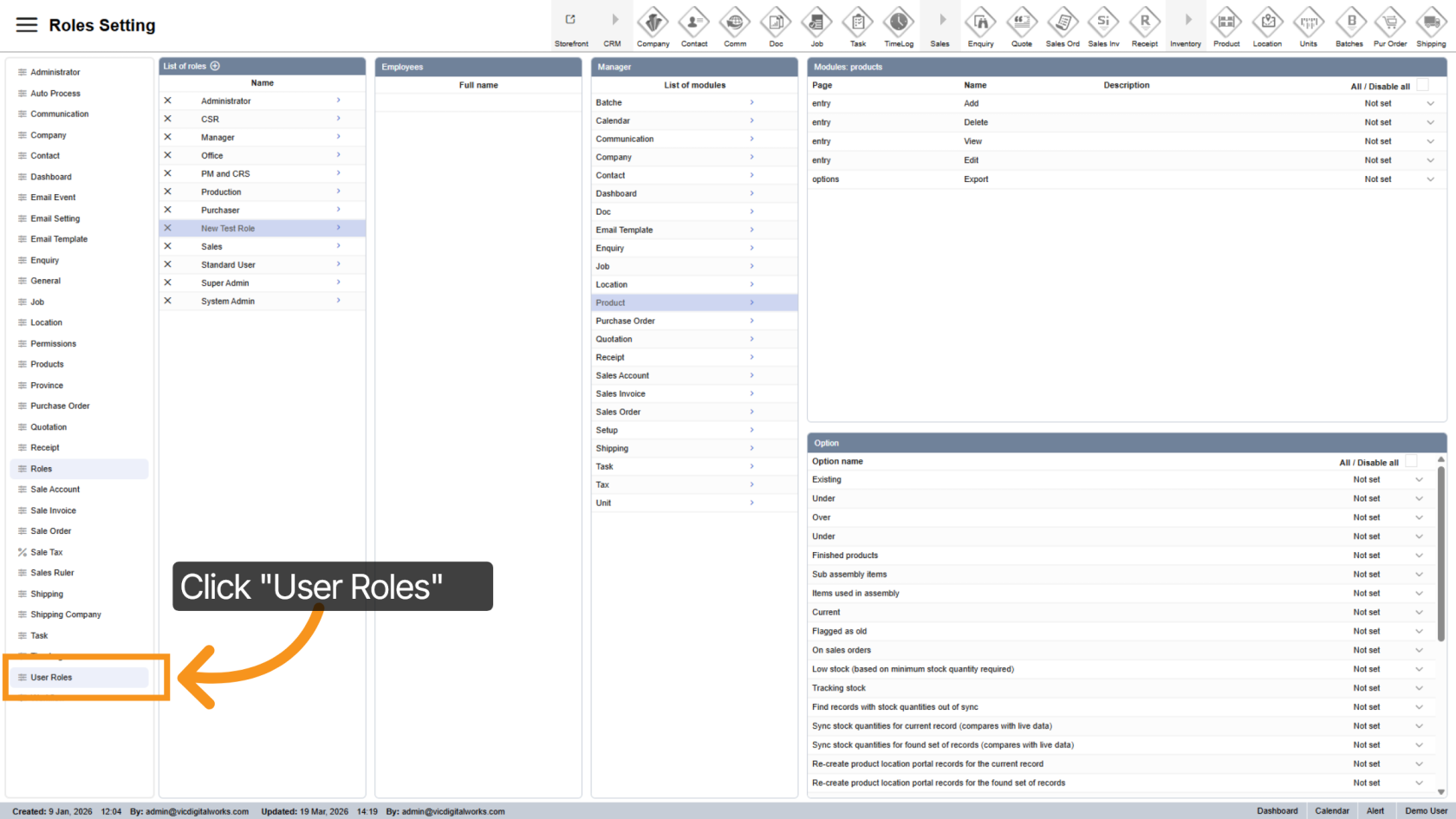
11. Return to User Roles
Go back to the "User Roles" section.
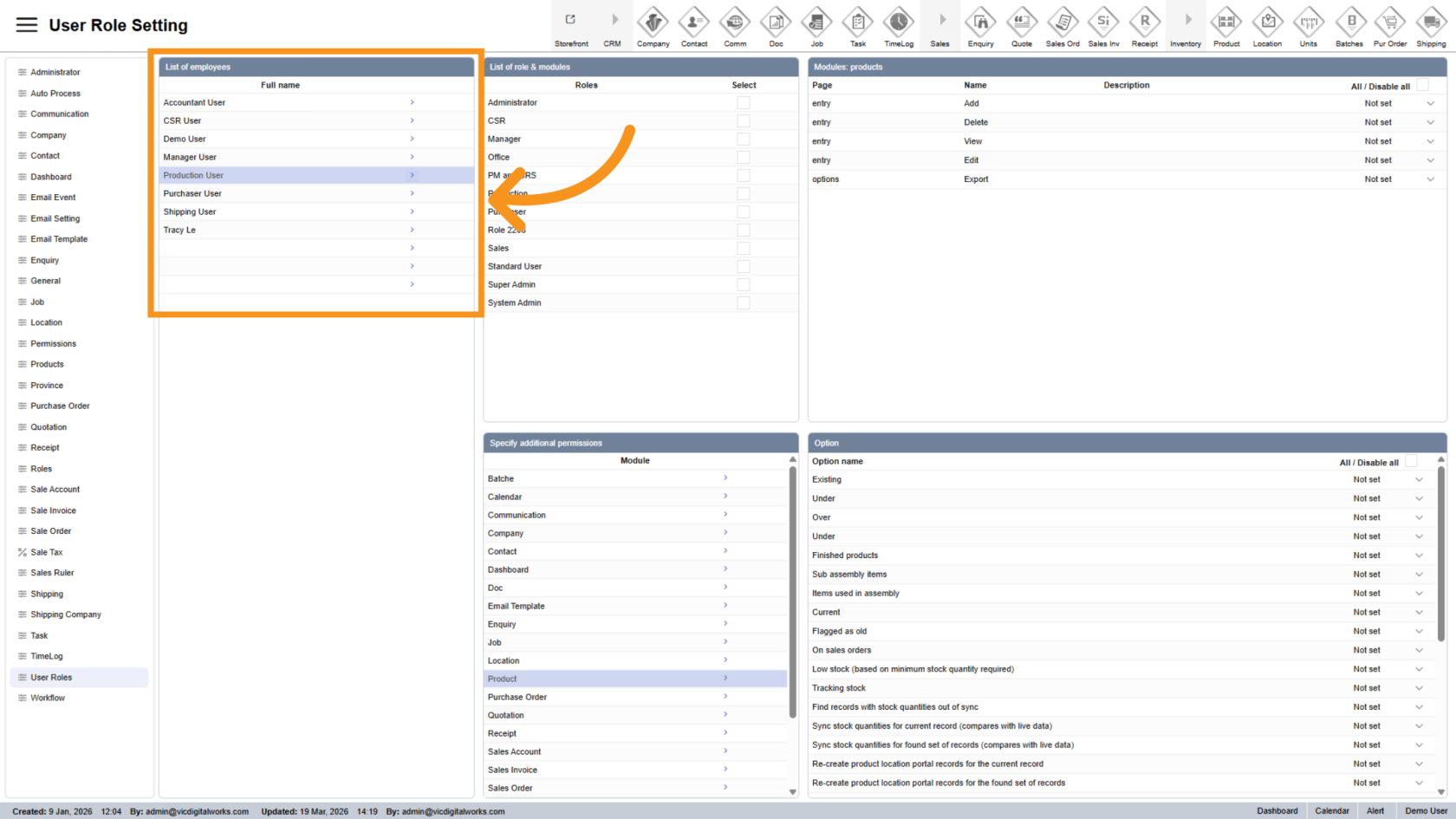
12. Re-select Employee
Choose the employee again.
13. Assign New Role
Apply the newly created role to the employee.
You have successfully configured employee roles in Worktraq. Ensure permissions are correctly set to match your operational needs.