
General Settings
This tutorial shows how to configure your company’s general settings in the Worktraq App, including branding, contact details, and operational preferences.
Video Tutorial
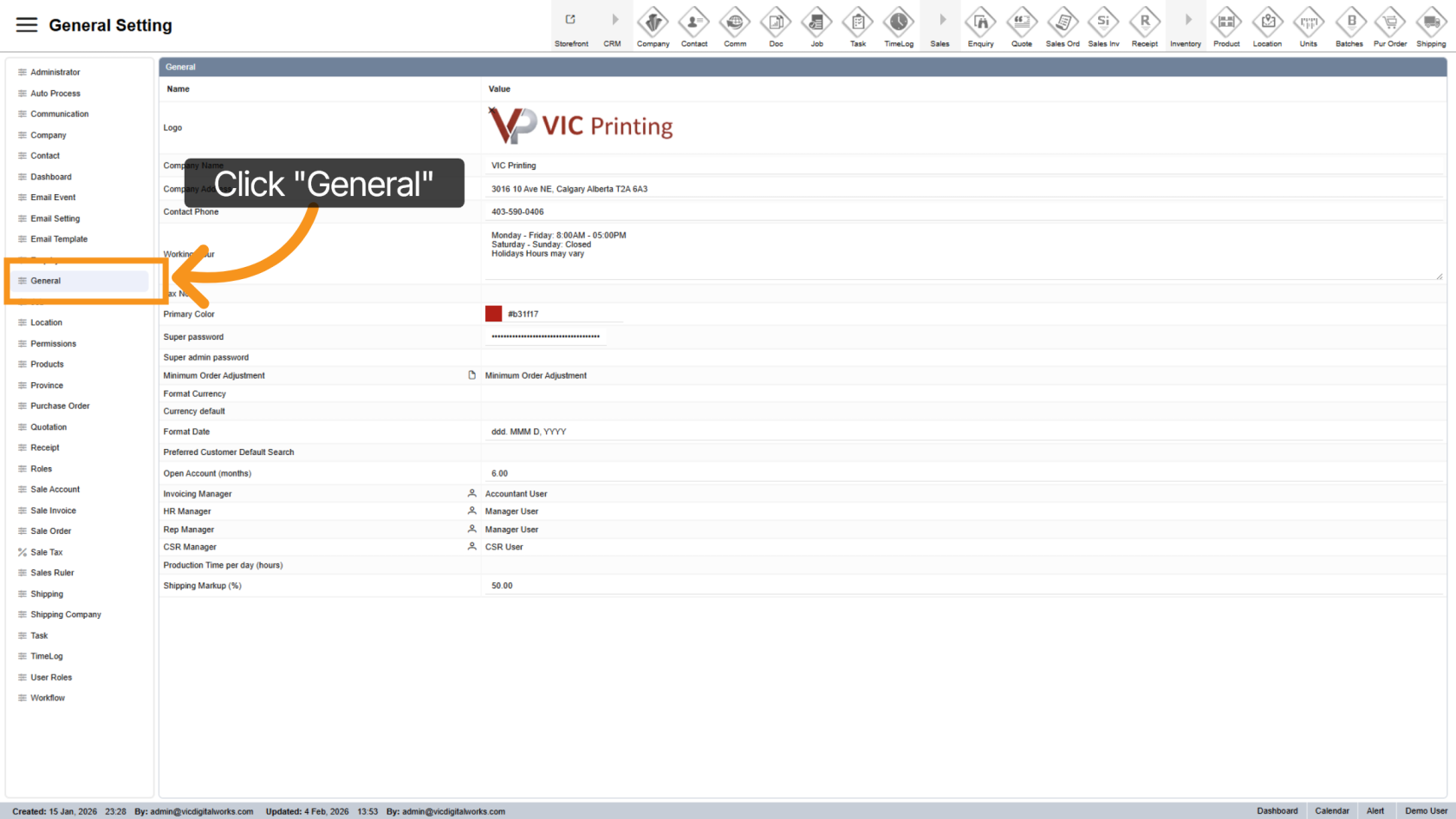
1. Open General Settings
Click "General" to access company configuration options.
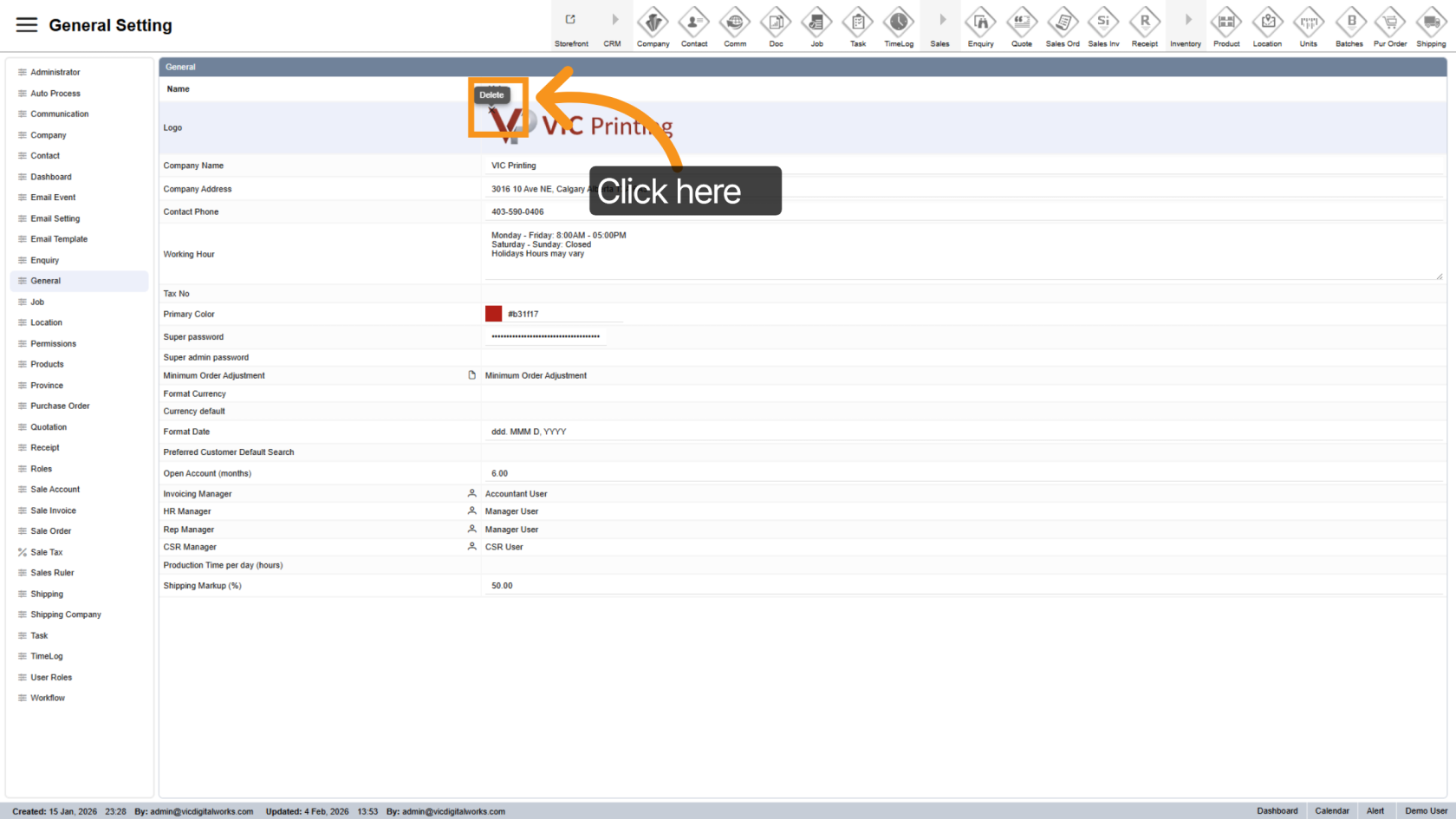
2. Remove Existing Logo
Delete the current logo if you want to replace it.
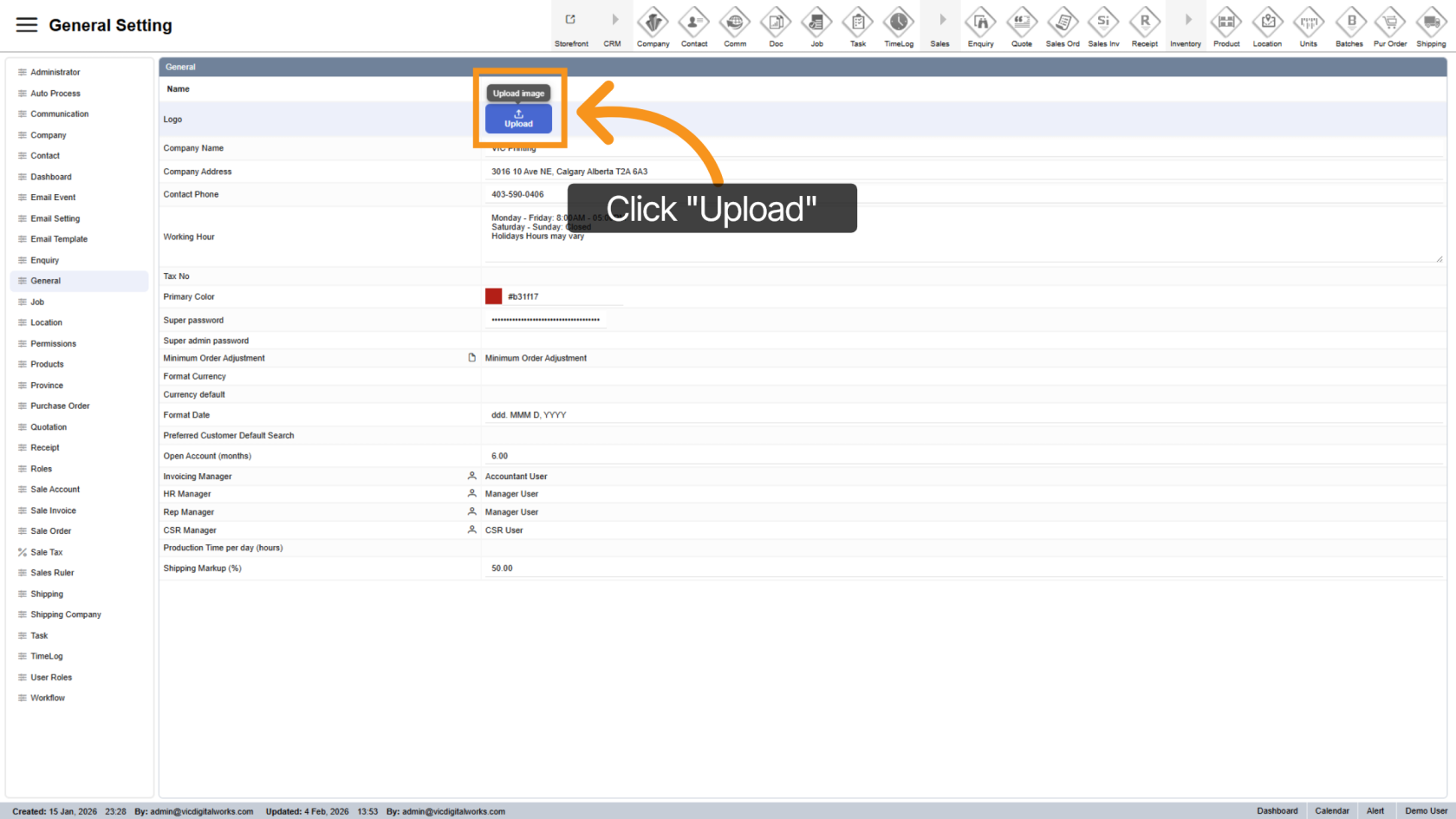
3. Upload New Logo
Click "Upload" to add your company logo.
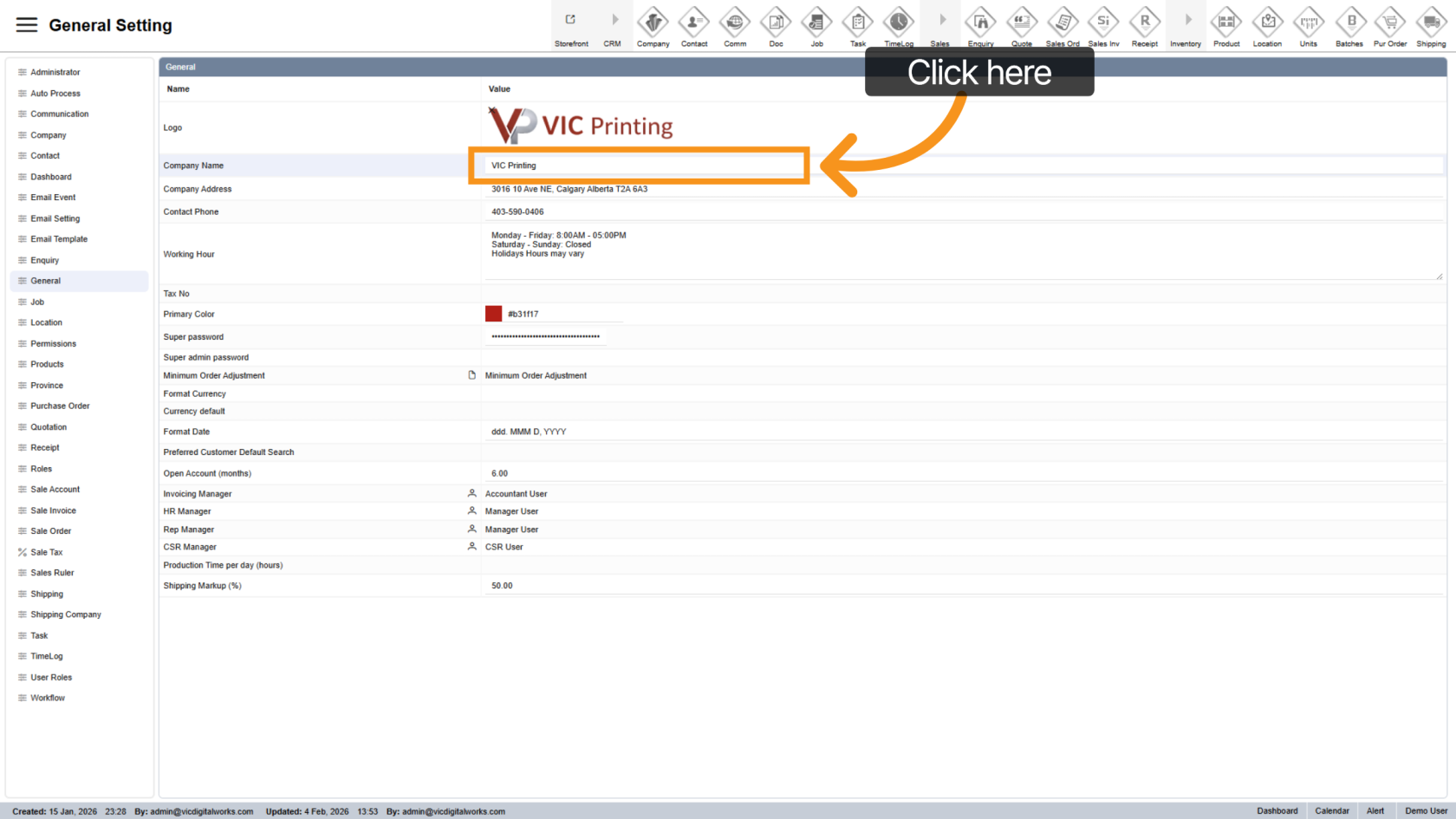
4. Update Company Name
Edit the company name as it should appear in the system.
5. Update Company Address
Enter or modify your business address.
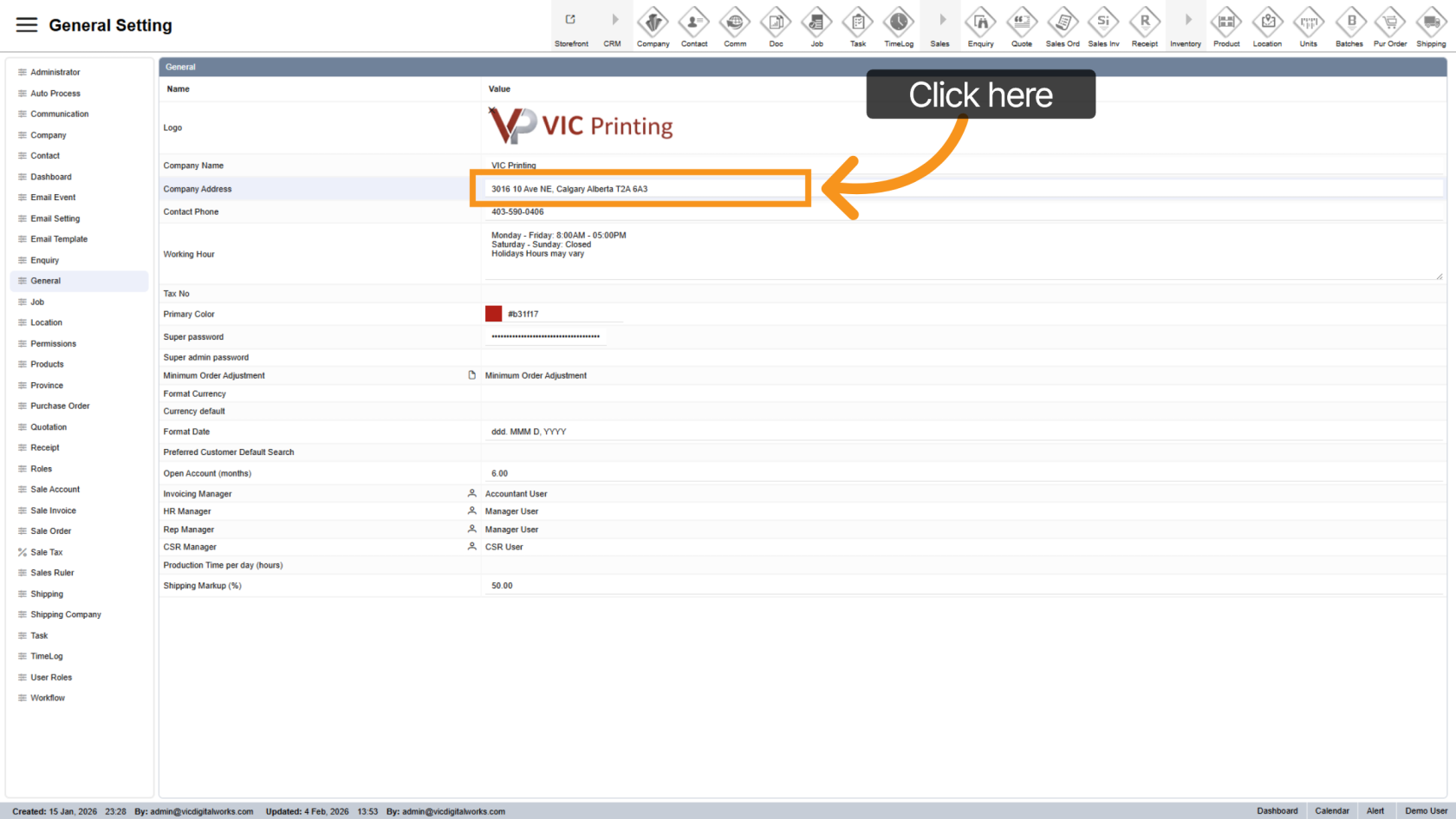
6. Update Contact Phone
Set the primary phone number for your company.
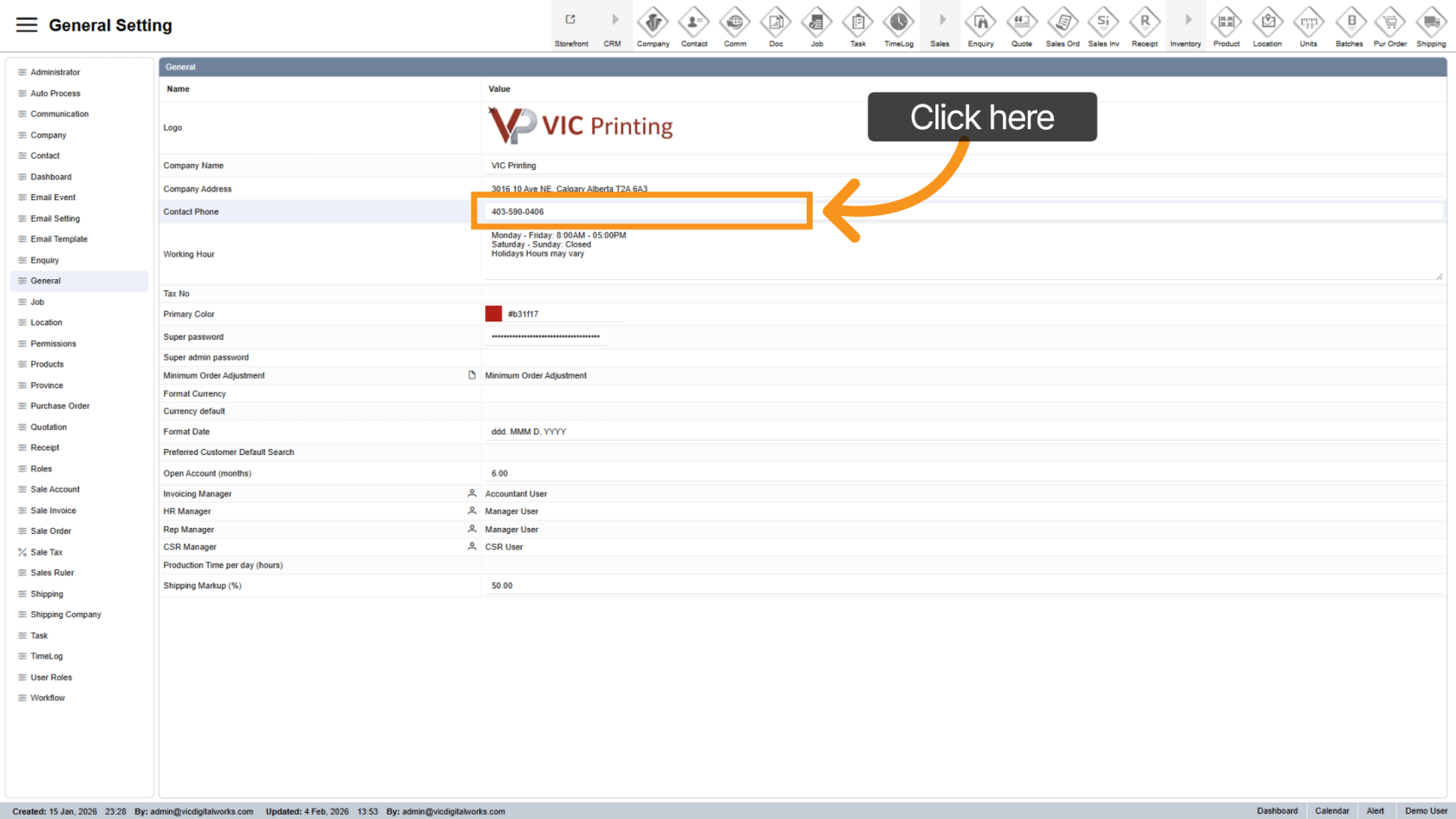
7. Set Business Working Hour
Define your business hour. This will display exactly as entered on the e-store.
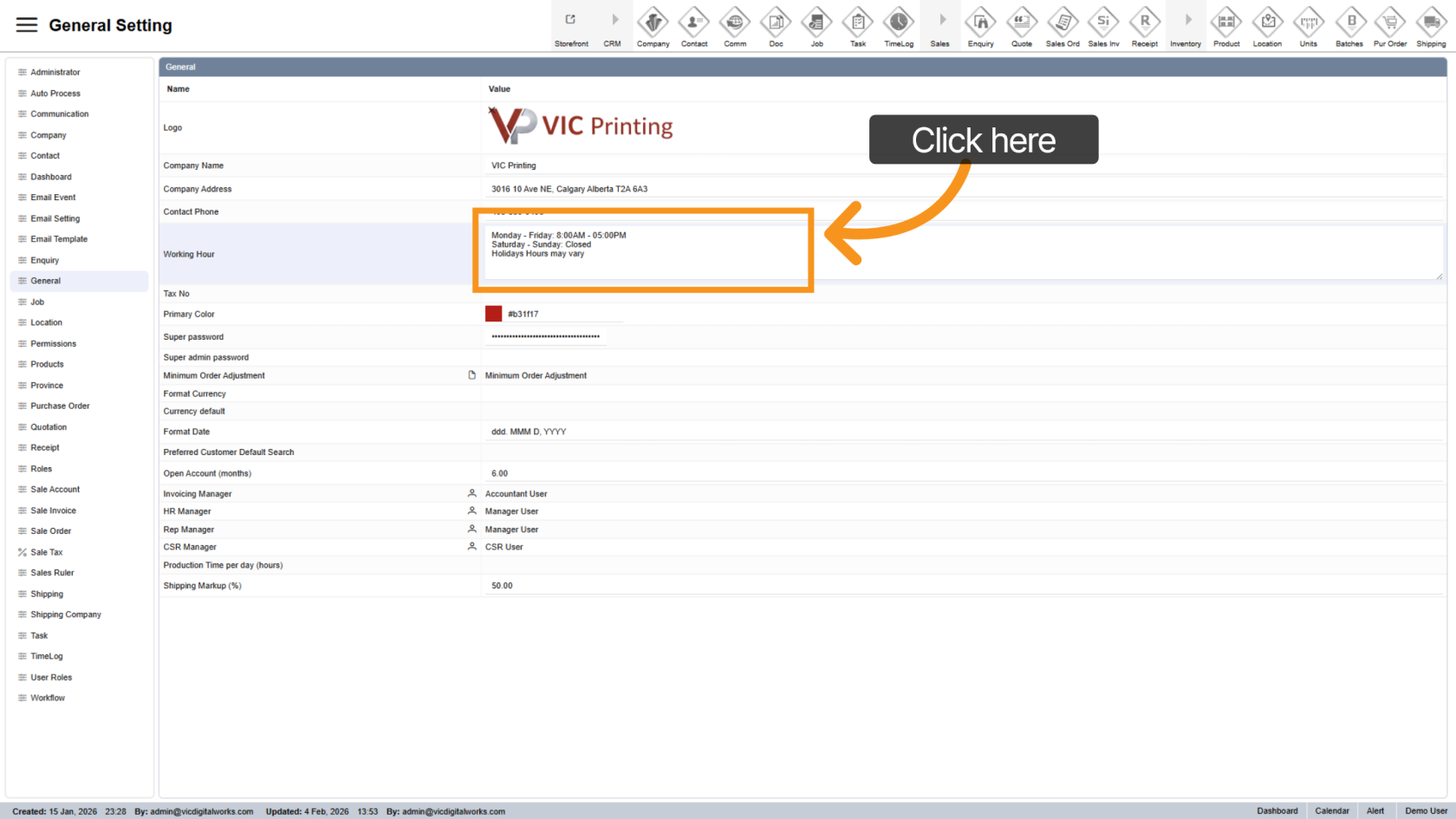
8. Enter Tax Number
Add or update your company’s tax identification number.
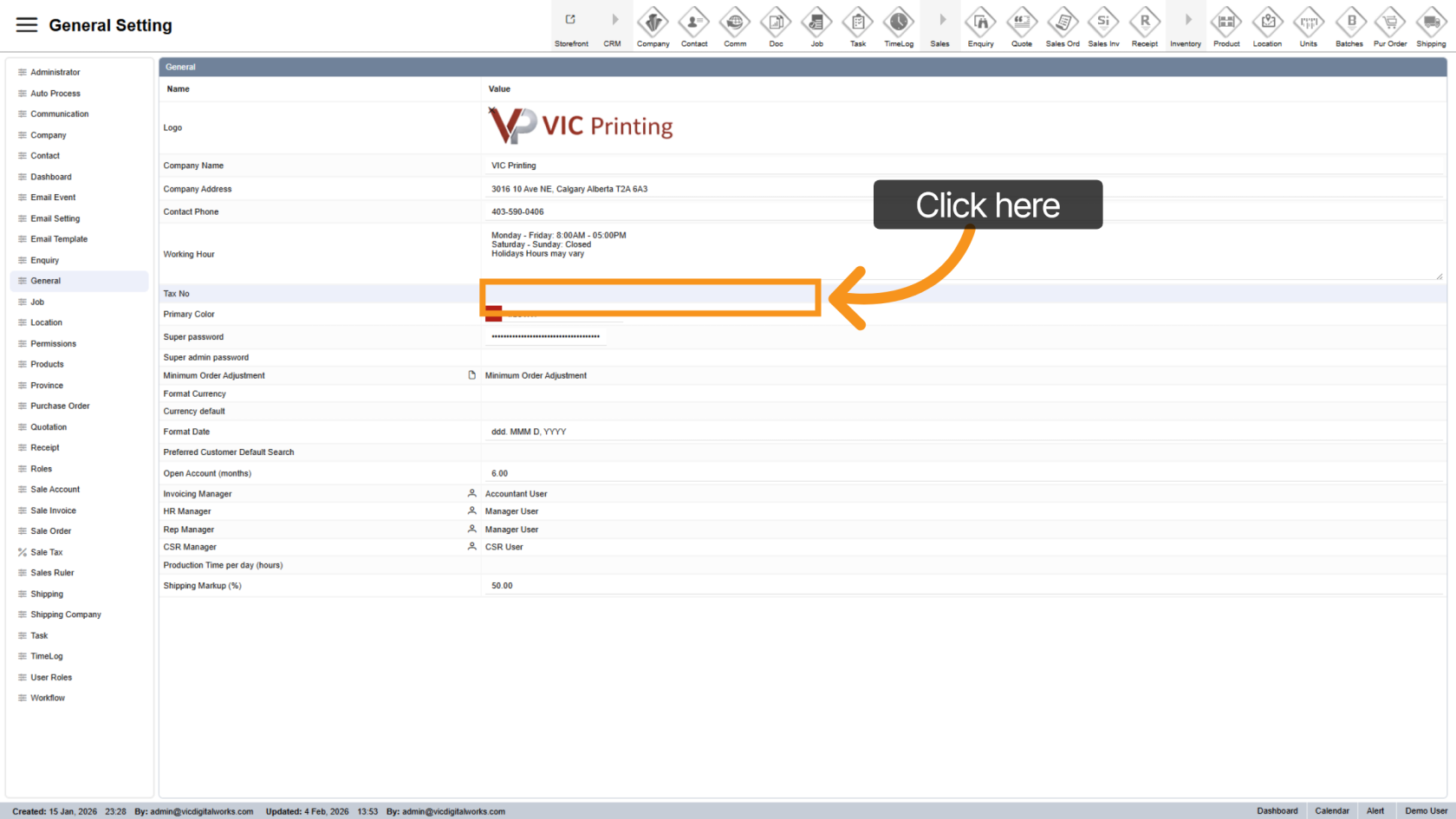
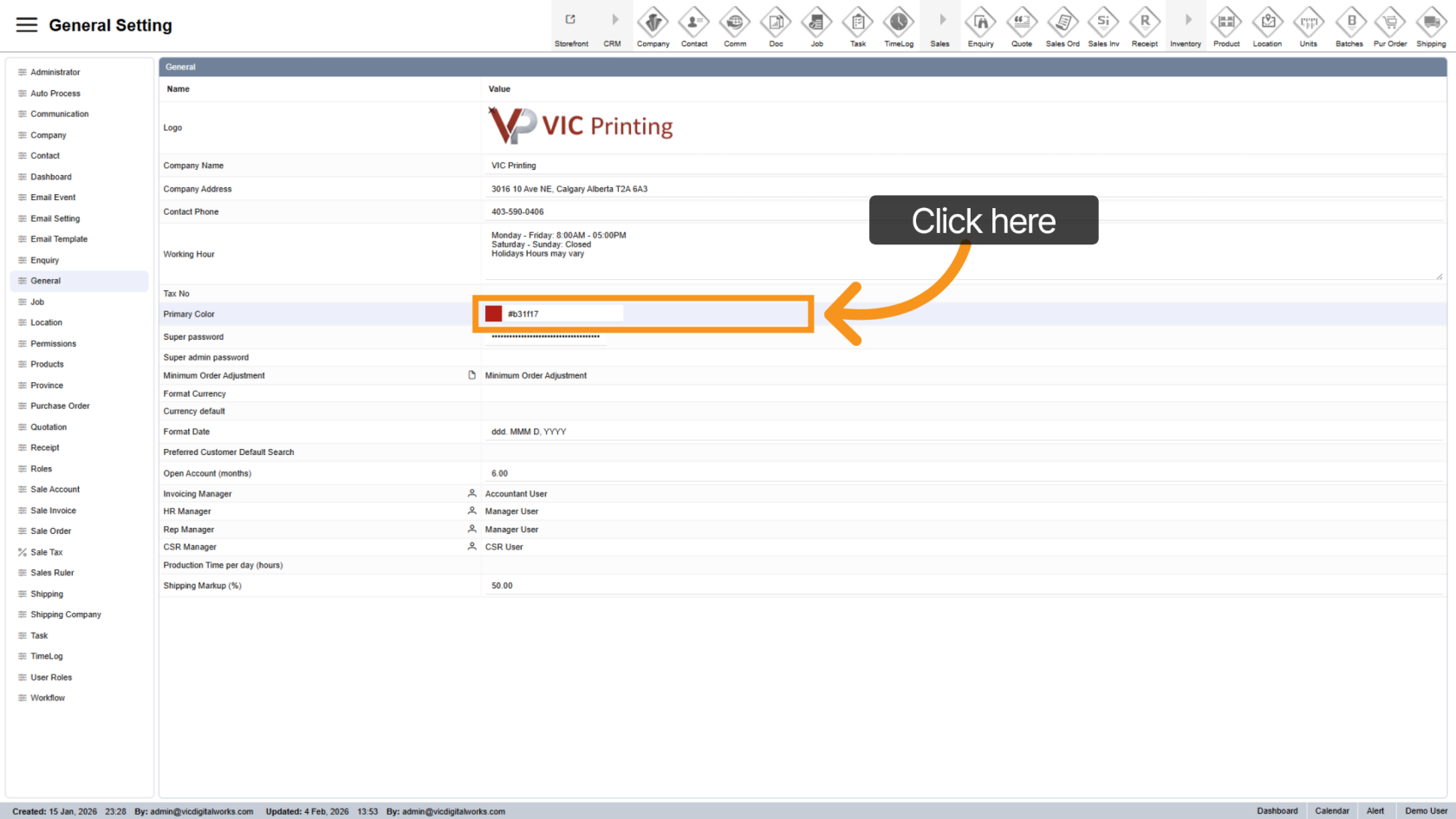
9. Set Primary Color
Choose your brand’s primary color by entering a hex code or clicking the color box to select a color visually.
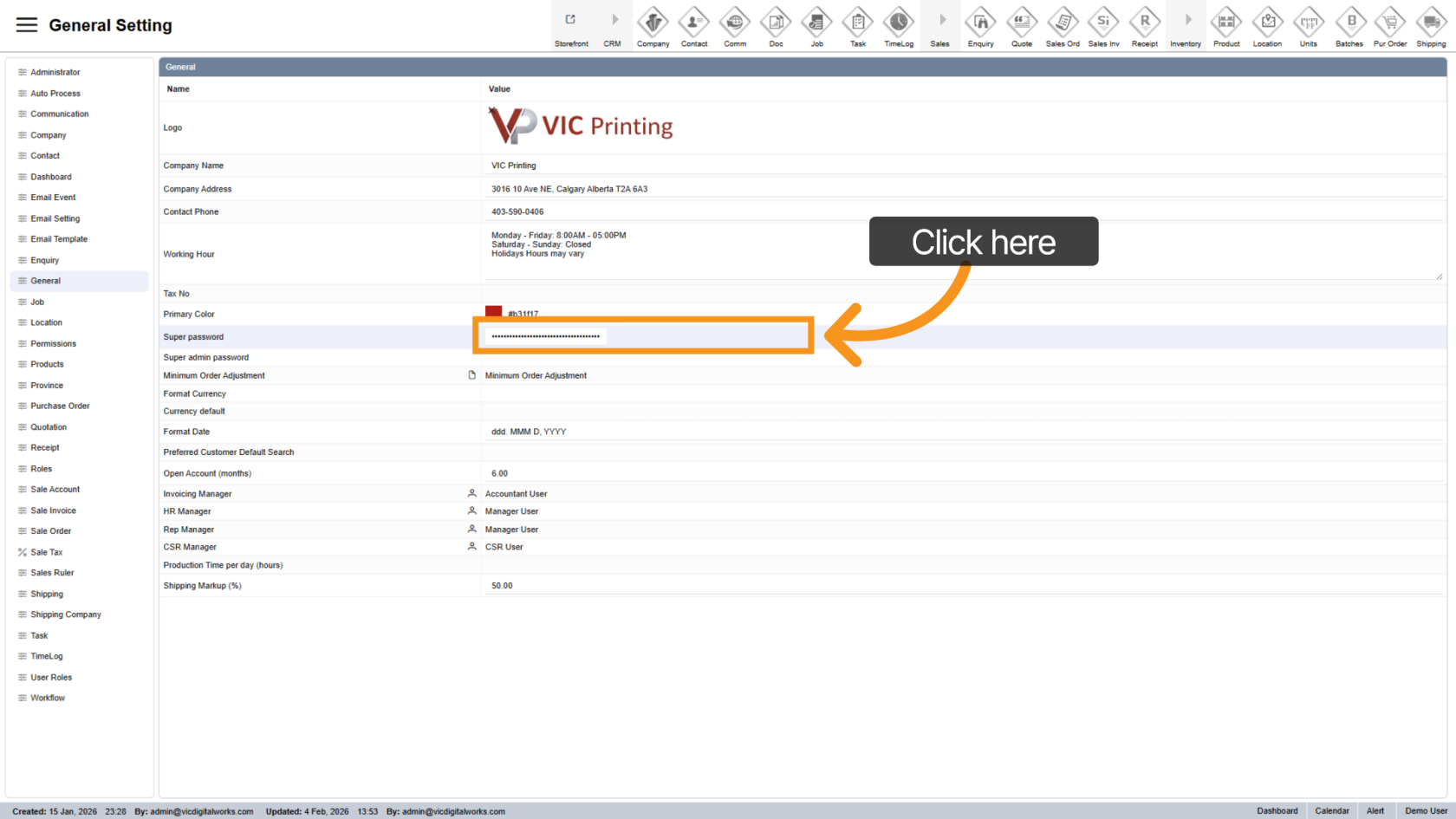
10. Configure Super Password
Set the super password used for restricted actions such as order discounts for non-manager roles.
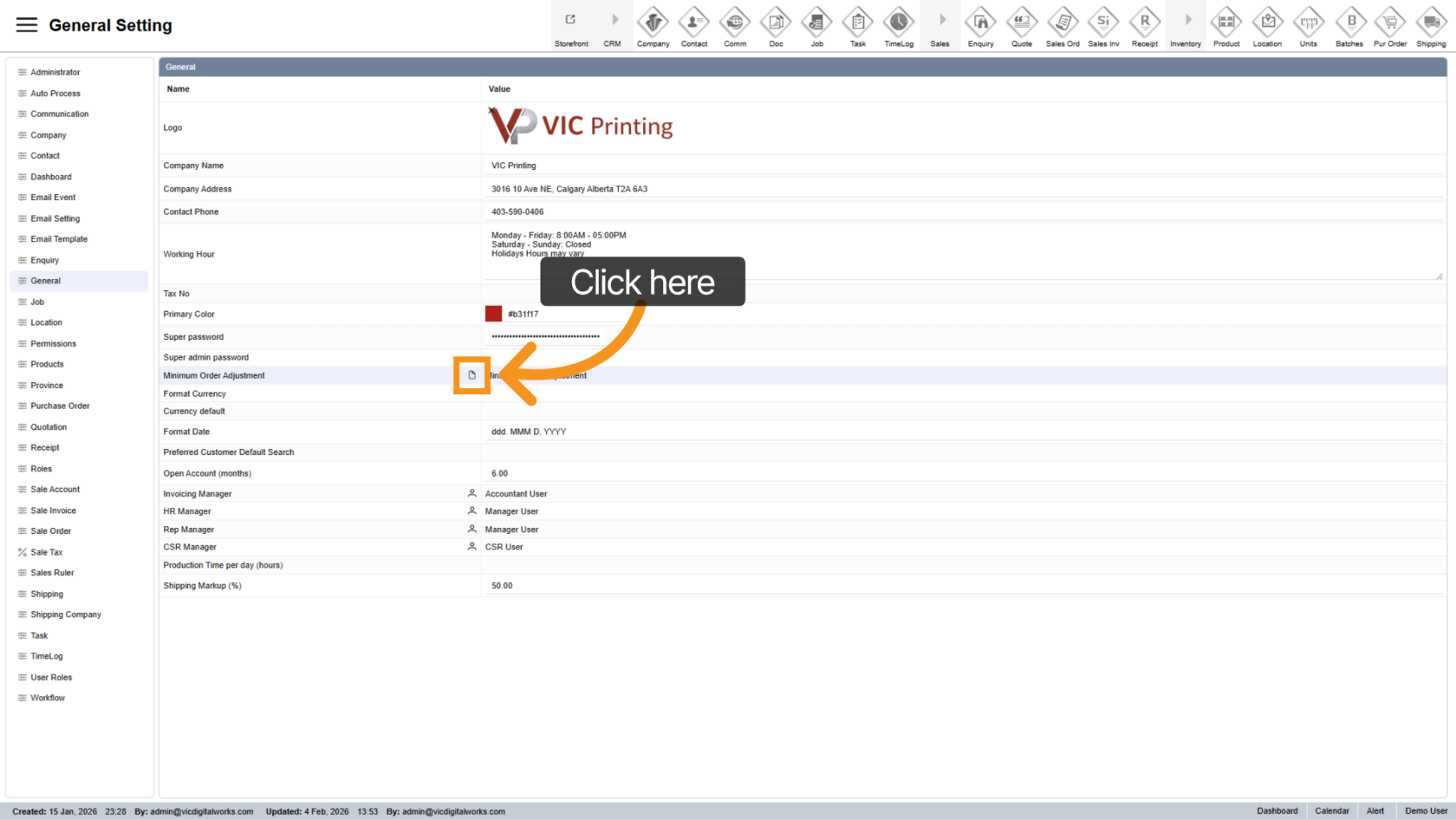
11. Set Minimum Order Product
Select a product to enforce a minimum order value. Any quotation or order will meet at least this amount.
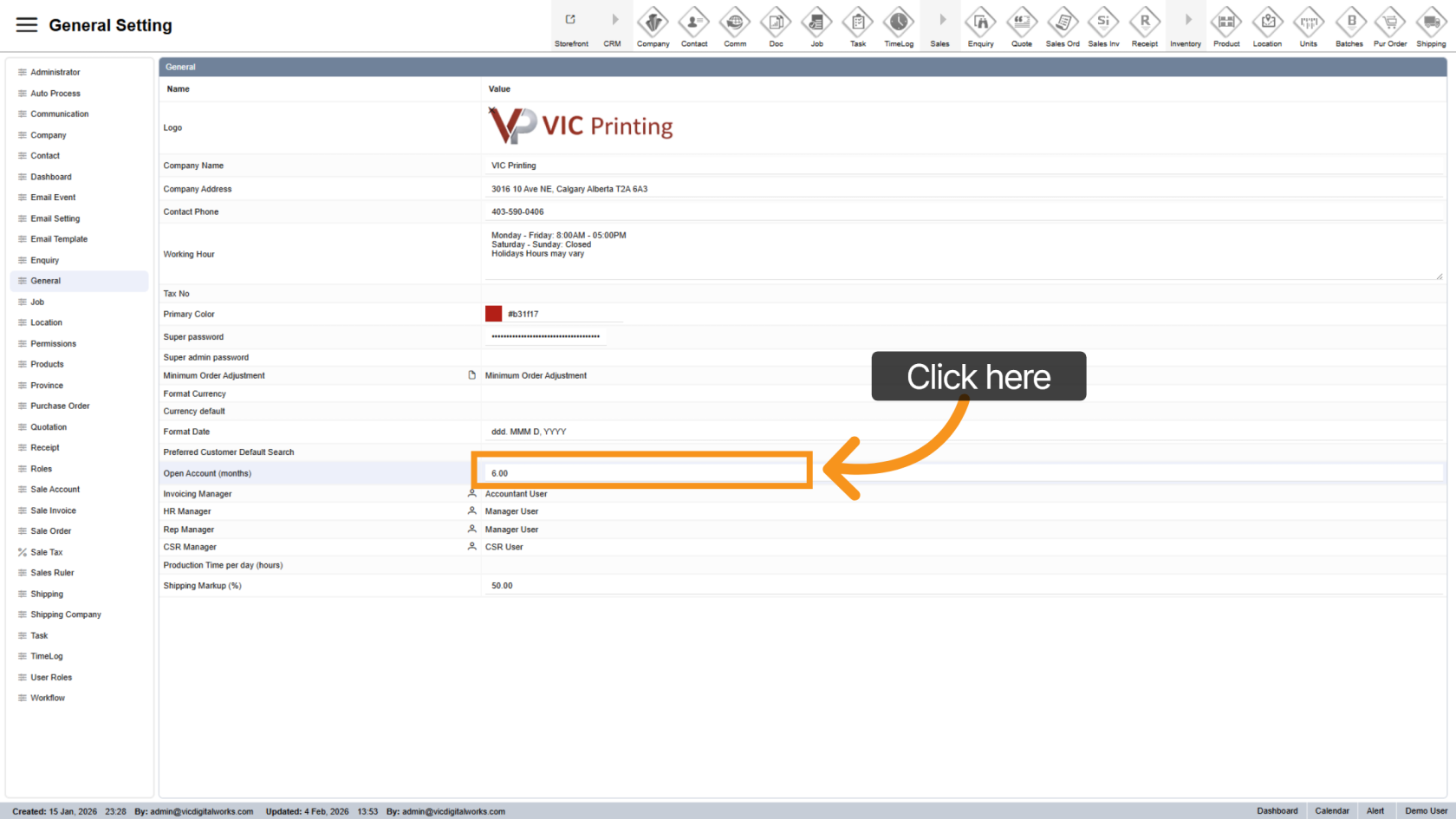
12. Set Open Account Duration
Define the number of months of inactivity before a customer becomes an open account, allowing reassignment.
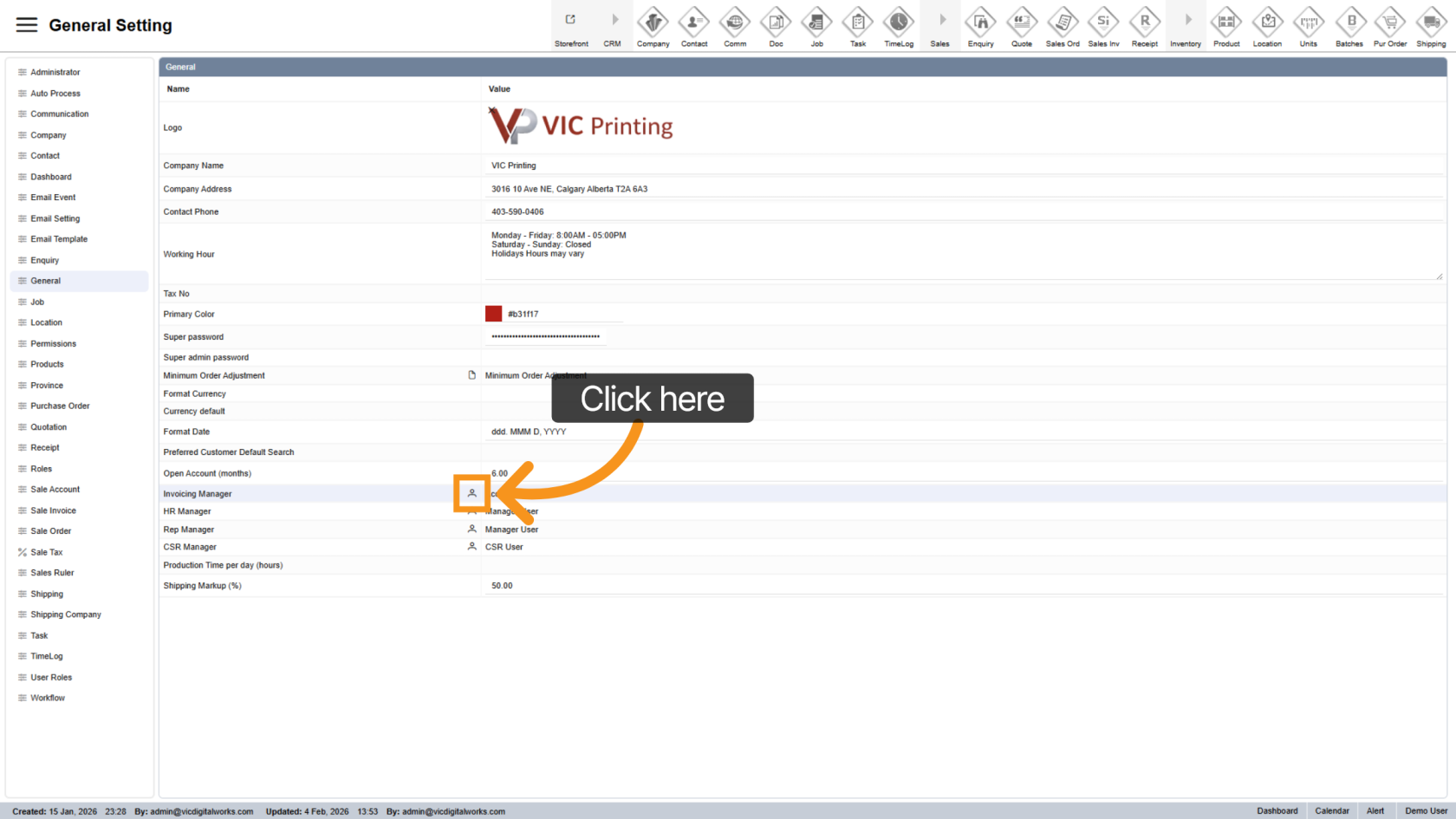
13. Assign Invoicing Manager
Click the  contact icon to choose who will receive invoicing-related notifications.
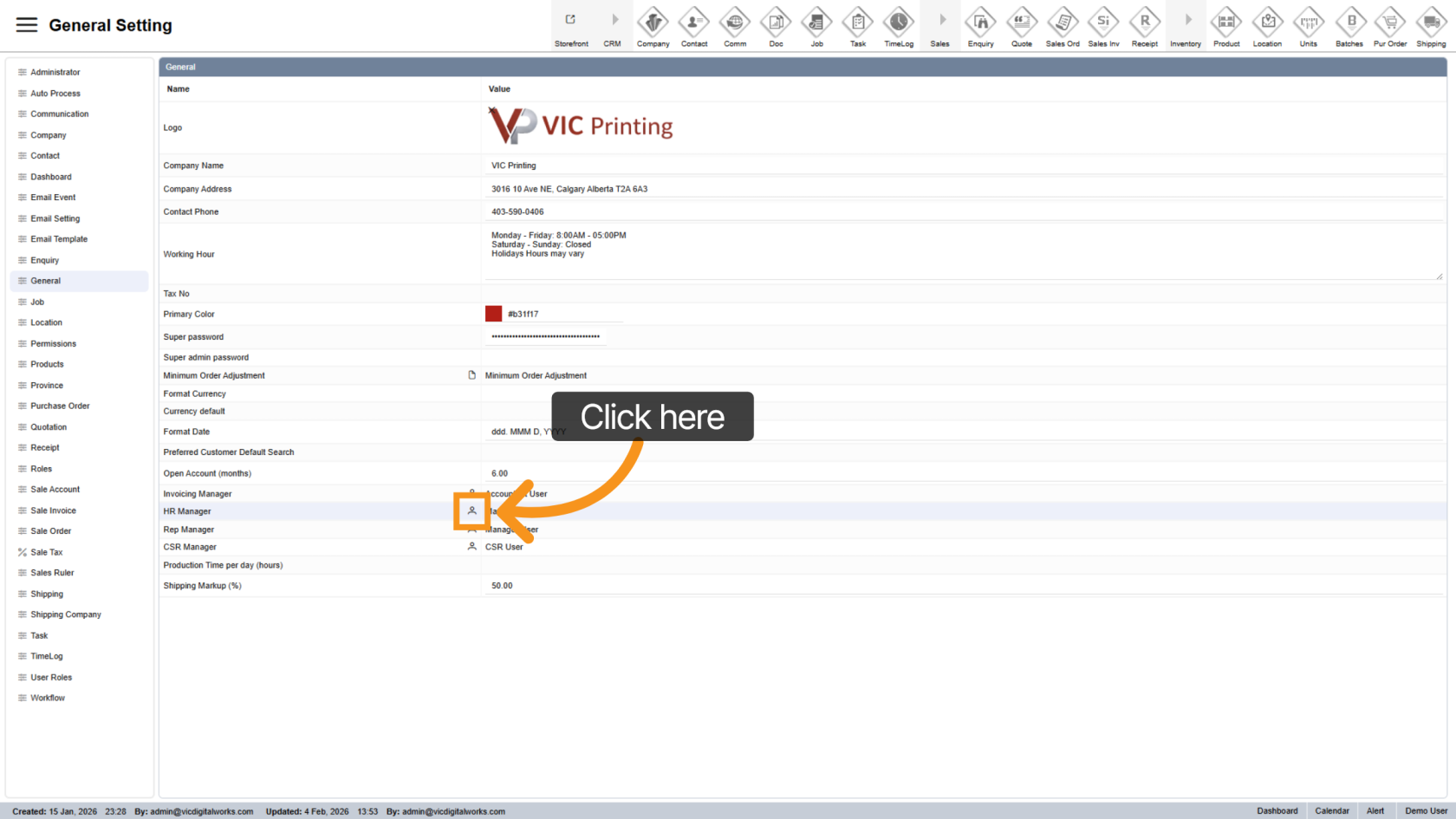
14. Assign HR Manager
Click the contact icon to select the person responsible for HR-related notifications.
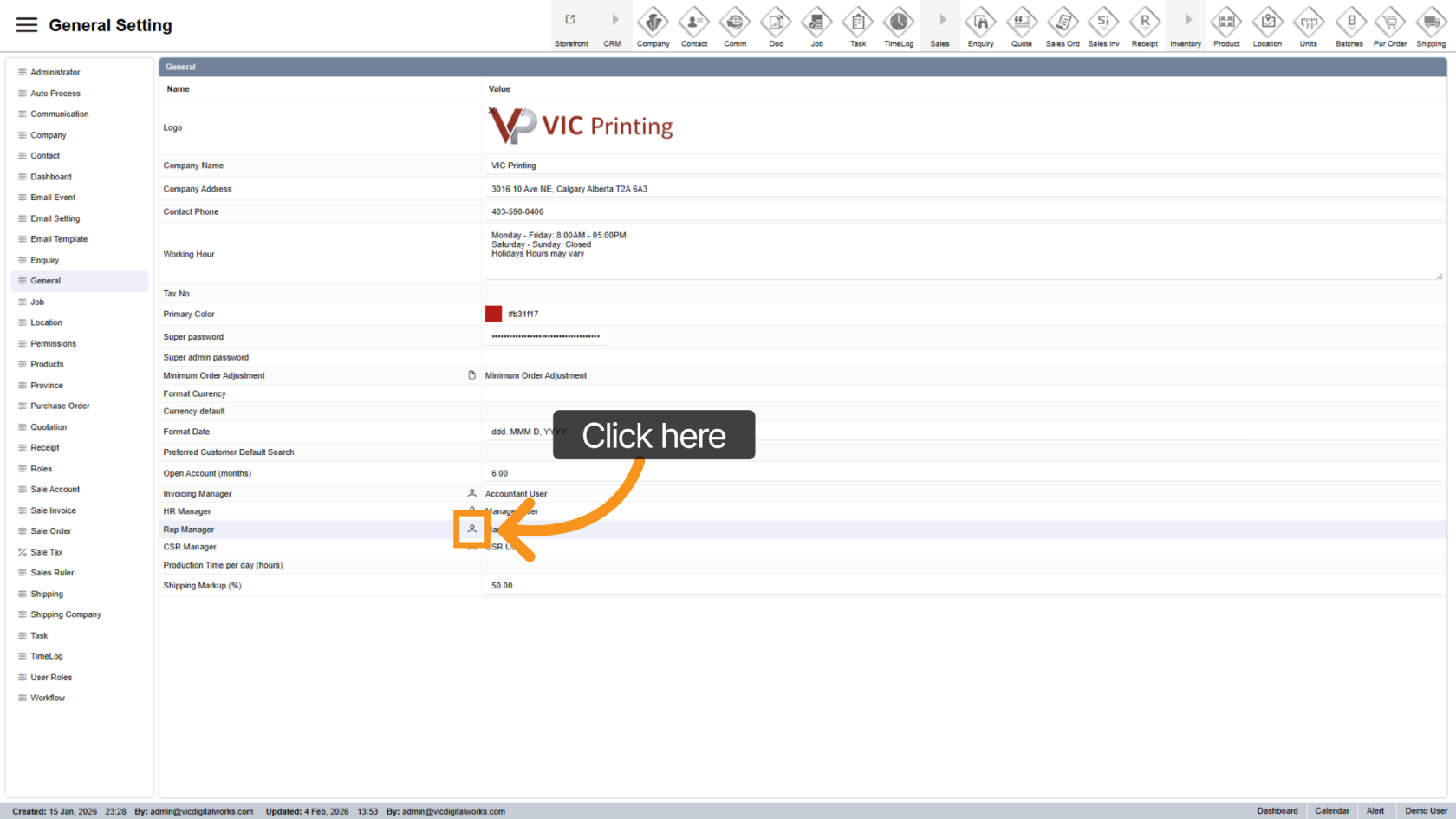
15. Assign REP Manager
Click the contact icon to select the default sales representative for companies created from the e-store.
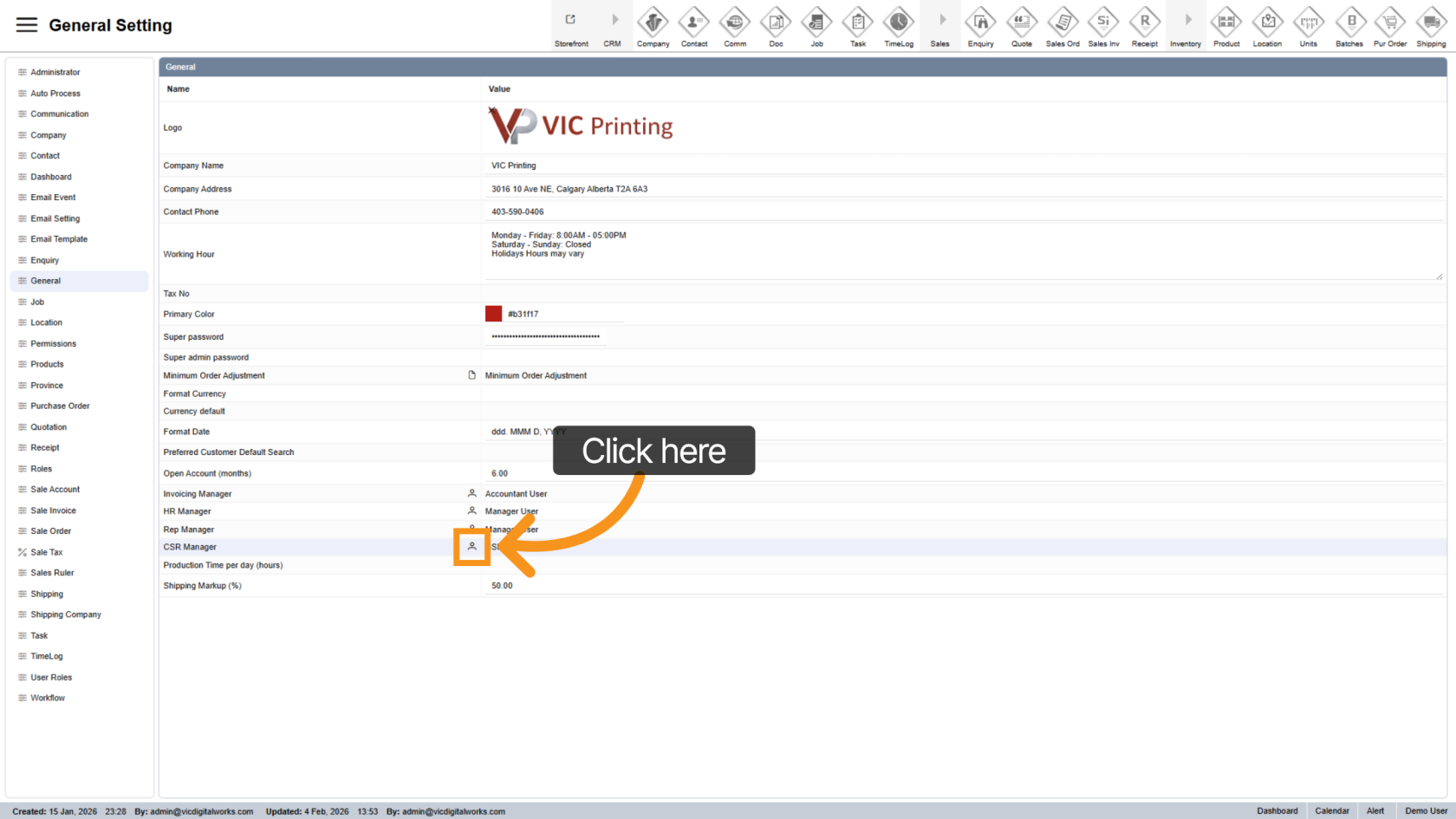
16. Assign CSR Manager
Click the contact icon to select the default customer service representative for companies created from the e-store.
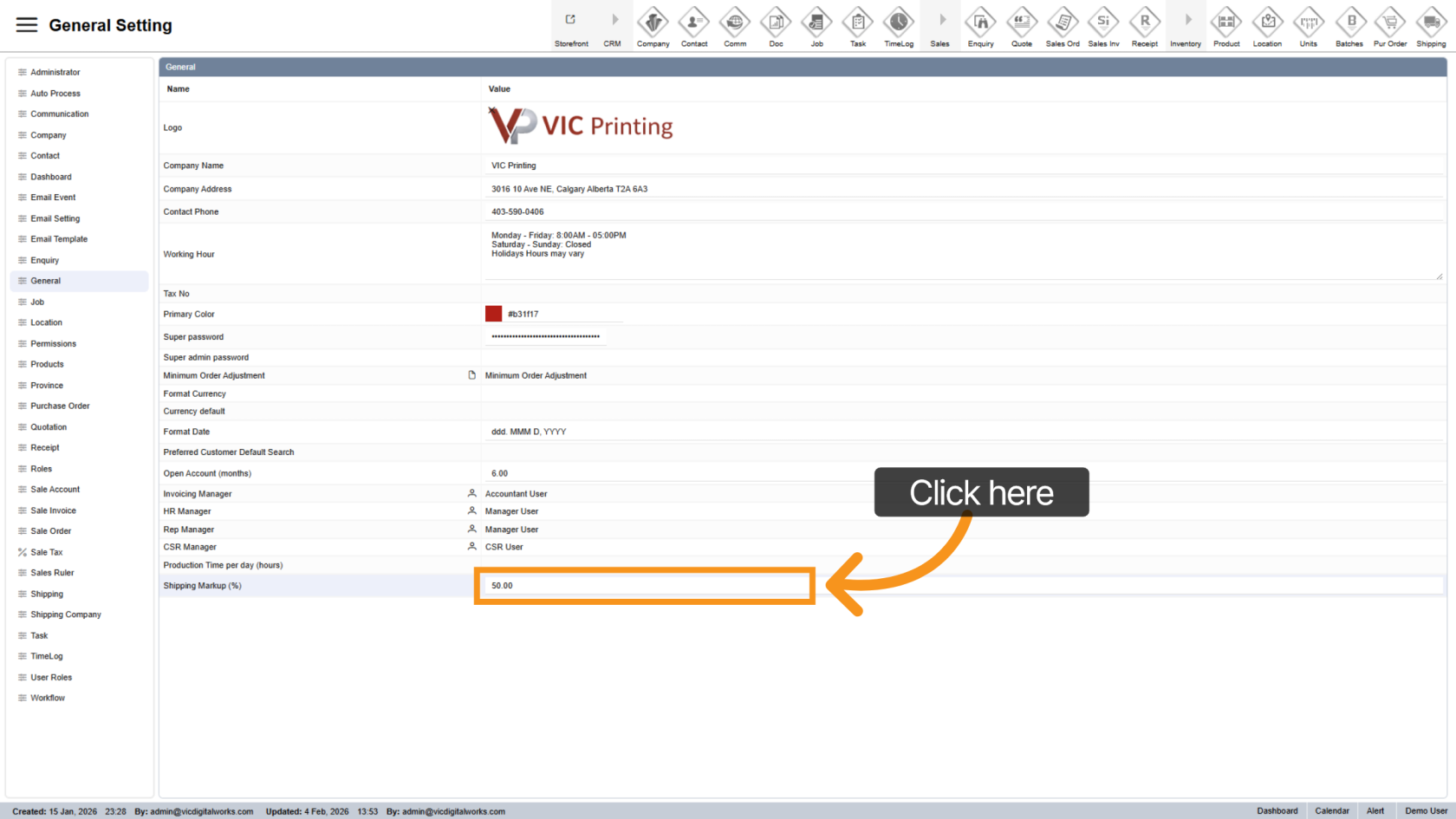
17. Set Shipping Markup Percentage
Define the markup percentage applied to shipping costs.
You have successfully configured your general settings in Worktraq, ensuring your system reflects your business operations and branding.