
Review & Adjust Quotation Costing
This guide shows you how to review costing details for a quotation. You will learn how to adjust option pricing, review profit and margins, and apply a discount step by step.
Video Tutorial
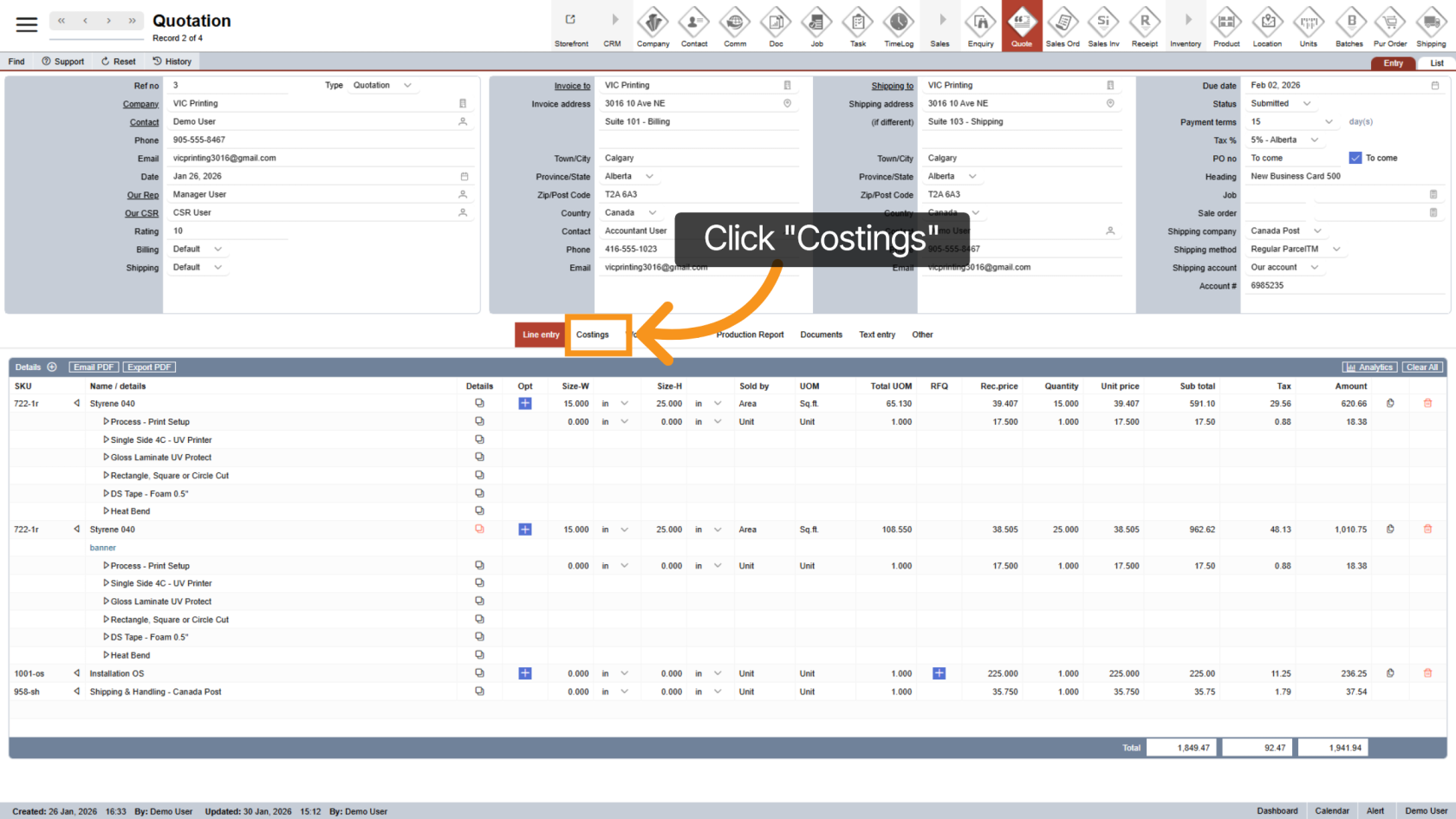
1. Open the Costings Tab
Click the Costings tab to view all cost-related details for the quotation.
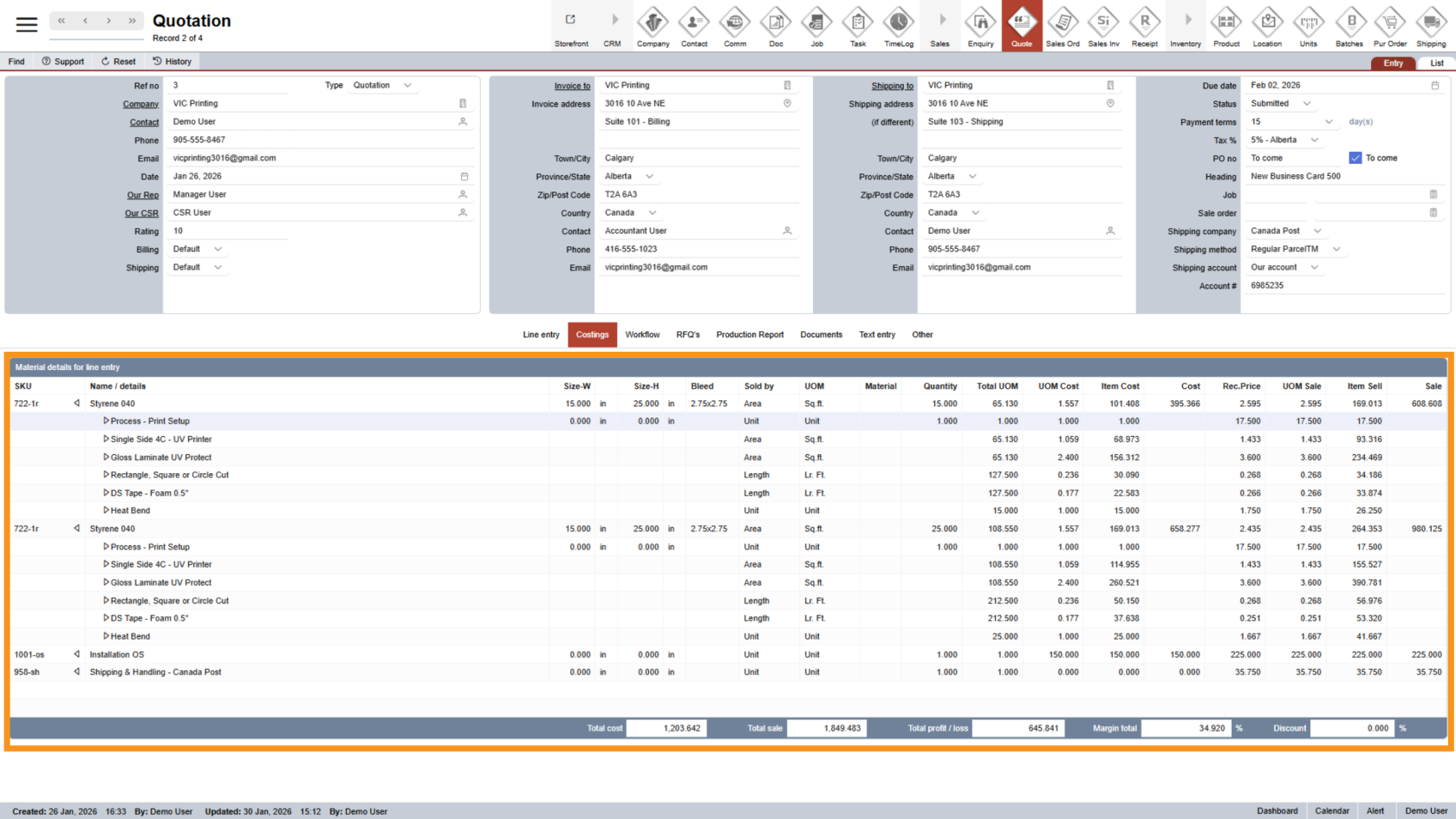
2. Review Costing Breakdown
In the costing section, you will see detailed cost information for: Each product option, the full product. This helps you understand how the total cost is calculated.
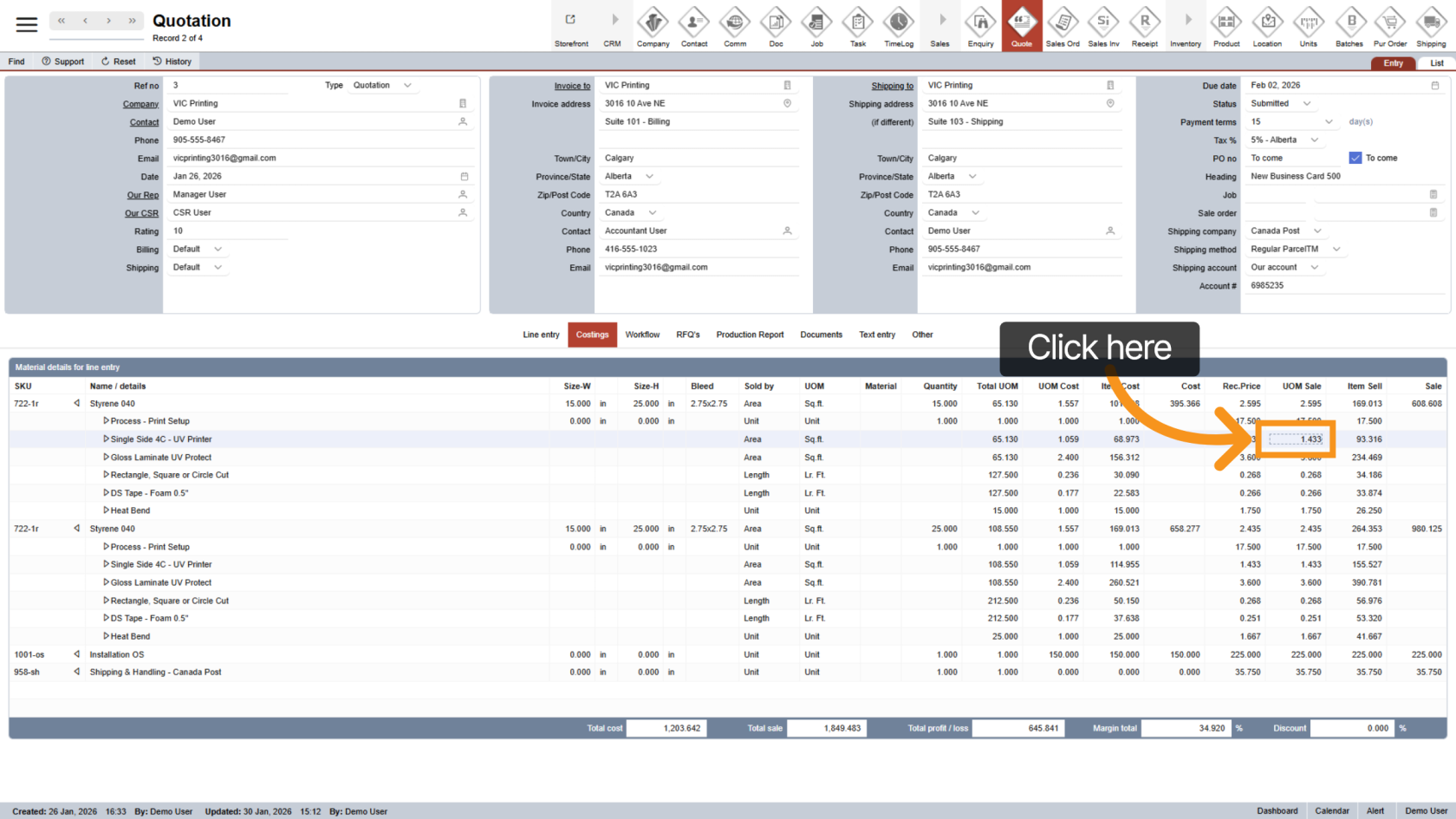
3. Adjust Custom Option Selling Price
Next to the option you want to update, click UOM Sale. This allows you to adjust the selling price for that specific option and gives you more pricing flexibility.
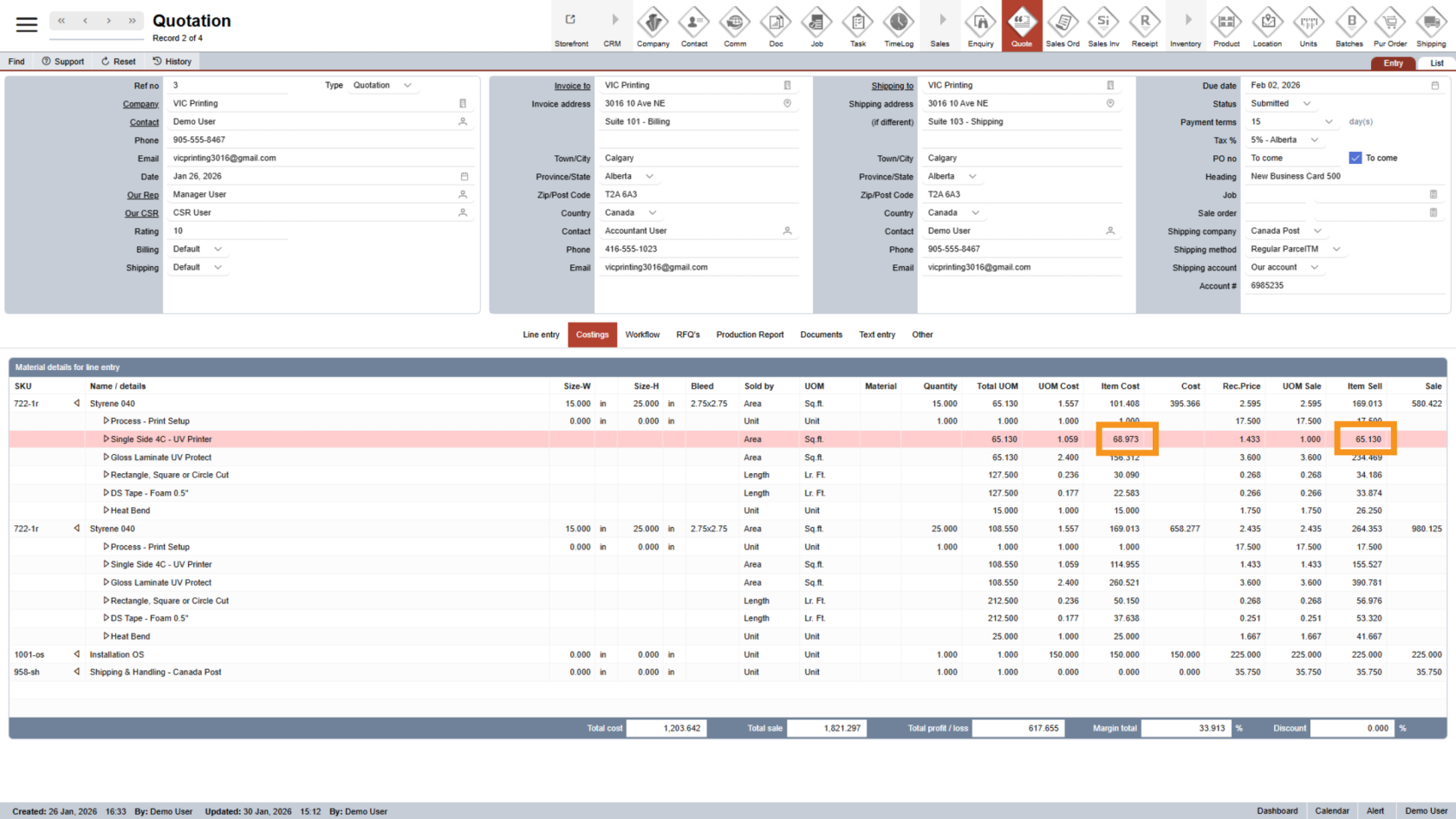
4. Loss Warning Indicator
If the selling price is set lower than the actual cost, the system will highlight the option in red. This warns you that the item may be sold at a loss.
5. Review Costing Summary
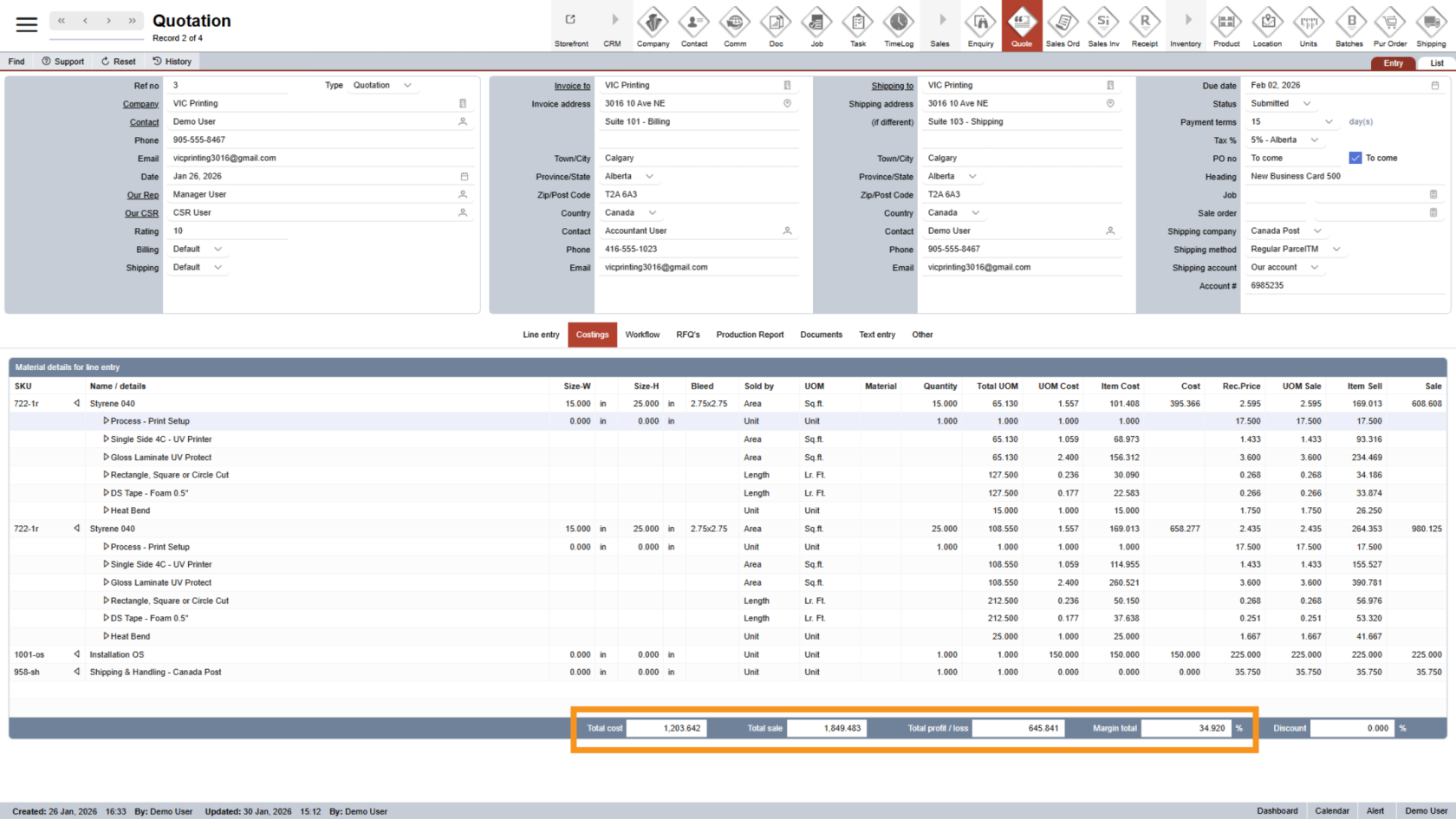
At the bottom of the page, you’ll see a summary of the entire quotation, including: Total profit or loss, Margin percentage, Overall costing view. This section helps you make informed pricing decisions.
6. Apply a Discount (Manager Only)
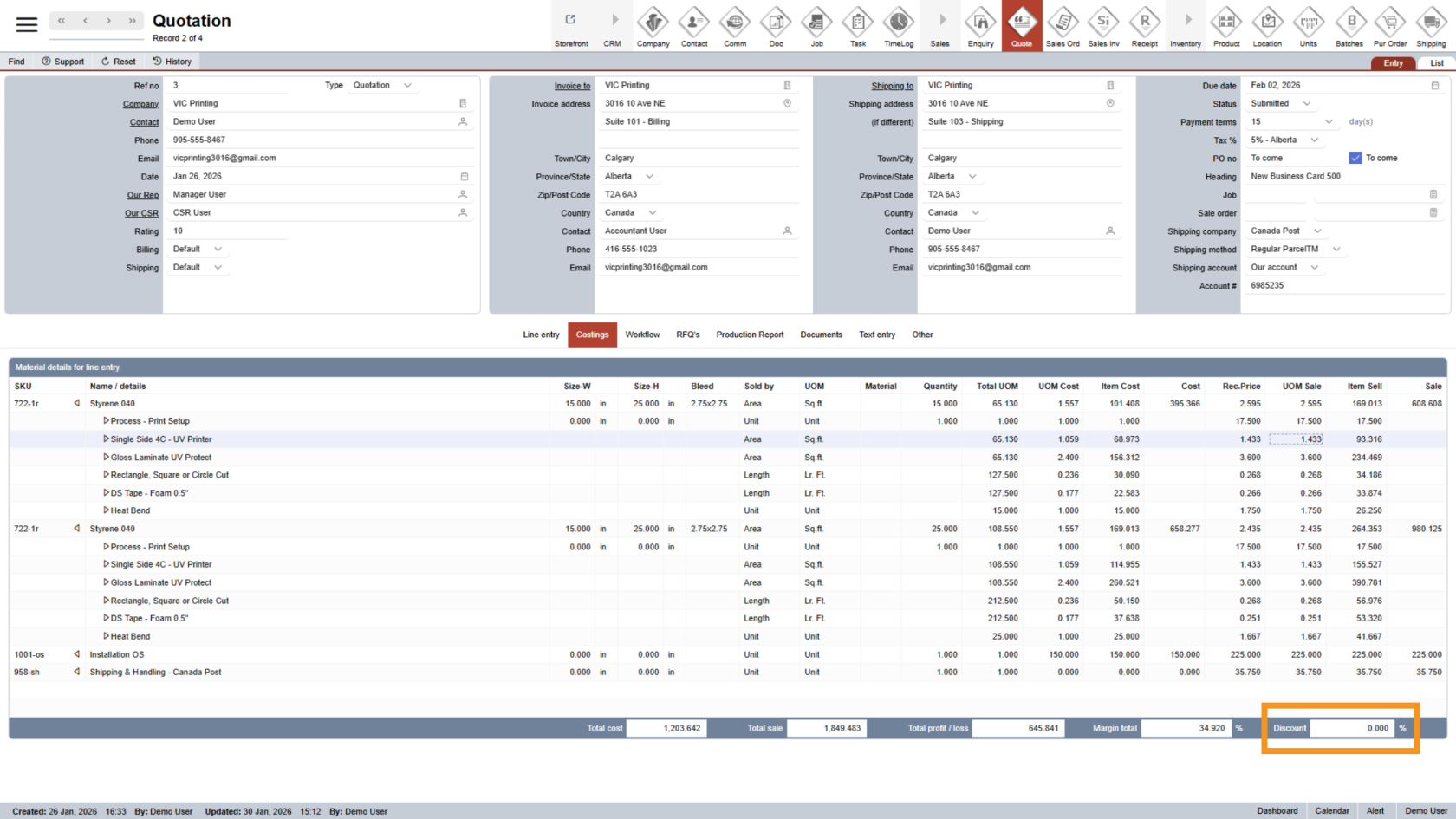
Managers can apply a discount to the entire quotation. Enter the value in the Discount field: Enter a positive number to apply a discount. Enter a negative number to increase the price
7. Discount Calculation
Once entered, WorkTraq will automatically calculate the discount for the quotation. Discounts do not apply to shipping or RFQ items.
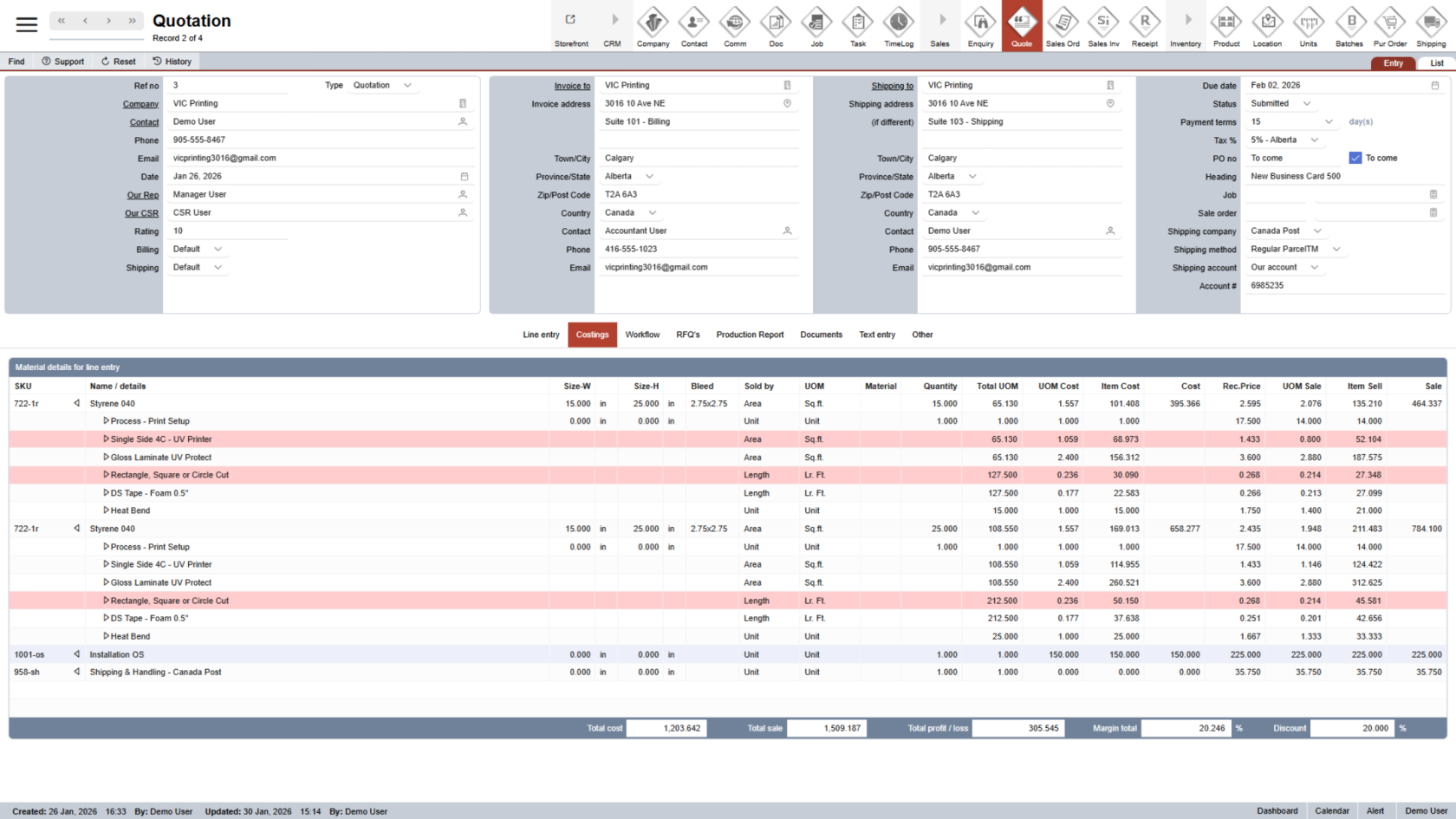
You have successfully reviewed and updated the quotation costing. Please double-check all costs, margins, and discounts to ensure the quotation is accurate and ready for the next step.