
Submit International Shipment
This tutorial shows you how to create an international shipment, generate shipping labels, and download the commercial invoice.
Video Tutorial
1. Open Commodity
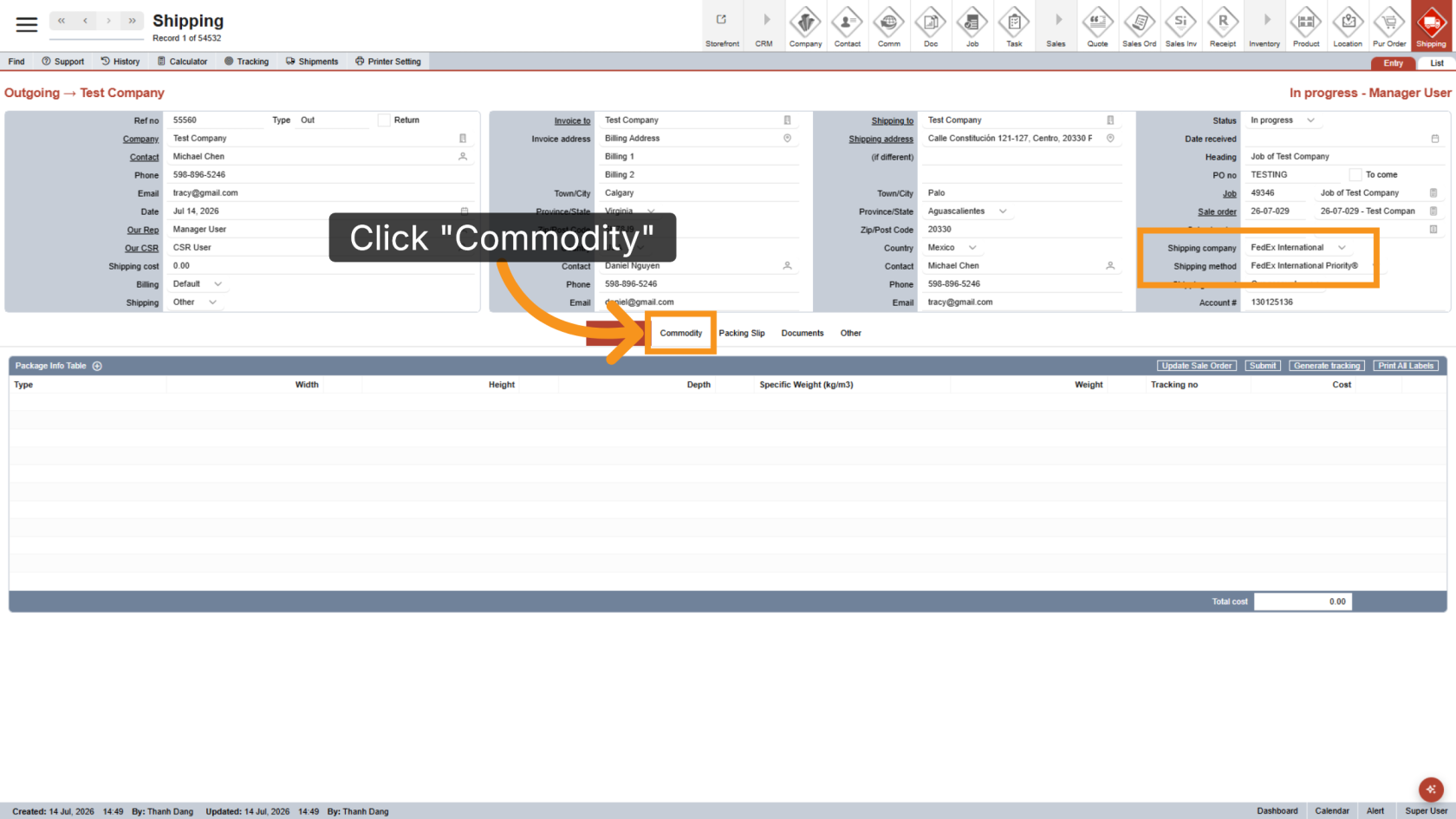
For international shipments, commodity information is required to describe the package contents.
Click the Commodity tab to begin.
2. Add Commodity
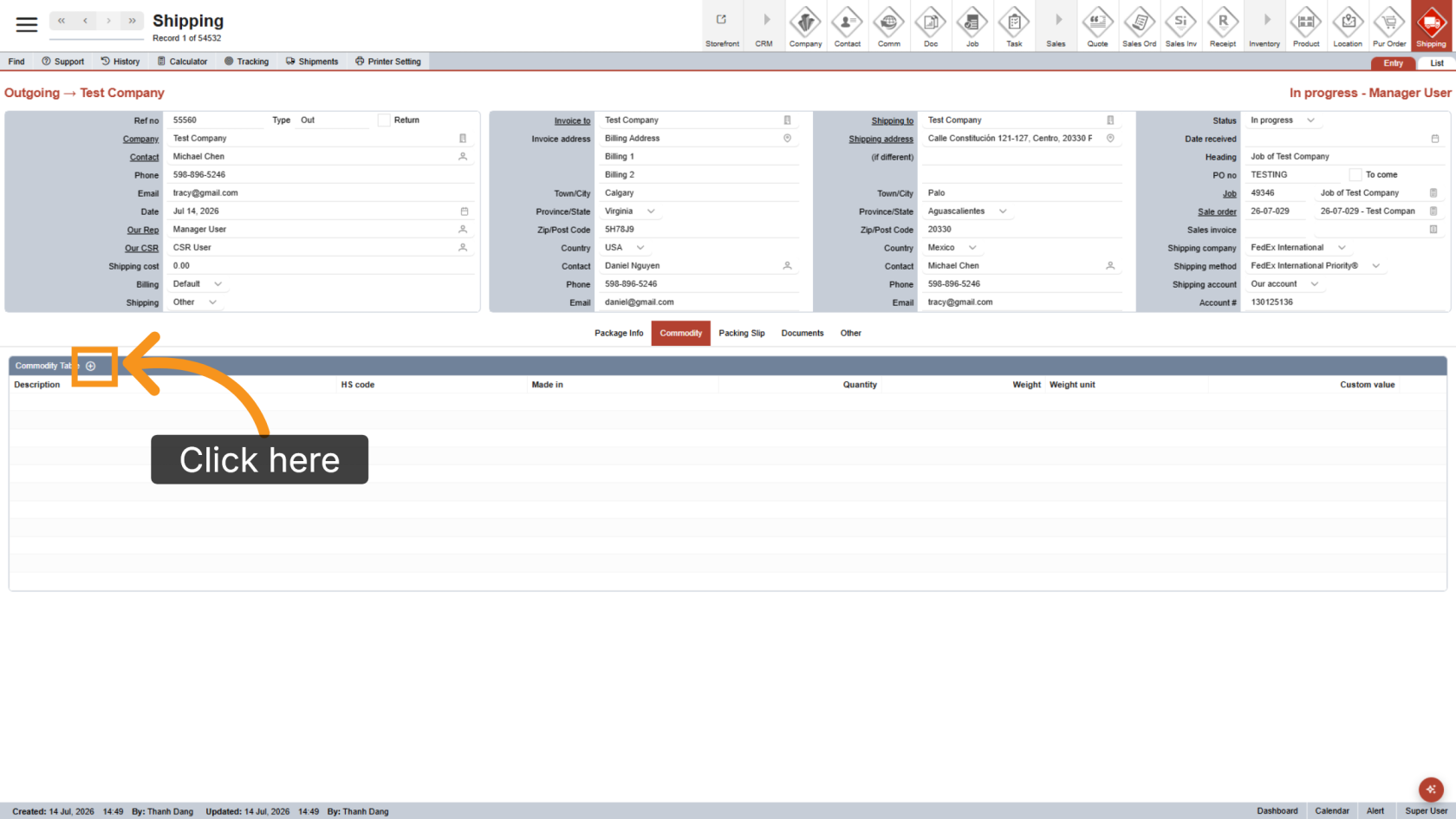
Click the  plus icon to add a new commodity line.
3. Enter Commodity Details
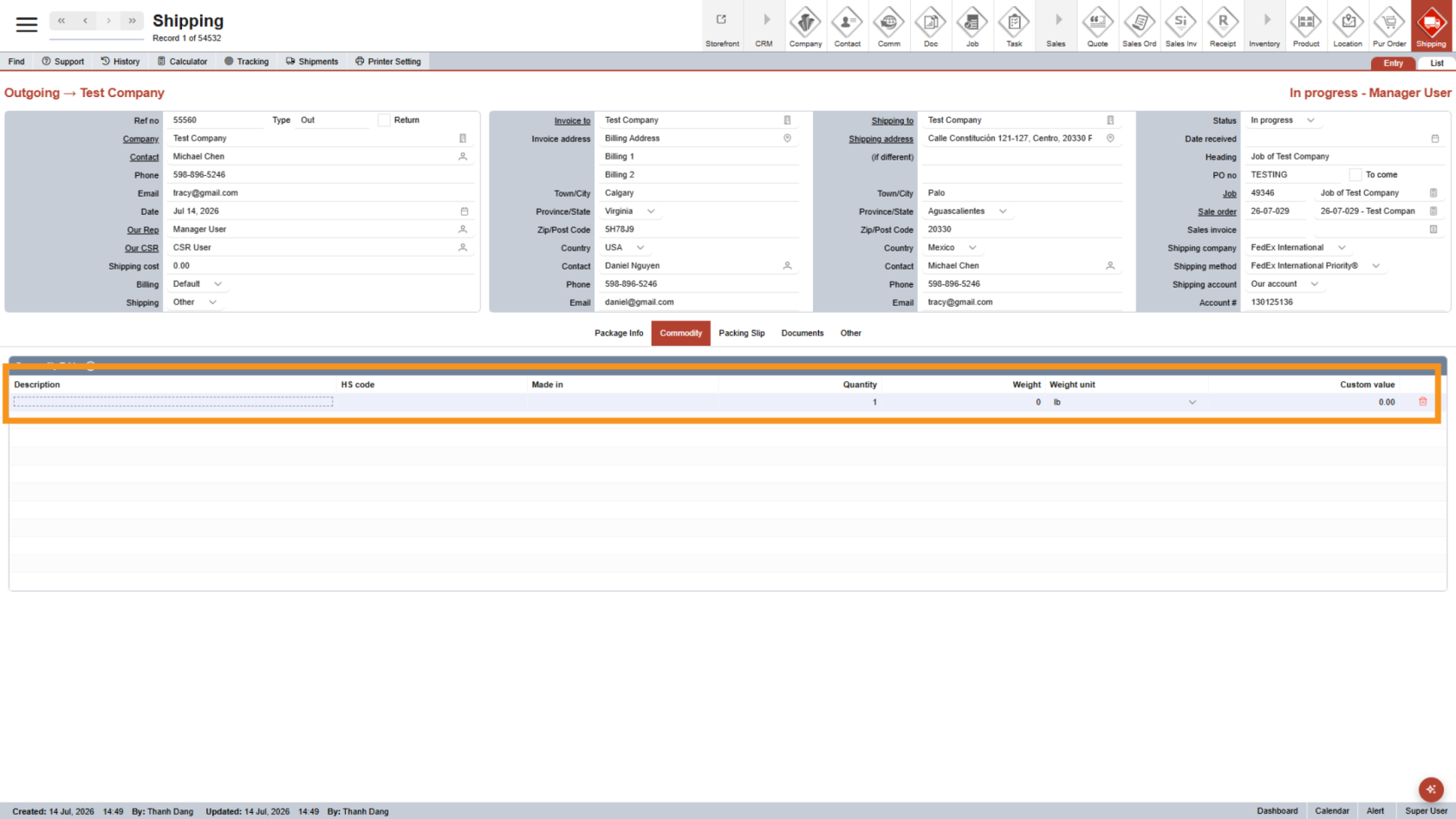
Complete all required fields for the commodity. Add as many commodity lines as needed.
4. Open Package Info
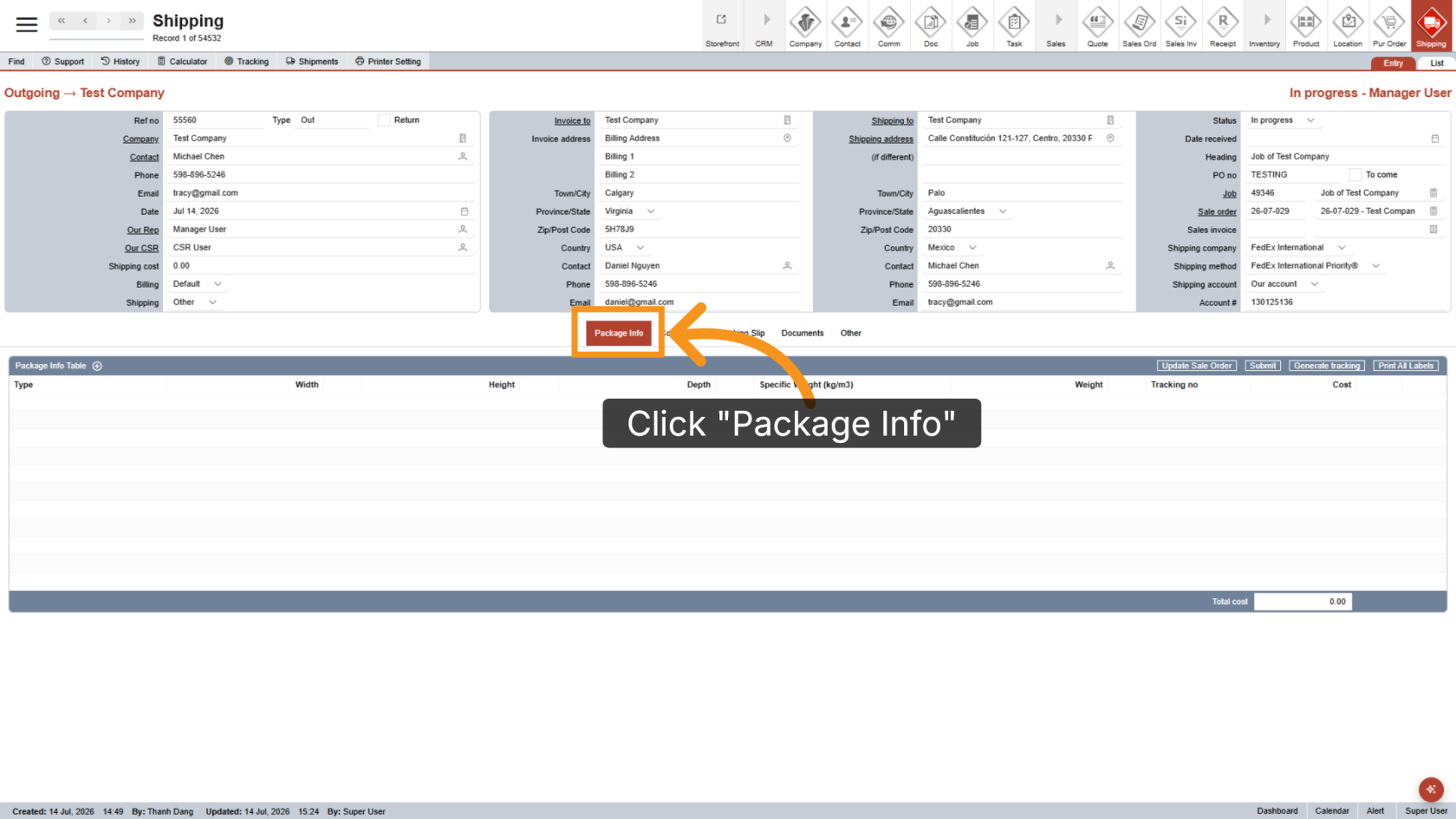
Click Package Info to manage the packages included in the shipment.
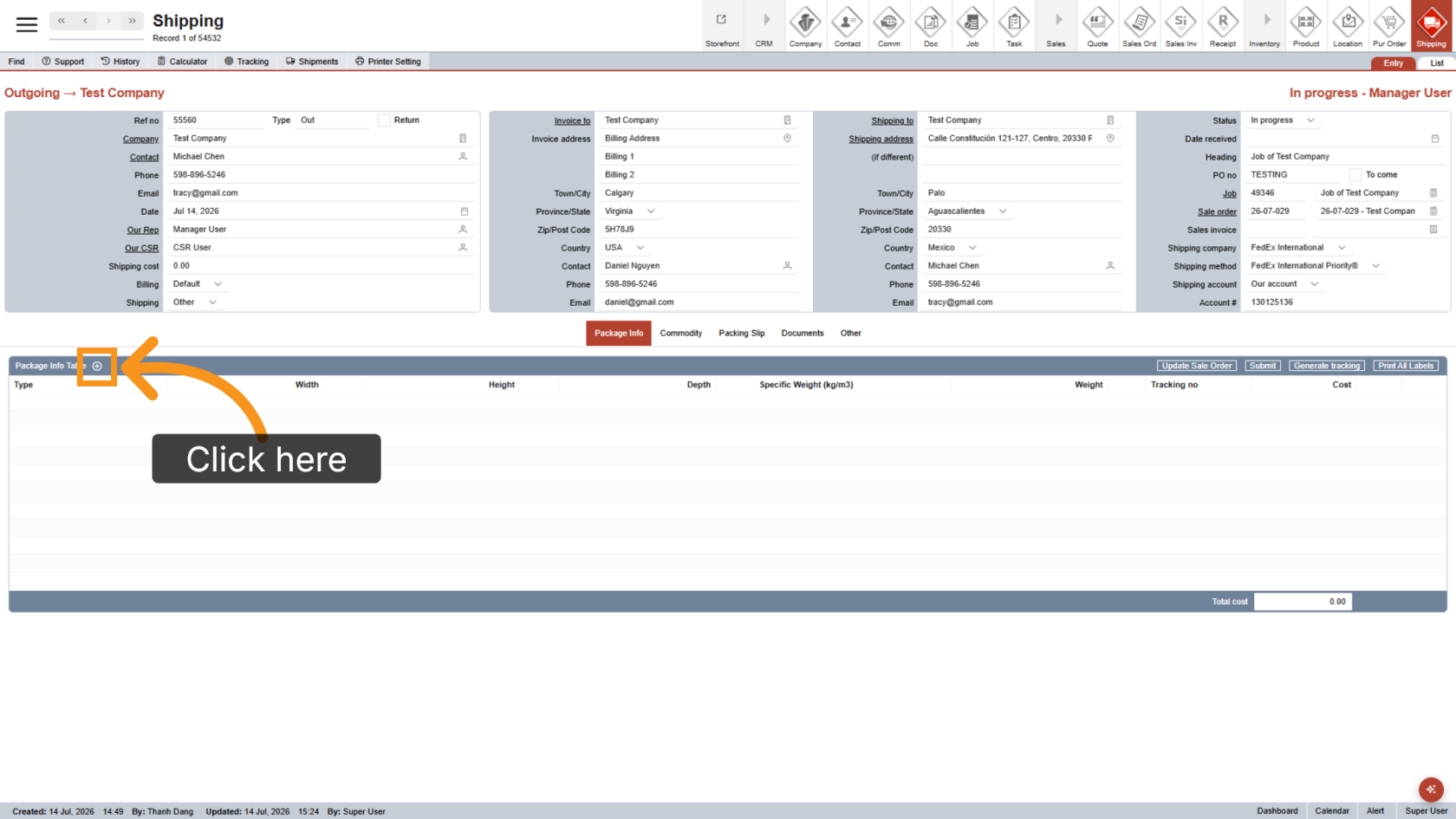
5. Add Package
Click the plus icon to add a package line.
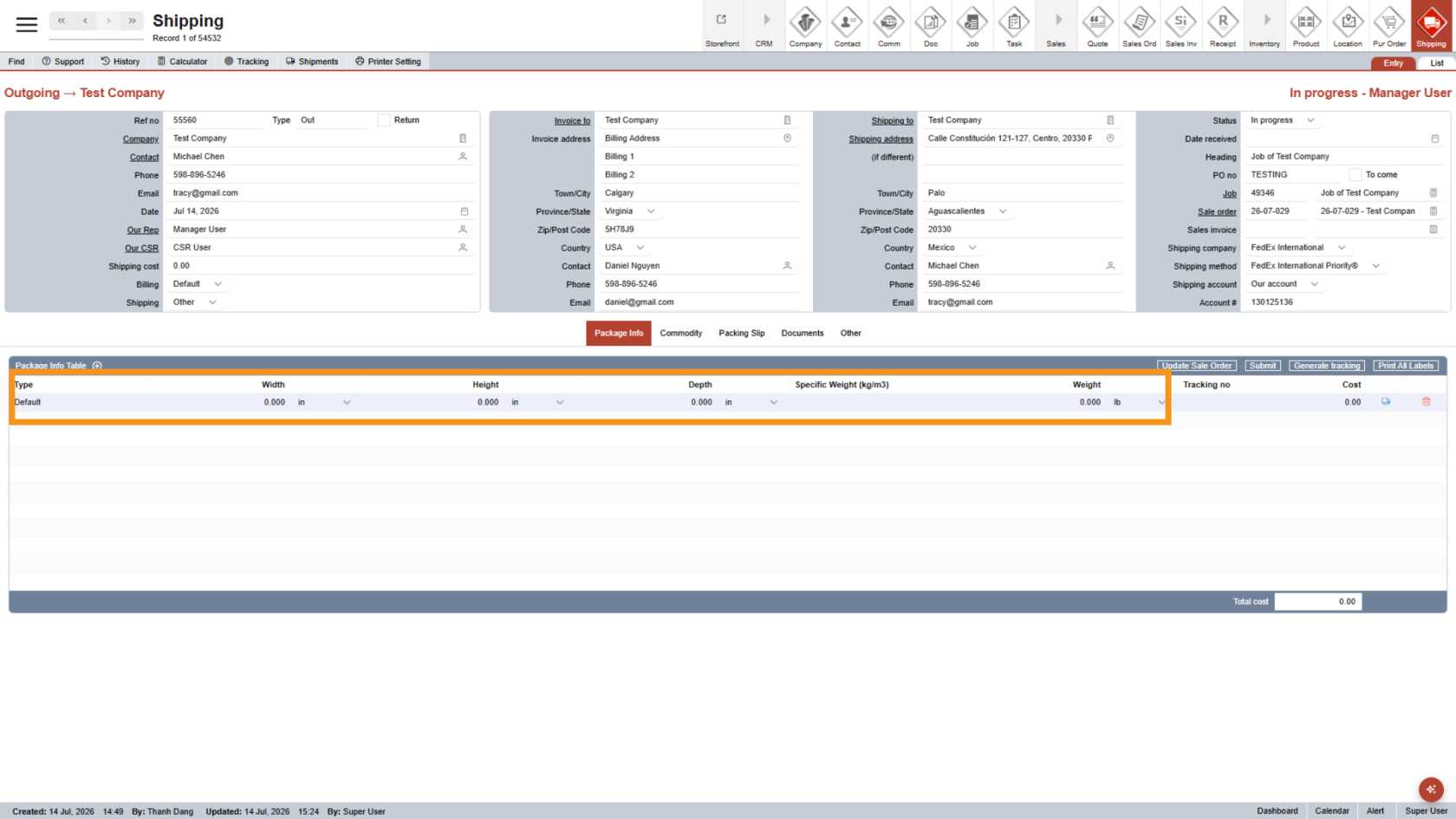
6. Enter Package Details
Enter the required package details in the line, such as the package type, dimensions, and weight.
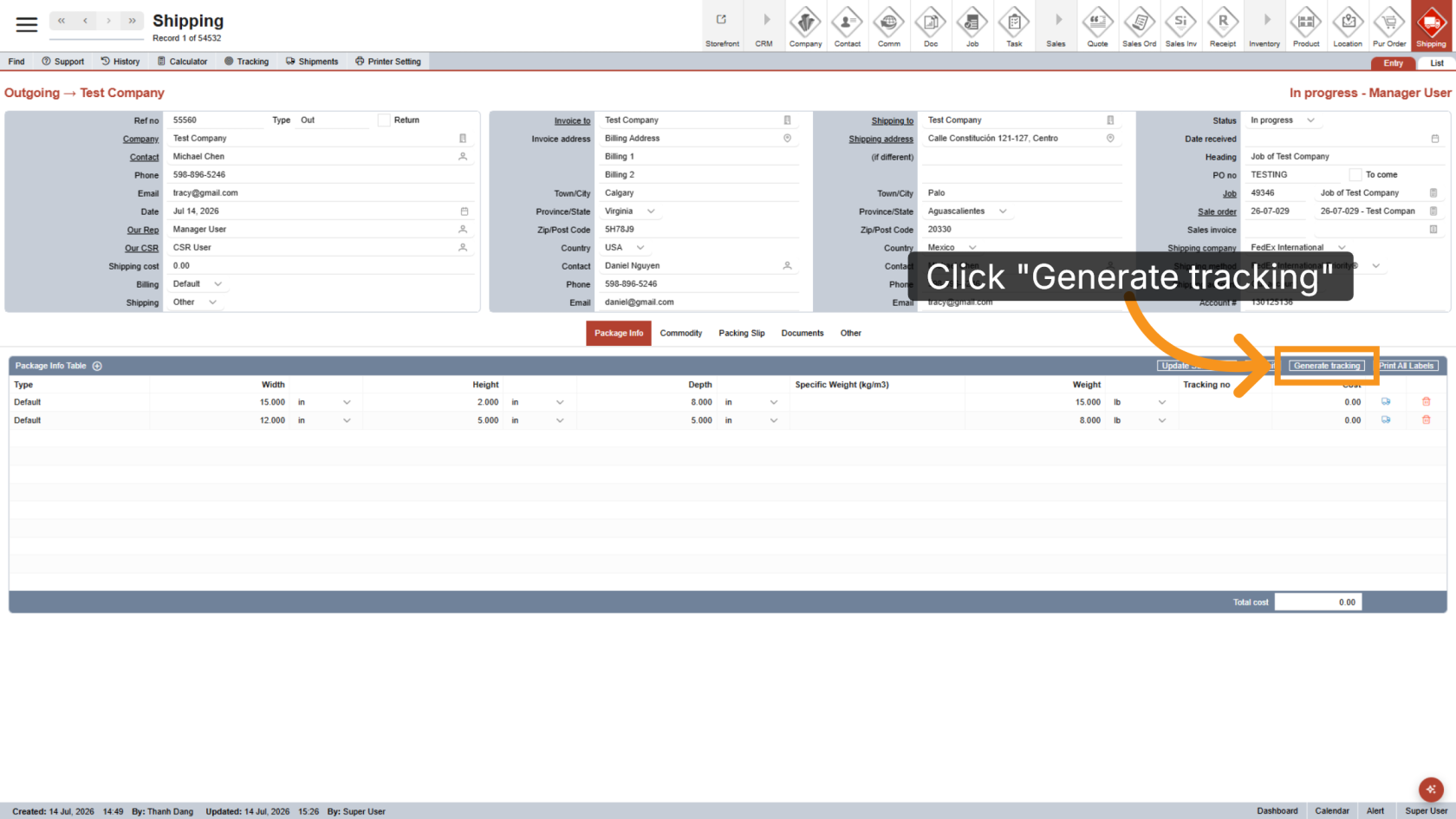
7. Generate Tracking
Click Generate Tracking to create the shipping label.
8. Schedule Pickup
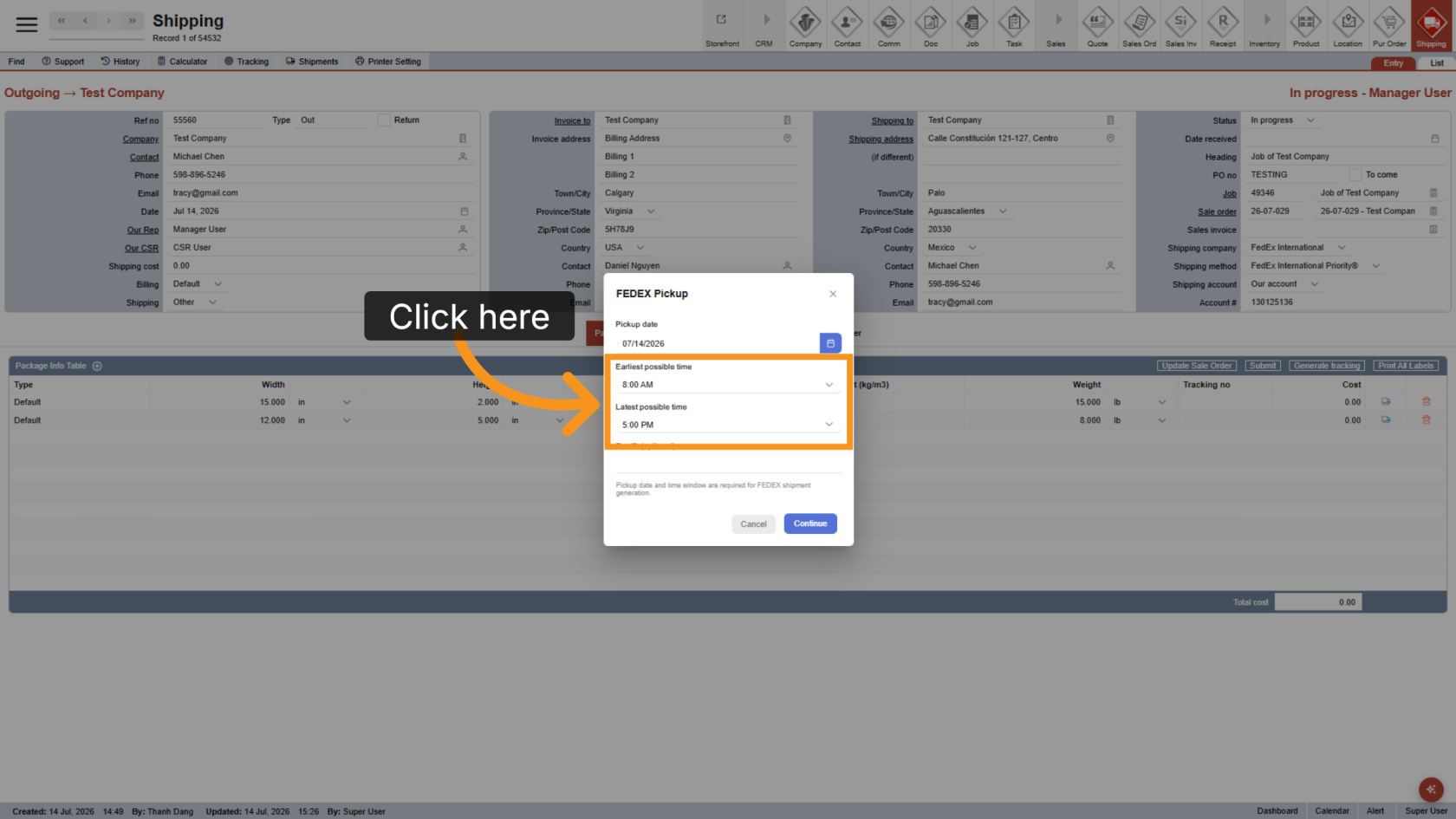
Select the pickup date.
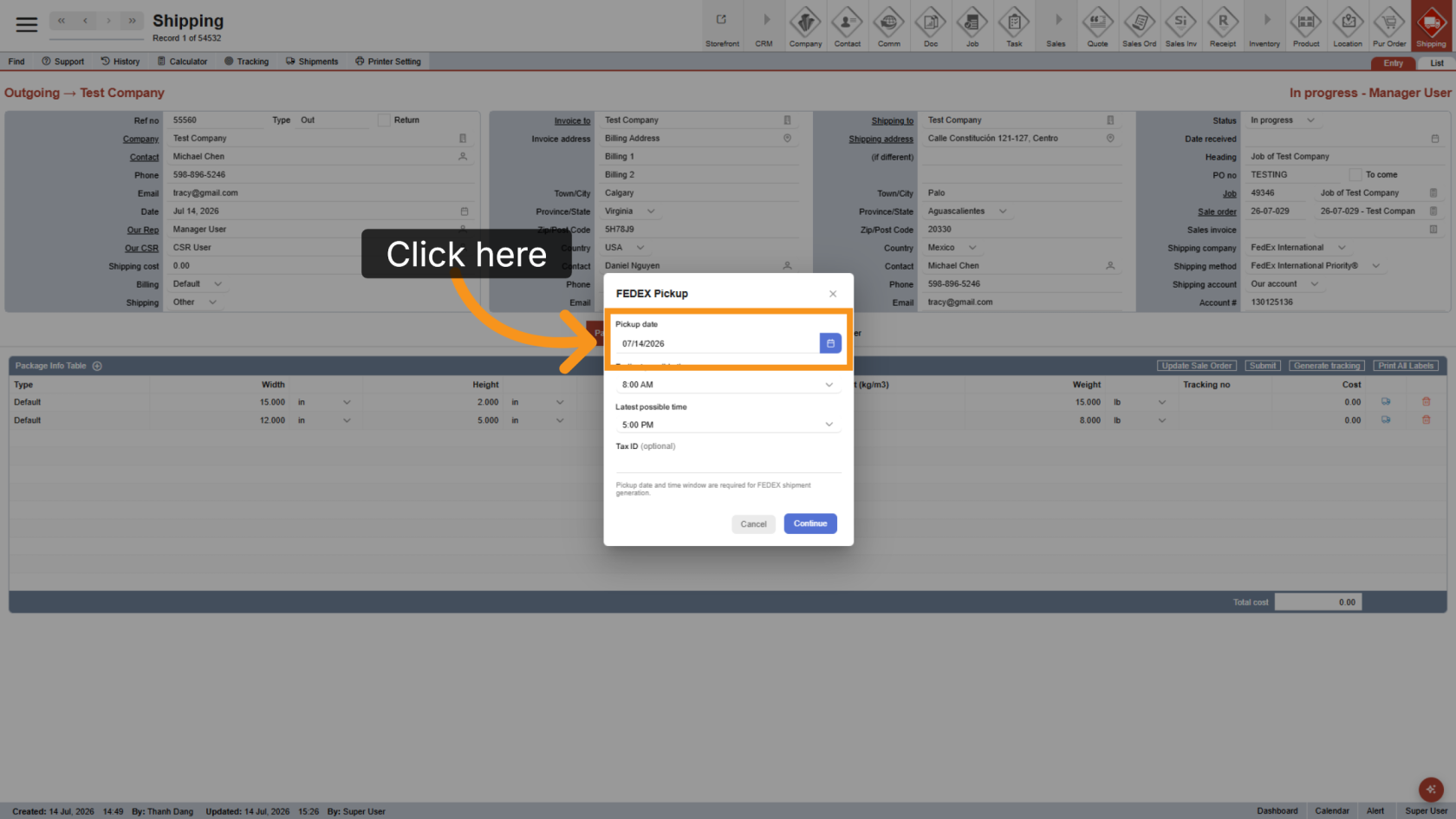
9. Select Pickup Time
Choose the earliest and latest pickup times.
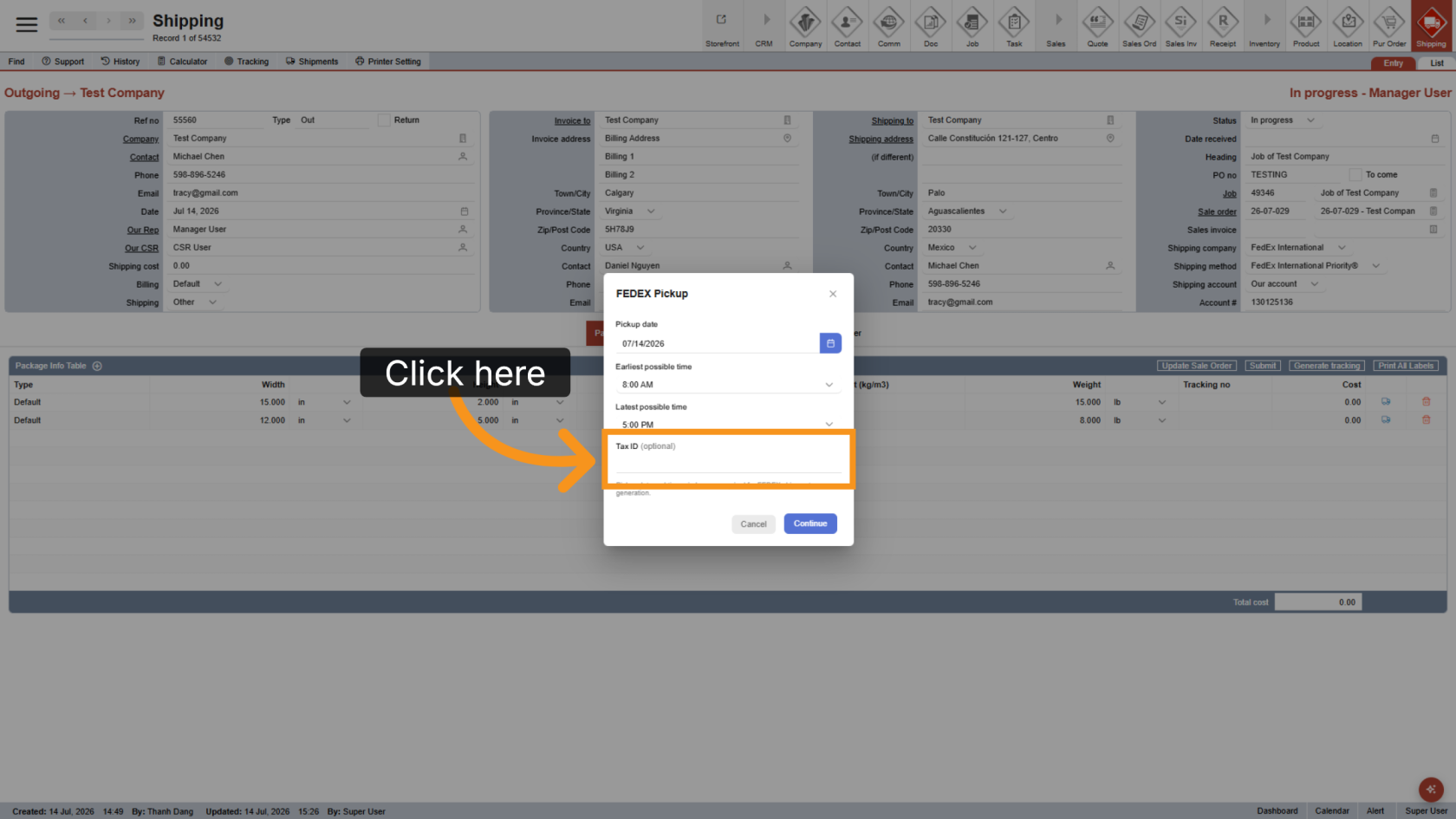
10. Enter Tax ID
Enter a Tax ID if required for the shipment.
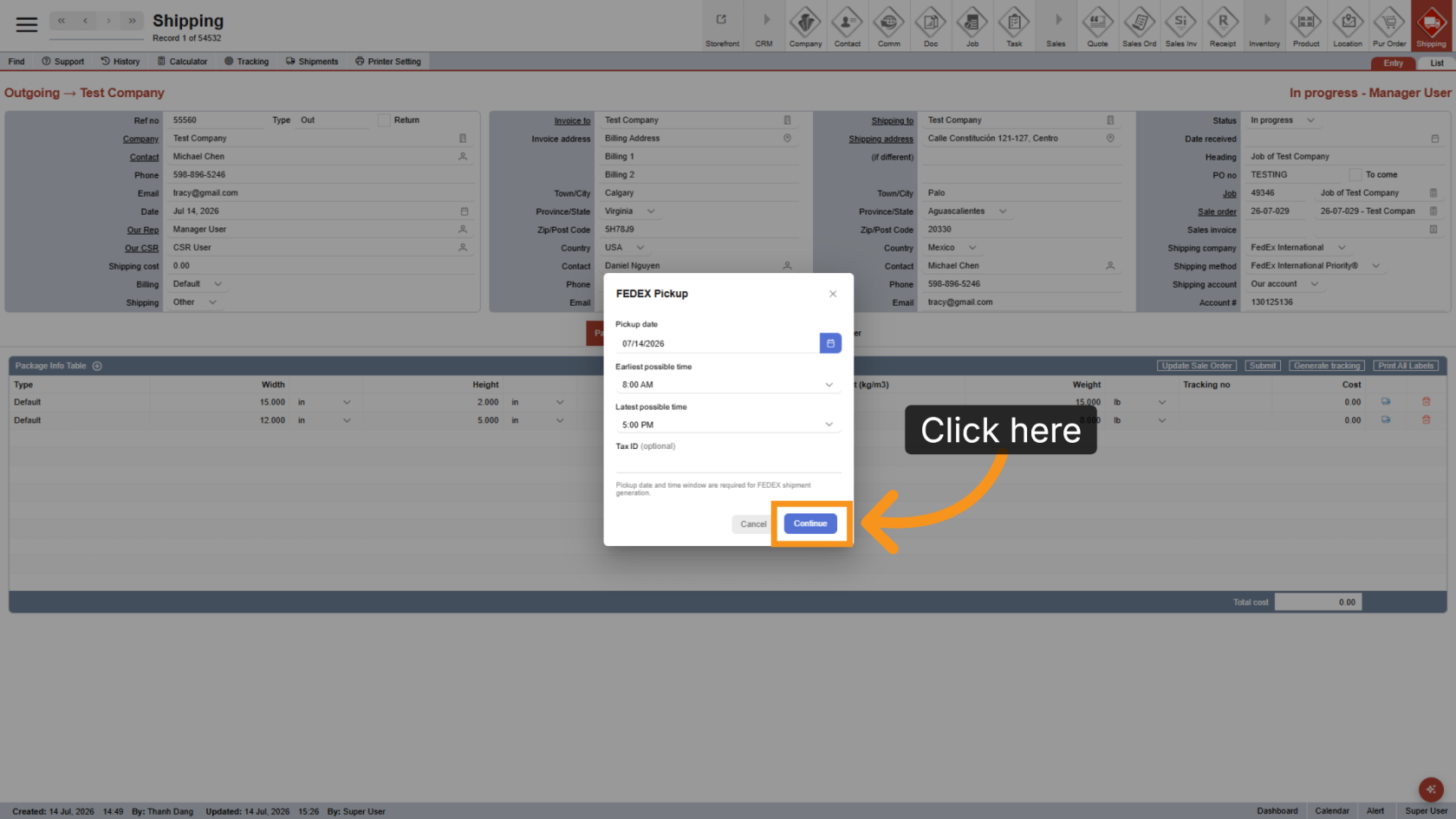
11. Continue
Click Continue to generate the label.
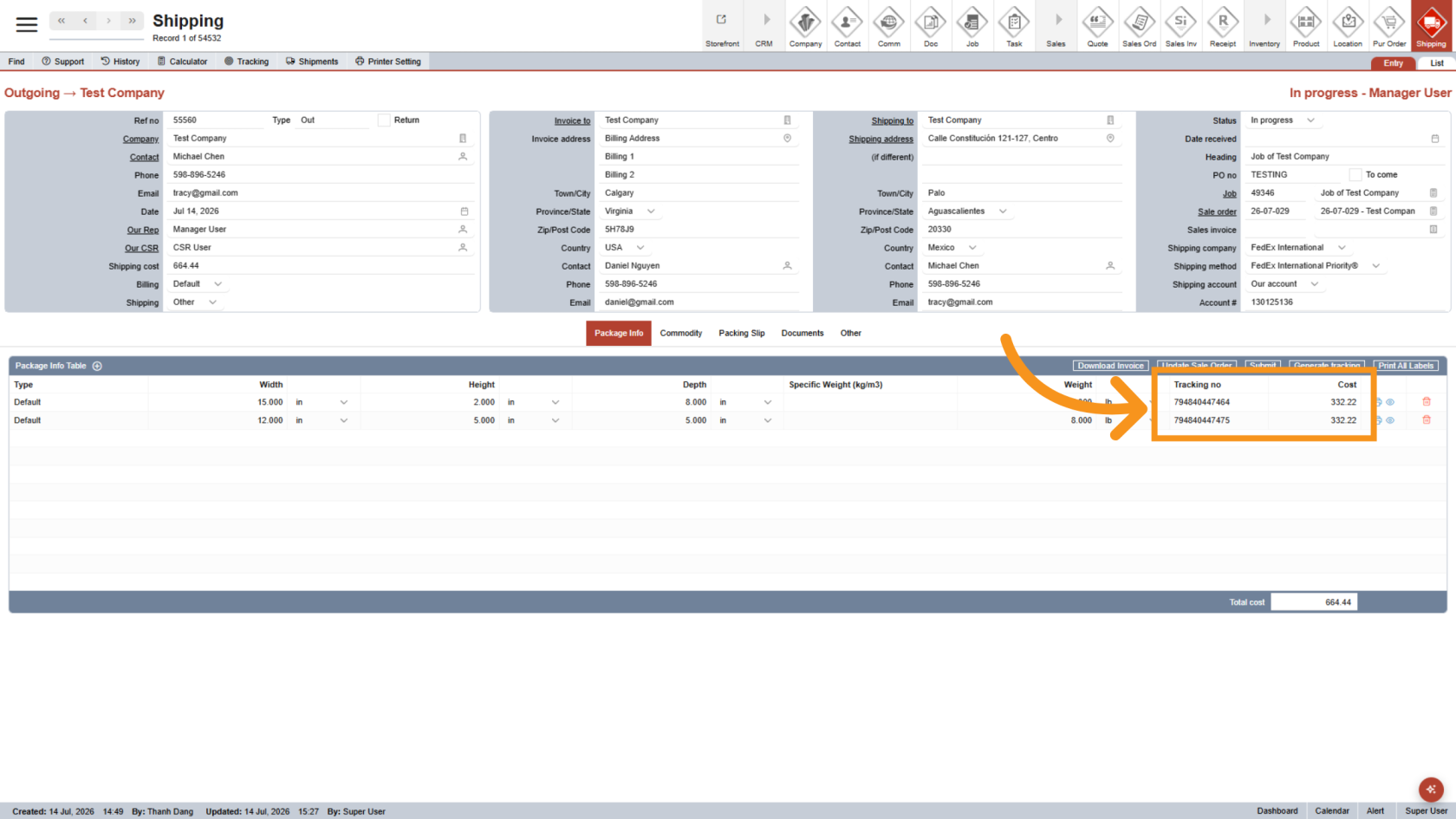
12. Check Tracking
The tracking numbers and shipping costs are displayed for each package.
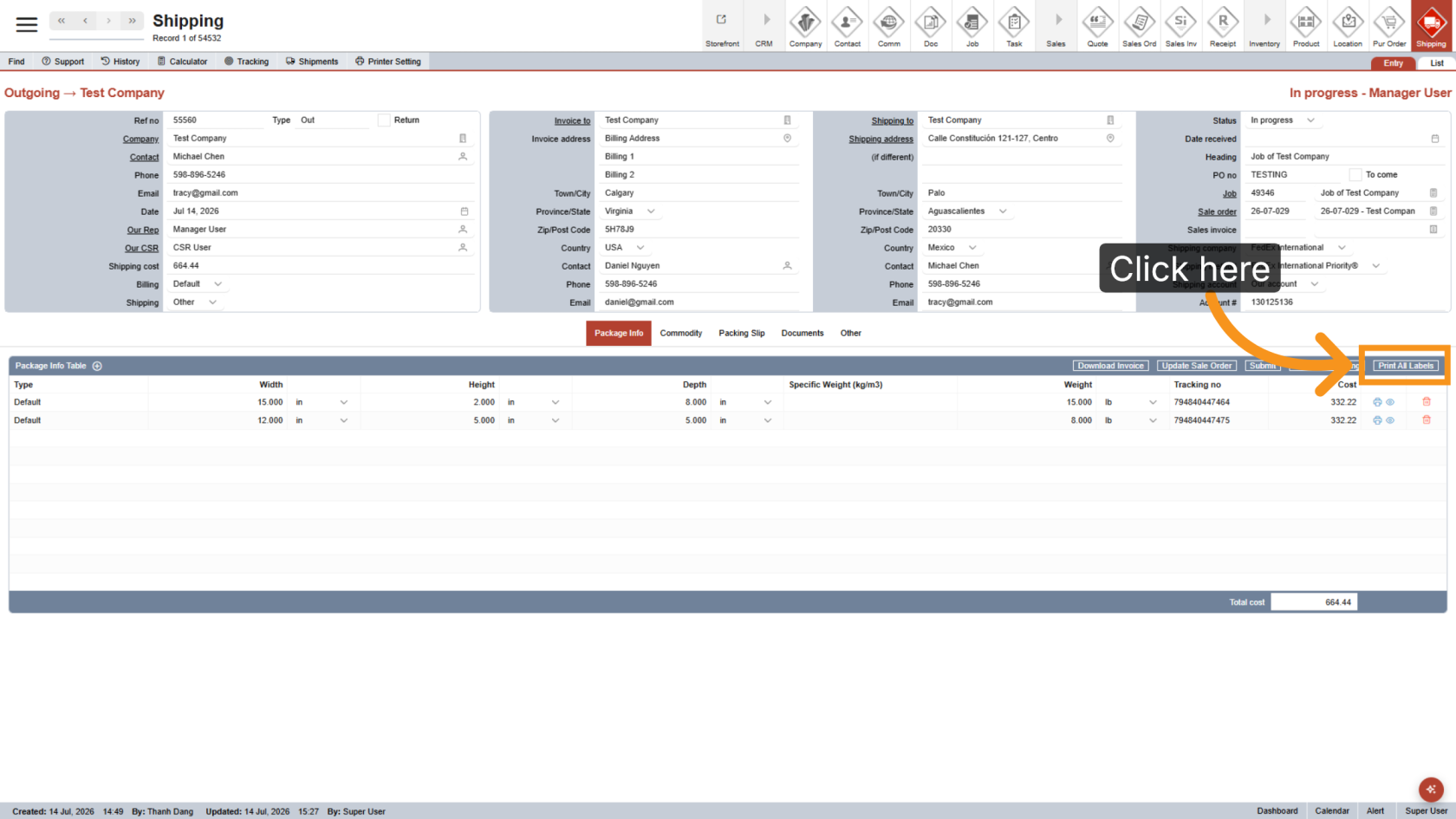
13. Print All Labels
Click Print All Labels to print every label in the shipment.
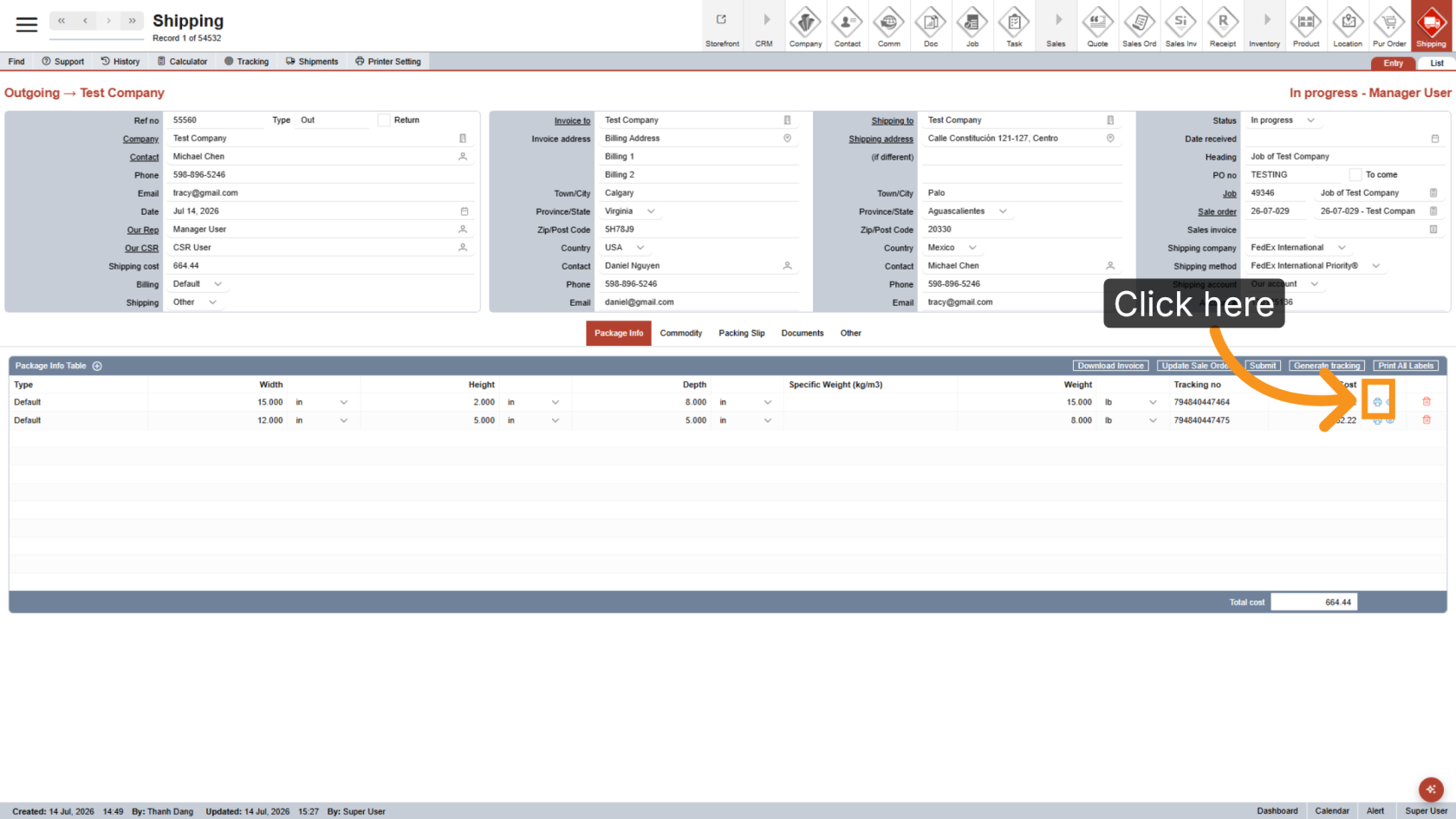
14. Print a Single Label
Click the printer icon next to a package to print an individual label.
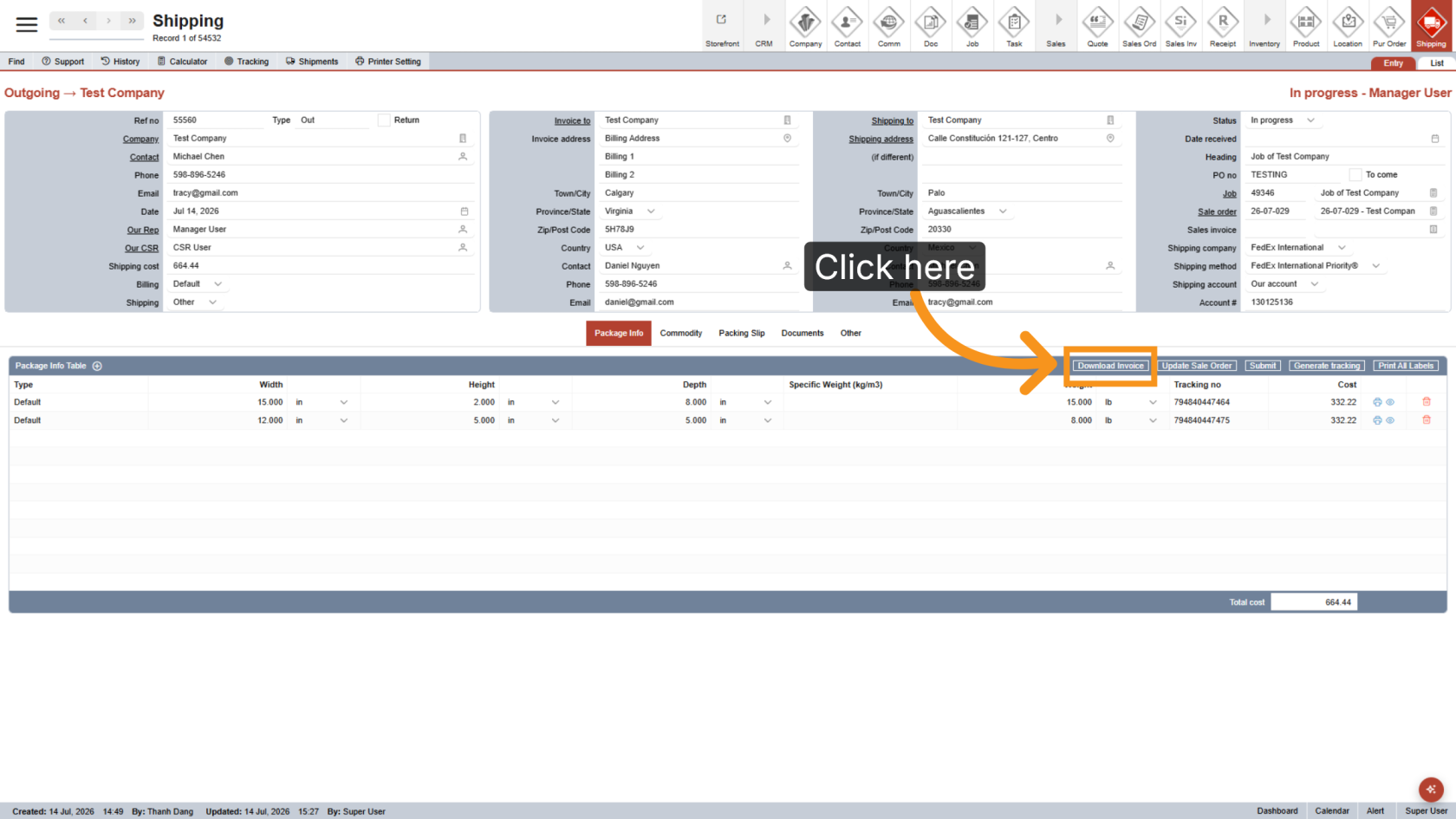
15. Download the Commercial Invoice
Click Download Invoice to download and print the commercial invoice.
You have successfully generated the shipping labels and commercial invoice for your international shipment.