
Add Sign Type (Admin)
This tutorial guides you through adding and managing sign categories used for Sign Run reporting.
Video Tutorial
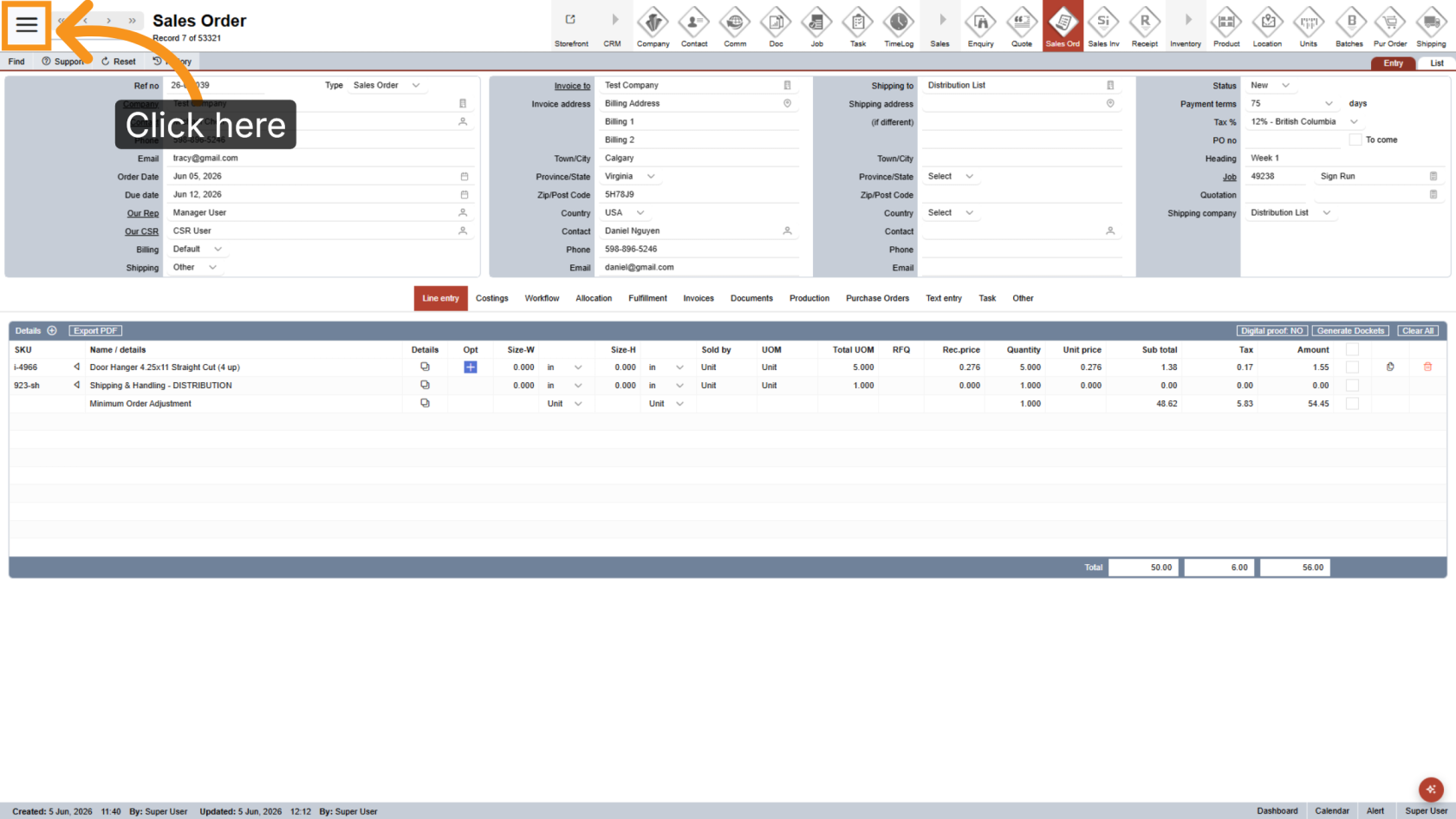
1. Open Main Menu
Click the  main navigation menu to access system options.
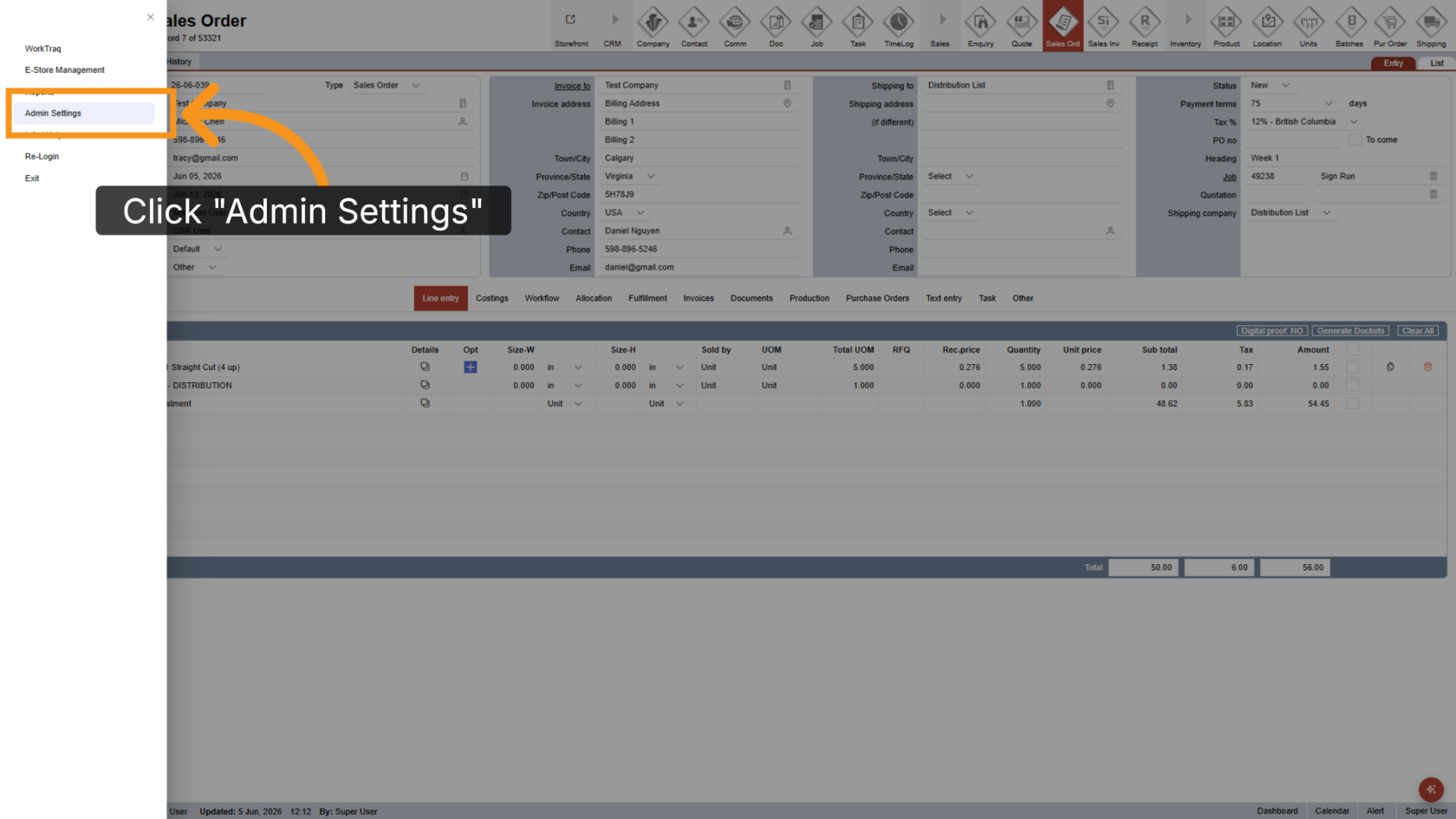
2. Go to Admin Settings
Click Admin Settings to open the administration panel.
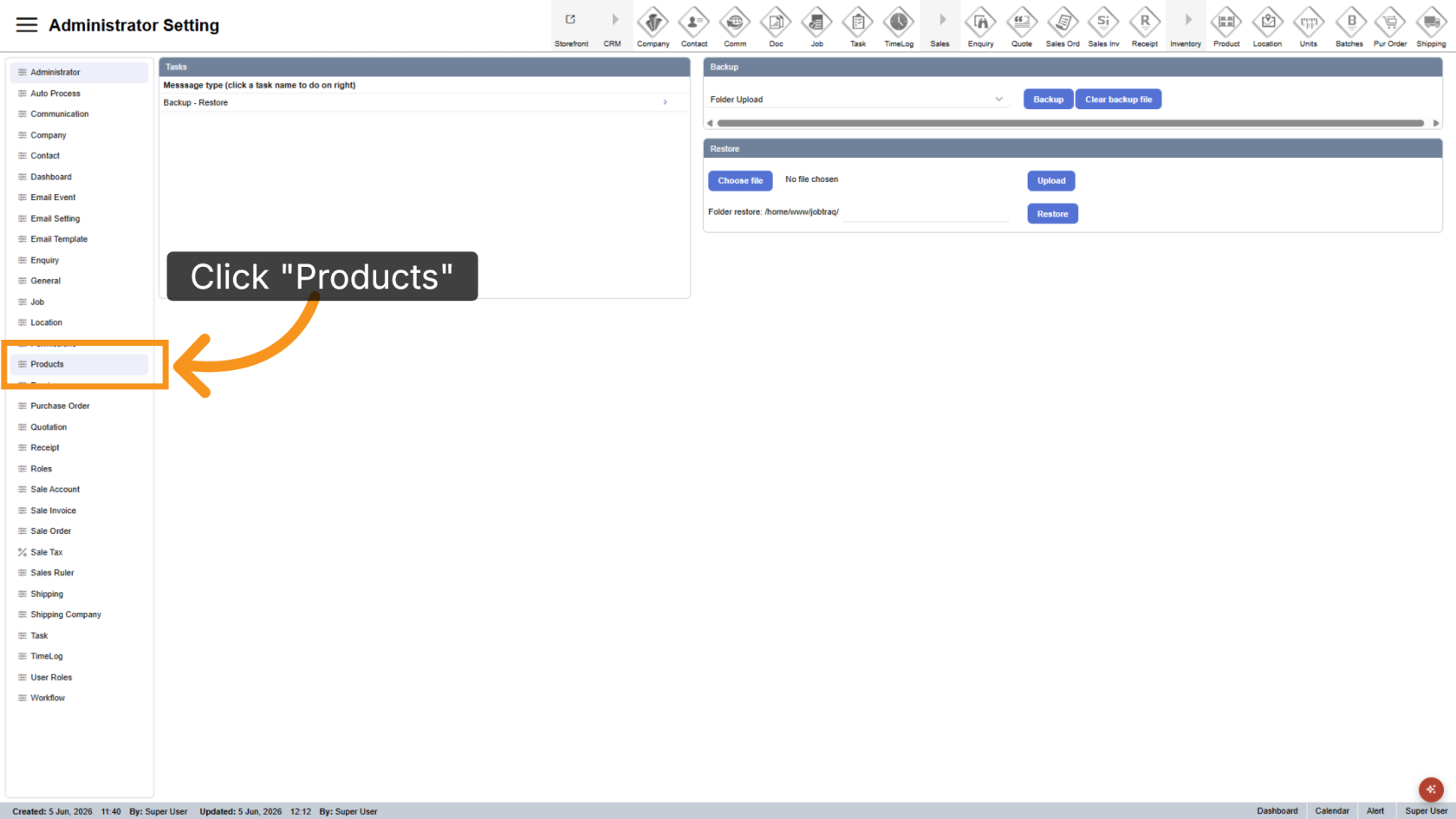
3. Navigate to Product Section
Click Product to view the product management options.
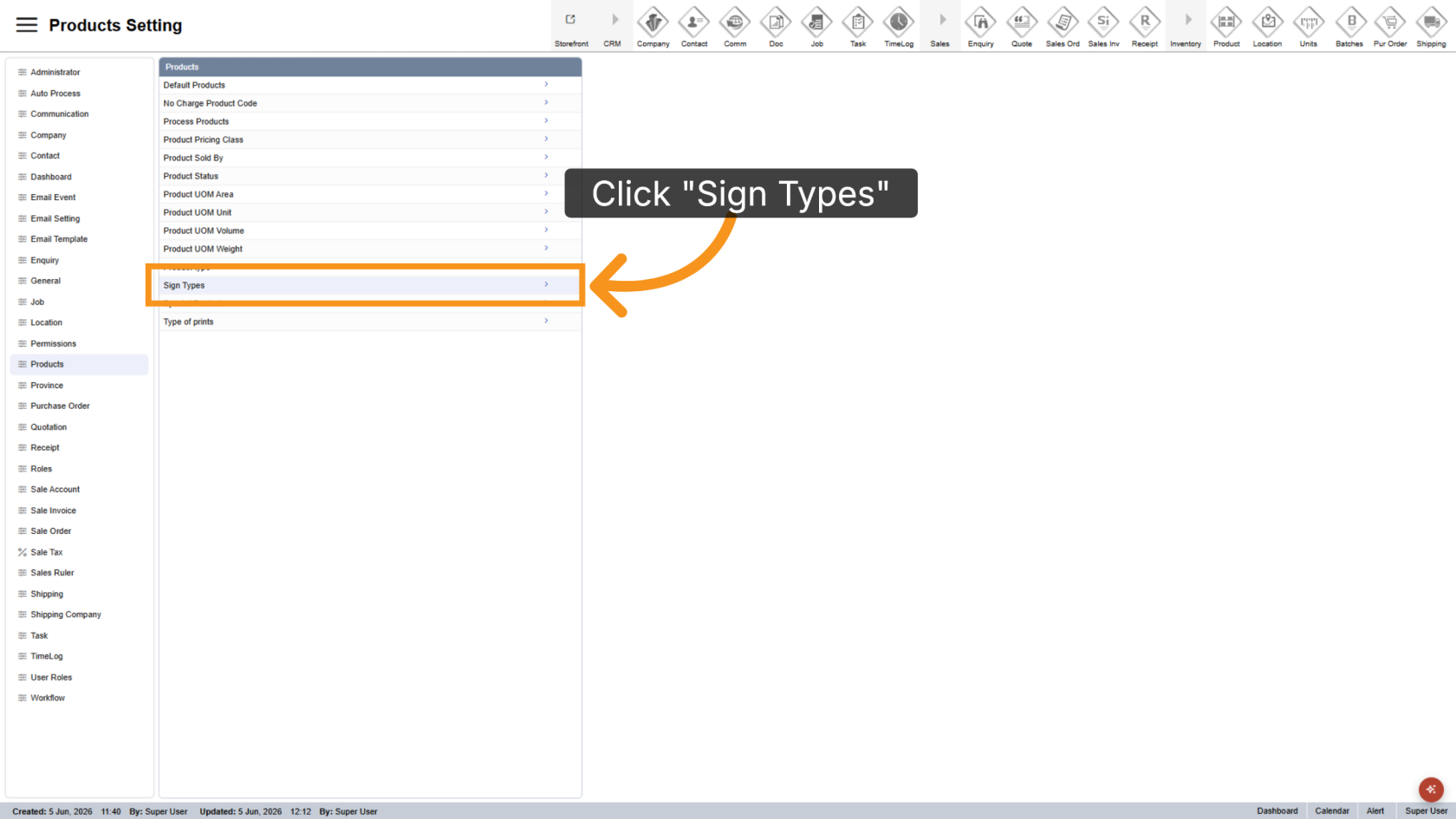
4. Open Sign Types
Click Sign Types to manage available entries.
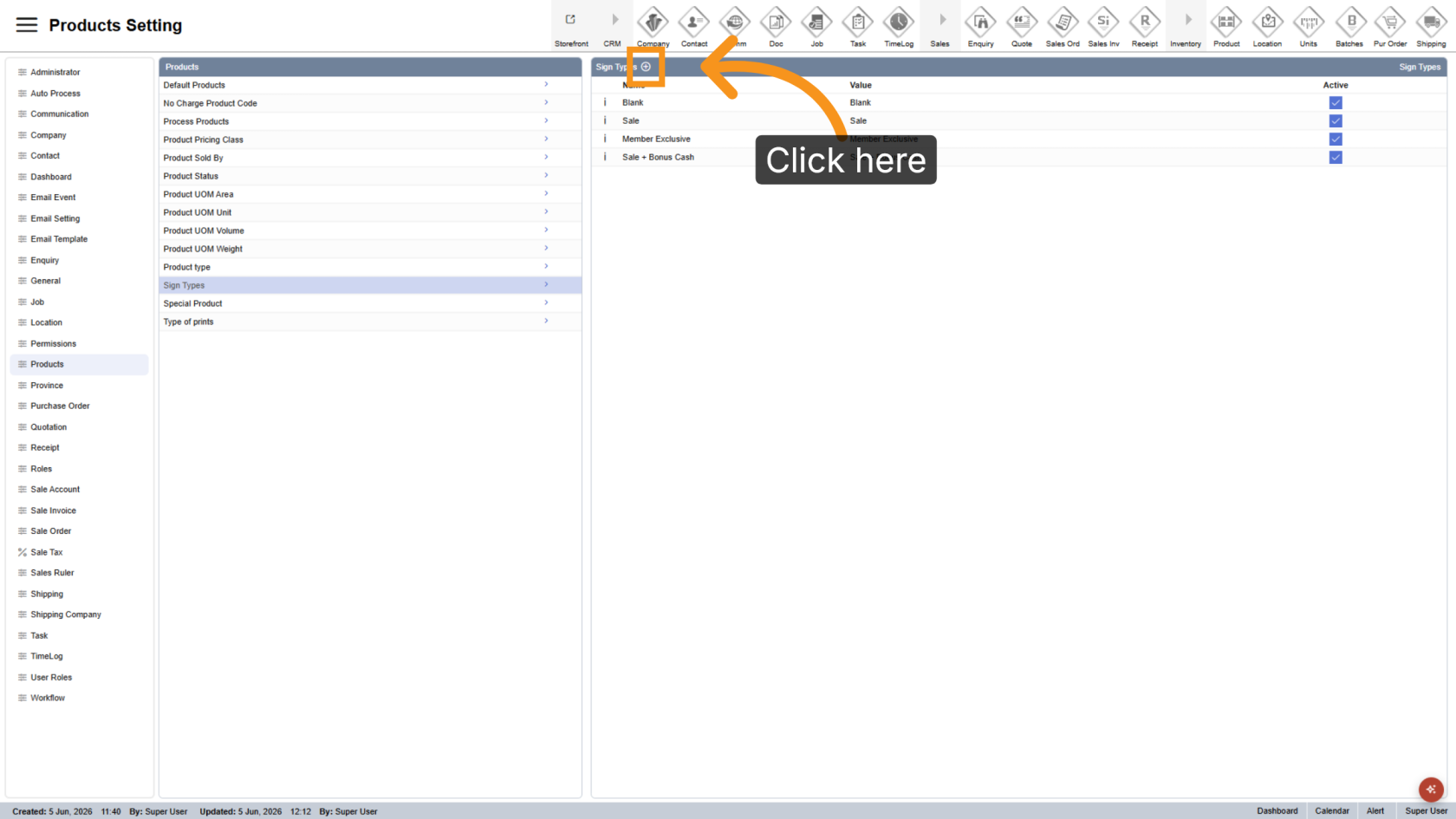
5. Add a New Print Type
Click the  plus icon to create a new entry.
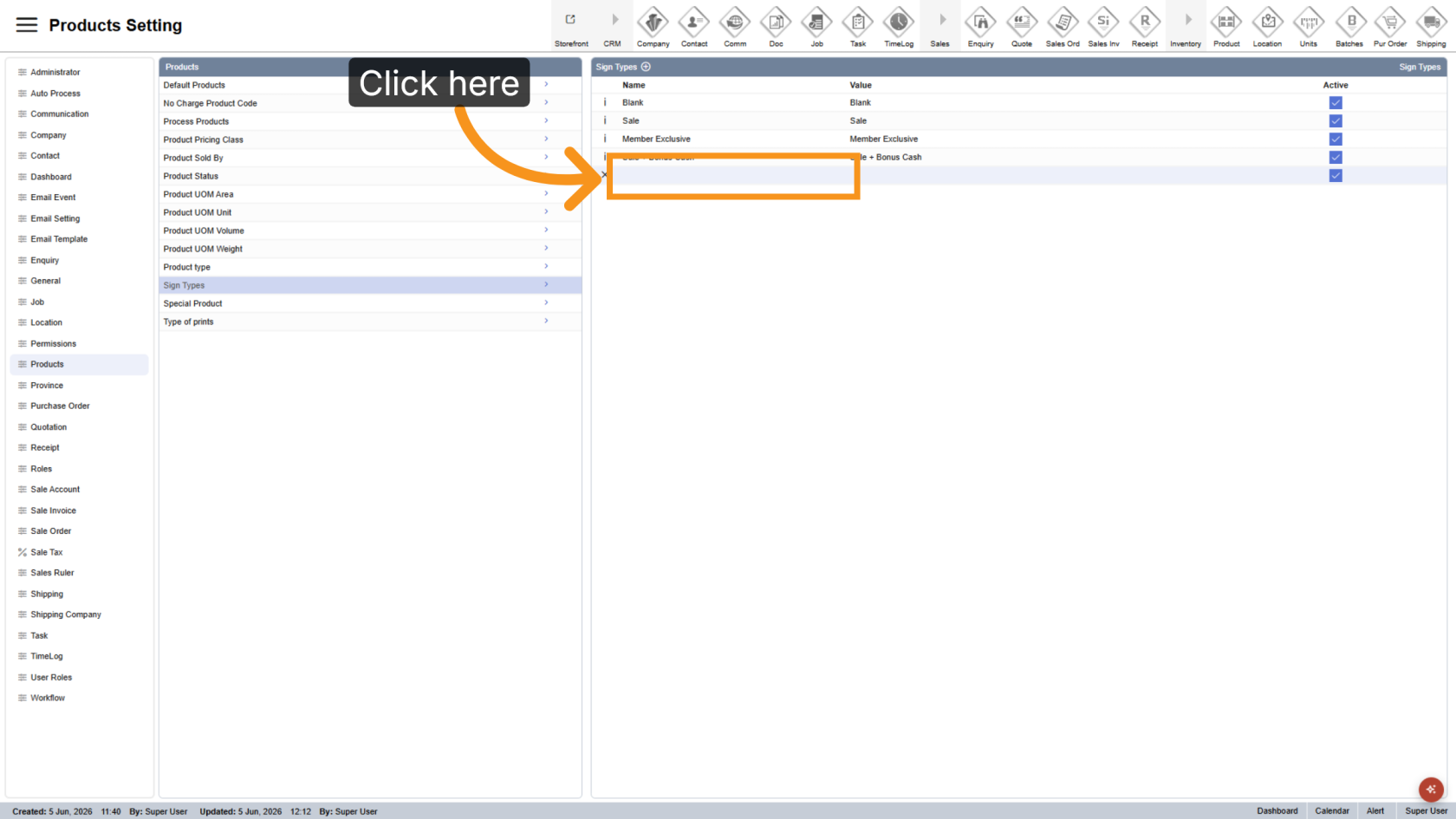
6. Enter the Name
Enter the name.
7. Enter the Value
Enter the value. In most cases, the value should match the name.
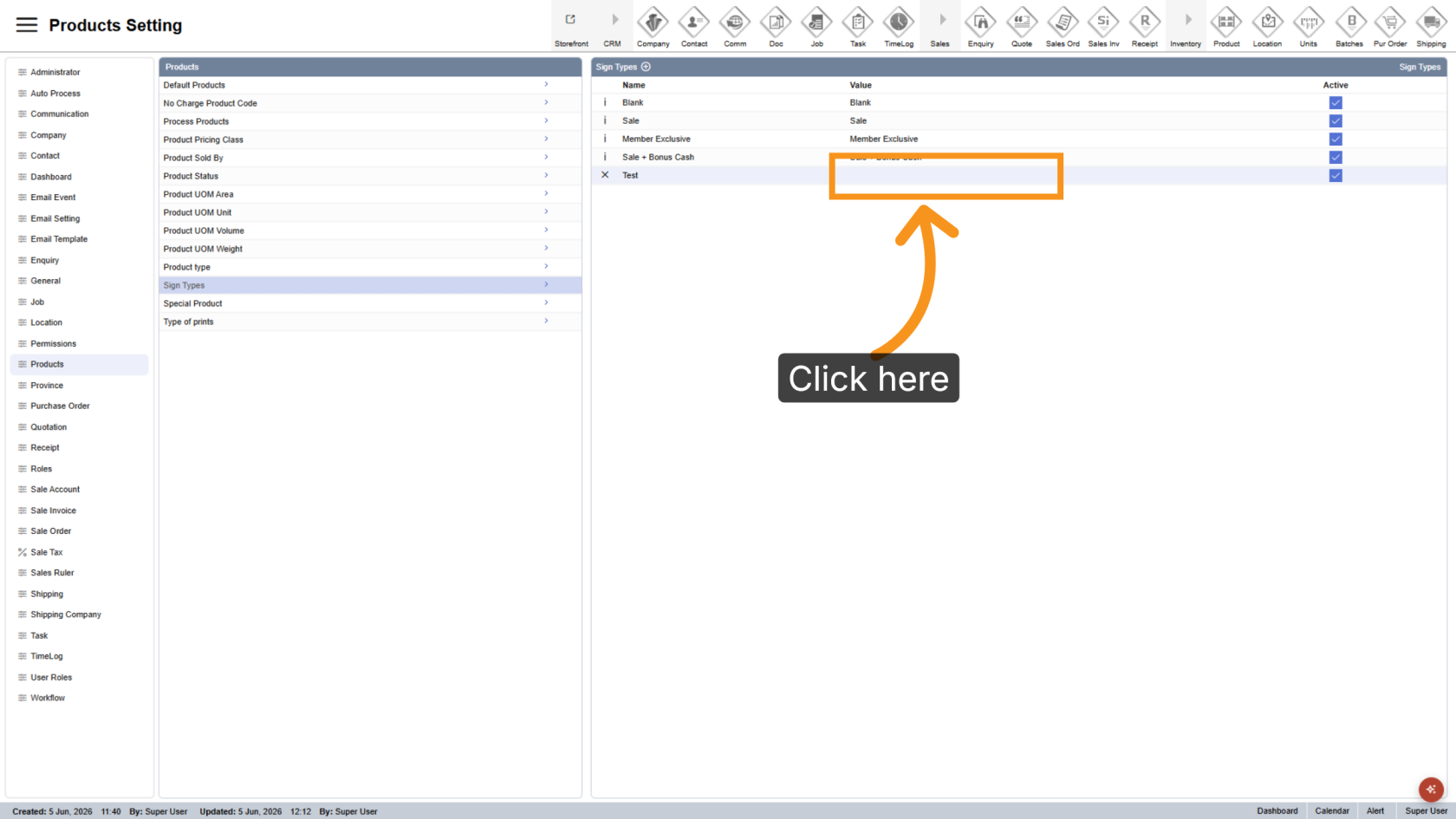
You have successfully added a new sign category. Review the name and value to ensure they are configured correctly.