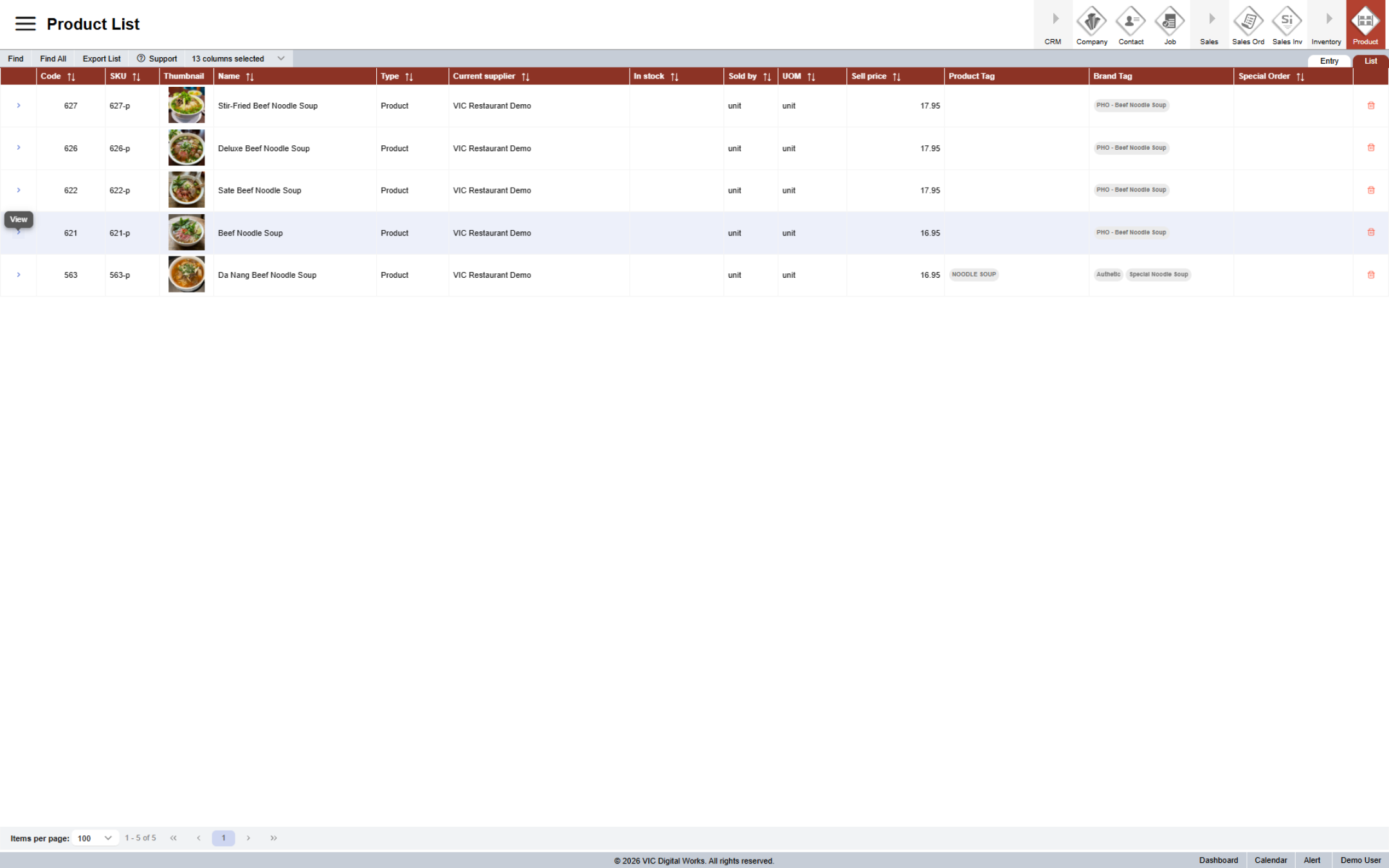
Introduction to Product Module in Worktraq
This tutorial provides guidance on how to access WorkTraq within the Serviz platform, along with an overview of the product modules in WorkTraq.
1. Introduction
First, you need to go to Serviz portal. (serviz.ca)
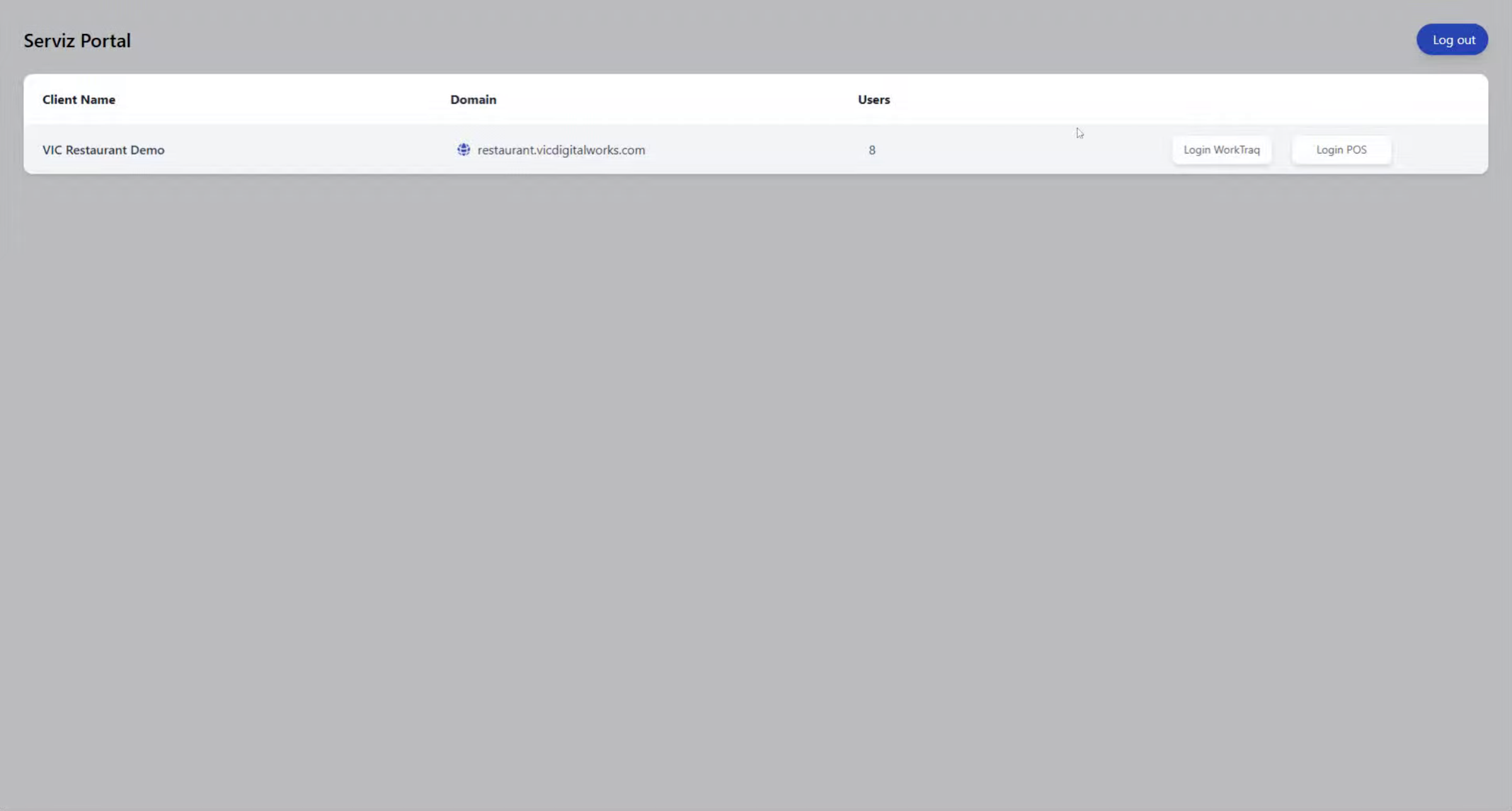
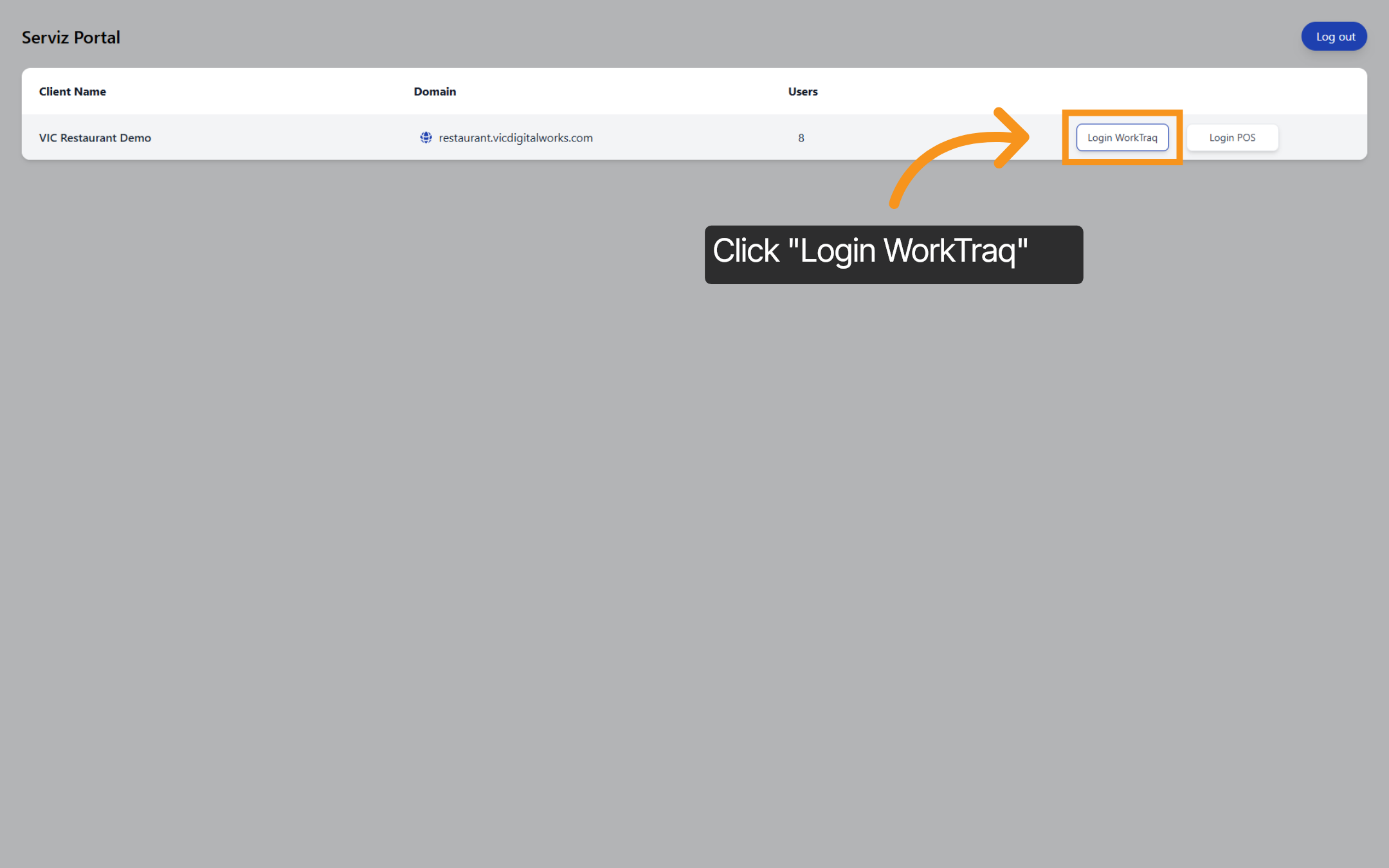
2. Select WorkTraq Login
From here, click the "Login WorkTraq" option to proceed to the WorkTraq authentication page.
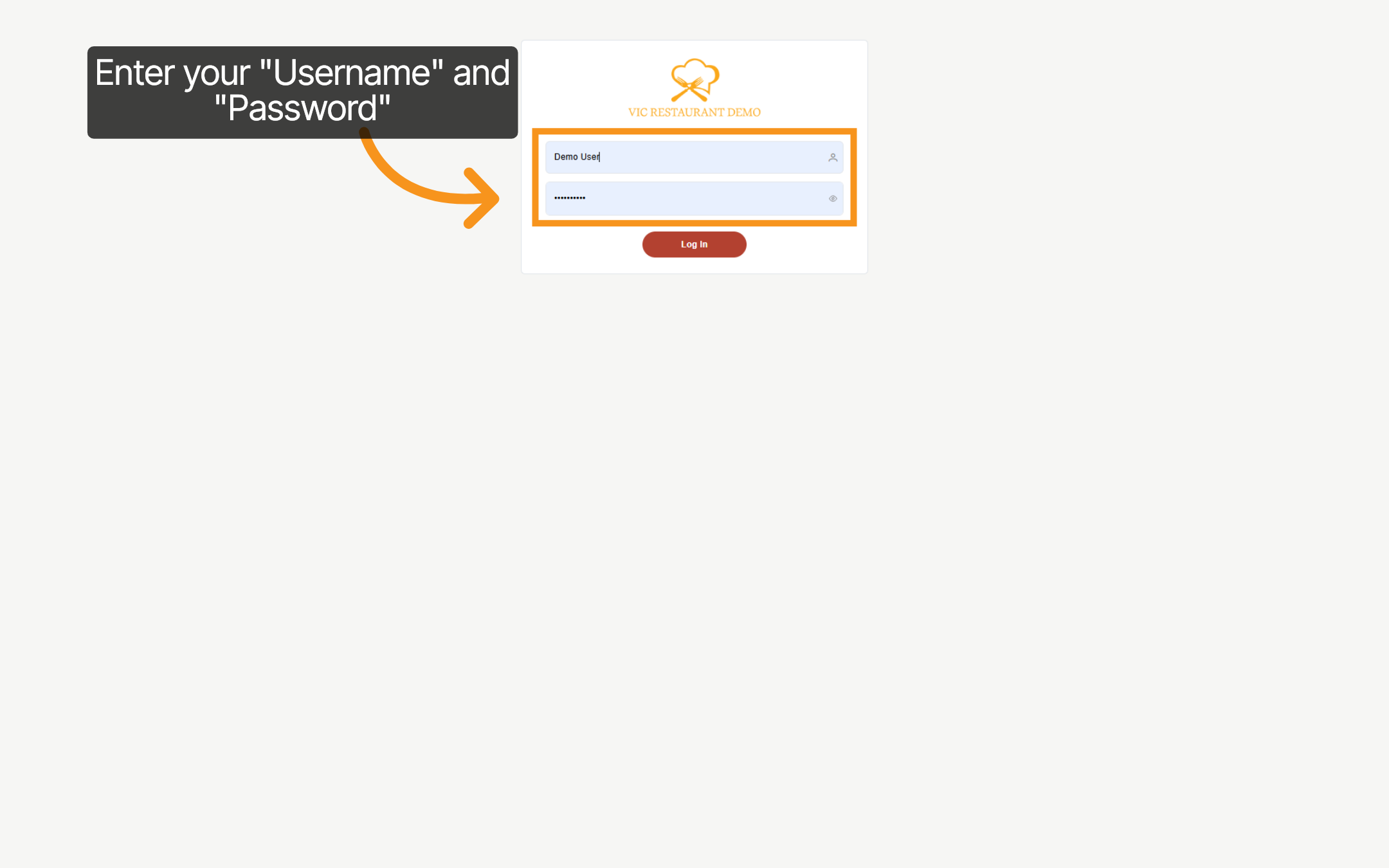
3. Enter Your Login Credentials
Enter your username and password.
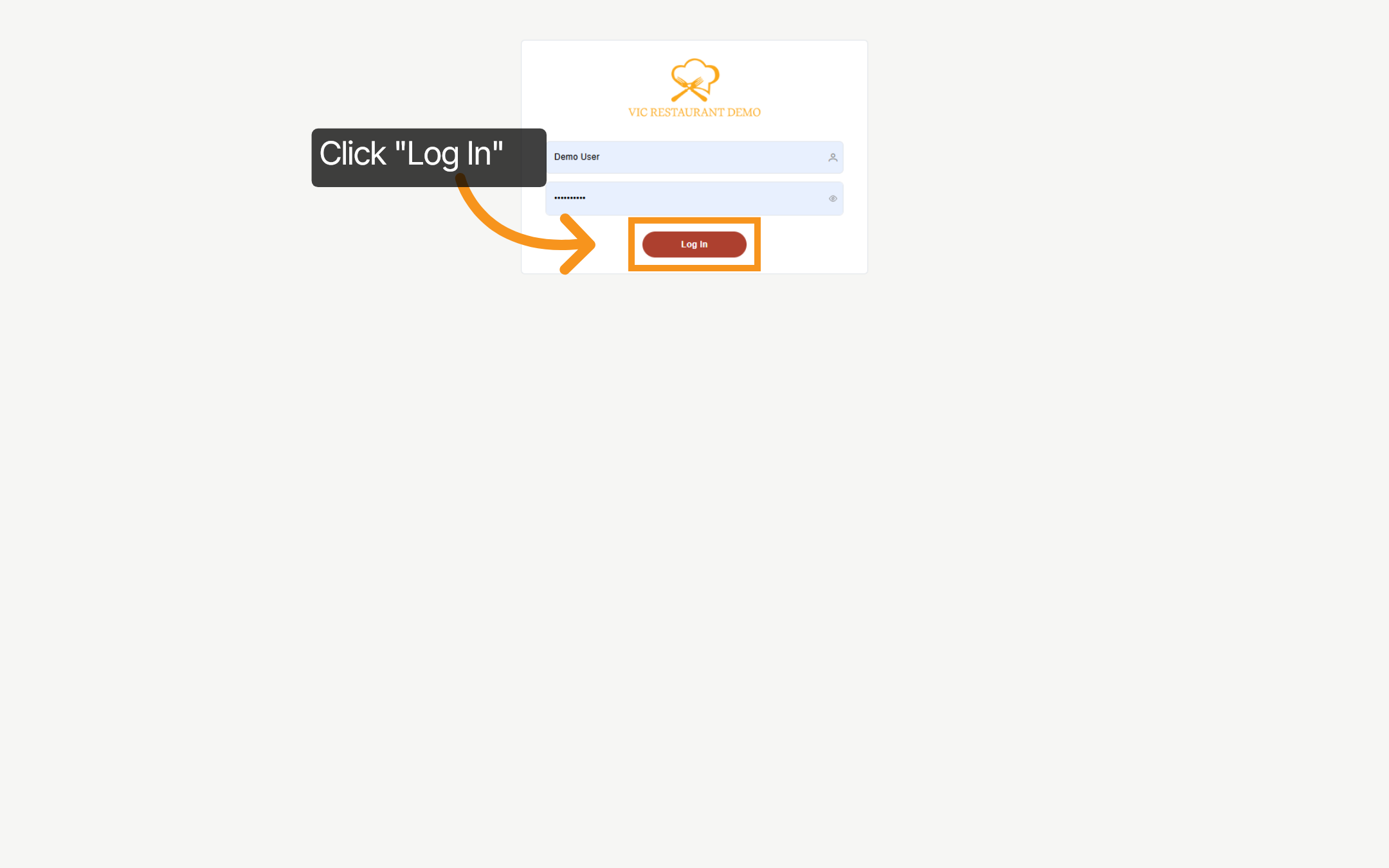
4. Click Log In Button
Click the Log In button to submit your credentials and access your WorkTraq account.
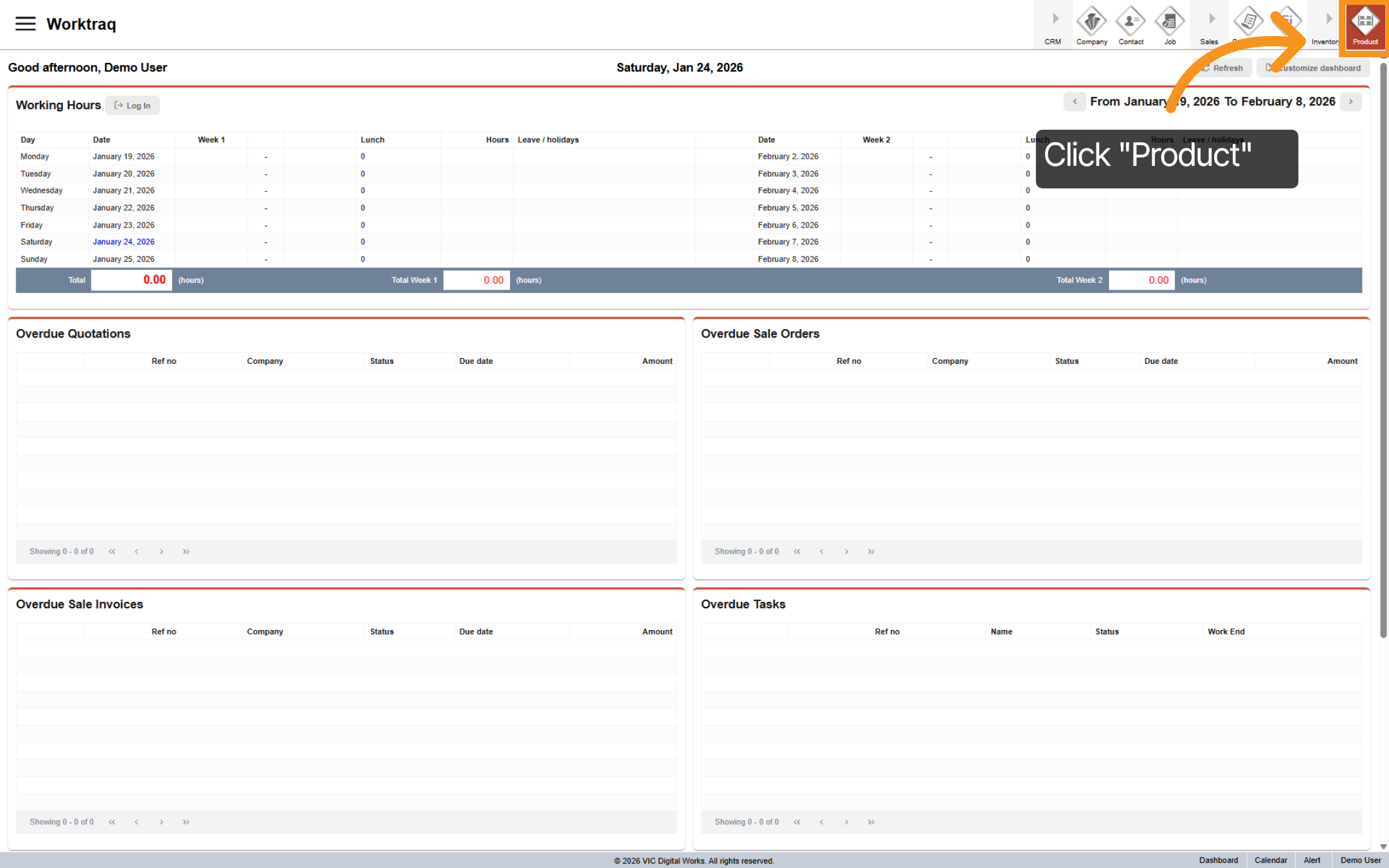
5. Navigate to Product Section
To access the Product module, click 'Product' in the main top menu
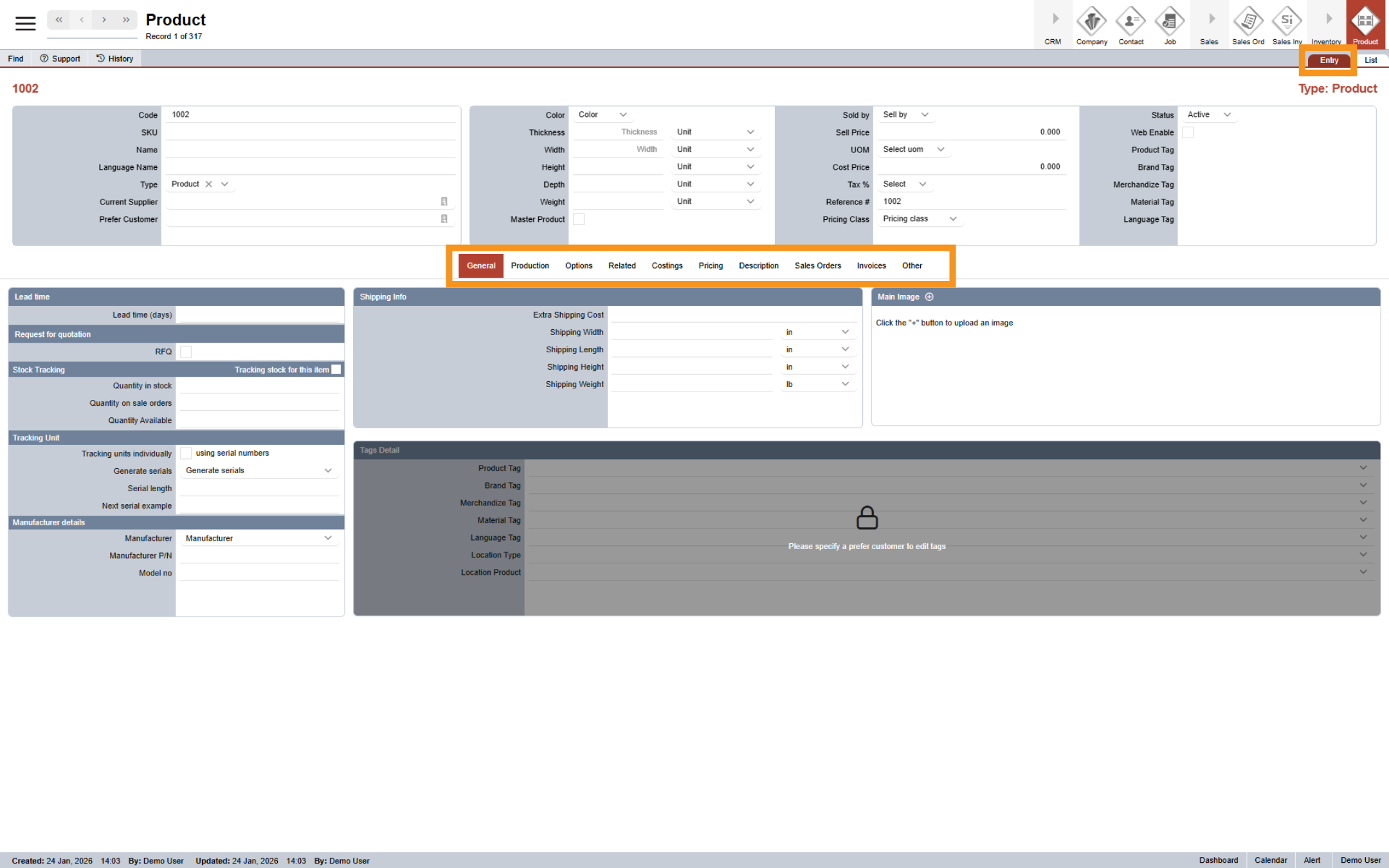
6. Product Entry View
This view displays your most recently opened items. The Entry section contains all the product details and features a central menu for easy navigation to sections like tags, costs, pricing, and sales orders. We’ll dive deeper into these areas when I show you how to create a product in the next video."
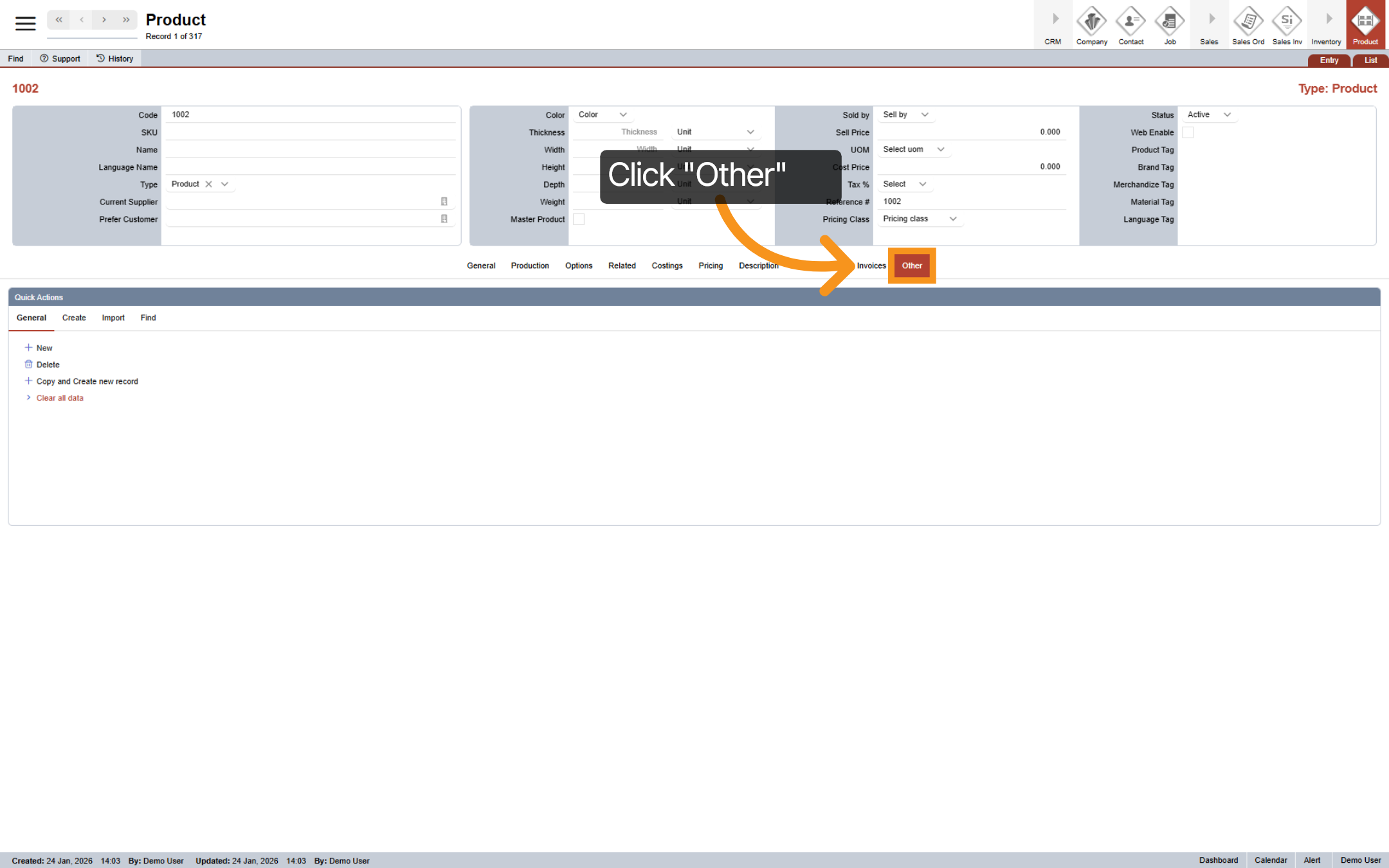
7. Product Quick Actions
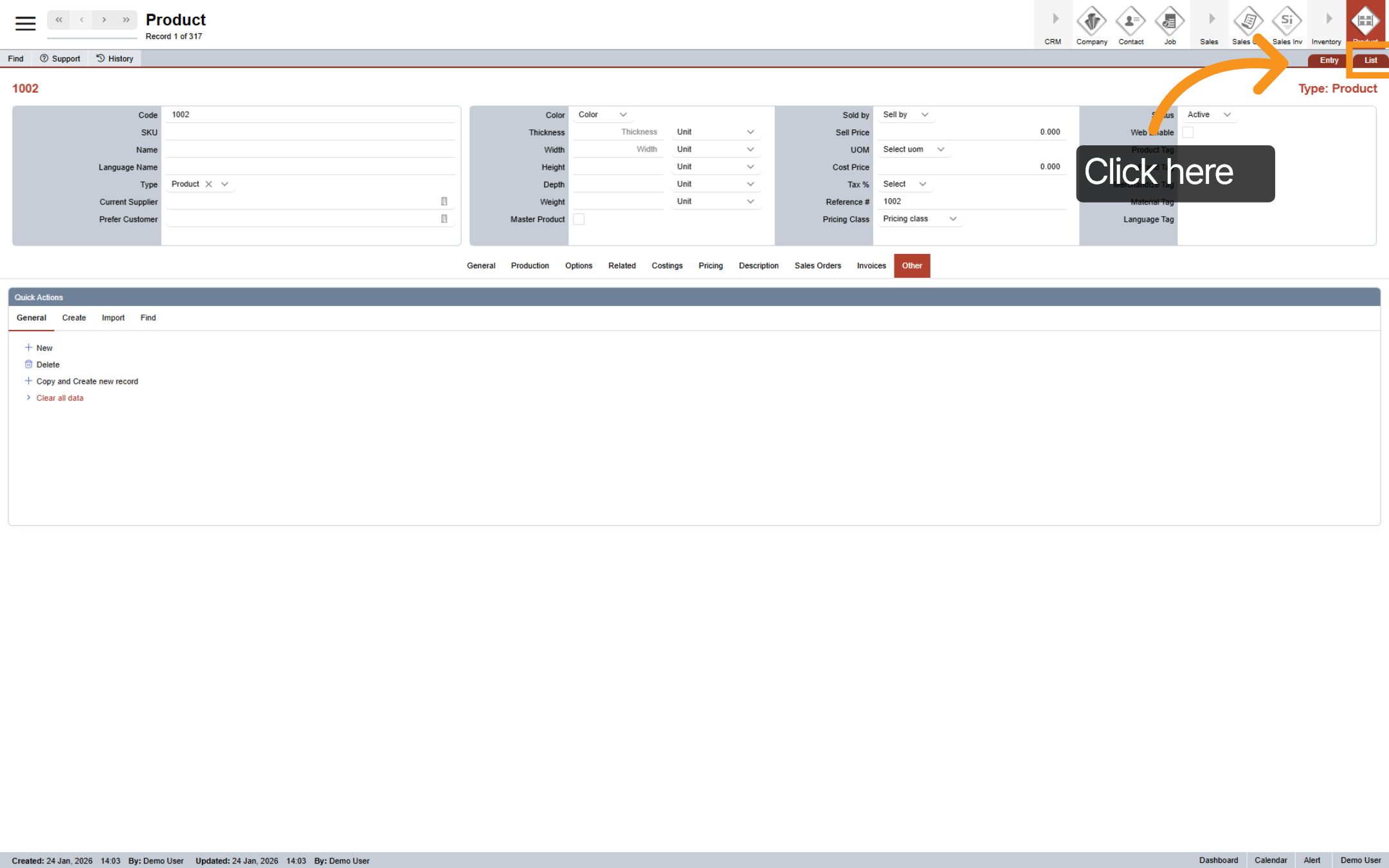
8. Product List
Click "List" to view all products available in the WorkTraq system.
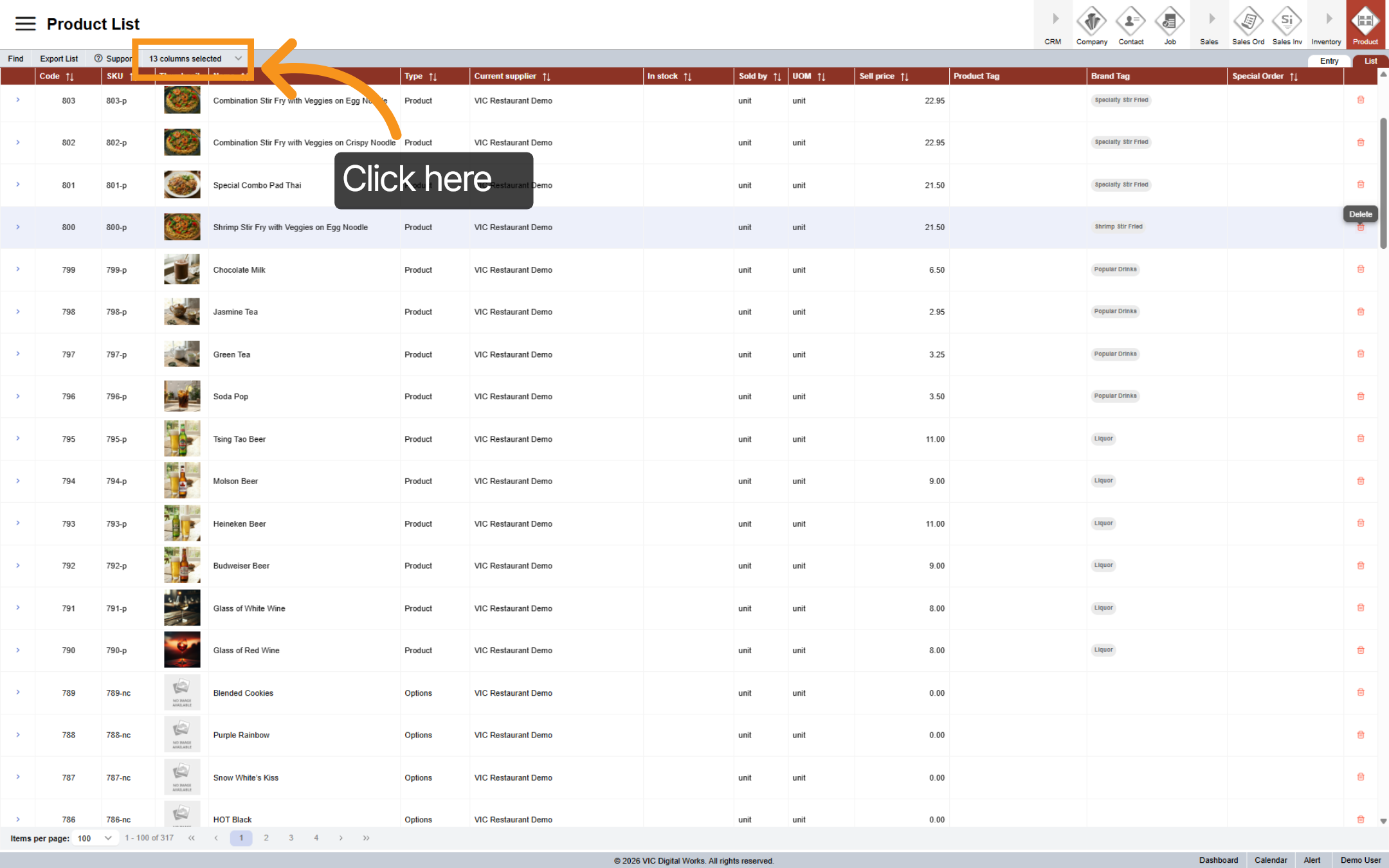
9. Custom List View
In the "List", click "Column Selected" and then choose the columns you want to display in the list.
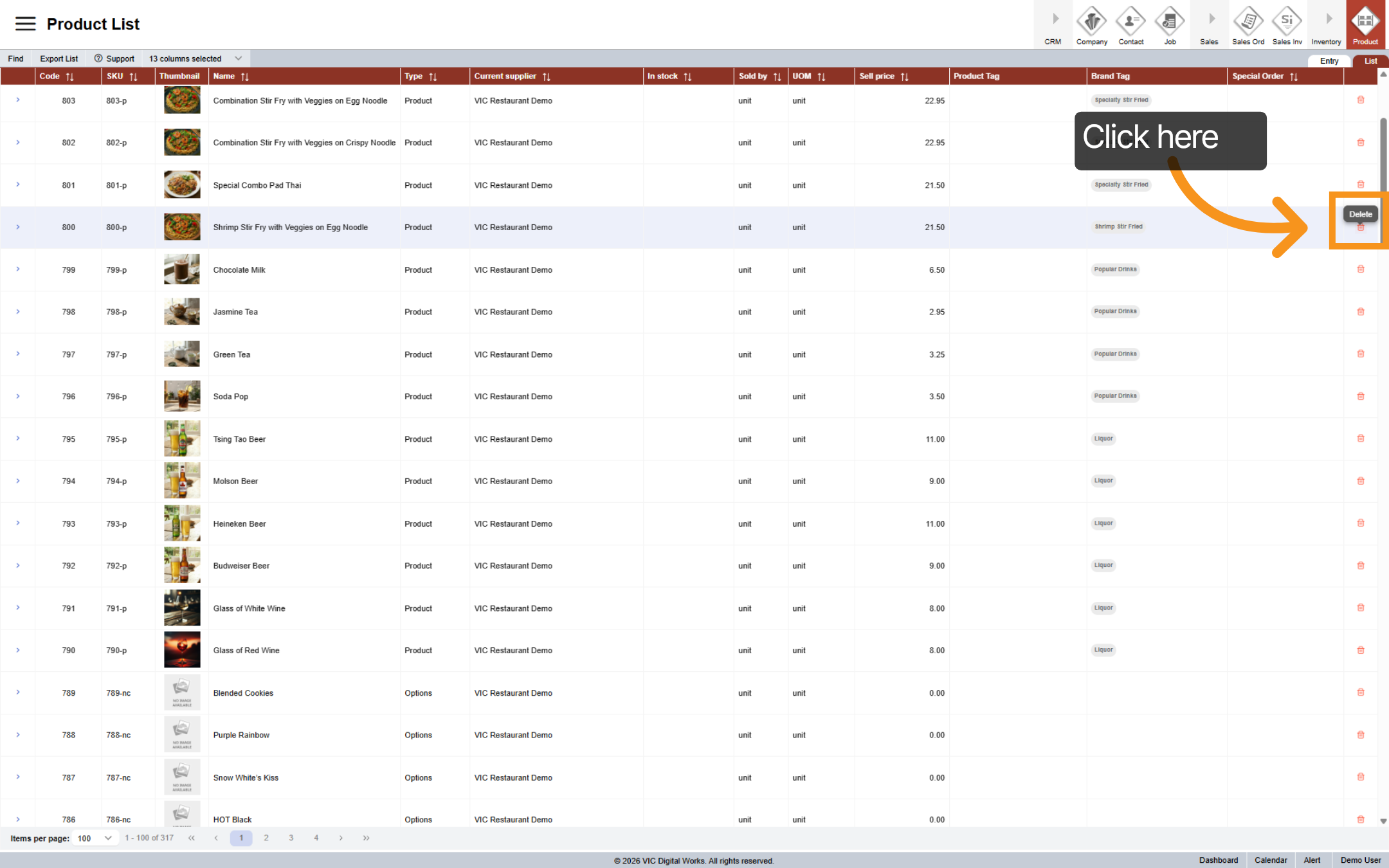
10. Delete Product
You can delete a product by clicking the "Delete" icon next to the item you want to remove.
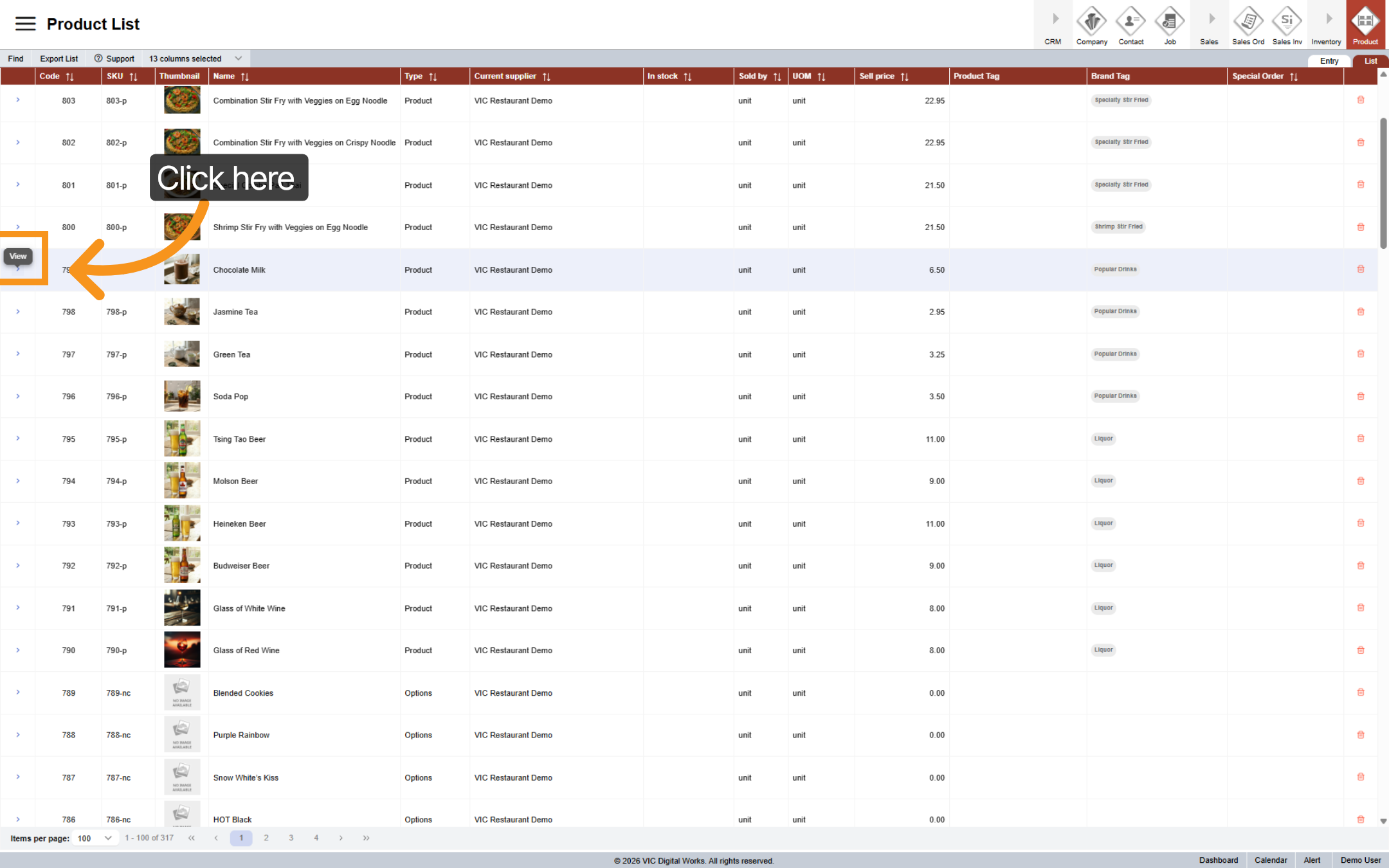
11. View Specific Product
Click the arrow next to the product you want to view to access the product entry.
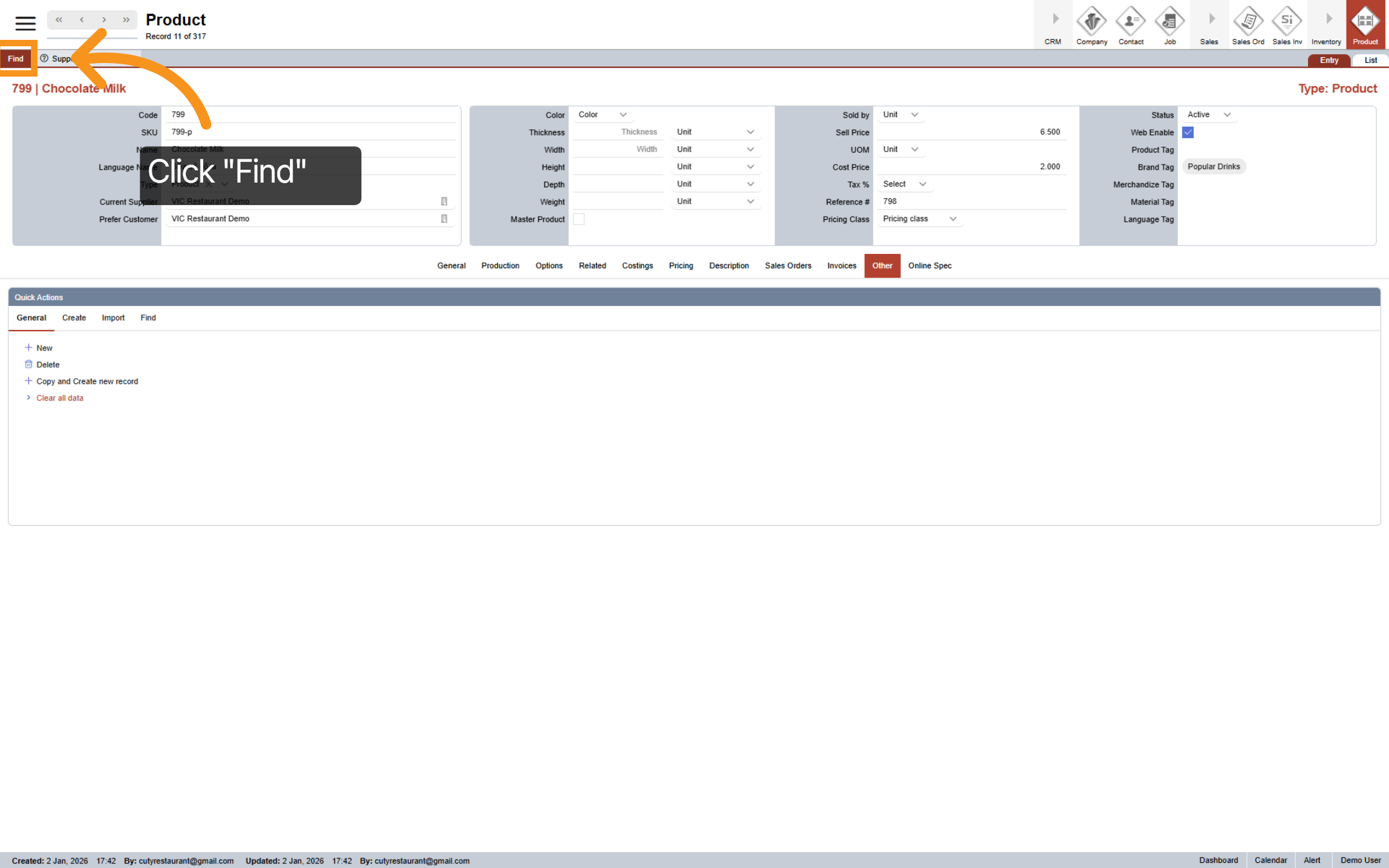
12. Find Product
Click "Find" to quickly locate a product using specific filters. This makes it easier to find the product you are looking for efficiently.
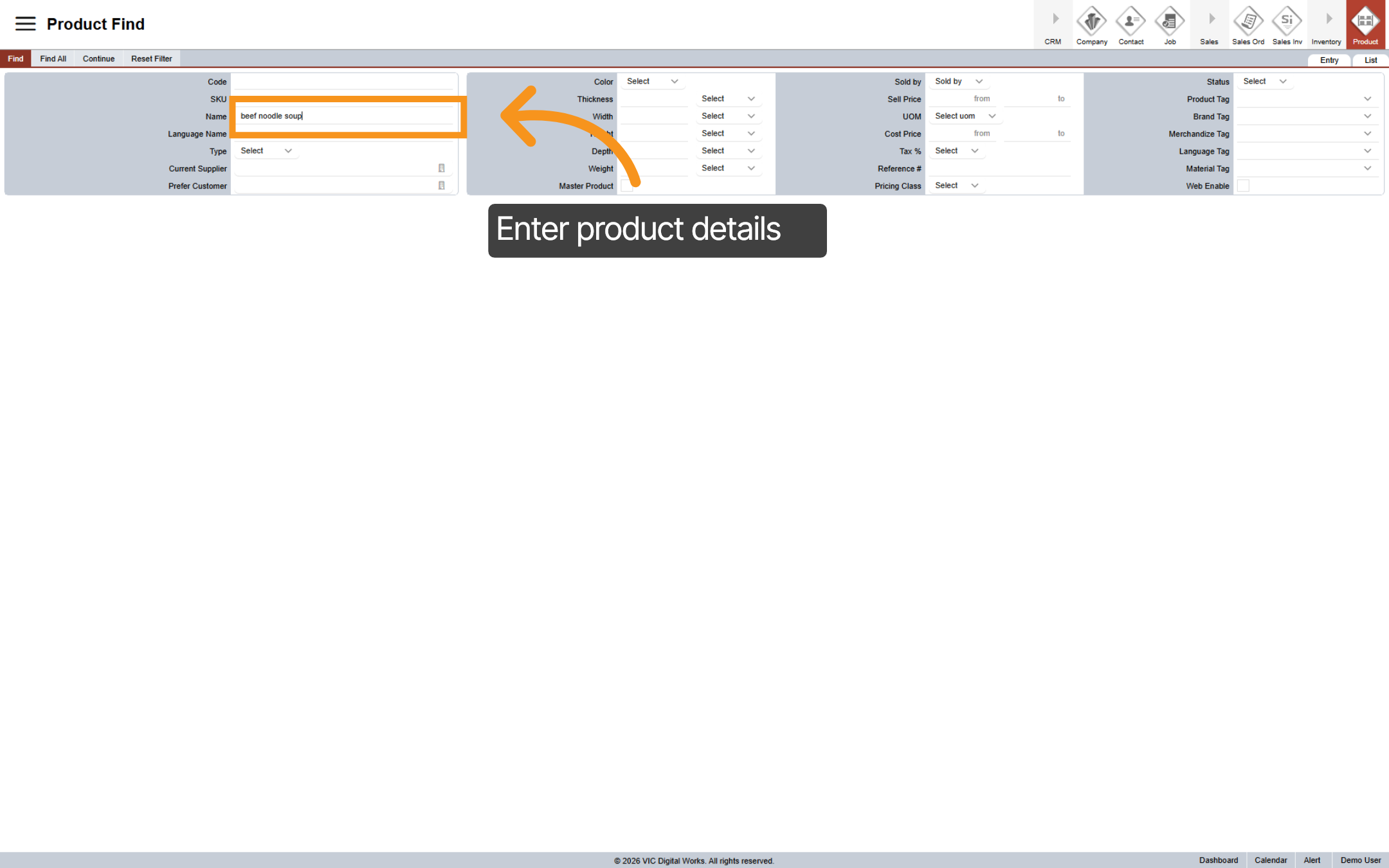
13. Stat Find Product
Enter a product name, keyword, or any related details to locate specific items within the product database.
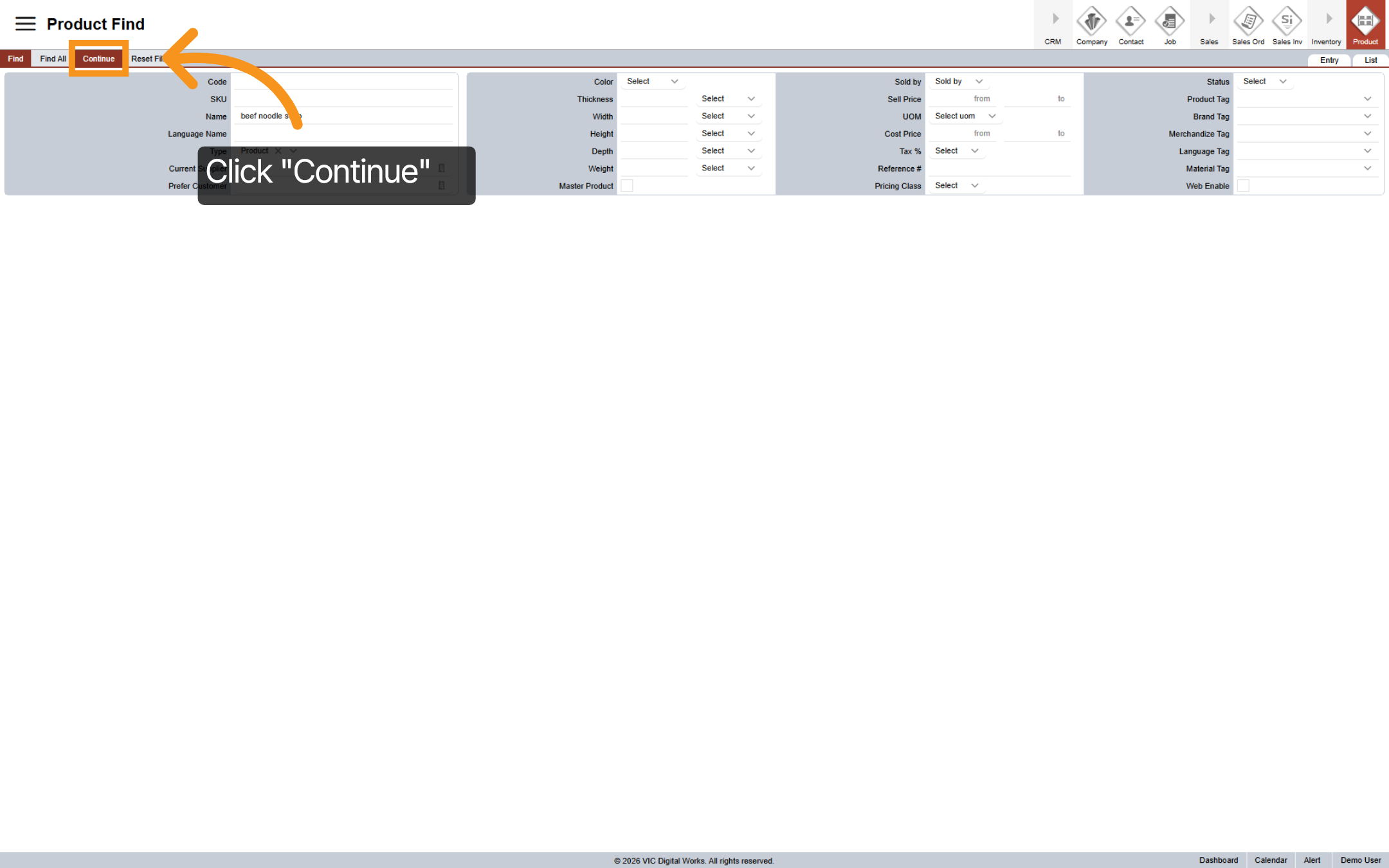
14. Proceed to Search
After entering the product details, click Continue to begin your search. You can combine multiple fields to narrow down the results and find a specific product.
15. View Search Results
The system will display all relevant product that contains the keywords that you search for.