
CUSTOMER ANALYTICS
Configure Customer Analytics Using Vicdigitalwork E-Store
This tutorial guides you through managing customer analytics within the Vicdigitalwork E-store platform
Go to serviz.ca
1. Introduction
You will learn how to access, filter, and analyze order reports to gain valuable insights via Vic restaurant Demo.
2. Analytics
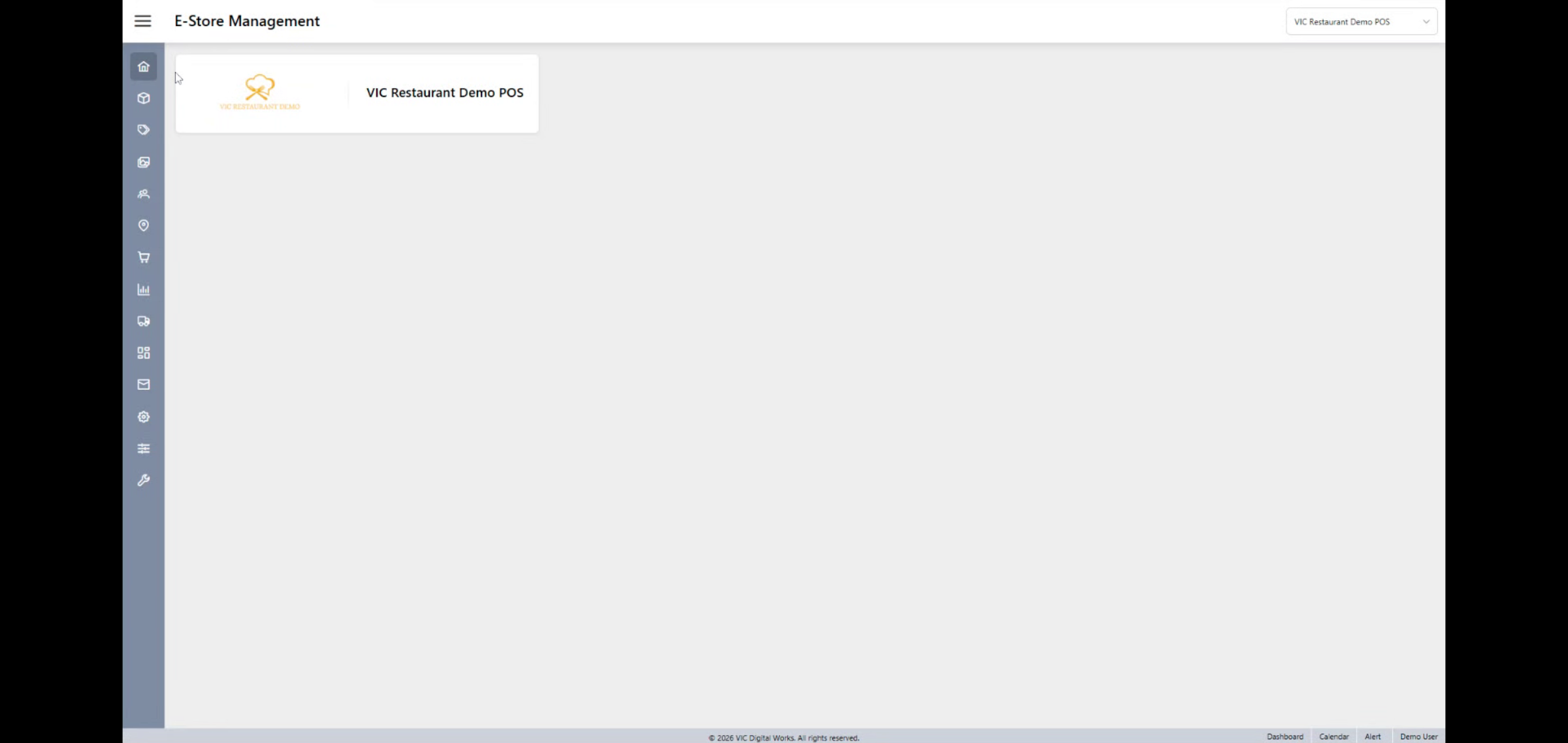
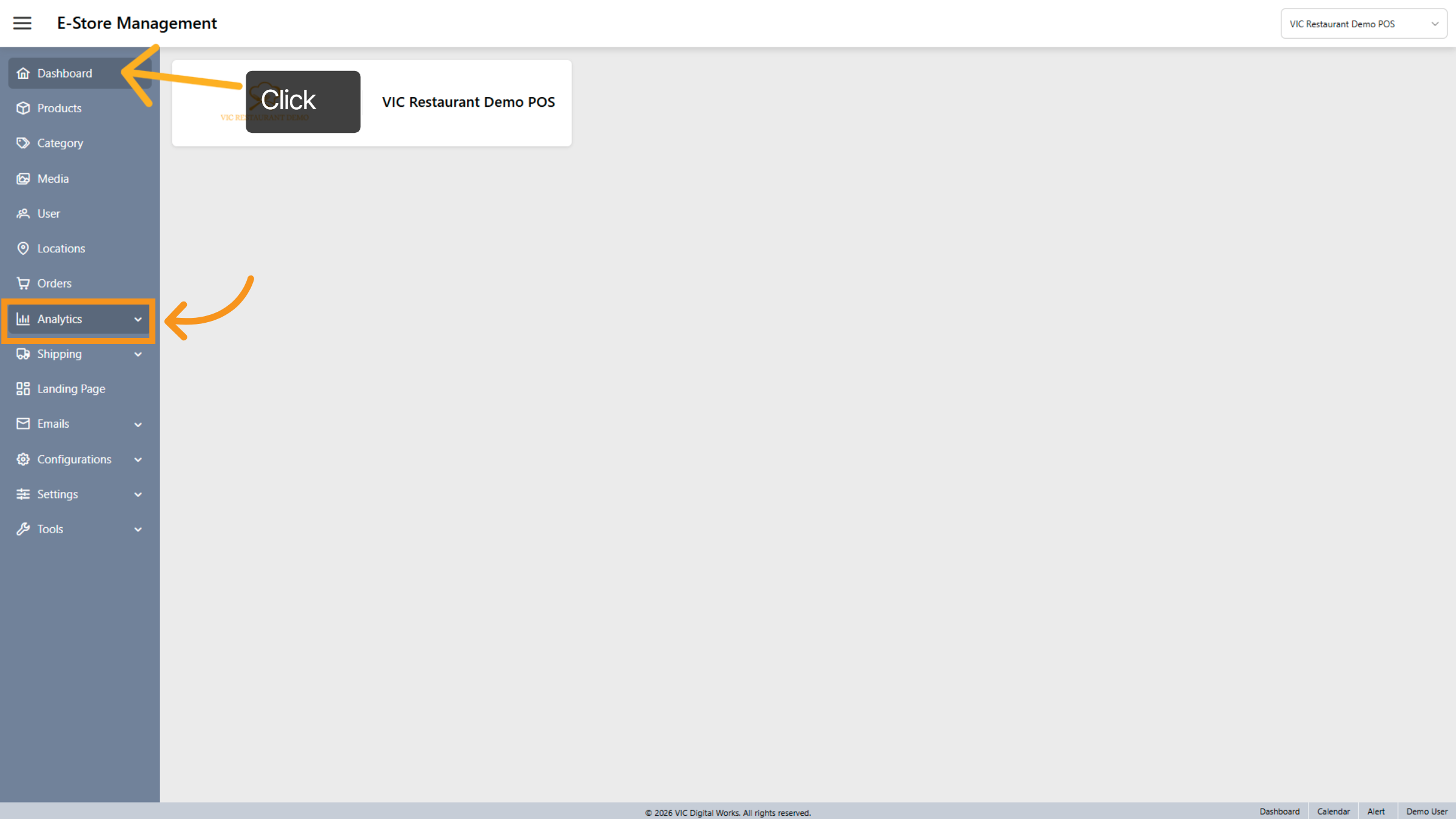
Begin by Clicking the main dashboard and access analytics
3. Analytics - Open Order Reports
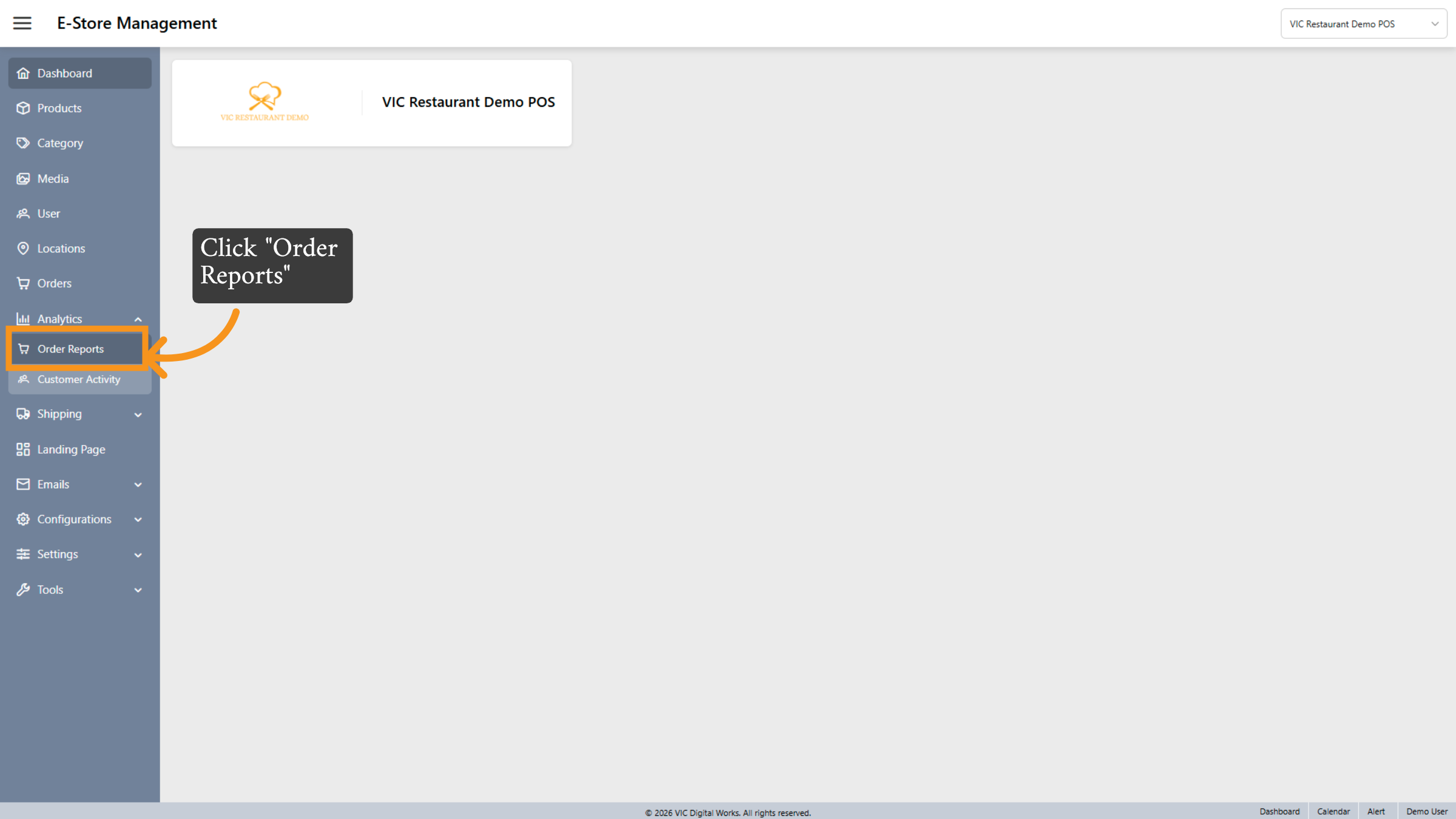
Click the Order Reports section to view detailed data on customer orders and transactions.
4. order Reports Section
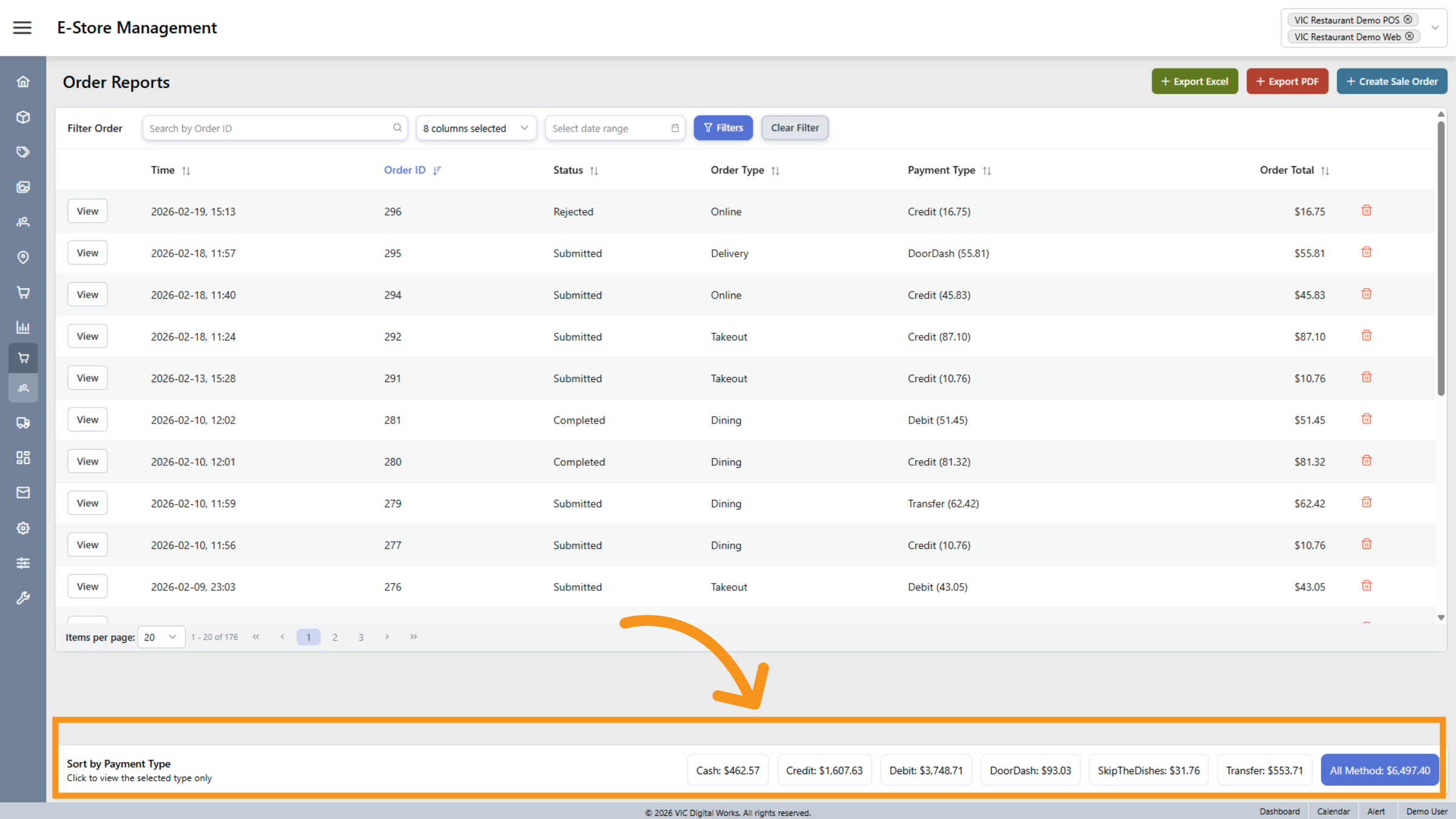
In this section, you can view an overview of the order report with customizations such as: filtering orders, exporting to Excel/PDF, creating sales orders, and sorting by payment type. The owner will find detailed information on turnover and statistics regarding payment types, as well as order details that include customer data. This information will assist the owner in easily tracing and managing the business.
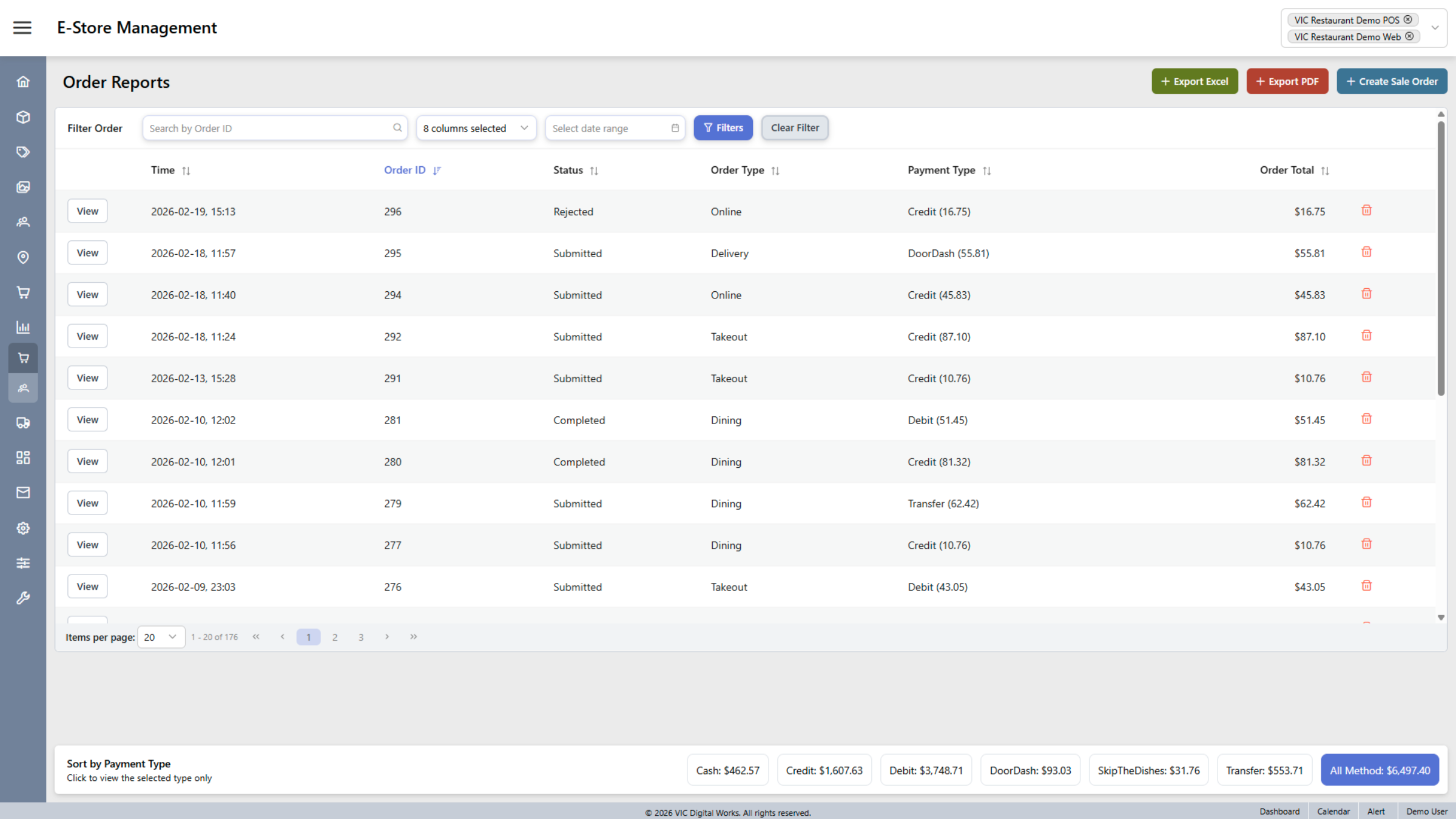
5. Select Order Data Columns
Click the column headers such as Time, Order ID, Status, Order Type, Payment Type, and Order Total to customize the data view.
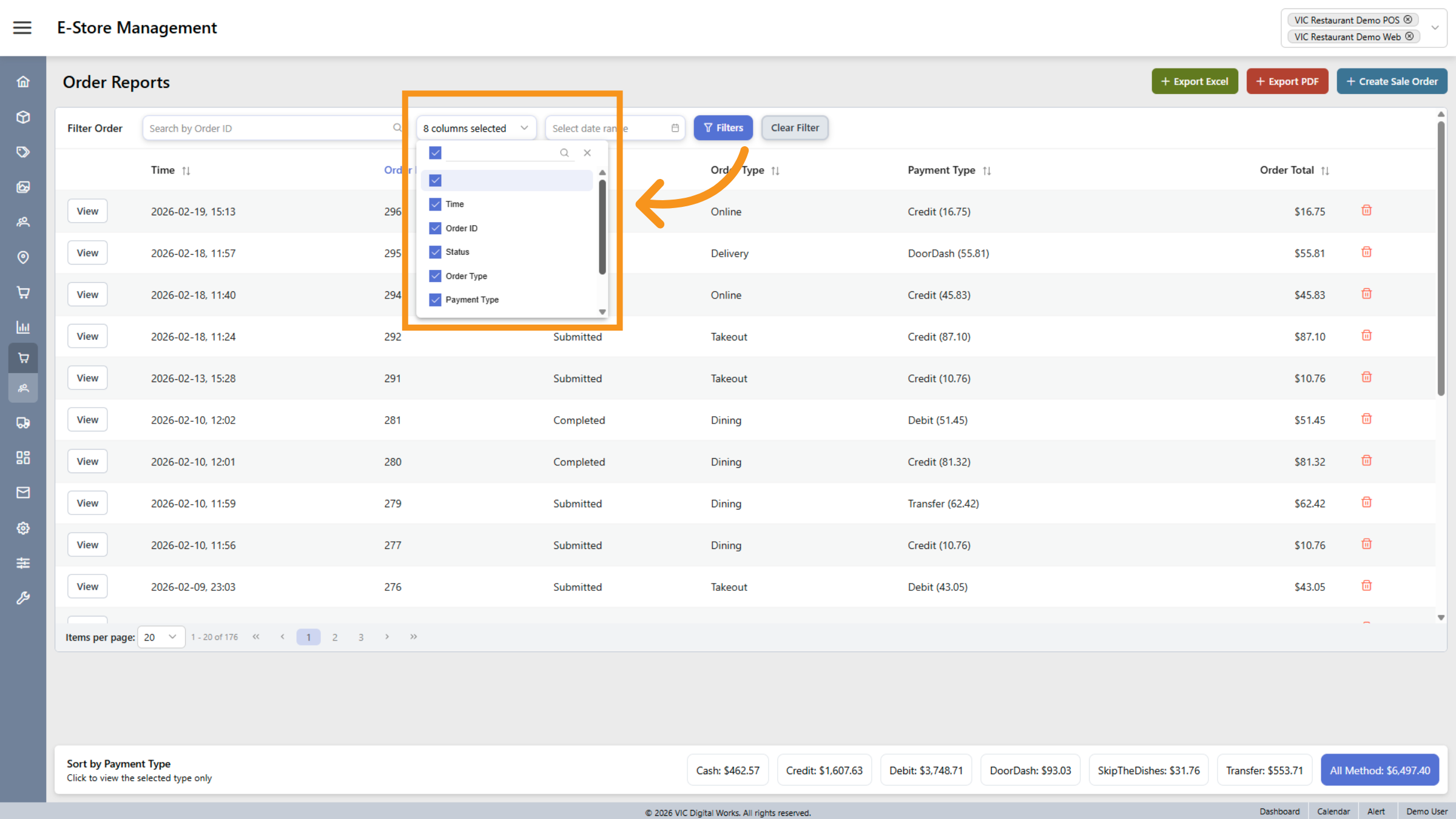
6. Filters Menu
the Filters option to refine the order data based on specific criteria for better analysis.
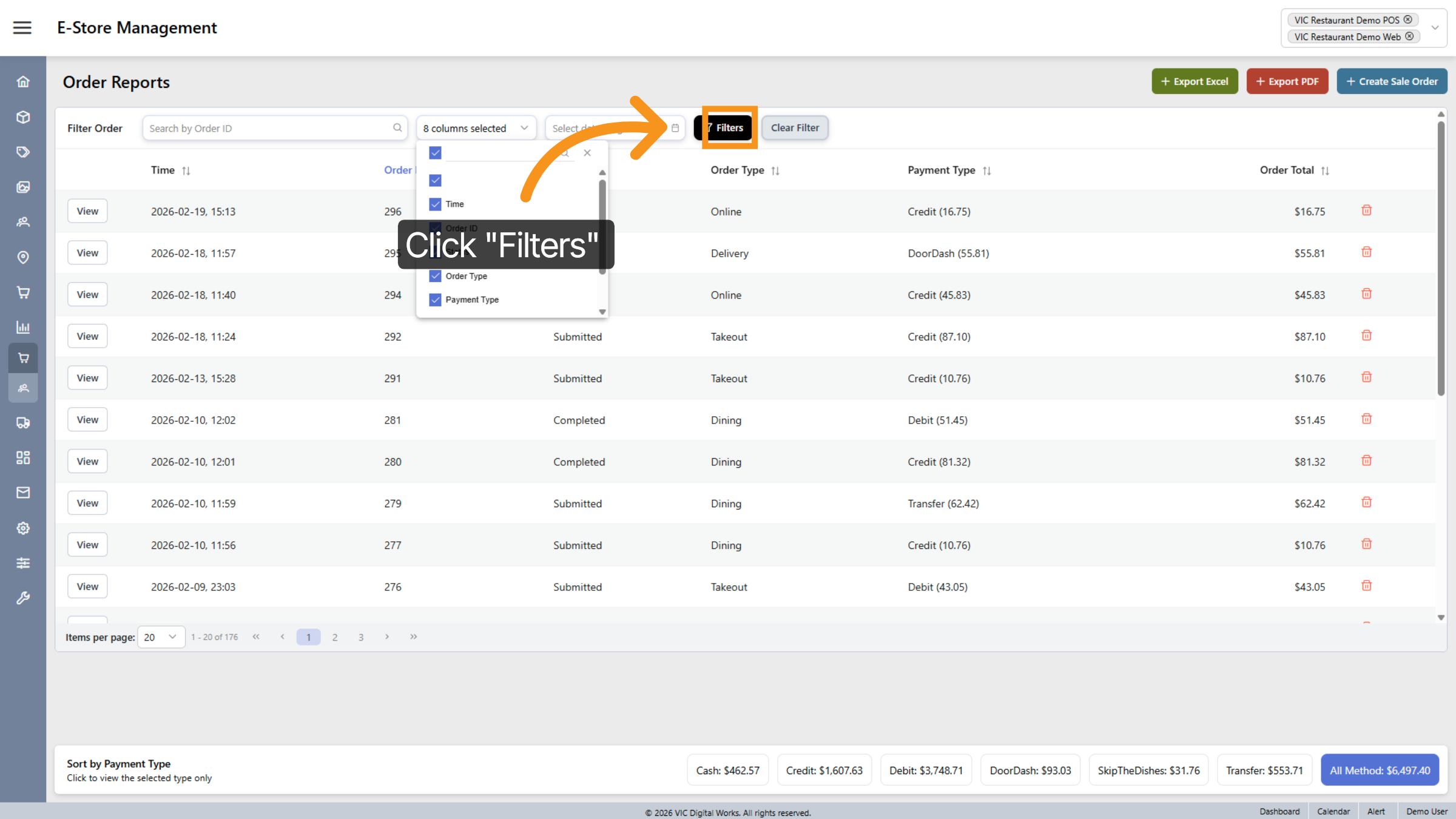
7. Filter Options
the filter area to reveal available filtering parameters for order reports.
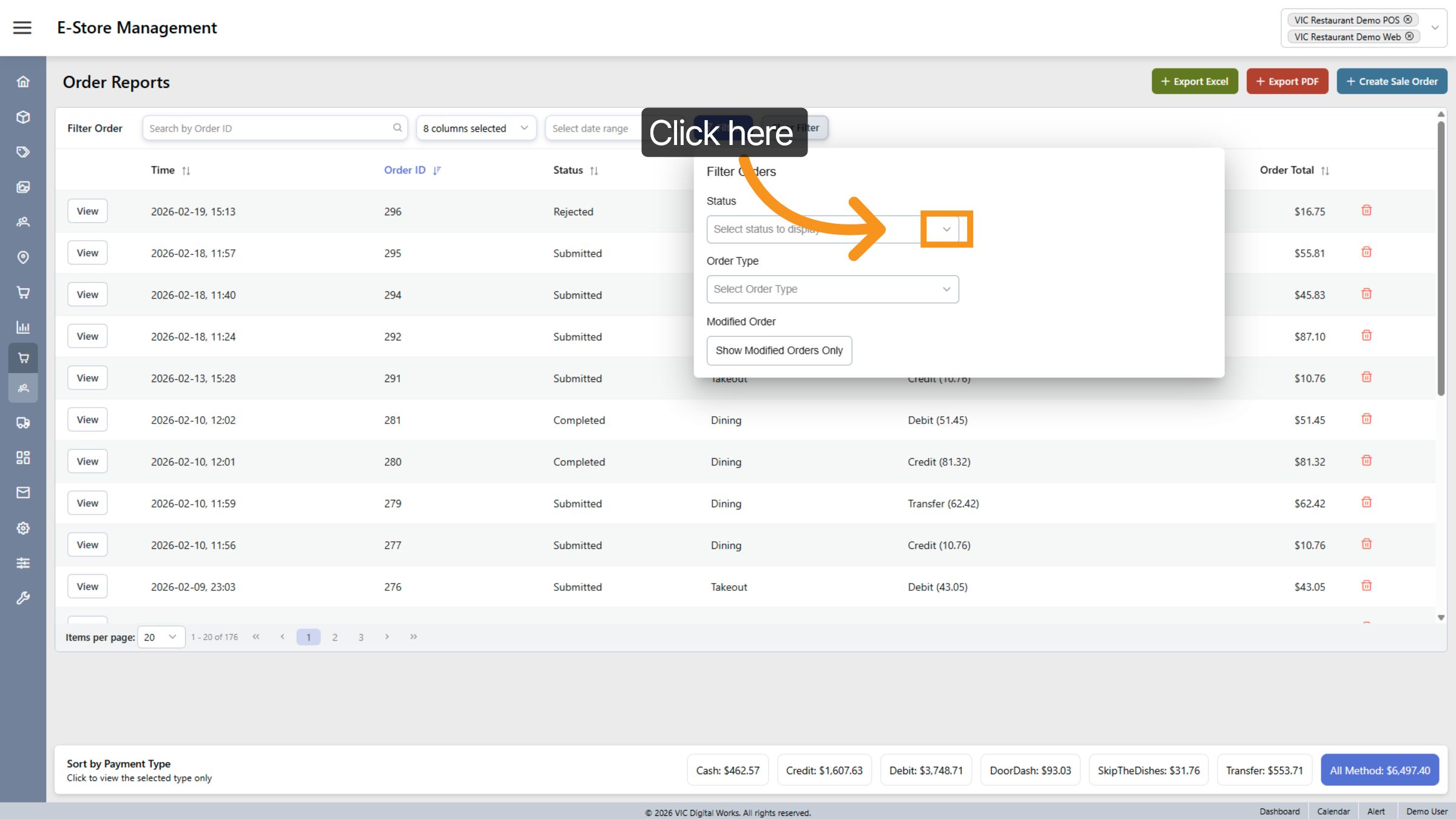
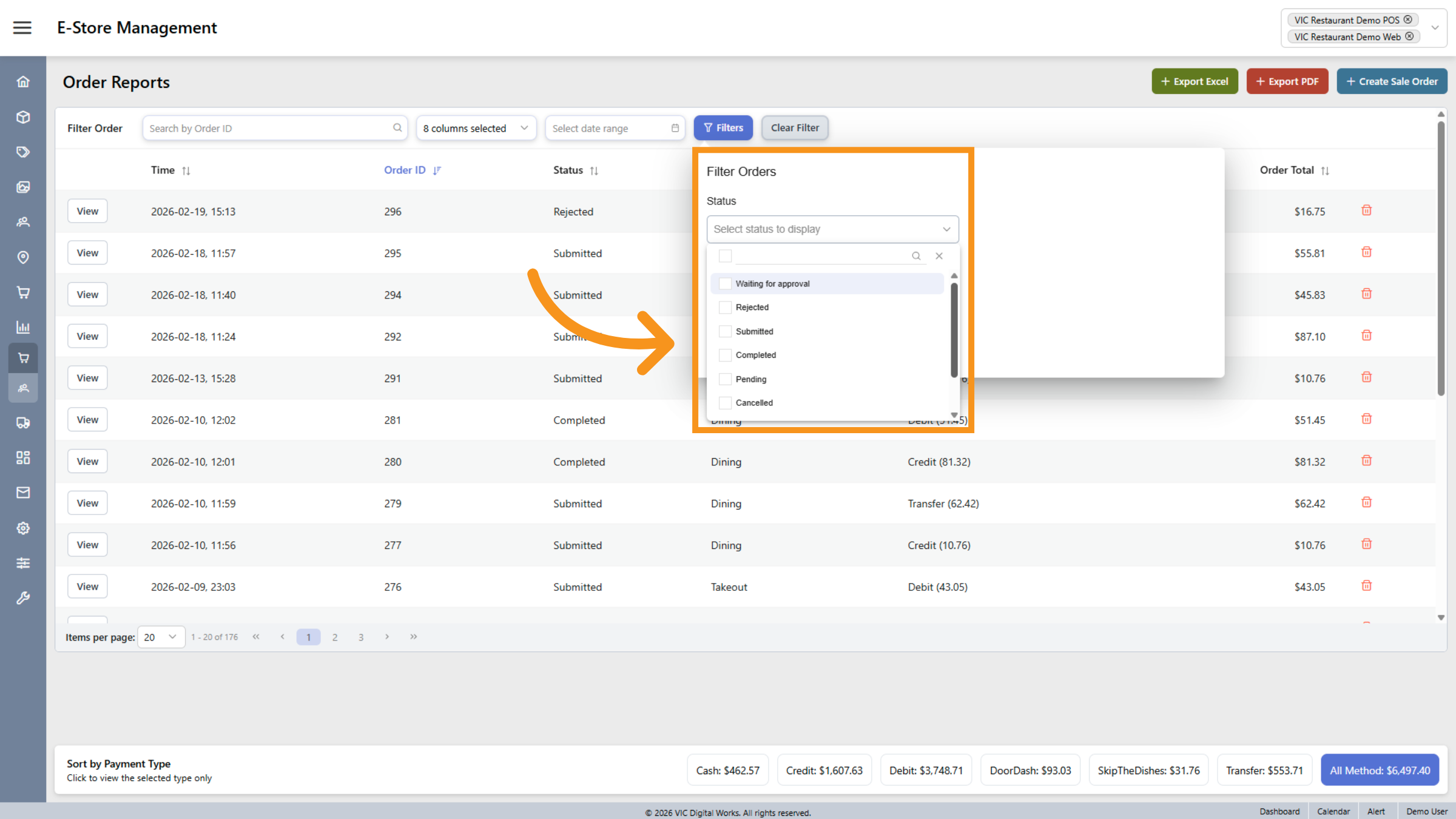
8. Choose Order Status Filter
Select an order status to filter orders by their current processing state, such as waiting for approval or completed.
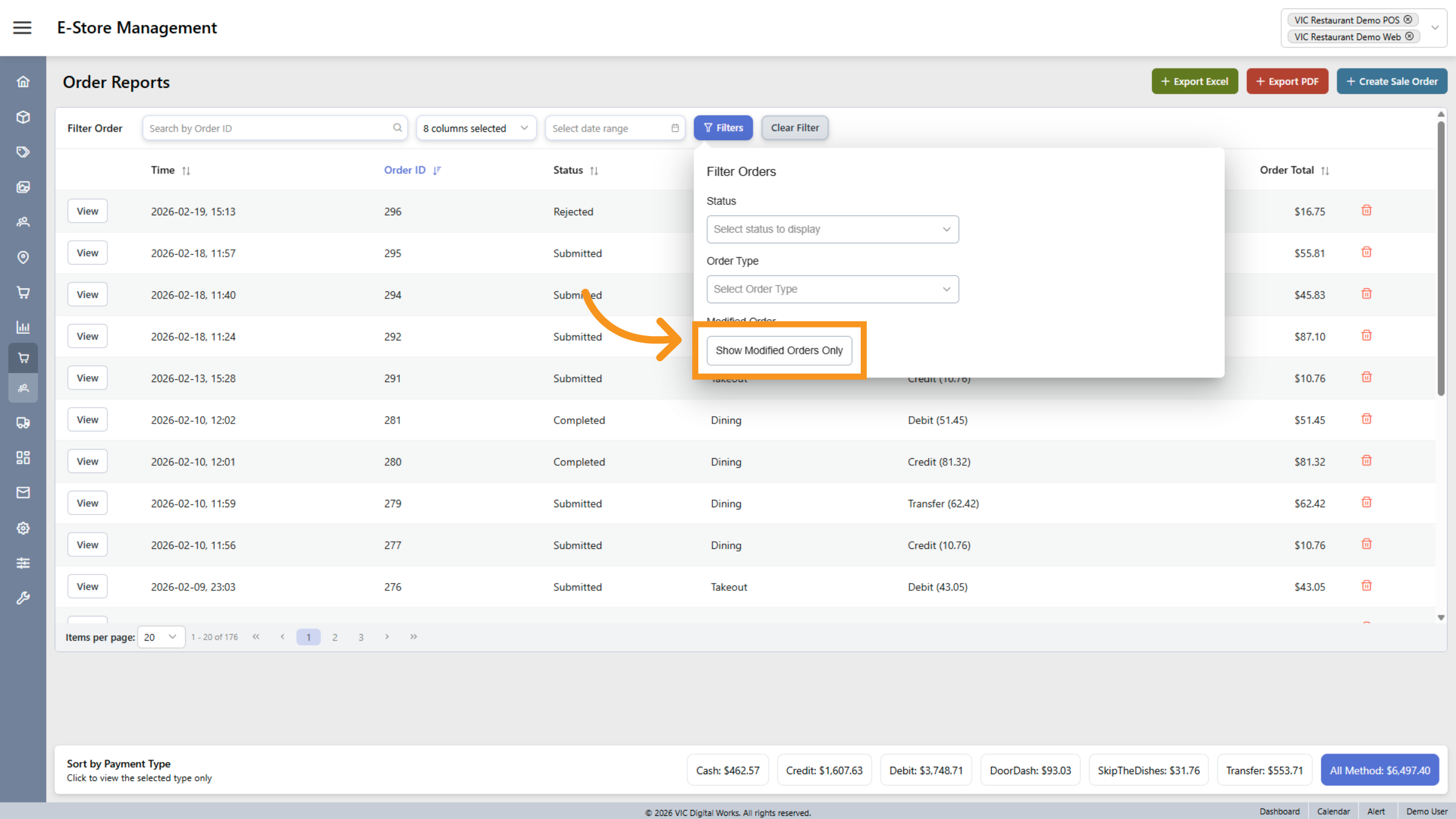
9. Enable Modified Orders Filter
the Show Modified Orders Only checkbox to focus on orders that have been changed after submission.
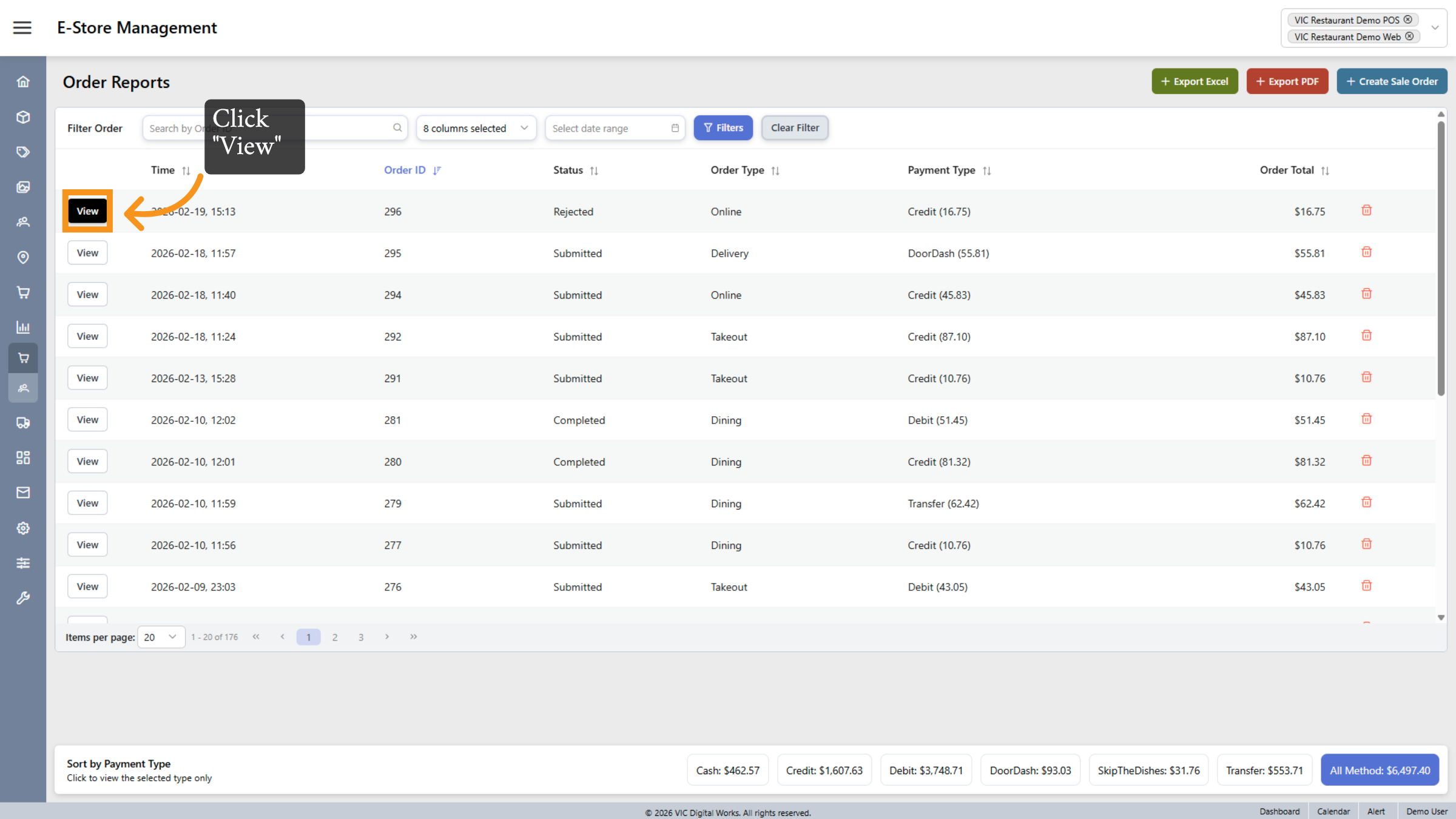
10. View Order Details
Click the View button to open detailed information about a specific order.
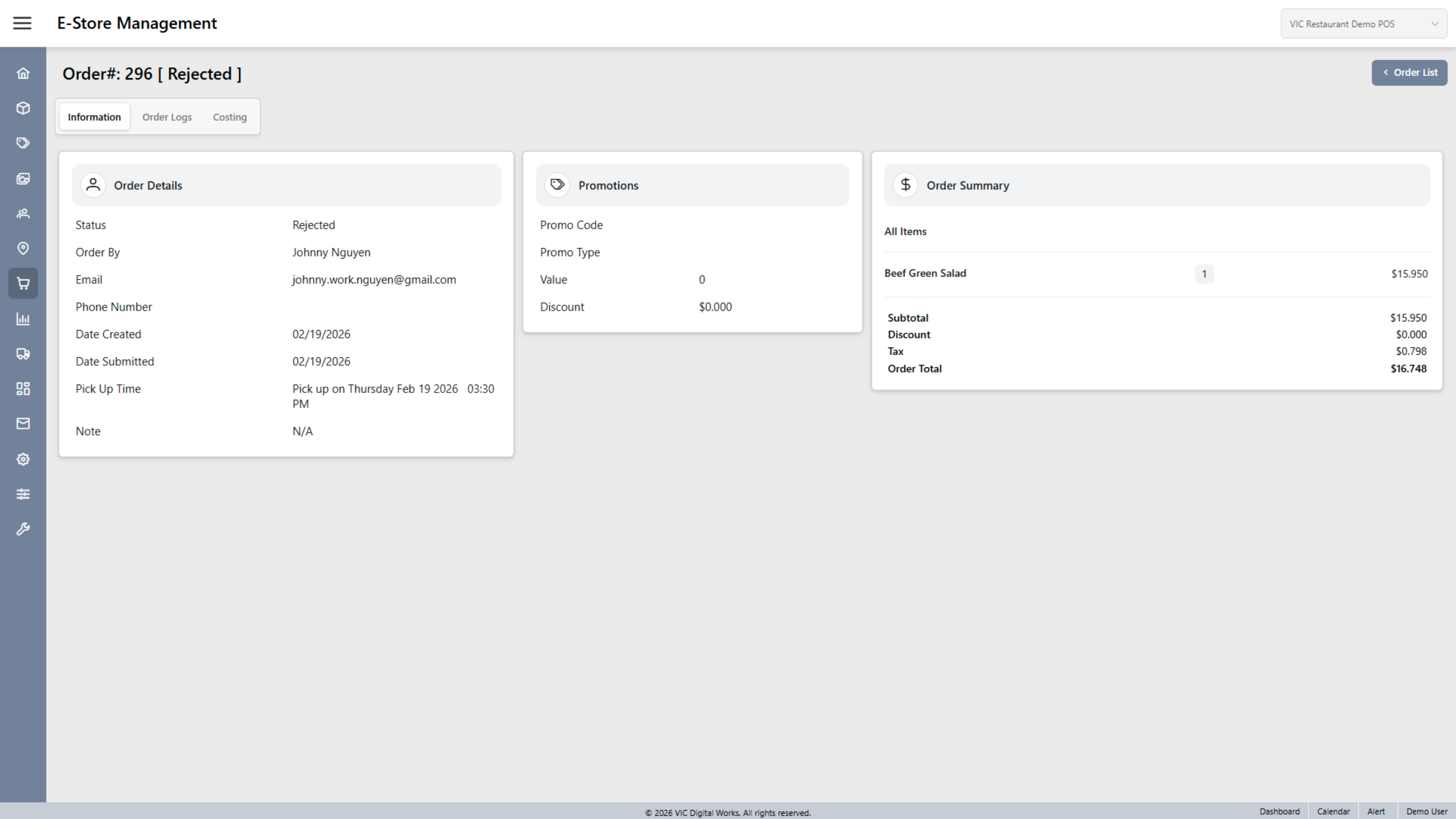
11. Open Order Details Section
Here, you can view the order details, including customer information, promotions, and the order summary.
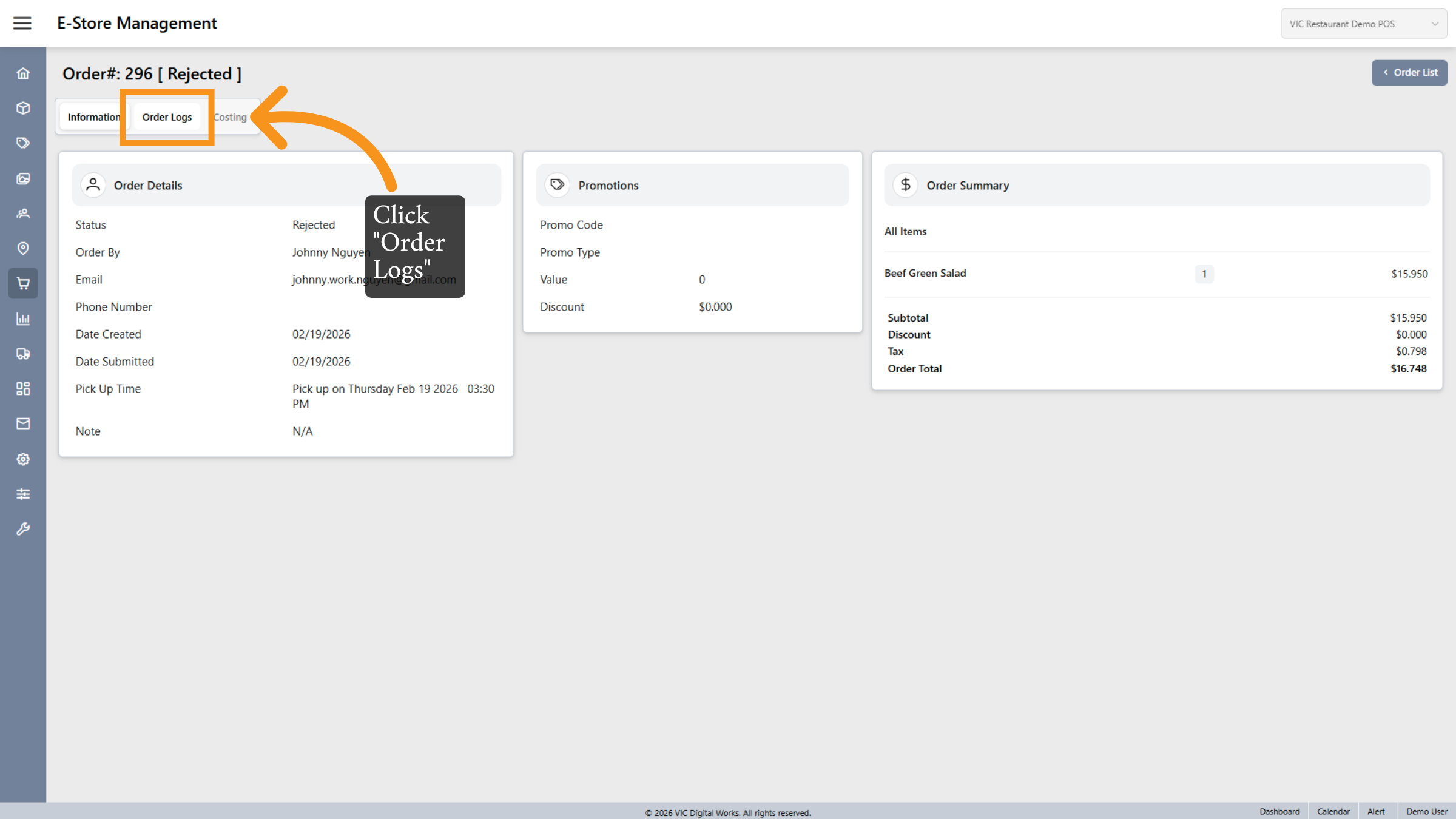
12. Open Order Logs
Click the Order Logs tab to track the history and changes made to the order over time.
13. PAYMENT TYPE
In this section, you can view an overview of the order report with sorting by payment type. In the Payment type section, you can view payment methods such as Credit, Cash, Debit, and delivery agents like DoorDash. Skip...
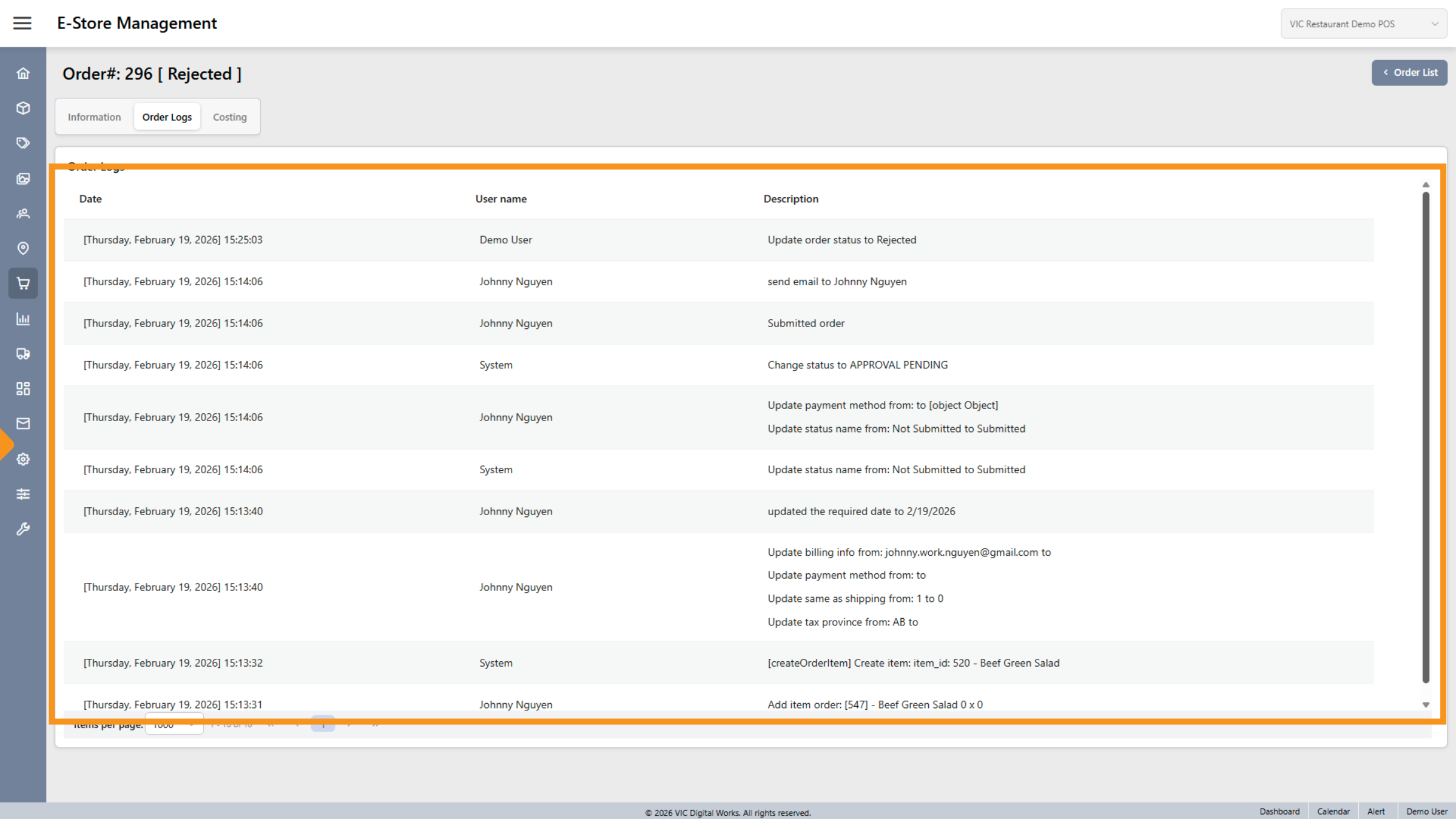
14. Review Order Log Entries
Click the log entries showing date, user name, and description to understand order status updates and communications.
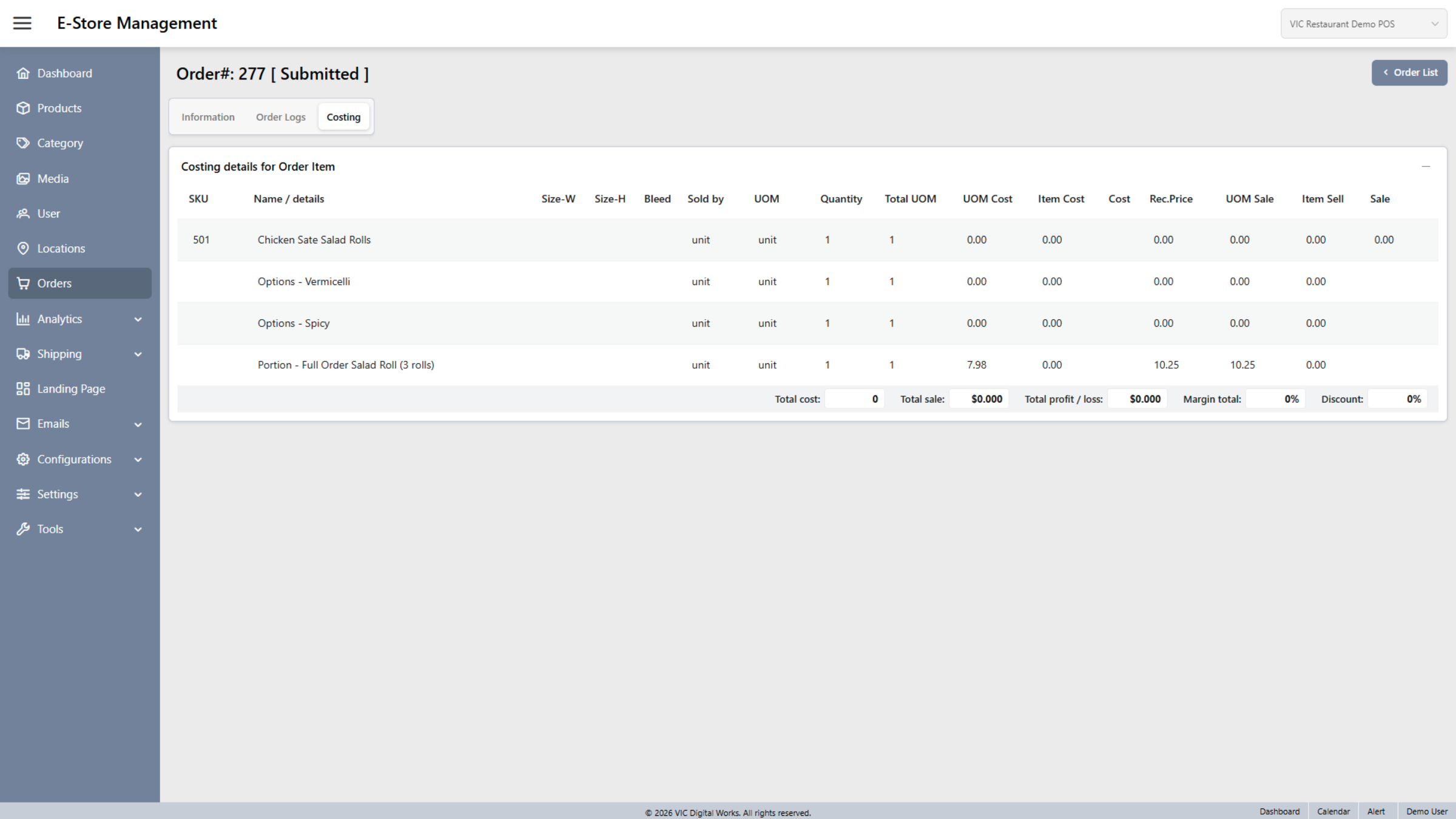
15. Costing
Click the Costing tab to analyze the financial details and cost breakdown of the order.
16. Export Data to Excel/PDf
Click the Export Excel?PDF button to download the current report data in spreadsheet format for further analysis.
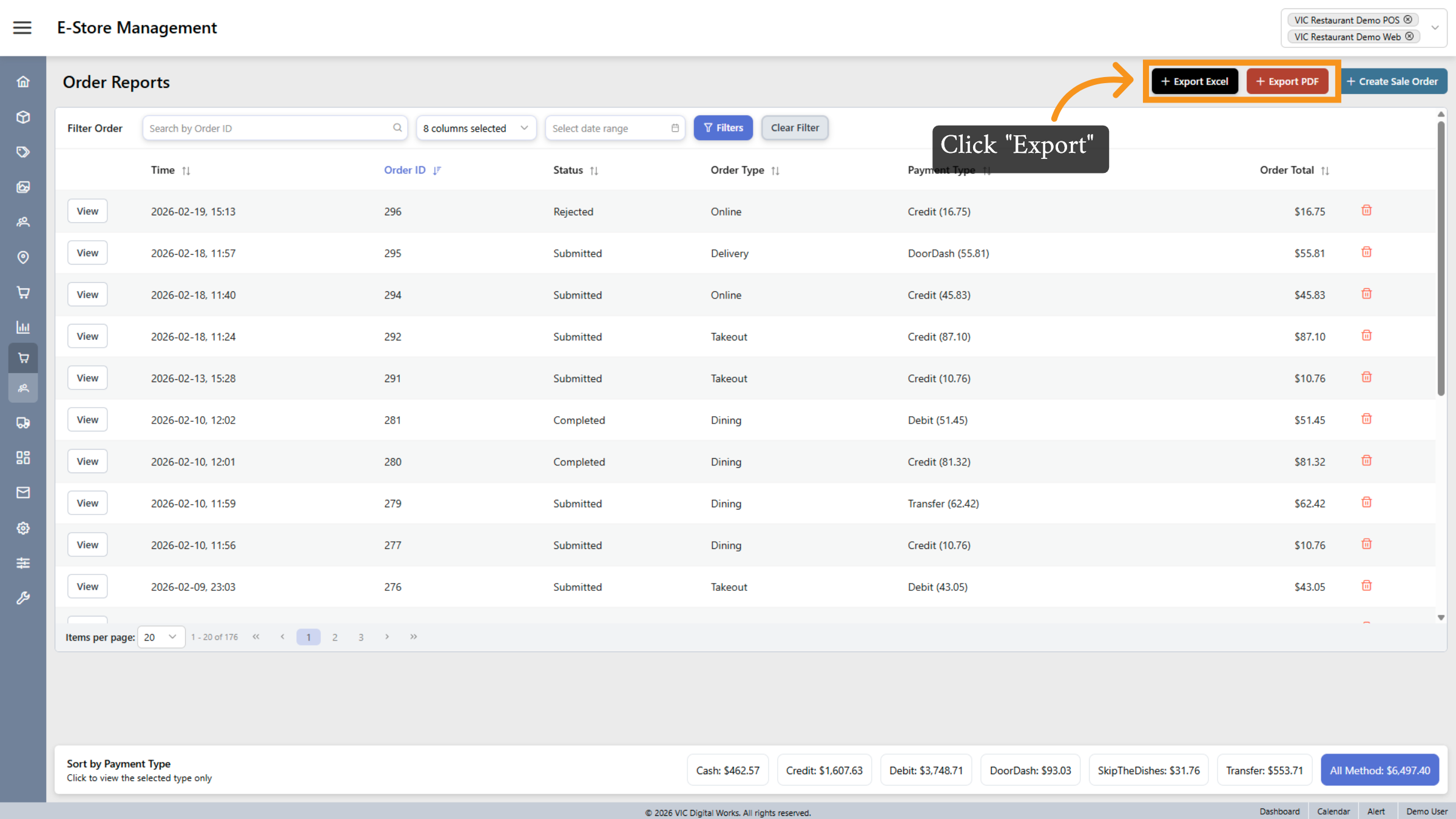
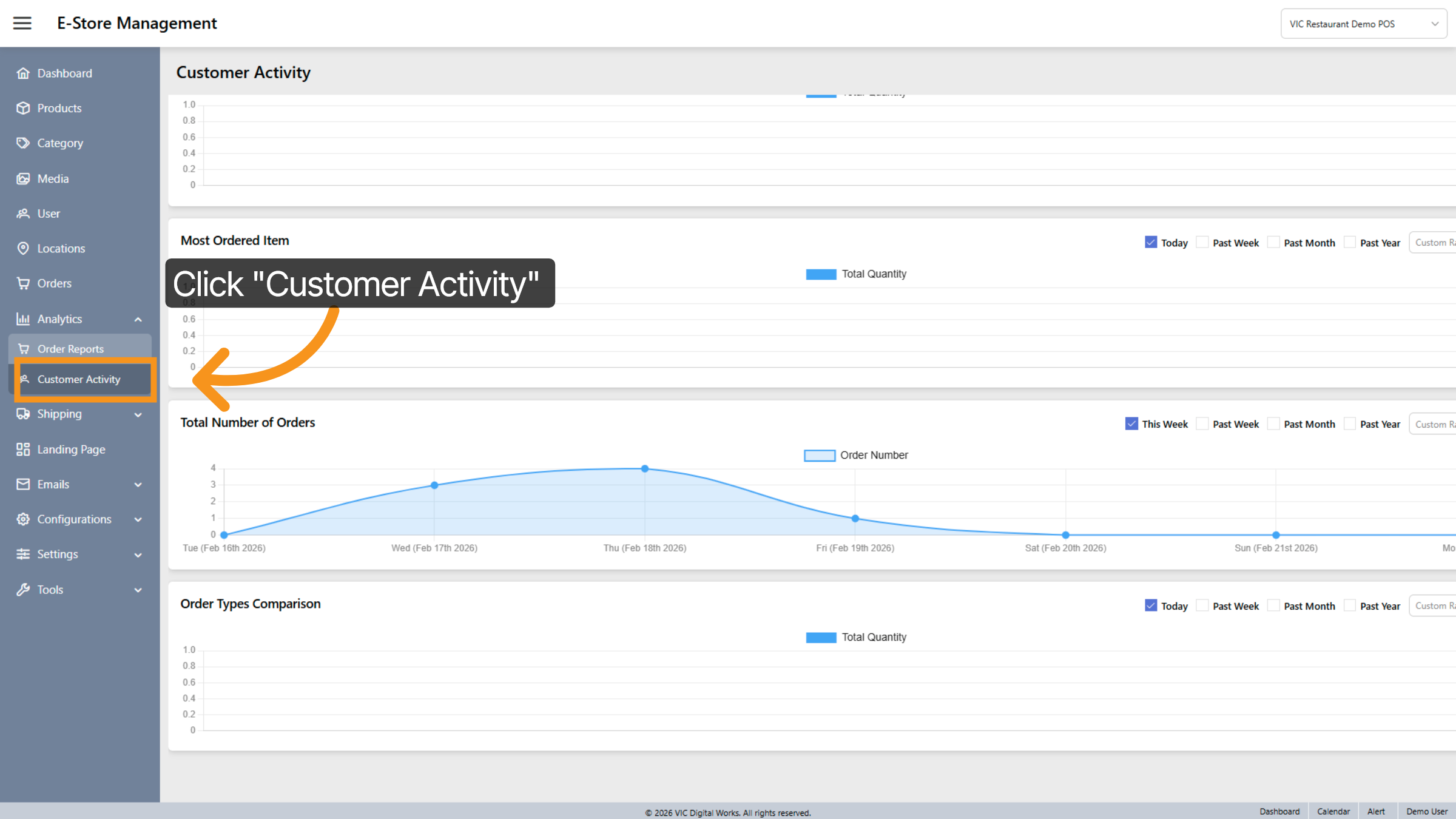
17. Customer Activity
Click the Customer Activity section to analyze individual customer behaviors and order patterns.
18. Access Customer Filters
Click the filter area within Customer Activity to specify date ranges or other criteria.
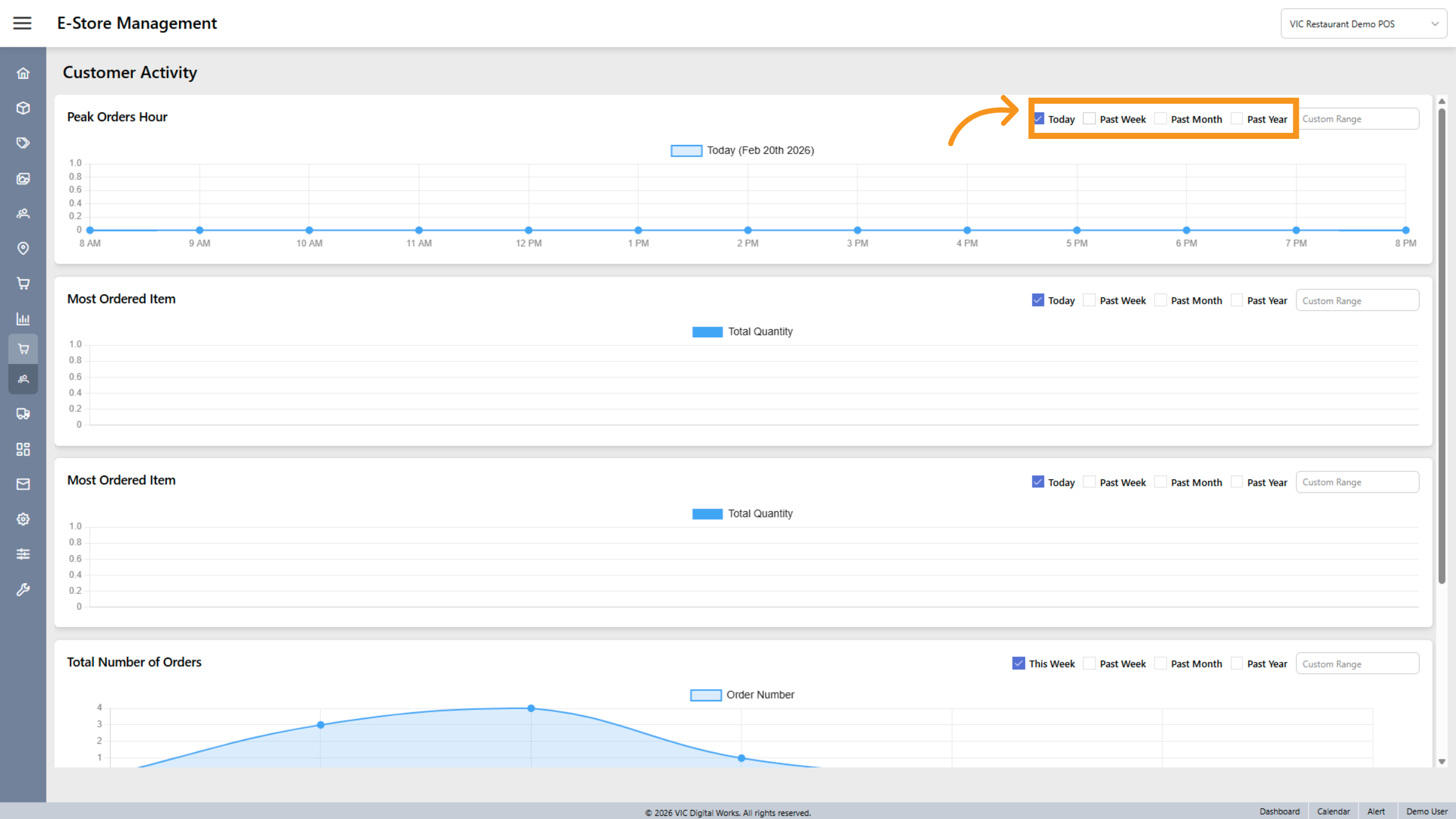
19. Access Customer Filters
Click the filter area within Customer Activity to view customer activity data from the past and present.
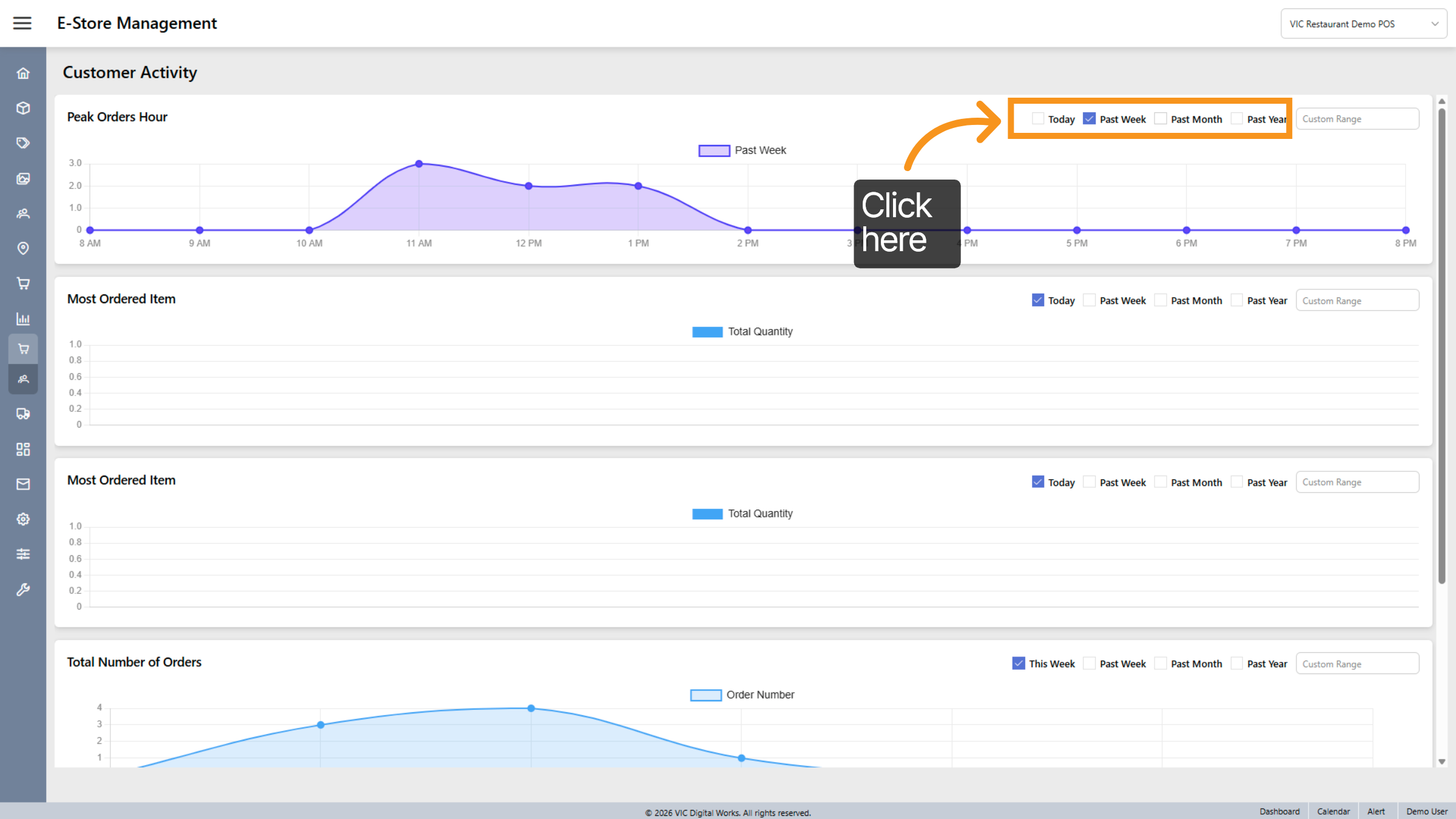
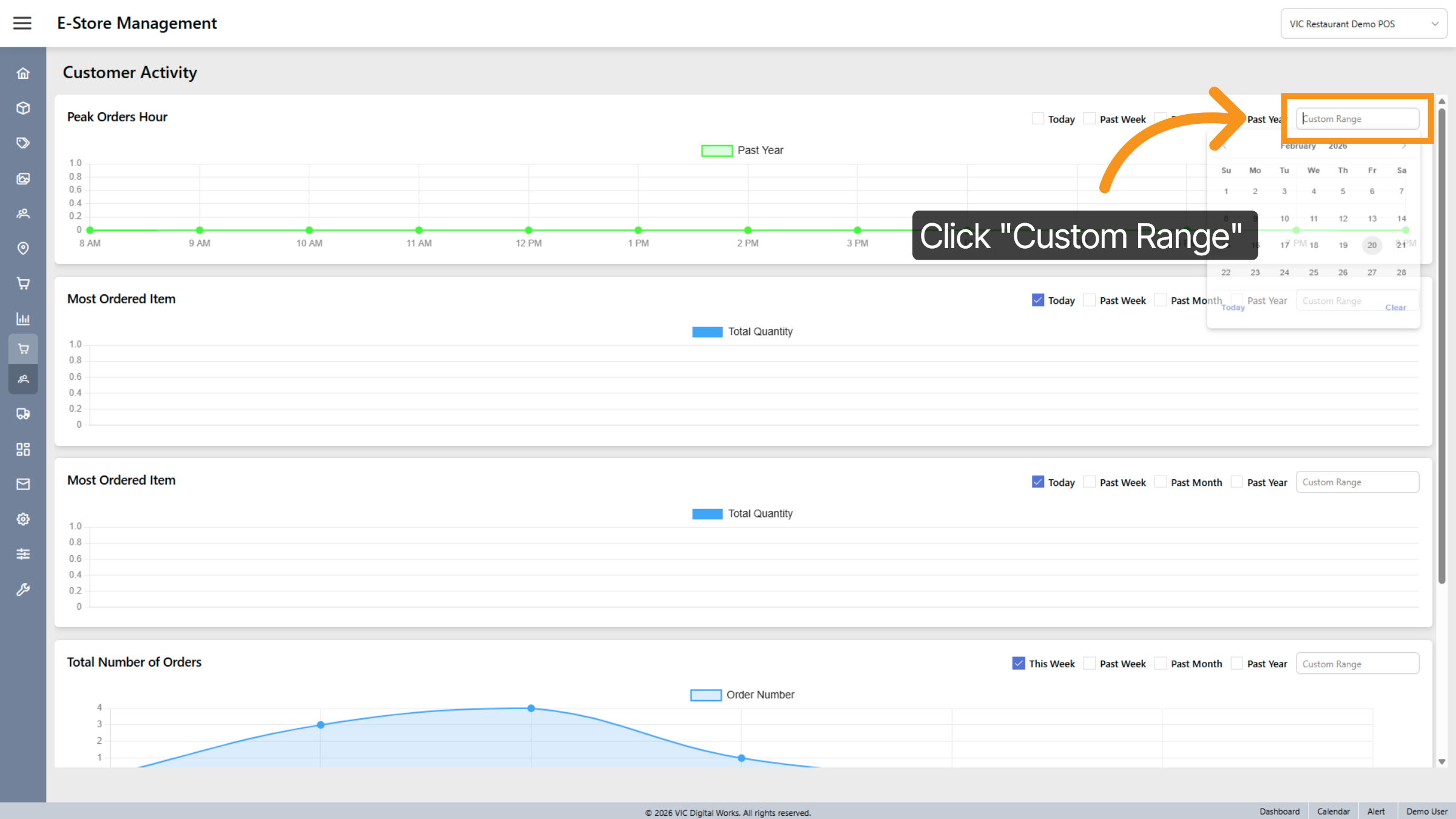
20. Choose Custom Date Range
Click the Custom Range option to define specific dates for analyzing customer activity.
You have successfully navigated and configured customer analytics within the Vicdigitalwork E-store platform. By filtering, viewing detailed order reports, and exporting data, you can now analyze customer behavior and sales trends effectively to inform business decisions.