
E-Store EMAIL ( Email templates + Email Event + Email History)
Configure Email Templates And Events In Serviz
This tutorial guides you through managing email templates and events .
Go to serviz.ca
1. Introduction
You will learn how to navigate the email sections, add and edit templates, and review email sent history effectively.
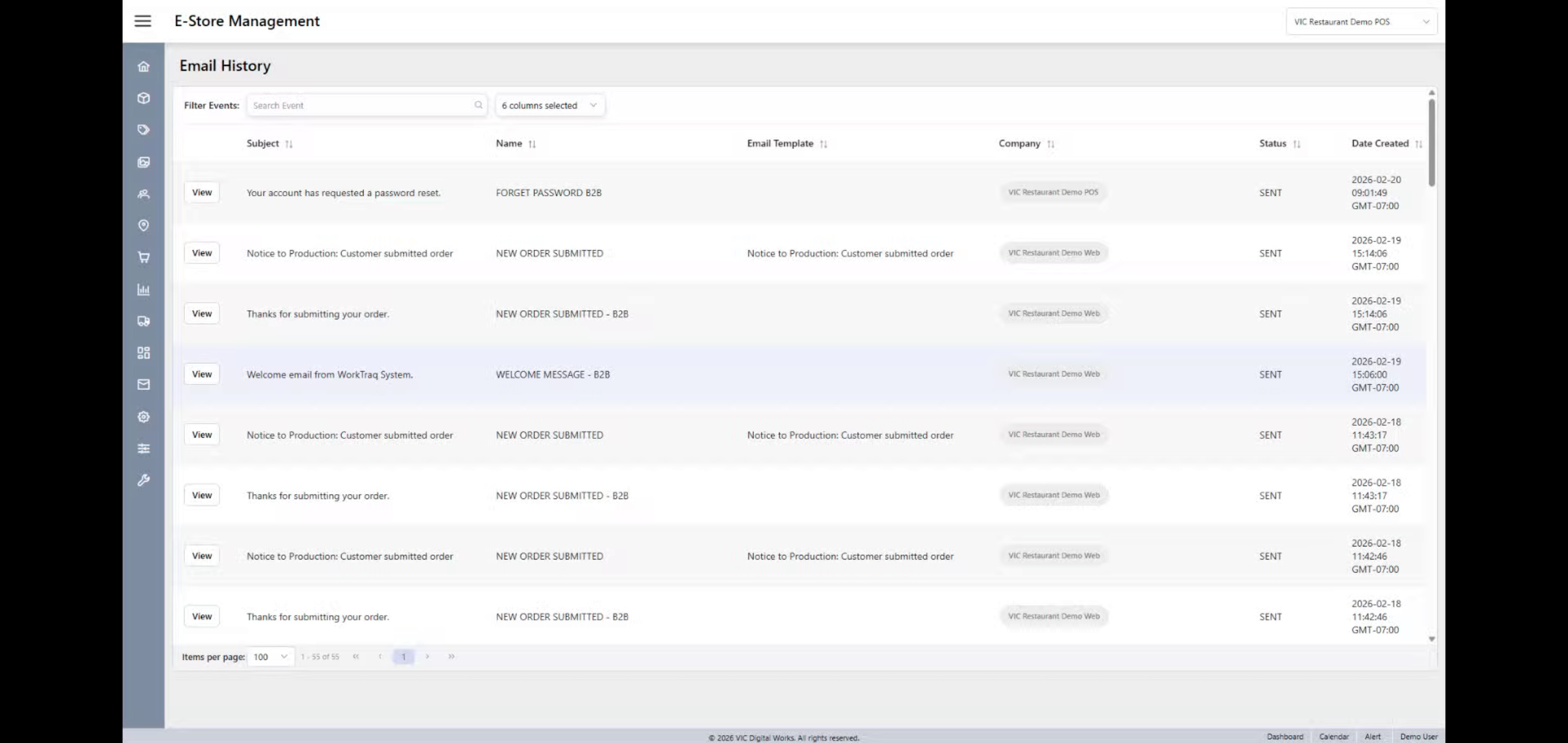
2. Access Email Templates
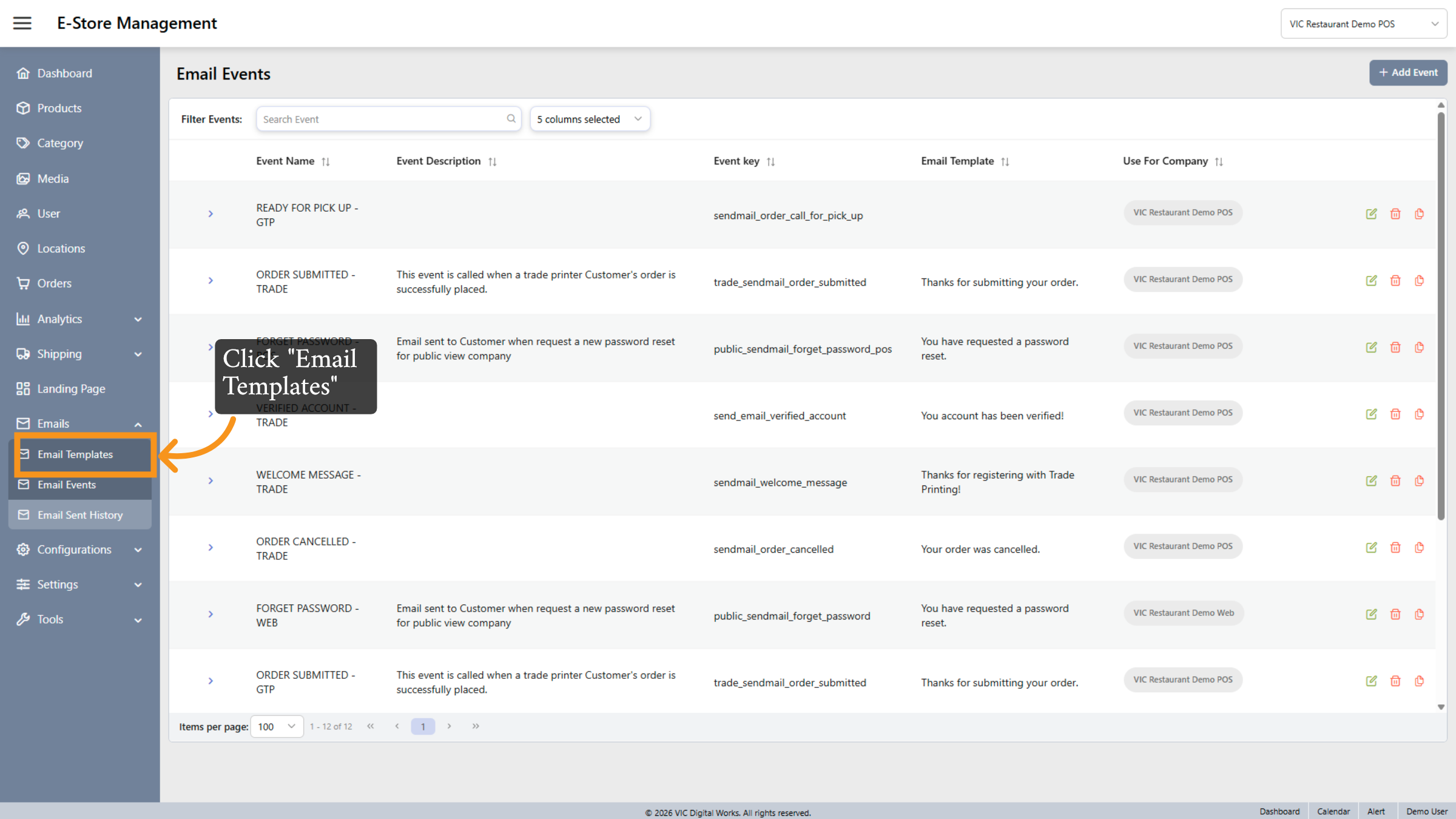
Click Email Templates to see the list of available email templates that can be used for various communications.
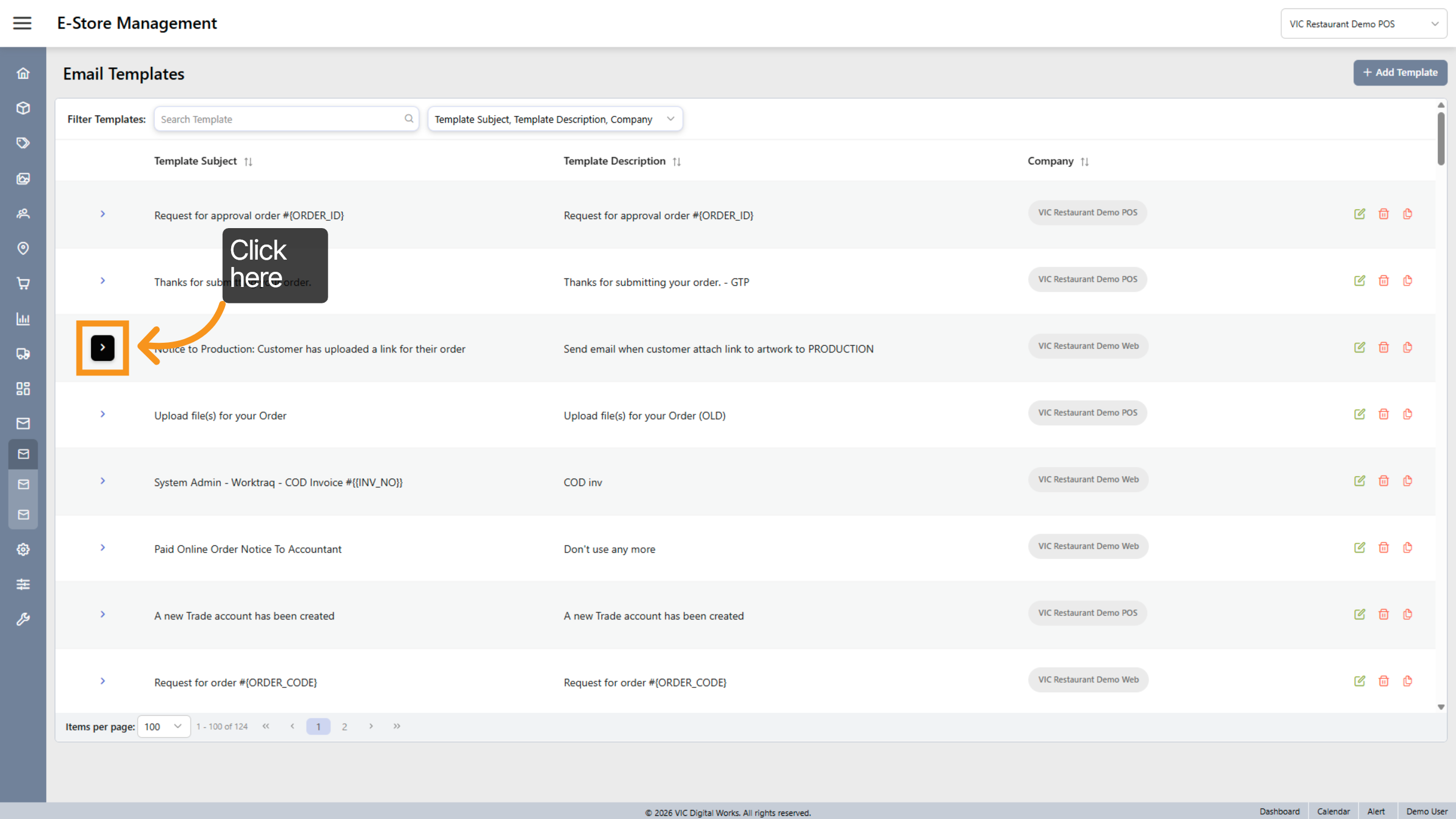
3. Select Specific Template
Click here to select a specific email template for viewing or editing its details.
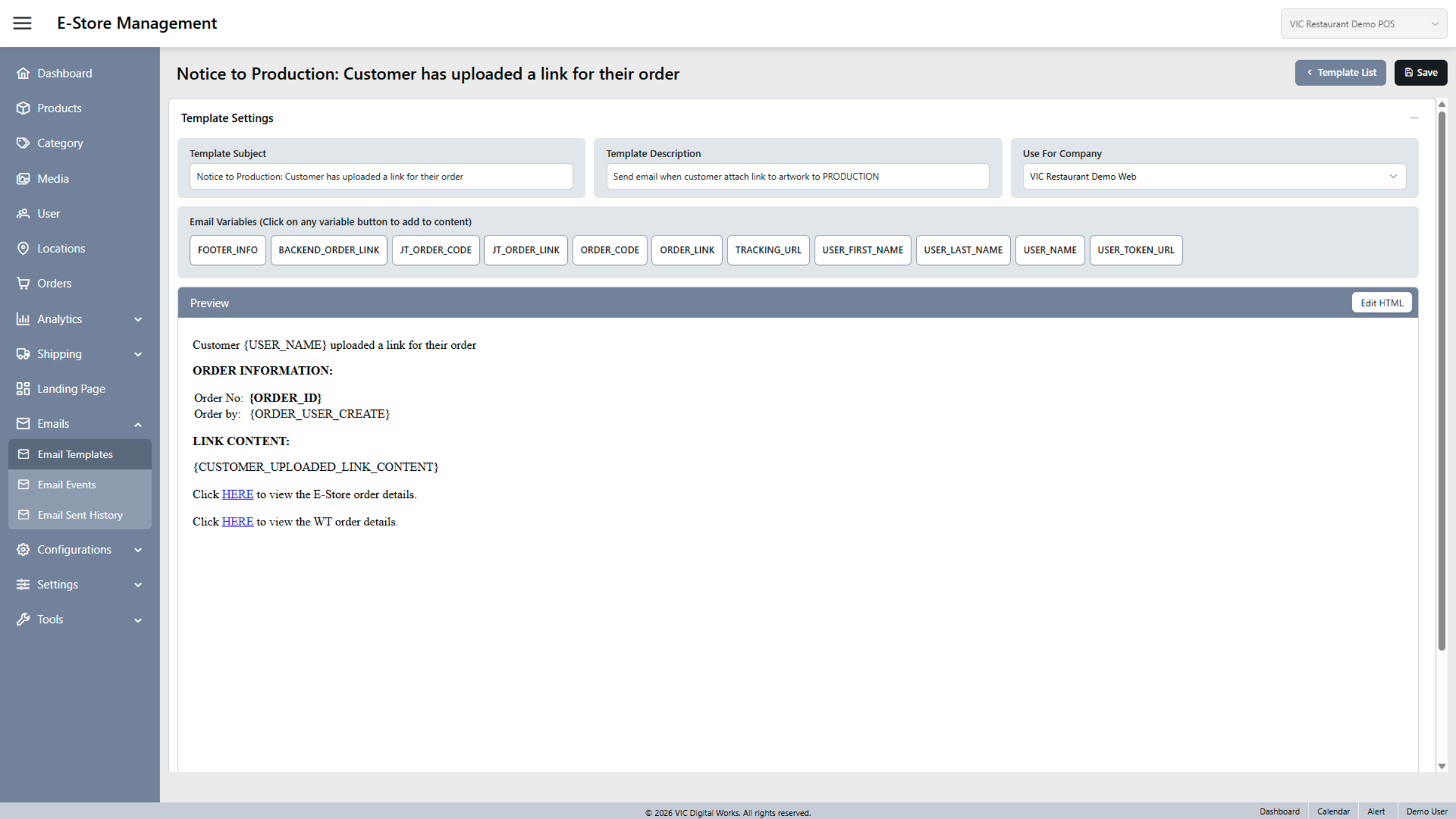
4. Email Templates
Here is the content of a template setting: Template Subject - Template Description - User for company and Email Variables.
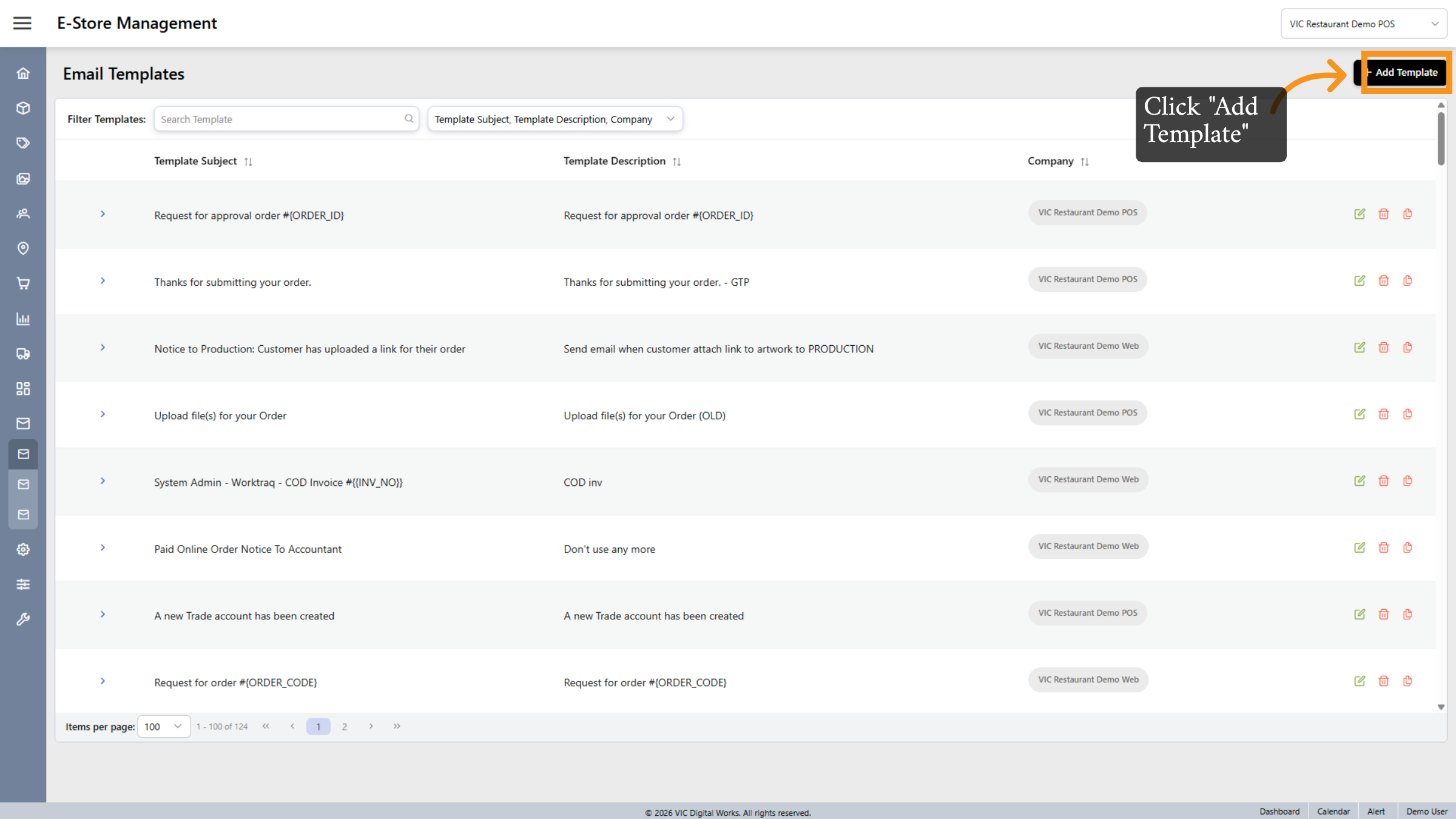
5. Add New Email Template
Click Add Template to create a new email template that can be customized for your communication needs.
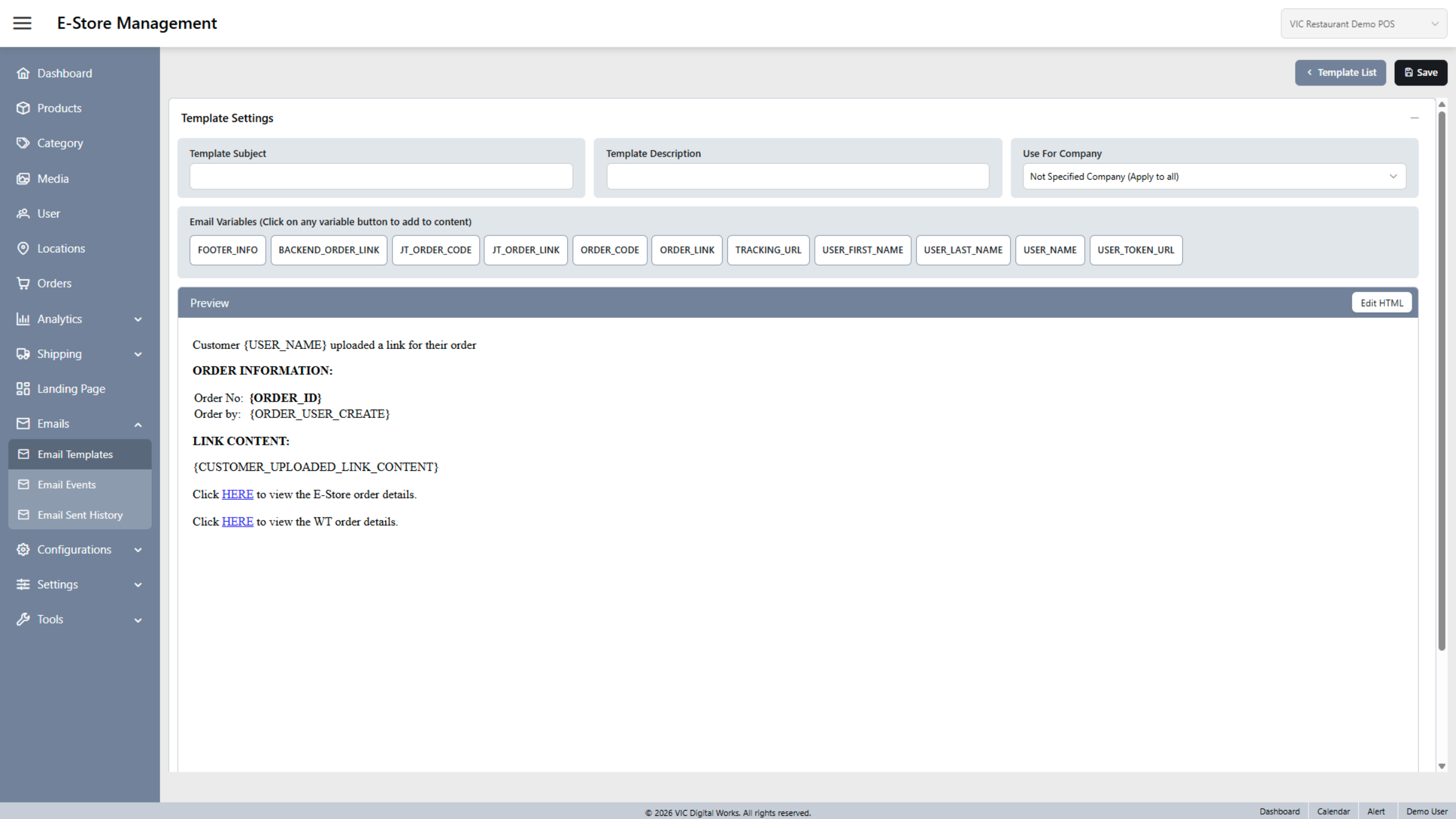
6. New Templates
Here is the interface for the new content in the email template. Simply click "save" after completing the content.
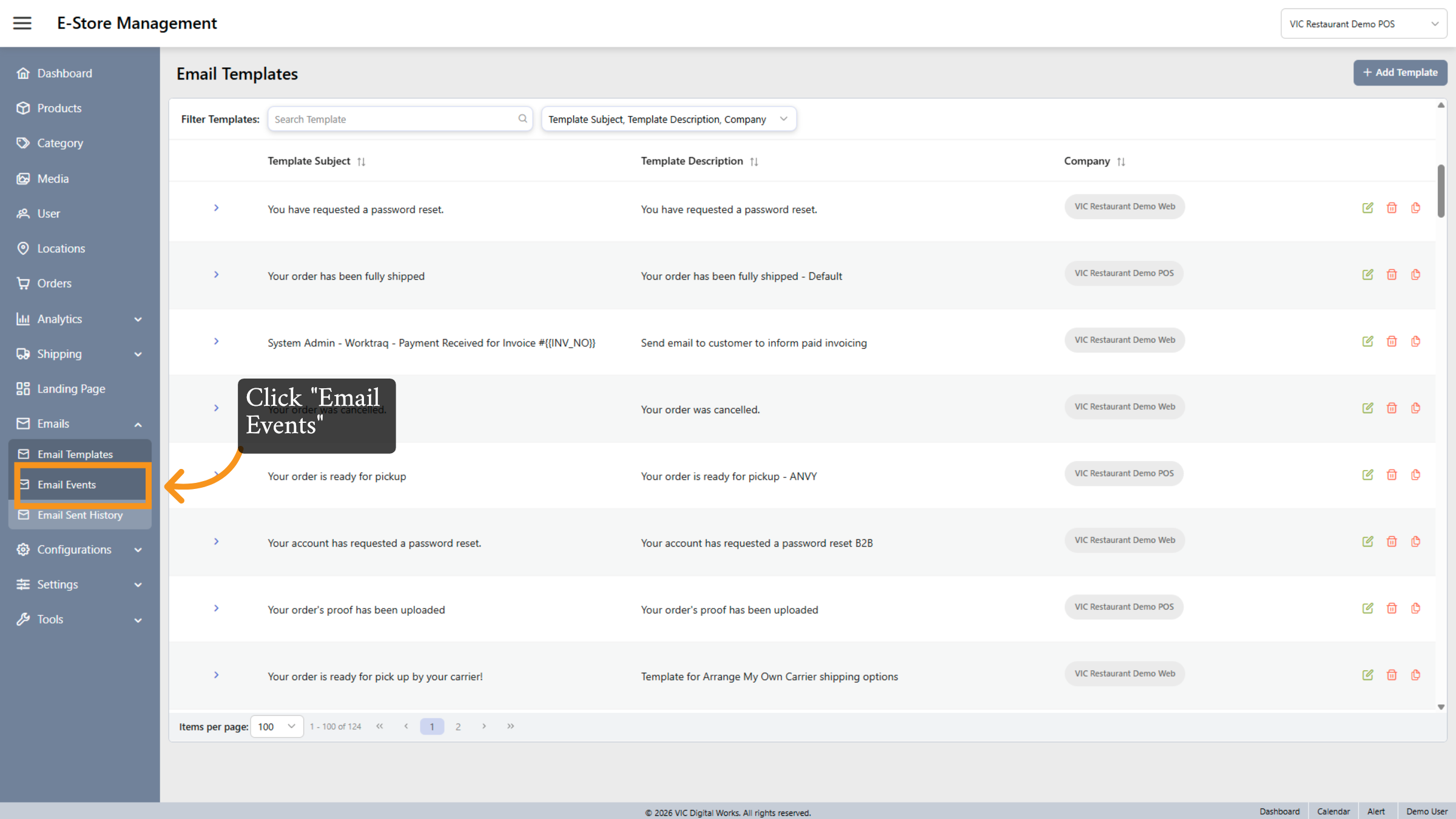
7. Email Events
Click Email Events to switch to managing the triggers and events related to email notifications.
8. Event email
A feature that lets businesses send emails directly from Business owner using their customer and payment data. What it does: -Send product updates -Share billing notifications -Run marketing campaigns -Automate customer emails It’s designed so companies can send emails without needing a separate email marketing tool.
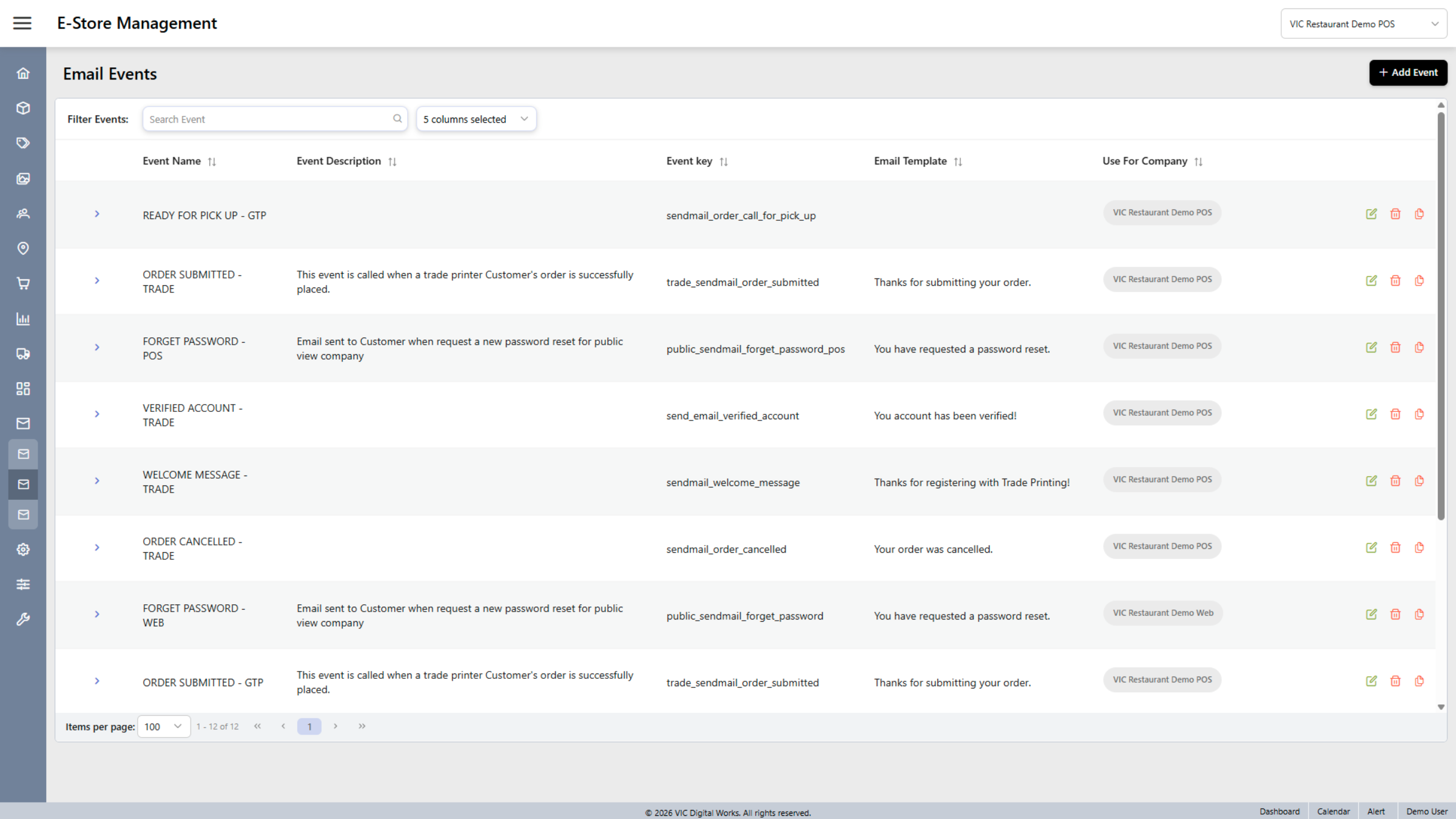
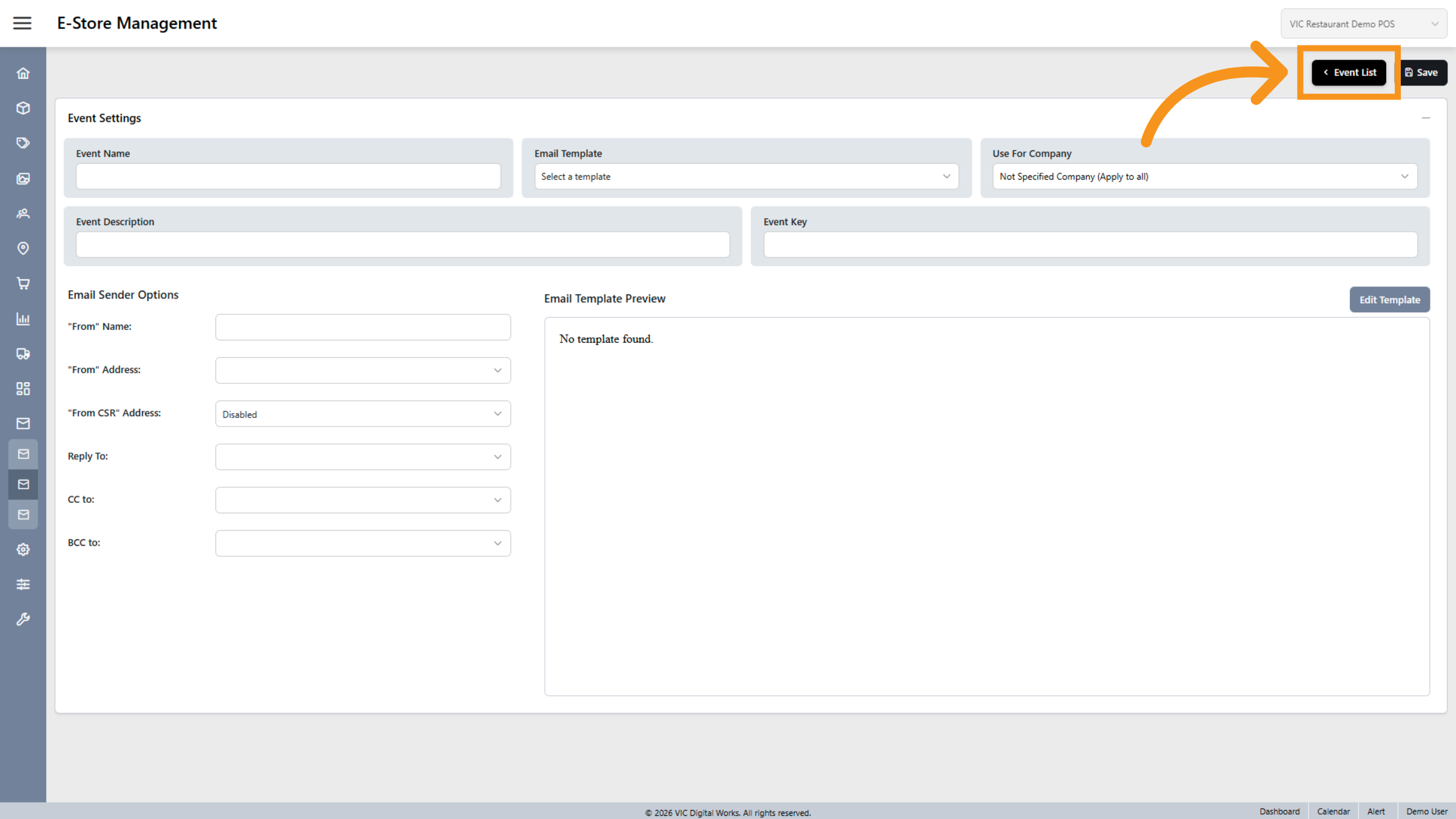
9. Open Event List
Event List to see all configured email events available in the system.
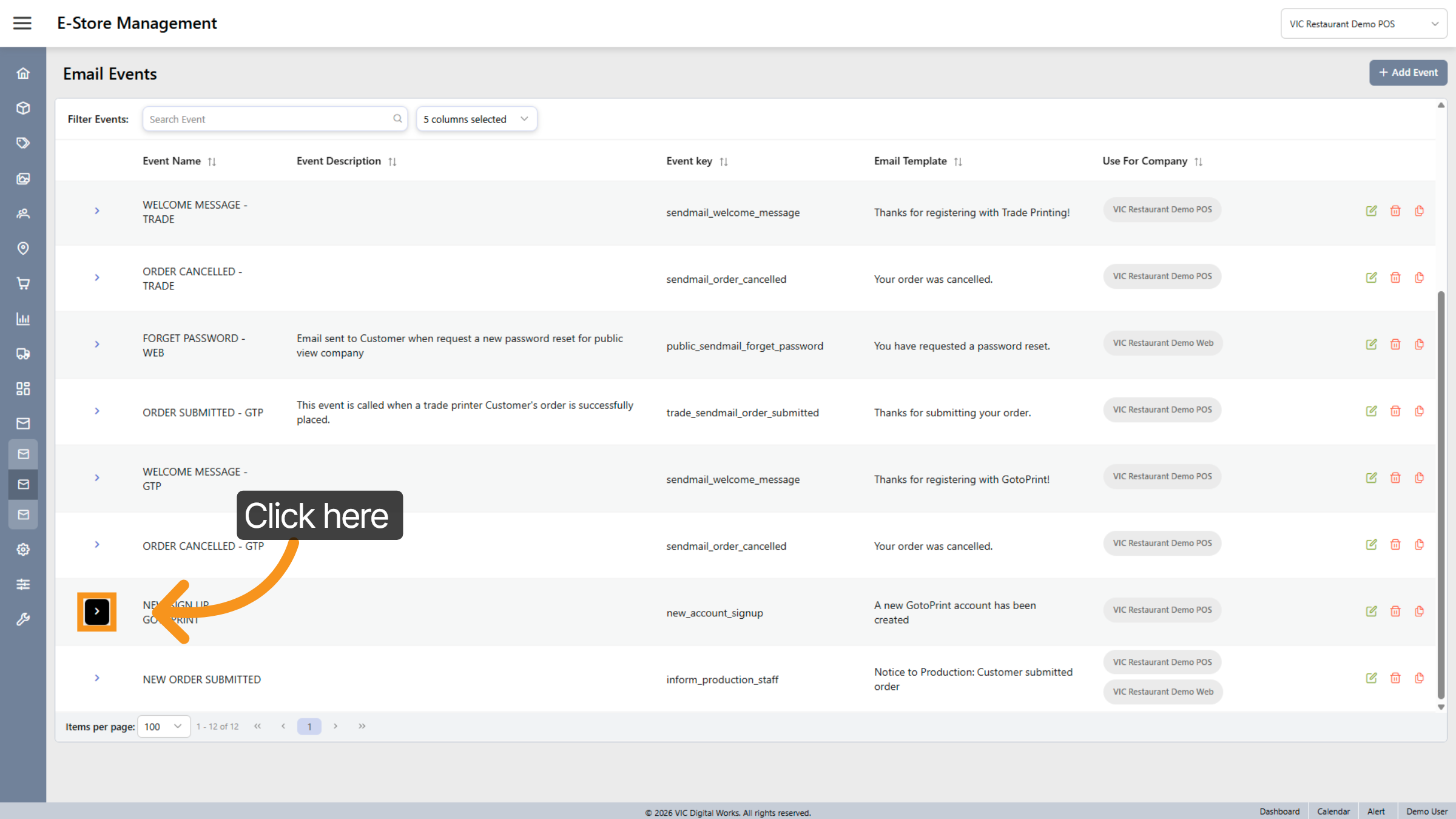
10. Choose Event for Editing
Click here to select an event from the list for editing or further actions.
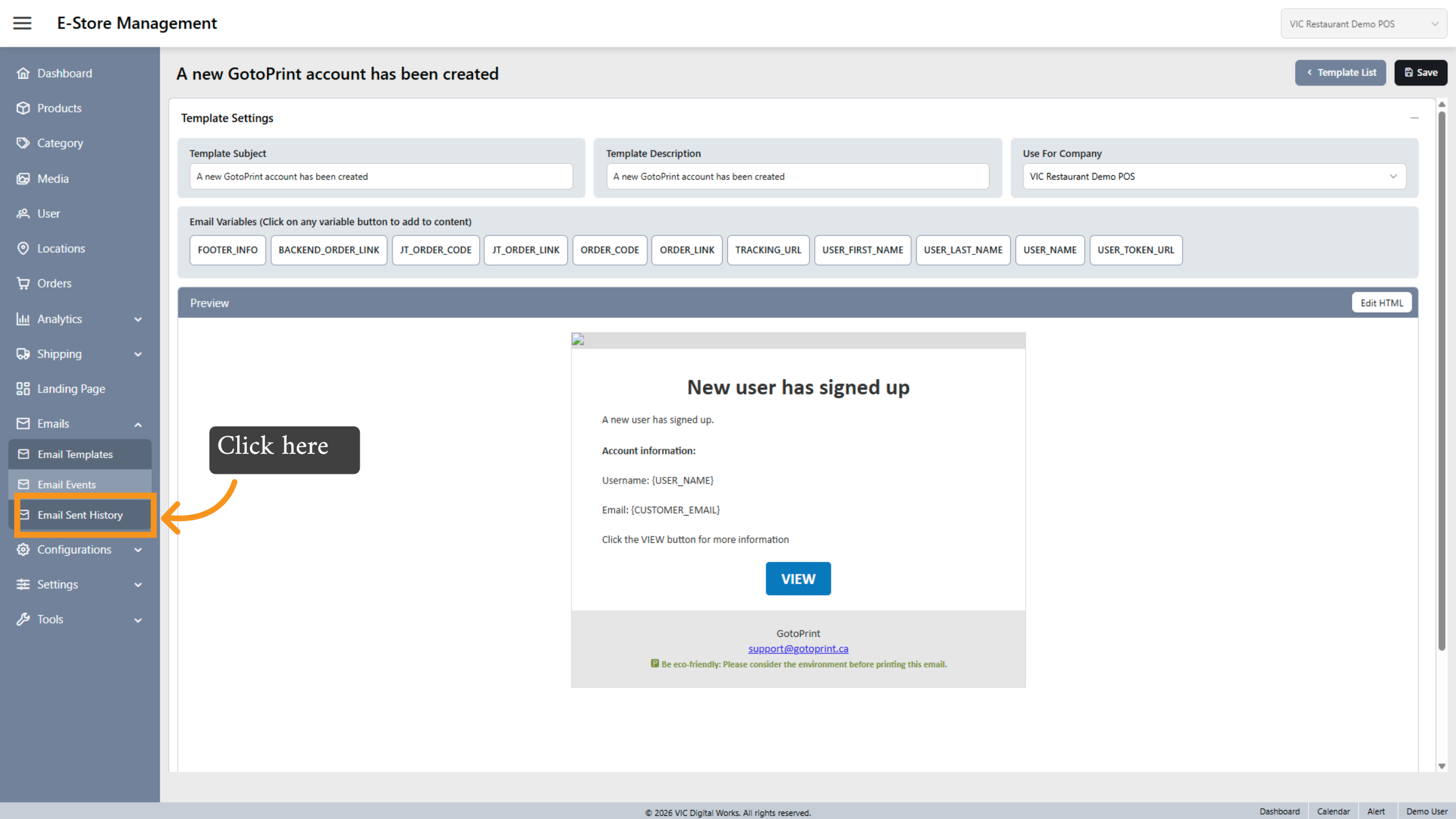
11. Access Email Sent History Again
Click Email Sent History to revisit the log of sent emails for monitoring and verification.
12. Select Email Record
Click here to open a specific email record from the sent history for detailed information.
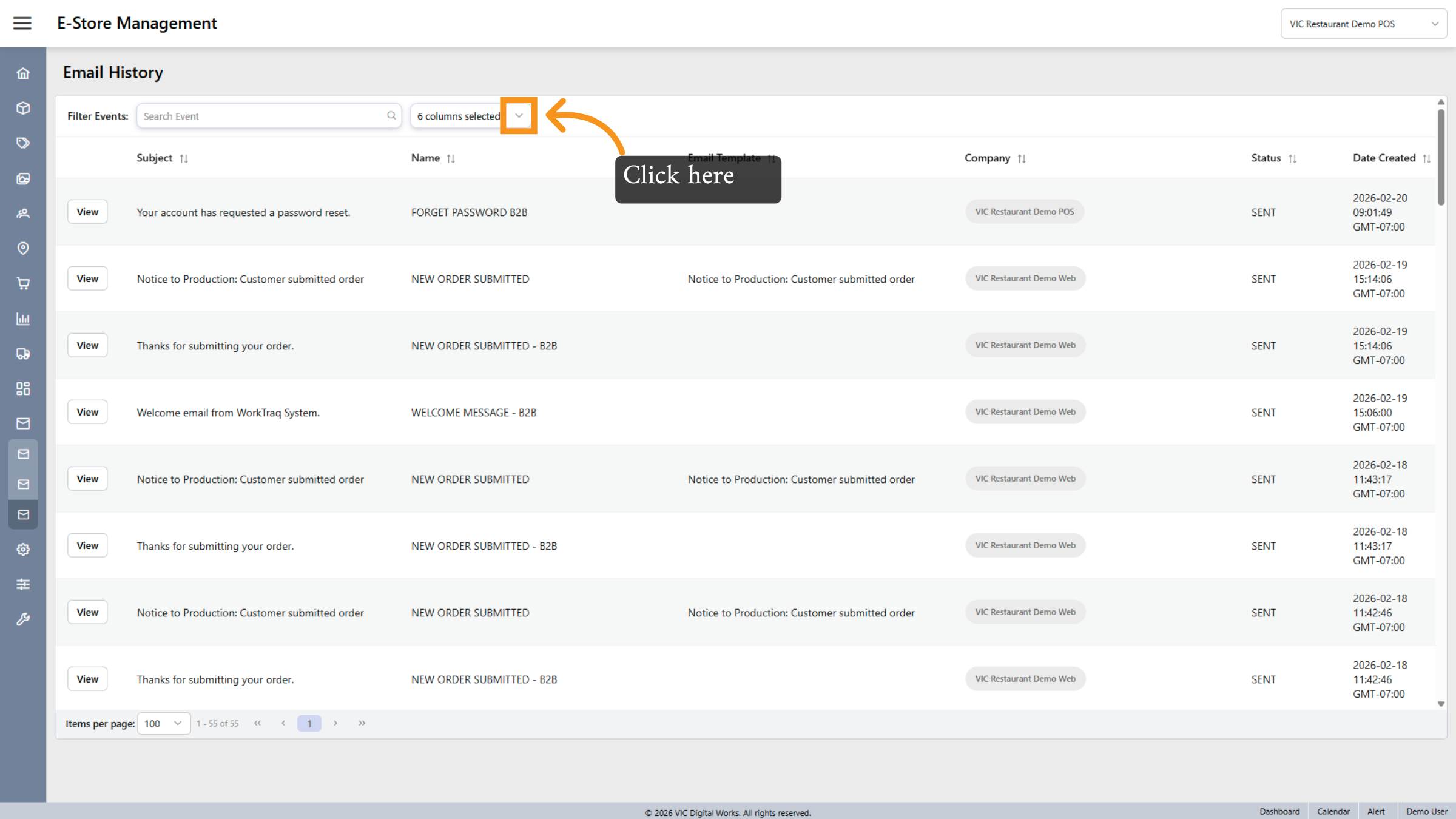
13. Open Email Details
Click here to view the full details of the selected email from the history.
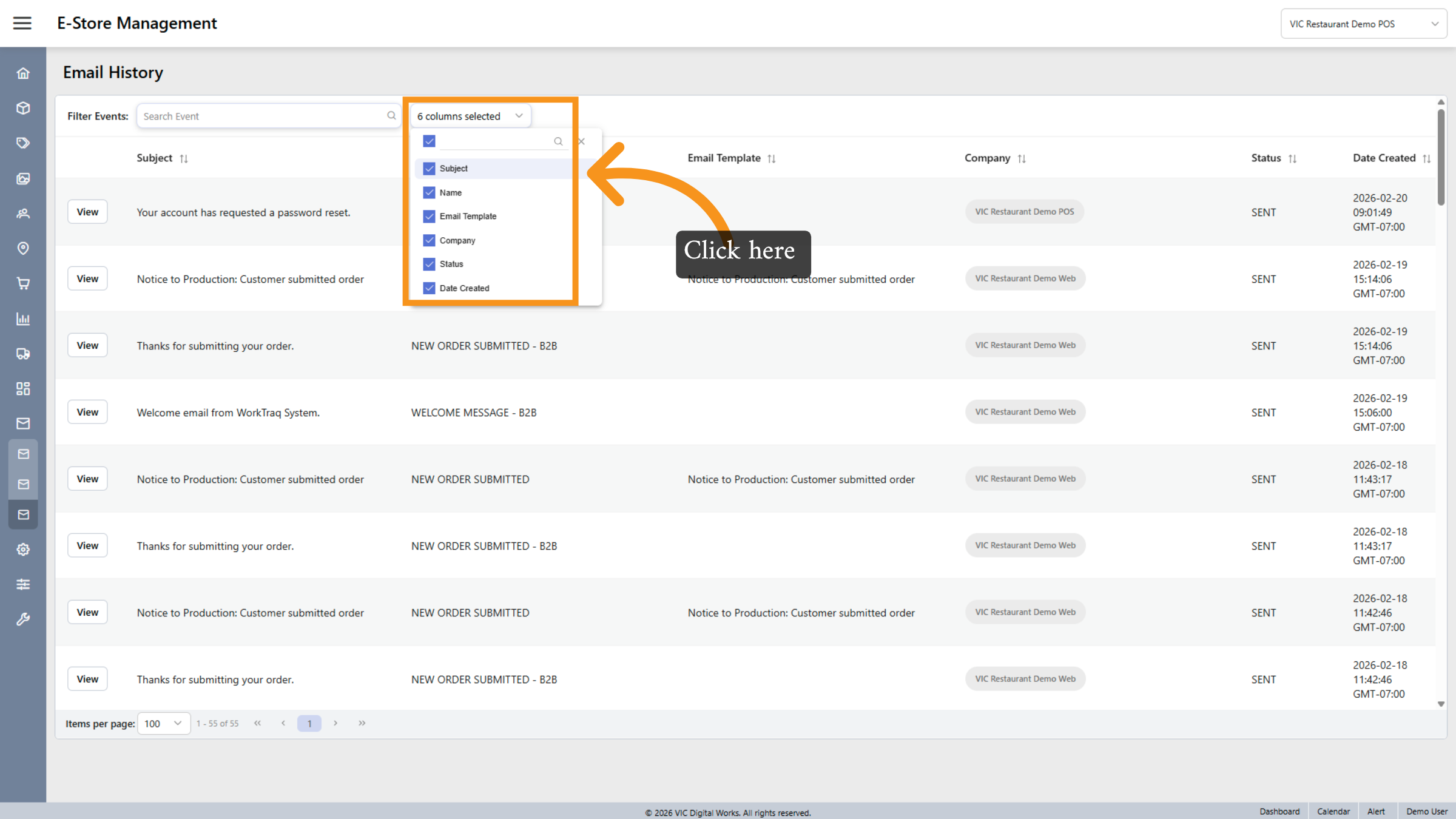
14. View Email Content
Click View to display the content and metadata of the selected sent email.
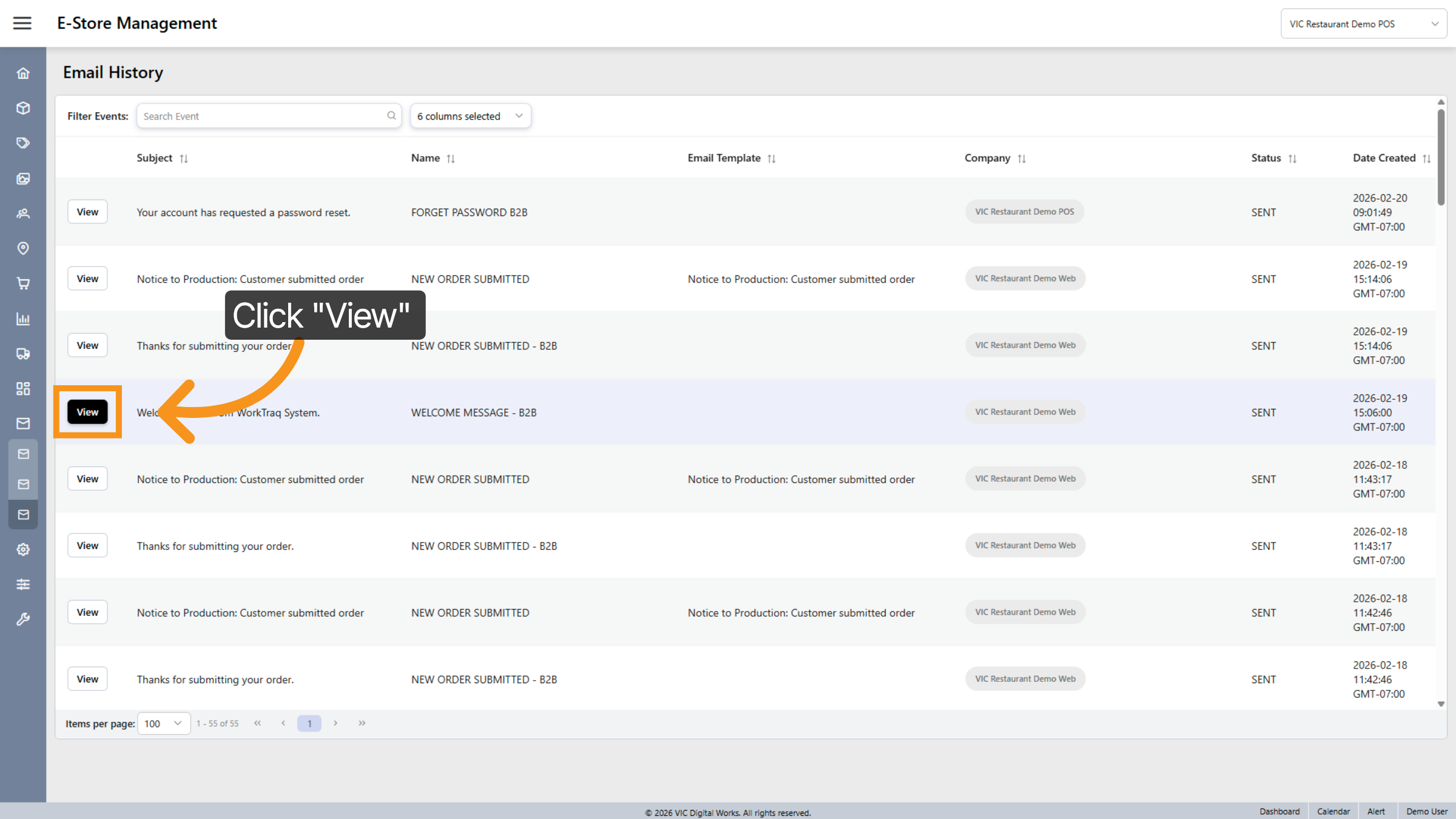
15. Email View
the email content view
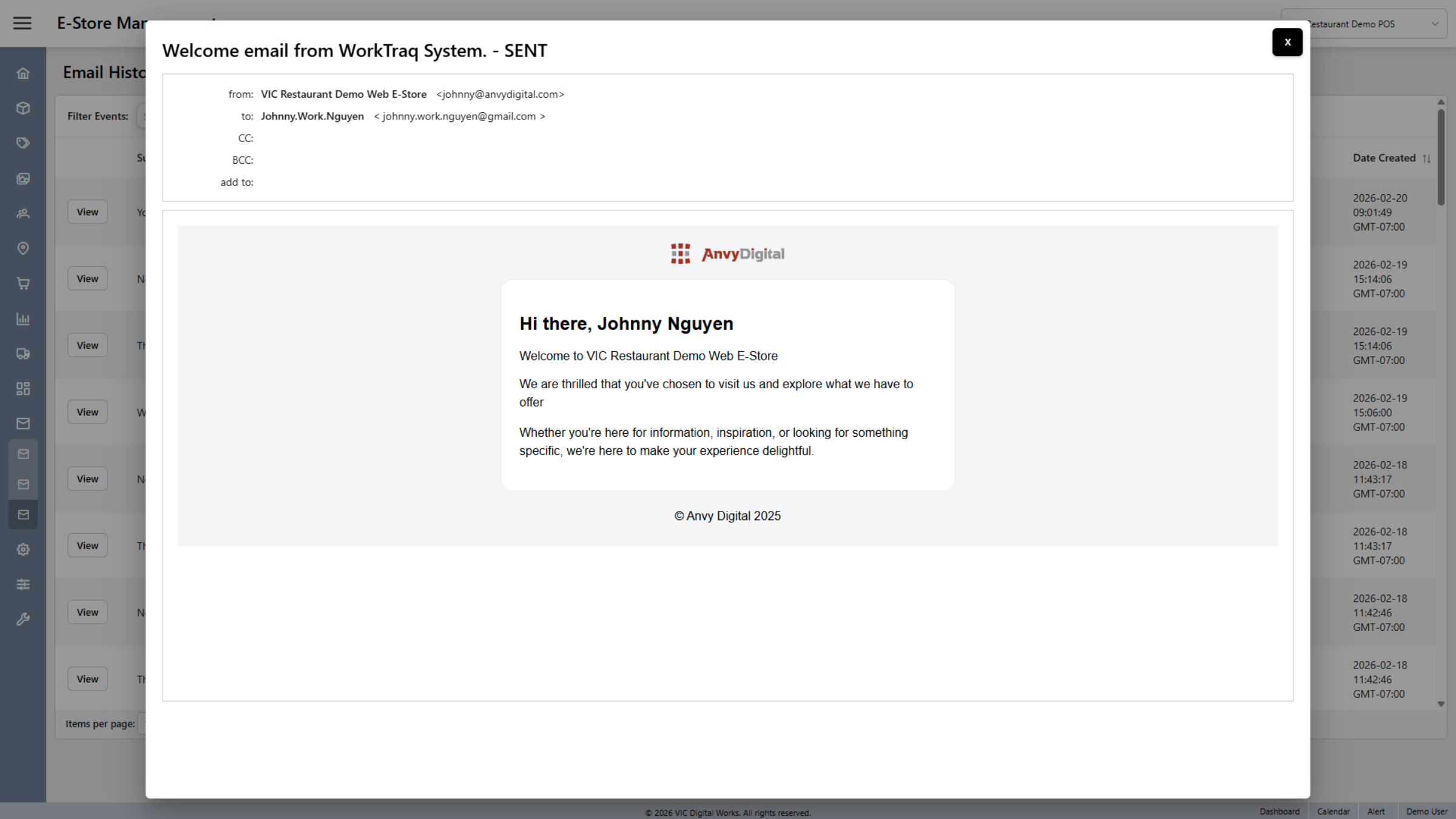
You have successfully navigated and managed email templates, events, and sent history within Serviz. This ensures your email communications are properly configured and monitored for your e-store operations.