
E-STORE USER
Configure User Settings and Roles in Serviz Application
This tutorial guides you through configuring user settings and managing user roles within the Serviz application
Go to serviz.ca
1. Introduction
You will learn how to navigate the user interface to update user details and assign appropriate permissions.
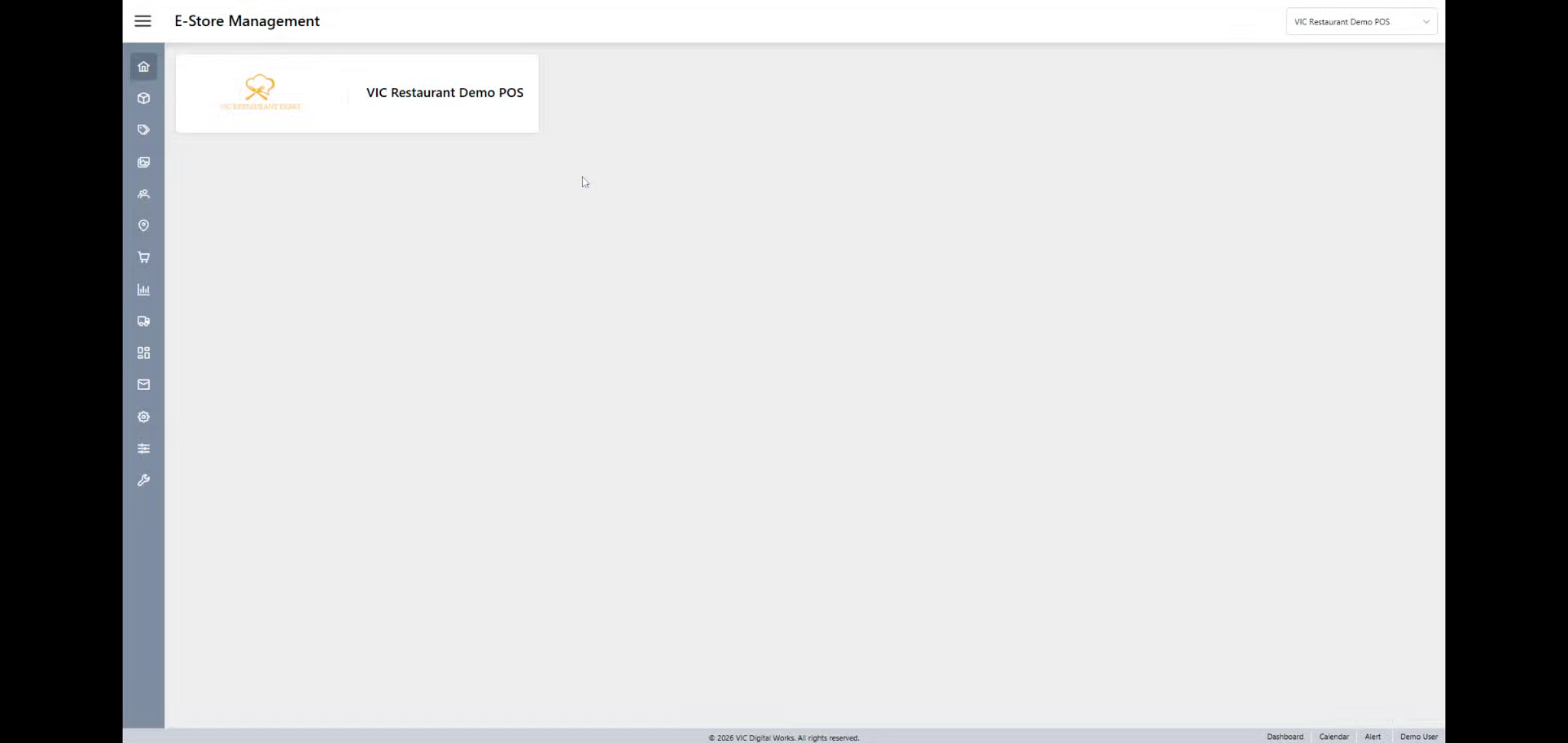
2. Navigate to User Section
Click the User section to access user management options.
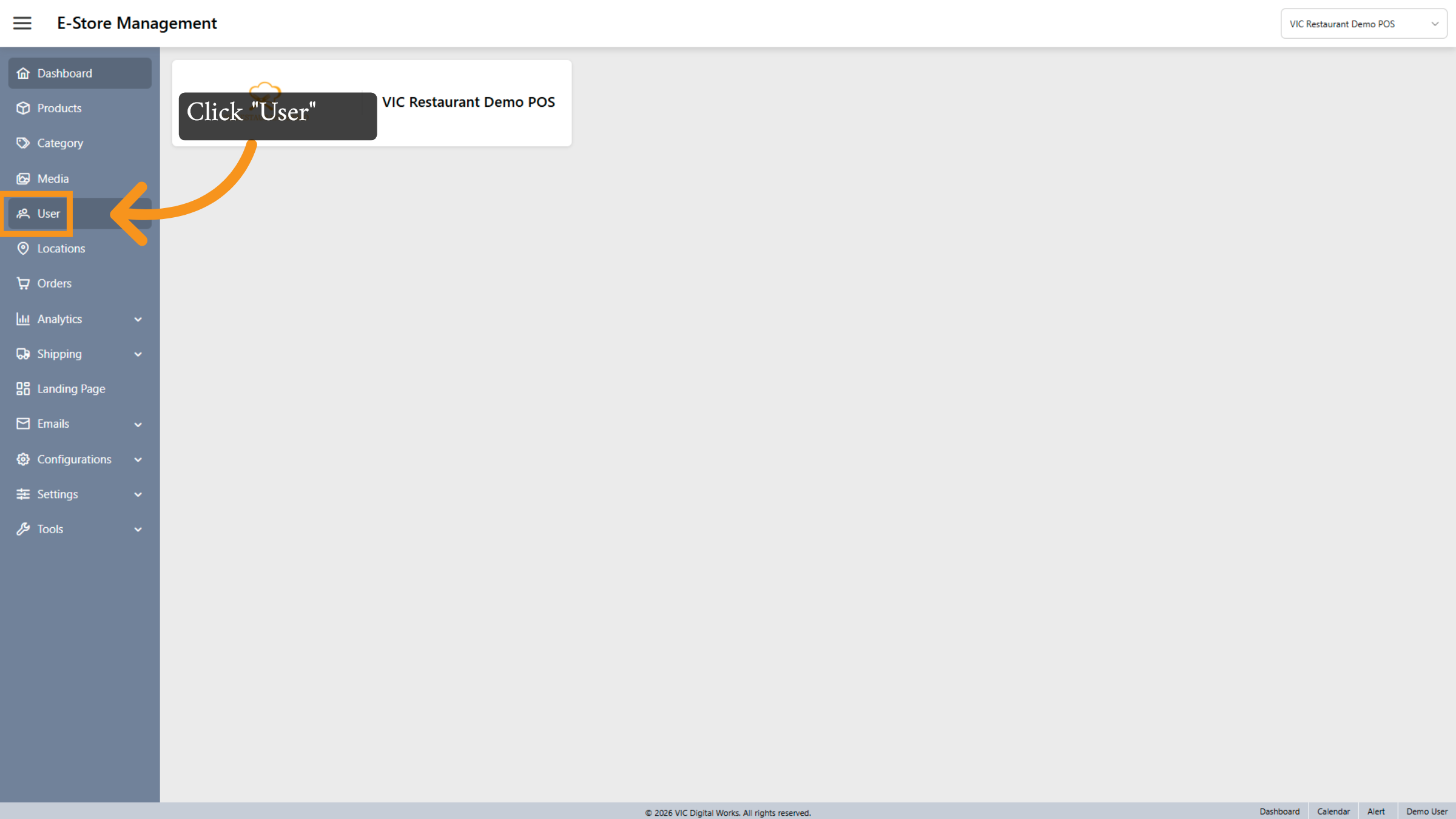
3. Open User Details
The Interface Overview USER .
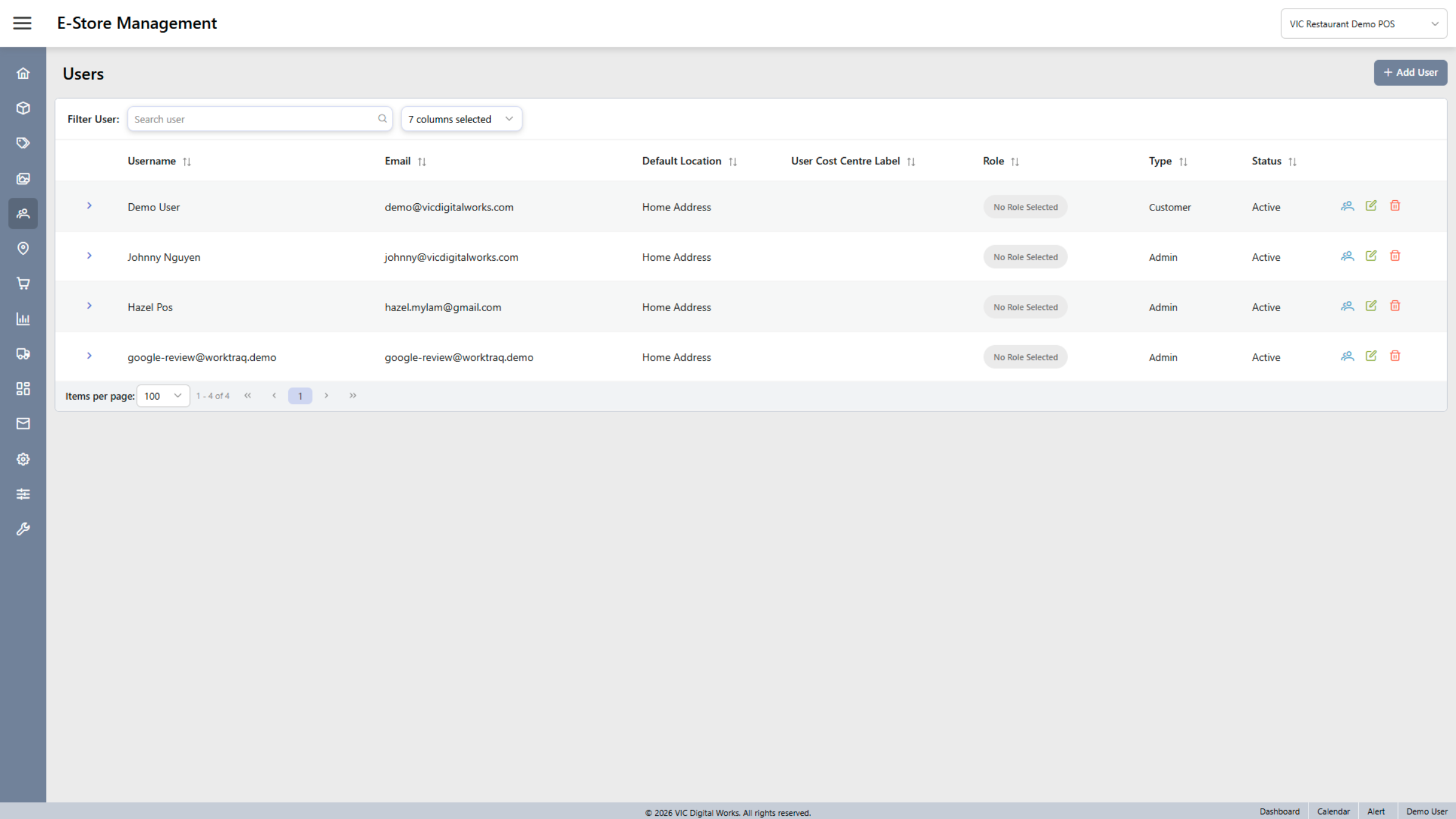
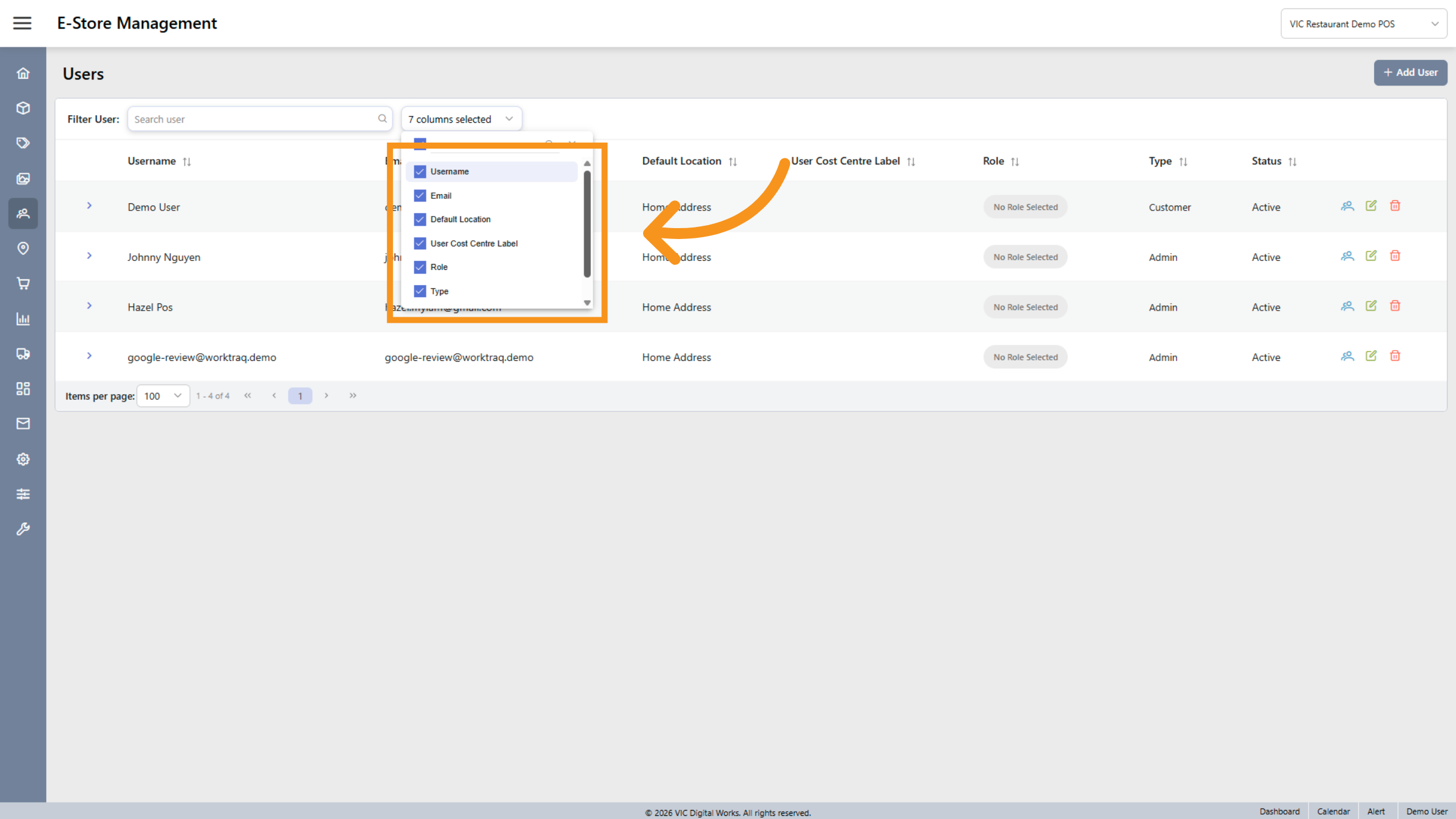
4. Access User filter
Access the user filter to select the attributes you need, including Username, Email, Default Location, User Cost Centre, Label, Role, Type, and Status fields, to view and manage user attributes.
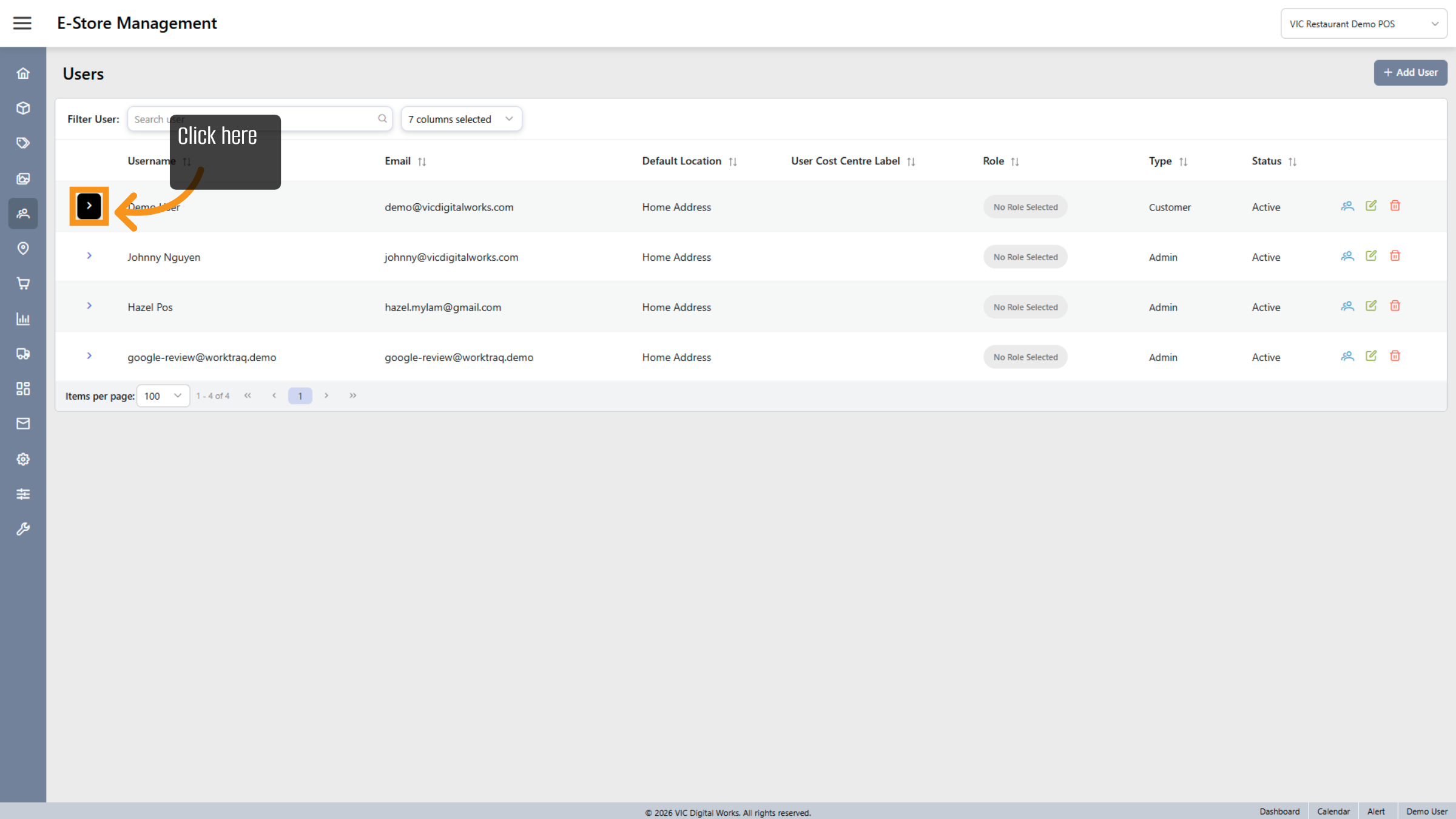
5. Expand User Settings
Click the designated area to expand the user settings menu for further configuration.
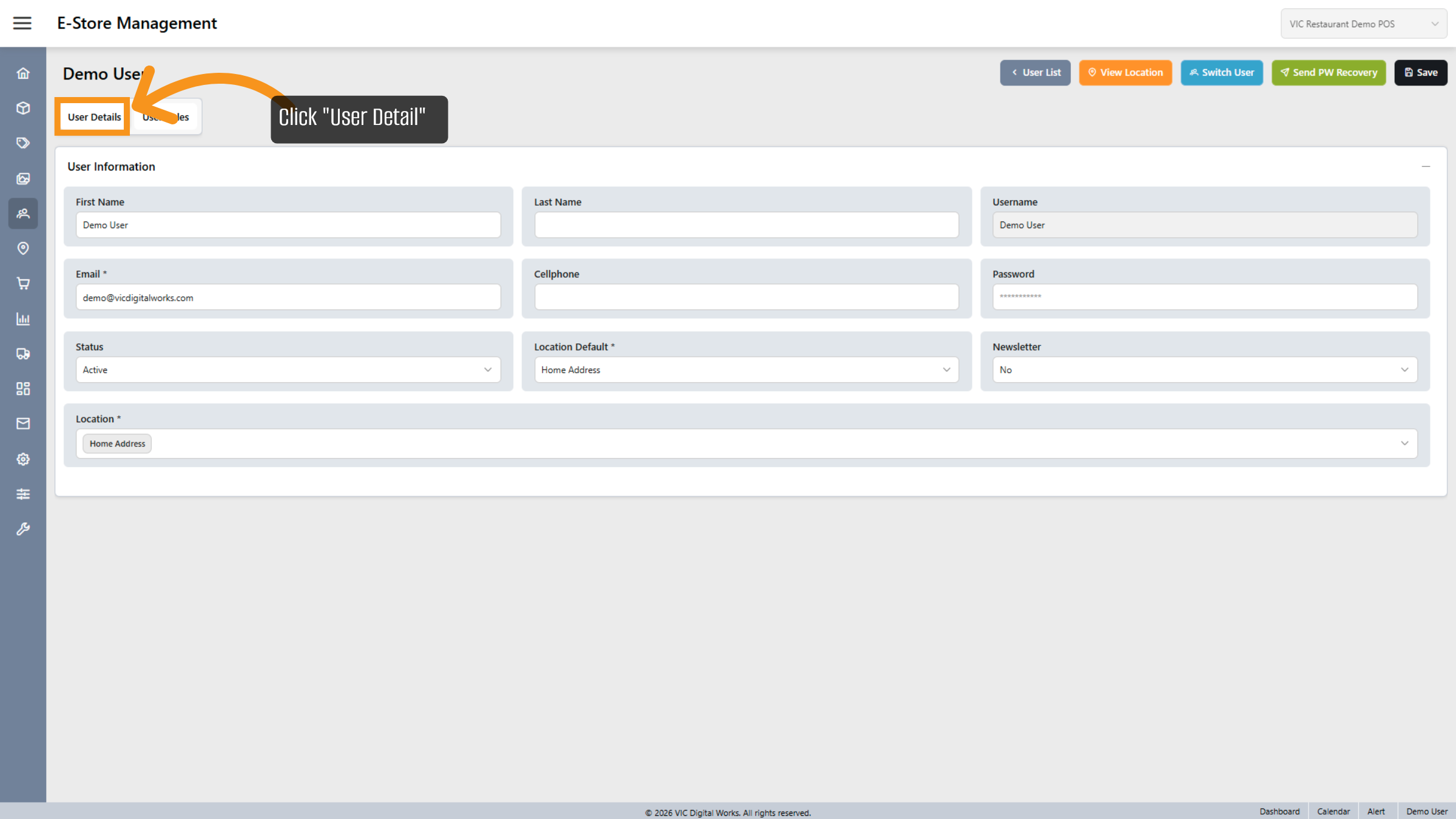
6. Open User Detail Tab
Click the User Detail tab to manage information for users within the application.
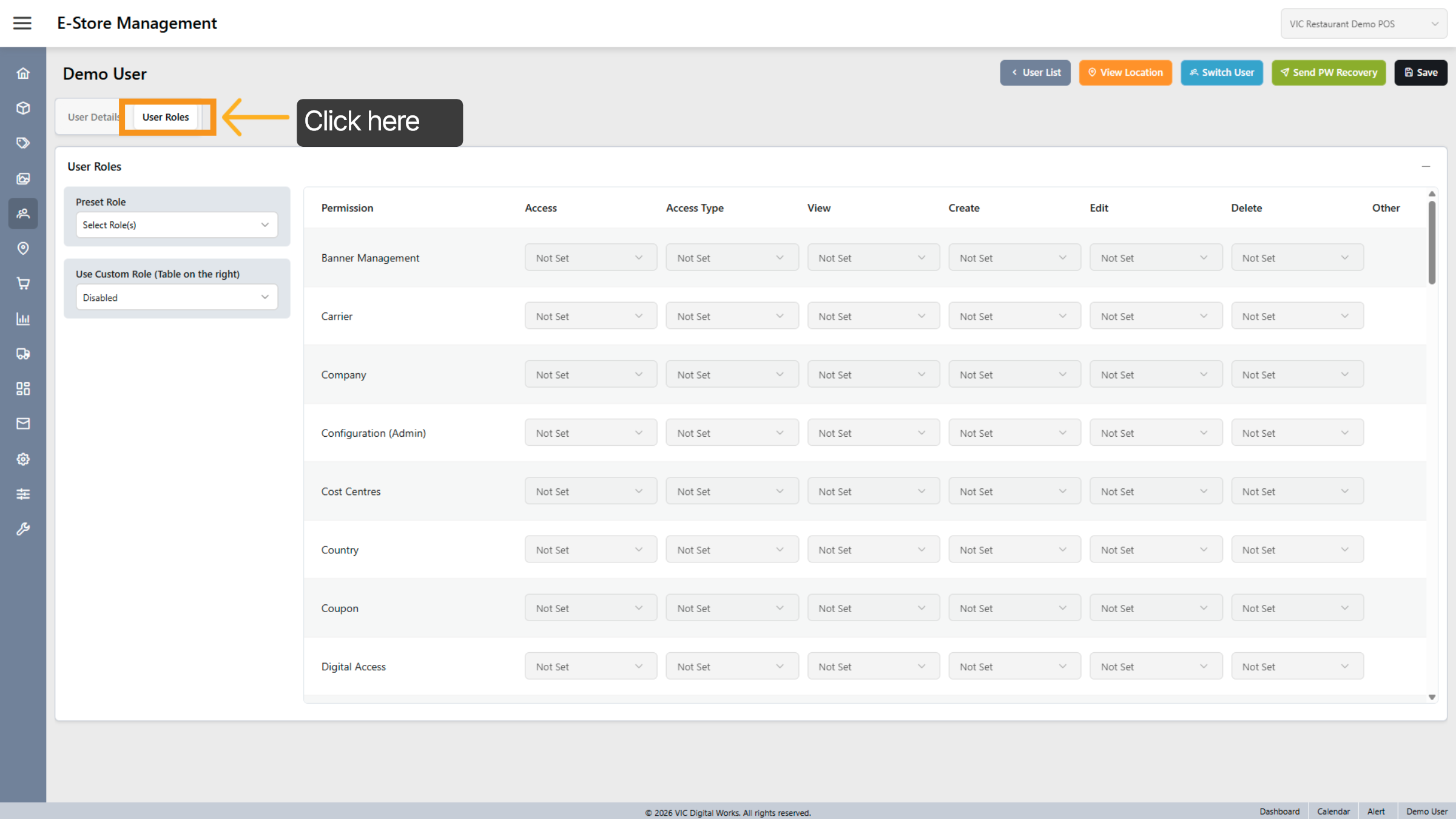
7. Access Role Options
This section will manage the functions currently available on the website.
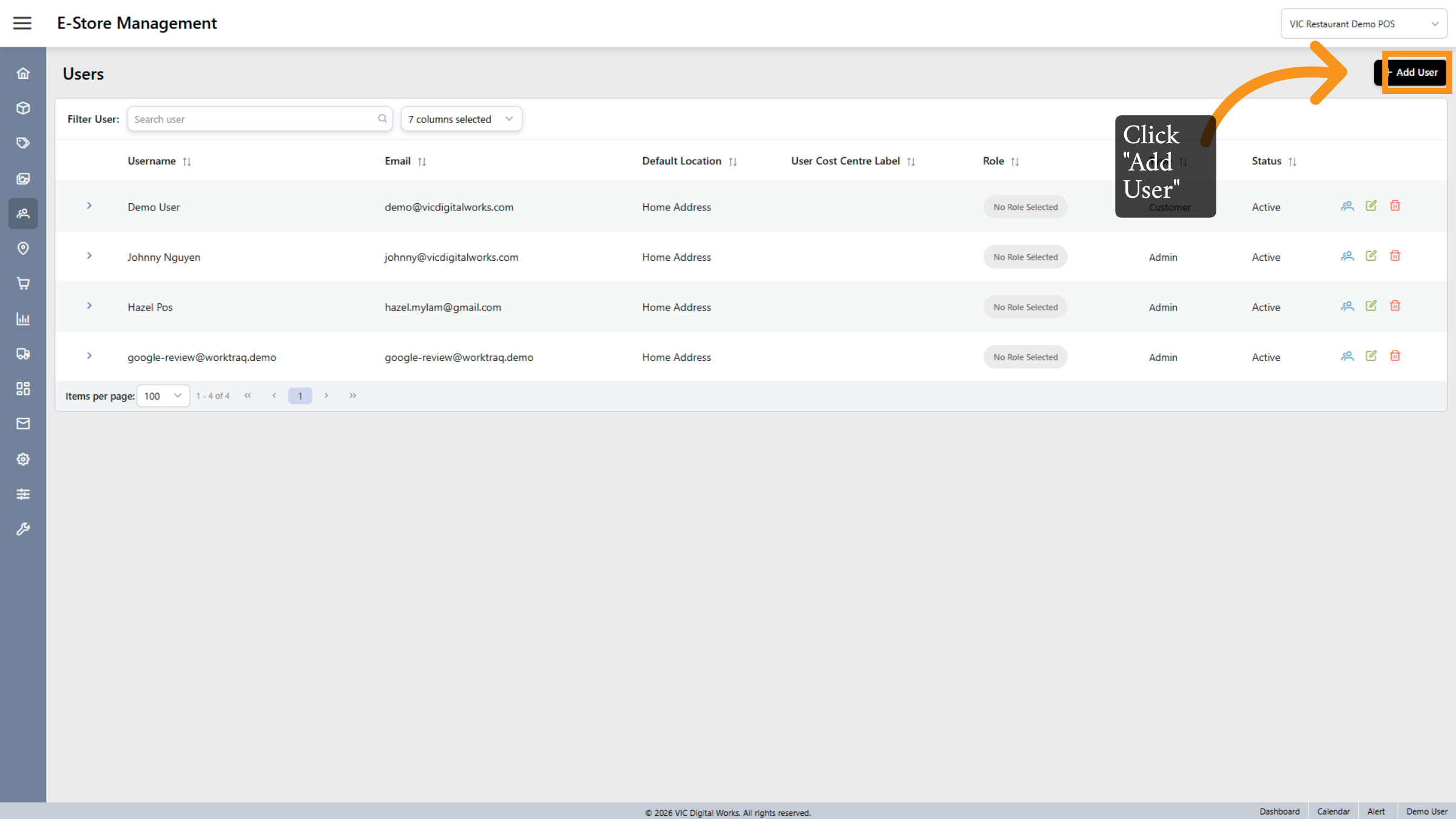
8. Initiate Add User Process
Click Add User to begin creating a new user profile .
You have successfully configured user settings and managed user roles within the Serviz application. This process ensures users have appropriate permissions and roles assigned for effective system access and management.