
Leo-Booking/ Social Booster /Support Chat /Help center/Setting
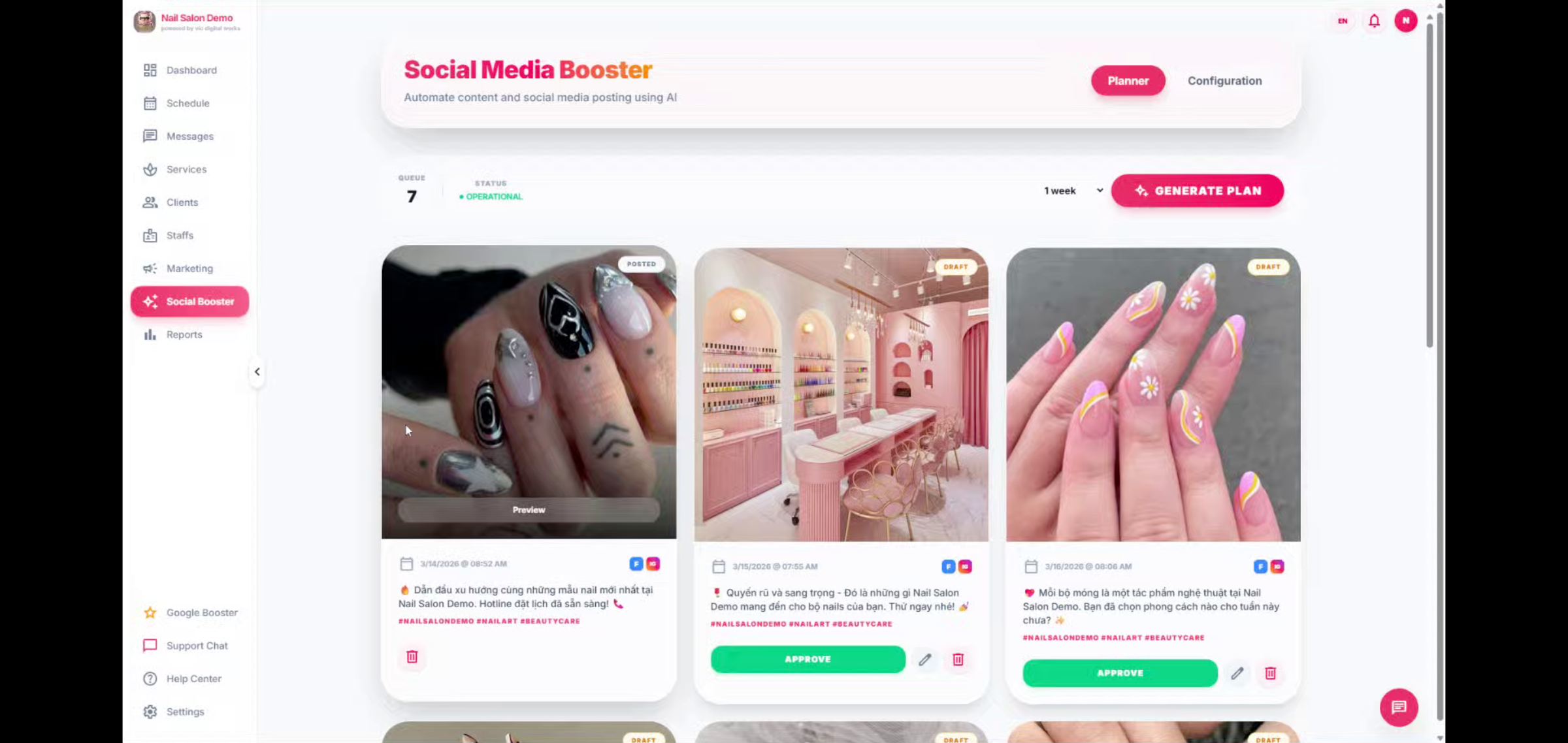
Configure and Manage Social Media Planner in Leo-booking
This tutorial guides you through configuring and managing your social media planner using Leo-booking.
Go to leo-booking.com
1. Introduction
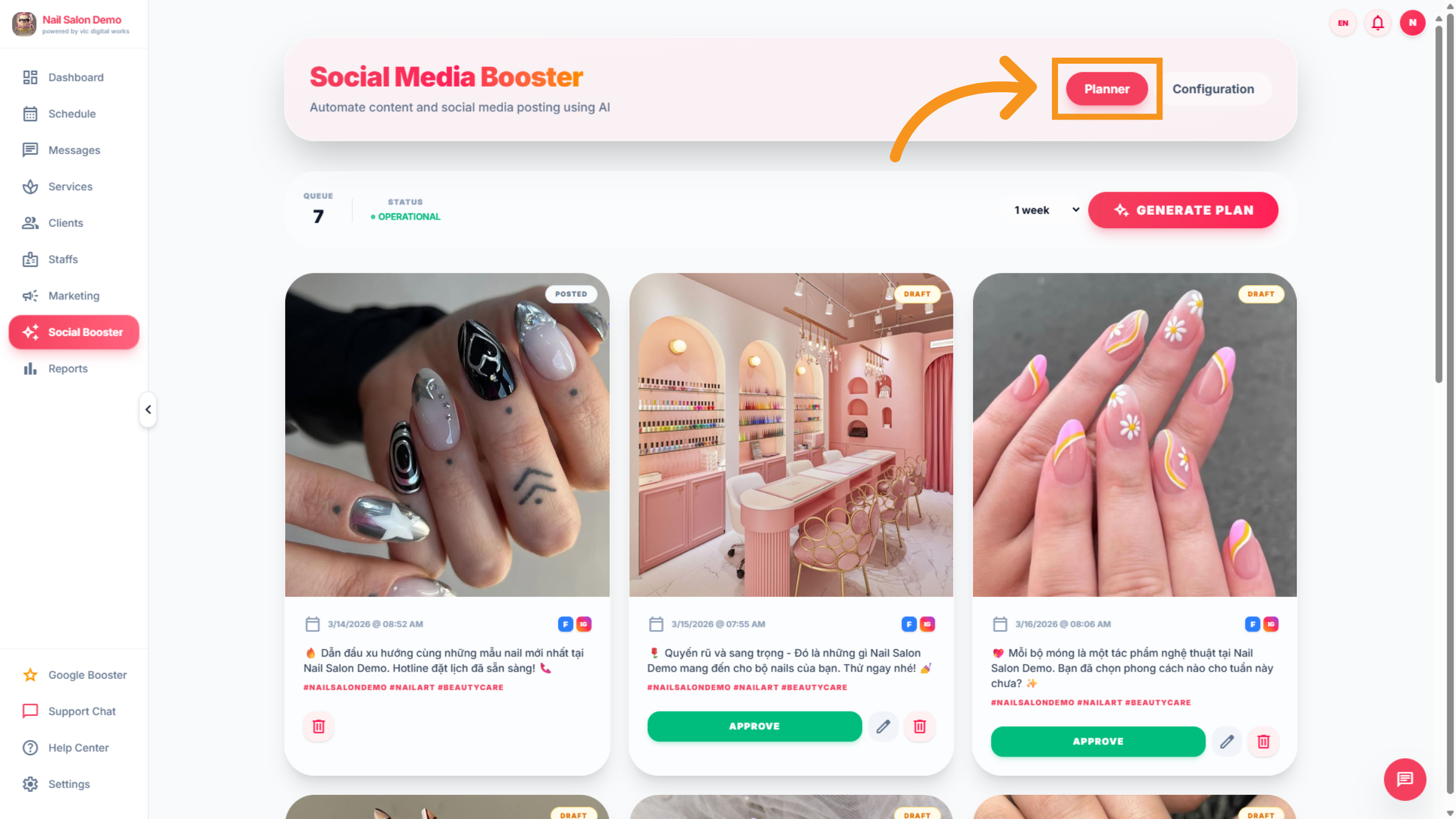
2. Access Planner Section
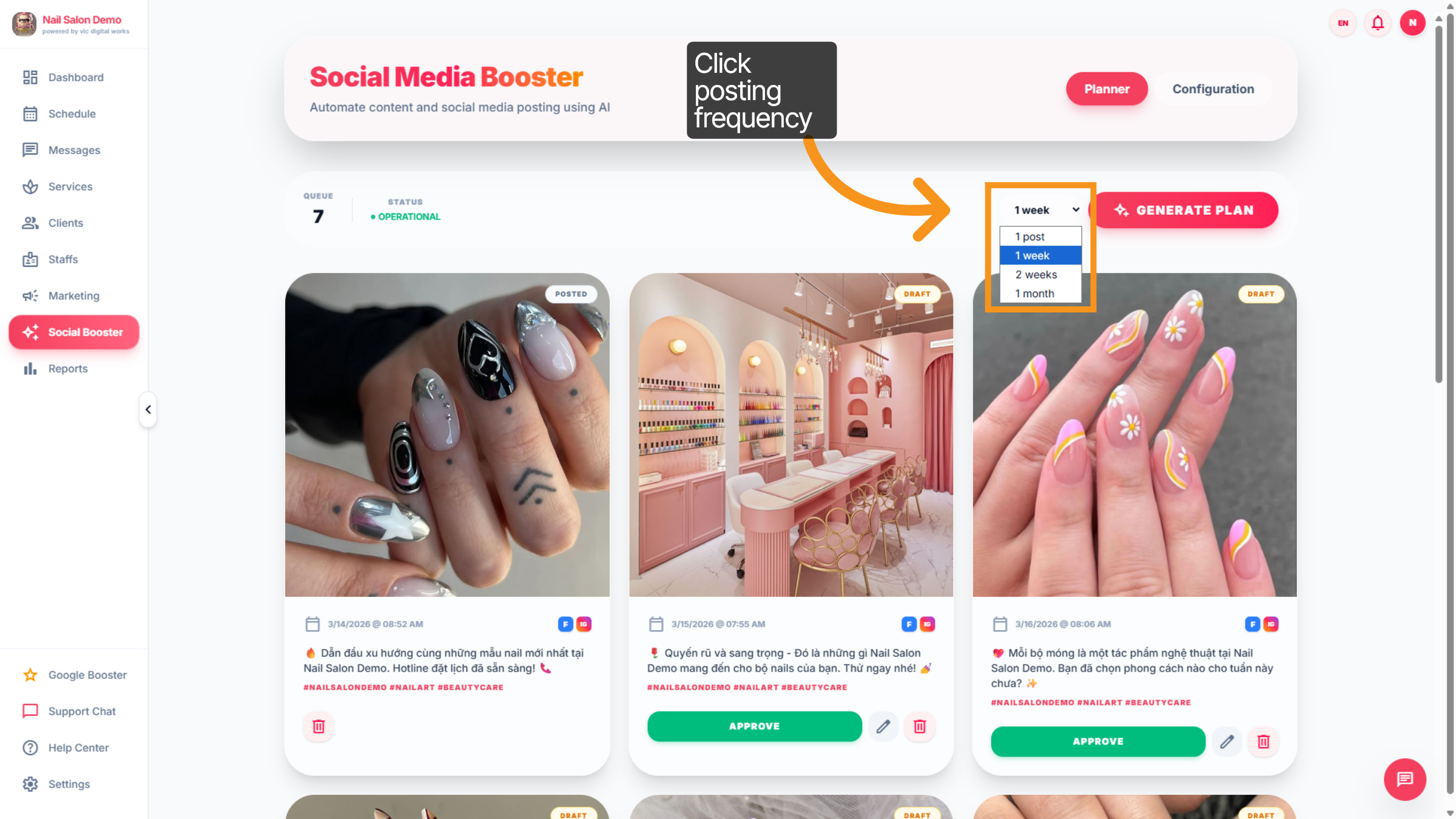
3. Open Posting Frequency Options
Click this section to explore the available posting frequency options.
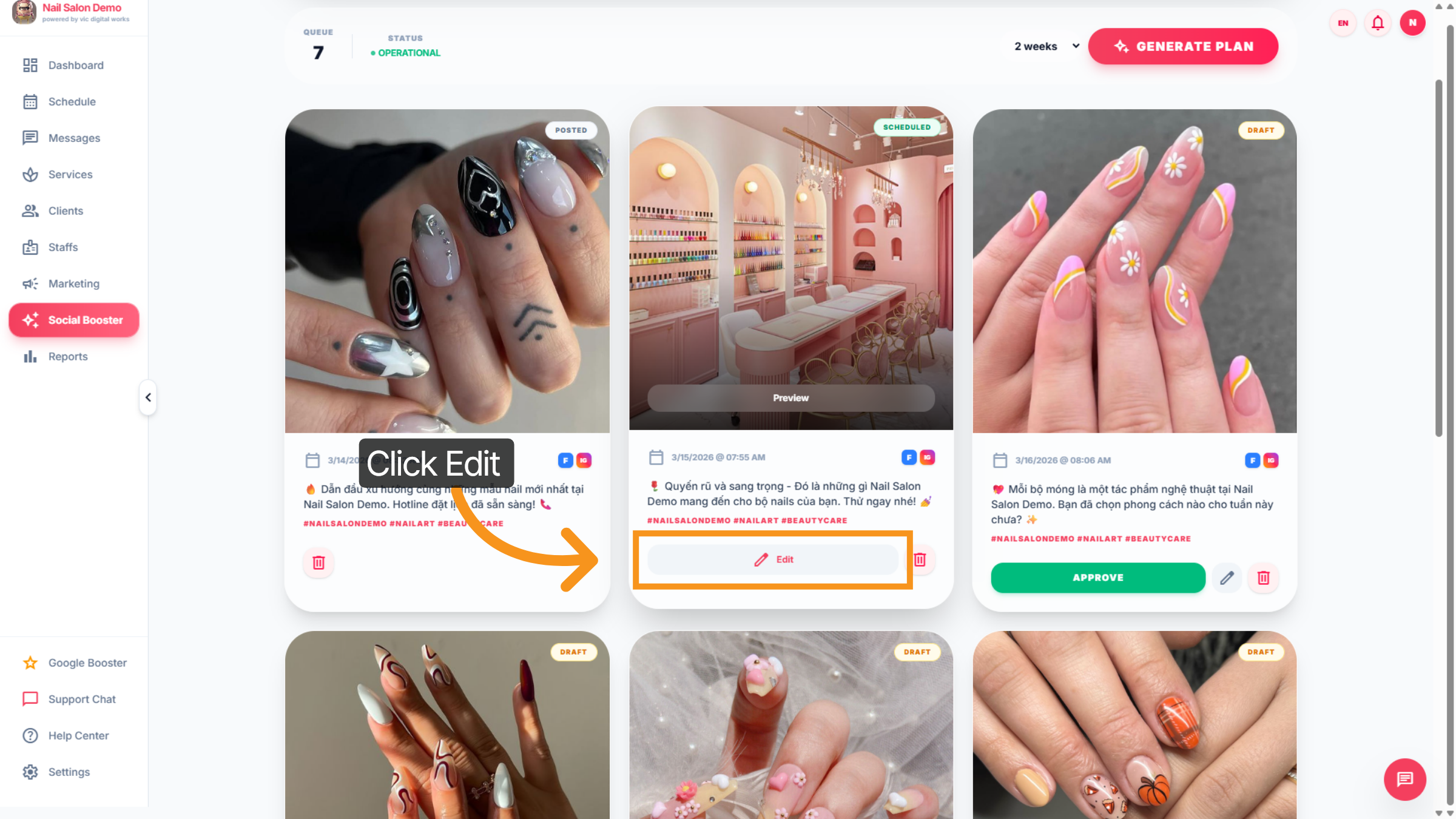
4. Edit Scheduled Posts
Click "Edit" to modify the details of your scheduled posts.
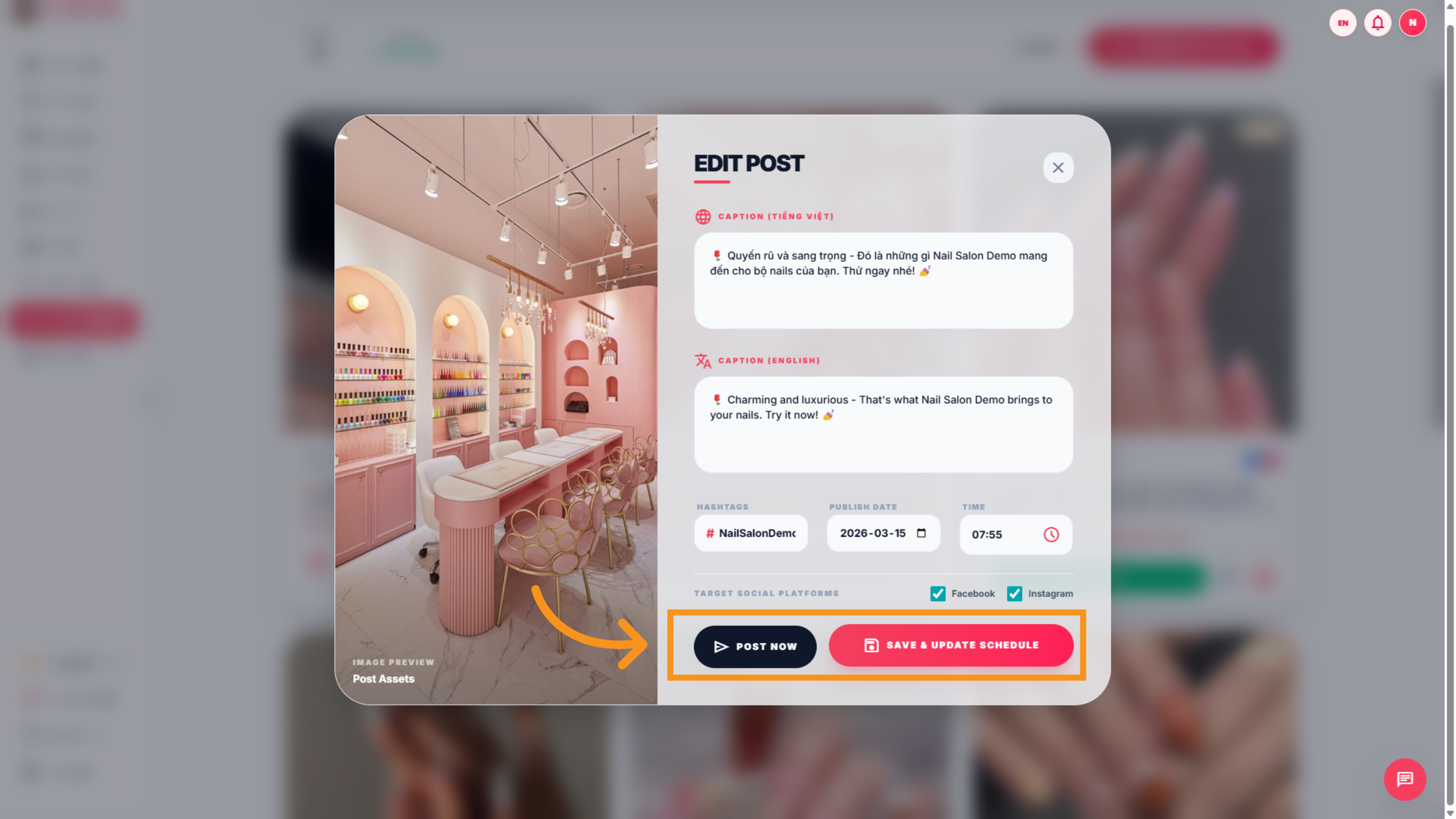
5. Edit caption
"EDIT "interface will appear includes Caption ( English and Vietnamese ), Hashtag, Publish date and time. After editing the caption and adding hashtags, click "Save & Update Schedule" or "Post Now" to finalize your changes and update the posting schedule accordingly.
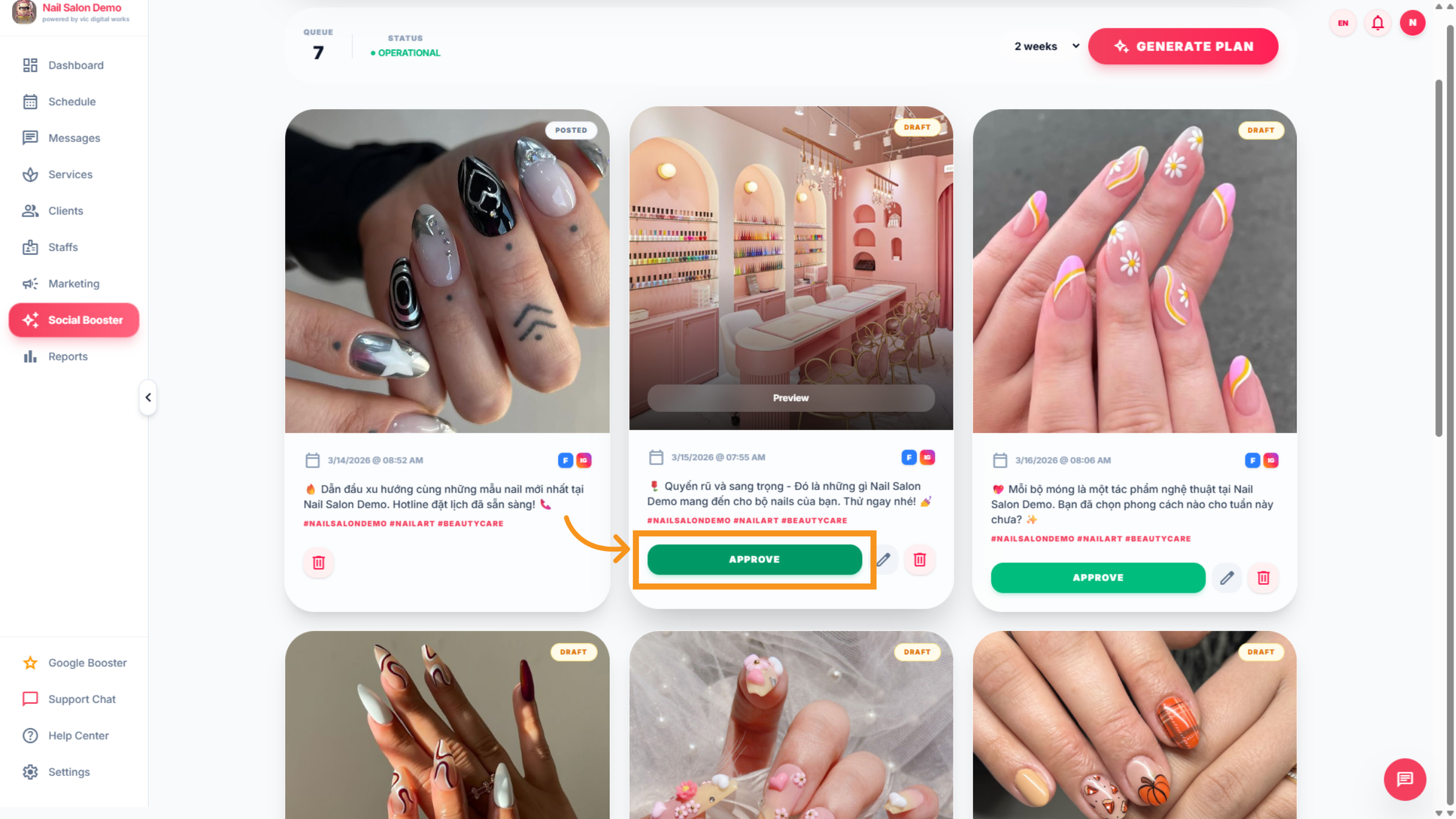
6. Approve Scheduled Content
Click "Approve" to confirm and approve the scheduled posts for publishing.
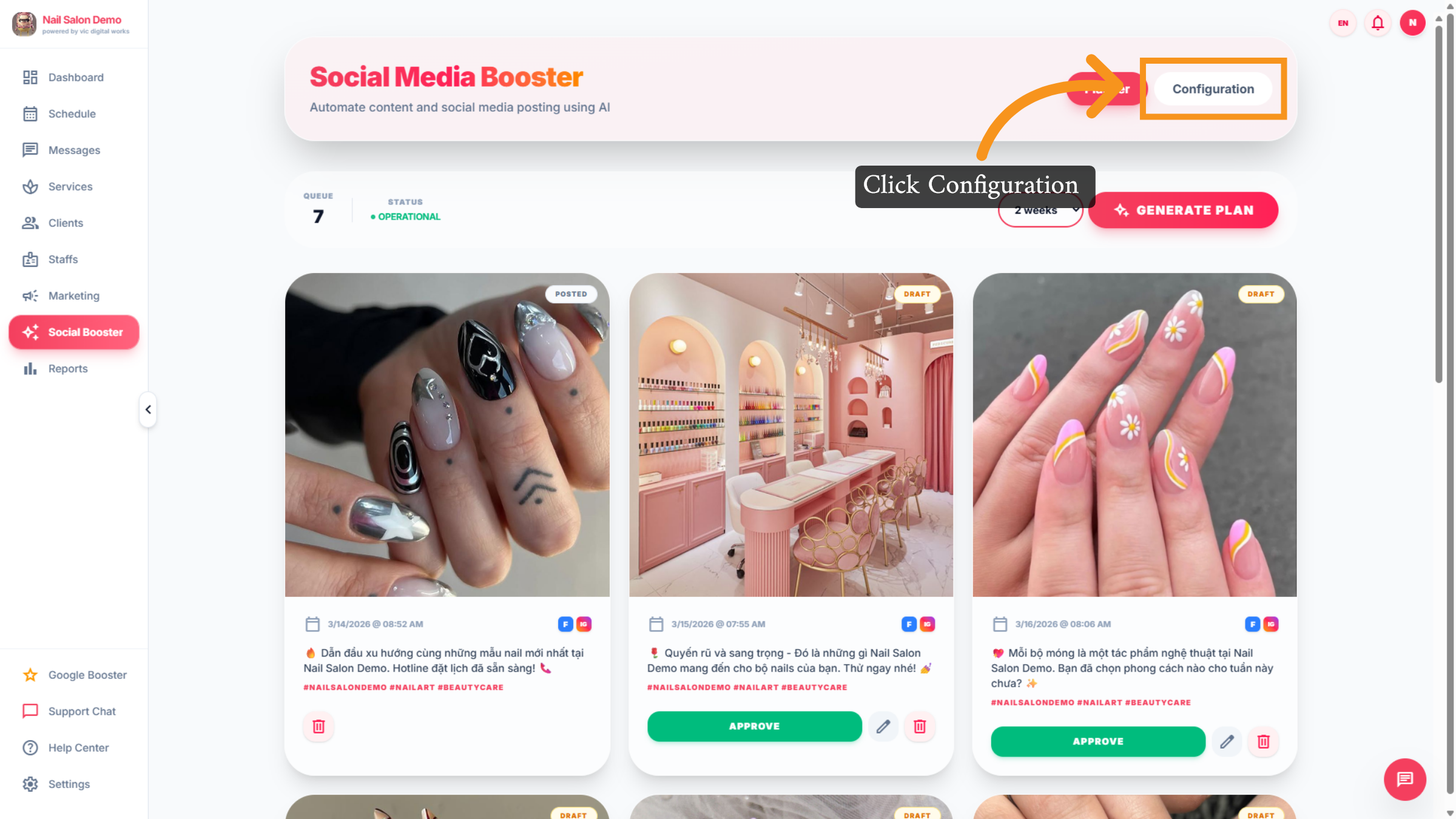
7. Open Configuration Settings
Click "Configuration" to access the planner's configuration settings.
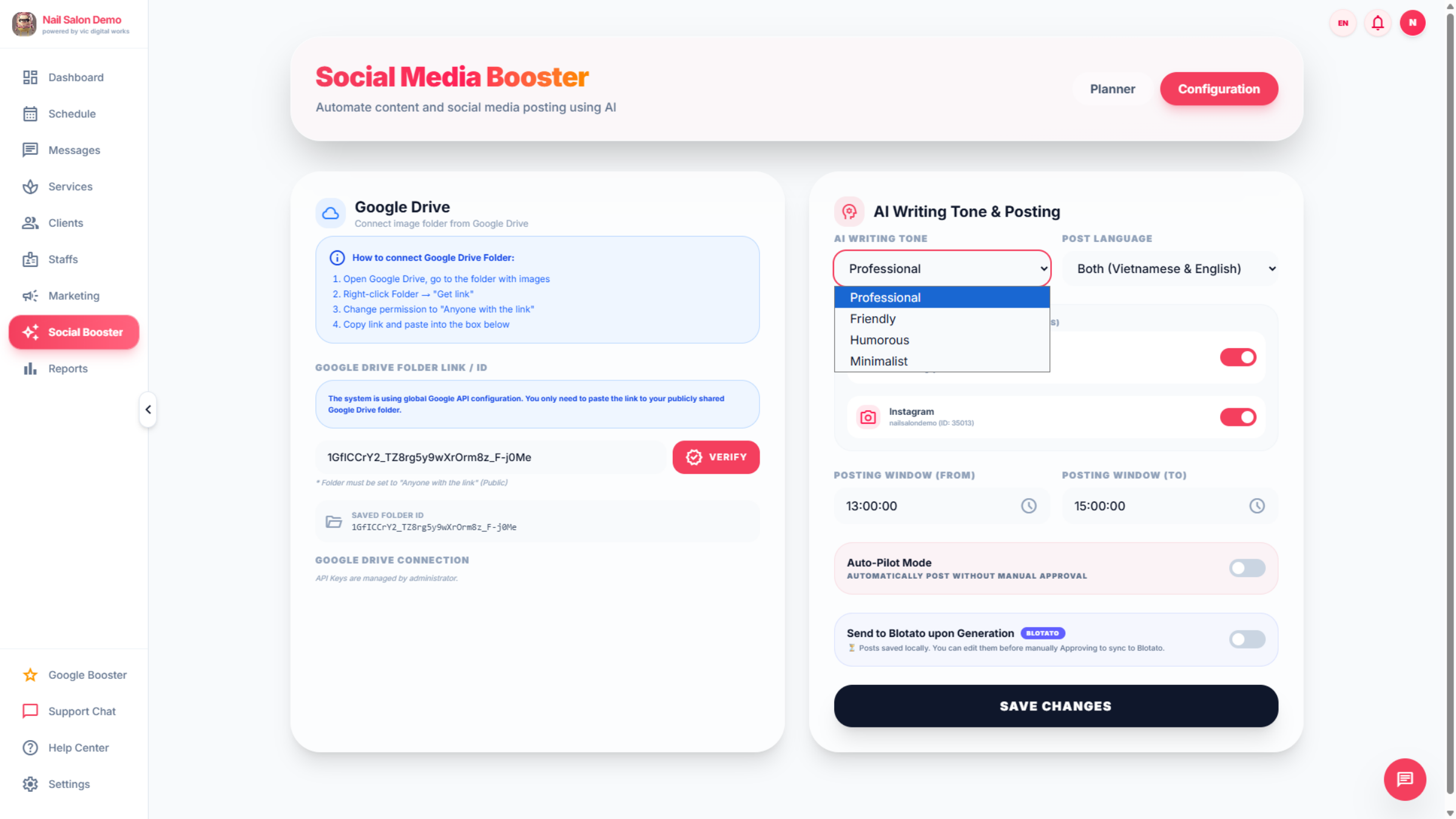
8. Interface of Configuration
In this section , you can view and edit AI feature , includes : *AI writing tone with options :Profestional,Friendly,Humorous,Minimalist Post You can select language : Vietnamese or English or both (vientnamese and english)
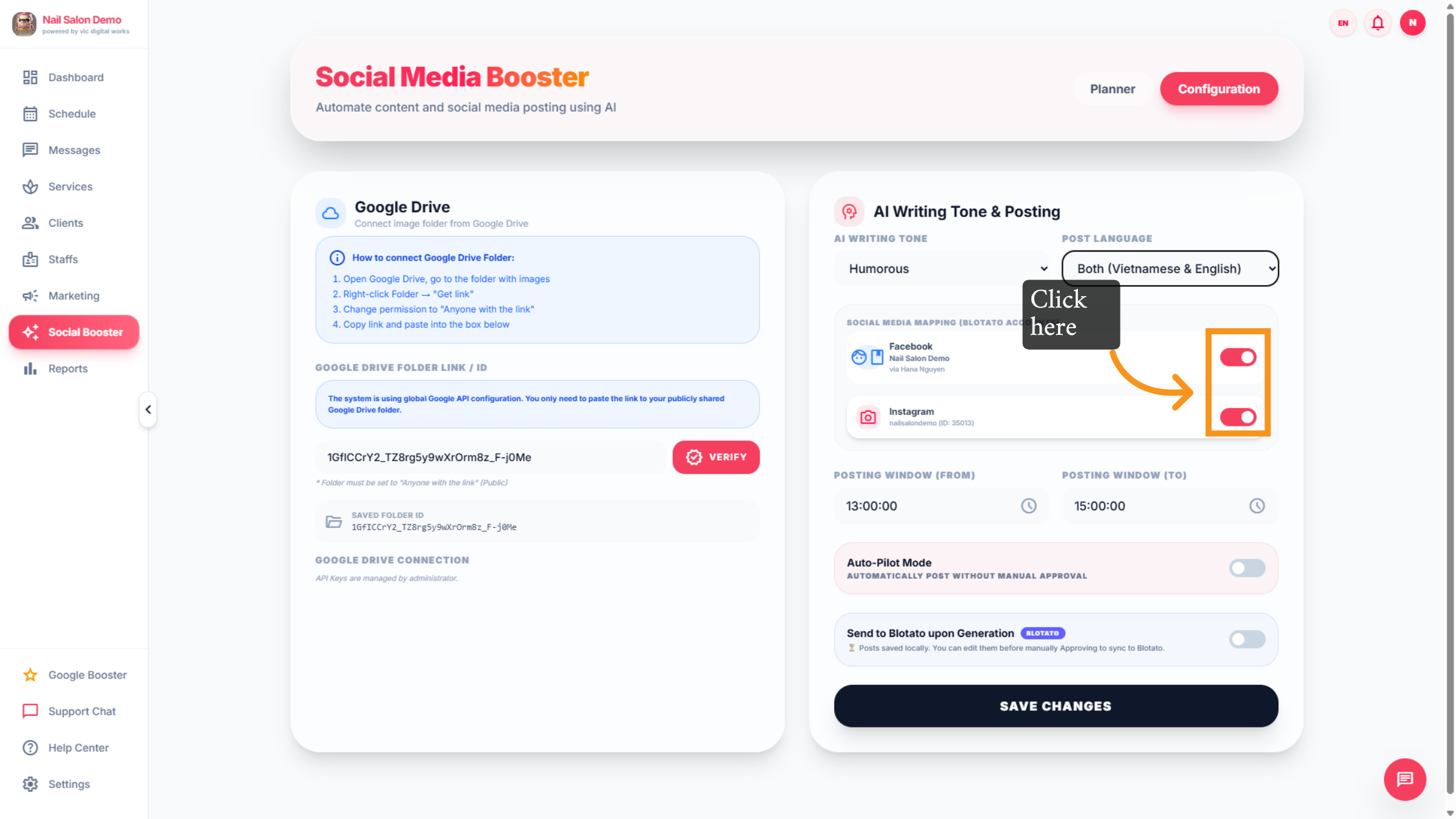
9. Social Media mapping
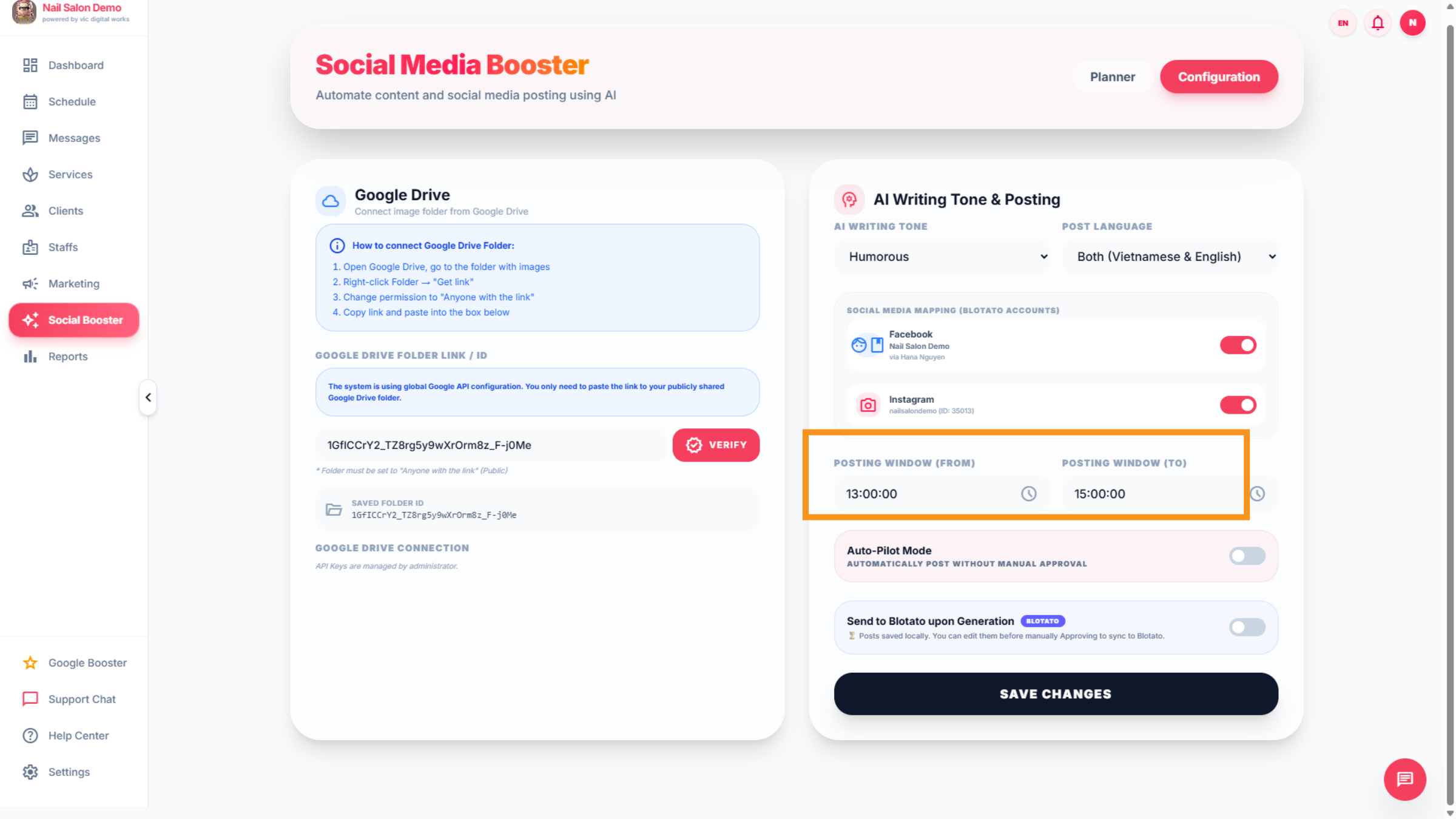
10. Seclect time to posting
Click here to set the posting time.
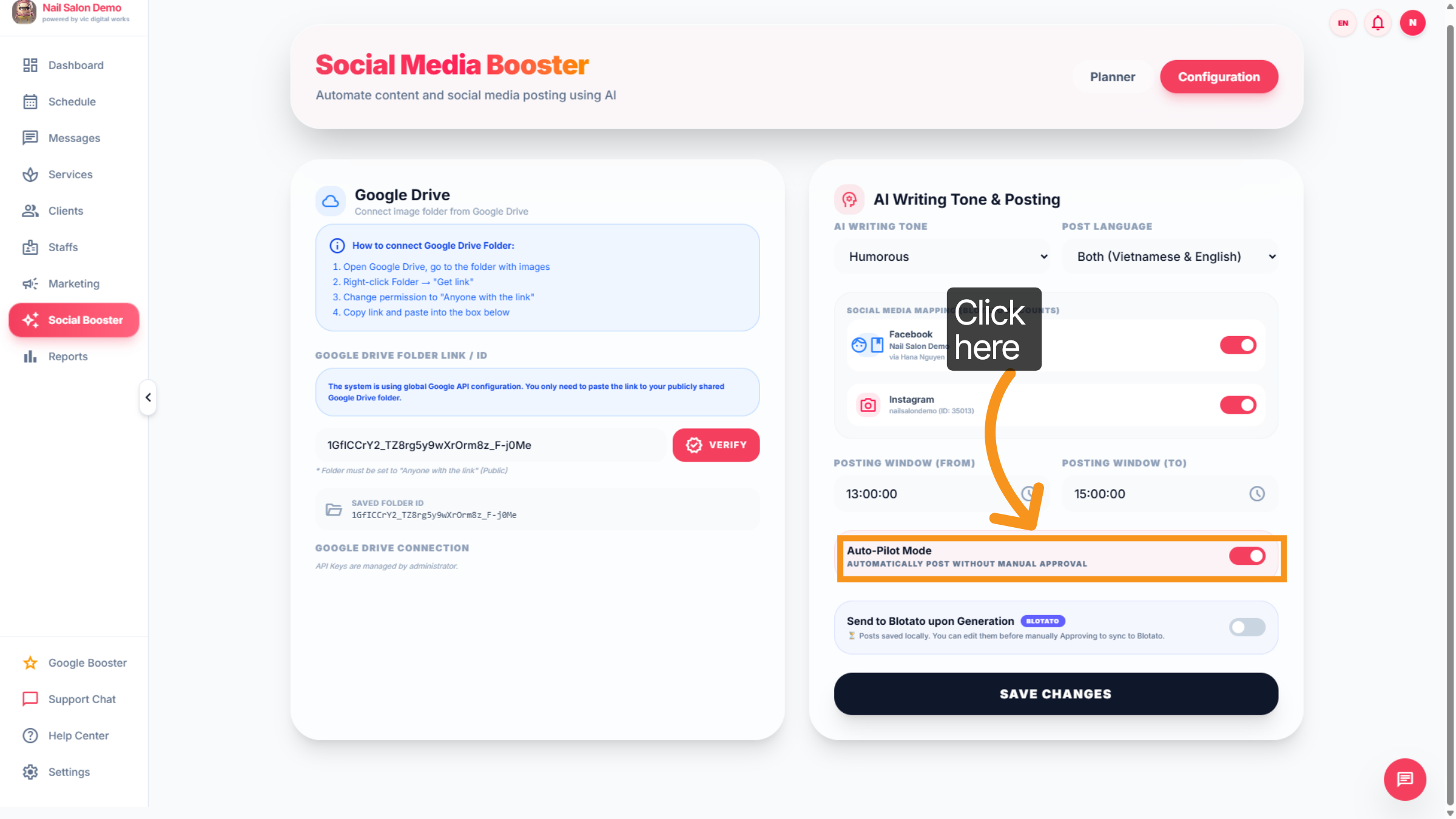
11. Auto-pilot mode
Auto-pilot mode is the automatic posting feature.
12. Send to Blotato upon Generation Blotato
Send to Blotato upon Generation Blotato⏳ Posts saved locally. You can edit them before manually Approving to sync to Blotato.
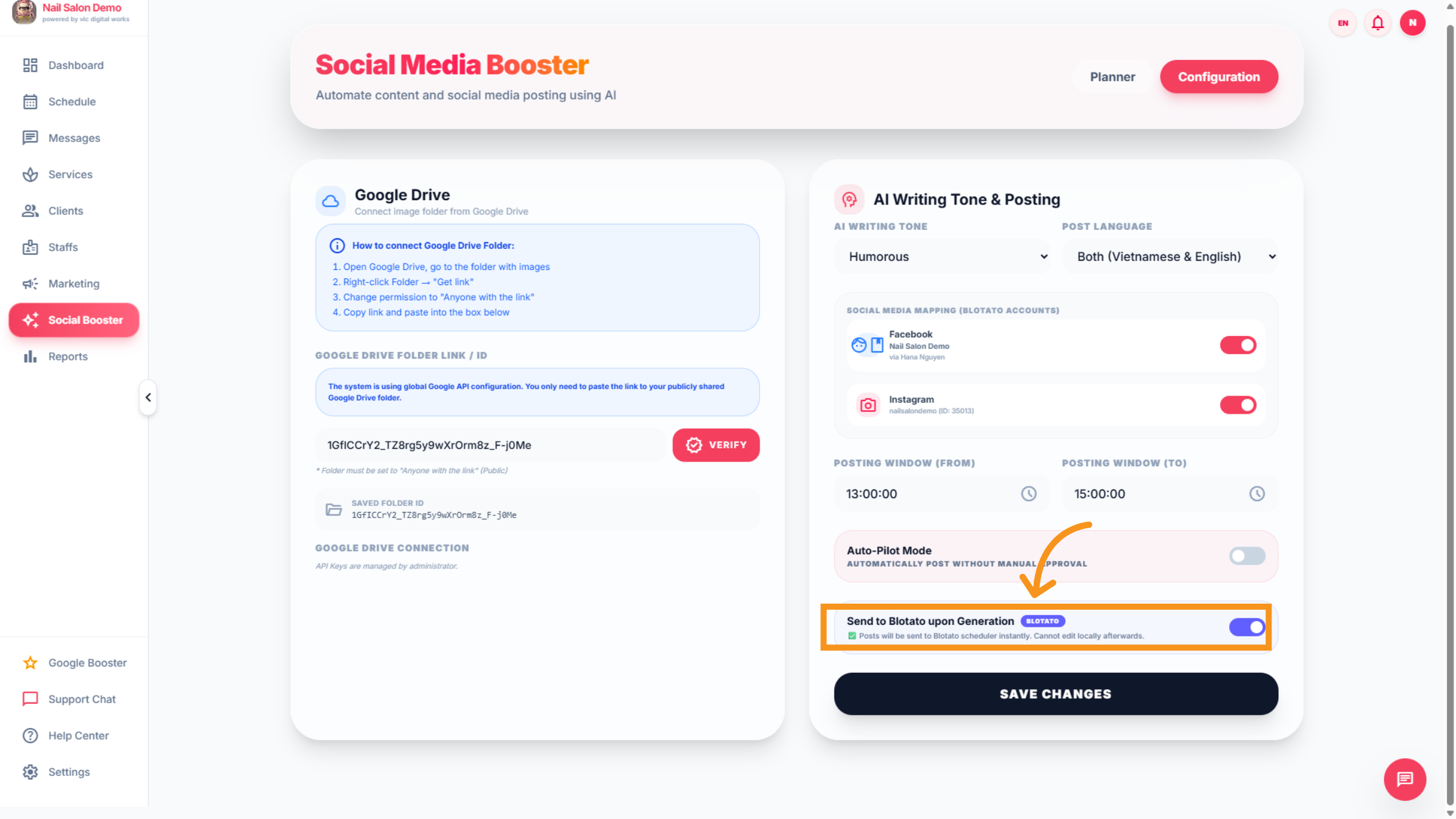
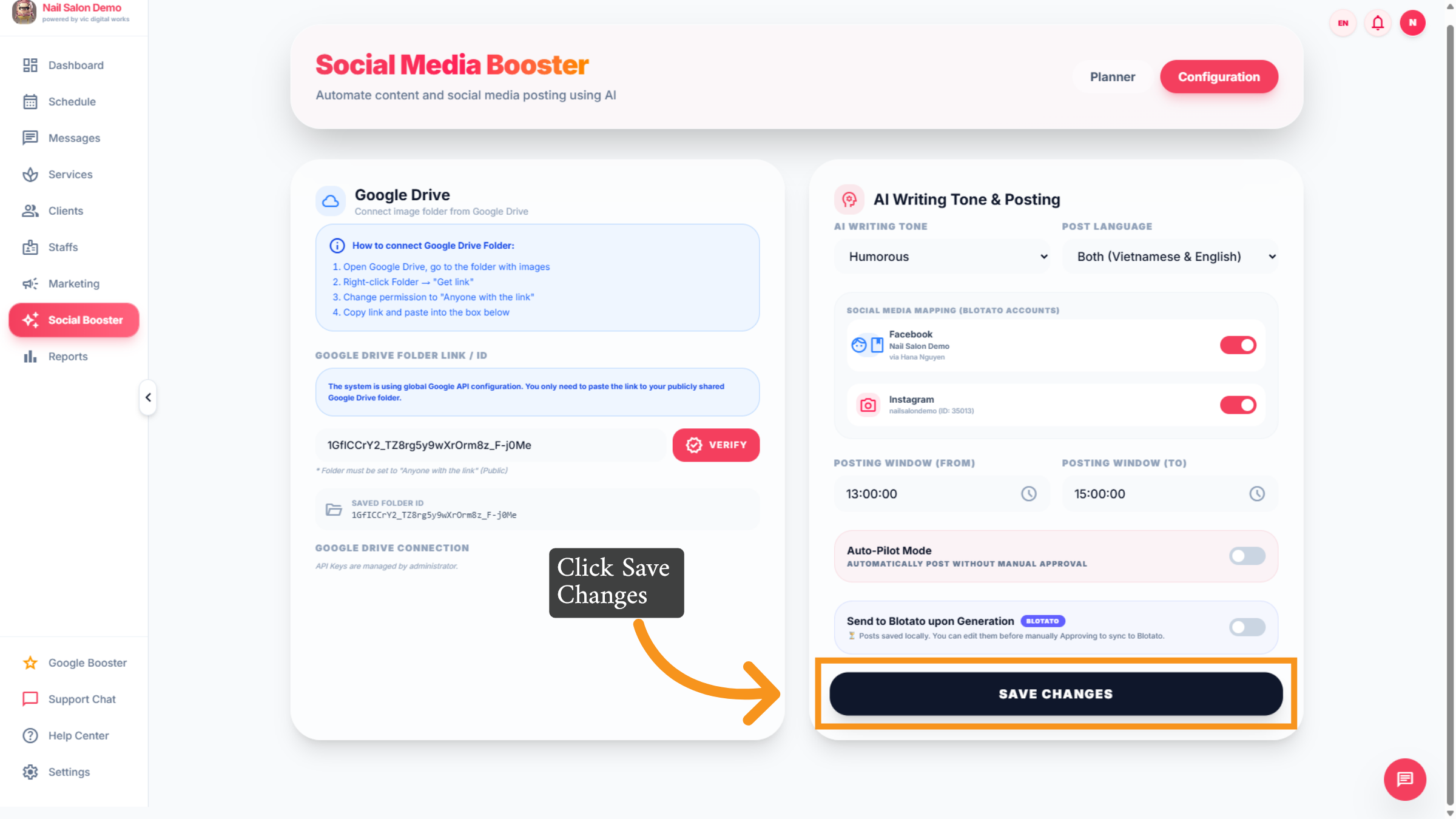
13. Save Configuration Changes
Click "Save Changes" to apply and save all your configuration settings.
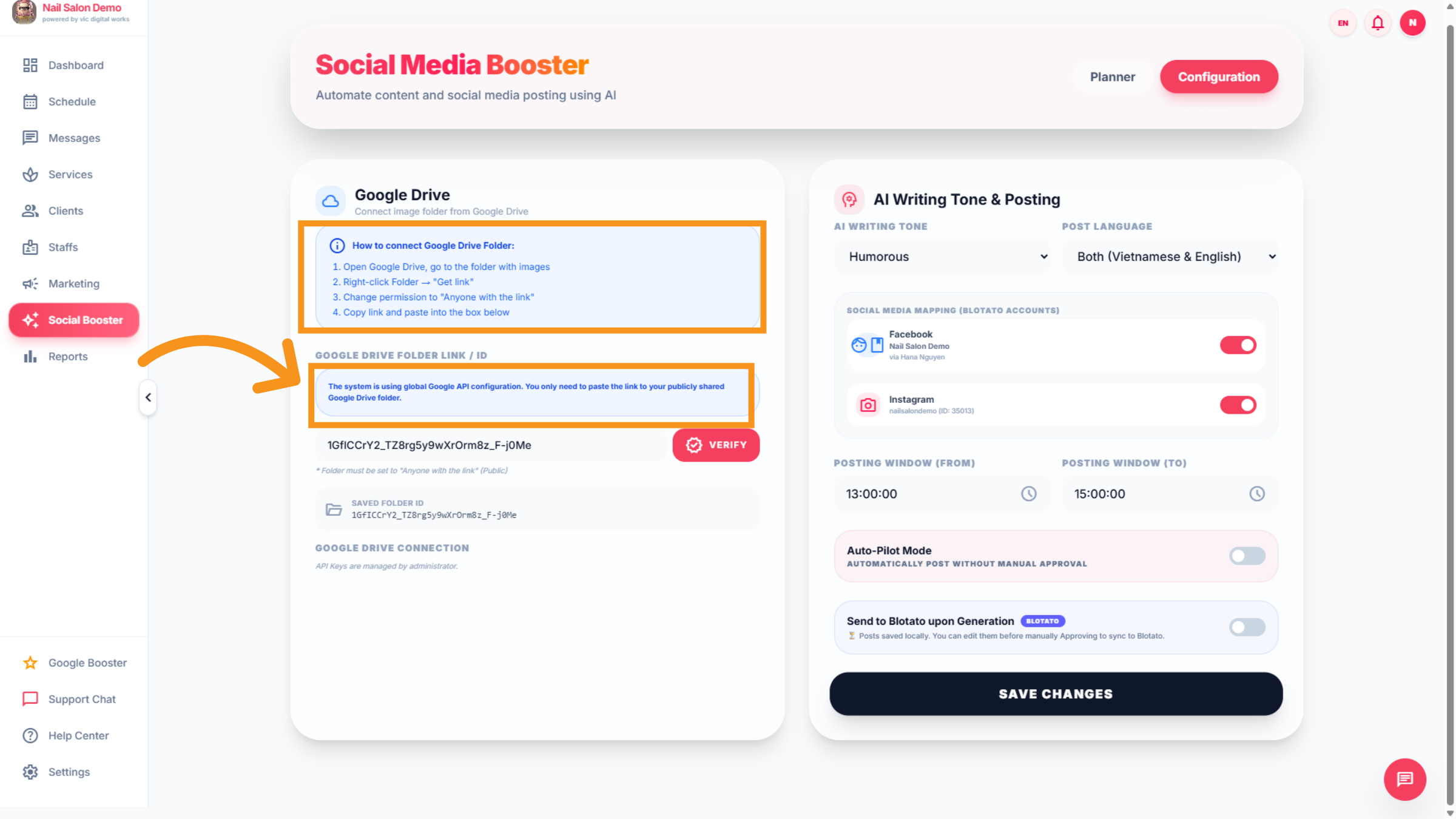
14. Google Drive
Google Drive Section: The salon needs to create a Google Drive folder that contains daily product images. Please upload the link to the "Google Drive folder link." This folder must be set to public to allow AI access to the images, enabling automatic content generation for posting on Google.
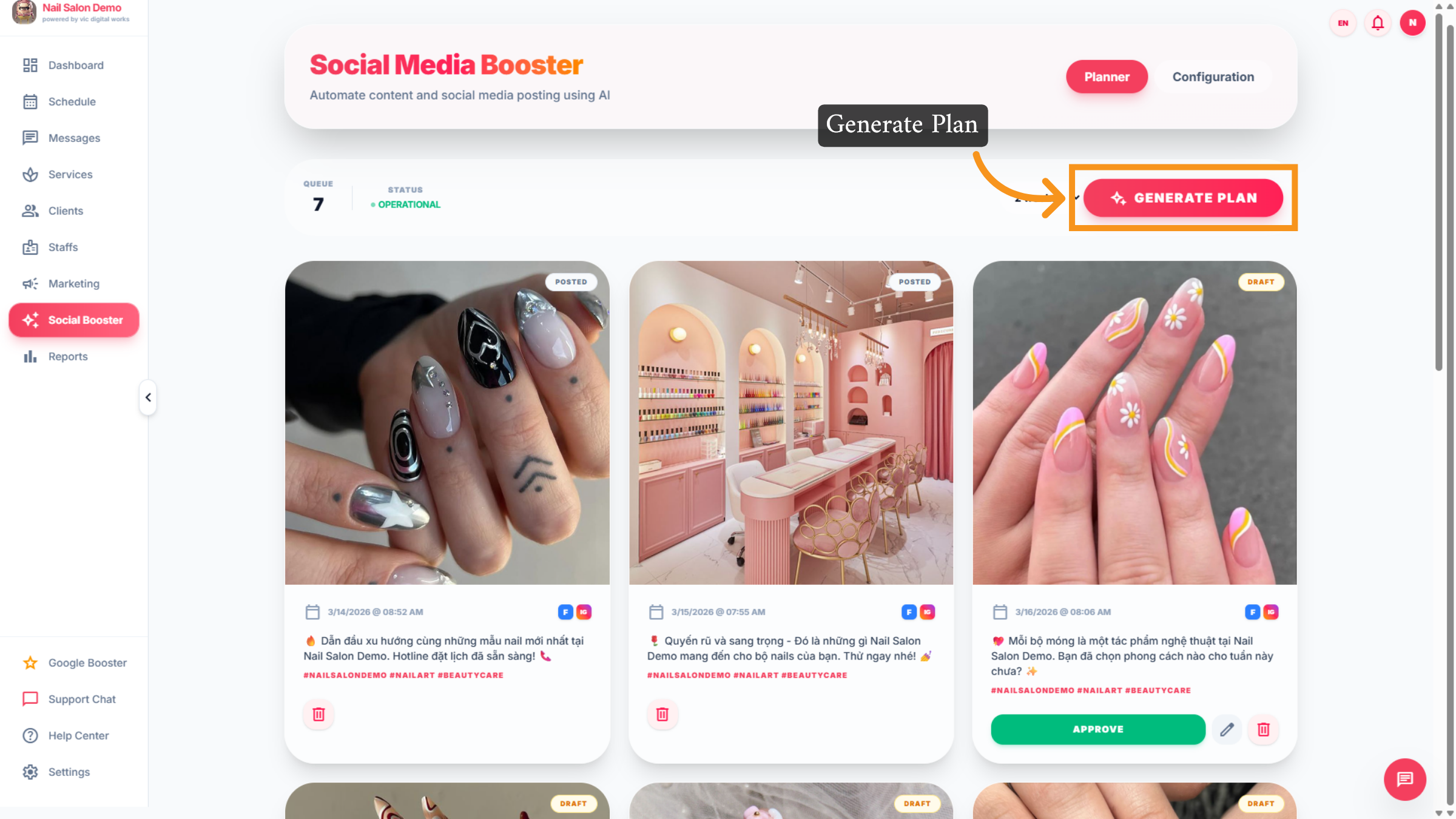
15. Generate Content Plan
Click "Generate Plan" to automatically create a social media content plan. This feature enables AI to produce post content for you, saving you time.
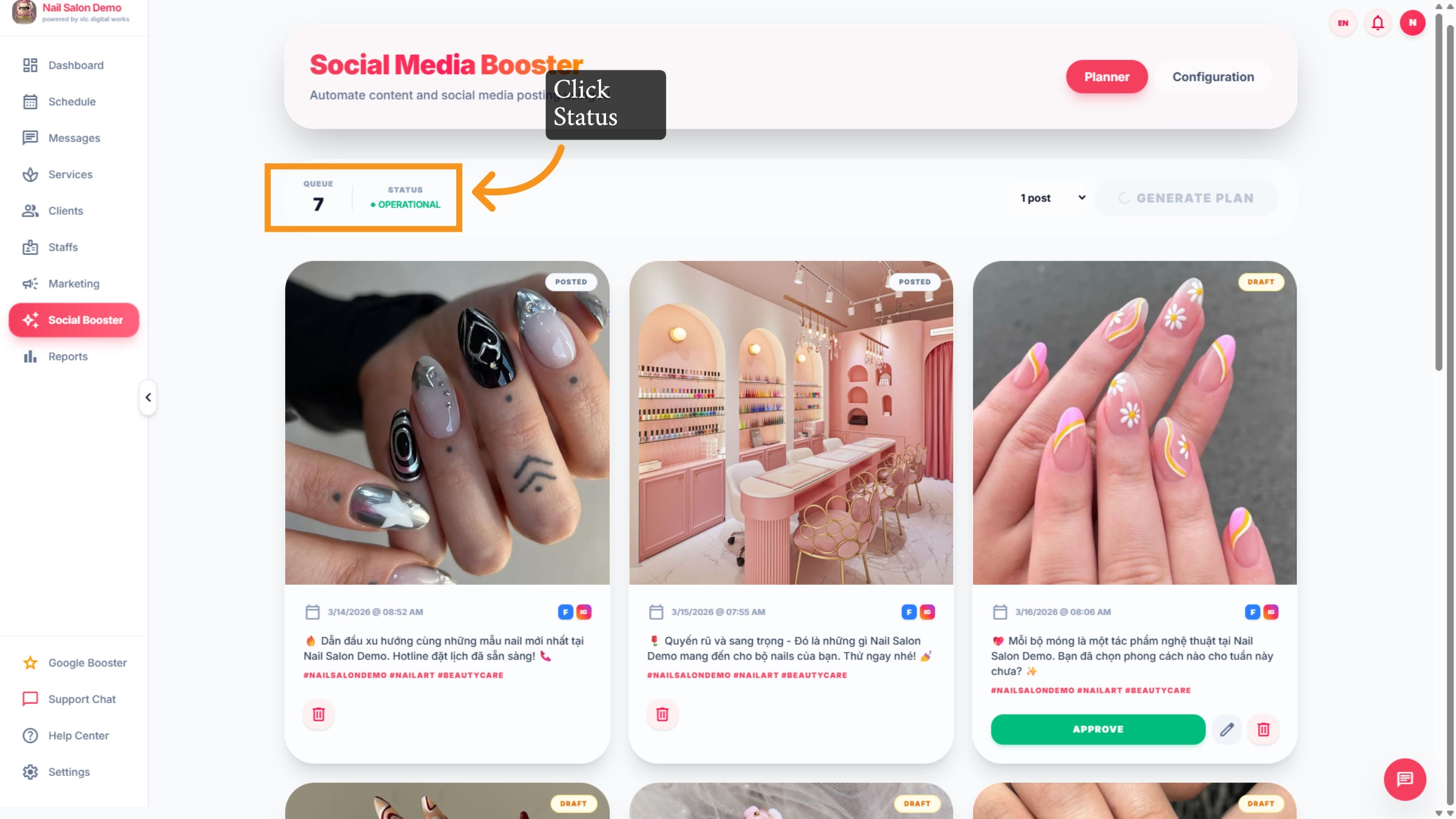
16. Open Status Options
Click "Status" to view and manage the status of your posts within the planner.
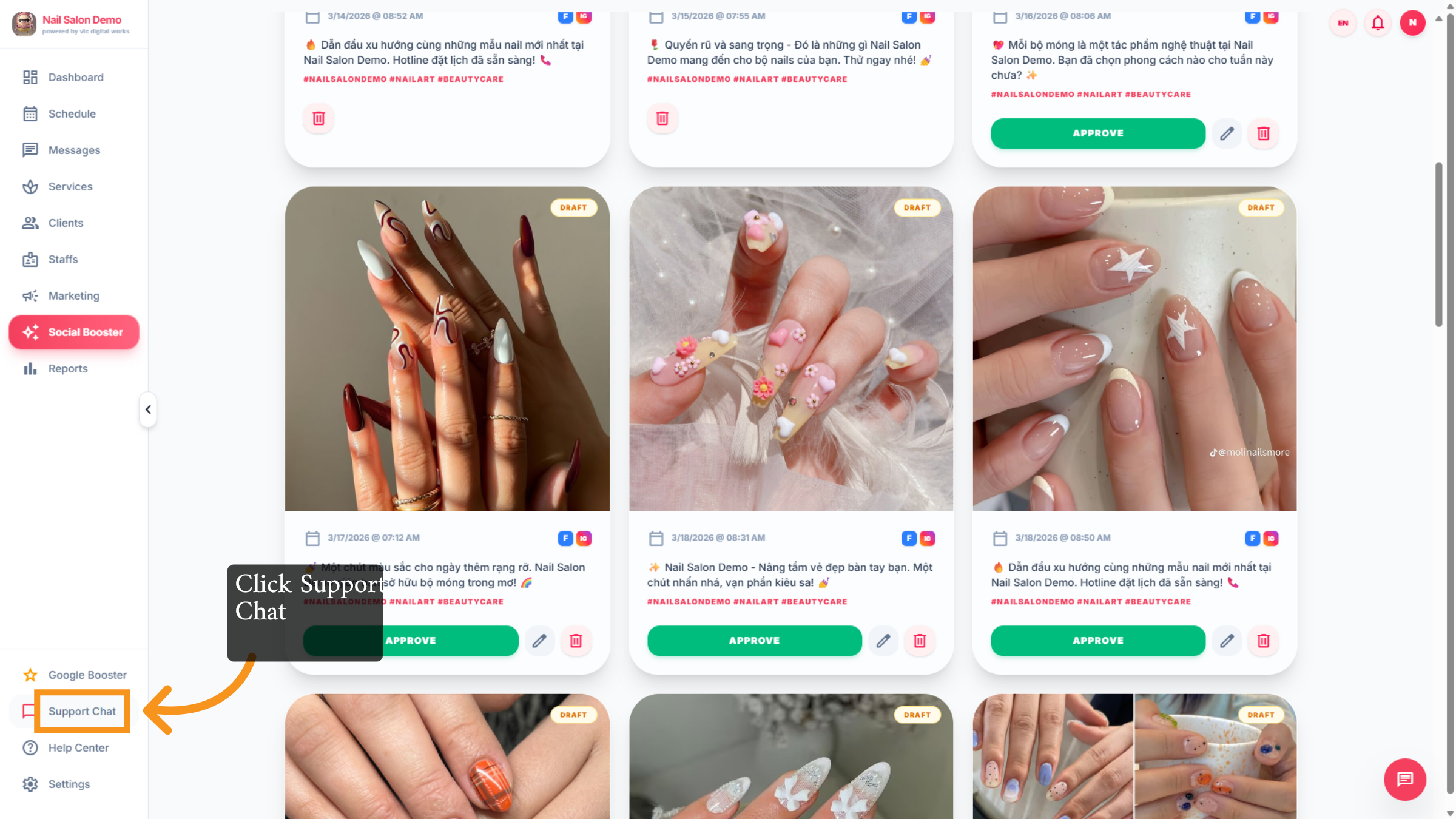
17. Open Support Chat
Click "Support Chat" to access customer support for assistance with the planner.
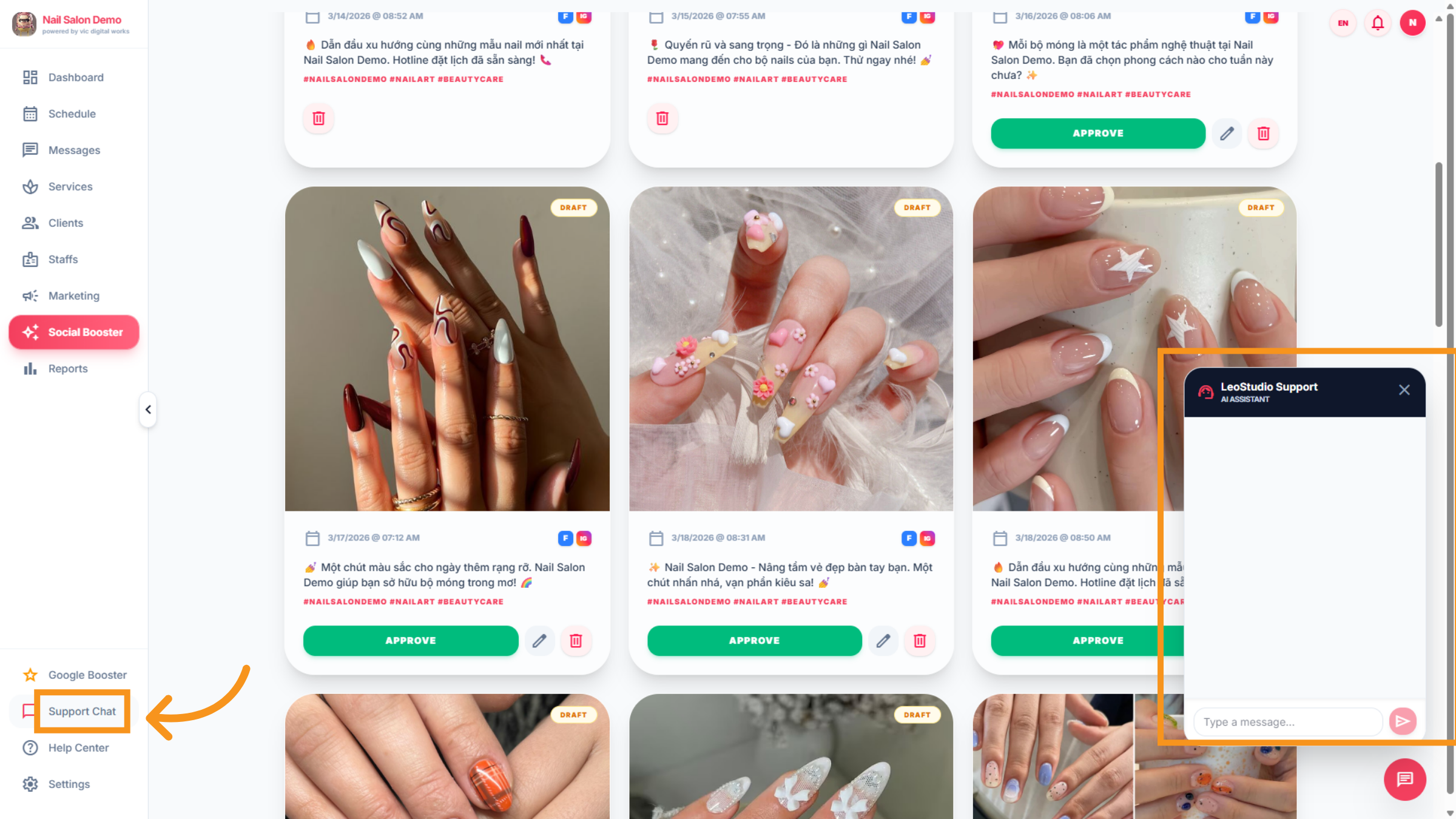
18. Access Support Chat Again
Click "Support Chat" ,this section allows users to quickly connect with IT technicians for instant help
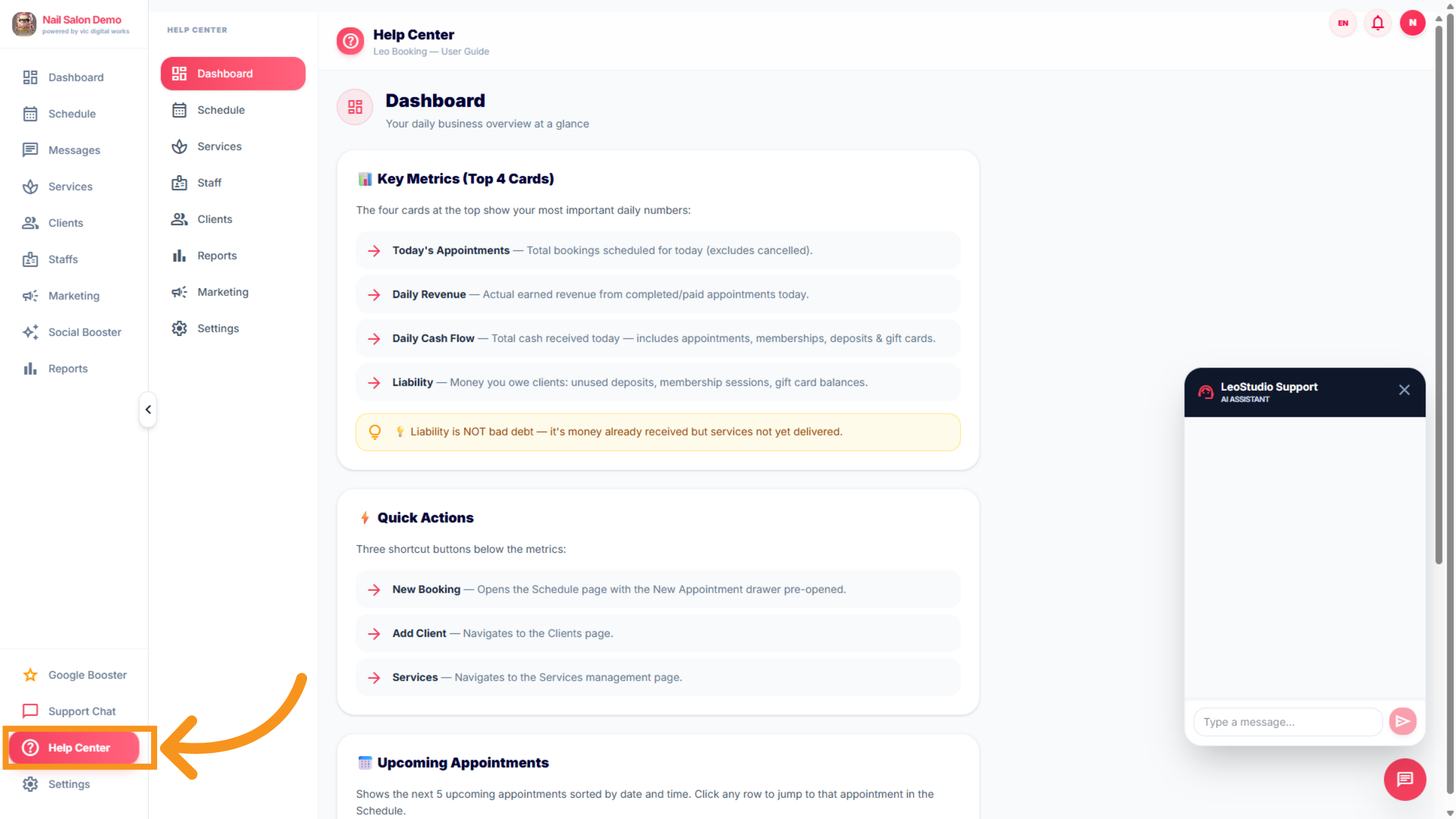
19. Access Help Center Again
Click "Help Center" to explore additional support resources. The Help Center offers a collection of articles, tutorials, and FAQs to help users quickly find solutions and learn how to use the system.
20. SETTING
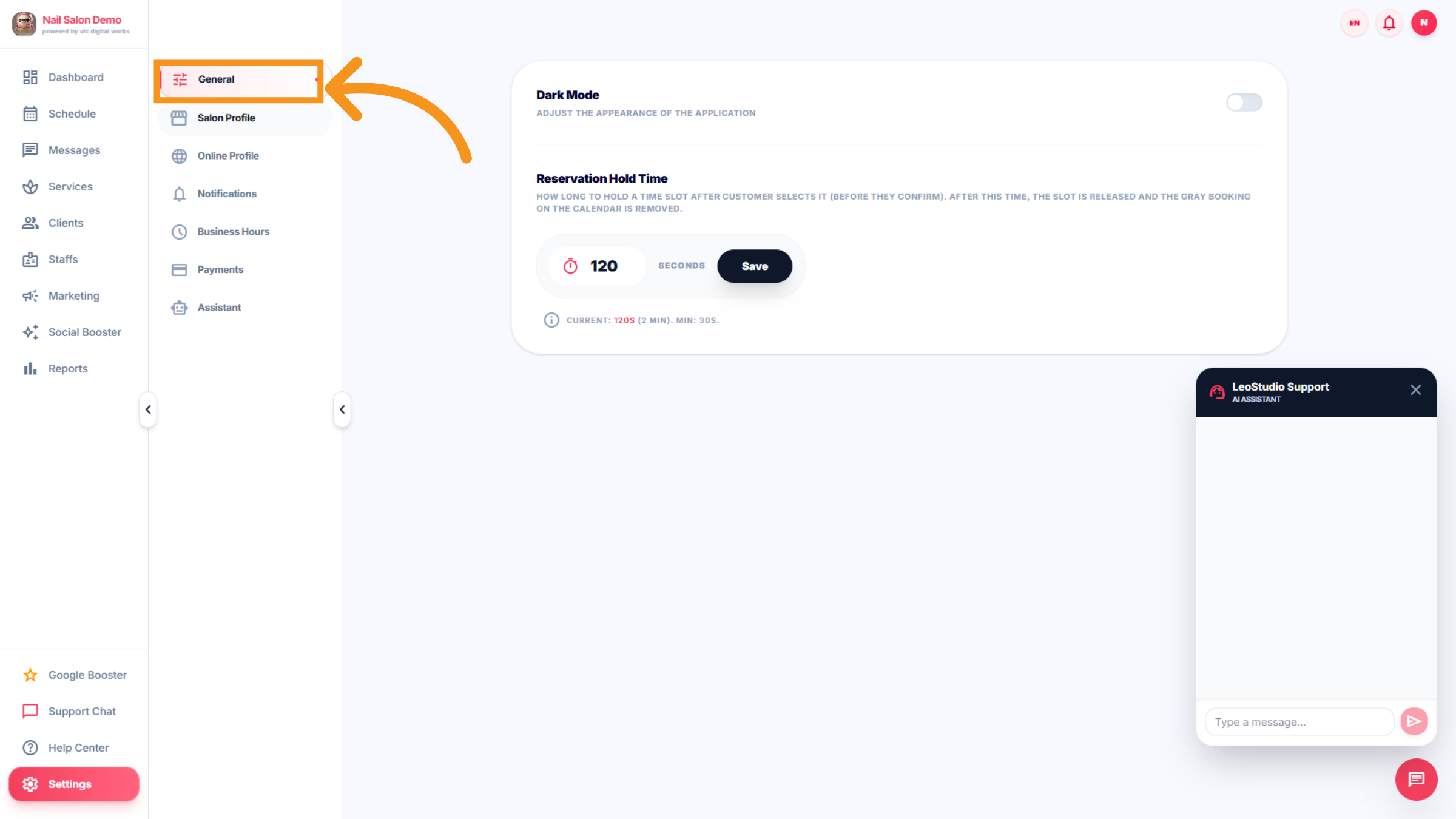
Settings provide users with full control over account configuration, system preferences, notifications, and integrations Setting General with Dark Mode: Adjust the appearance of the application Reservation Hold Time: How long to hold a time slot after customer selects it (before they confirm). After this time, the slot is released and the gray booking on the calendar is removed.
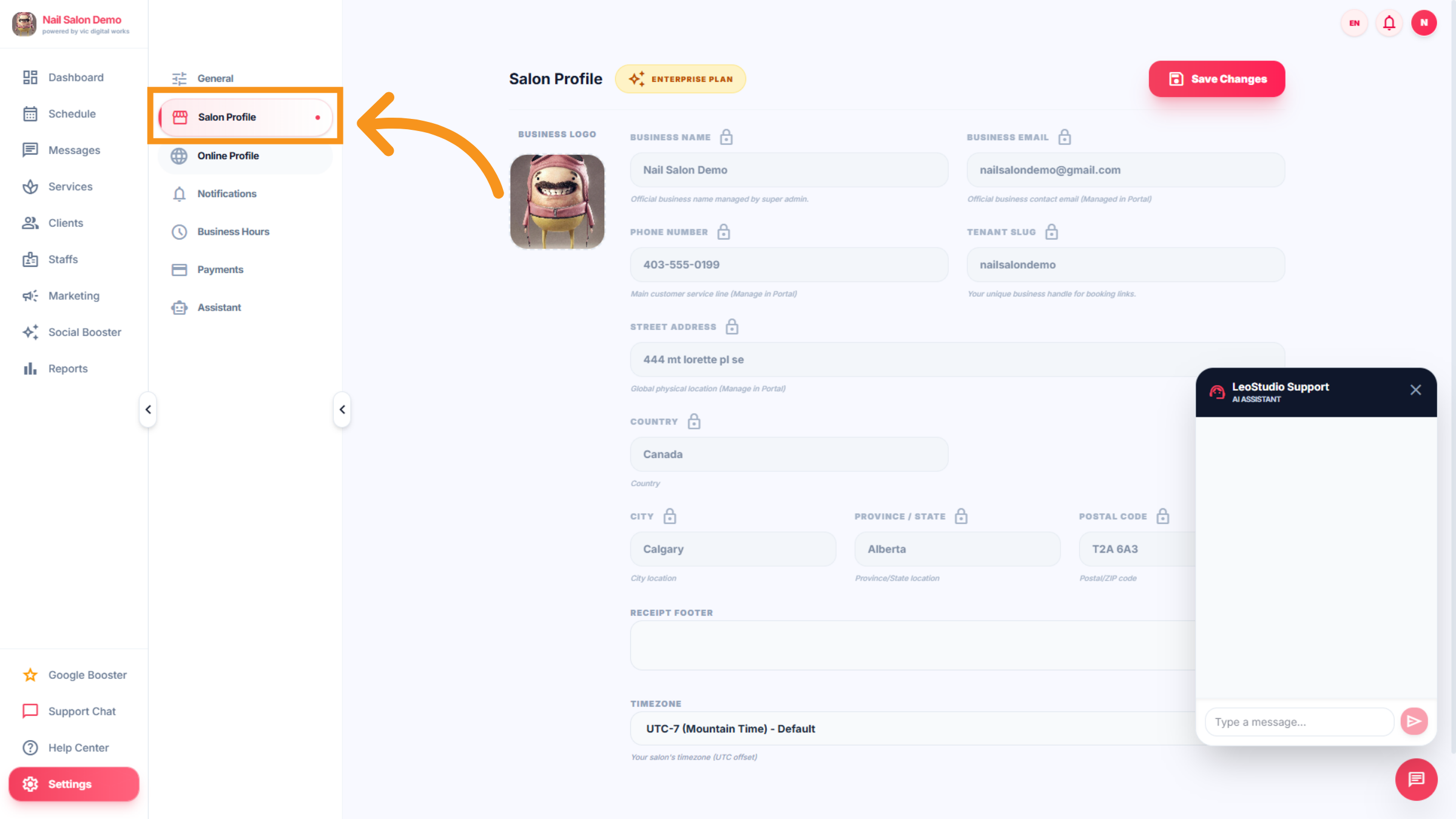
21. Salon Profile Settings
Click "Salon Profile" to adjust salon information profile settings.
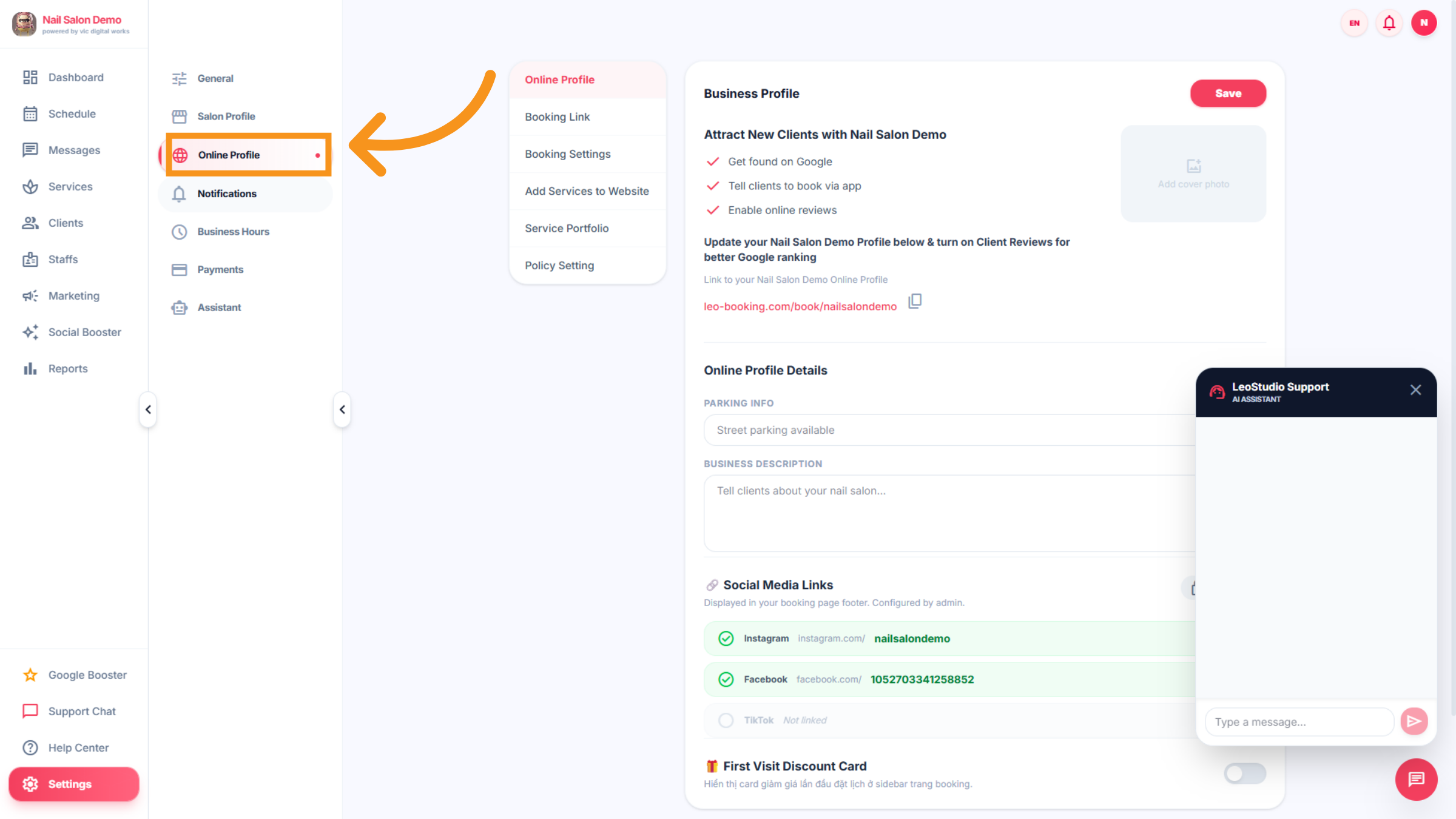
22. Online Profile
Click "Online Profile" to adjust online information setting.
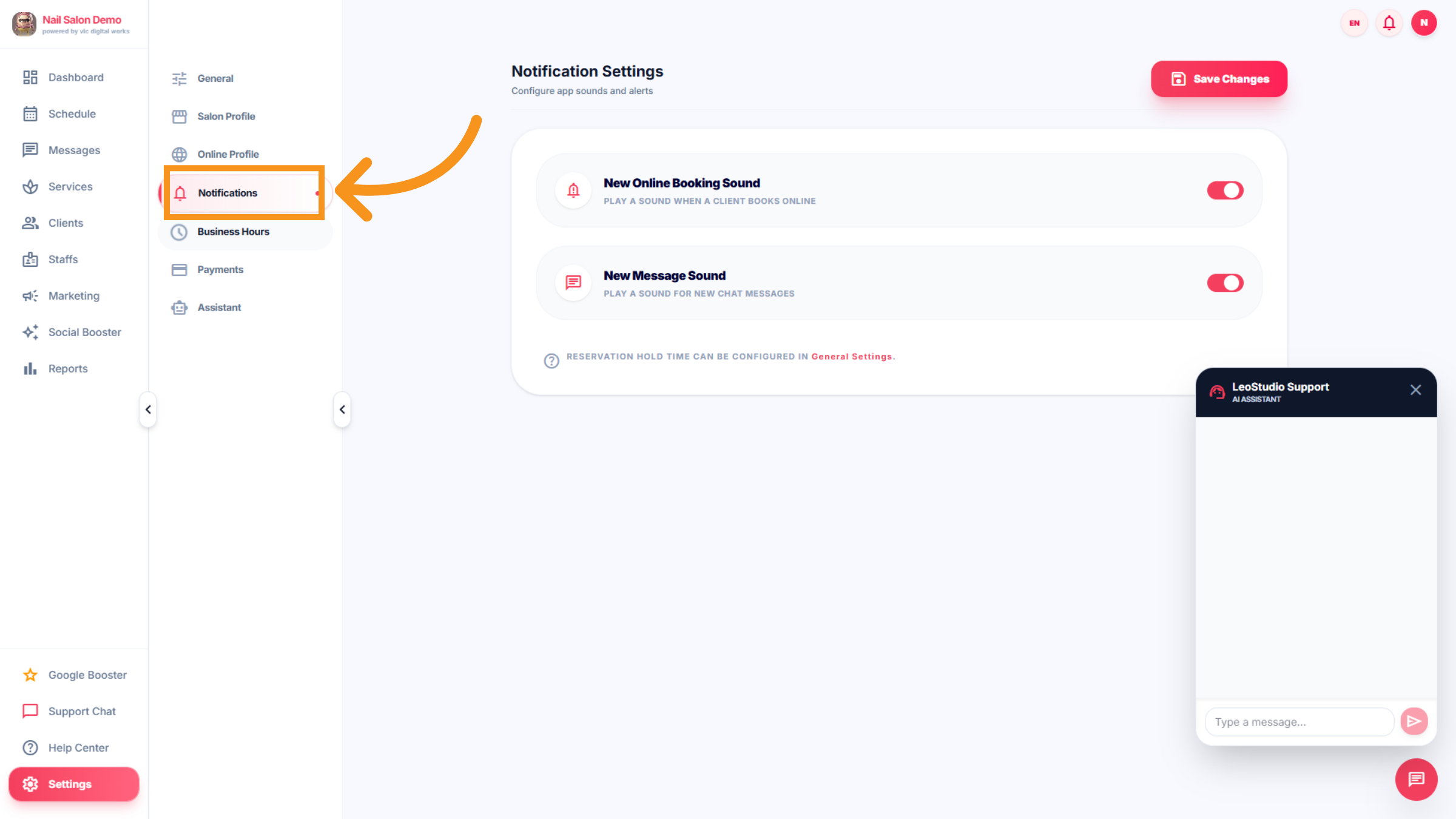
23. Notification
Click "Notification" to choose the alert sound.
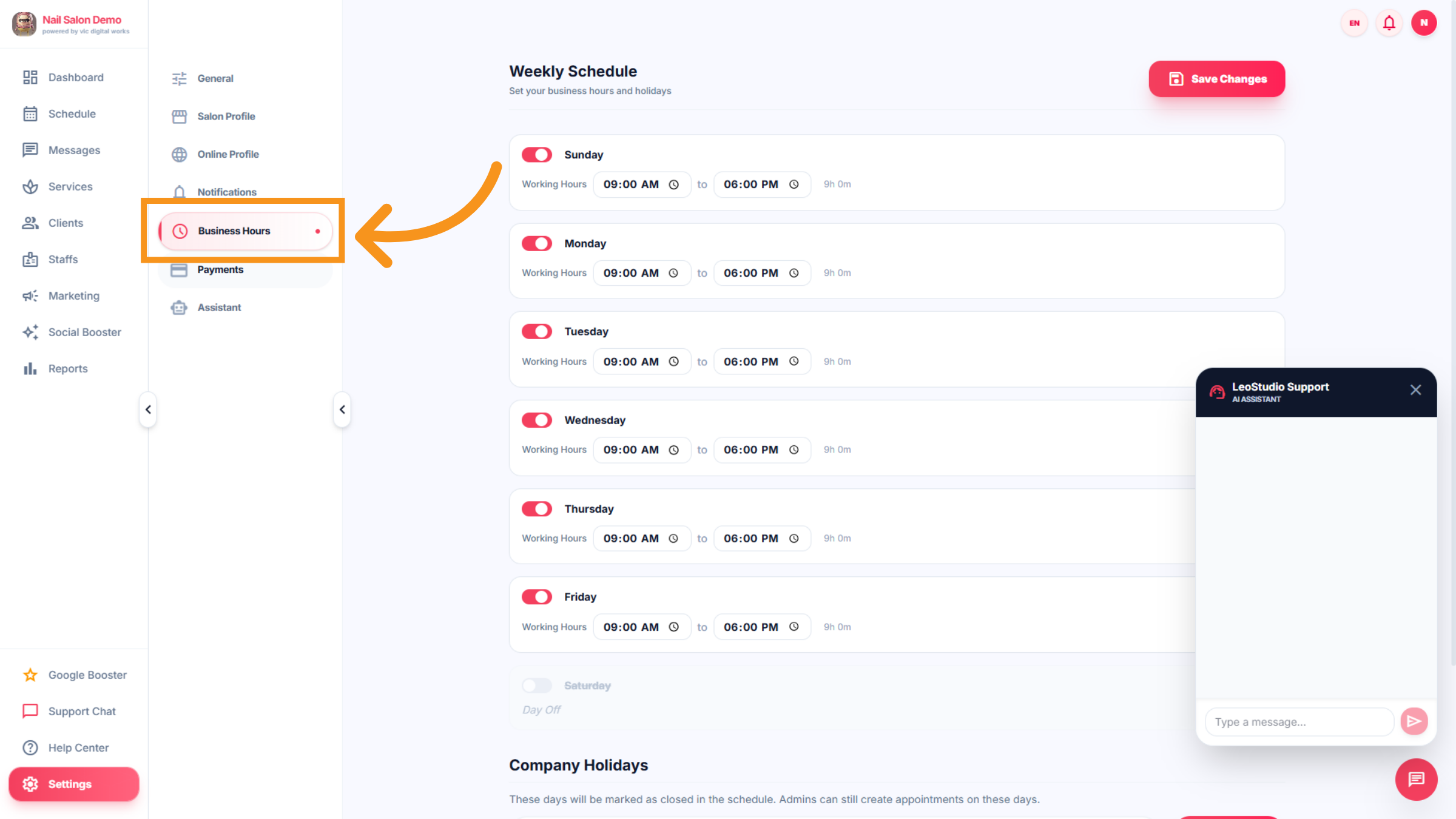
24. Business hours Settings
Click "Business Hours" to configure the salon's working hours.
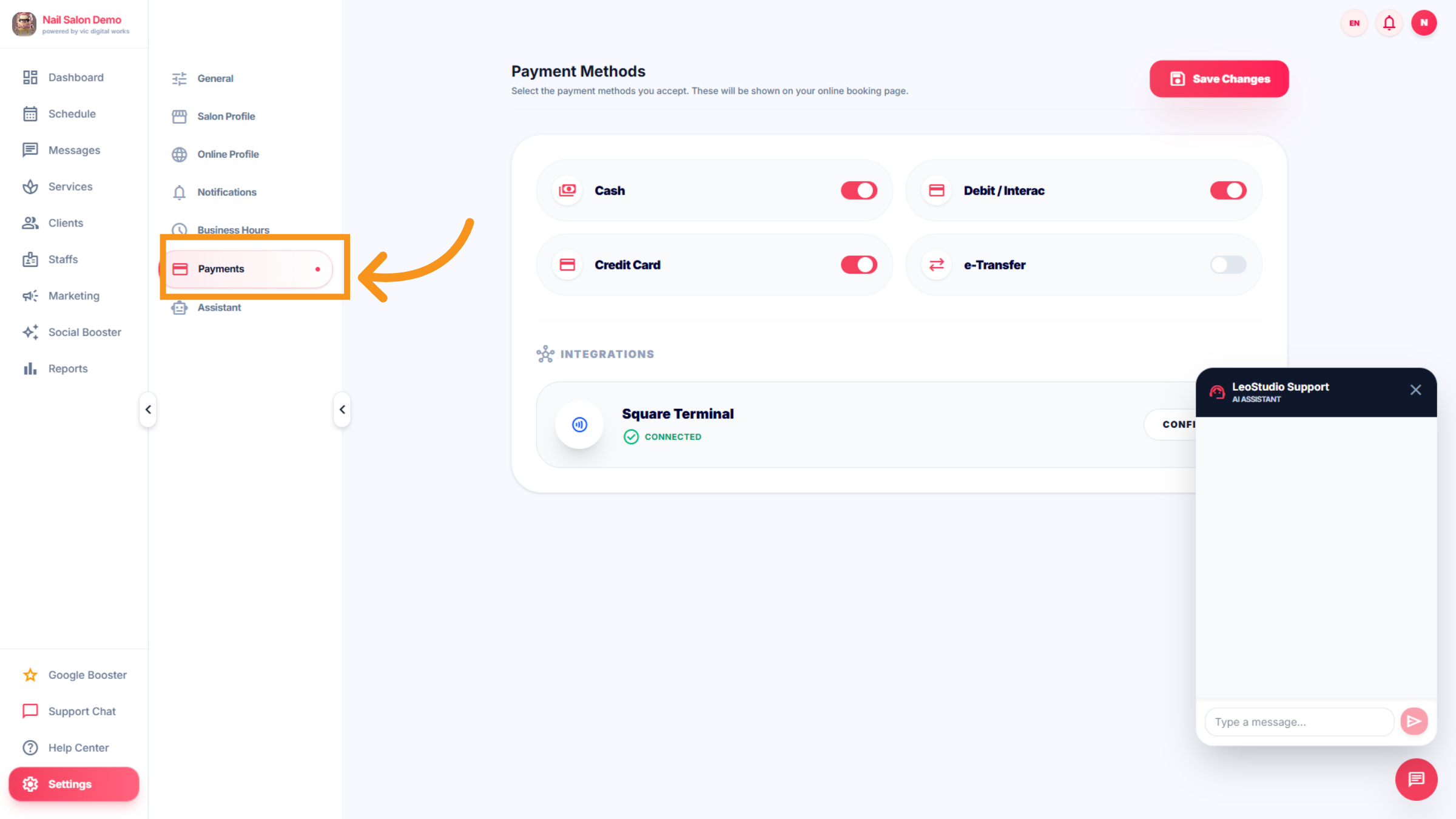
25. Save Settings Changes
Click "Payments" to manage payment methods and billing information. Select the payment methods you accept. These will be shown on your online booking page
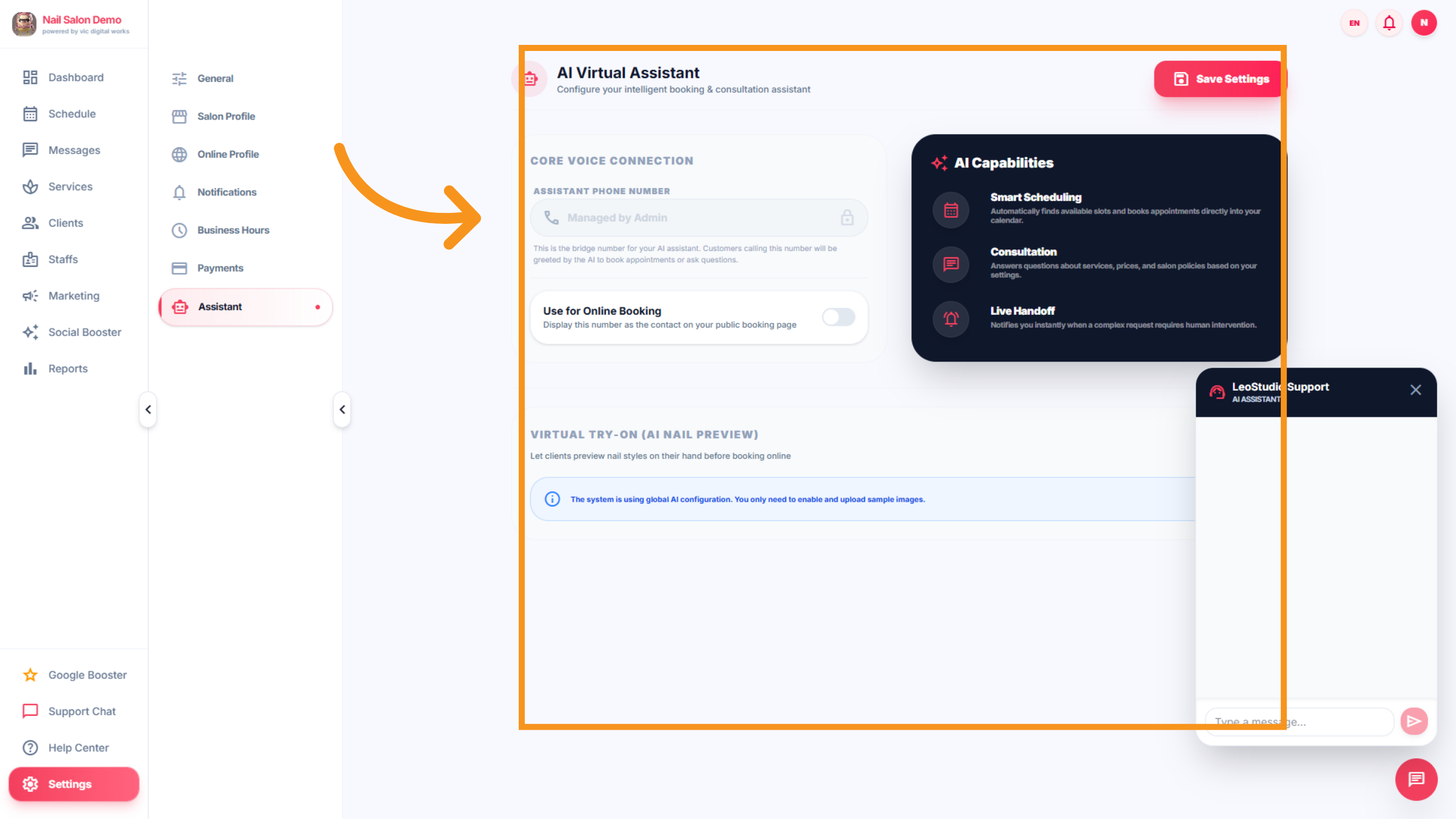
26. Choose Admin Management
Click "Assistant". This feature is not included in your subscription and requires a separate monthly fee. And Not included in the subscription package, this feature incurs an additional monthly charge.” include *Smart Scheduling: Automatically finds available slots and books appointments directly into your calendar. *Consultation Answers questions about services, prices, and salon policies based on your settings. Click "Managed by Admin" to set *Live Handoff Notifies you instantly when a complex request requires human intervention.
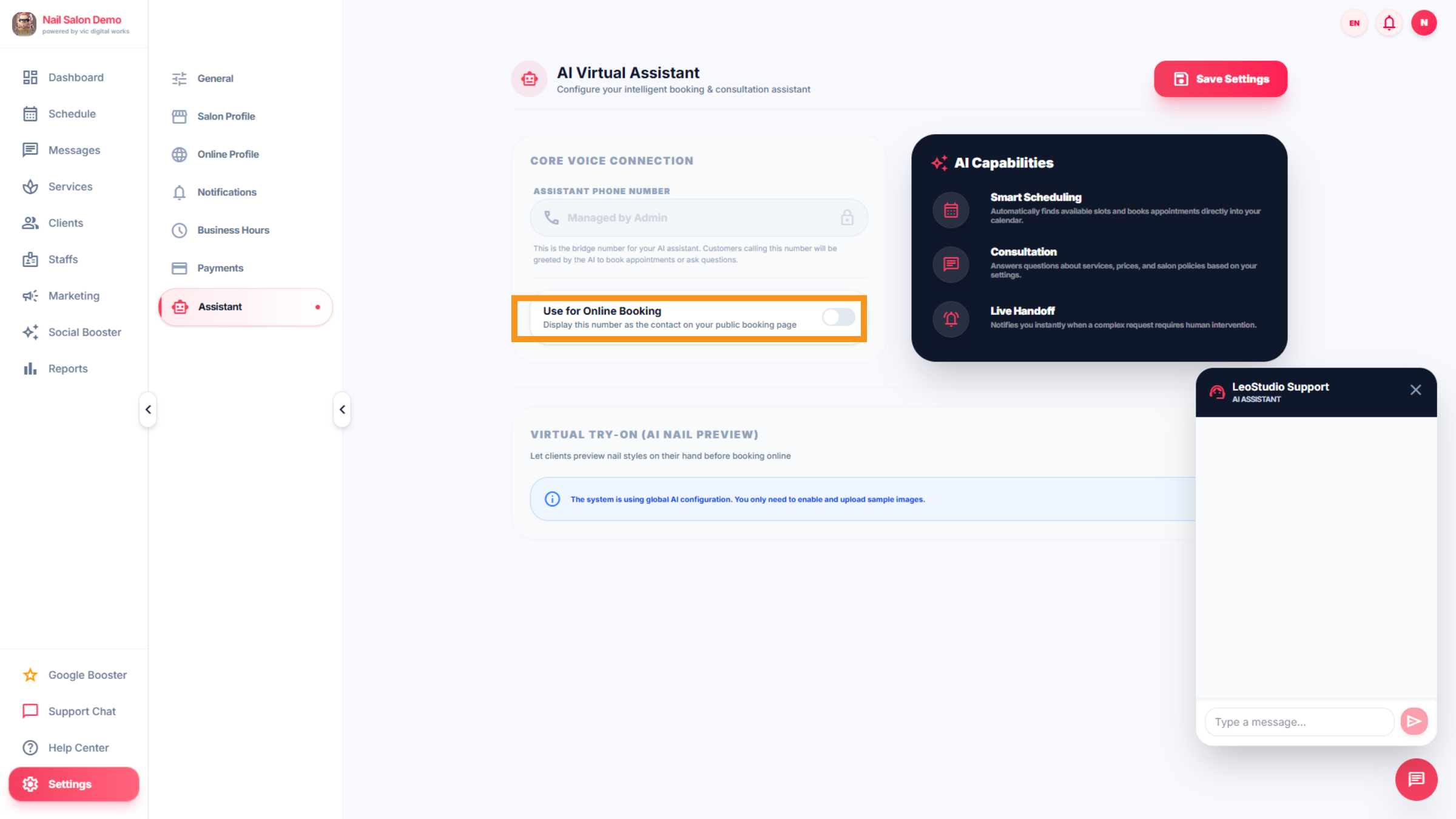
27. AI virtual assistant fees
Monthly fees will continue to be charged even if you turn it off when not in use.
28. Open Google Booster
Click "Google Booster" to access tools for enhancing your Google presence.
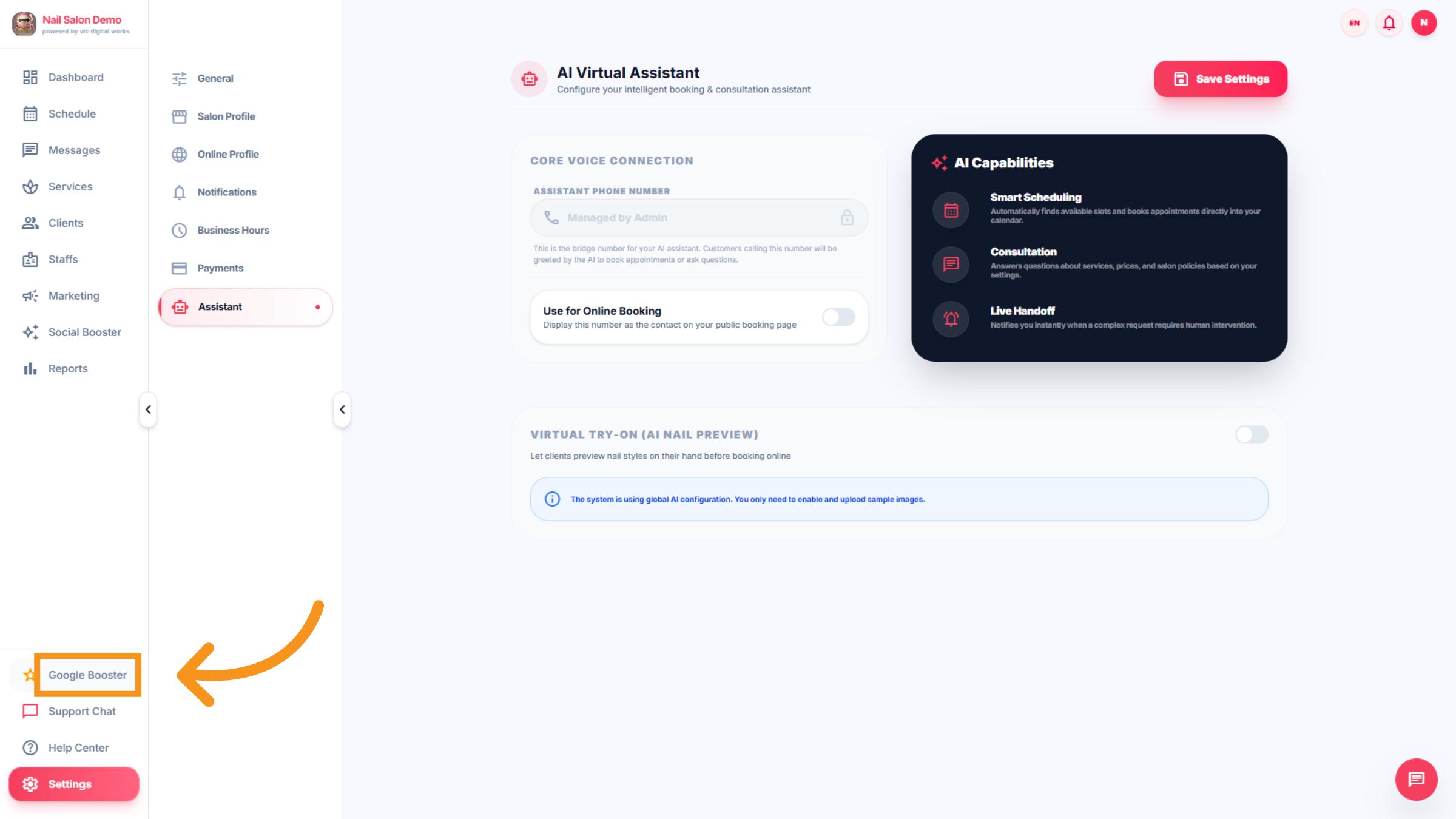
29. Google booster interface
"Google Booster" interface will appear, including a prompt for customers to submit a review for the shop
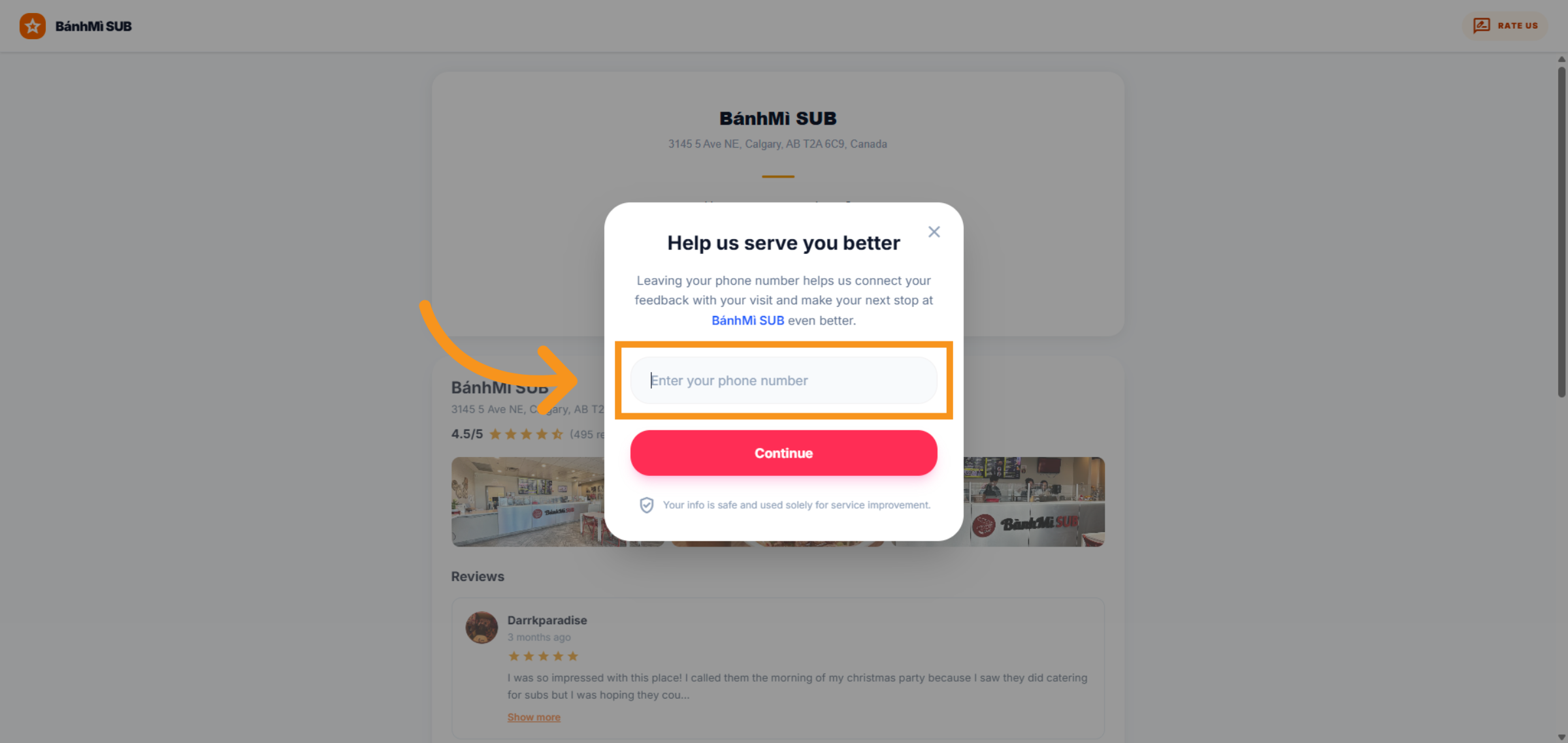
30. Customers to submit
Customers can enter their phone number here and click "Continue" to submit a review for the Salon.
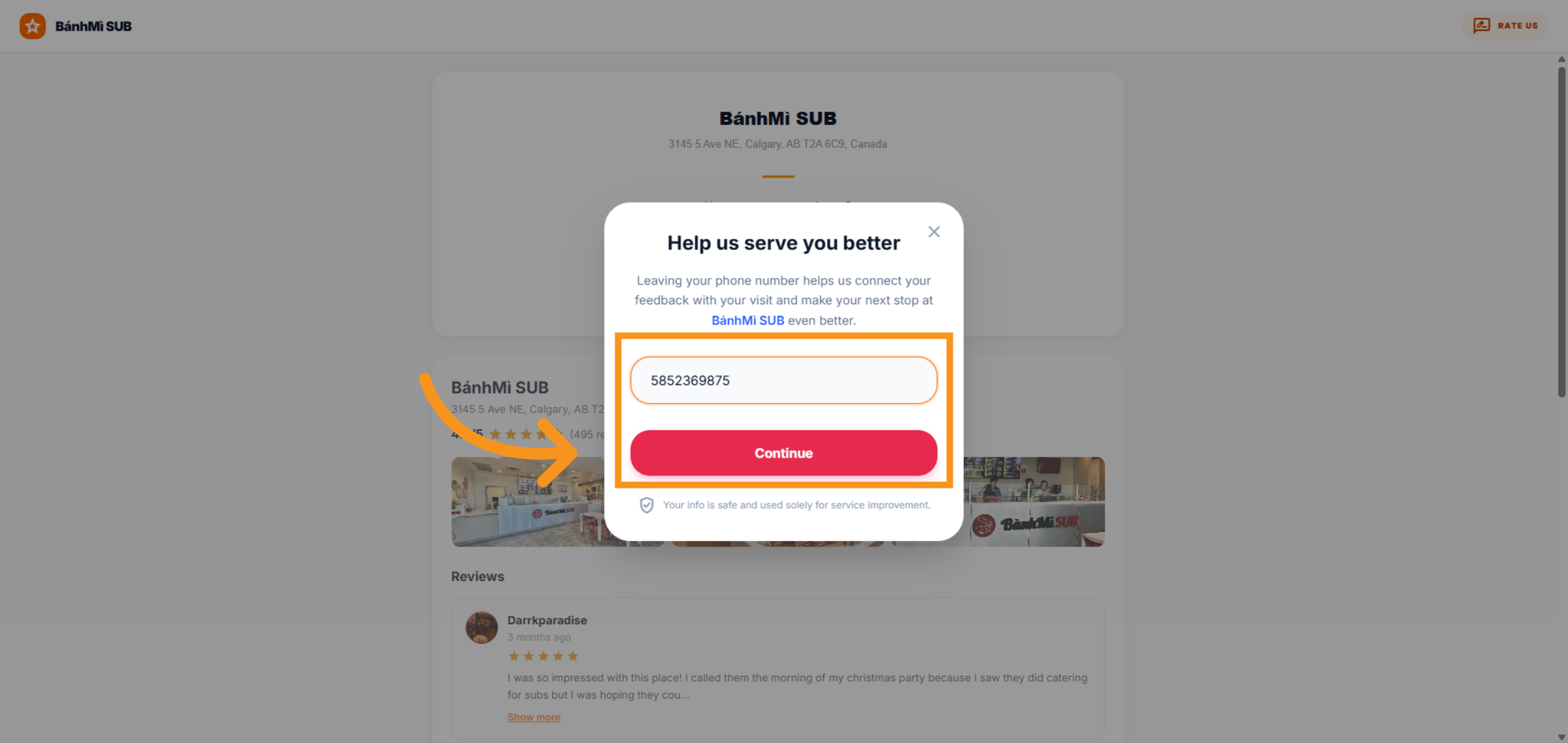
31. Click "star"
The star rating interface will be displayed. Customers can click on the stars or feedback . And then click " submit feedback" to submit their rating. Reviews rated 4 stars or lower will be automatically stored on the salon's secondary page, assisting the salon in managing negative feedback and facilitating improvements.
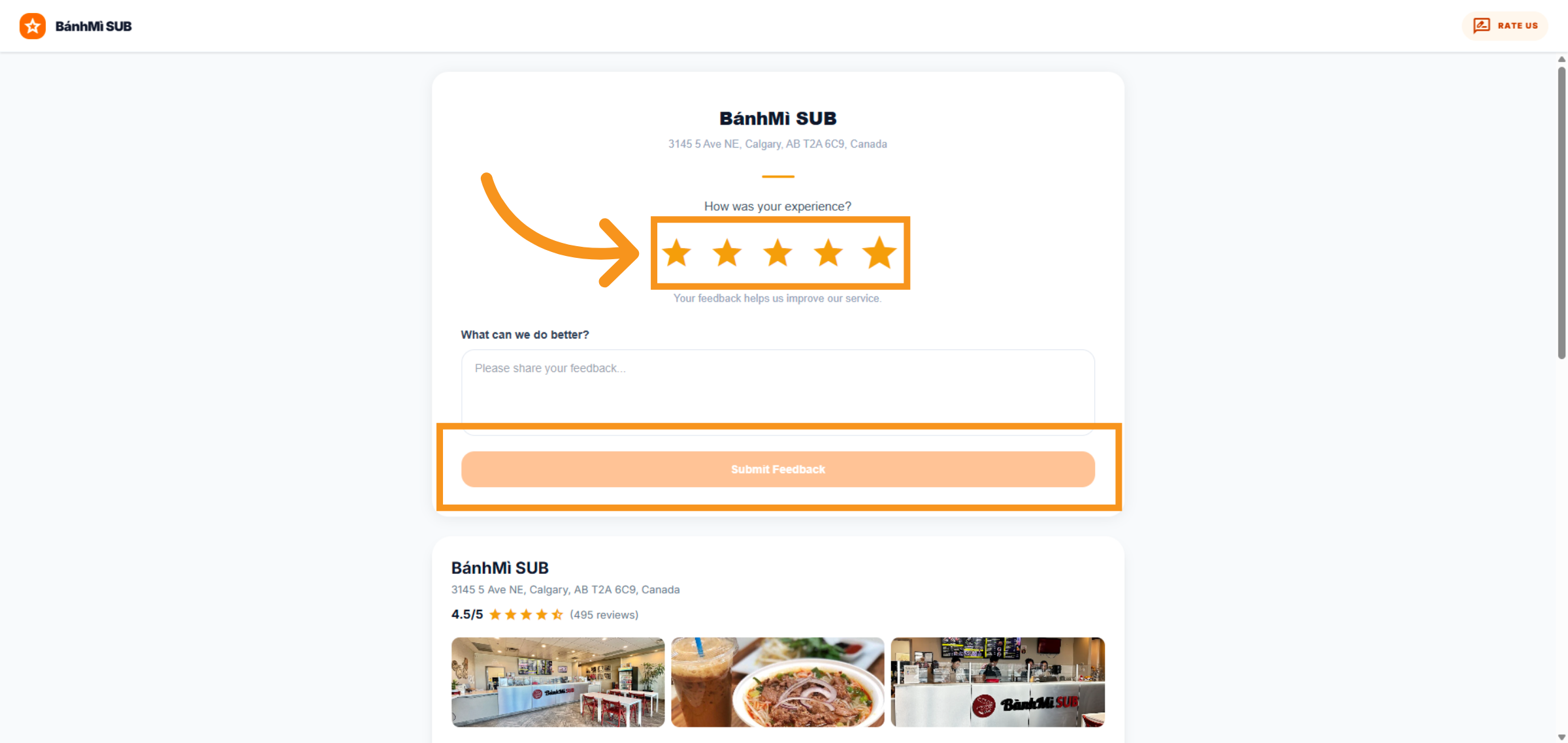
32. Switch to "www.google.com"
5 star reviews will be automatically published on the Google Review page, enhancing the salo's engagement with more customers.
33. GOOGLE REVIEW
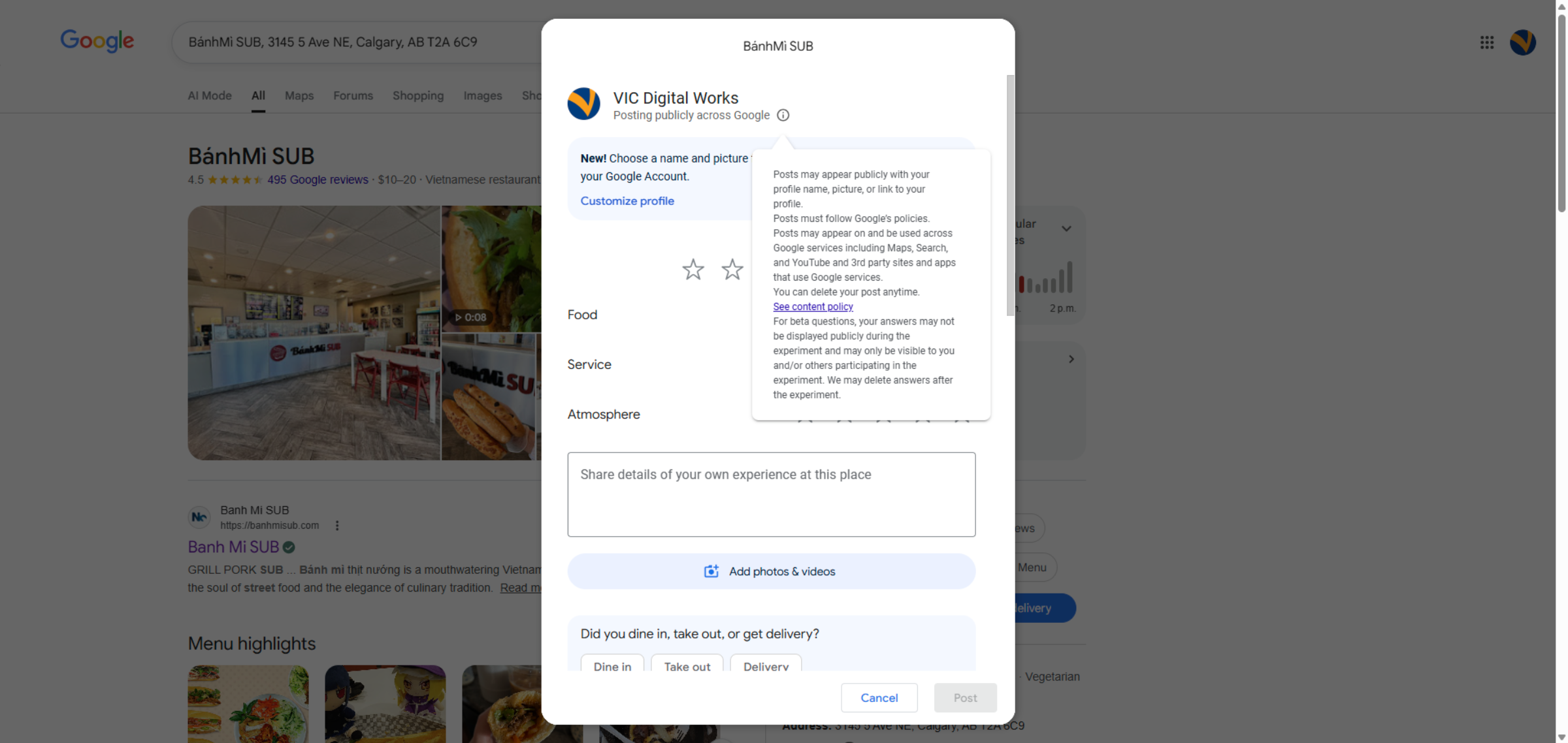
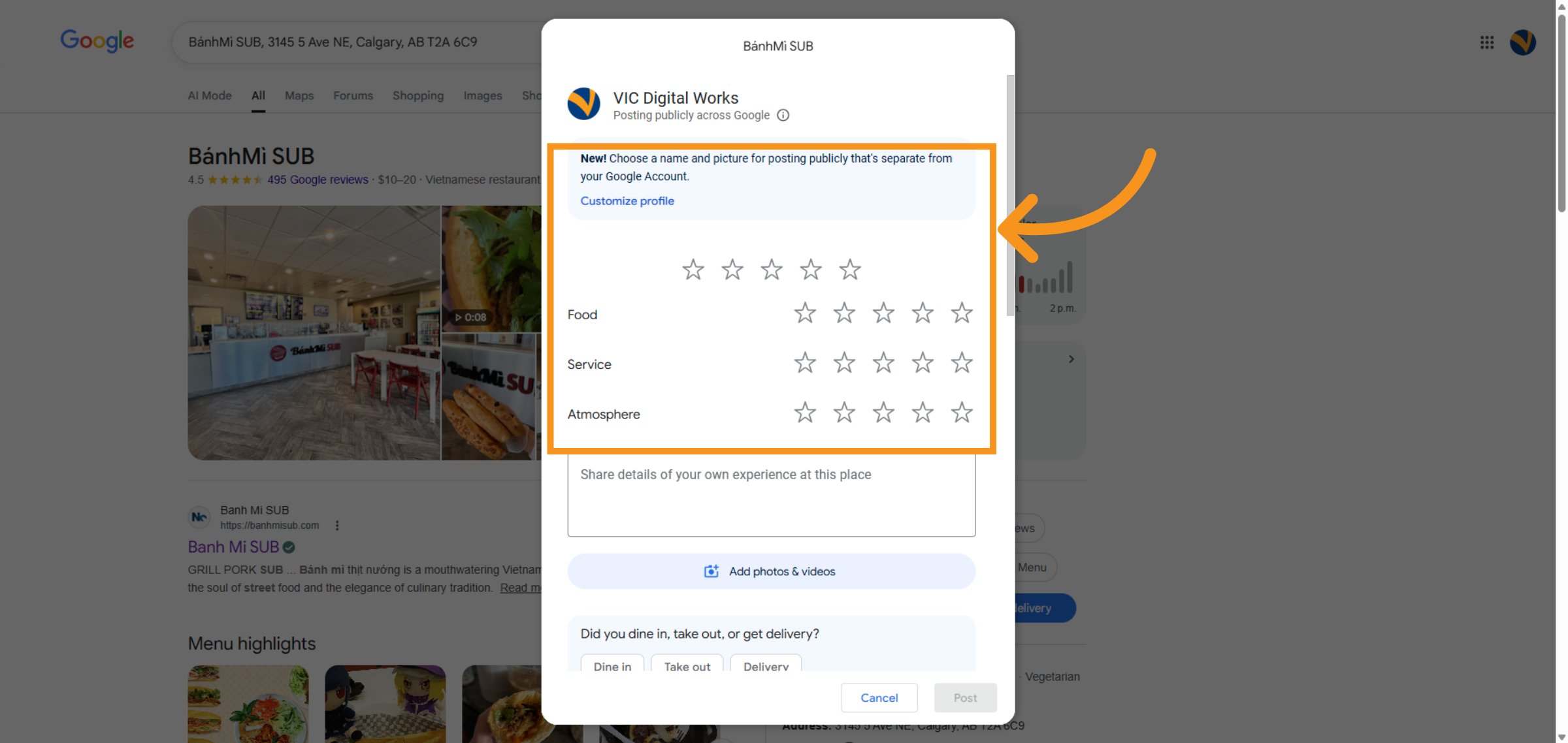
Google's review page will be displayed, allowing customers to rate each item in detail according to standard criteria.
34. Click "Post"
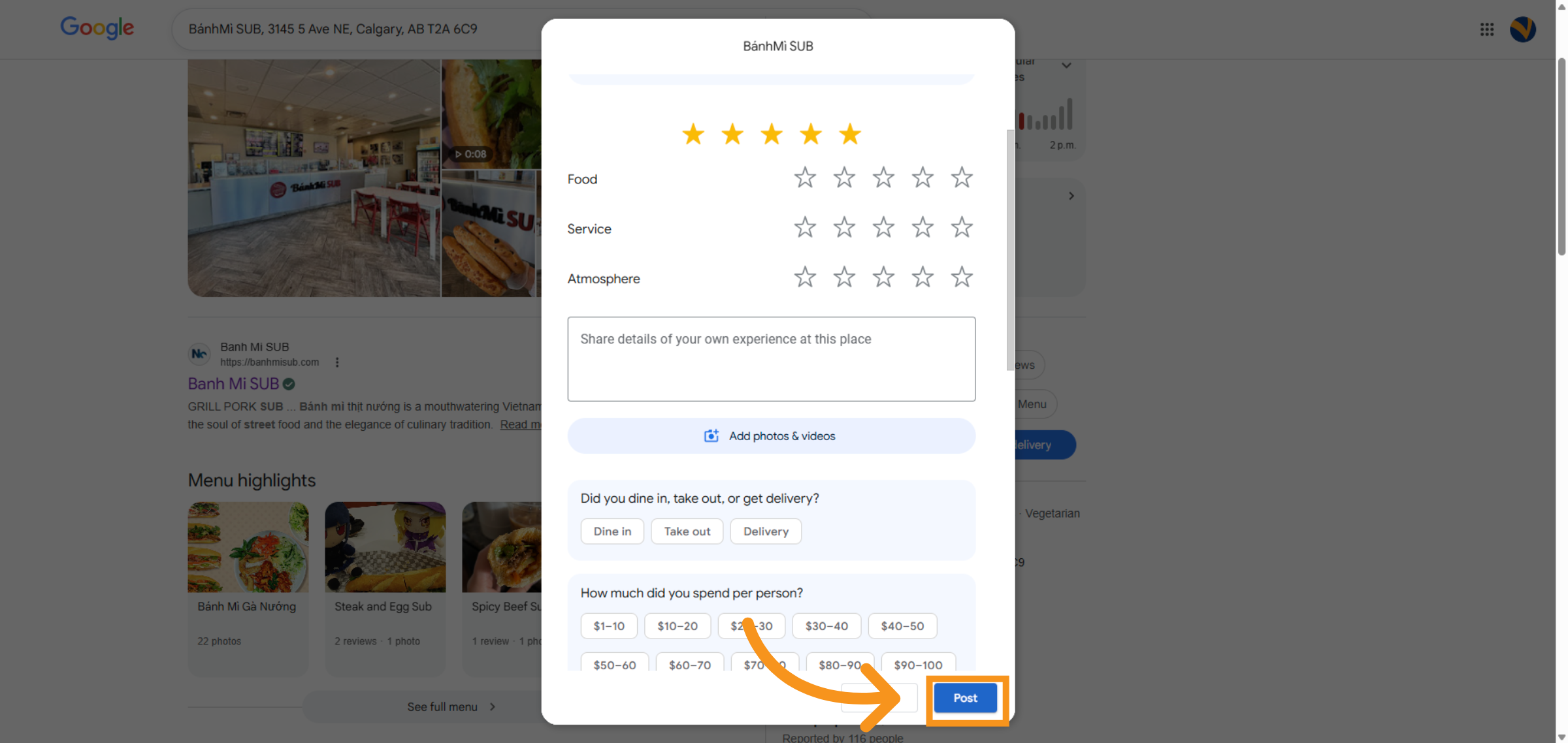
You have successfully configured and managed your social media planner in Leo-booking. This includes setting posting frequencies, adjusting AI writing tones, managing schedules, and publishing posts. For further assistance, explore the Help Center or contact Support Chat to optimize your social media strategy.