
Add Coupon
This tutorial guides you through configuring and managing coupons in the E-Store.
Video Tutorial
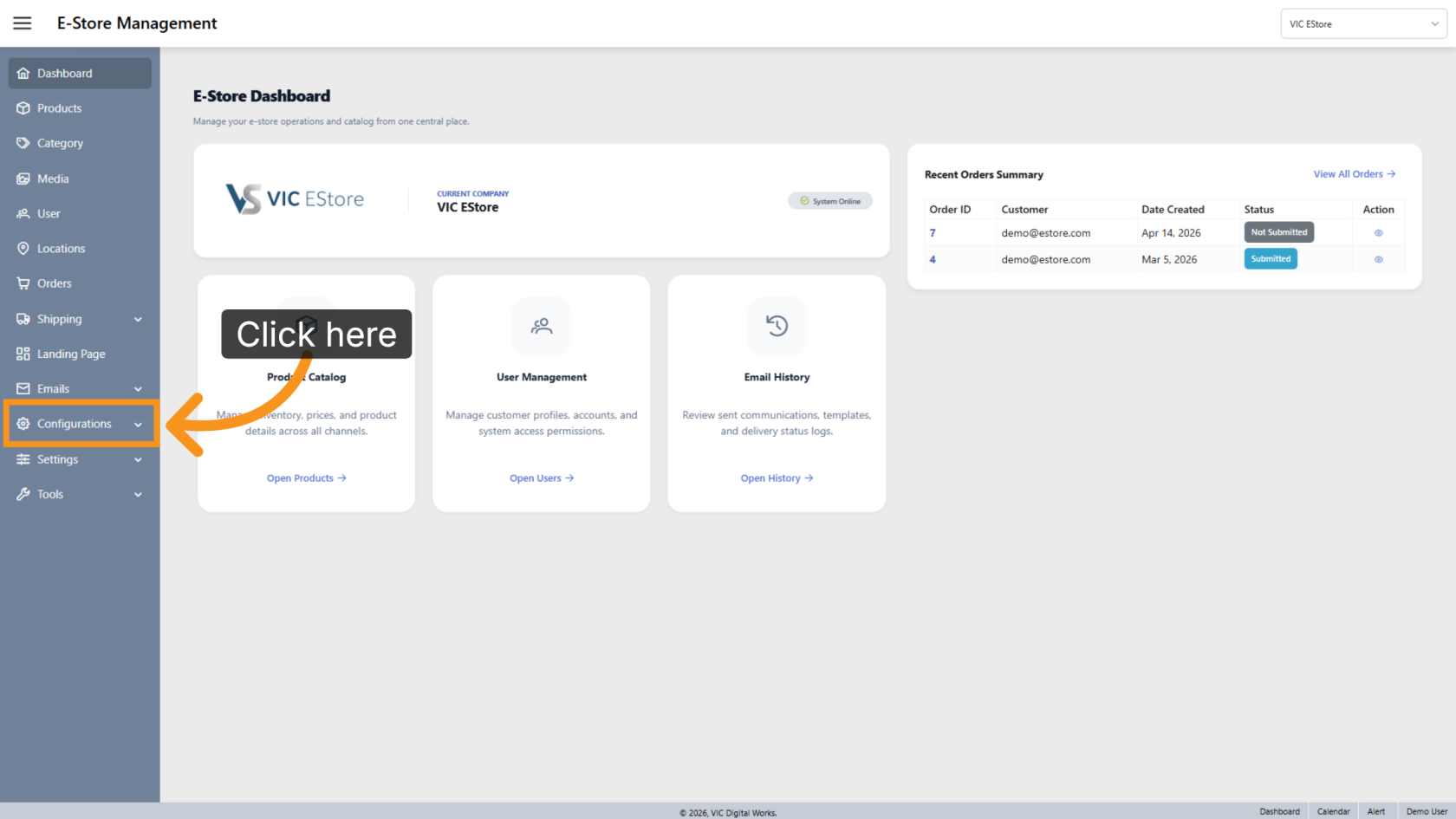
1. Open Configuration Options
Click Configurations to access the E-Store configuration settings.
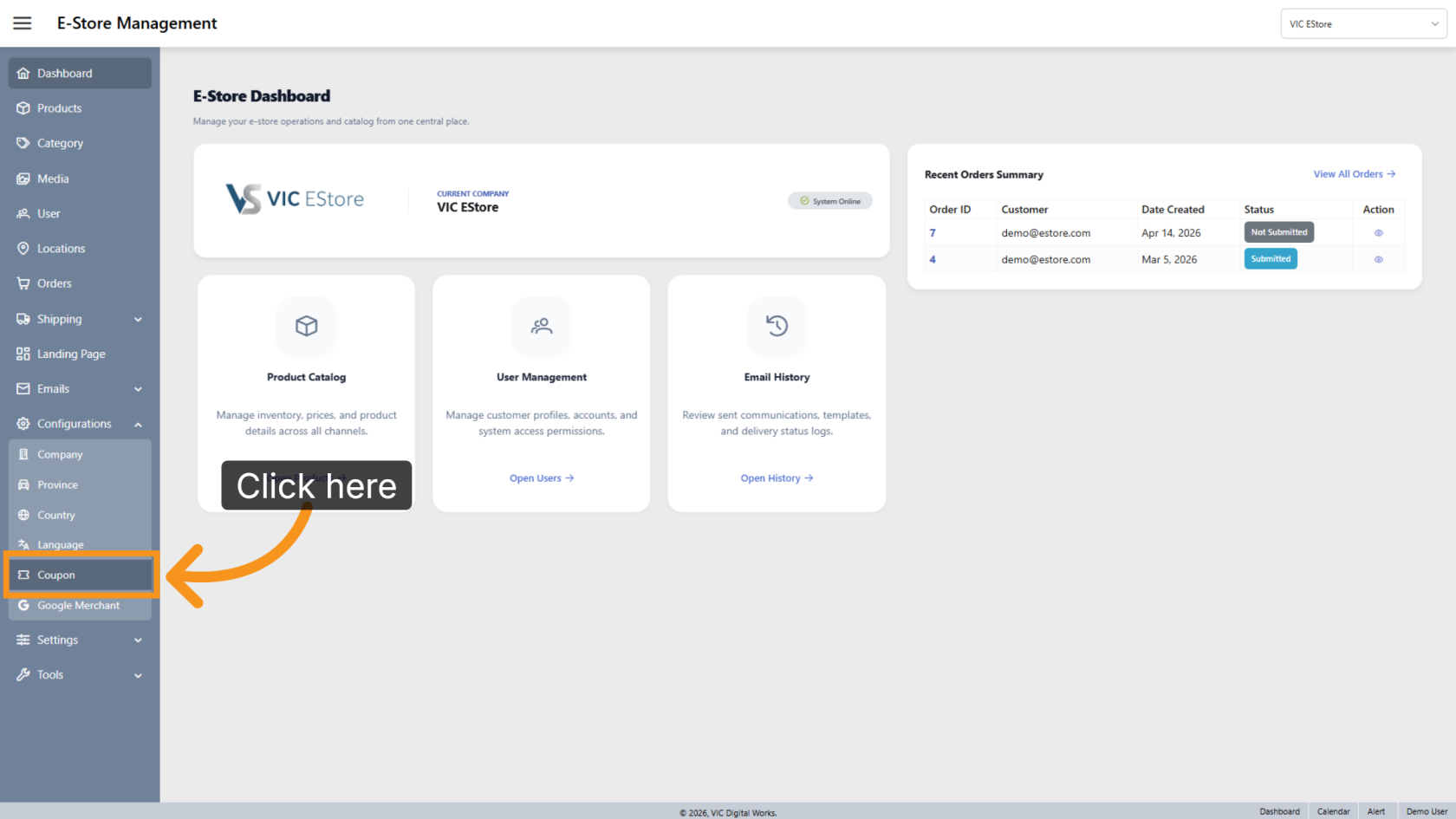
2. Select Coupon Settings
Click Coupon to manage and configure coupon options for your E-Store.
3. Select the E-Store
Select the E-Store where you want to create a new coupon.
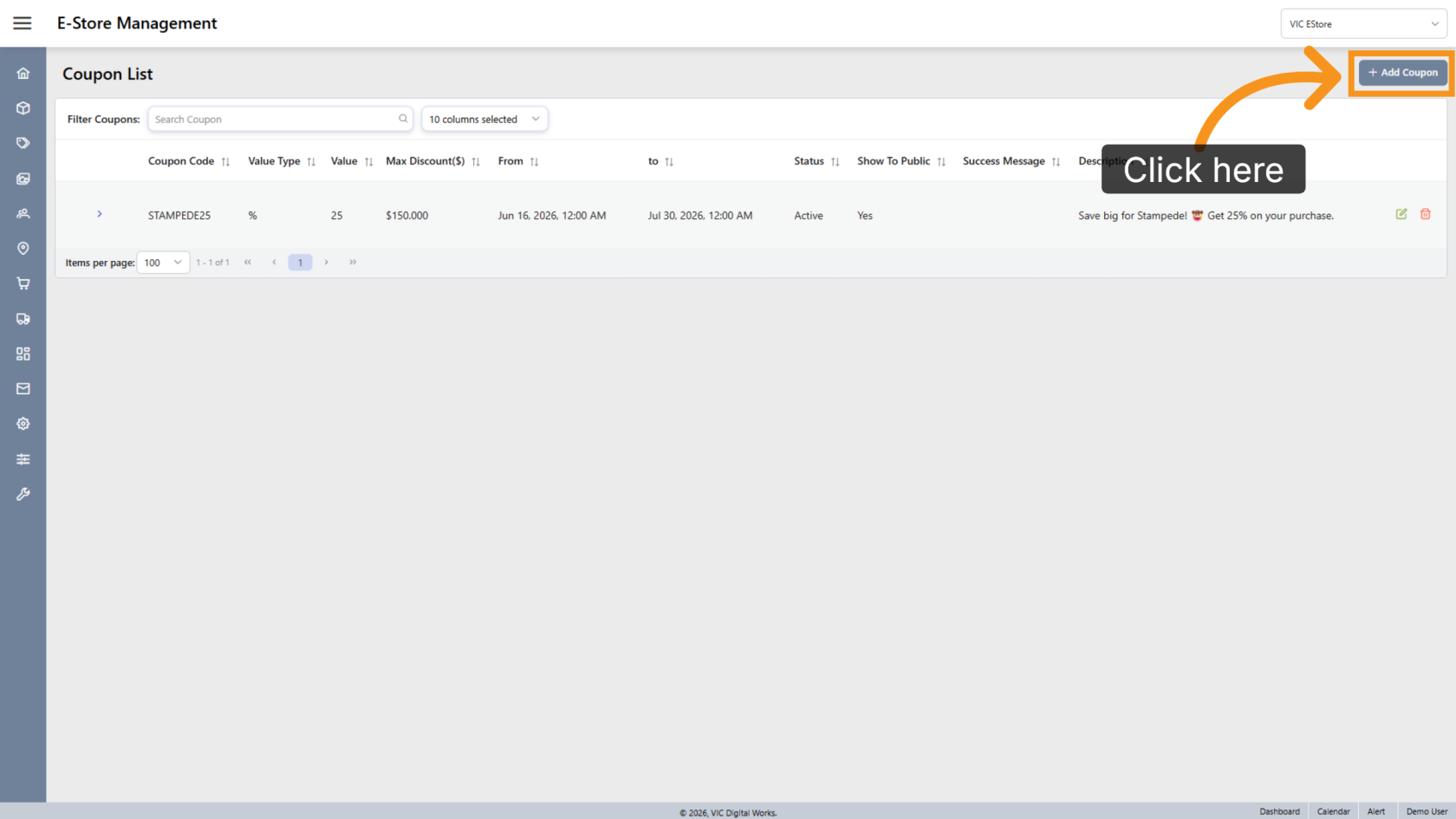
4. Add a Coupon
Click Add Coupon to create a new coupon for the selected E-Store.
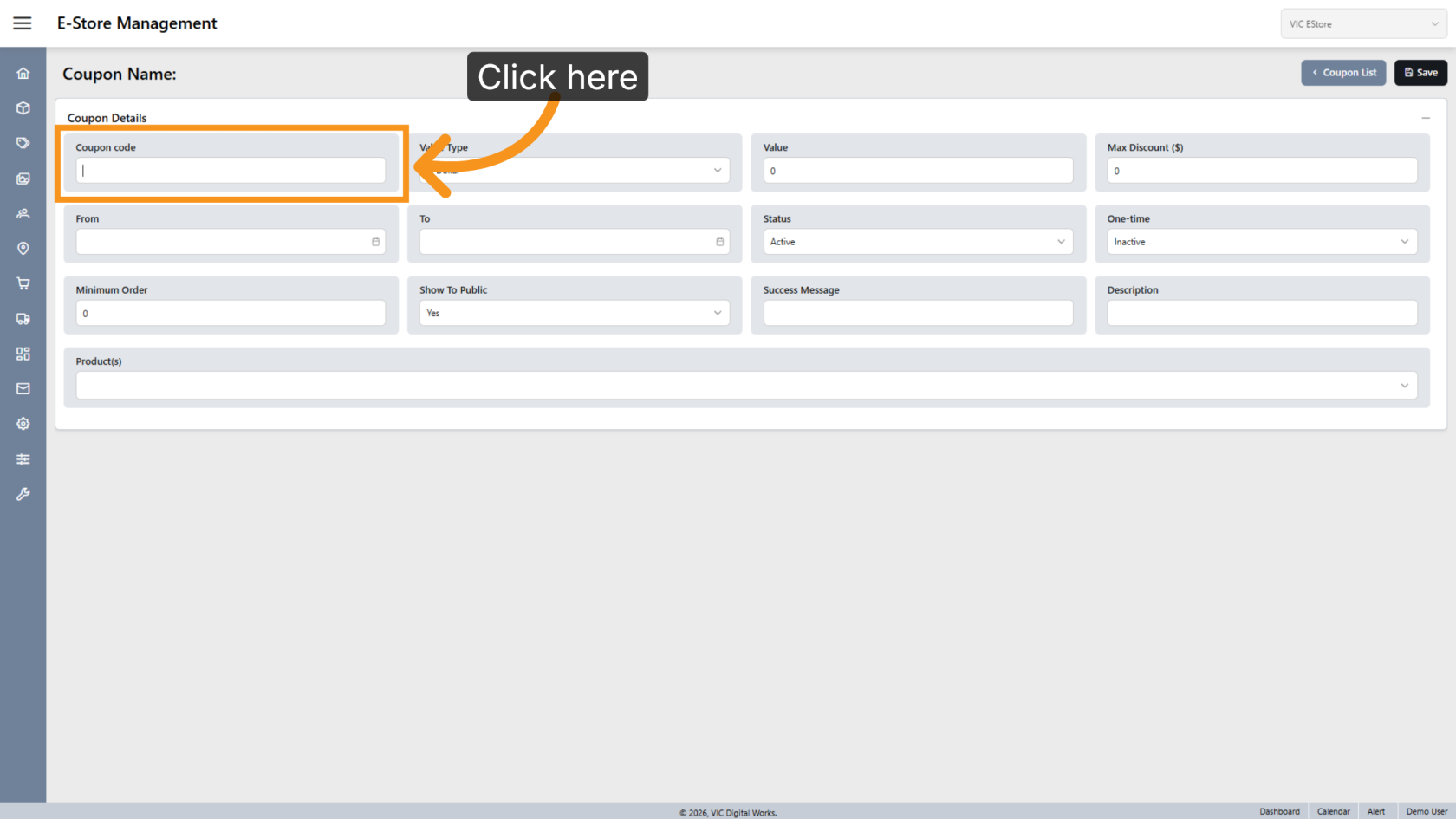
5. Enter a Coupon Code
Enter the coupon code customers will use to receive the discount.
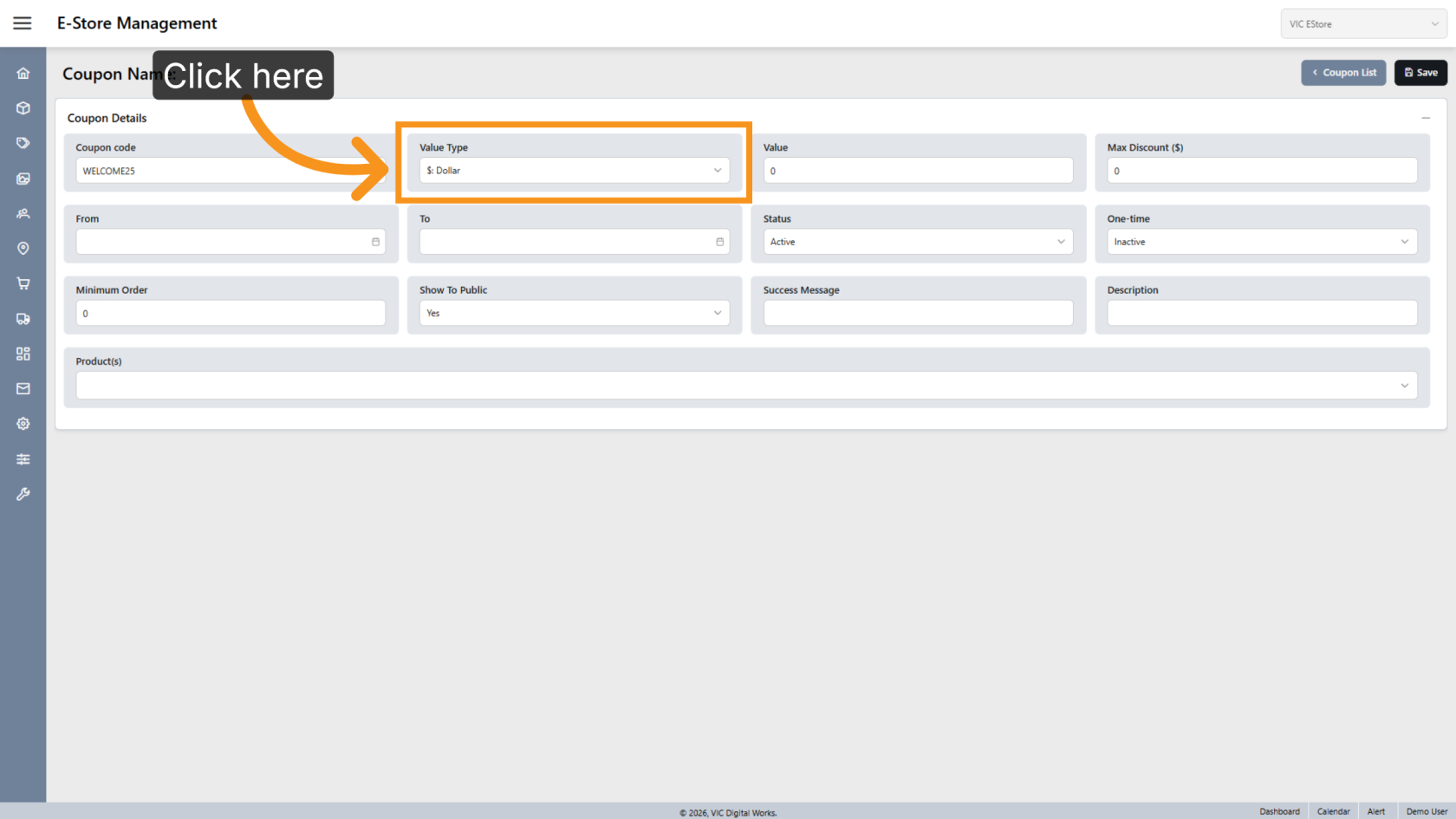
6. Select a Discount Type
Choose the discount type, such as Dollar Amount or Percentage.
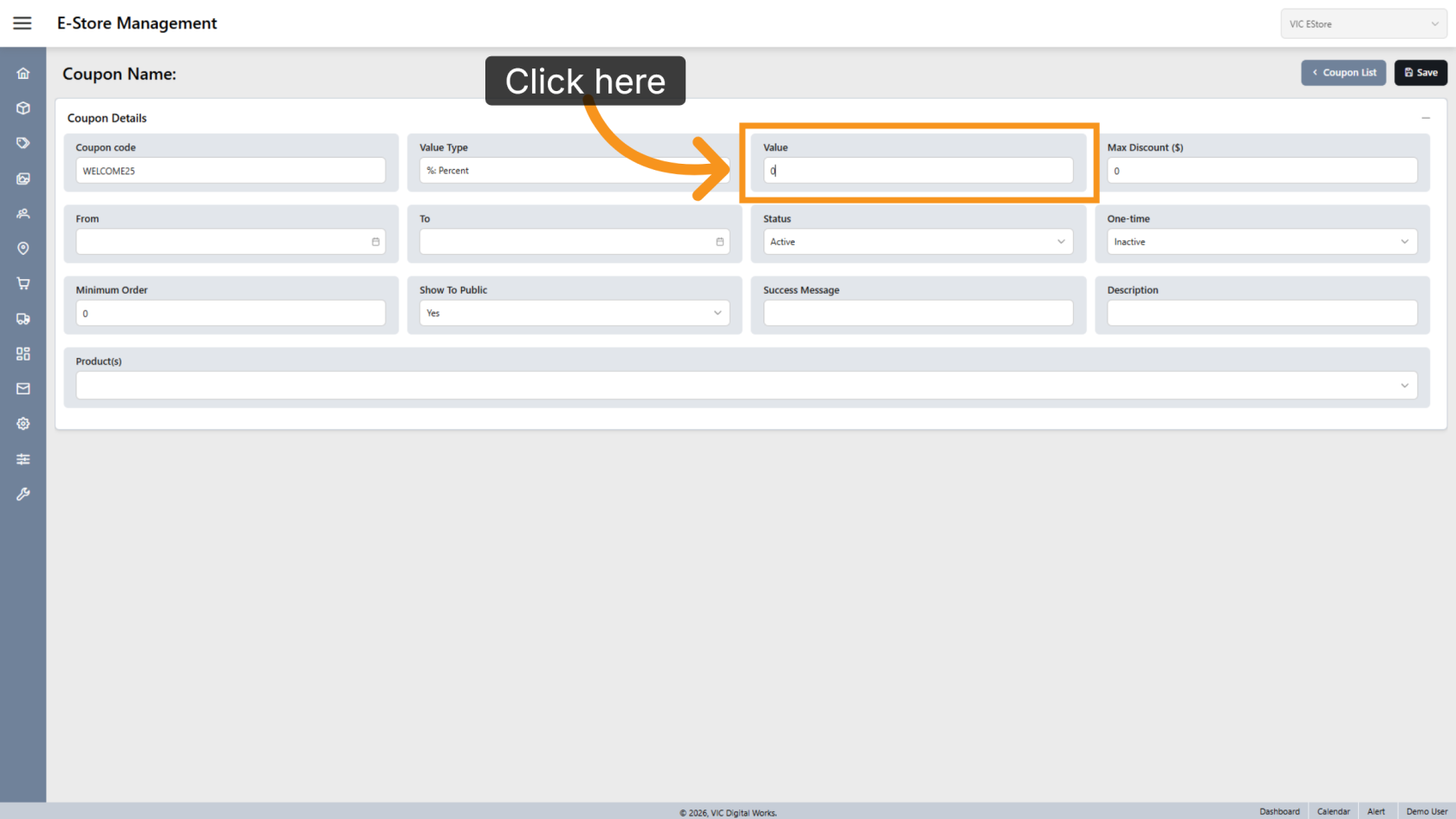
7. Enter the Discount Value
Enter the discount amount or percentage based on the selected discount type.
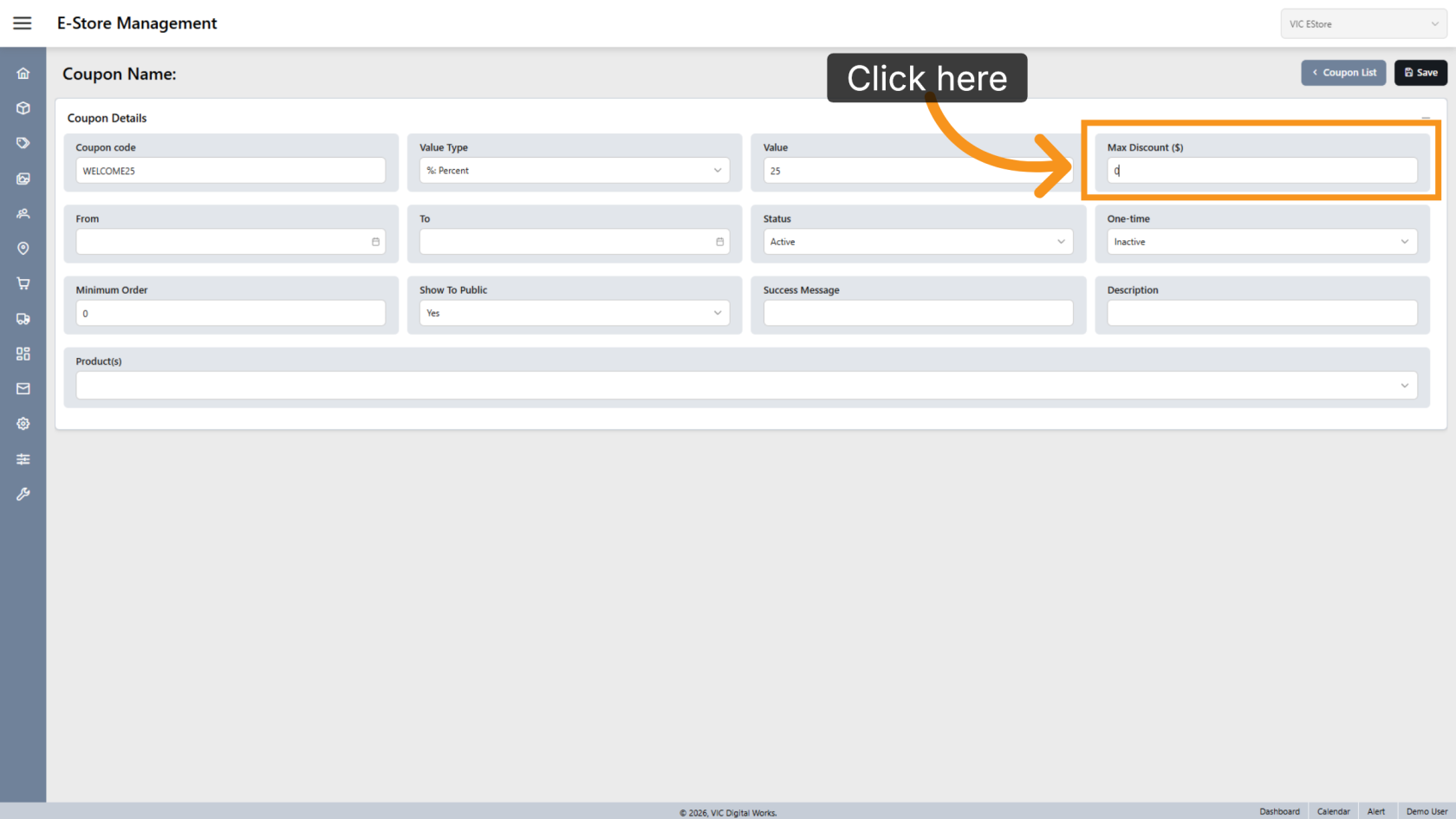
8. Enter the Maximum Discount
Enter the maximum discount amount that can be applied.
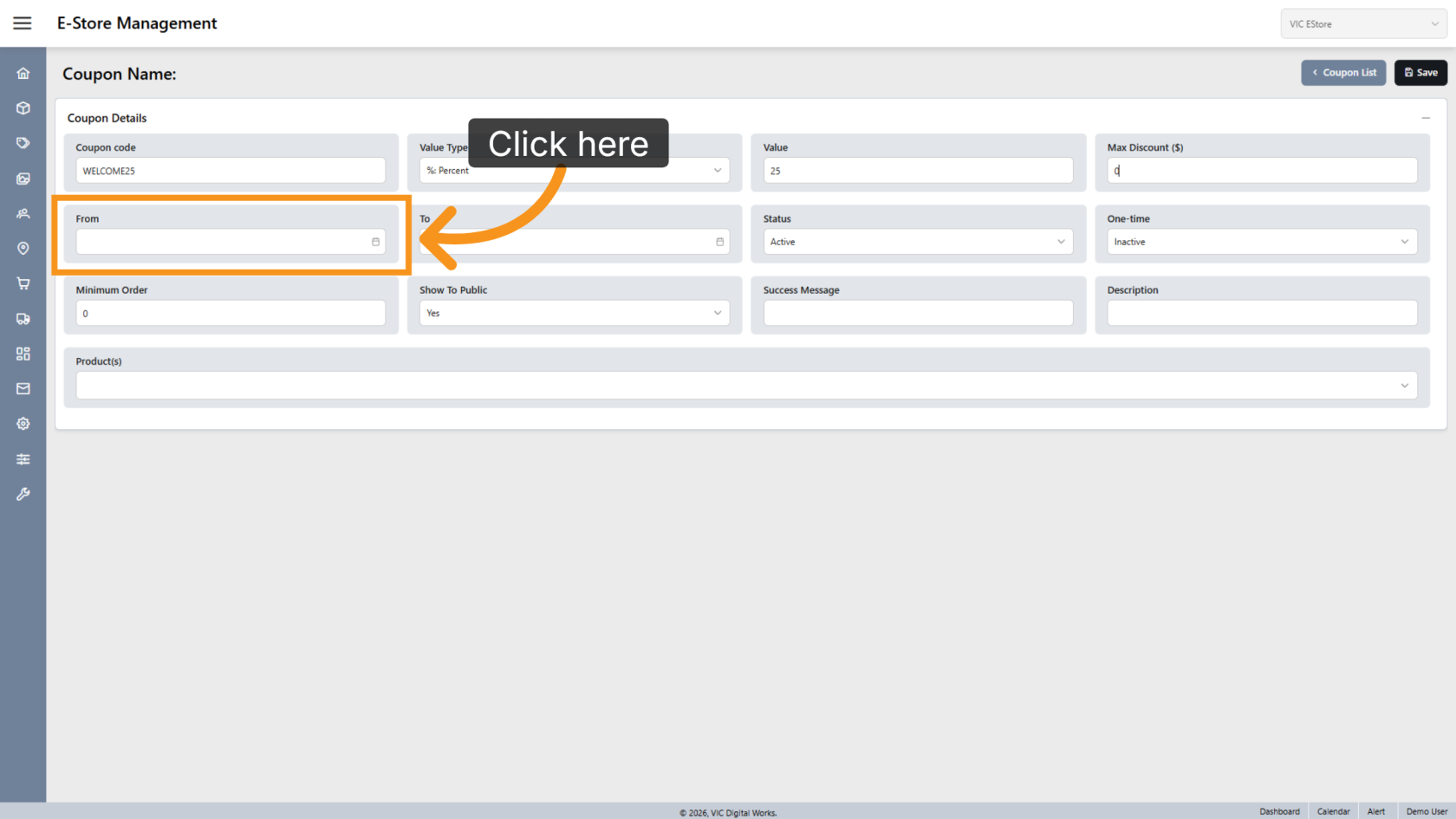
9. Select the Start Date
Choose the date when the coupon becomes active.
10. Select the End Date
Choose the date when the coupon expires.
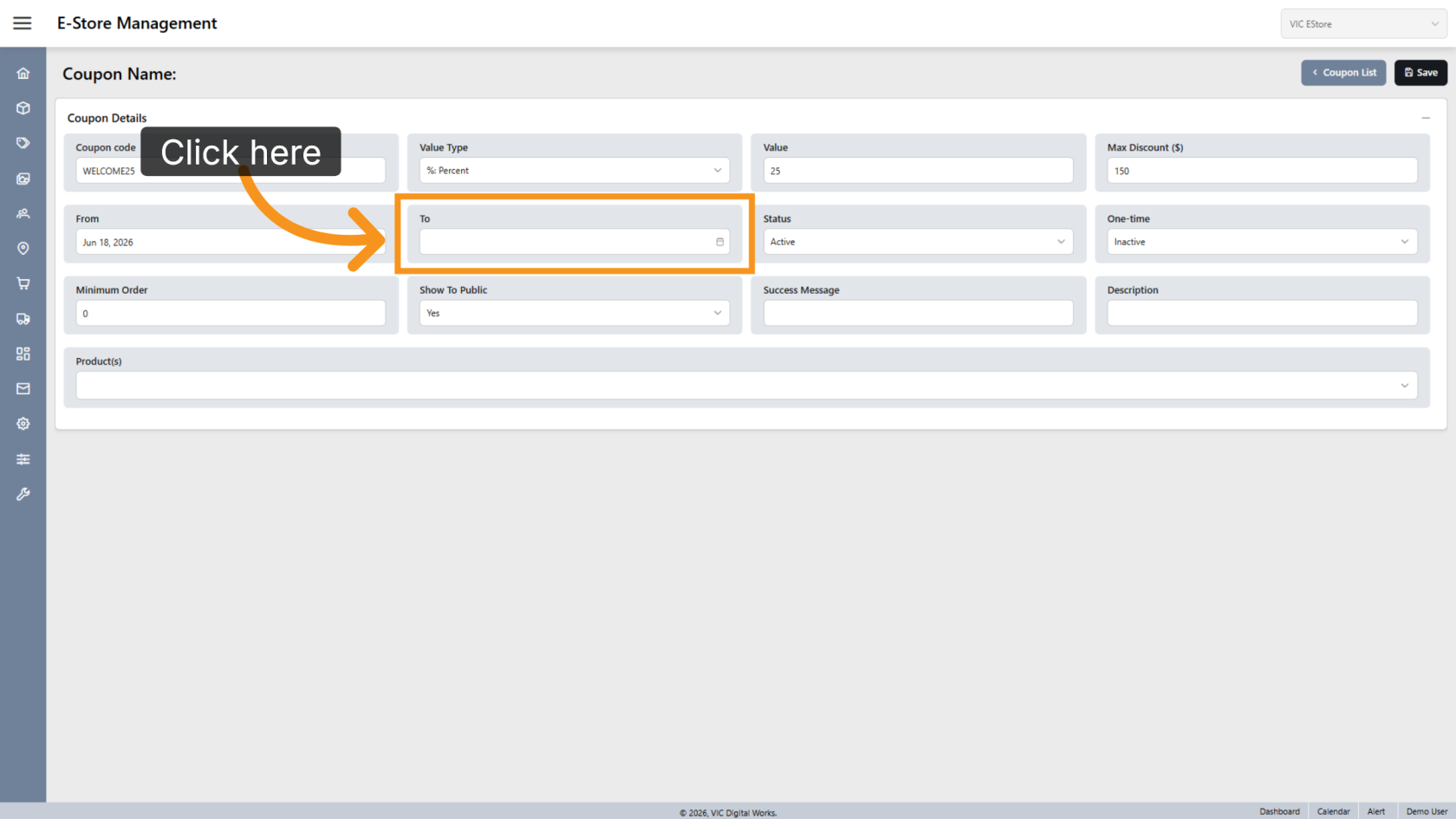
11. Select the Status
Choose the coupon status. By default, new coupons are set to Active.
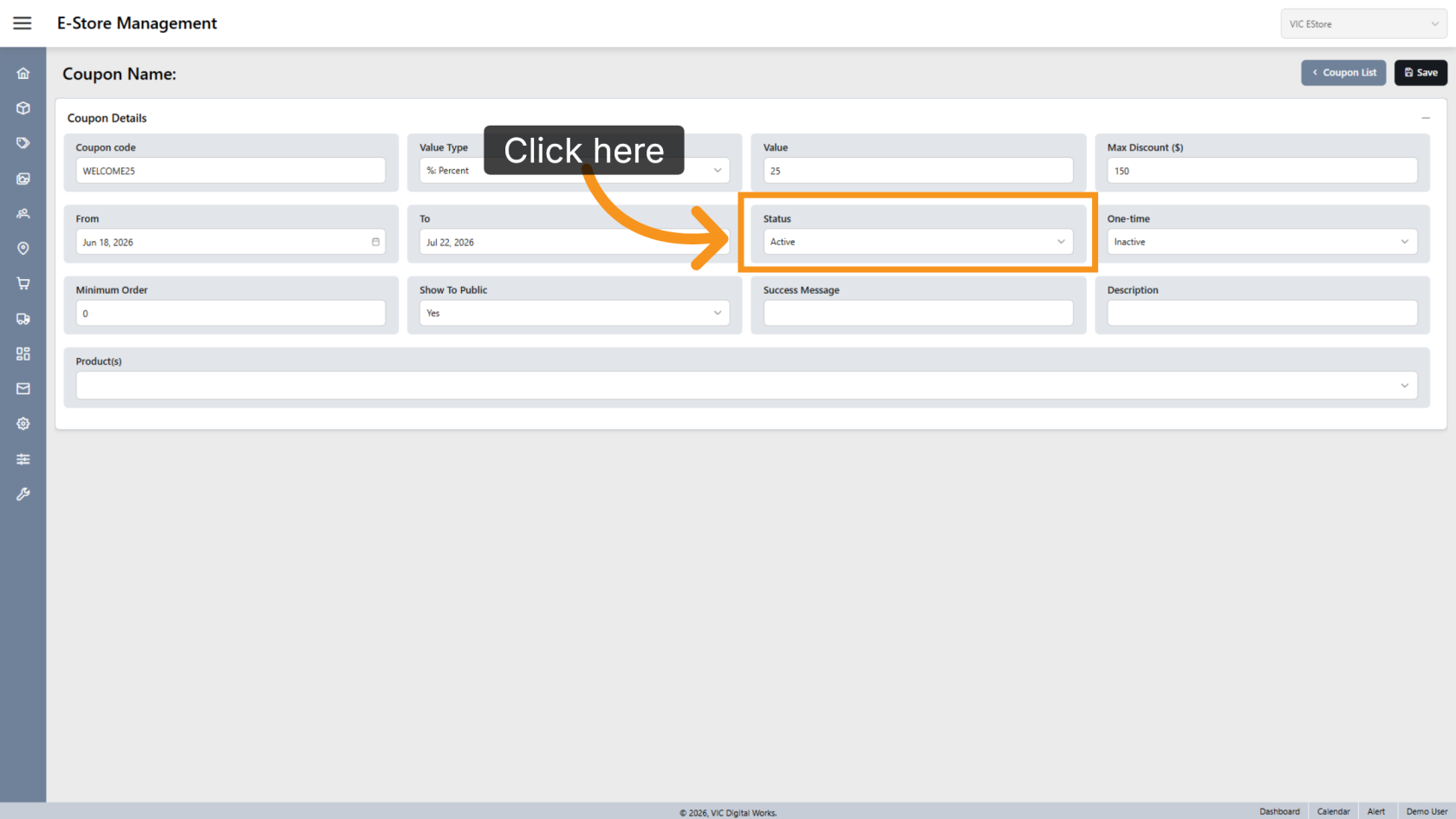
12. Enable One-Time Use
Enable One-Time Use if you want customers to use the coupon only once.
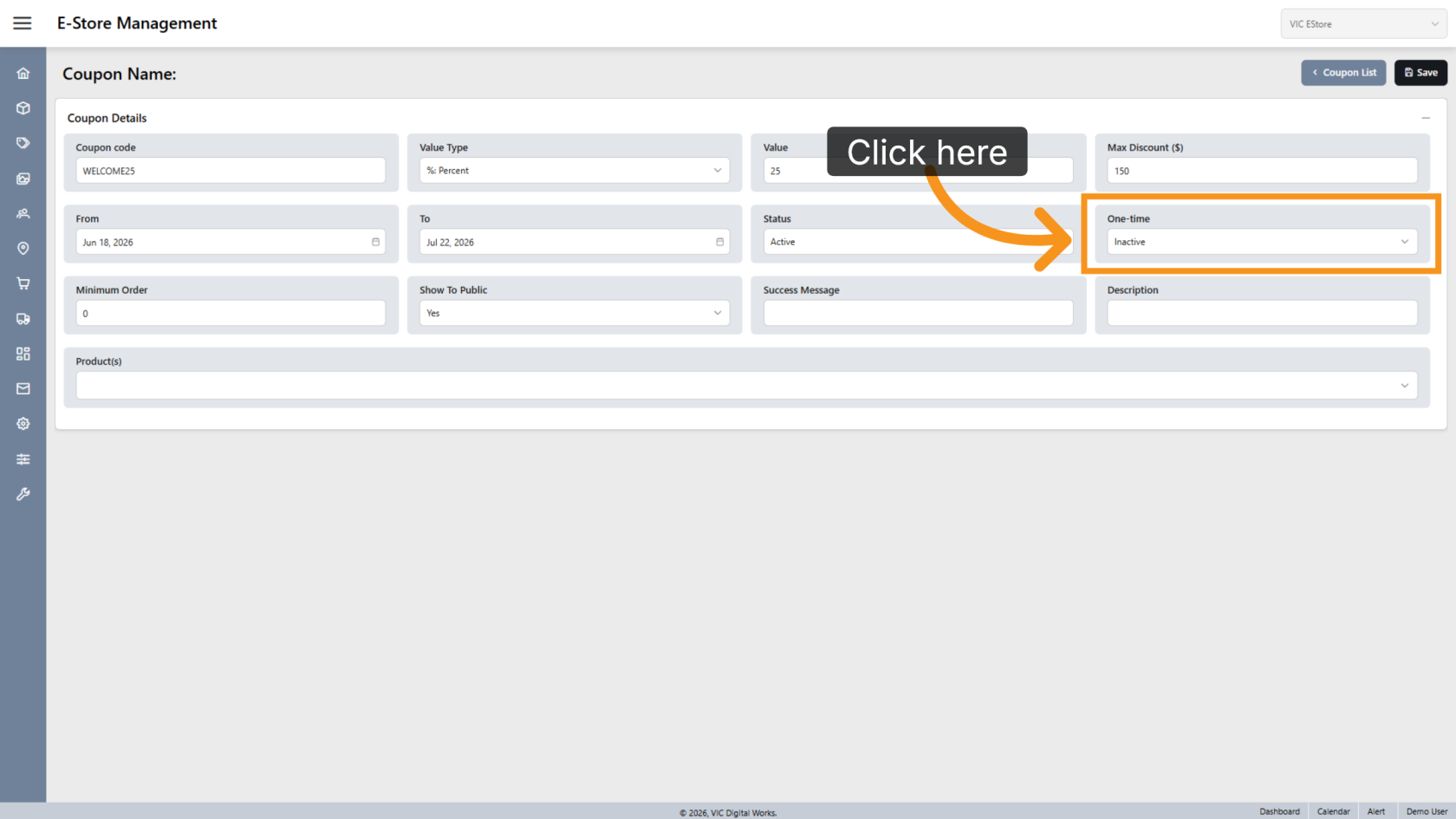
13. Enter the Minimum Order Amount
Enter the minimum order value required before the coupon can be applied.
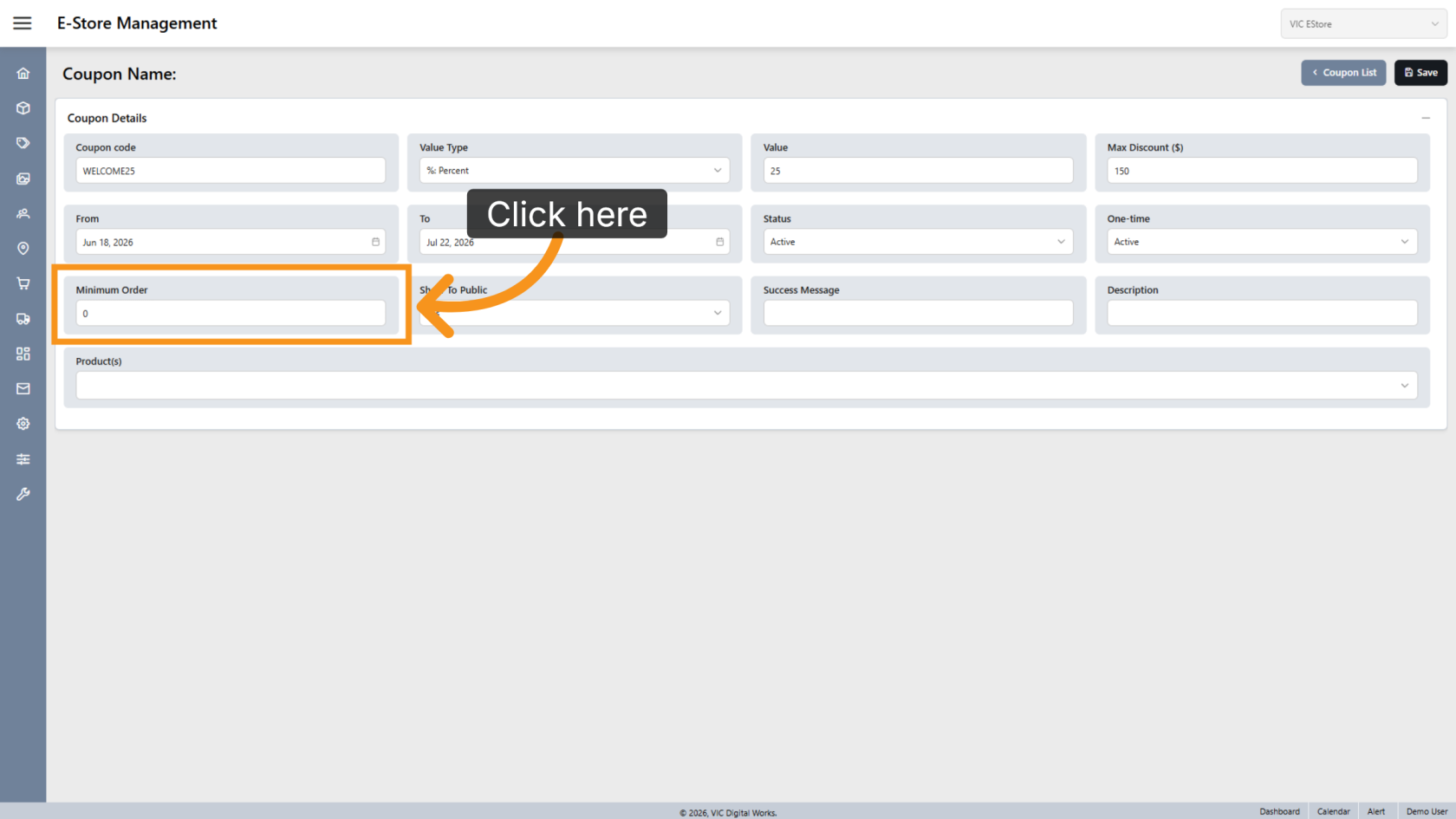
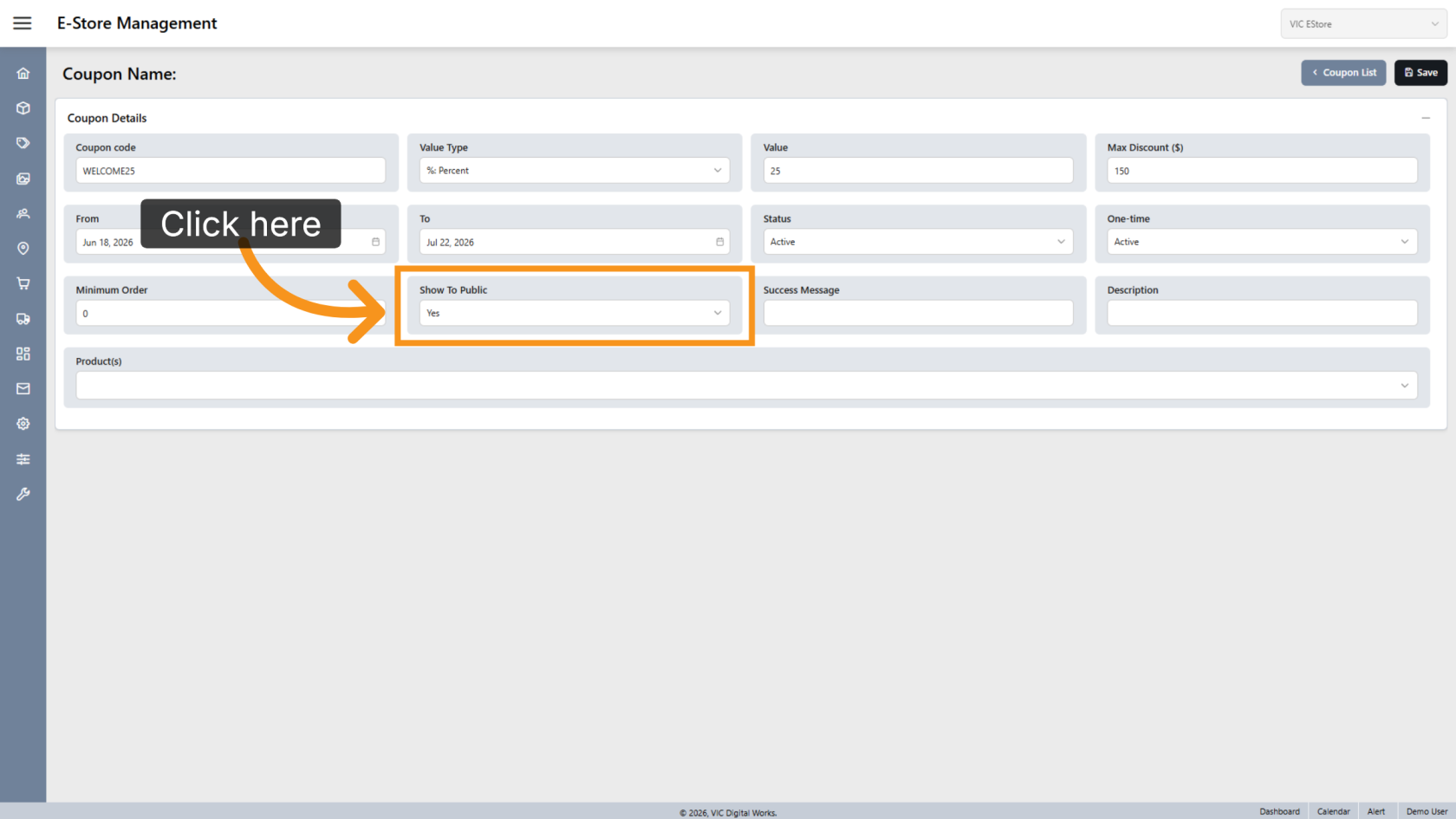
14. Show to Public
Select Yes if you want the coupon to appear on the E-Store coupon page.
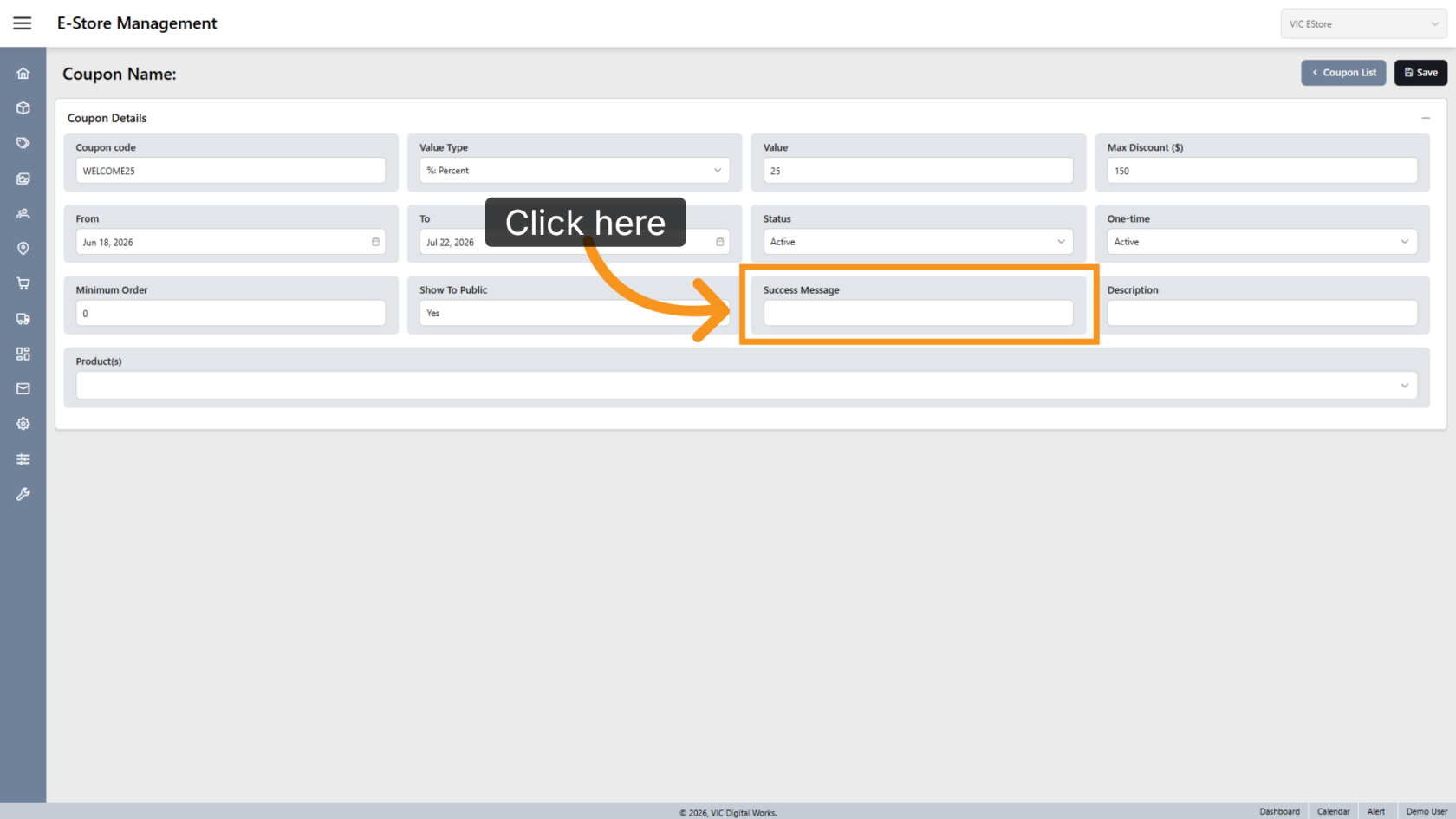
15. Enter a Success Message
Enter the message customers will see when the coupon is successfully applied.
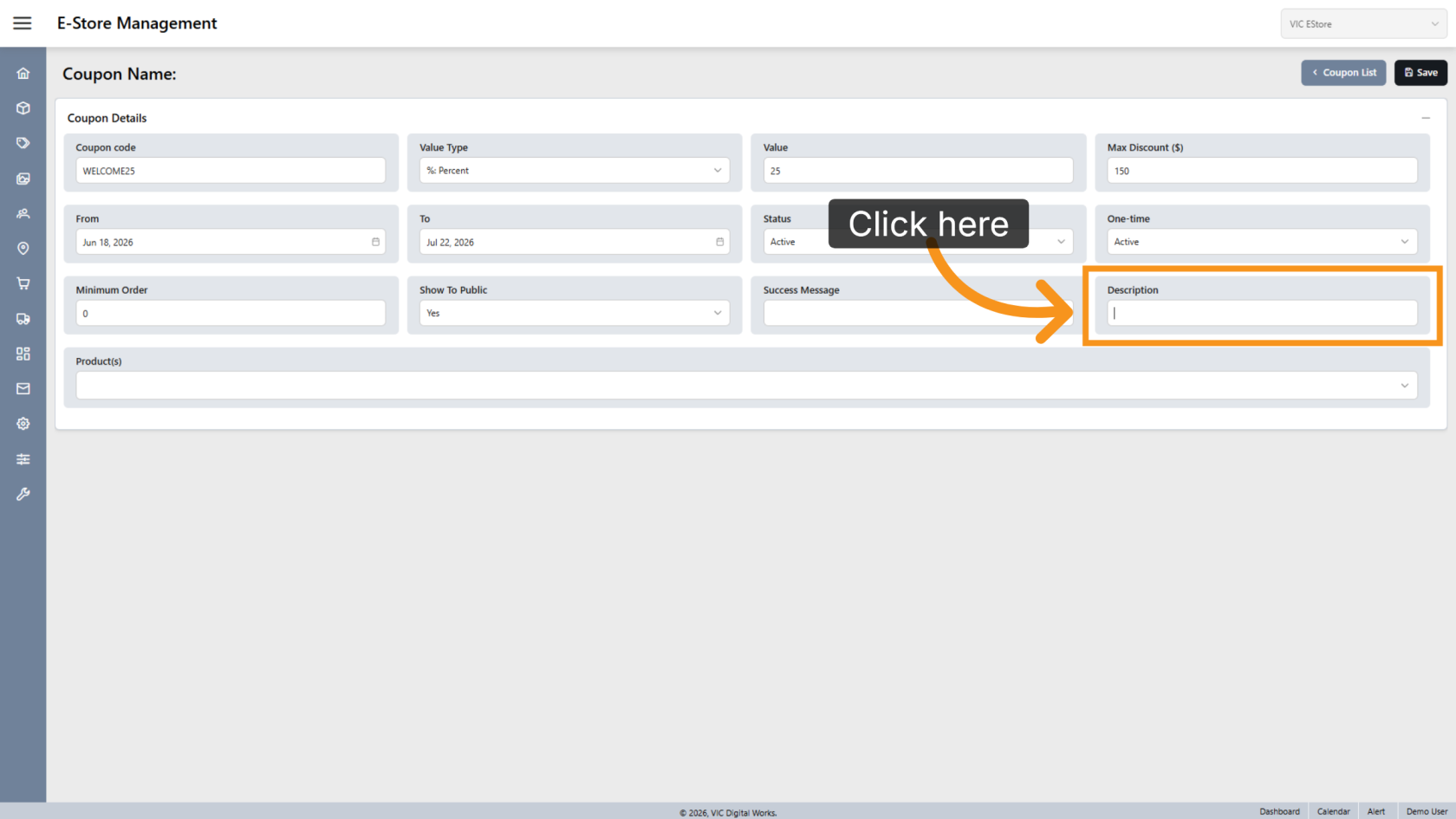
16. Enter a Description
Provide a description to help customers understand the coupon offer.
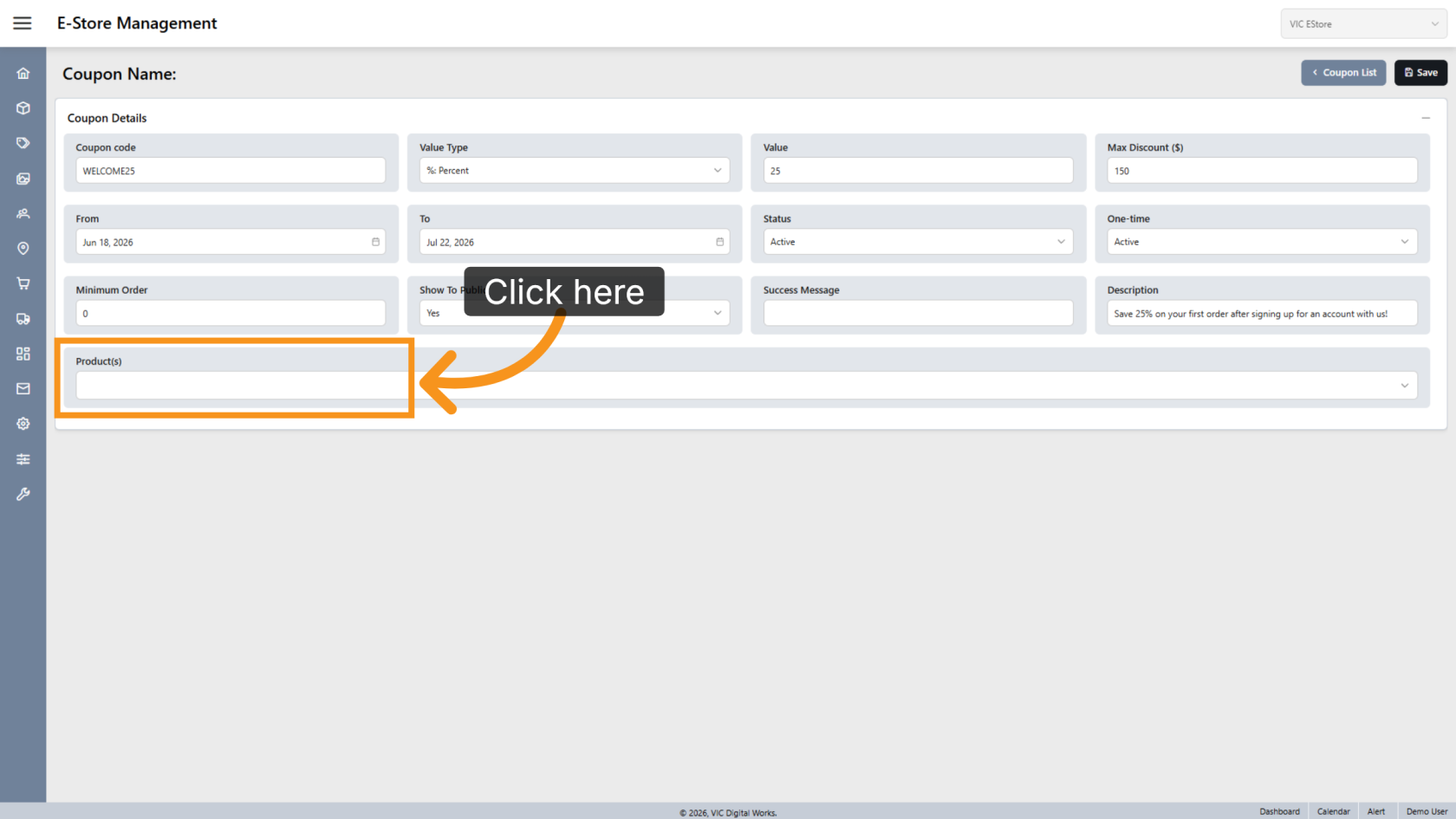
17. Select Products (Optional)
Select specific products if the coupon should only apply to certain items.
18. Save the Coupon
Click Save to save the coupon configuration.
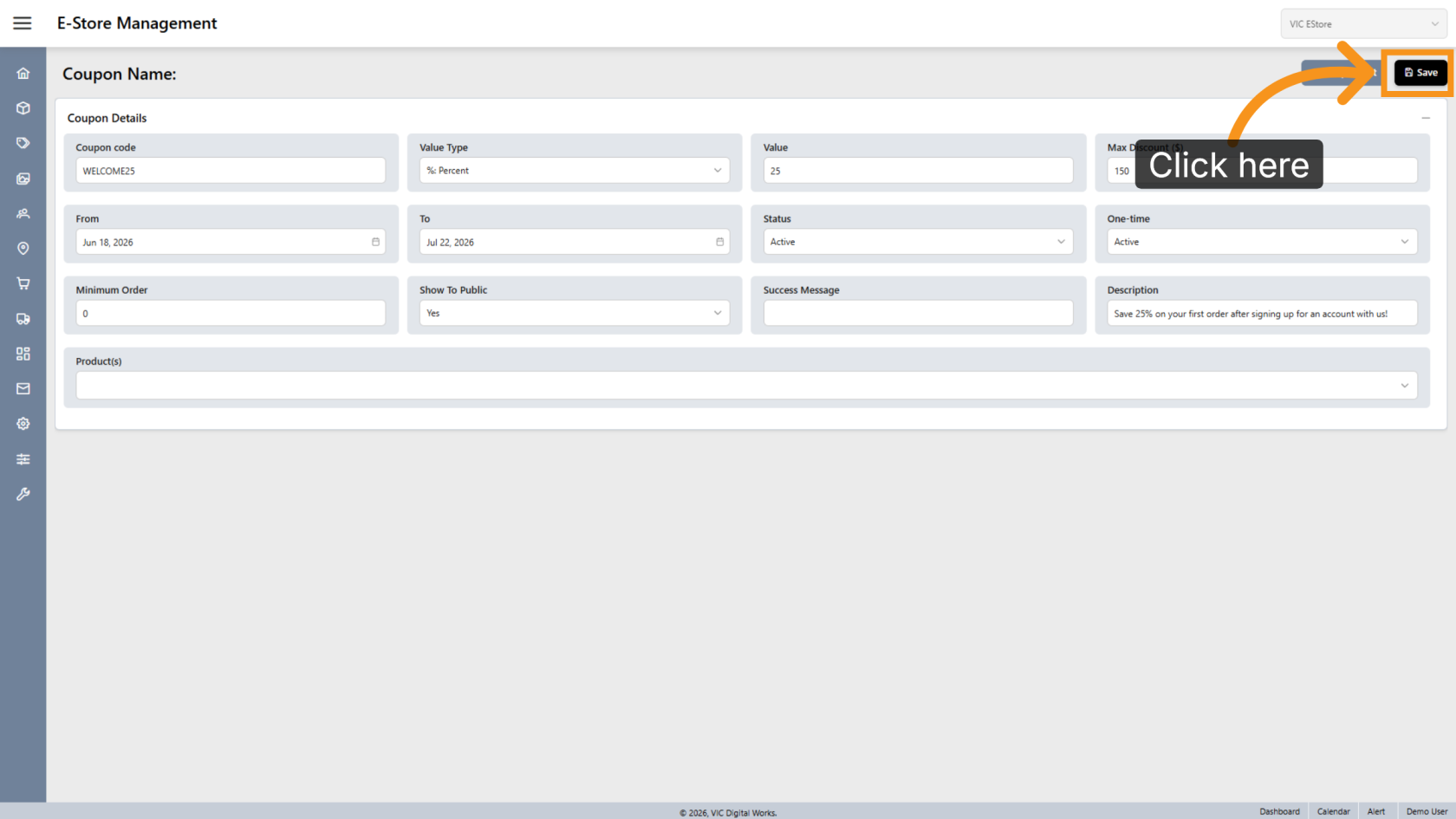
You have successfully created and configured a coupon, including its discount value, validity period, usage restrictions, and visibility settings.