
Company Preferences
Video Tutorial
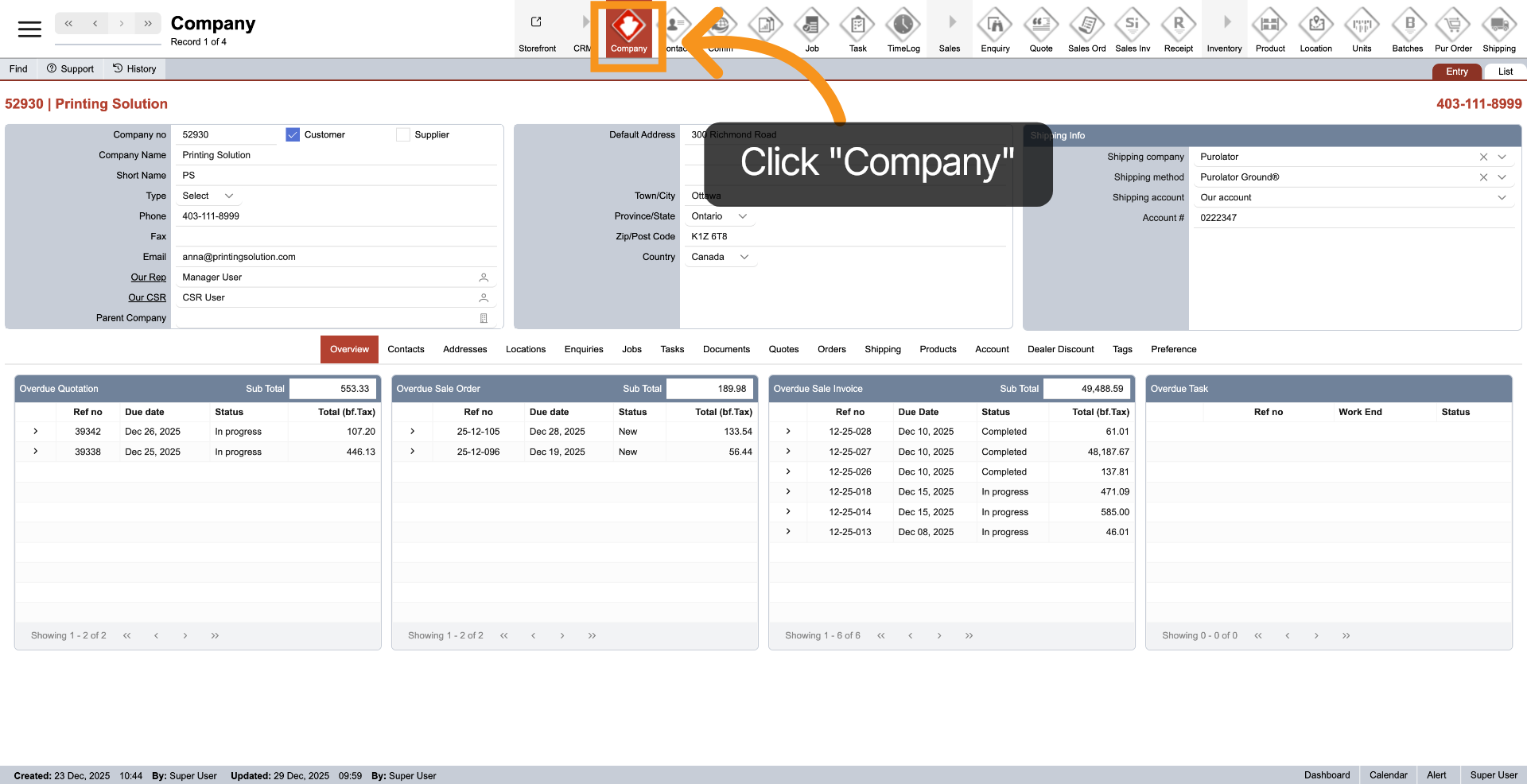
1. Open Company Module
Click "Company" in the main top menu to access the company module.
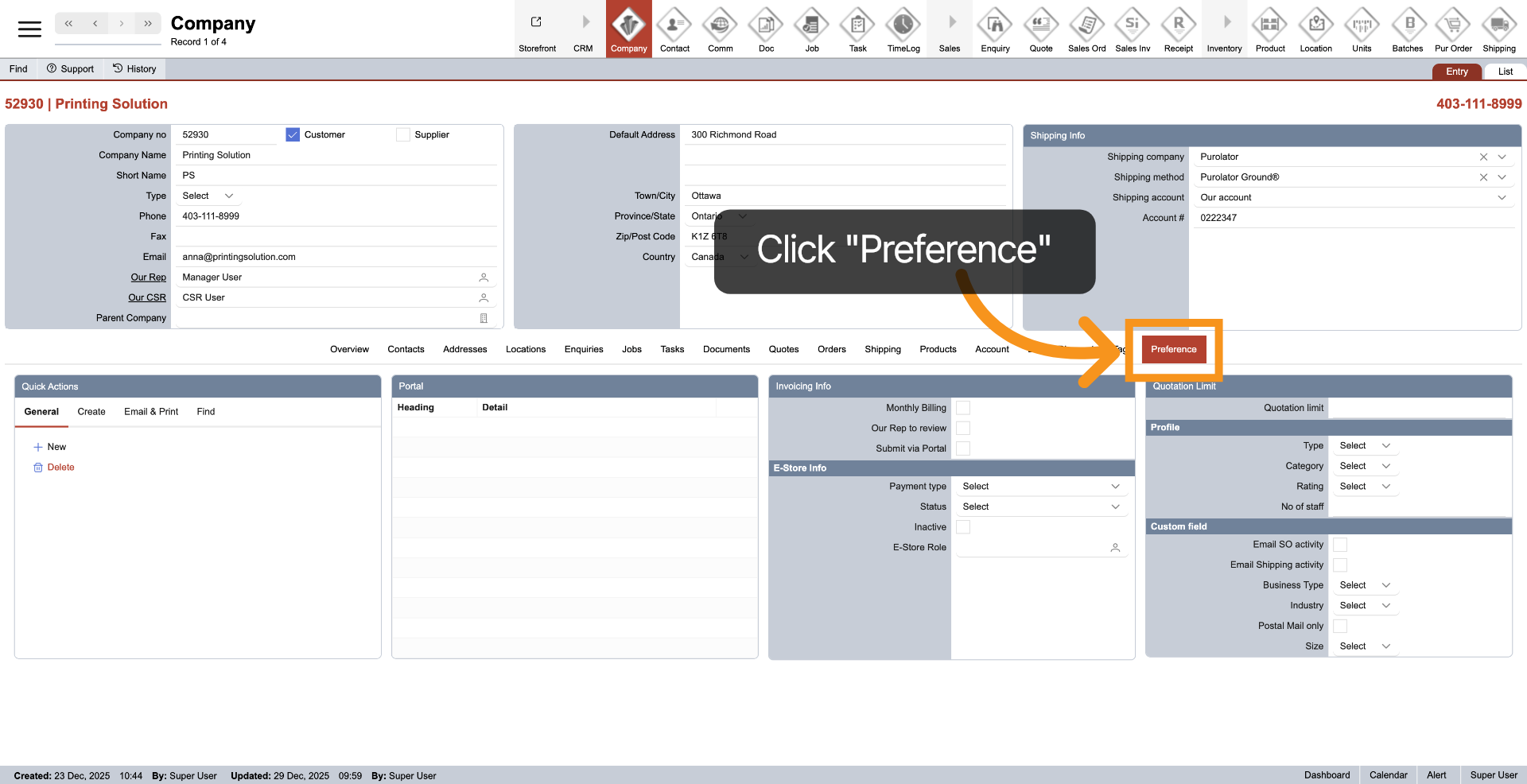
2. Select Preference Tab
Click the "Preference" tab to access the configurable options for company preferences.
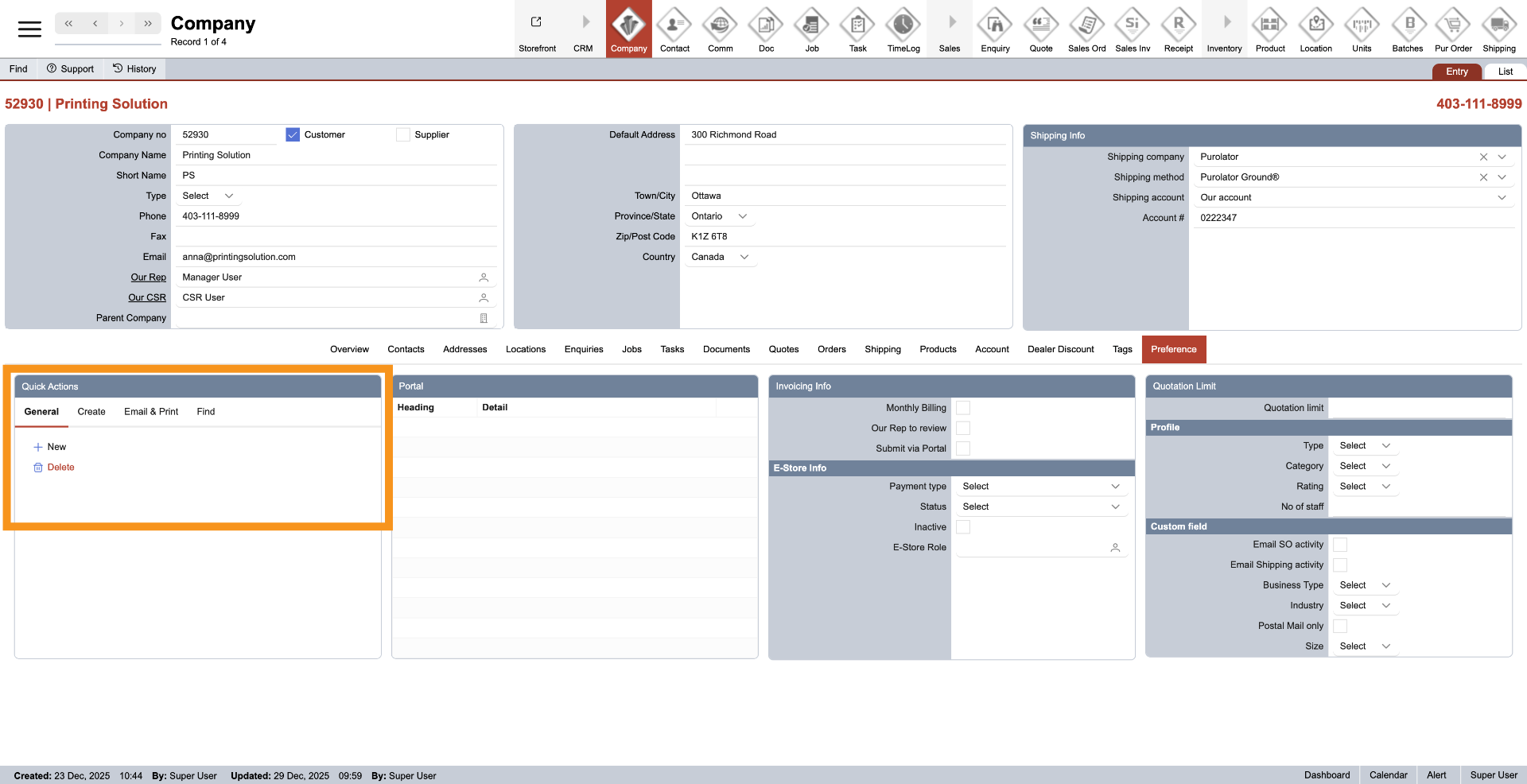
3. Quick Actions Menu
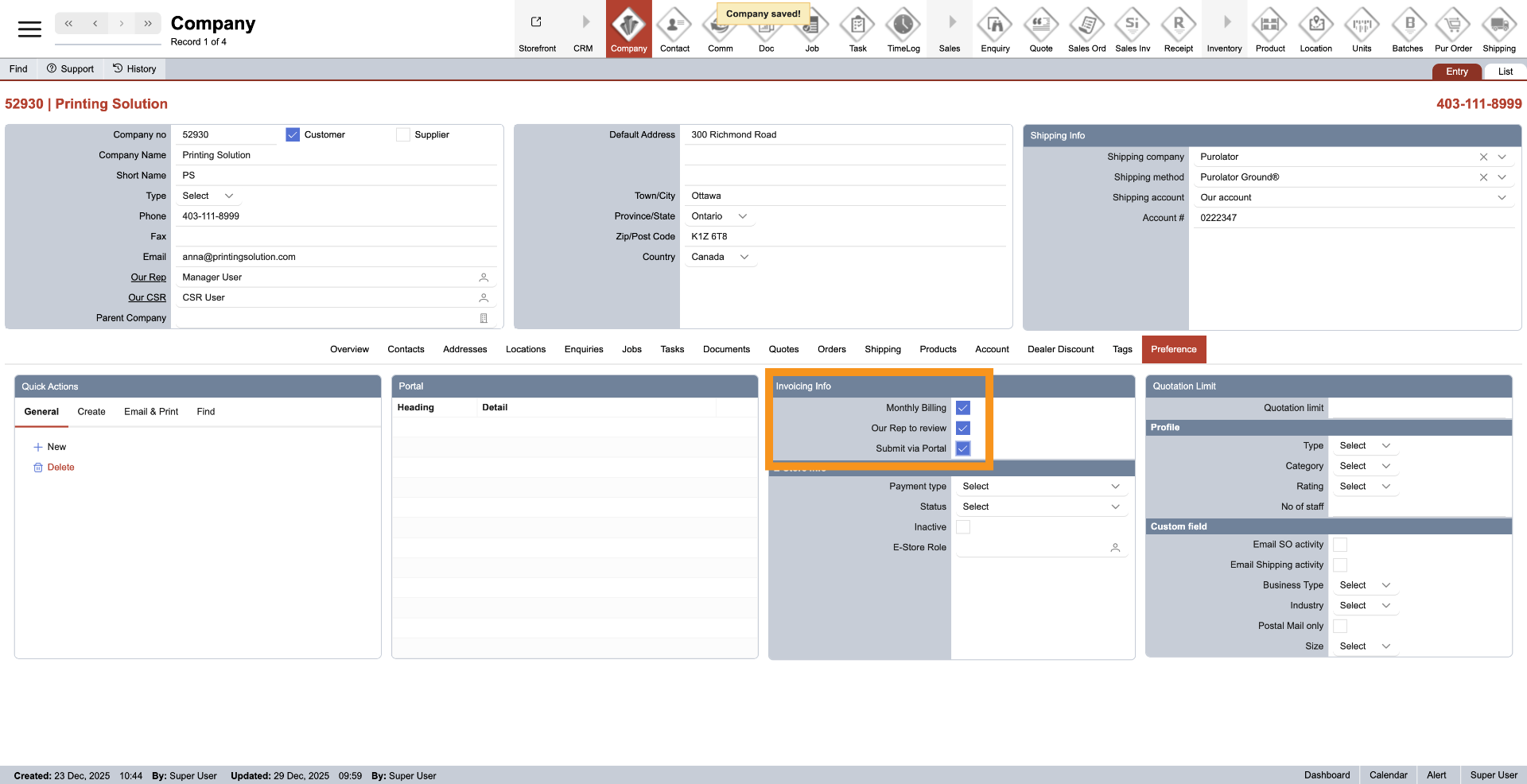
4. Open Invoicing Configuration
Verify the relevant invoice details: "Monthly Billing": Choose this option if the company is billed monthly. "Our Rep to Review": Select this option if your sales representative needs to review the invoice before it is sent to the customer. "Submit via Portal": Opt for this option if the company requires invoices to be submitted through a portal. You can select multiple options for a single company.
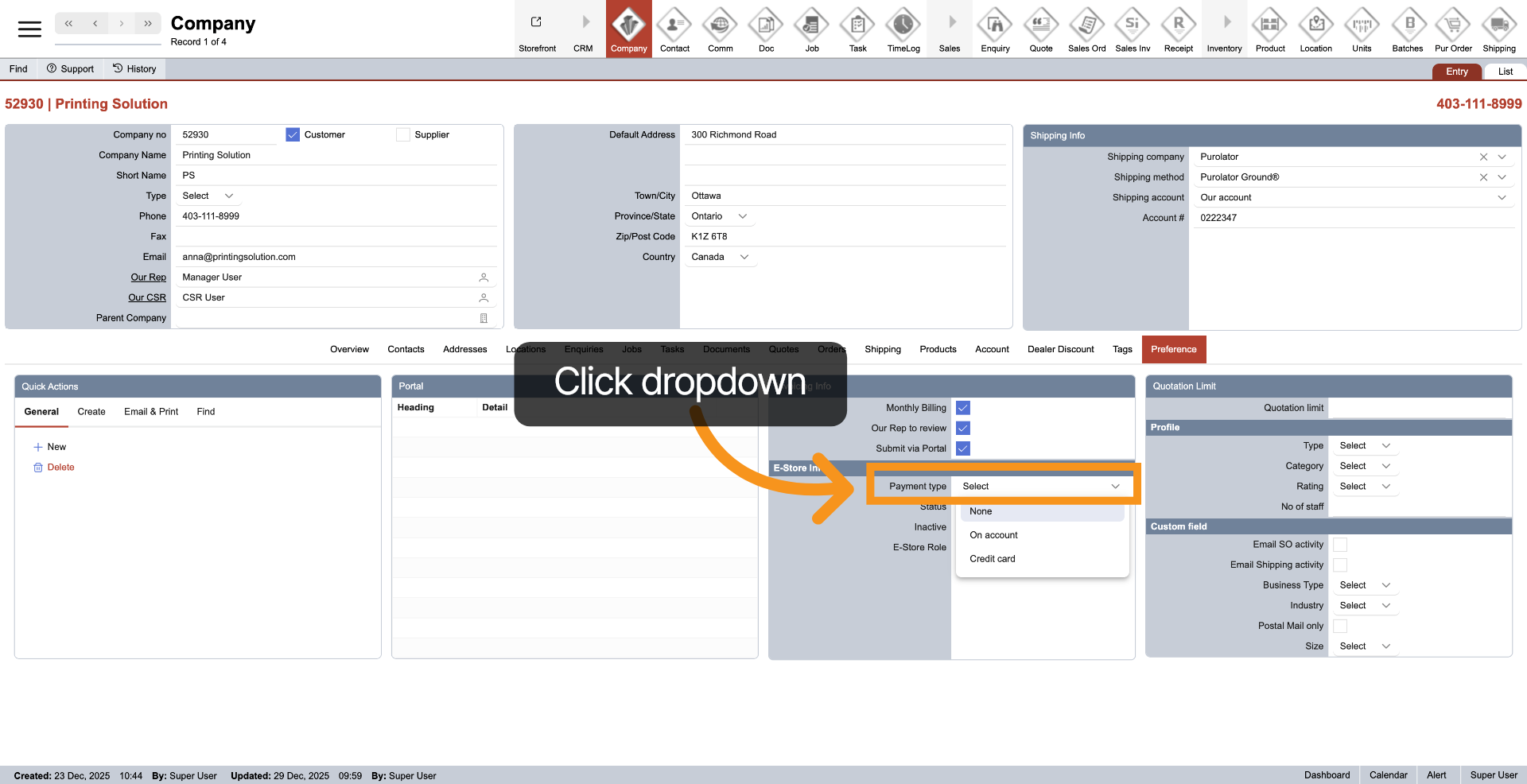
5. E-store Payment Type Dropdown
Click the dropdown next to "Payment type" to select the company's checkout method on E-Store: "On account" or "Credit card."
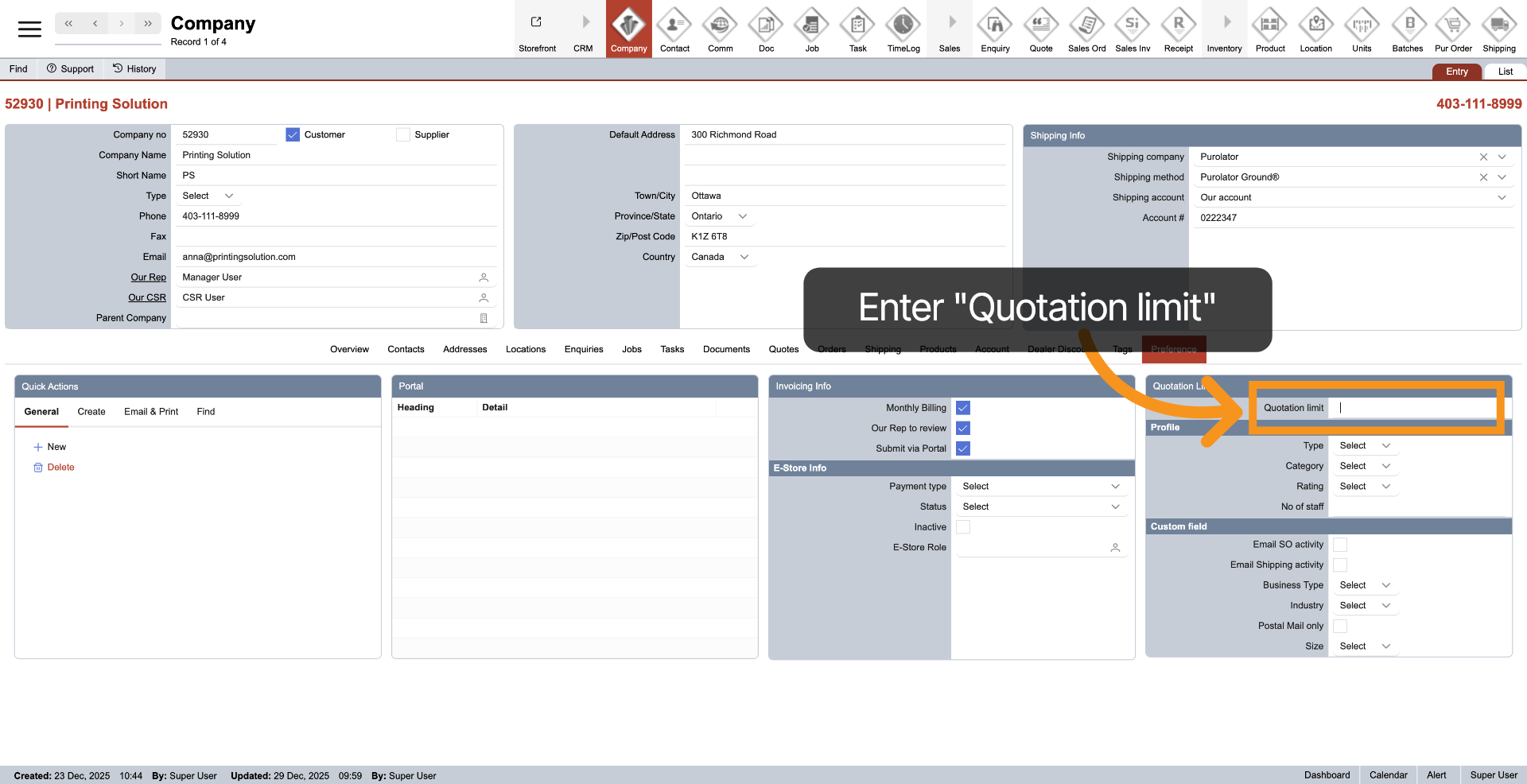
6. Enter Quotation Limit
Enter the limit amount for the quotation to prevent exceeding it without approval.
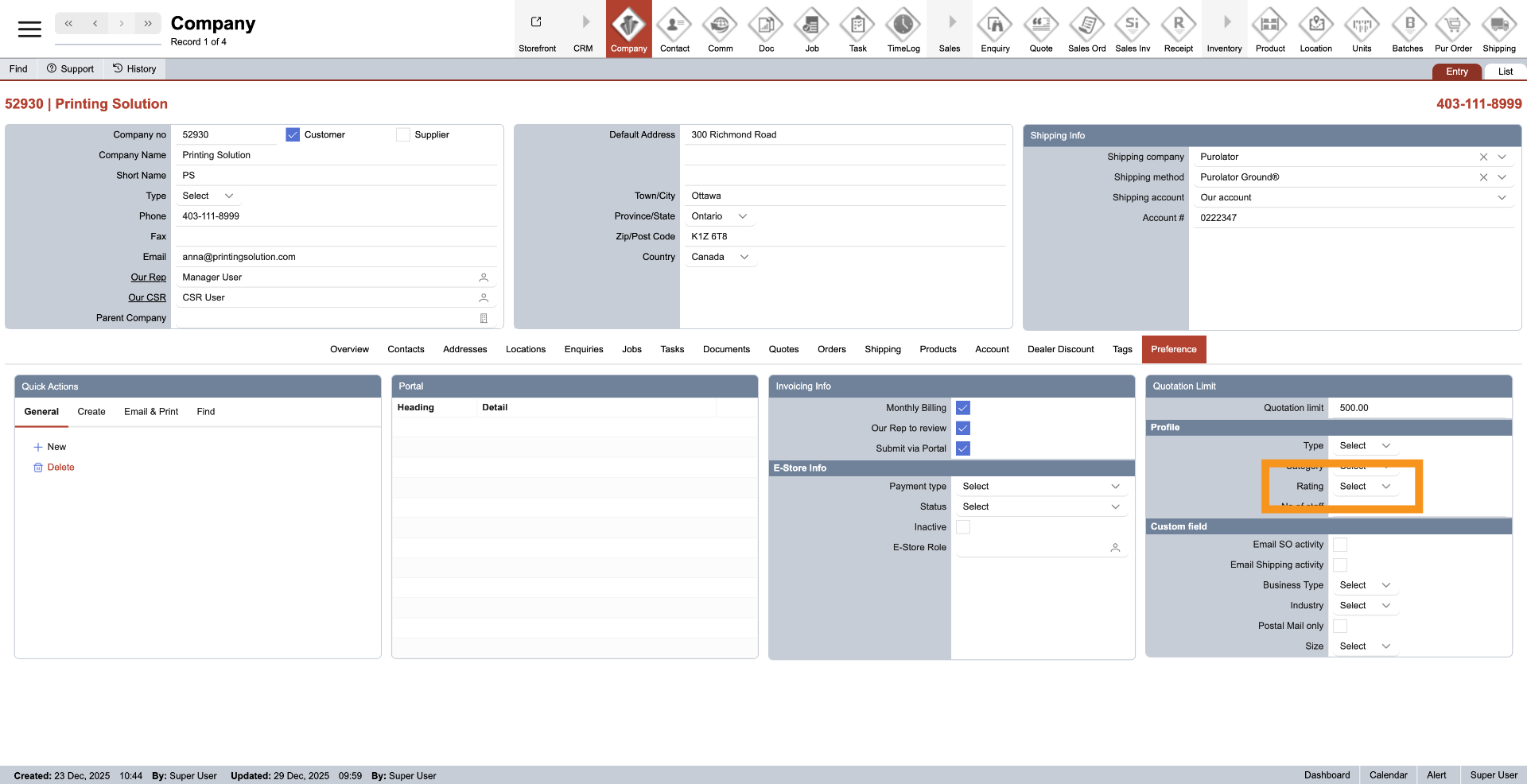
7. Company Rating
The Company Rating will be automatically calculated based on the sales order and quotation associated with the company. By default, the rating is set to 1 for new companies.
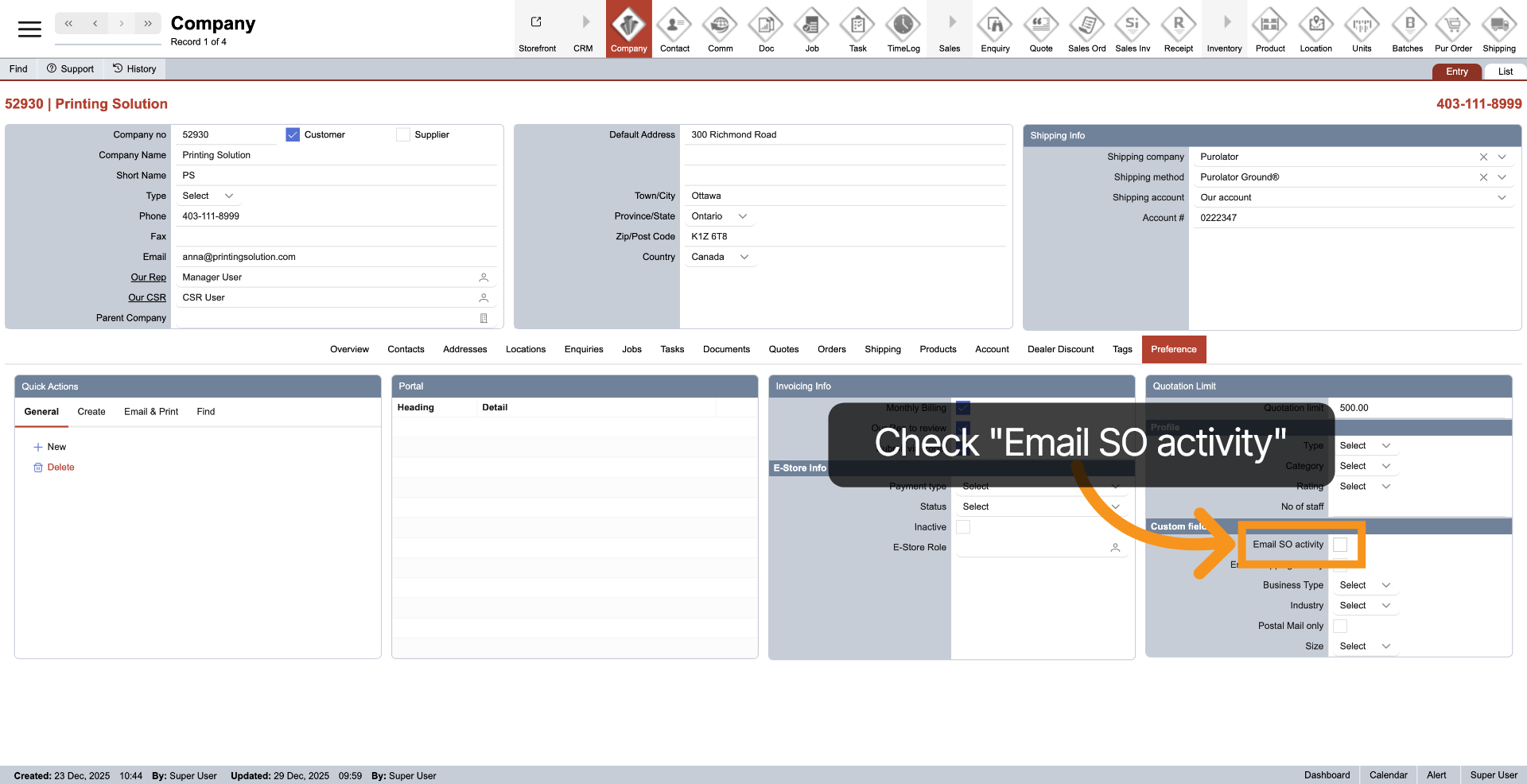
8. Email Sale Order Activity
Verify the "Email SO activity" setting to determine if the company wishes to receive emails related to Sales Orders, such as notifications when an order is put into production. Notably, all orders from the E-Store platform will always trigger an email notification, even if this option is unchecked.
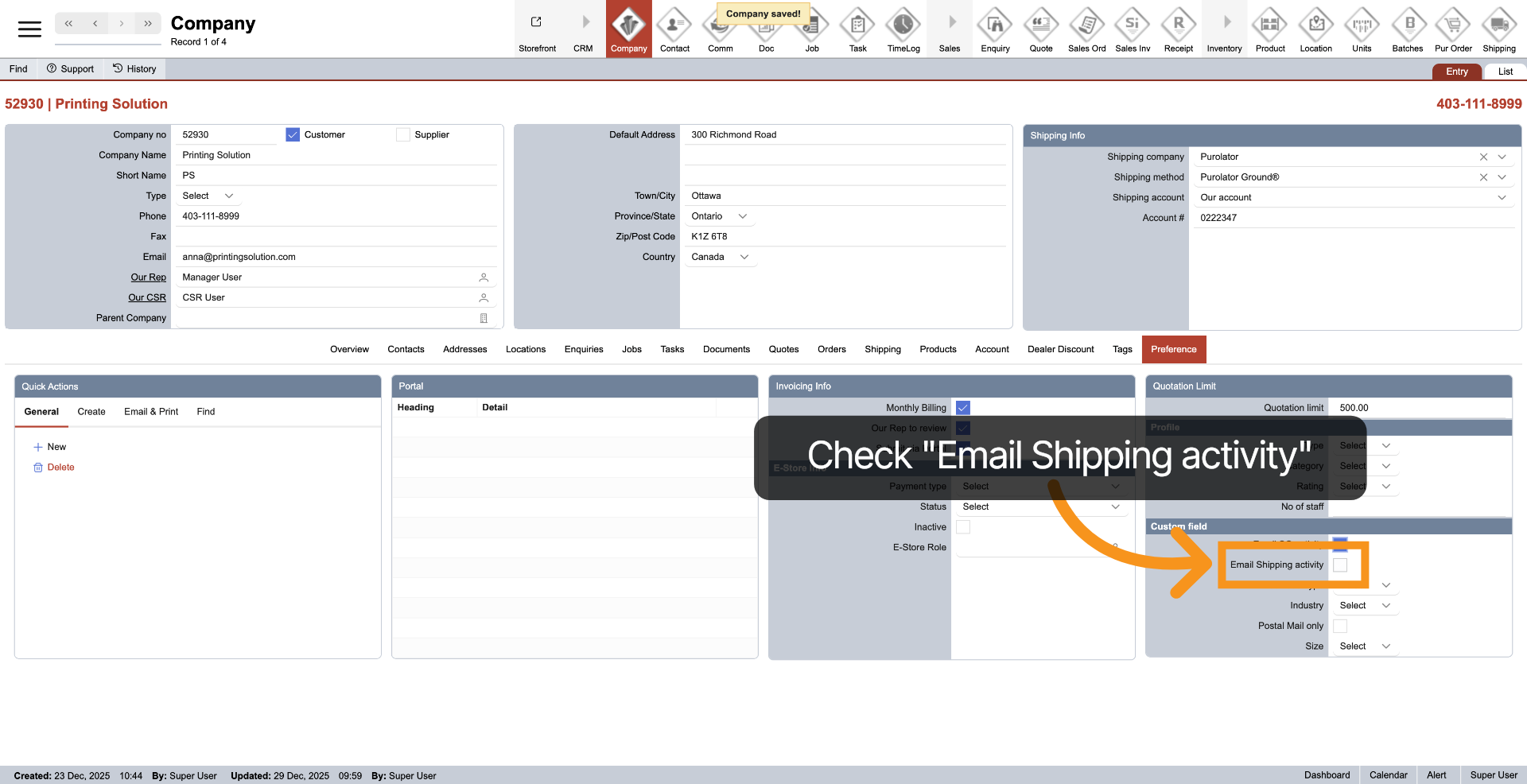
9. Email Shipping Activity
Verify the "Shipping activity" setting to determine if the company wishes to receive emails related to Shipping, including shipping notifications upon order dispatch. It is essential to understand that all orders originating from the E-Store platform will automatically trigger an email notification, regardless of whether this option is turned off.
You have successfully configured the company preferences within the WorkTraq system.