
Approve Sales Invoices
This tutorial explains how to review and approve sales invoices.
Video Tutorial
1. Receive Email Request
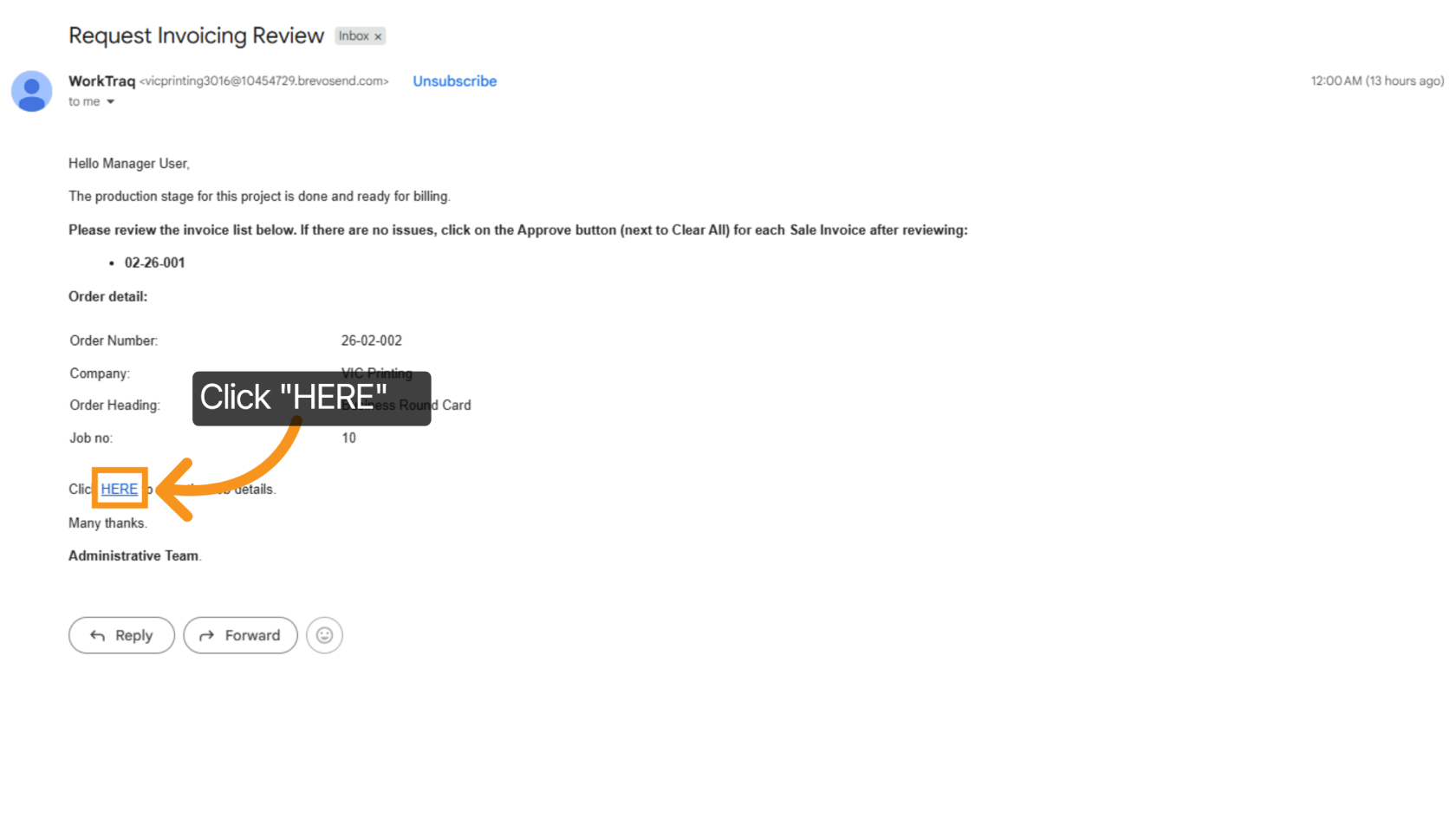
The REP will receive an email requesting review and approval of a sales invoice.
Click the link in the email to open the related job.
2. Open the Job
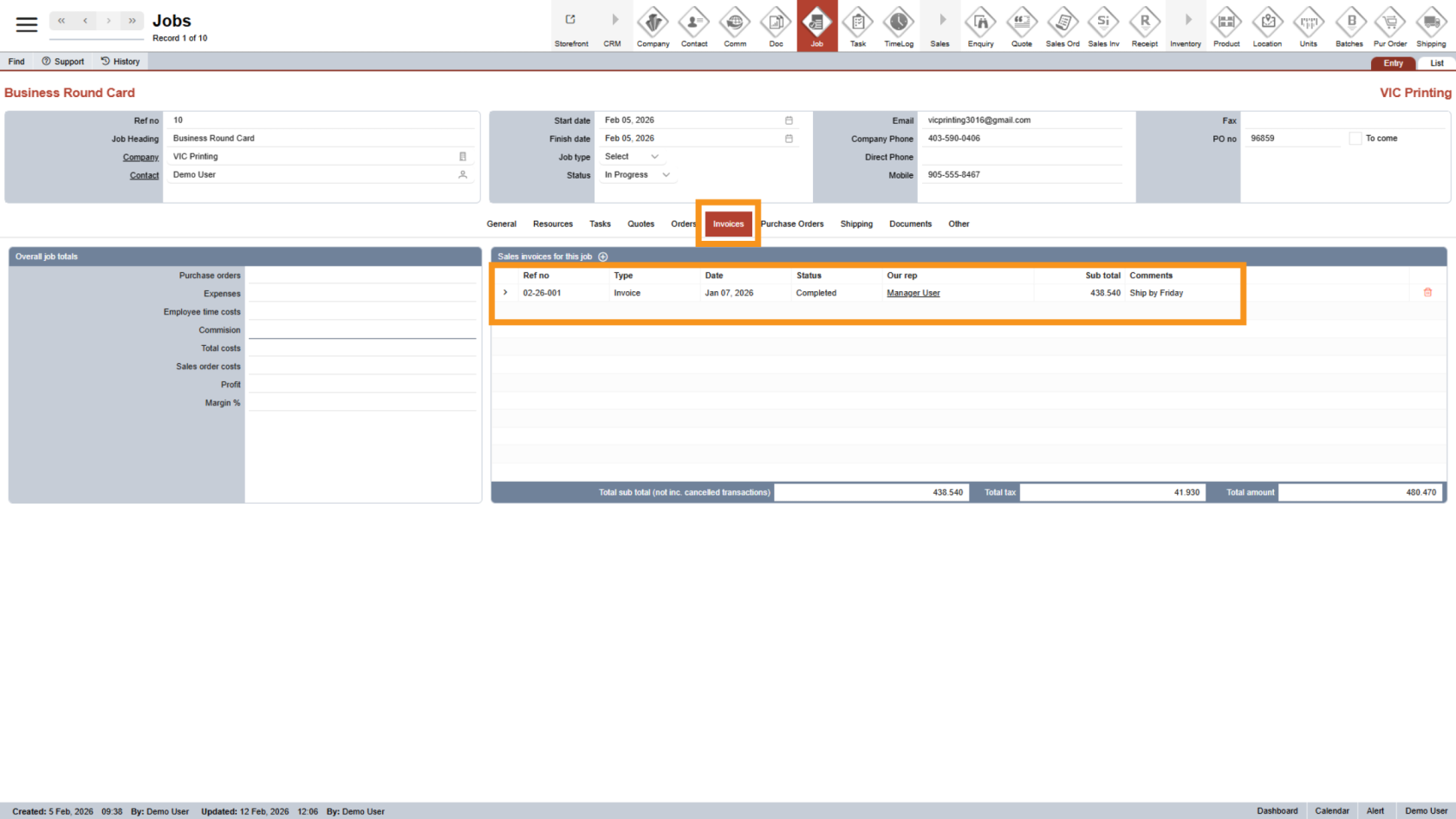
The system will open the job details. Under Invoices, you will see all invoices that require review.
3. Access the Sales Invoice
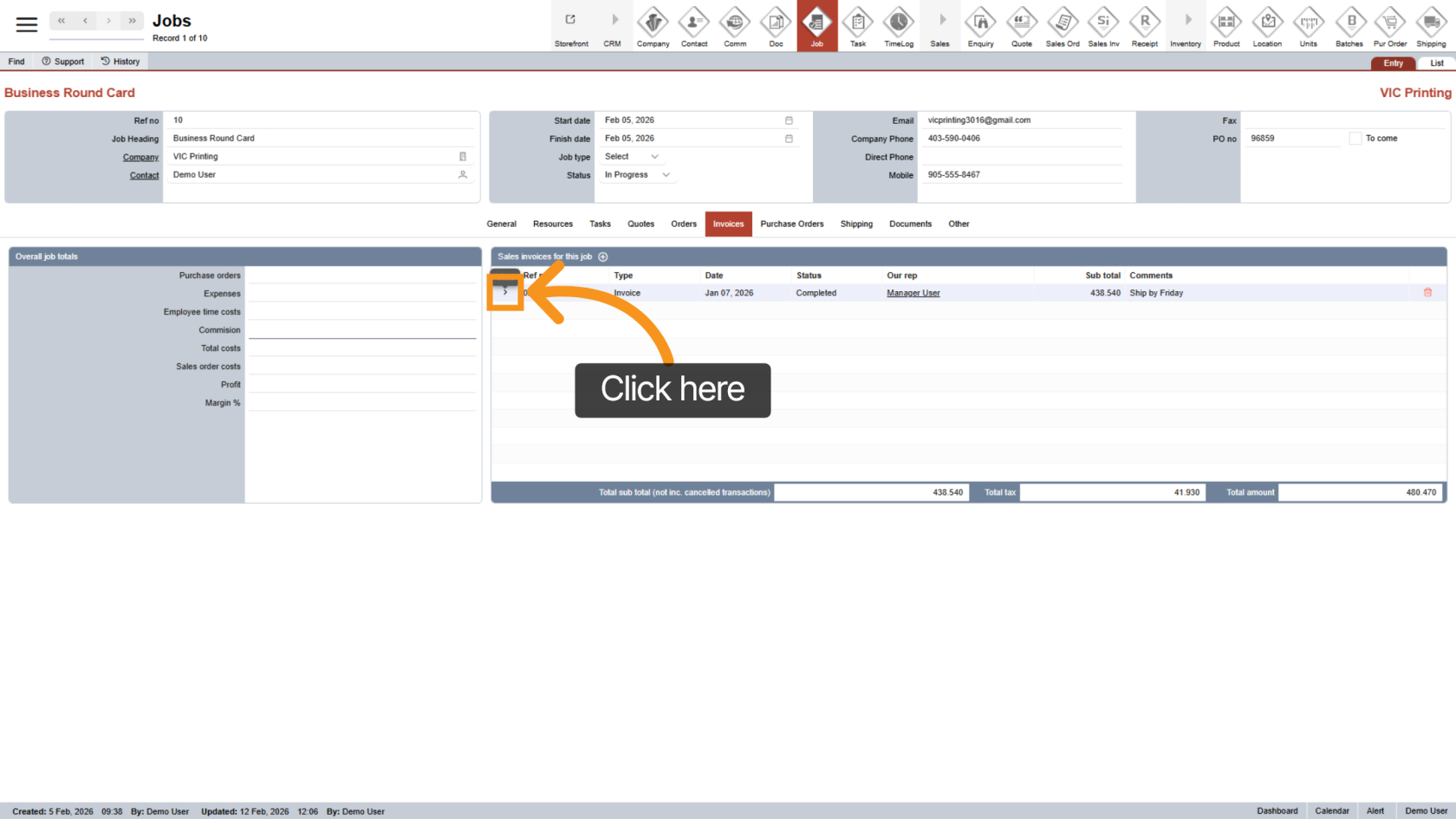
Click the  arrow icon next to the invoice to open it for detailed review.
4. Review Invoice Details
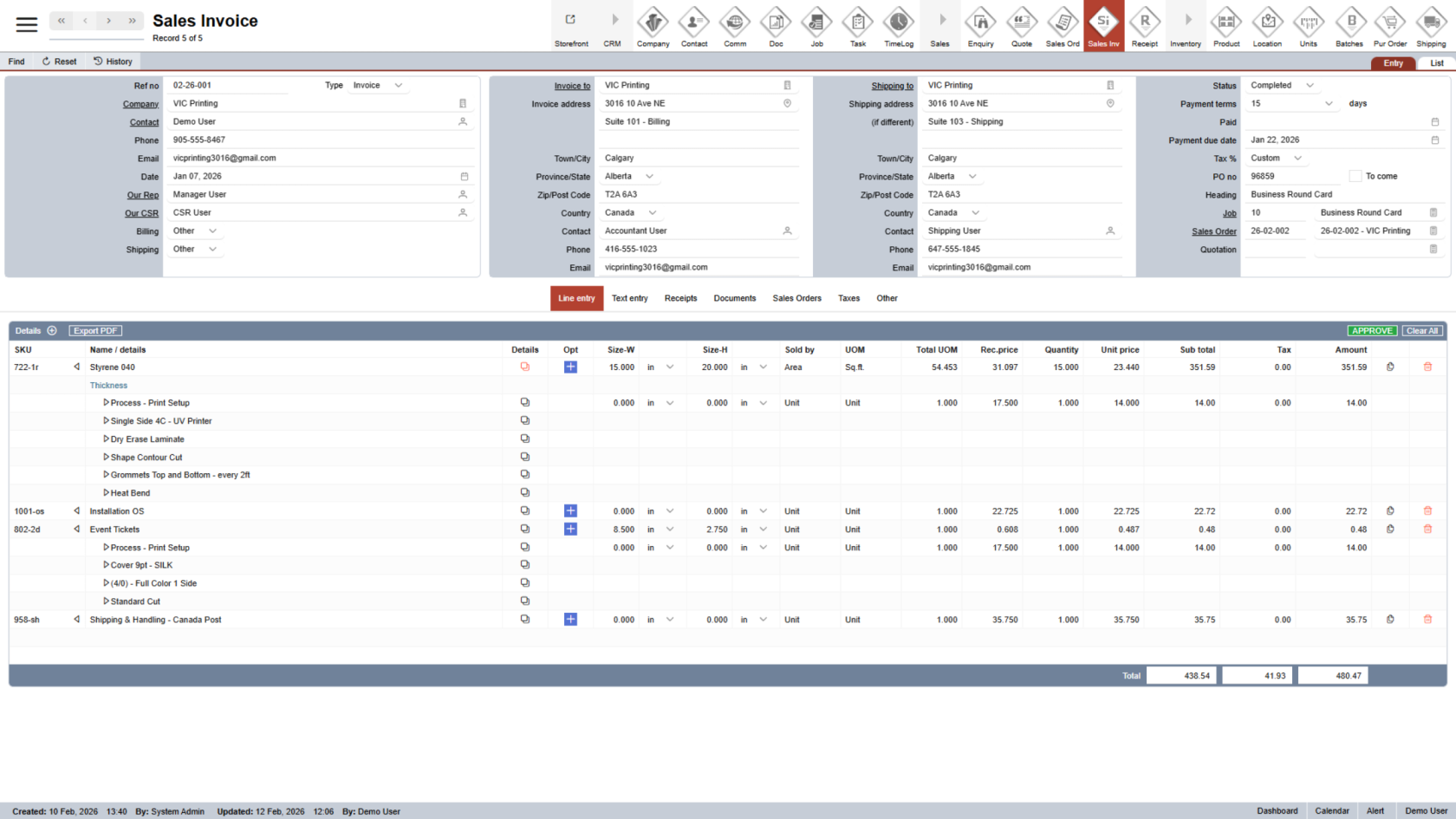
Carefully review all invoice information, including:
- Billing details
- PO number
- Total amount
- Any additional detail
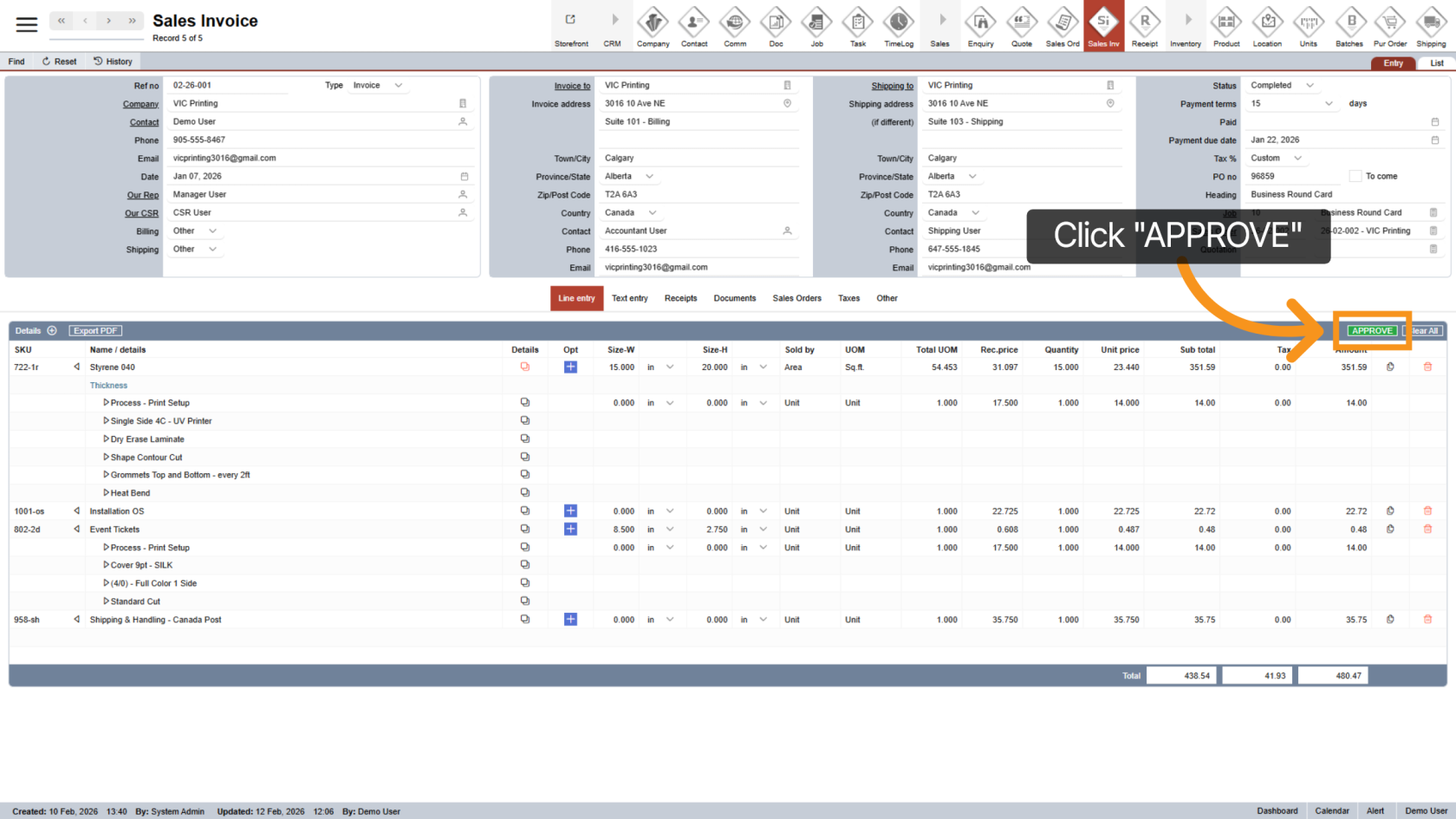
5. Click Approve
If everything is correct, click the "Approve" button to confirm.
Note: The system will prevent approval if:
- The PO number is missing
- The installation task has not been completed
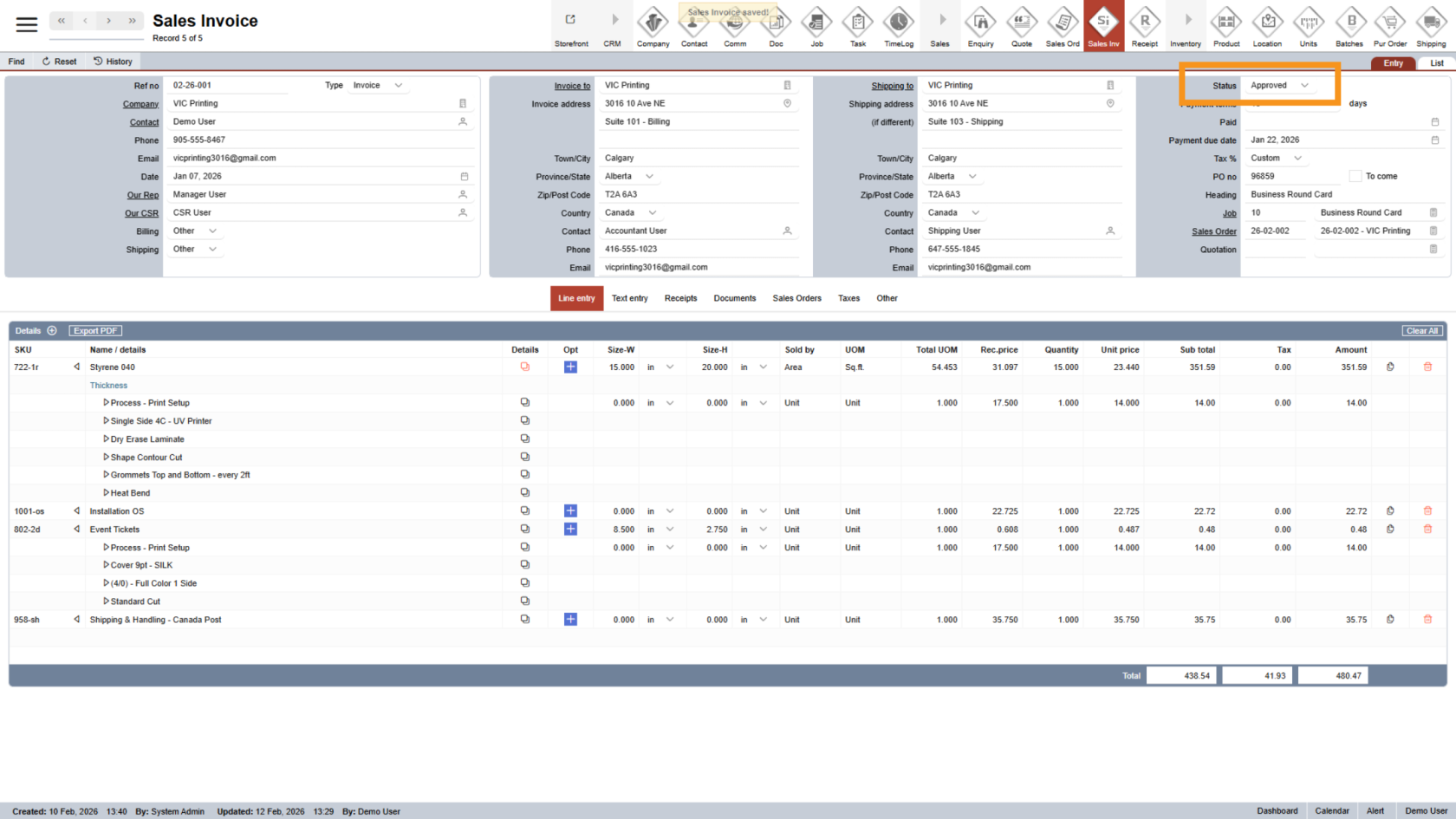
6. Invoice Status Update
After approval, the invoice status will automatically update to Approved.
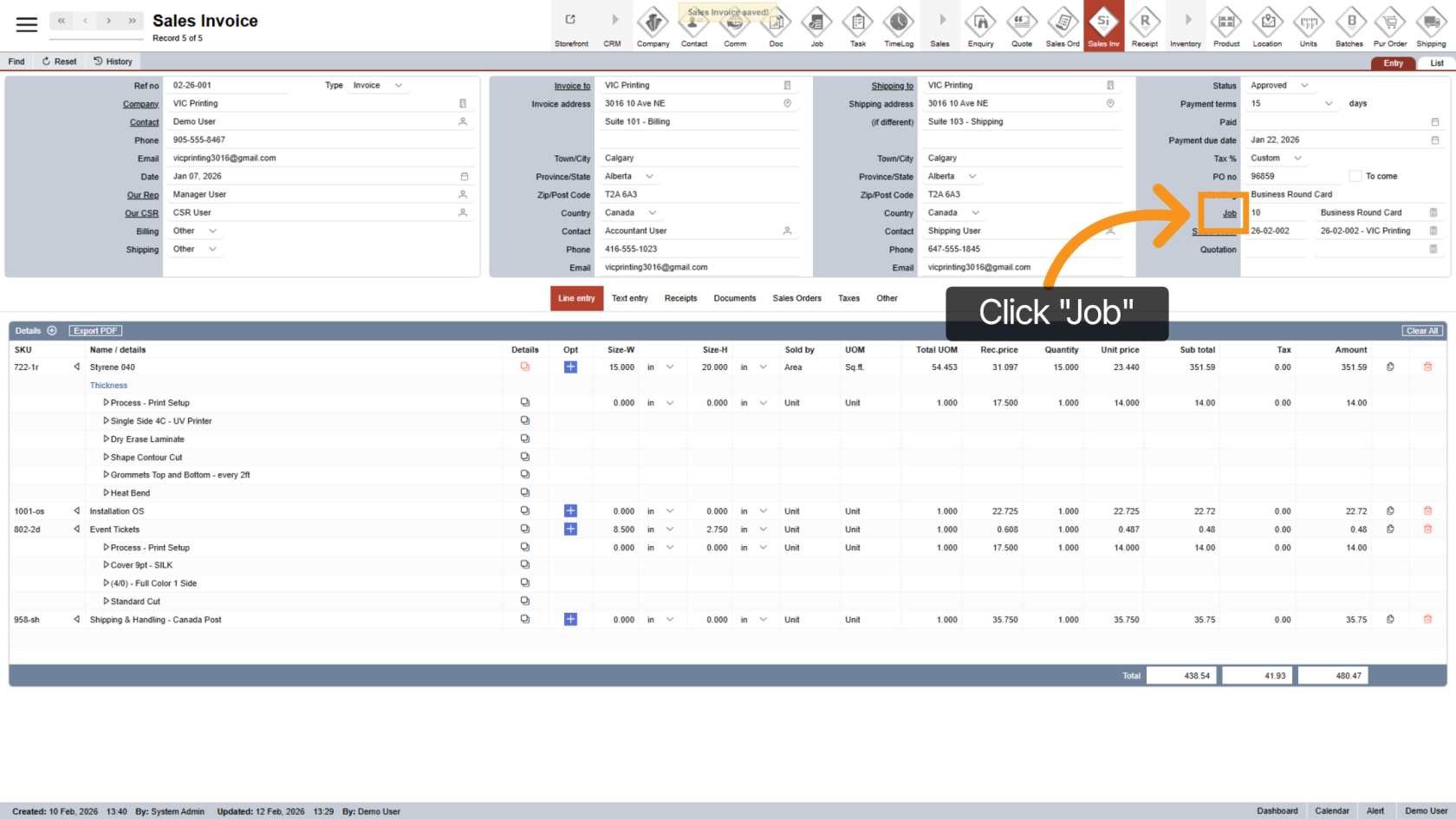
7. Return to the Job
If there are multiple invoices for the same job, click the underlined Job link to return.
8. Repeat the Approval Process
Open the next invoice that requires approval and repeat the steps above until all invoices are approved.
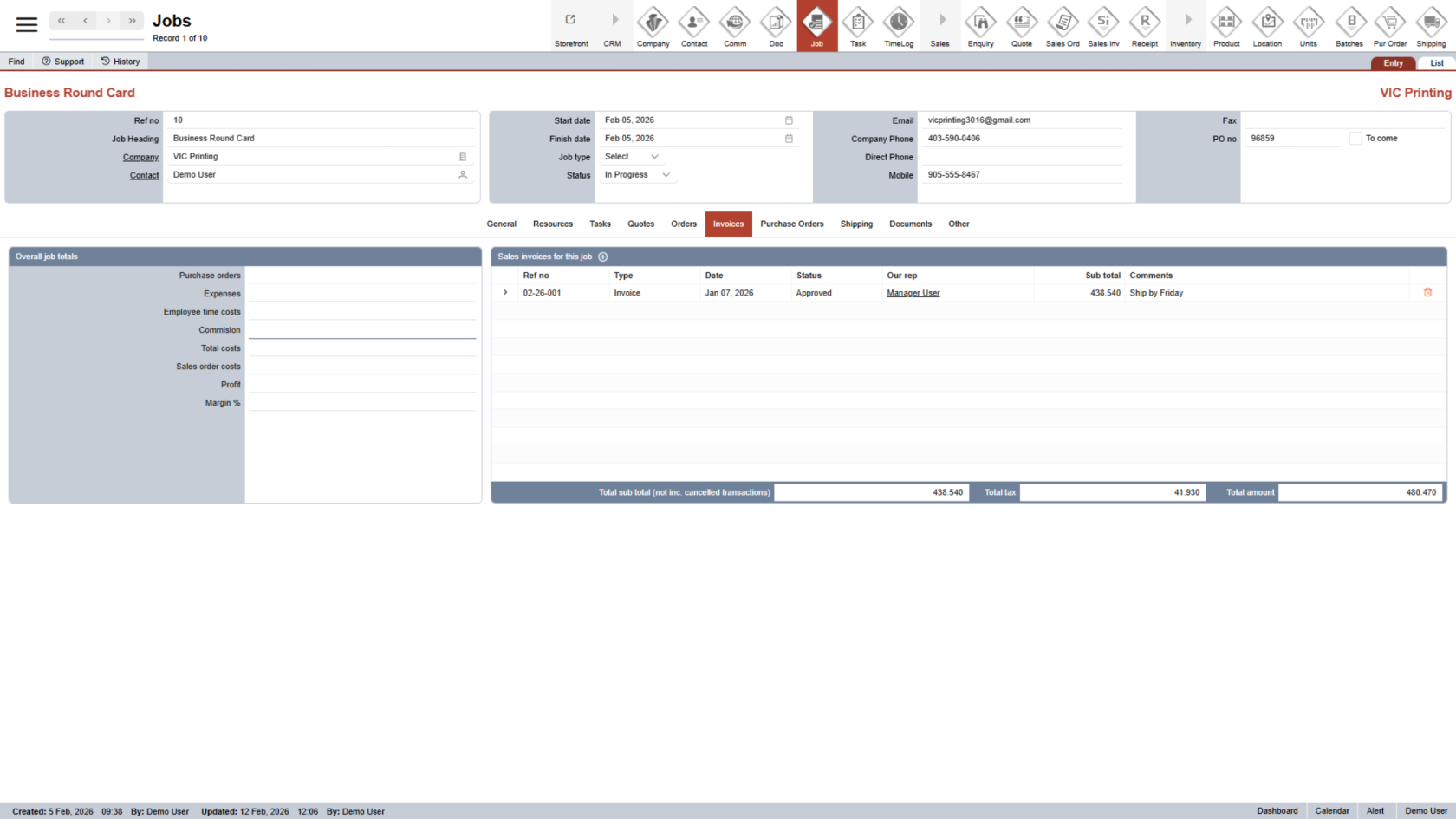
You have successfully approved the sales invoices.