
Download & Import Multiple Shipping
This tutorial guides you through downloading and importing shipment information for distribution orders with multiple shipments.
Video Tutorial
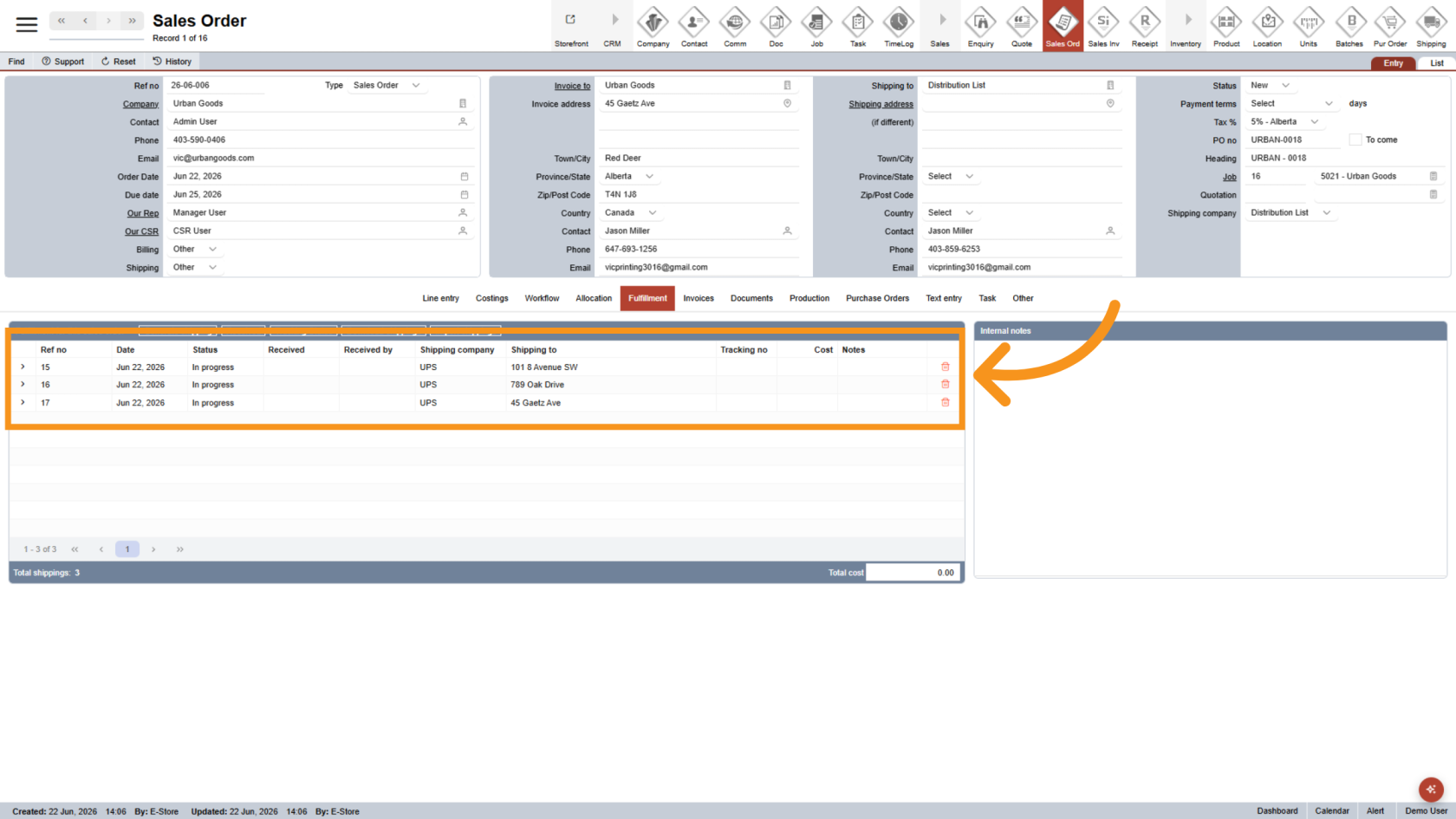
1. Open Distribution Shipment
For distribution orders with multiple shipments, this feature helps you complete shipment processing quickly and efficiently.
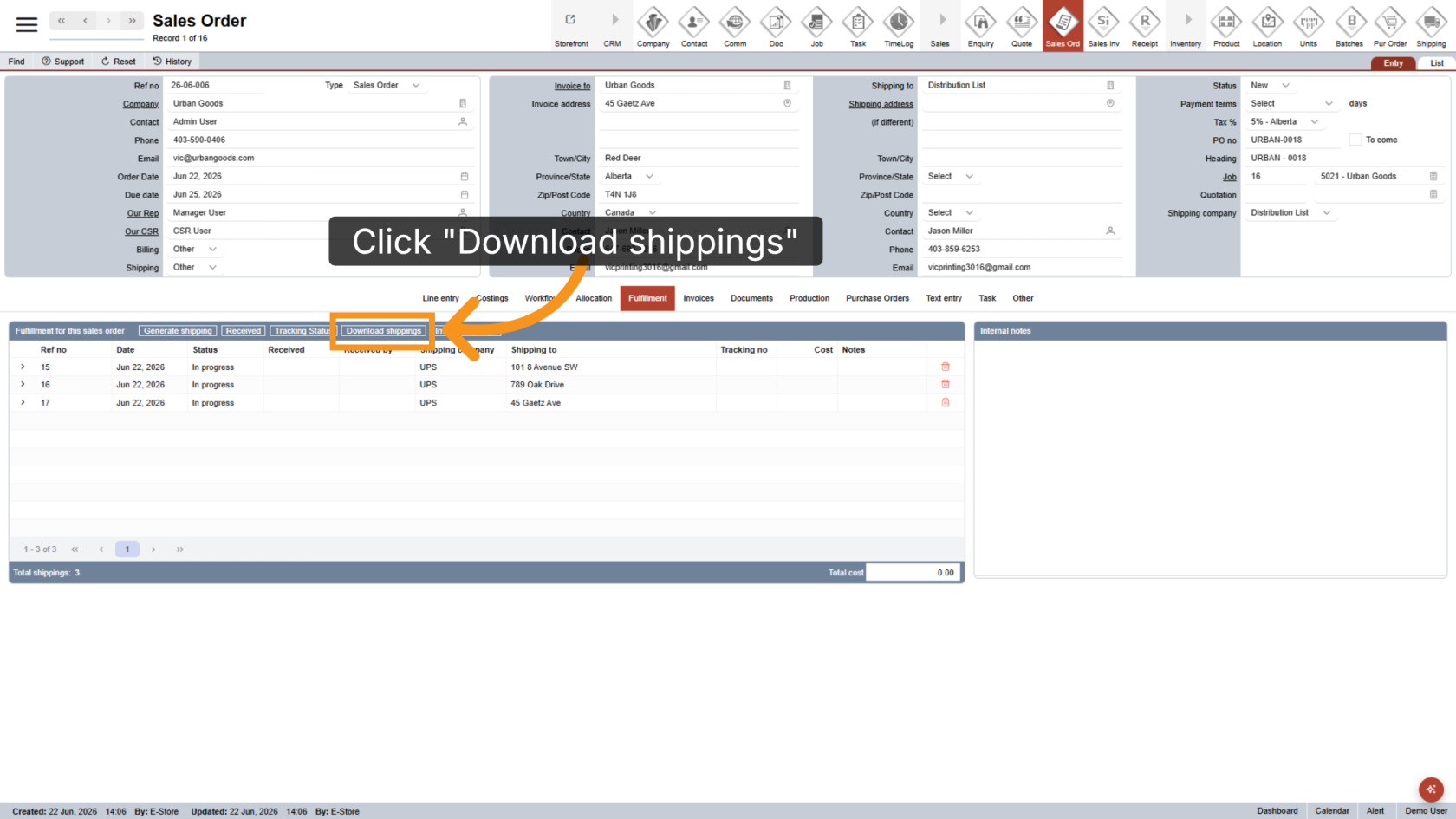
2. Download Shipping Template
Click Download Shippings to export the shipping information for the selected sales order.
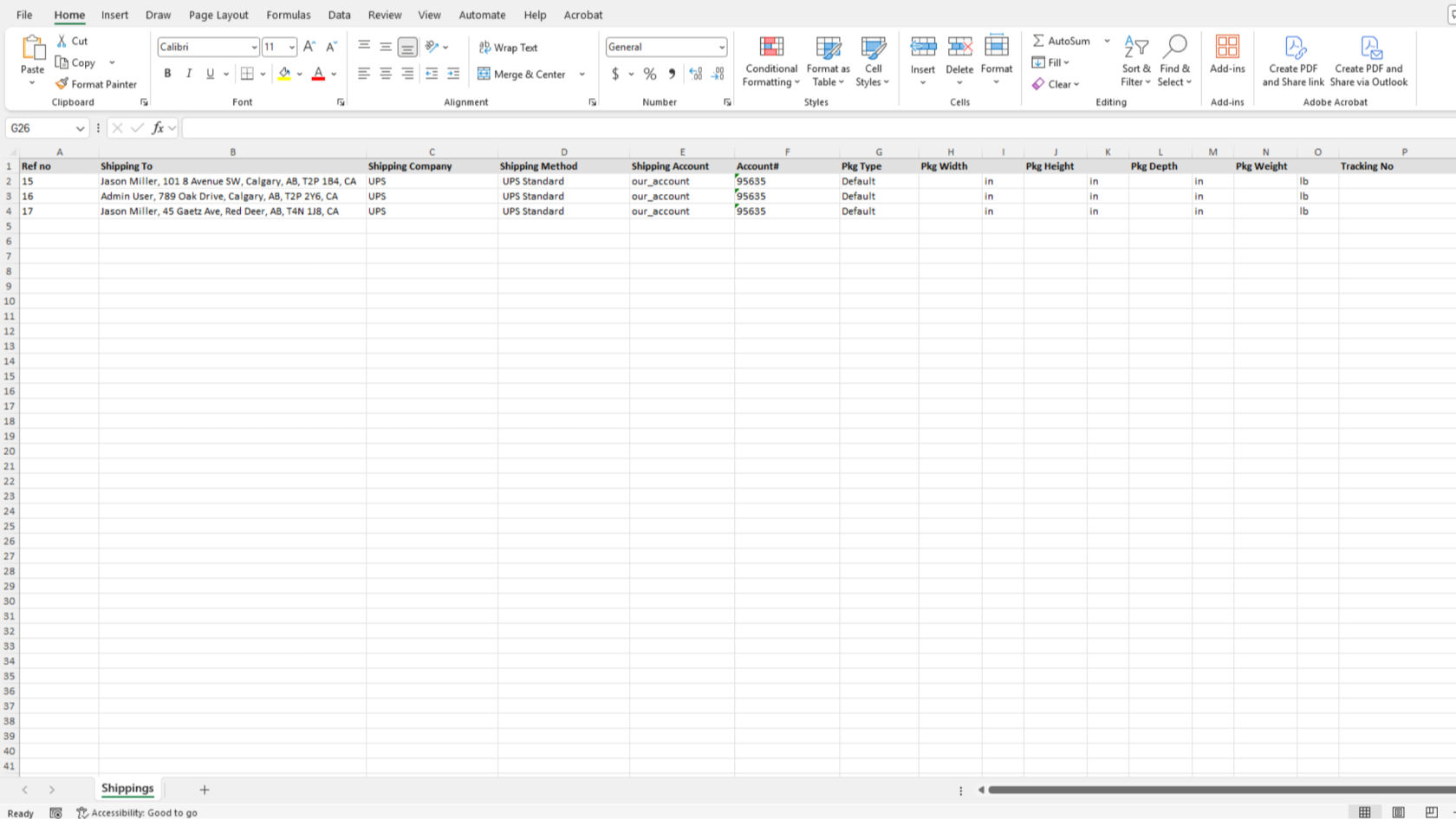
3. Enter Shipping Information
Open the downloaded file and enter the package details, tracking numbers, and shipping costs for each shipment.
If a shipping location requires multiple packages, duplicate the shipping line and enter the appropriate information for each package. Once completed, save the file.
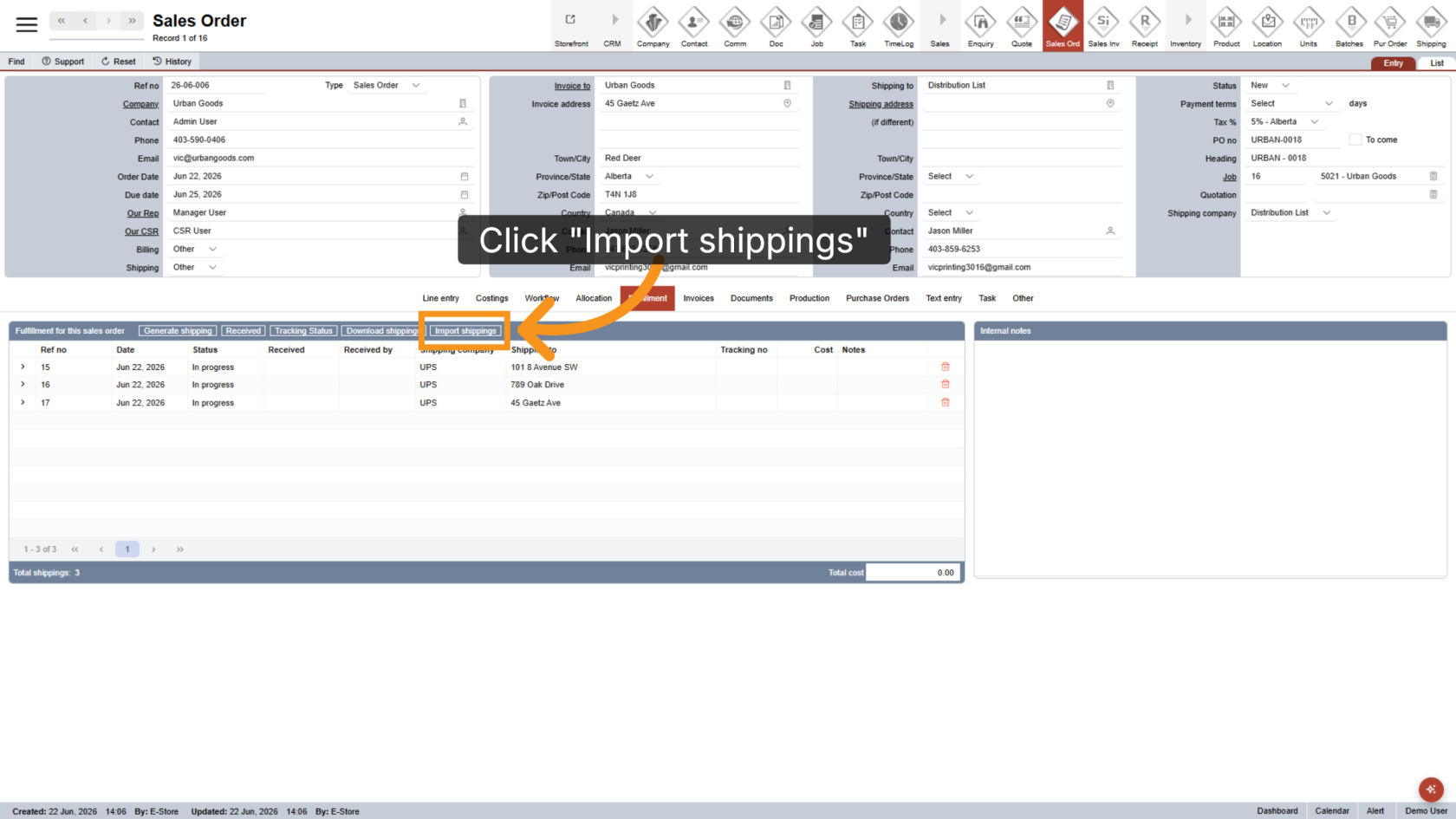
4. Import Shippings
Click Import Shippings to begin uploading the updated shipping information into the system.
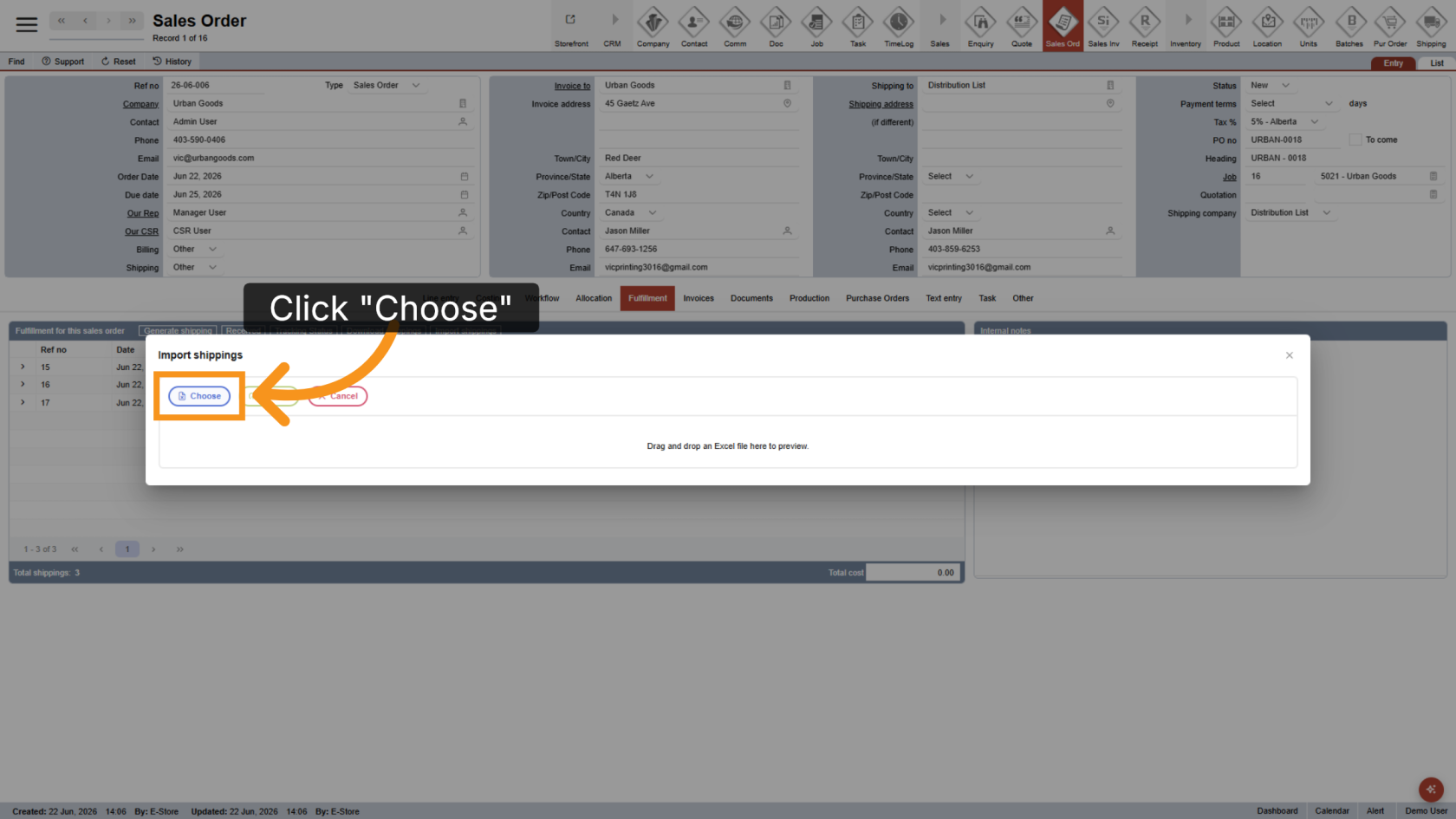
5. Select the Import File
Click Choose and select the completed shipping file from your device.
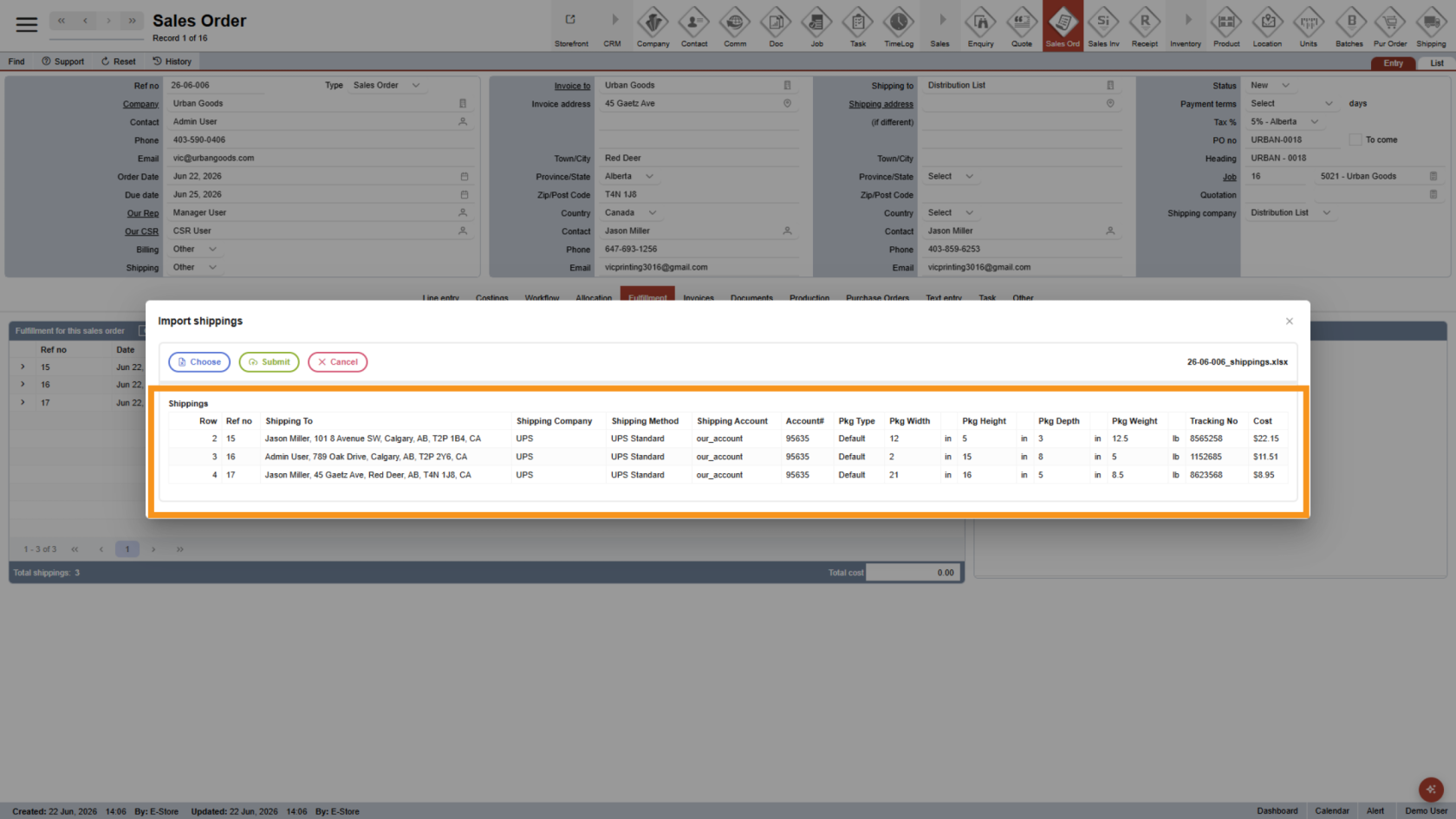
6. Review Imported Data
The shipping information from the uploaded file will be displayed in the list. Review the data to ensure all shipment details are correct.
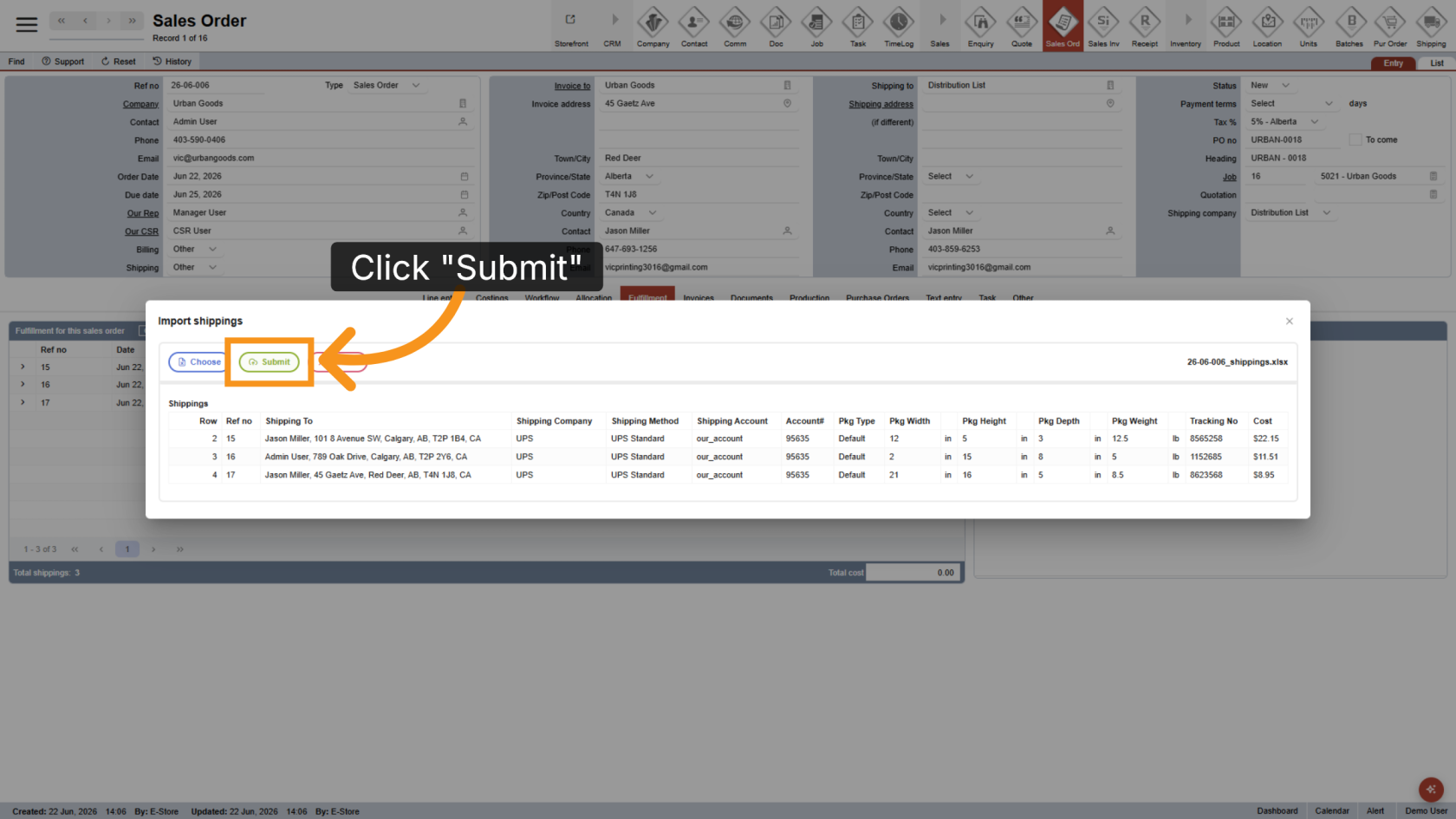
7. Submit the Import
Click Submit to finalize the import and save the shipping information in the system.
8. Shipping Completed
All shipments included in the file will be updated to Completed status.
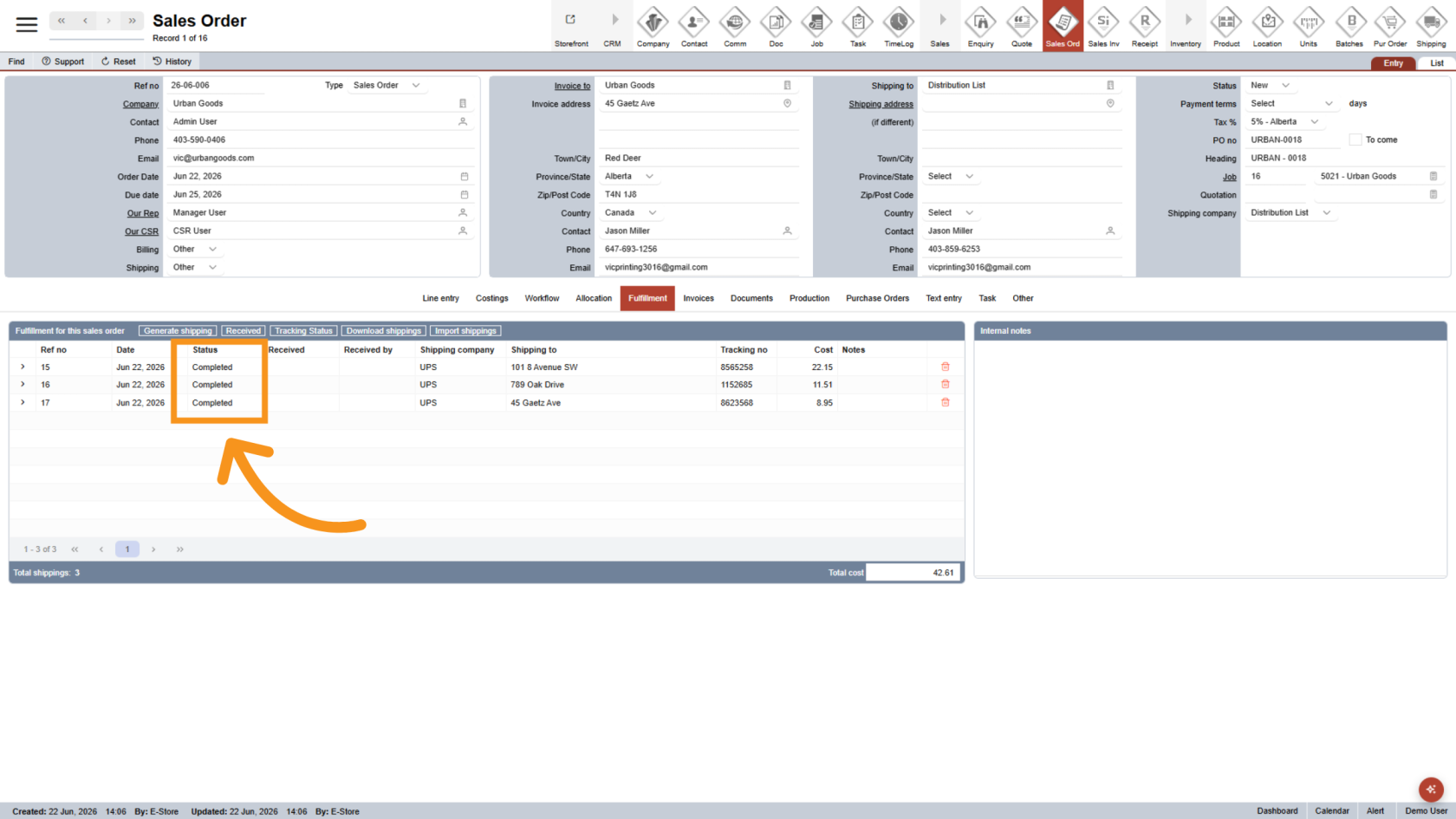
You have successfully imported multiple shipments. Verify that all shipments information has been updated correctly and is available within the system.