
Track Shipments
This tutorial shows you how to track shipments in the Worktraq app.
Video Tutorial
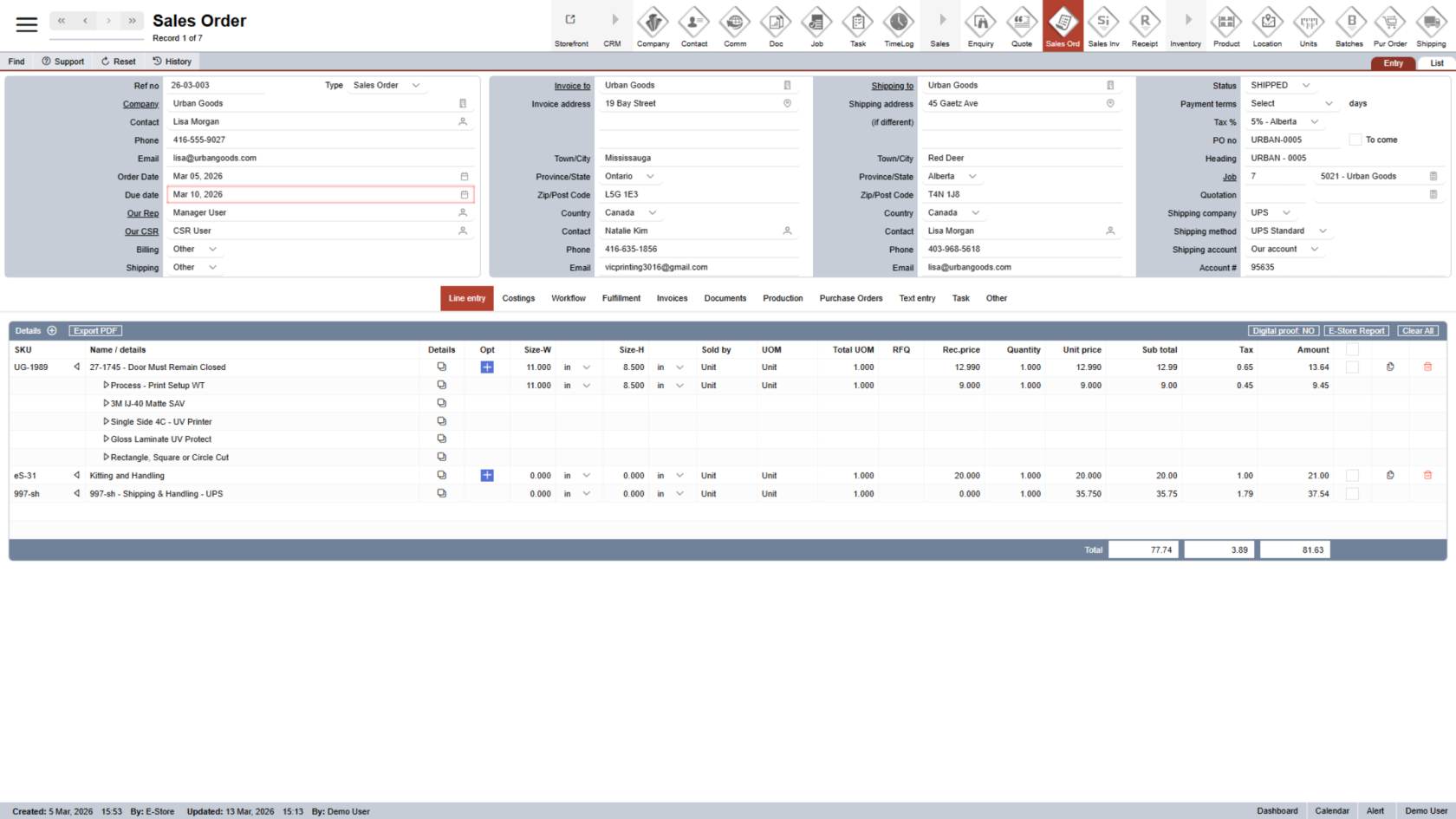
1. Open a Sales Order
Open the sales order that contains the shipment you want to track.
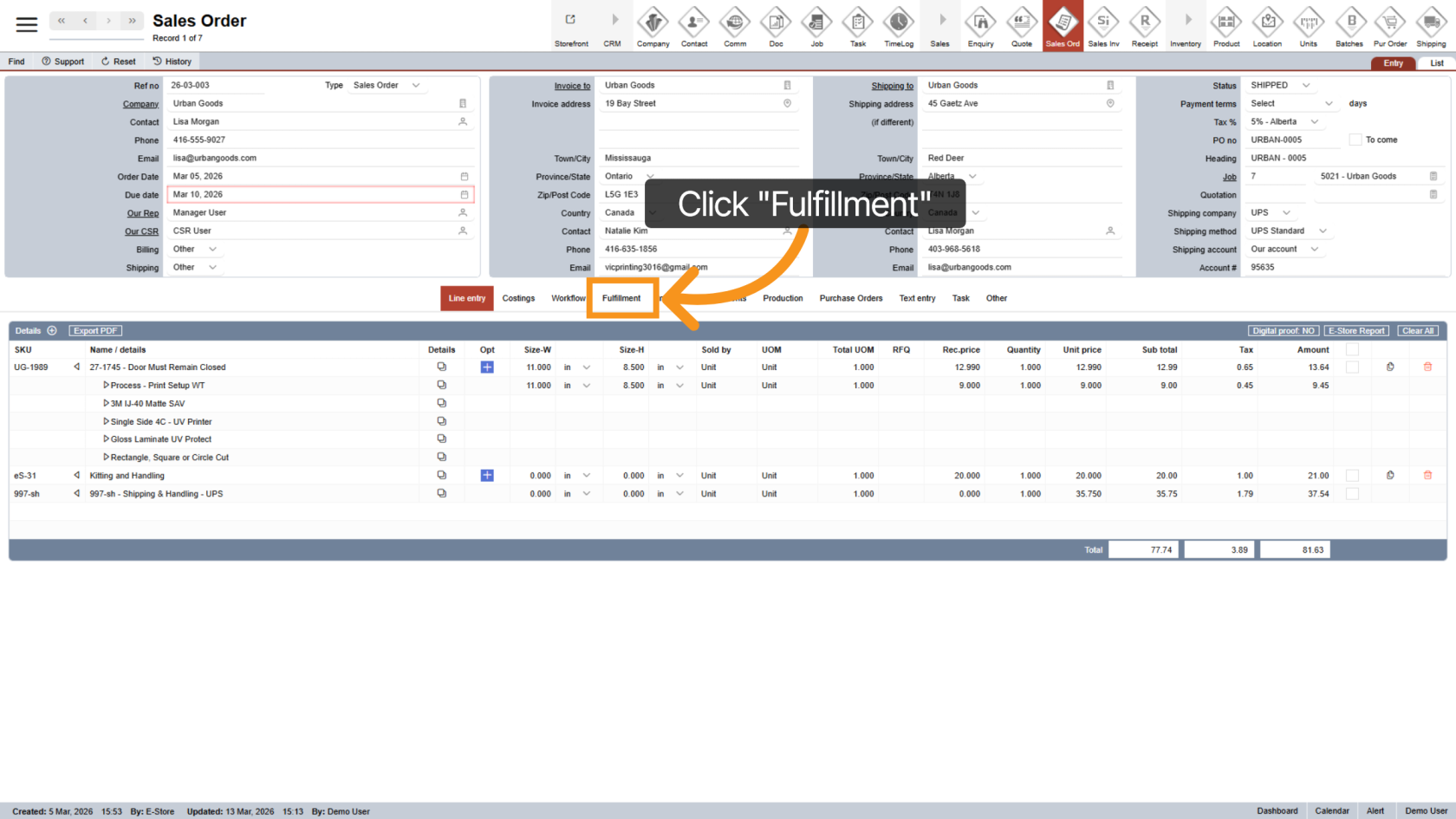
2. Open the Fulfillment Tab
Click Fulfillment to view the shipment information.
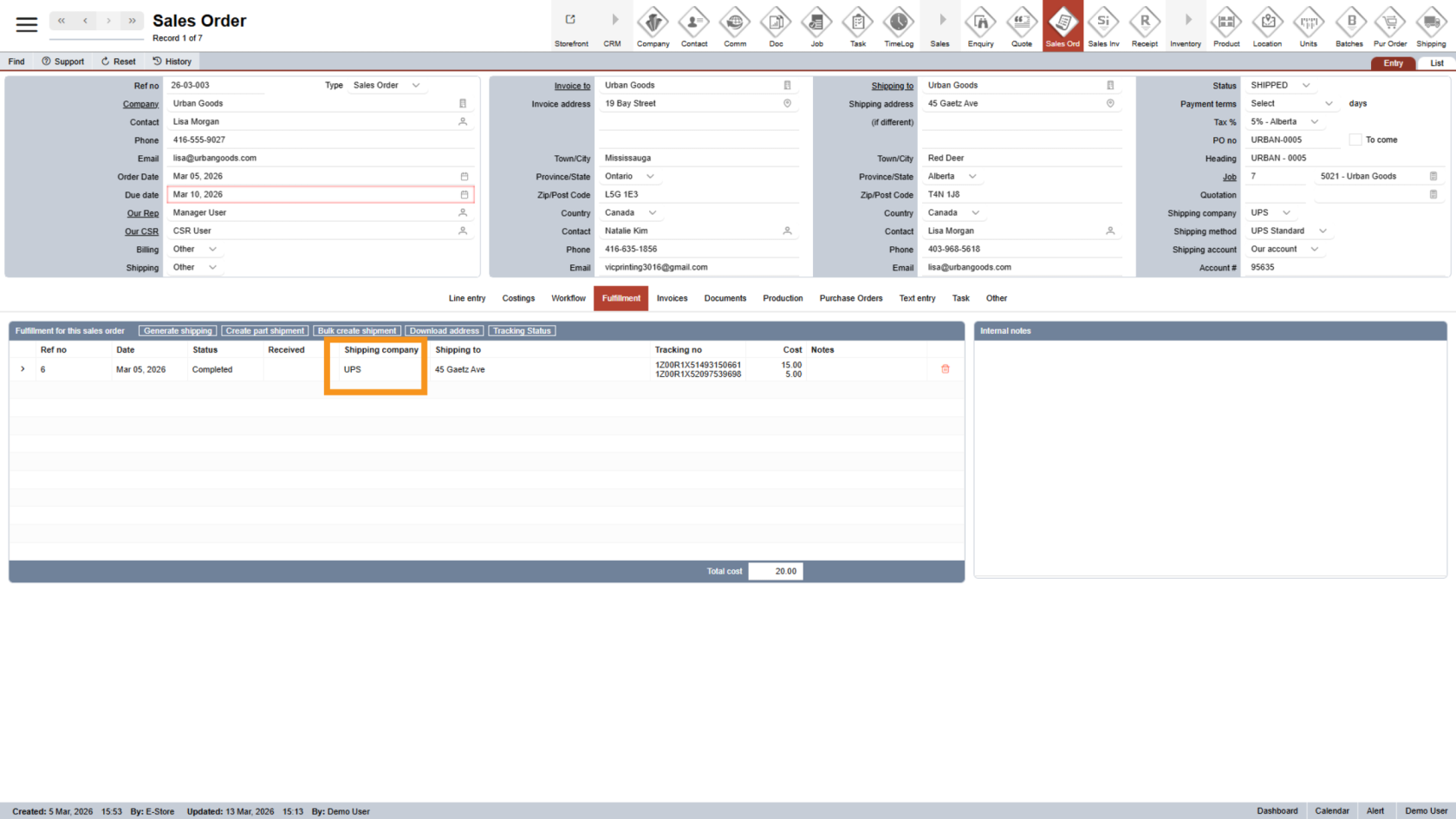
3. Check Shipping Company
The system supports shipment tracking for integrated shipping carriers only.
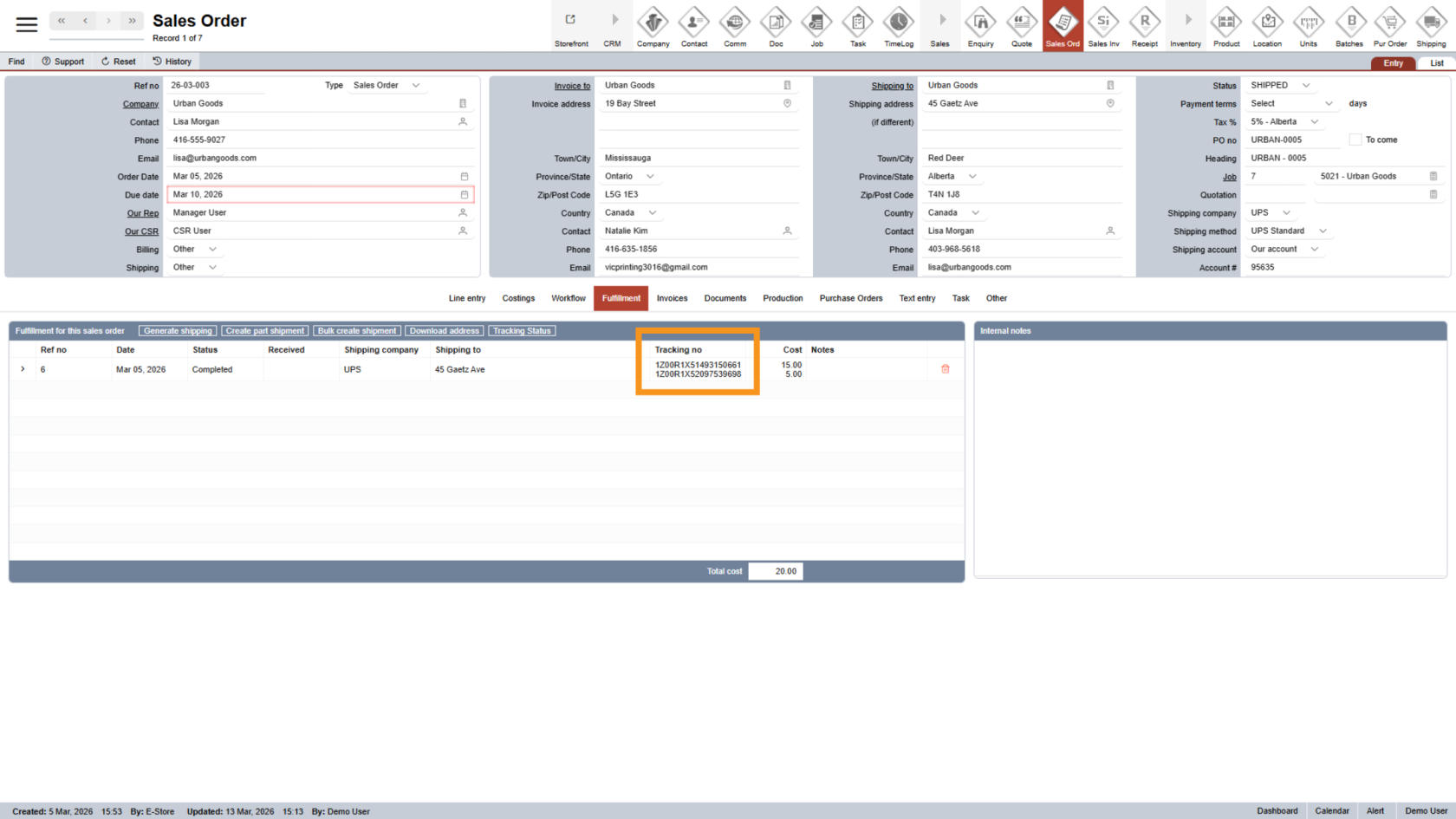
4. Verify Tracking Number
Automatic tracking requires the tracking number to be entered in the correct format. If the format is not recognized, you can still track the shipment manually using the steps below.
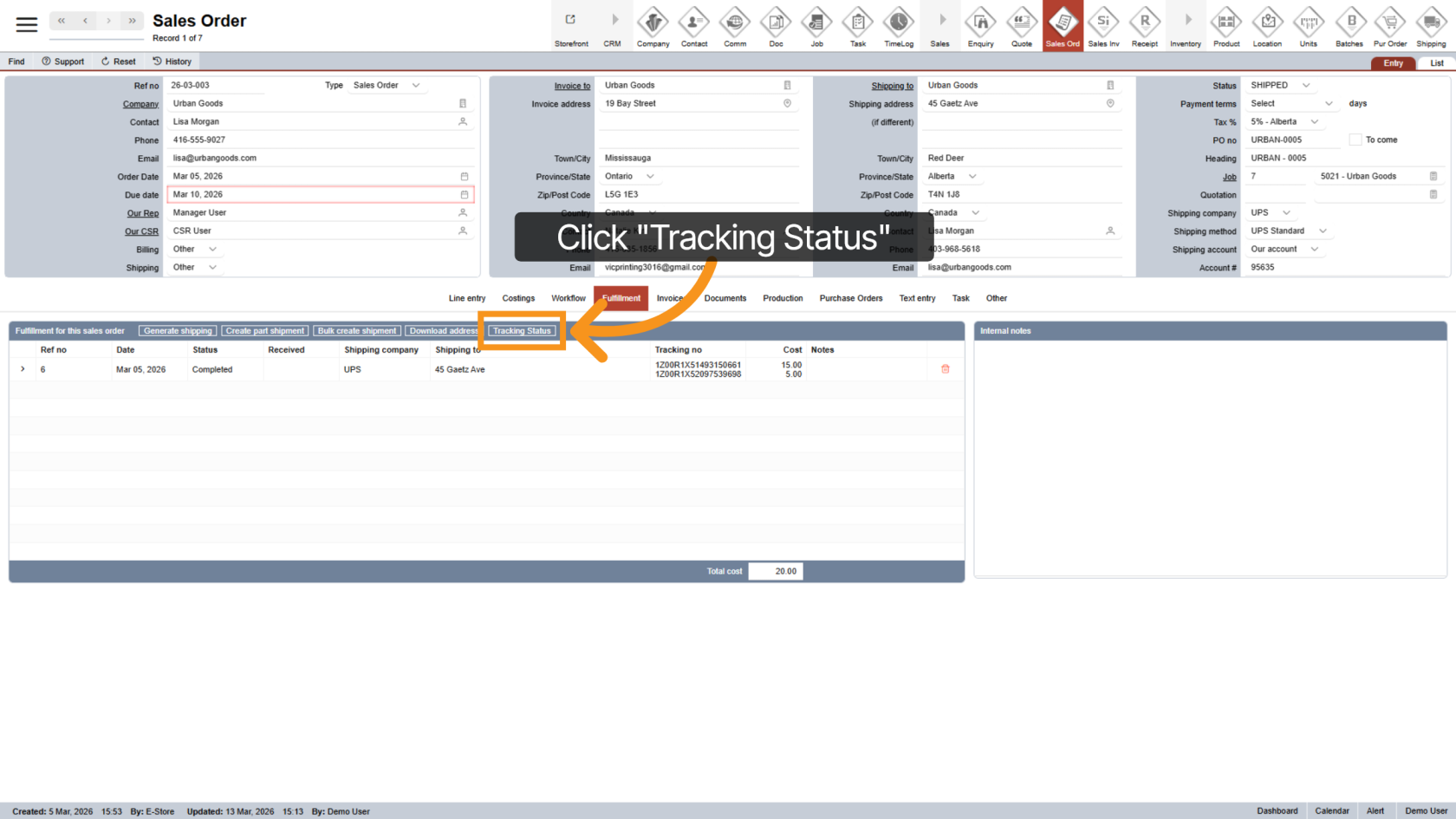
5. Check Tracking Status
Click Tracking Status to check the latest status.
Note: If the sales order contains multiple shipments, the system will check all supported tracking numbers at once.
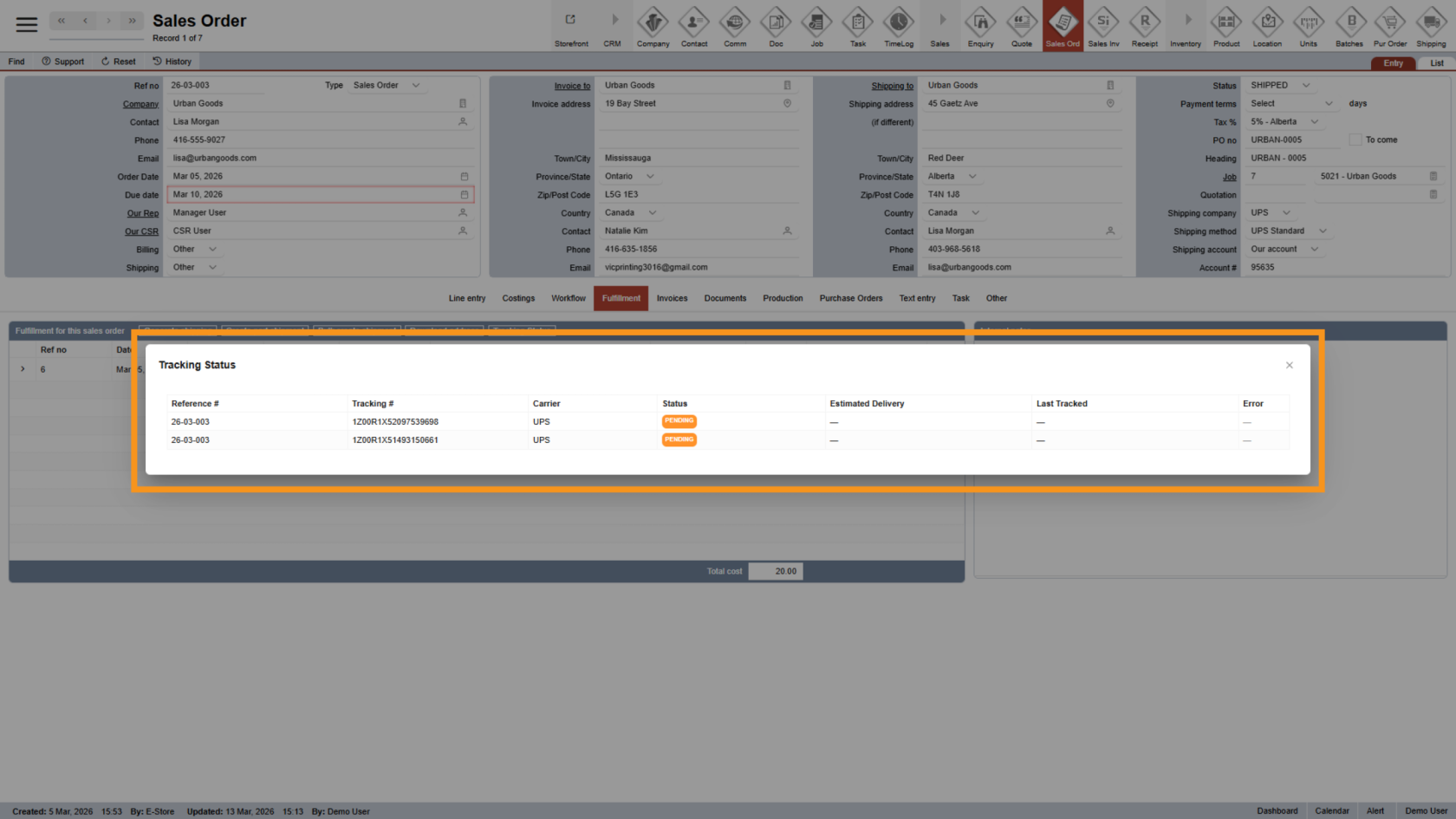
6. View Tracking Summary
A pop-up displays the current status of each shipment in the sales order.
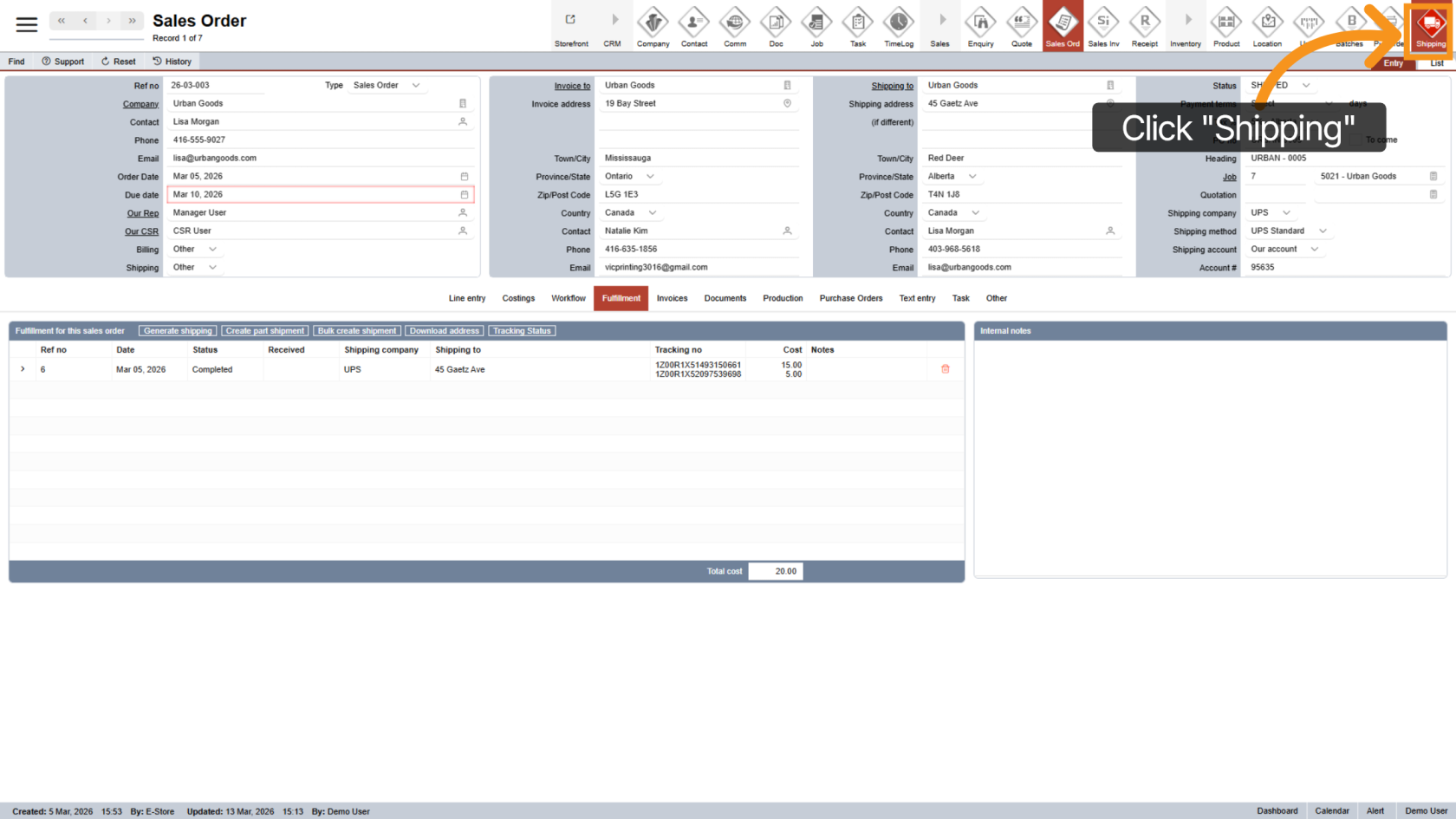
7. Detailed Tracking (Manual Tracking)
For more details or manual tracking:
- Copy the tracking number you want to check.
- Then click "Shipping" to open the shipping module.
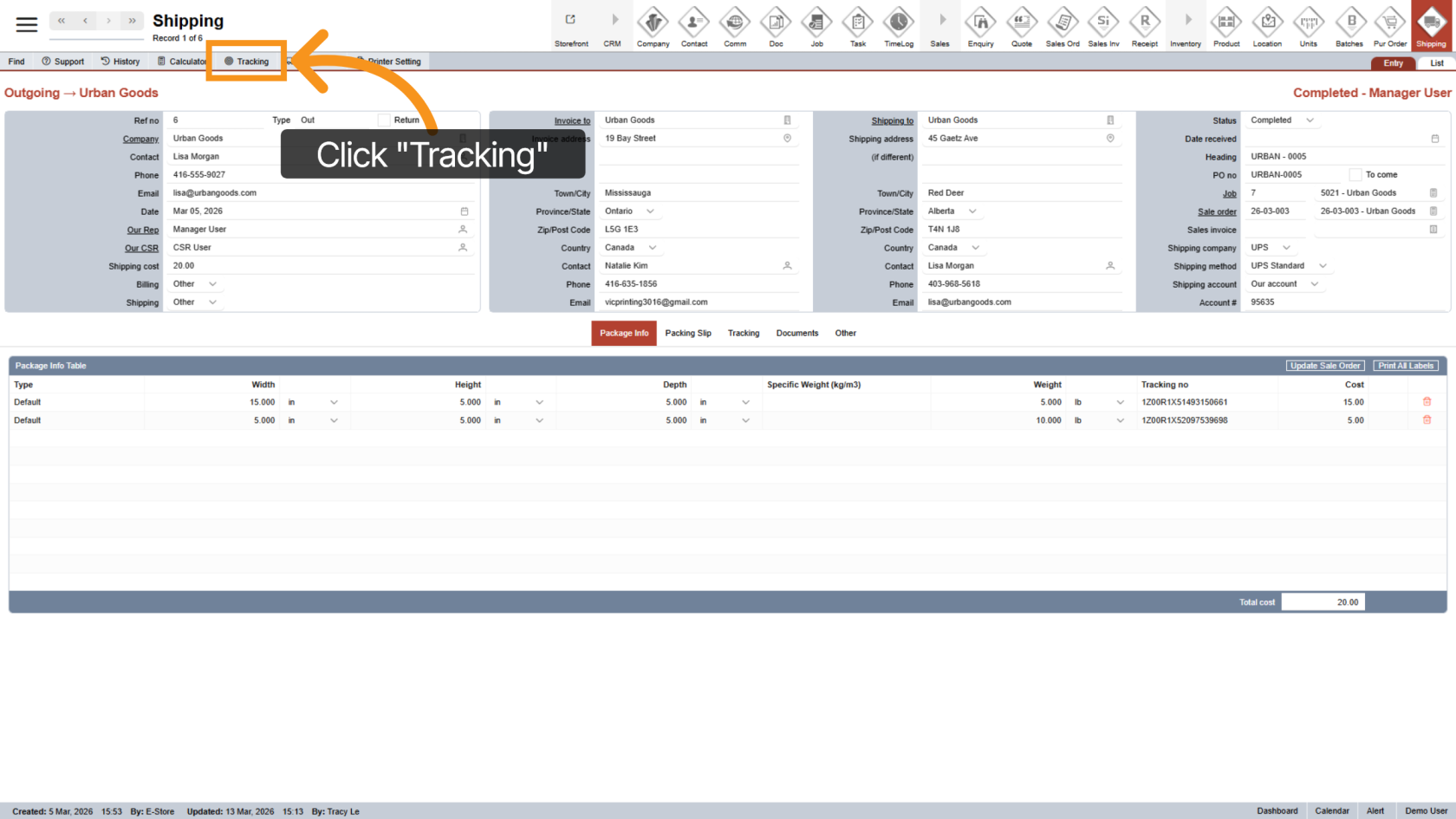
8. Open Tracking
Click "Tracking" to open the tracking tool.
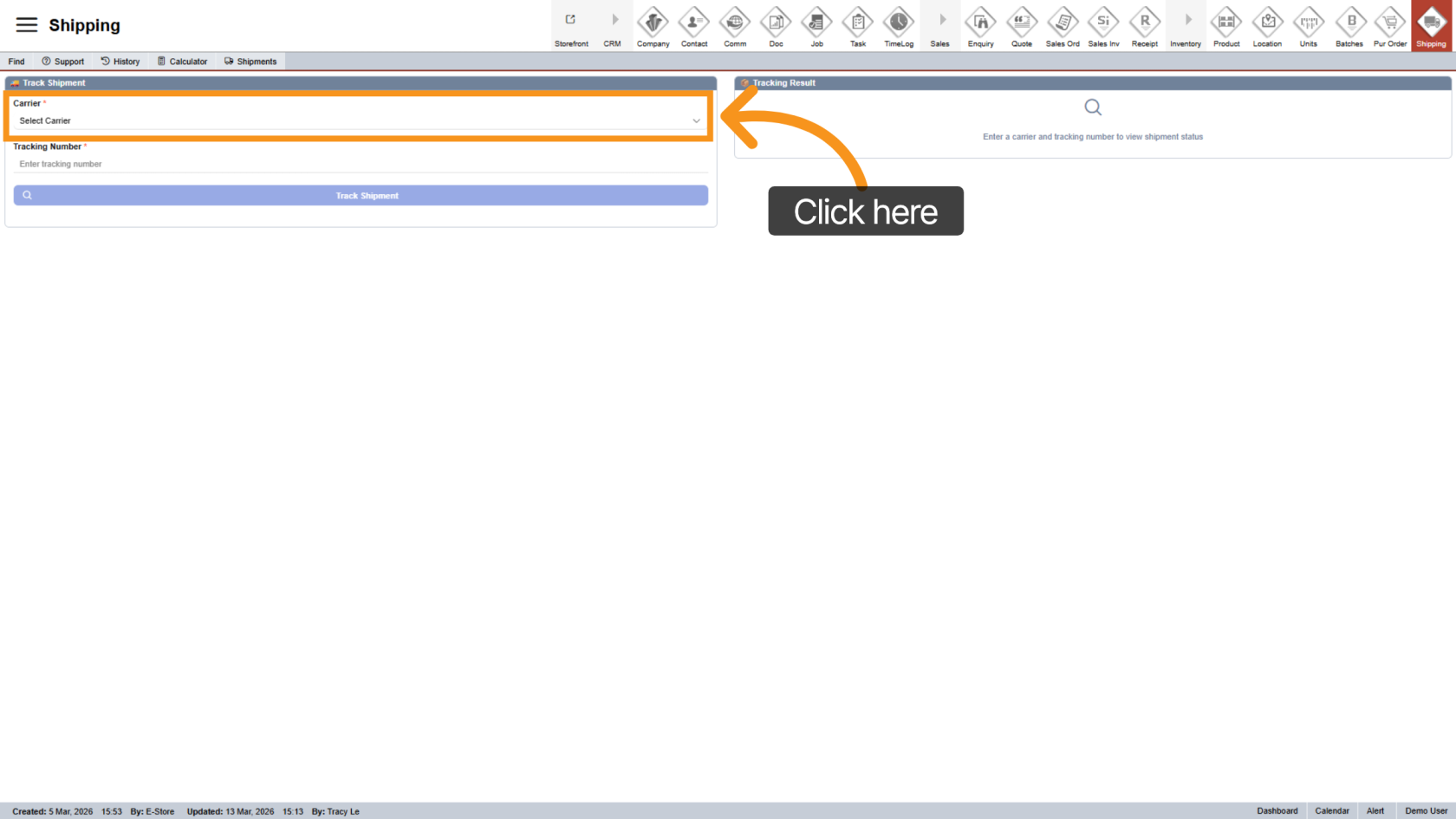
9. Select Carrier
Choose the carrier associated with the tracking number.
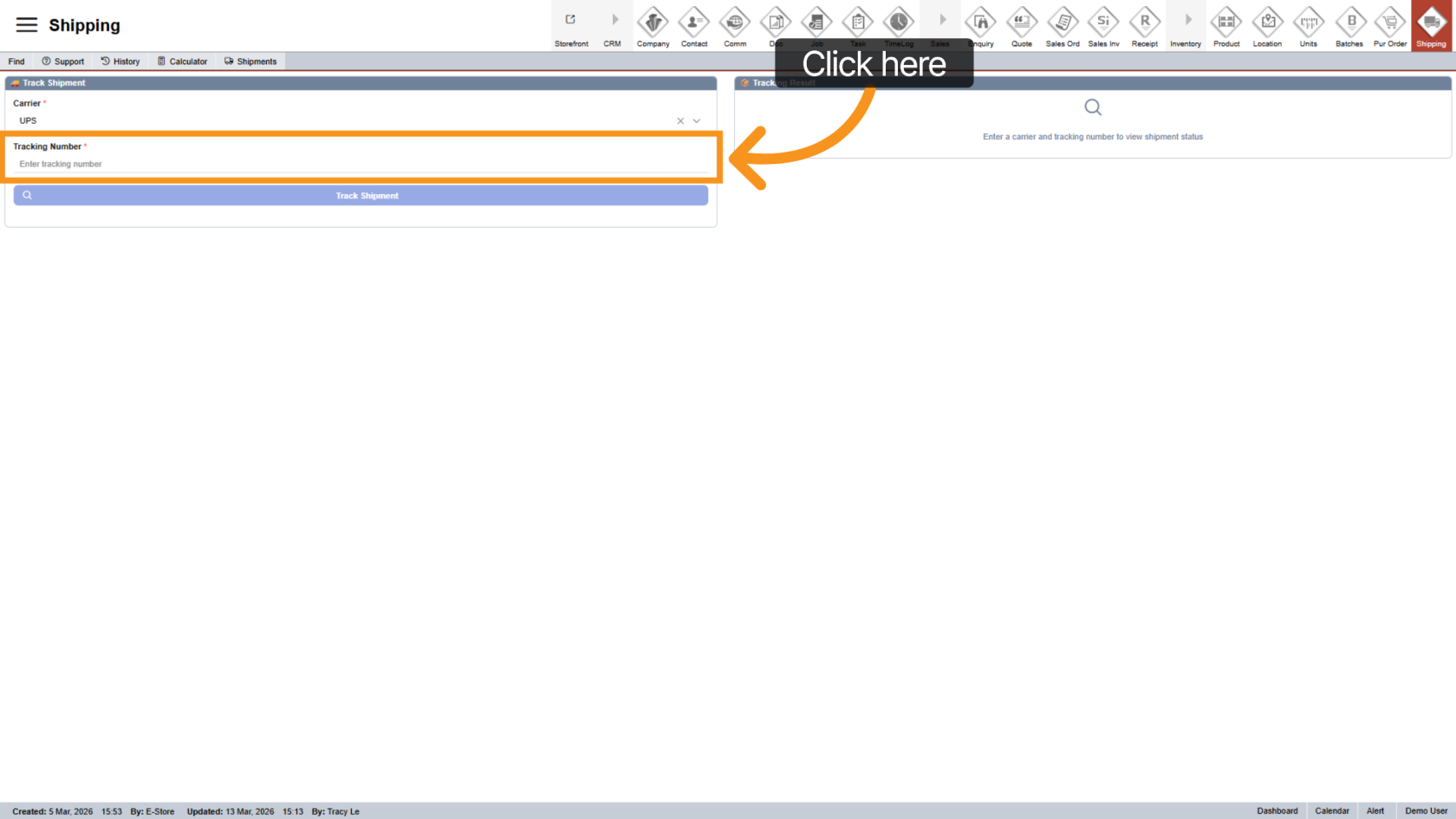
10. Enter Tracking Number
Paste the tracking number you copied earlier into the tracking field.
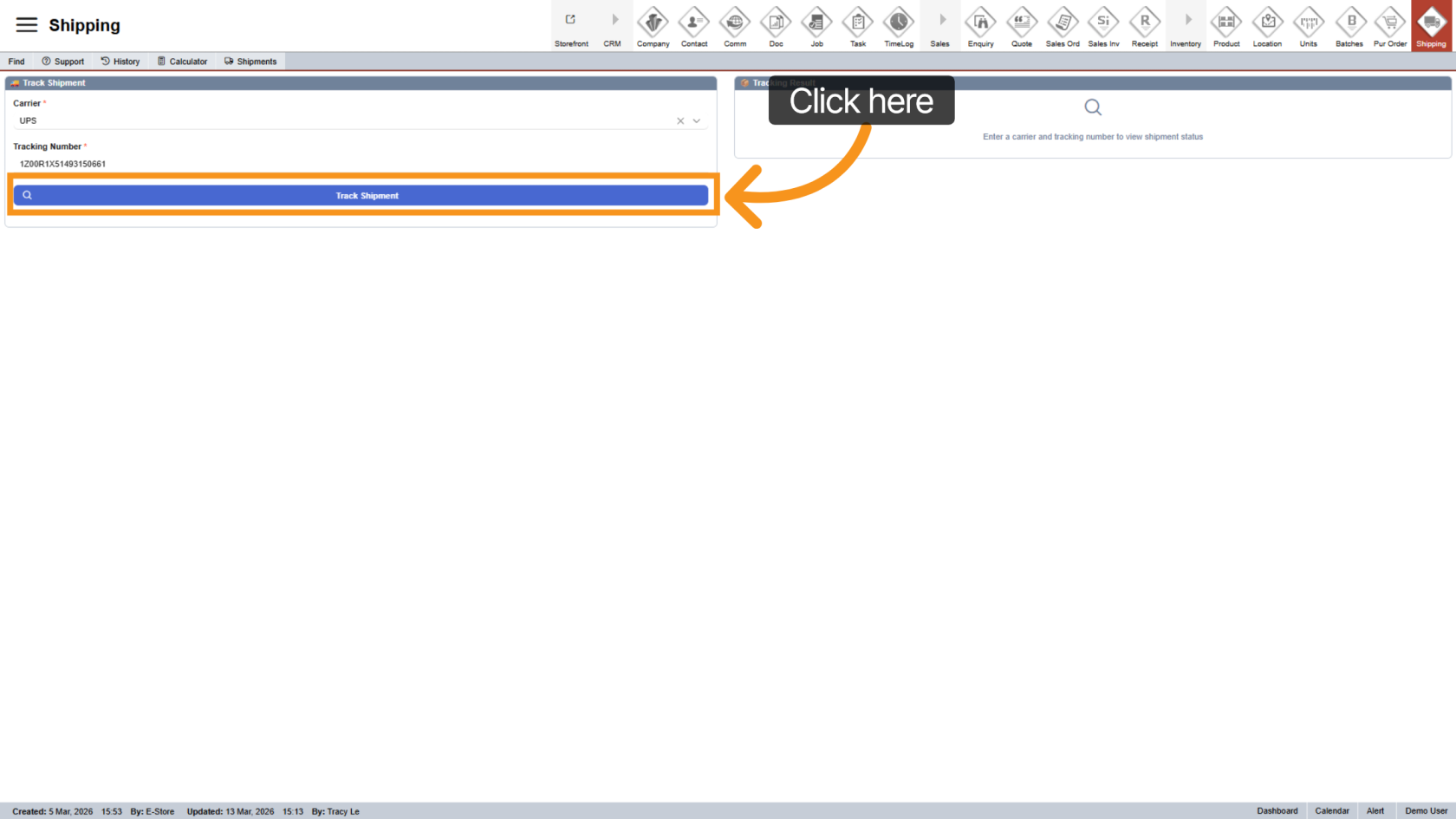
11. Track Shipment
Click "Track Shipment" to retrieve the latest shipment details.
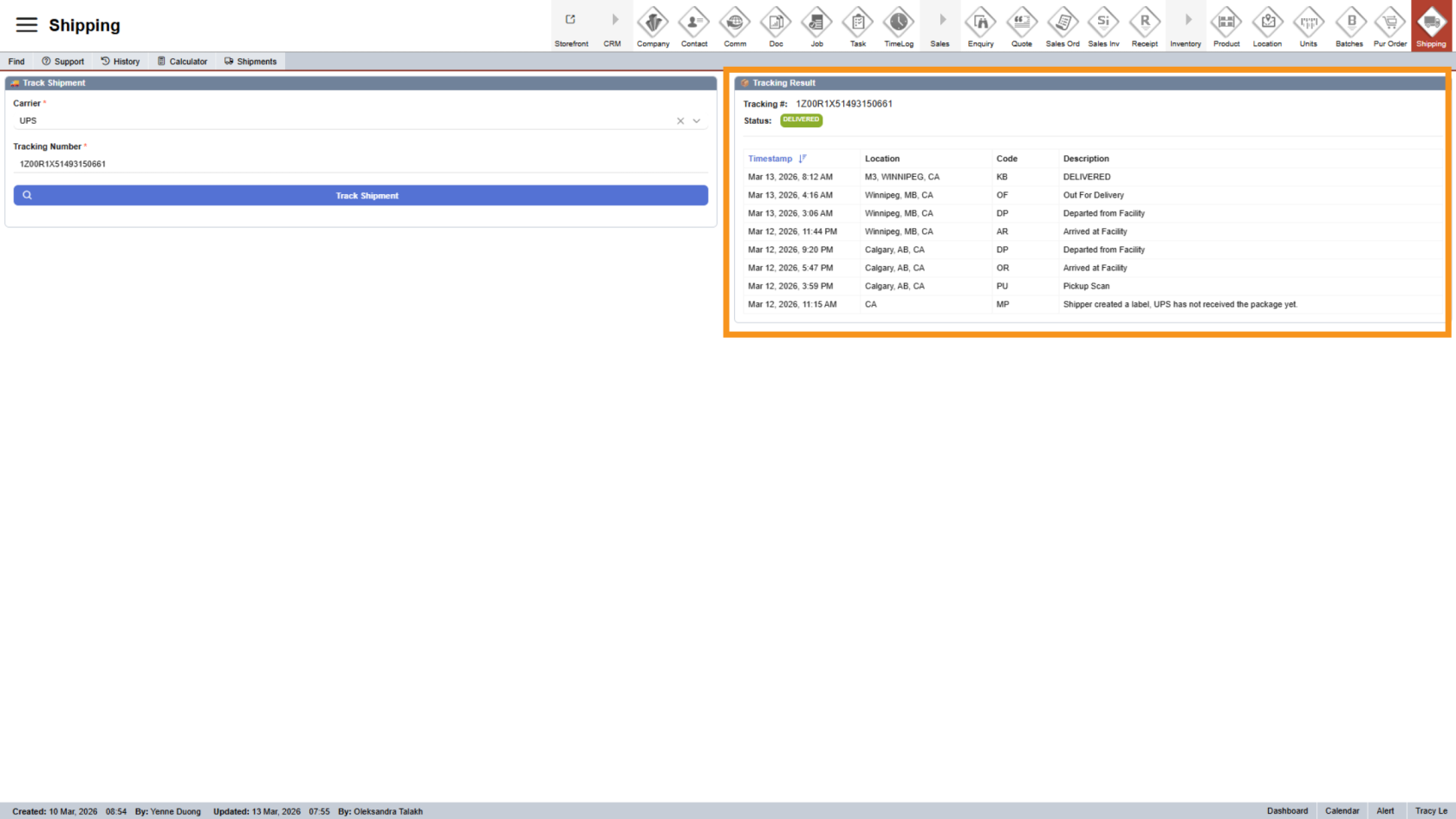
12. View Tracking Details
The detailed shipment information is displayed on the right side of the screen.
You have successfully tracked shipments using both tracking methods in WorkTraq.