
Quotation Workflow
This guide explains how to review and understand the workflow used for a quotation in the WorkTraq application.
Video Tutorial
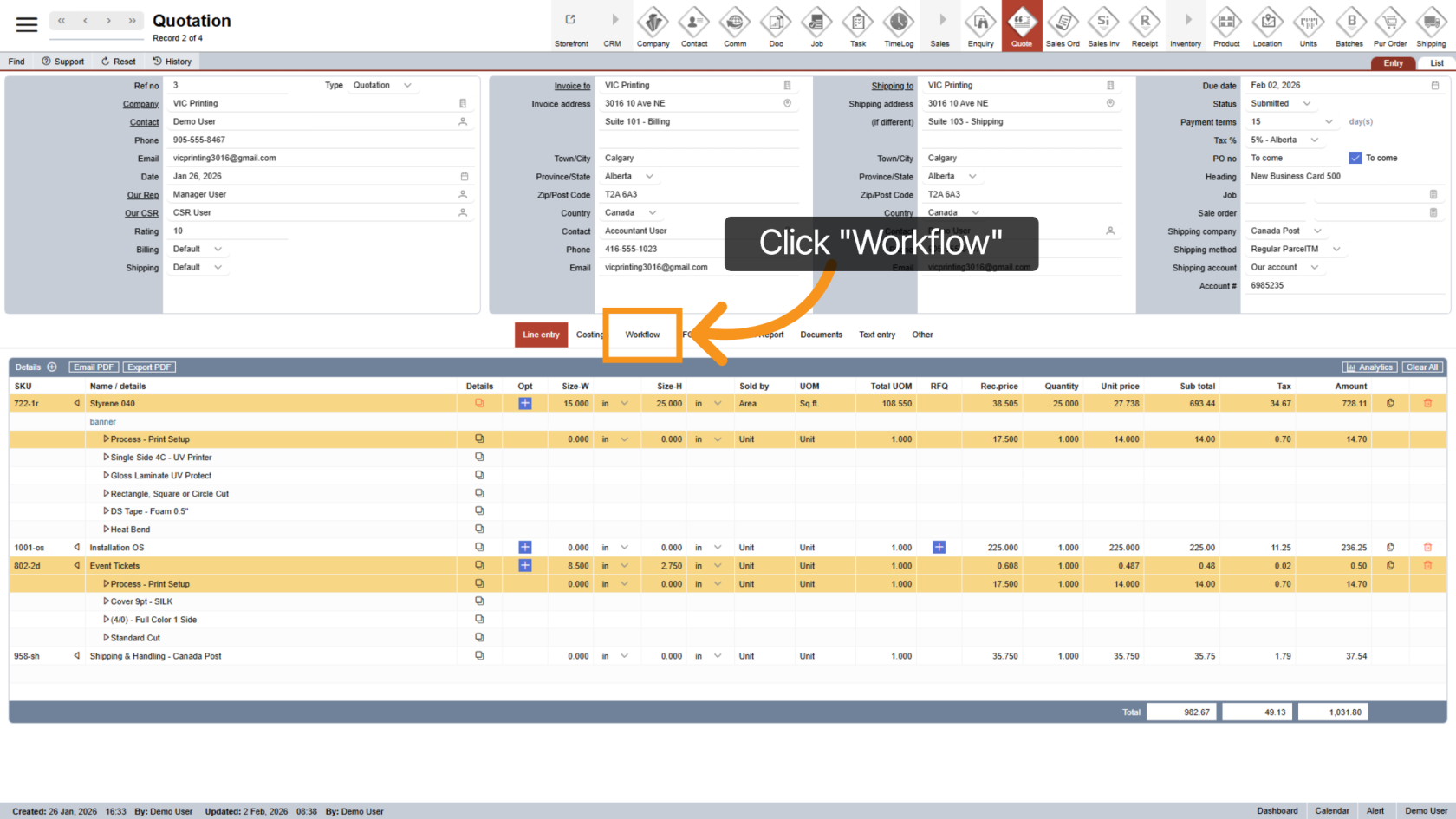
1. Open the Workflow Section
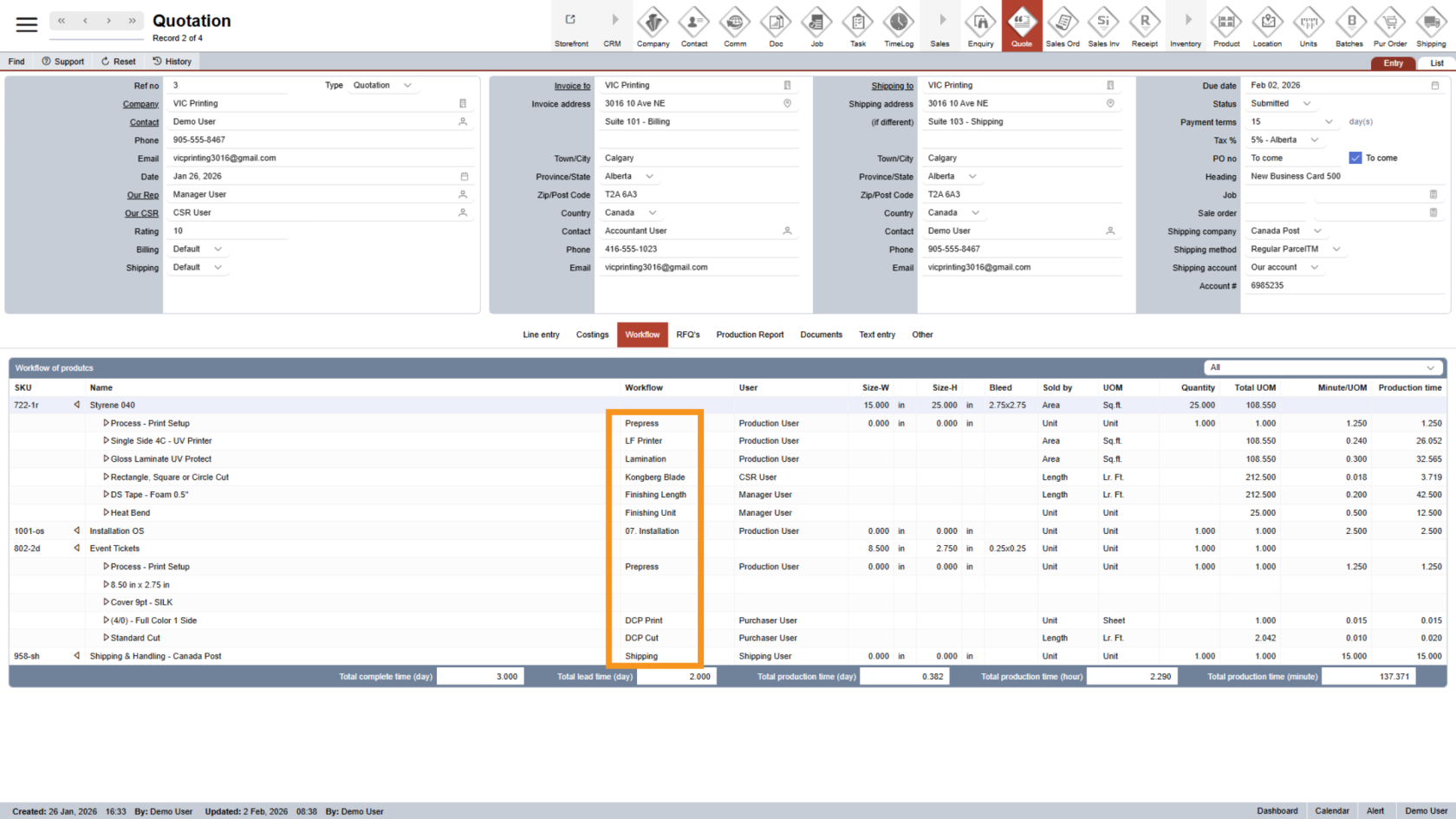
2. Review Workflow Steps
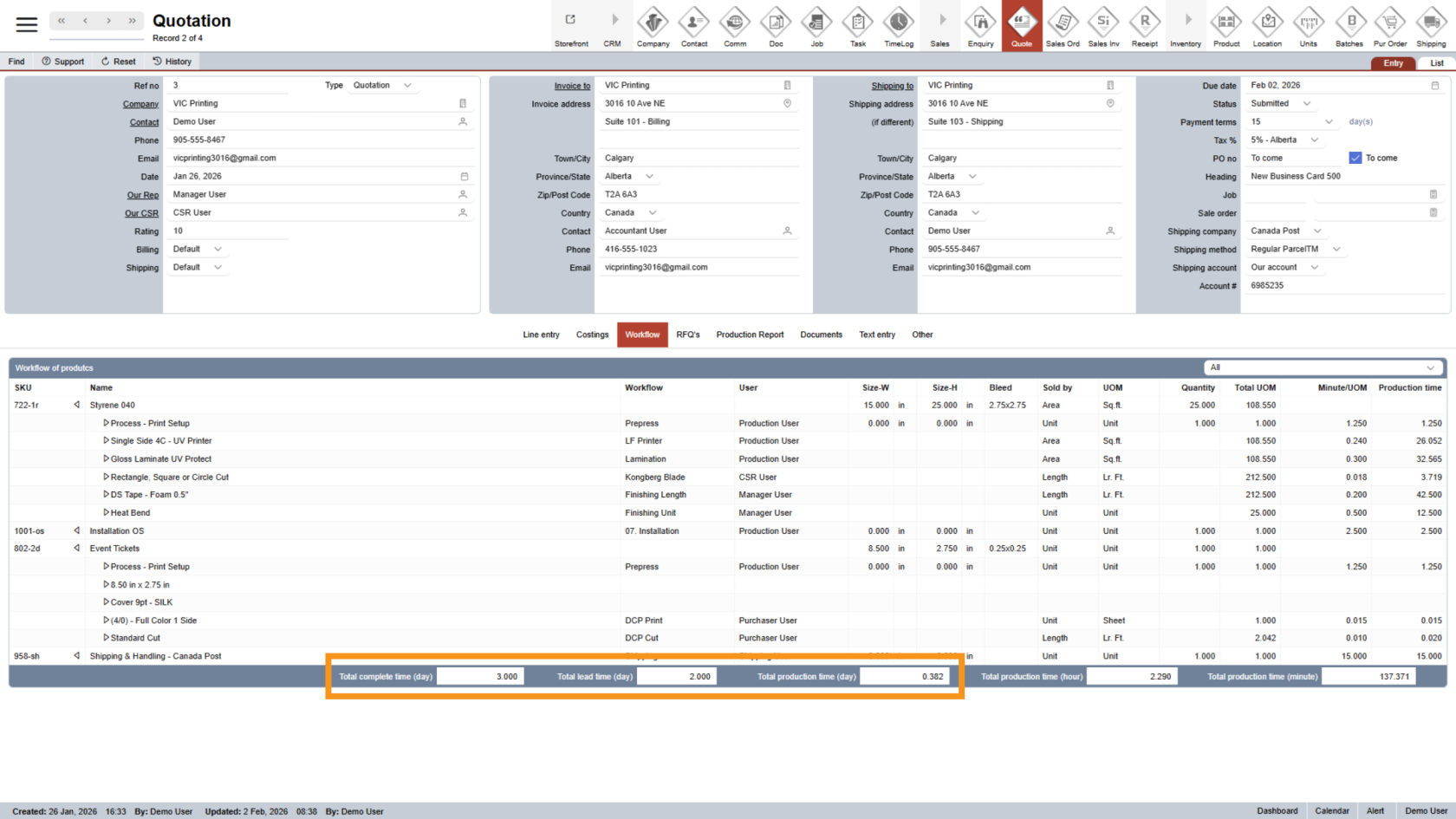
The Workflow column shows all workflow steps (assets) required to produce this quotation.
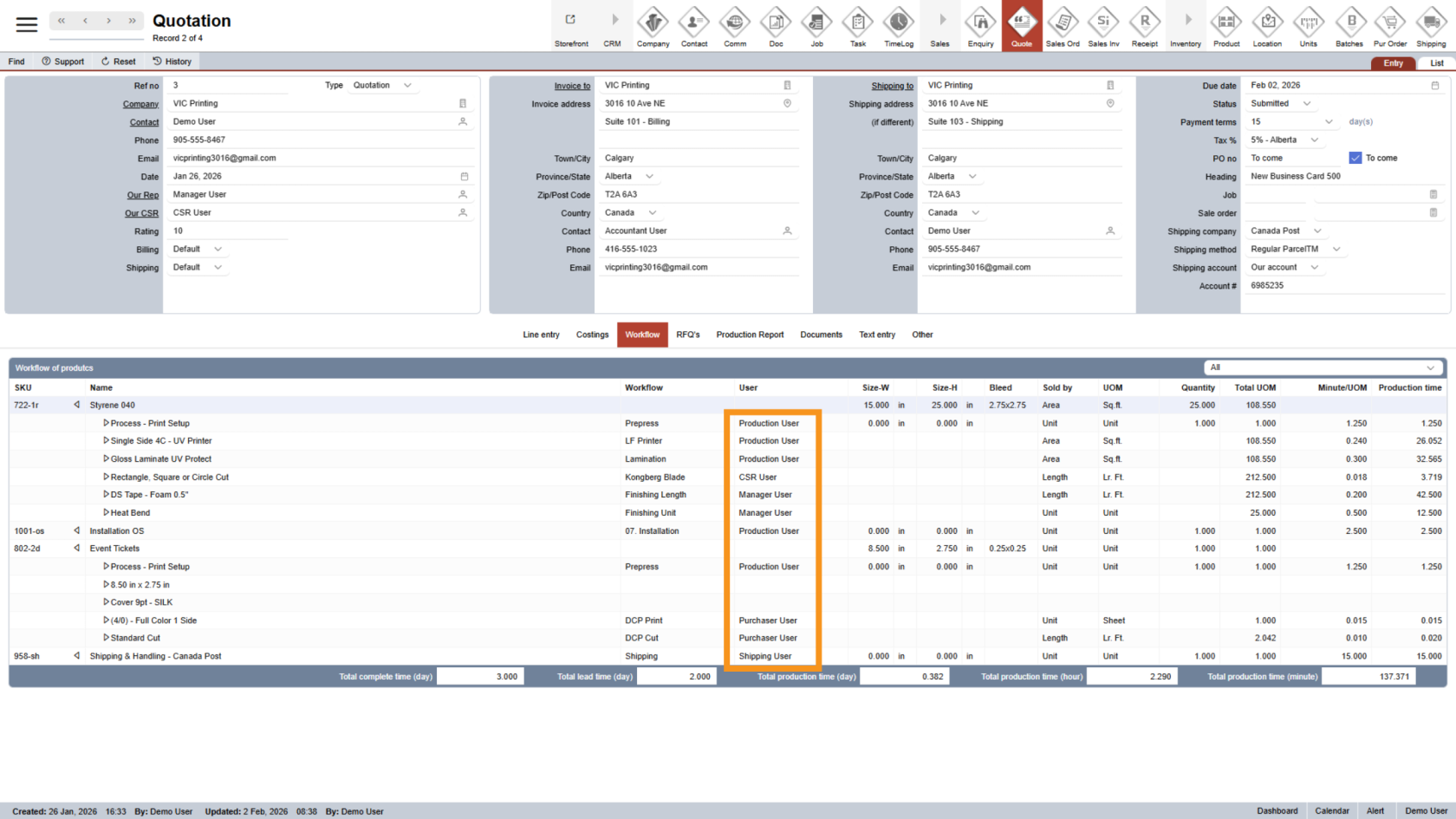
3. View Assigned Users
The User column displays all staff members involved in producing the quotation.
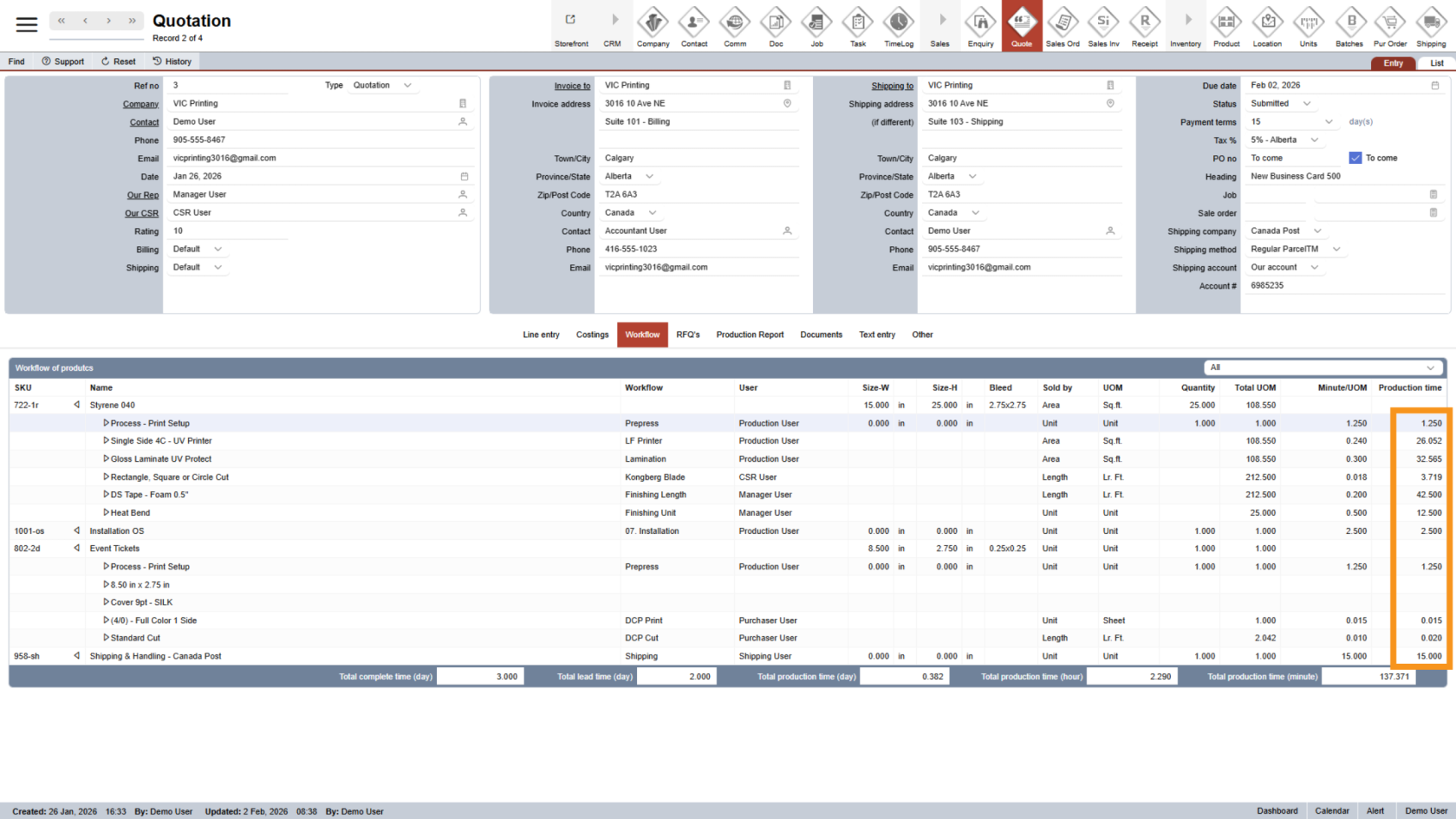
4. Review Production Time
WorkTraq automatically calculates the production time for each workflow step and option.
5. Check Workflow Summary
At the bottom of the page, you’ll see a summary of the total production time, total lead time, and total complete time. This information helps sales staff determine when the job will be finished and adjust the due date accurately.
You have successfully reviewed the quotation workflow in WorkTraq. This setup helps organize production steps, assign responsibilities, and estimate lead times for smoother job management. Review all quotation information before moving on to the next step Submit Quotation.