
Current Working Hour
This tutorial explains how to generate Current Working Hour reports for the current pay period in the WorkTraq application.
Video Tutorial
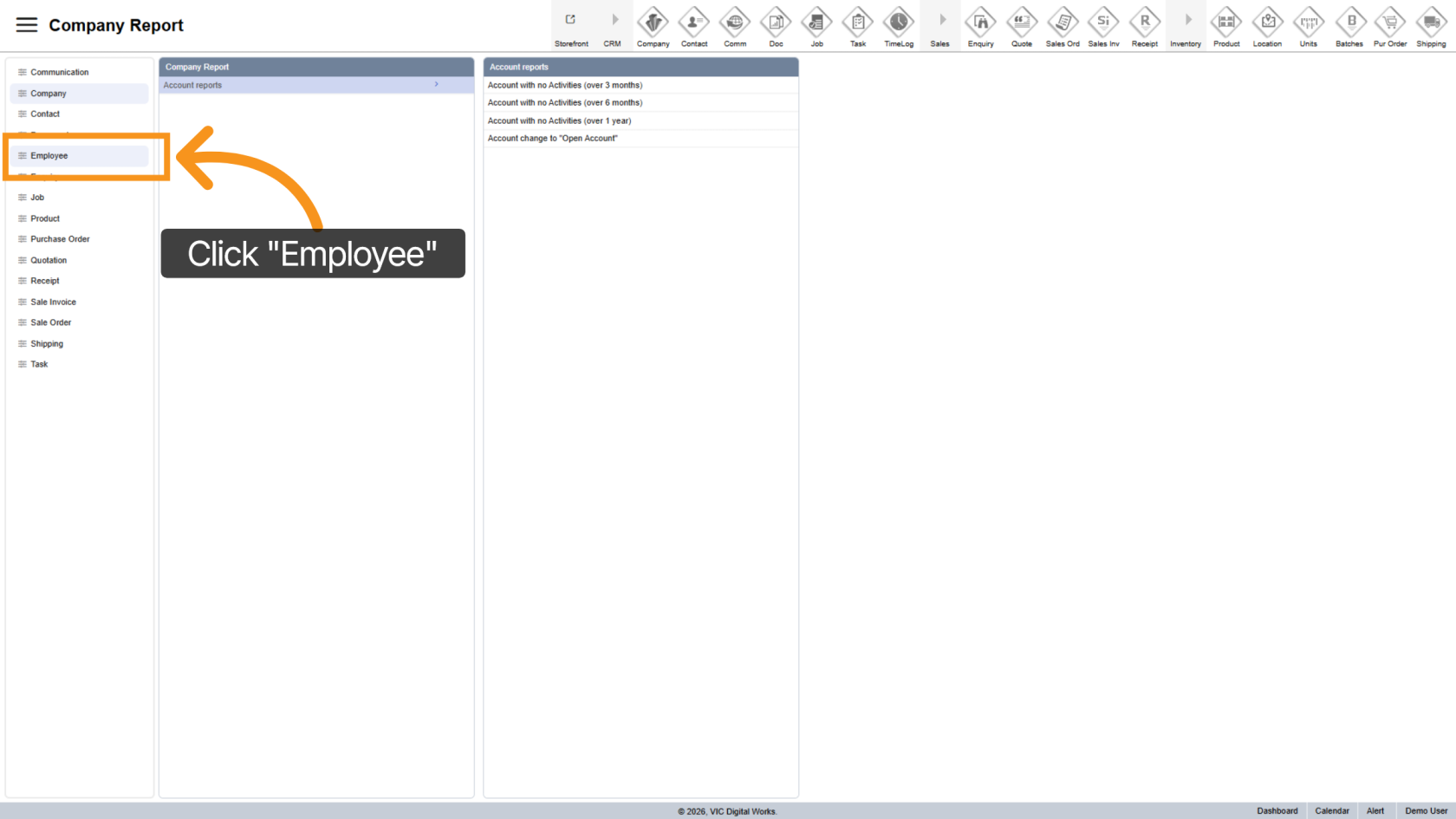
1. Open Employee Reports
Click "Employee" to access employee-related reports within the system.
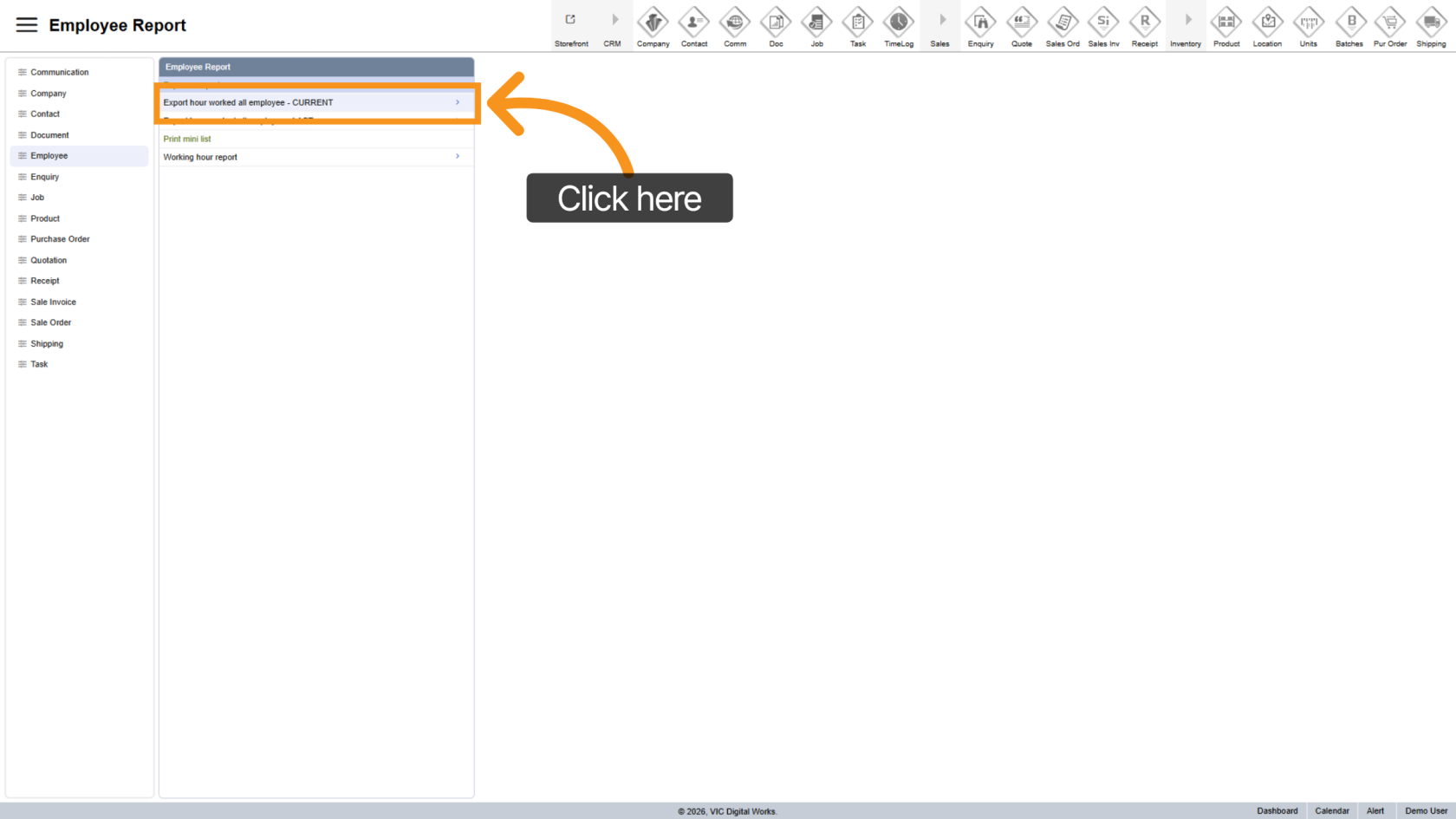
2. Select Current Working Hour Report
Click Current Working Hour Report to generate the report for the current 2-week pay period.
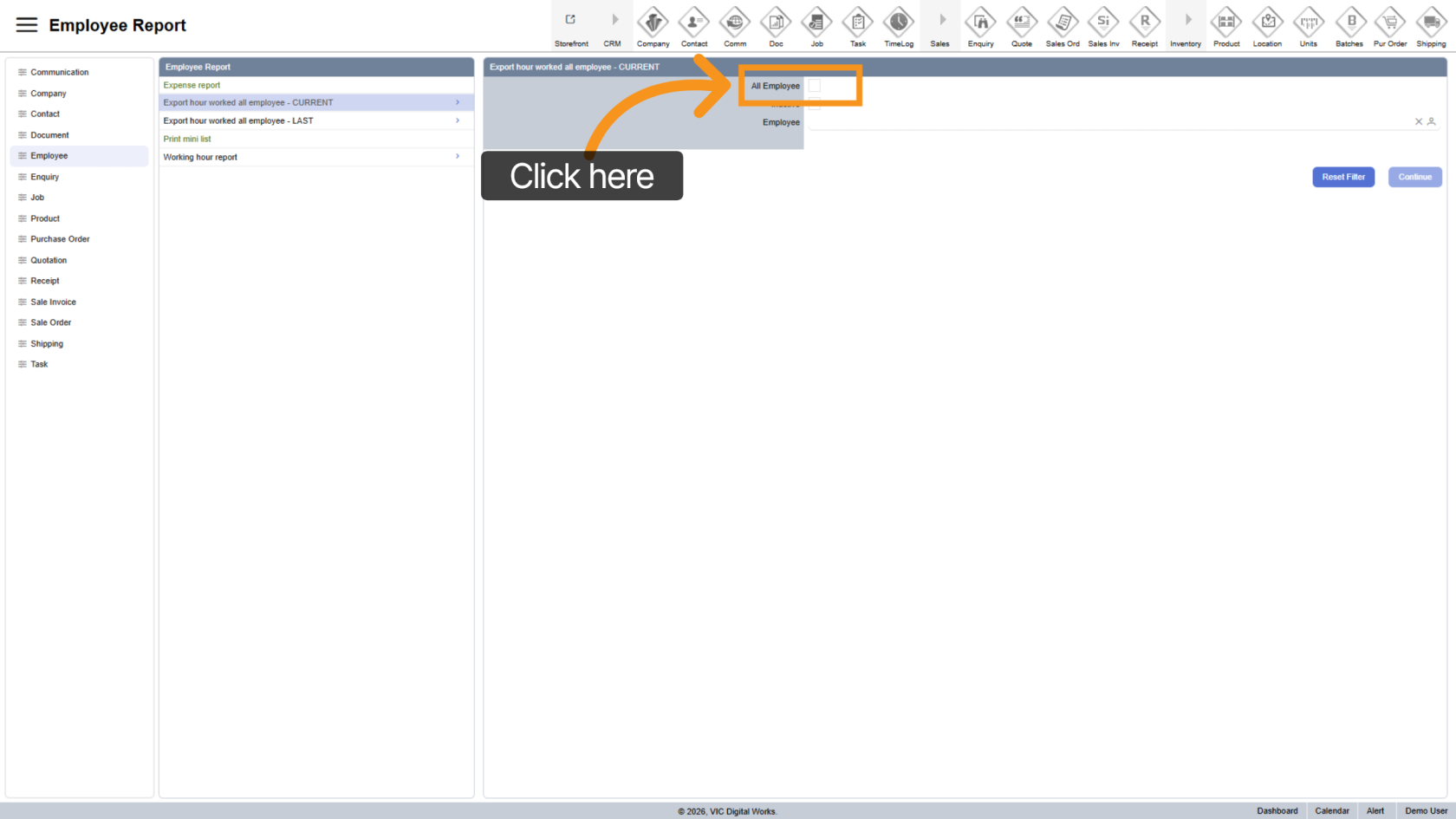
3. Select All Employees
Choose "All Employee" to export working hours for all active employees. Select this or choose a specific employee in Step 5.
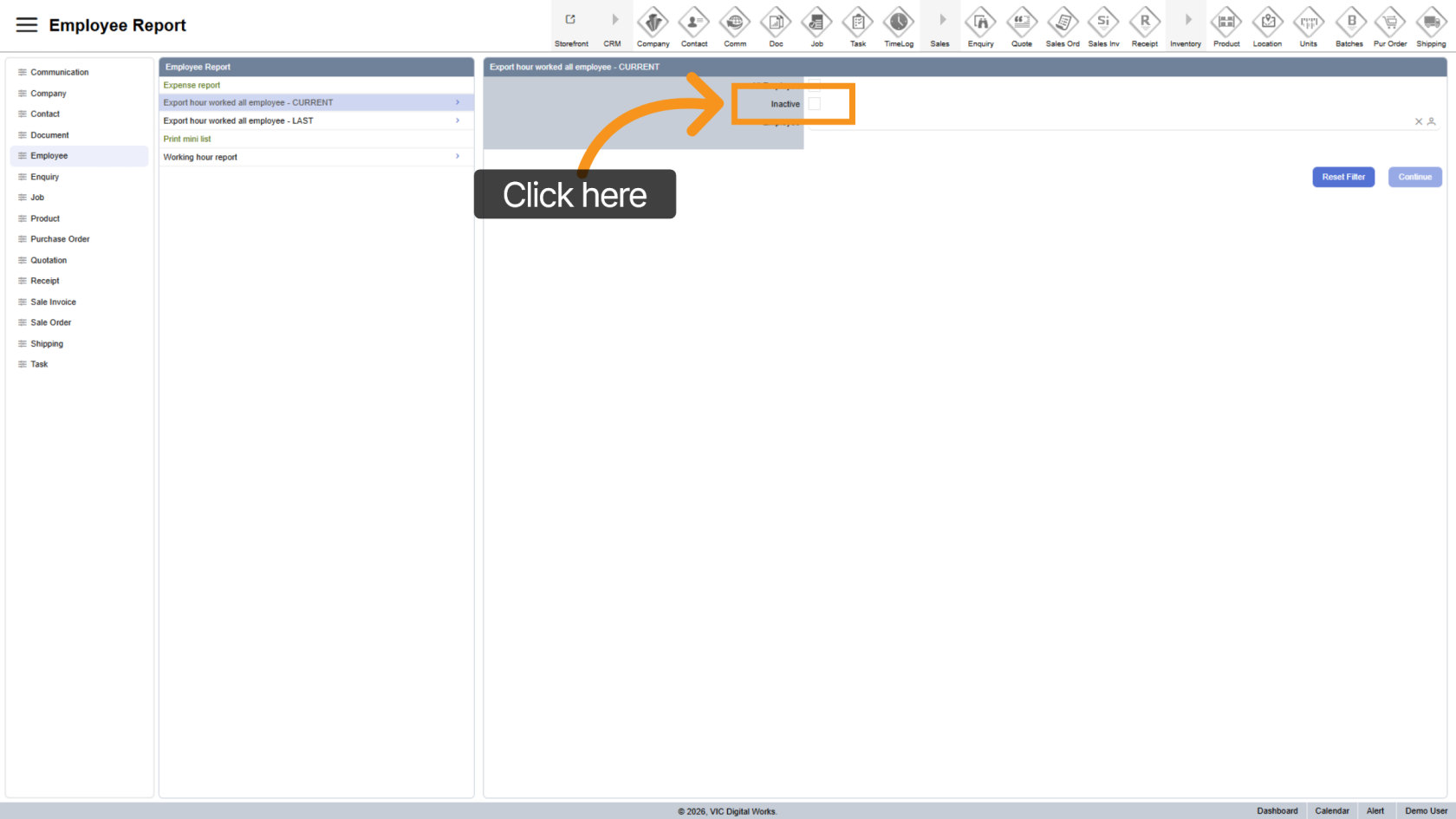
4. Include Inactive Employees
Select "Inactive" if you want the report to include inactive employees as well.
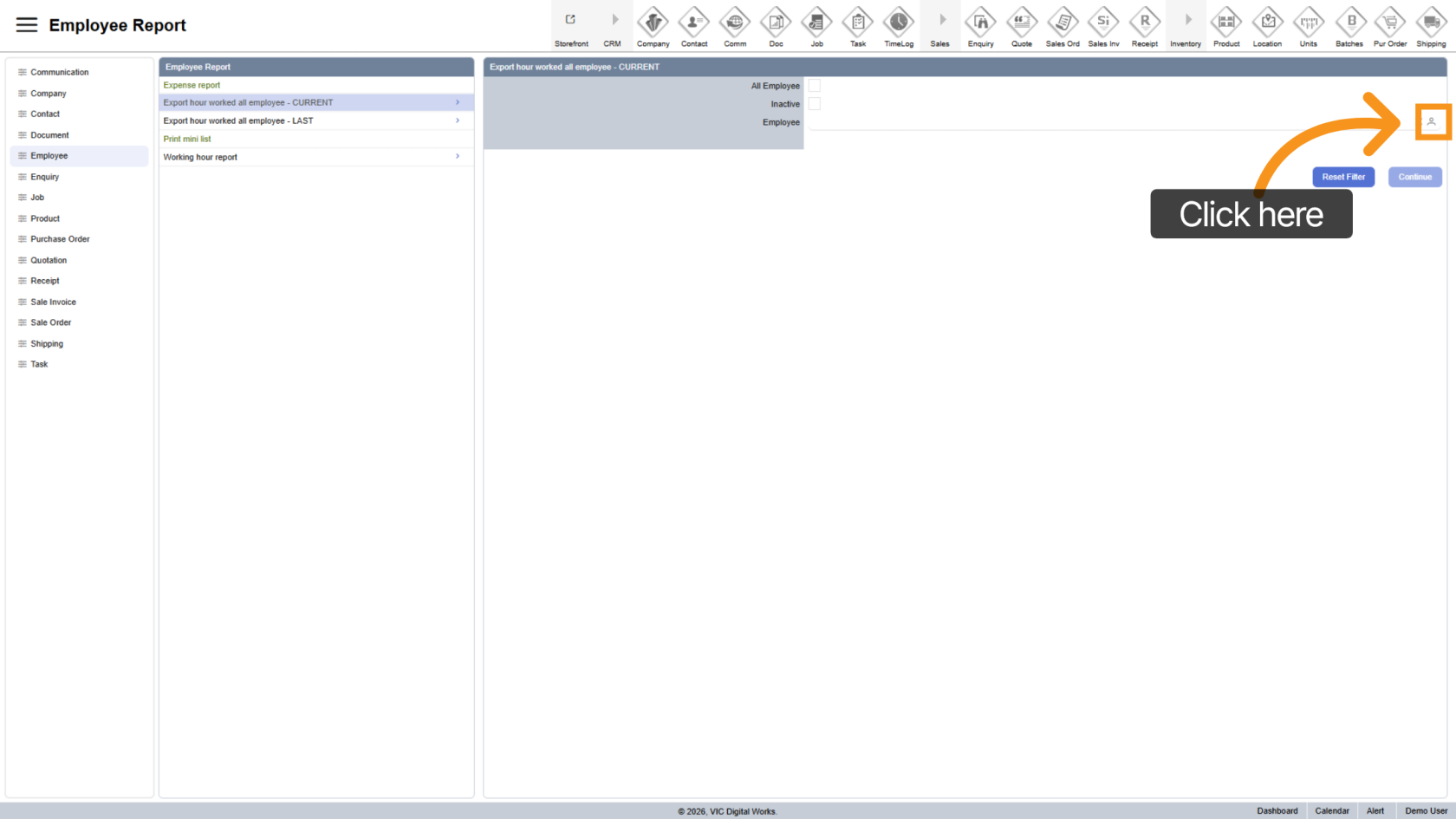
5. Select a Specific Employee
Click the  contact icon to choose a specific employee for the report.
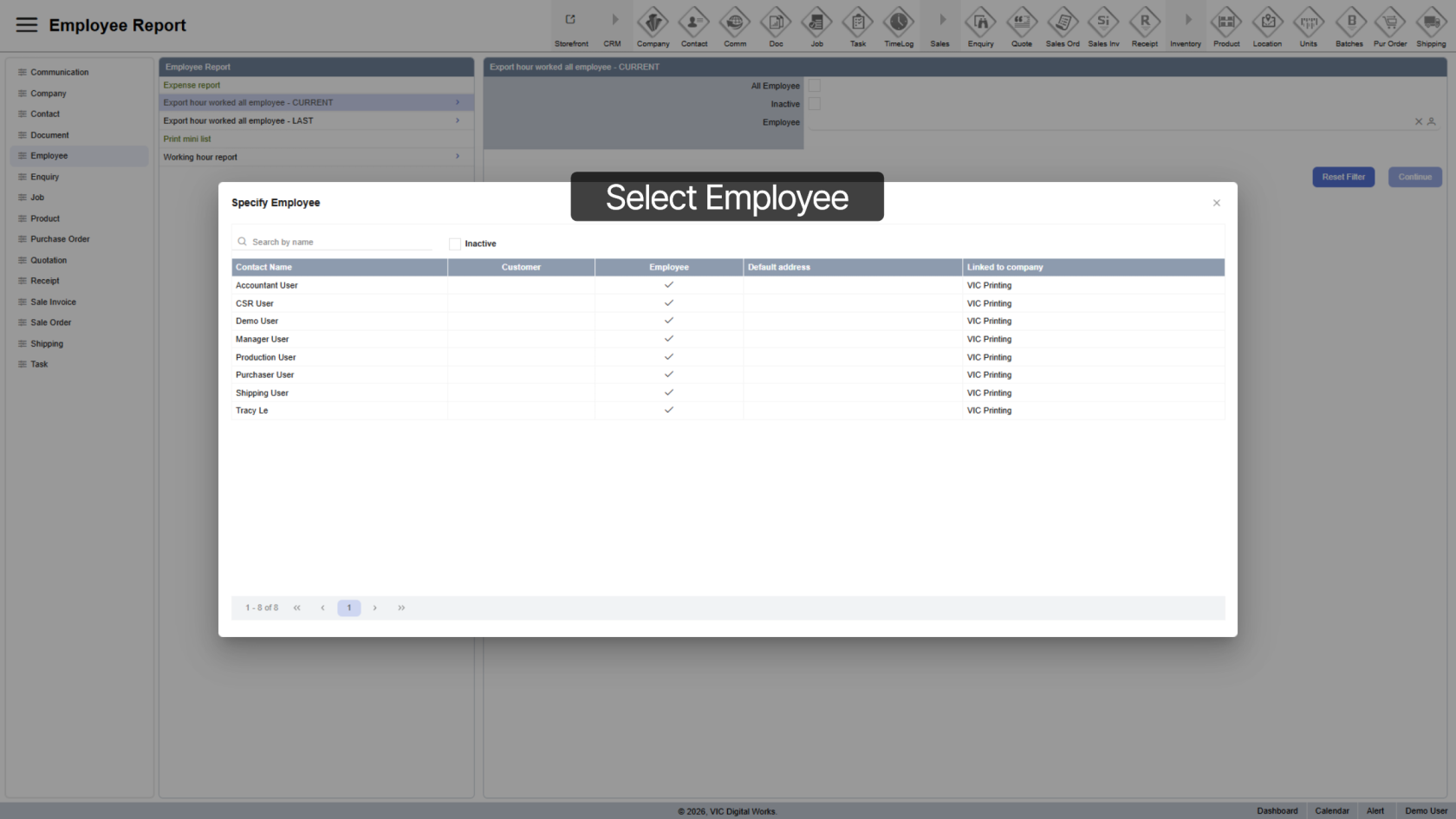
6. Choose the Employee
Select the employee whose working hours report you want to generate.
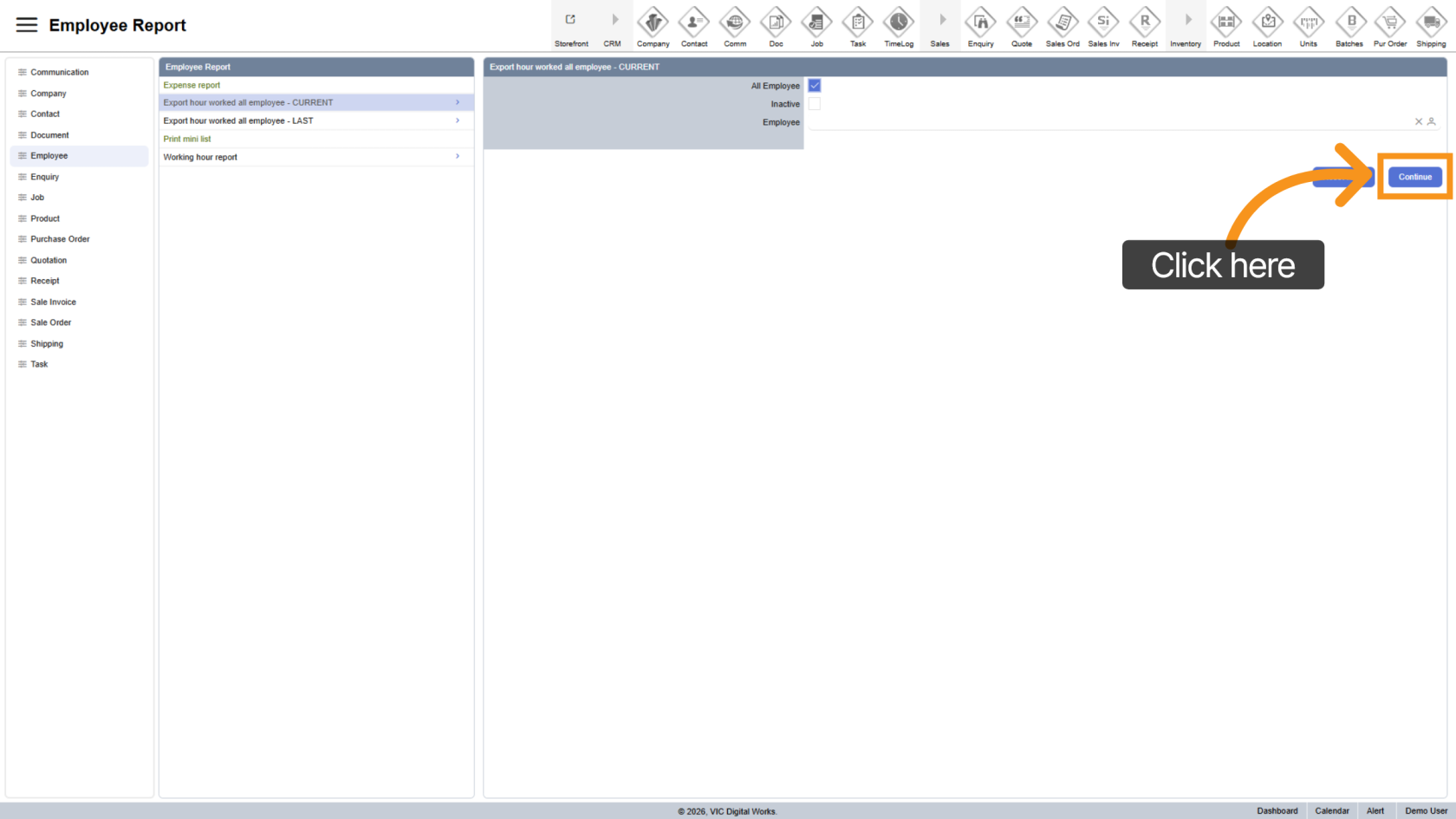
7. Process the Report
Click "Continue" to generate the report.
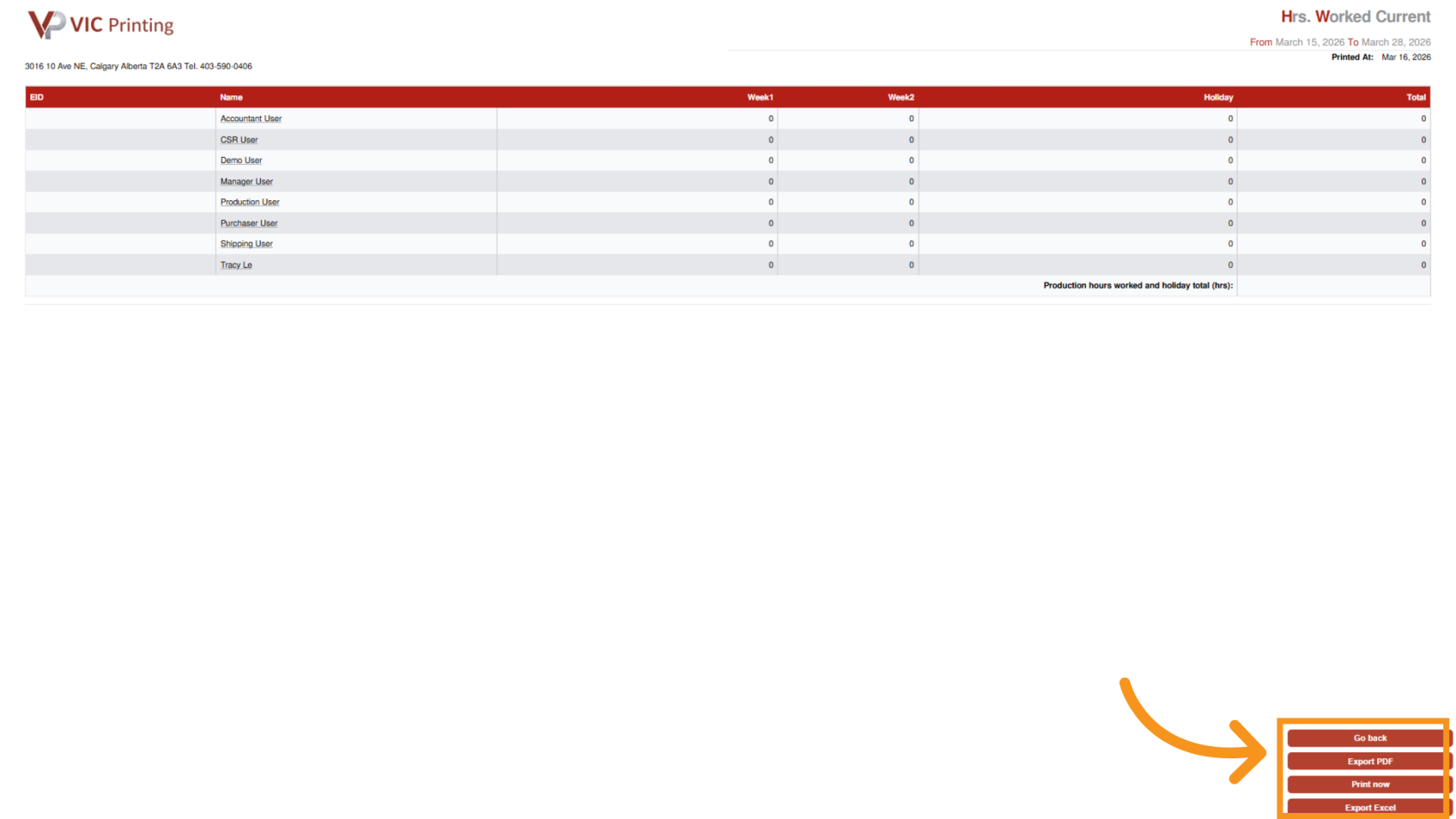
8. Review the Report
The report will open in a new window for review.
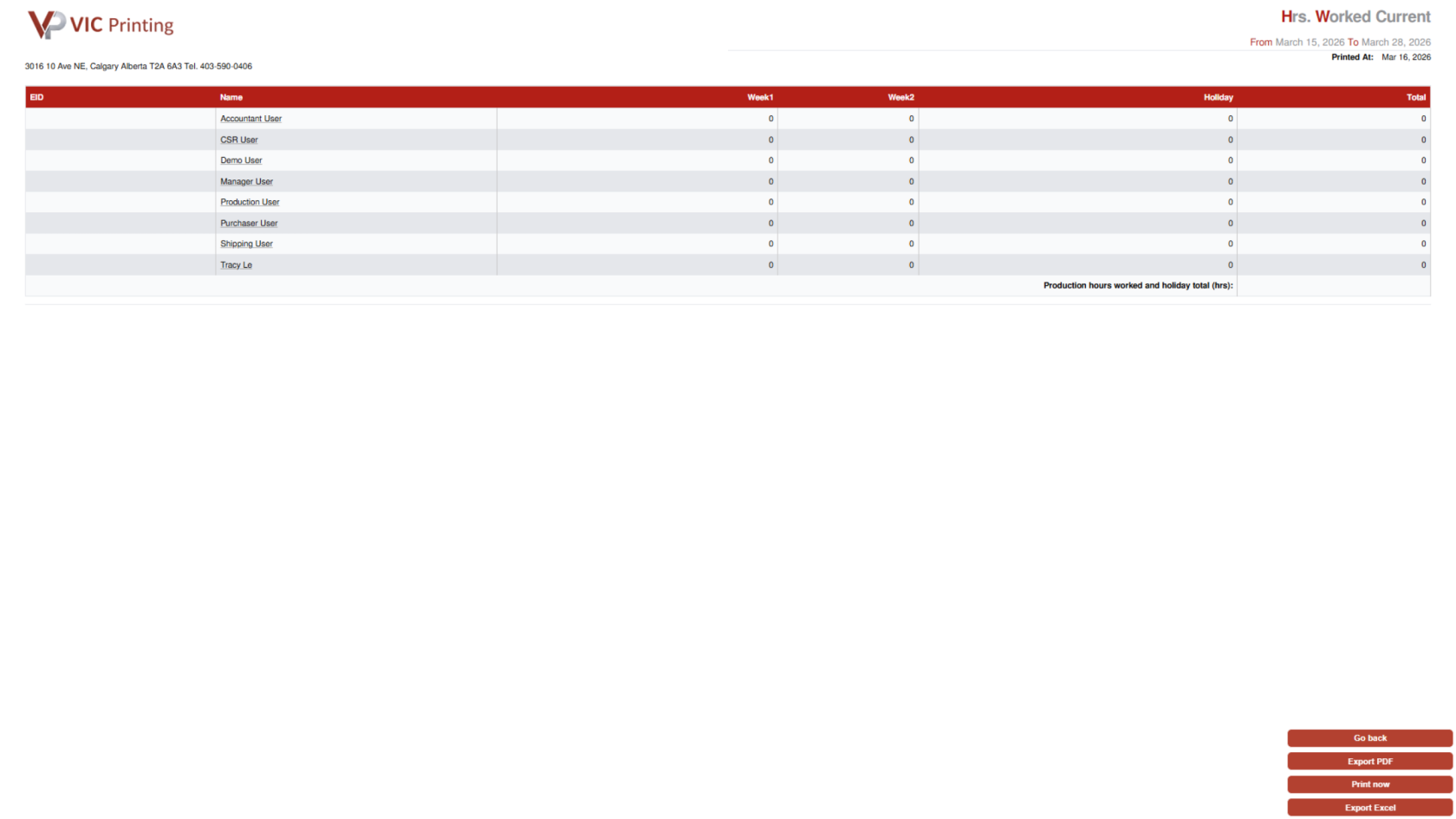
9. Export the Report
You can export the report using the menu at the bottom:
- Export to PDF
- Print Now
- Export to Excel
You have successfully generated and reviewed current working hour reports in the WorkTraq application.