
Generate Working Hour
This tutorial walks you through generating detailed employee working hour reports in the Worktraq App.
Video Tutorial
1. Open Employee Section
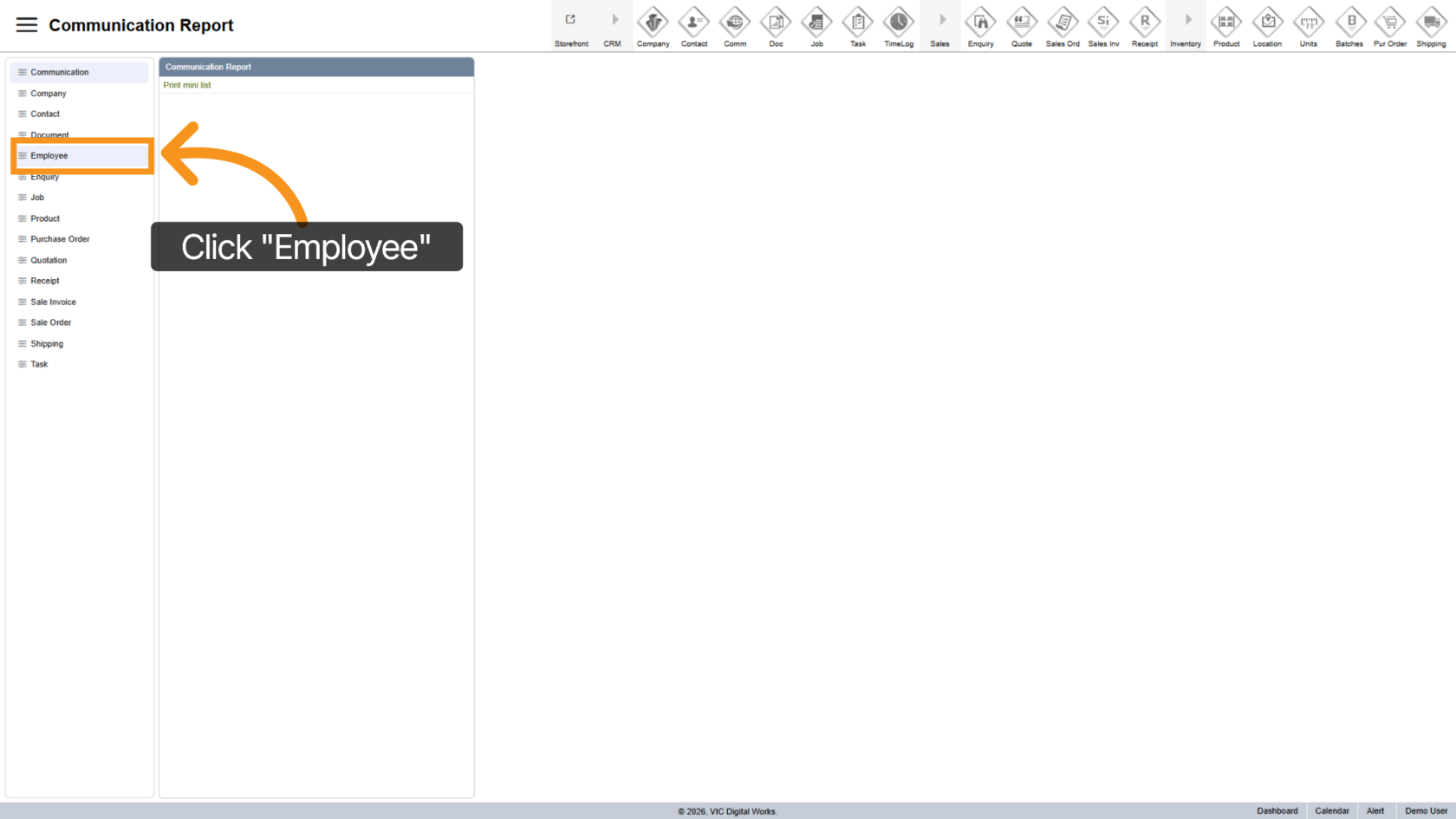
Click "Employee" to access the employee reporting area.
2. Select Working Hour Report
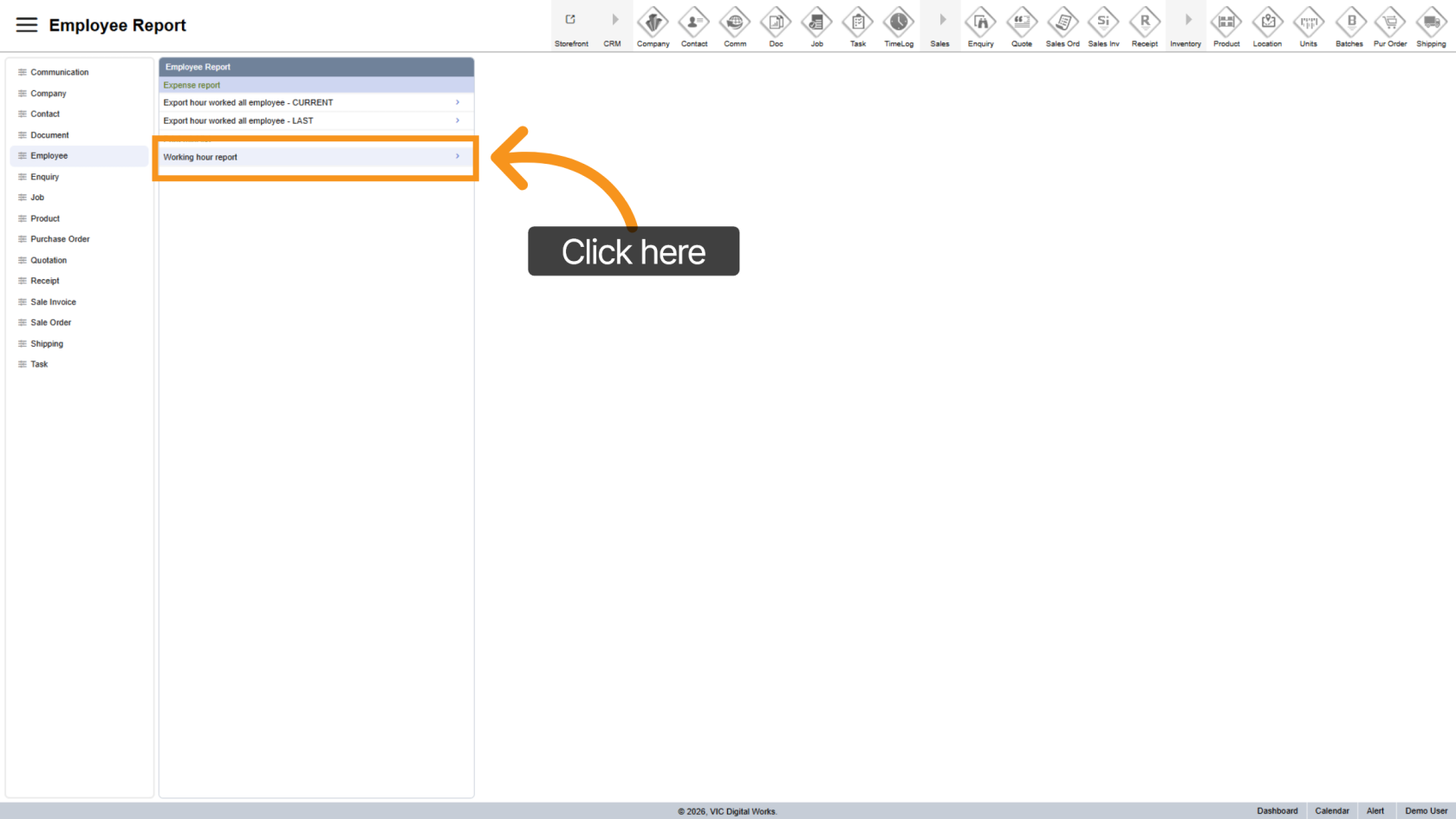
Choose Working Hour Report to view employee work time data.
3. Select Employees
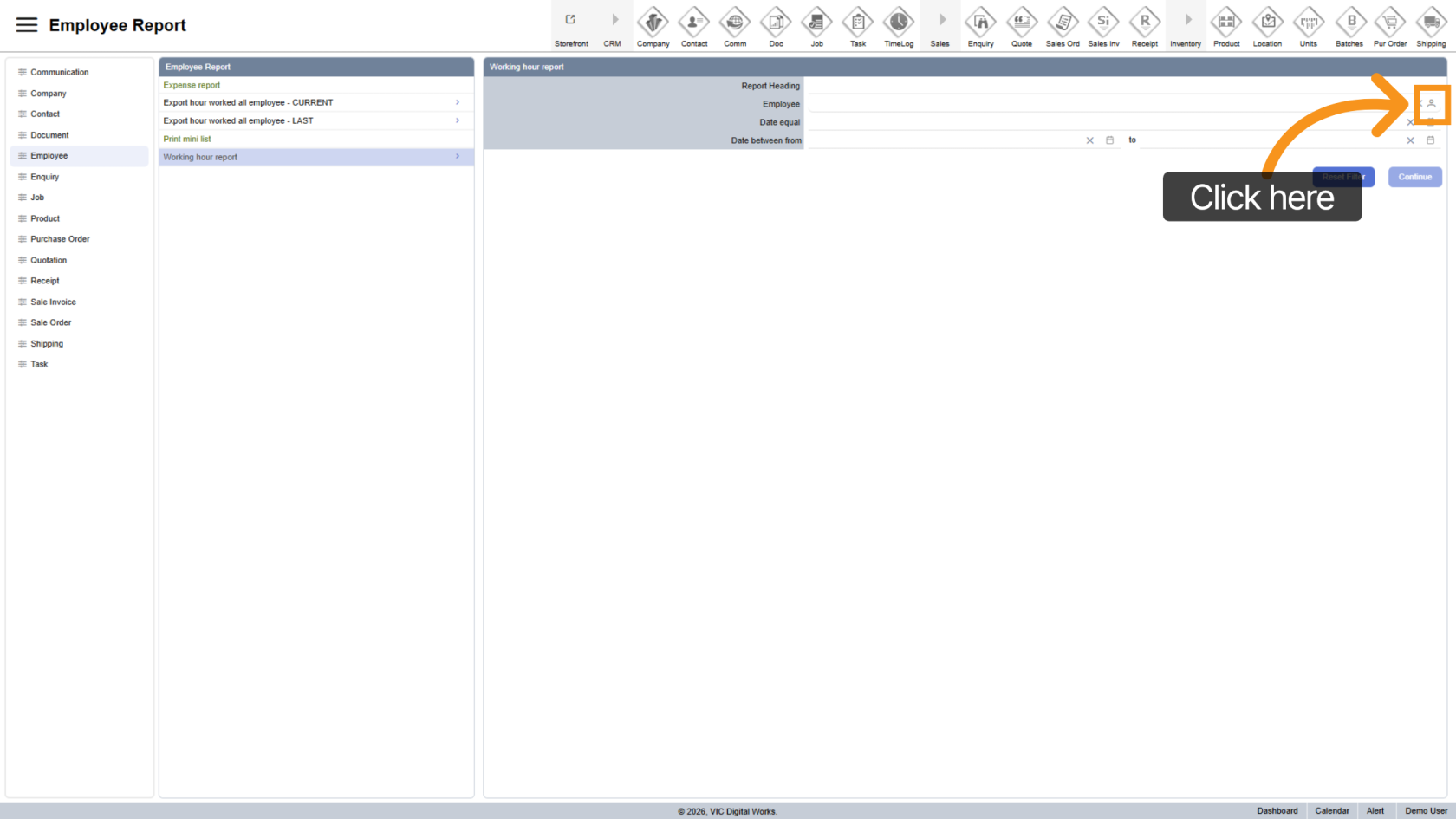
Click the  contact icon to choose specific employees. Leave blank to include all employees.
4. Select Date
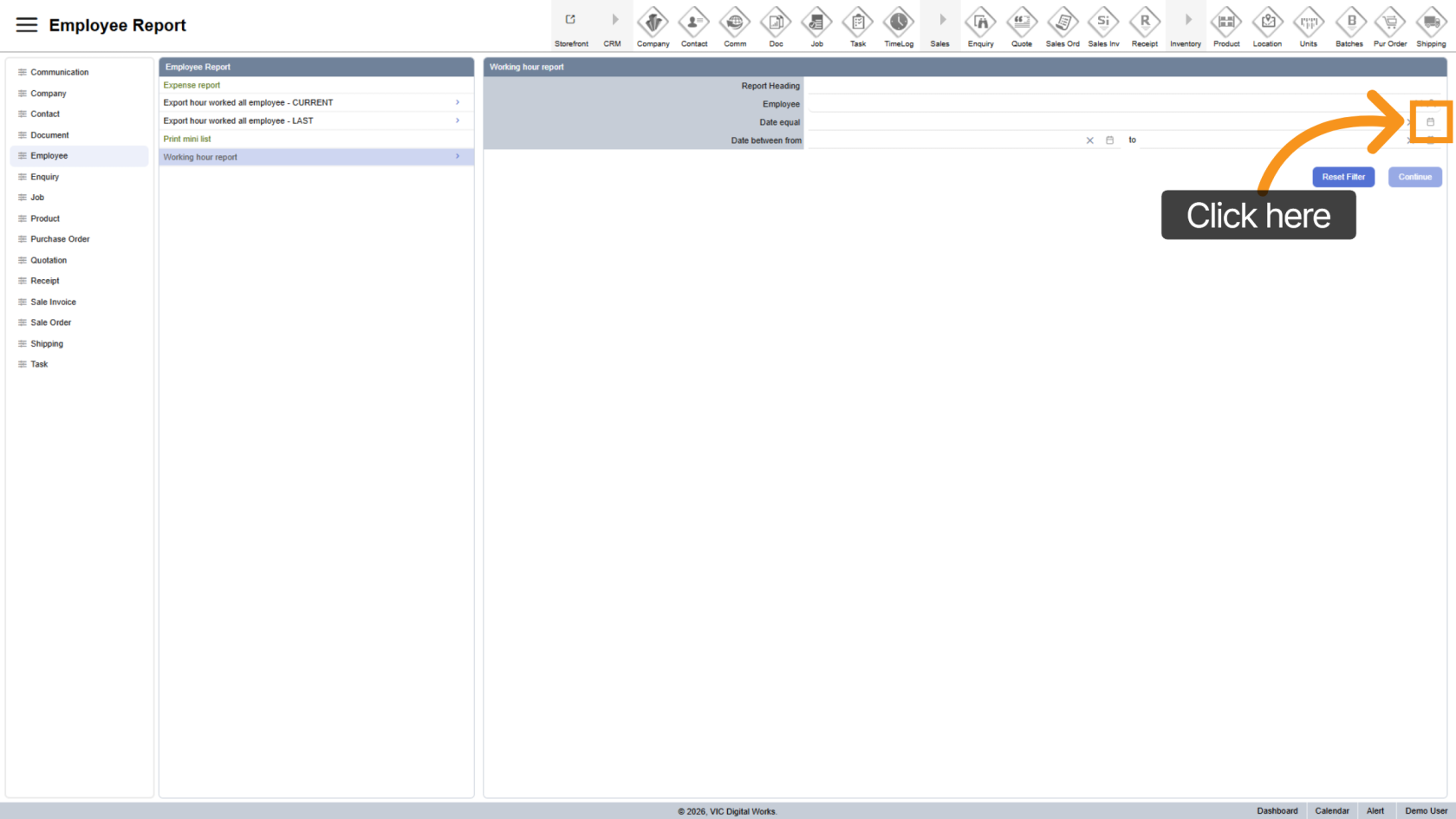
Choose a specific date using the date icon.
Note: Use either a single date or a date range (not both).
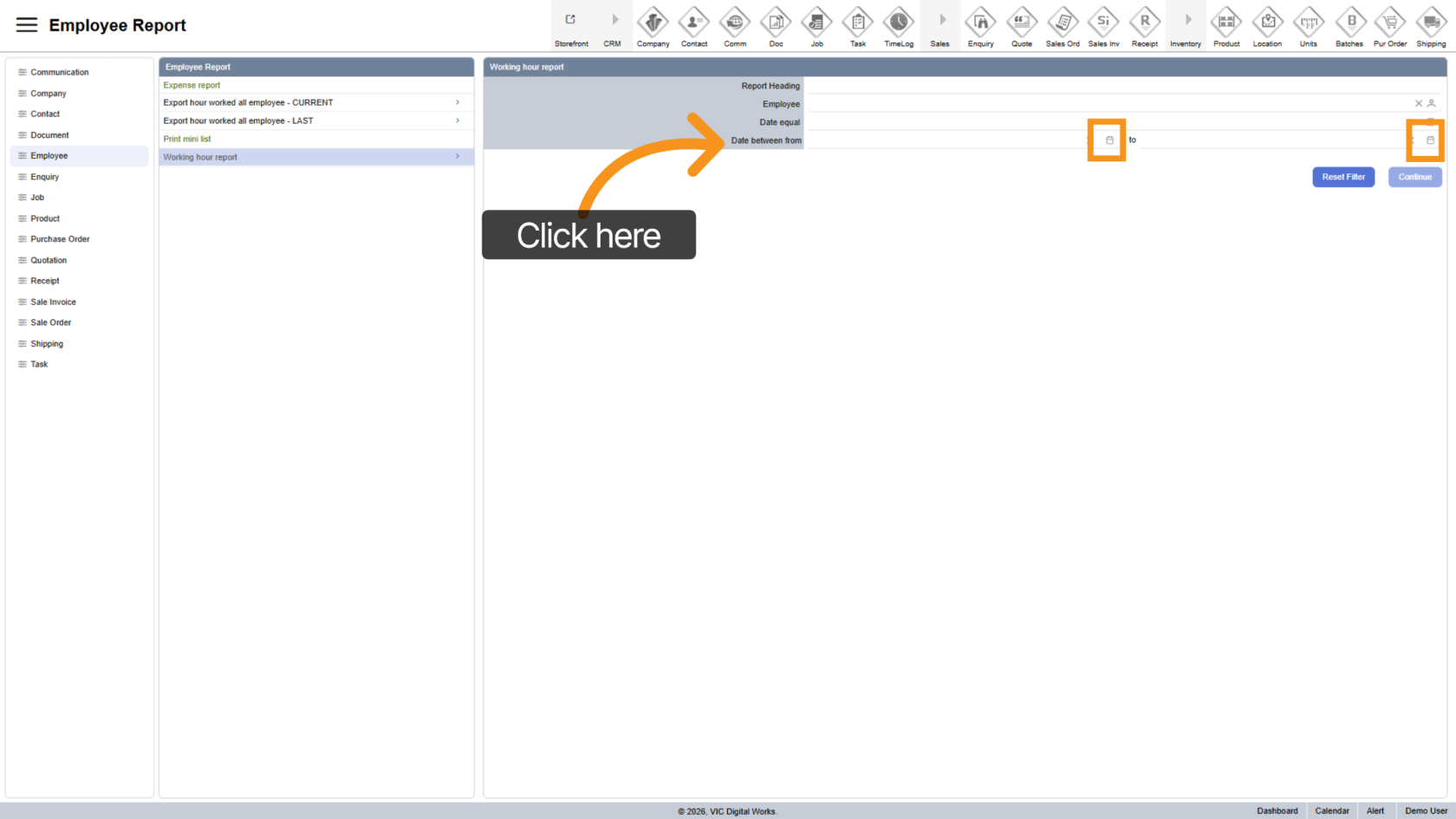
5. Select Date Range
Pick a start and end date for a custom reporting period.
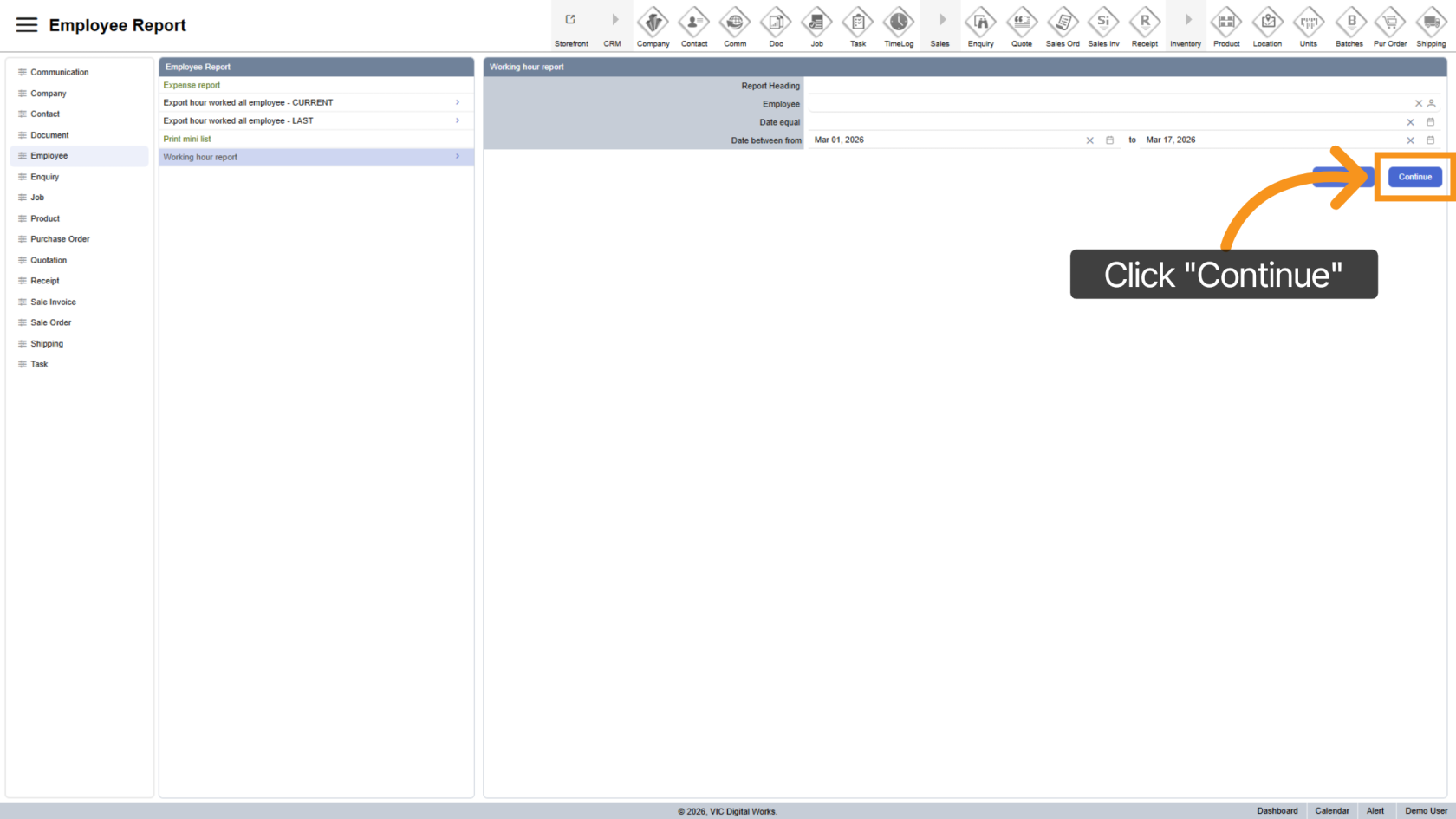
6. Generate Report
Click "Continue" to apply filters and generate the report.
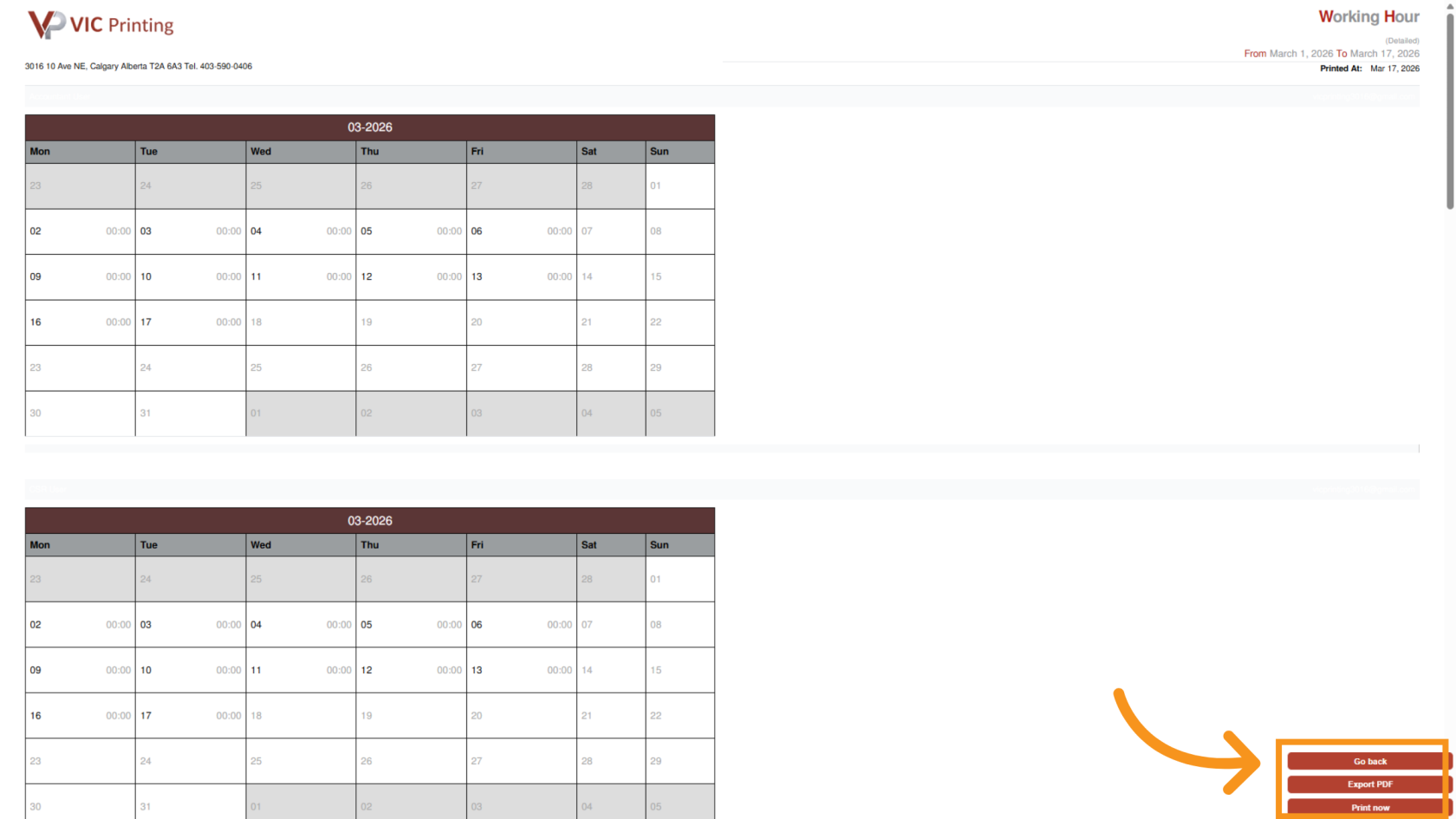
7. Export Report
View total working hours per employee by day.
Export as PDF or use Print Now from the bottom menu.
You’ve successfully generated a customized working hour report using Worktraq.