
Generate & Replace QR Code
This tutorial guides you through generating a QR code and configuring it as an editable variant. Customers can replace the QR code by entering a different link when customizing the product template.
Video Tutorial
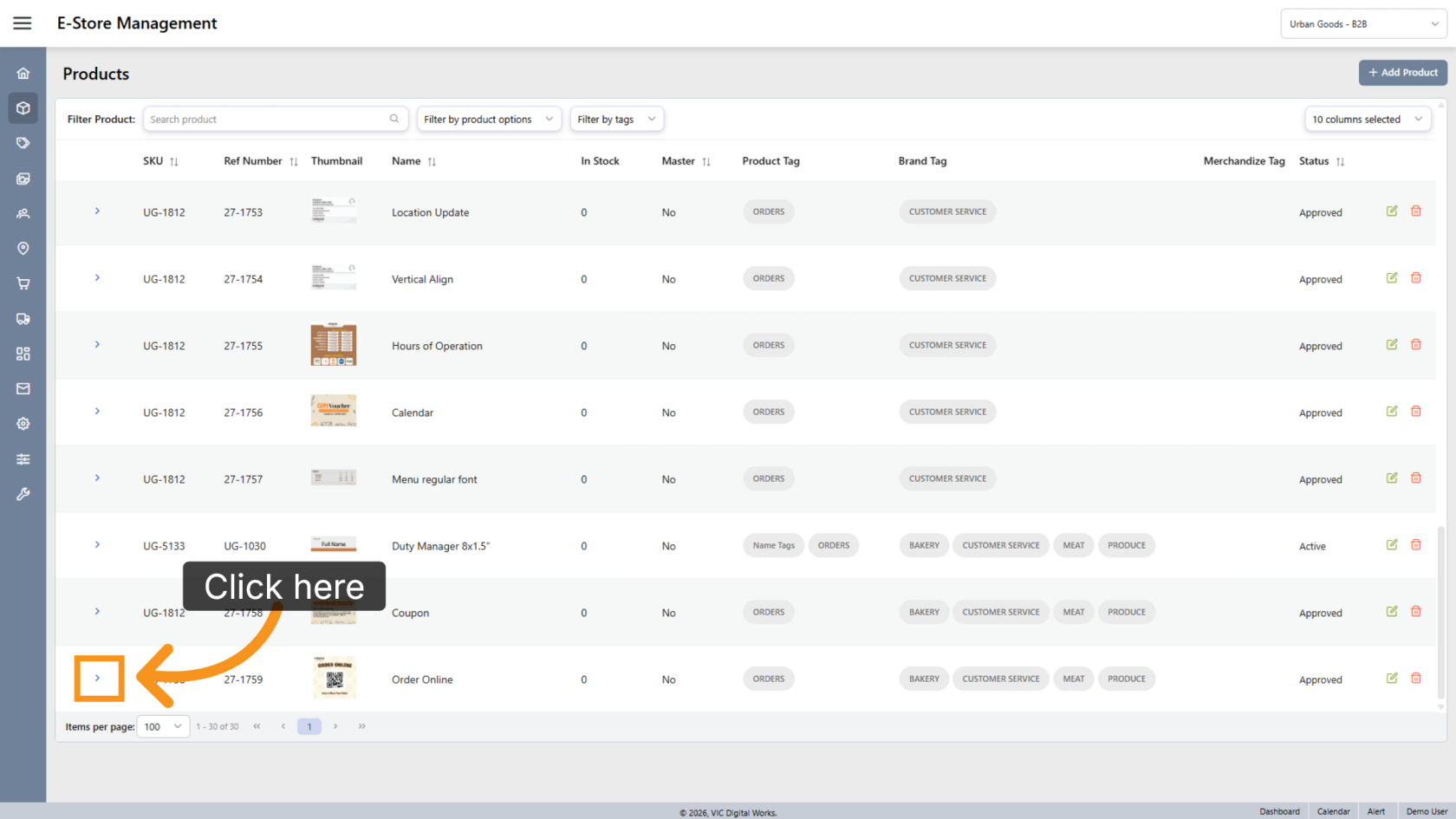
1. Open a Product
Select the product where you want to add the template.
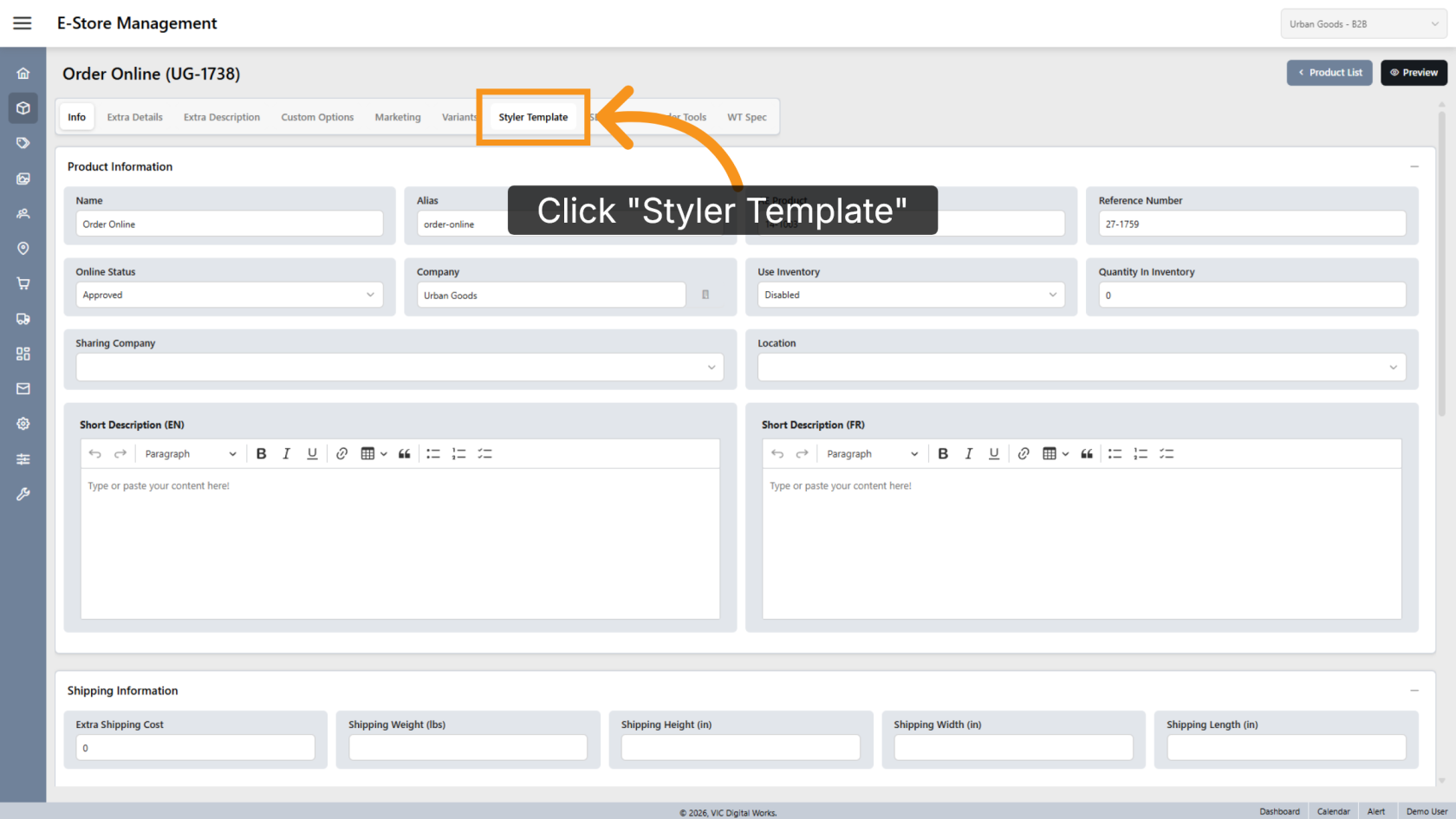
2. Open Template Settings
Click Styler Template to manage the template settings for the selected product.
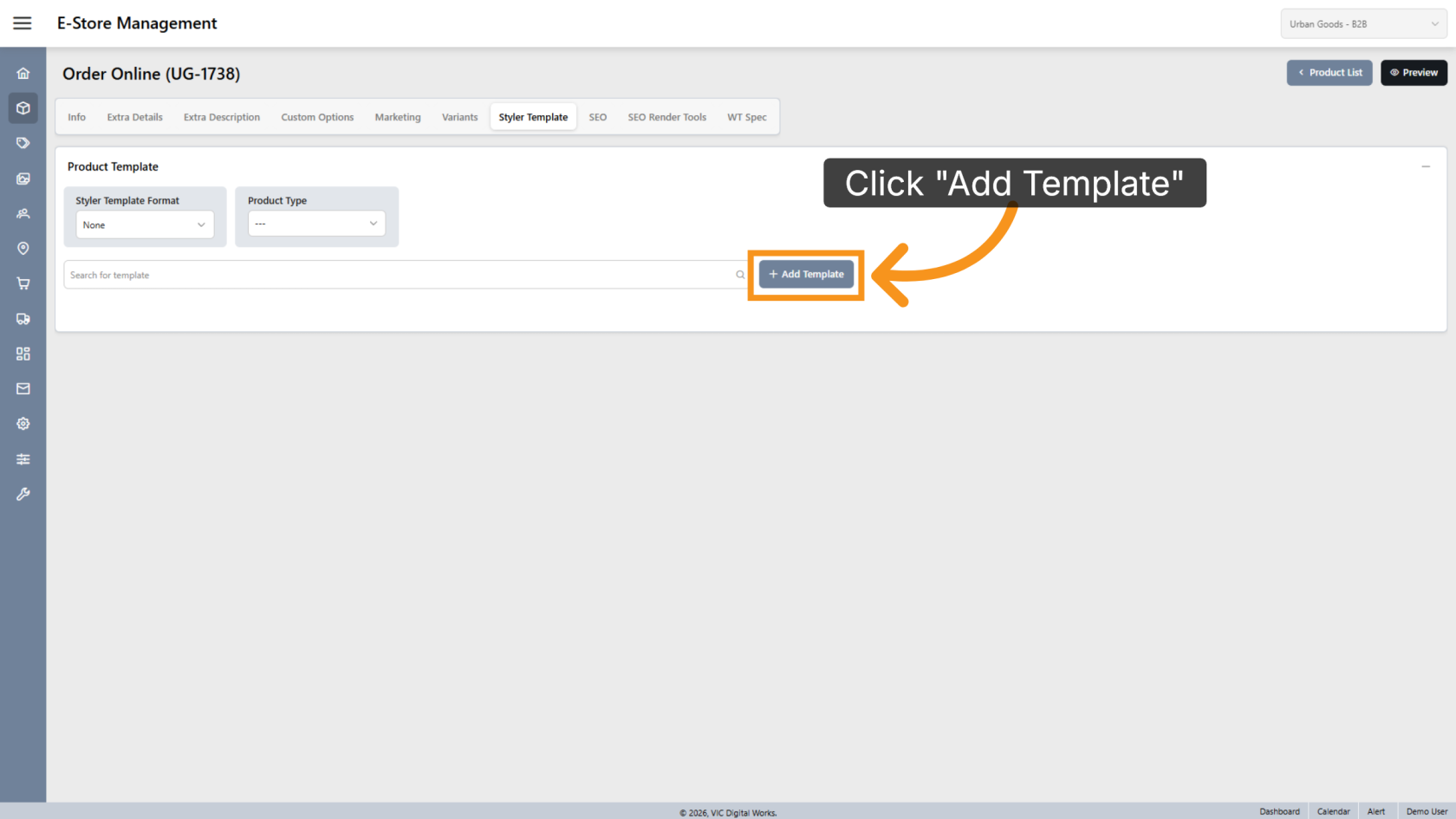
3. Add a Template
Click Add Template to create a new template.
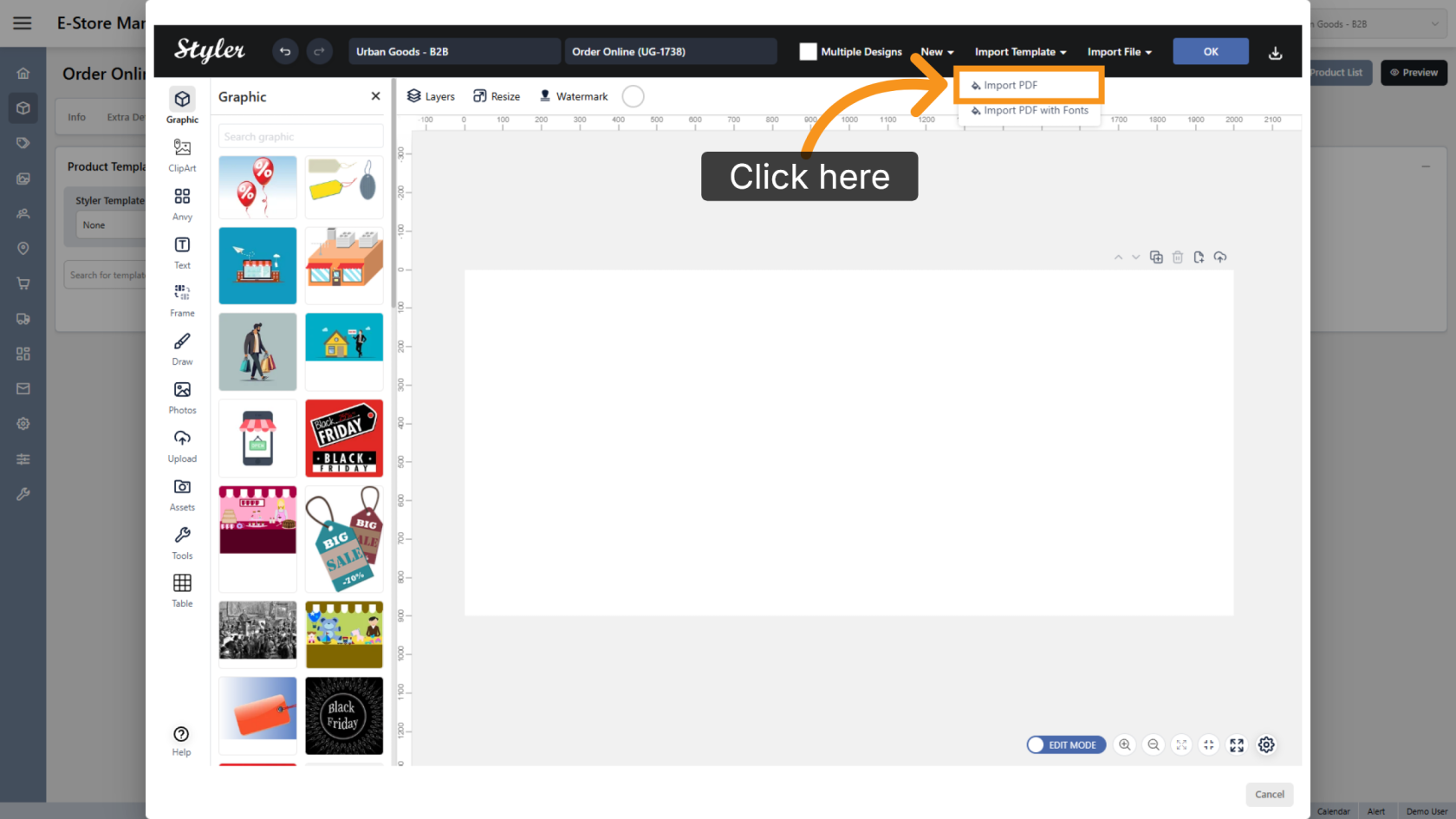
4. Import the Template
Click Import Template and select Import PDF.
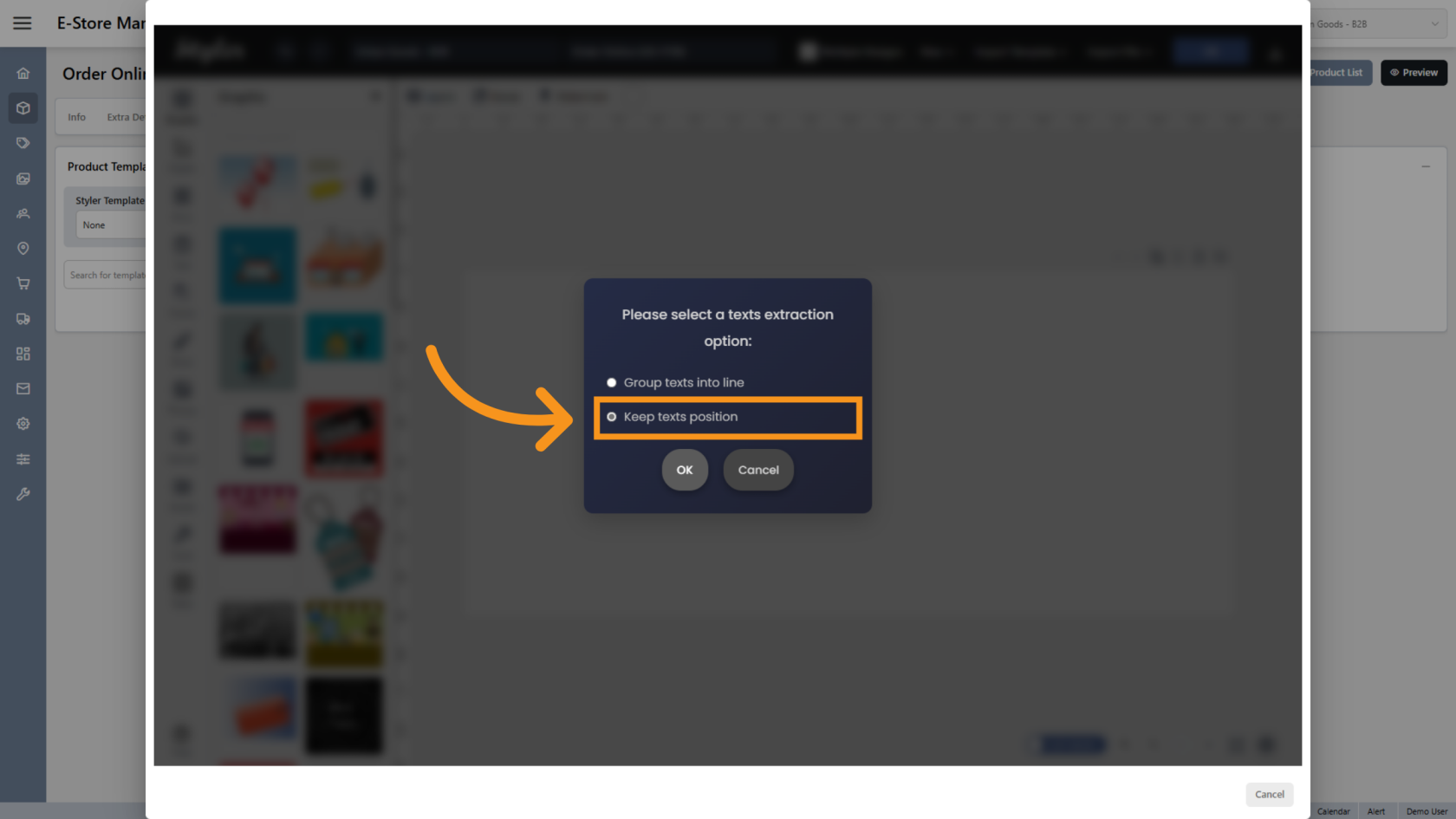
5. Keep Texts Position
Enable Keep Texts Position to preserve the original text layout during import.
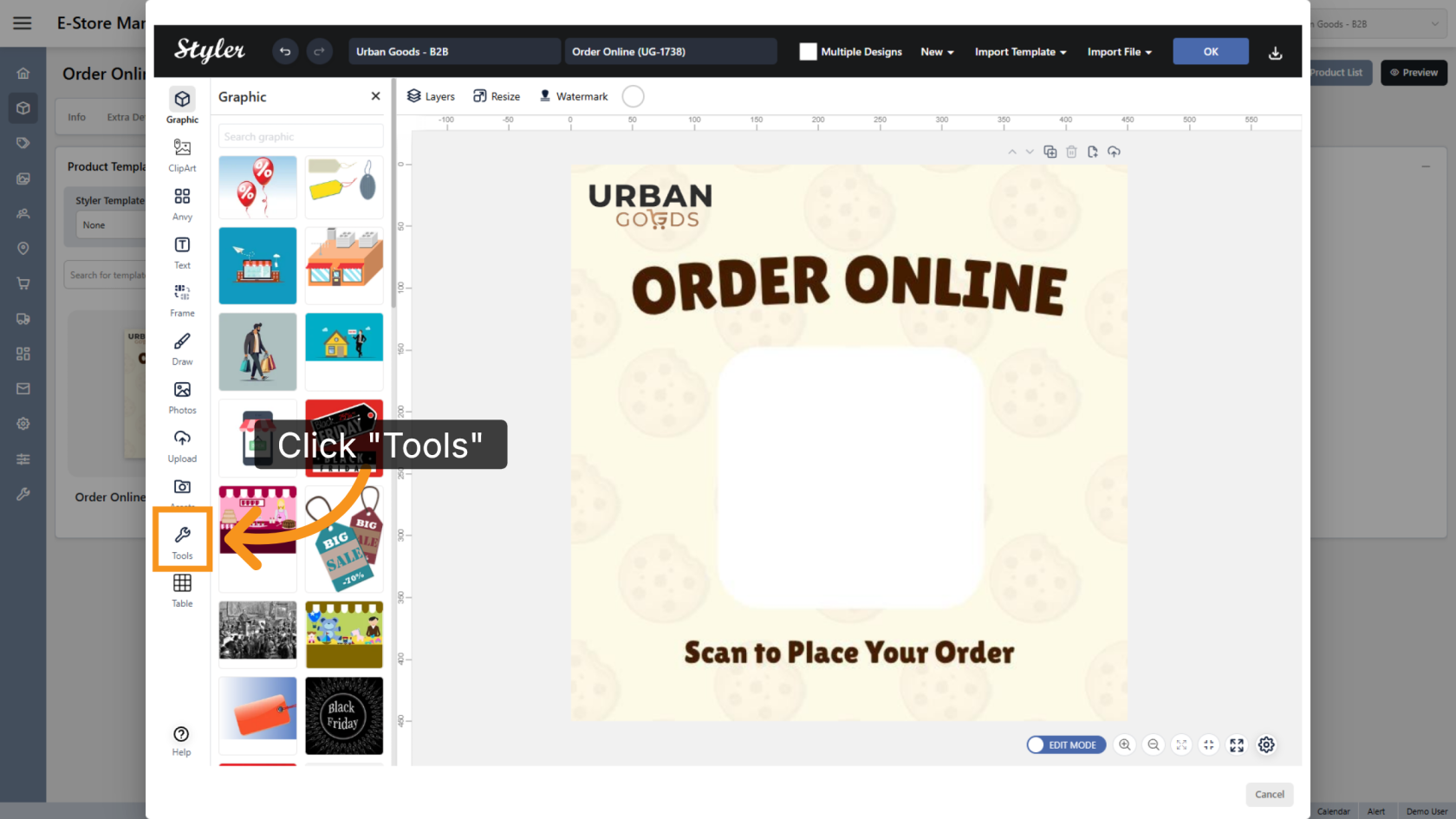
6. Open the QR Code Tool
Click Tools from the side menu.
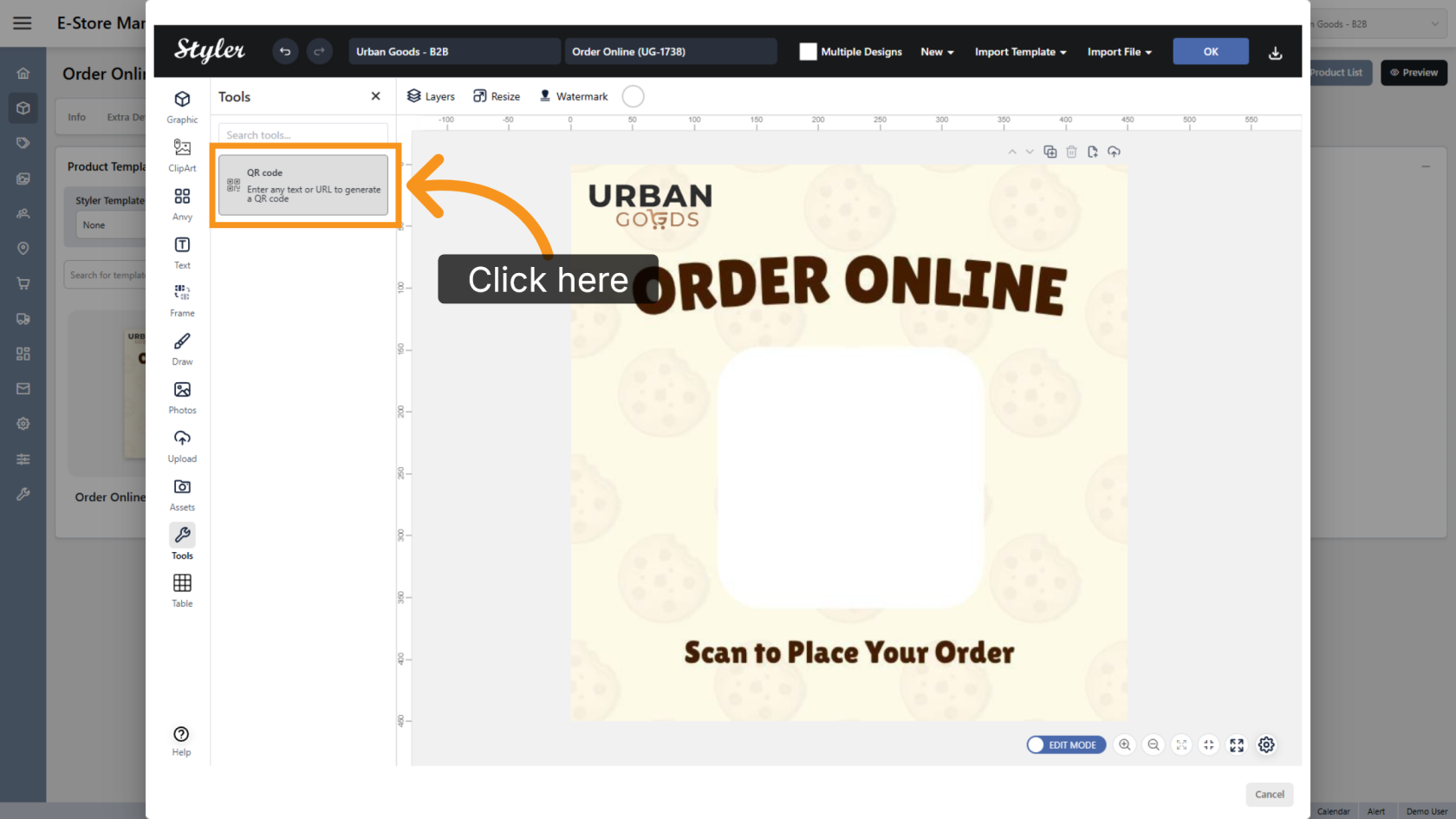
7. Select QR Code
Click QR Code to open the QR code generator.
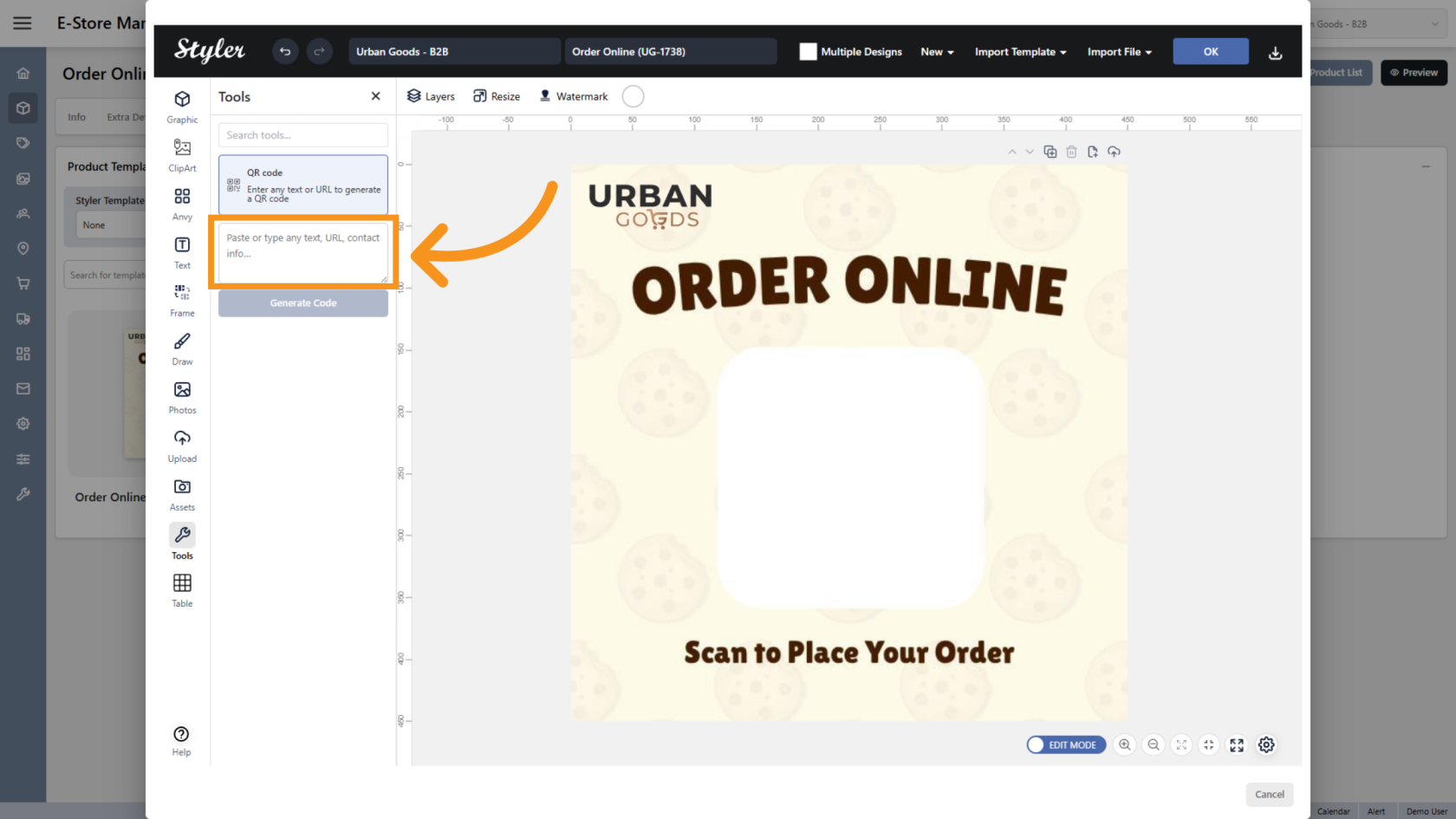
8. Enter the Link
Enter the URL you want to convert into a QR code.
9. Generate the QR Code
Click Generate Code to create the QR code.
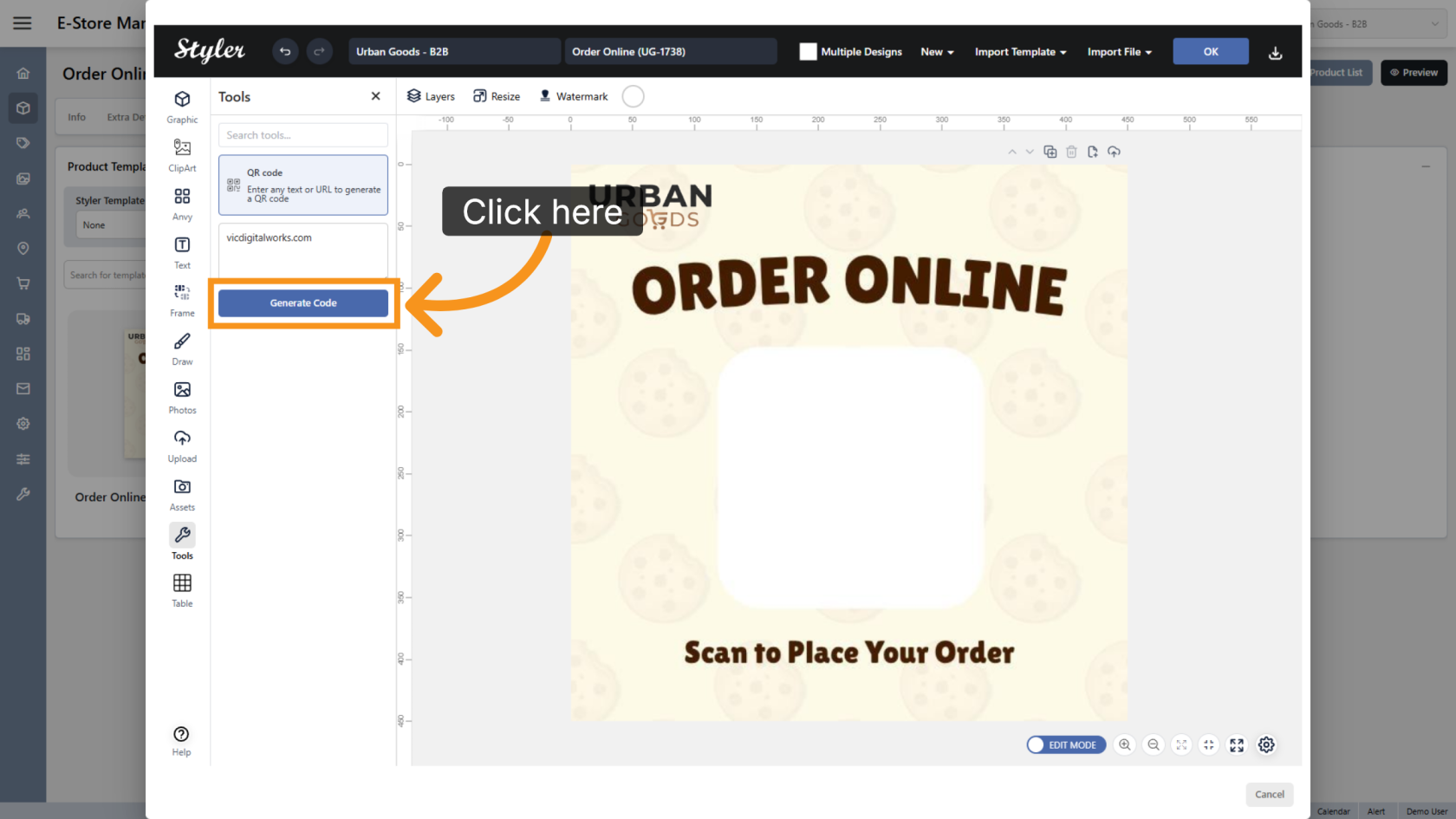
10. Position the QR Code
The generated QR code will be added to the design. Move and resize it as needed.
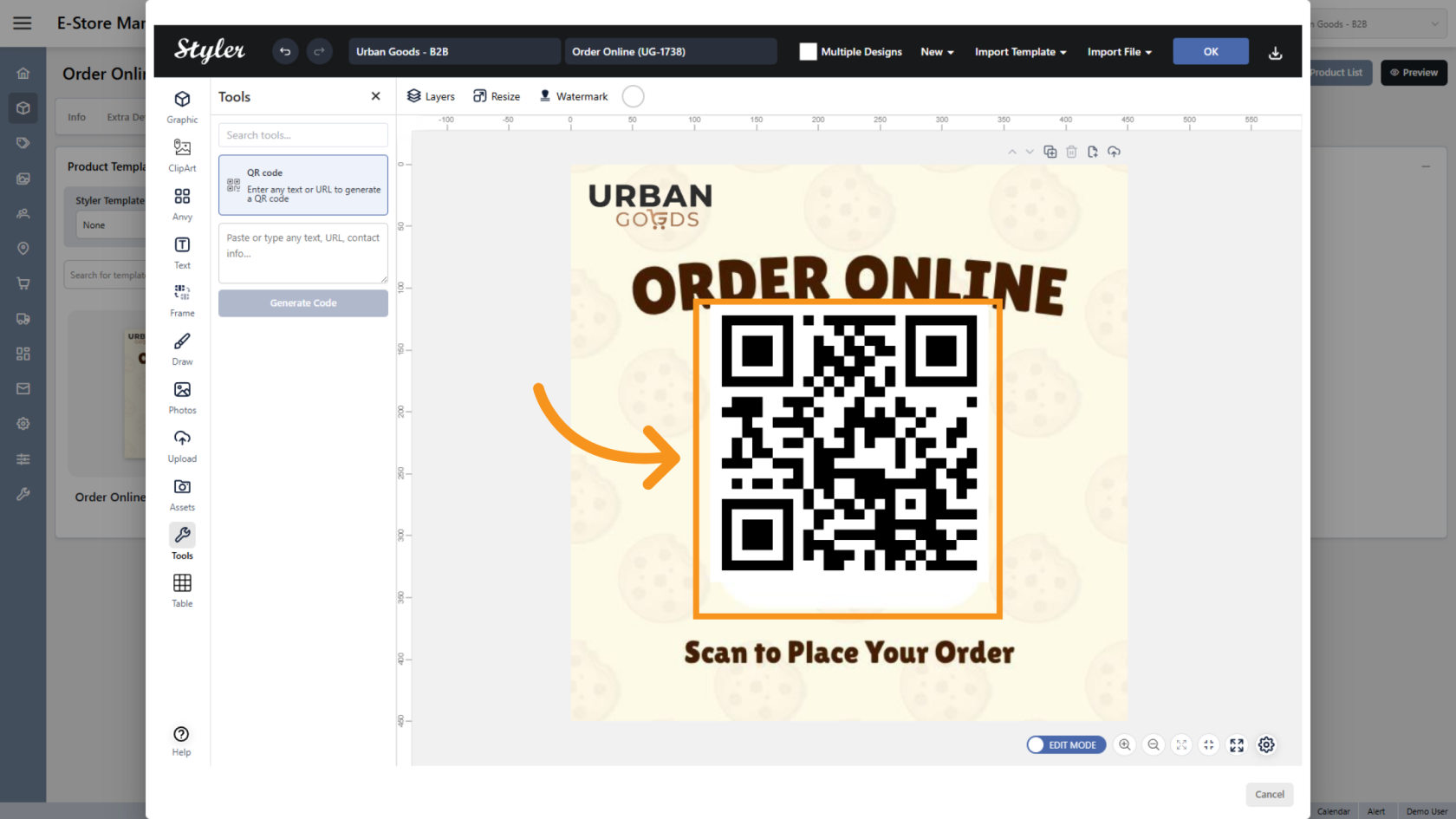
11. Mark the QR Code as a Variant
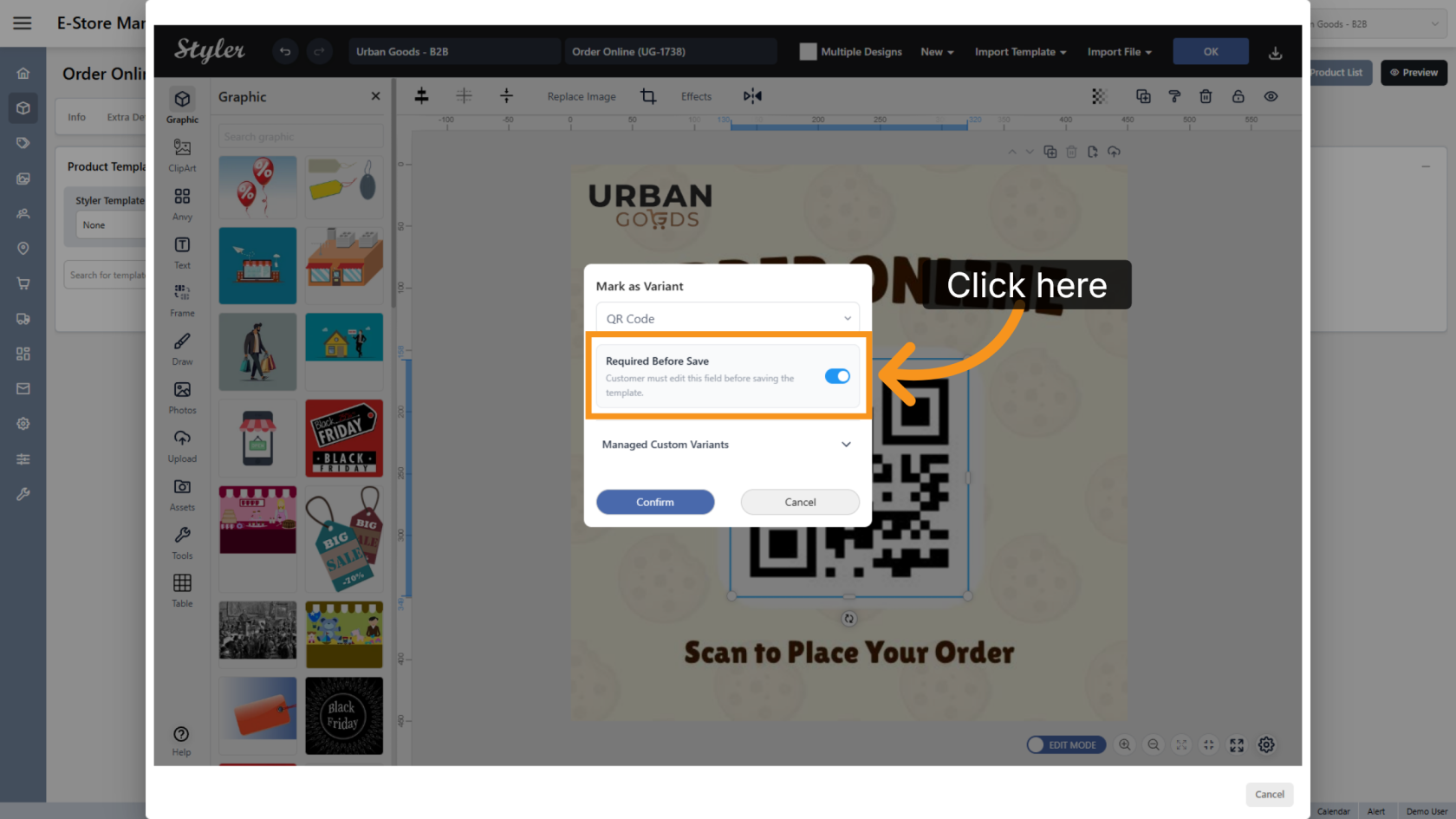
If you want customers to replace the QR code when ordering, right-click the QR code object and select Mark as Variant.
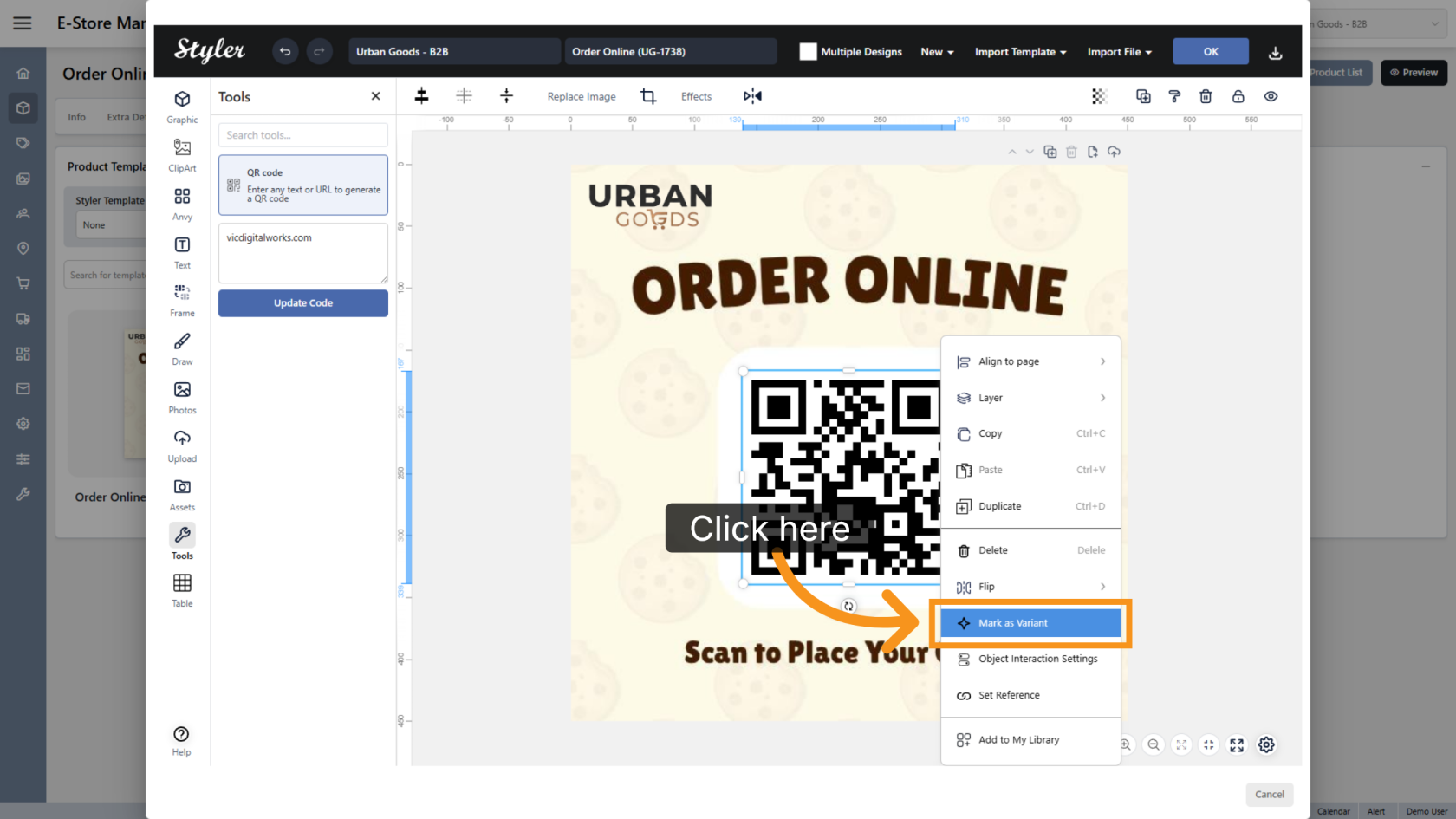
12. Select the Variant Type
Click Select a variant type and choose QR Code.
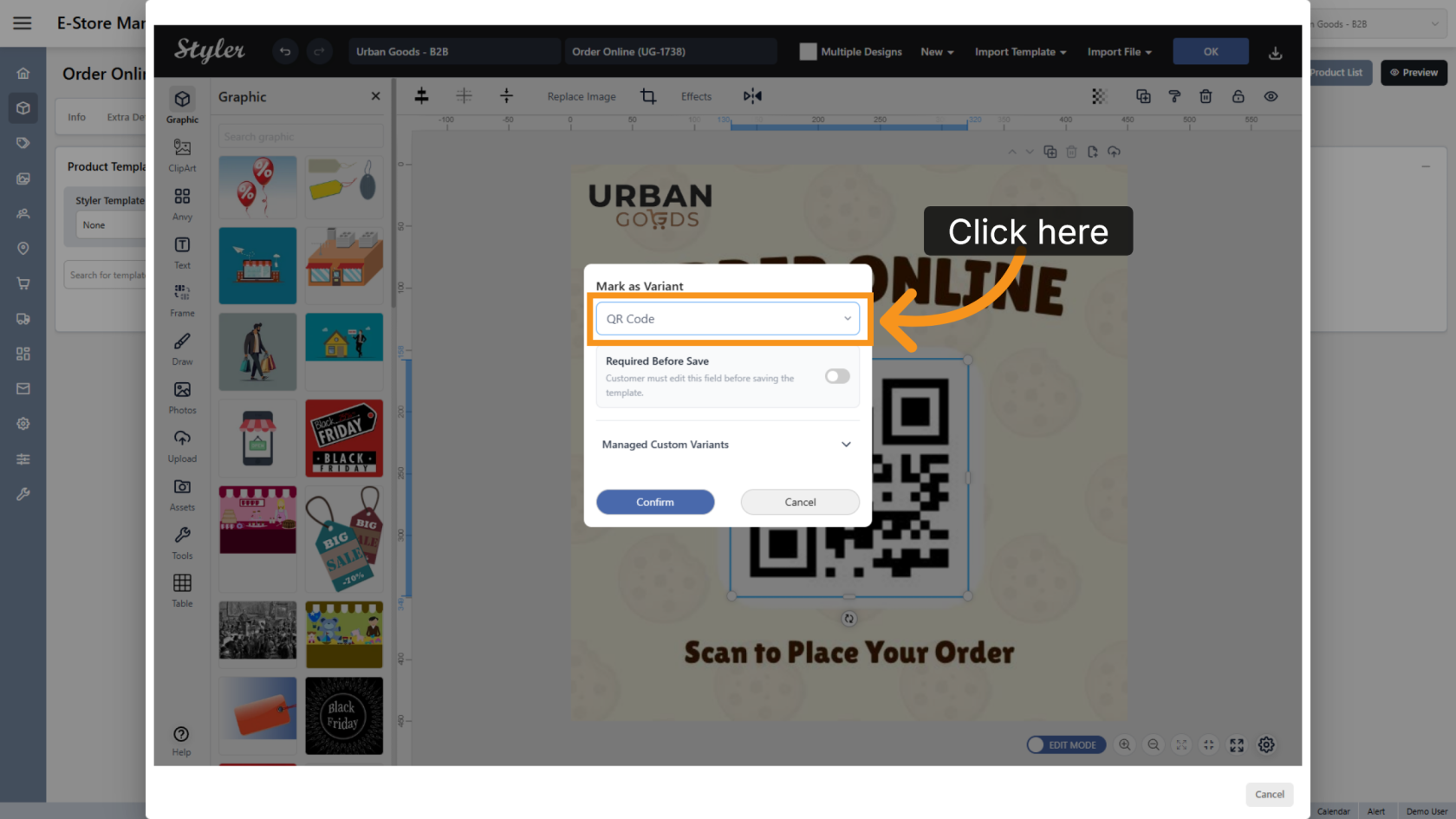
13. Enable Required Before Save
Enable Required Before Save if customers must replace the QR code before saving the design.
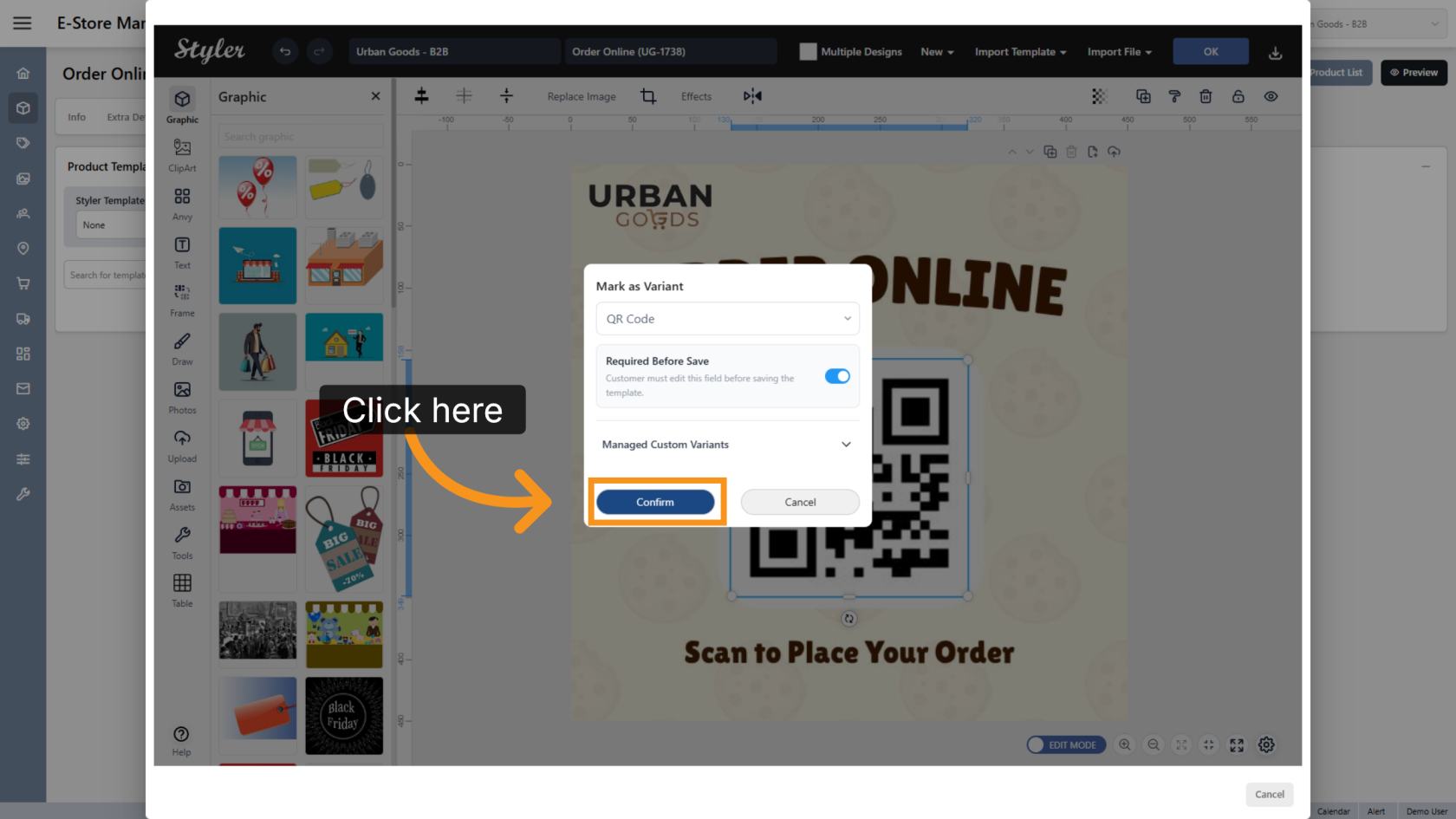
14. Confirm the Variant Settings
Click Confirm to save the variant configuration.
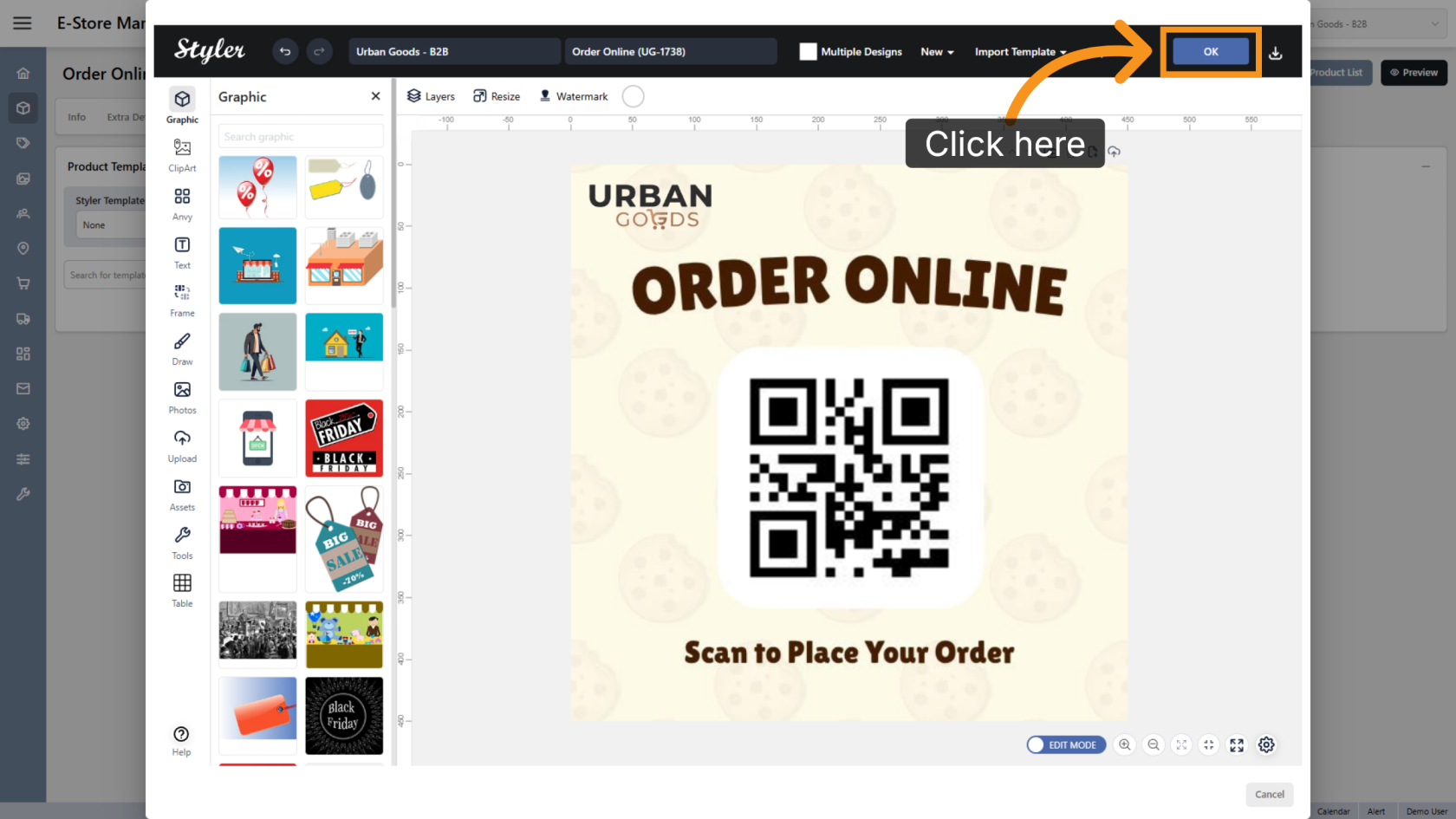
15. Save the Configuration
Click OK to finalize the template settings.
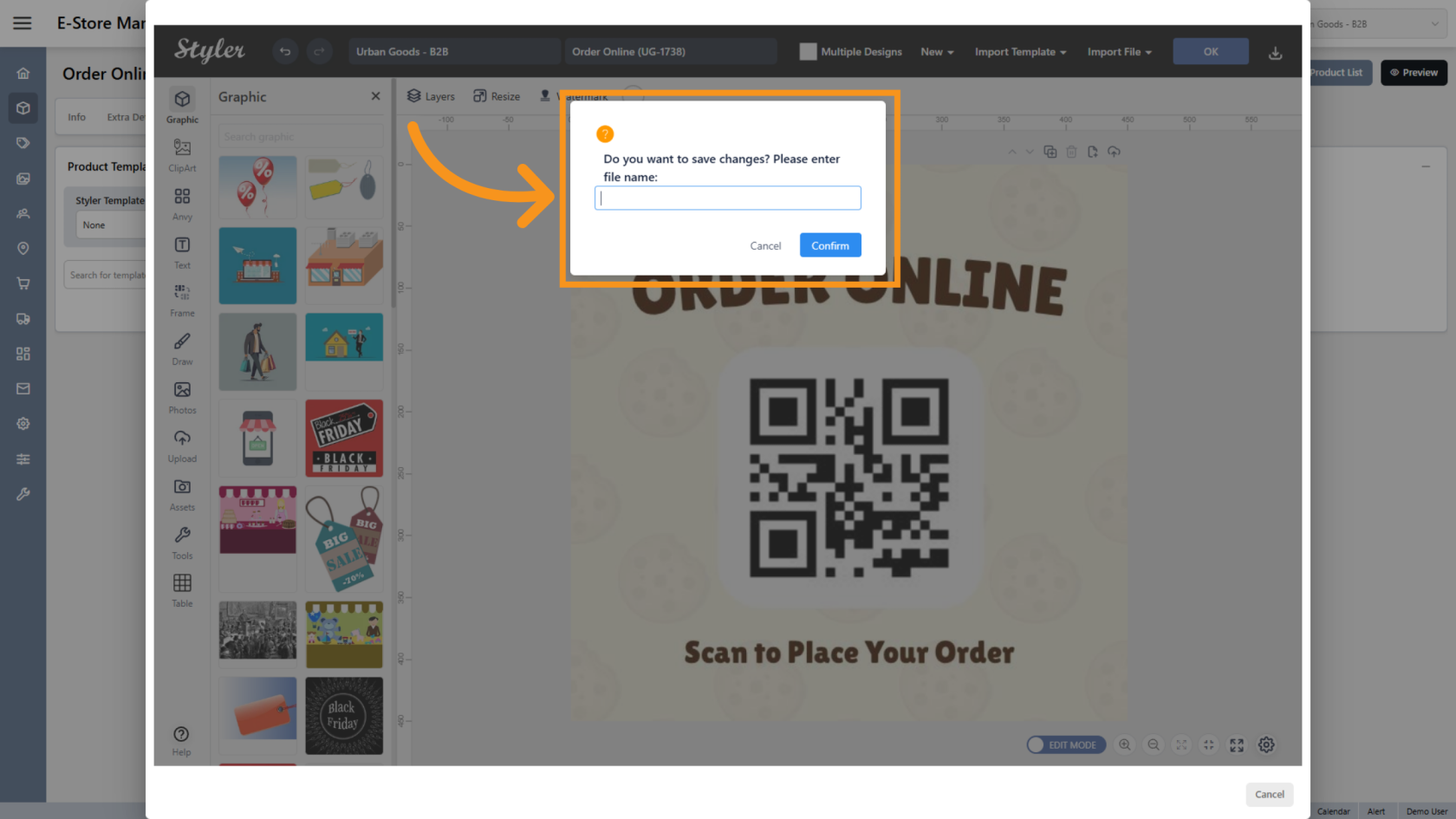
16. Enter the File Name
Enter the file name, then click Confirm.
17. Preview the Design
Click Preview to review the final layout.
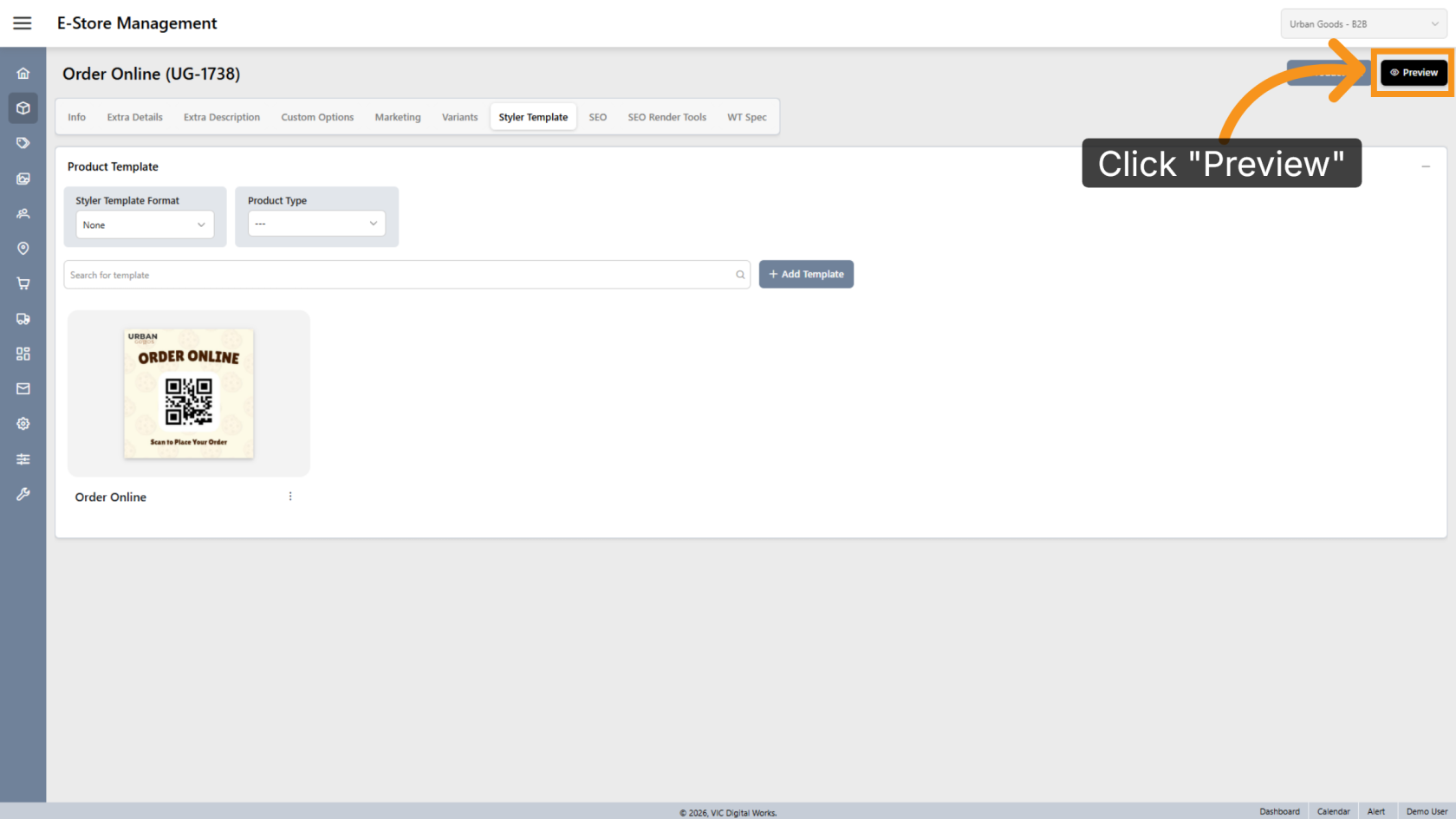
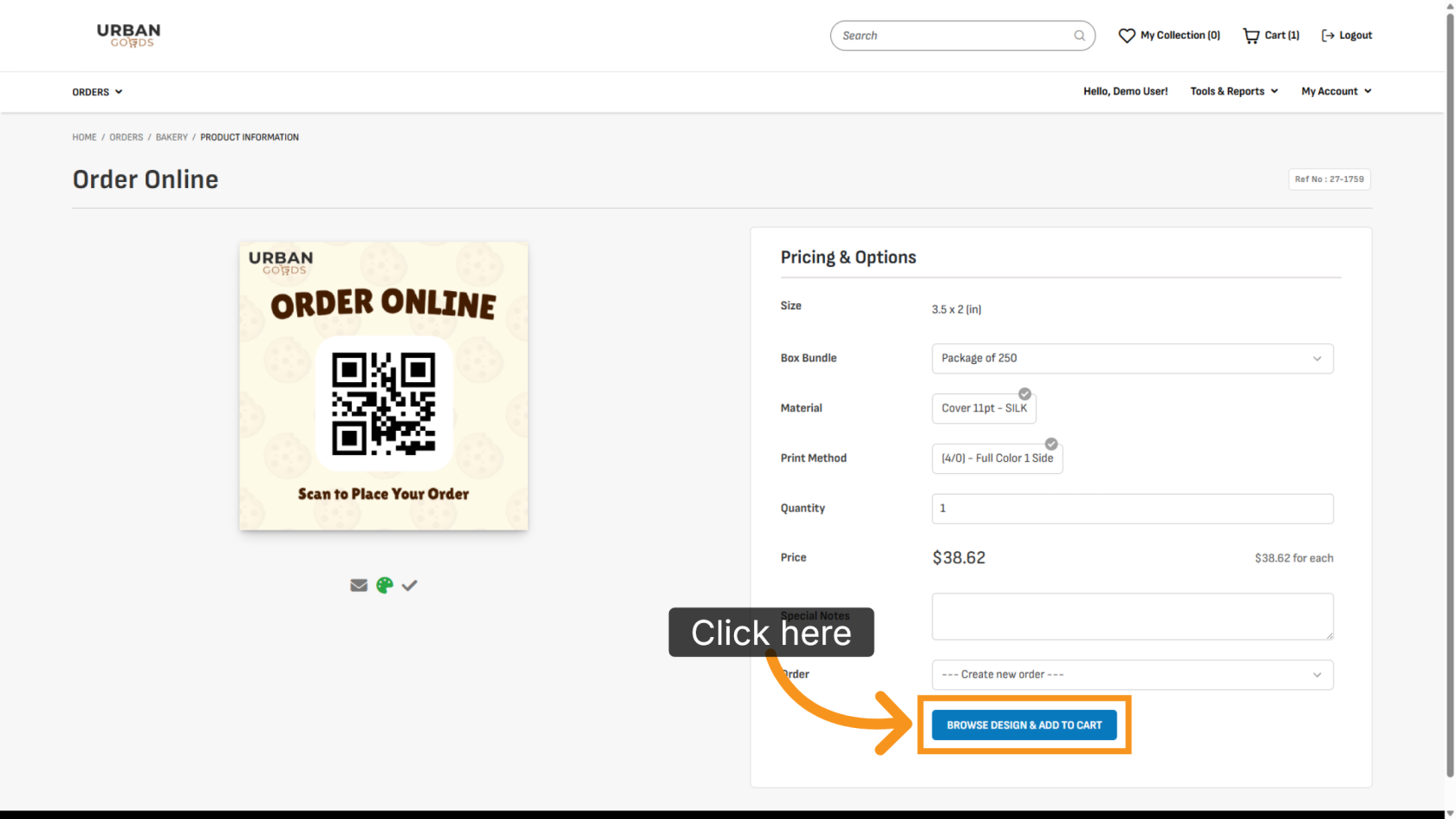
18. Browse Available Designs
Click BROWSE DESIGN & ADD TO CART to select the design.
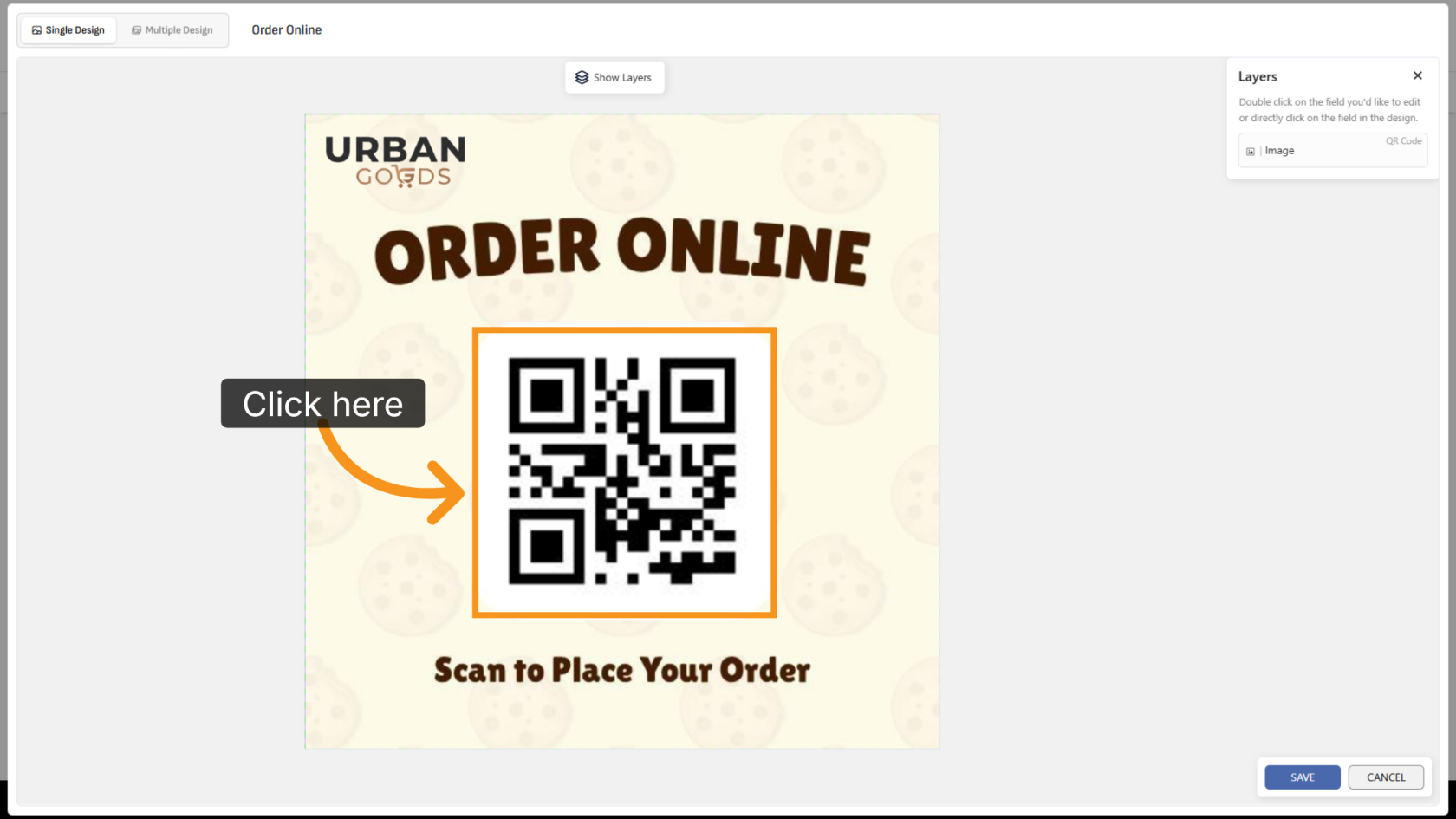
19. Update the QR Code
Click the QR code object to edit it.
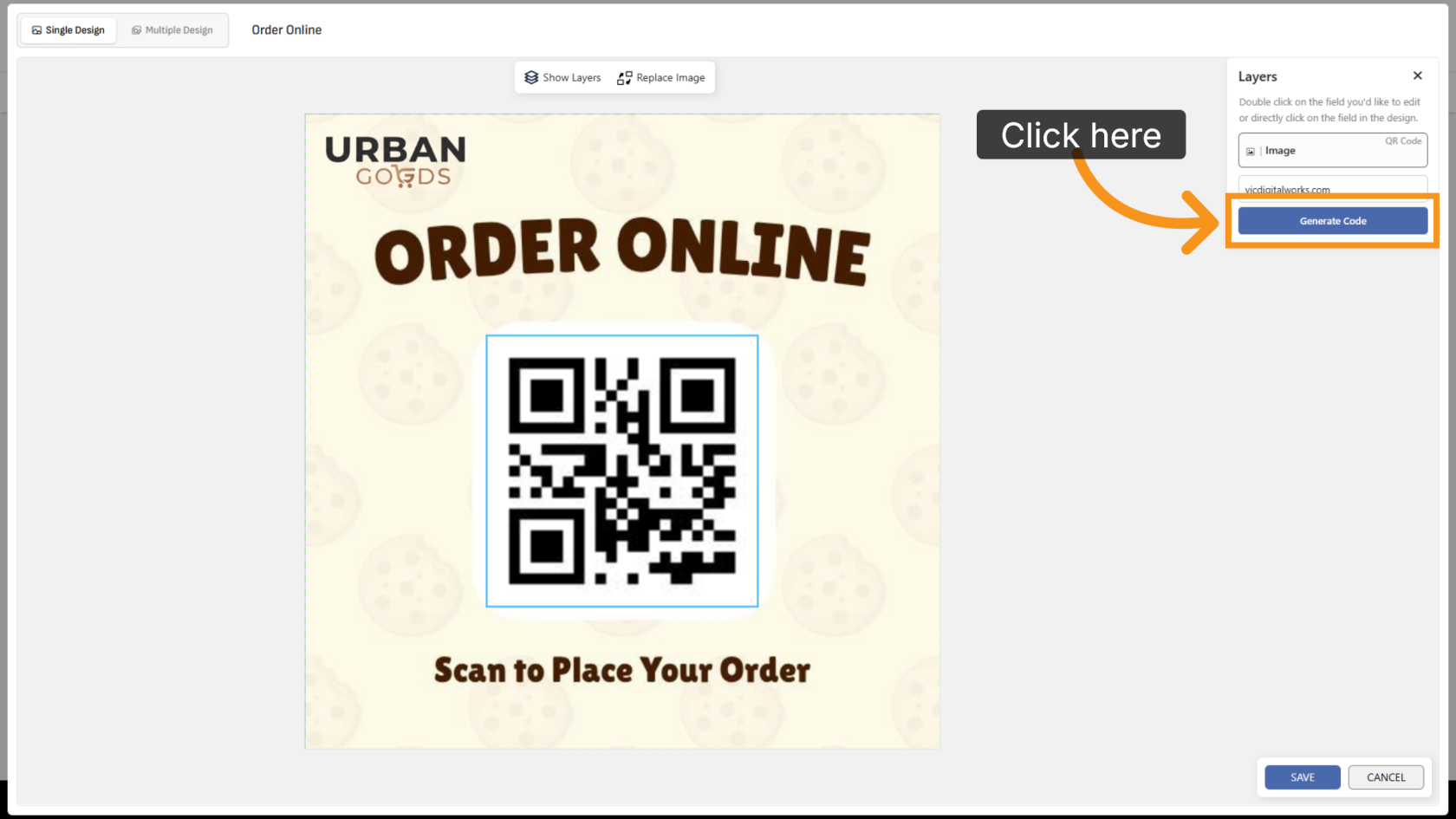
20. Enter a New Link
Enter the new URL you want to generate.
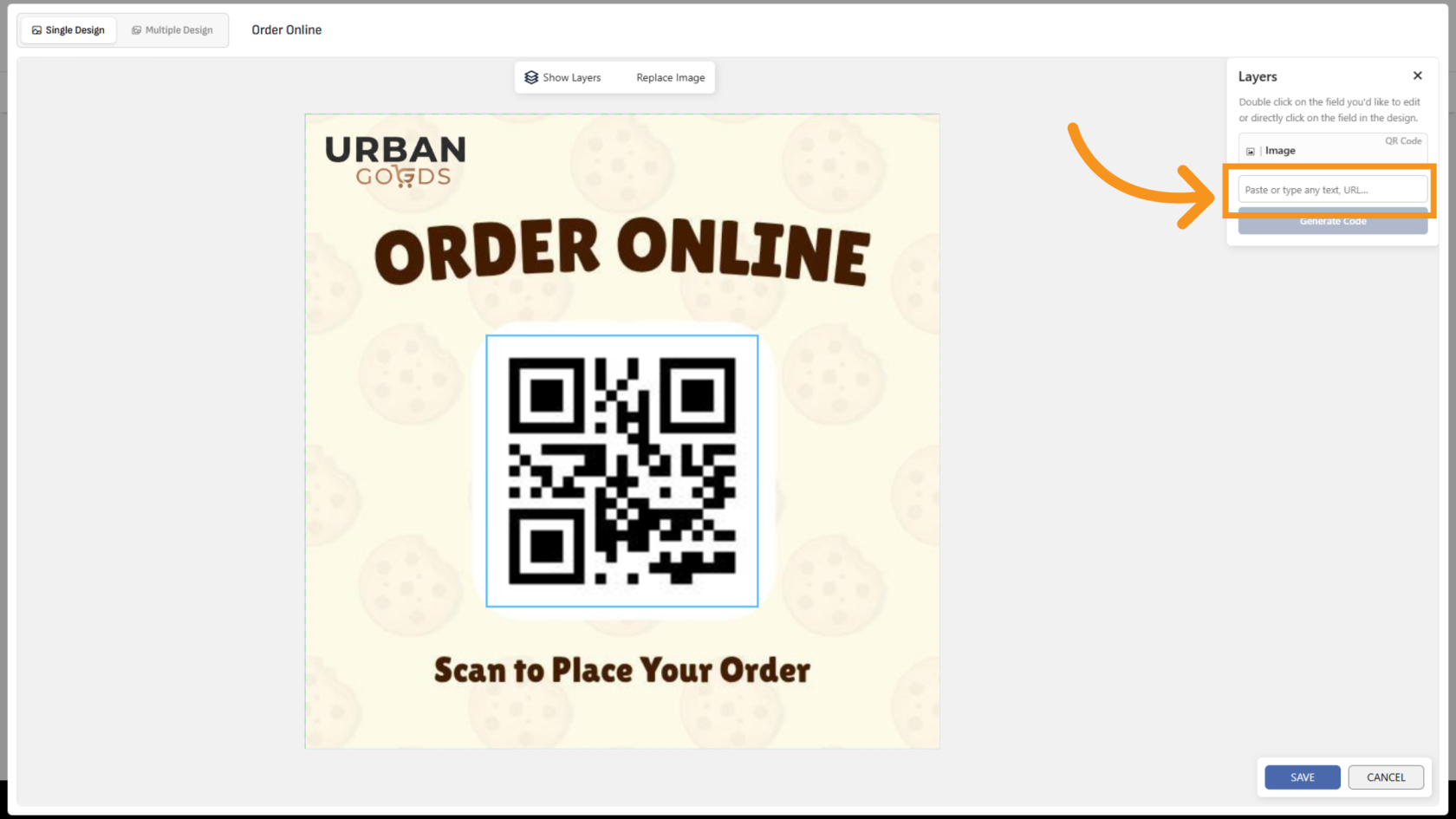
21. Generate the New QR Code
Click Generate Code to create a new QR code using the updated link.
22. Review the Updated Design
Verify that the QR code has been updated correctly in the design.
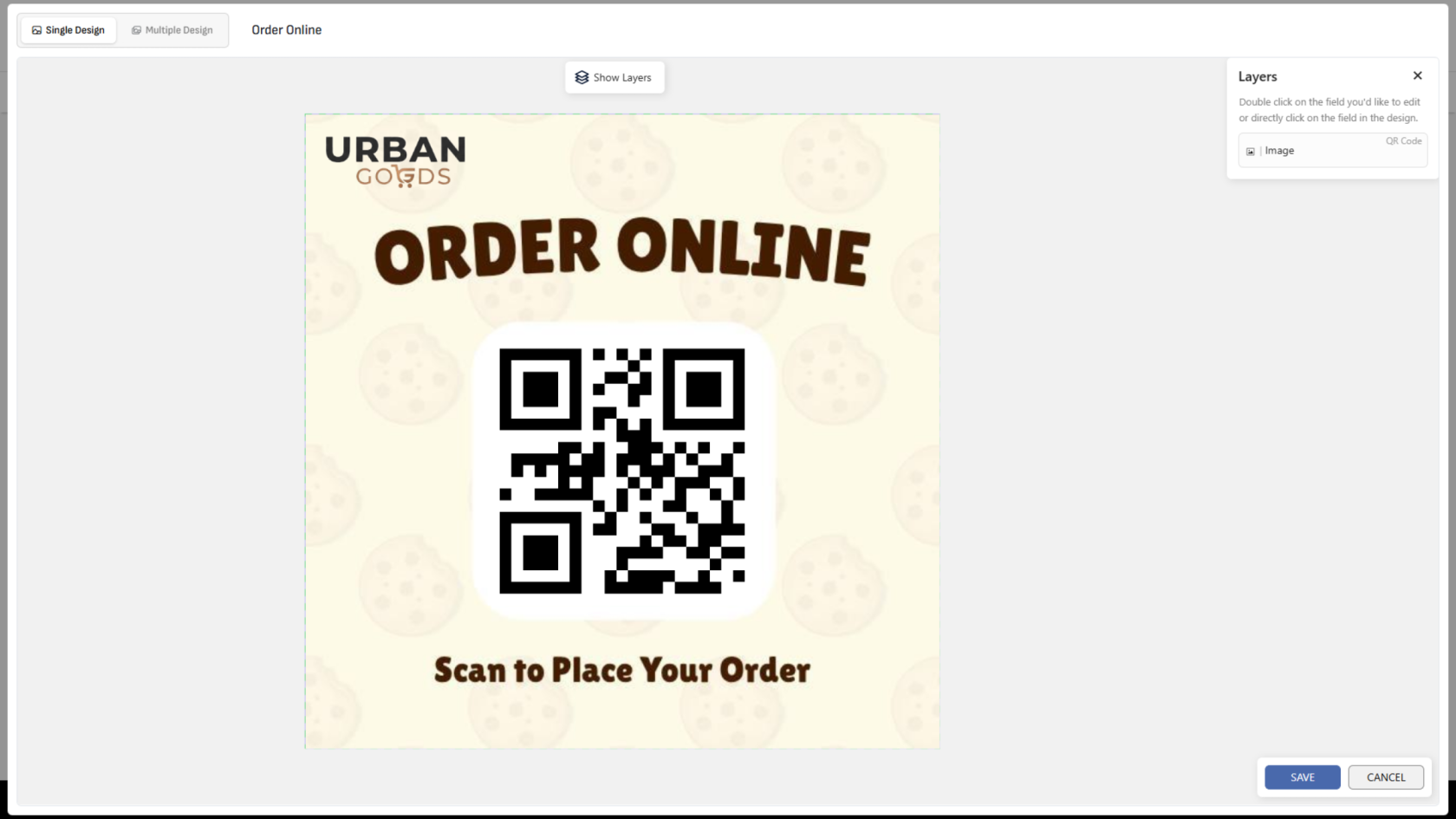
You have successfully generated a QR code and configured it as an editable variant. Customers can now replace the QR code with their own link while customizing the product.