
Import Font
This tutorial guides you through importing fonts into your design template. The system supports both OTF and TTF font formats. This guide covers both manual font mapping and automatic font importing. If you want to use the automatic method, skip directly to Step 6.
Tutorial
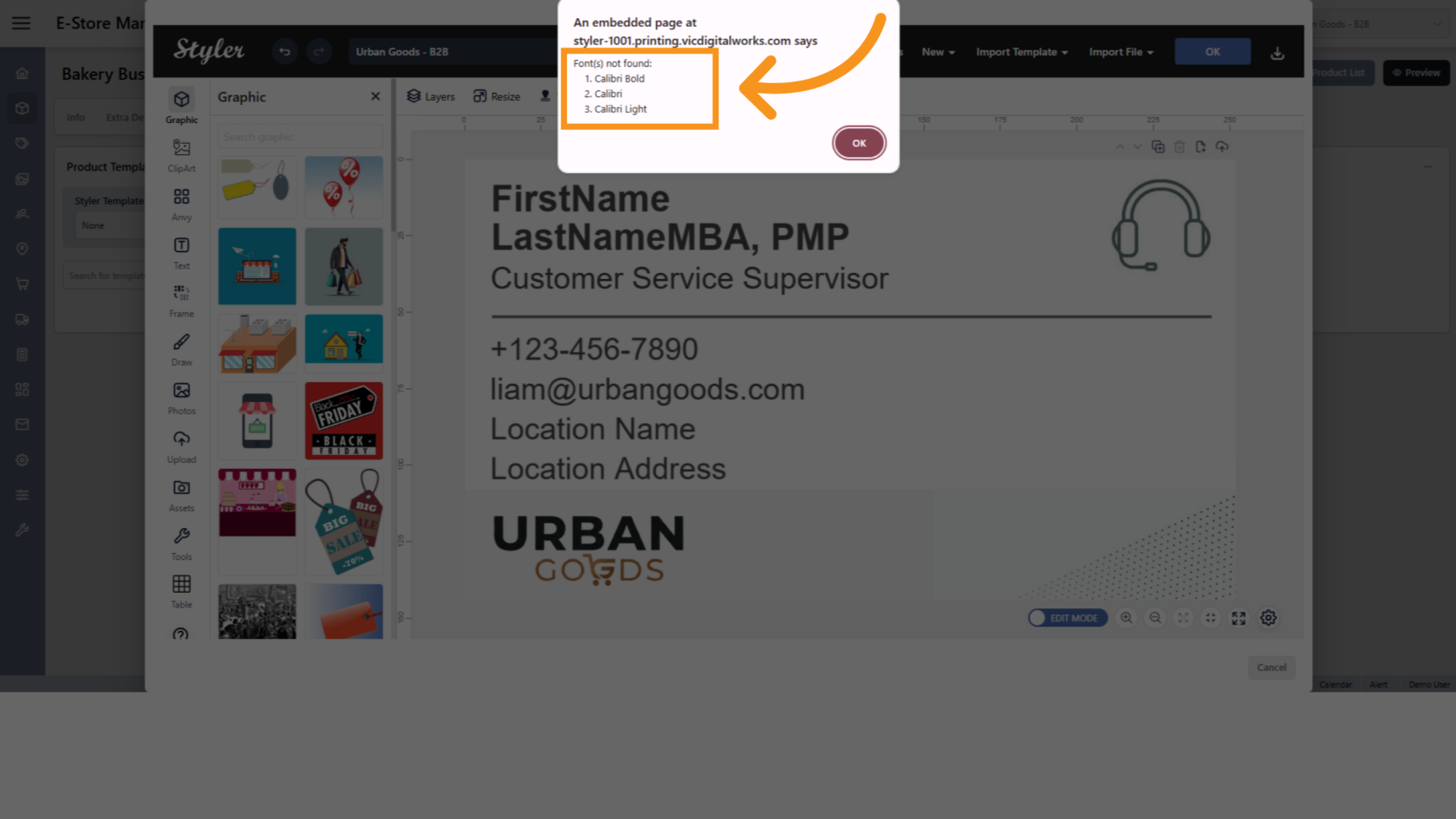
1. Missing Font Warning
When this message appears, it means the font used in the design is missing from the system. You need to import the font to ensure the design displays correctly.
2. Upload Font Files
Click New and select Upload Zip Fonts to upload a ZIP file containing the required font files.
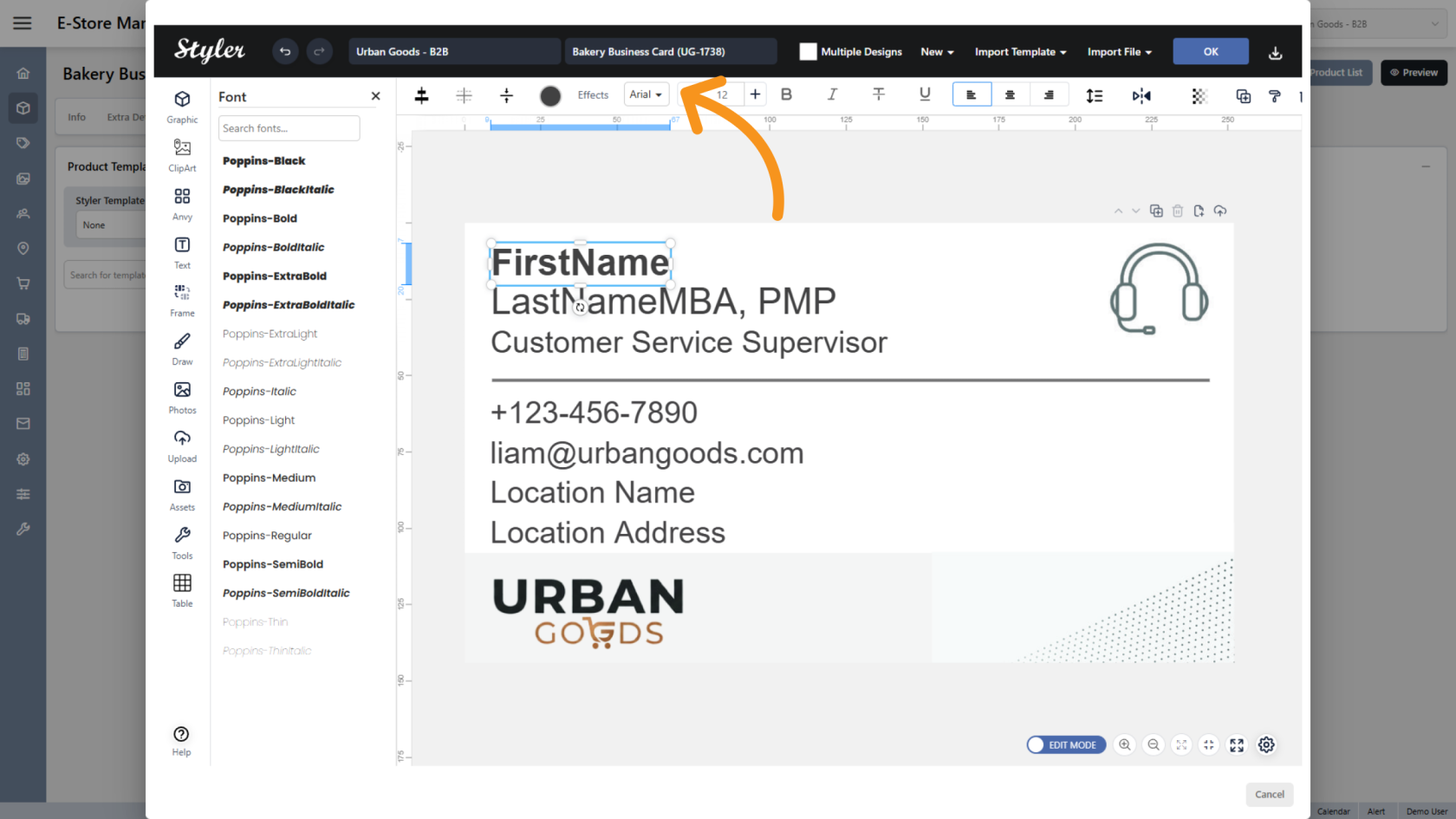
3. Manual Font Mapping
After importing the fonts, you will need to manually assign the correct font to each text object in the template.
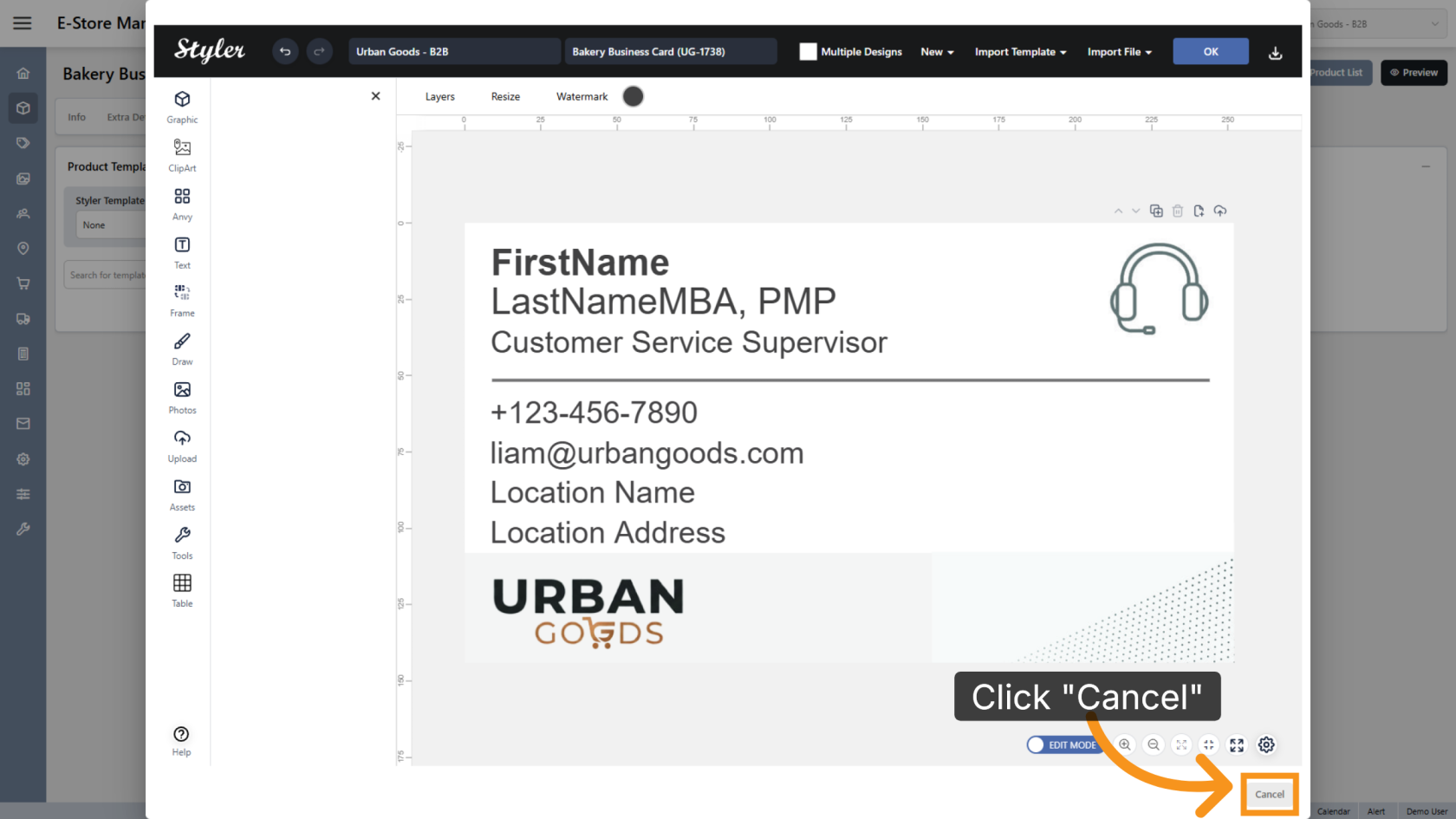
4. Cancel Manual Mapping
If you do not want to map fonts manually, click Cancel and continue with the automatic import method below.
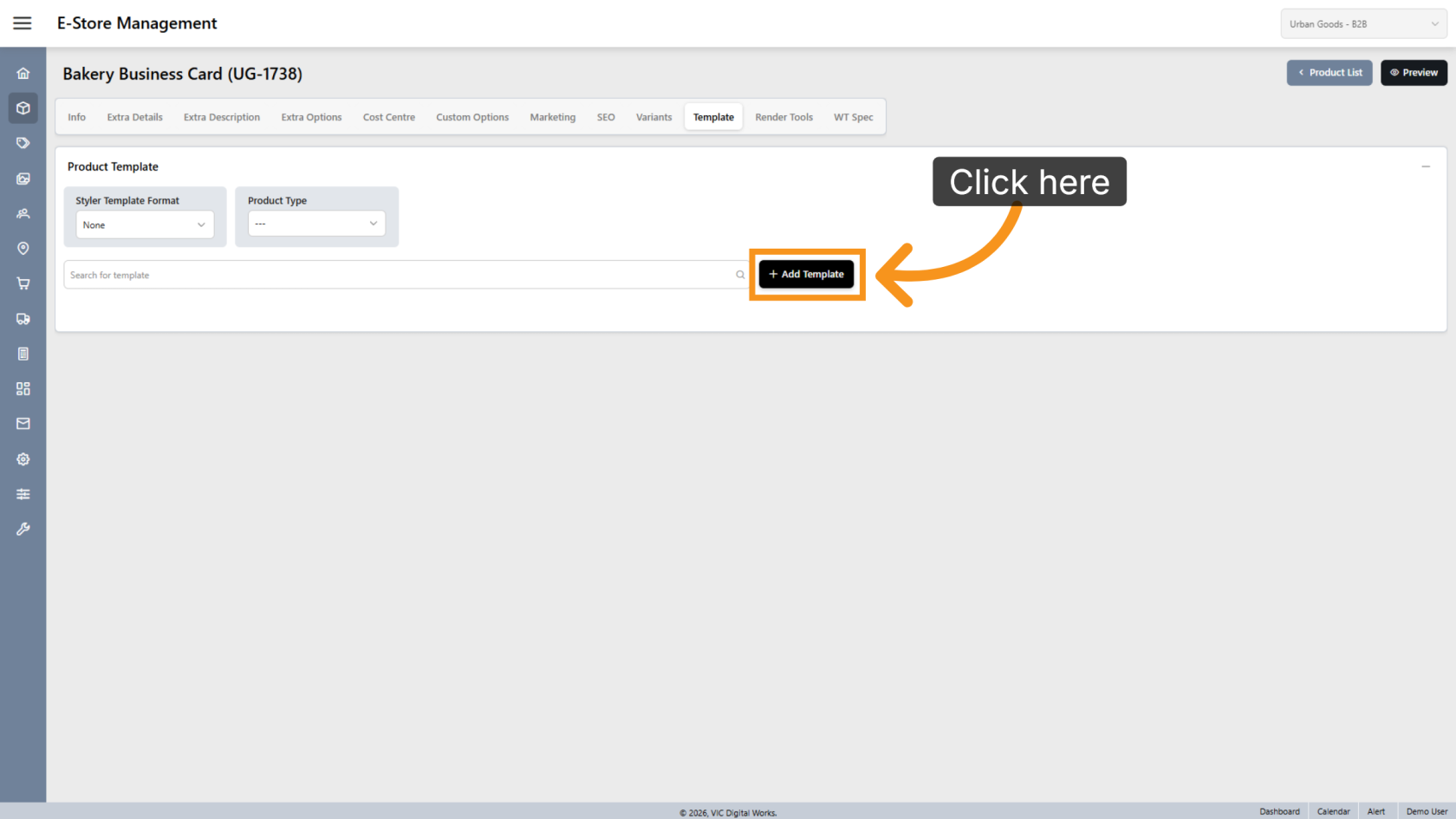
5. Add a New Template
Click Add Template to begin adding a new template to your product.
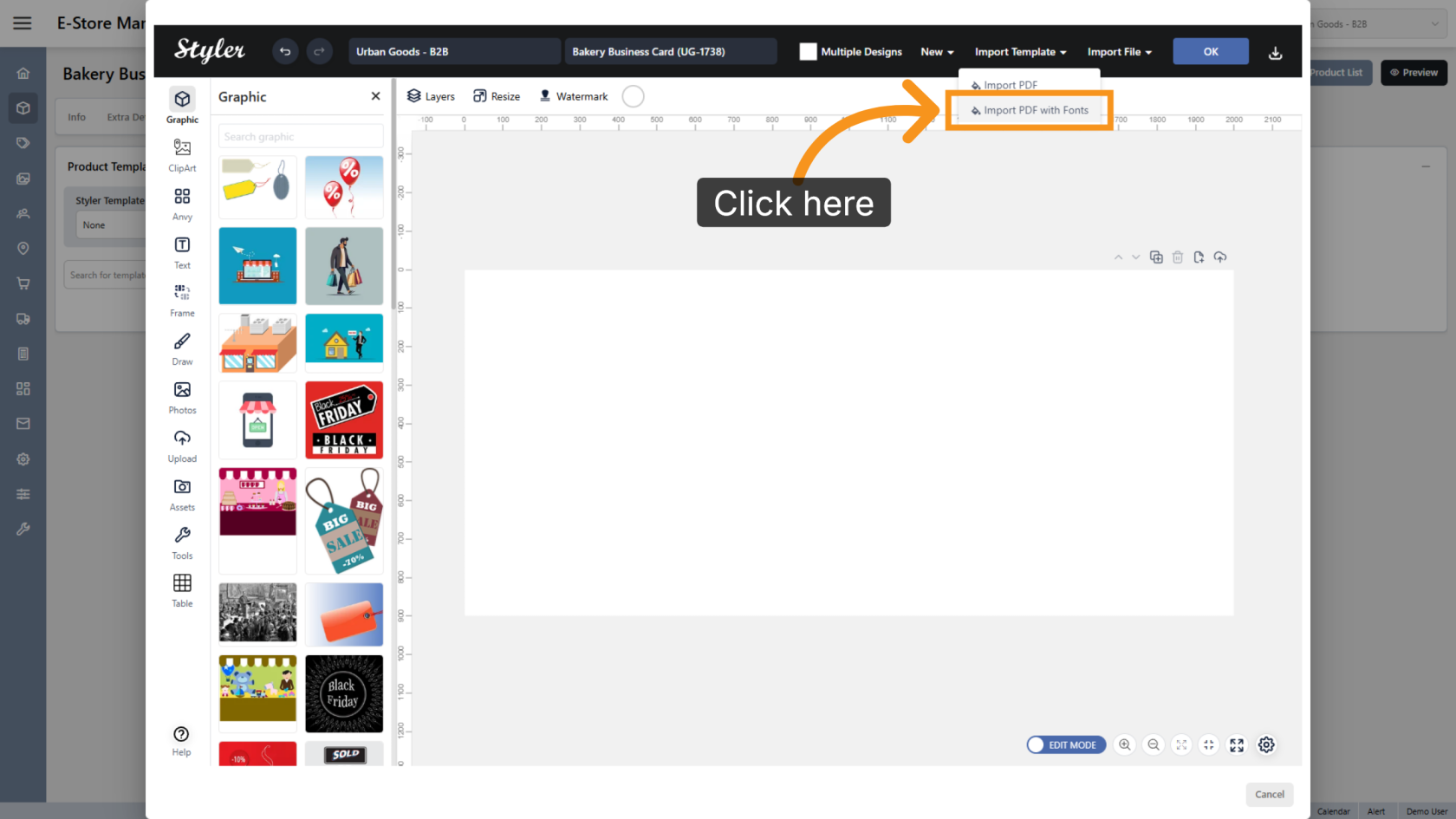
6. Import PDF with Fonts
Click Import Template and select Import PDF with Fonts to import the PDF design together with its font files. When the popup appears, select both the design file and the ZIP font folder at the same time.
7. Complete the Import Process
Once the import is complete, the system will automatically detect and apply the correct fonts to the template.
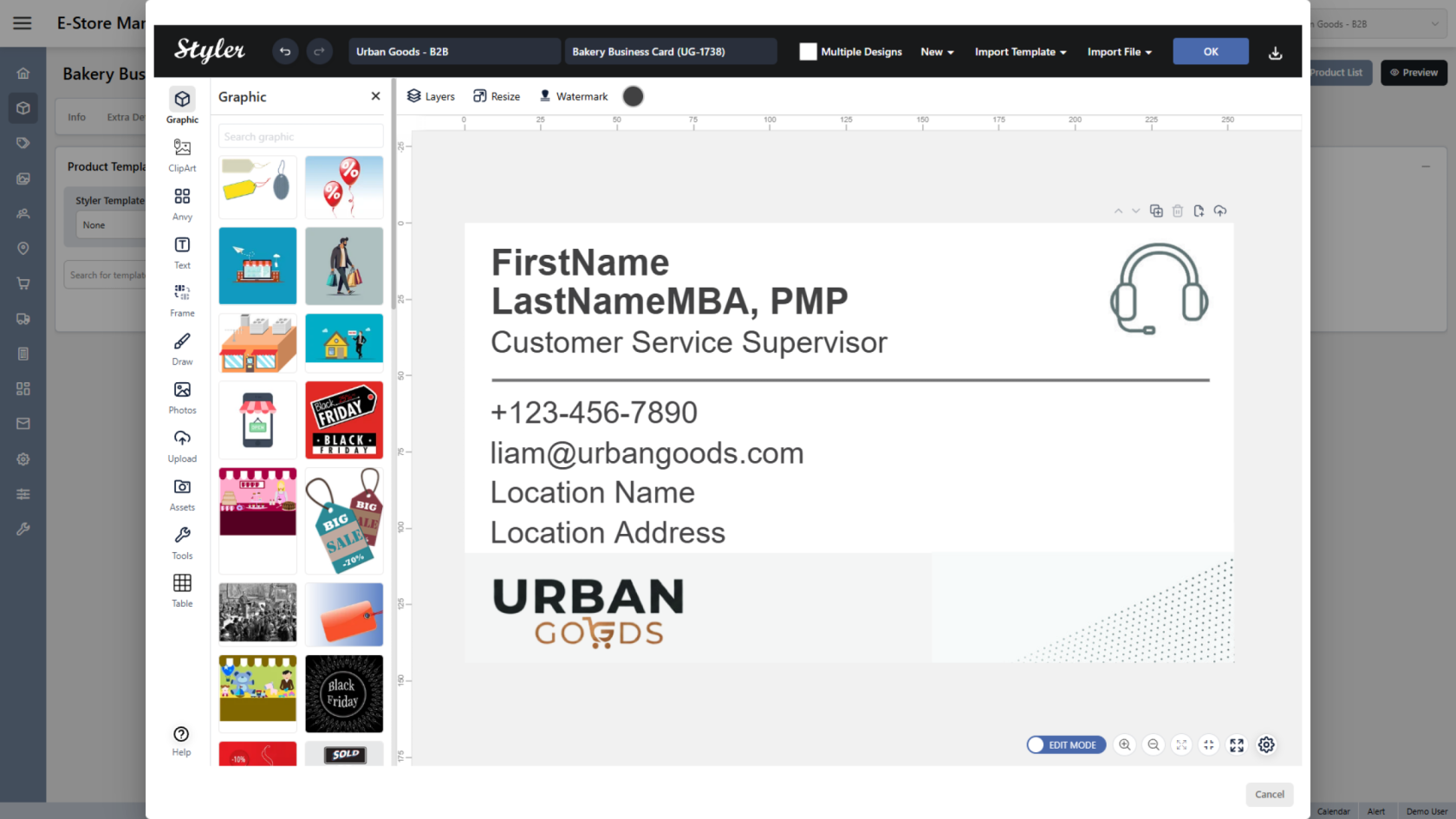
You have successfully imported fonts into your template. This helps ensure your template remains visually consistent with the original design.