
Location Variant
This tutorial guides you through configuring a Location variant. The address will automatically update whenever a different location is selected.
Video Tutorial
1. Mark Location Variant
Right-click the Location Name object and select Mark as Variant to make it editable as a variant.
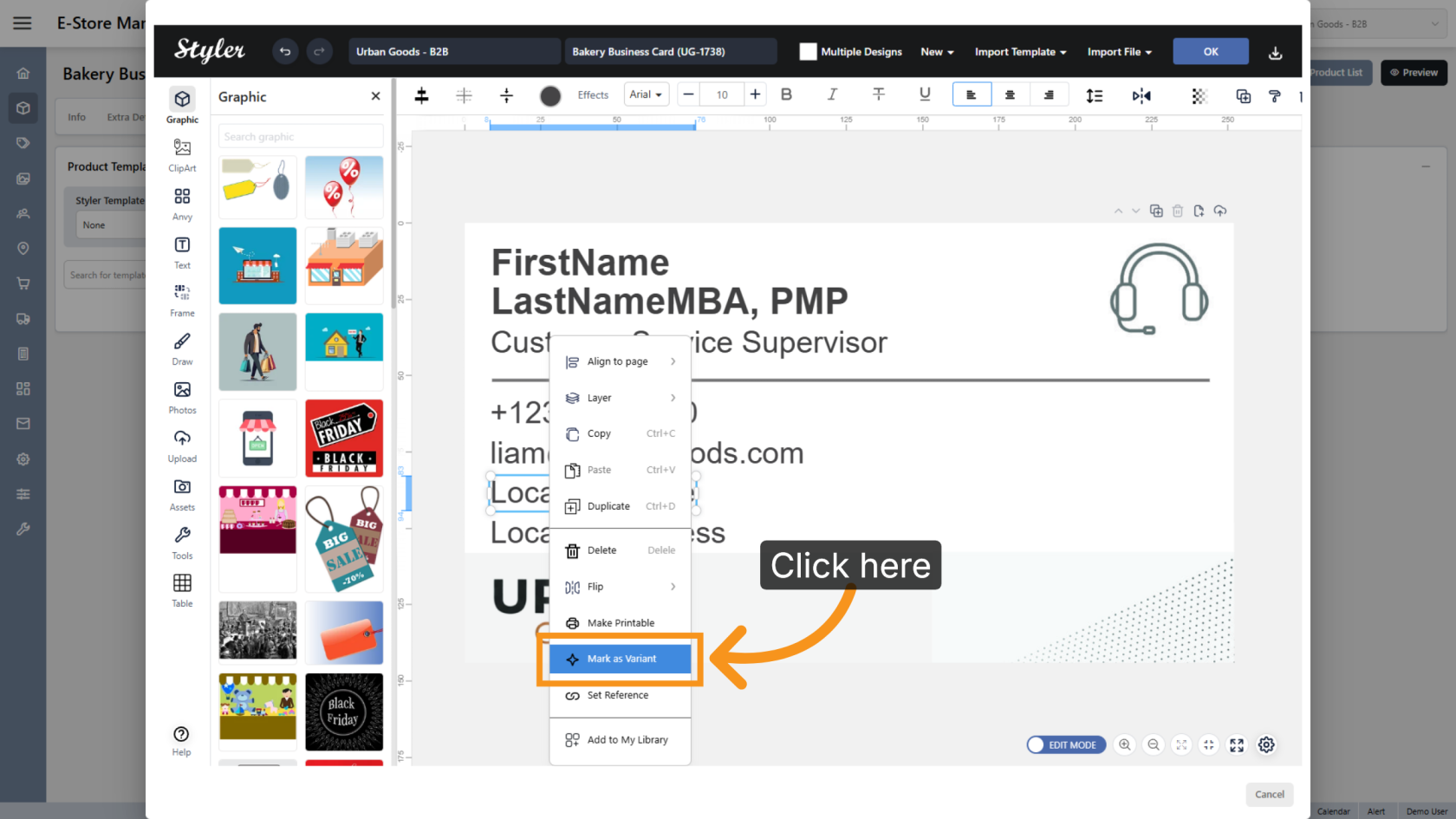
2. Confirm Variant Type
Select the variant type as Location. This variant type will display all available locations as a selectable list.
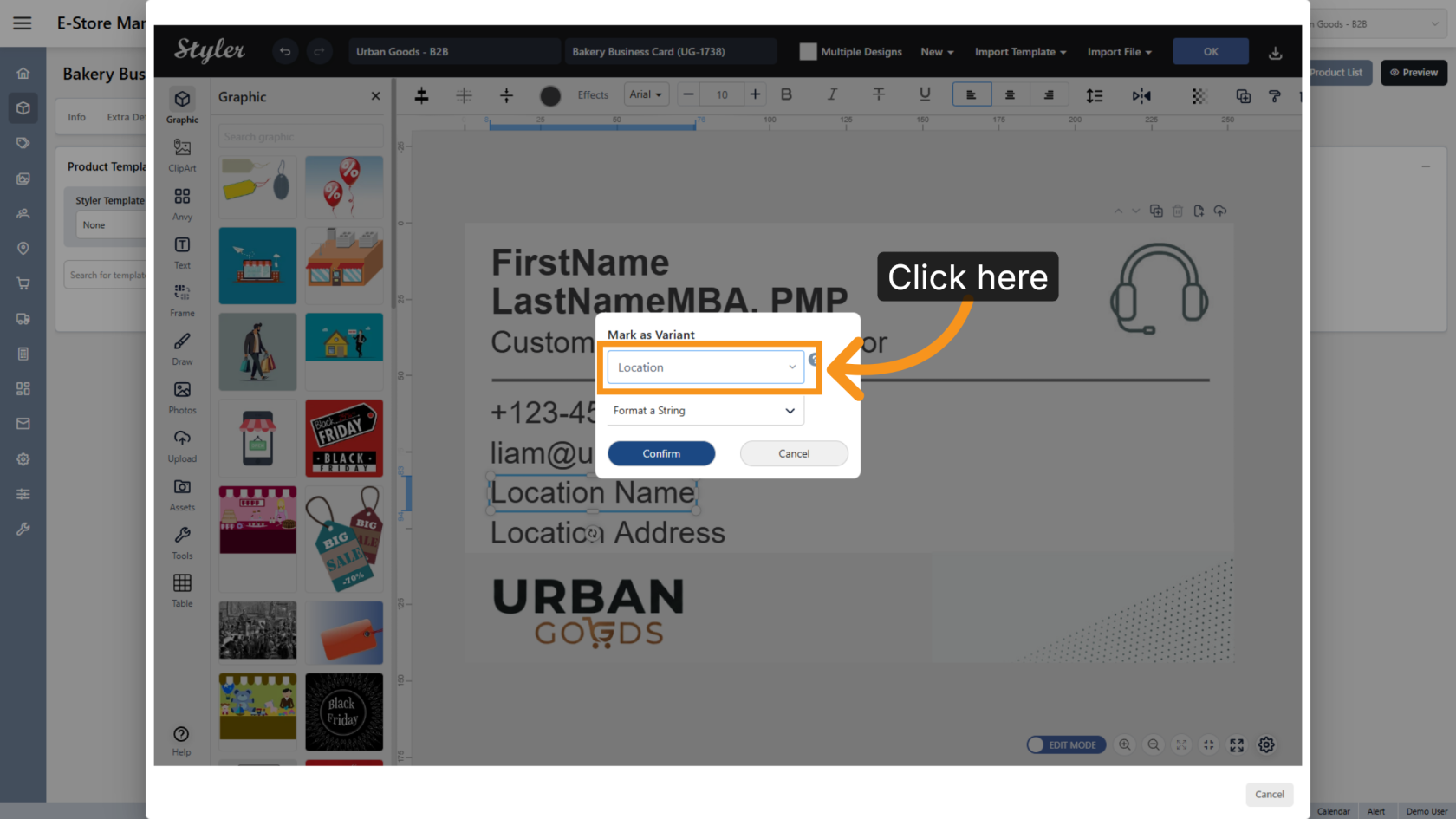
3. Variant Format
Keep the format set to String.
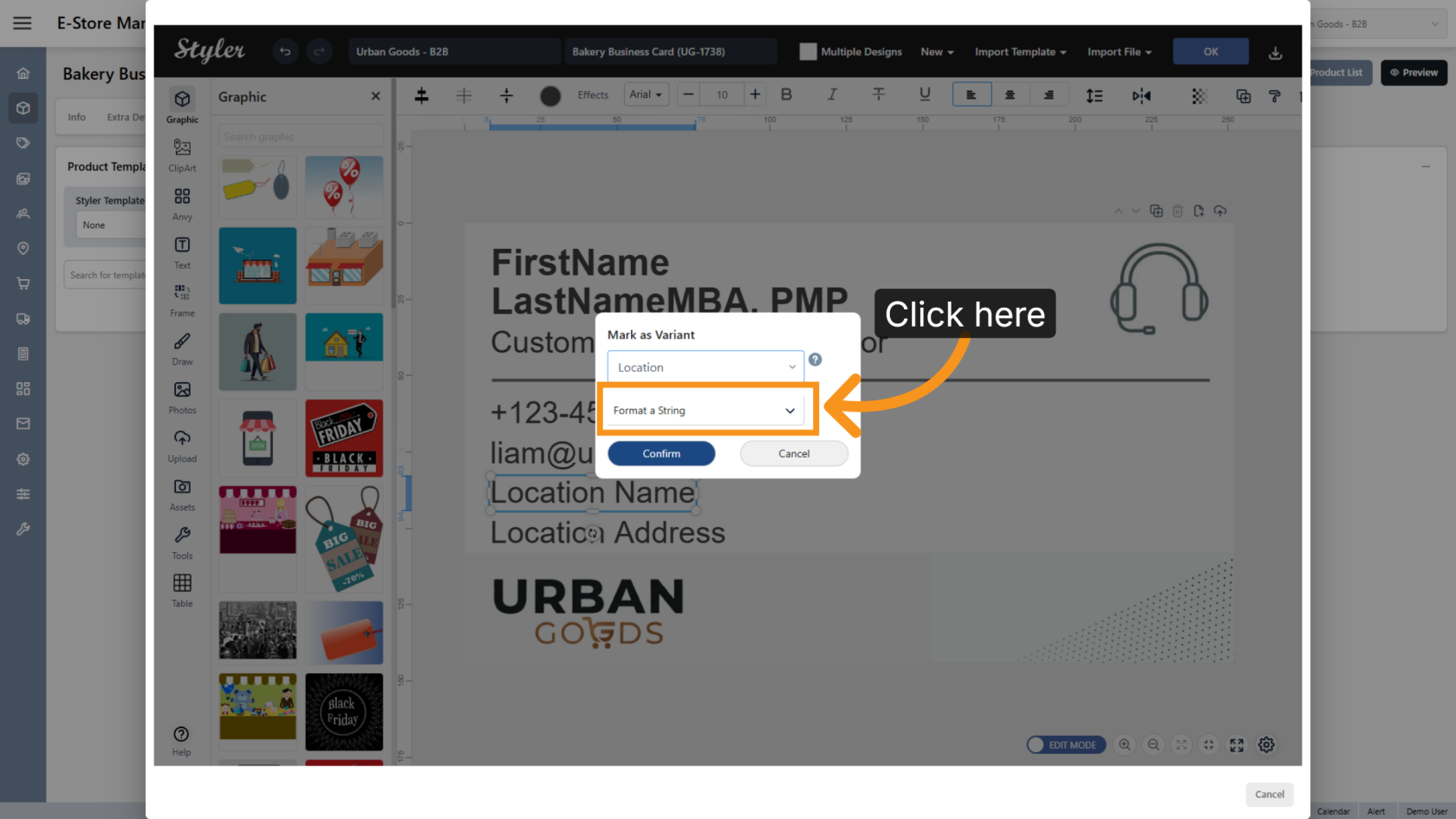
4. Confirm Variant Selection
Click Confirm to apply the selected variant type.
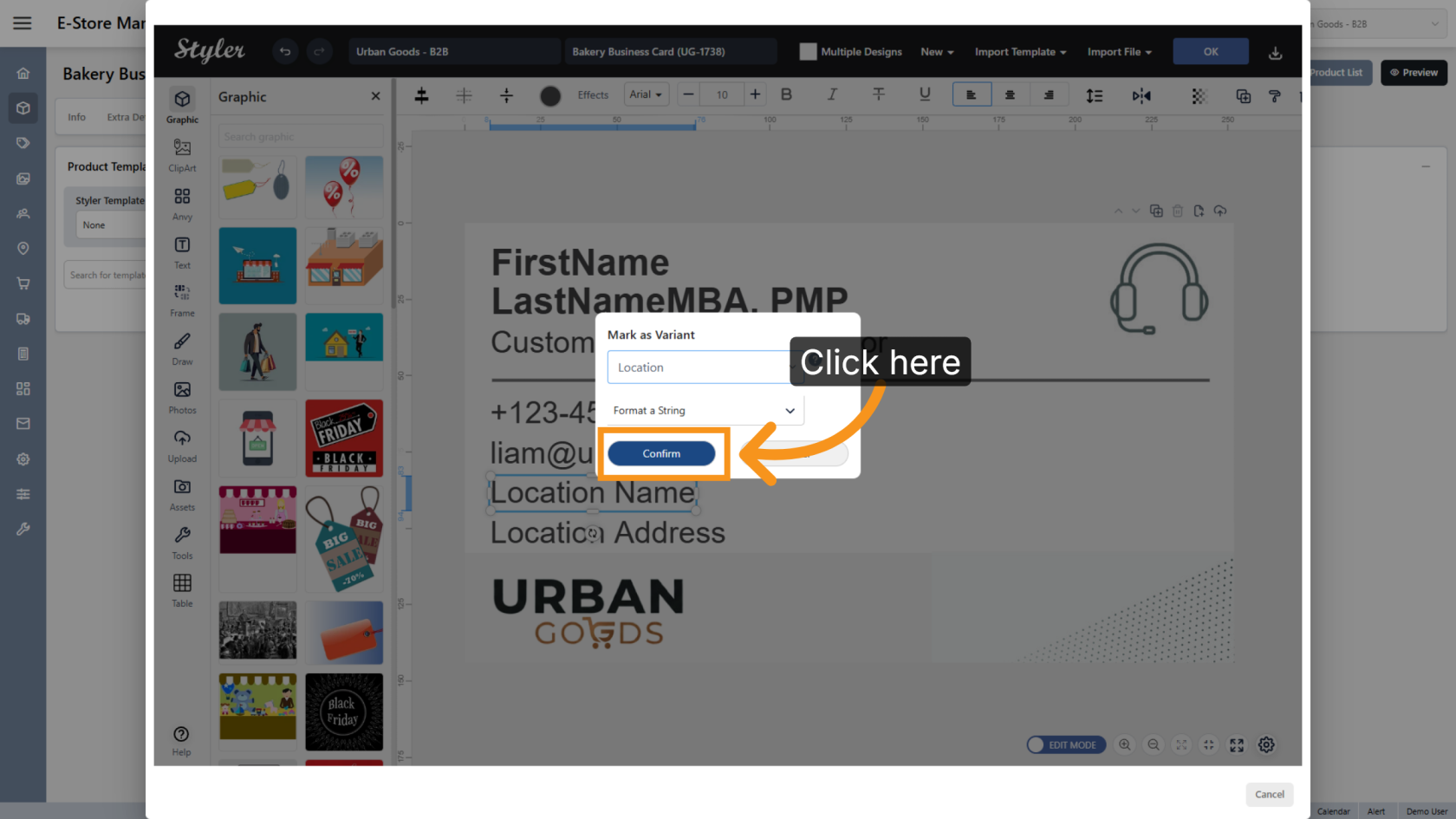
5. Mark Location Address Variant
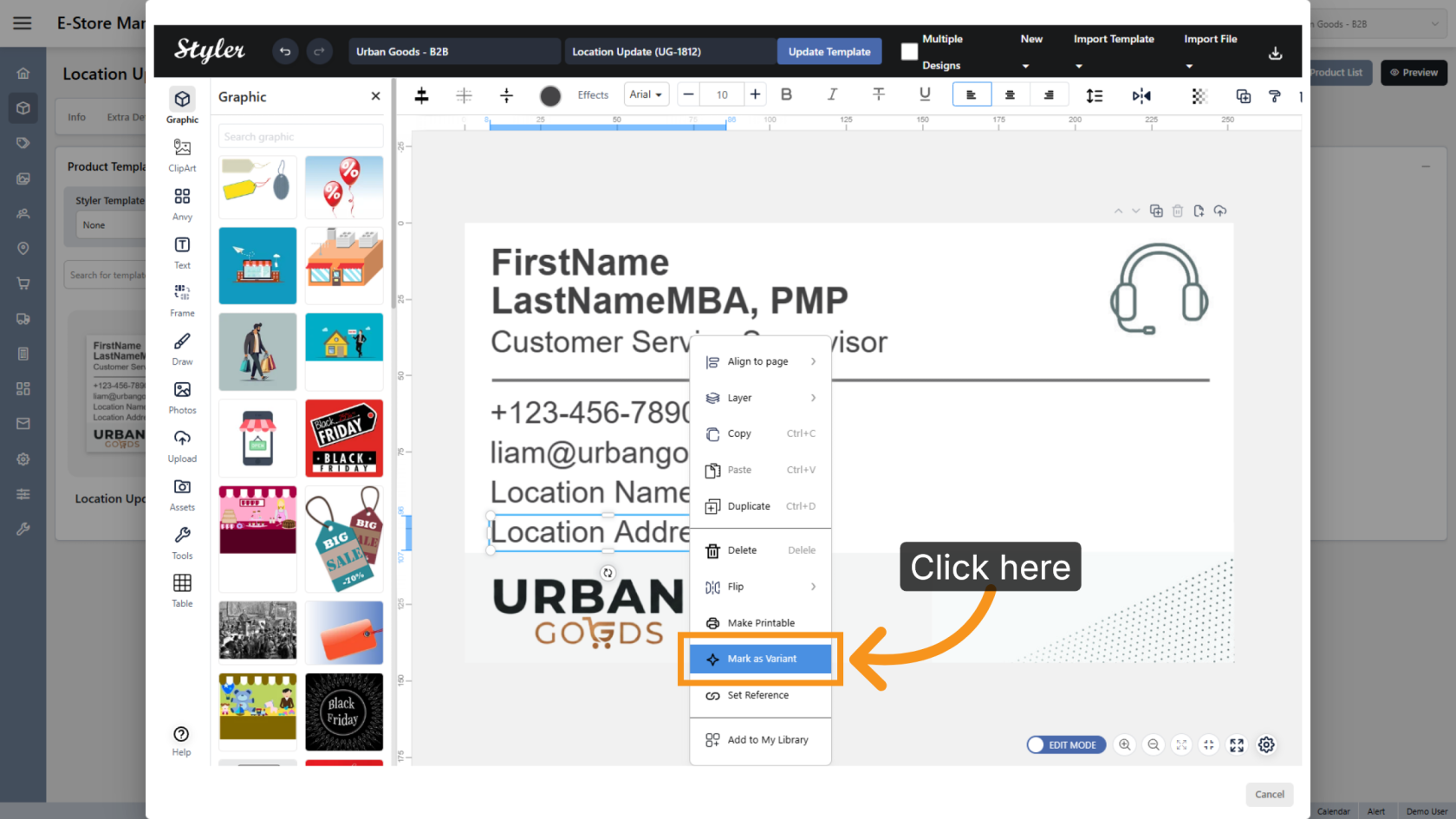
Right-click the Location Address object and select Mark as Variant to make it editable as a variant.
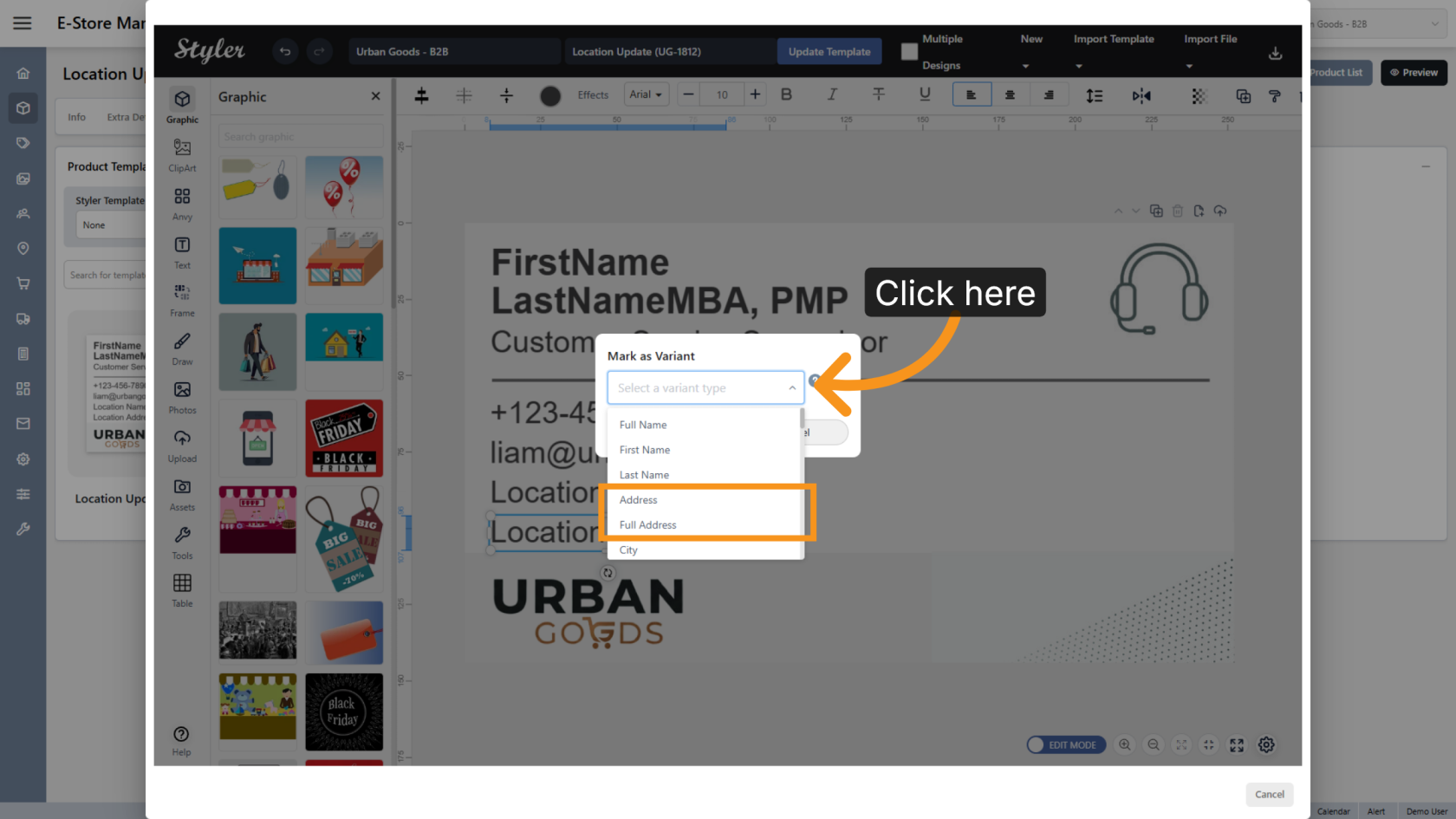
6. Confirm Variant Type
Select Address to display only the address. Full Address to display the address including city, province, and country
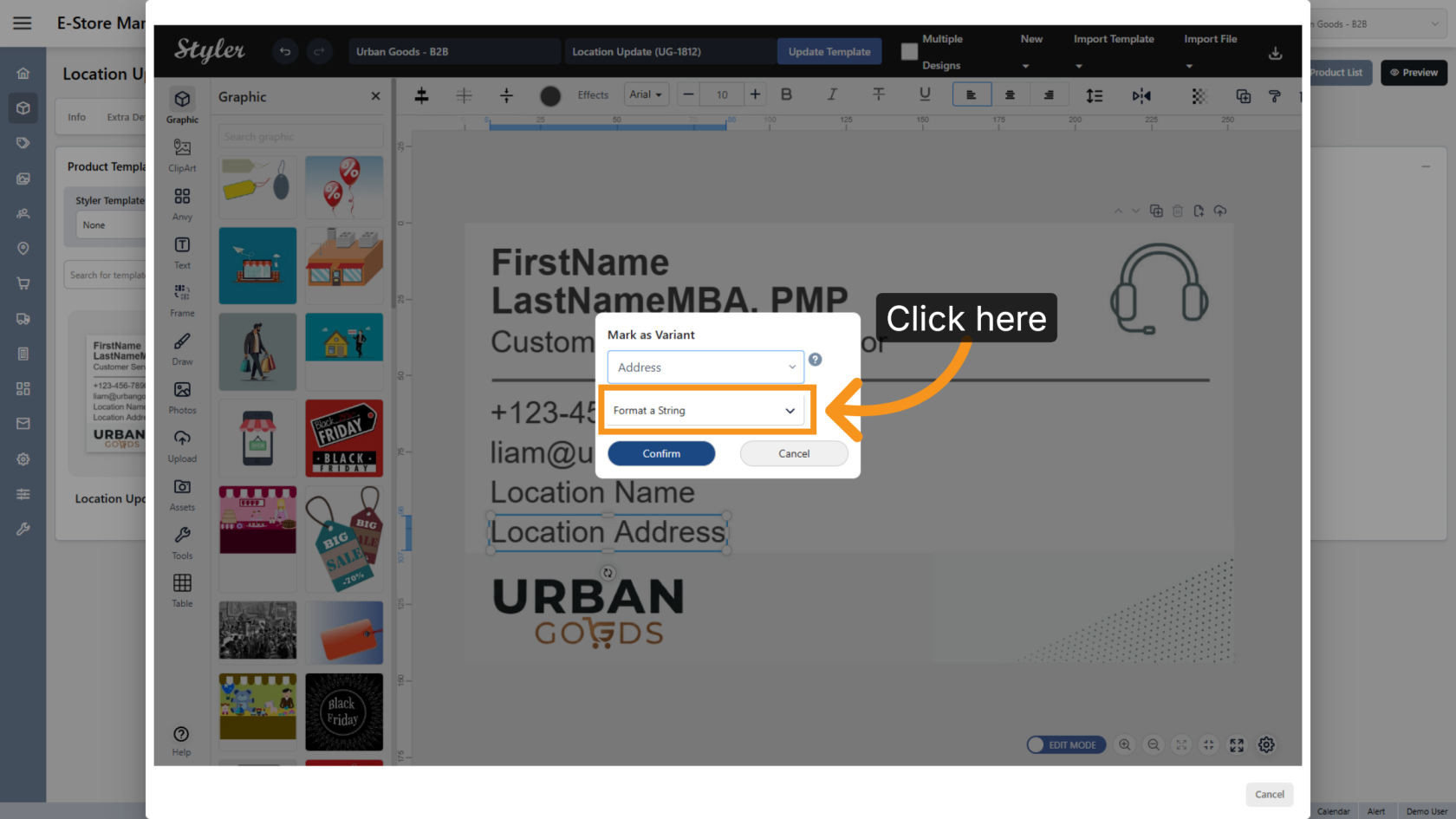
7. Variant Format
Keep the format set to String.
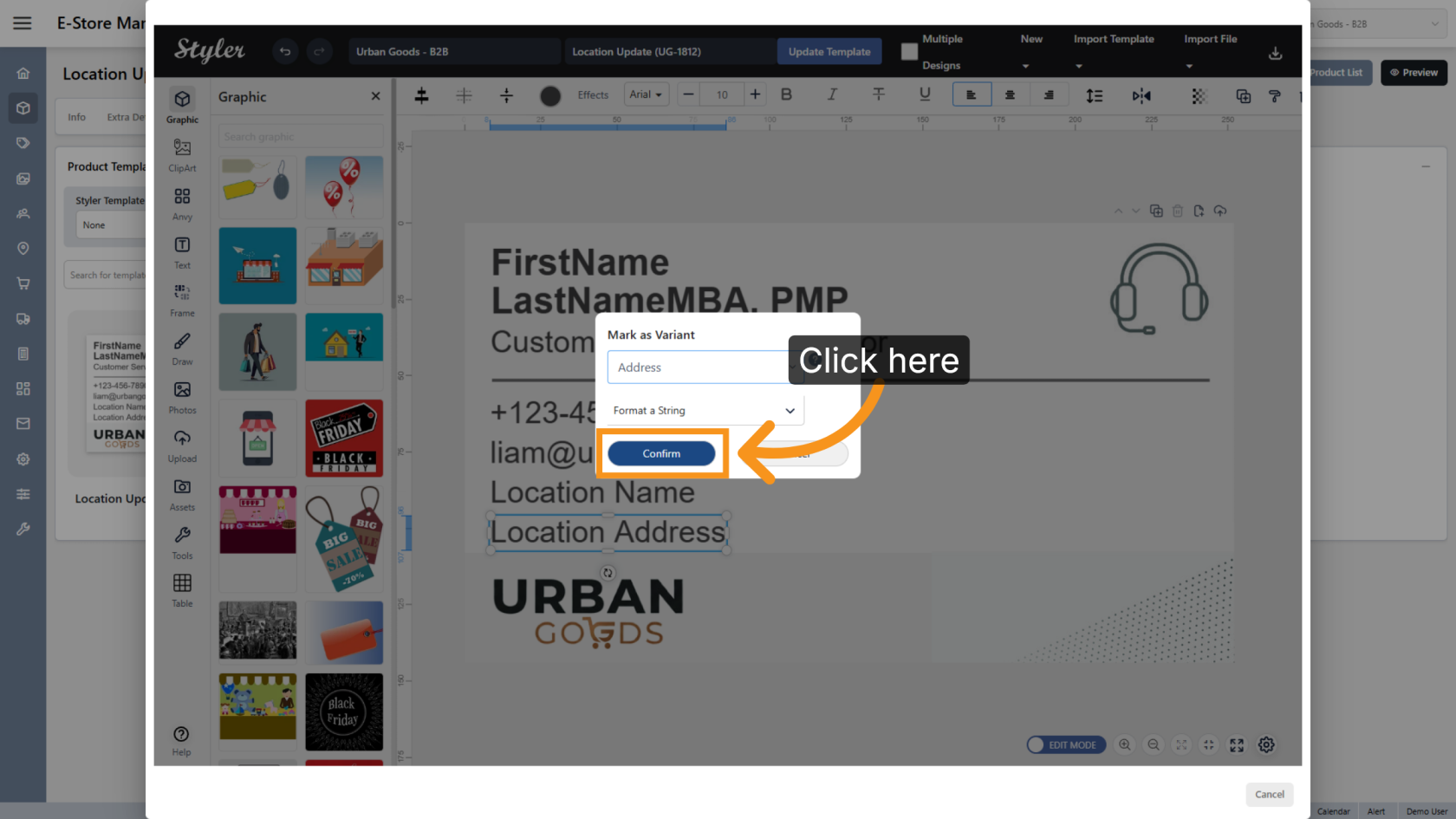
8. Confirm Variant Settings
Click Confirm to save the variant settings and proceed.
9. Set Address as Reference
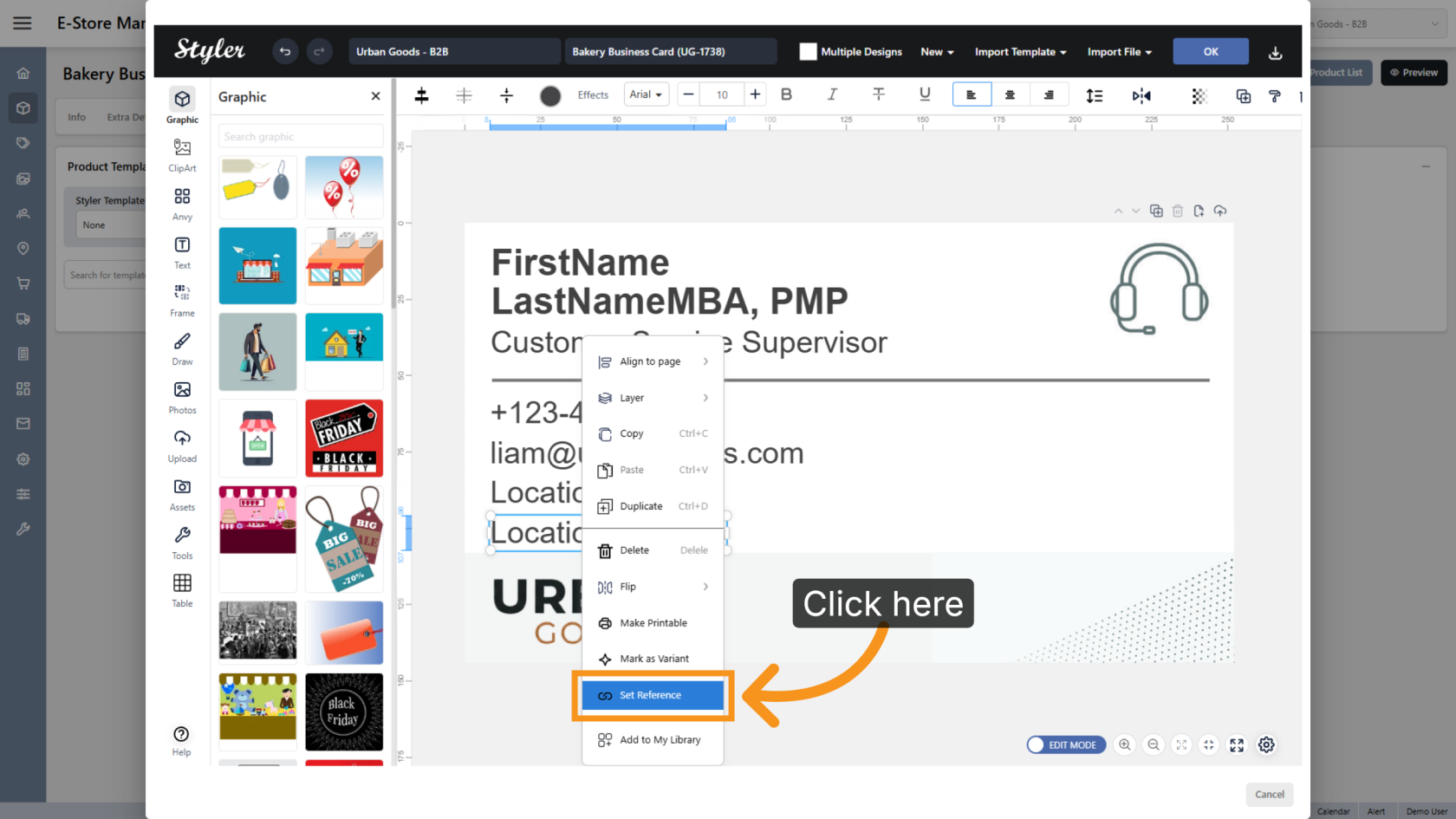
Right-click the Address object again and select Set Reference. This allows the address to update automatically when the location changes.
10. Add Reference Setup
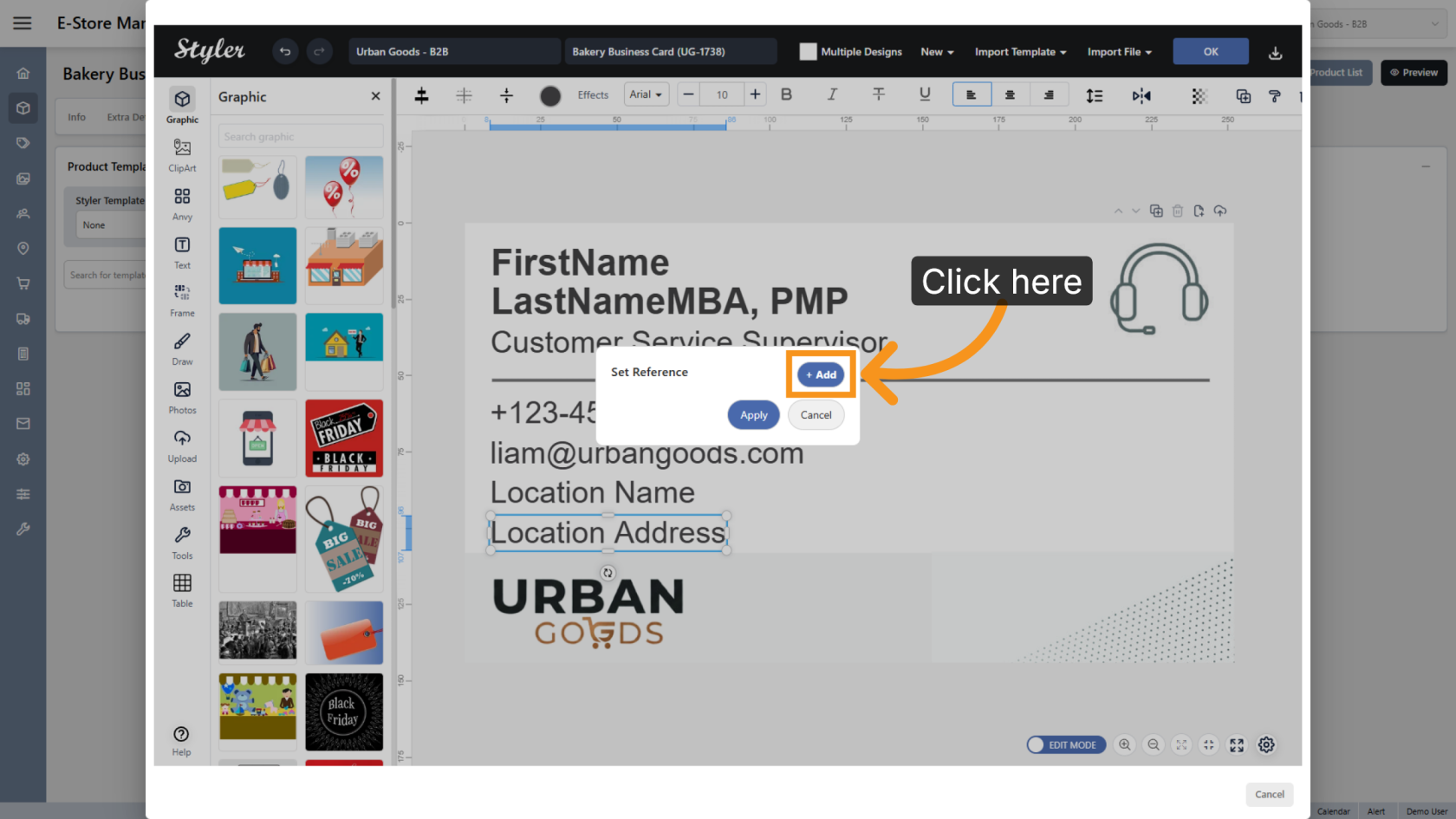
Click Add to create a new reference setup.
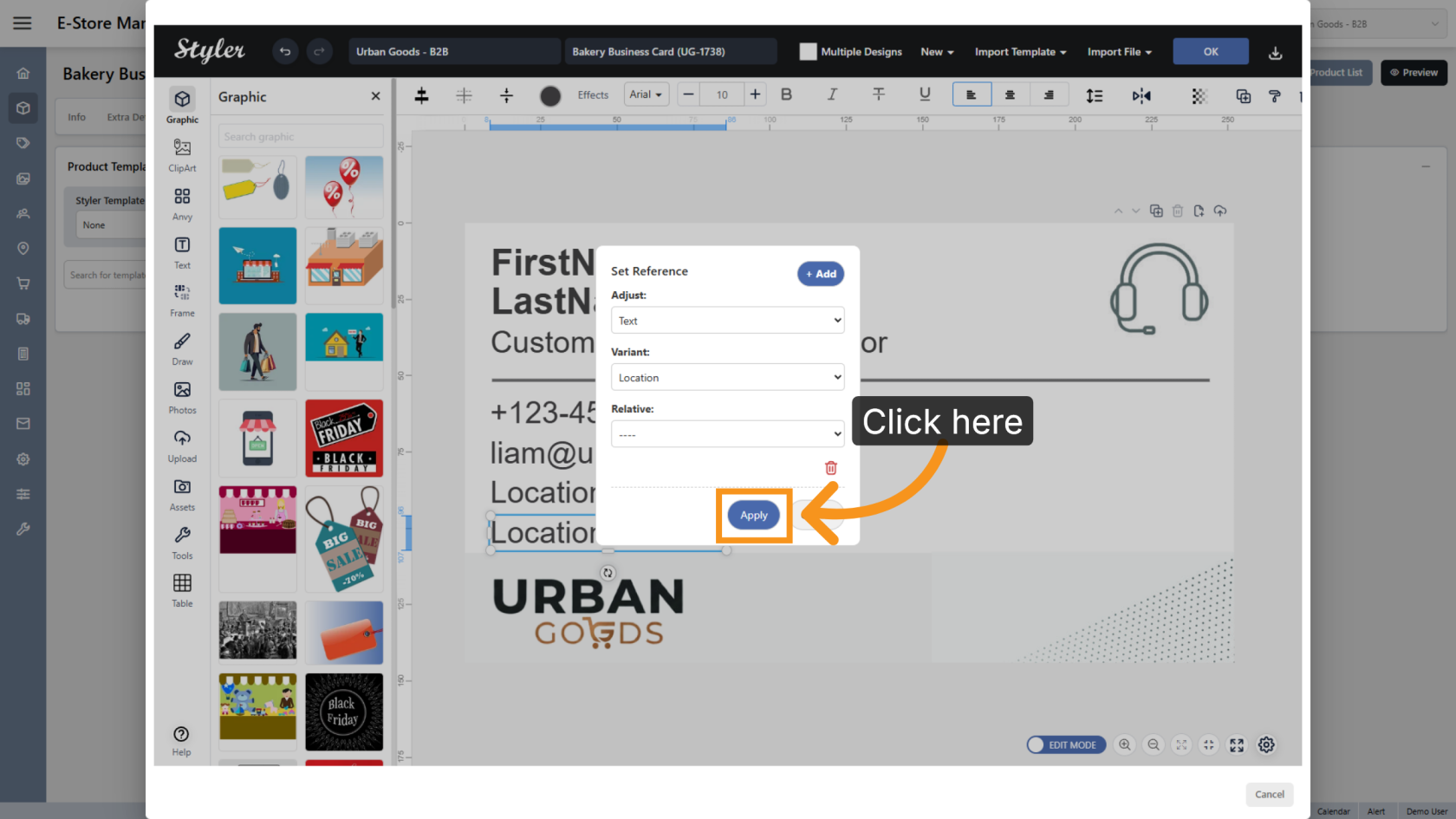
11. Set Adjust Type
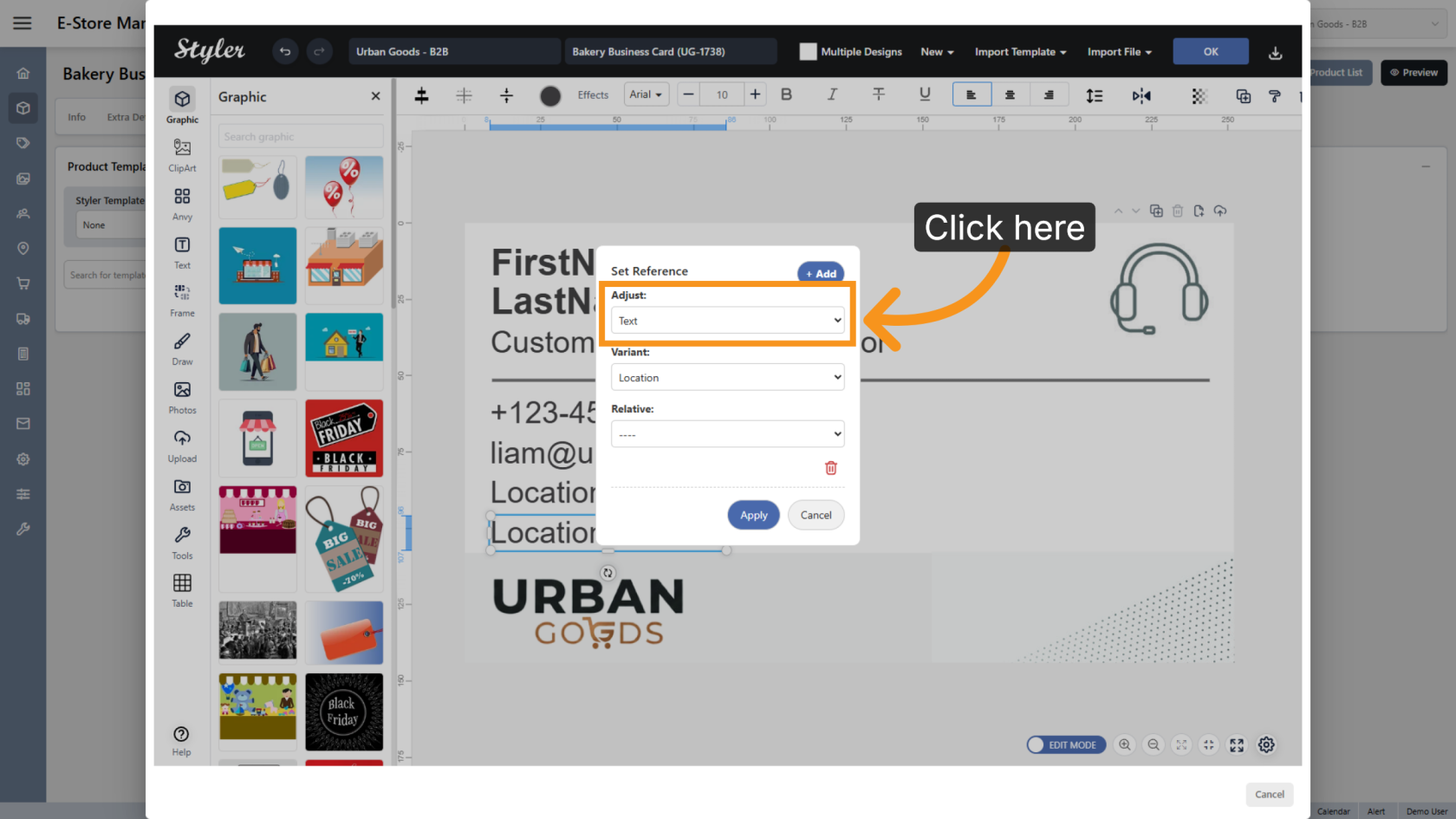
Click Adjust and choose Text so the text content updates dynamically.
12. Select Variant
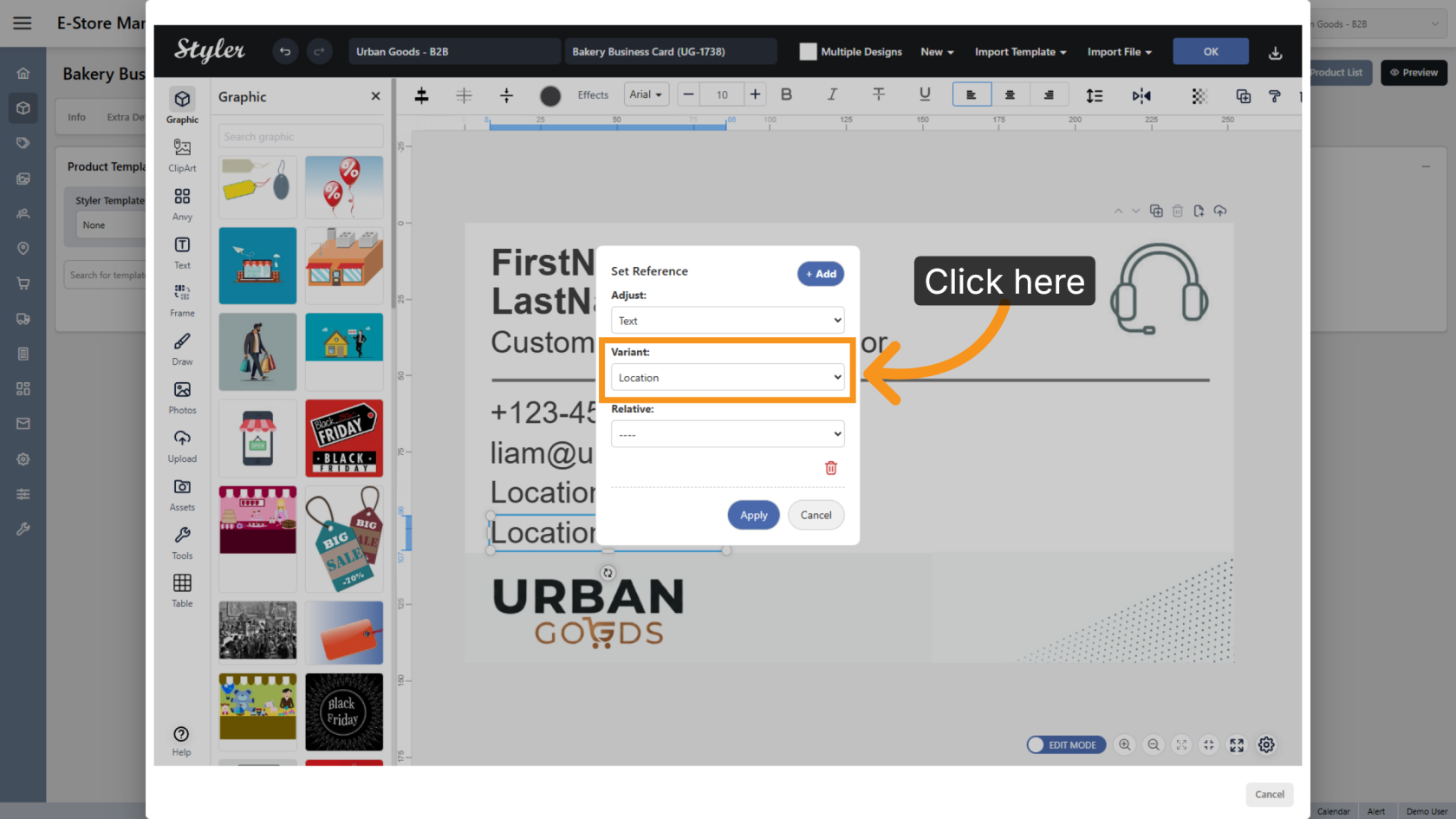
Select the Location variant to link the address with the selected location.
13. Apply Changes
Click Apply to save the reference settings.
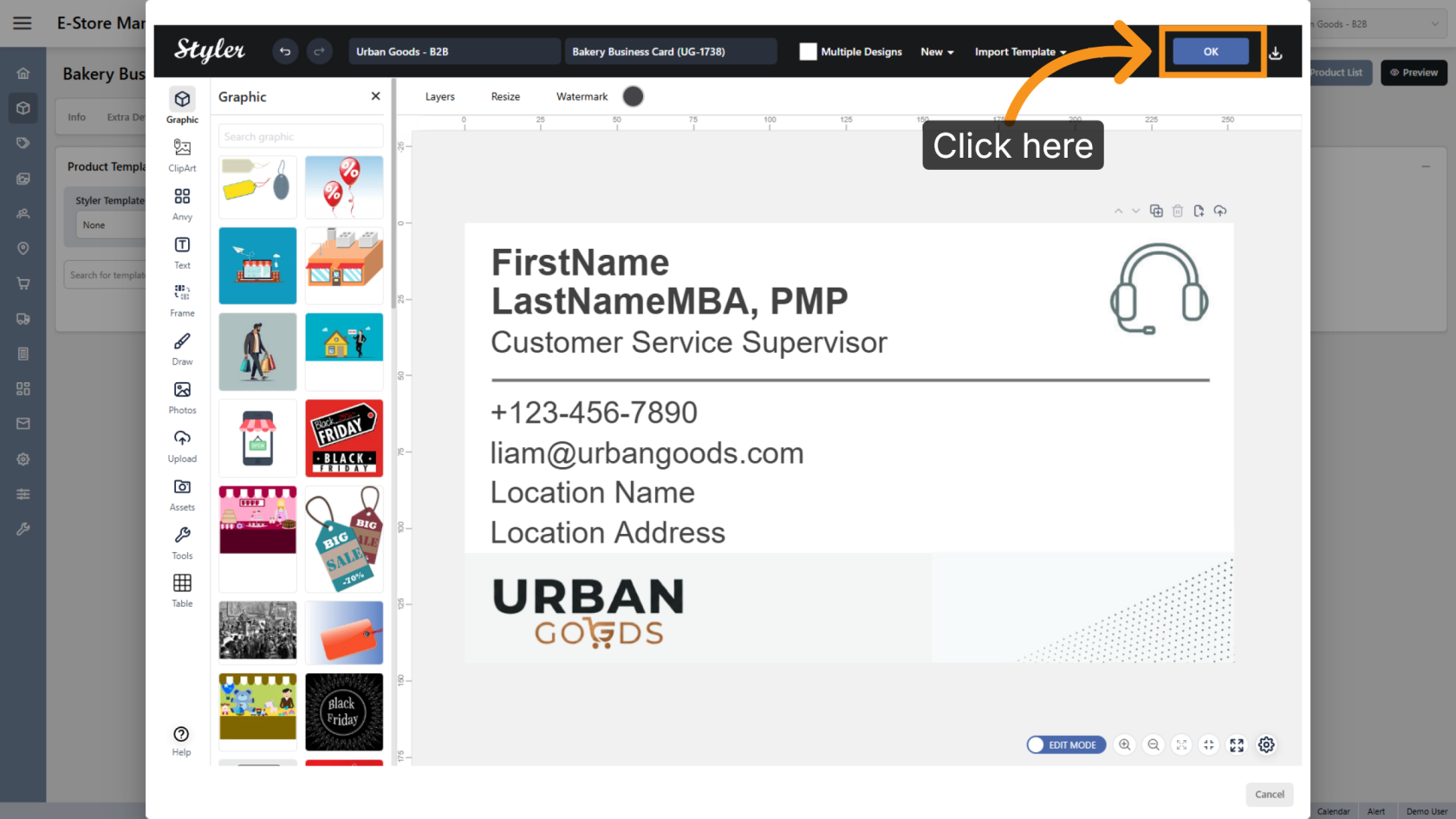
14. Save Template
Click OK to save the template.
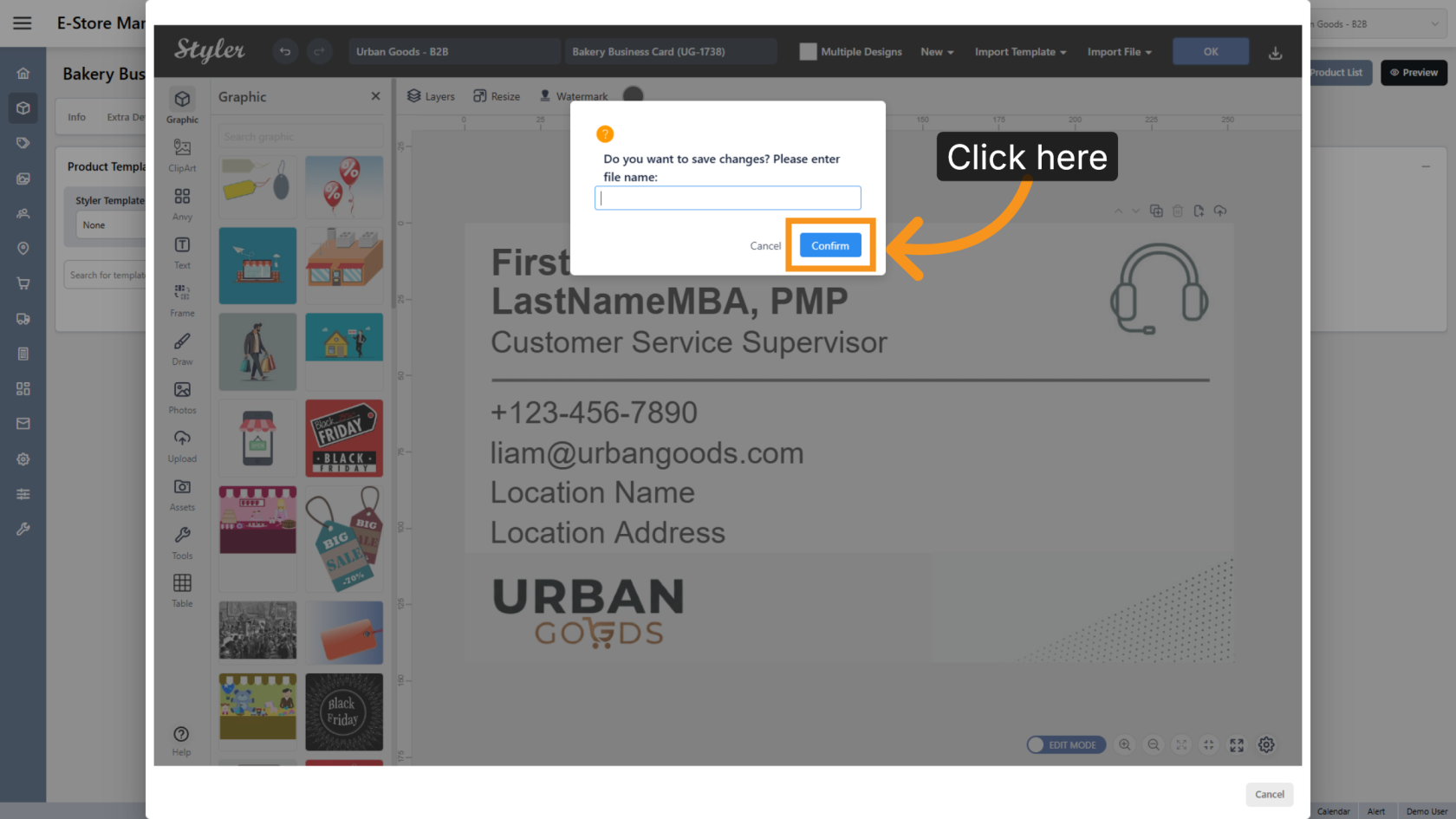
15. Enter Template File Name
Enter the template file name and click Confirm.
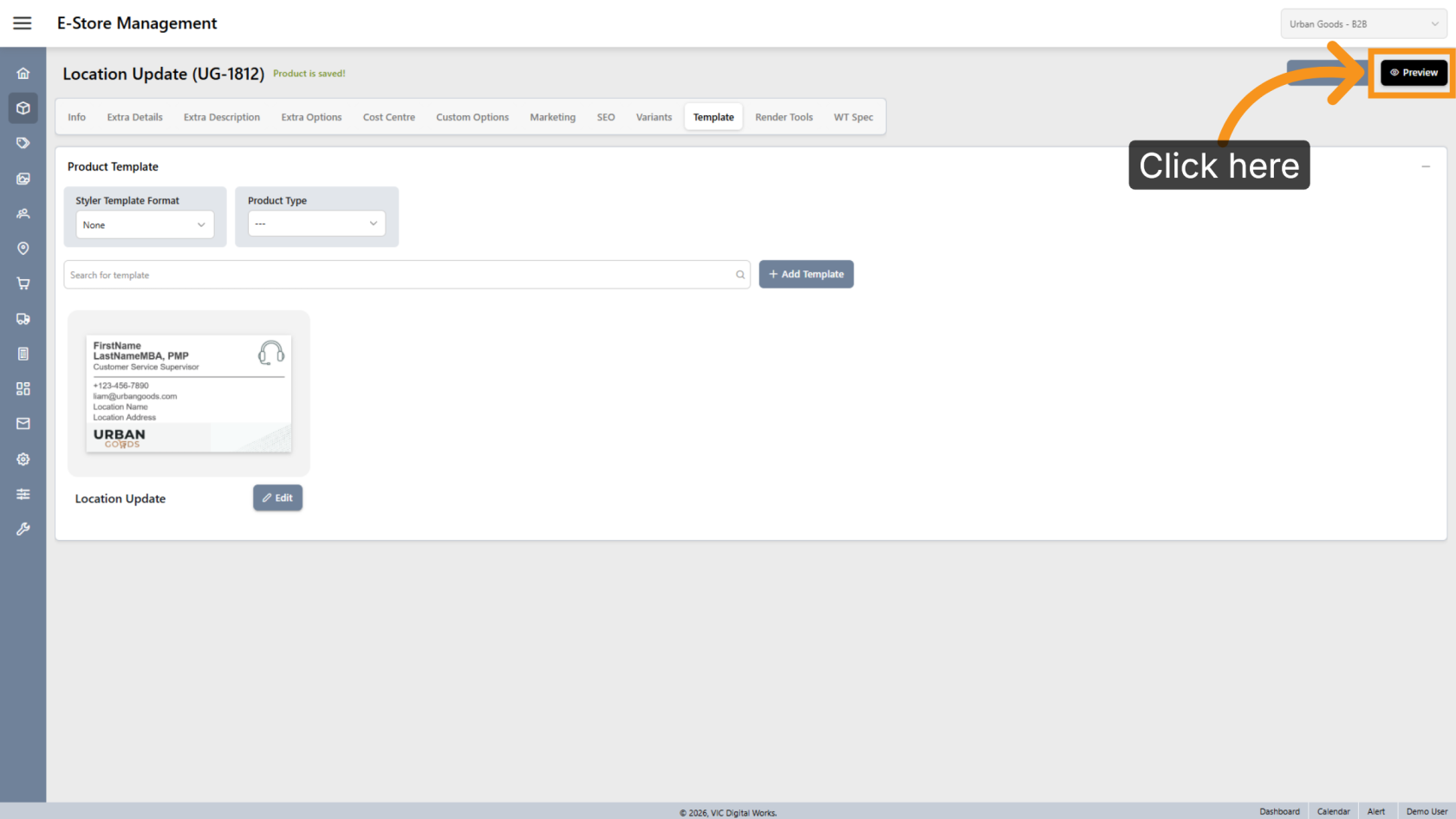
16. Preview Final Design
Click Preview to view the final design layout.
17. Browse Design
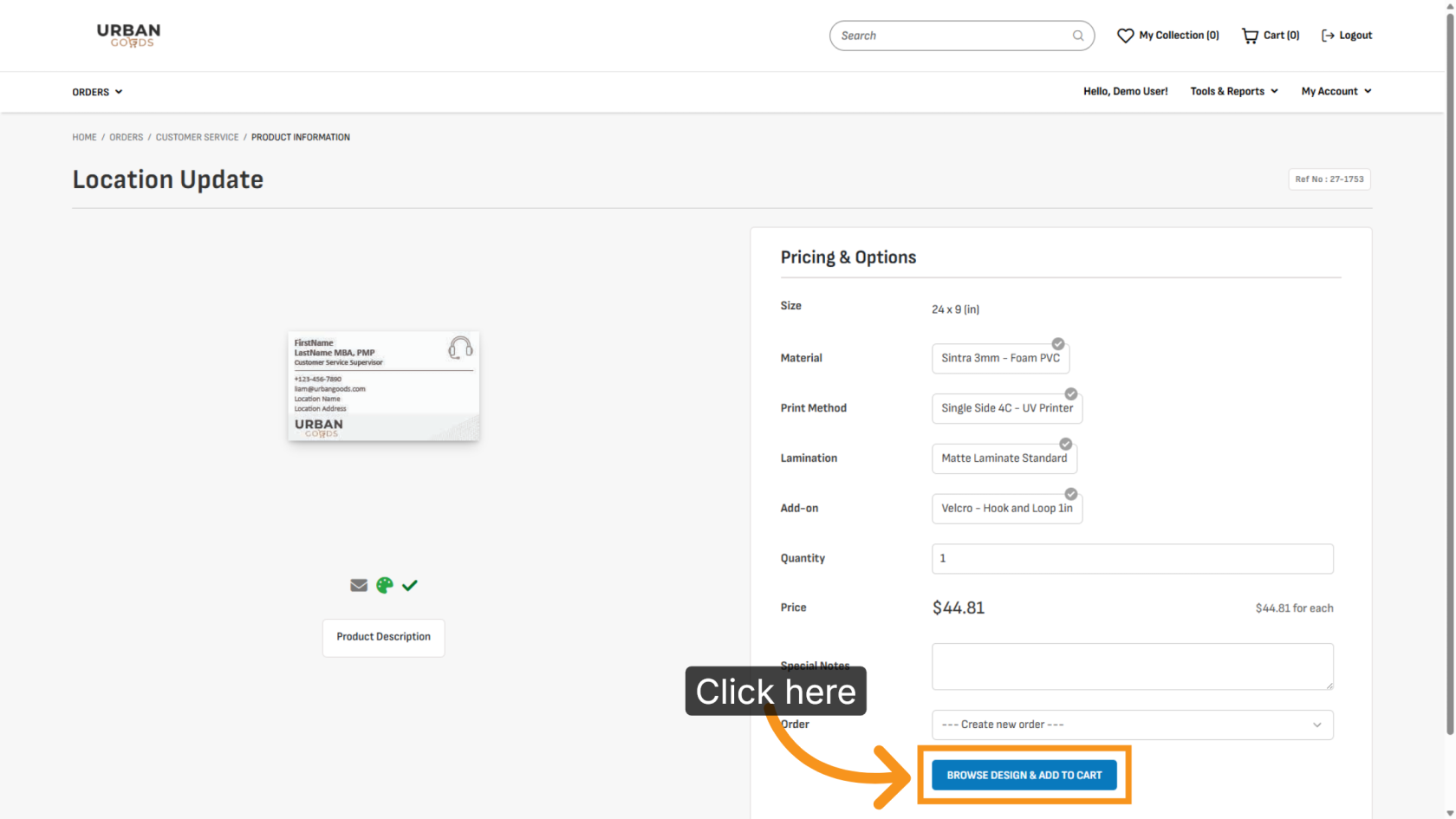
Click BROWSE DESIGN & ADD TO CART to choose a design for printing.
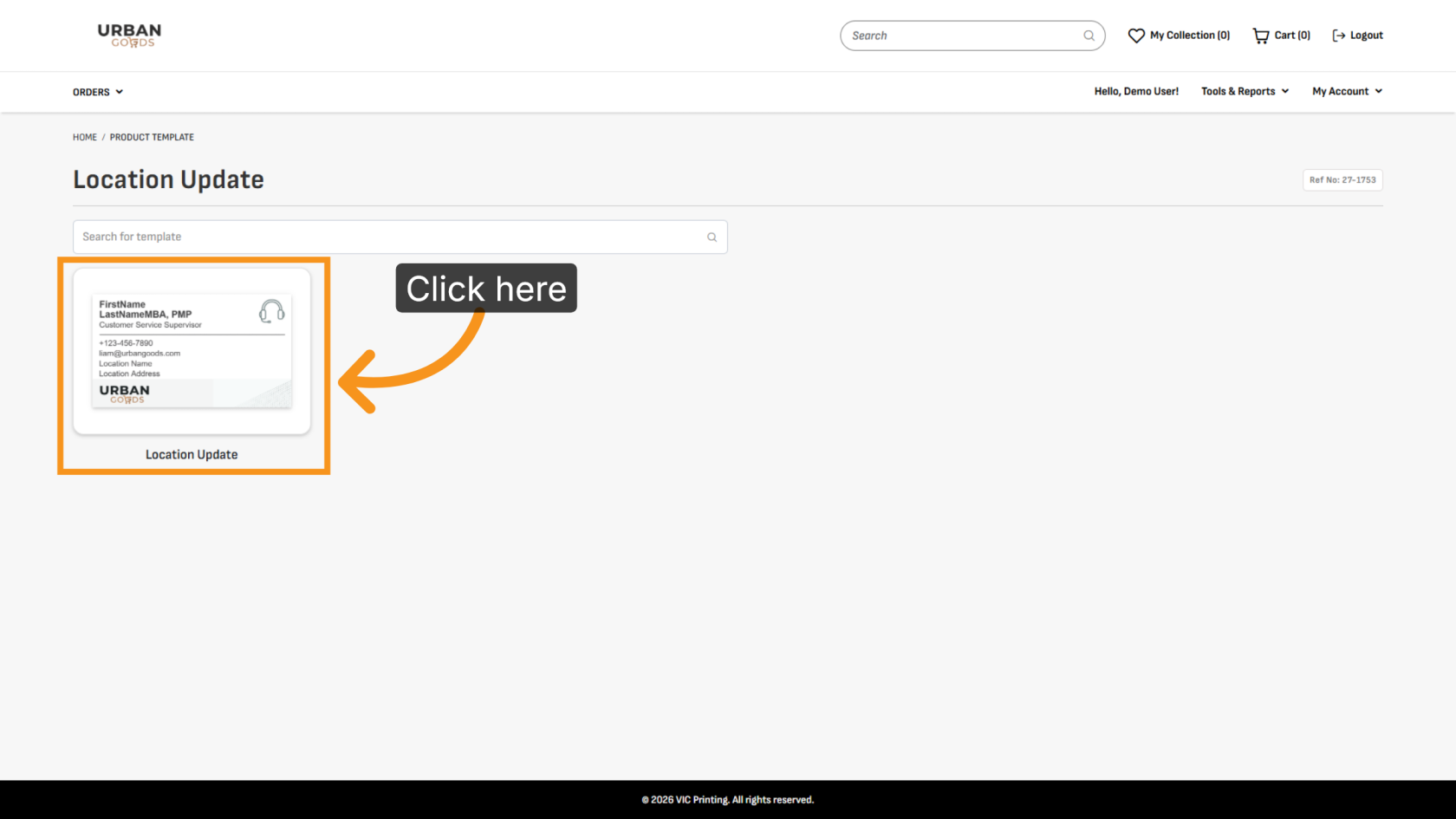
18. Select Design
Click the template you want to use for printing.
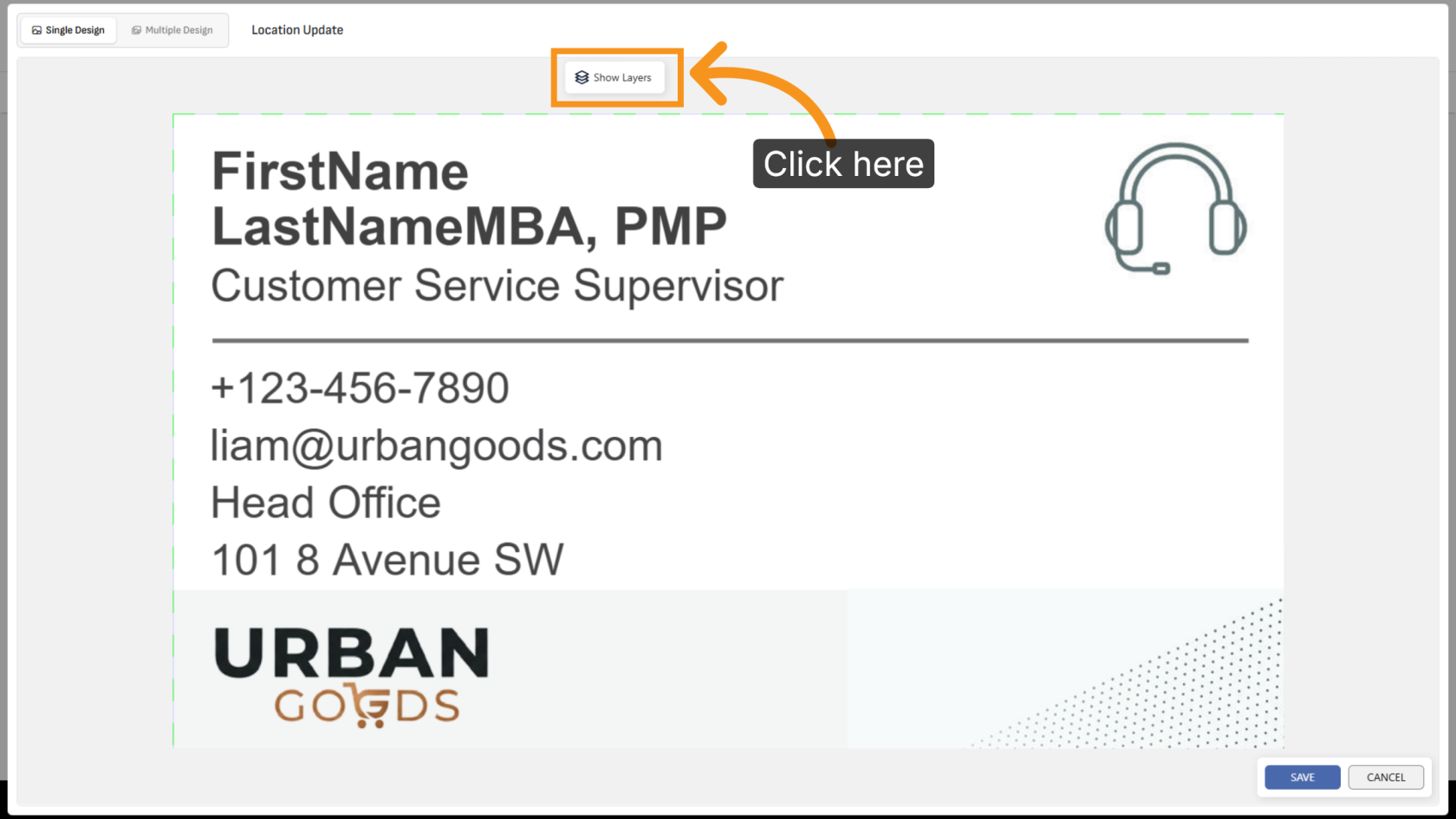
19. Show Layer
Click Show Layer to display all variant layers in the design.
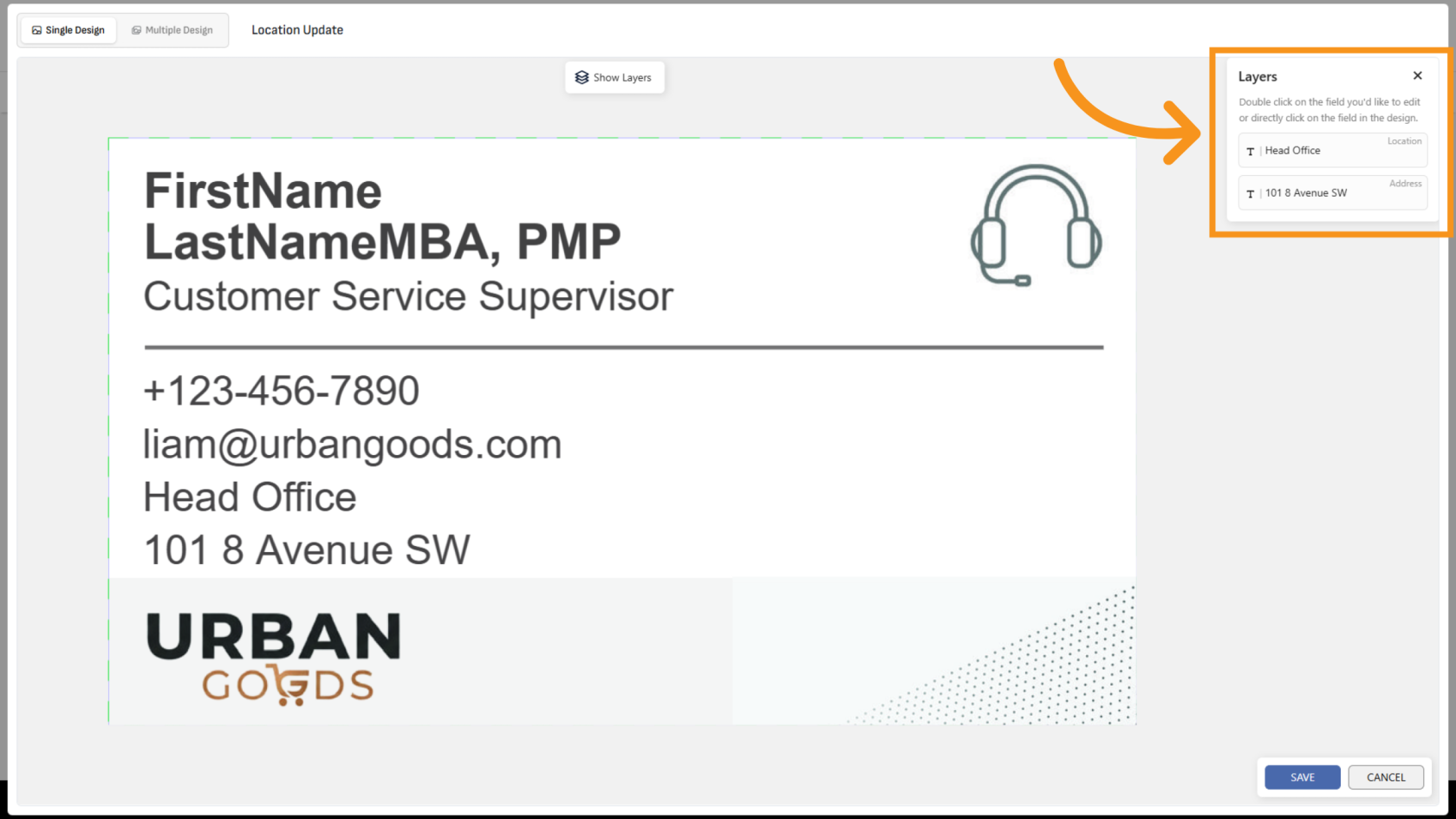
20. Review Layer
All layers will be displayed for easy management and editing.
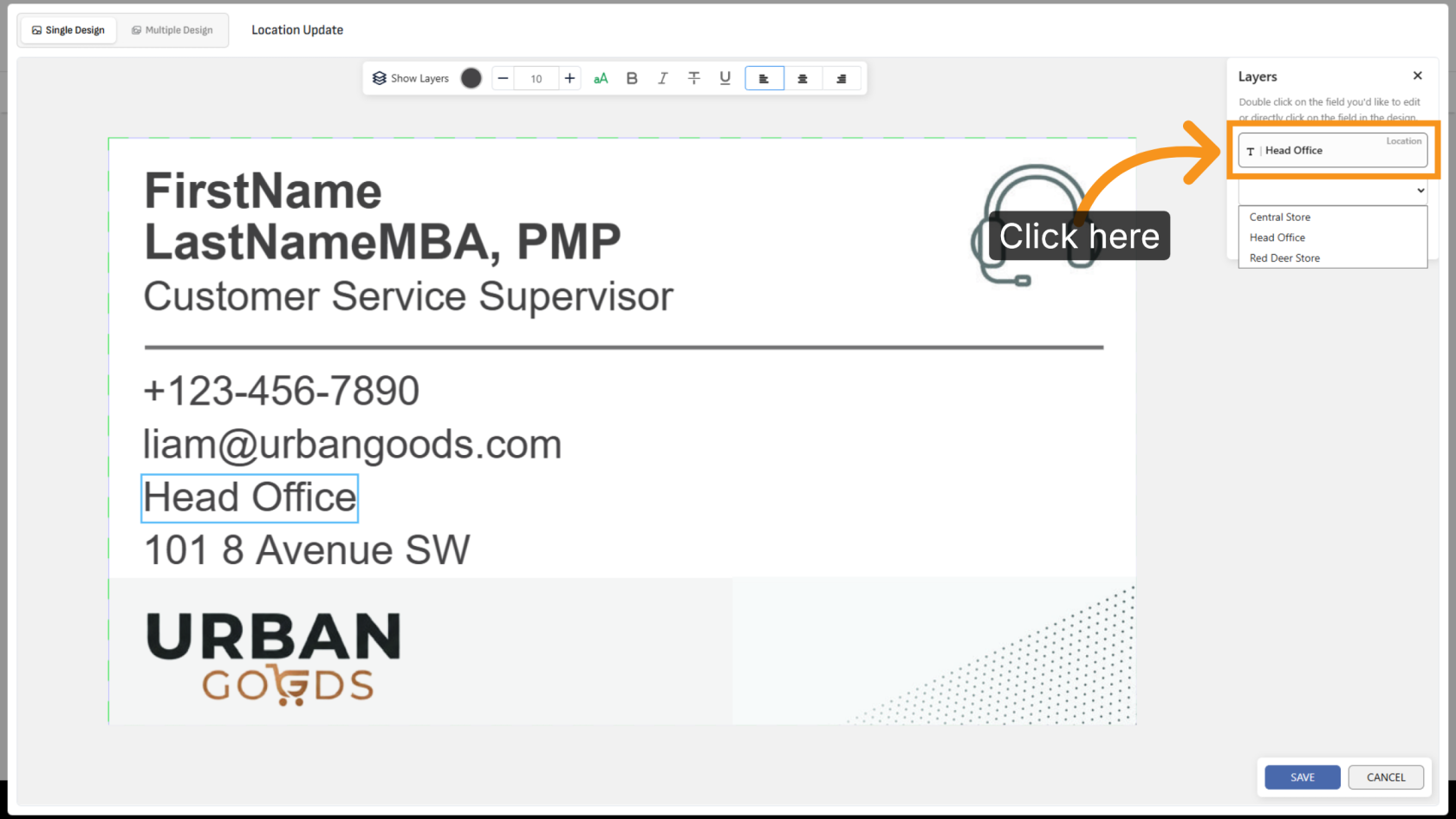
21. Select Store Location
Click the Location field and select the appropriate store location for your template.
22. Address Update
The address variant will automatically update to match the selected location.
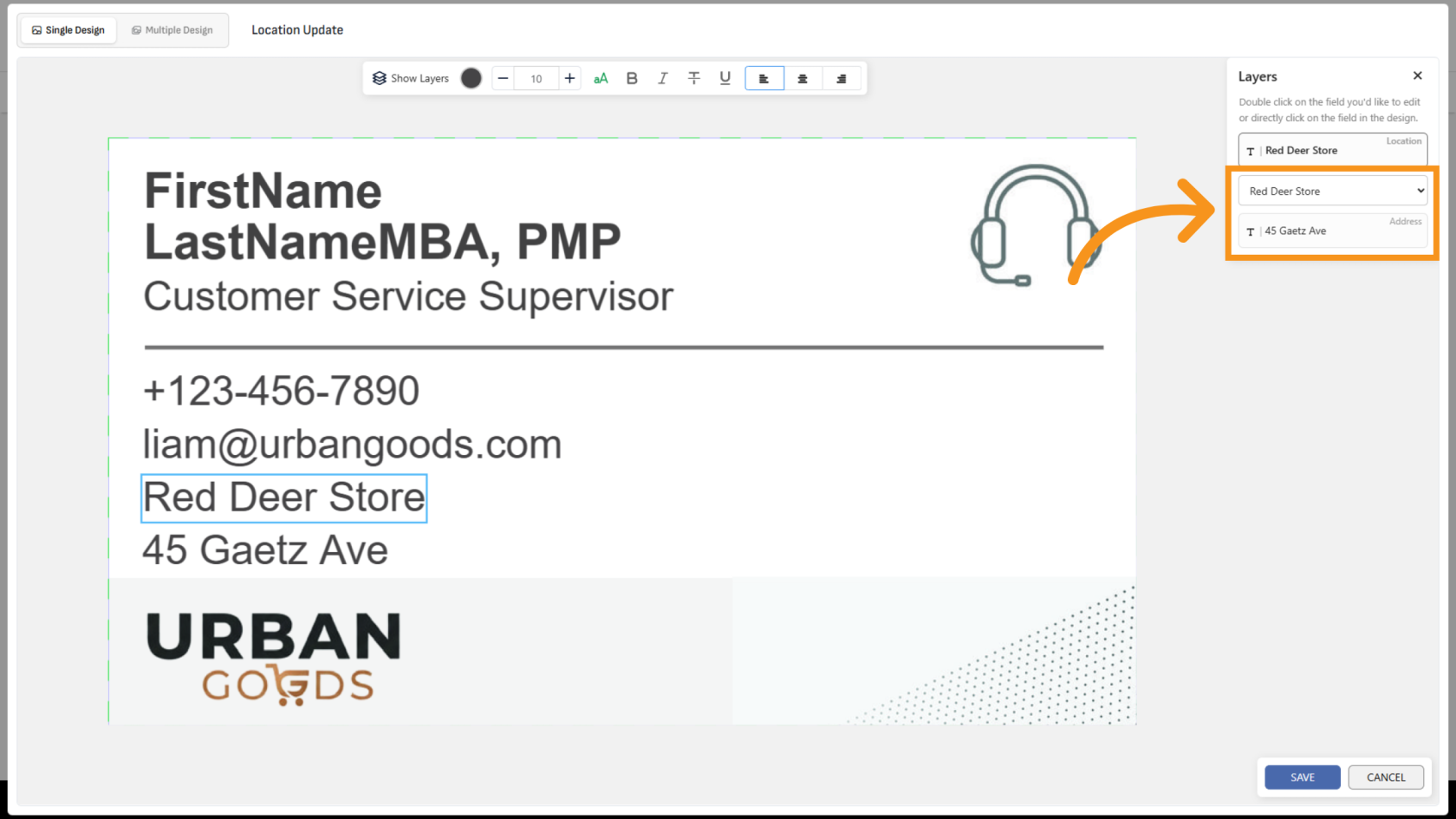
You have successfully configured a Location variant. The address field will now automatically update based on the selected location.